User Guide for CS-Cart GPGCheckout Payment Gateway
CS-Cart GPGCheckout Payment Gateway:
GPGCheckout provides secure payment integration with CS-Cart.
GPG is PCI DSS-certified by Visa and MasterCard, serving Africa and the Middle East.
It gives you greater control to create and optimize your store’s checkout experience.
Note:
- Install the add-on.
- Enter the license key.
- Follow the license activation steps.
Features
- Guarantees a payment environment that complies with VISA and MasterCard Regulations
- Redirects customers to a secure web page so no need to worry about PCI.
- User friendly interface to receive online payments.
- Provides fully secure payment to handle risk management system.
- Easy to configure and manage at admin end.
- Well integrated with CS-Cart Multi-Vendor.Please note that live demo link is not available due to unavailability of sandbox credentials. For detailed process flow of the add-on, Please go through this blogpost.
How To Upload and Install
- Go to Manage Add-ons, click on the gear drop-down, and select Manual Installation.
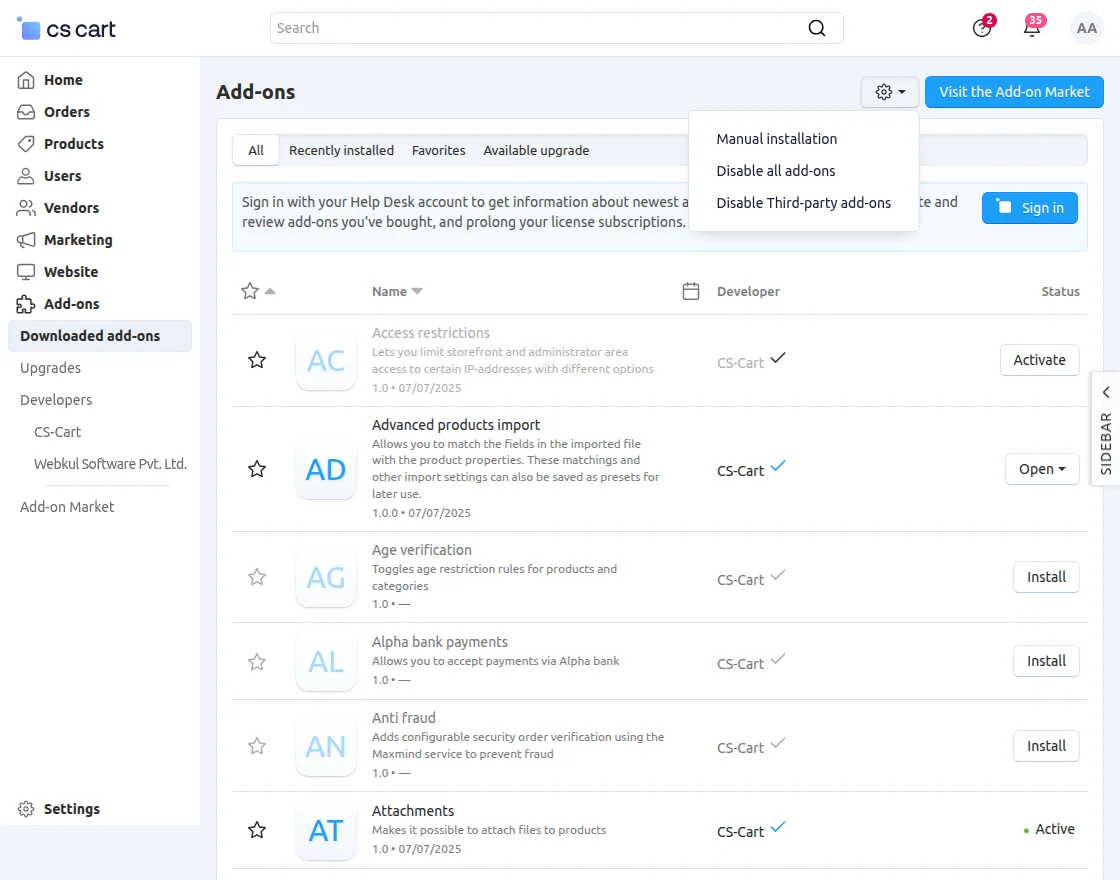

2. Click on Local to select the zip file.
Then click on “Upload & Install” as shown below in the snapshot.
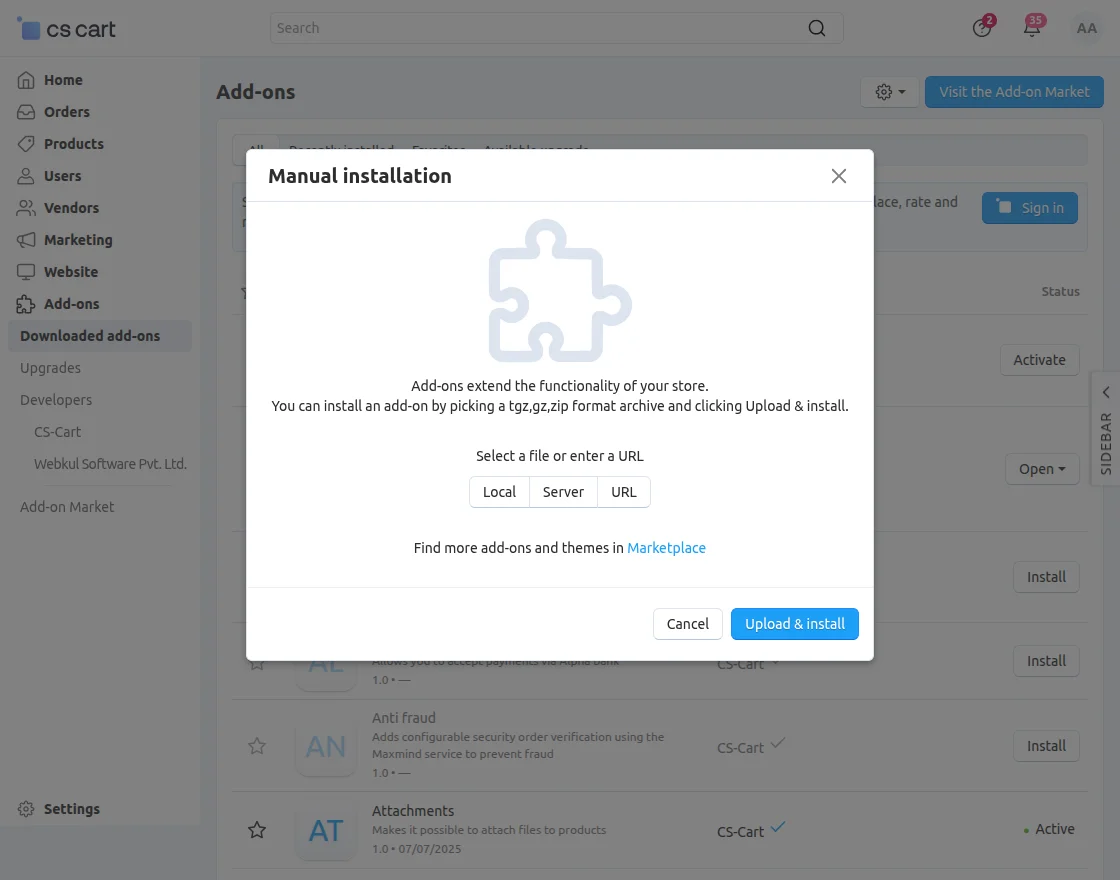
Add-on installed successfully!
Payment Method Configuration
Go to “Administration” tab and click on “Payment methods”.
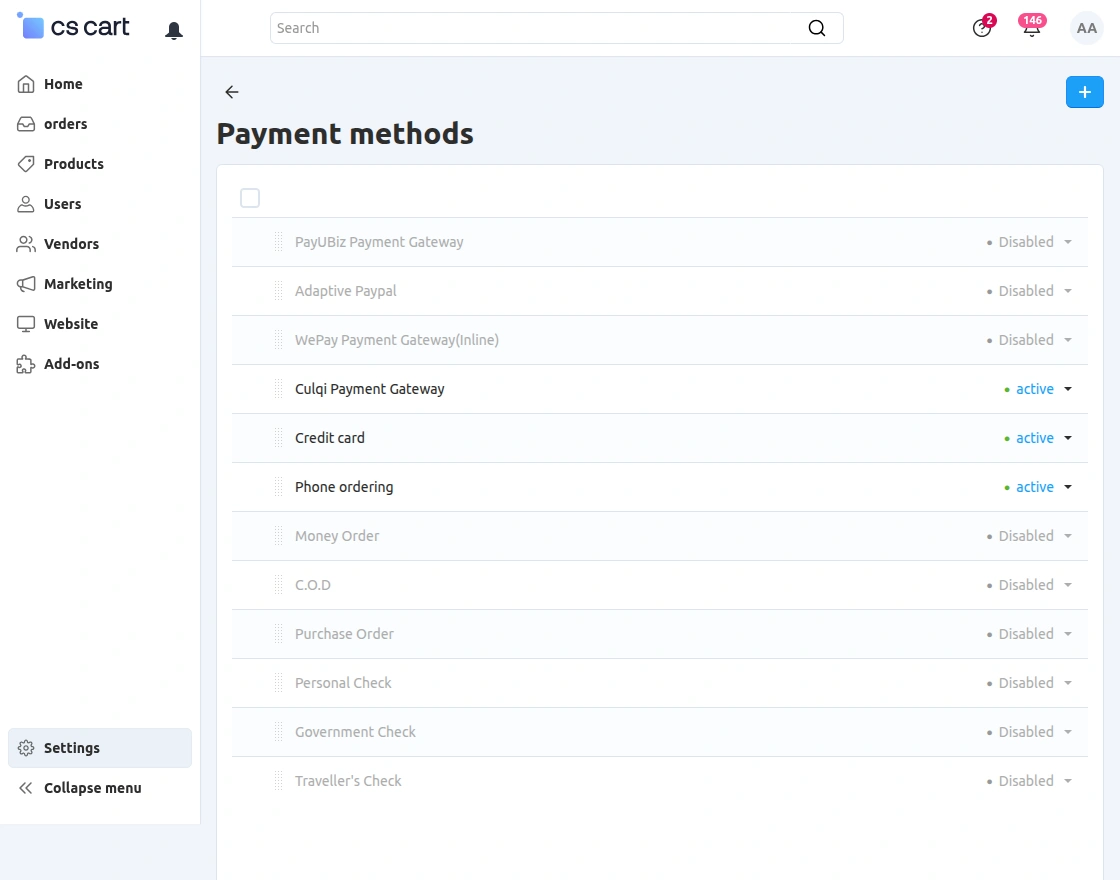
Set the parameters as shown below in the snapshot.
- Set the name of the payment method.
- For checkout choose the processor as “Gpgcheckout Payment Gateway”.
- Select template as “cc_outside.tpl” from the dropdown.
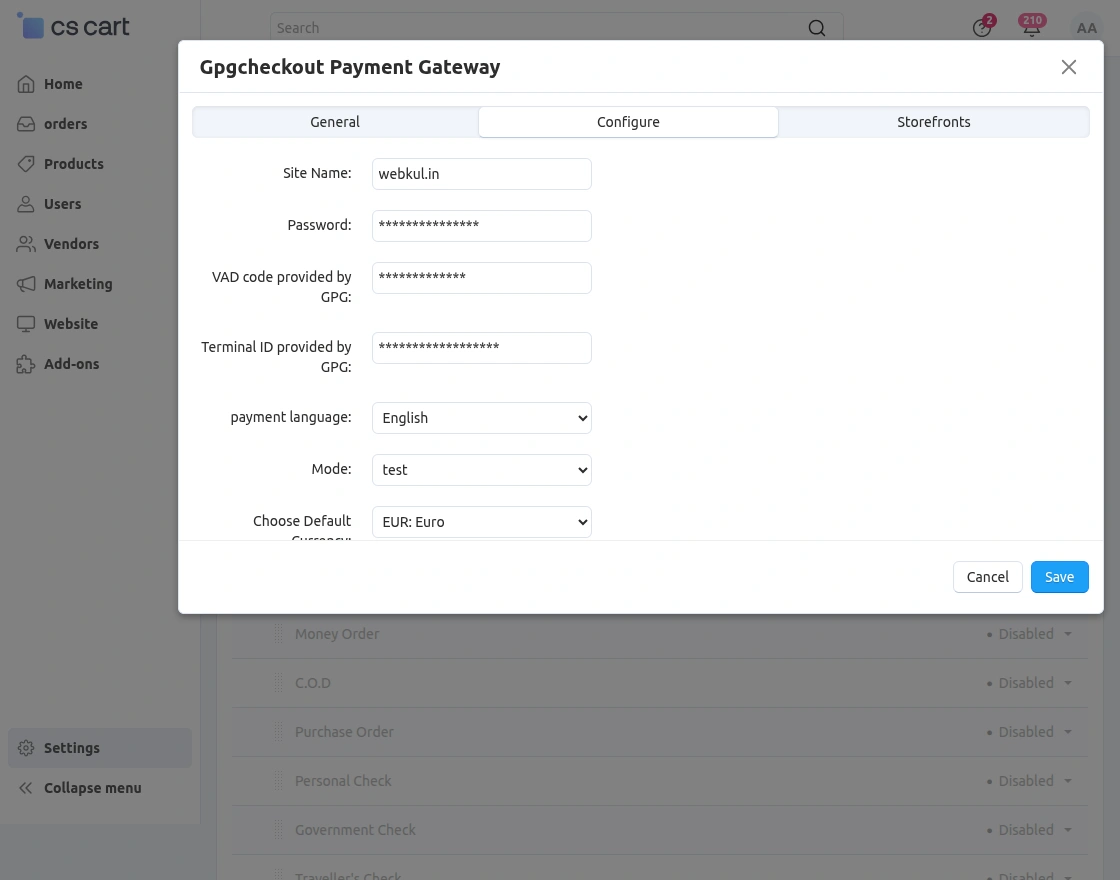
- Configure the tabs accordingly as shown below in the snapshot.
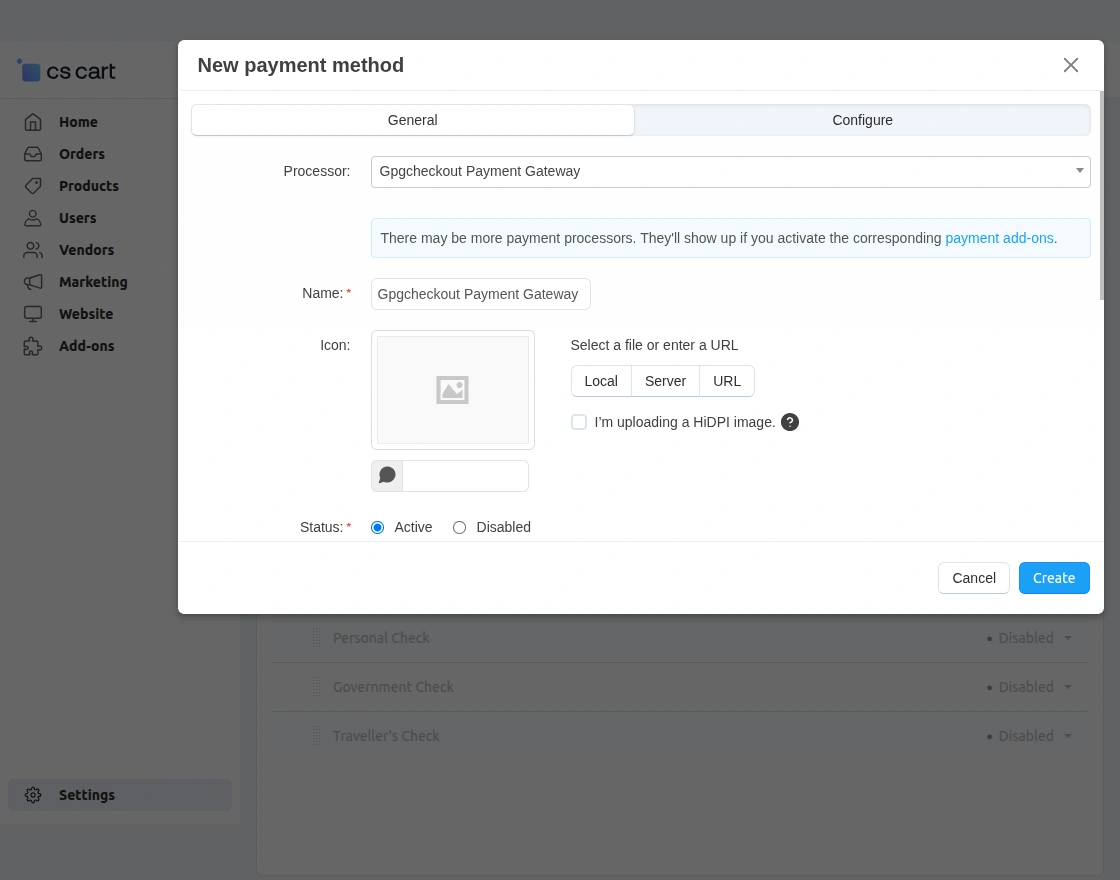
Click on “Configure” and set the parameters as shown below in the snapshot.
- Enter credentials for GPGCheckout Payment Gateway.
- Select the default language for payment method.
- Select the Test/ Live mode of payment.
- Choose default currency for payment.
- Set the default order status.
- Click on create button to create the payment method.
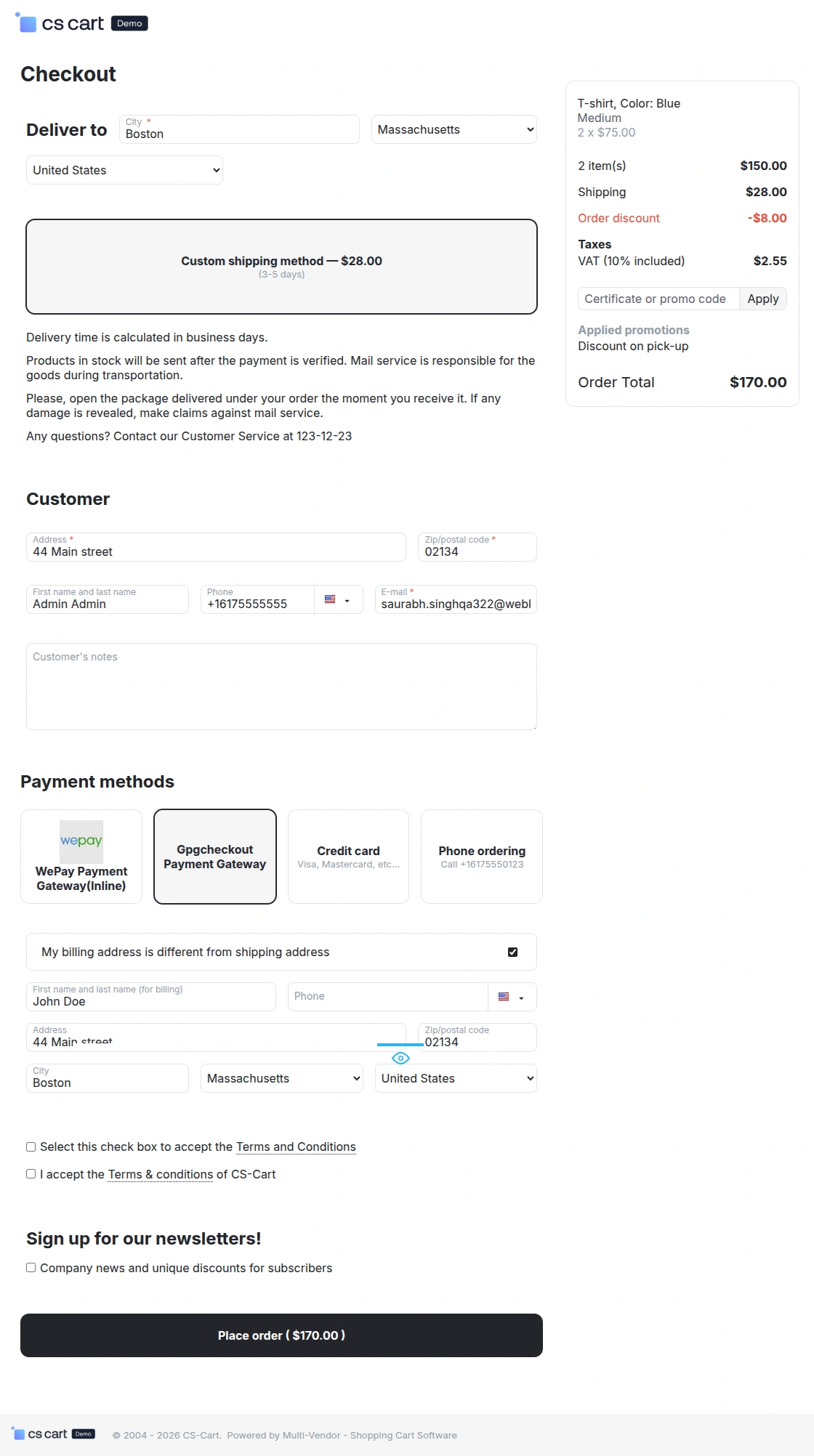
Front End View
Now option for payment via GPGChechout is available for customers at front end. For payment customer need to select the option and submit order as shown below in the snapshot.
Now the customer will get redirected to GPG site for payment as shown below.


Once the customer clicks on Pay button, he will get the form for payment. Where the card details need to be filled.

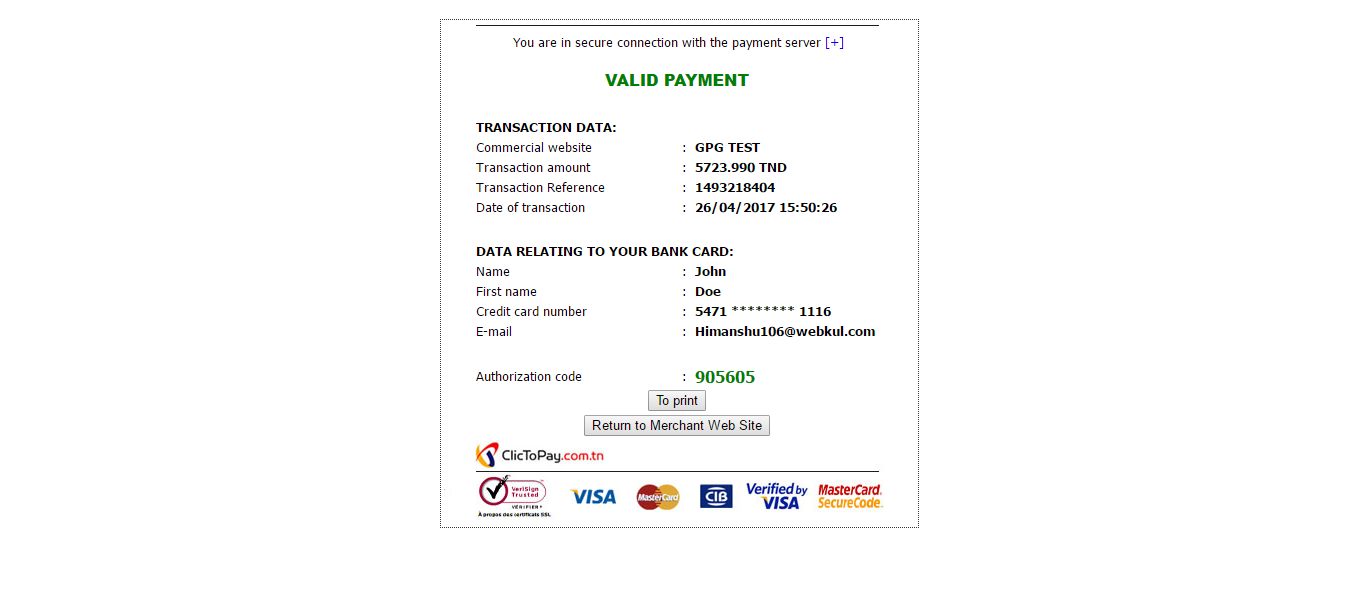
On successful payment this will be the view at GPG end. Click to print the receipt & click on return button to continue.
On clicking the return button customer will get the successful payment notification message as shown below.
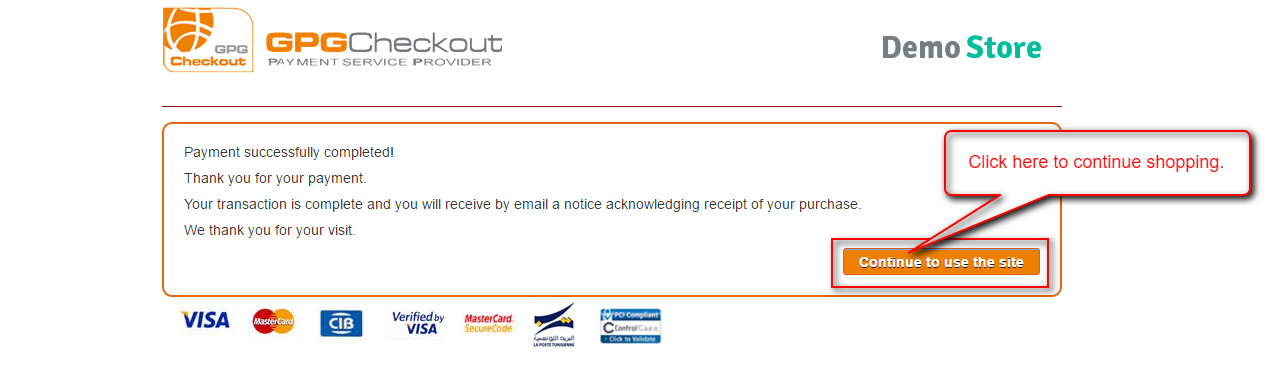
And finally on clicking Continue button provided, customer will get redirected to CS-Cart store.This is all about CS-Cart GPGCheckout Payment Gateway.
Support
Still have any issue, feel free to contact us at http://webkul.uvdesk.com and let us know your views to make the module better.
Please explore our cs-cart Development Services and Quality cs-cart add-ons