CS-Cart Daily Deal
CS-Cart Daily Deal lets you create limited-time product deals to boost sales. It drives quick purchase decisions by creating urgency.
Your store can use this add-on to promote exciting short-term sales, inspiring shoppers with the “grab it before it’s gone” feeling.
Check the overview of the module CS-Cart Daily Deal
Features
- Easy to use and maintain for the admin.
-
Advanced backend options for the admin to add and manage deals.
-
Admin has complete control over all deal settings.
-
One-time layout setup, and the add-on handles the rest automatically.
-
Admin can set a specific time limit for each deal to activate and expire.
-
Automatic price adjustment when a deal activates or deactivates.
-
Various product showcase options to highlight deals across different pages.
-
Countdown timer display to create urgency among customers.
-
Option to schedule future deals for automatic activation.
-
Customizable deal labels, ribbons, and banners to grab attention.
-
Admin can easily track and manage active, upcoming, and expired deals.
-
Option to highlight featured or trending deals on the homepage.
-
Automatically restores the original product price after the deal ends.
Installation
After downloading the CS-Cart Daily Deal Field add-on, you will get the zip file of the installer, a PDF, and an install.txt file.
Read the PDF carefully for configuration.
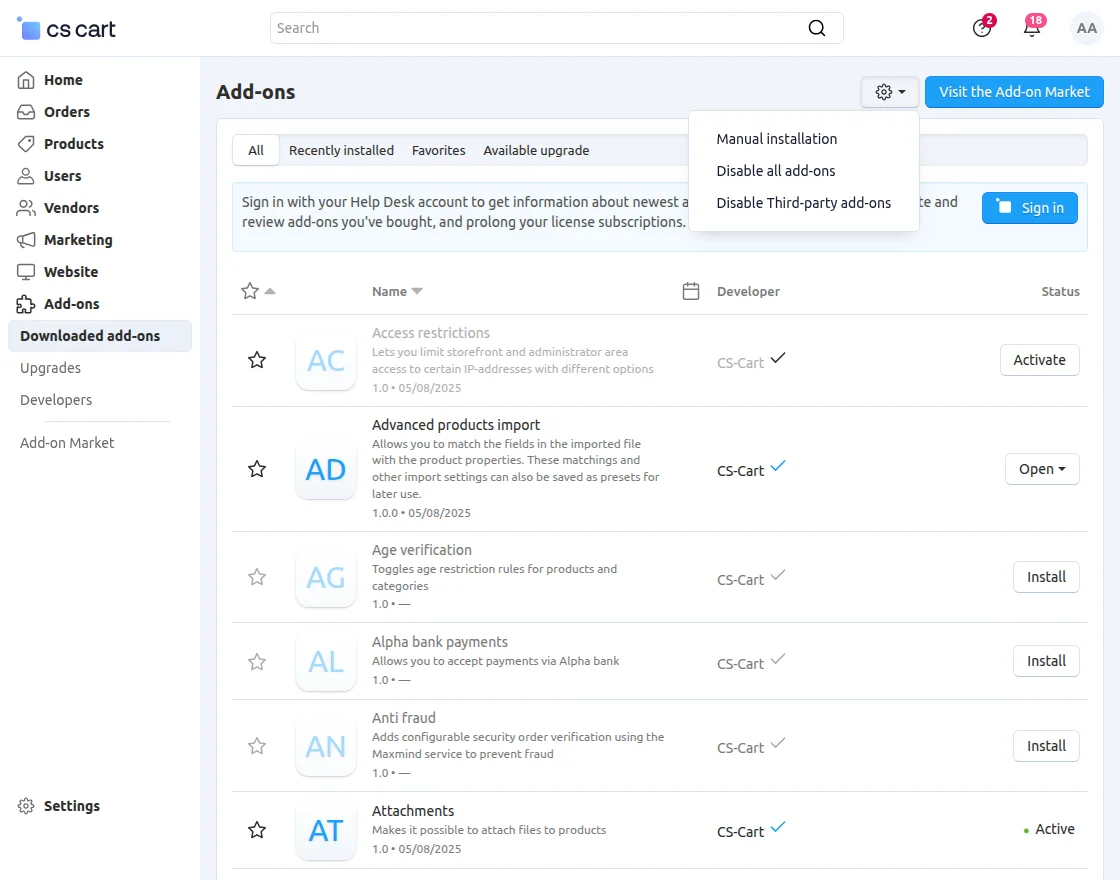
Navigate to Add-ons >> Downloaded add-ons and click on the settings icon. From here, you can manually install the zip file as shown below:
Click on “Local” to browse the zip file, and then click on “Upload & Install” as shown below in the snapshot.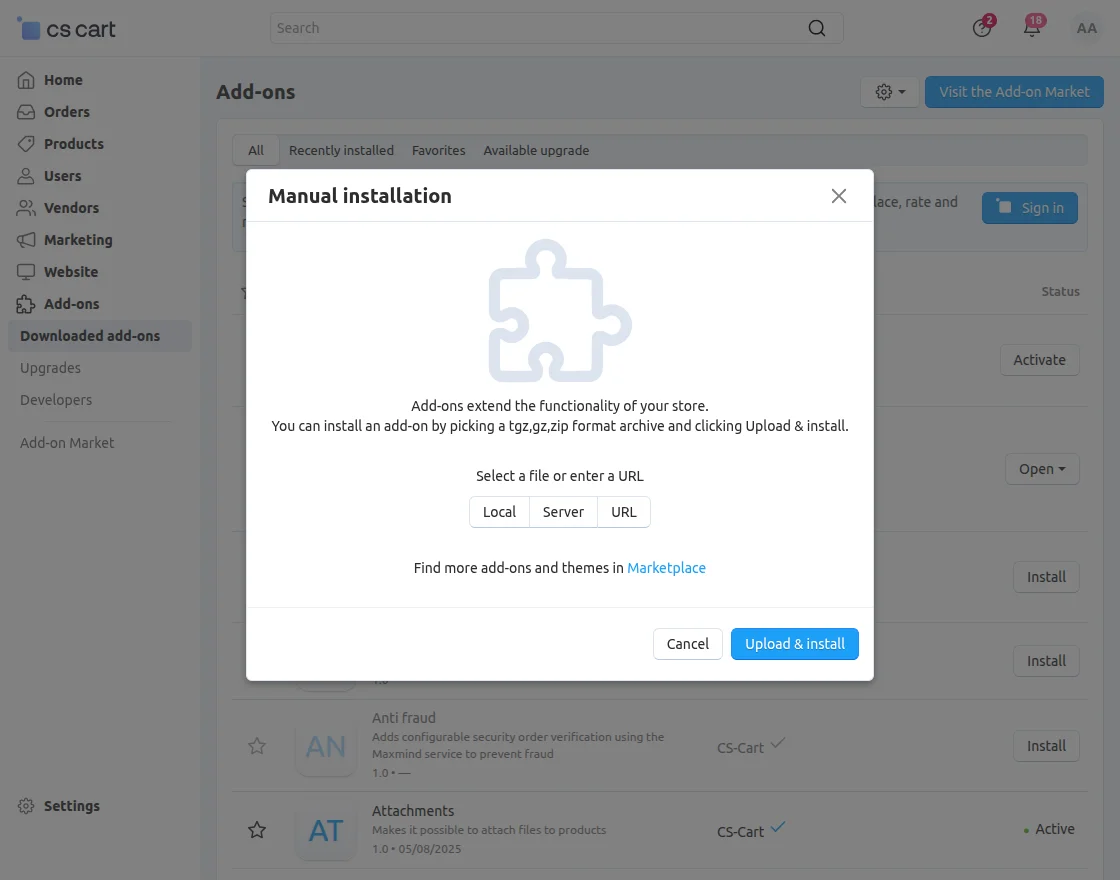

Module Configuration | Admin
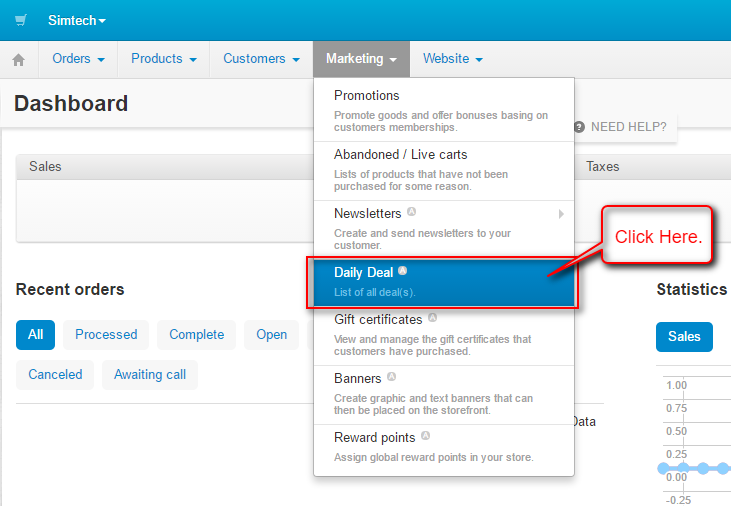
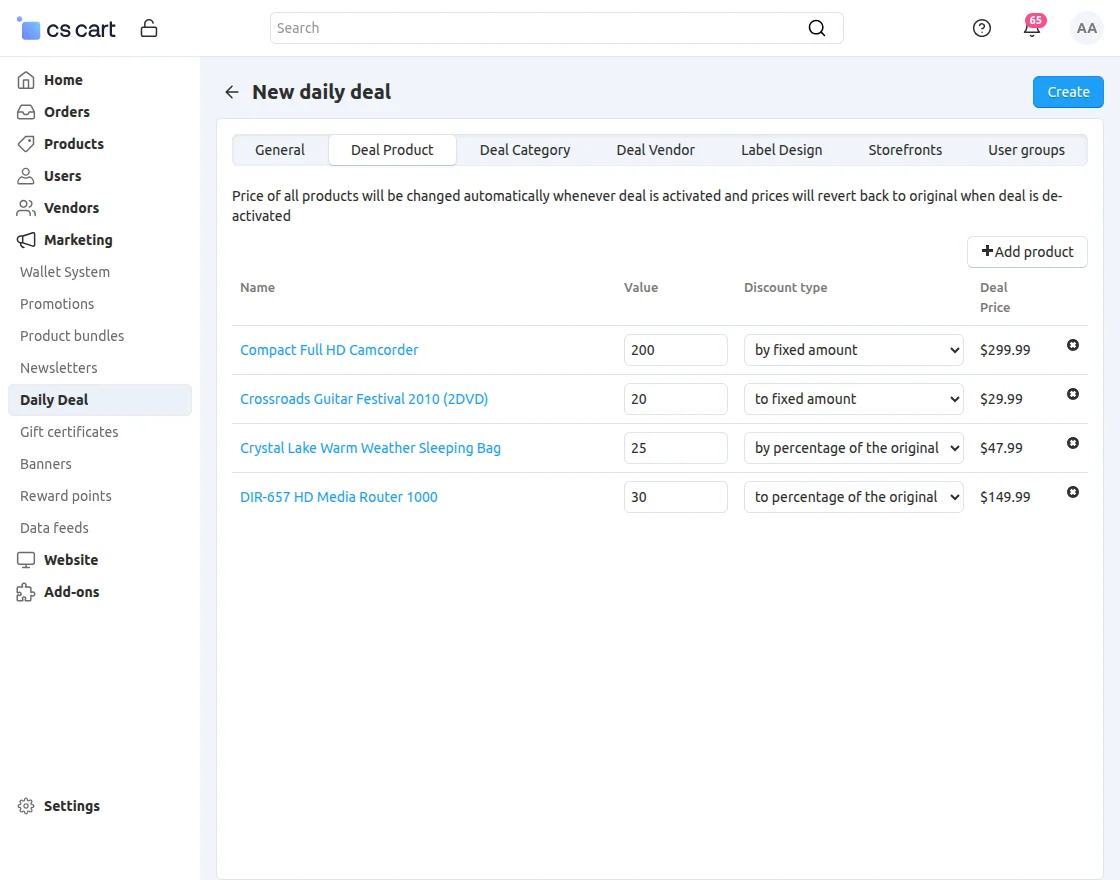
To configure the deals, navigate to Marketing >> Daily Deals.
-
Deal Name: Enter the name of the deal.
-
Period: Select the time zone and duration for the deal.
-
Status: Set the current status of the deal (Active or Inactive).
-
Priority: Assign the deal priority. A higher value means higher display priority.
-
Banner Image: Upload or set a banner image for the deal.
-
Show Timer: Choose whether to display the countdown timer on the deal.
-
Deal Timer Background: Select the background for the deal timer.
-
Timer Position: Choose the position where the timer will appear on the product page.
Layout Settings
To configure the layout, navigate to Website >> Themes in the admin panel.
Select Layout to add a new layout for the deals and choose the position where you want to place it on the page.
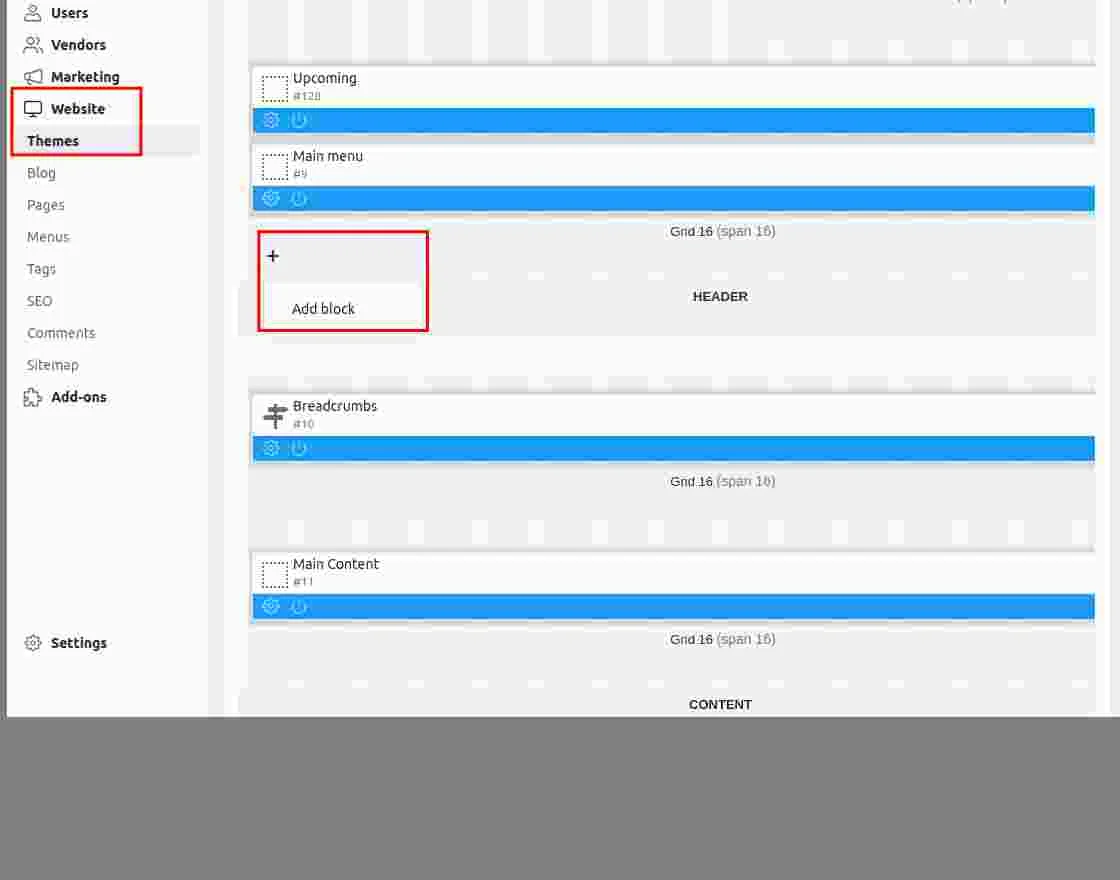
To add a template for deals, navigate to Add Blocks >> Create New Block >> Daily Deals.
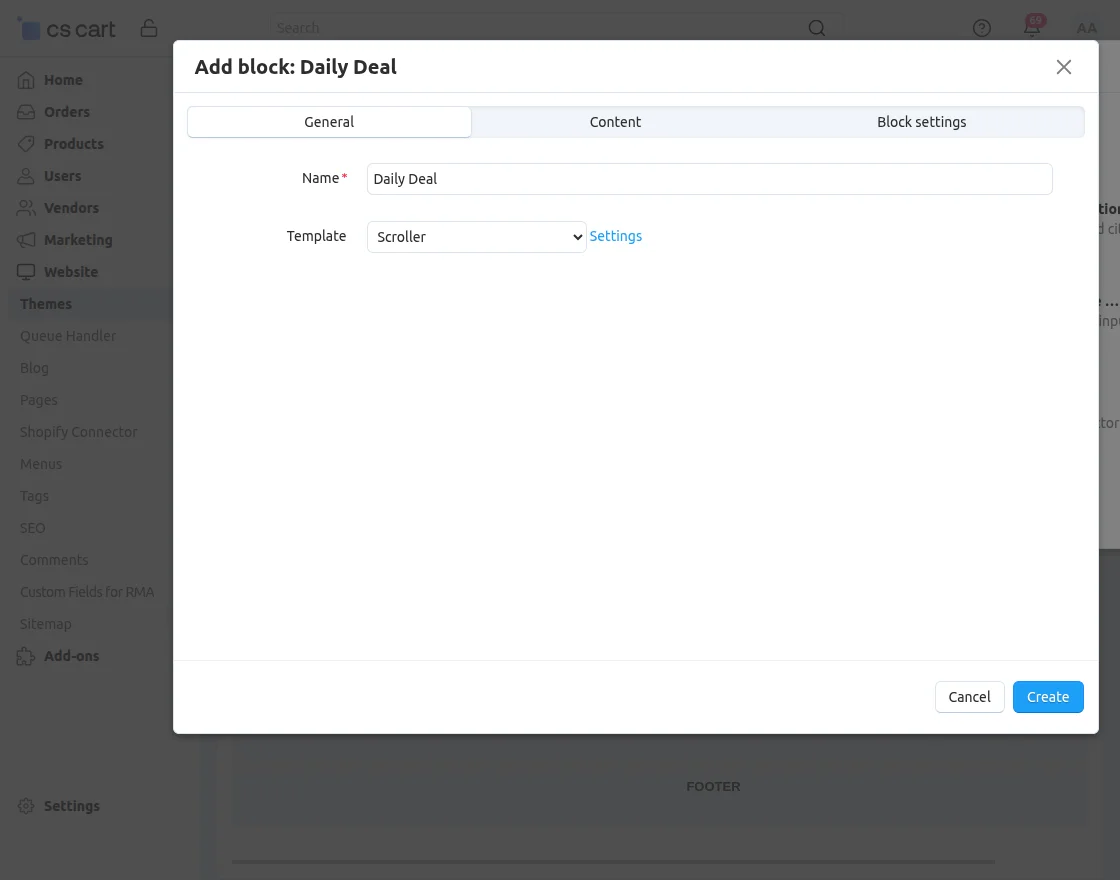
General
- Name: Enter a name for your deal template.
- Template: Choose how you want deals to appear.
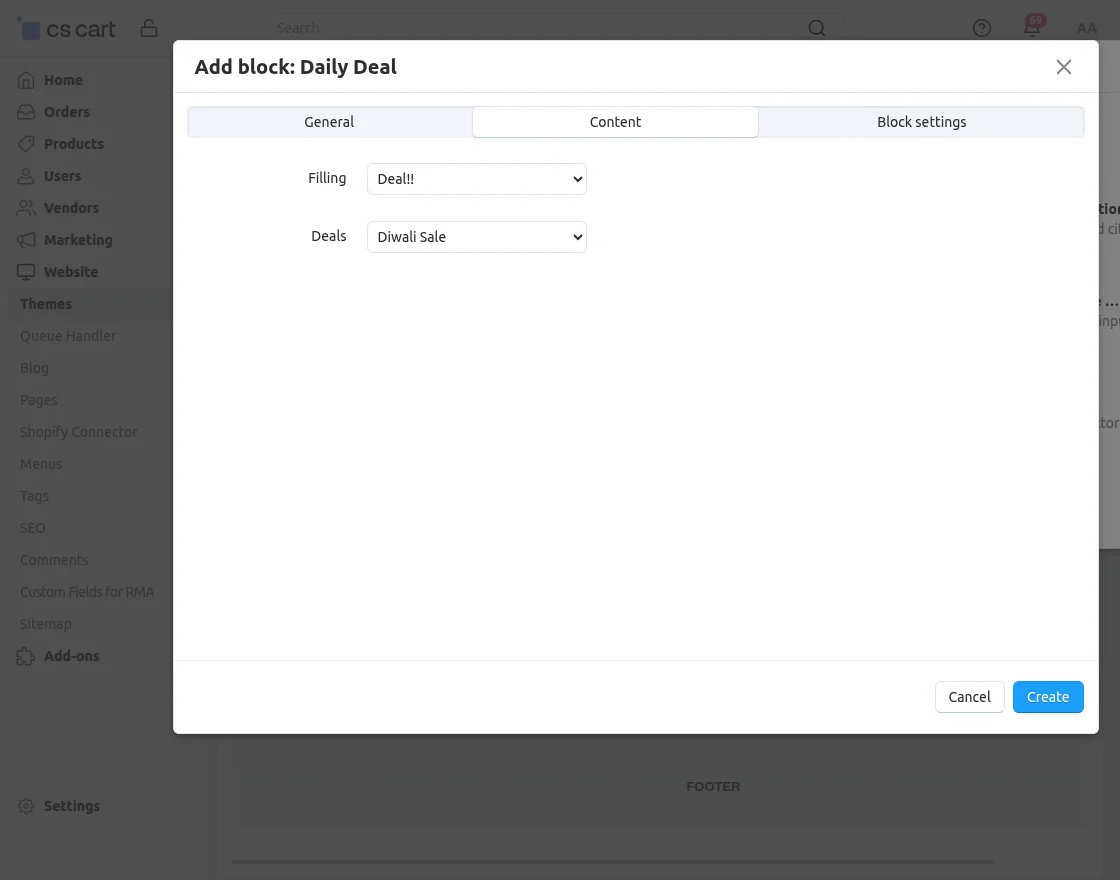
Content
Choose the specific deal you want to display on the layout.
Block Settings:
Choose the line color to match your store’s theme.Line Color: Choose the line color to match your store’s theme.
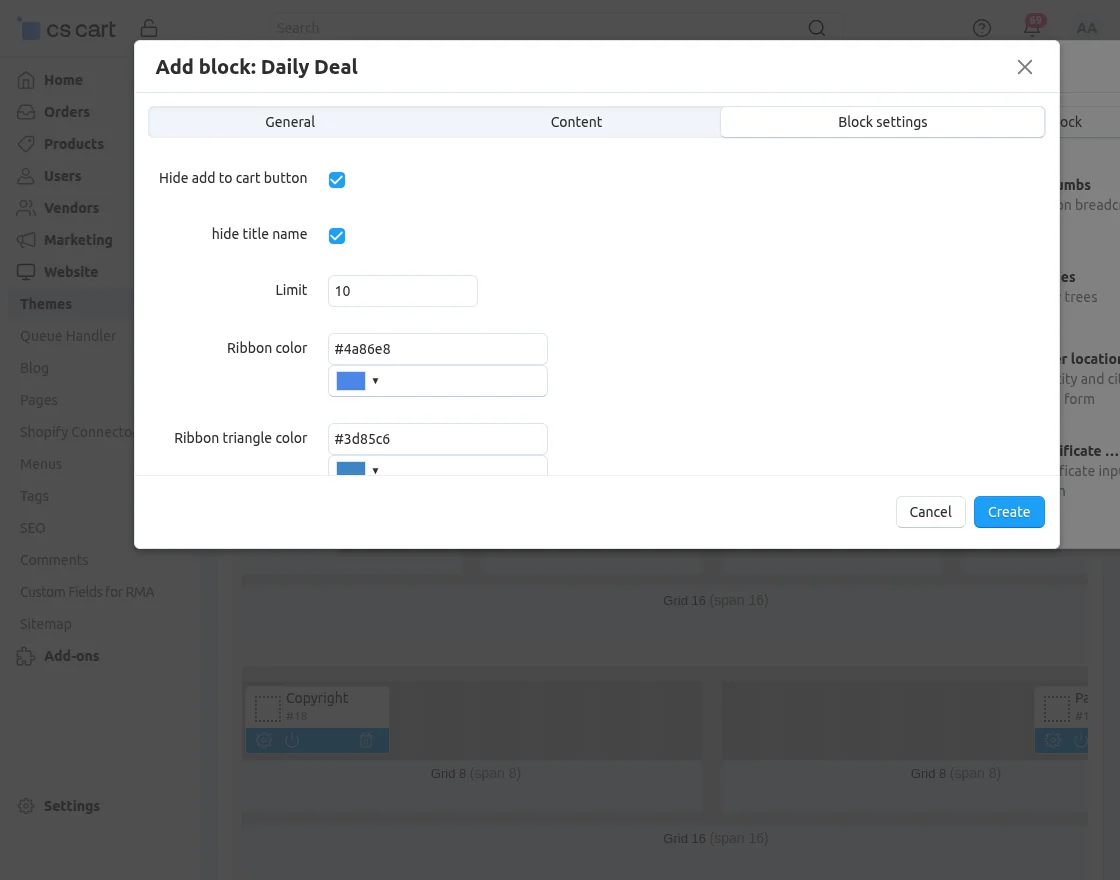
- Hide Add to Cart Button: Select this option to hide the “Add to Cart” button on deal products.
- Hide Title Name: Choose whether to hide the product title from the deal block.
- Limit: Set the maximum number of deal products to display.
- Ribbon Color: Select the color of the ribbon displayed on the deal product.
- Ribbon Triangle Color: Choose the triangle color for the ribbon design.
- Font Color: Set the font color for the deal text.
- Line Color: Choose the line color to match your store’s theme.
Frontend
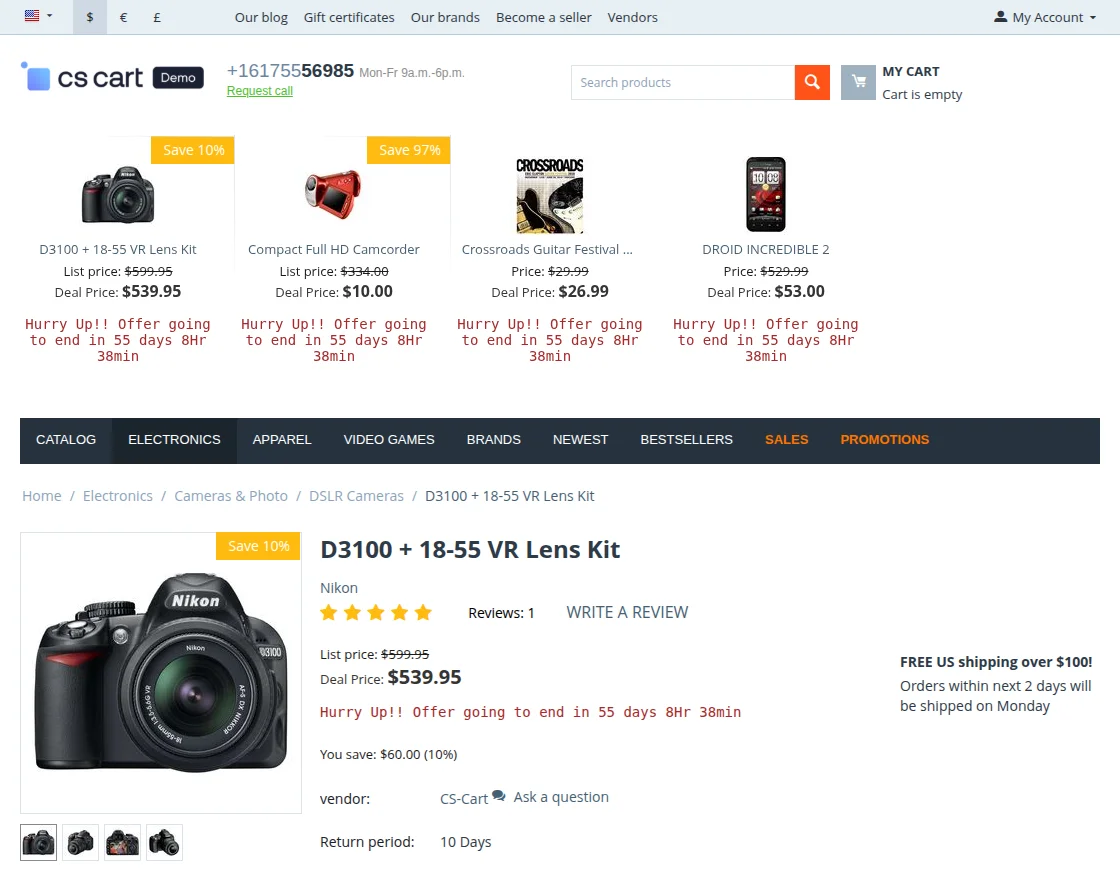
Customers can view all active deals directly on the storefront, including deal details, discounts, and countdown timers.
Support
If you have any questions, suggestions, or customization requests, feel free to contact us at support@webkul.com or submit a ticket at webkul.uvdesk.com.
Explore our premium-quality CS Cart Extensions to enhance your store functionality.
You can also explore our CS-Cart Development Services and Quality CS-Cart add-ons.