CS-Cart COD Availability By Pincode Or Zipcode
Table of Content
This COD availability checker enables customers to verify whether COD is available in their location. As a result, it improves the shopping experience and increases customer satisfaction.
The admin can enable or disable the COD payment option for selected pincodes or zipcodes based on service availability.
Note: Before installing the add-on, extract the downloaded package.
- Install the License Manager add-on first.
- Then install the required add-on.
- Follow the license activation steps to generate your license key.
Check a brief overview of the add-on –
Features
-
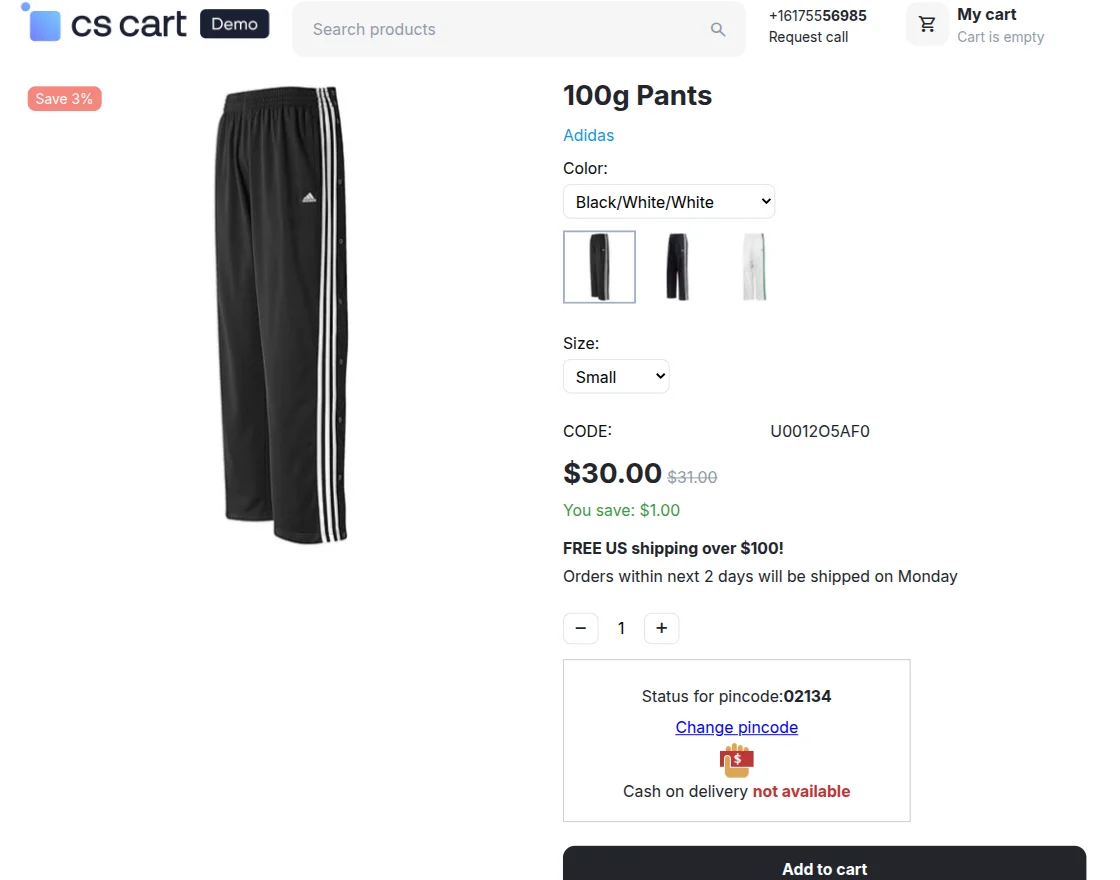
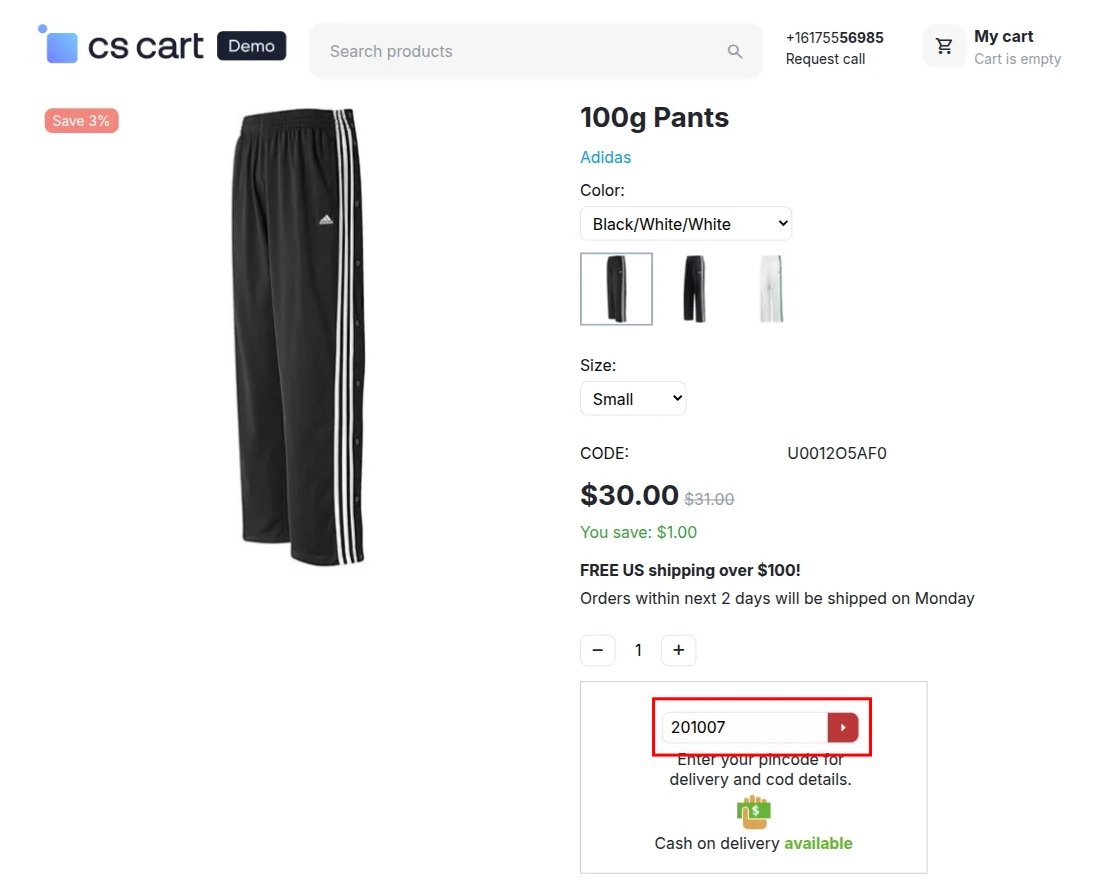
Customers can check Cash on Delivery (COD) availability by entering their Pincode/Zipcode directly on the product detail page.
-
The add-on allows customers to verify COD availability from the Quick View page without opening the full product page.
-
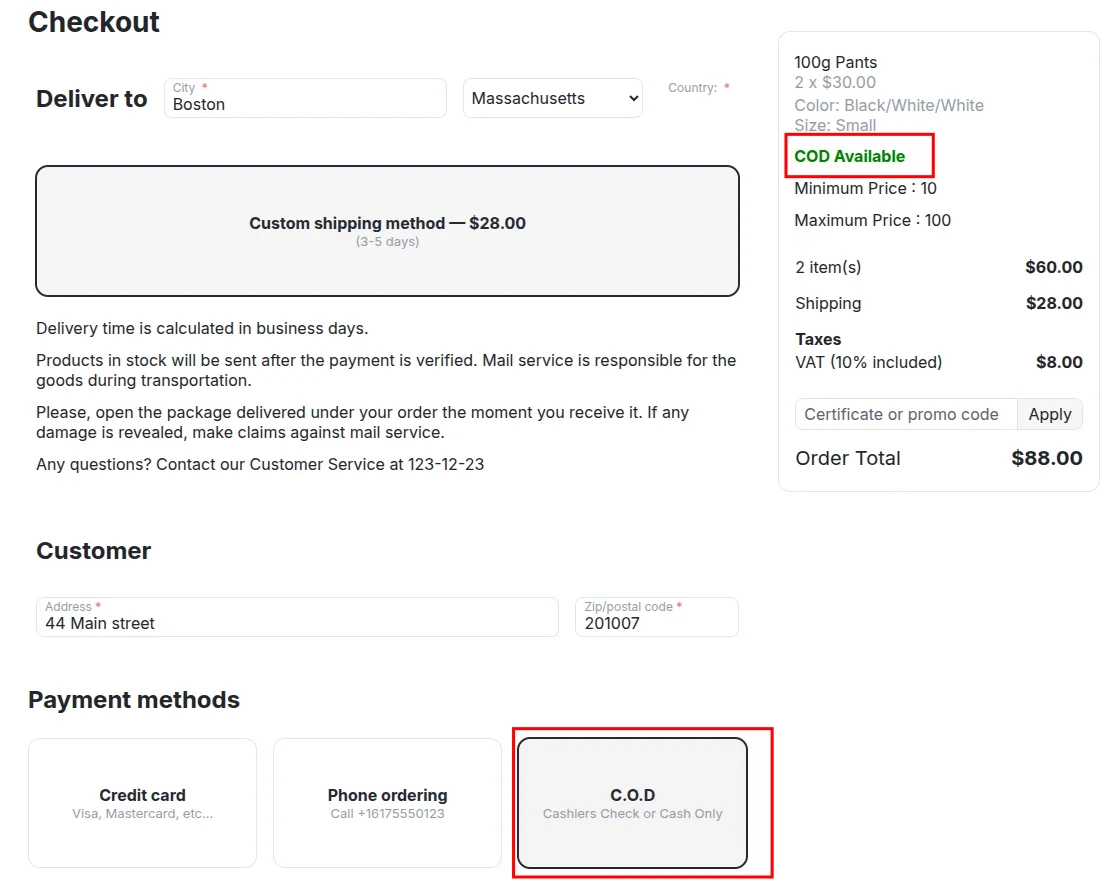
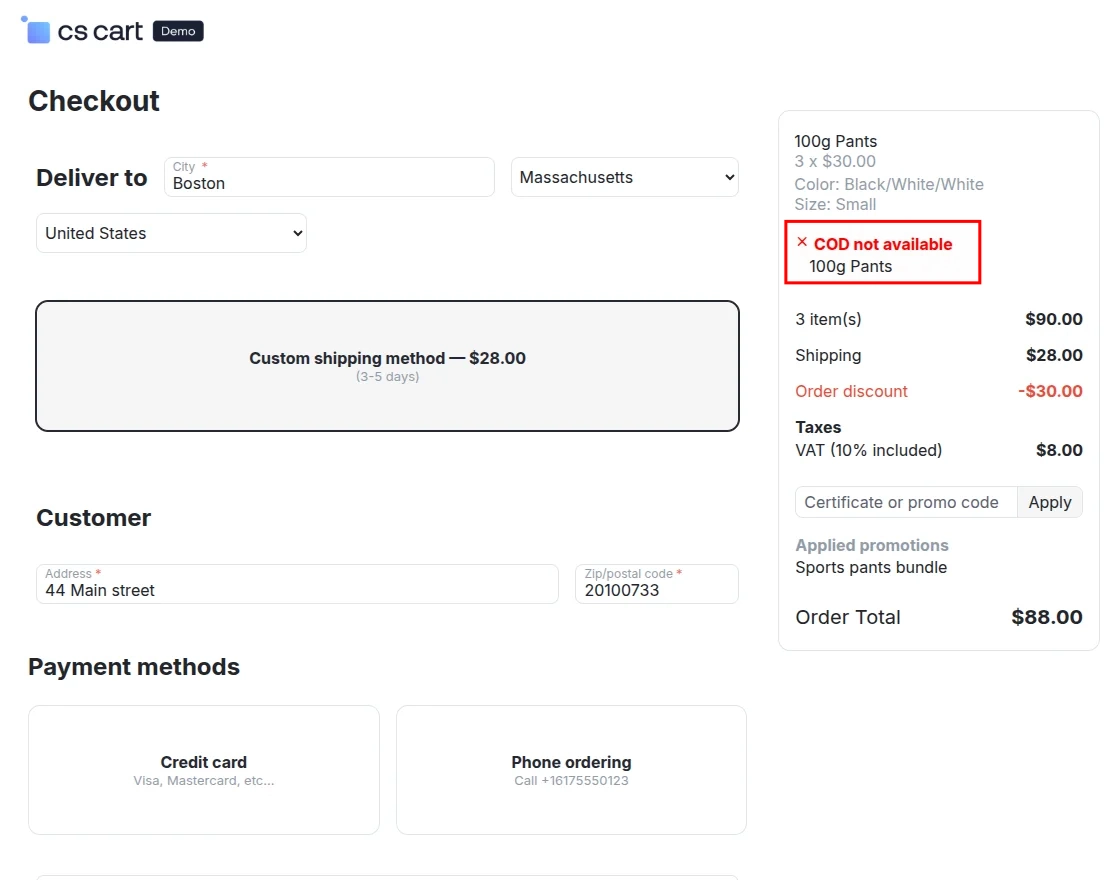
The system validates the shipping address at checkout and automatically restricts the COD option based on the entered Pincode/Zipcode.
-
The admin can enable or disable COD for specific listed products as needed.
-
The admin can assign multiple products to a Pincode/Zipcode in a single action.
-
The module offers a simple and flexible configuration from the admin panel.
-
The system provides a user-friendly interface for managing product availability by location.
Installation
After downloading the COD Availability by Pincode/zipcode add-on, you’ll get one zip file, one install.txt file, and a relevant User Guide manual doc.
Please read it carefully for proper configuration.
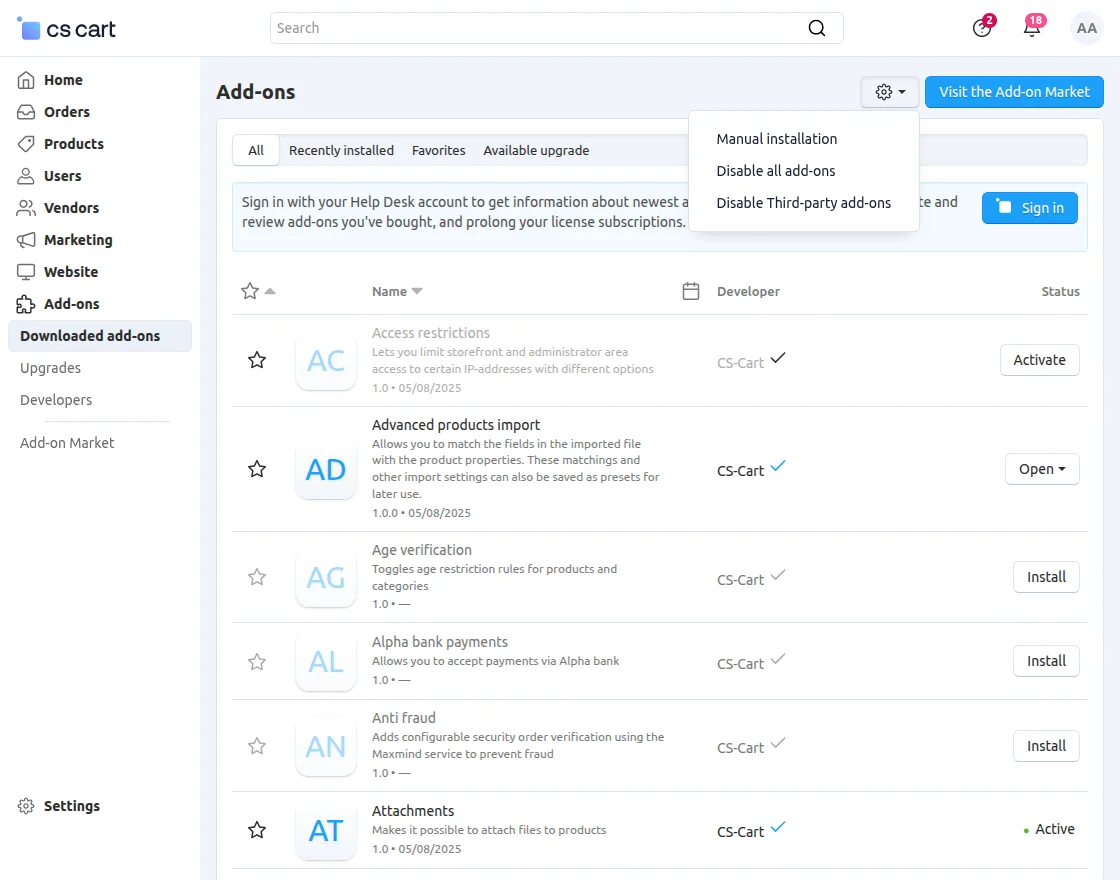
Go to Manage Add-ons, and click on “Manual Installation” as shown below in the snapshot.

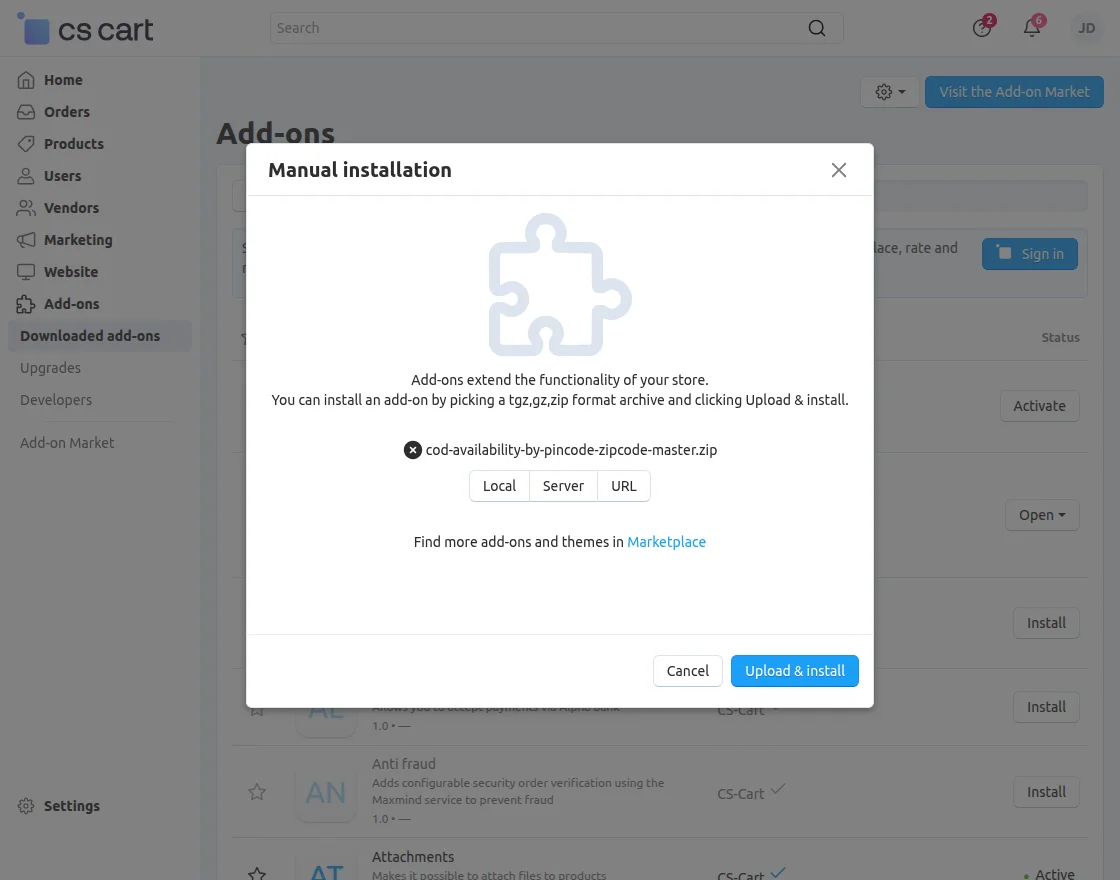
Click on “Local” to browse the zip file, and then click on “Upload & Install” as shown below in the snapshot.
Module Configuration | Admin
To configure the module, go to the Add-Ons >> Developers >> Webkul Software Pvt Ltd. >> COD Availability by Pincode/zipcode >> Settings.
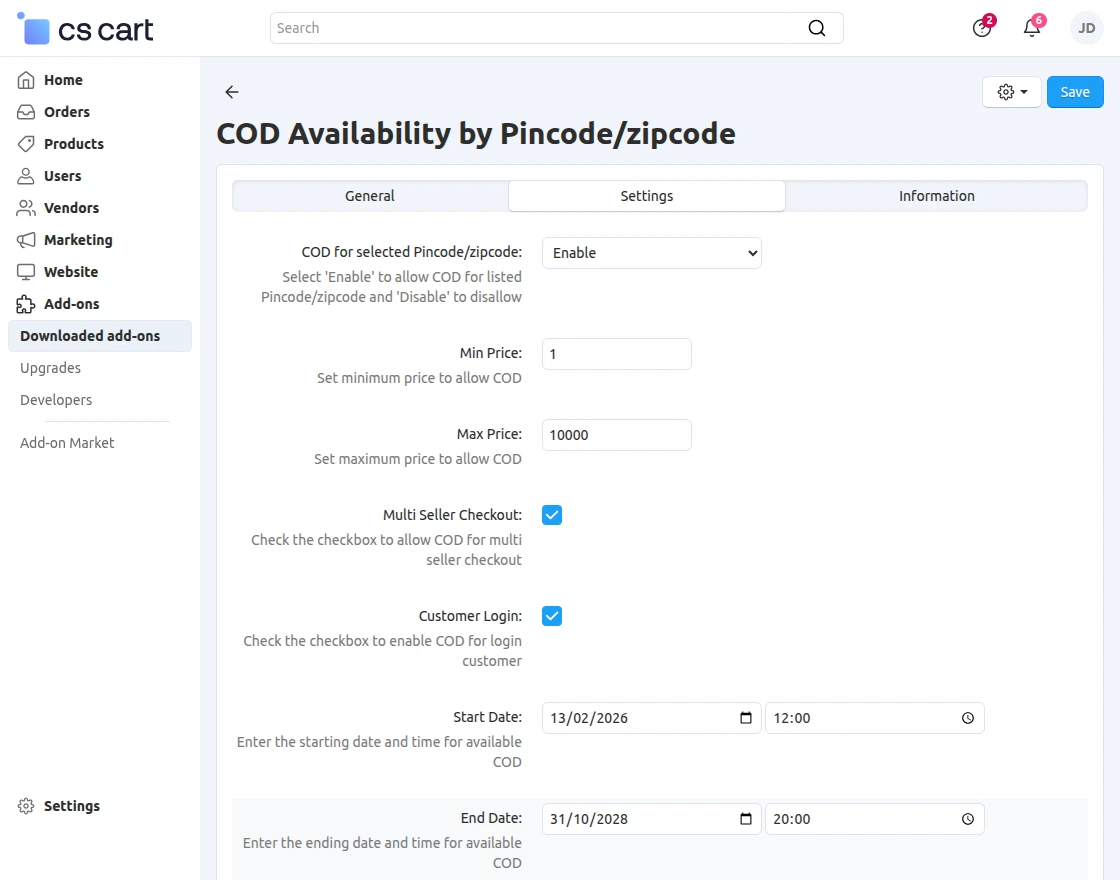
- COD for Selected Pincode/Zipcode: Enable this option to allow COD for selected Pincode/Zipcode areas.
- Min Price: Set the minimum order value required to allow COD.
- Max Price: Set the maximum order value up to which COD will be available.
- Multi-Seller Checkout: Check the checkbox to allow COD for multi-seller checkout.
- Customer Login: Check the checkbox to enable COD only for logged-in customers.
- Start Date: Enter the start date and time to make COD available.
- End Date: Enter the end date and time to disable COD automatically.
Product List with their Pincode/zipcode
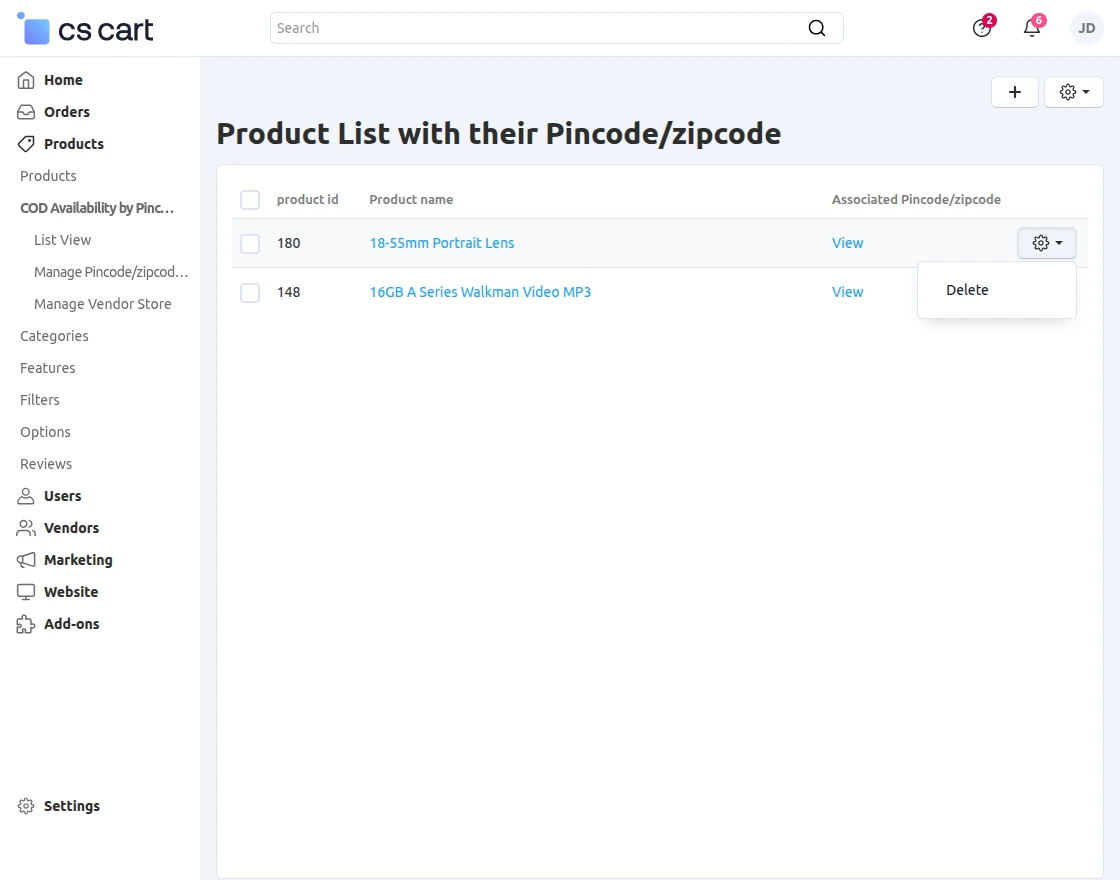
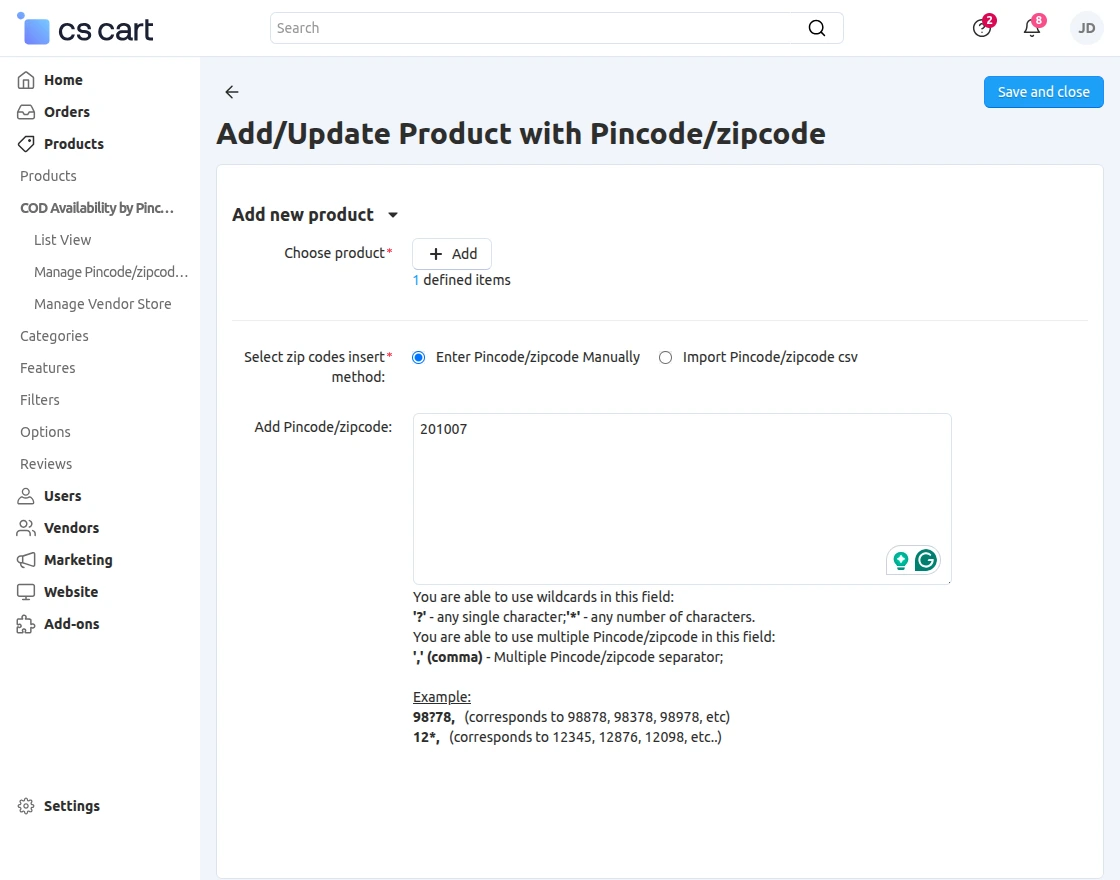
Pincode/Zipcode Group:
To create a product group, navigate to Products >> COD Availability by Pincode/Zipcode >> Manage Pincode/Zipcode Group.
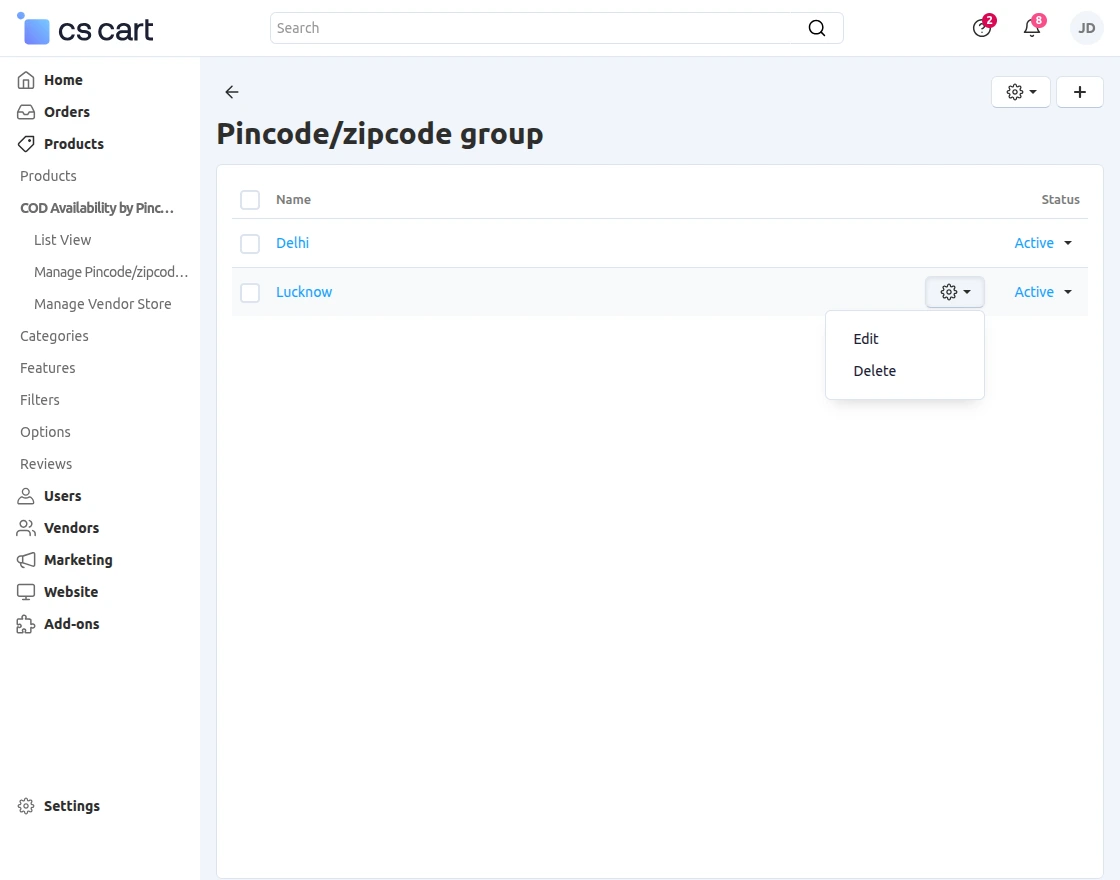
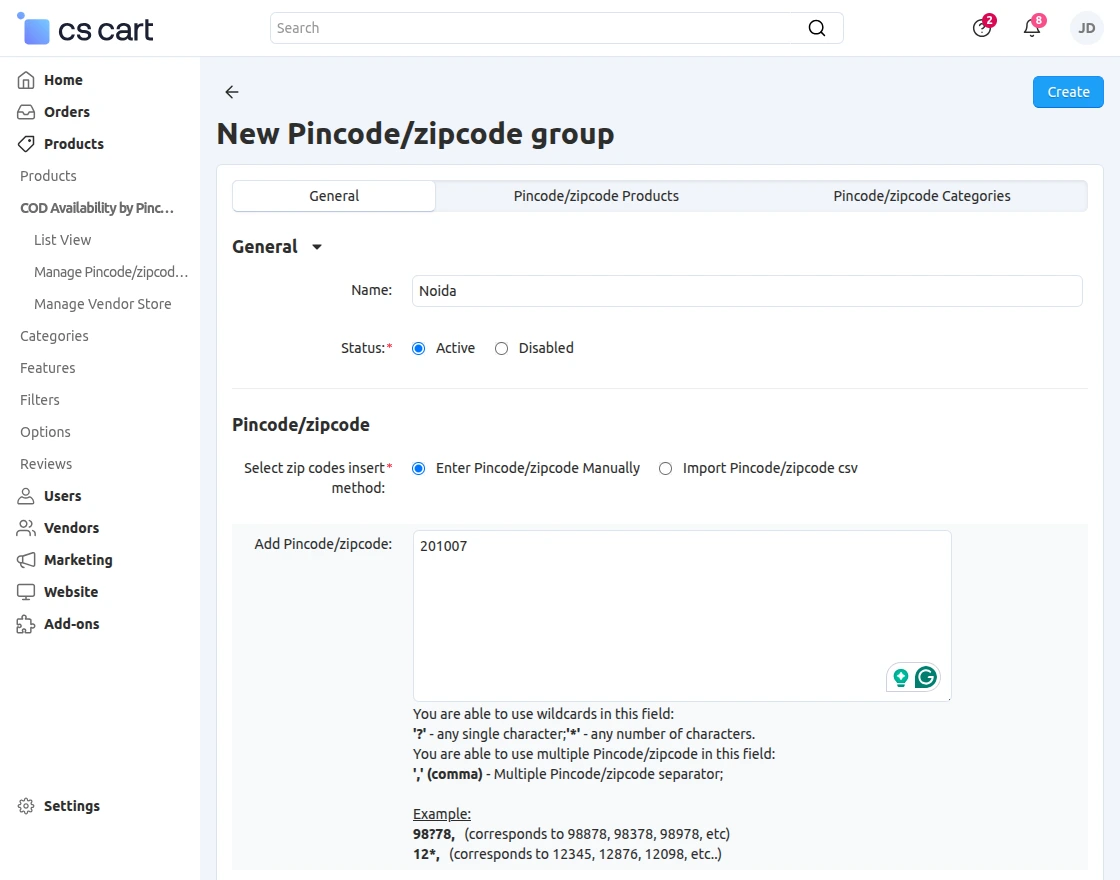
Import data:
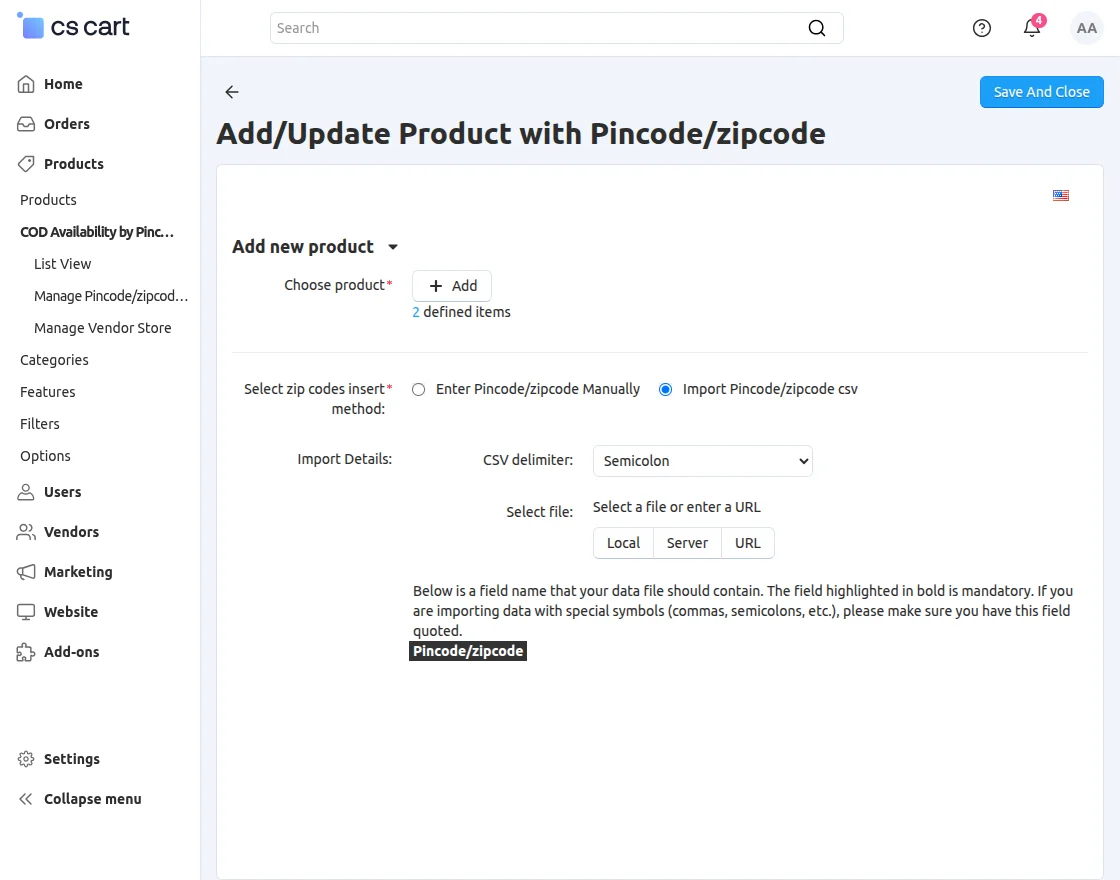
To import product-wise pincode/zipcode data, prepare a CSV file that contains the Product ID and Pincode/Zipcode columns. Then, click Import Products with Pincode/Zipcode from the right-hand panel.
While importing the CSV file, you can configure the following options:
- CSV Delimiter: Select the delimiter used to separate the values in the CSV file.
After configuring the required options and selecting the CSV file, click Import to import the pincode/zipcode data successfully.
Frontend View
Product Availability in “Product View” page view:
Pincode/Zipcode check availability in the product view page at the front end.
Support
If you have any questions, suggestions, or customization requests, feel free to contact us at support@webkul.com or submit a ticket at webkul.uvdesk.com.
Explore our premium-quality CS Cart Extensions to enhance your store functionality.
You can also explore our CS-Cart Development Services and Quality CS-Cart add-ons.