User Guide for CS-Cart Auction
Table of Content
Live Demo
CS-Cart Auction: Transform your CS-Cart eCommerce store into a fully functional auction platform with the powerful CS-Cart Auction Add-on.
By enabling the auction feature, both admins and vendors can create and manage auctions directly within the store.
Customers can participate by placing bids on auction products, while admins and vendors can monitor all bidding activity in real time for each auction item.
At the end of the auction, the highest bidder is automatically declared the winner and gains the opportunity to purchase the product.
In the video below check the brief overview of how it works:
Features of CS-Cart Auction
- Convert your CS-Cart store into a complete auction marketplace
- Allow both admins and vendors to create and manage auctions
- Support multiple auction types including Standard, Reverse, Dutch, Penny, Proxy, Silent, Charity, Sealed Bid, Unique Bid, and Seated Auctions
- Enable customers to place real-time bids on auction products
- Automatic winner declaration based on auction rules
- Manual winner selection option for admin control
- Live countdown timers for upcoming and active auctions
- Real-time bid updates and auction monitoring
- Auto-refresh of bid prices, timers, and bid history
- Flexible auction configuration with starting price, reserve price, and bid increment settings
- Support fixed and dynamic bid increment rules
- Auto-increment system for a competitive bidding experience
- Option to enable automatic bidding for users
- Auction scheduling with configurable start and end times
- Auto-start, auto-extend, and auto-restart auction functionality
- Stock-based auction activation and management
- Control product visibility during auctions by hiding prices and Add to Cart buttons
- Dedicated bid history and auction history views for customers
- “My Auctions” and “My Bids” sections for customers
- Support auction sharing directly from the storefront
- Seated auction registration system with admin approval workflow
- Manage seat capacity and event details for seated auctions
- Support both online and offline bidding for seated auctions
- Manual offline bid entry from the admin panel
- Block and unblock users from participating in auctions
- Configure blocking reasons, expiry dates, and user notifications
- Email notifications for bids, outbids, registrations, auction start, auction end, and winner announcements
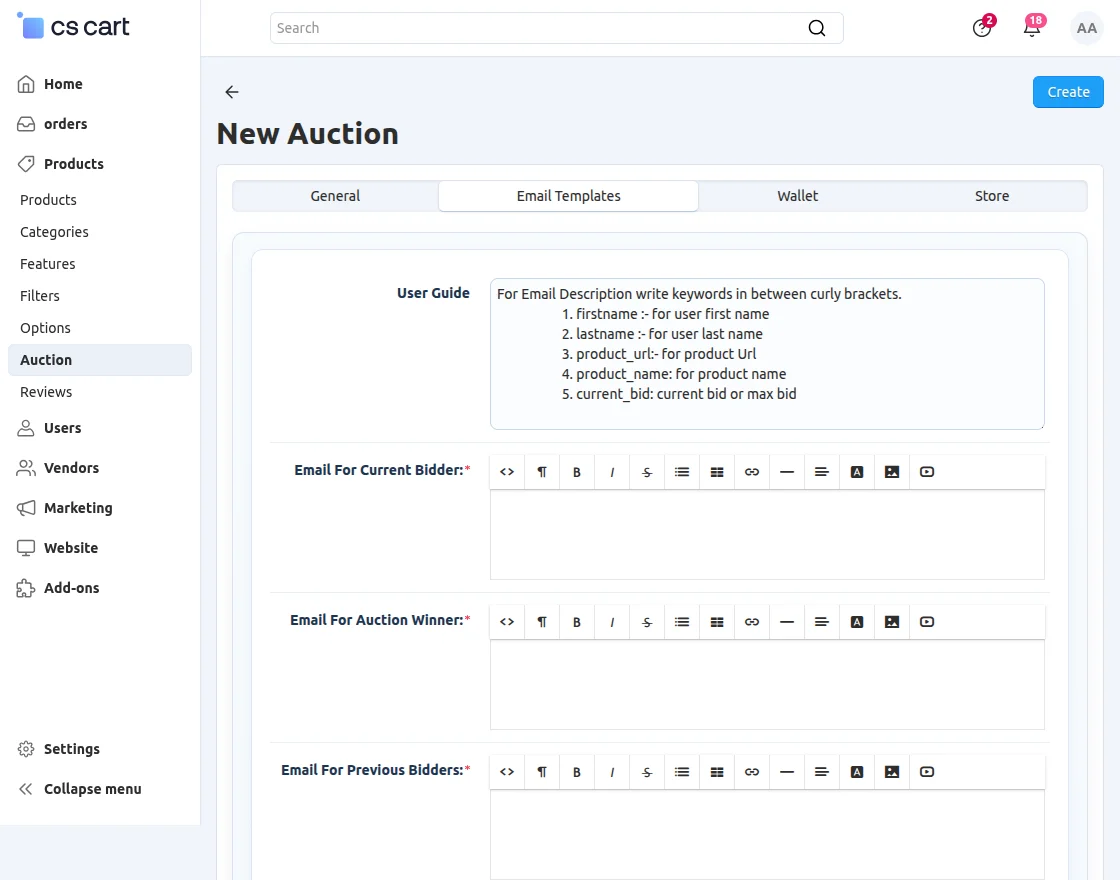
- Customizable email templates based on store configuration
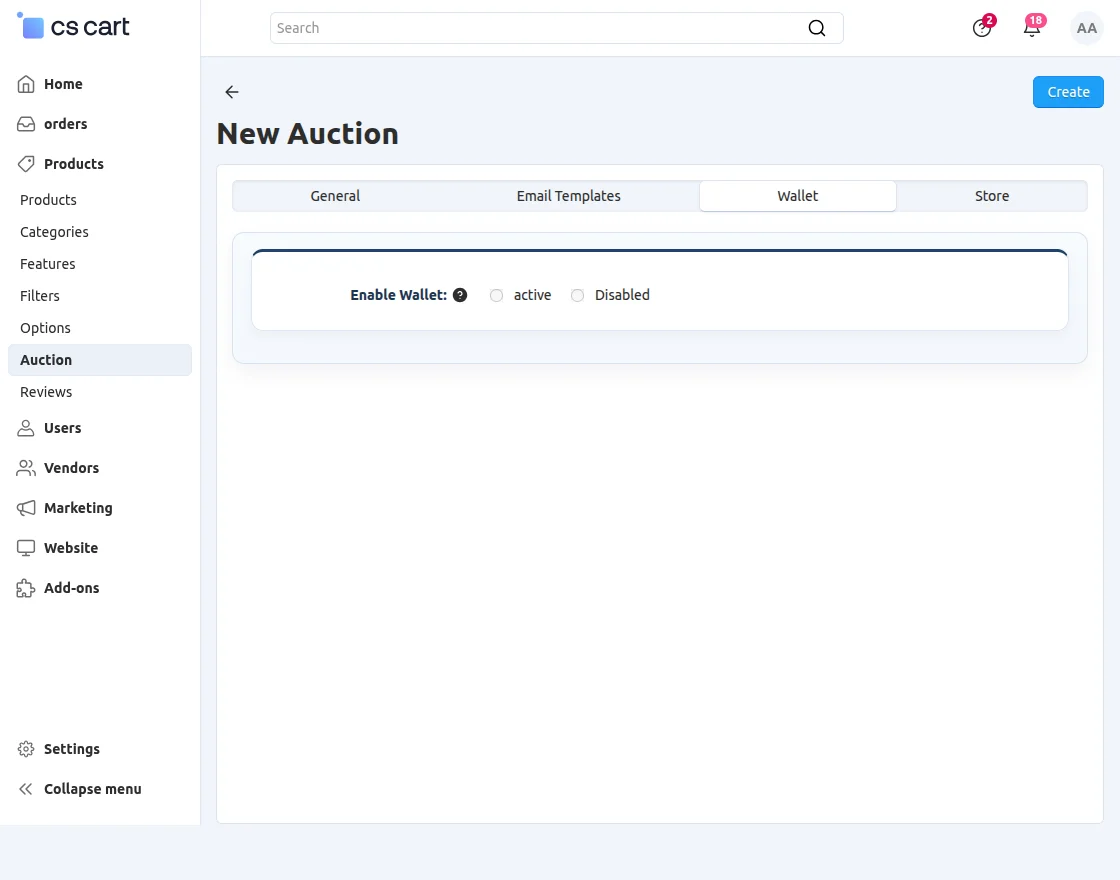
- Wallet system integration for secure auction payments (optional)
- Admin and vendor support with complete backend auction management
- Real-time bidder tracking and auction performance monitoring
- Automated auction lifecycle management using cron jobs
- Smart handling for unpaid winners with second-winner assignment or auction restart options
- Fully responsive and user-friendly storefront and admin interface
How To Upload And Install
When you download the CS-Cart Auction Add-on you’ll get one zip file, one install.txt file, and a relevant User Guide manual doc. Read it carefully for proper configuration.
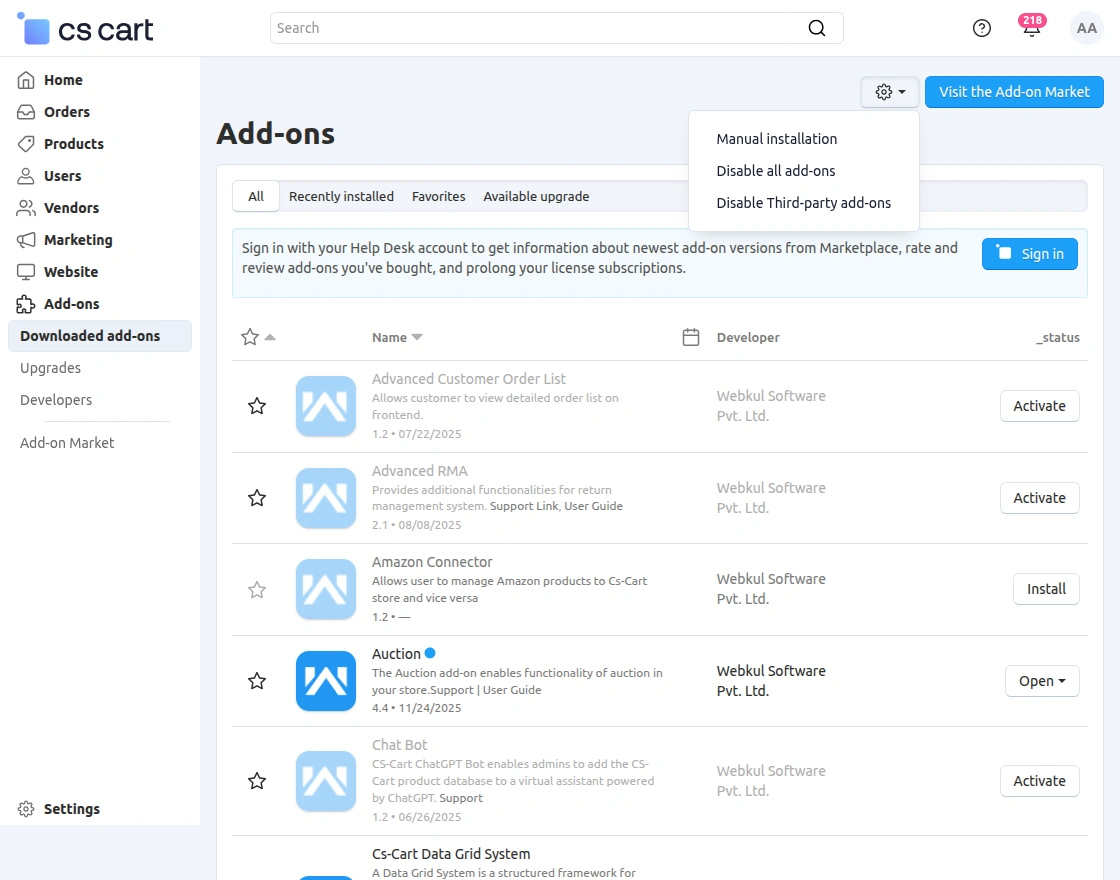
Go to Manage Add-ons, and click on the Settings icon > Manual Installation as shown below in the snapshot.

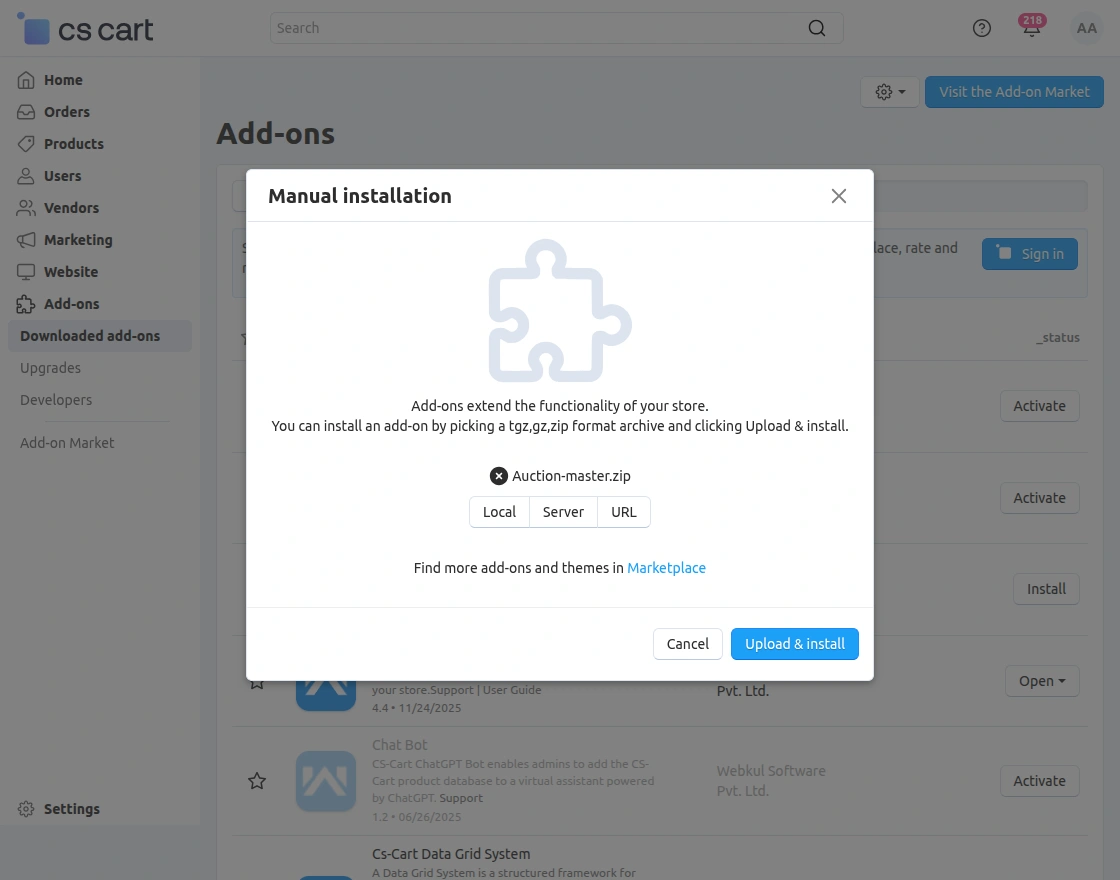
Click on “Local” to browse the zip file and then click on “Upload & Install” as shown below in snapshot.
Addon Settings
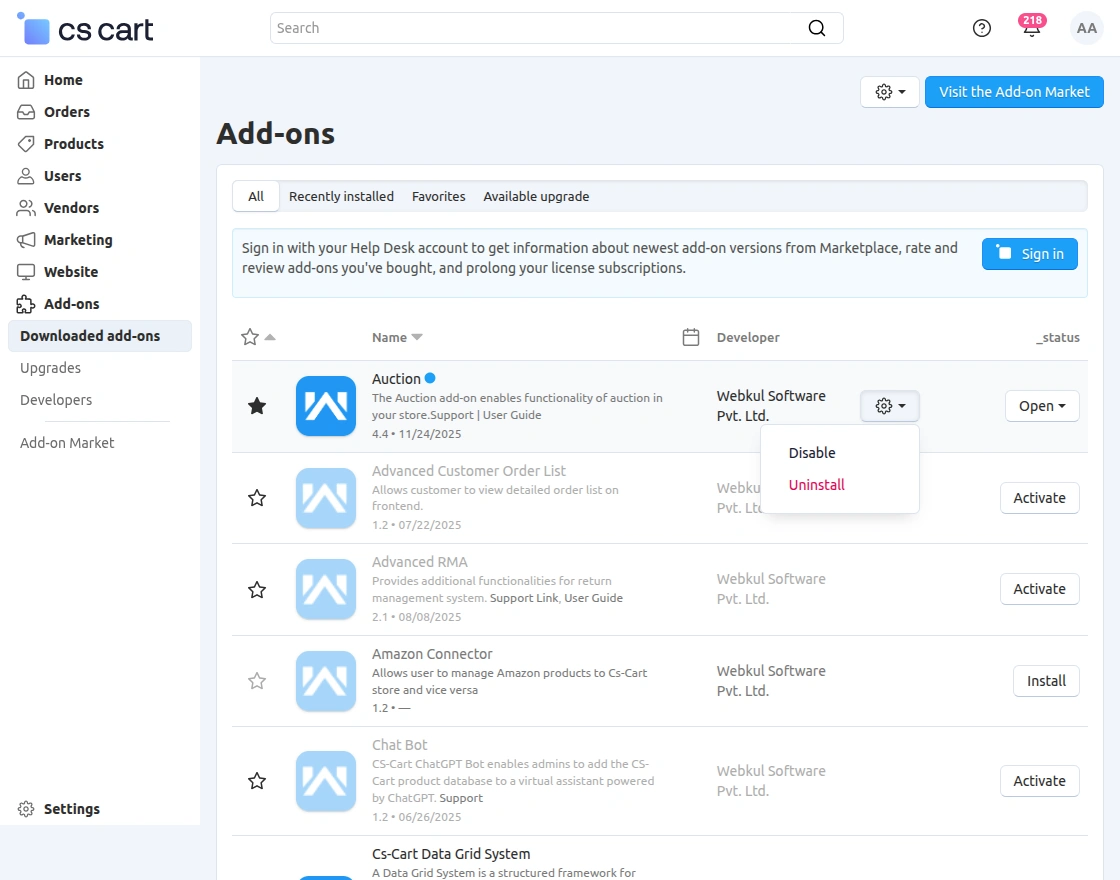
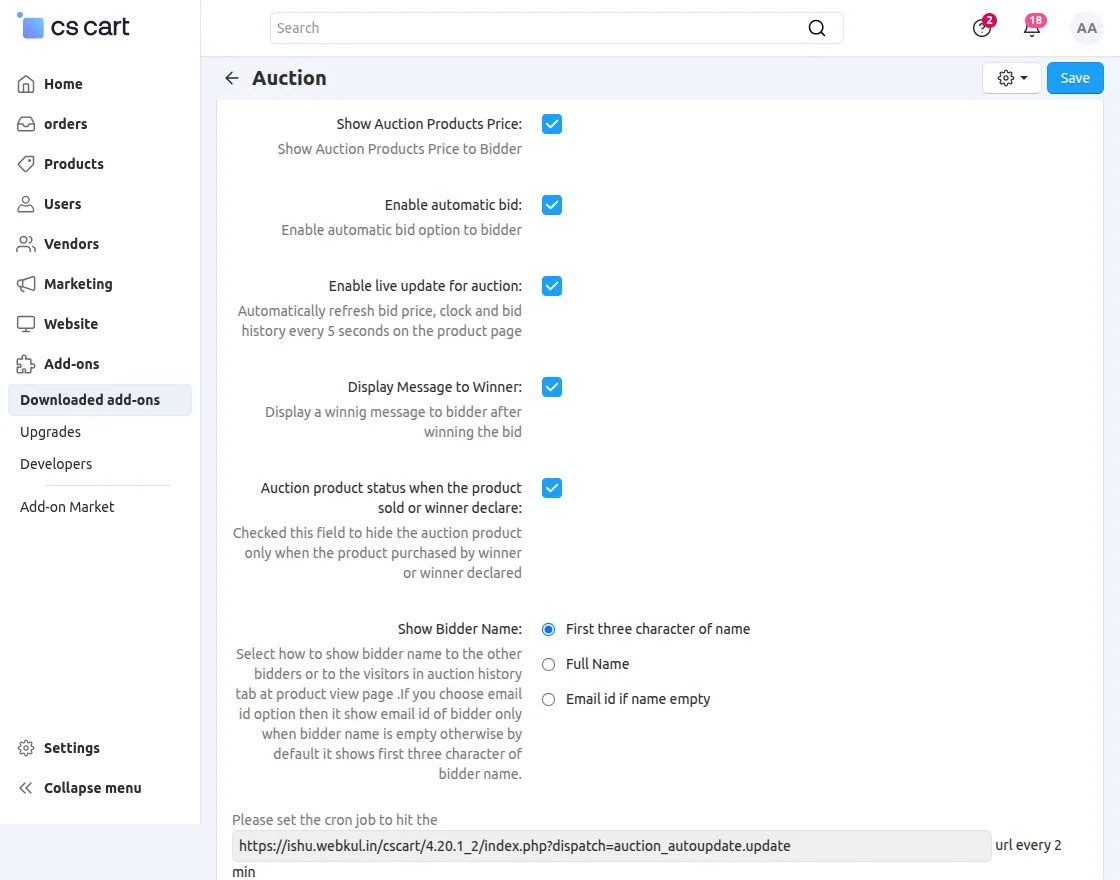
Once the addon is installed successfully, we need to configure the settings of the addon.
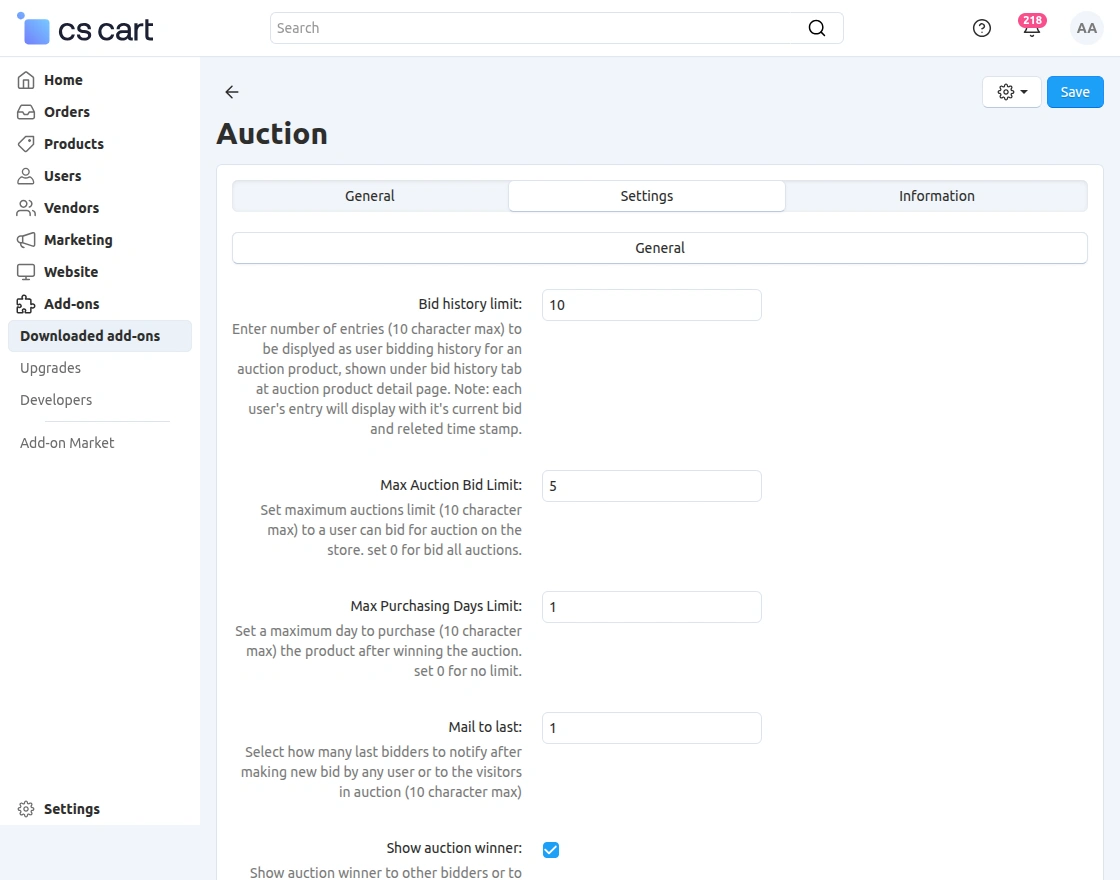
General Settings (CS-Cart Auction Add-on)
- Bid History Limit: Sets how many bidding records are displayed per user in the auction product’s bid history tab.
- Max Auction Bid Limit: Defines the maximum number of auctions a user can participate in; set to 0 for unlimited bidding.
- Max Purchasing Days Limit: Sets the number of days a winner has to purchase the product after winning the auction; 0 means no limit.
- Mail to Last: Determines how many recent bidders receive email notifications after a new bid is placed.
- Show Auction Winner: Controls whether the auction winner is visible to other users in the auction history tab.
- Show Auction Products Price: Click on the check box to enable to show auction products price to bidder.
- Enable Automatic Bid: Allows users to enable automatic bidding to place bids without manual input.
- Enable Live Update for Auction: Automatically refreshes bid price, countdown timer, and bid history every 5 seconds on the product page.
- Display Message to Winner: Shows a custom winning message to the user after they win the auction.
- Auction Product Status (After Sale/Winner Declared): Automatically hides the auction product once it is purchased or a winner is declared.
- Show Bidder Name: Controls how bidder names are displayed in the auction history (first 3 characters, full name, or email if name is empty).
- Cron Job Setup Note: Ensure a cron job is configured properly to handle auction completion, winner declaration, and system automation tasks
Auction Intelligence Dashboard
The CS-Cart Auction Add-on provides an interactive analytics dashboard that gives a complete overview of auction performance, bidding activity, and revenue in real time.
It allows store owners to track total auctions, their status (running, scheduled, pending, completed, or disabled), and monitor live bidding activity including daily and weekly trends.
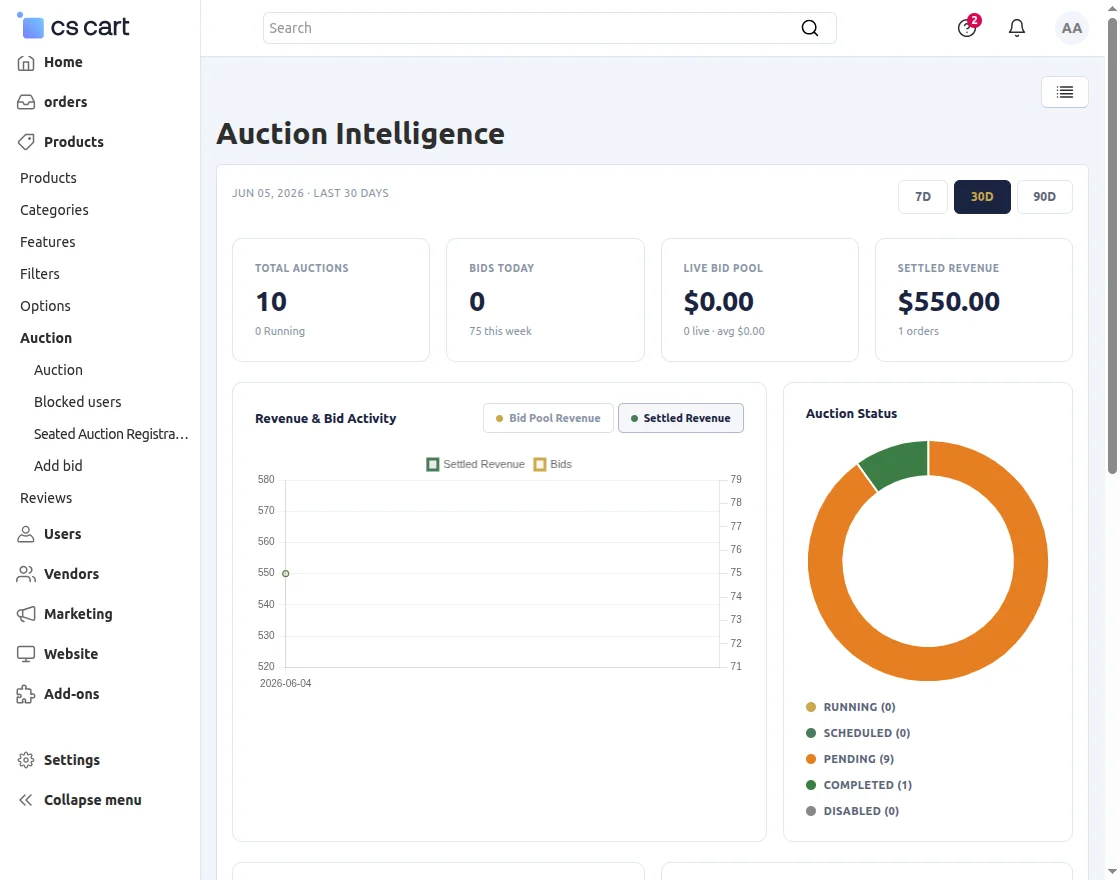
The dashboard also displays key financial insights such as live bid pool value and settled revenue from completed auctions, helping measure real-time engagement and actual earnings.
In addition, it highlights top-performing auctions, most active bidders, hourly bidding patterns, and a live activity feed showing recent bids with user details and timestamps.
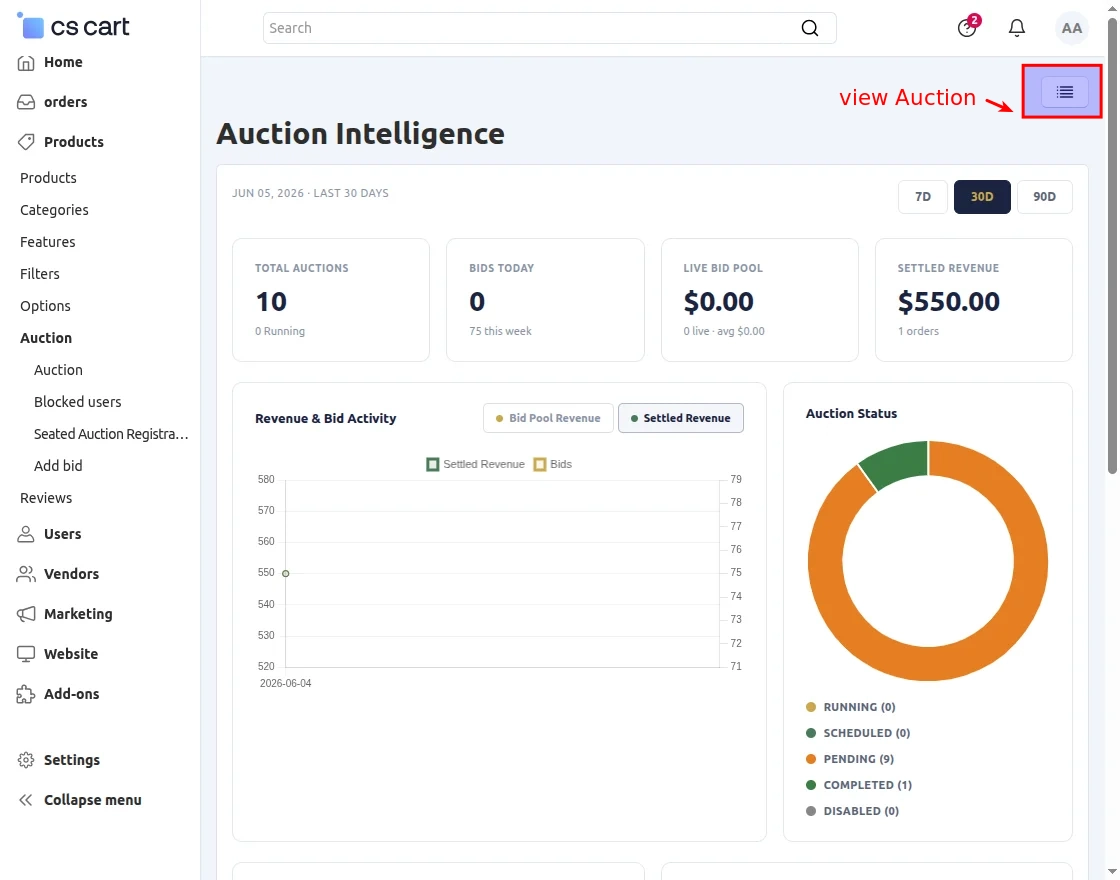
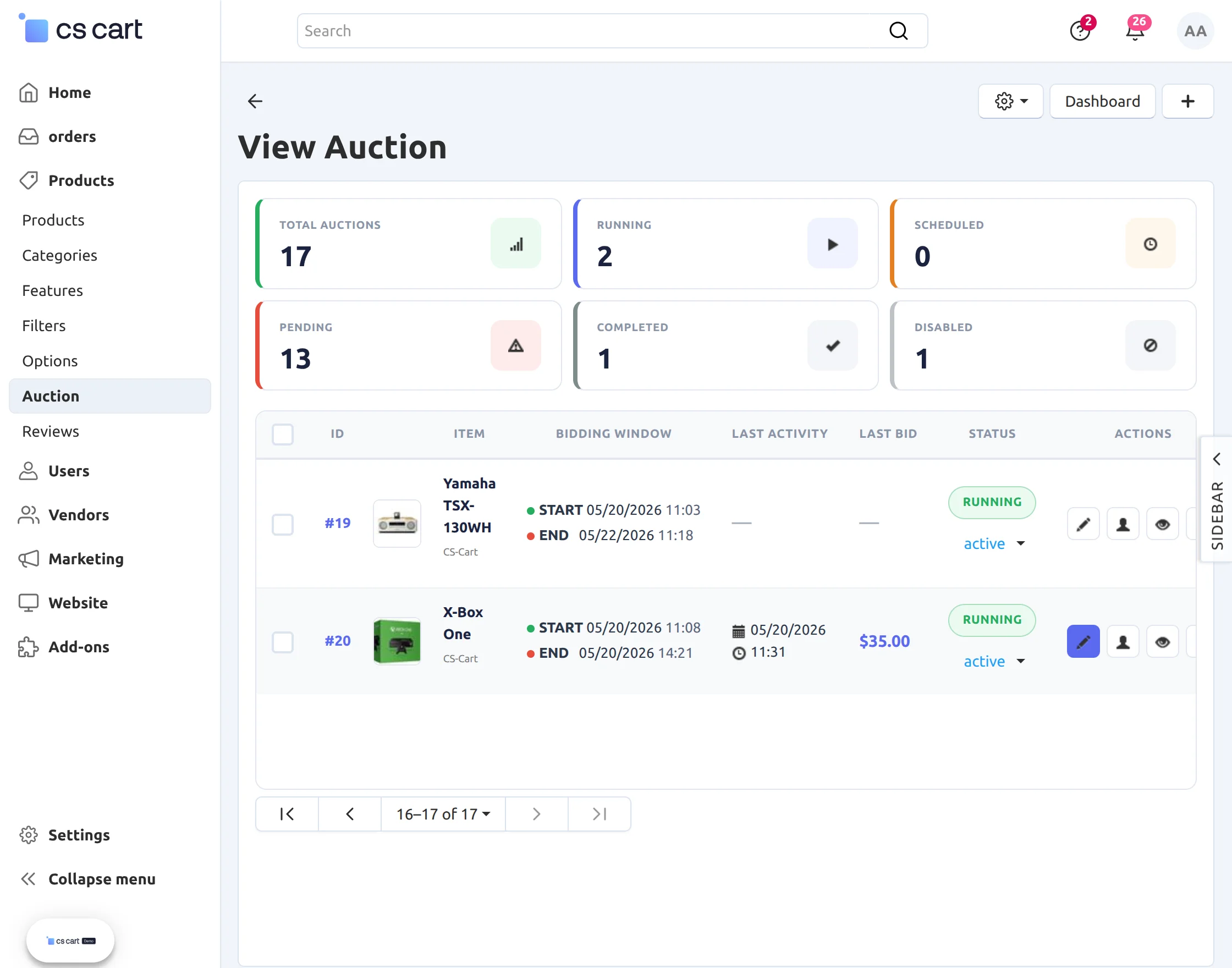
When you click on the View Auction icon, you are redirected to a dedicated interactive auction management page that provides a complete overview of all auction activities in one place.
This page displays key auction statistics, including:
- Total Auctions
- Running Auctions
- Scheduled Auctions
- Pending Auctions
- Completed Auctions
- Disabled Auctions
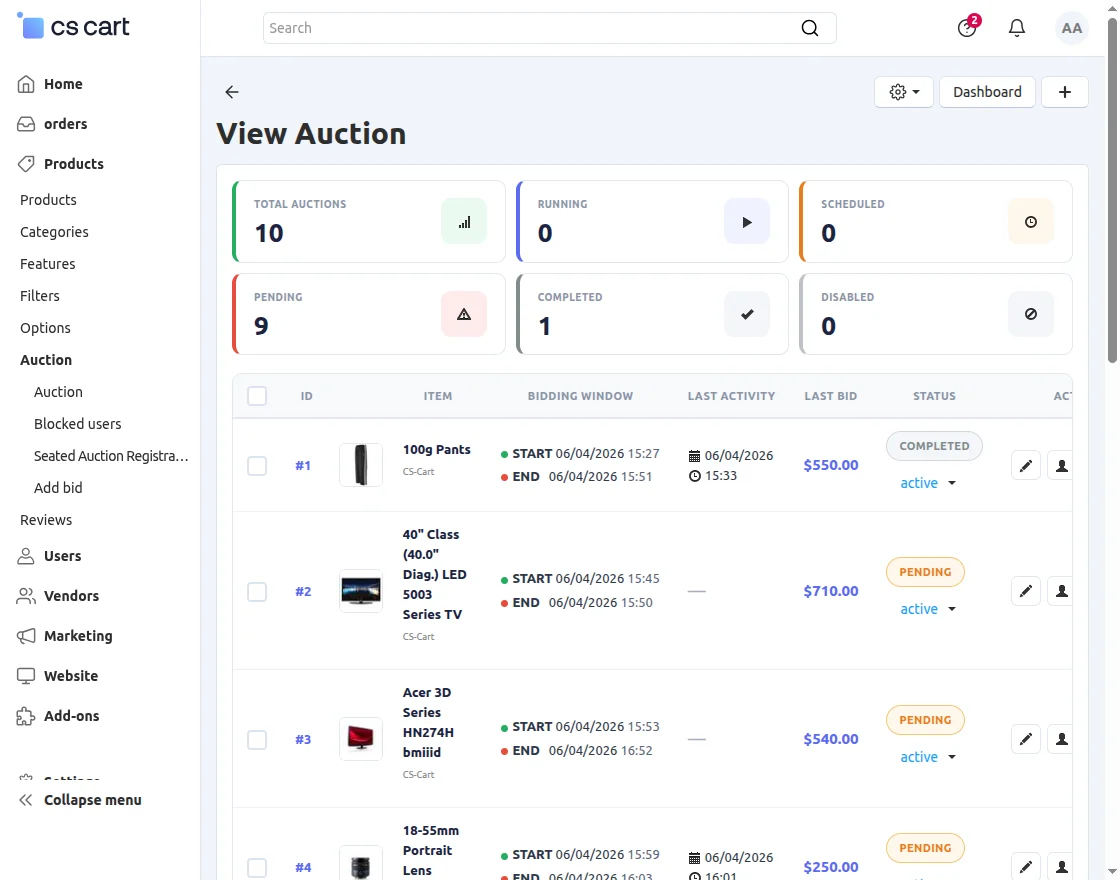
It gives admins a clear, real-time snapshot of the entire auction system status for better monitoring and control.
Additionally, by clicking the “+” (Add Auction) icon, the admin can quickly create a new auction for any product directly from this interface, making auction setup fast and seamless.
General Auction Settings
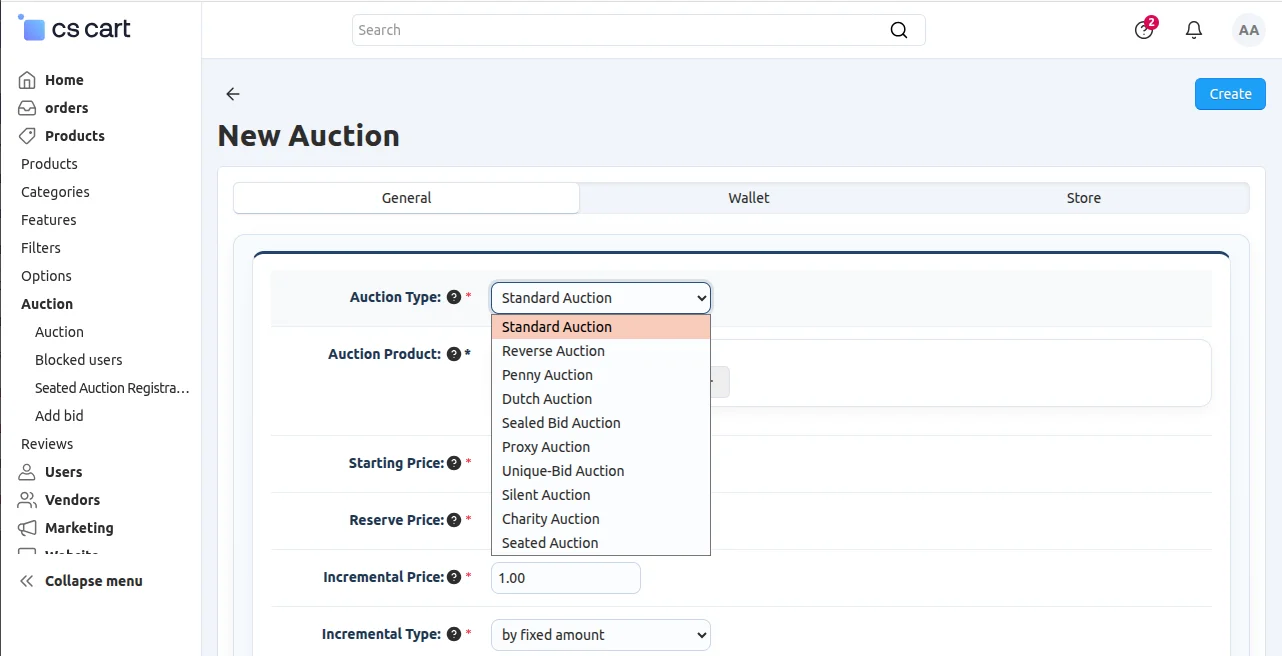
- Auction Type: Select the auction format for the product.
- Standard Auction – Bidders compete by placing increasingly higher bids, and the highest bidder wins.
- Reverse Auction – Sellers compete by offering lower prices, and the lowest bid wins.
- Penny Auction – Each bid increases the price by a small amount, and bidders typically pay a fee per bid.
- Dutch Auction – The auction starts at a high price that gradually decreases until a bidder accepts the current price.
- Sealed Bid Auction – Participants submit confidential bids, and the highest bid wins once all bids are revealed.
- Proxy Auction – Bidders set their maximum bid amount, and the system automatically places bids on their behalf.
- Unique-Bid Auction – The bidder with the lowest or highest unique bid wins, depending on the auction rules.
- Silent Auction – Bidders submit bids privately without seeing competitors’ bids during the auction.
- Charity Auction – An auction organized to raise funds for a charitable cause.
- Seated Auction – An auction conducted in a physical or virtual venue where participants bid from assigned seats.
- Auction Product: Select the product that will be listed for auction
- Starting Product Price: Set the initial bidding price for the auction
- Reserve Price: Define the minimum price at which the product will be sold
- Incremental Price: Set the minimum bid increase value
- Incremental Type: Choose how bid increments are applied (fixed amount or dynamic rule)

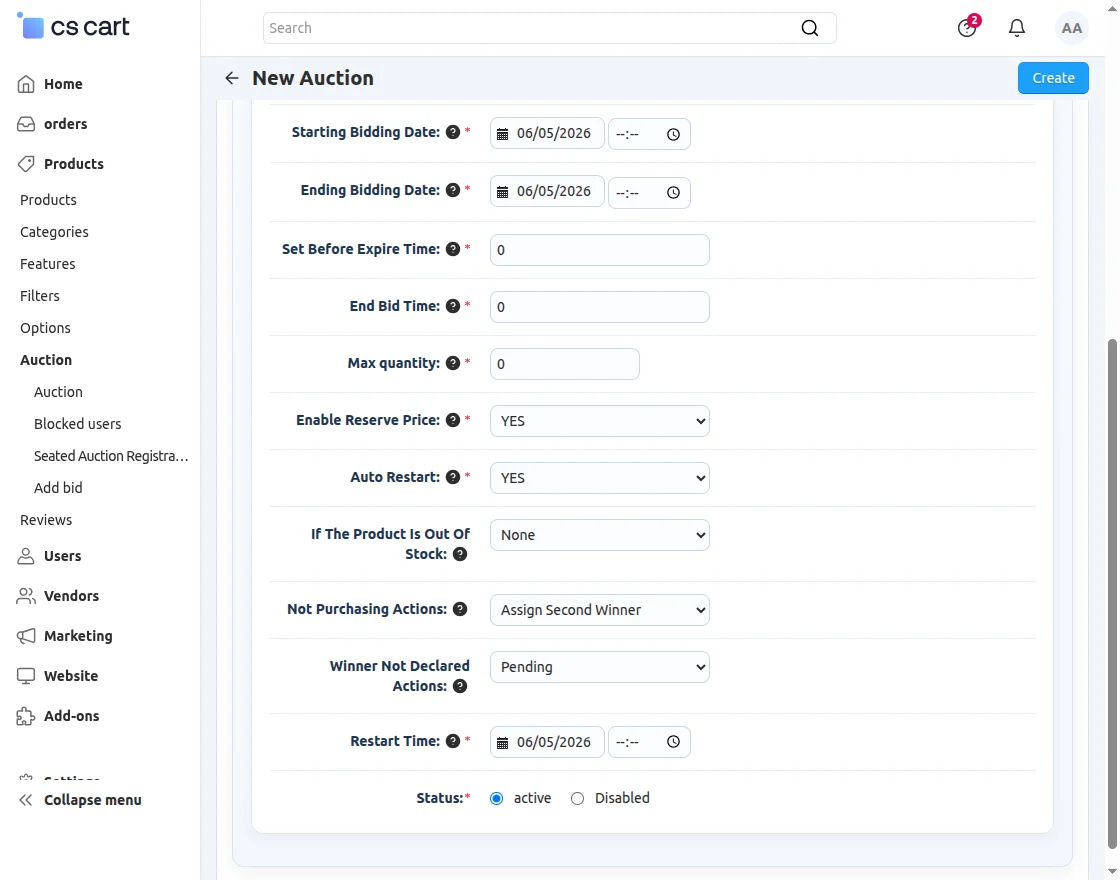
Auction Timing Settings
- Starting Bidding Date: Define the date and time when the auction will begin
- Ending Bidding Date: Set the date and time when the auction will end
- Set Before Expire Time: Extend auction time if a bid is placed near expiry (auto-extension feature)
- End Bid Time: Controls final bidding cutoff behavior and extension logic
Quantity & Stock Control
- Max Quantity: Set the maximum quantity available for winning purchase
- If Product Is Out of Stock: Define auction behavior when product stock is unavailable
Reserve & Winner Control
- Enable Reserve Price: Activate reserve price condition for winning eligibility
- Not Purchasing Actions: Define action if winner does not complete purchase (e.g., assign second winner)
- Winner Not Declared Actions: Set system behavior if no winner is determined
- Restart Time: Schedule automatic auction restart if required
- Auto Restart: Enable automatic restart of auction based on configuration rules
- Status: Activate or disable the auction for the selected product
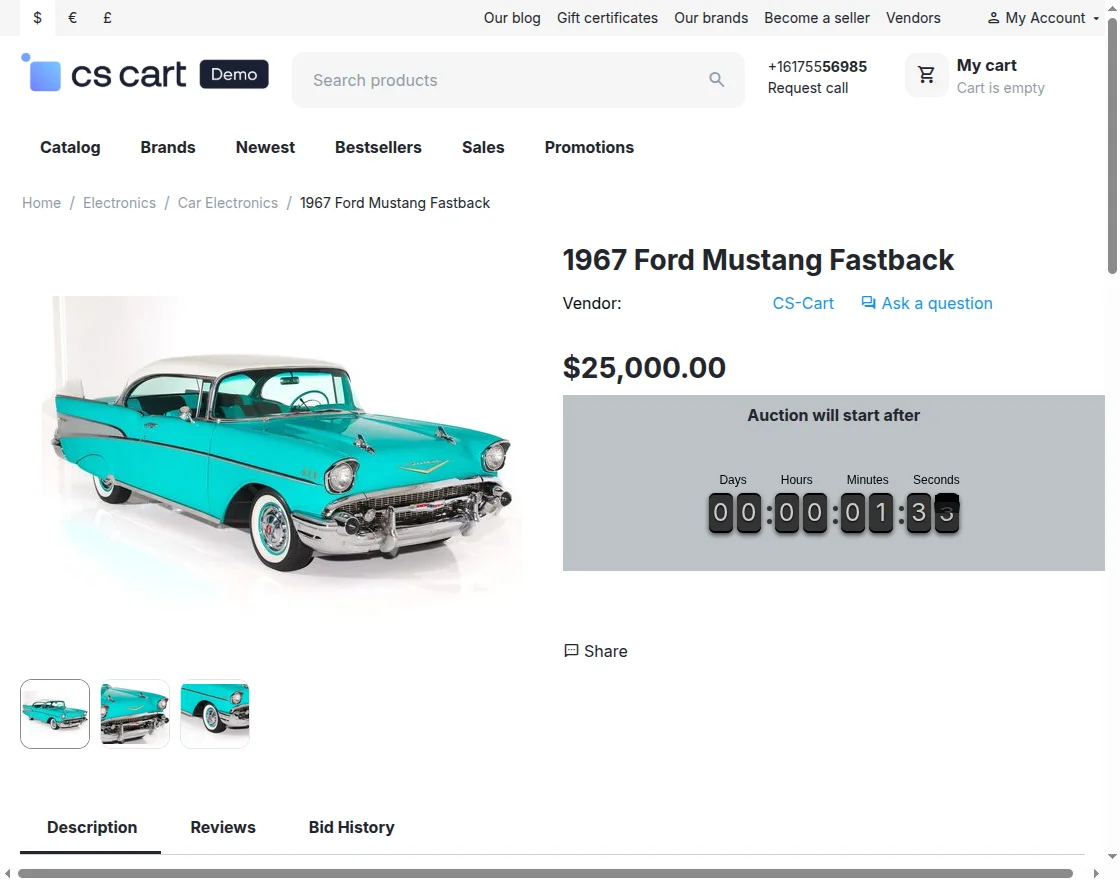
Auction View with Countdown Timer (Before Start)
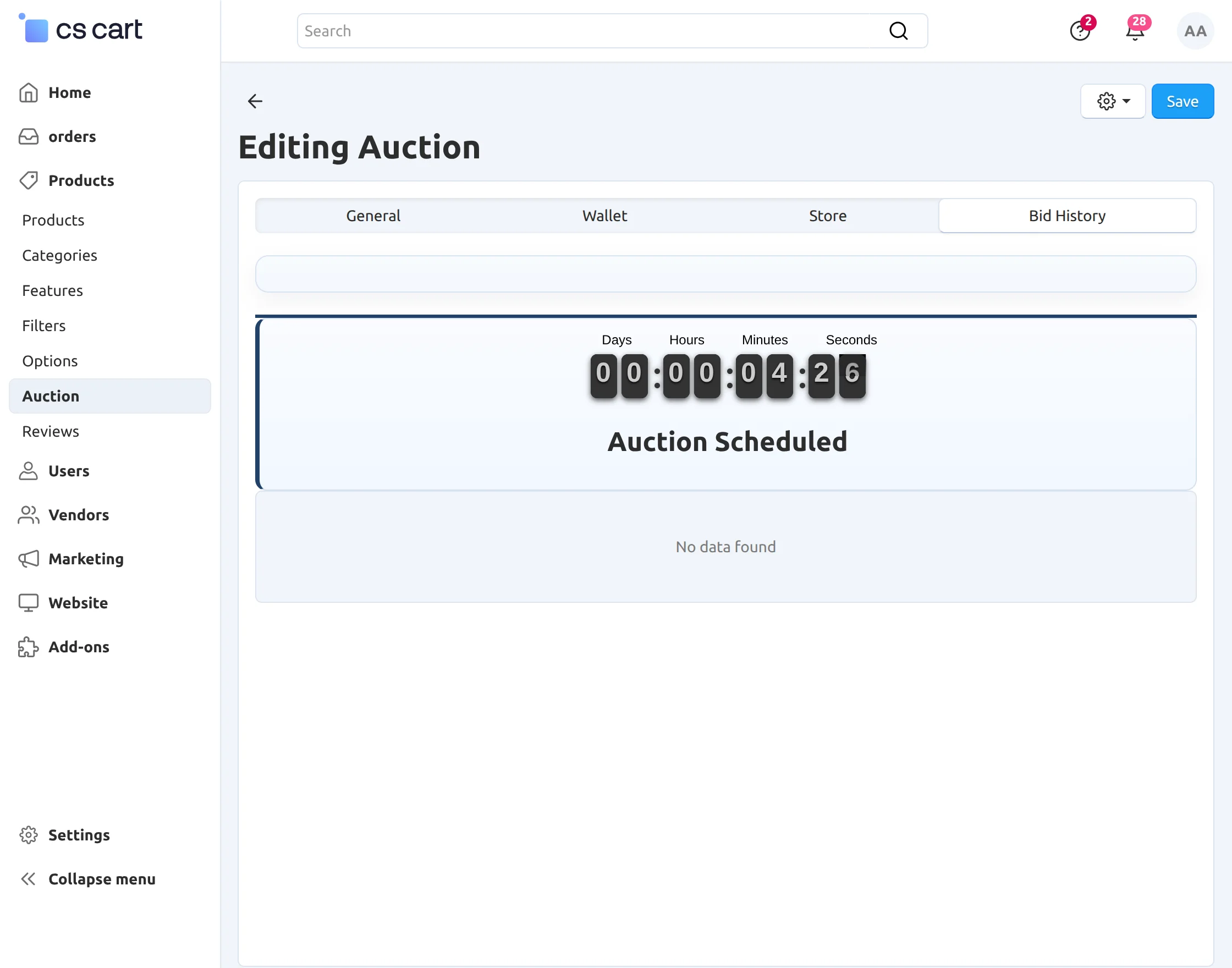
When a product is scheduled for auction but the starting time has not yet arrived, the auction page displays a countdown timer instead of active bidding options.
This helps users know exactly when the auction will begin.
During this stage, users can:
- View product details and auction information
- See the live countdown to auction start time
- Prepare for bidding once the auction begins
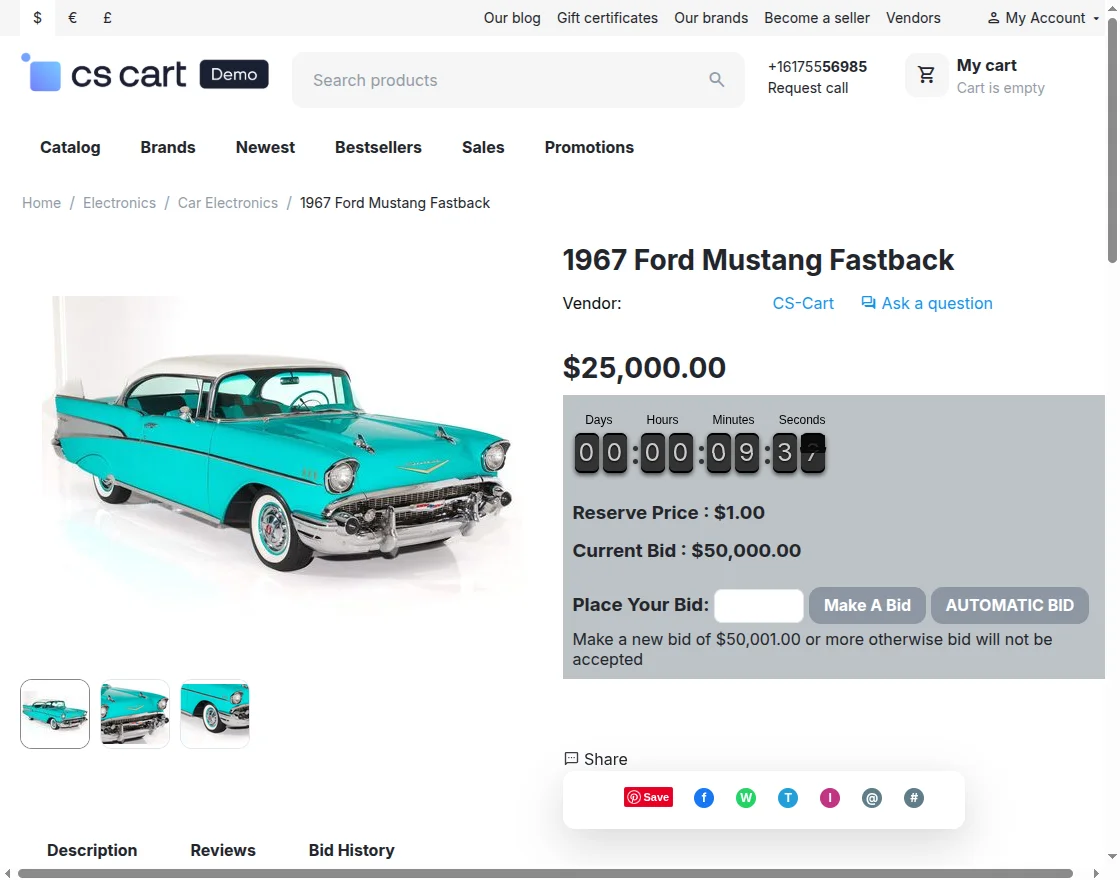
Share Auction Feature
Users can share the auction directly by clicking on the Share button available on the product page.
This opens sharing options, allowing them to quickly send the auction link via social media, messaging apps, or email.
By sharing, users can invite more participants to join the auction, increasing visibility and competition.
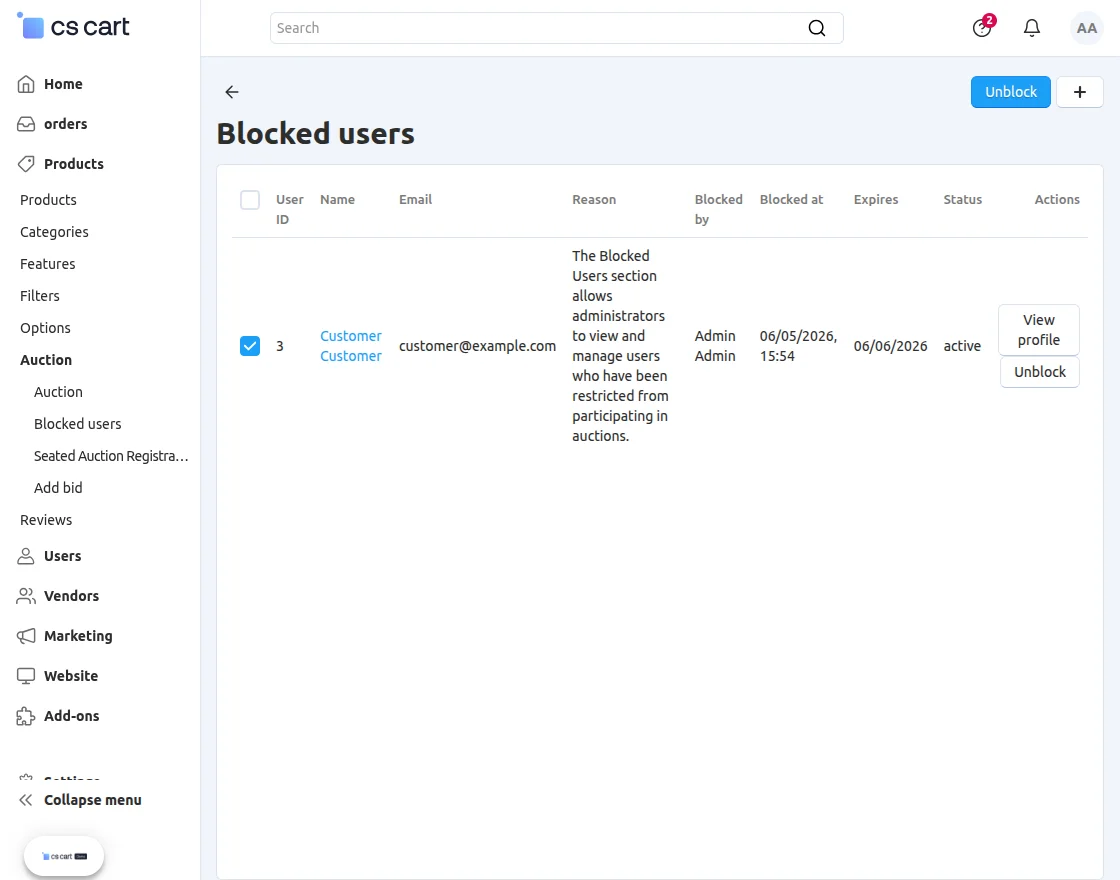
Blocked Users:
The Blocked Users section allows administrators to view and manage users who have been restricted from participating in auctions.
Blocked users are not allowed to place bids, join auctions, or interact with auction products.
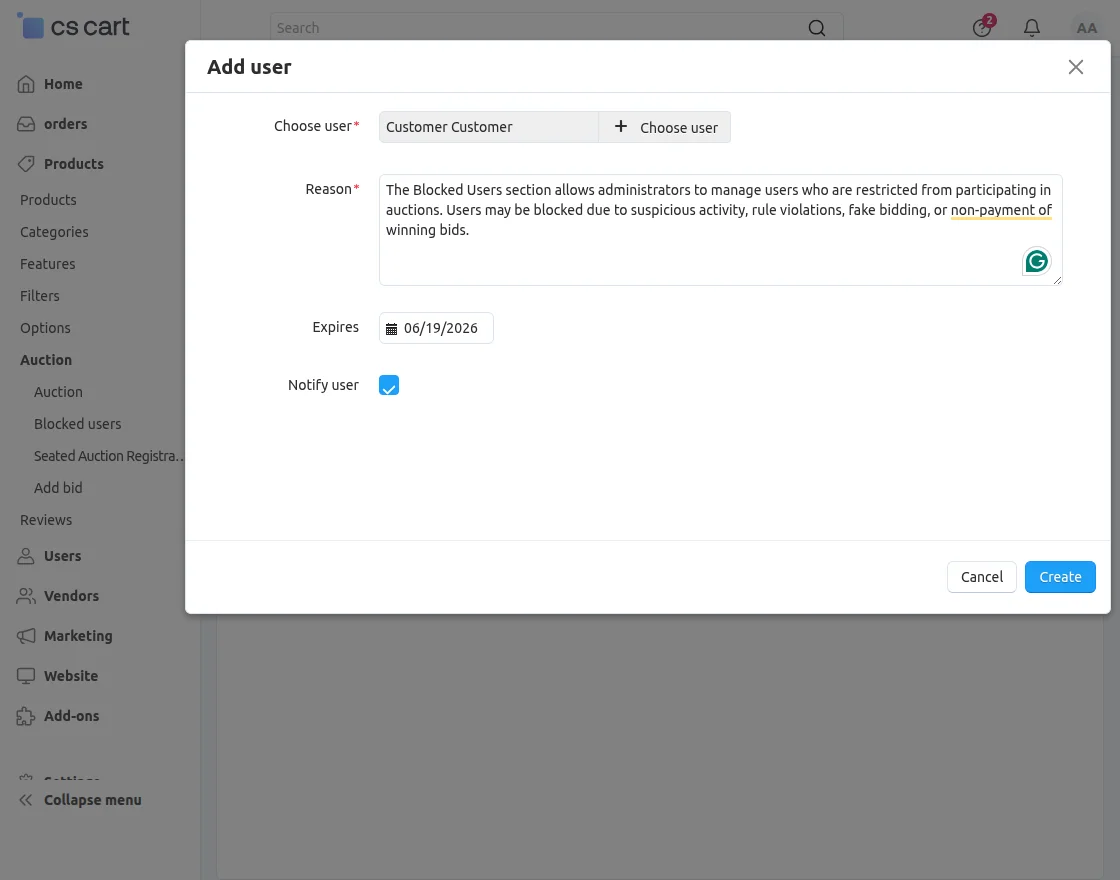
Administrators can block a user by clicking the “+” (Add User) icon in the Blocked Users section. This opens a form with the following fields:
- Choose User – Select the user to be blocked
- Reason – Specify the reason for blocking (e.g., suspicious activity, rule violation, non-payment)
- Expires – Set an expiry date for the block (optional or permanent)
- Notify User – Enable this option to inform the user about the block and its reason
Once submitted, the selected user will be restricted from participating in any auction activities until the block is removed or expires.
Administrators can unblock a previously blocked user by clicking the Unblock button. Once unblocked, the user will regain access to auction features and can participate in bidding activities again.
Seated Auction Configuration
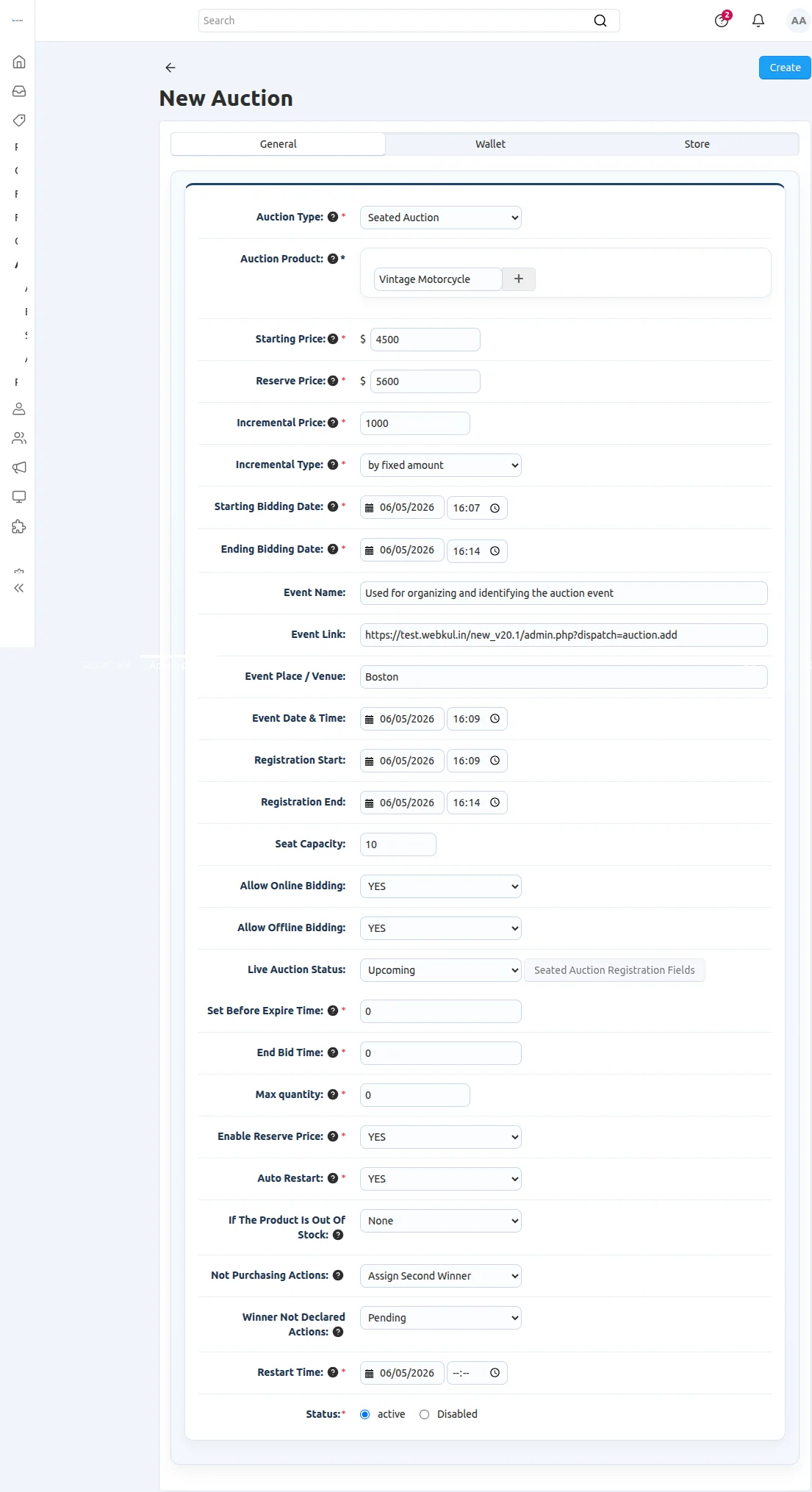
The Seated Auction allows controlled participation where only approved users can join and place bids during the live auction.
Auction Setup
-
Auction Type: Seated Auction
-
Auction Product: Select the product to be auctioned (e.g., Vintage Motorcycle)
-
Starting Price: Initial bidding price set for the auction
-
Reserve Price: Minimum price required for the product to be sold
-
Incremental Price: Fixed bid increase amount
-
Incremental Type: Defines bid increase method (e.g., fixed amount)
Auction Schedule
-
Starting Bidding Date & Time: Defines when bidding begins
-
Ending Bidding Date & Time: Defines when bidding ends
-
Restart Time: Time set for restarting the auction if required
Event Details
-
Event Name, Link, Venue, and Date/Time: Used for organizing and identifying the auction event
Registration Settings
-
Registration Start & End Time: Defines the window for user registration
-
Seat Capacity: Limits the number of participants allowed
Bidding Options
-
Allow Online Bidding: Enables users to bid online
-
Allow Offline Bidding: Enables manual/offline bidding during the event
-
Live Auction Status: Shows current auction state (e.g., Upcoming, Live, Ended)
Registration Rules
-
Set Before Expire Time: Controls time limit before registration expires
-
End Bid Time: Defines final bid cutoff timing
-
Max Quantity: Limits purchase quantity per user
-
Enable Reserve Price: Ensures product is not sold below reserve price
Auction Behavior Settings
-
If Product Is Out of Stock: Defines system behavior (e.g., None)
-
Not Purchasing Actions: Assigns second winner if first winner fails to purchase
-
Winner Not Declared Actions: Sets fallback status (e.g., Pending)
-
Auto Restart: Automatically restarts auction if required
-
Status: Controls whether the auction is active or disabled

For a Seated Auction, customers must first register from the store before they can participate in bidding.
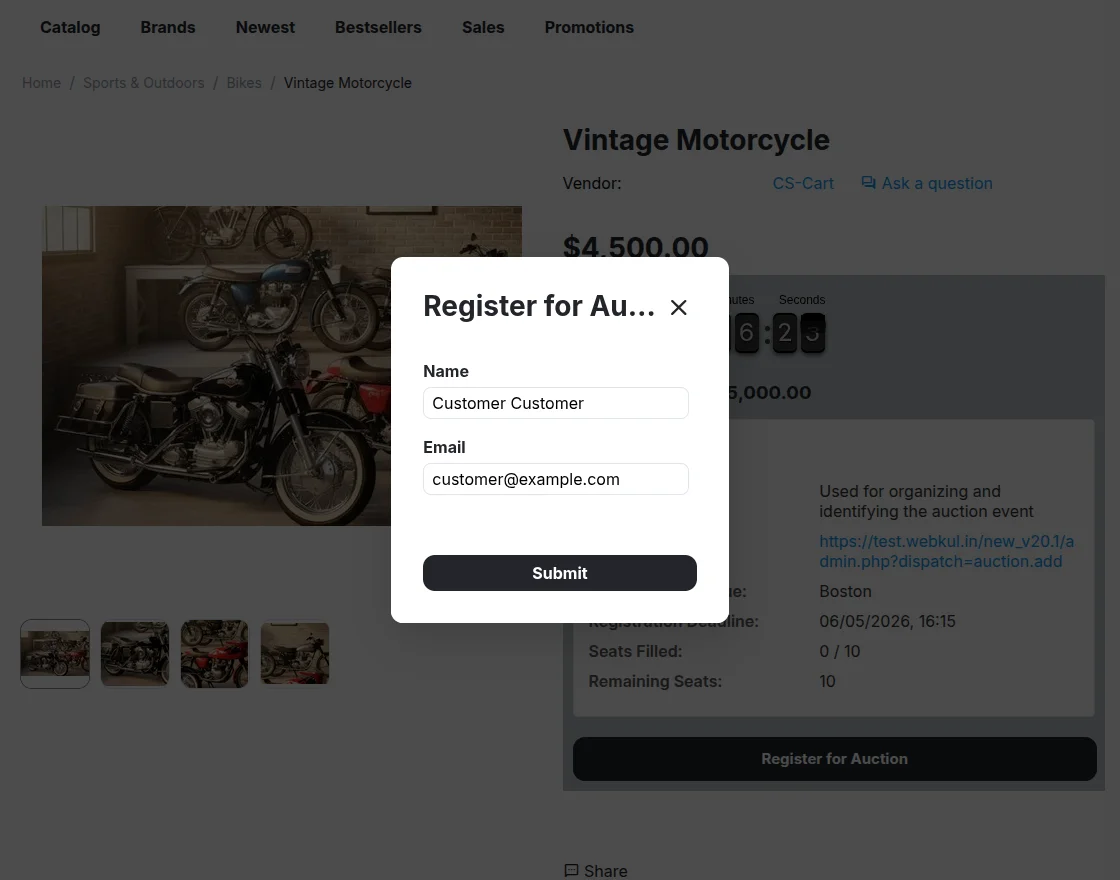
After a customer submits the registration from the store, the request appears in the Seated Auction Registrations panel in the admin dashboard.
The admin reviews the submitted details and can either approve or reject the registration.
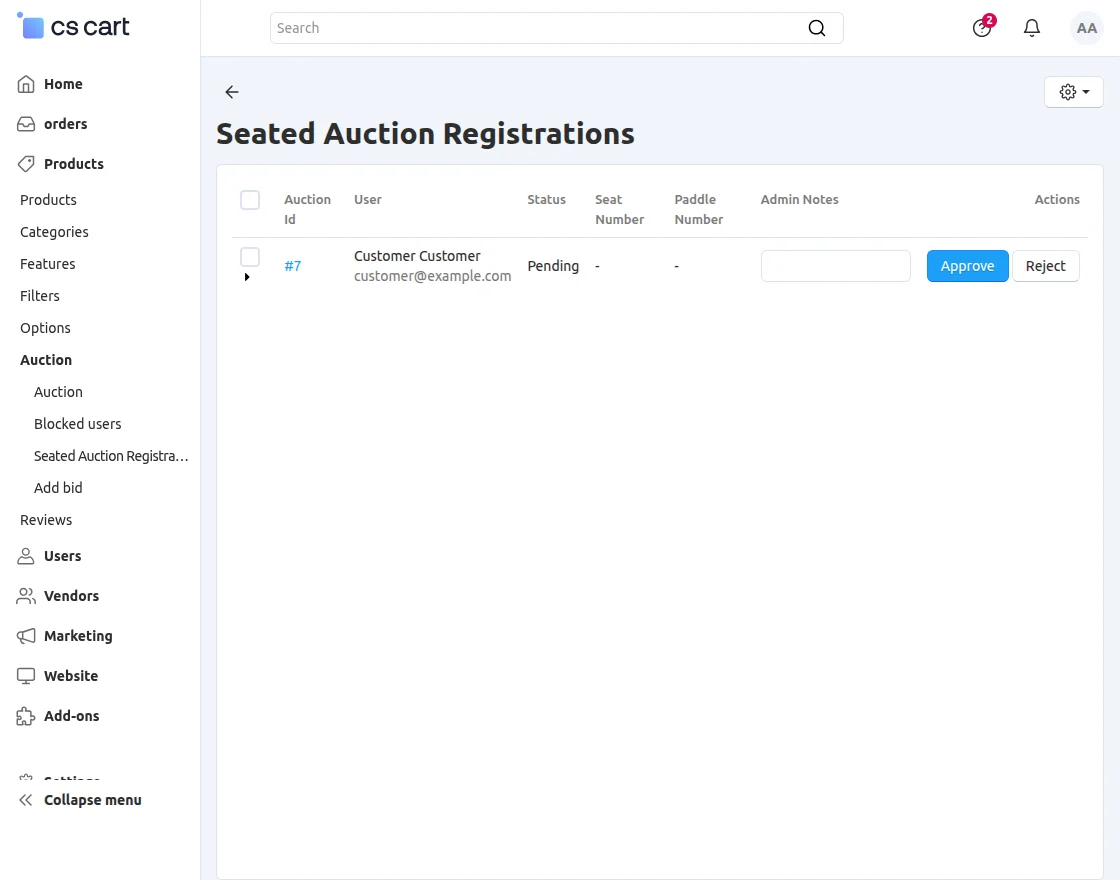
Once approved, the customer is officially added as a valid participant and becomes eligible to join the seated auction and place bids during the event.
Add bid (Offline Bidding)
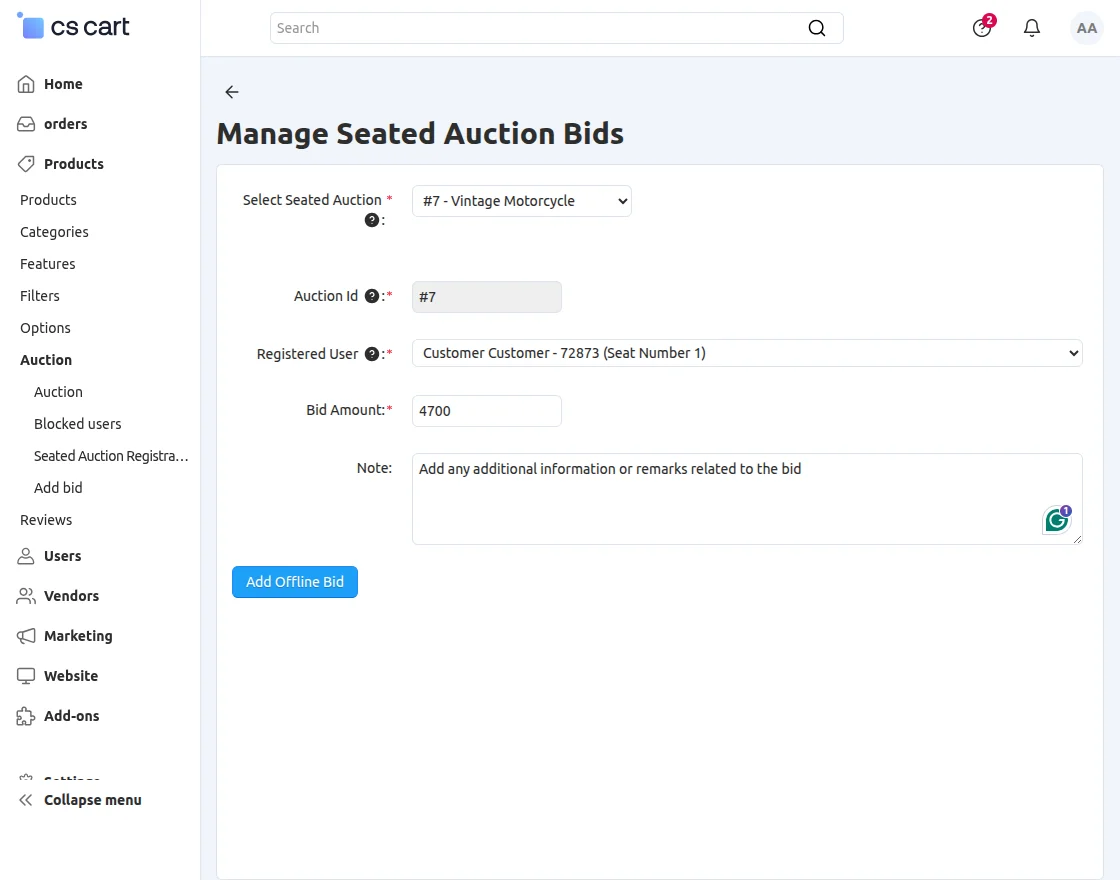
The Manage Seated Auction Bids section is used for handling offline bids in a seated auction. Admins can manually add bids placed during live events or outside the online system.
Fields:
- Select Seated Auction: Choose the seated auction from the dropdown
- Auction Id: Displays the selected auction identifier
- Registered User: Select the approved participant from the registered users list
- Bid Amount: Enter the offline bid amount placed by the user
- Note: Add any additional information or remarks related to the bid
Email Templates Configuration
Wallet Integration Note
This feature works only if the CS-Cart Wallet System add-on is installed. The wallet system enables users to participate in auctions using their wallet balance for seamless and secure transactions.
Once an auction has started, the admin will not be able to enable or disable the wallet option, ensuring consistency and preventing transaction conflicts during active auctions.
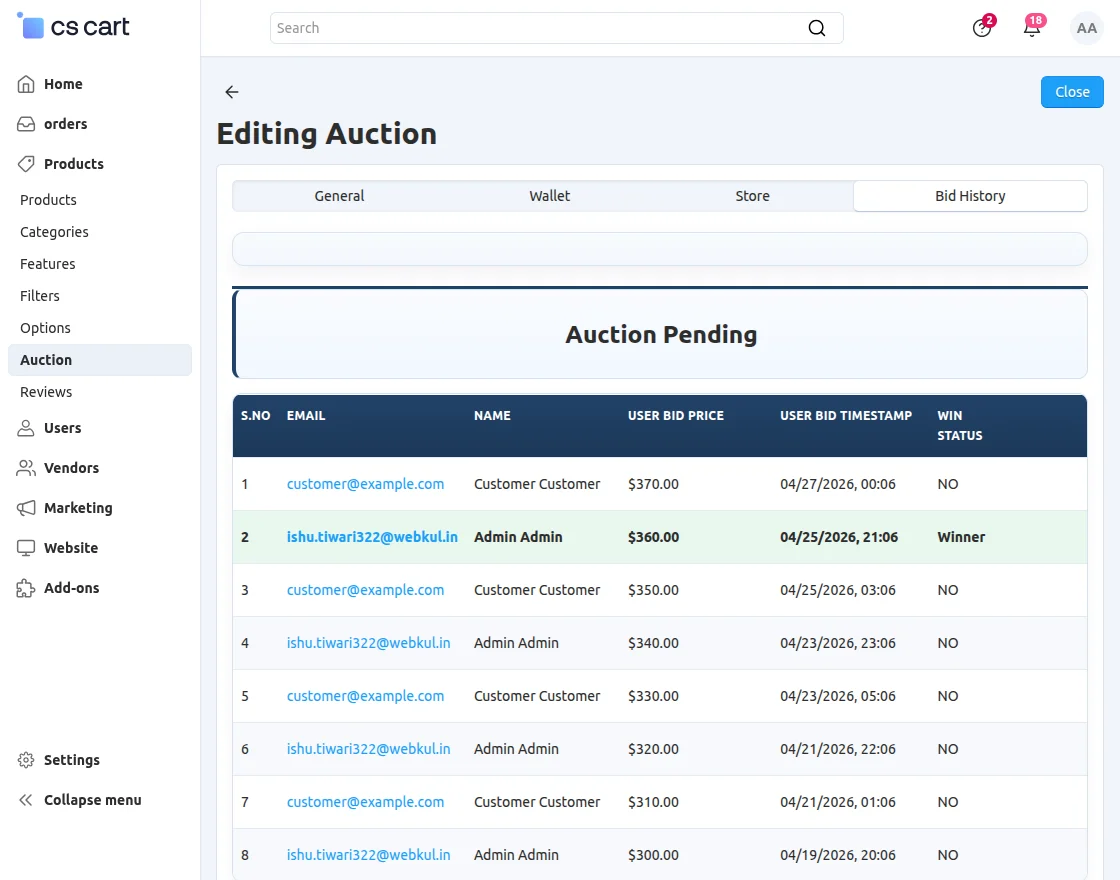
Bid History
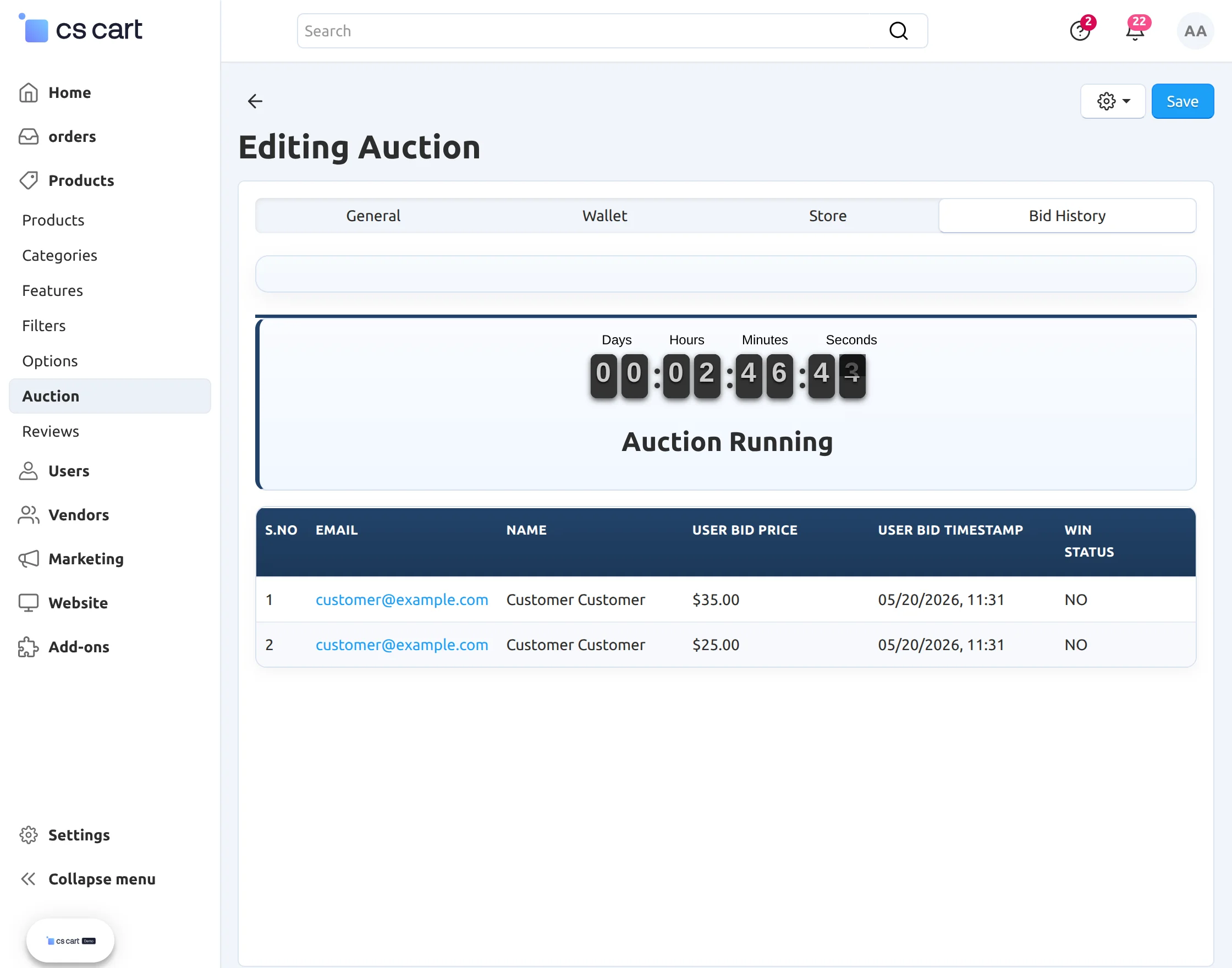
After creating an auction, the admin can view the complete bid history by clicking the Edit option on any auction product.
This section provides a detailed record of all bids placed on that product, allowing the admin to monitor bidding activity, track user participation, and analyze auction performance in real time.
Frontend Auction Experience
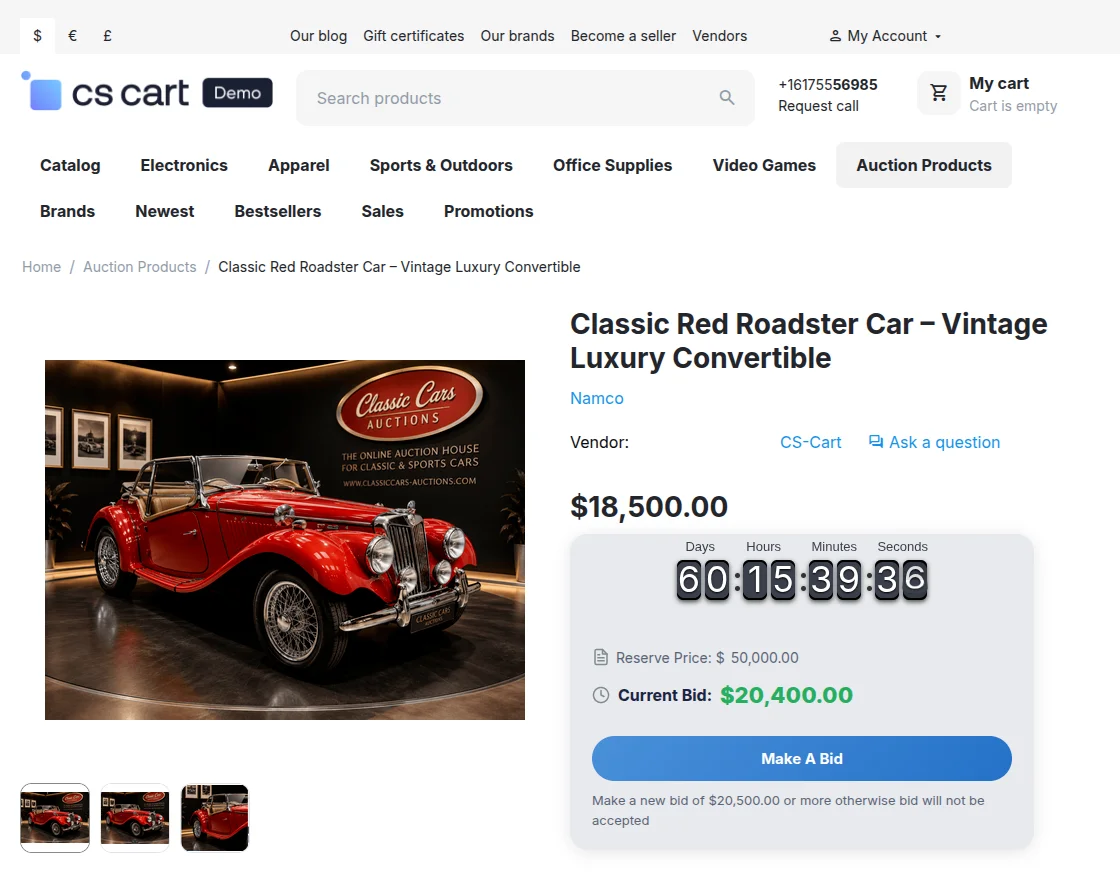
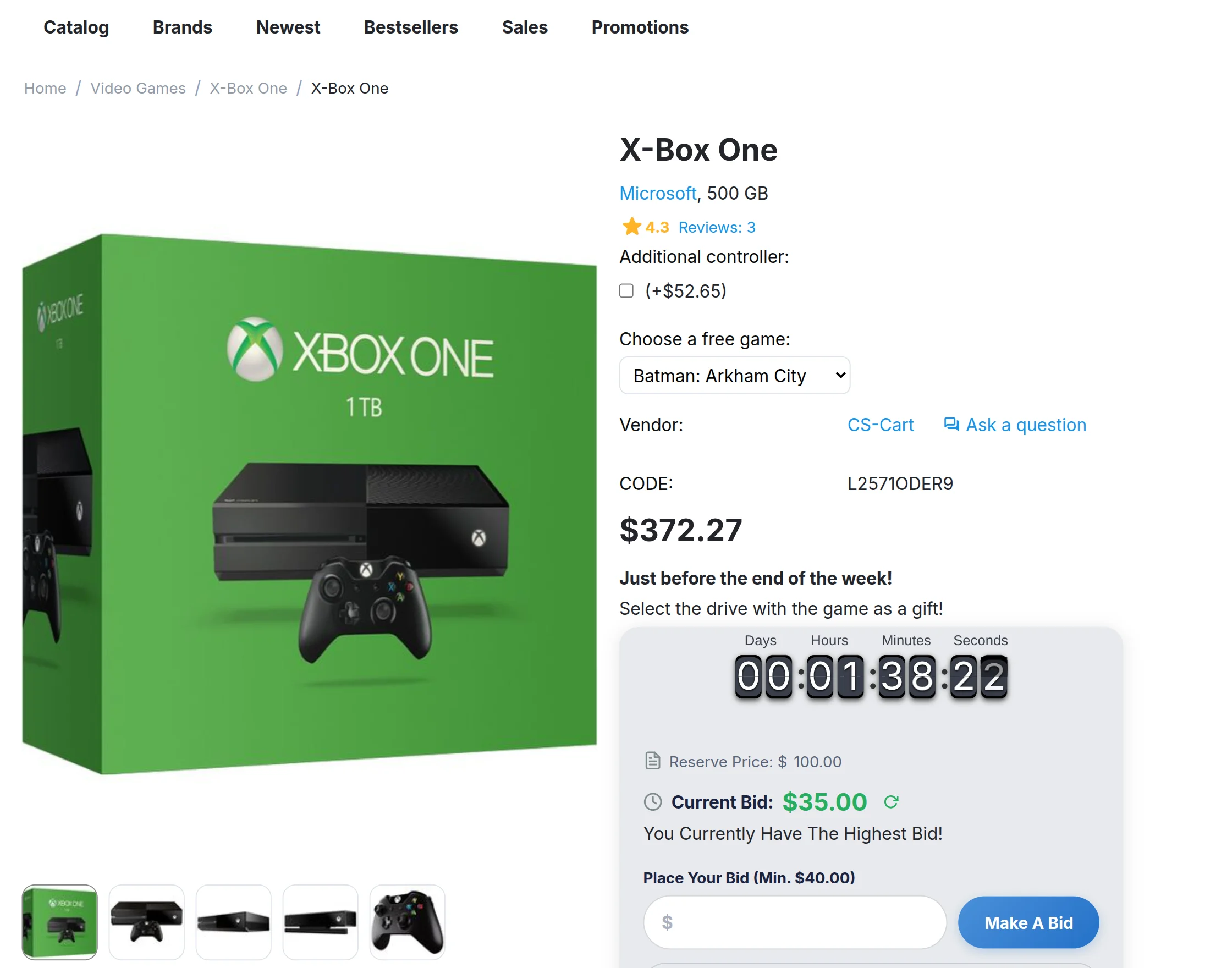
At the frontend, auction products are displayed in an engaging and visually appealing layout designed to enhance user interaction.
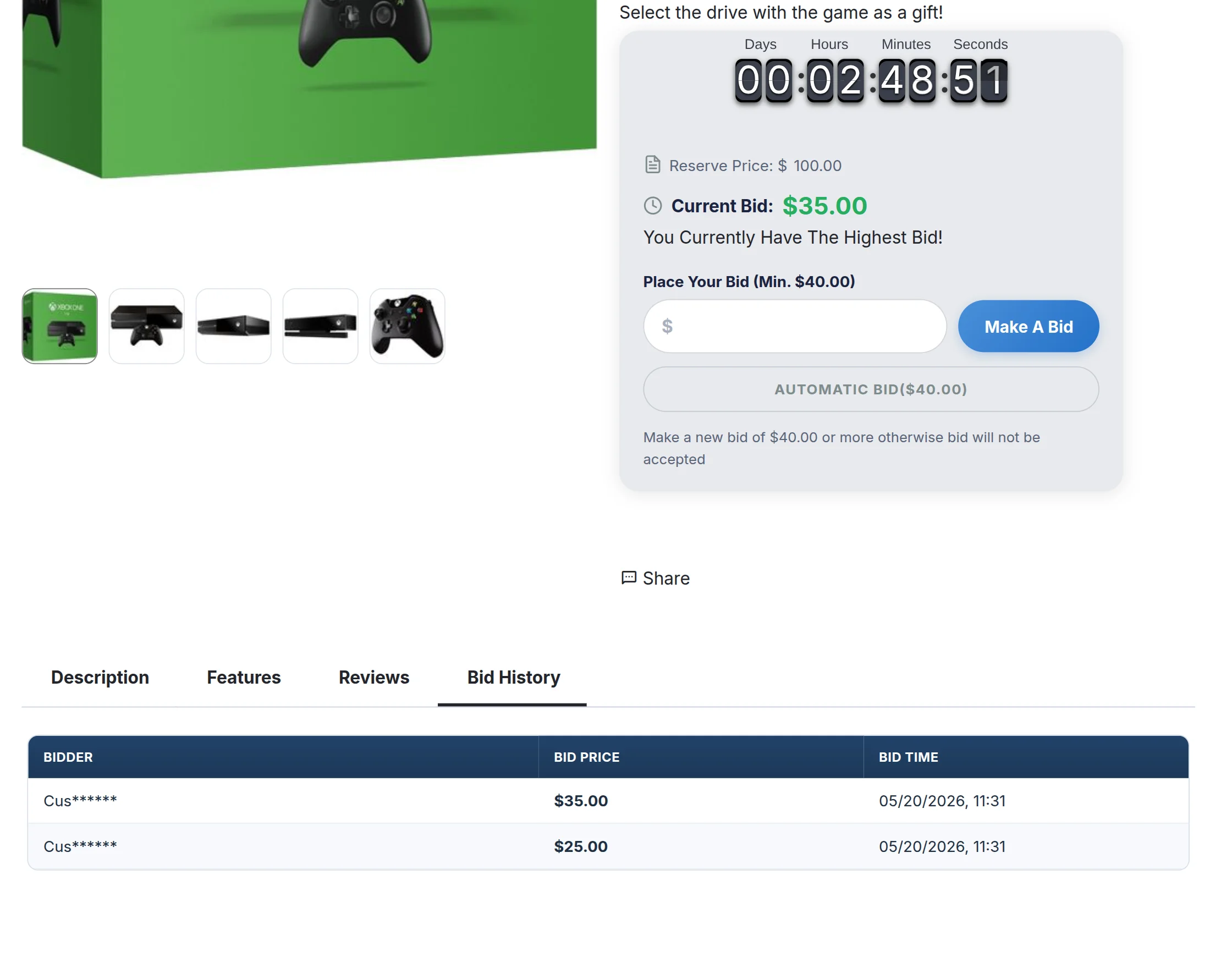
A dynamic countdown timer adds excitement to the product detail page, creating a real-time bidding atmosphere.
Bidders can clearly view the current highest bid and reserve price, allowing them to make informed decisions before placing their bids.

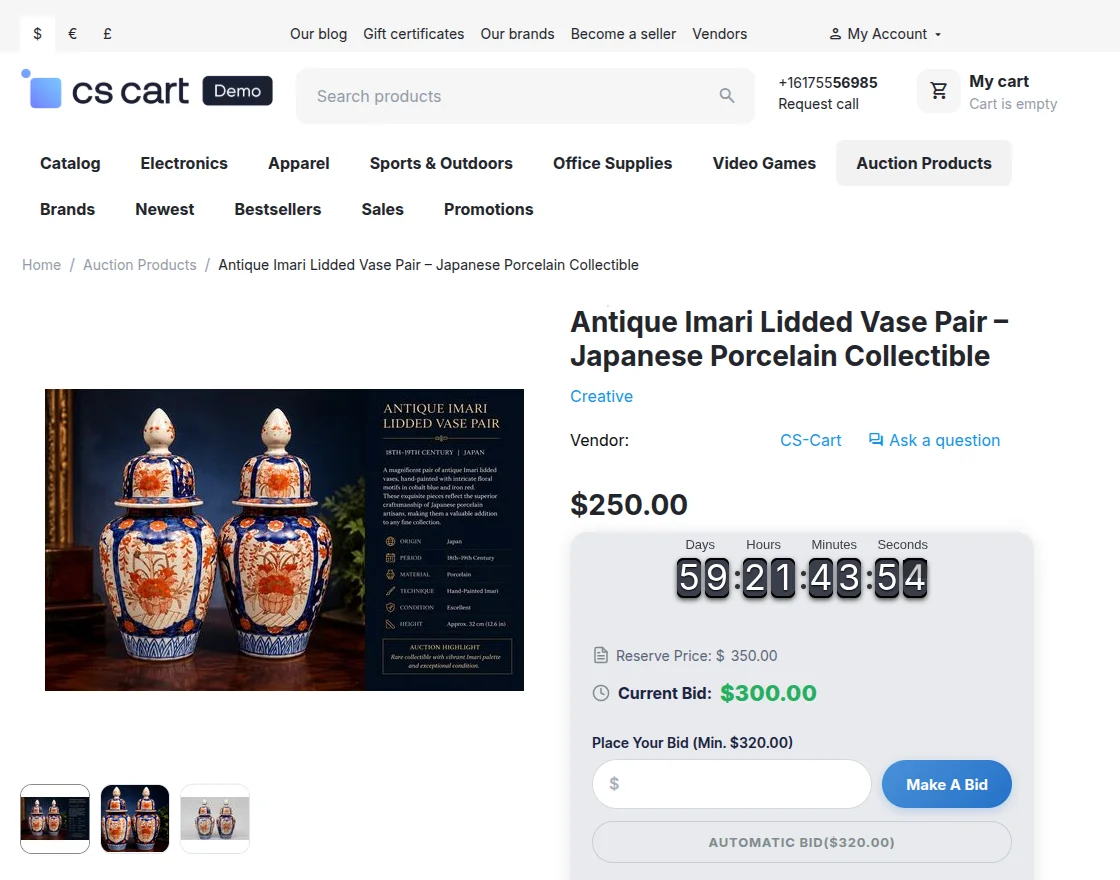
If you have enabled the automatic bid, then you will find a new button called “Automatic Bid,” as shown in the image.
Once you click on the automatic bid, it will automatically add your bid.
View Active Auctions on Products
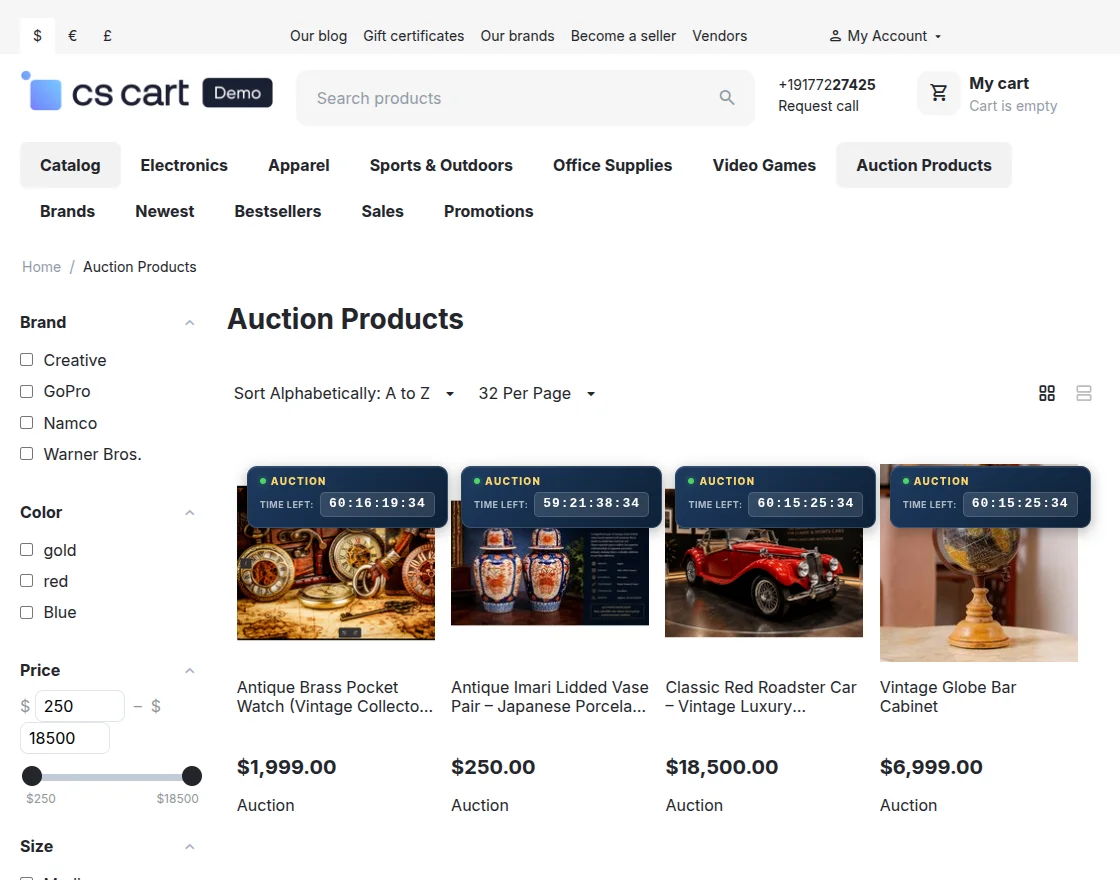
To help users stay updated with ongoing bidding opportunities, the store includes a dedicated Auction Product section.
This feature allows you to easily browse all products that are currently part of an active auction.
By clicking on “Auction Product” from the store page, you can instantly view a curated list of items where live bidding is in progress.
Each listed product shows key auction details such as the current highest bid, remaining time, and bid status, making it simple to decide where you want to participate.
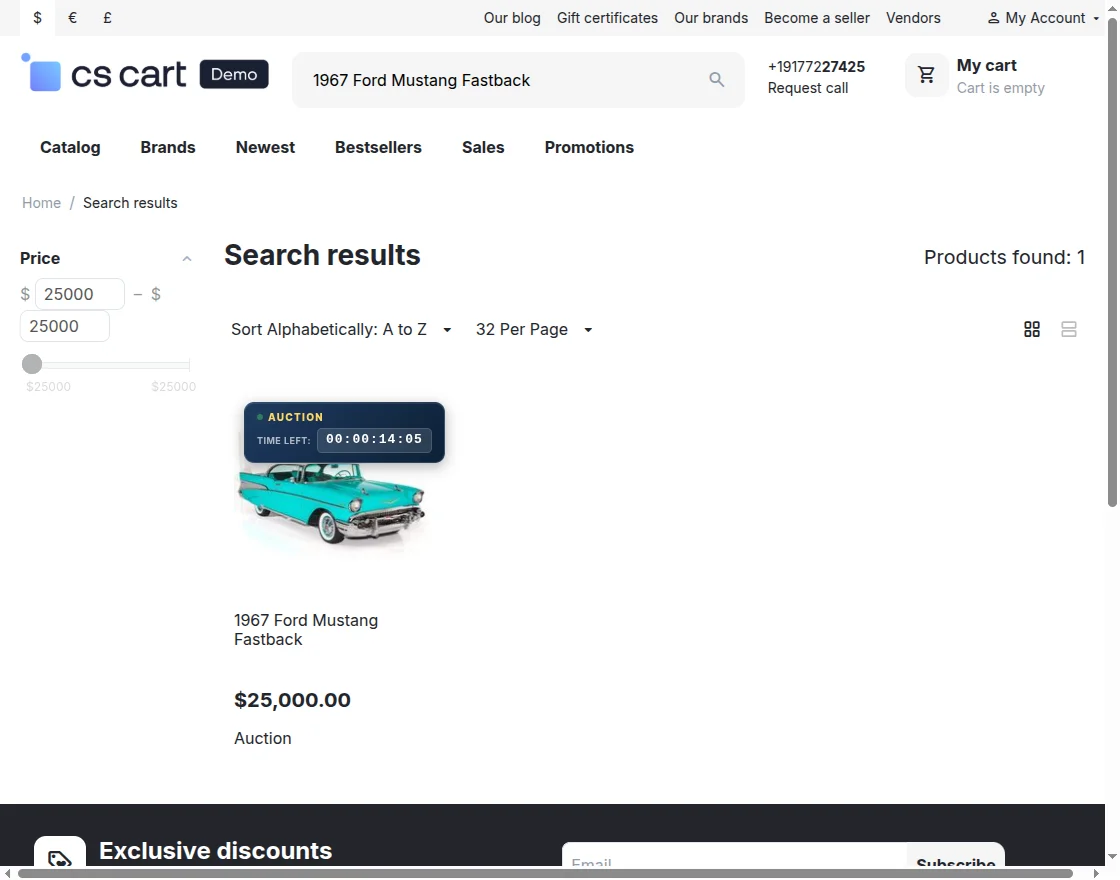
For scheduled auction as well, there will be a timer displaying the countdown to start the auction.
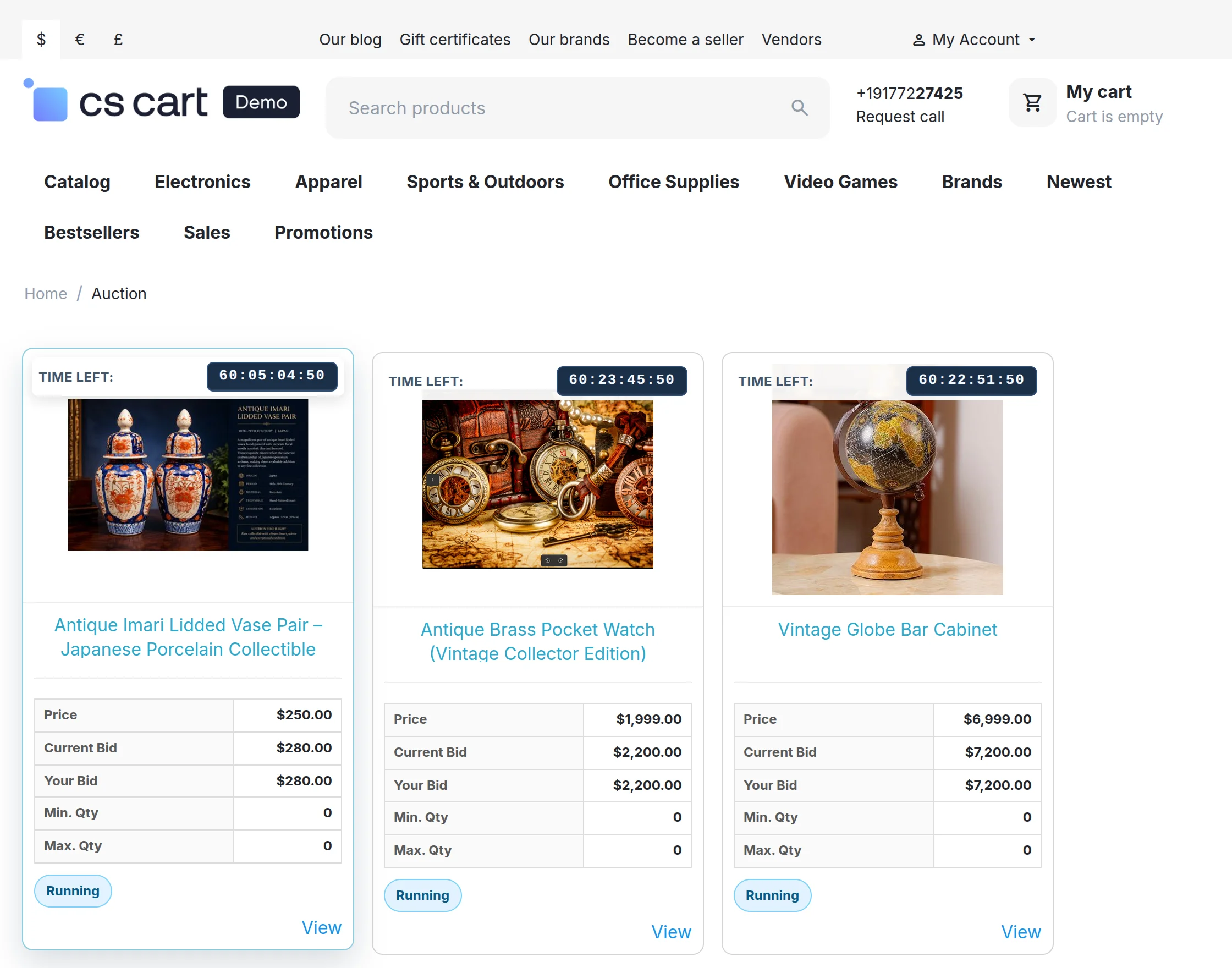
The customer will be able to view the status of the Auctions he participated in. Win status will display the results after auction completion as shown in the below snapshots.
- If a customer is Winner, he will be able to view Add to Cart button for that particular auction.
- If he has purchased the product he will see the win status as Claimed along with the corresponding order id of purchase.
- On losing the auction, there will be a sorry message as shown below in the snapshot.
- For a running deal, the customer will be able to view his last bid amount with a Running status.
After participating in an auction, you can easily track your activity through the Bid History section.
Back End View
At the backend, there is an option to edit and delete the auction. Only the scheduled auctions can be edited. Also, Admin & vendor can view the bidders on particular auction as shown below.
Admin/Vendor will be able to view the bid history in the Edit mode of the auction.
A countdown timer will be available at the backend for running bid as shown below.
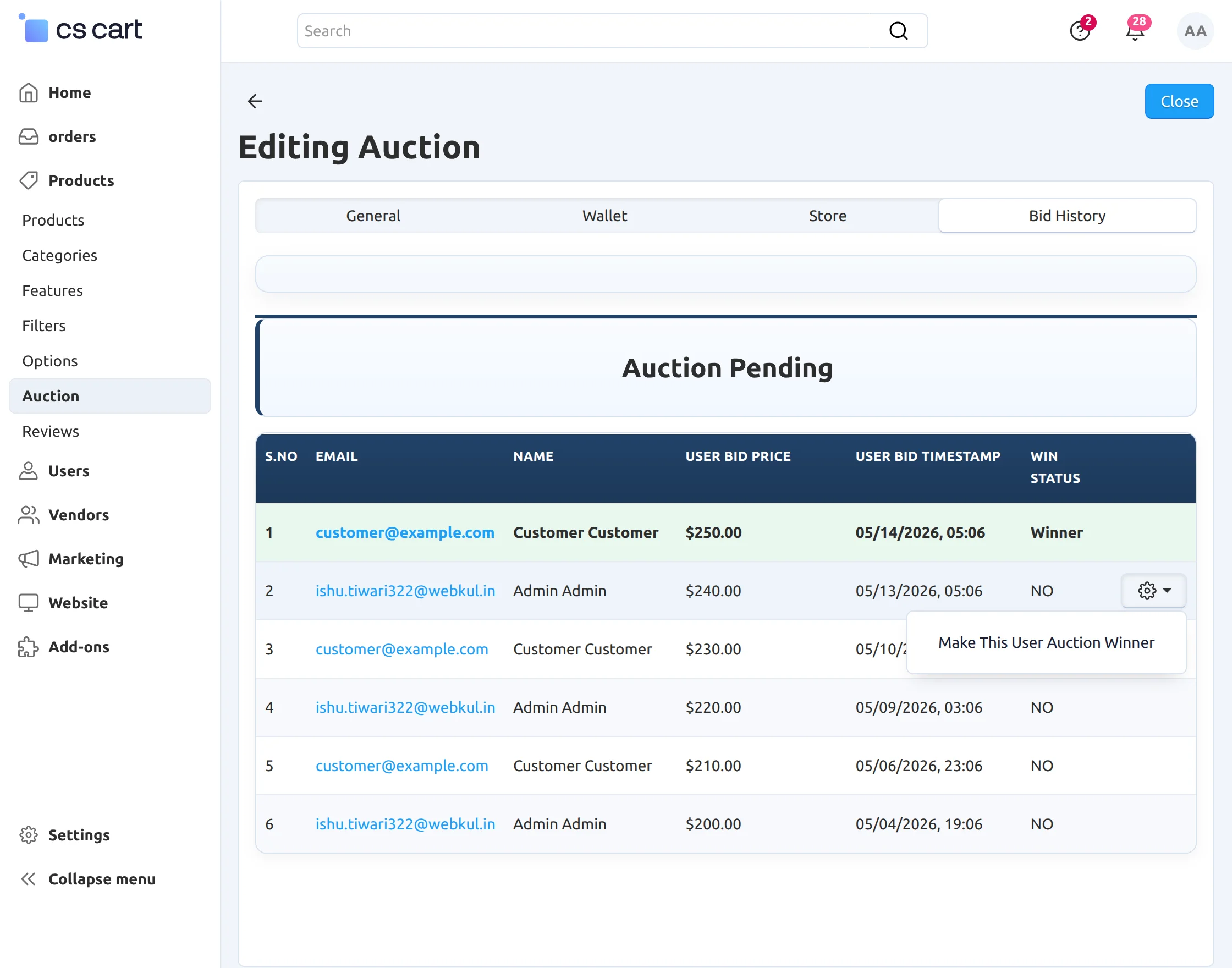
The auction will remain pending if the winner has not yet purchased the product. Only the winner will be able to view Add to Cart button for that particular auction product.
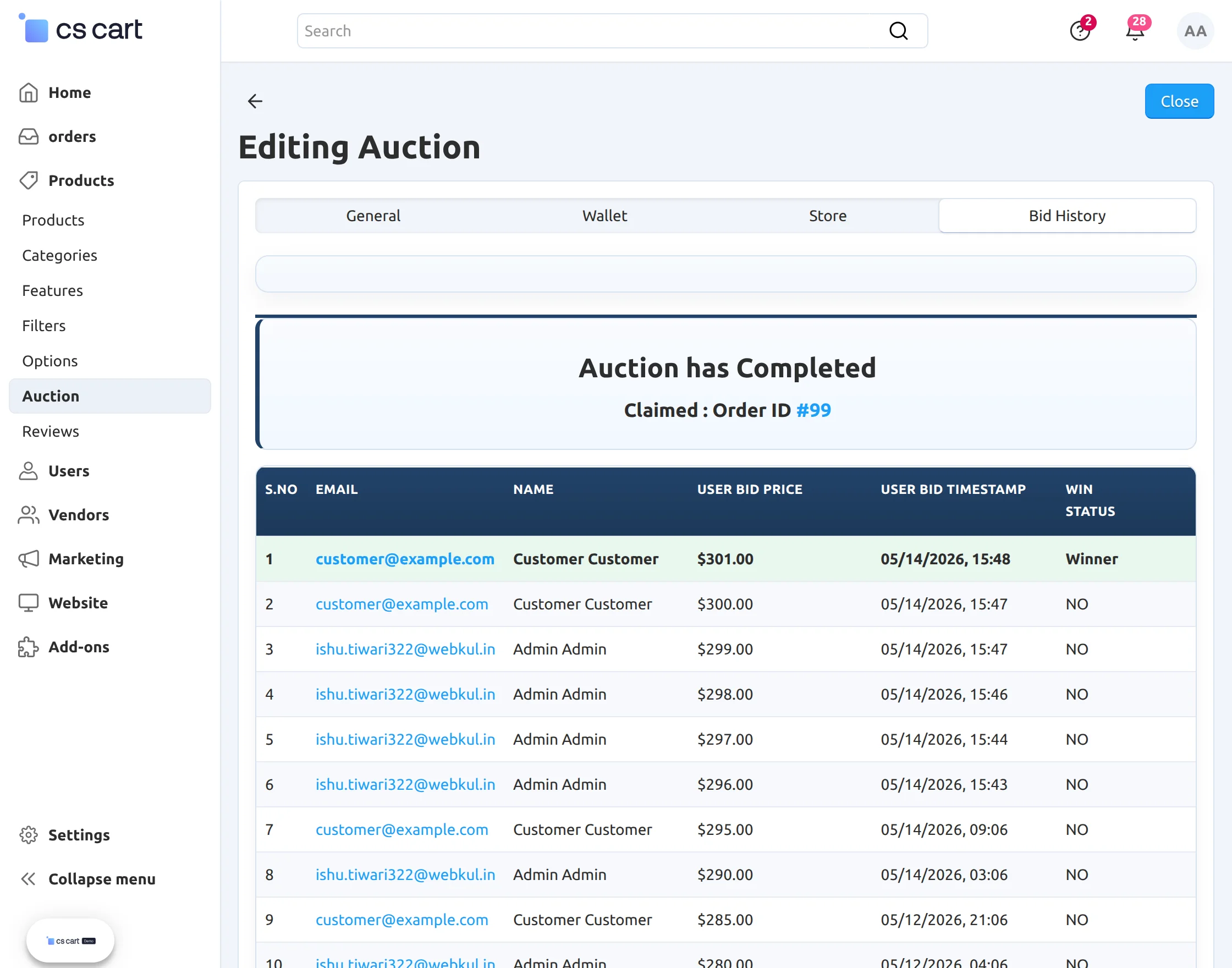
Admin has the functionality to change the winner manually as well. The winner will then be notified via email with the same email content as the automatically declared winner was notified.
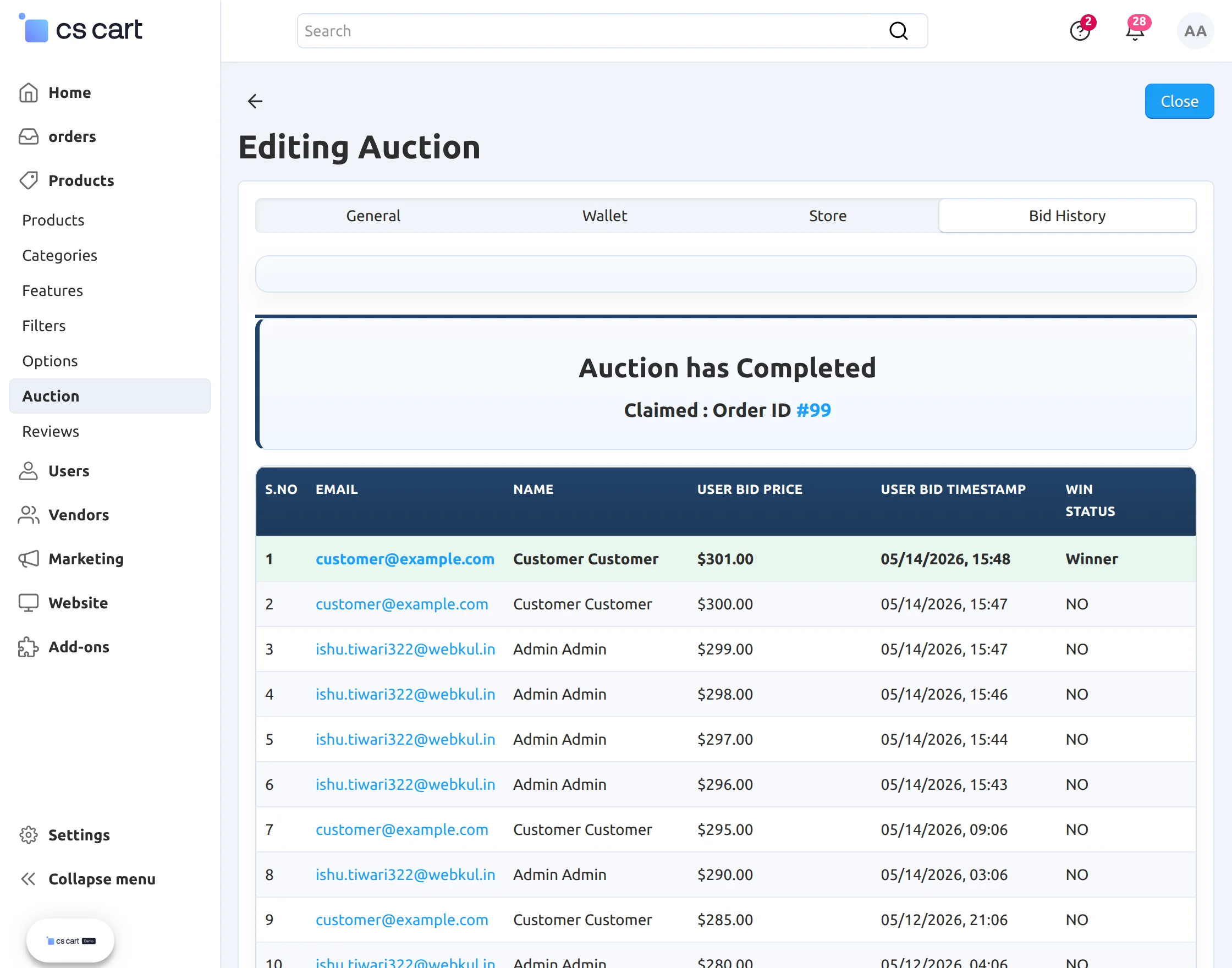
Once the winner has purchased the product the Auction status will get changed to Completed and corresponding order id will be displayed as shown below.
Support
If you have any questions, suggestions, or customization requests, feel free to contact us at support@webkul.com or submit a ticket at webkul.uvdesk.com.
Explore our premium-quality CS Cart Extensions to enhance your store functionality.
You can also explore our CS-Cart Development Services and Quality CS-Cart add-ons.