Create dropdown product attribute in Magento 2
Creating a dropdown product attribute in Magento 2 allows you to manage product data more efficiently and maintain consistent values across your catalog.
There are two ways to create the dropdown attribute in Magento.
1 -> Manually: Go to the admin panel, Store -> Attributes -> Product.
2 -> Programmatically.
In this guide, we’ll walk through the steps to create and assign a dropdown product attribute programmatically.
So let’s start :
Step 1: Create the AddProductAttribute.php file in the location Vendor\Module\Setup\Patch\Data
<?php

namespace Vendor\Module\Setup\Patch\Data;

use Magento\Framework\Setup\ModuleDataSetupInterface;
use Magento\Framework\Setup\Patch\DataPatchInterface;
use Magento\Eav\Setup\EavSetupFactory;
use Magento\Eav\Model\Entity\Attribute\ScopedAttributeInterface;
use Magento\Eav\Model\Entity\Attribute\SetFactory;
use Magento\Catalog\Model\Product;

class AddProductAttribute implements DataPatchInterface
{
    public const ATTRIBUTE_GROUP = "Test Group";
    public const ATTRIBUTE_CODE = "custom_dropdown";

    /**
     * @var ModuleDataSetupInterface
     */
    private $moduleDataSetup;

    /**
     * @var EavSetupFactory
     */
    private $eavSetupFactory;

    /**
     * @var SetFactory
     */
    private $attributeSetFactory;


    /**
     * @param ModuleDataSetupInterface $moduleDataSetup
     * @param EavSetupFactory $eavSetupFactory
     * @param SetFactory $attributeSetFactory
     */
    public function __construct(
        ModuleDataSetupInterface $moduleDataSetup,
        EavSetupFactory $eavSetupFactory,
        SetFactory $attributeSetFactory
    ) {
        $this->moduleDataSetup = $moduleDataSetup;
        $this->eavSetupFactory = $eavSetupFactory;
        $this->attributeSetFactory = $attributeSetFactory;
    }

    /**
     * @inheritdoc
     */
    public function apply()
    {
        $eavSetup = $this->eavSetupFactory->create(['setup' => $this->moduleDataSetup]);
        if ($eavSetup->getAttributeId(Product::ENTITY, self::ATTRIBUTE_CODE)) {
            return $this;
        }
        $eavSetup->addAttribute(
            Product::ENTITY,
            self::ATTRIBUTE_CODE,
            [
                'type' => 'int',
                'backend' => '',
                'frontend' => '',
                'label' => 'Attribute Label',
                'input' => 'select',
                'class' => '',
                'source' => \Vendor\Module\Model\Config\Source\Options::class,
                'global' => \Magento\Eav\Model\Entity\Attribute\ScopedAttributeInterface::SCOPE_STORE,
                'visible' => true,
                'required' => false,
                'user_defined' => true,
                'searchable' => false,
                'filterable' => false,
                'comparable' => false,
                'visible_on_front' => false,
                'used_in_product_listing' => true,
                'unique' => false,
                'apply_to' => 'simple,grouped,configurable,downloadable,virtual,bundle',
                'group' => self::ATTRIBUTE_GROUP,
            ]
        );


        // Assign attribute to ALL attribute sets under "Test Group" group
        $entityTypeId = $eavSetup->getEntityTypeId(Product::ENTITY);
        $attributeId  = $eavSetup->getAttributeId(Product::ENTITY, self::ATTRIBUTE_CODE);
        $attributeSets = $eavSetup->getAllAttributeSetIds($entityTypeId);

        foreach ($attributeSets as $attributeSetId) {
            $groupId = $eavSetup->getAttributeGroupId(
                $entityTypeId,
                $attributeSetId,
                self::ATTRIBUTE_GROUP
            );

            if (!$groupId) {
                $eavSetup->addAttributeGroup(
                    $entityTypeId,
                    $attributeSetId,
                    self::ATTRIBUTE_GROUP,
                    100
                );
                $groupId = $eavSetup->getAttributeGroupId(
                    $entityTypeId,
                    $attributeSetId,
                    self::ATTRIBUTE_GROUP
                );
            }

            $eavSetup->addAttributeToGroup(
                $entityTypeId,
                $attributeSetId,
                $groupId,
                $attributeId,
                100
            );
        }


        return $this;
    }

    /**
     * @inheritdoc
     */
    public static function getDependencies()
    {
        return [];
    }

    /**
     * @inheritdoc
     */
    public function getAliases()
    {
        return [];
    }
}
Step 2: Create the Options.php file in the location Vendor\Module\Model\Config\Source
Note: Options for the dropdown attribute can be added directly as an array. Here, we are using ‘source’ to add the options as follows :
<?php

namespace Vendor\Module\Model\Config\Source;

class Options extends \Magento\Eav\Model\Entity\Attribute\Source\AbstractSource
{
    /**
    * Get all options
    *
    * @return array
    */
    public function getAllOptions()
    {
        $this->_options = [
                ['label' => __('No'), 'value'=>'0'],
                ['label' => __('Yes'), 'value'=>'1'],
                ['label' => __('Other'), 'value'=>'2']
            ];

    return $this->_options;

    }

}
Step 3: Run the following command on your magento root directory.
php bin/magento setup:upgrade
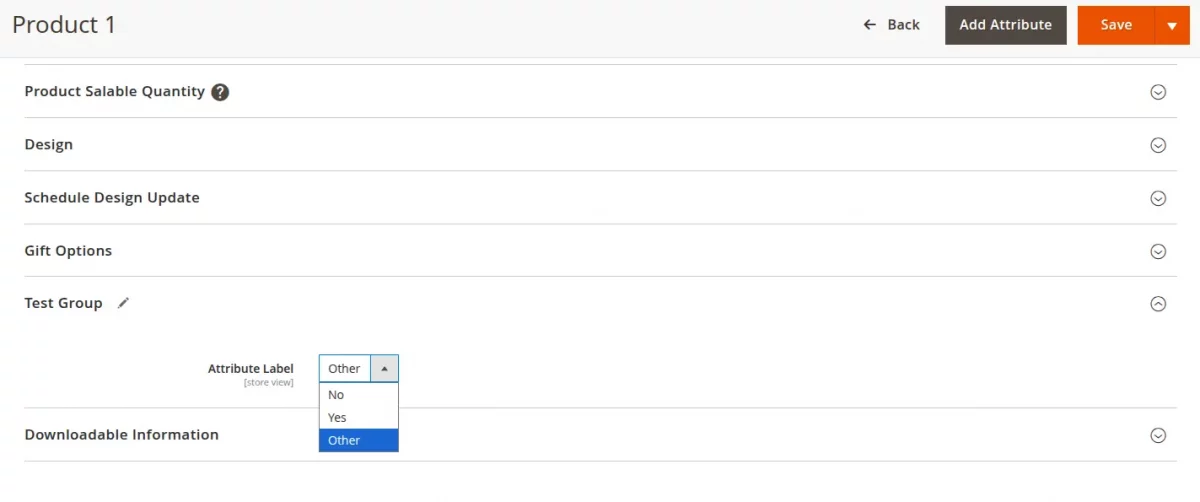
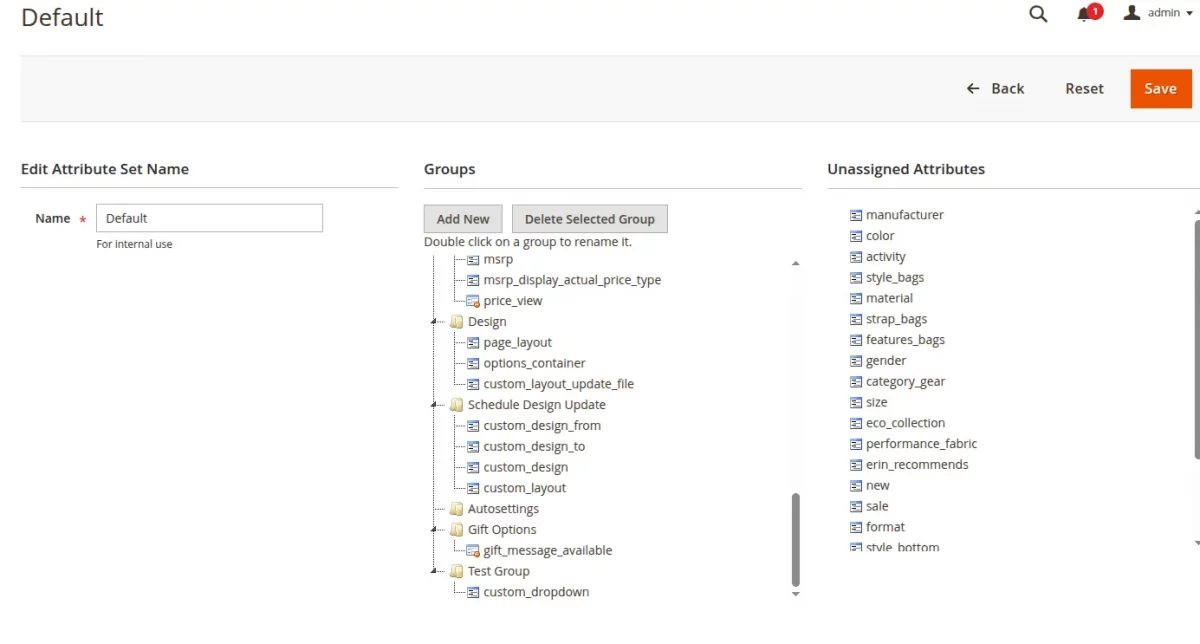
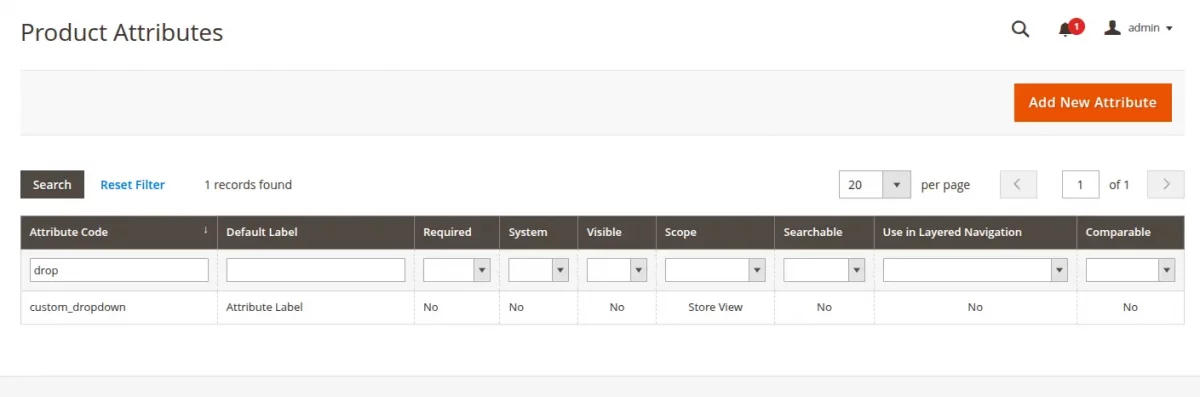
Once the command executes successfully, you can check the results in the following locations:
Product Add/Edit page-

Attribute Set Page-

Attributes listing Grid-

Now, you have successfully created the dropdown product attribute.
With this approach, you can easily add fixed values to your products and keep your catalog data clean and consistent.
Moving forward, you can use this method to create other custom attributes and manage them more confidently in Magento 2.
In case you have any queries, feel free to ask in the comment section below.
For technical assistance, please get in touch with us via email at support@webkul.com.
Discover powerful solutions to enhance your Magento 2 store by exploring our Magento 2 plugins page.
Bring your vision to life with custom-built solutions—hire skilled Magento 2 developers today.