Guide for Shiprocket Shipping for WooCommerce Marketplace
Table of Content
Shiprocket Shipping for WooCommerce Marketplace helps connect Shiprocket’s delivery service with your WooCommerce Multi-Vendor marketplace.
This enables smooth and efficient shipping operations.
This module enables both the admin and vendors to efficiently manage shipments, ensuring a seamless delivery experience for customers.
It automatically syncs marketplace orders with the Shiprocket dashboard, making order handling faster and easier for individual sellers.
Customers see courier options based on their address and the vendor’s location, ensuring accurate delivery choices.
The plugin displays live shipping rates at checkout, helping customers choose the best option.
The system also supports multi-vendor scenarios by splitting orders based on the seller.
Features
- Seamlessly integrates Shiprocket shipping with the WooCommerce multi-vendor marketplace.
- Allows admin to configure Shiprocket API credentials globally for the entire marketplace.
- Supports multiple courier partners for flexible and optimized delivery.
- Automatically fetches and displays courier options based on pickup and delivery location.
- Displays real-time shipping rates on checkout for accurate pricing.
- Enables vendor-wise shipping calculation based on individual pickup locations.
- Admin can set a default pickup location for fallback scenarios.
- Vendors can configure their own pickup/warehouse locations for accurate logistics.
- Sync and manage all Shiprocket pickup locations with a single click.
- Allows defining global product dimensions (length, width, height) and weight.
- Automatically syncs WooCommerce marketplace orders with the Shiprocket dashboard.
- Splits orders vendor-wise to process shipments separately for each seller.
- Auto-generates AWB numbers for each shipment.
- The system allows both admins and vendors to generate shipping labels directly from the order page.
- Enables printing of shipping invoices directly from WooCommerce.
- Displays assigned courier partner details to admin, vendors, and customers.
- Provides real-time shipment tracking for all vendor orders.
How Shiprocket Works with WooCommerce Marketplace
Before diving into the setup, it helps to see how the plugin works end to end.
Once configured, Shiprocket handles most of the shipping process automatically for every marketplace order.
The moment an order moves to processing, the plugin takes over and pushes it to Shiprocket without any manual effort.
This keeps order handling fast, reduces errors, and lets both admin and vendors focus on selling.
Order Fulfillment Steps
Step 1: Order Placement & Shipping Rate Calculation
A customer places an order and completes payment on your marketplace. Shiprocket shipping options and rates can be displayed based on the delivery address.
Step 2: Automation Trigger
Once the order moves to Processing, it becomes ready for fulfillment. The configured integration then starts the Shiprocket shipping workflow.
Step 3: Order & Shipment Synchronization
The order details are synchronized with Shiprocket to create the shipment. For multi-vendor orders, products can be processed separately according to each vendor.
Step 4: AWB & Courier Assignment
Shiprocket assigns a suitable courier and generates an AWB number for the shipment. The courier and shipment details can then be synchronized with WooCommerce.
Step 5: Pickup Scheduling
After the shipment is created, a pickup request can be scheduled for the vendor’s pickup location. This helps simplify the process of coordinating courier pickups.
Step 6: Dispatch Preparation
The vendor packs the order and prepares it for courier pickup. Shipping labels, invoices, and other required documents can be generated as supported by the setup.
Step 7: Courier Pickup & Delivery
The assigned courier collects the package from the vendor’s pickup location. The shipment is then transported and delivered to the customer’s address.
Step 8: Real-Time Shipment Tracking
Shiprocket provides tracking information as the shipment moves through the delivery process. Supported tracking updates can also be synchronized with WooCommerce.
Step 9: WooCommerce Order Status Synchronization
Shipment progress can update the WooCommerce order according to the configured status mapping.
Installation
The user will get a zip file, which he has to upload to the “Add New Plugin” menu option in the WordPress admin panel.
For this, log in to the WordPress Admin Panel.
From the Dashboard, hover over the “Plugins” menu to open the submenu, then click the “Add New Plugin” option.

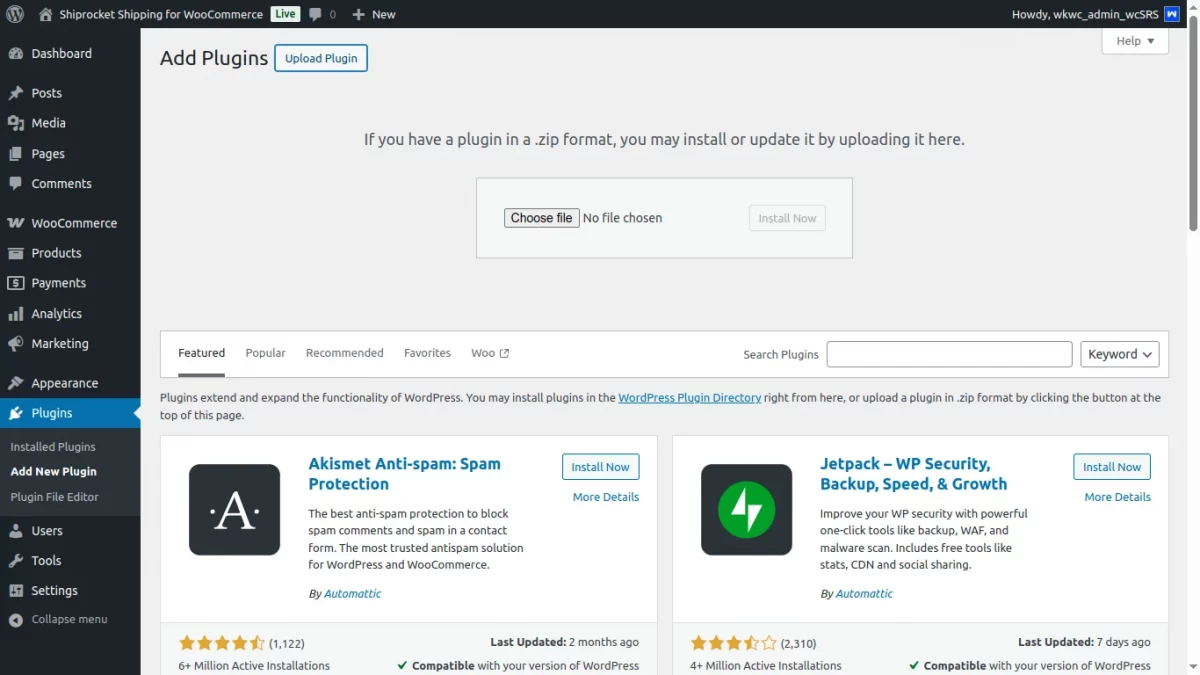
After that, you will see an option at the top of your page labeled “Upload Plugin.” Click the option to upload the zip file.
After that, click on the “Upload Plugin” option. You will see a button “Choose File”. Click on the button to browse for the zip file as per the snapshot below.

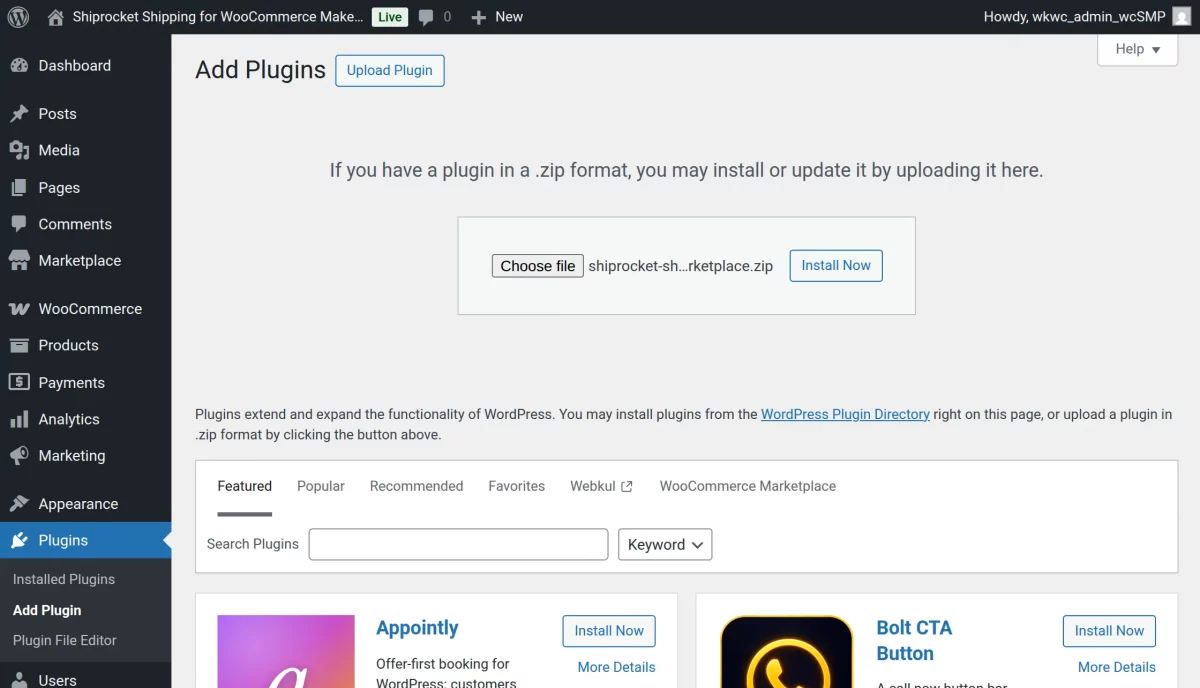
Therefore, now to browse the file, click the “Install Now” button to install the plugin.
When the plugin installs correctly, the system displays a success message and an option to activate it.
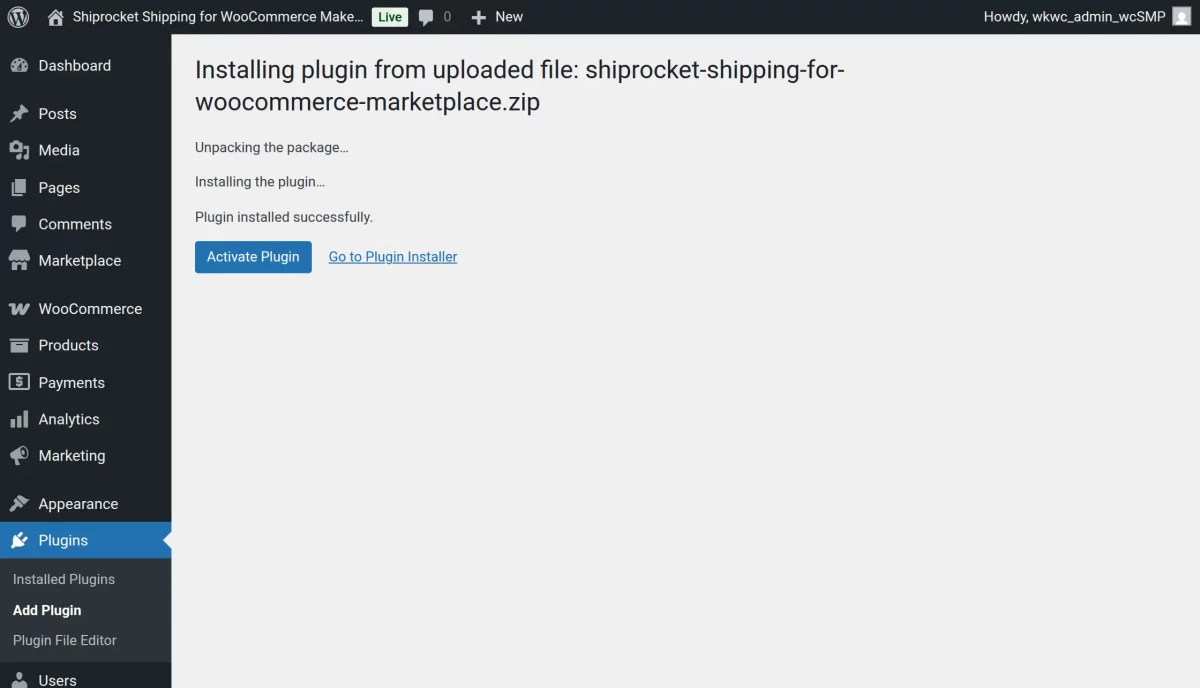
After that, click on “Activate Plugin” to activate the installed plugin.

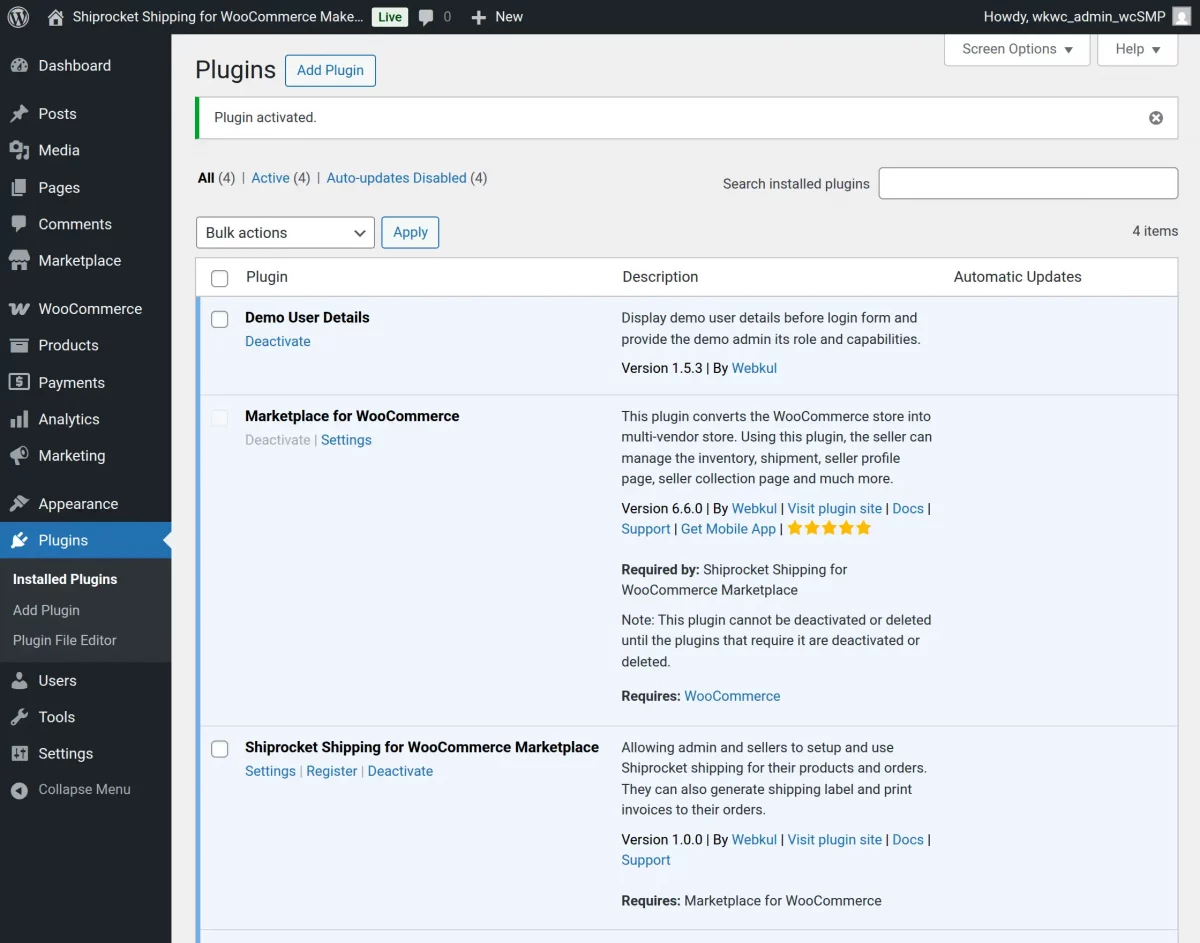
This completes the installation of the Shiprocket Shipping for WooCommerce Marketplace plugin.
Module Activation and Update
Check how to activate your WooCommerce plugin through the purchase code.
Also, check how you get updates on Webkul modules directly on the Plugins page.
Module Translation
To know how to translate the module, you can click here.
Shipocket Configuration
At Shiprocket’s end, first you need to configure the Shiprocket shipping details, such as API user & password, and add pickup addresses.
You will get all these details once you successfully create a Shiprocket account.
To create a Shiprocket account, navigate to the Shiprocket login page and click on the ‘Sign Up Now‘ option located at the bottom.


To get started, sign up on the Shiprocket registration page by selecting the “I’m a Seller” option and completing the required details, as shown below.


Once you complete the registration and create your Shiprocket account, the system redirects you to the Shiprocket dashboard.


Create an API User in Shiprocket
To create an API user in Shiprocket, go to Settings > Additional Settings > API Users.


Click the ‘+Add New API User‘ button, enter your email ID and password, then click ‘Create User‘ to complete the process.


Once you enter these details successfully, the system displays the newly created API user in the Shiprocket API user list.


NOTE– The Shiprocket API configuration token will be generated automatically once these configurations are saved.
Manage Pick Up Addresses in Shiprocket
To manage the pickup address locations in Shiprocket, go to Settings > Pickup Addresses


This section will display the complete list of pickup addresses currently added in Shiprocket by the user, along with the option to add a new pickup location.

You can add multiple pickup addresses in Shiprocket, using tags like Home, Work, Warehouse, or others to organize them as needed.
To add a new pickup address in Shiprocket, click the ‘+Add Pickup Address‘ button located at the top right corner.


After entering the address and contact details, click on the ‘Verify and Save Address‘ button.
The system will then prompt you to verify the OTP sent to your registered phone number.


Once you enter the address details successfully, the system saves the pickup location in Shiprocket.

Admin Configuration
After installing the module, the admin can access the settings to manage the Shiprocket Shipping for WooCommerce Marketplace addon.
API Setup
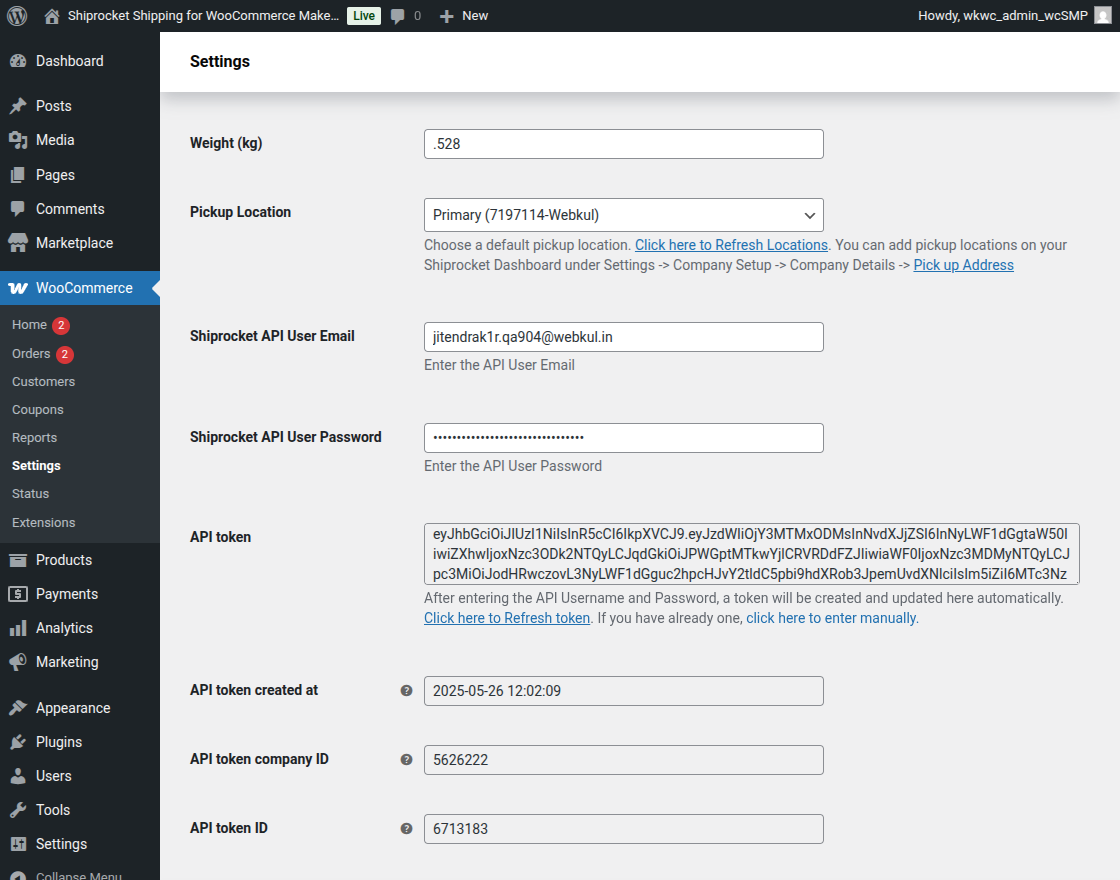
To configure the plugin, the admin must enter the Shiprocket API Email and Password in the plugin settings. The system automatically generates the token.
1. Navigate to Webkul WC Addons -> Shiprocket Marketplace -> Settings.
2. Enter the Shiprocket API Email and API Password.
3. The system automatically fetches the API token. You can also refresh it manually using the ‘Click here to Refresh Token‘ option.
Shipping Settings
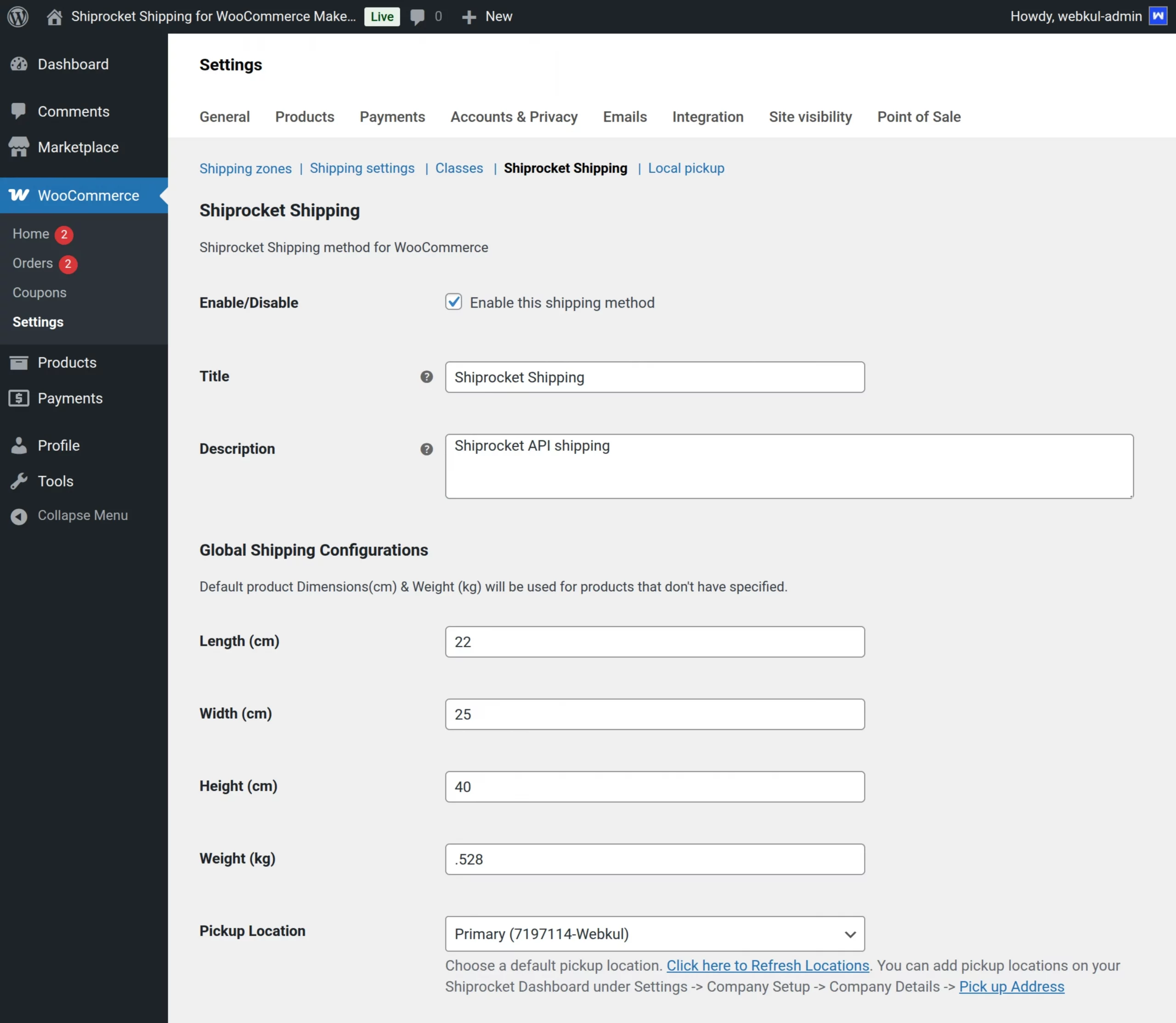
The admin can enable or disable the Shiprocket shipping method and configure global settings.
Enable/Disable: Toggle the Shiprocket shipping method for the marketplace.
Global Dimensions: Set default Length, Width, Height, and Weight if not specified for individual products.

Pickup Location
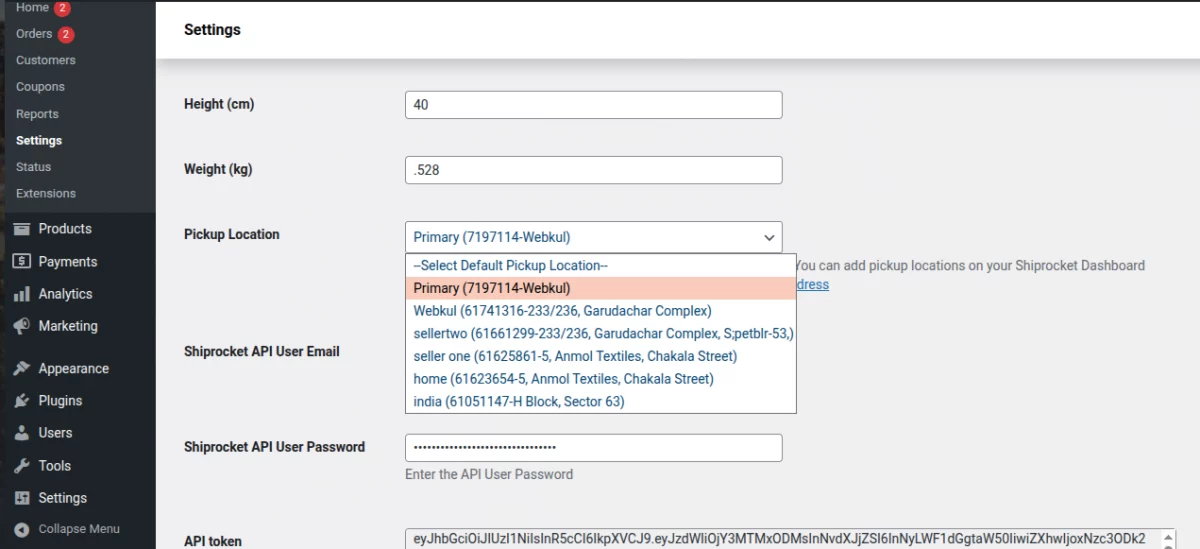
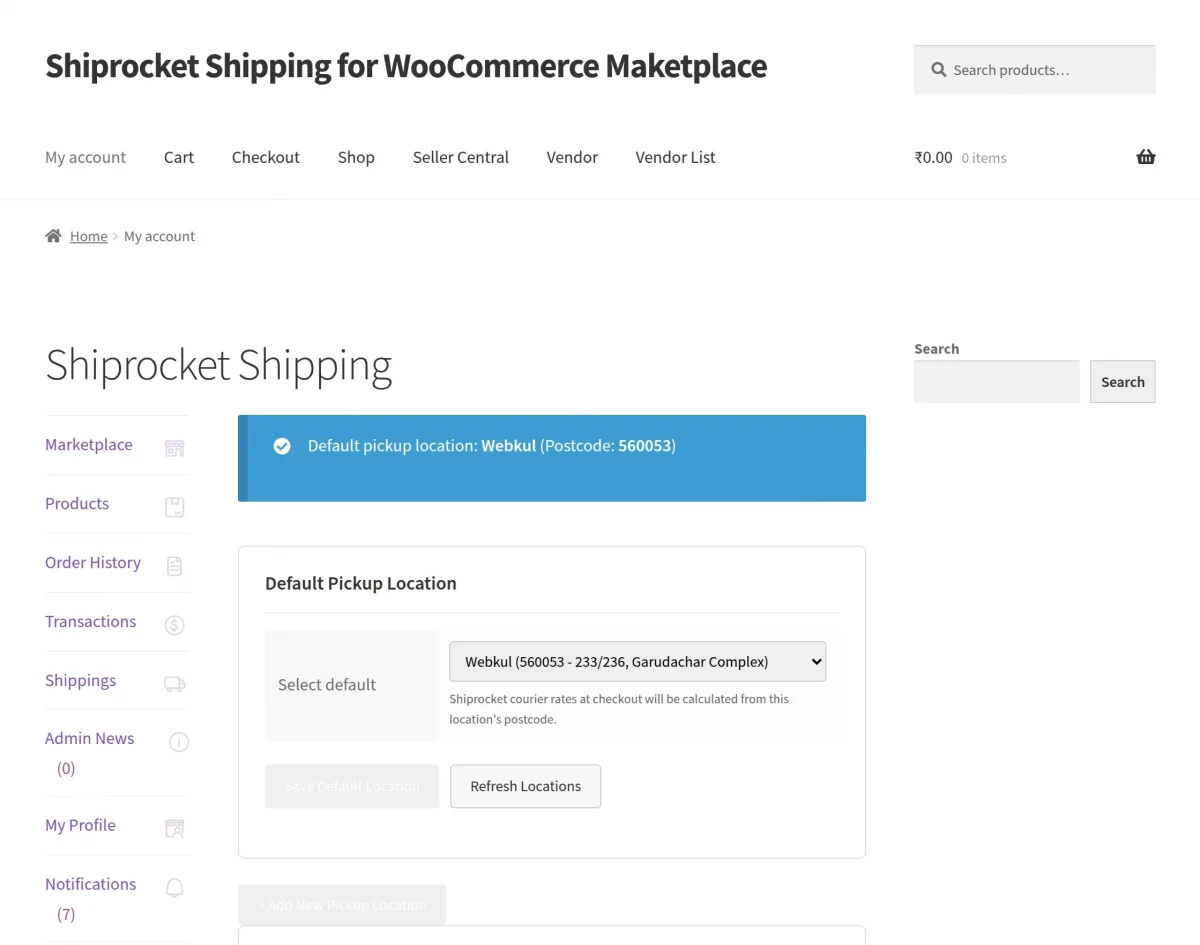
Admin can set a primary pickup location and sync Shiprocket locations using the “Refresh Locations” option.

Admin Shipping Management
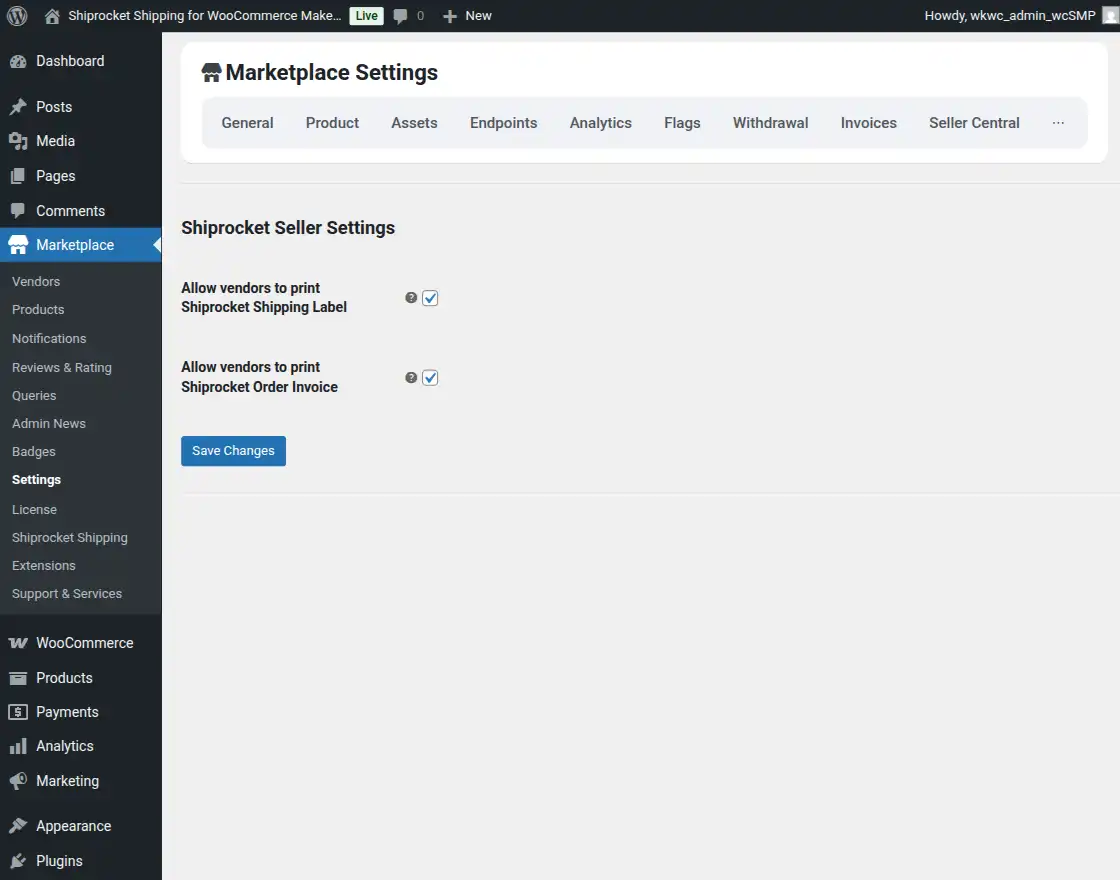
The admin manages marketplace shipping, configures Shiprocket settings, and controls vendor permissions.
Vendor Panel Workflow
With Shiprocket integration, marketplace sellers can manage their own shipping process independently.
Vendors can configure pickup locations, generate shipments, print labels & invoices, and track orders—all from their dashboard.
Vendor Configuration
If permitted by the admin, vendors can navigate to their dashboard settings to configure Shiprocket.
Steps to Add a Pickup Location
- Go to the Shiprocket Shipping section
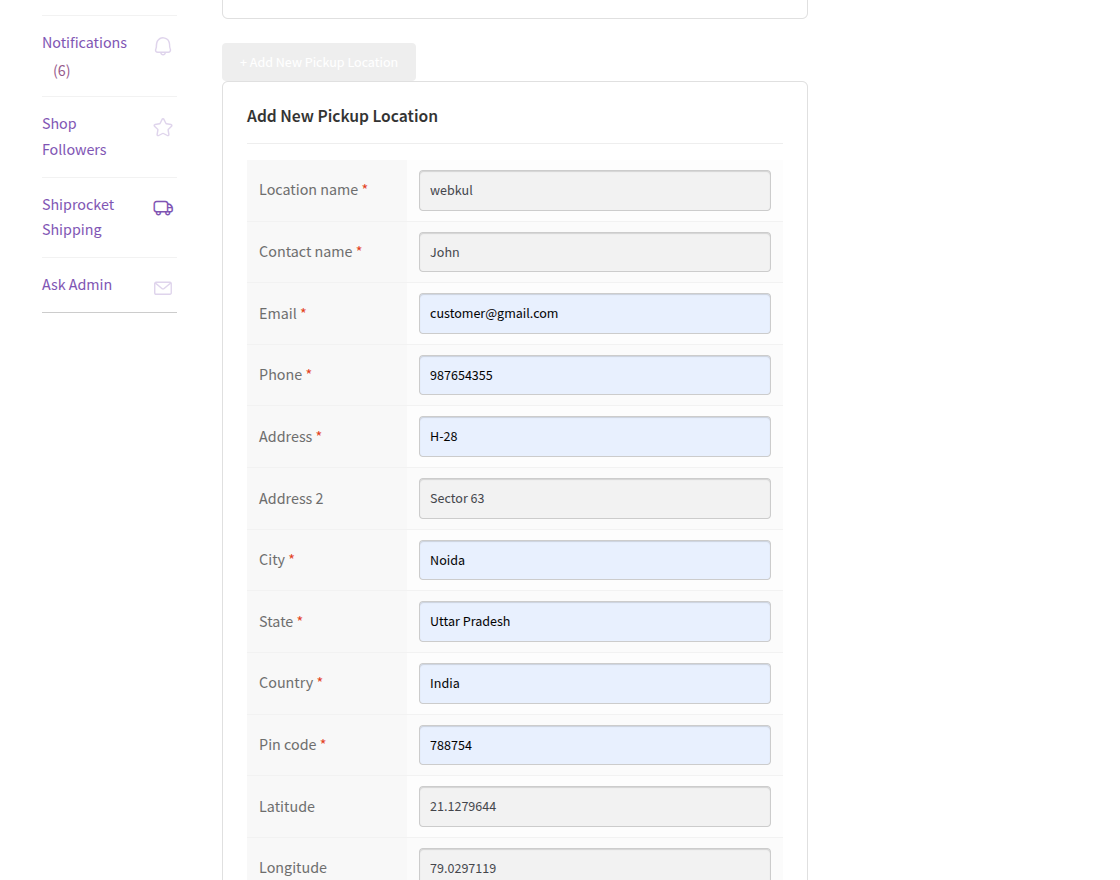
- Fill in the required details:
- Location Name
- Contact Name
- Email & Phone
- Address (Line 1 & 2)
- City, State, Country
- Pin Code
- GSTIN, Latitude, Longitude
- Click Save Pickup Location
4. The system syncs the location with Shiprocket and saves it in the marketplace.

Shiprocket Shipping Label & Invoice Printing
Managing shipping documents is essential for order fulfillment.
With Shiprocket Shipping for WooCommerce Marketplace, admins and sellers can generate labels and invoices directly from the dashboard—ensuring faster, error-free processing.
Shipping Label Printing
Shipping labels are essential for courier partners to identify, scan, and deliver packages accurately.
How It Works
Step 1: Place Order
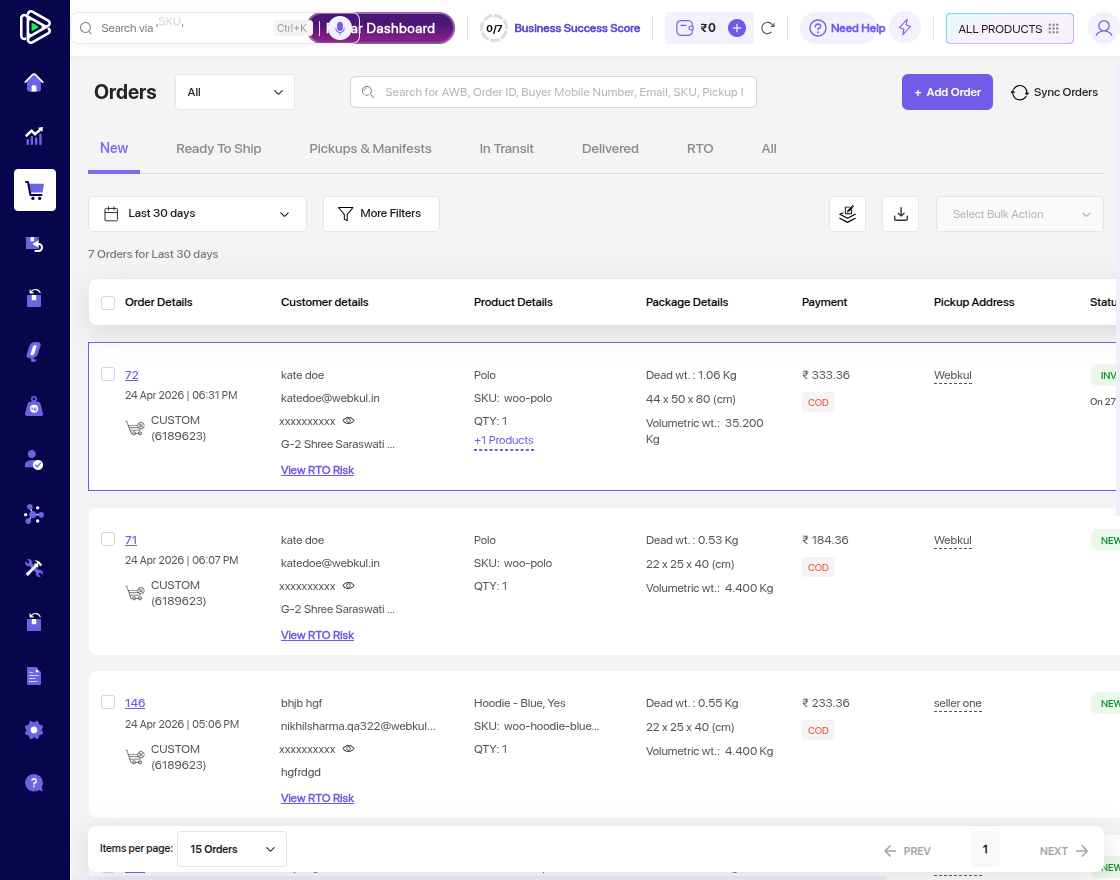
- The customer places an order on the WooCommerce marketplace
- The system automatically syncs the order with Shiprocket.
- It then creates the shipment and generates the AWB number.
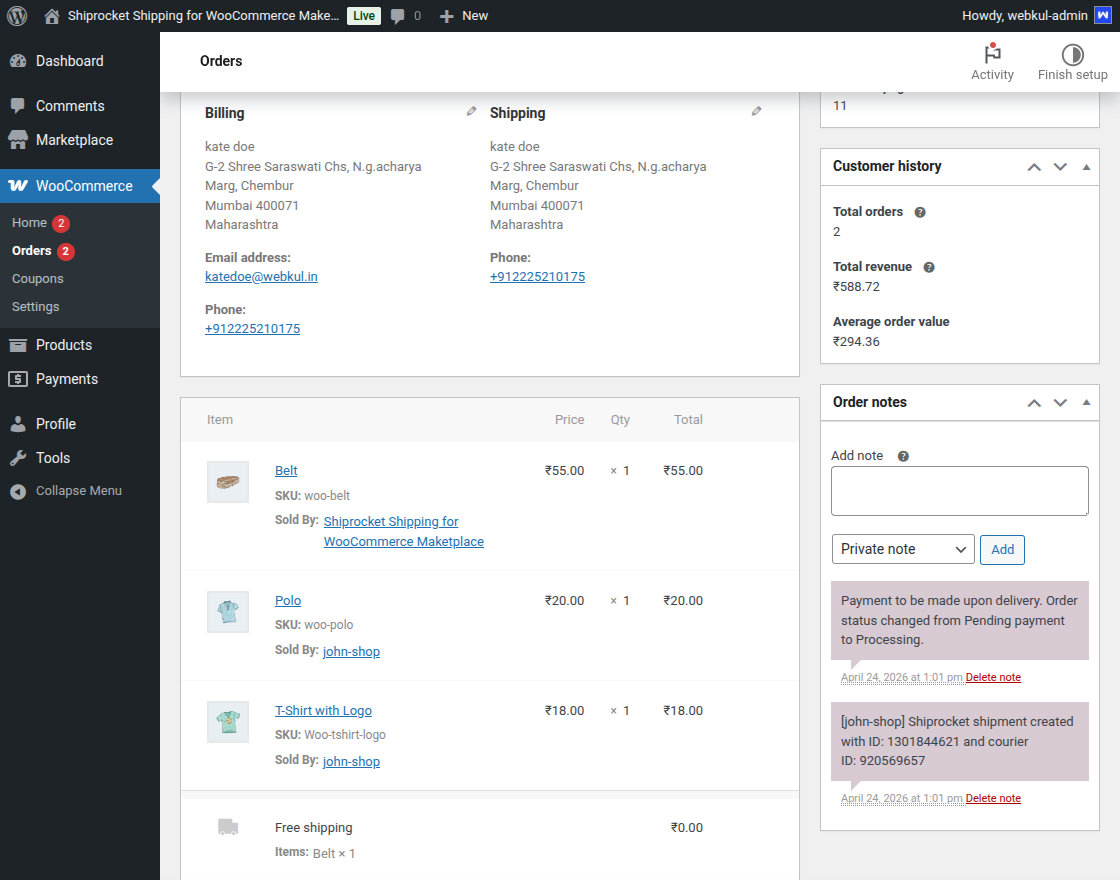
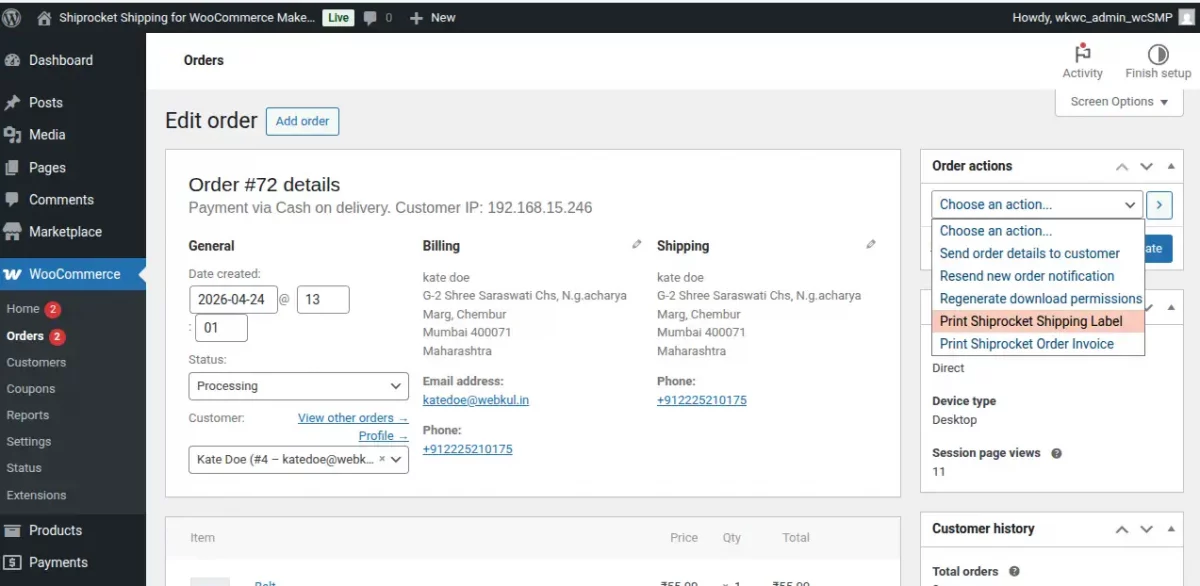
Step 2: Navigate to Order
Admin:
- Go to WooCommerce → Orders → Edit Order
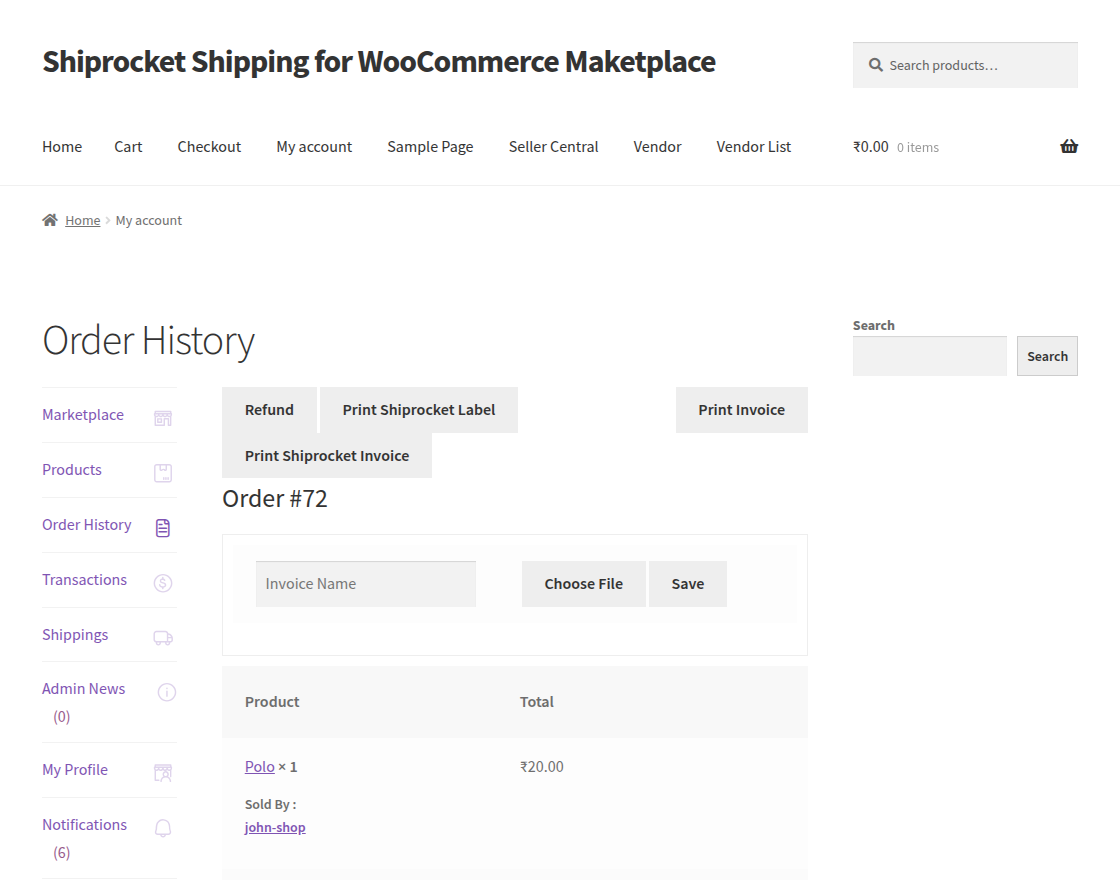
Seller:
- Go to My Account → Orders → View Order
Step 3: Generate Shipping Label
- Admin selects “Print Shiprocket Shipping Label” from order actions
- Seller clicks “Print Shiprocket Label” button

Step 4: Print Shipping Label
- The vendor can simply click on the “Print Shiprocket Label” button
- The system sends a request to Shiprocket
- The system generates the label PDF instantly.
- The label opens in a new tab and is ready to print
Customer Front End
At the time of placing an order, customers fill in their shipping address and contact details required for processing and delivering the order.

Based on the customer address, the plugin automatically displays a list of available Shiprocket courier partners for that location.
The plugin fetches and displays real-time shipping rates from each Shiprocket courier partner on both the cart and checkout pages.
The system updates shipping rates for different couriers at checkout based on COD and non-COD payment methods.

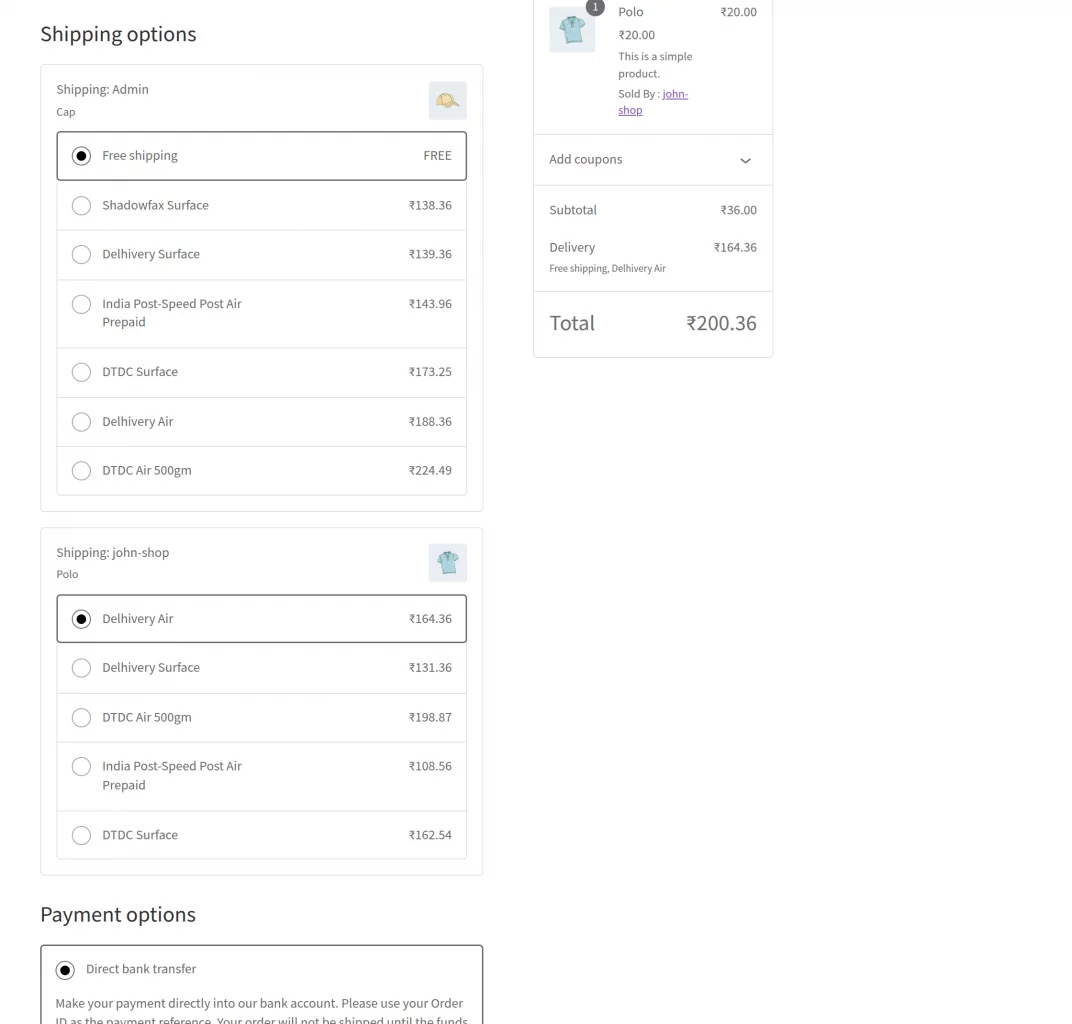
For example, when a customer enters a shipping address, say location-1, the plugin displays courier partners and rates based on that location.
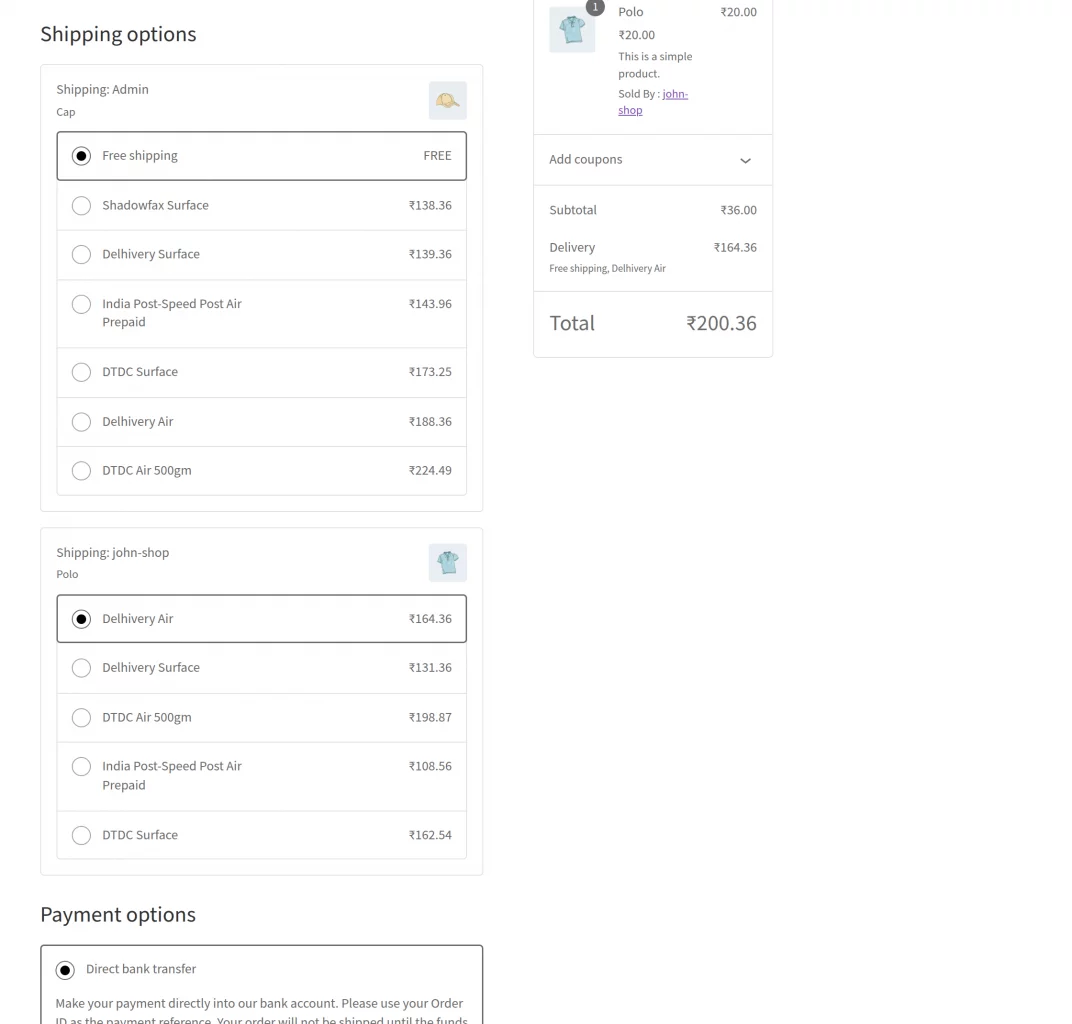
When the address changes to another location, the system automatically updates the courier list and rates based on the new address, as shown below:
They receive standard WooCommerce order confirmation and any shipment updates configured via email or the store’s notification system.
When a customer places an order, the system automatically splits it by vendor and creates the corresponding shipments in Shiprocket.
The admin can view shipment details such as courier partner, AWB number, and tracking status for all marketplace orders.
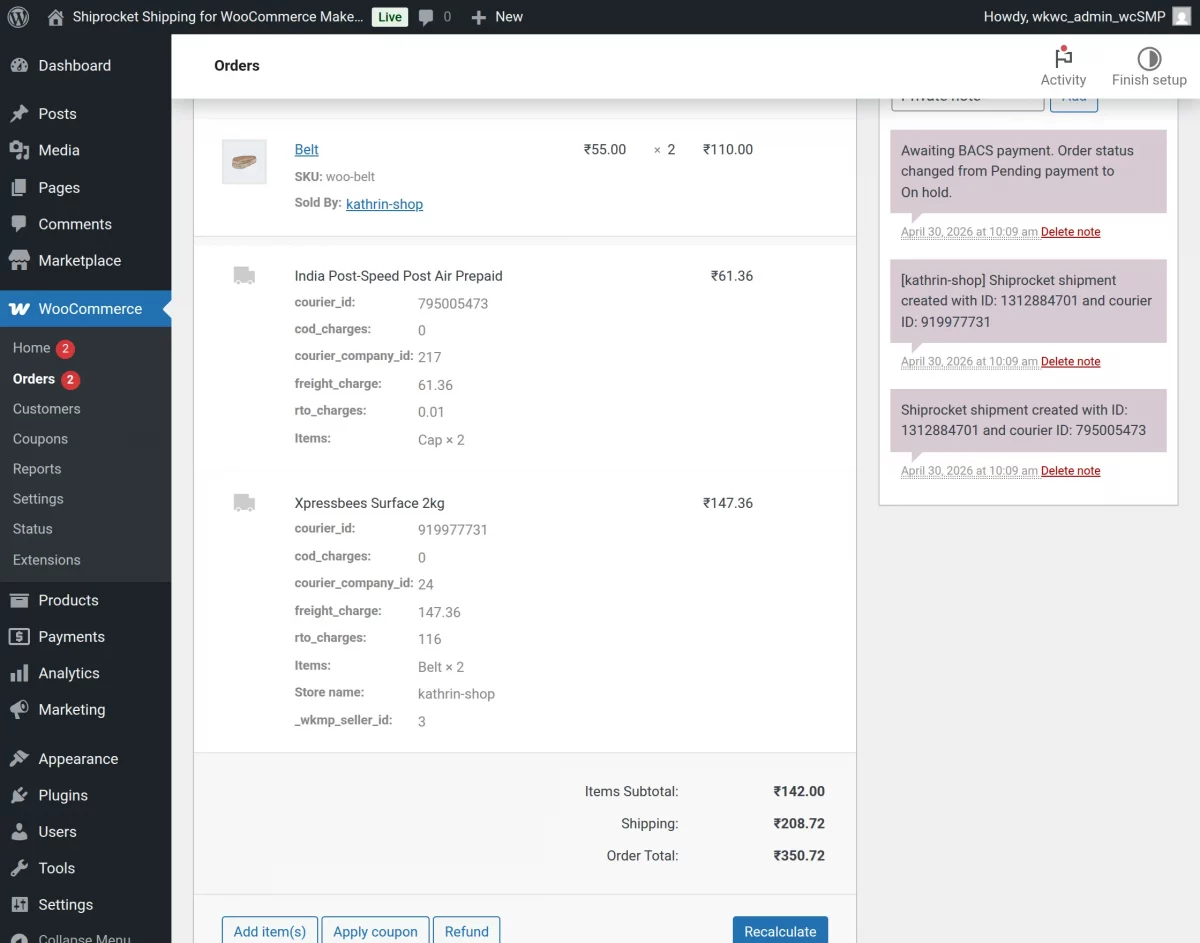
For admin-owned products, shipments are handled directly using the admin’s Shiprocket account.
Shipping labels and invoices can also be generated from the order page when required.
View Shiprocket Courier Partner | Customer
Customers can also view the assigned Shiprocket courier partner by checking the order details in their WooCommerce account.
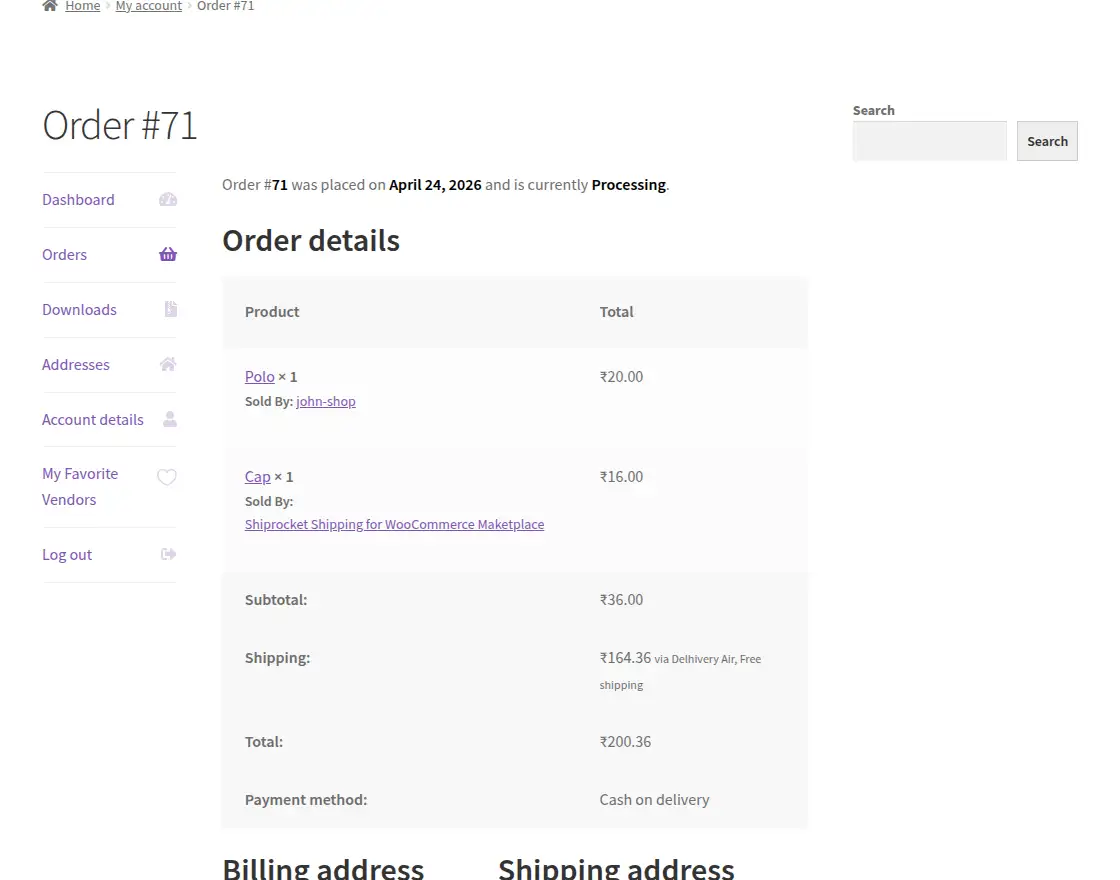
Moreover, Shiprocket automatically syncs WooCommerce orders with its dashboard for streamlined shipping management.

This eliminates manual data entry and ensures timely order processing through the Shiprocket platform.
Thus, that’s all for the Shiprocket Shipping for WooCommerce Marketplace plugin.
Still, have any issues, feel free to add a ticket and let us know your views at webkul.uvdesk.com.
—
**Note**: This module is compatible with WooCommerce’s latest High-Performance Order Storage (HPOS) and the new Cart and Checkout blocks.
Still, have any issues, feel free to add a ticket and let us know your views at [webkul.uvdesk.com](https://webkul.uvdesk.com).