WordPress WooCommerce Marketplace Auction
WordPress WooCommerce Marketplace Auction plugin will enable the auction feature in the marketplace.
Using this sellers and the admin can add an auction in their products and the buyer can bid on their products.
By using this plugin, the admin, and the sellers can add four types of auctions which are standard, incremental, automatic, and reserve auction
Note: It will work for Simple, Variable, and Virtual product types only.
WordPress WooCommerce Marketplace Auction Plugin is an add-on to WordPress WooCommerce Multi-Vendor Marketplace Plugin.
We provide a production version of the plugin. If you want a development version then you can get it at an additional cost. Please contact support@webkul.com for it
To use this plugin you must install WordPress WooCommerce Multi-Vendor Marketplace Plugin.
Check the plugin overview in the video mentioned below:
Support
Dear Customers, if you have a question/query, please raise a ticket at webkul.uvdesk.com. We will do our best to answer as quickly as it is possible.
Don’t give us a low rate without contacting support about the issue you’ve faced. We are always happy to help you.
Features of Marketplace Auction
- The seller can add a standard, incremental, automatic, and reserve auction.
- The admin can add standard, incremental, automatic, and reserve auctions.
- The customer can place the standard bid as well as an automatic bid.
- Email every outbid customer when a new bid is placed.
- All types of action can be applied to a single product.
- The admin has the option to show the current bid.
- The admin has the option to show all the bidders and their prices.
- Admin has the option to show the bidder’s name, bid, and details under automatic bidding.
- The admin/customers can see the auction bid list and the automatic auction bid list.
- The admin can see the winner’s name for the auction.
- The seller can perform a Bulk action.
- Users can add auctions to their watchlist to easily track their favorite listings.
- Users can effortlessly share auction listings across various social media platforms.
- Admin can upload custom badge images to visually highlight auction products.
- Admin has the flexibility to select from various auction timer display styles.
- Admin can define and display specific policies for each auction.
- Admin can customize the auction timer text color to match the site theme or branding.
- The same bidder cannot place consecutive bids until another user has placed a bid.
This plugin is now compatible with WooCommerce’s latest High-Performance Order Storage (HPOS) and Cart and Checkout block.
Installation of Marketplace Auction
The user will get a zip file that needs to be uploaded in the “Add New” menu option in the WordPress admin panel.
For this login to WordPress Admin Panel and in the Dashboard hover your mouse over the “Plugins” menu option select the “Add New” option.


After this, the user will see an option on the top of the page that is “Upload Plugin”, click the option to upload the zip file.


On clicking the “Upload Plugin” option, the user will see a “Choose File” button. Click on the button to browse for the zip file as per the image below.


Afterward browsing the file, click on the “Install Now” button to install the plugin as per the snapshot.


Now when the plugin is installed correctly, you will see the success message and an option to activate the plugin. Click on “Activate Plugin” to activate the installed plugin.


Module Translation
To learn how to translate the module, you can click here.
Check how to Activate WooCommerce Plugin through the purchase code and get updates on Webkul Modules directly on the Plugins page
Marketplace Auction: Configuration
After the successful installation of the WordPress WooCommerce Marketplace Auction plugin.
The admin can set the configurations of the auctions under “Marketplace > Marketplace Auction > Configuration”.
Let us discuss each Auction, individually.
Standard Auction


The configuration of the standard auction is very simple, from here admin can enable/ disable the plugin.
Set the time zone, and enable the auction bid details to show on the front-end for the standard auction.
Incremental Auction
The admin can enable/disable incremental auctions from here.
By clicking the “Set Incremental Price Range” admin can set the range of incremental price range as well.

About Incremental Auction
The Increment bid is the amount by which a bid will be incremented each time the current bid is outdone. The increment bid amount set will be done by the admin.
Set incremental bids as
| Current High Bid | Increment |
|---|---|
| $1-$100 | $10 |
| $101-$1000 | $15 |
| $1001-$5000 | $20 |
| $5001-$10000 | $25 |
| $10001-$50000 | $30 |
Example :
You’re the first bidder on a listing where the starting price is $20 and you place a maximum bid of $40. Now the current bid is automatically incremented by $10 and then the current bid is $50.
No one can place a bid of less than $50. When a second bidder places a maximum bid of $110, the bid will automatically be raised to $15 and the minimum bid amount is $125.
Automatic Auction
Admin can also enable or disable the Automatic Auction option with automatic bidder details, price, bidders, and outbid messages. Let’s explain Automatic Auction using an example and winning cases.

About Automatic Auction
1. When you(the buyer) place an automatic bid with the maximum amount that you want to pay for the product.
2. The other bidders don’t know about the other’s bidder automatic bid if disabled by admin.
3. The other bidders place bids based on the current high bid. The bid will be placed until the bid meets the reserve price or until it expires.
5. If another bidder places the same maximum automatic bid or higher, then you will be notified by mail so that you can place another bid.
6. If Your maximum bid is not exceeded by another automatic bidder or current bid, then you will win the bid at the current bid.
Example :
1. When buyer-A places an automatic bid with the maximum amount $100 that you want to pay for the product-X (reserve price-$60 and current bid price-$10).
2. The other bidders don’t know about the other’s bidder automatic bid if disabled by admin.
3. The other bidder B places bids of amount $12 based on the current high bid. The bid will be placed until the bid meets the reserve price or until it expires.
now if many bidders placed the bid and now the current bid amount is $62.
The winning case for a bidder:
A – Case
If at this position bid expires then buyer A will win the bid at $62 amount because he placed the highest amount bid and no one exceeded this amount.
B – Case
If another buyer C places the maximum amount of $110 as an automatic bid, then buyer A will be notified by mail.
So that he can place another bid and if buyer A doesn’t place any maximum bid then buyer C will win the bid at cost $62.
C – Case
If another buyer D places a maximum amount of $115 as a normal bid then buyer C will be exceeded by the current bid.
He will be notified and if buyer C doesn’t place any maximum bid then buyer D will win the bid at a cost $115.
Reserve Auction
Under this auction, the admin can set a price. If the auction does not reach that price then no one will win the auction.
For example, if the reserve price on an auction is set as 500 and a bid is made to 499 then no one will win the auction.
Here admin can enable the notification email to the admin, notification email to the seller, notification email to the outbid buyer, and notification email to the winner.

After configuring the module Email Notifications setting
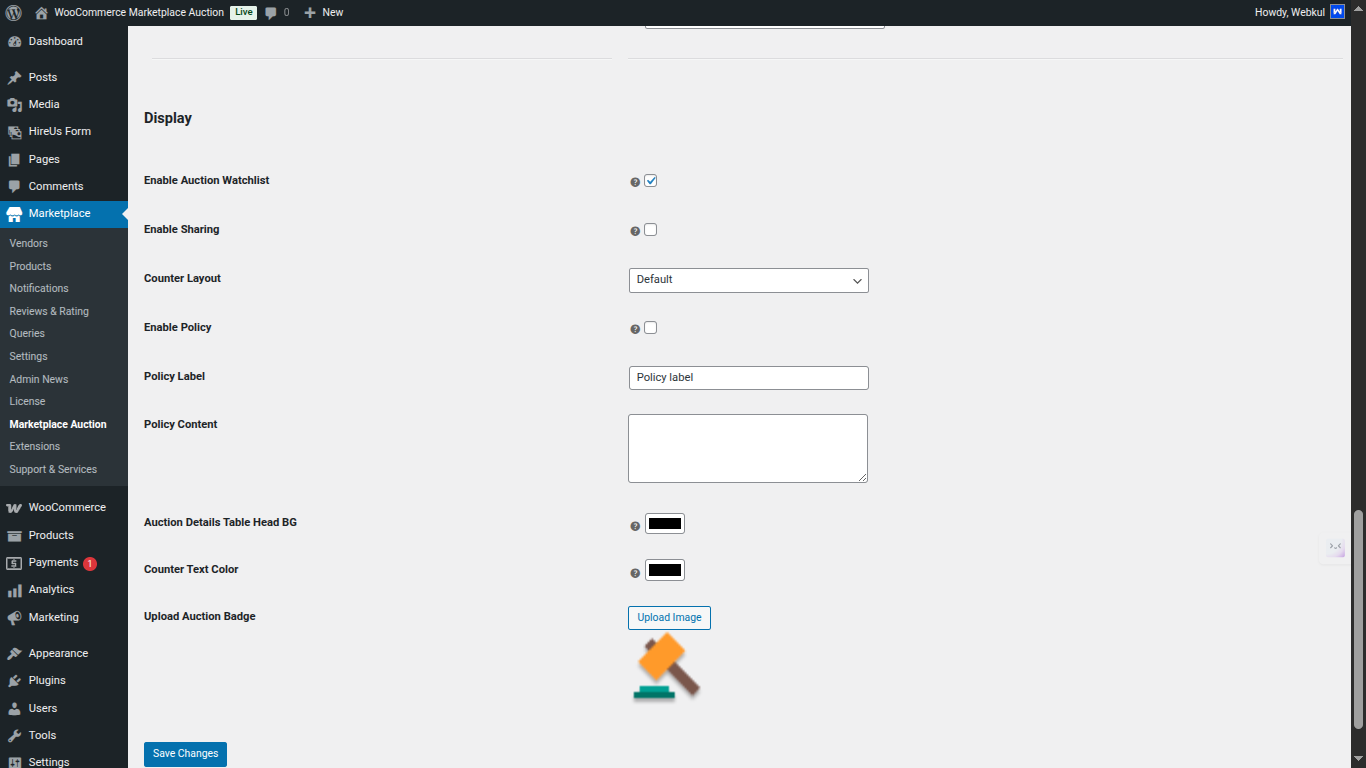
Admin can Configure the Display Setting according to their need
- Admin can enable or disable the auction watchlist feature for users.
- Admin can enable or disable the social sharing functionality for auction products as needed.
- Admin can control the visibility of the auction policy section and also add custom policies based on specific requirements.
- Admin can set the background color of the auction details table and customize the counter text color. These styles will be reflected on the product page frontend.
- Admin can upload a custom auction badge image to visually distinguish auction products.
Admin End Workflow
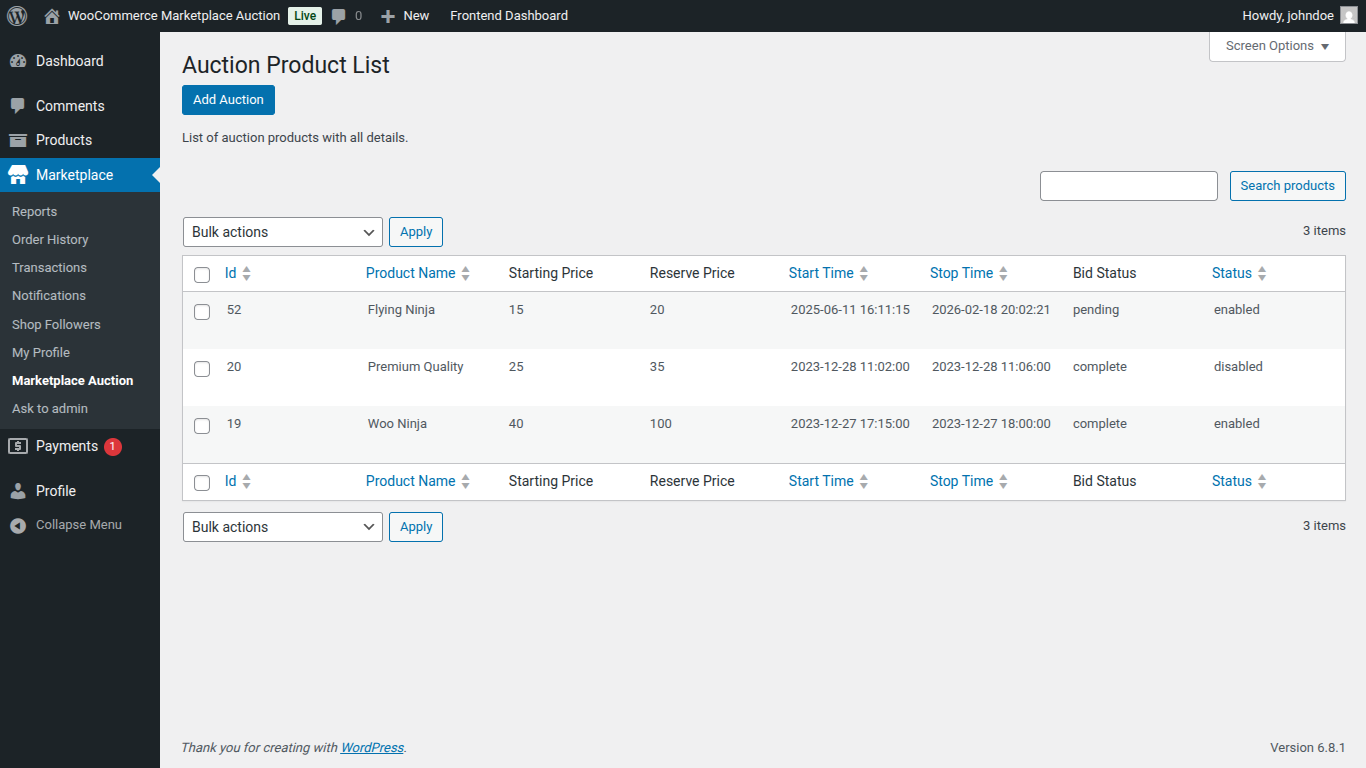
The admin can navigate through Marketplace Auction > Auction to check the auction list. They can also check the bid start and end time on the product list

The admin can view all the auctions created under Marketplace Auction > Auction > Auction Product List.
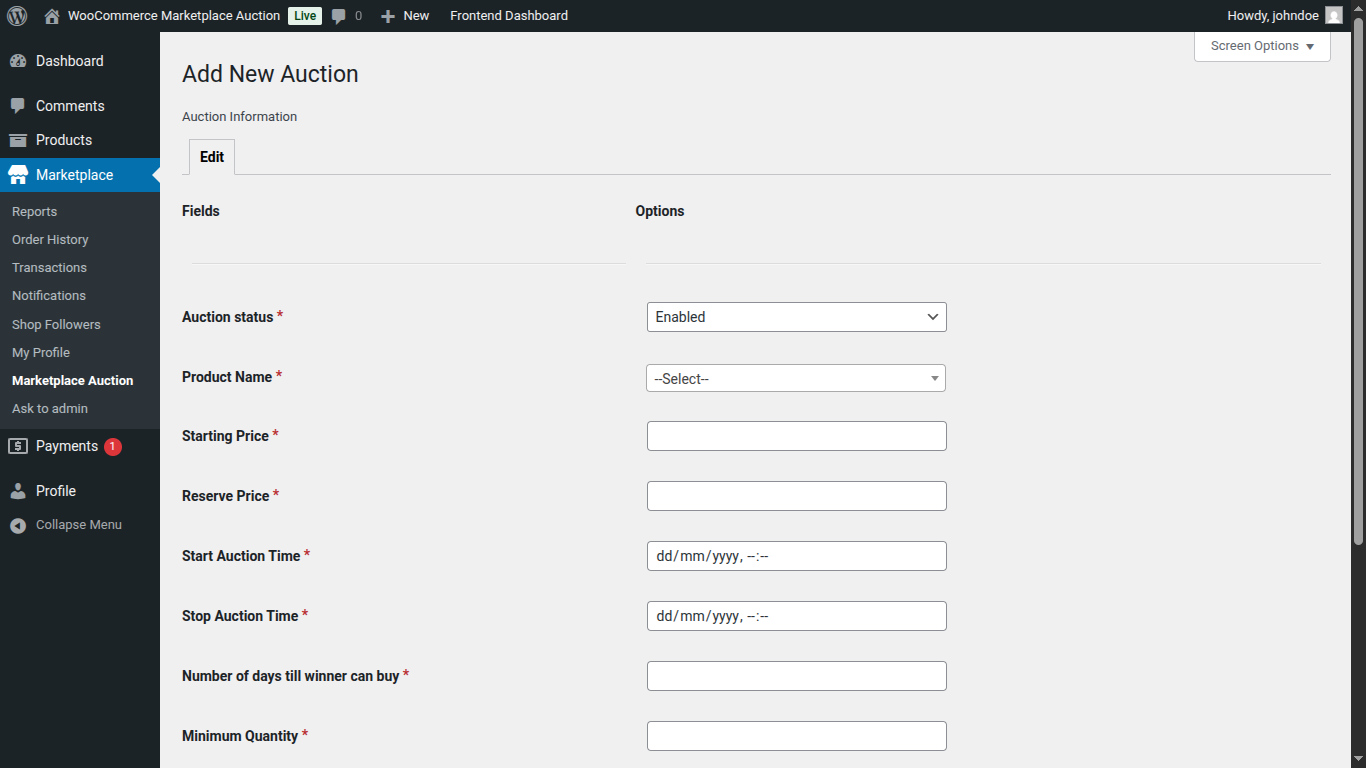
To add a new auction. Admin simply needs to click on the Add Auction tab in the Auction Product list page to add a new Auction.

If need be, the admin can edit any auction by simply clicking the Edit option and even remove an existing auction by simply clicking on the Trash option available against the ID.


Once the bid is created the admin can check the normal bid in the different tab for that auction product.
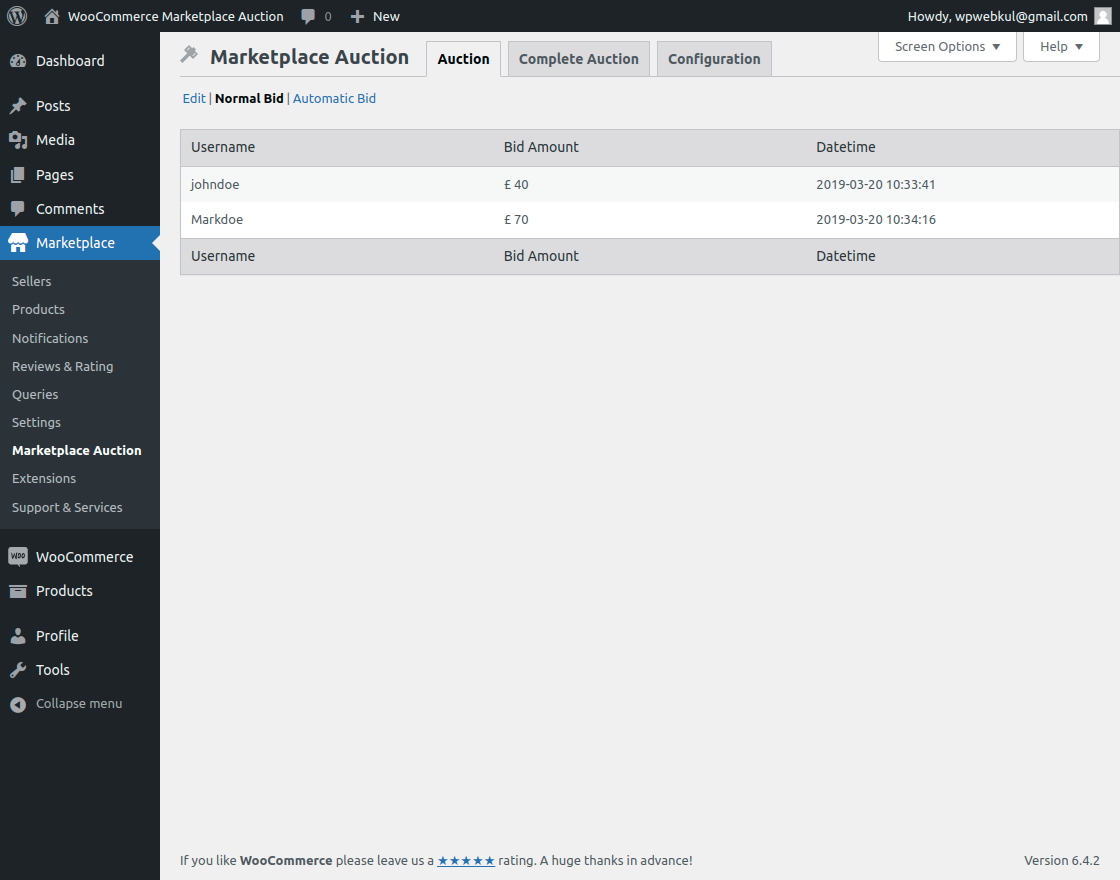
Similarly, they can check the Automatic bid in other sections.

Seller-End Workflow of Marketplace Auction
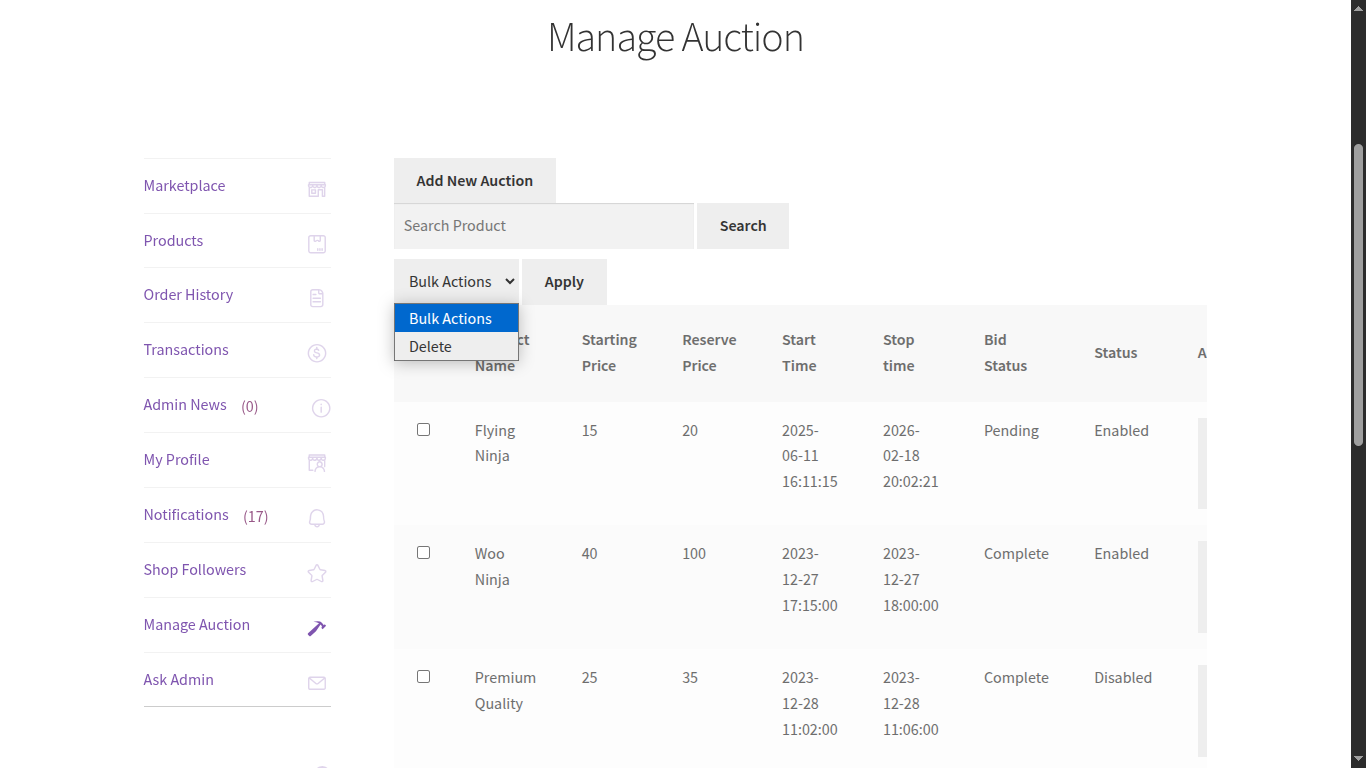
After the complete configuration of the plugin, sellers can see the “Manage Auction” option under their account section.
After clicking on “Manage Auction”, sellers can see the products which are listed under auction.
From here a seller can also add and delete the auctions. The seller can add a new auction product by clicking “Add Auction”.

Thereafter, a new “Edit” tab will open where the seller can enter all the details to add an auction.

All the auction products will be listed under “Manage Auction”. The seller can edit any auction by clicking on the “Edit” button.

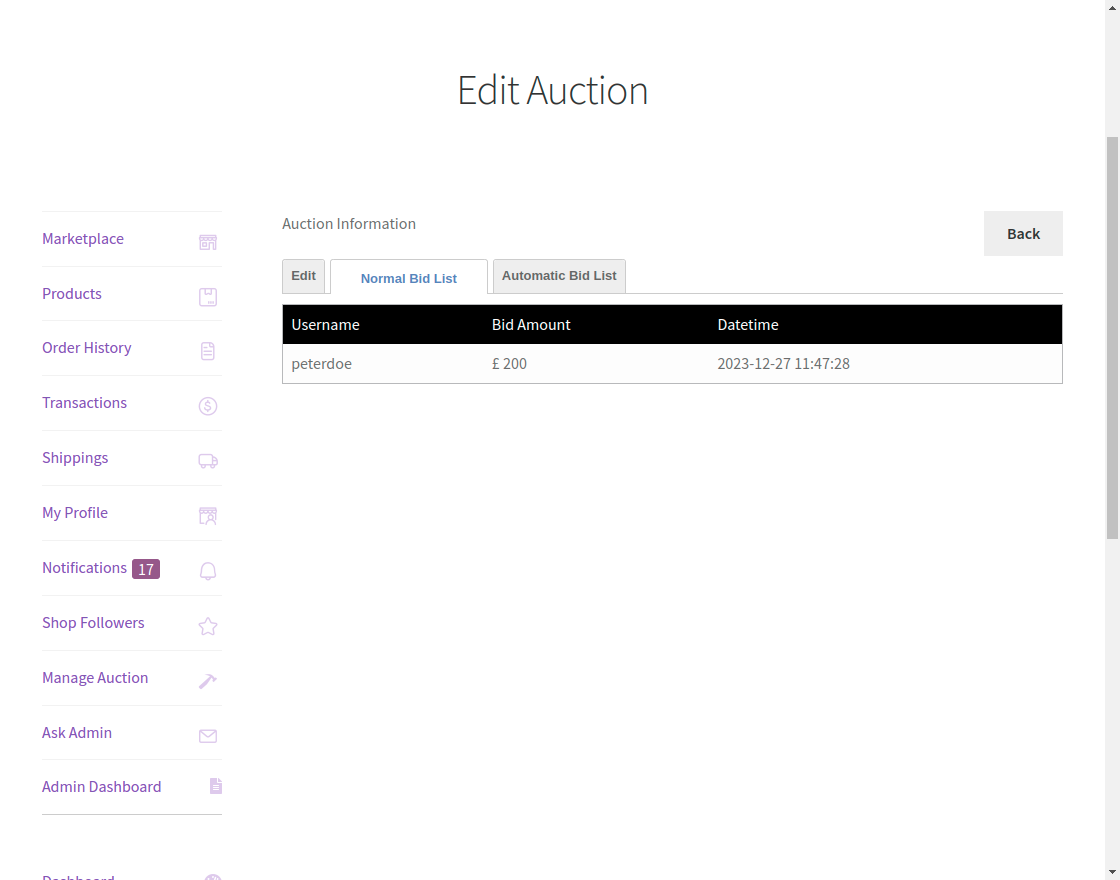
The trader can view the normal bid list by clicking on the “Normal Bid List” tab.
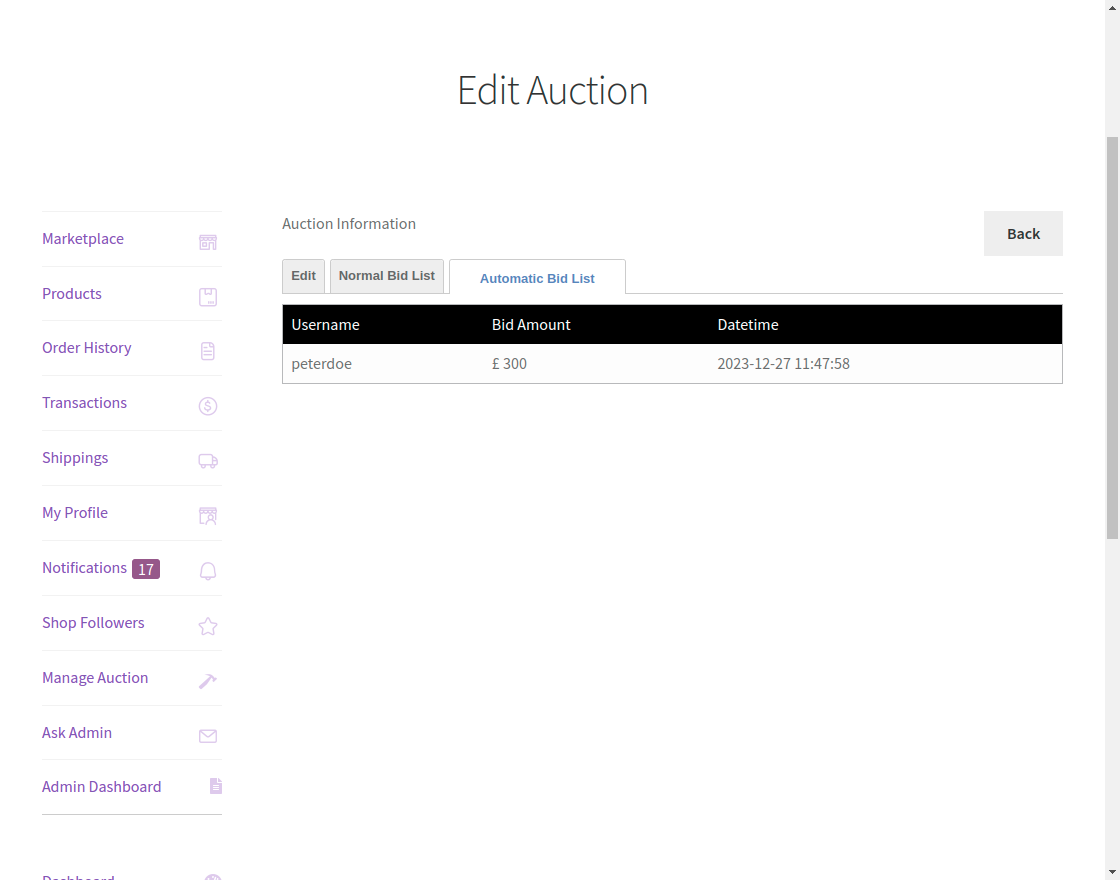
The seller can view the list of automatic bids by clicking on the “Automatic Bid List” tab.
Sellers can also perform bulk action on created bids to delete them.
Sellers can add auction products from their backend and manage or view the listed auction items.
Customer-End Workflow of Marketplace Auction
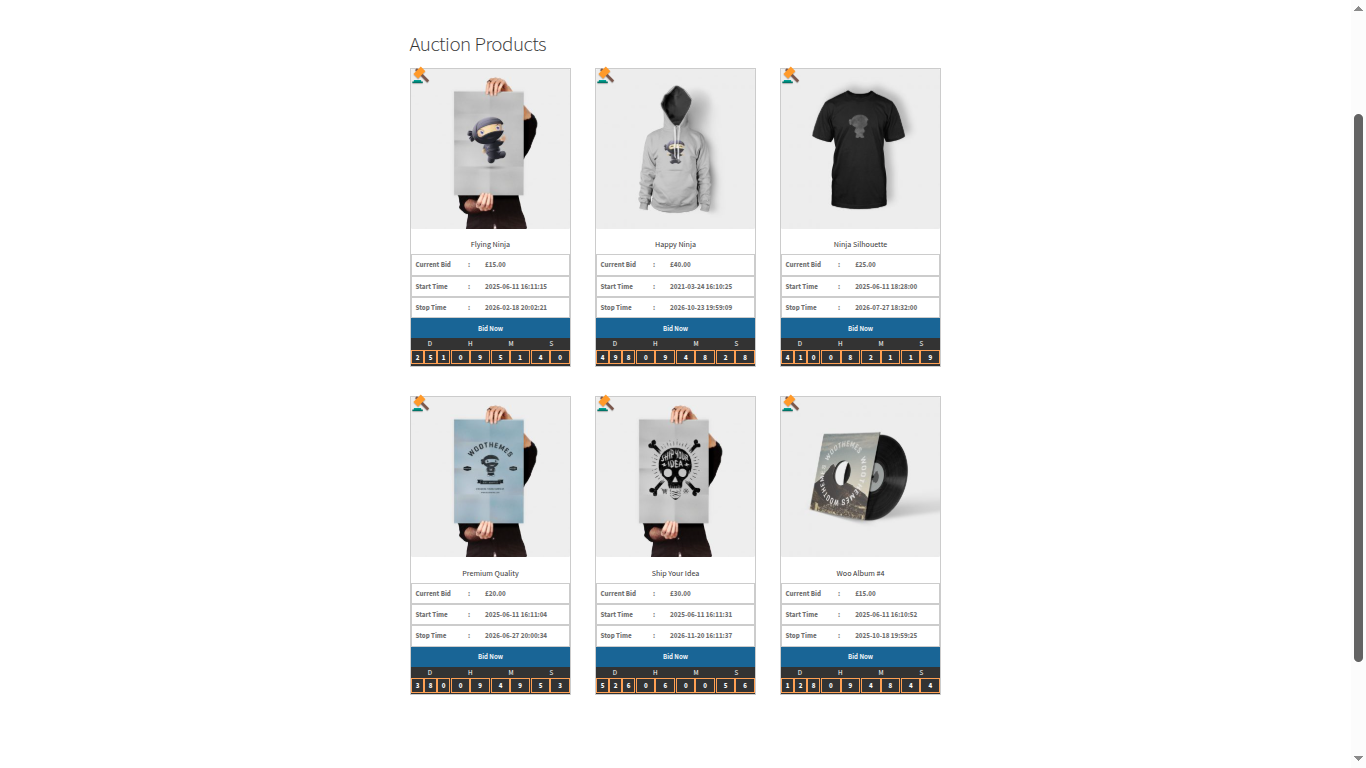
On the front end, the auction product will be visible as below image. An indicator will added on top of the image so that the customer can easily identify the auction product.
Introducing the Dedicated Auction Products Page: A Seamless Bidding Experience

The customer can place the bid on the product page. If automatic auction enabled from the admin then the customer can place the automatic bid as well.
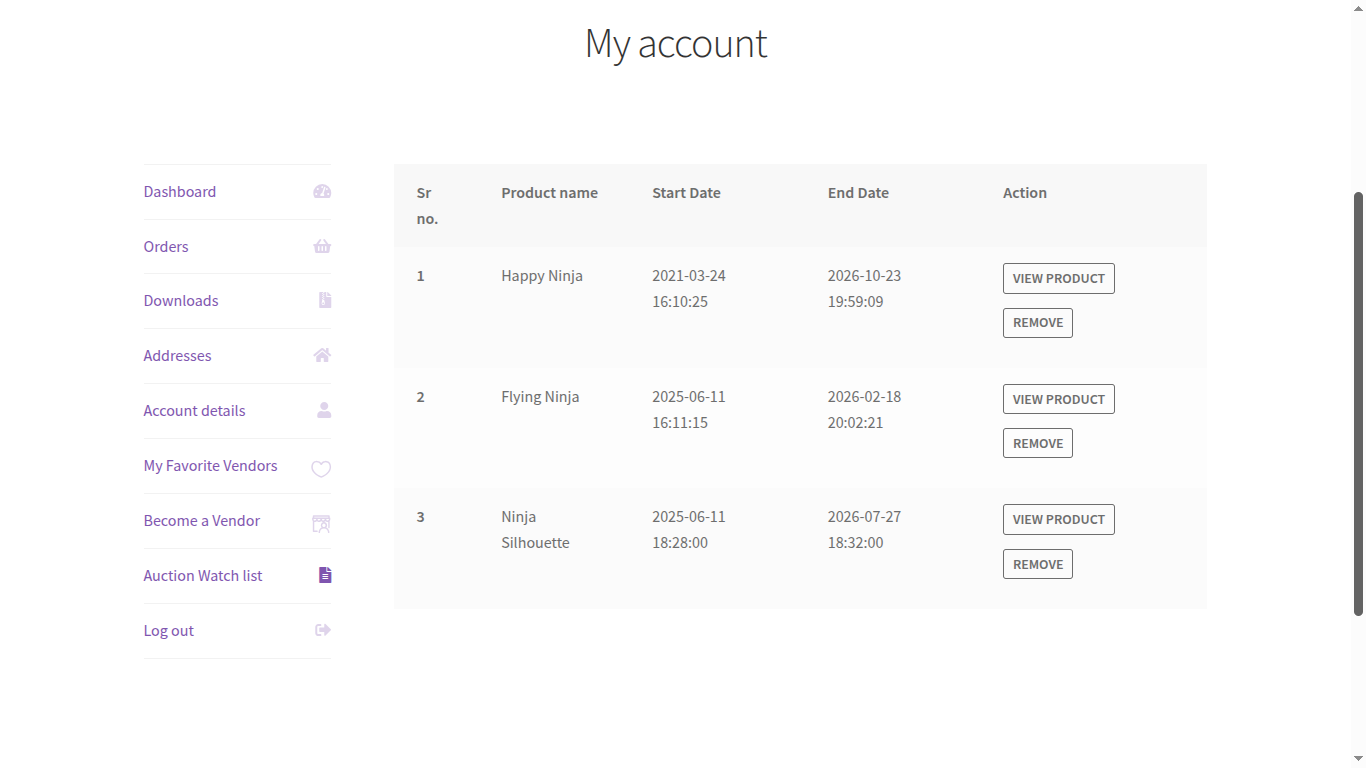
Customers can add auction products to their watchlist and also share them with other users.
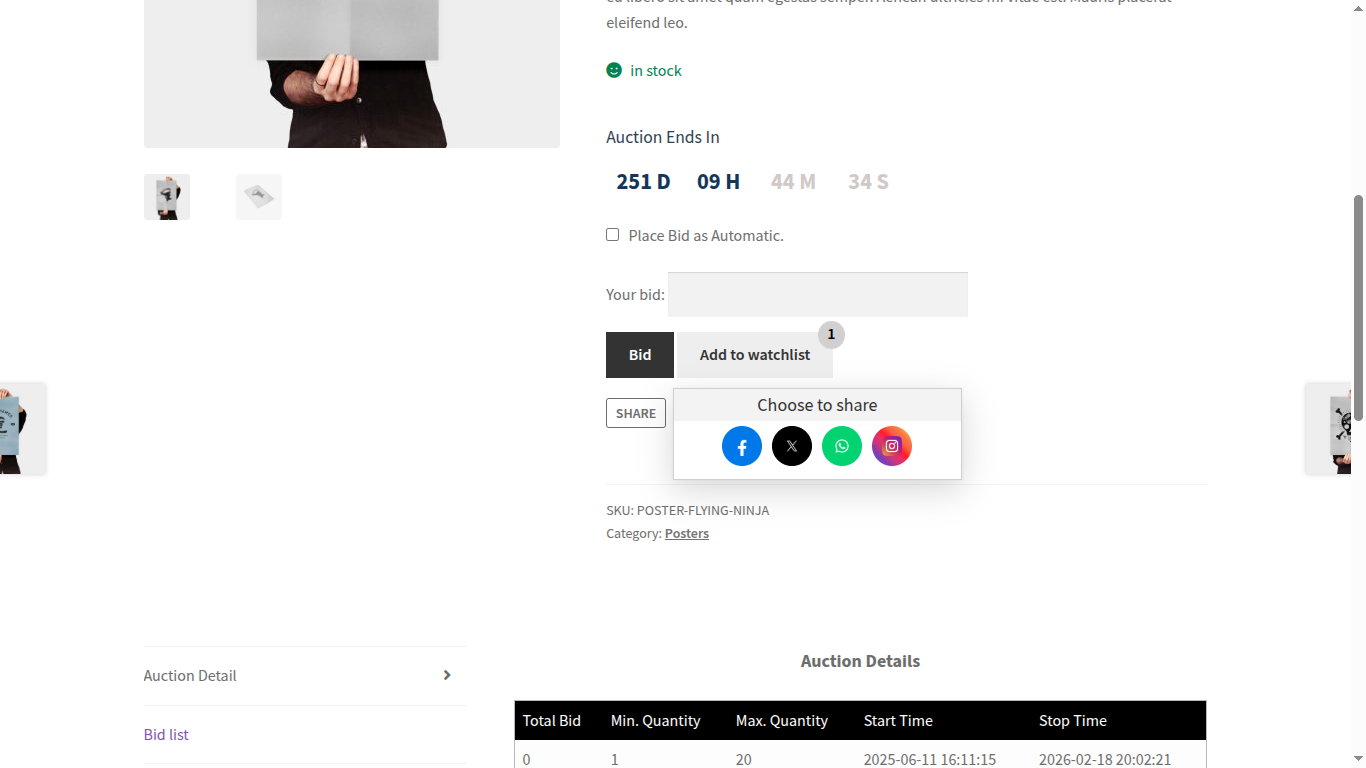
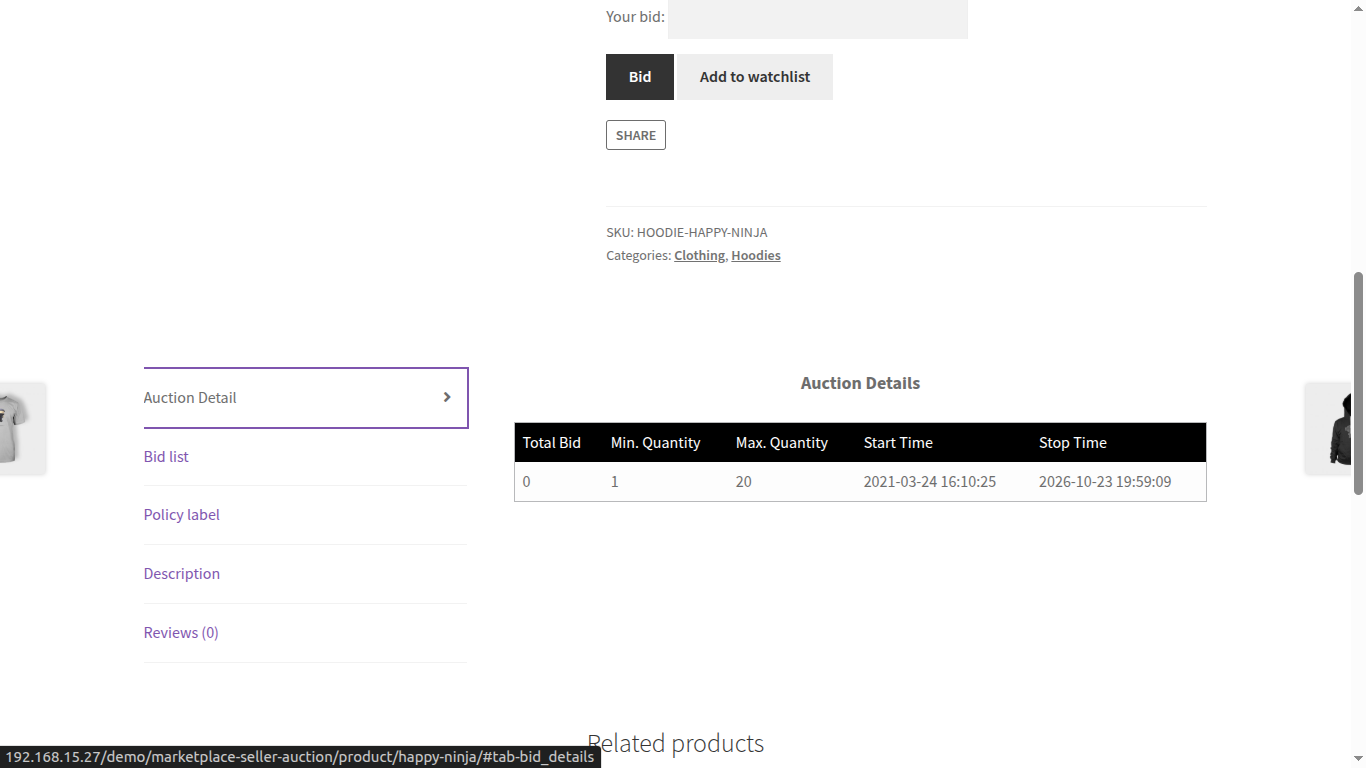
The customer can find the bid list and the auction detail as per the configuration like the below images.
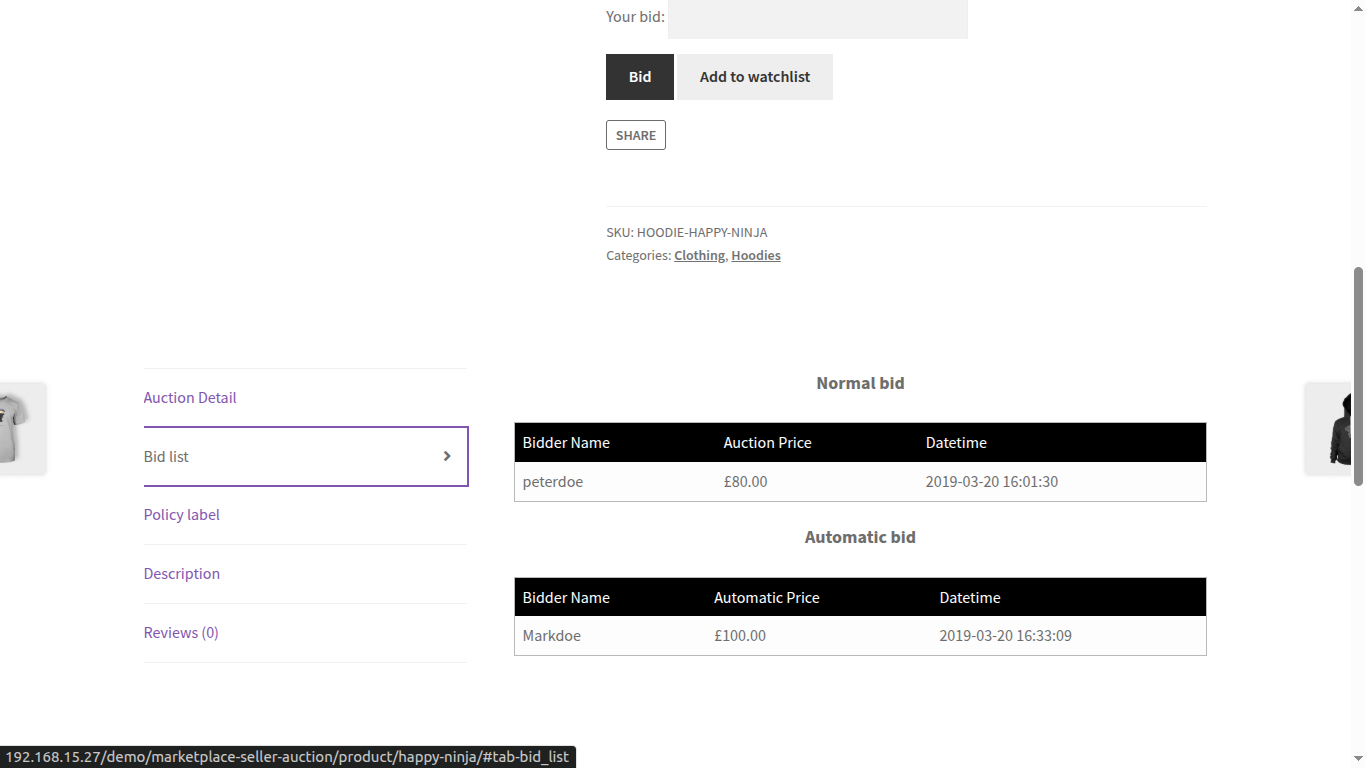
Bid List
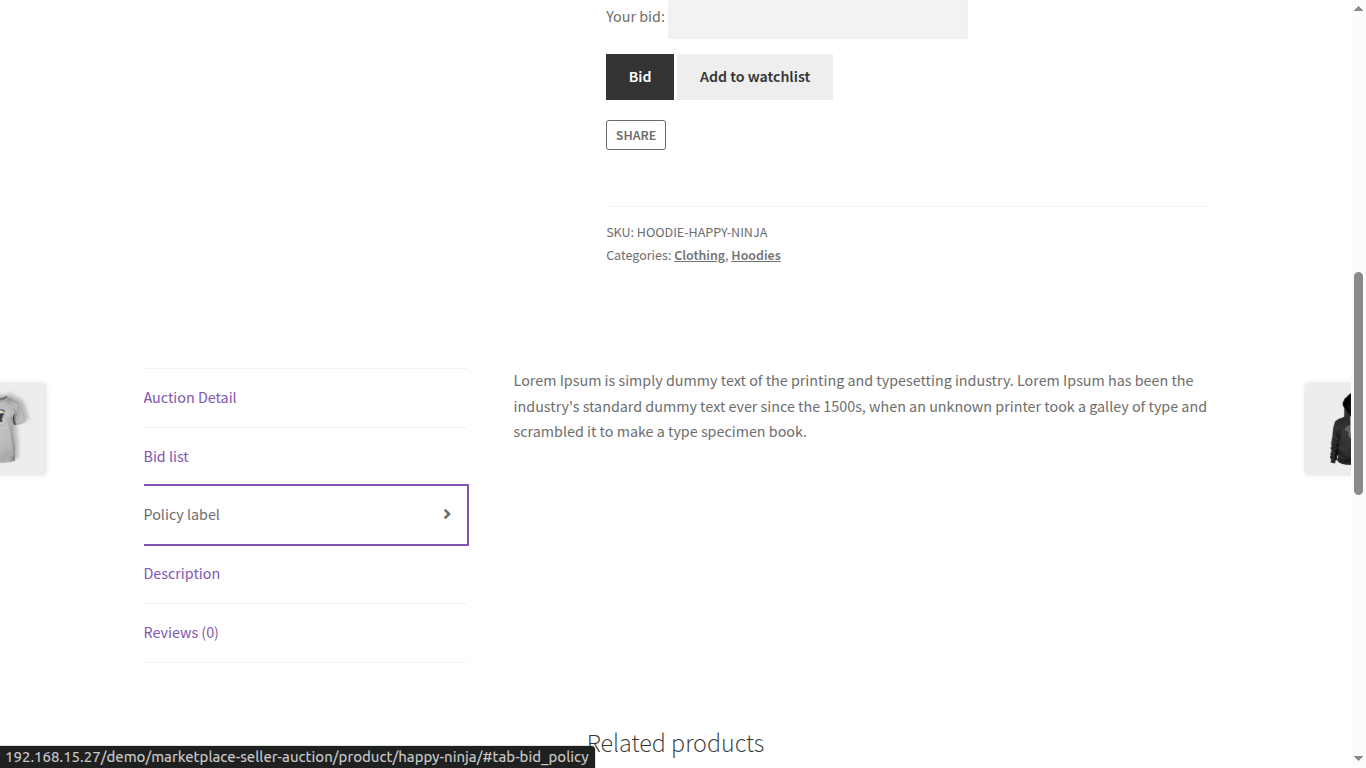
Customers can view the privacy policy configured by the admin
After winning the auction the customer will be notified through the mail and can purchase the product.
The customer can purchase the product as per the minimum and the maximum quantity defined in the configuration.
The “Add to Cart” button available to add the product to the cart after winning the auction as below image.

Customers can add auction products to their watchlist.
Thus, that’s all for the WordPress WooCommerce Marketplace Auction Plugin.
For any kind of doubts or suggestions regarding the plugin kindly reach back to us at support@webkul.com or raise a ticket at our HelpDesk system.