Guide for UVdesk Open Source Report Insights
Table of Content
UVdesk Open Source Report Insights module helps admins easily track ticket status, resolutions, and agent performance over time.
It provides detailed reports on new, resolved, unanswered, and pending tickets for better and more efficient support management.
Admins can quickly download reports in PDF format and adjust the default one-week view to any custom date range.
Visual graphs show ticket trends by channels, priorities, status, and country for better understanding and analysis.
The module also highlights top-performing agents and accurately tracks response times for better performance evaluation.
Advanced filters allow sorting reports by agent, customer, team, type, priority, and source for more precise analysis.
NOTE – To use this Report Insights module first, you should need to install UVdesk Open Source Helpdesk.
Features
- Track ticket status, resolutions, and agent performance with detailed reports.
- View new, resolved, unanswered, and pending tickets in one place.
- Download ticket reports instantly in PDF format for easy sharing.
- Adjust report date range to analyze specific time periods.
- Monitor agent workload by tracking assigned and resolved tickets.
- Identify top-performing agents based on ticket handling efficiency.
- Compare response times with first and fastest reply tracking.
- View ticket trends using easy-to-read graphical reports.
- Filter reports by agent, customer, team, type, priority, and source.
- Analyze ticket data by channels, priorities, status, and country.
- Track pending tickets with clear graphical insights.
- Get better insights with detailed and organized reports.
Check out the UVdesk Open Source Ticket Time Tracking module, allowing admins to let agents record time entries as they resolve tickets.
Installation
- In the root of your uvdesk project, go inside the apps folder and create a new directory called uvdesk.
- Inside the uvdesk directory, you need to place the Report Insights package that contains the application.
- Next, run the below commands to complete the setup from the project root directory.
$ php bin/console uvdesk_extensions:configure-extensions
$ php bin/console assets:install
$ php bin/console doctrine:migrations:diff
$ php bin/console doctrine:migrations:migrate
Once your packages have been configured successfully, they are ready for use.
Module Configuration
After successfully installing the UVdesk Open Source Report Insights module, it will appear in the UVdesk dashboard with its icon.

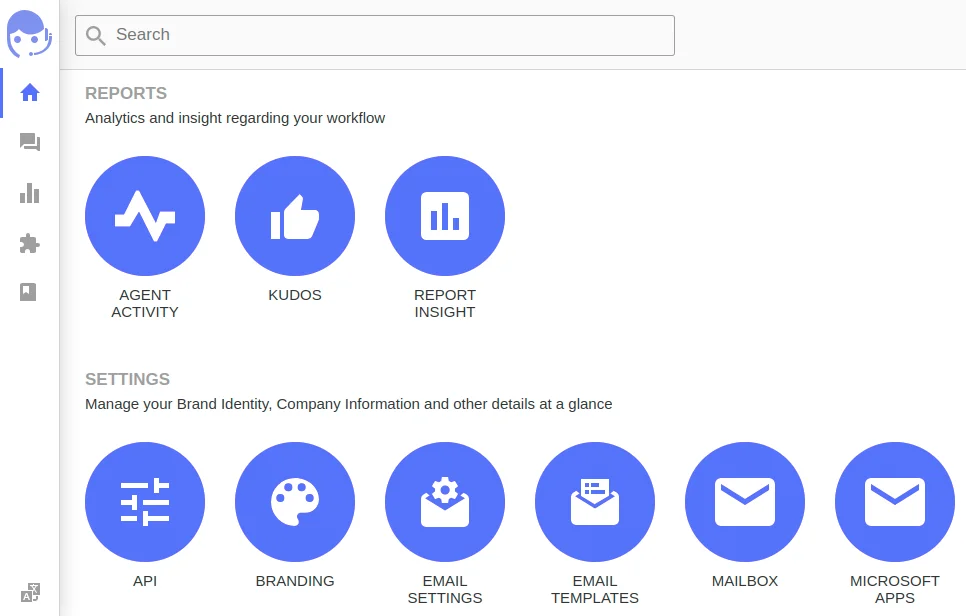
By navigating to the ‘Report Insight‘ icon, admins can track tickets’ status and compare agent performance.


Here the admin can see new, resolved, unanswered, and pending tickets in one place, along with average tickets per agent.
Also, he can view the fastest ticket measures and average ticket measures, including fastest reply, fastest first reply, average reply, and average first reply.
Further, the admin can view the total number of tickets by channels and priorities for better tracking and management.

A dedicated graph is available for total tickets closed per country and tickets by country. It helps admins monitor ticket generation and management by country.
Admins can view a graph for Total Tickets by Status, showing details of open, closed, answered, and pending tickets.
Additionally, he can see the number of tickets categorized by ticket type under the graph titled no. of tickets by ticket type.

Moreover, admins can track pending tickets by top agents and total tickets assigned to top agents through graphical reports.
Here it visually displays open and pending tickets along with agent names and automatically highlights your top five performing agents.
Download PDF Reports
Admins can download the generated reports in PDF format and set the default one-week data view to any date in the calendar.
To download the PDF of reports generated, the admin just needs to click the dedicated ‘Download Report’ arrow-shaped button in the top right corner.


So, that’s all for the UVdesk Open Source Report Insights module, if you still have any queries or concerns please raise a ticket on the UVdesk Support Panel.