User Guide for Odoo Hospital Management
Introduction
Odoo Hospital Management System helps hospitals and clinics manage patient records, appointments, admissions, prescriptions, and other medical operations in Odoo.
The module provides a centralized system to manage patient information and hospital activities. It helps staff handle daily operations with better organization and easy access to records.
Features
- Create and manage detailed patient profiles with personal and medical information
- Schedule patient appointments and manage doctor consultation details
- Manage doctors, medical staff, and their assigned hospital activities
- Create patient admissions and manage admission-related information
- Manage hospital wards, beds, and patient bed assignments
- Create prescriptions and maintain medicine details for patient treatment
- Create treatment packages and configure charges for hospital services.
- Manage patient evaluations, treatments, and medical history records
- Create and manage surgery details along with related patient information
Installation
- Once you purchase the App from Webkul Store, you will receive a link to download the module’s zip file.
- Extract the file on your system after the download finishes. As a result, you will be able to see a folder named wk_hospital_management.
- Copy and paste this folder inside your Odoo Add-Ons path.
- Now, open Odoo App and click on the Settings menu. Here, click on Activate Developer Mode.
- Then, open the Apps menu and click on Update Modules List.
- In the search bar, remove all the filters and search for wk_hospital_management.
- You will be able to see the module in the search results. Click on Activate to install it.
Workflow
Admin
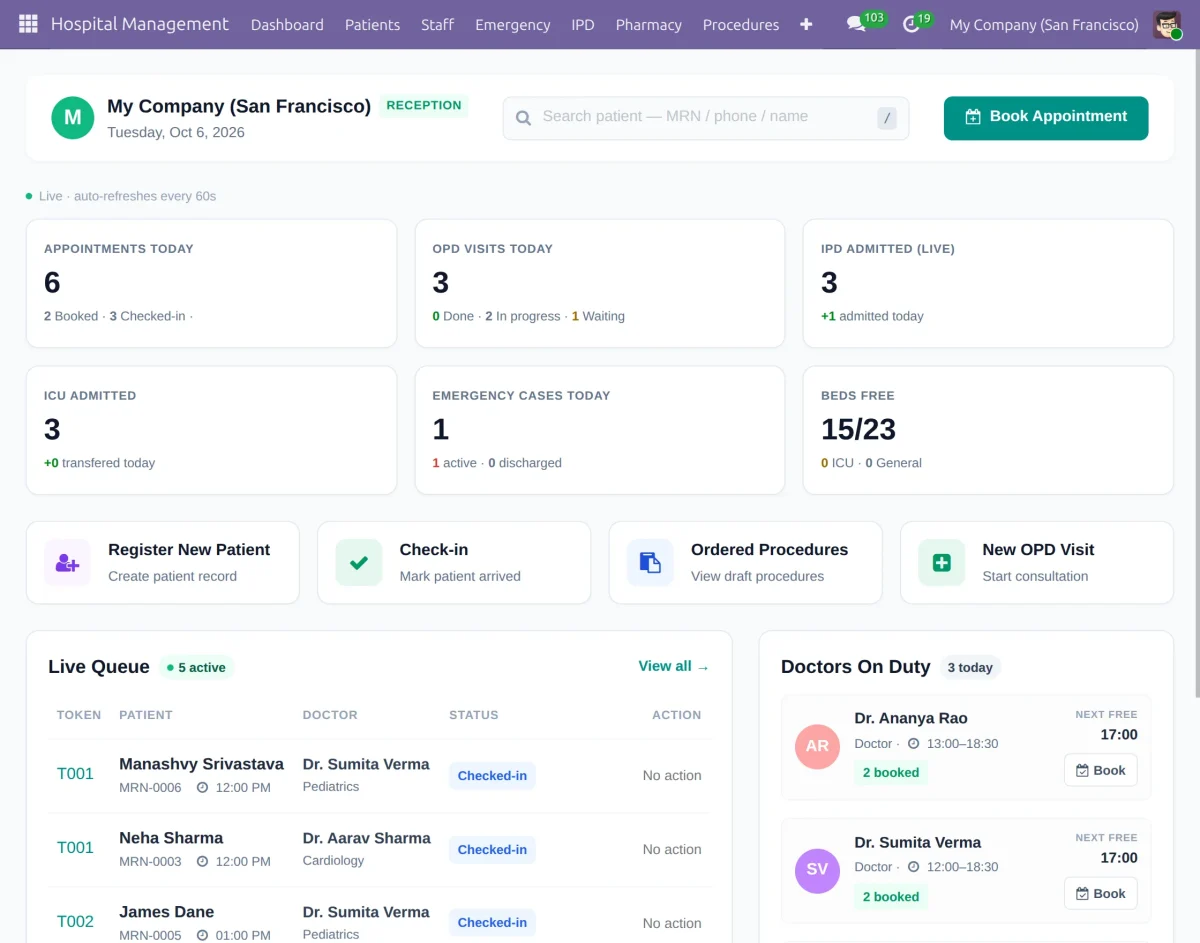
1. To access the hospital dashboard, go to Hospital Management > Dashboard. The dashboard provides an overview of appointments, OPD visits, IPD admissions, ICU admissions, emergency cases, available beds, live queue, and doctors on duty.

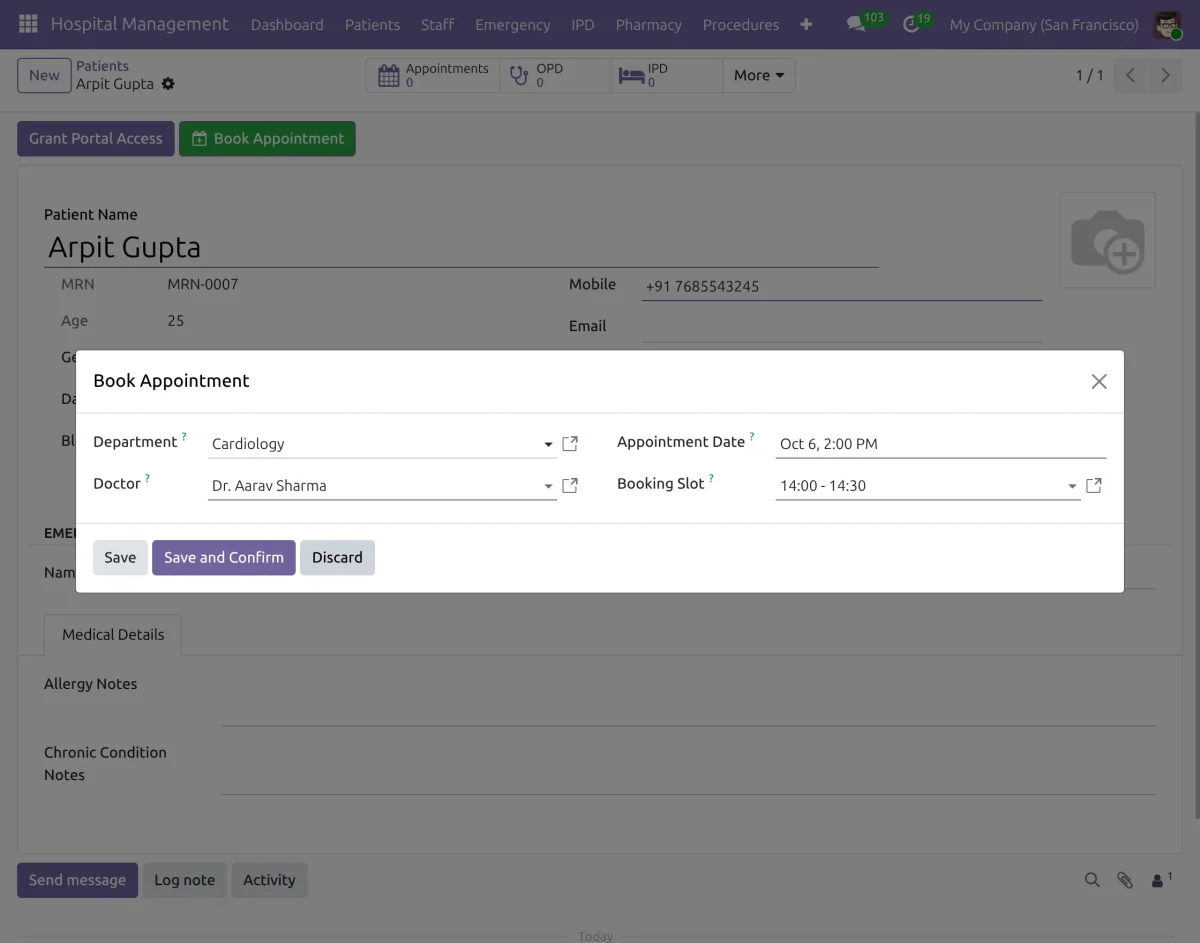
2. To book an appointment for a patient, go to Patients > Select Patient > Book Appointment. Select the department, doctor, appointment date, and booking slot, then click Save and Confirm.
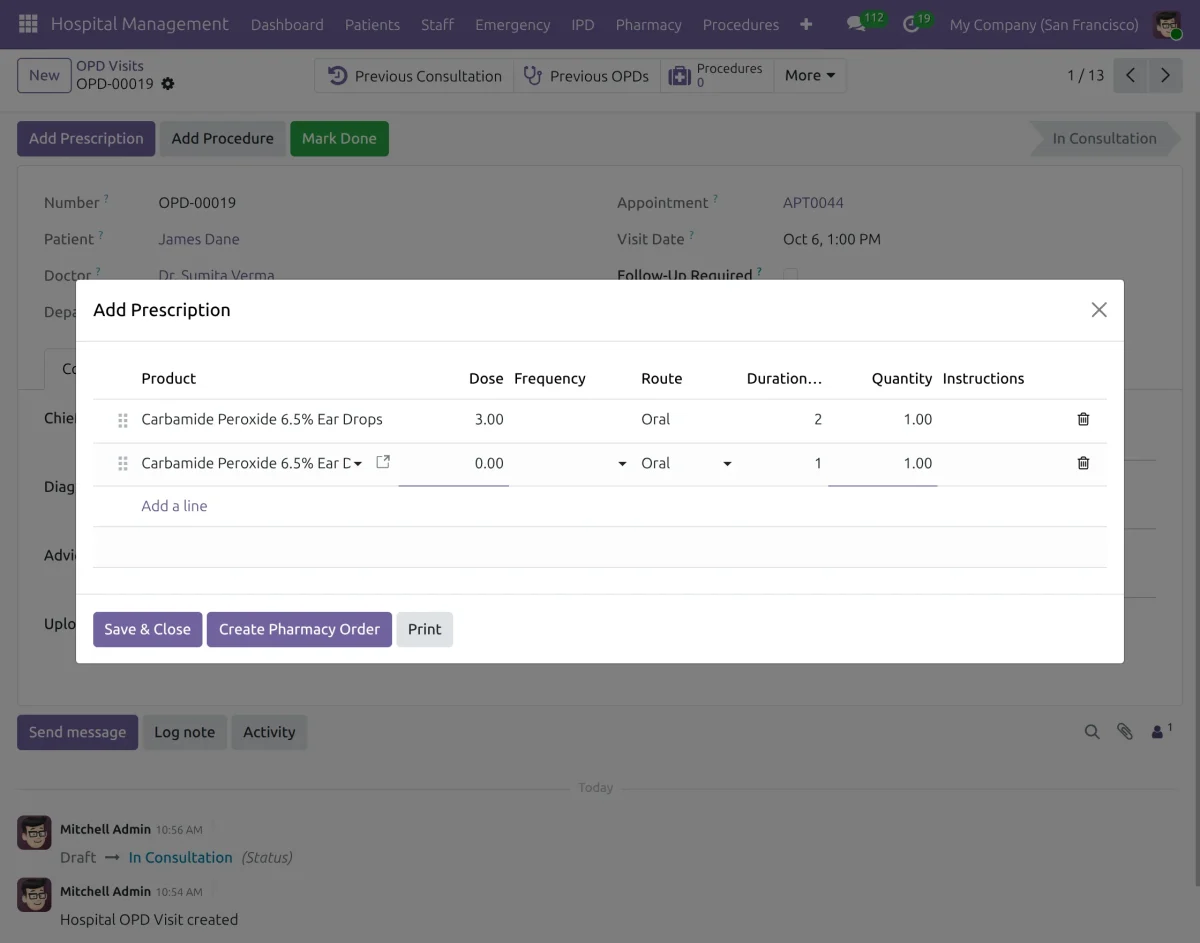
3. To add a prescription to an OPD visit, go to OPD > Select OPD Visit > Add Prescription. Add the required medicine, dose, frequency, route, duration, quantity, and instructions, then click Save & Close.
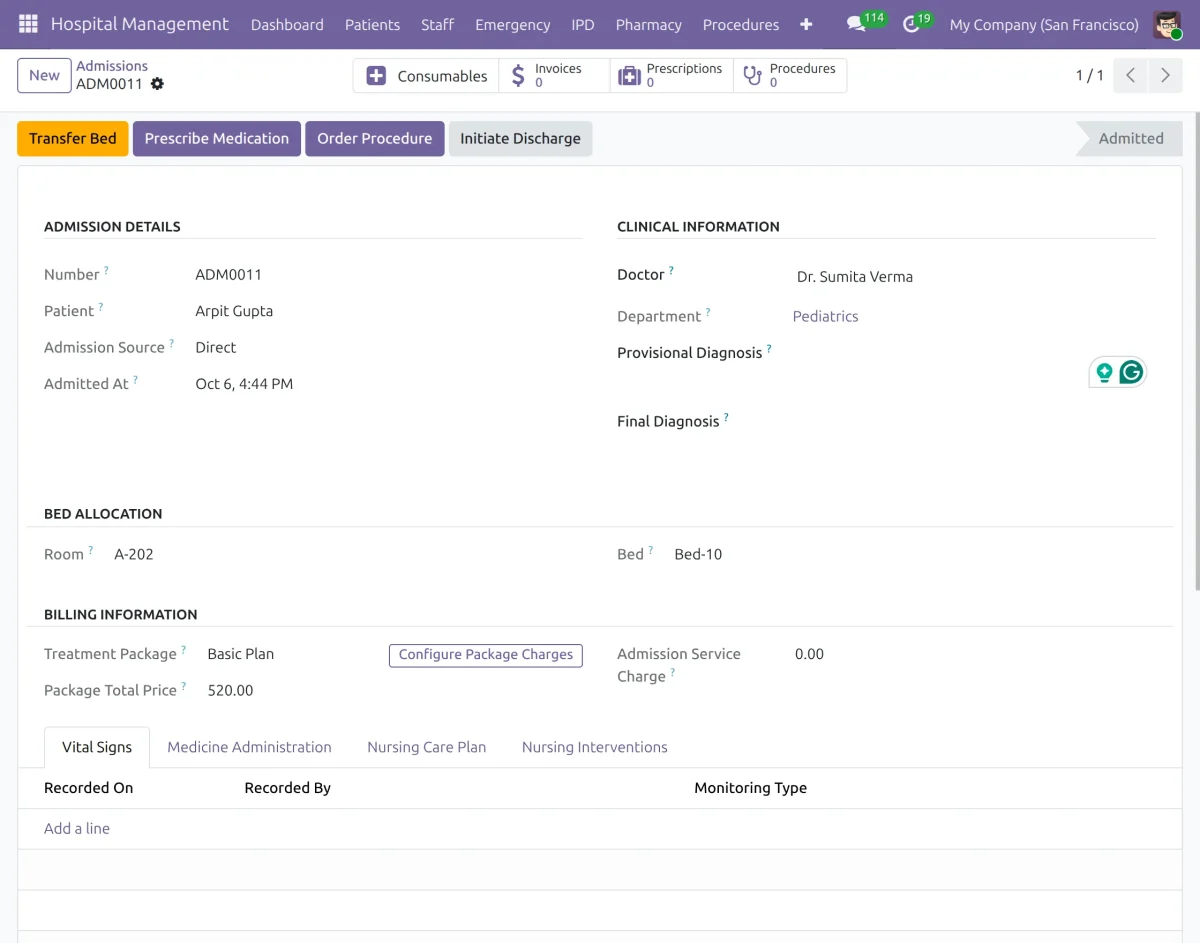
4. To manage an IPD admission, go to IPD > Admissions > Select Admission. admin can manage the patient’s bed, prescriptions, procedures, billing details, vital signs, medicine administration, and nursing information from the admission record.
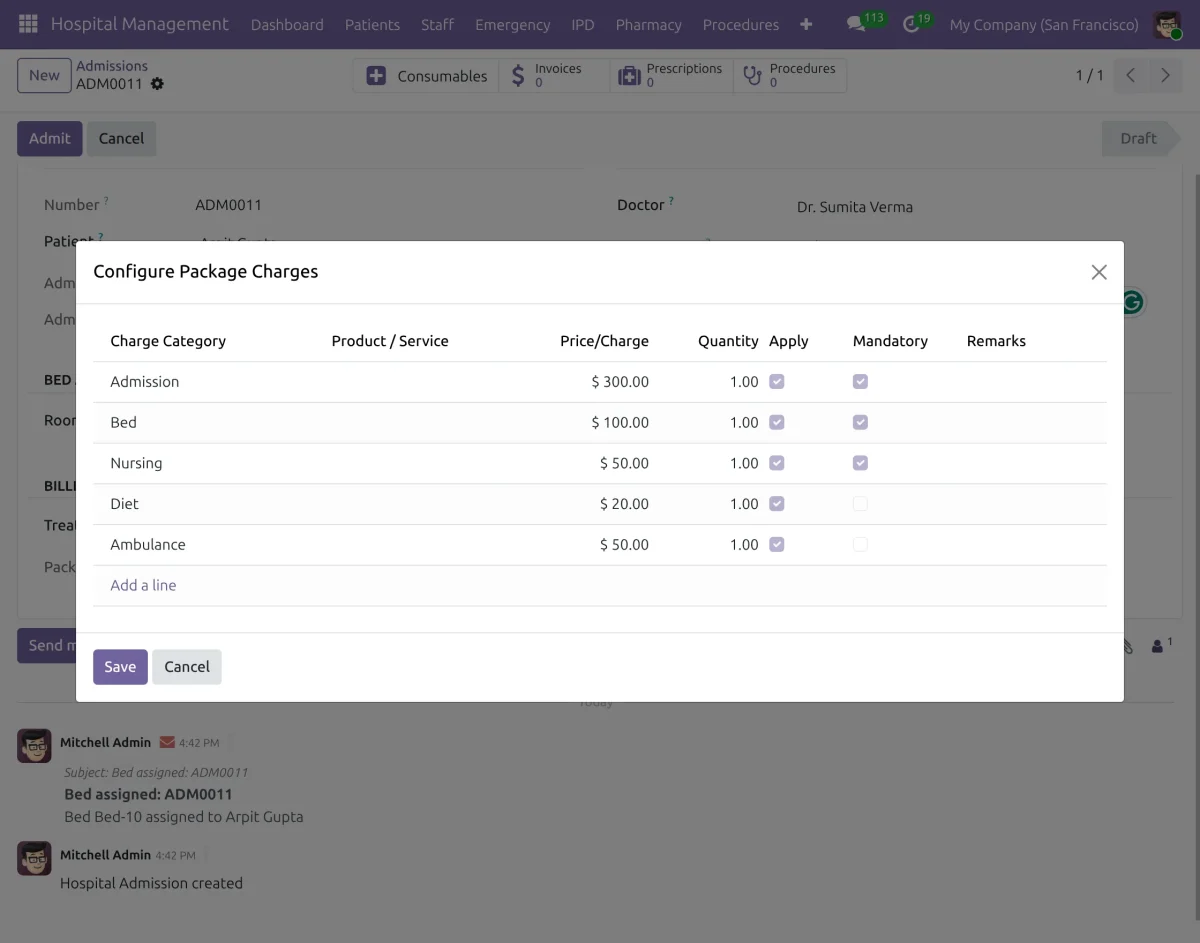
5. To configure treatment package charges, go to IPD > Admissions > Select Admission > Configure Package Charges. Select the applicable charges and configure their quantity and Apply status, then click Save.
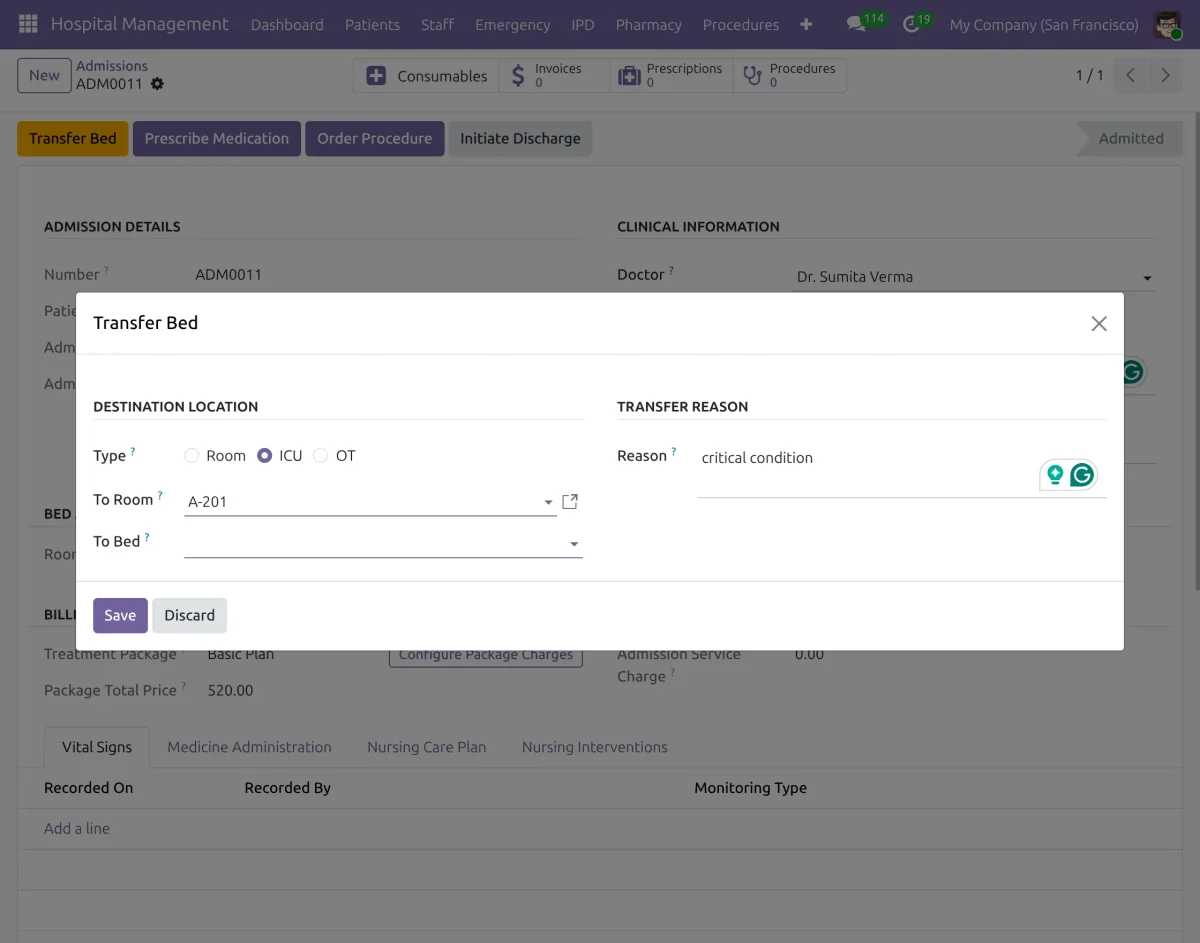
6. To transfer an admitted patient to another bed, go to IPD > Admissions > Select Admission > Transfer Bed. Select the destination type, room, and bed, enter the transfer reason, and click Save.
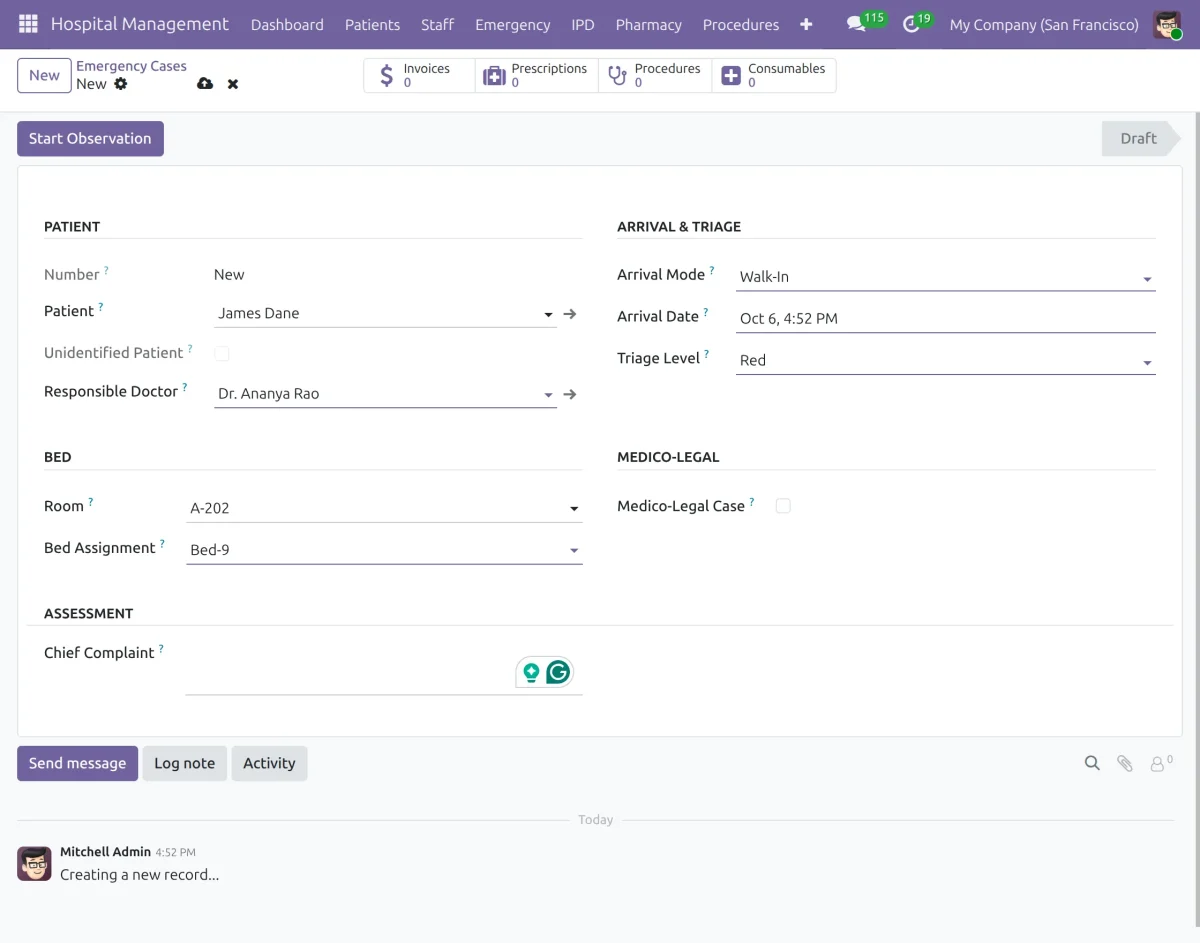
7. To create an emergency case, go to Emergency > New. Select the patient and responsible doctor, enter the arrival and triage details, assign a room and bed, and click Start Observation.
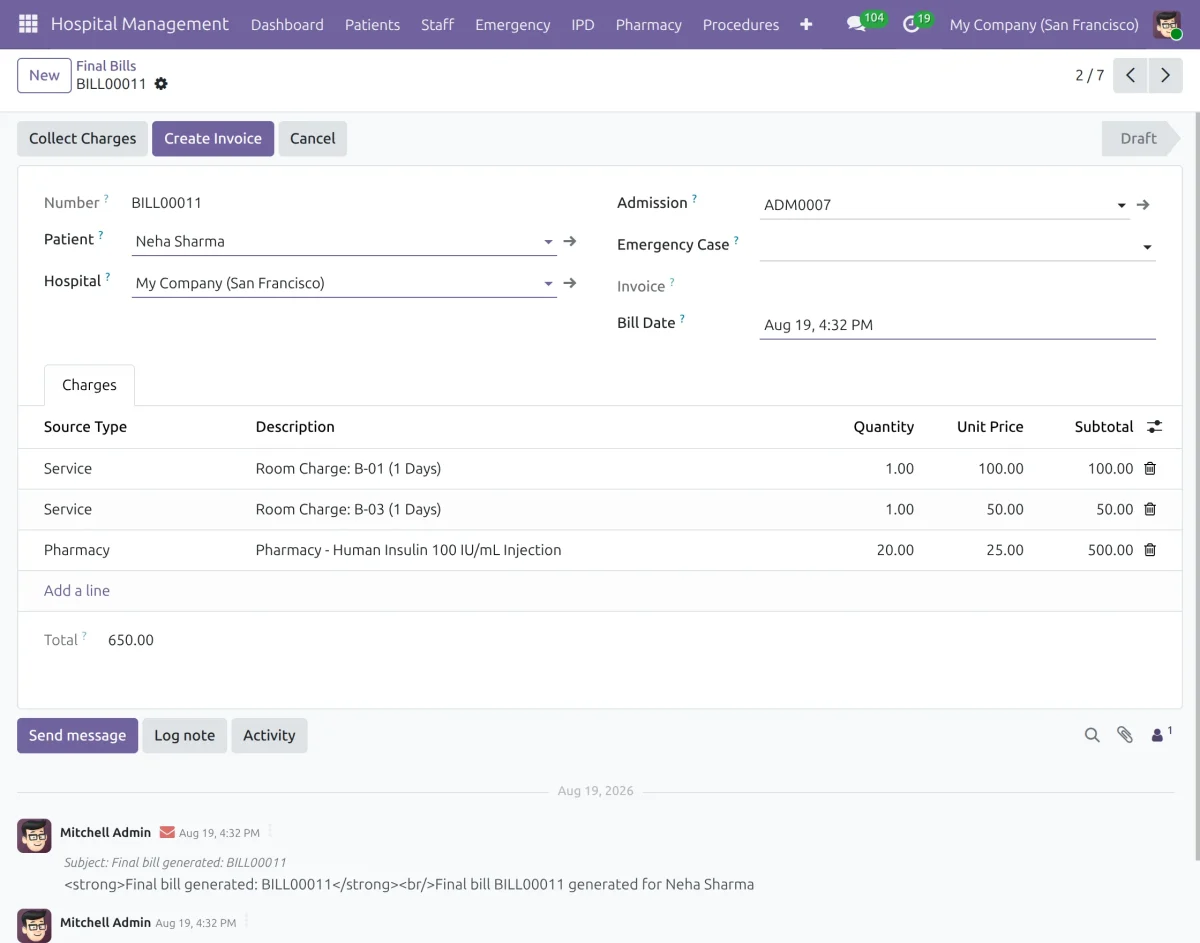
8. To generate a patient’s final bill, go to Final Bills > Select Bill. Review the applicable hospital and pharmacy charges, then click Create Invoice to generate the invoice.
Doctor
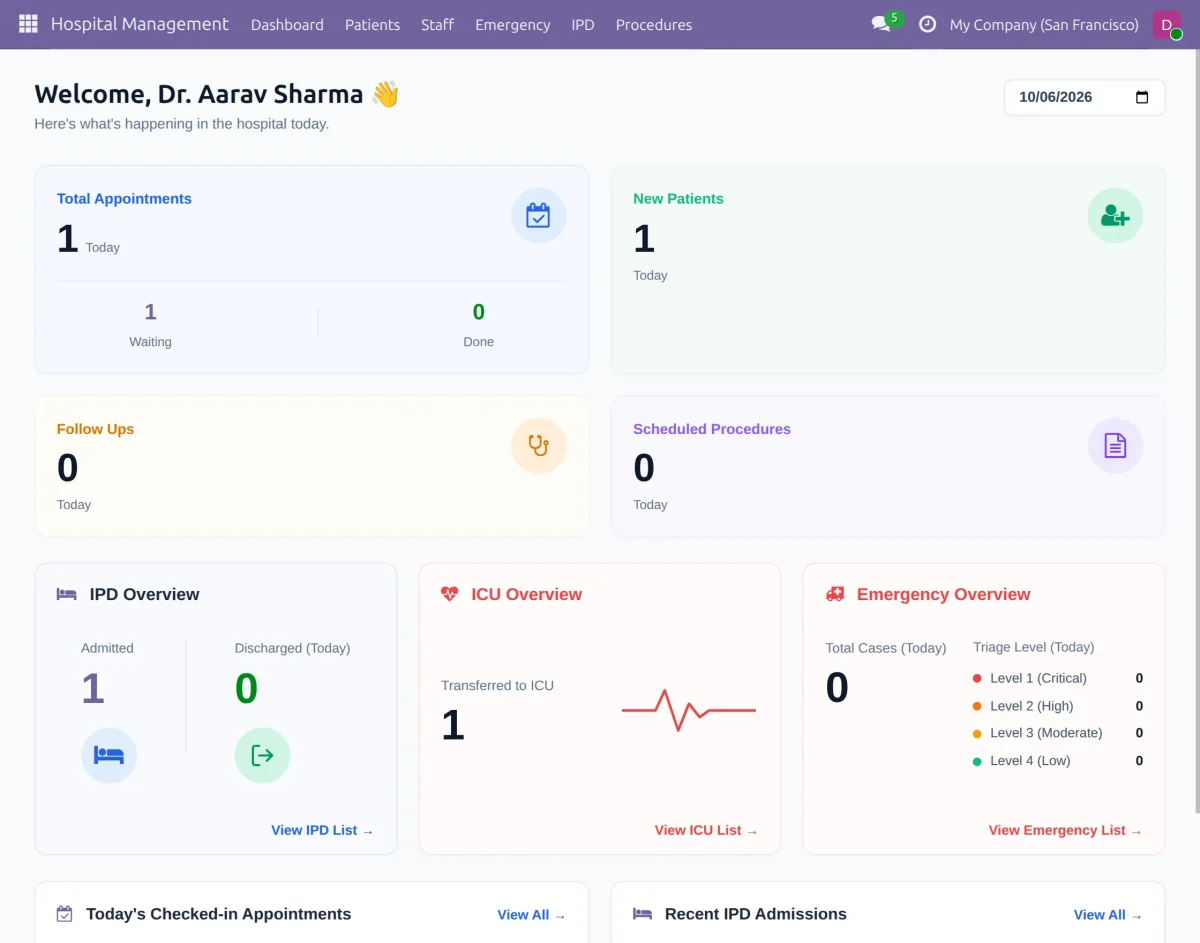
1. To view appointments, new patients, follow-ups, and hospital overviews, go to Hospital Management > Dashboard.
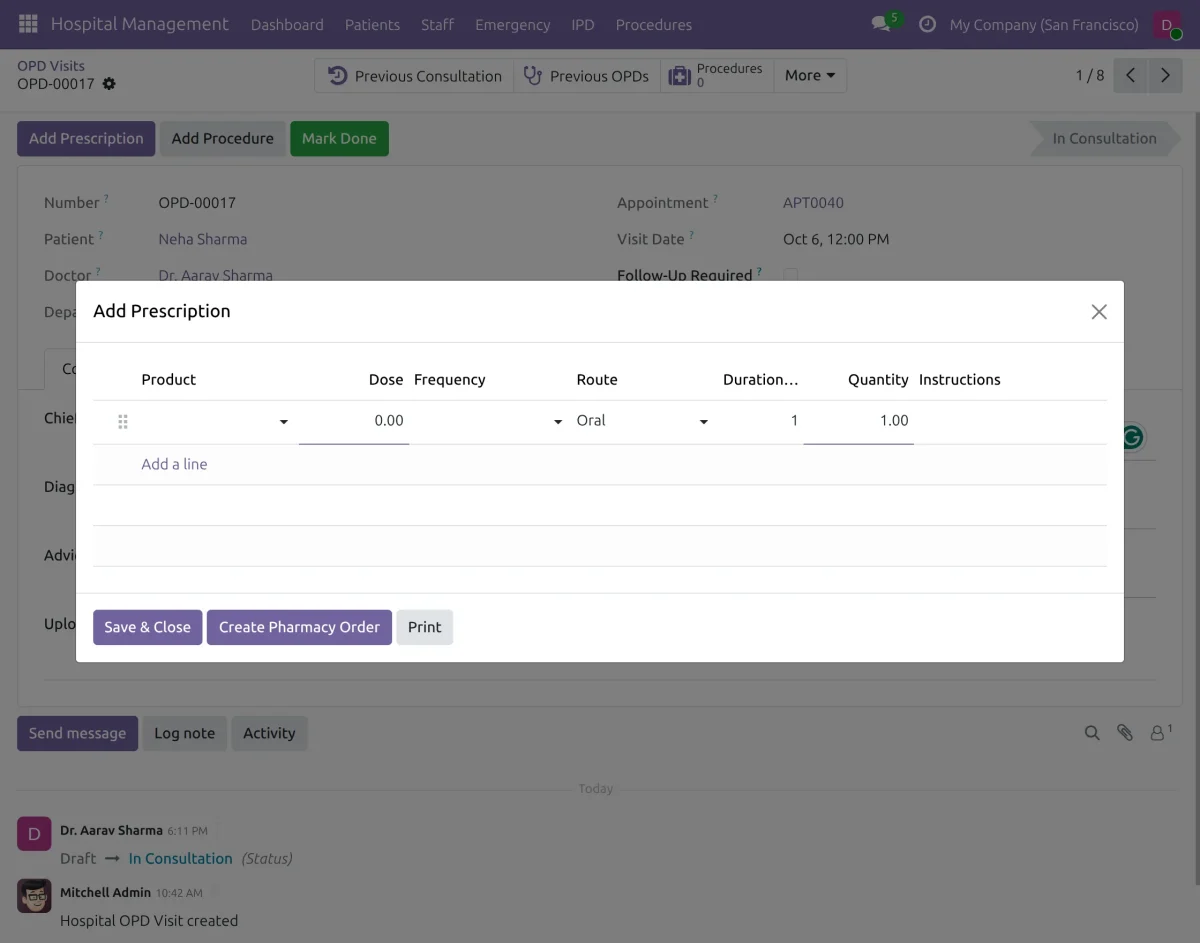
2. To manage consultations and add prescriptions, go to OPD > OPD Visits. Add medicines, create pharmacy orders, and mark the consultation as done.
Nurse Workflow
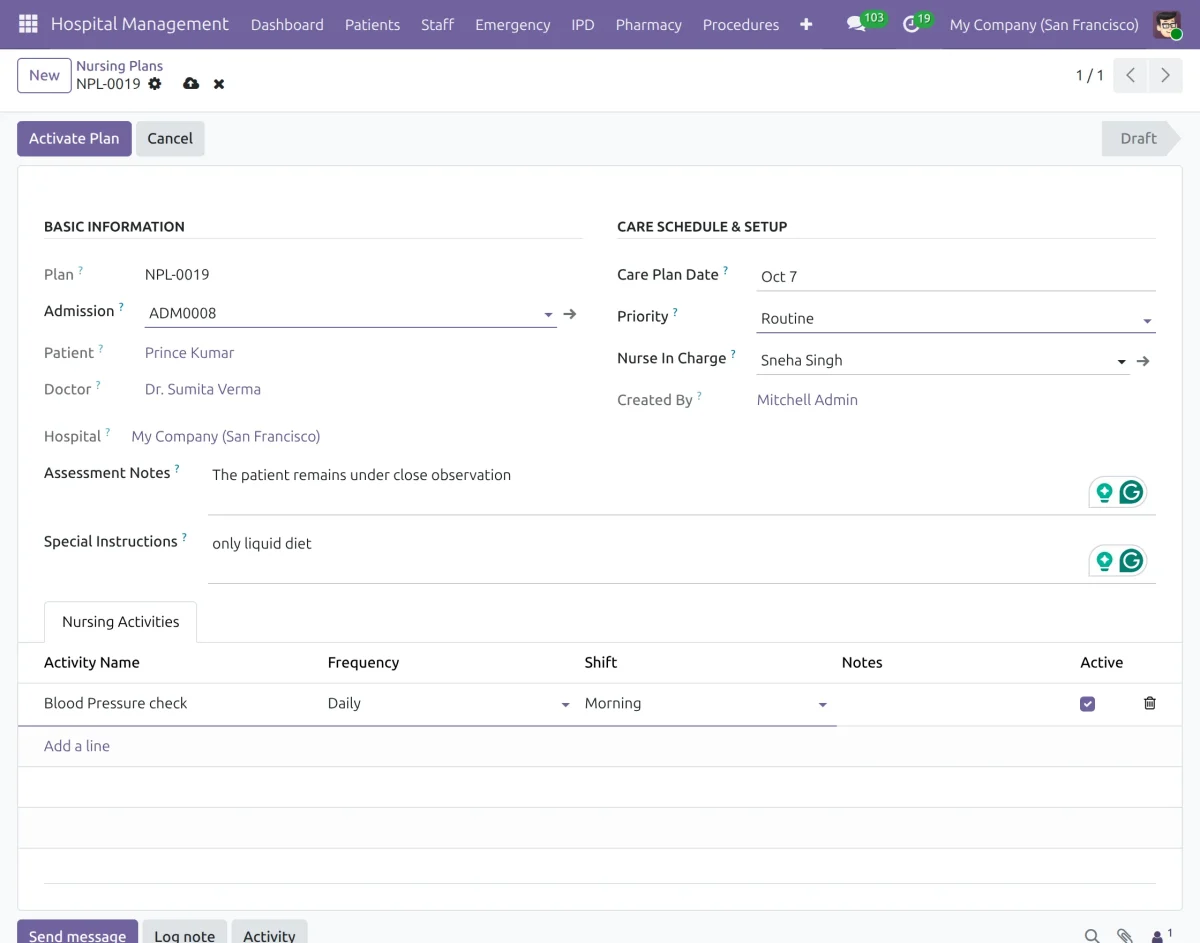
1. To manage patient care plans, go to IPD > Nursing Plans. Create care activities, set their frequency and shift, and assign the nurse in charge.
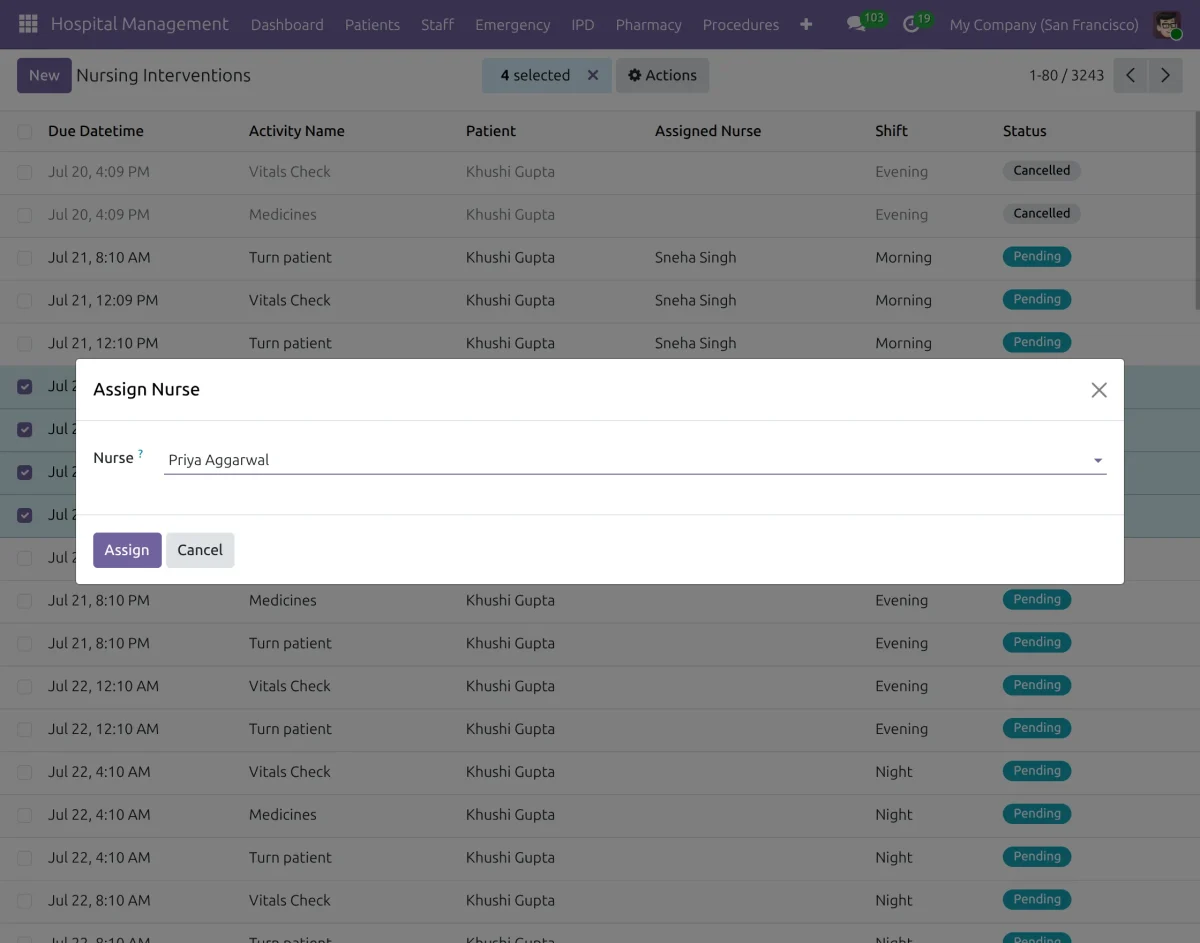
2. To assign a nurse to multiple patients at once, go to IPD > Nursing Interventions. Select the required Tasks, click Actions > Assign Nurse, and assign the nurse directly.
Patient
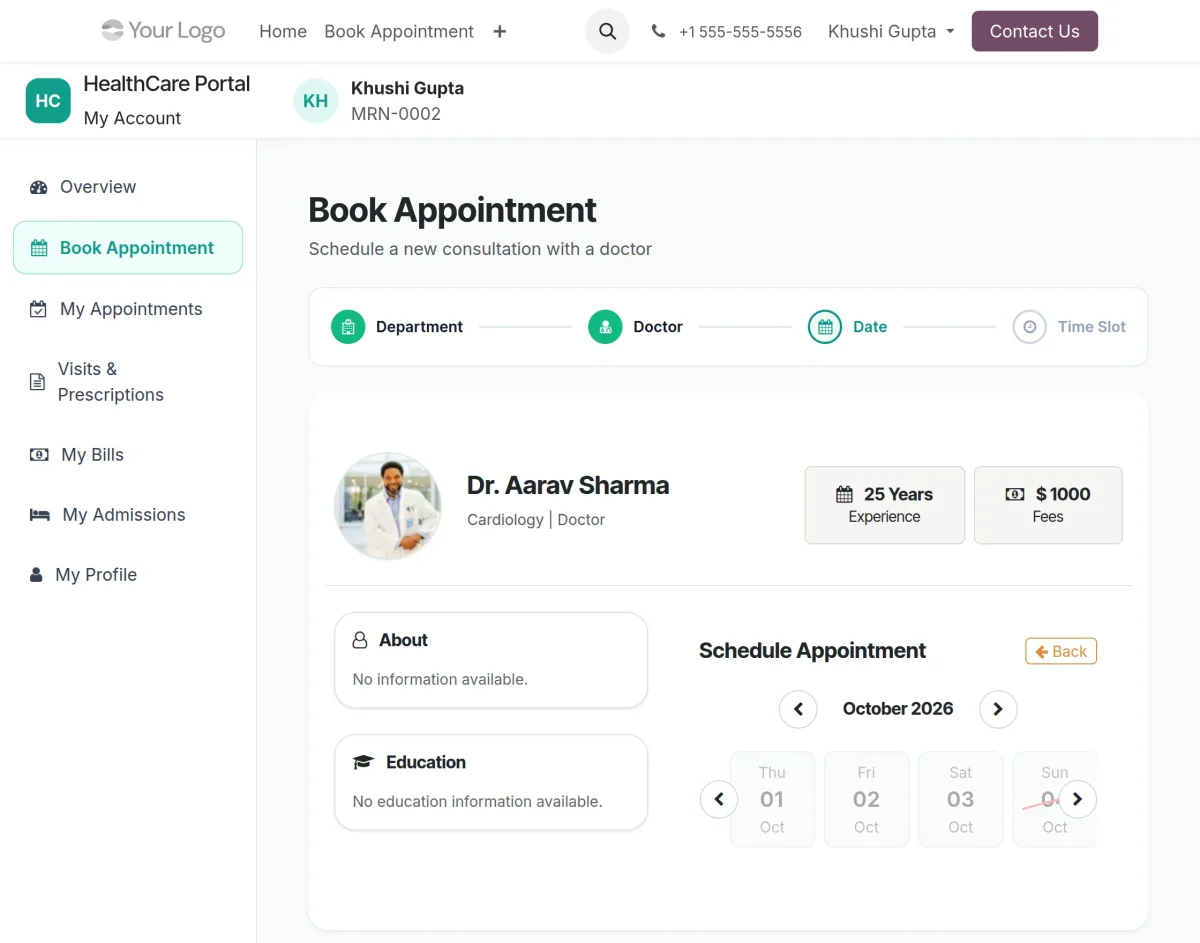
1. To book a consultation, go to Book Appointment. Select a department, doctor, date, and available time slot.
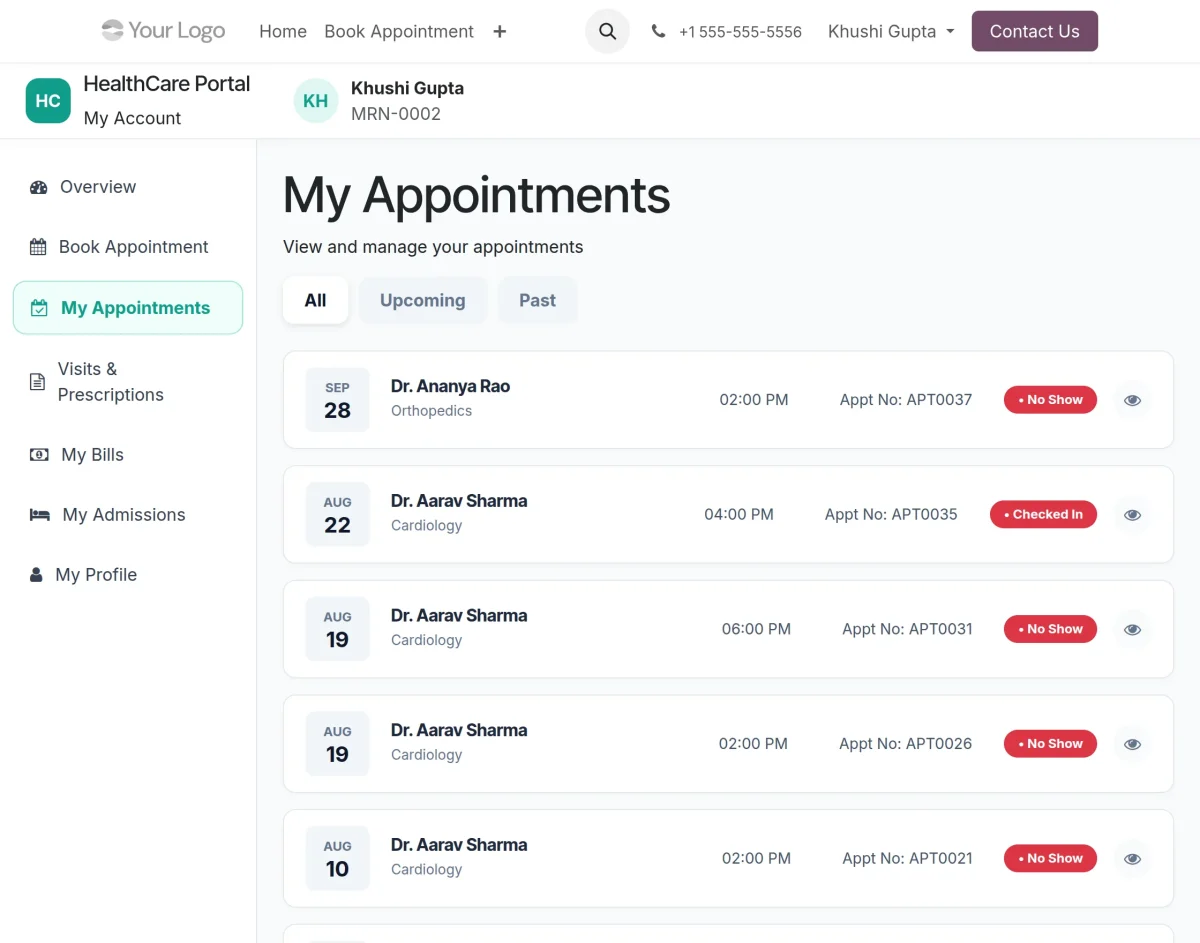
2. To manage appointments, go to My Appointments. View upcoming and past appointments along with their status and details.
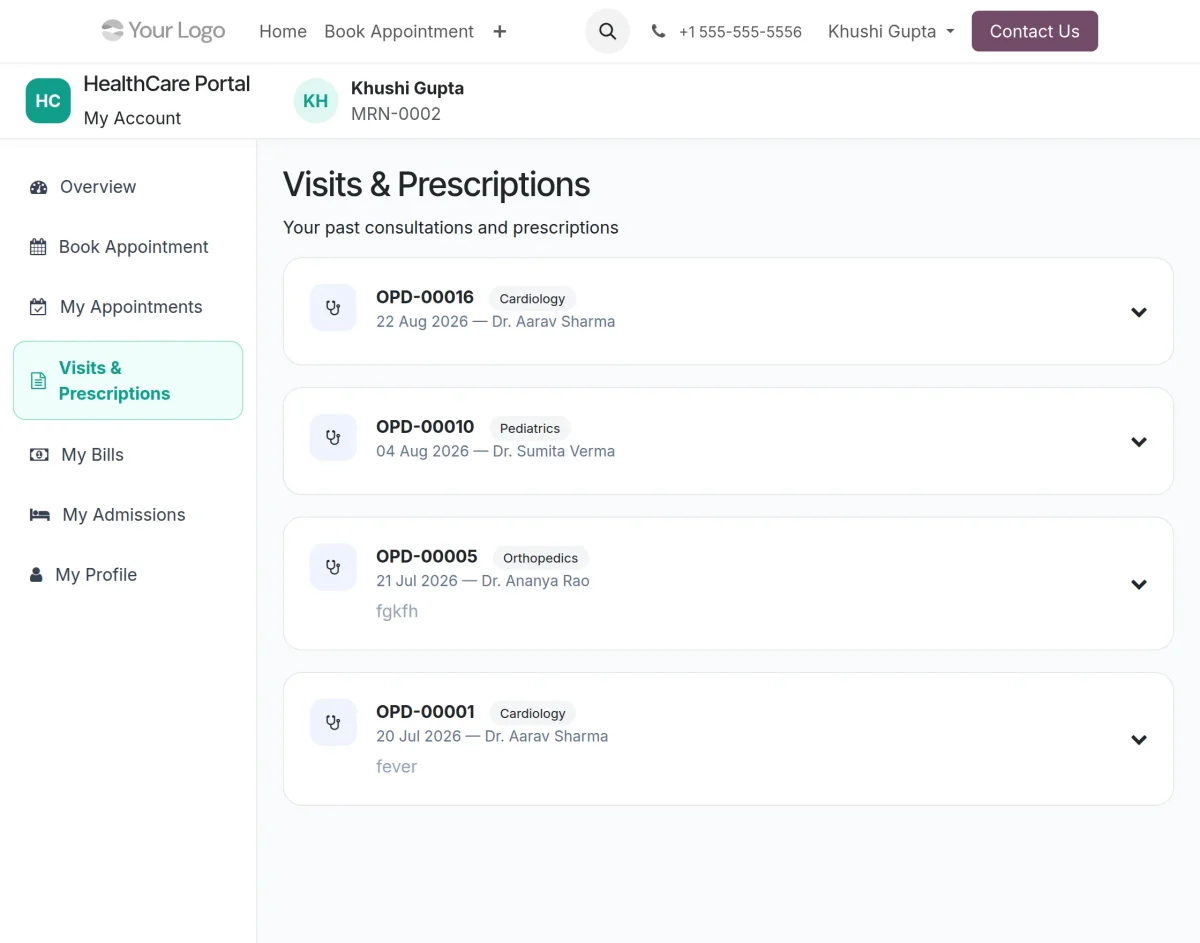
3. To view consultation records and prescriptions, go to Visits & Prescriptions. Review past visits, doctor details, and prescribed treatments.
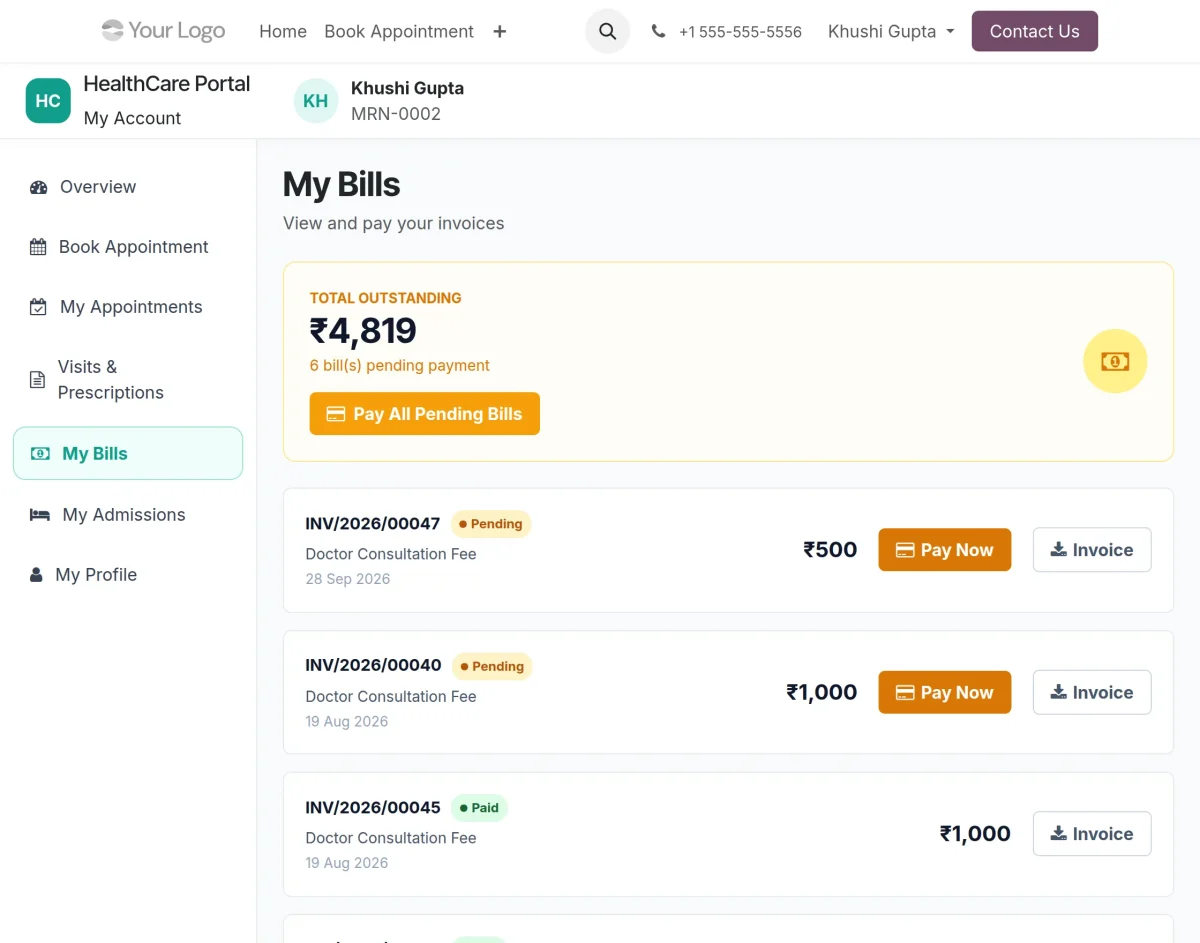
4. To manage your bills, go to My Bills. View pending and paid invoices, make payments, and download invoices.
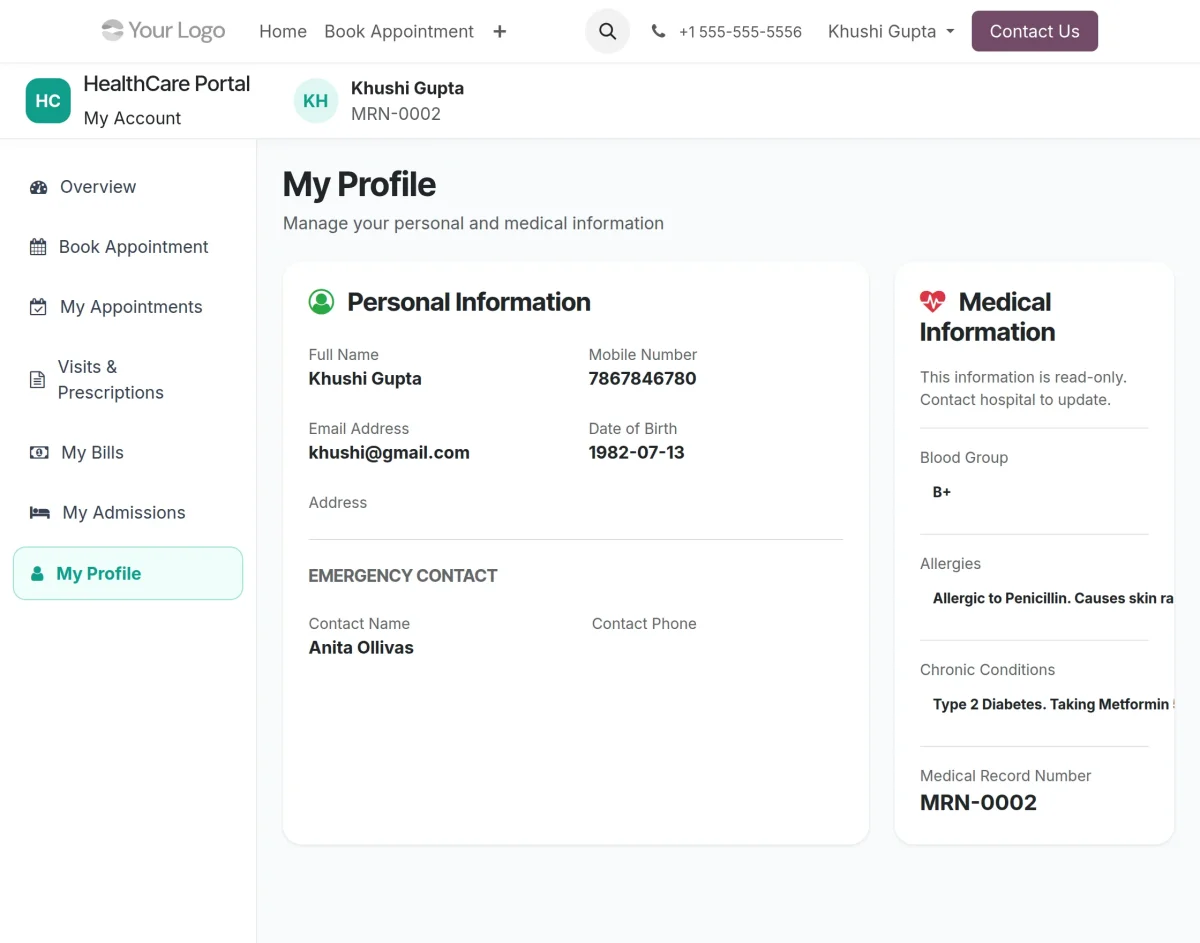
5. To view your profile, go to My Profile. View personal, emergency contact, and medical information.
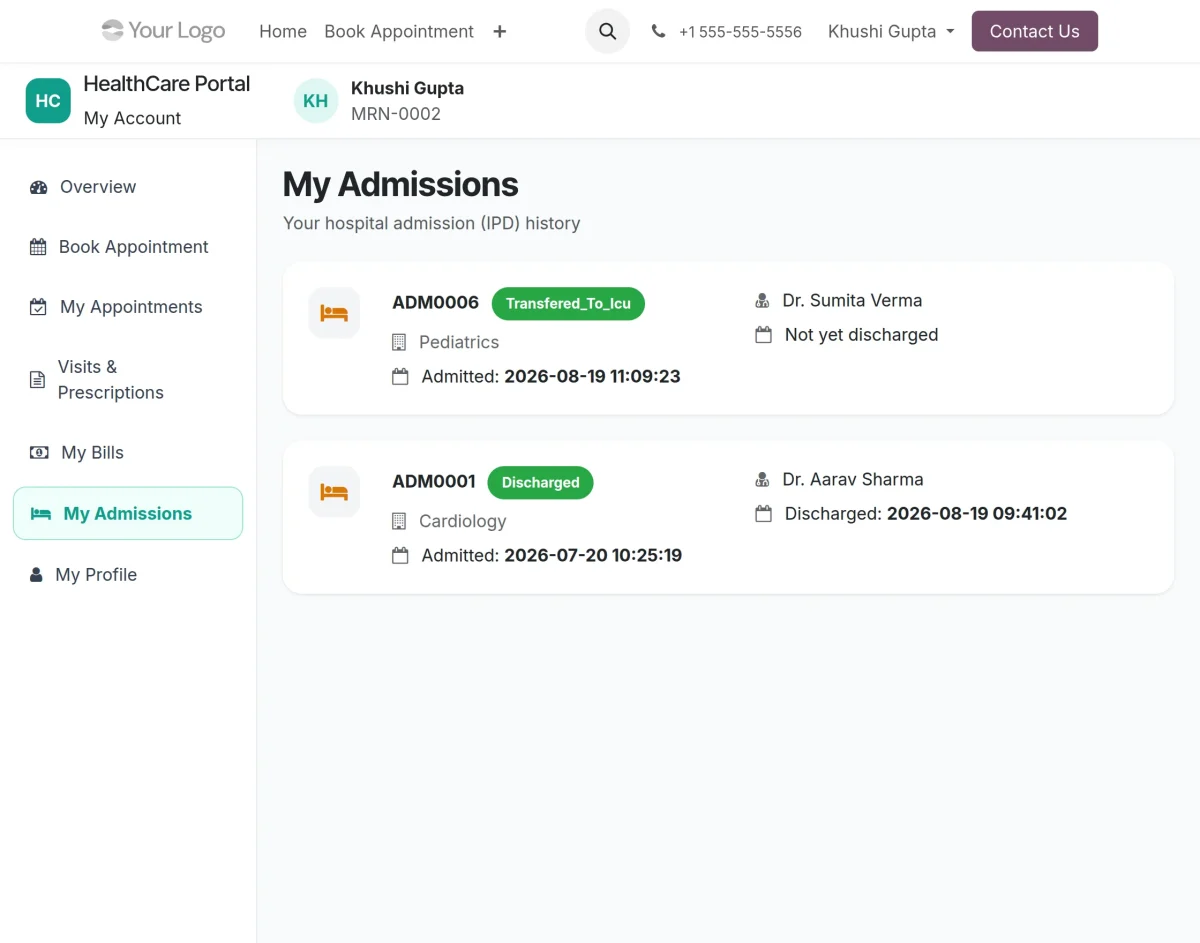
6. To view admission history, go to My Admissions. Check admission details, department, doctor, and discharge status.
Need Help?
Hope you find guide helpful! Please feel free to share your feedback in the comments below.
If you still have any issues/queries, please create a ticket at the UV Desk.
I hope this helps. In case of any further queries, contact us at our support mail.
Thanks for paying attention!!