User Guide for Laravel Affiliate Product
Live Demo
Bagisto Affiliate Product is a helpful extension that lets store owners list products they don’t sell directly. Customers are redirected to an external website to complete their purchase.
This module adds a dedicated Affiliate product type to Bagisto. Each affiliate product carries a link to the seller’s website and shows a button of your own design in place of the store’s Add To Cart button.
Features of Affiliate Product
- Admins can easily create new products using the ‘Affiliate’ product type.
- Store owners can set an external website Hyperlink where the customer will be redirected.
- Option to enable or disable the display of the product price on the storefront.
- Store owners can customize the button caption text (e.g., “Buy at Partner Store”).
- Store owners can customize the button background color to match their theme.
- Store owners can customize the button font color.
- A store-wide default button text, background color and font color can be set from the configuration, per channel and language.
- On the storefront, the normal “Add To Cart” and “Buy Now” buttons are replaced. Clicking the new button opens the external hyperlink in a new tab.
- Affiliate products cannot be added to the shopping cart, so they never reach your checkout.
- Affiliate products keep no stock, so the admin product list shows them as “Stock Disabled”.
- The module is available in all 22 languages that Bagisto ships with.
Installation of Affiliate Product
- Unzip the respective extension zip and then merge the “packages” folder into the project root directory.
- Goto composer.json file and add the following line under ‘psr-4’:
"Webkul\\AffiliateProduct\\": "packages/Webkul/AffiliateProduct/src"
- Run the below command to autoload the newly added files:
composer dump-autoload
- Goto bootstrap/providers.php file and add following line under ‘providers’ array:
Webkul\AffiliateProduct\Providers\AffiliateProductServiceProvider::class,
- Run the below mentioned command from the root directory in the terminal to complete the setup. It runs the database migrations, publishes the module’s assets and clears the cache:
php artisan affiliate-product:install
That’s it, now just execute the project on your specified domain.
Note: This extension is compatible with Bagisto v2.4.11 and works with the default storefront theme.
Configuration: Button Settings
First, set the default look of the affiliate button for your whole store. For this purpose, the Bagisto Affiliate Product module adds an Affiliate Product group to the admin configuration.
These settings are the fallback for every affiliate product. A product’s own button settings, covered in the next section, always take priority.
Button Settings Section
The section has three settings:
- Button Text: The caption shown on the button when a product has no caption of its own. It is required and can be up to 20 characters. It is saved per channel and language.
- Button Background Color: The default background color of the button, saved per channel.
- Button Font Color: The default text color of the button, saved per channel.

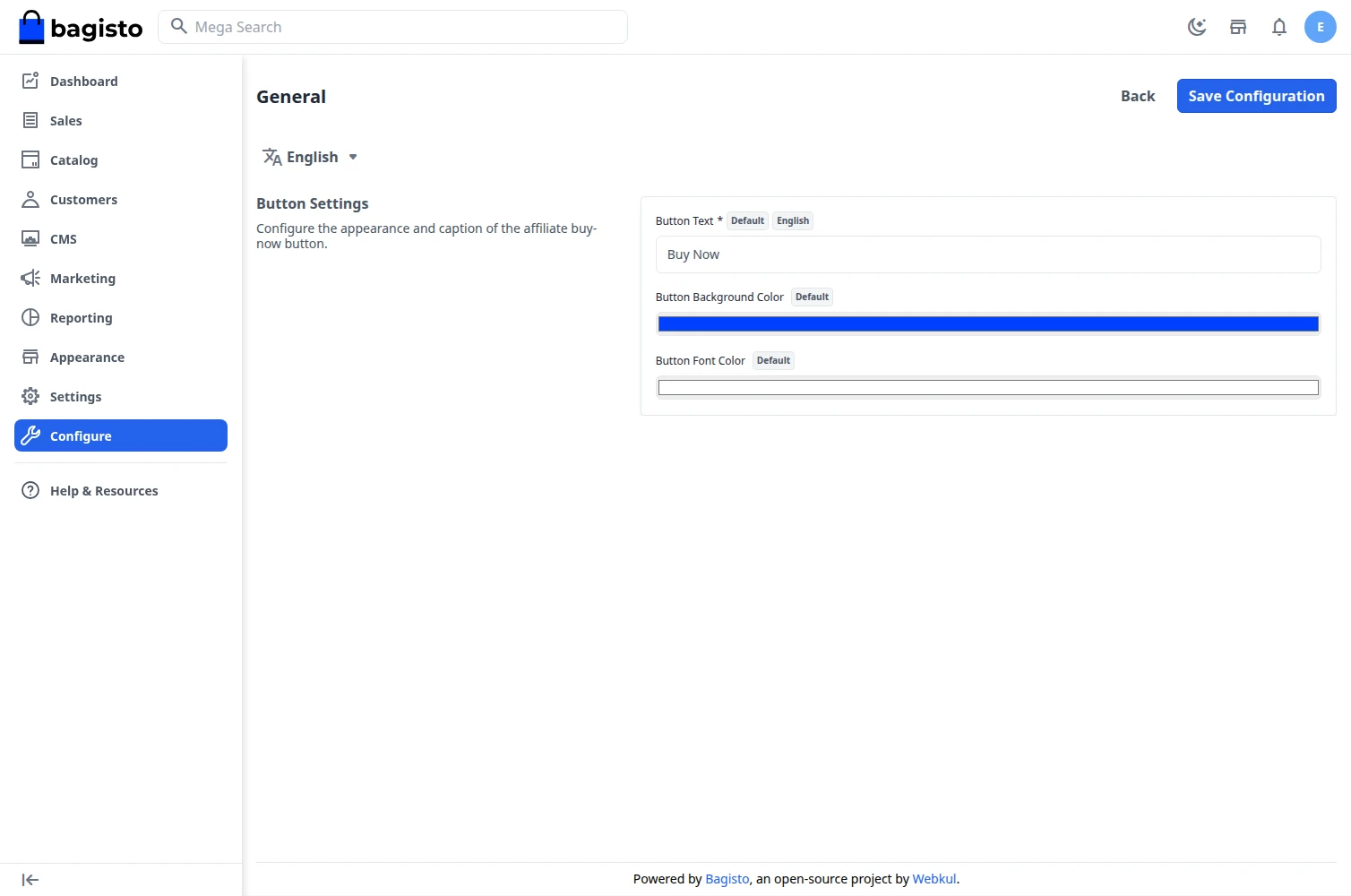
Step-by-Step: Set the Default Button
- Go to Configure >> Affiliate Product >> General.
- If your store has more than one channel or language, choose the one you want to set up from the selectors at the top.
- In the Button Settings section, enter the Button Text.
- Choose the Button Background Color.
- Choose the Button Font Color.
- Click Save Configuration.
When the Default Button Is Used
- The Button Text appears on every affiliate product whose Button Caption is left empty. If both are empty, the button reads Buy Now.
- The colors are used for an affiliate product that has no colors of its own. A product saved from its edit page always keeps its own colors, which start as blue and white.
- Saving the configuration refreshes your storefront pages, so customers see the new button straight away.
Admin Management : Affiliate Products
Once the module is installed, the admin can add affiliate products from the store’s admin panel.
Creating an Affiliate Product
- Go to Catalog >> Products.
- Click Create Product.
- In the Create New Product form, choose Affiliate as the Type.
- Choose the Family.
- Enter the product SKU.
- Click Save Product. You are redirected to the product edit page.
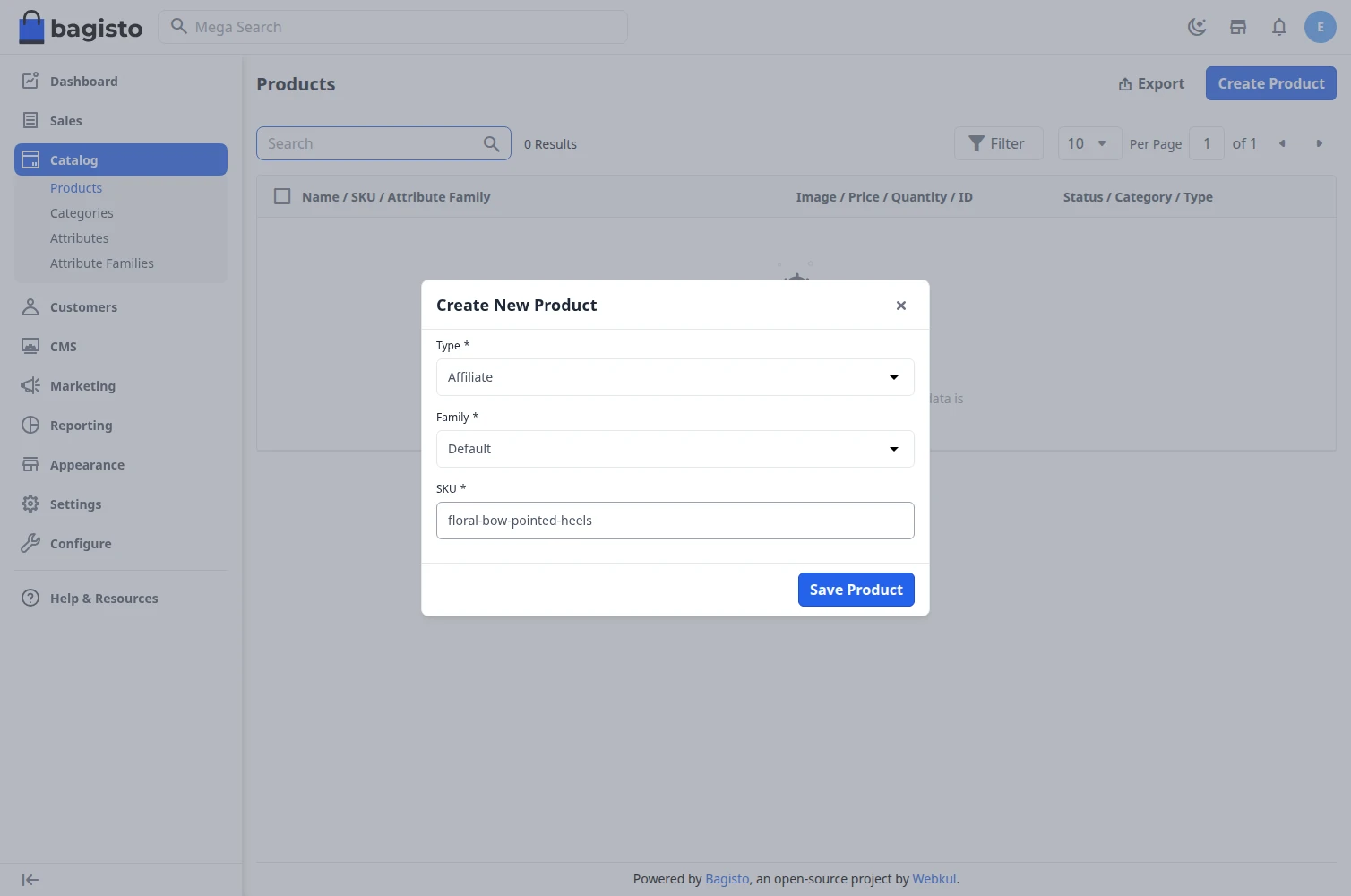
Now you will be on the main product edit page. Here you need to fill in all the general details like name, description, price, categories, and images.
Affiliate Product Settings
Scroll down to find the special Affiliate Information section. Here you can configure the specific details for your external link.

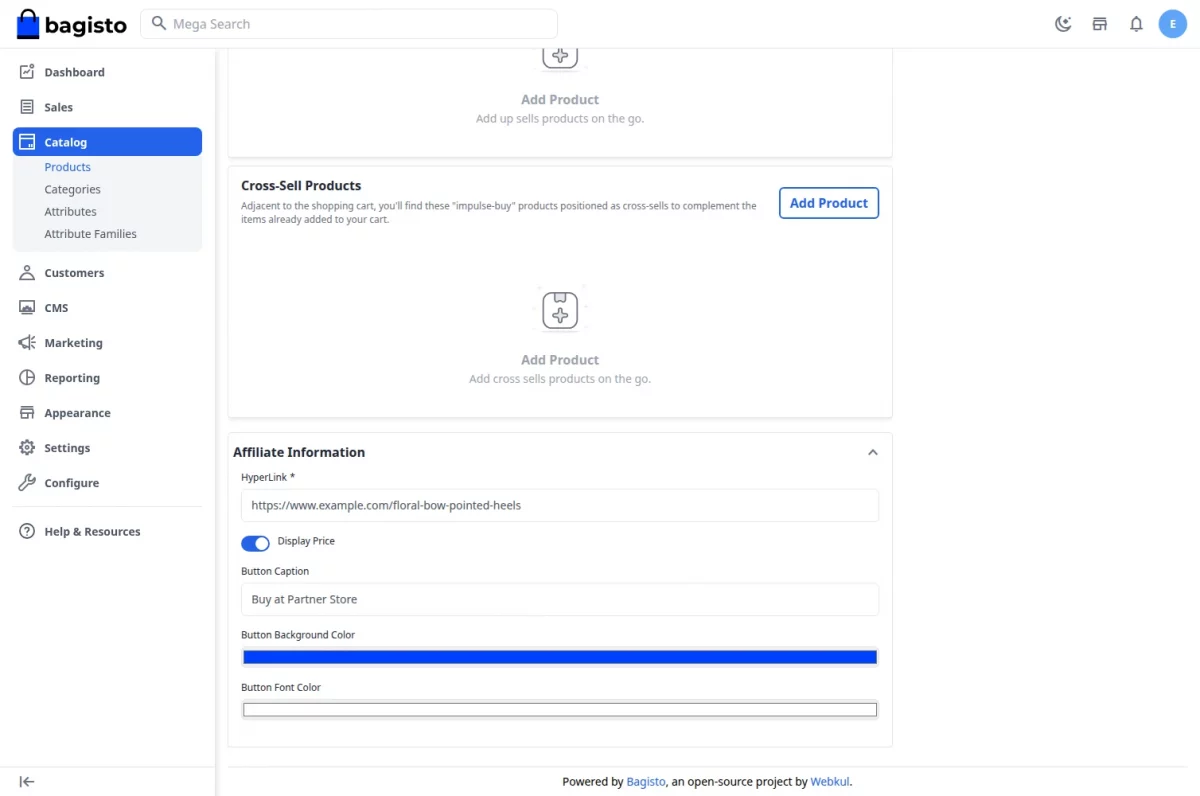
You can adjust the following settings:
- HyperLink: Enter the external website URL where you want to send the customer. It is required and must be a valid link starting with http:// or https://.
- Display Price: Turn this switch on or off to choose if you want to show the product price on your store page.
- Button Caption: Write the exact text you want to show on the button, up to 20 characters. Leave it empty to use the Button Text from the configuration.
- Button Background Color: Choose the background color of the button.
- Button Font Color: Choose the text color of the button.
Click Save Product to save the product. The button caption and colors are saved for the language selected at the top of the edit page, so you can give each language its own caption.
Affiliate Products in the Product List
Affiliate products appear in Catalog >> Products with the type affiliate. Since they keep no stock, the quantity column shows Stock Disabled. You can list only affiliate products by choosing Affiliate in the Type filter.
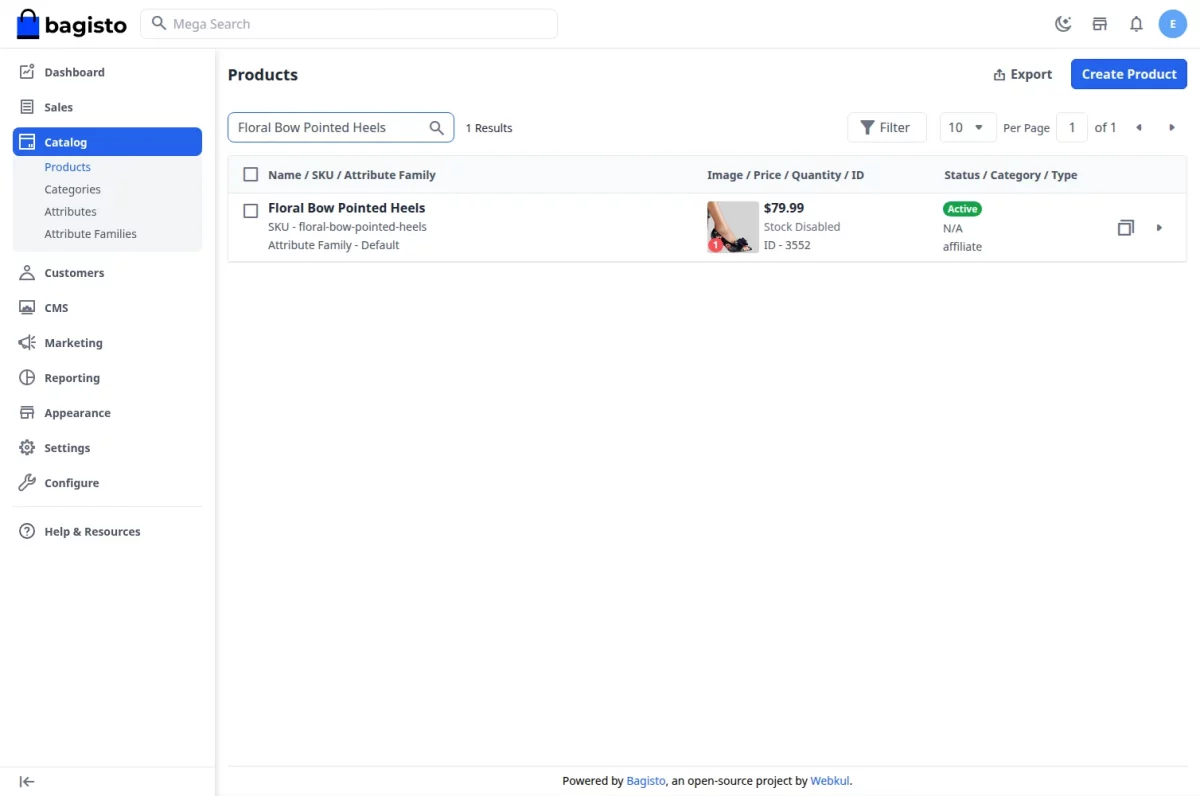
Storefront View (Customer View)
When customers visit your store website, they can view the affiliate product just like any other item. However, they will see a few differences on the product page.
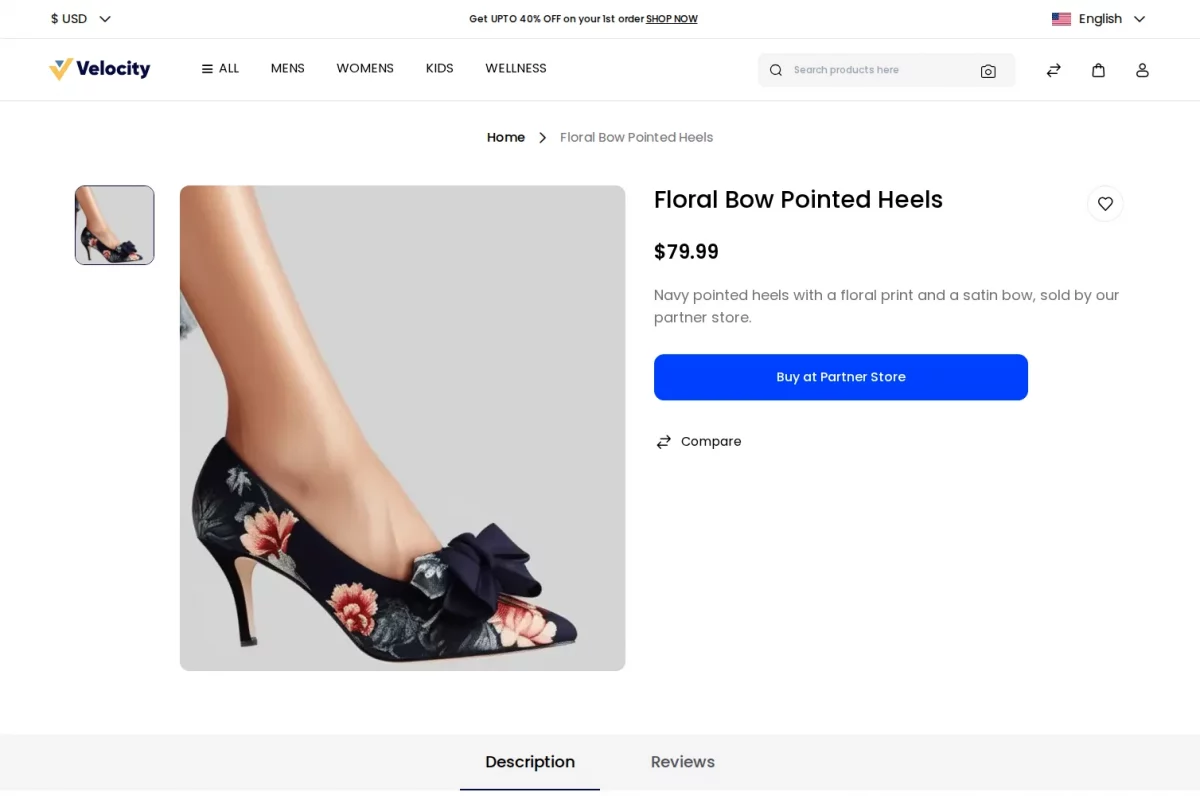
Instead of the normal Add To Cart and Buy Now buttons, they will see the custom button you created. The colors and the text will match your settings, and there is no quantity box.
When the customer clicks this button, the external website link you provided opens in a new tab. They cannot add this item to your store’s shopping cart.
- The price is shown only when Display Price is turned on for the product.
- On category and search pages, the affiliate product is listed with its Add To Cart button disabled. Customers open the product page to reach the affiliate button.
- Any affiliate product already sitting in a customer’s cart is removed from it automatically.
Support
So, that was all about the User Guide for the Bagisto Affiliate Product Module. If you have any queries or doubts, please reach out to us at support@webkul.com.
You can also raise a ticket at our HelpDesk System.
Please explore our Laravel Development Services and Quality Bagisto Extensions.