User Guide for ERPNext Website Auction
Live Demo
Introduction
ERPNext Website Auction turns any Webshop product into a timed sale. The store admin sets a start price and an end time. Customers then bid against each other until the clock runs out.
This module allows store admin to creates auction in the backend and watches the bids arrive. The customer browses live items on the website, places bids, and pays for what they win.
This guide covers both sides. By the end you can set up an auction, take bids, and hand the won item to checkout.
Prerequisites for using ERPNext Website Auction
ERPNext website auction works in conjunction with the following apps:
1. ERPNext
2. Webshop
3. Payments
You must install the above-mentioned apps to use ERPNext Website Auction module.
Features of ERPNext Website Auction
- Transform any published Website Item into an exciting auction experience with a defined start and end time.
- Set a starting price, a hidden reserve price, and an optional Buy Now price.
- Step bids by amount using increment rules, so cheap items rise in small steps and costly ones in large steps.
- Let customers set an auto bid ceiling and bid for them up to that amount.
- Extend the closing time when a bid lands in the last minutes, which stops last-second sniping.
- Cancel an auction on its own when the reserve price is never met.
- Customers can add items to their watchlist and keep an eye on auctions without having to place a bid.
- Keep customers informed with email alerts for auction launches, outbids, closing reminders, and final results.
- Send the winning item straight to the Webshop cart and on to a Sales Order.
Installation
- After purchasing the app from Webkul Store, you will receive a link to download the module ZIP file.
- Extract the ZIP file. You will see a folder named ‘auction’.
- Set up the module in your git repository, then fetch it using:
bench get-app --branch main https://git.webkul.com/erpnext-apps/auction.git
(Replace “main” with your branch name and replace the “HTTPS URL” with your HTTPS clone URL.)
- Install the app on your site:
bench --site <your-site-name> install-app auction
- Run bench migrate to complete the setup.
Workflow
Setting Up an Auction in the Backend
1. Open the Auction list from the sidebar.
Every auction appears here with its status, so you can see at a glance what is live and what has closed.

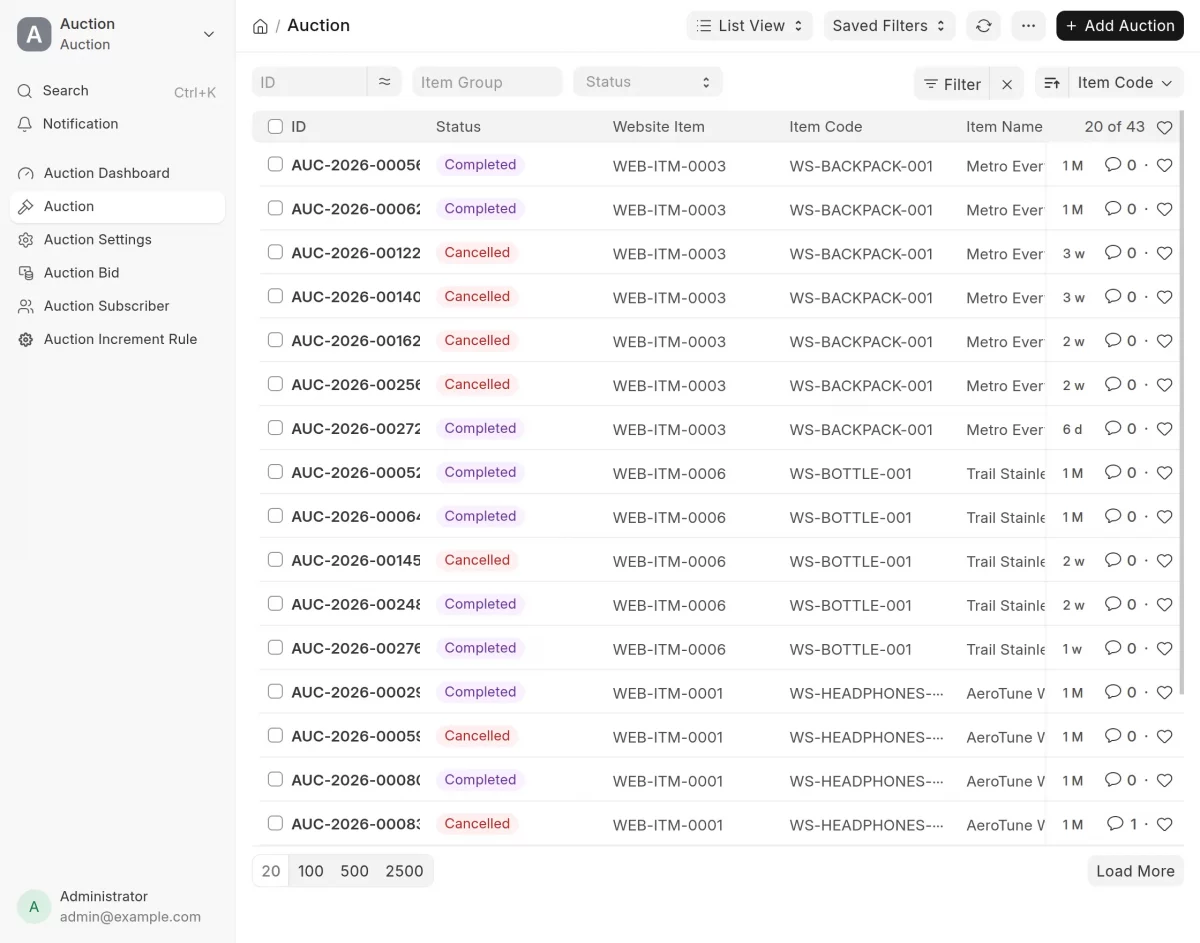
2. Click Add Auction to open a blank form.
Pick a Website Item. The app fills in the item code, name, group and description for you.
3. Set the three prices under Pricing.
Starting Price is where bidding opens. Reserve Price is the least you will accept. Buy Now Price lets a customer end the auction at once by paying that amount.
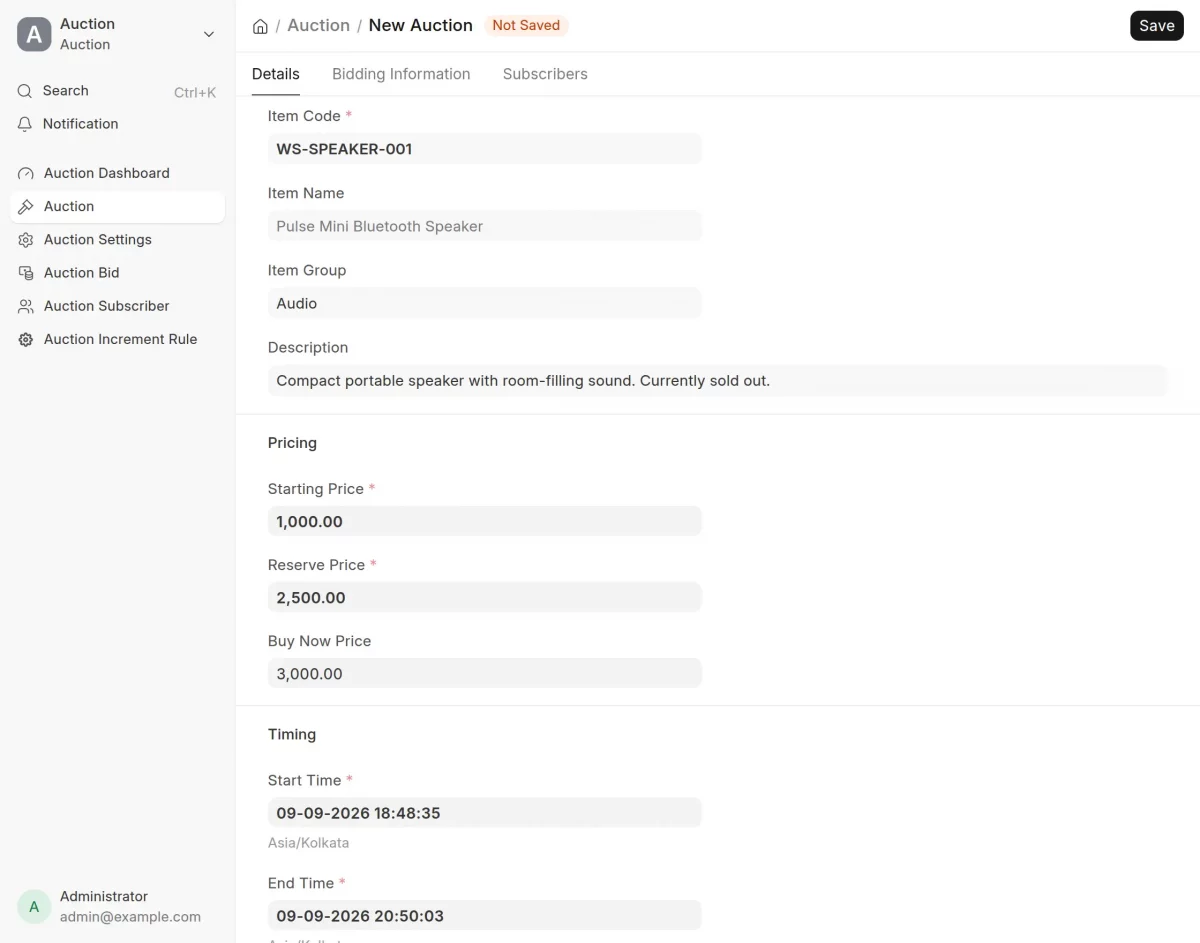
4. Set Start Time and End Time under Timing.
Enter a value in Extend By Minutes to push the end time back whenever a late bid arrives.
5. Tick Publish, then save.
The app moves Status from Draft to Running on its own once the start time passes. Status is read-only, so you never set it by hand.
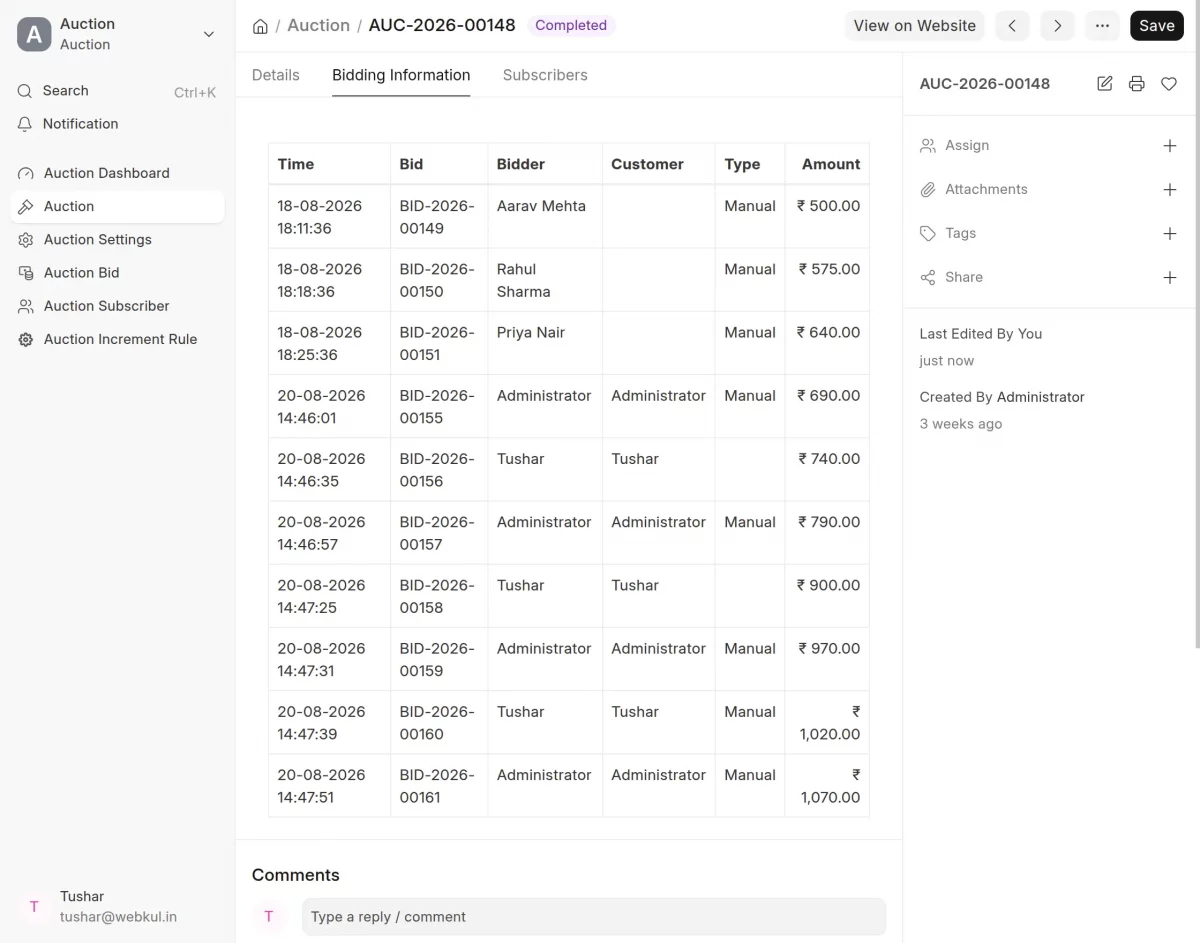
6. Open the Bidding Information.
On a saved auction open bidding information tab to see every bid, who placed it, and whether it was manual, auto or Buy Now.
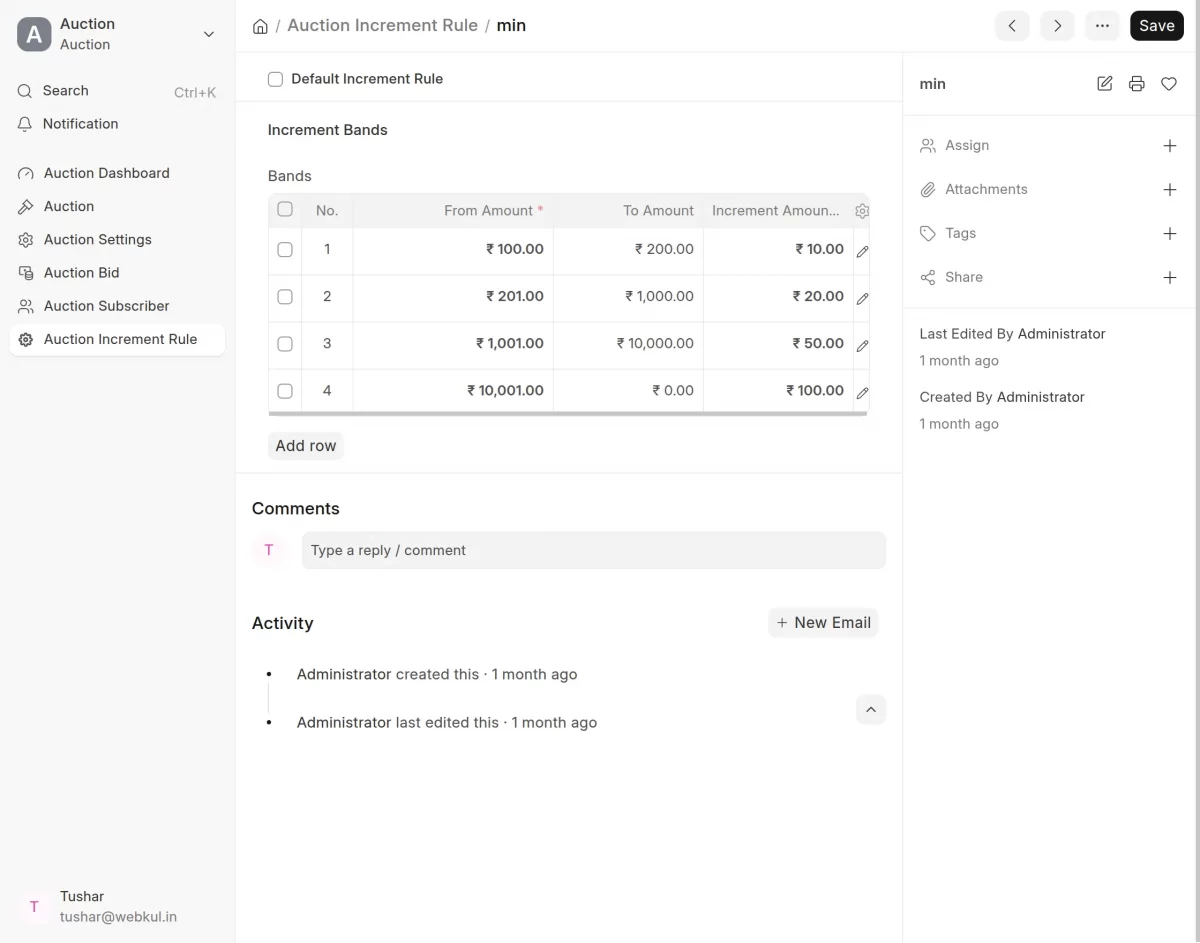
7. Auction Increment Rule.
Open Auction Increment Rule to control the step between bids. Each band names a price range and the increment that applies inside it. Here bids rise by 50 up to 10,000, then by 1,000 above it.
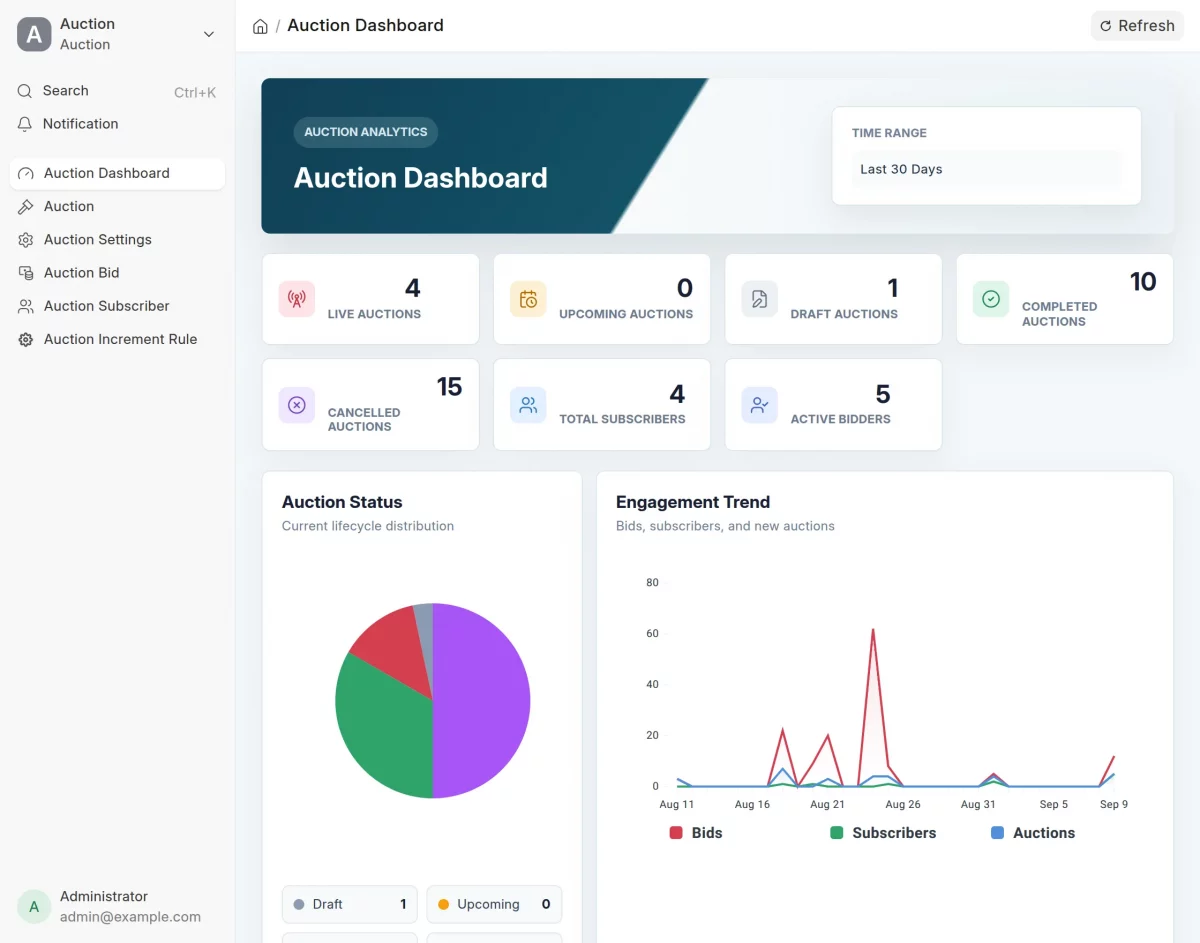
8. Open Auction Dashboard to track how the auctions are doing. It counts auctions by status and lists the busiest ones.
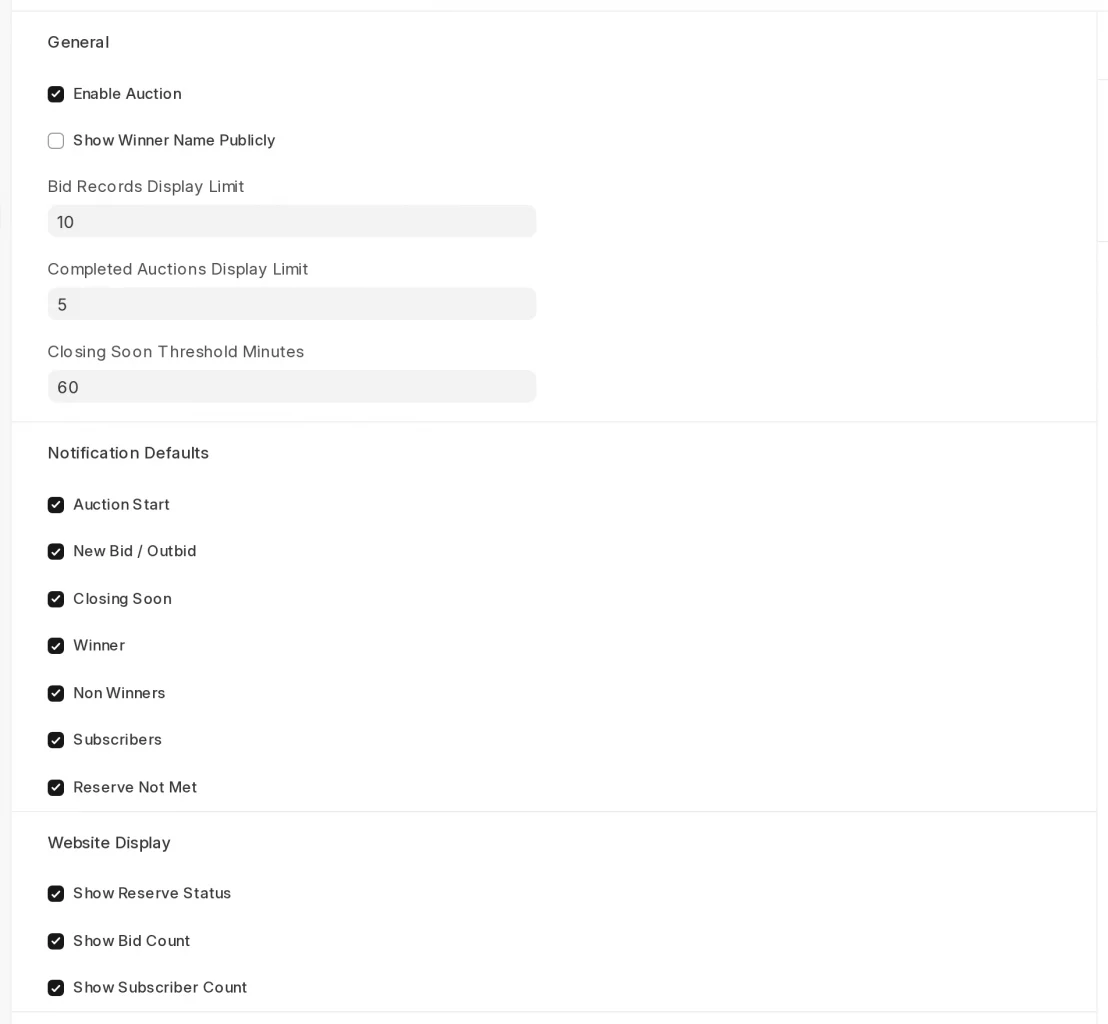
9. Open Auction Settings to set the defaults for every auction. Turn the whole module off by selecting or deselecting Enable Auction button.

Browsing Auctions on the Website
1. Customers open Products on Auction to see what is live. Each card shows the item, the current bid and a countdown.


2. Use Category to narrow the grid to one item group. Use Sort By to reorder it by Ending Soonest, Newest , Current Bid or Lowest Bid.


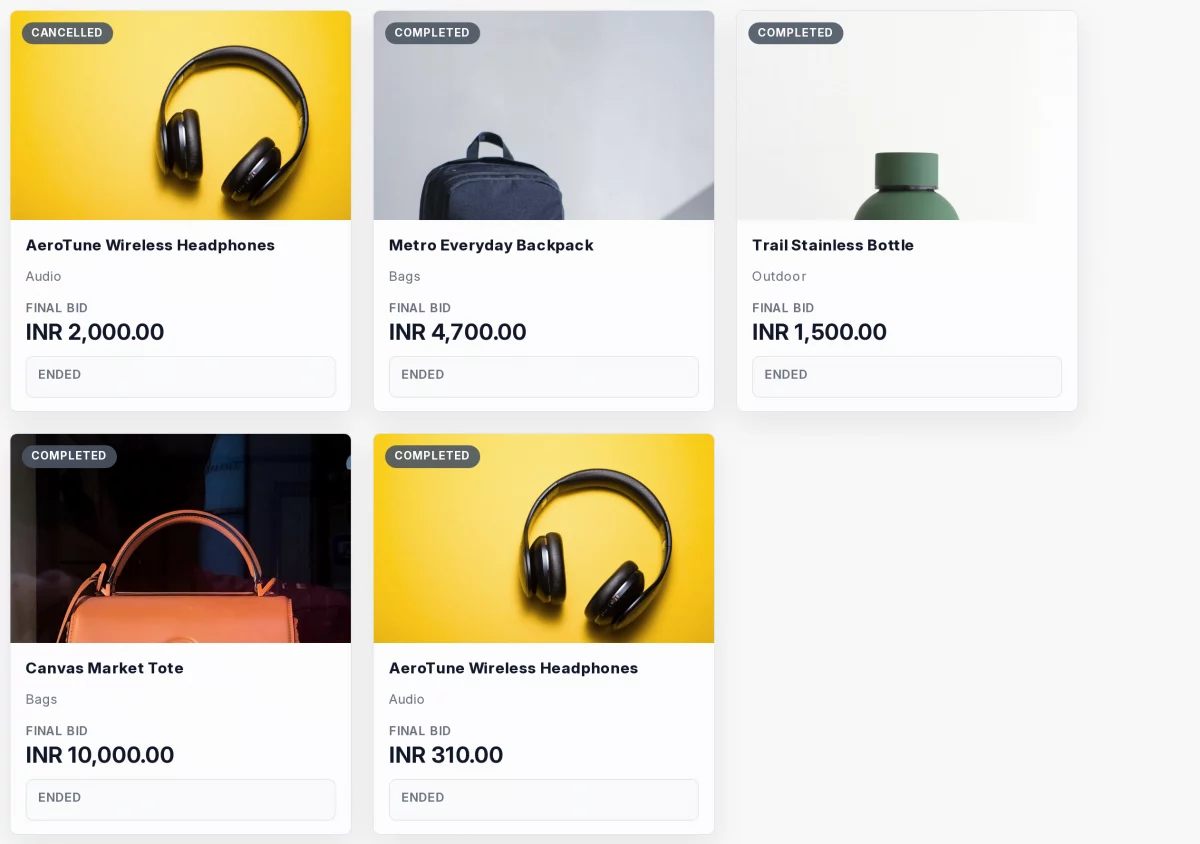
3. Scroll down to Completed Auctions to see recent results with their final bids. Show the winner’s name here by ticking Show Winner Name Publicly in Auction Settings.

Bidding on an ERPNext Website Auction
1. Click any card to open the auction. The page shows the countdown, the Current Bid, the bid count and the bid panel.


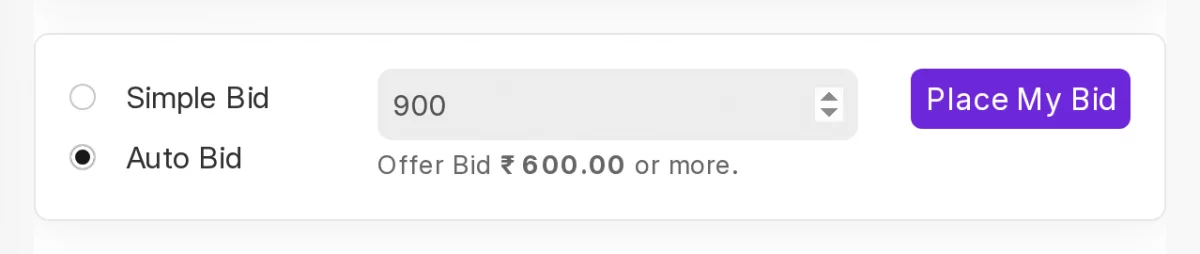
2. Keep Simple Bid selected to bid once. The amount box already holds the smallest bid allowed. Raise it if you like, then click Place My Bid.
3. Select Auto Bid to bid without watching the clock. Enter the most you will pay. The app then bids for you, one increment at a time, until someone passes your ceiling.

4. Click Buy Now to take the item at once for the fixed price. This ends the bidding and reserves the item for you while you check out.
Note: Buy Now disappears once the bidding passes that price. From then on the item can only be won by bidding.
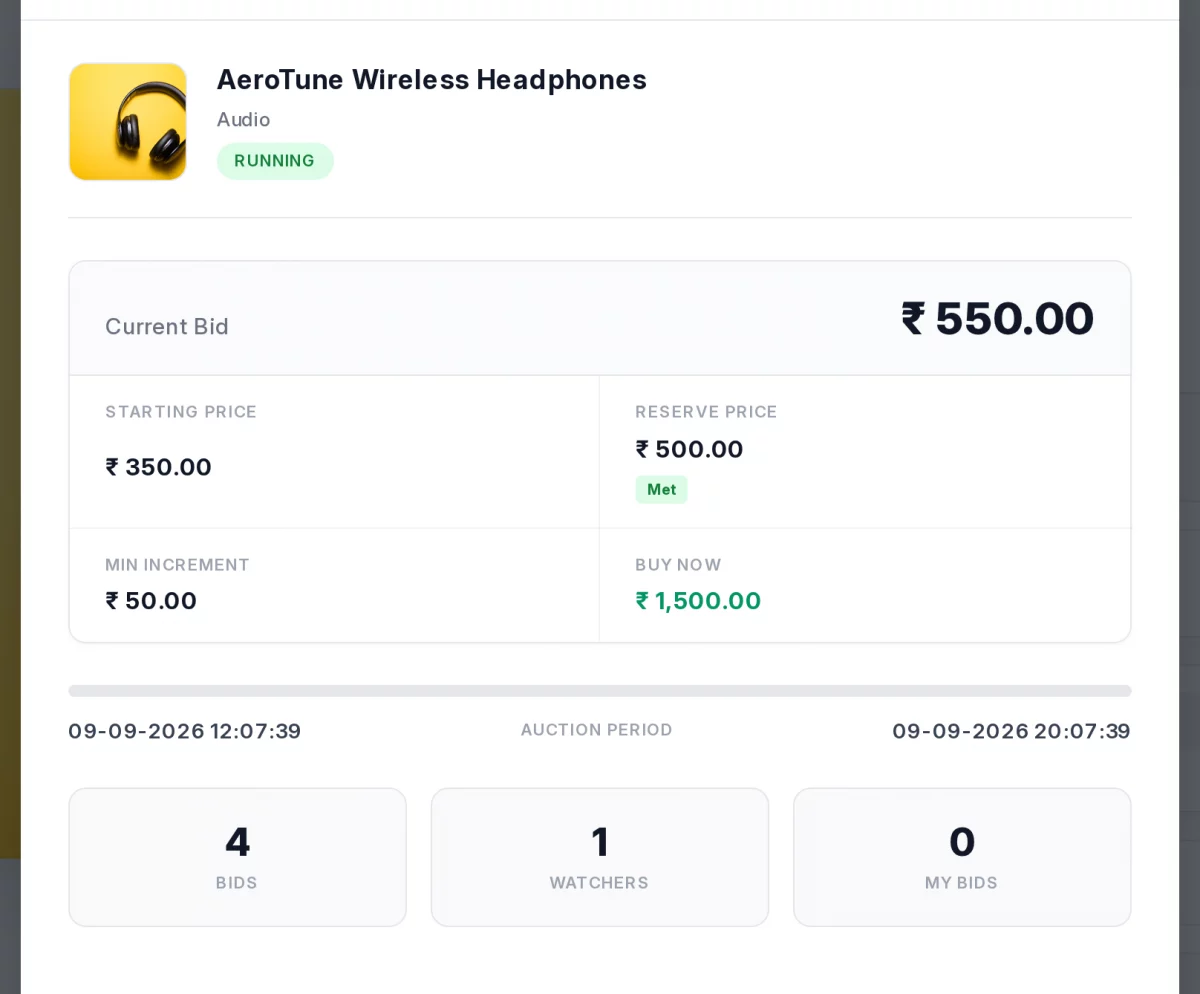
5. Click Auction Details to see the numbers behind the auction. It shows the starting price, current bids and the auction period. It also says whether the bidding has passed the reserve price.

6. Click Subscribe Watch-list to follow an item without bidding. The button then reads Unwatch. Customers on the watch-list get an email when the auction is about to close.

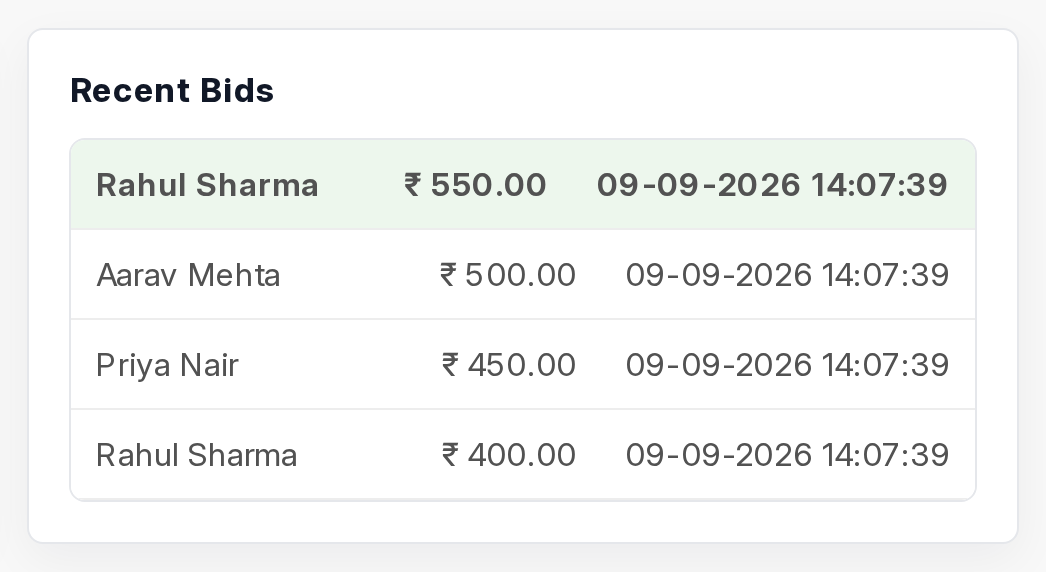
7. Scroll down to Recent Bids to see who is bidding and how fast the price is climbing.

Tracking and Paying for an Auction
1. Open My Auction from the customer account menu. One page holds every auction the customer has bid on or watched, with counts for Total, Active, Won and Watching.

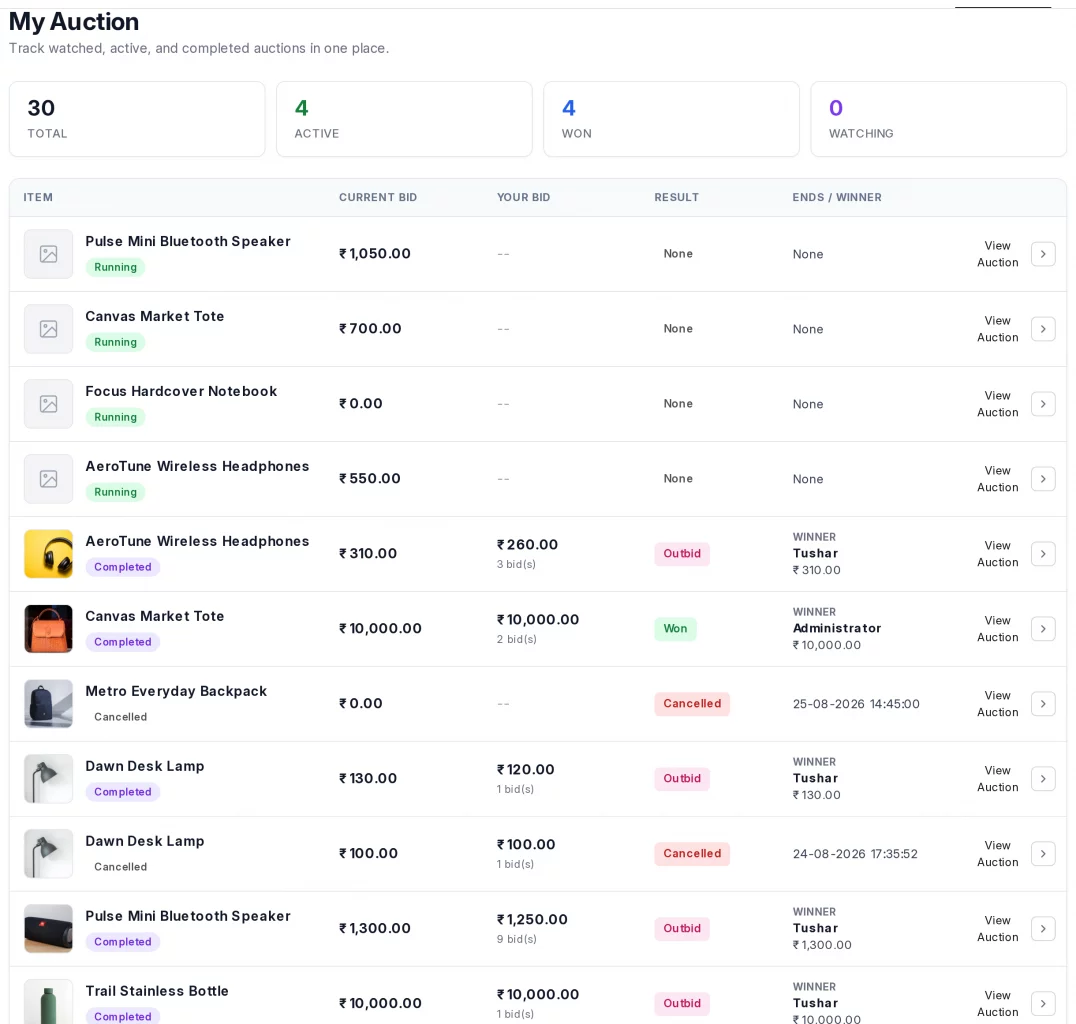
2. Read the Result column to see where each auction stands. It tells the customer whether they are winning, have been outbid, have won, or are only watching.
3. Open a won auction and click Add Winning Item to Cart. The app puts the item in the Webshop cart at the winning bid, not at the shop price.

4. Check out as normal. ERPNext raises a Sales Order for the item at that same amount.
Need Help?
Hope you find guide helpful! Please feel free to share your feedback in the comments below.
If you still have any issues/queries, please create a ticket at the UV Desk.
I hope this helps. In case of any further queries, contact us at our support mail.
Thanks for paying attention!!