User Guide for CS-Cart ZATCA E-Invoice
Table of Content
CS-Cart ZATCA E-Invoice add-on helps businesses generate ZATCA-compliant invoices with ease.
It automates invoice creation and ensures that every invoice includes VAT details and QR codes.
As a result, store owners can meet Saudi e-invoicing requirements without manual effort.
Features
- Generate ZATCA-compliant invoices directly from the order workflow.
- Include complete VAT details in every invoice for accurate compliance.
- Create QR payloads and QR codes as per ZATCA rules.
- Manage vendor VAT details, including seller name, VAT number, and status.
- Maintain vendor-wise invoice numbering with proper sequence.
- Set custom invoice prefixes for flexible numbering.
- Cancel invoices automatically for failed or canceled orders.
- Validate required fields before invoice creation.
- Support both VAT-registered and VAT-exempt scenarios.
- Restrict unsupported currencies to ensure compliance.
- Configure and manage all settings from the admin panel.
Additionally, check out the CS-Cart OTP Verification add-on for secure customer authentication during login and checkout.
Installation
After downloading the CS-Cart ZATCA E-Invoice add-on, you’ll get one zip file, one install.txt file, and a relevant User Guide manual doc.
Read it carefully for proper configuration.
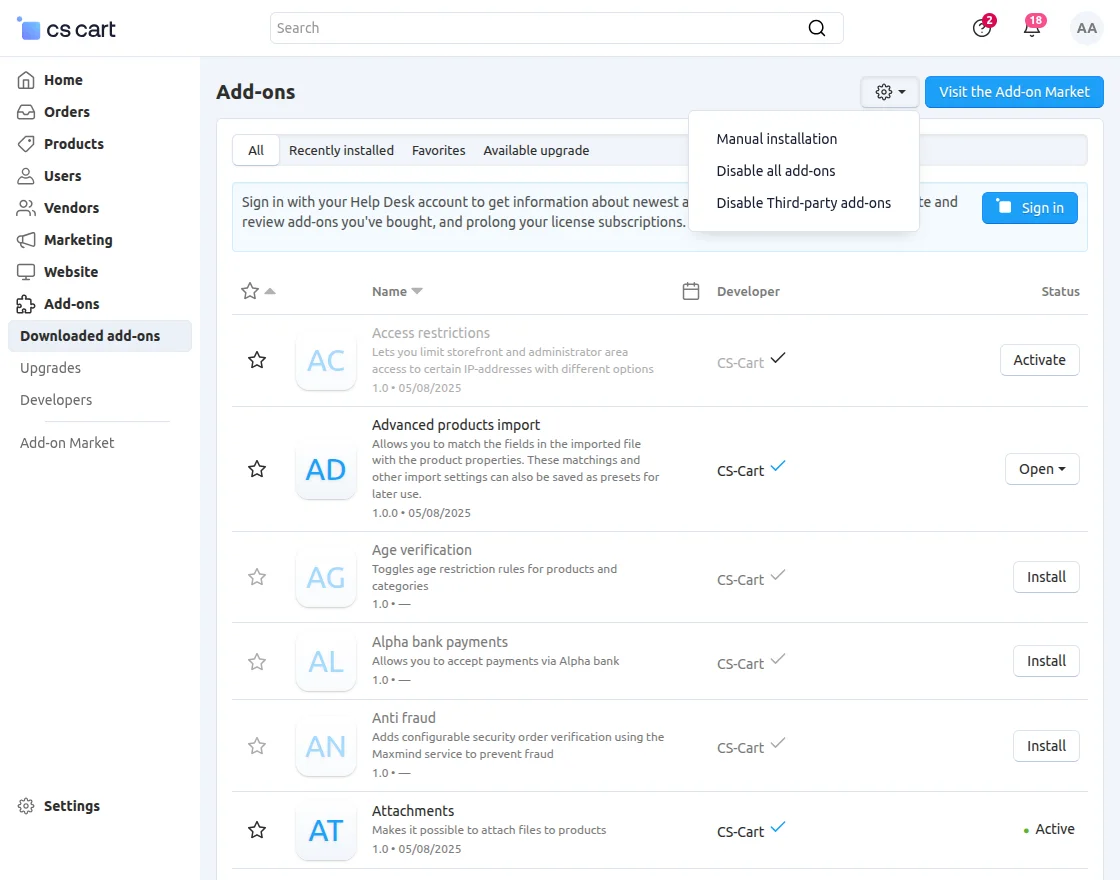
Go to Manage Add-ons, and click on “Manual Installation” as shown below in the snapshot.

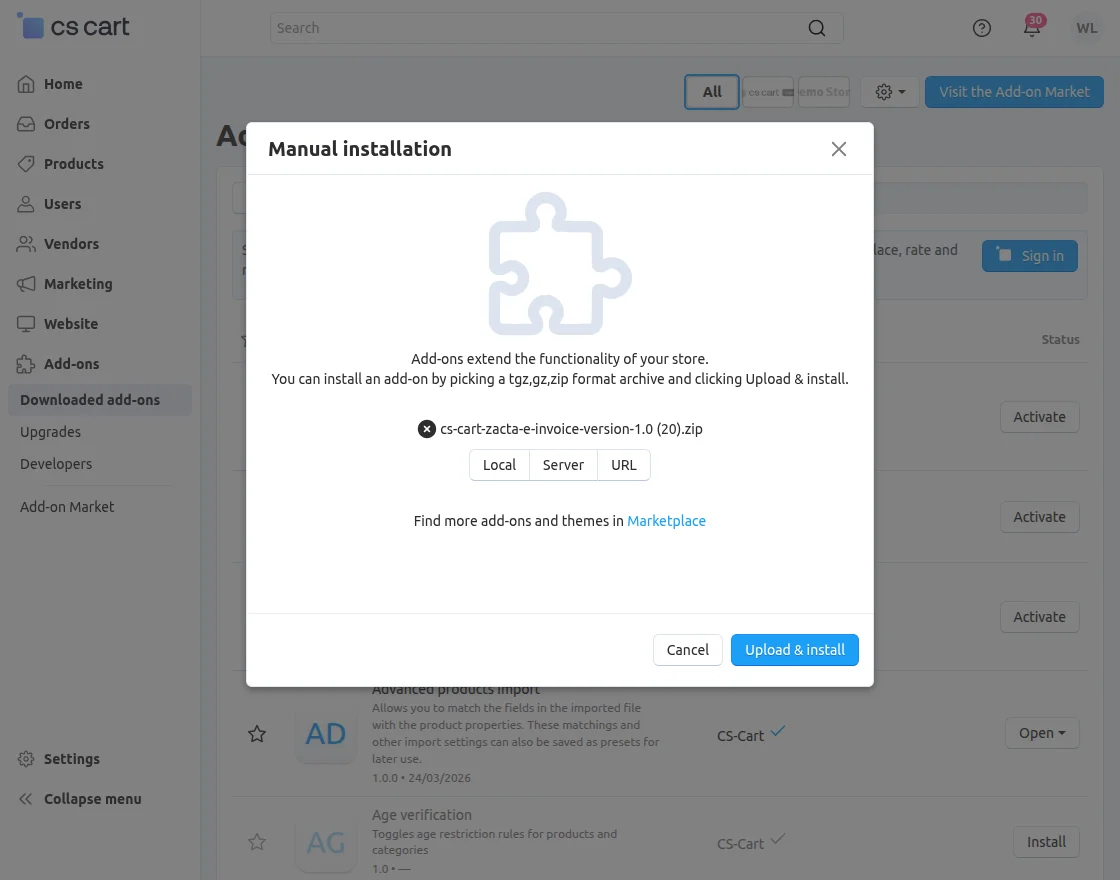
Click on “Local” to browse the zip file, and then click on “Upload & Install” as shown below in the snapshot.
Configuration || Admin
To configure the module, go to Add-Ons >> Manage Add-Ons >> Webkul Software Pvt Ltd. >> ZATCA E-Invoice >> Settings.
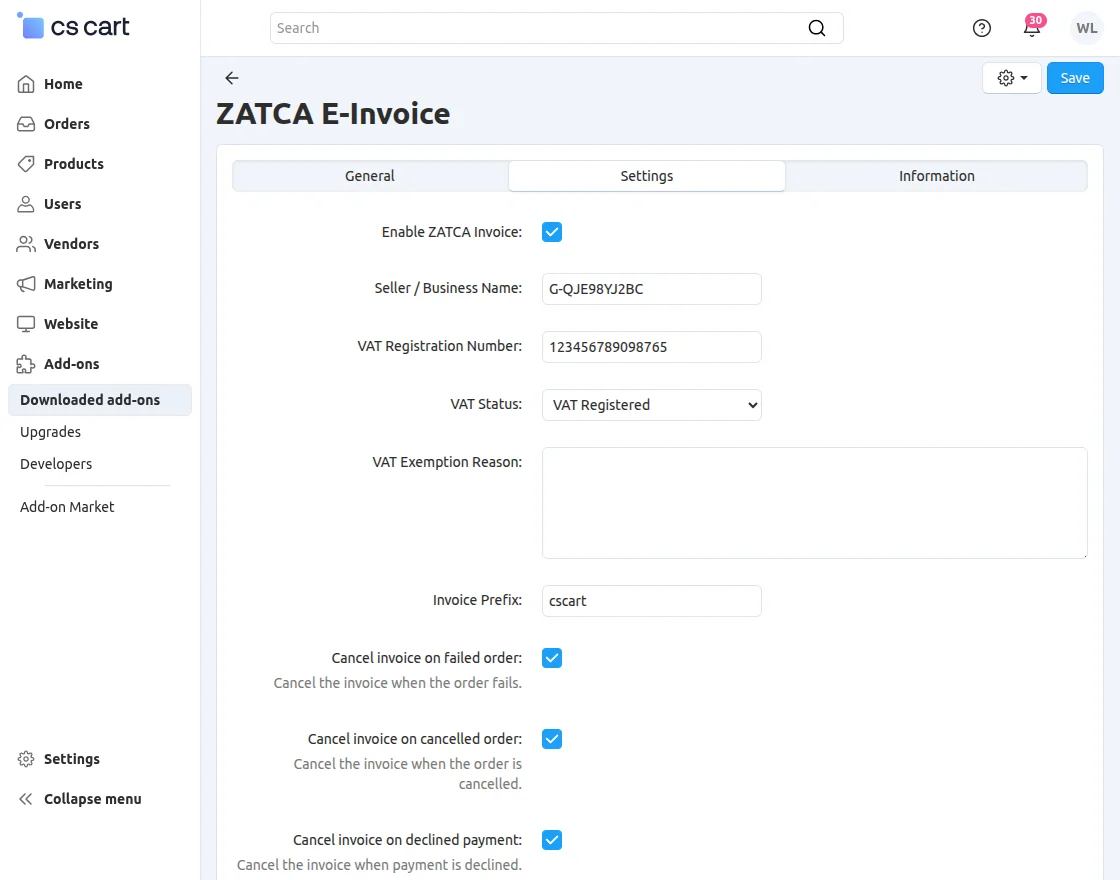
- Enable ZATCA invoice: Enable the option to activate ZATCA e-invoicing.
- Seller/Business Name: Enter the seller or business name.
- VAT Registration Number: Enter the valid VAT registration number.
- VAT Status: Select the appropriate VAT status.
- VAT Exemption Reason: Enter the reason if the seller is VAT exempt.
- Invoice Prefix: Set a prefix for invoice numbering.
- Cancel Invoice on Failed Order: Enable this option to cancel invoices for failed orders.
- Cancel Invoice on Cancelled Order: Enable this option to cancel invoices for canceled orders.
- Cancel Invoice on Declined Payment: Enable this option to cancel invoices for declined payments.
Configuration || Vendor
Vendors need to navigate to Marketing >> Add VAT Details from their panel.
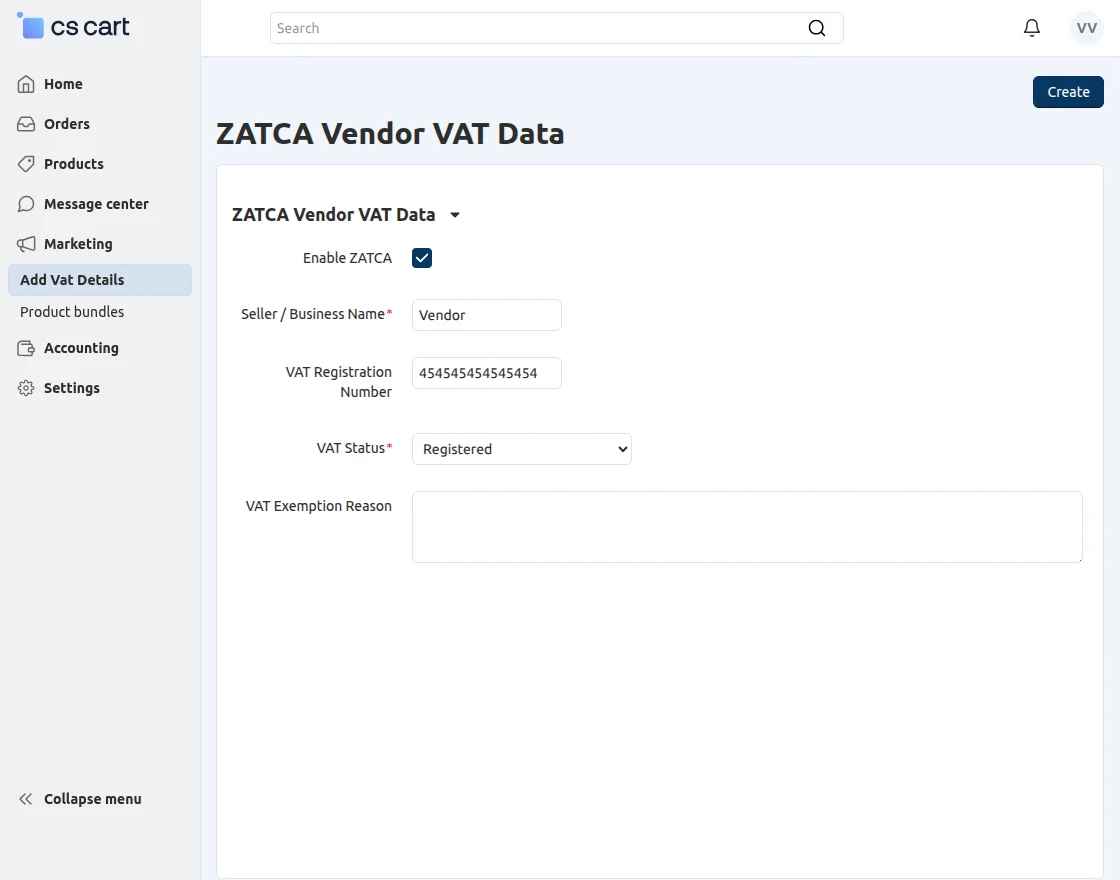
- Enable ZATCA invoice: Enable the option to activate ZATCA e-invoicing.
- Seller/Business Name: Enter the seller or business name.
- VAT Registration Number: Enter the valid VAT registration number.
- VAT Status: Select the appropriate VAT status.
Currency
To add currency, go to Settings >> Currencies.
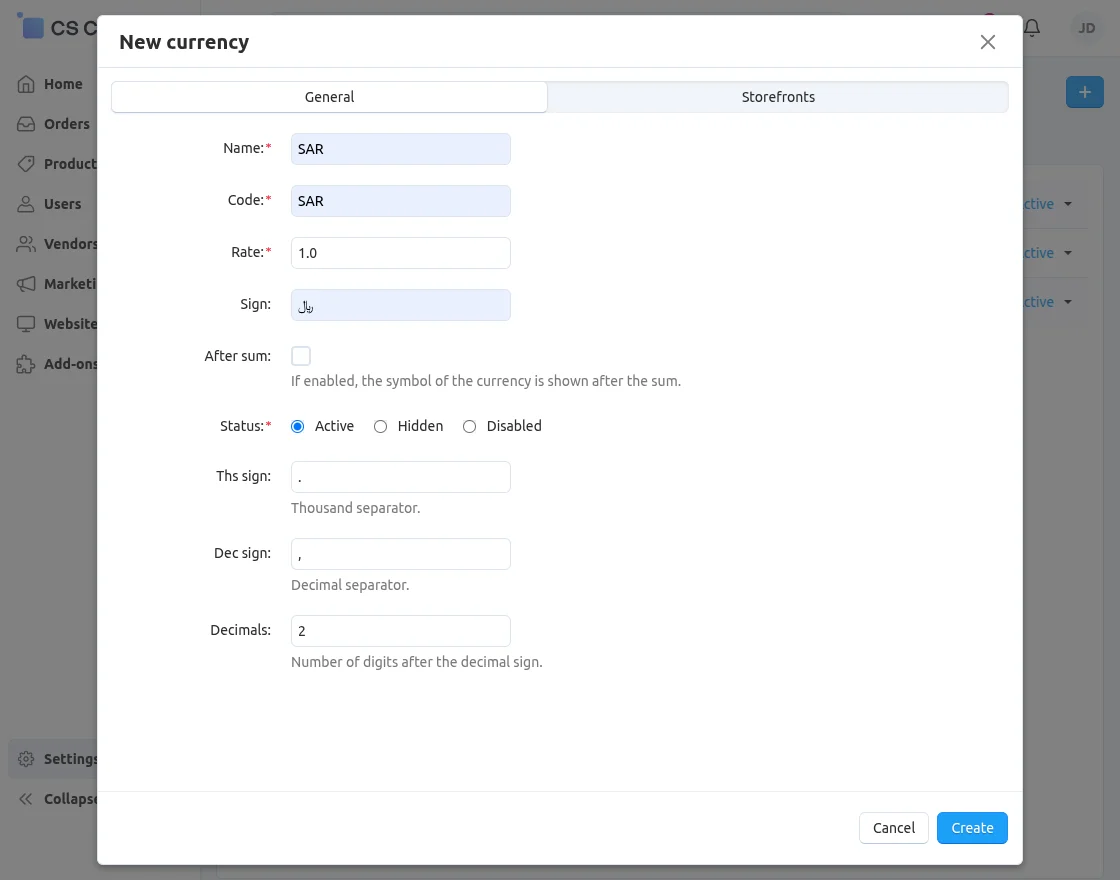
For theZATCA E-Invoice, you must use the Saudi Arabian currency (SAR).
Template
To set the template, go to Settings >> Notifications >> Documents.
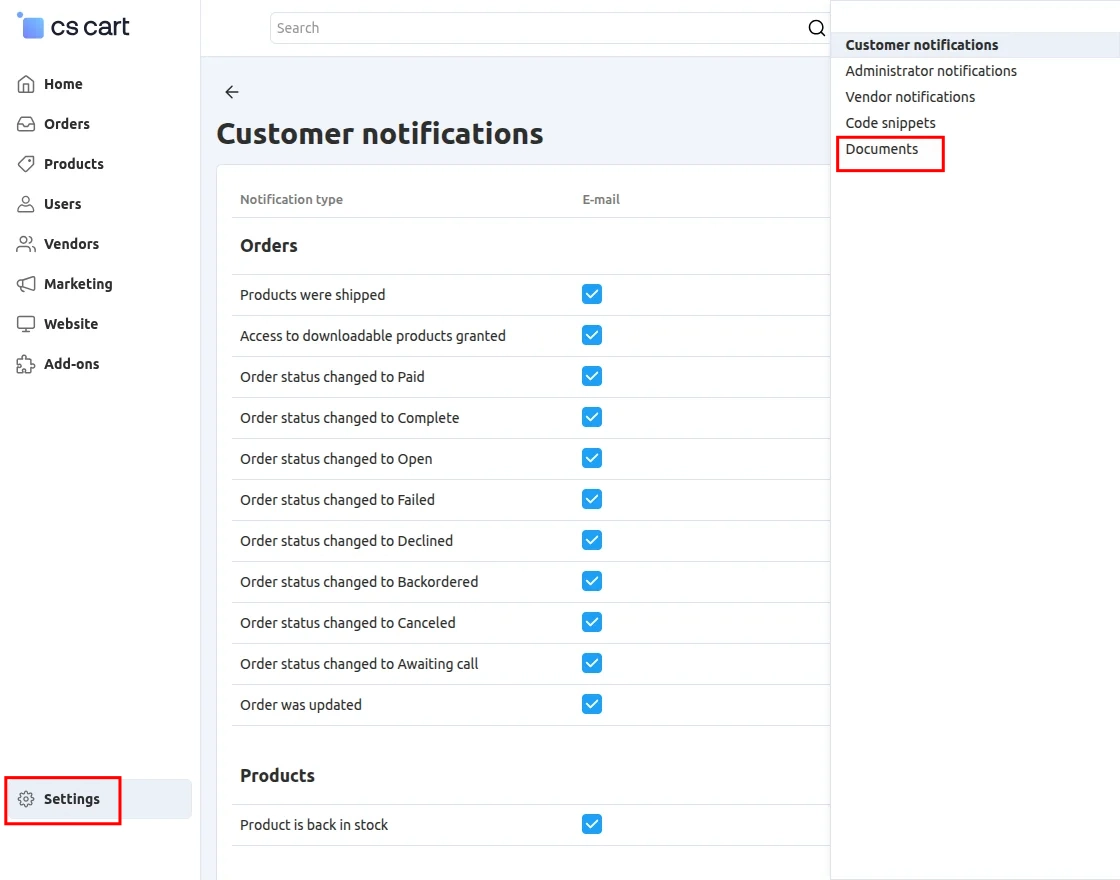
Invoice Summary:
Then navigate to the Invoice section.
In the Invoice section, you need to make the required changes.
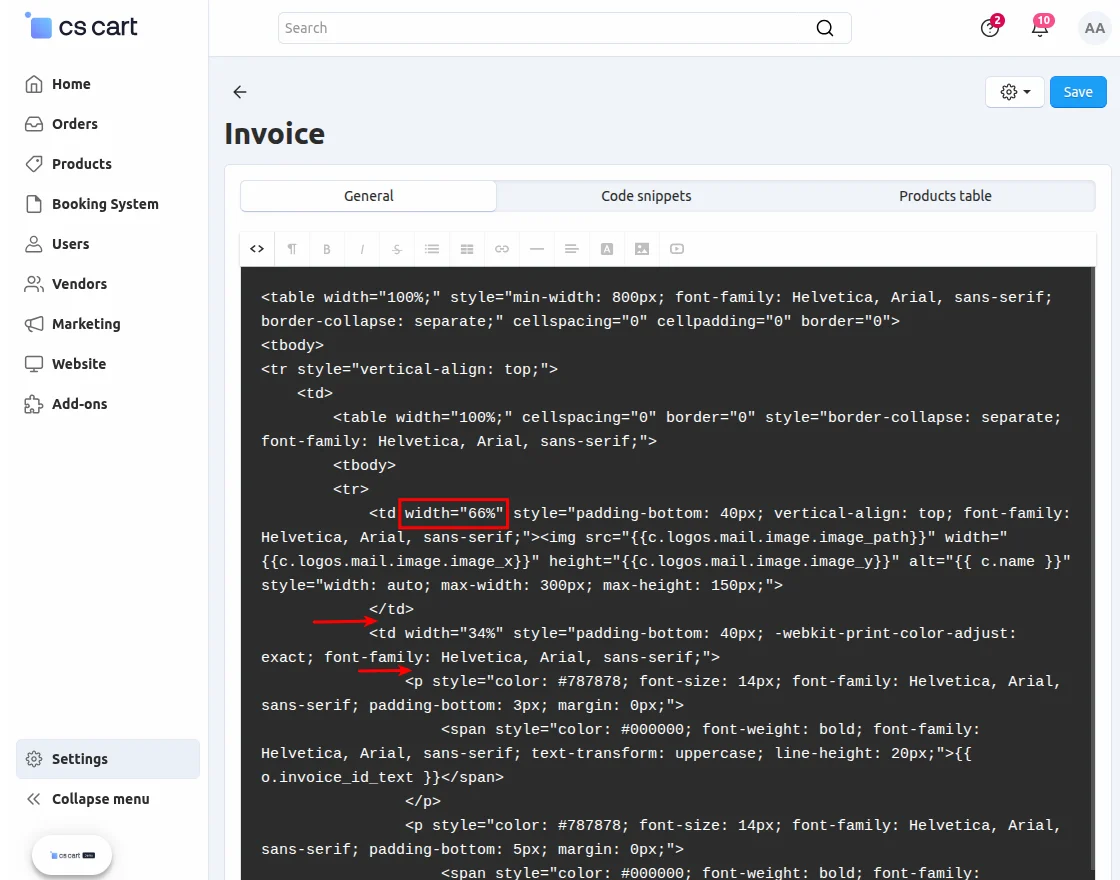
- Set the width to 33% instead of 66%.
- <td width=”33%” style=”padding-bottom: 40px; vertical-align: top;” align=”right”>
{{ WkZatca.qr_image|raw}}
</td> - {{ WkZatca.invoice_number|raw }}
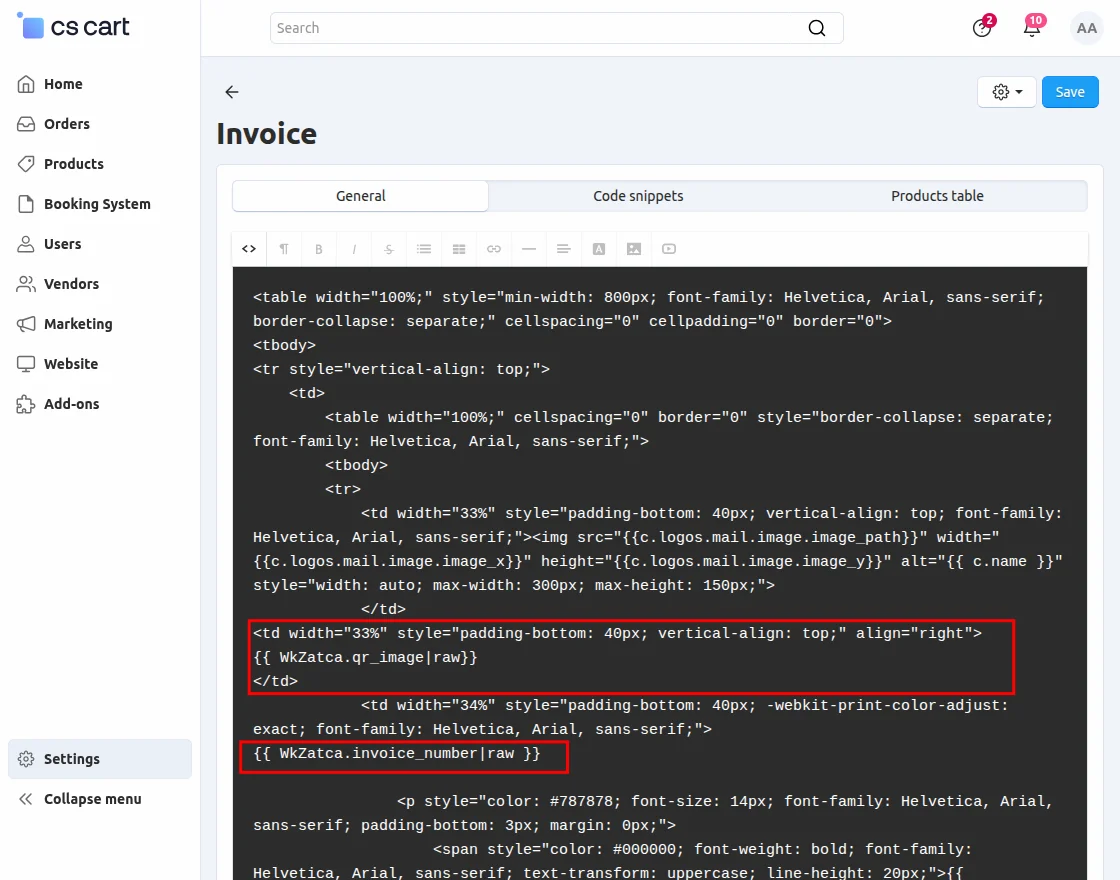
After making the changes, save the configuration.
Order Summary:
For orders, navigate to the Orders section.
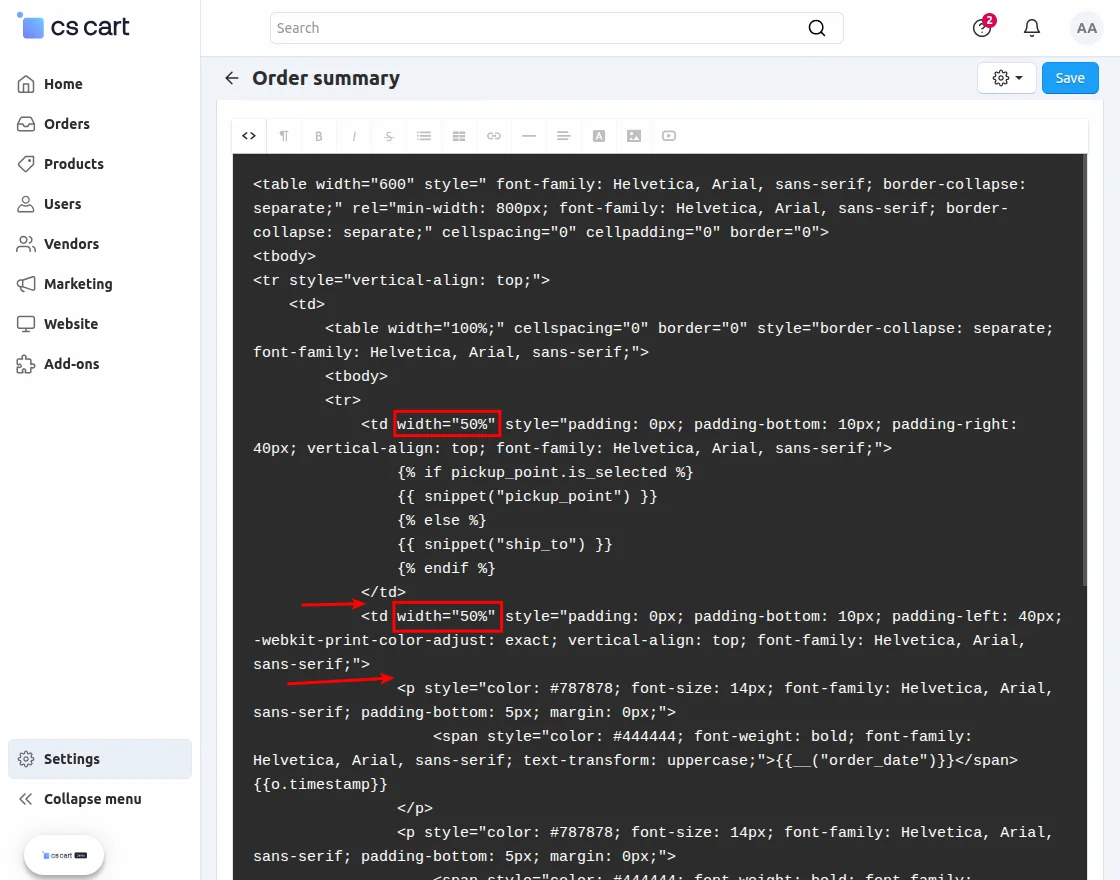
- Set the width to 33% instead of 50%
- <td width=”33%” style=”padding-bottom: 40px; vertical-align: top;” align=”right”>
{{ WkZatca.qr_image|raw}}
</td> - Set the width to 33% instead of 50%
- {{ WkZatca.invoice_number|raw }}
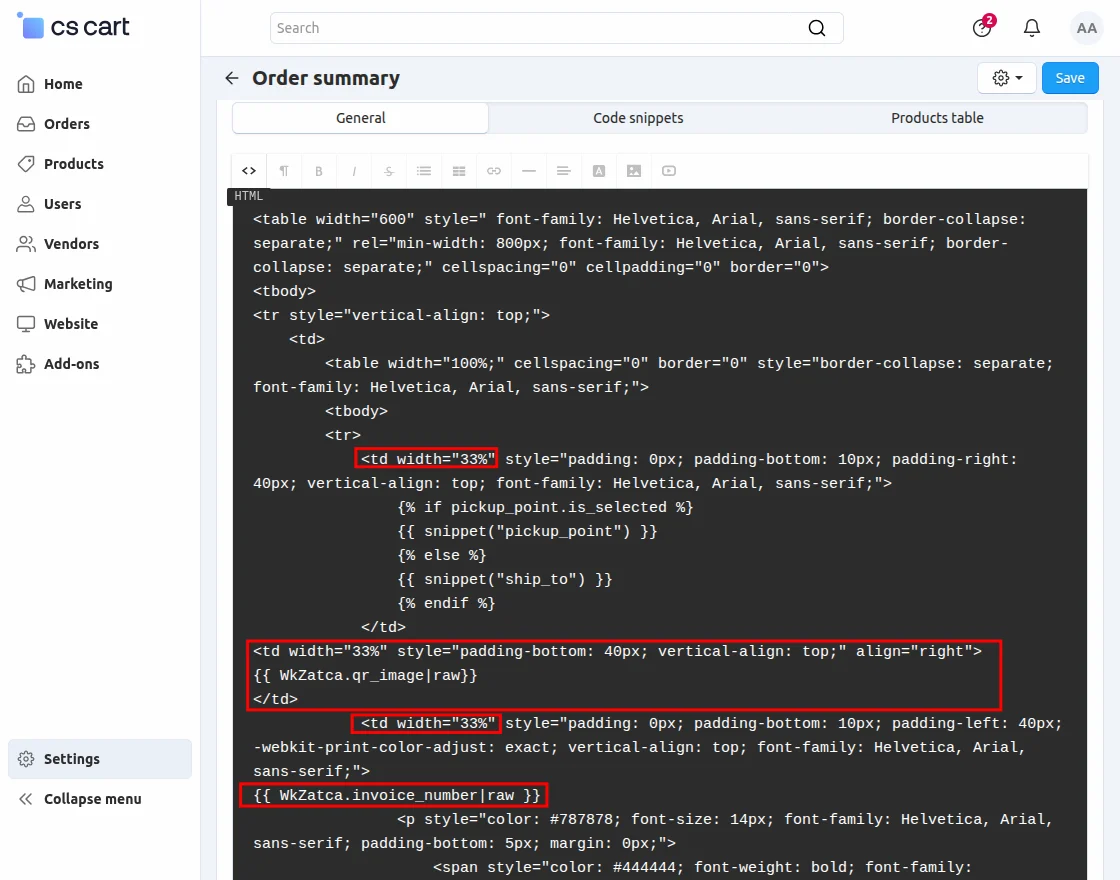
After making the changes, save the configuration.
Customer View
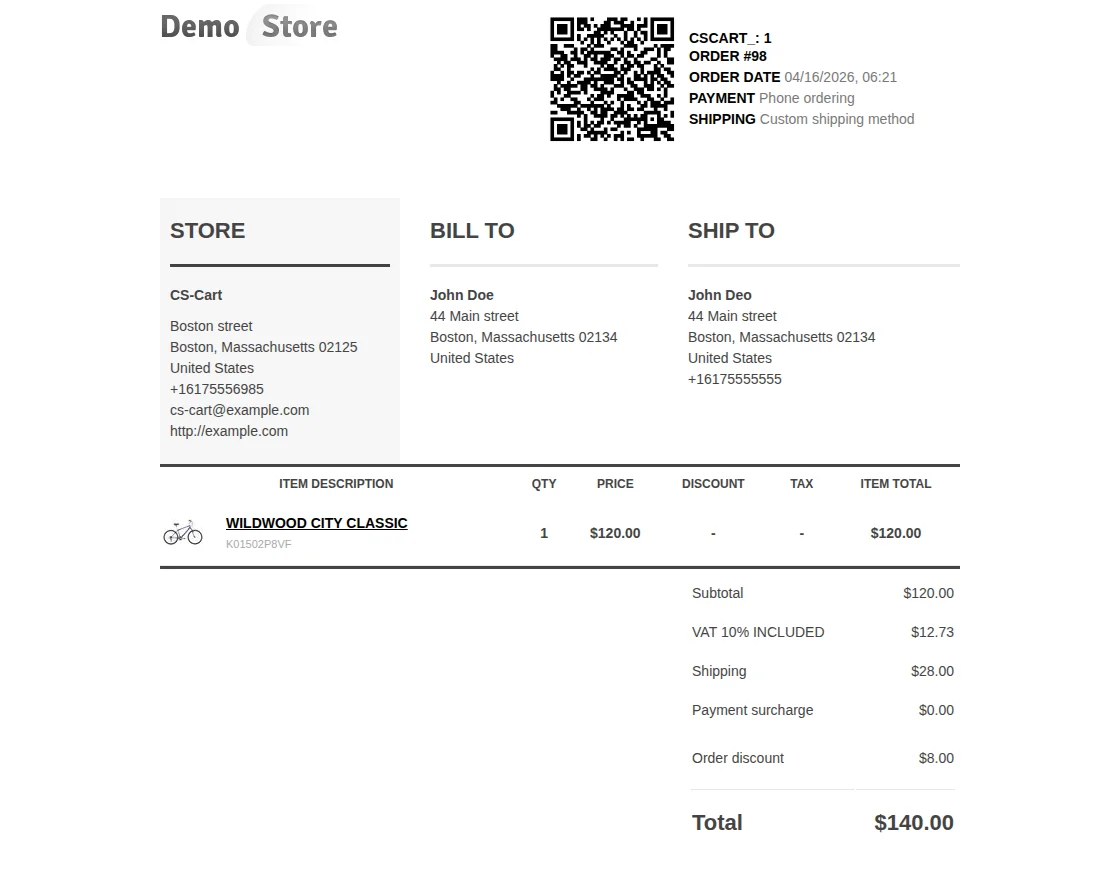
After placing the order, the customer can view the QR code on the invoice.
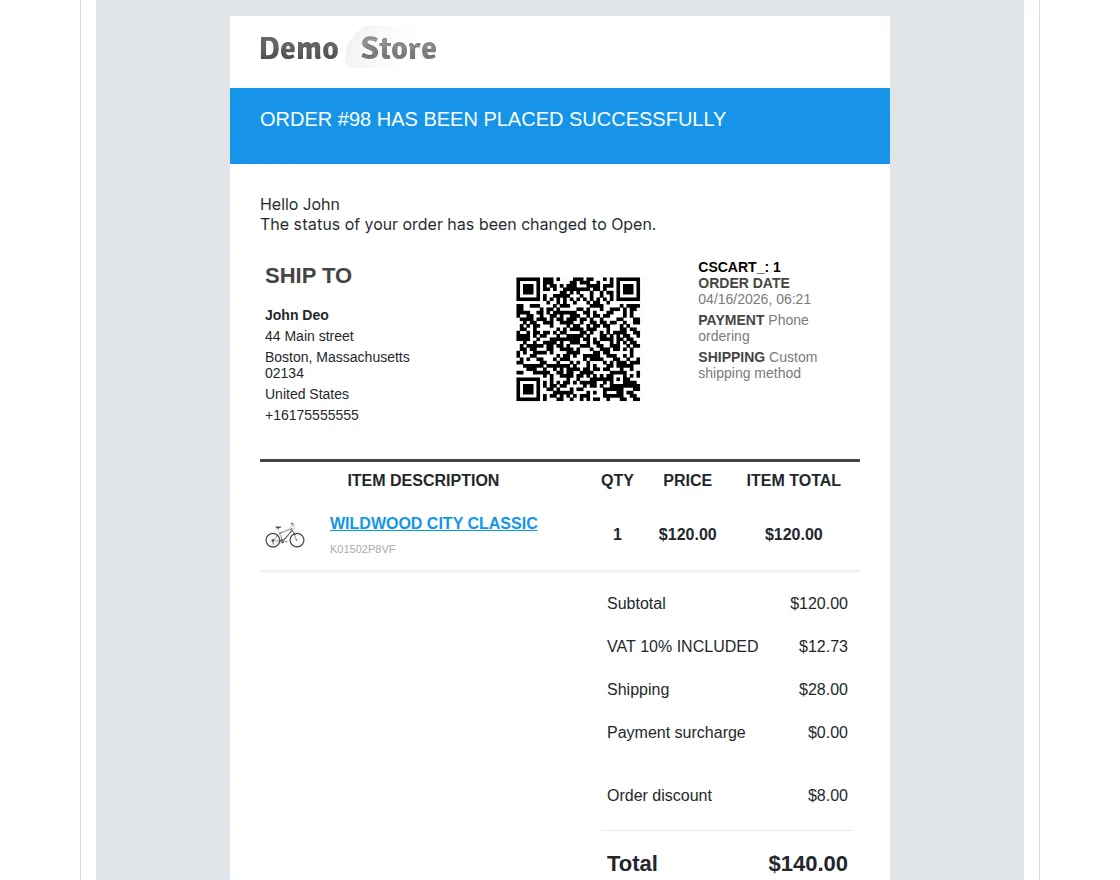
The customer will also receive the QR code in the email.
Support
If you have any questions, suggestions, or customization requests, feel free to contact us at support@webkul.com or submit a ticket at webkul.uvdesk.com.
Explore our premium-quality CS Cart Extensions to enhance your store functionality.
You can also explore our CS-Cart Development Services and Quality CS-Cart add-ons.