User Guide For 360 Degree Product Image For Wix
Live Demo
Overview
The 360 Degree Product Image for Wix app lets store owners display products in an interactive 360° view. Customers can rotate items and inspect them from every angle before making a purchase.
This enhanced product visualization creates a more engaging shopping experience. It helps customers better understand product details, design, and overall appearance
The app integrates seamlessly with Wix stores and adds a professional touch to product pages. It boosts customer confidence, increases engagement, and can help reduce returns.
Installation
To install the app, follow the following steps –
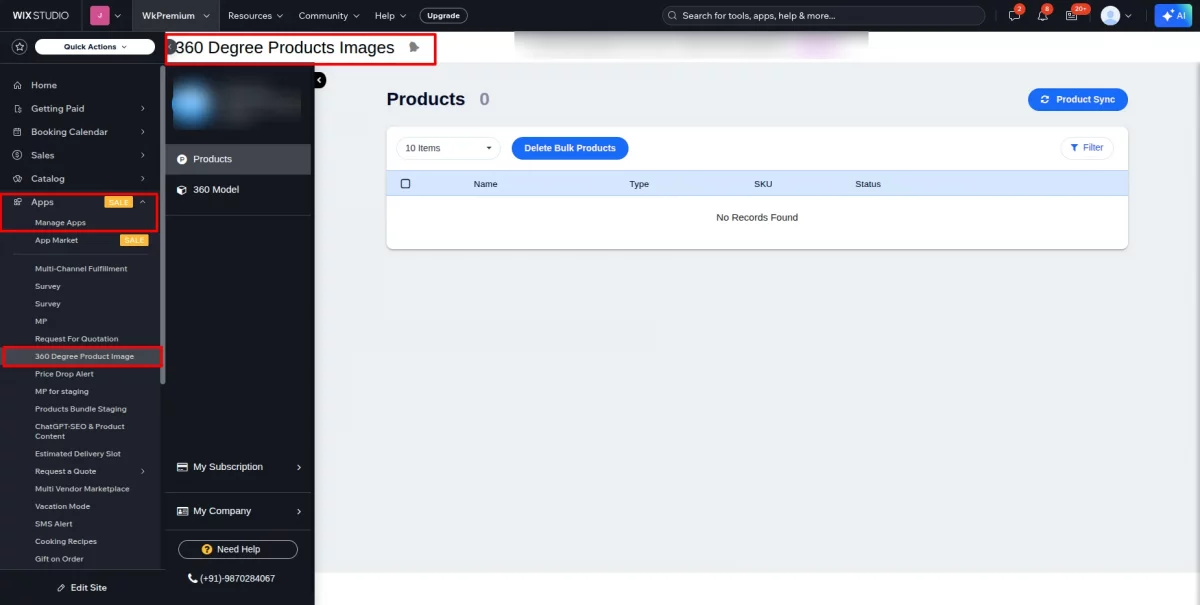
- Go to your Wix store, then click on Apps >> Manage Apps as shown.
- Now, click on Get More Apps.

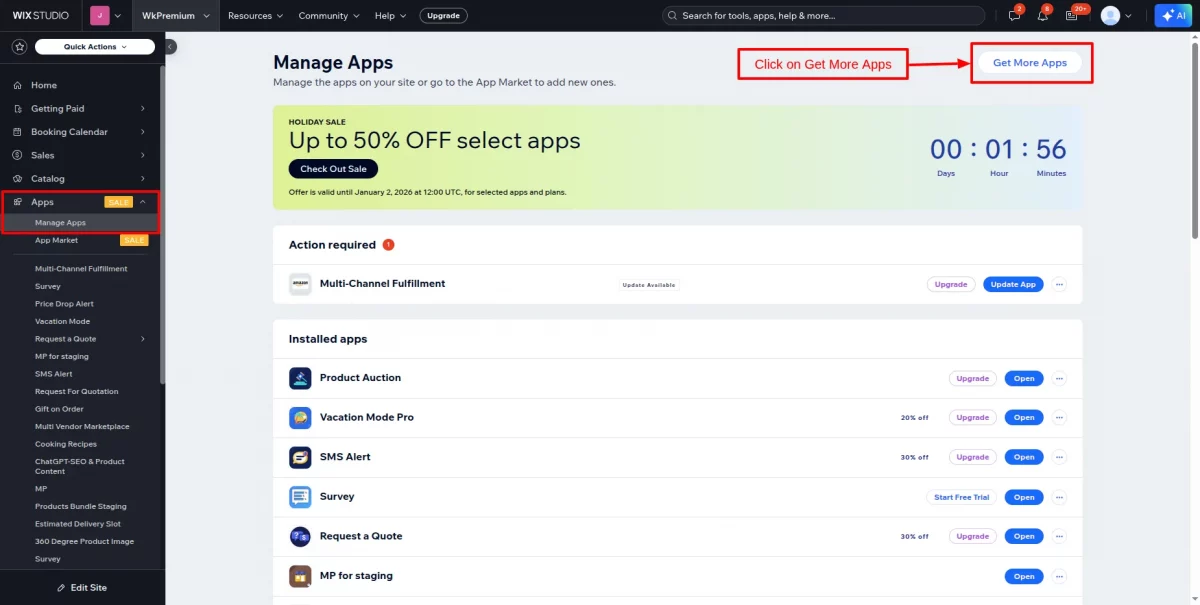
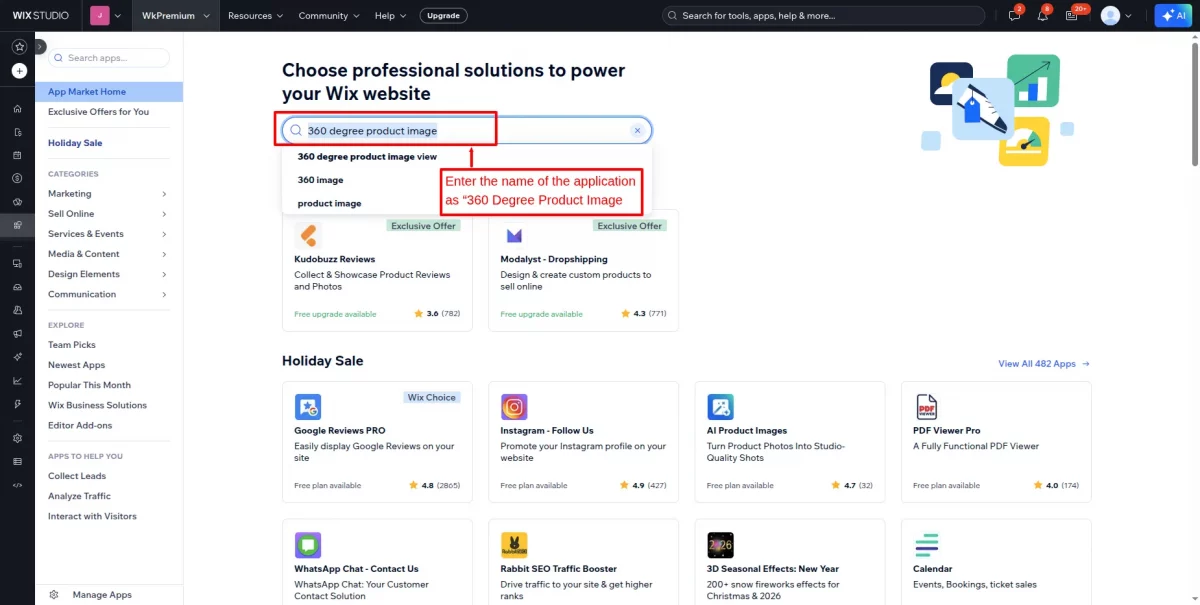
- Now you’ll be redirected to the App Market page.
- Where you need to search for “360 Degree Product Image.”
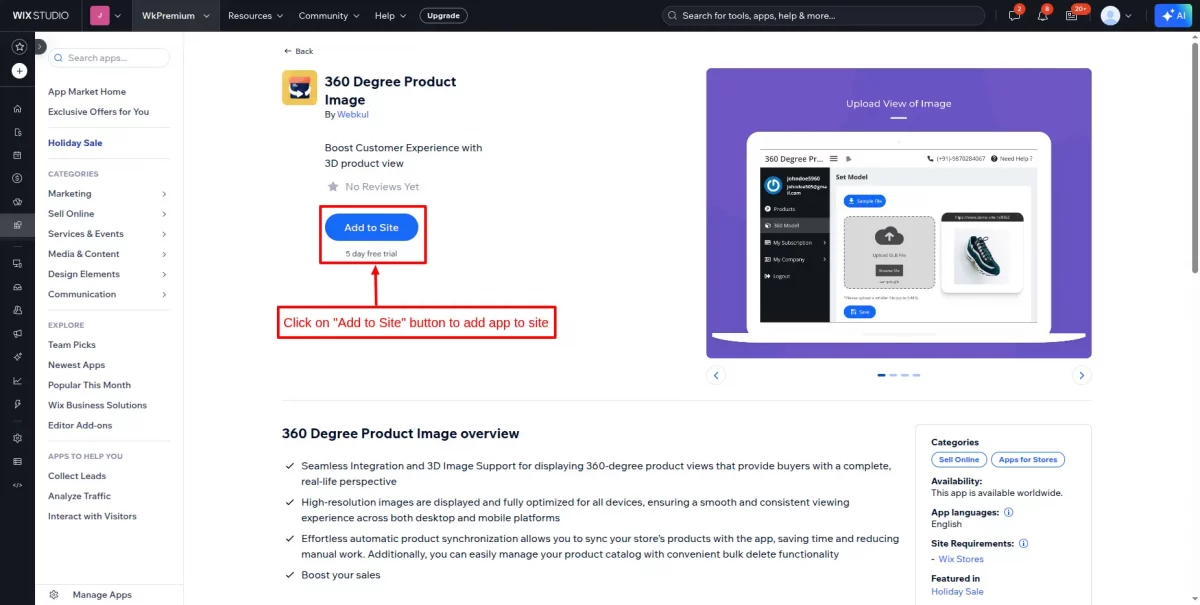
- Click on the ” Add to site ” button to add the app to your site, as shown below.
- Click on the “Agree & Add” button after reviewing all the terms of use and privacy policies.
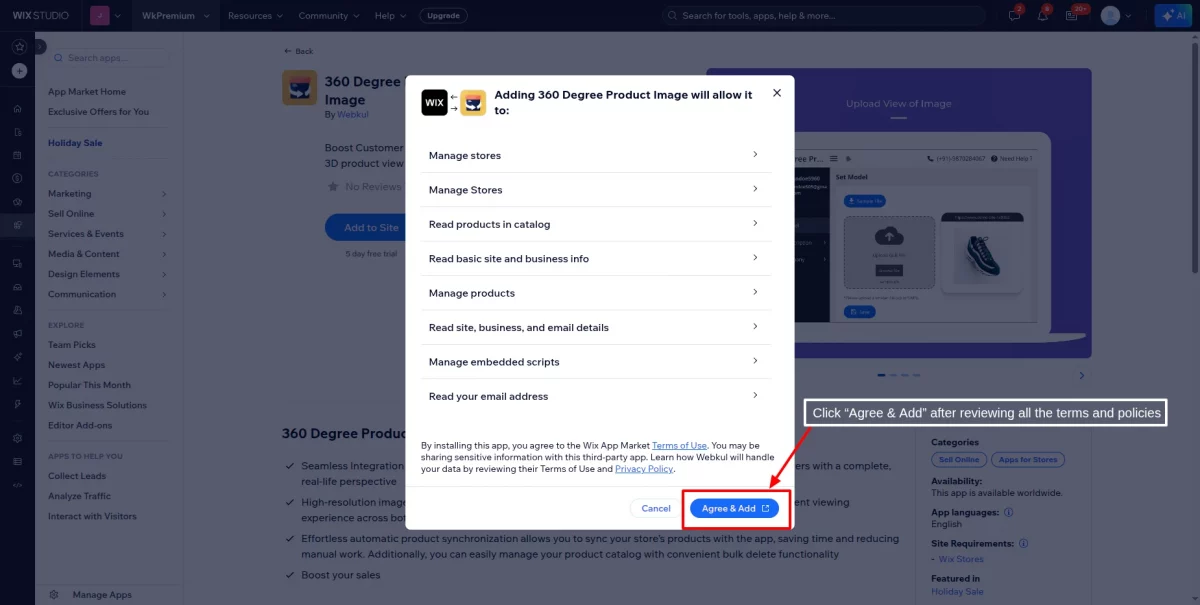
- Now, this button redirects you to the application dashboard, as shown in the screenshot below:
App Subscription
In order to subscribe to the app, you need to go to the Wix Dashboard.
then Apps >> Manage Apps.
In front of the app, you will see the option to upgrade your subscription, click on the upgrade button, and you are done.
You need to follow the instructions below
Sync products :
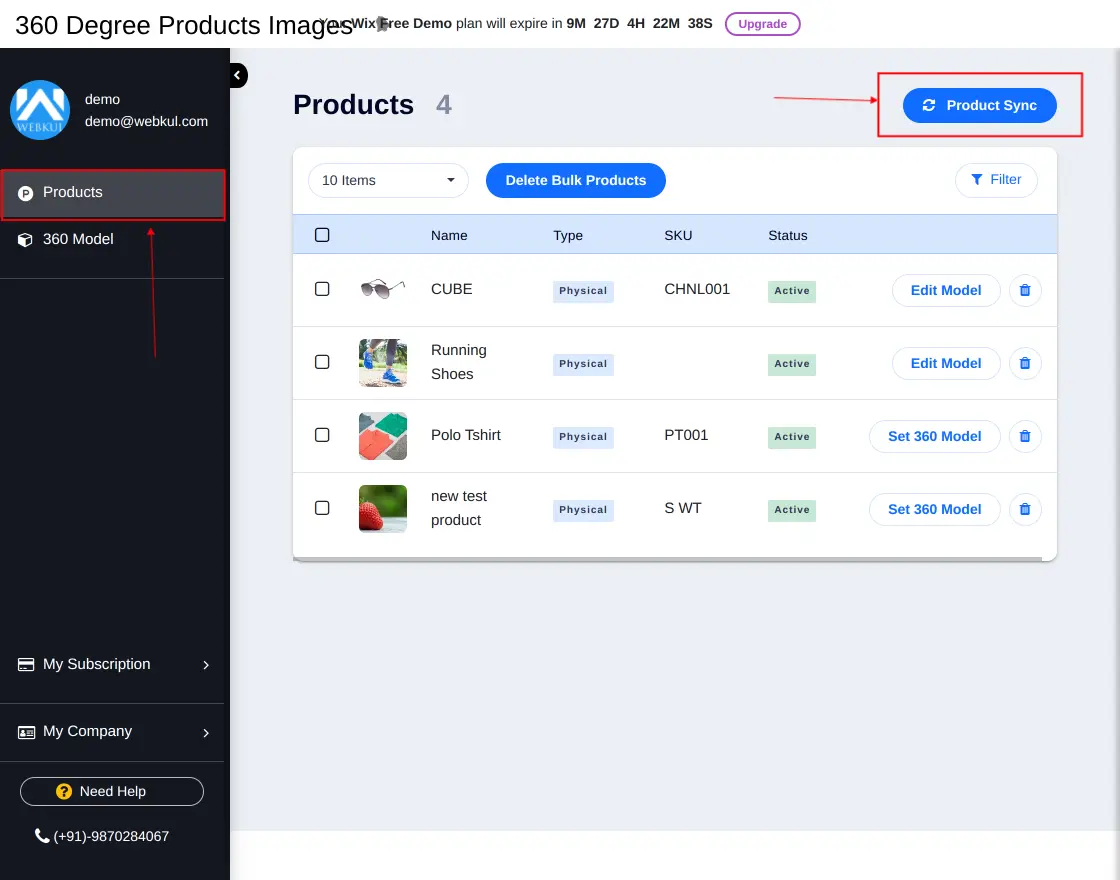
Go to your 360-degree product image app and click on Products. Now, click on Product Sync to sync the products from Wix to the app.
You will see a message saying “Store Products synced successfully” when the products are synchronized.
Now, the synchronization is complete, and the products are visible on the product page.

Delete the Products
360 Degree Product Image for Wix offers two options for deleting products.
To delete products in bulk, select all the products by clicking the checkbox, then click the “Delete Bulk Products” button.


The product you’d like to delete can be selected.
And the Delete Bulk Products button can be clicked to remove it.
The product can also be deleted using the delete icon shown on the right-hand side of the product details.


360 Degree Product Image View
Click on the “Set 360 Model” option to add or set 3d images/360 images of the products.

You can click on the Sample file to download the 360-degree sample images of the product if needed.
Then, browse the product image using the Browse file button.
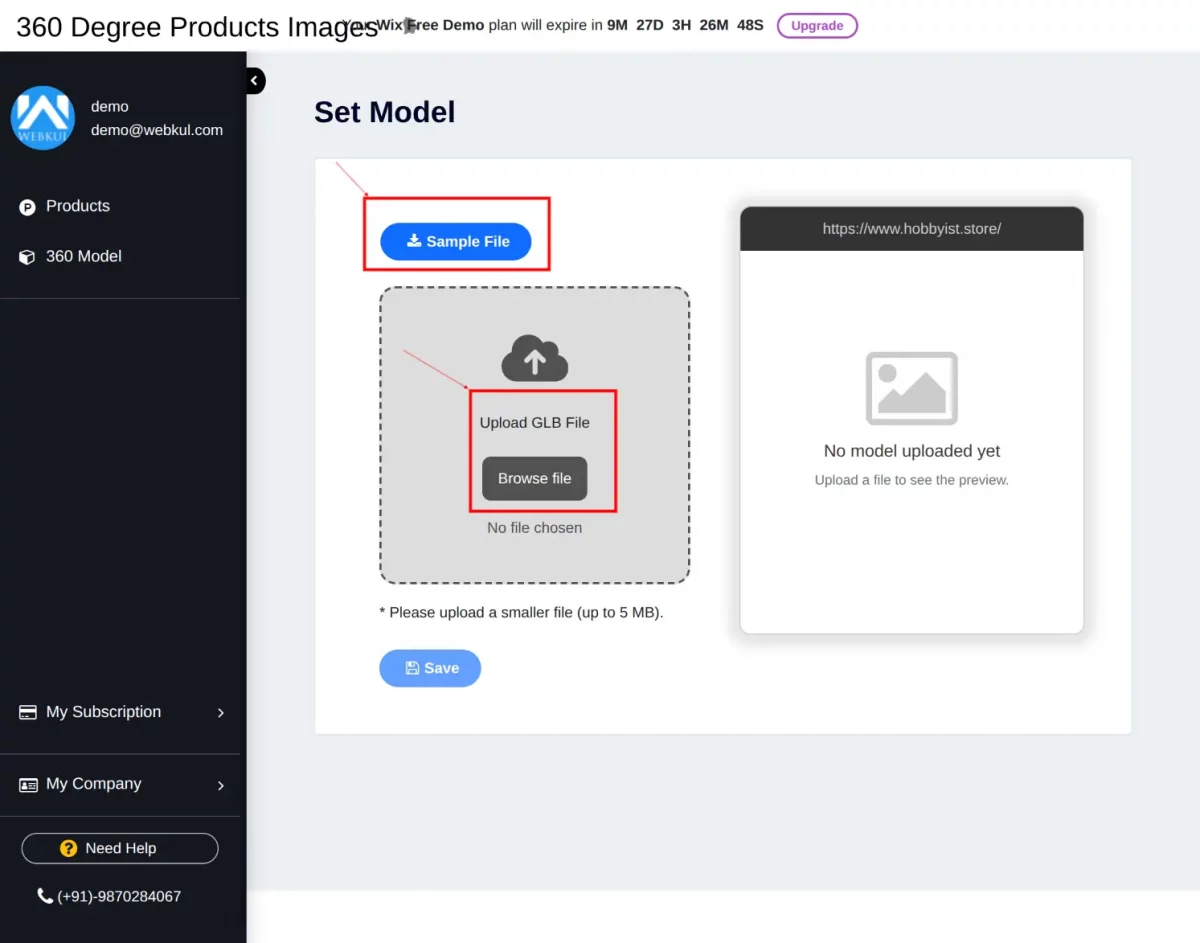
The screenshot below shows the 360-degree image of the products.
Now, click on Save to save the product image.
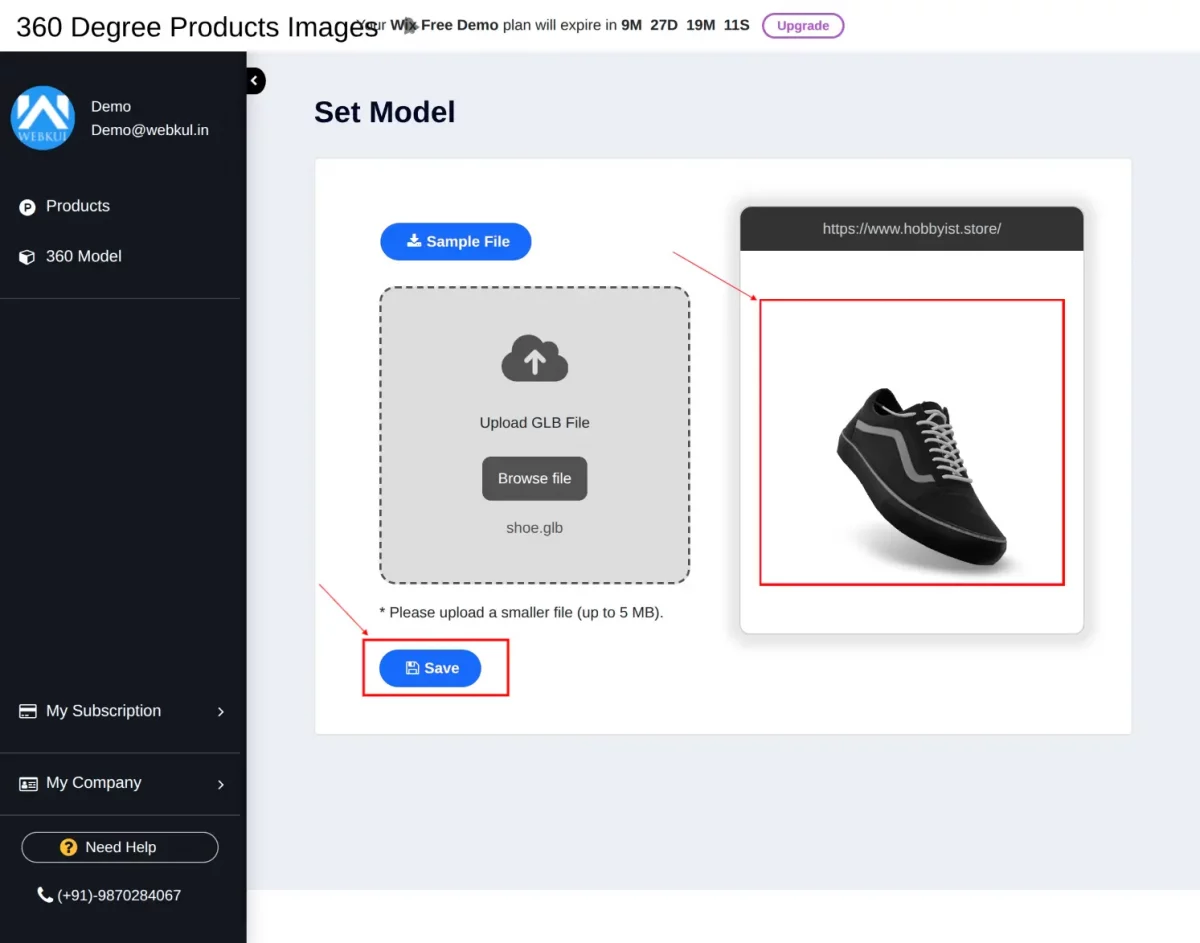
360-degree image model set successfully.
The screenshots below show the added images on the products.

View of Product in Storefront
Product view at storefront:
The customer can hover over the image to show a 360-degree view of the product image.

WEBKUL SUPPORT
I hope this blog will help you to understand the complete process involved in the 360 Degree Product Image for Wix. In case you have any queries, please generate a ticket https://webkul.uvdesk.com
For More Development on Wix, contact us.