User Guide for CS-Cart Product Image 360 Degree
Table of Content
CS-Cart Product Image 360 Degree add-on enhances your store’s product presentation by turning static images into an interactive and immersive viewing experience.
It enables customers to explore products from every angle, closely simulating an in-store experience where they can inspect items in detail.
The add-on helps shoppers better understand product design, texture, and overall quality, reducing uncertainty and boosting buying confidence.
With easy-to-manage admin controls, flexible configuration options, and seamless integration into product and quick view pages, this add-on significantly improves user engagement.
Features
- Enable or disable the 360° view for the entire store or only for selected categories as per your need.
- Upload images from different angles to create a realistic and complete view of the product.
- Adjust rotation speed and animation settings to control how the product is displayed.
- Display the 360° view on both the product detail page and the quick view popup.
- Provide a smooth auto-rotate effect so customers can easily explore the product from all sides.
Installation
To install CS-Cart Product Image 360 Degree , follow these steps:
- Go to Manage Add-ons, click on the gear drop-down, and select Manual Installation.


Now,Click on “Local” to browse the zip file, click on “Upload & Install”.

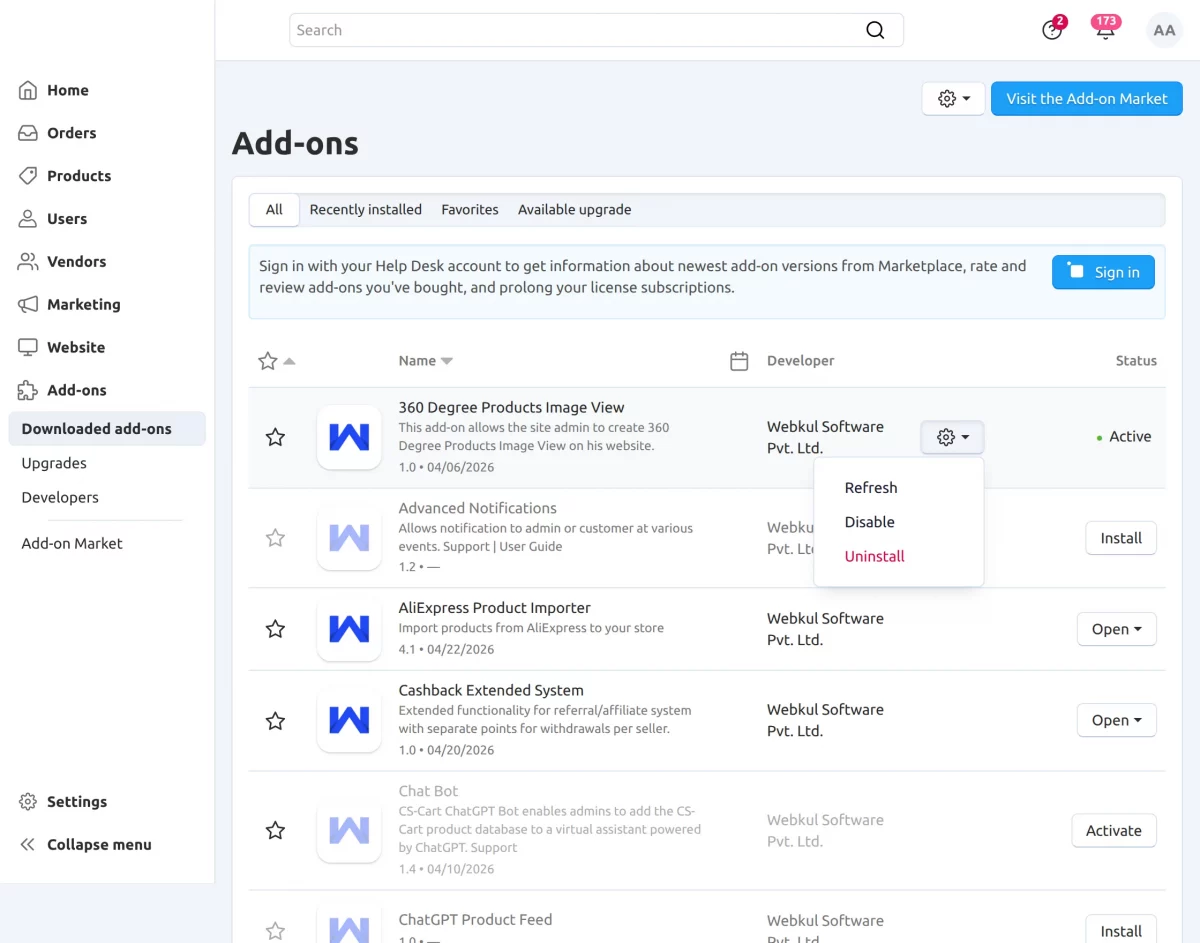
After installing the add-on, you will find ‘360 Degree Products Image View’ in the list of available add-ons.
Therefore, ensure that the add-on is activated, as shown in the snapshot below.

Admin Configuration:
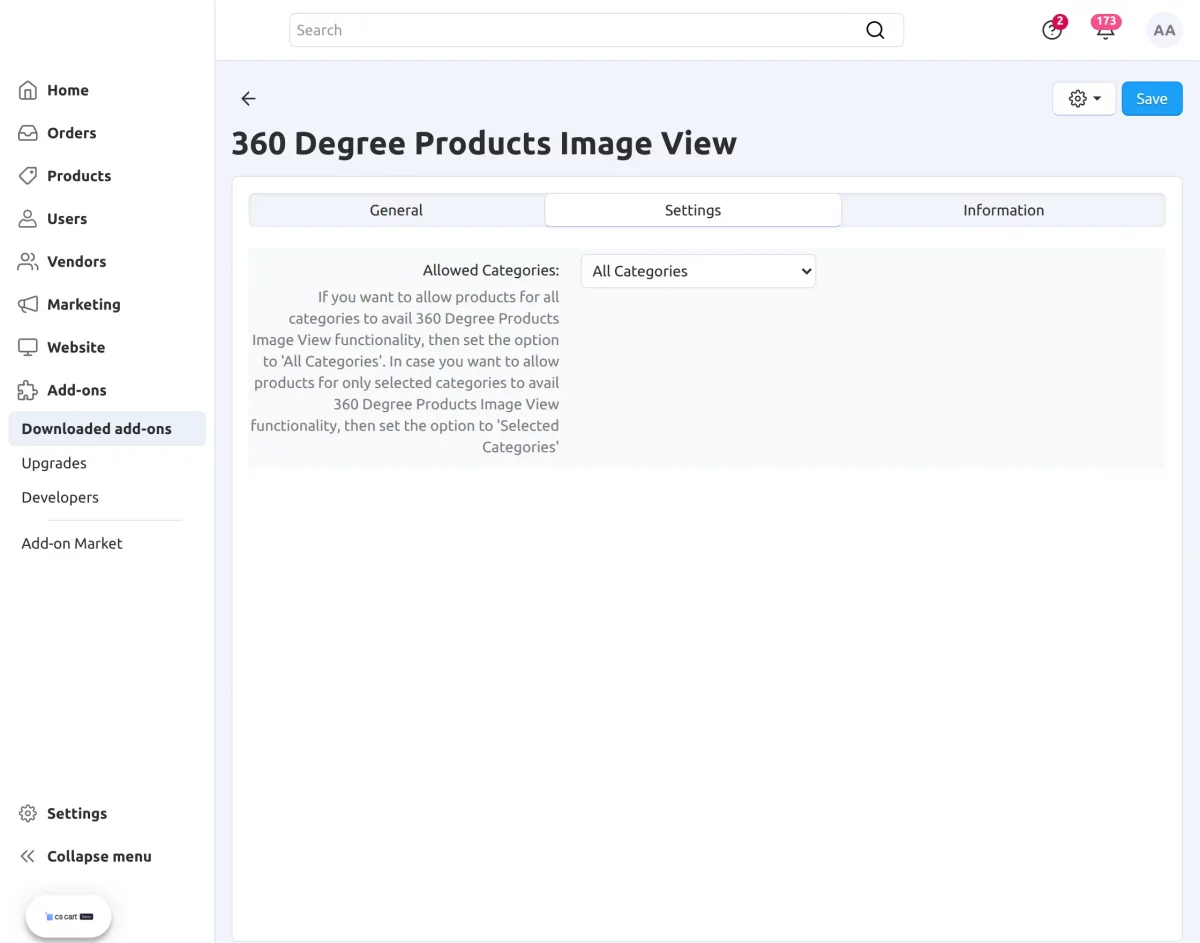
The admin can configure the general settings for the module as follows:
- Allowed Categories : Set the option to All Categories to enable 360° view for all products, or choose Selected Categories to apply it only to specific categories.
After configuring the add-on, go to the settings section to manage product configuration for the 360° view.
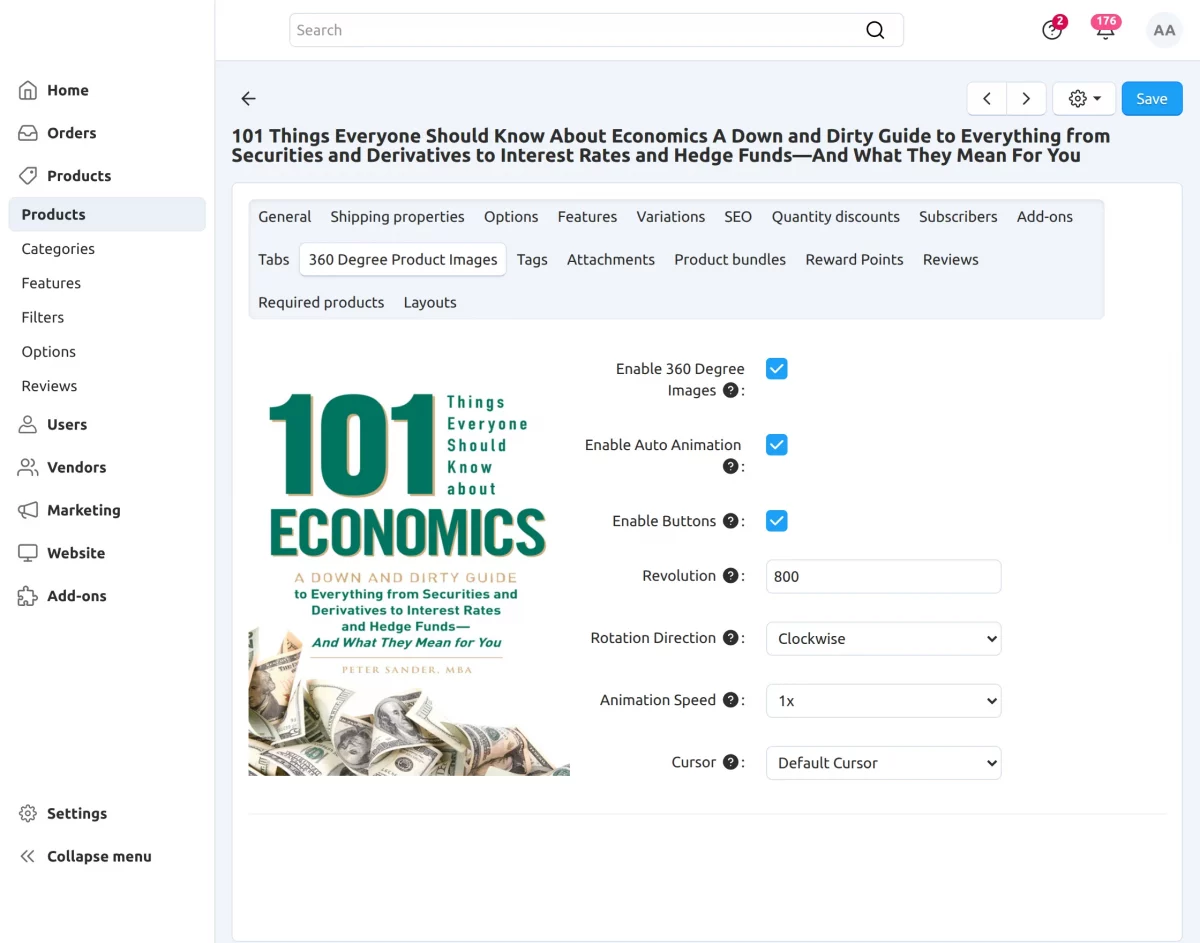
On the product description page, click on 360 Degree Product Images.
After that, check the box for Enable 360 Degree Images, and configure the following options:
- Enable Auto Animation : Enabling this option allows you to show your 360 degree image as an animation by default.
- Enable Buttons : On enabling this option you can show the left, right, play and pause buttons that will move the 360 degree image in the corresponding direction.
- Revolution : Enter the number of pixels you want to have per single revolution of the image. Eg: If you enter 800, then one revolution of image will take 800 pixel of mouse movement.
- Rotation Direction : Select the direction you want to auto rotate the product image.
- Animation Speed : Select the speed at which you want to animate the 360 degree image. Note: The lower the speed, higher the number of frames/images required for a smooth transition.
- Cursor : Select the type of cursor you want to show when hovering on a 360 degree image.
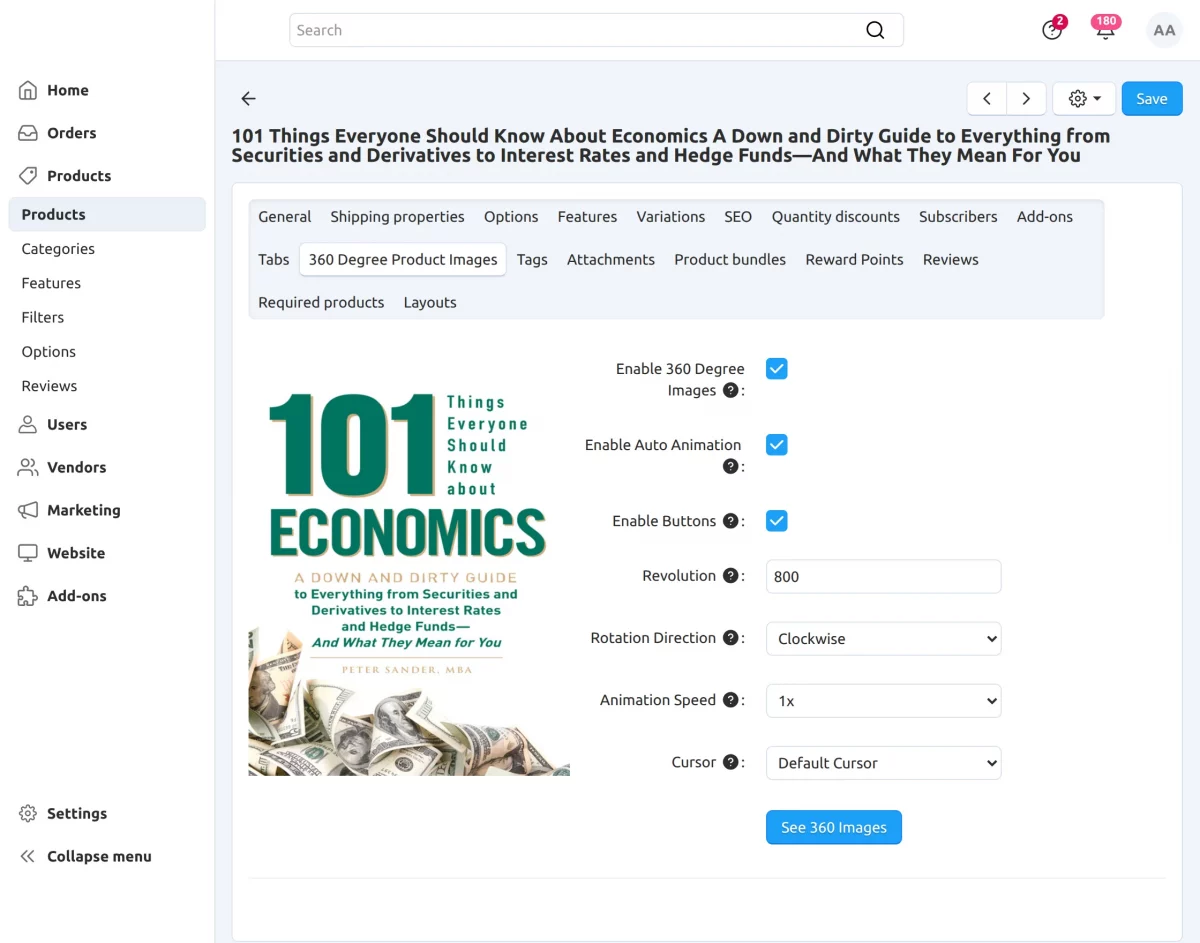
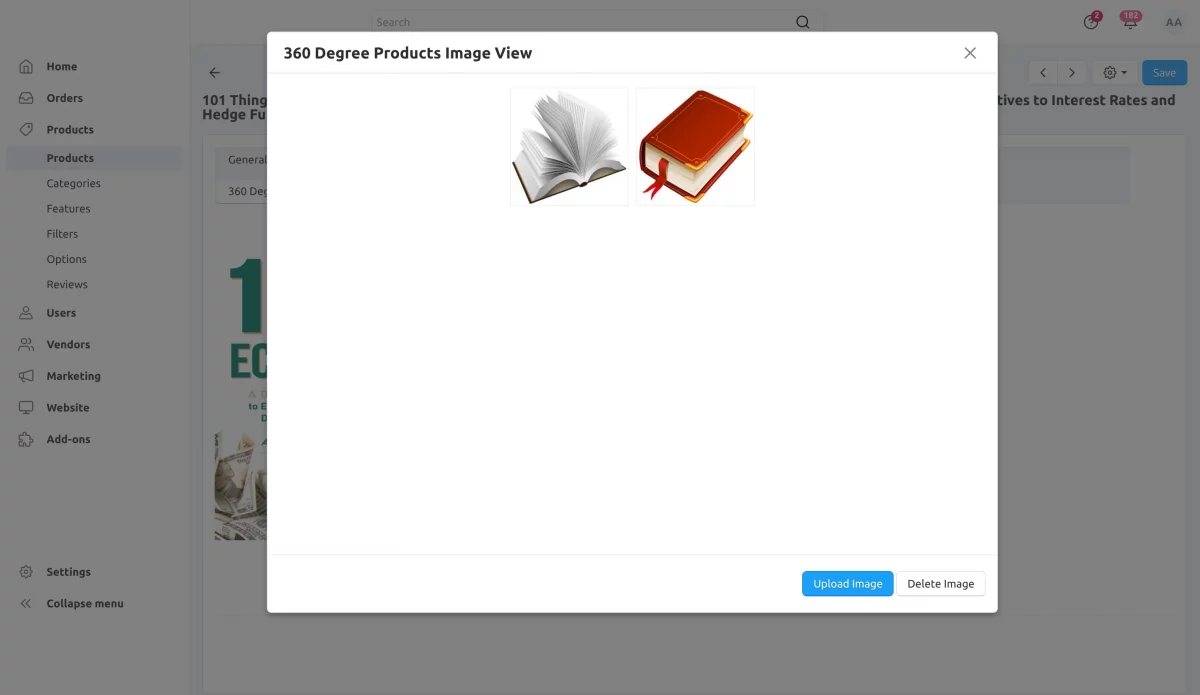
After saving, a “See 360 Image” button will appear. Clicking on it will redirect you to the page where you can add or delete 360° product images.
On this page, you can upload images that will be used to create the 360° view on the storefront.

Storefront View
Once the images are uploaded, the 360° product view becomes available on the storefront product page.

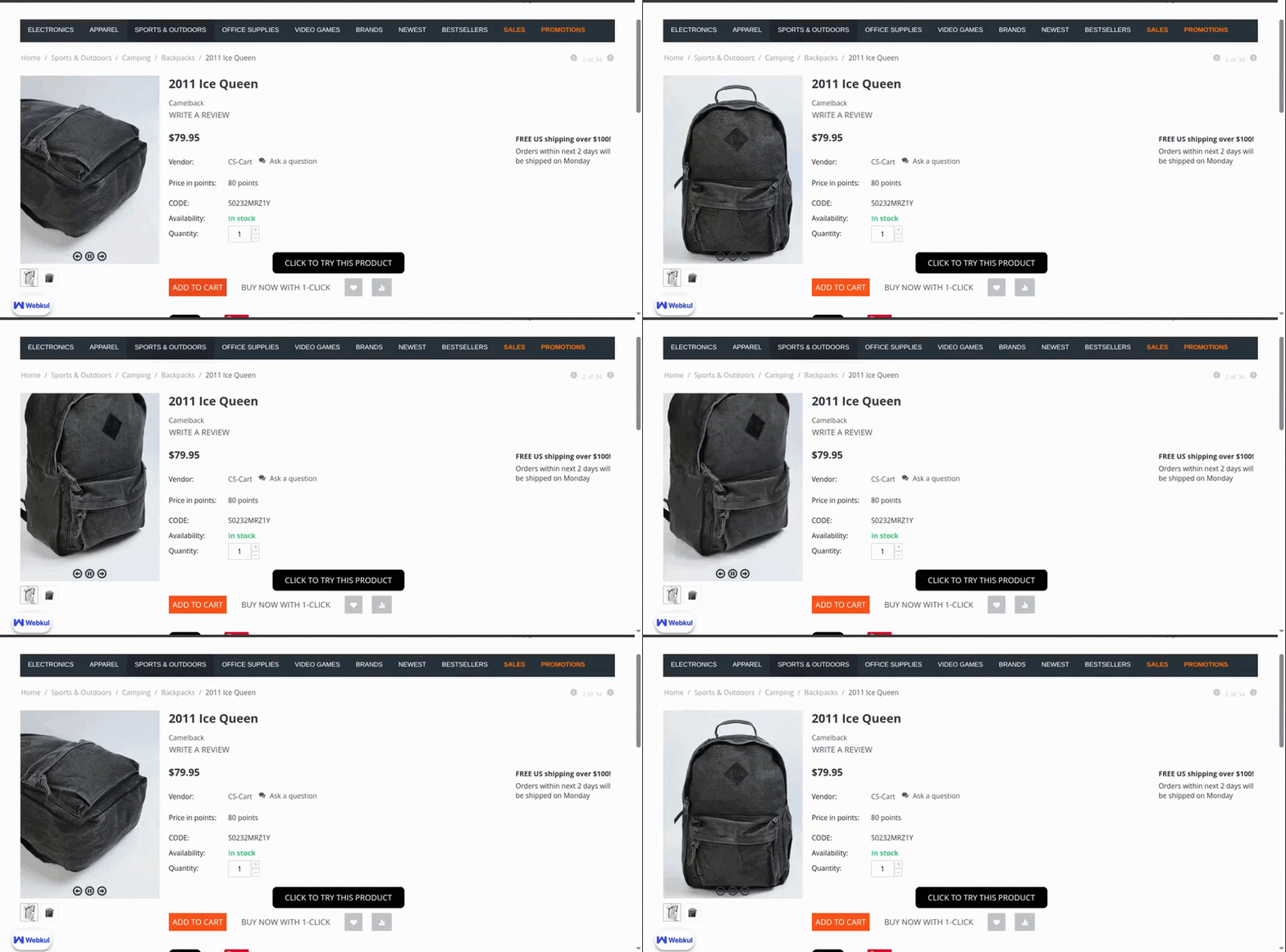
Customers can interact with the product by rotating it to see every angle, giving them a more detailed and realistic view.
The auto-rotate feature allows the product to spin smoothly, while optional controls let users manually navigate through the images for a better viewing experience.
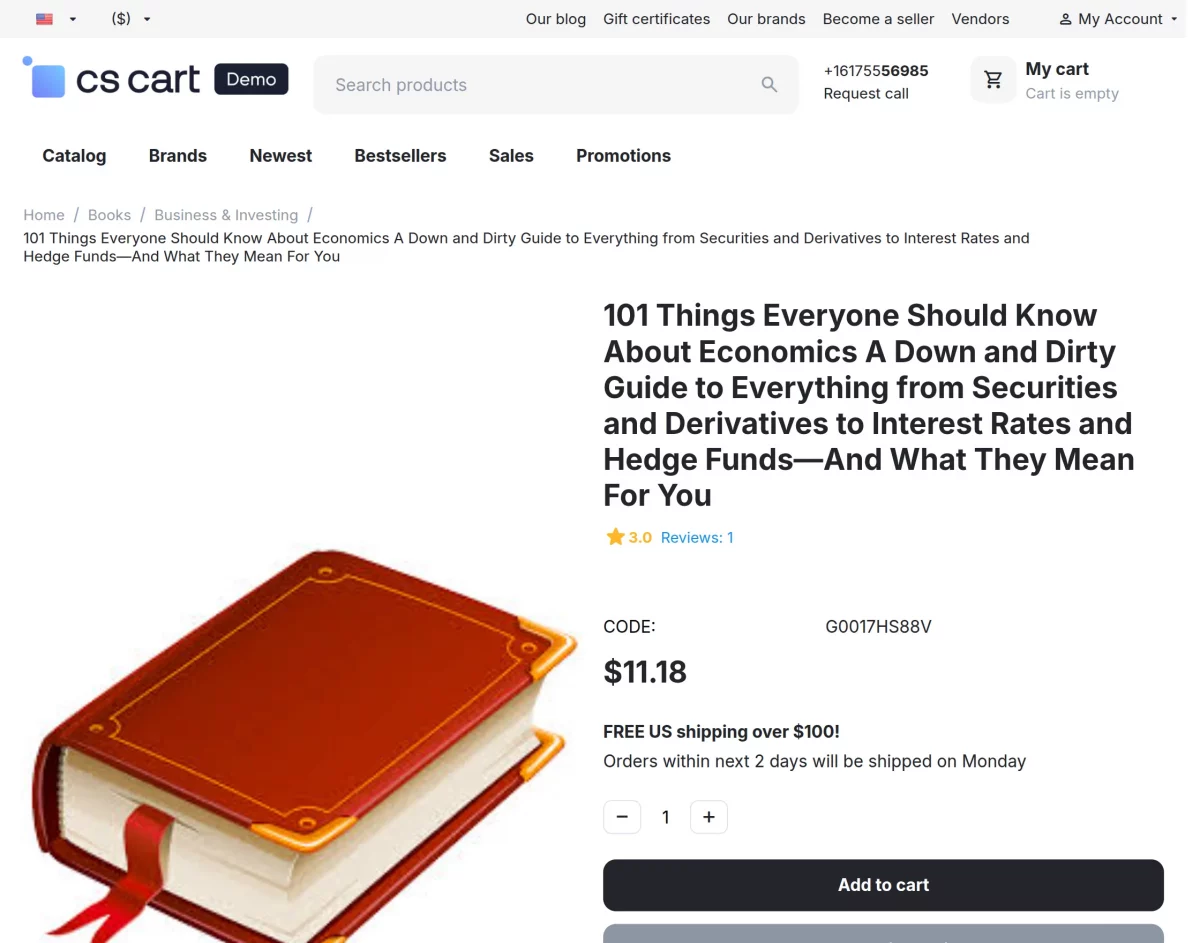
The product rotates on the storefront, and its speed changes based on the rotation settings configured by the admin/vendor.

Users can change the image using the icons or pause the rotation, as shown in the screenshot.
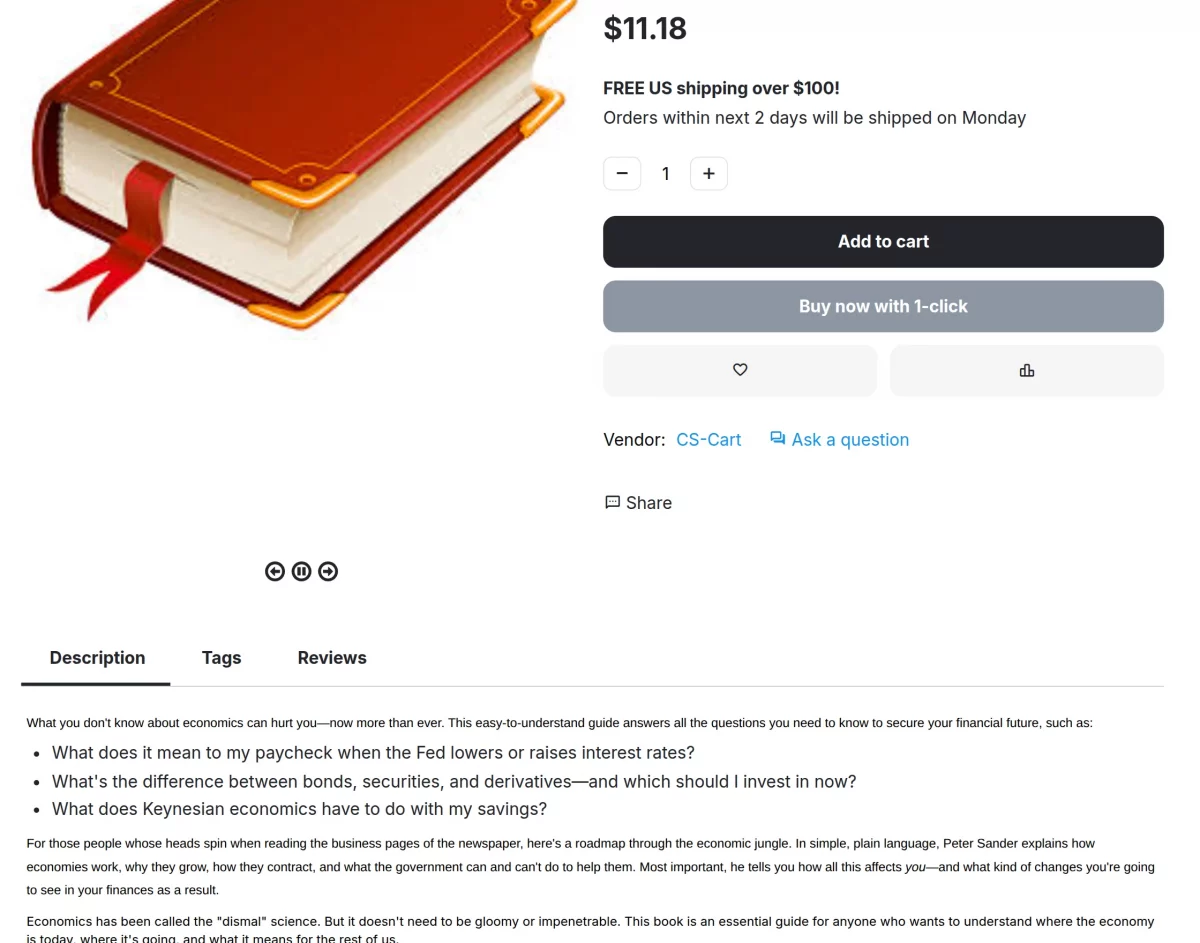
Users can rotate the product images by moving the cursor over them, allowing smooth and responsive interaction.


The CS-Cart Product Image 360 Degree Add-on enhances product presentation by allowing customers to view items from every angle in an interactive way.
Support
If you have any questions, suggestions, or customization requests, feel free to contact us at support@webkul.com or submit a ticket at webkul.uvdesk.com.
Explore our premium-quality CS Cart Extensions to enhance your store functionality.
You can explore our CS-Cart Development Services and Quality CS-Cart add-ons.