Print Direct: Direct Printing from Desktop & Mobile
Table of Content
Live Demo
Troubleshooting Guide:
Introduction
Odoo Print Direct streamlines printing by sending commands directly to printers like Network, ZPL, PDF, WiFi, Bluetooth, and USB devices without downloading files, ensuring fast and efficient output.
Sometimes, users may face problems such as:
- the printer is not detected
- the host machine does not appear in Odoo
- an Android device cannot detect a USB printer
This guide explains the common causes and troubleshooting steps.
1. Unable to Find USB Printer in Android Direct Print App
If the Android Direct Print app cannot detect a USB printer, check the following points.
Enable USB Debugging
- Open Settings on the Android device.
- Go to Developer Options.
- Enable USB Debugging.
If Developer Options are not visible:
1. Open Settings.
2. Go to About Phone.
3. Tap Build Number several times until Developer Mode is enabled.
Verify OTG Support
Please make sureof the following:
- The device supports USB OTG.
- The OTG adapter is connected properly.
- The printer is powered ON.
- After connecting the printer, reopen the Print Direct application and scan again.
2. Cannot Add Printers in Odoo / Host Machine Not Visible
If both the host machine and printers are not visible in Odoo, the issue is usually related to WebSocket or longpolling configuration.
Print Direct application communicates with Odoo using real-time communication channels such as WebSocket.
If this communication is not working properly, Odoo will not detect the host machine or the available printers.
How to Verify WebSocket Connection
Method 1 – Check Using Browser Network Panel
- Open Odoo in your browser.
- Press F12 to open Developer Tools.
- Go to the Network tab.
- Filter by WS (WebSocket).
You should see a connection similar to: /websocket
The status should display: 101 Switching Protocols
This means that the WebSocket connection has been successfully established.
Method 2 – Test WebSocket from Browser Console
Open the Console tab in Developer Tools and run the following command:
new WebSocket((location.protocol === ‘https:’ ? ‘wss://’ : ‘ws://’) + location.host + ‘/websocket’)
If WebSocket is working, the connection will open without errors.
If there is a configuration issue, the console may show connection errors.
Solution
Ensure Odoo is started with proxy mode enabled.
Add the following configuration in the Odoo configuration file:
proxy_mode = True
Then start Odoo with a gevent port:
–gevent-port=9000
This enables Odoo to handle WebSocket communication required for direct
printing.
3. Raw Printer Configuration in Windows
In some cases, printers must be configured using a Raw or Generic driver so direct printing can work properly.
Step 1 – Go to Control Panel → Add Printers
https://webkul.chatwhizz.com/share/screenshot/65f80e69cdaeae108327a329
Step 2 – Continue manual setup if no printers are listed
https://webkul.chatwhizz.com/share/screenshot/65f80ec93c2c0210edbb6bd8
Step 3 – Add the printer manually
https://webkul.chatwhizz.com/share/screenshot/65f80f197c85030ffcda7f4a
Step 4 – Select the printer (example shown for Zebra printer)
https://webkul.chatwhizz.com/share/screenshot/65f80f7d7c85030ffcda8023
Step 5 – Select Manufacturer: Generic and Printer: Generic / Text Only
https://webkul.chatwhizz.com/share/screenshot/65f80ff0cdaeae108327a6ec
Step 6 – Provide a name for the printer
https://webkul.chatwhizz.com/share/screenshot/65f810837c85030ffcda8294
4. Ghostscript Error (Windows Users Only)
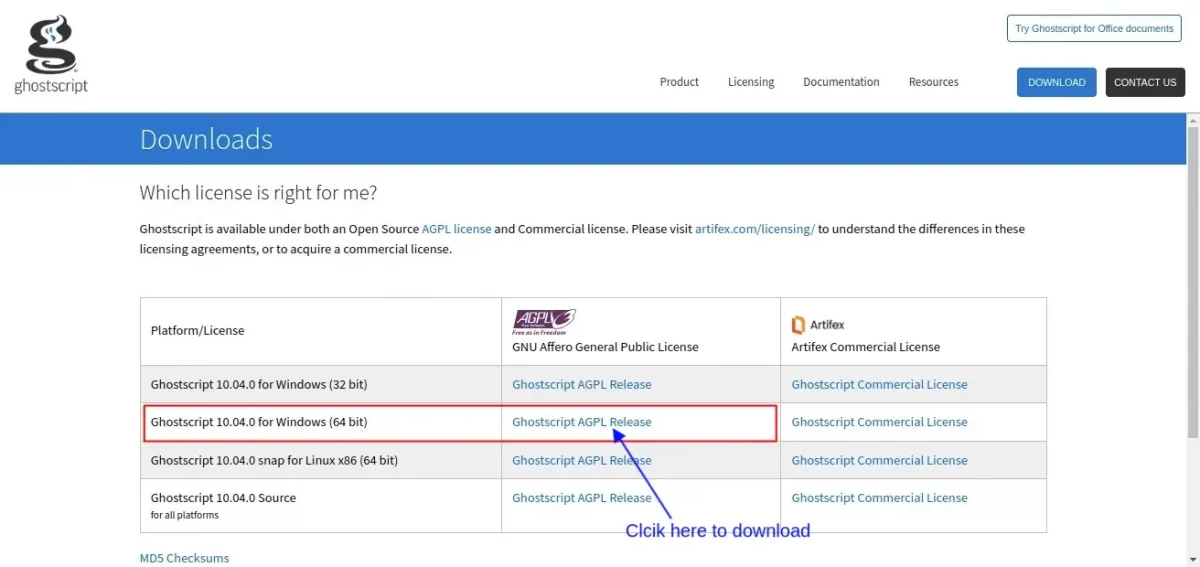
If you receive an error related to Ghostscript while printing, install the open source Ghostscript application from the official website.
Download from:
https://www.ghostscript.com/releases/gsdnld.html
Install the application and restart the Print Direct Desktop Application.
See below image for reference.

6. How to delete cache and Print Direct App data
Your configuration settings are stored on your desktop.
If you face any issue with login or fetching printers. Close the Print Direct application, and navigate to the corresponding folder:-
Windows: C:/Users//AppData/Local/Print Direct For Odoo
Linux: /home/users//.local/share/print-direct-for-odoo
Delete the folder from your computer.
OR
Triple click on the bin icon present on the bottom-right corner on the Print


Now, Restart the application.