Prestashop Product Size Chart {User-Guide}
Small, medium, large; these are just relative terms when it comes to the size of a product. And, all these sizes can vary greatly in measurements across different brands.
Hence, it is useful to provide sufficient information about the variation in measurements through a size chart. To help you with such problem, we are here with PrestaShop product size chart module.
The module helps you to create size charts with multiple attribute values for different types of products.
Add guiding images with the size chart to clearly explain the meaning of different attribute values.
As the trial of apparels is not feasible when your customer base is not trustworthy, hence giving measurements about different sizes through size charts can really help.
Generally, the average apparel retailer handles a return rate of 28% & 80% of these are mostly due to fit issues.
Hence, it not only guides your customer about the size of the product but also helps to reduce returns.
Size charts can also prove to be beneficial for products of the following segments.
- Ornaments like rings, bracelets, bangles etc.
- Accessories like blankets, quilts, curtains etc.
- Products like table, sofa, wardrobes etc.
- Electronic appliances like refrigerator, Television, washing machine, Air conditioners etc.
All of the products listed above will need size chart in one way or the other. After all, products like these have certain dimension & not every variant of these products cater to everyone’s needs.
Note: PrestaShop Product Size Chart module is compatible with the catalog’s new product page.
Check the video mentioned below for an overview of the workflow of this extension:
Features of PrestaShop Product Size Chart
- Create size chart of the product.
- Add image to show along with the size chart.
- Admin can duplicate the size chart.
- Show size chart in product tab, additional information section, product page footer, or above quantity box.
- Display size chart in a popup view on the product page.
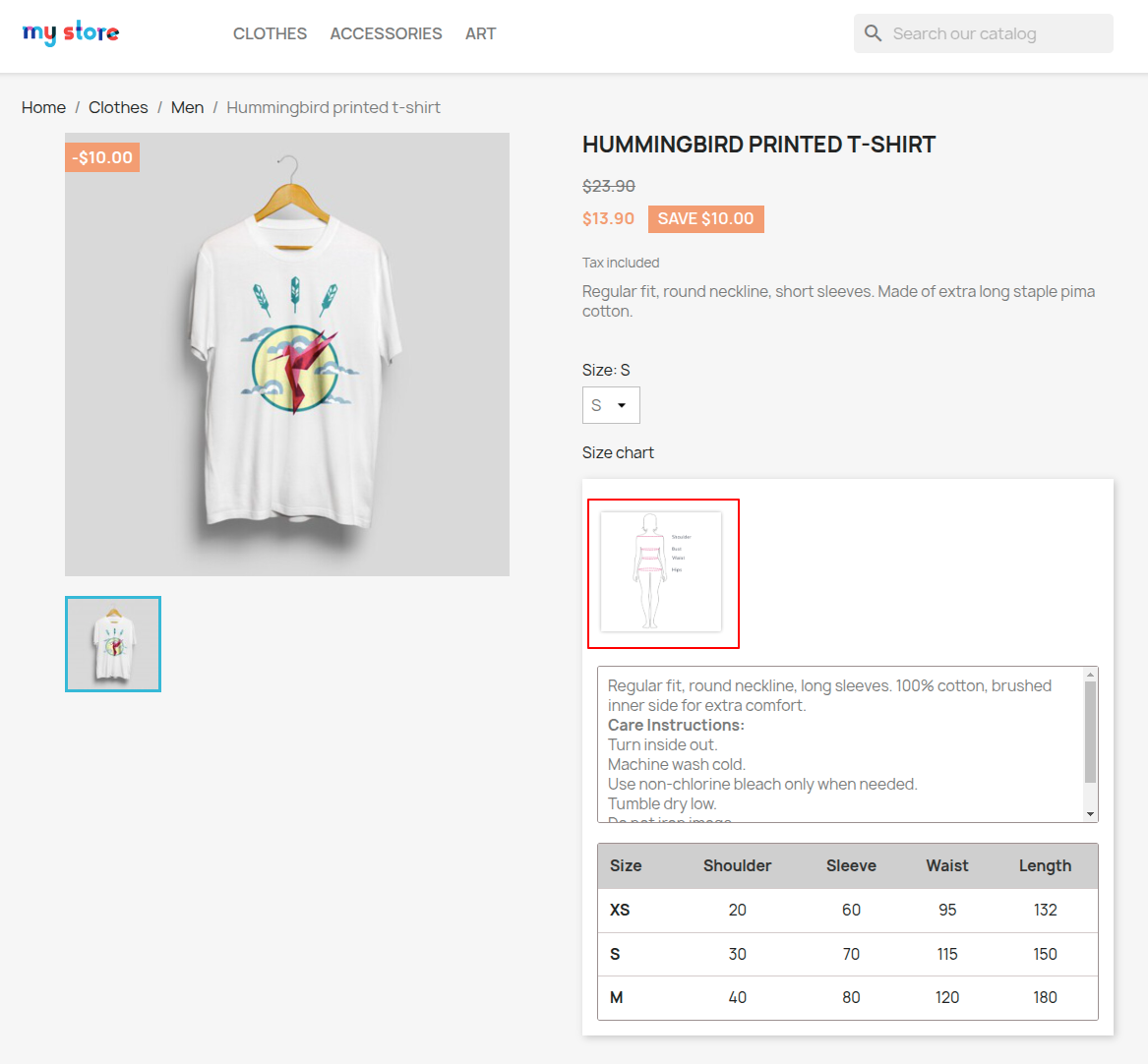
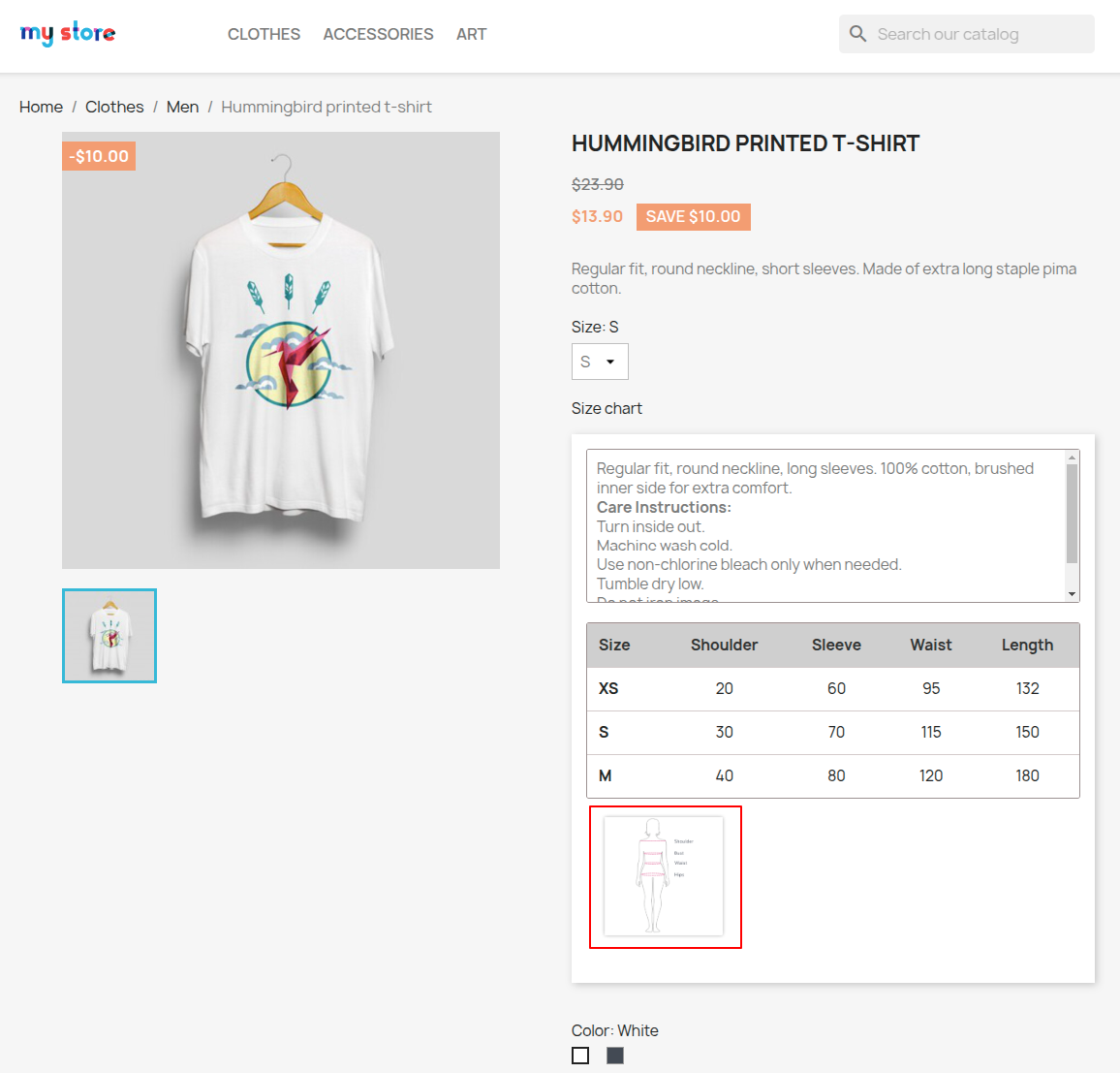
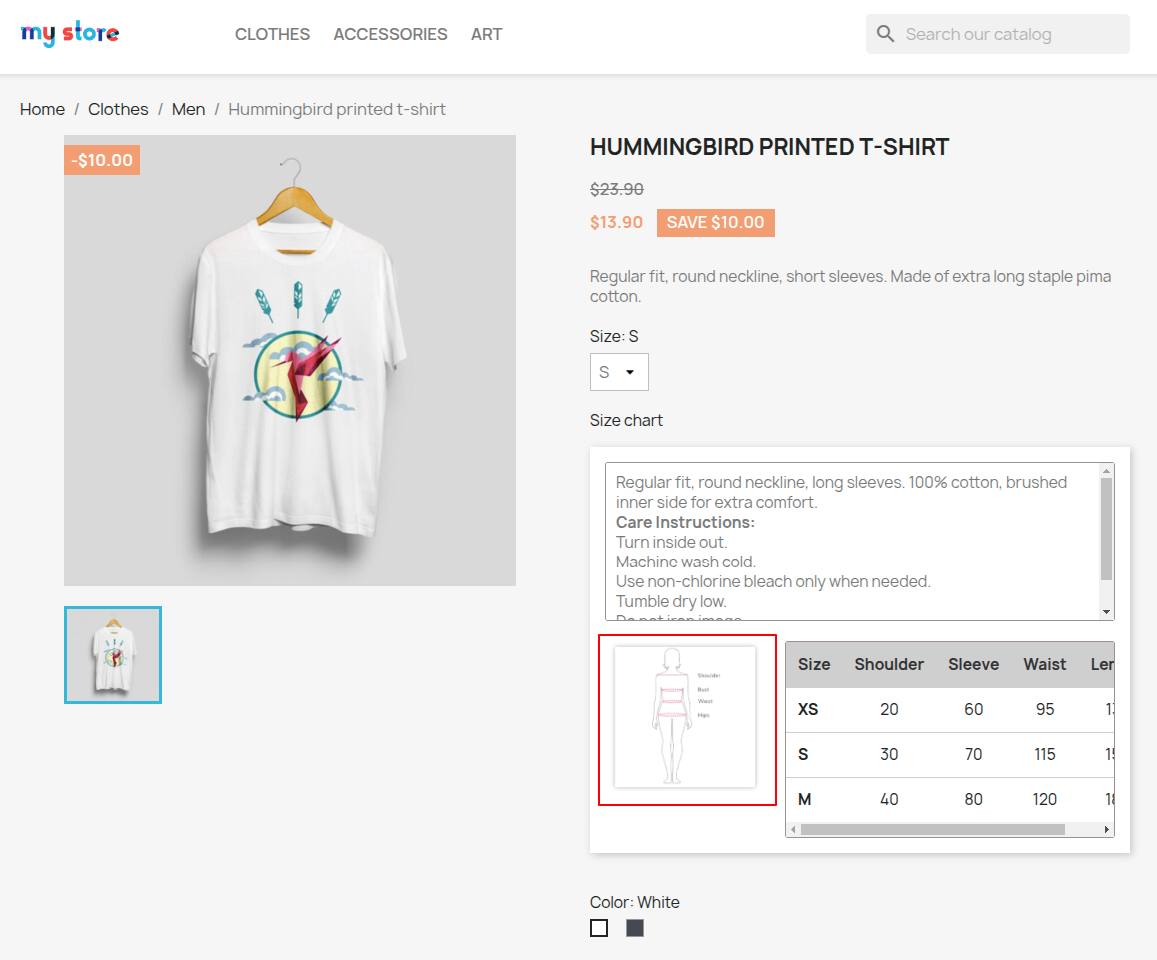
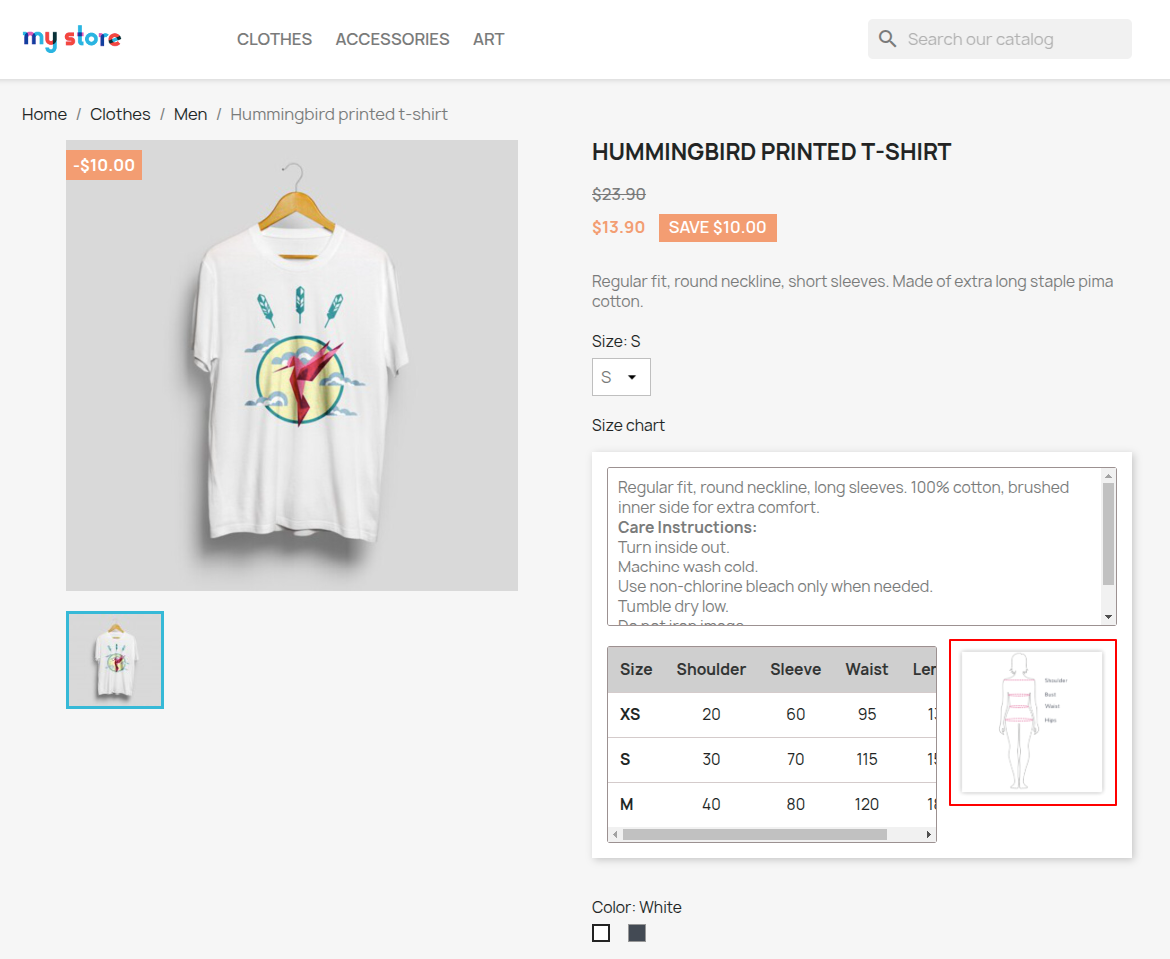
- Display size chart image on top, bottom, left, and right position in size chart.
- Configuration to display size chart in open state by default or not.
- Create a size chart with PrestaShop inbuilt attributes or with custom attributes.
- Create bulk action to apply a size chart on multiple products.
- Add a bulk action by sorting products on the basis of product name pattern, category, brand & supplier.
- Choose to display attribute values in rows or column of the table.
- Add multiple unit for size chart.
- Configure the look and feel of size chart.
- Create and Assign size chart from Add/Edit product page in the back office.
- Add new attribute values while creating/adding the size chart.
- Show attribute group name in size chart.
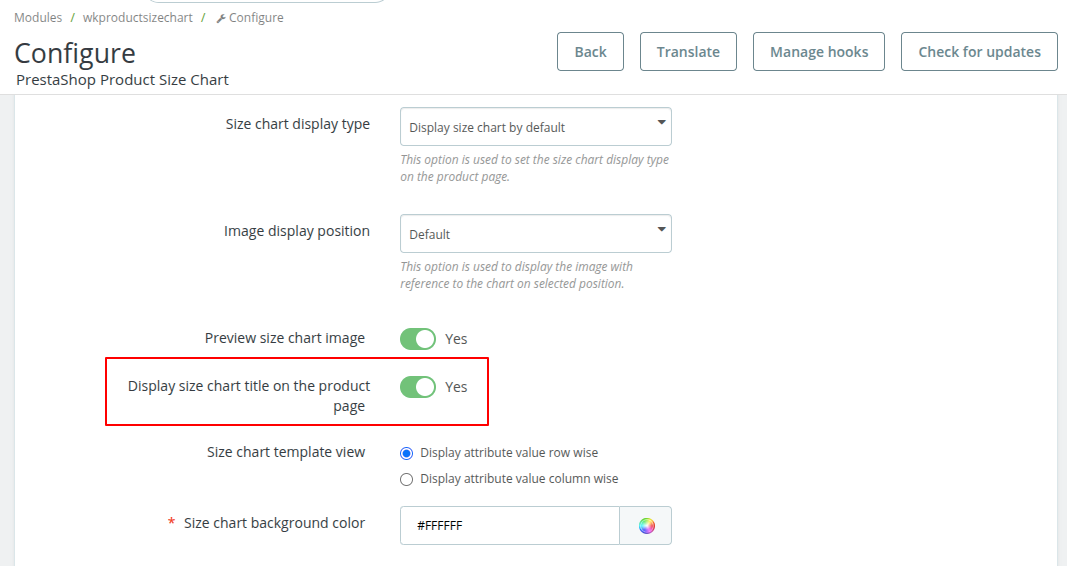
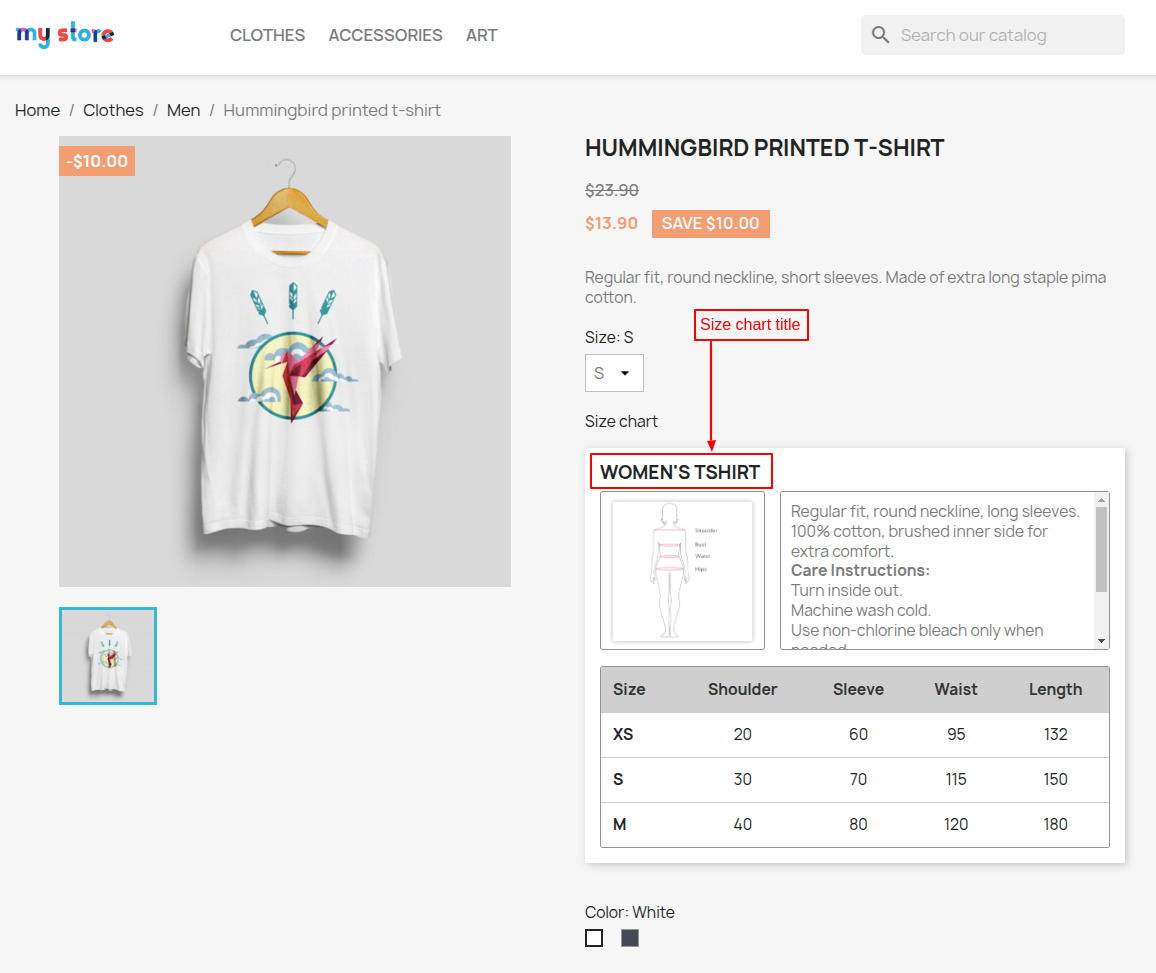
- Display size chart title on the product page.
- The module is multi shop compatible.
How to Install Prestashop Product Size Chart
- Firstly, go to the module manager in the back office and click on ‘upload a module’.
- After that, drag and drop the module file or select the file from the system.
- In this way, the module installation will be successful.


PrestaShop Product Size Chart Configuration

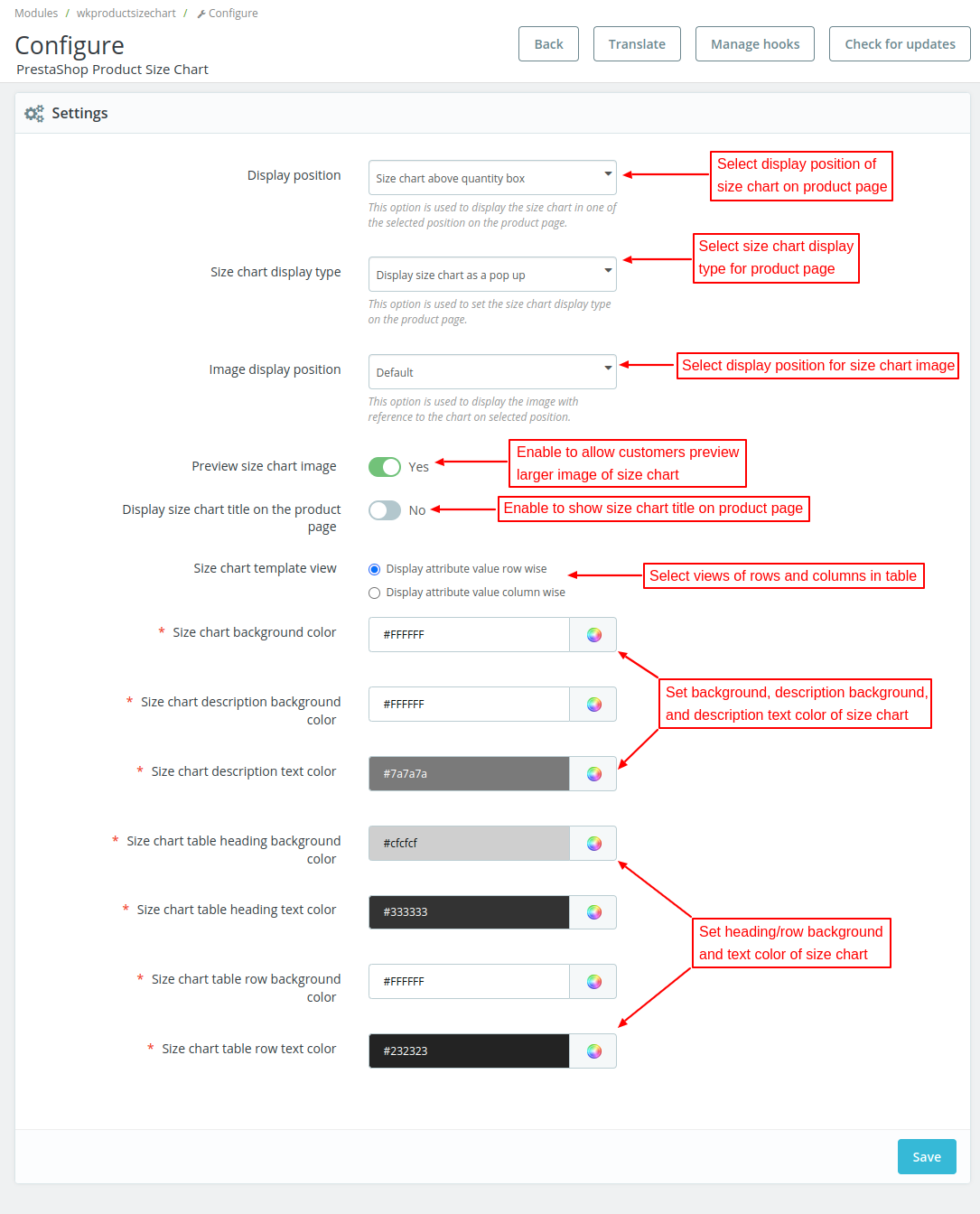
Display position
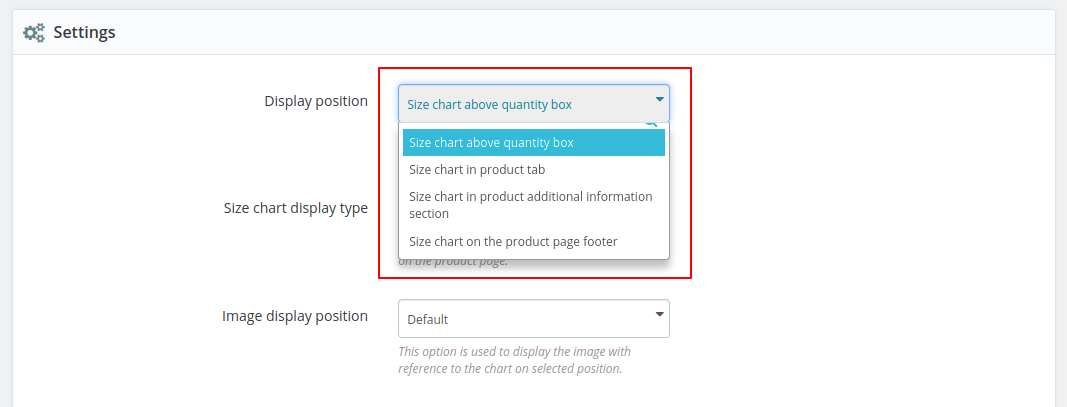
The option allows you to select the position where you want to display size chart. You can choose to show size chart in the following positions on the product details page.
- Above quantity box
- In product tab
- Additional information section
- Product page footer

Size chart display type

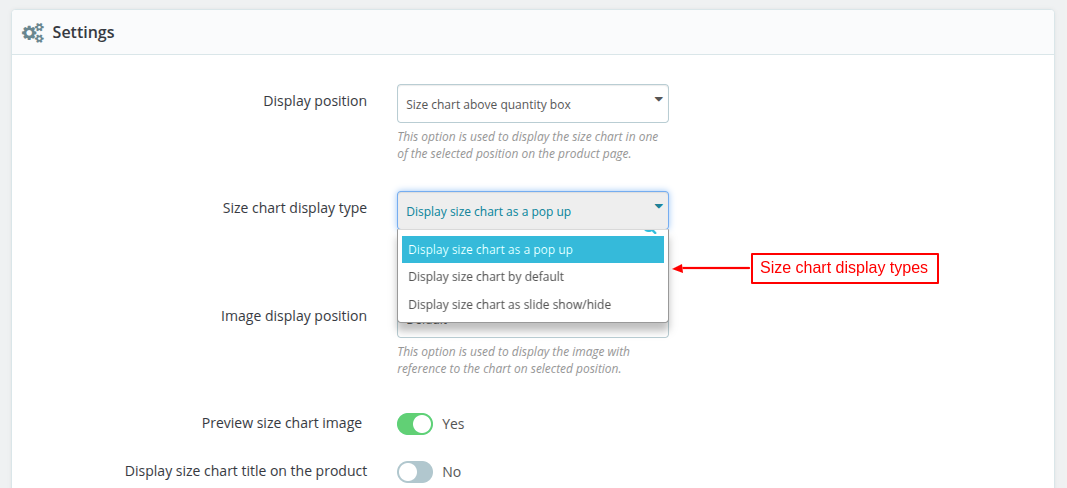
There are three ways in which you can display the size chart on the product page.
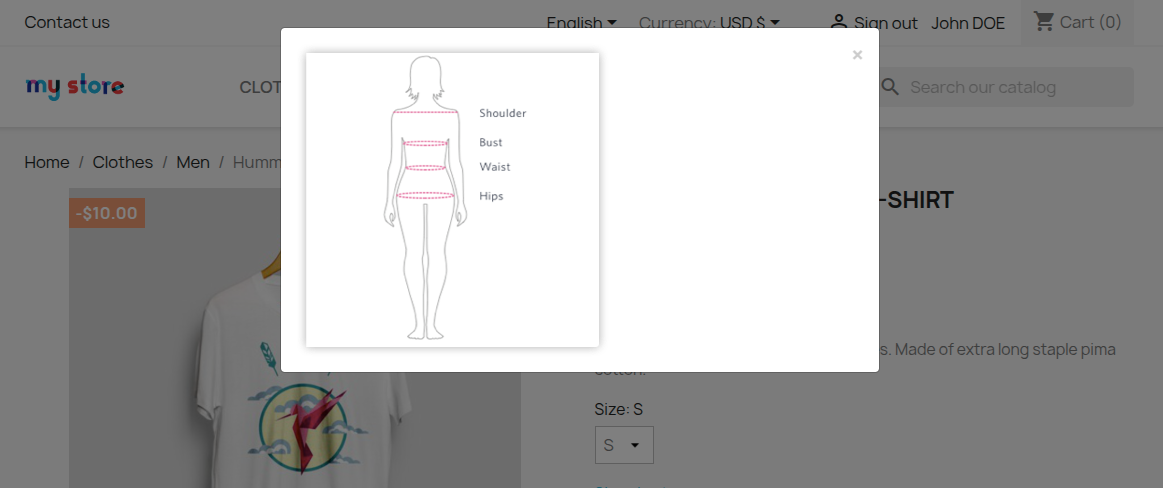
- Display size chart as popup: It lets you display size chart in popup view on the product page itself.
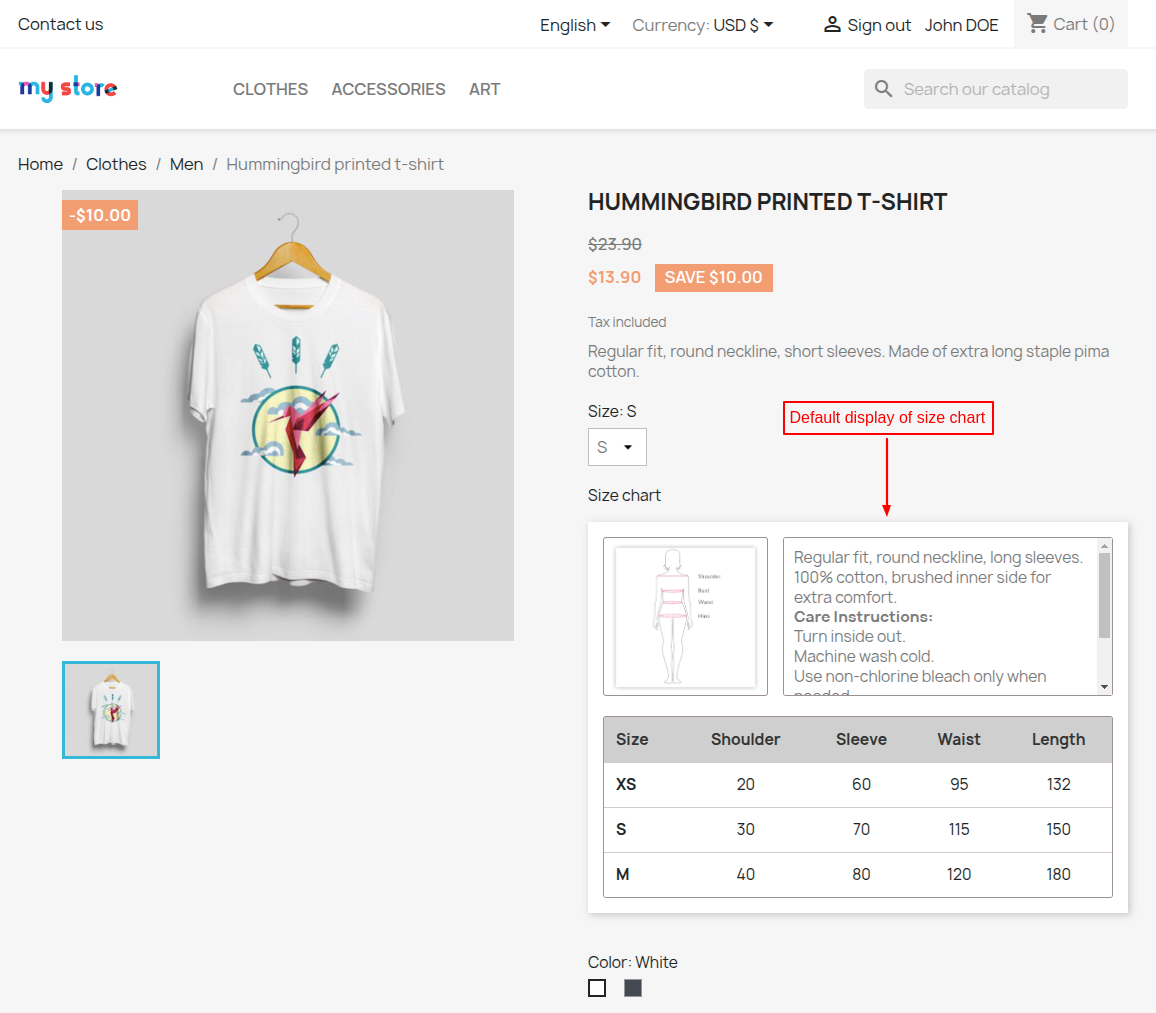
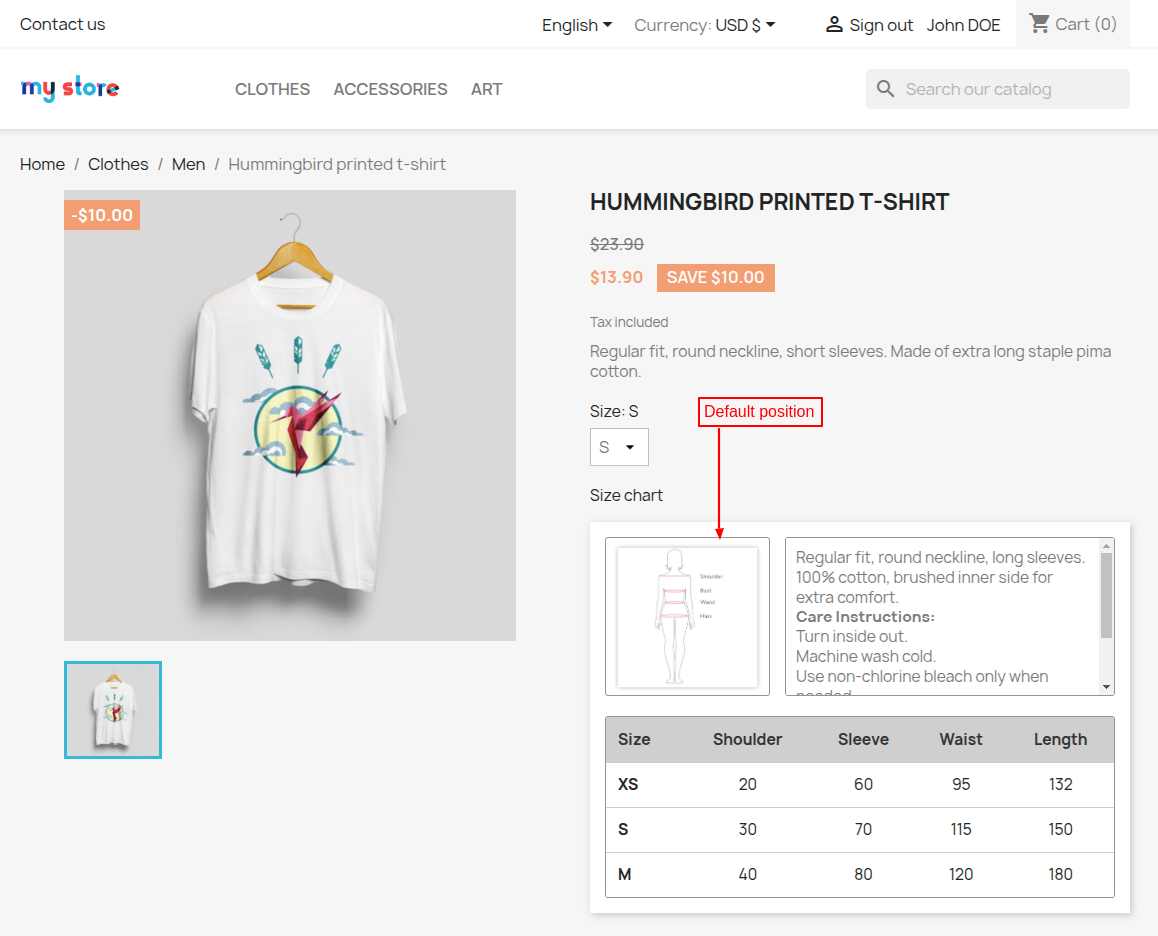
- Display size chart by default: It lets you display size chart in open state by default on the product page itself.
- Display size chart as slide show/hide: This option lets customers to view the size chart by clicking on the arrow. Customers can view or close the size chart by clicking on an arrow.
Image Display Position
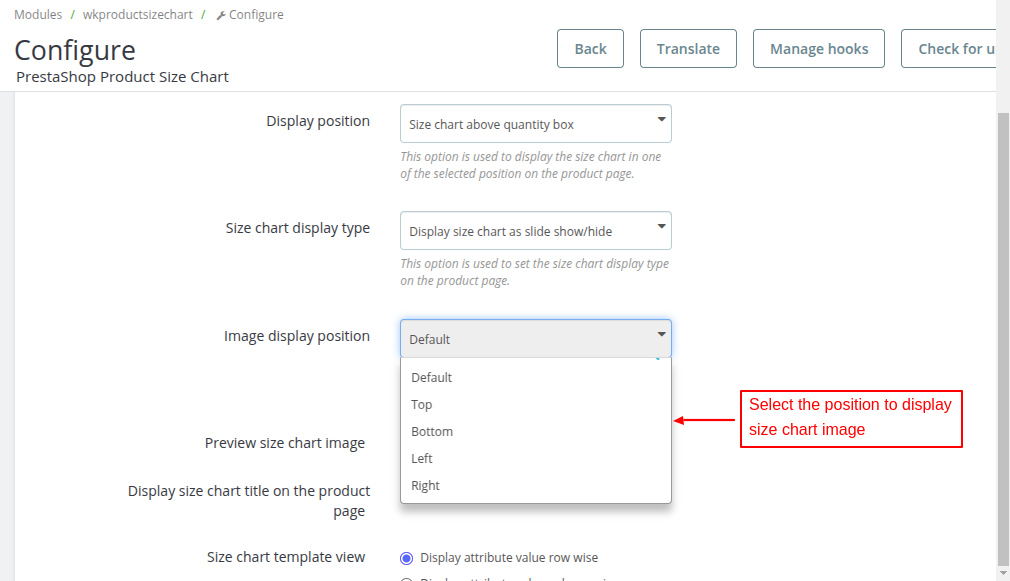
The option lets admin to select the position where he wants to display the image with reference to chart.
The admin can choose to display on top, bottom, left, and rights positions.

Size chart template view
The two options under this helps to interchange the position of attribute & attribute values in the table. It either lets you set the position of the attribute value in rows or in columns.
Create New Size Chart
After the successful installation of the module, a new tab “Product Size Chart” gets available under Catalog in the back office. From here, you can add and manage size chart.


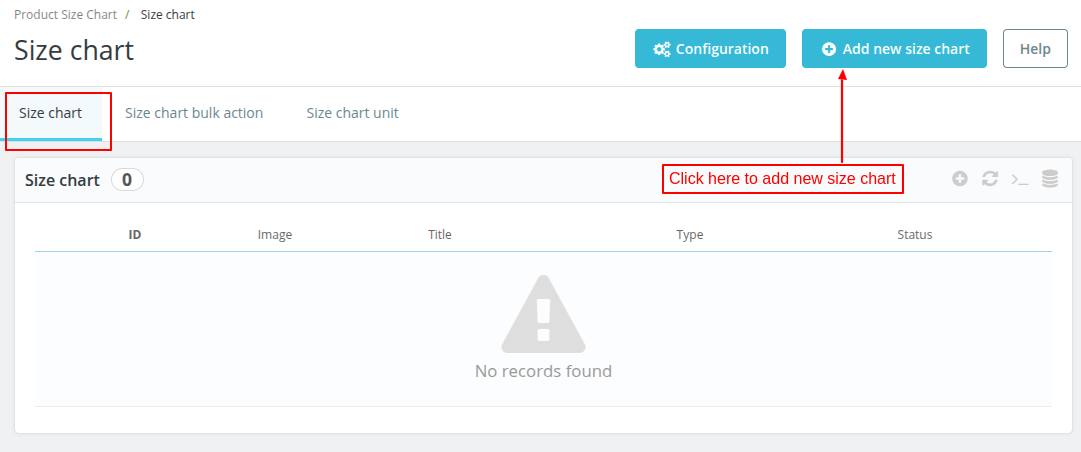
Click on ‘Add new size chart’ button to create a new size chart.
A new page to fill details of size chart opens on clicking the ‘Add new size chart’ button.
There are two options to select attributes of size chart viz.
- Predefined
- Custom
Details of both of these options are described hereunder;
Predefined: This option lets you create a size chart from already added attributes of your PrestaShop.
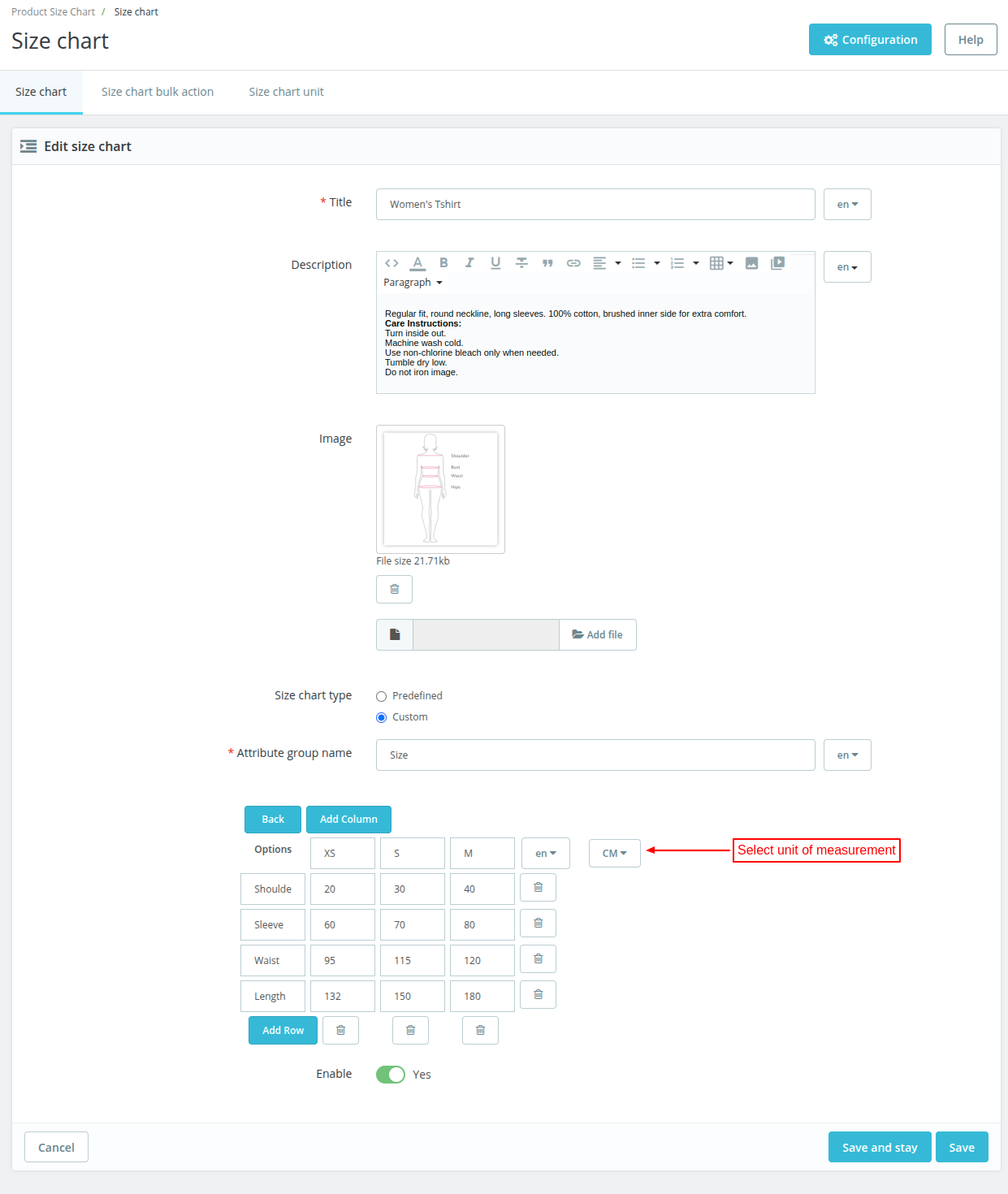
Custom: This option allows you to create a size chart from new attributes. To add new attributes, just enter the name of attributes separated by a comma.
View sample form for creating a new size chart for shirts in the picture below.
Size chart created using Predefined option.

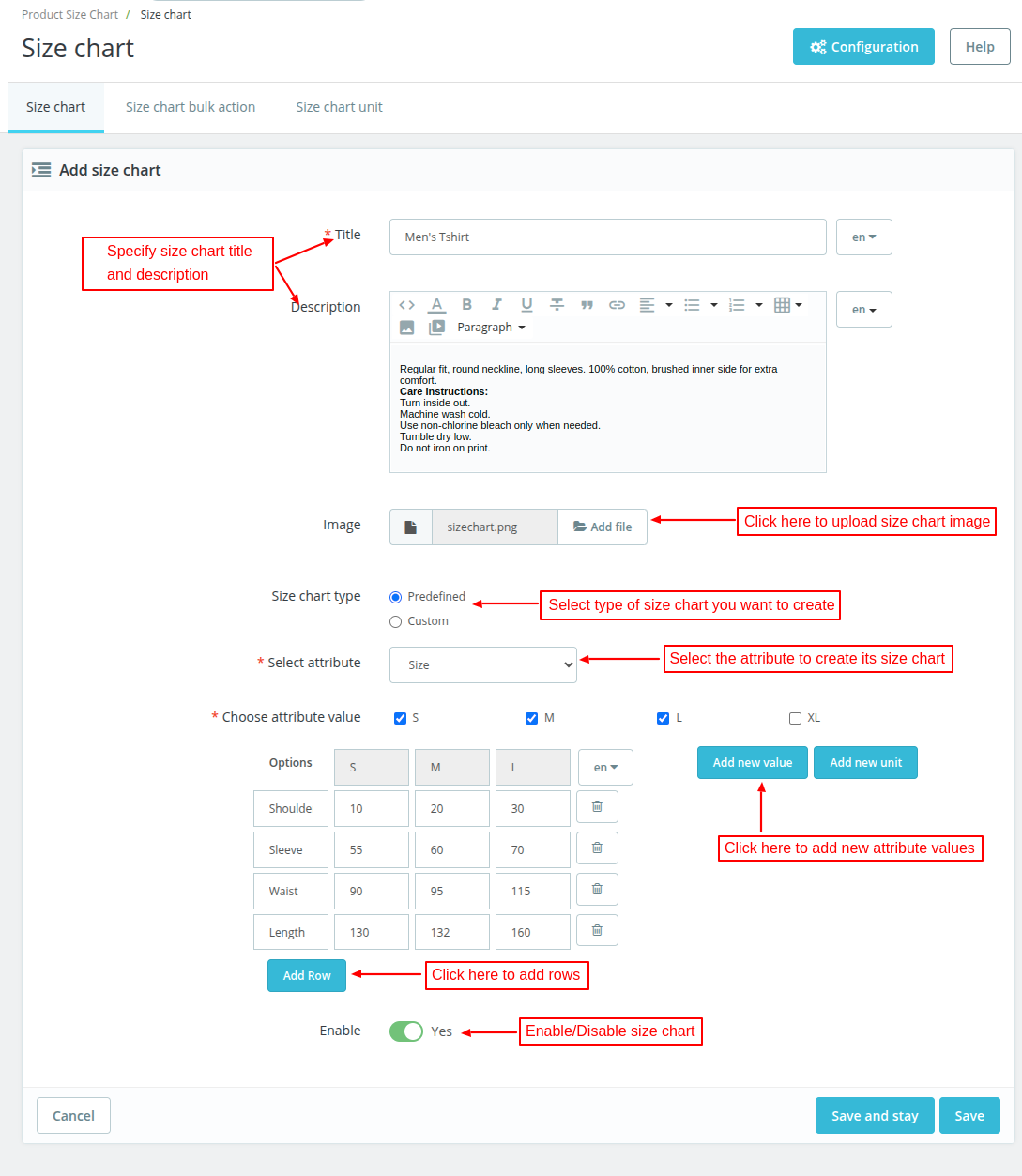
Similarly, you can create a size chart using the Custom option.

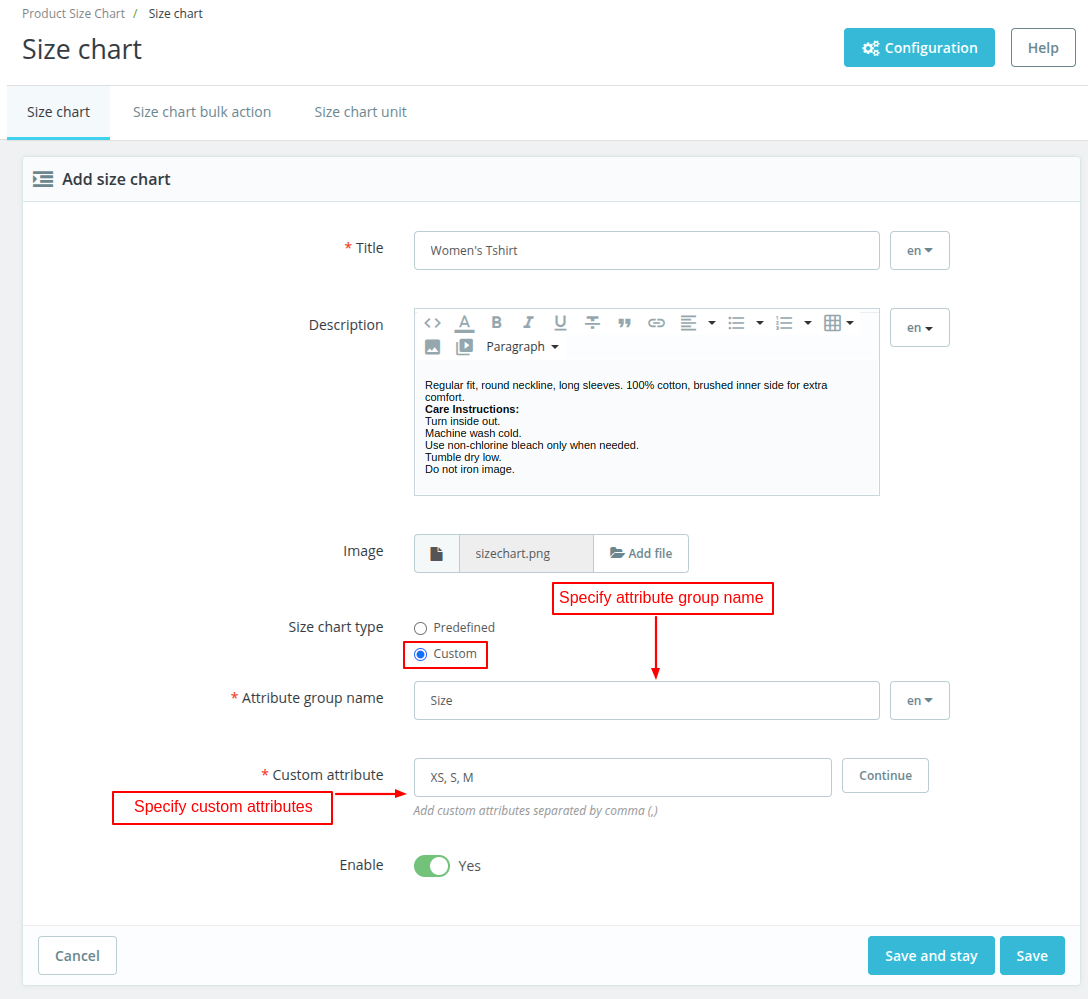
Specify the custom attributes and click on ‘Continue’ button.

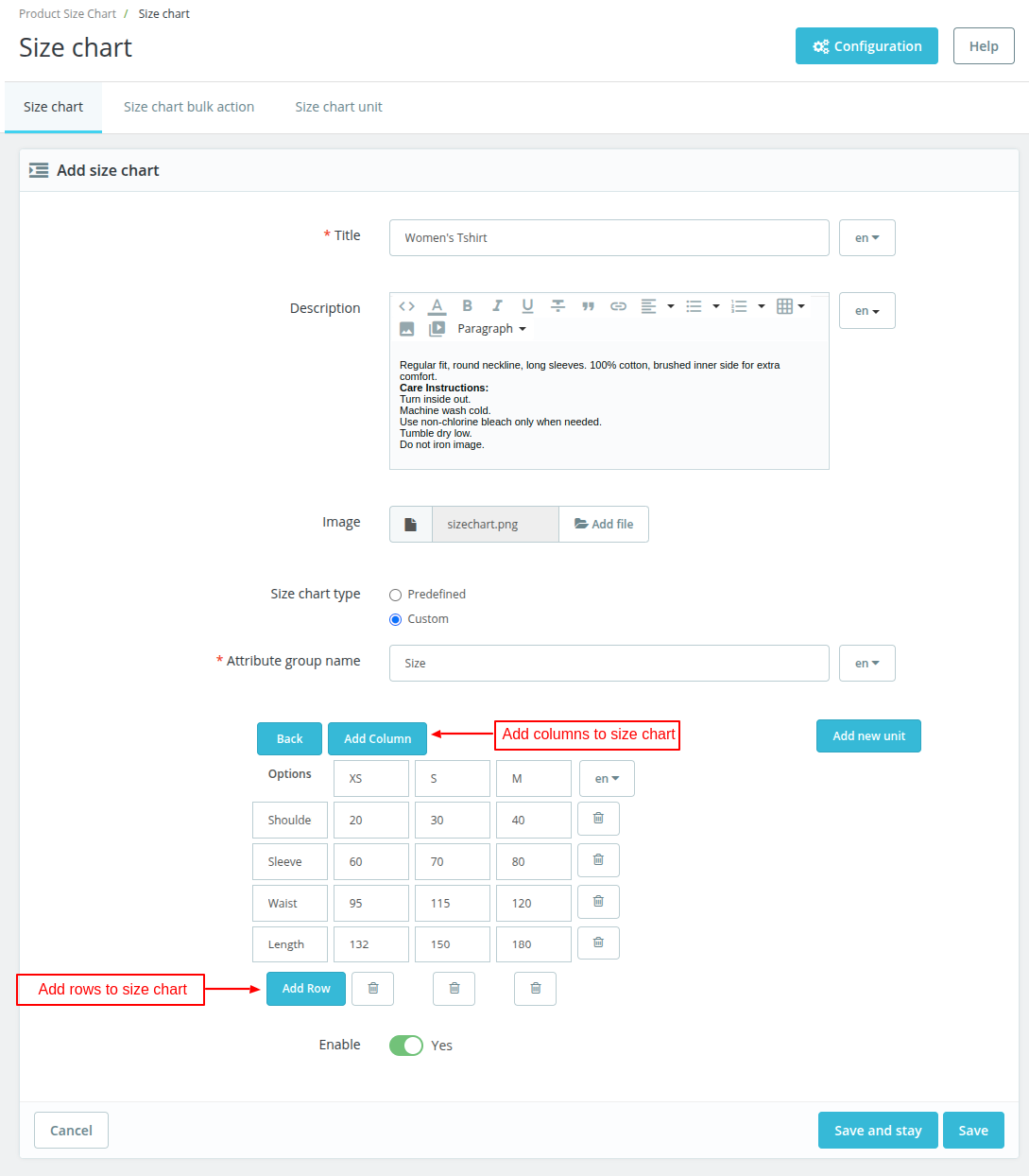
Note: You can not add more than one image with the size chart.
Once added, the admin can view the list under size chart tab.

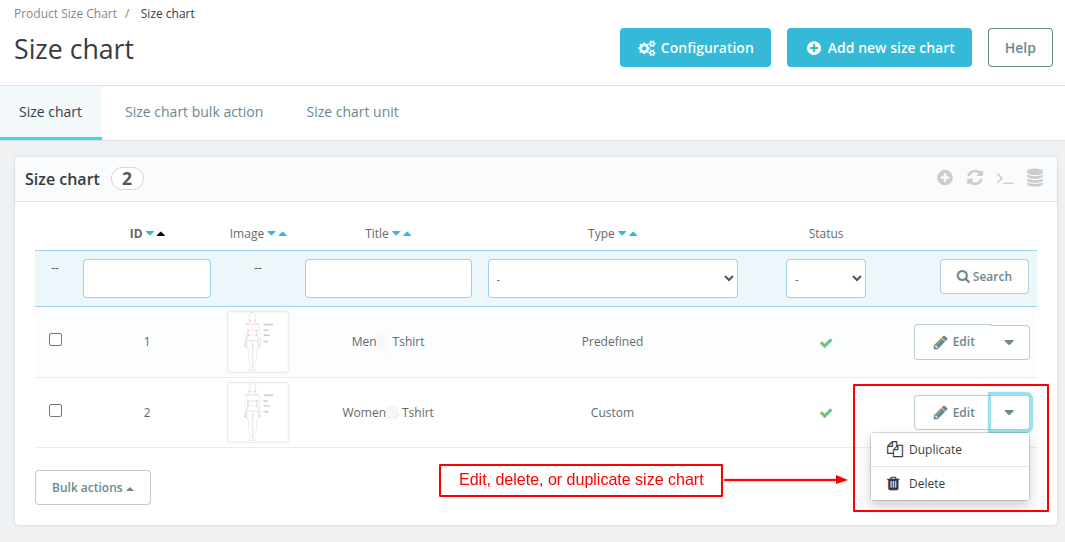
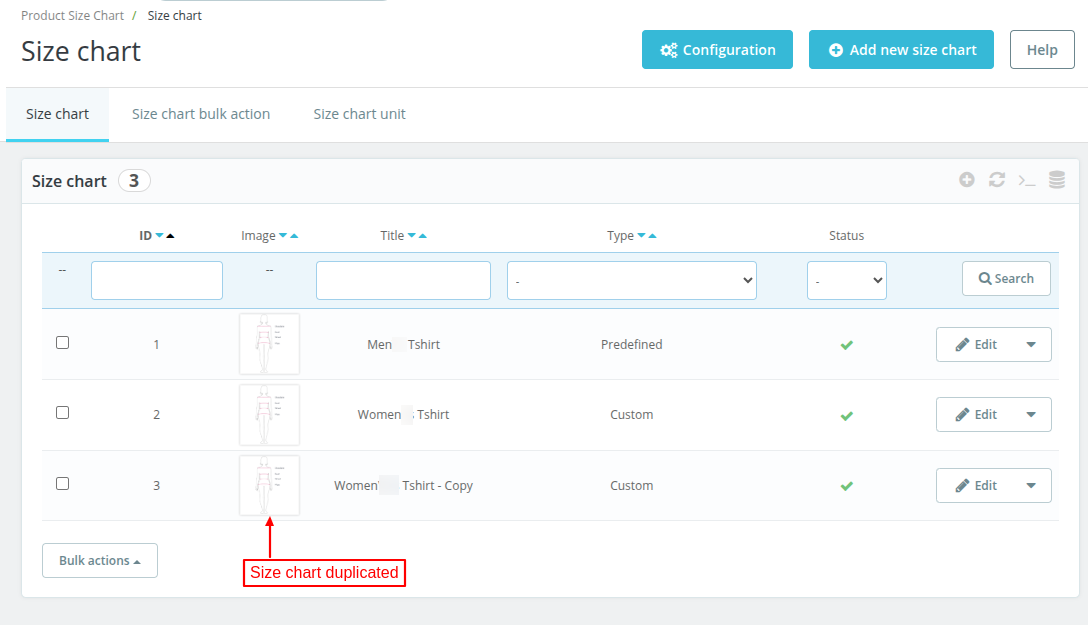
The admin can also duplicate the size chart by clicking on ‘Duplicate’ button.

Add Size Chart to Products
To add a size chart to the product, go to Catalog -> Products -> Edit Product -> Modules.

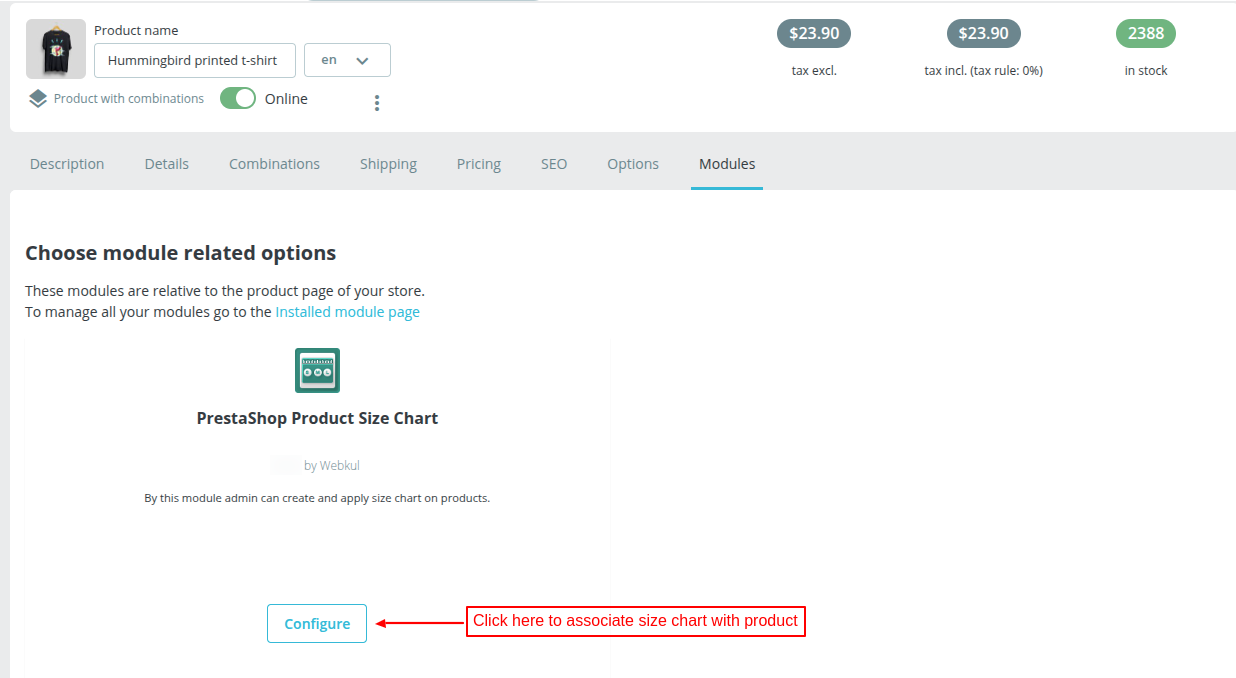
Let’s see the process of assigning the size chart to the product.
Select Yes under “Assign size chart on product” option to assign size chart to the product and further choose the size chart that you want to associate with the product.

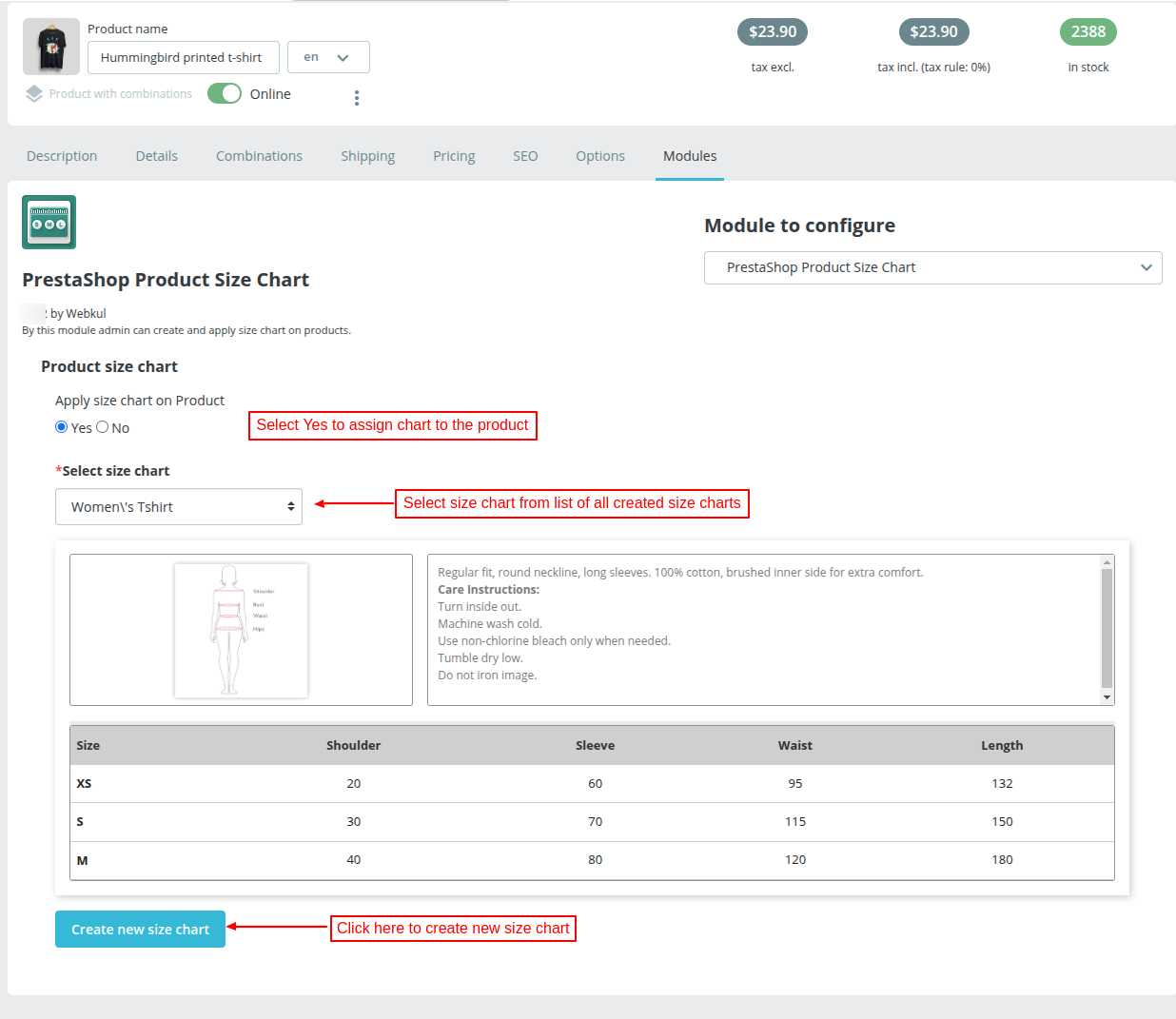
You can also create a new size chart by clicking on ‘Create new size chart’ button given on the bottom on the page.
Front End Flow
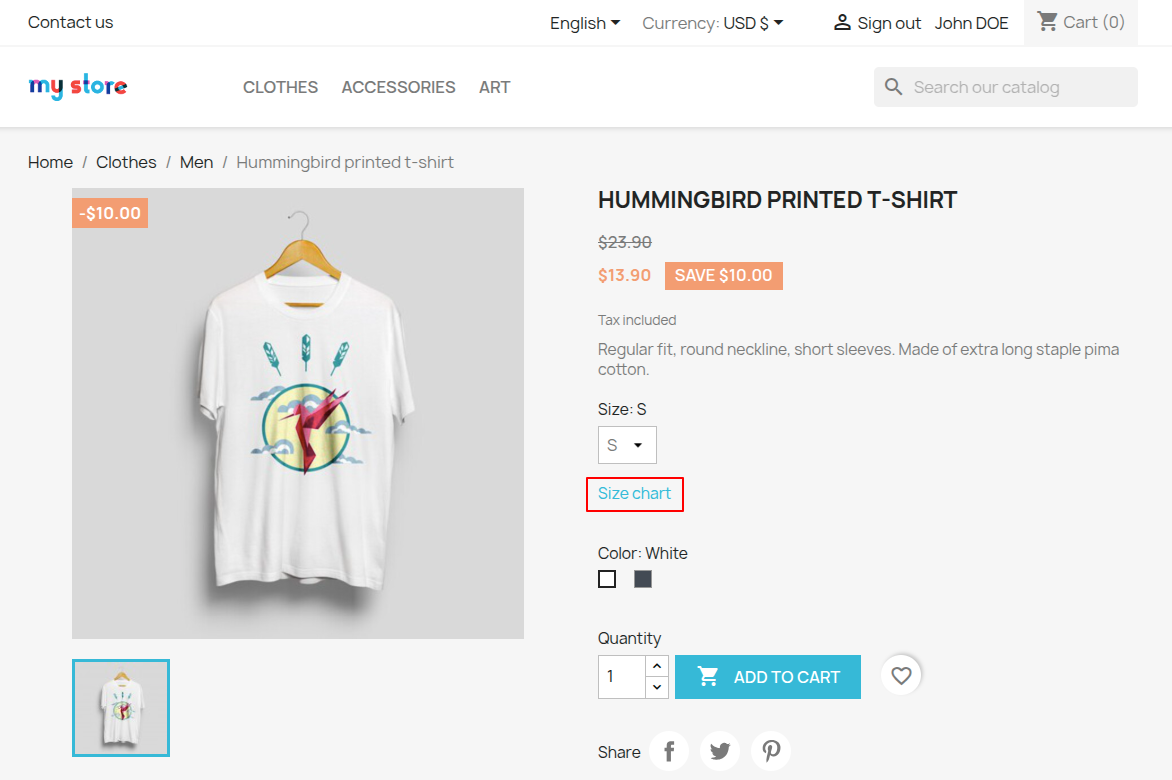
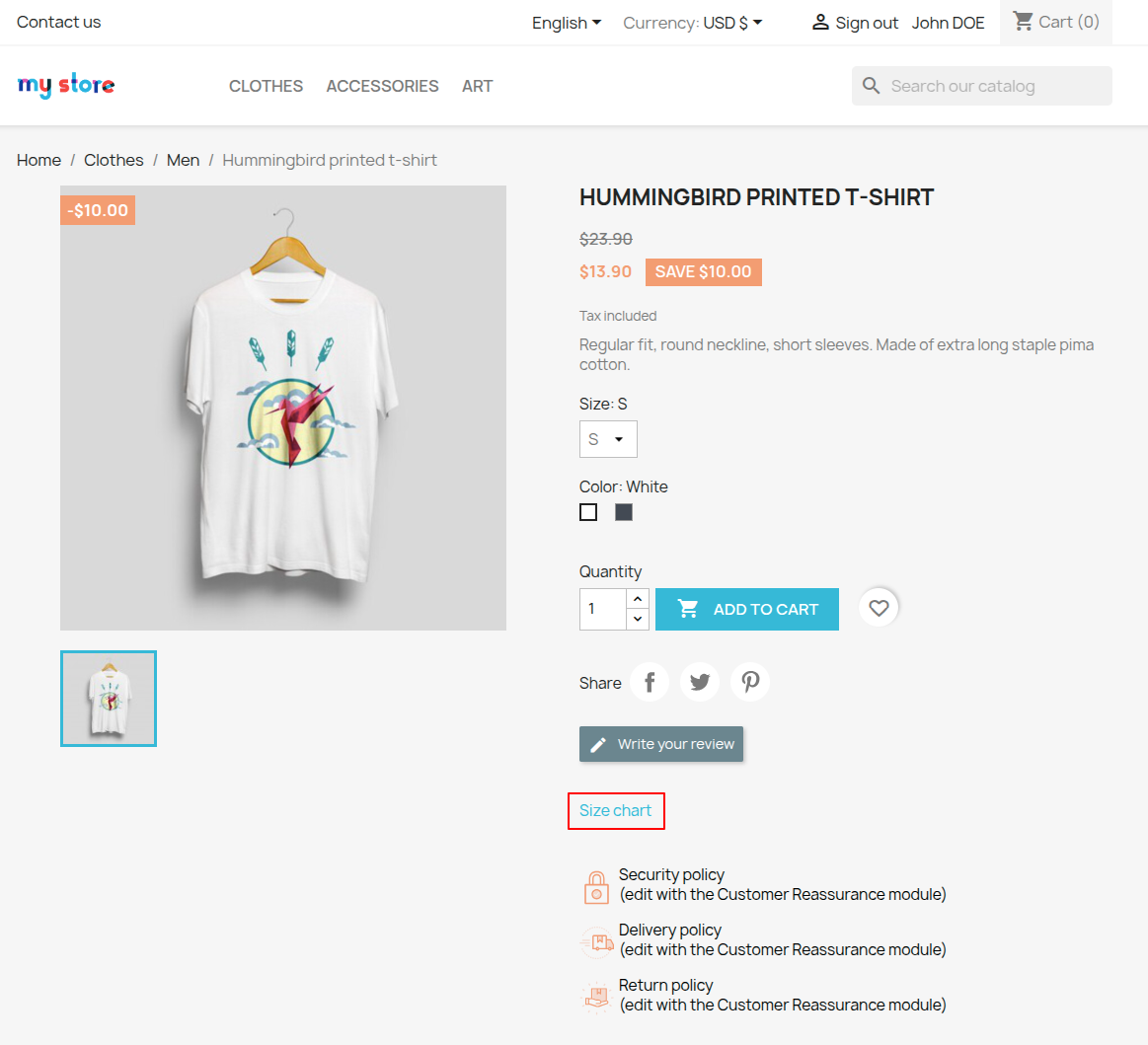
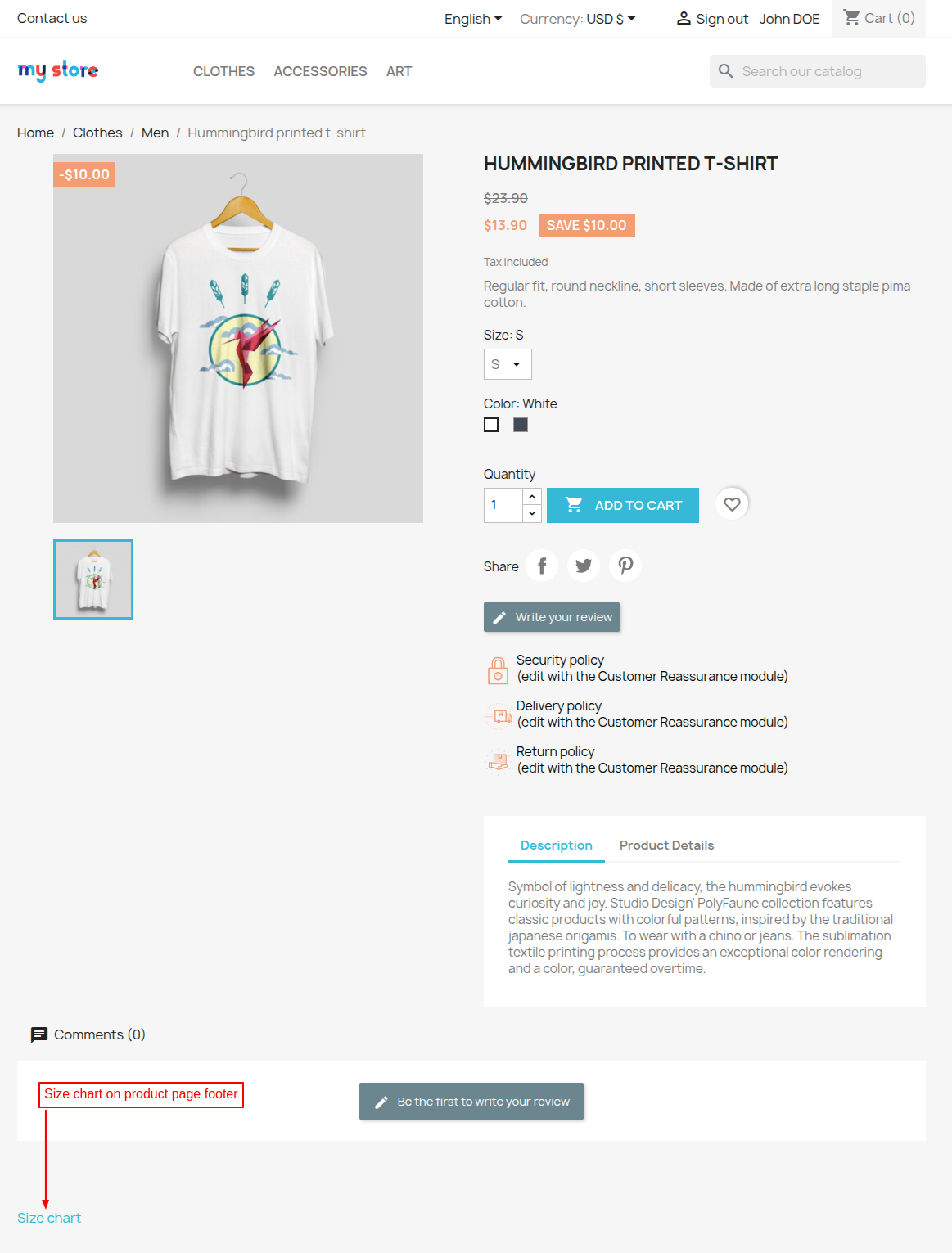
Customers can view the size chart link on the position selected by admin under configuration settings on the product page.
Size chart above quantity box

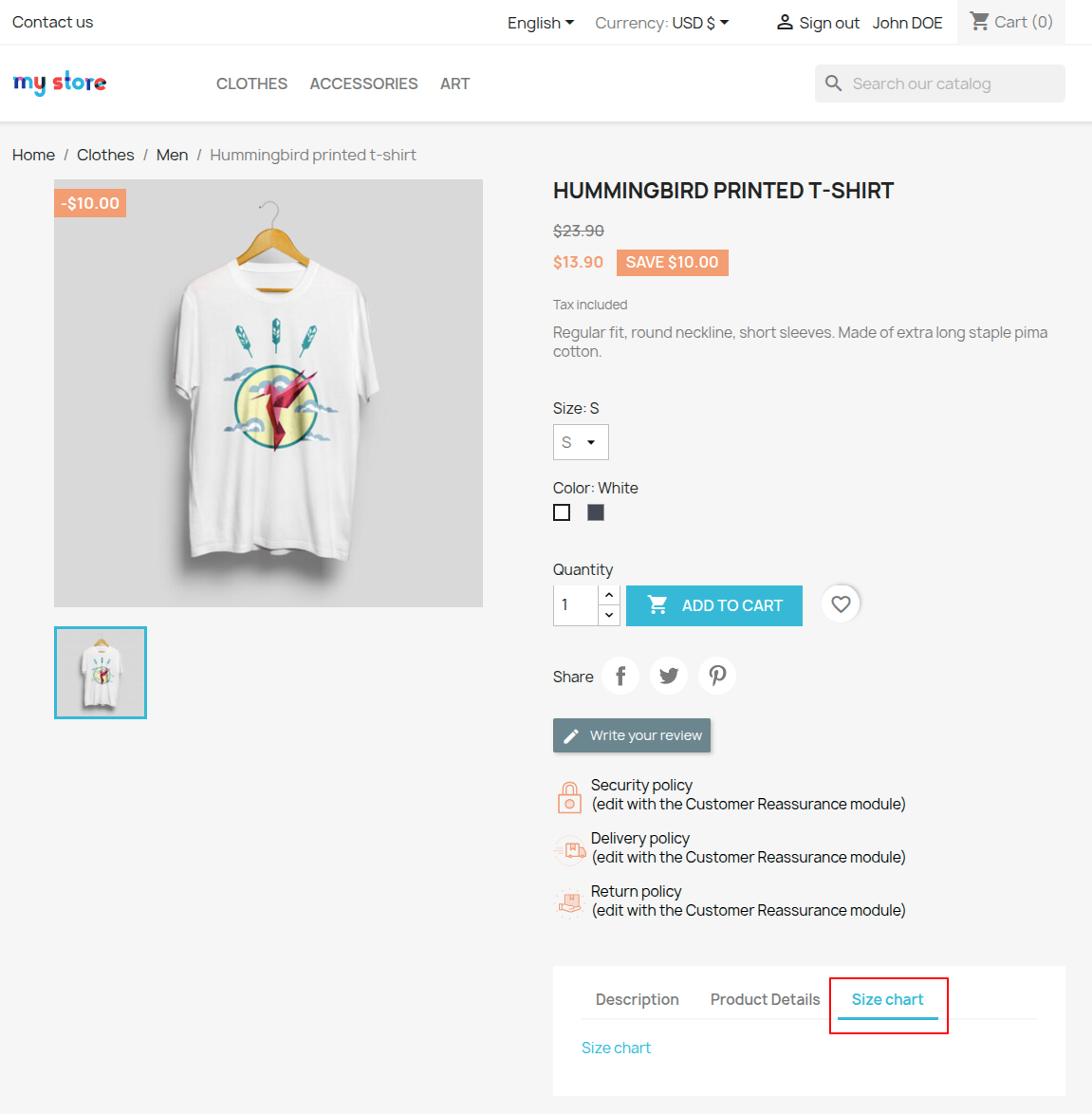
Size chart in product tab
If selected product tab, then a new tab “Size chart” gets available alongside description and product details tab where customers can view size chart link.

Size chart in product additional information section

On product page footer

Size Chart Display Type
Display size chart by default
If the admin has selected “Display size chart by default” in the size chart display type field then size chart will display in the expanded form when the user visits the product page.

If enabled by admin under configuration settings, the size chart title will display on the product page.


Display size chart as a pop up
If selected the display as a pop up, the size chart will appear in a pop up on clicking the size chart link.

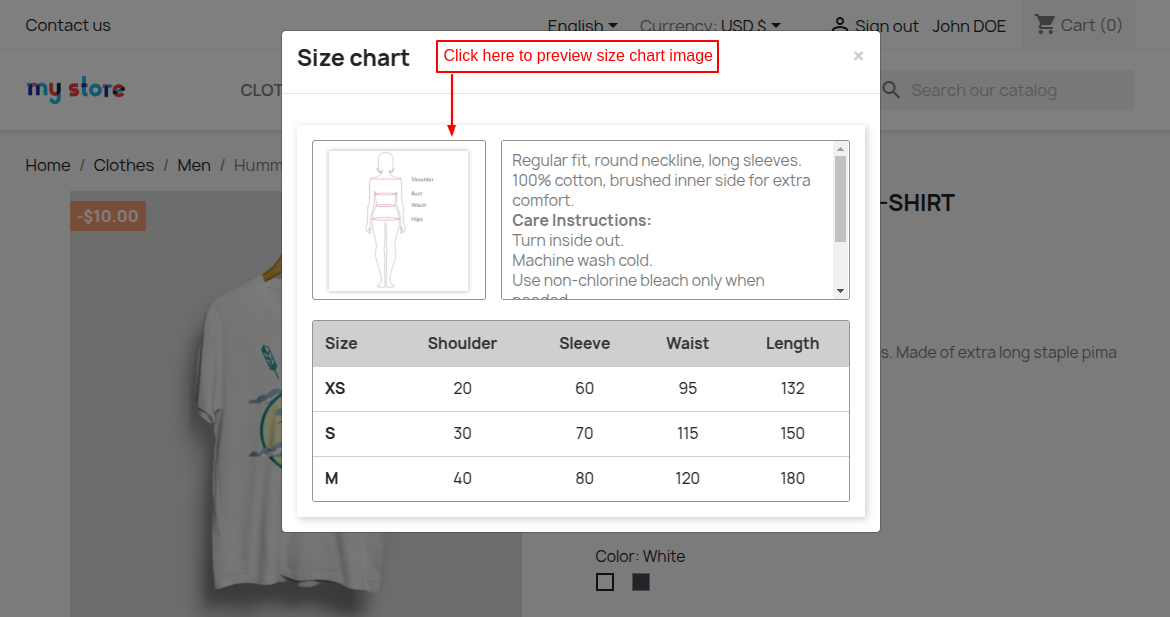
Customers can preview size chart by clicking on the size chart image. On clicking the image, a popup appears on the image displaying the size chart.

Display size chart as slide show/hide
If “Display size chart as slide show/hide” is selected, then the user can view or close the size chart by clicking on an arrown as show below.

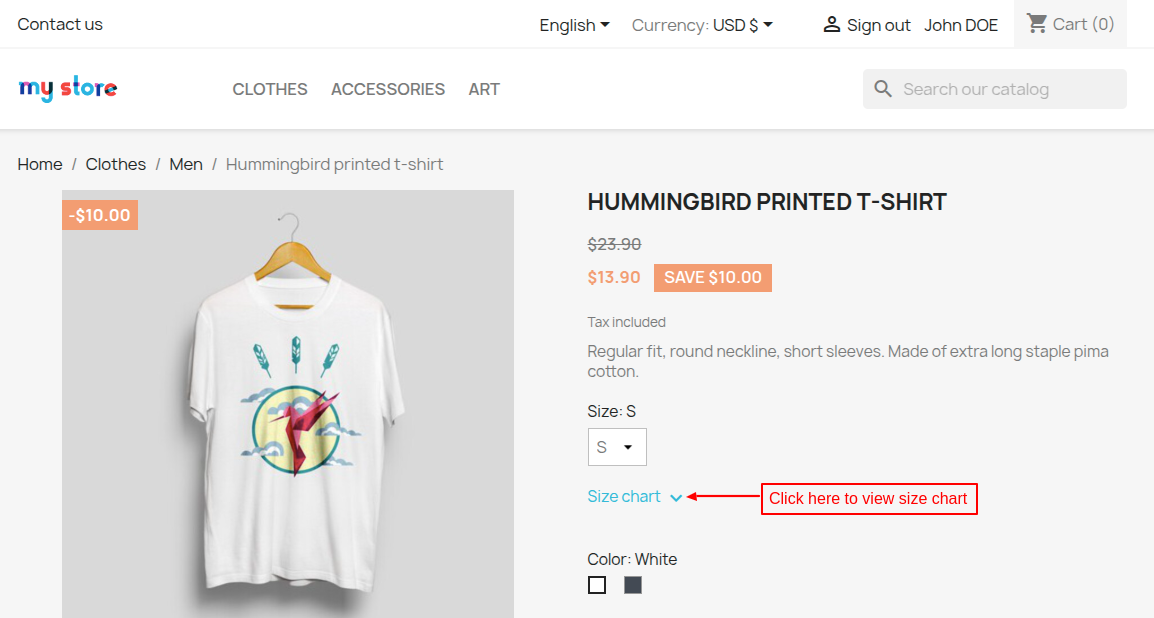
Image Display Position
Default

Top Position

Bottom Position

Left Position

Right Position

Size Chart Bulk Action
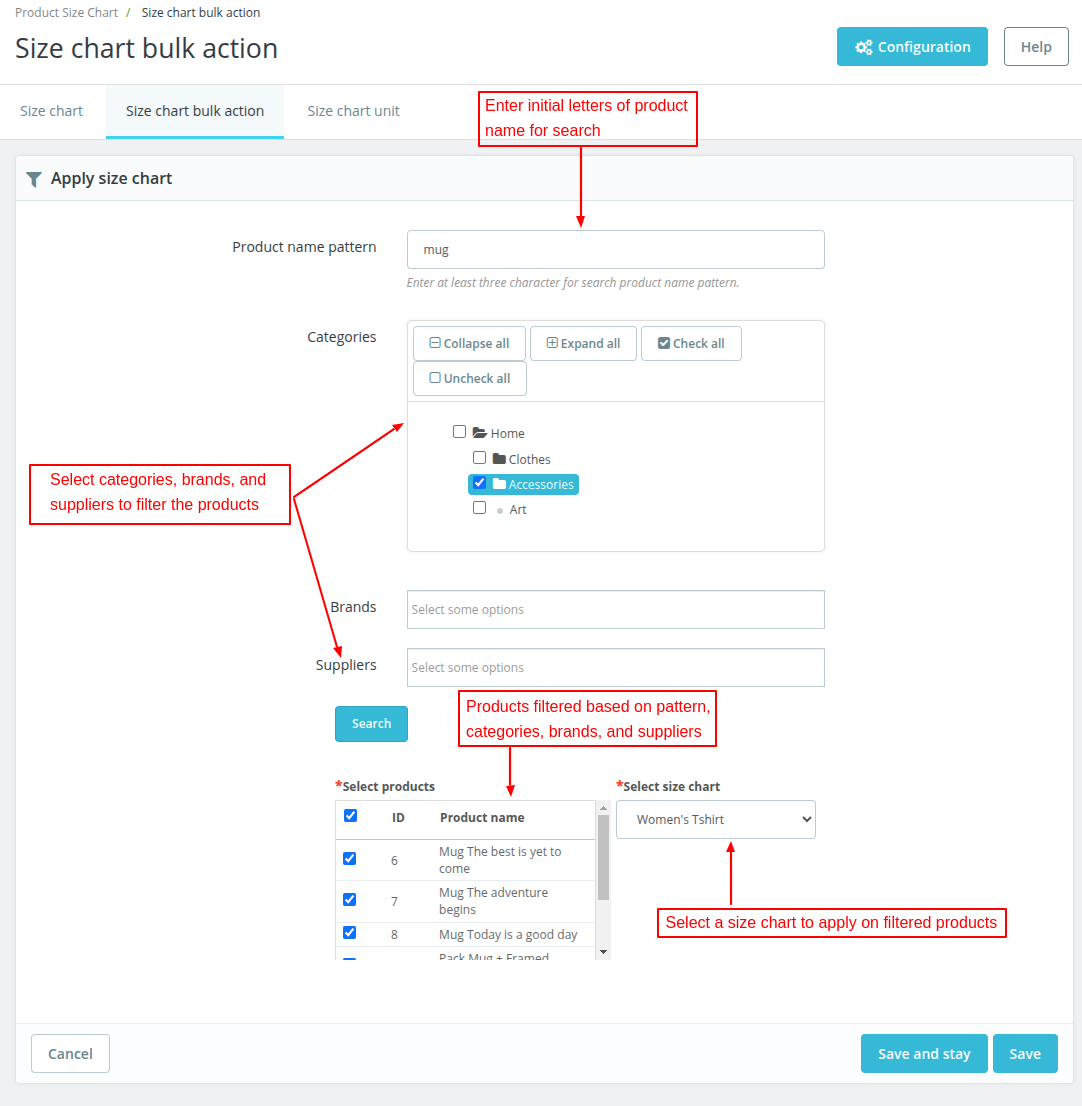
Size Chart Bulk Action feature allows the admin to apply a size chart to multiple products at once.

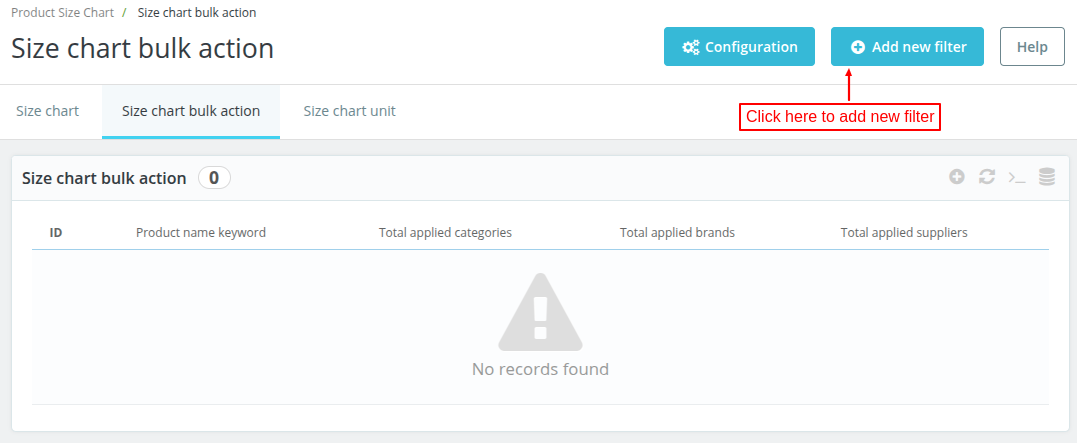
Click on ‘Add new filter’ to create new bulk action.
On clicking “Add New Filter” you can apply Size chart on multiple products from the list. The list can be sorted on the basis of name pattern, categories, brands, and suppliers.

Size Chart Unit
In this section, you can create units for your size chart.

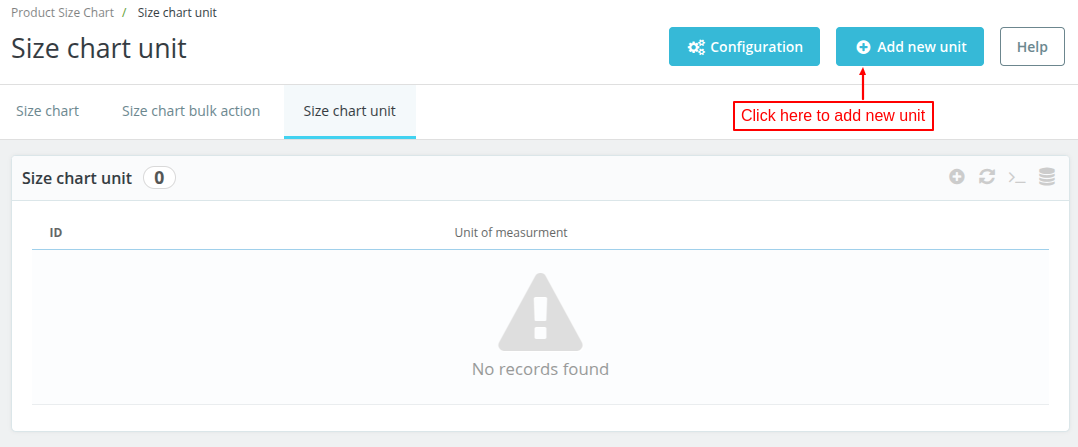
Click on “Add New Unit” to add units.

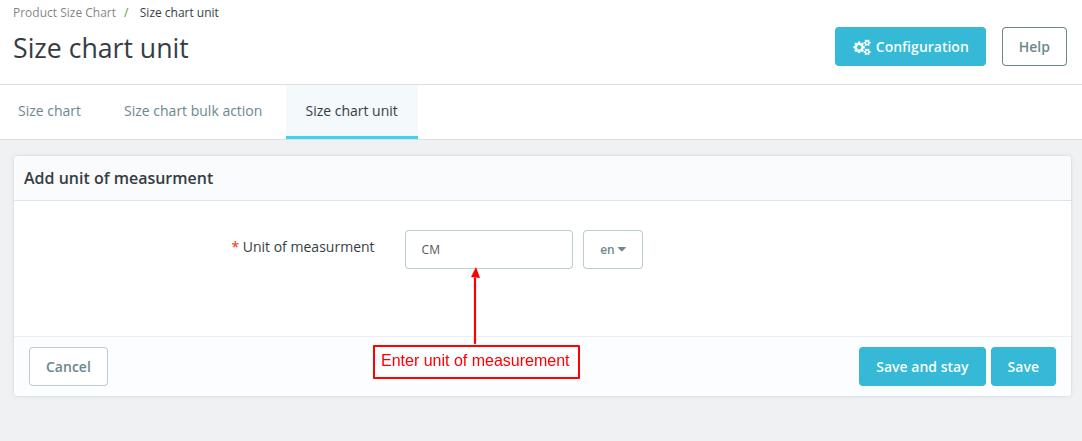
Enter the unit you want to create.

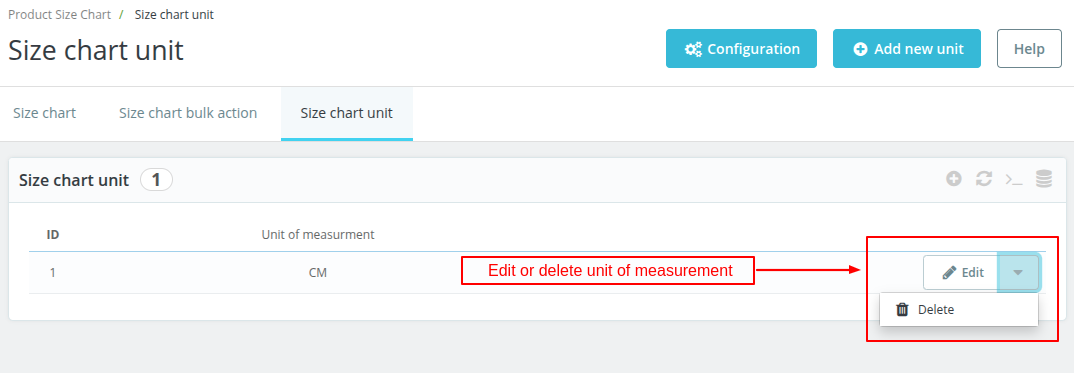
Once added, the admin can select unit of measurement while adding option values for a size chart.

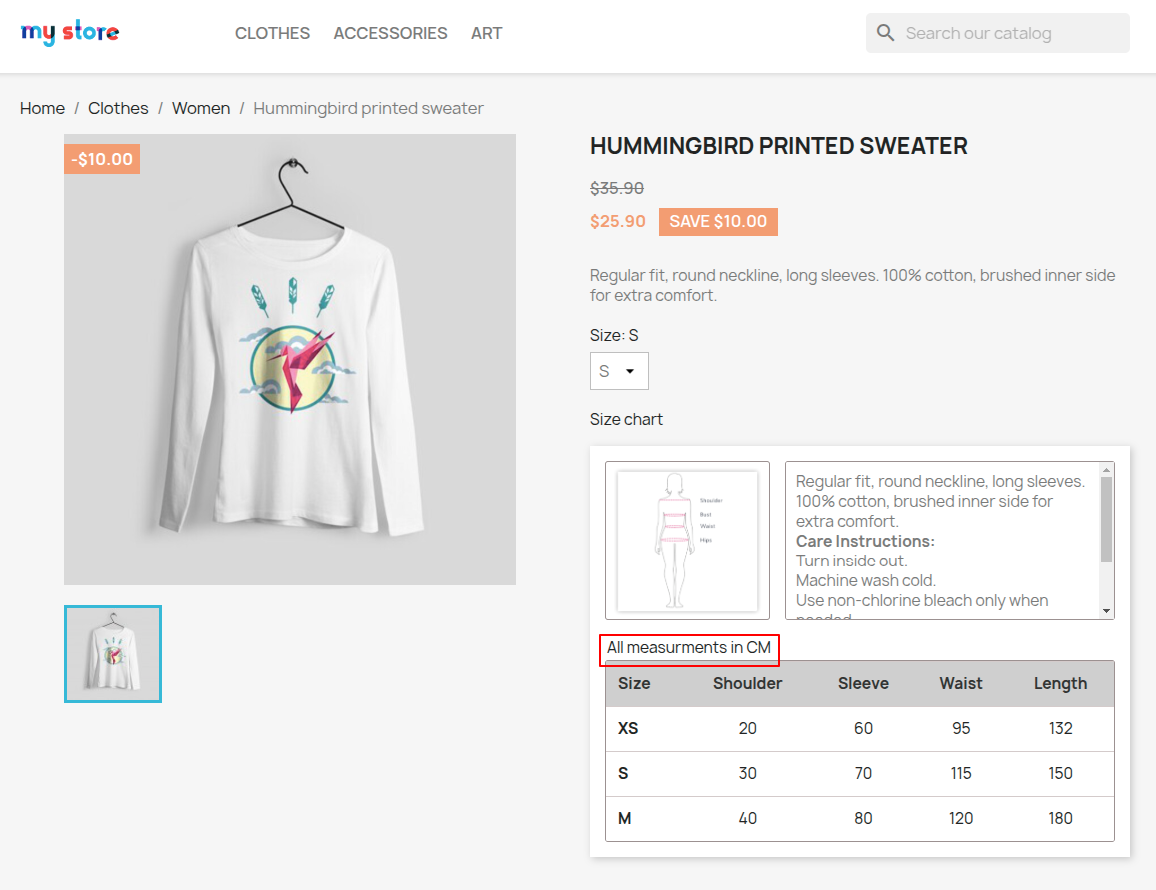
Once selected, it will be visible in size chart on the product page as shown below.

This was all about PrestaShop Product Size Chart module. I hope this document will help you in checking the functionality of the module in a better way.
Also, do let us know about your views in the comments.
Support
For any kind of technical assistance or query, please raise a ticket or send us a mail at support@webkul.com
Also, please explore our PrestaShop development services and a vast range of quality PrestaShop addons.