Prestashop Custom Attribute Odoo Bridge User Guide
INTRODUCTION
Prestashop Custom Attribute Odoo Bridge: Enhance Product feature Integration
Prestashop provides a sophisticated way for product management. It helps in delivering a personalized customer experience which in turn drives customer loyalty and increases customer satisfaction.
Custom features of products expand the options of a product leading to several product variants available for that product. Thus, a customer has several options to choose from.
Prerequisites For Using The Prestashop Custom Attribute Odoo Bridge
The Prestashop Custom Attribute Odoo Bridge works in conjunction with Odoo Bridge For Prestashop. You must install this module first for the Bridge to work.
FEATURES
1. The Bridge allows the export of Prestashop Product features and feature values from Prestashop to Odoo.
2. The Bridge adds an extra tab in the Odoo product template view which helps the user to view the feature and feature values associated with the product.
3. Seamless integration ensures data consistency between Prestashop and Odoo.
4. It enhances the efficiency of managing product attributes across platforms.
Looking to implement ERP in your system? Check out Odoo Implementation! It’s your go-to solution for seamless integration and enhanced efficiency.
INSTALLATION
After downloading from the link, you will get a zip file that consists of two modules. The one with the name ‘prestashop_bridge_product_attributes’ is the module to be installed at Odoo’s end.
The other with the name ‘prestaerpproductsattributes’ which is the module to be installed at the Prestashop end.
Installation at Prestashop end
To install the module at the Prestashop end. Go to the menu, select ‘modules’, and then click on the ‘Add Module’ button. After uploading the zip file ‘prestaerpproductsattributes’ of the module, install the module.
Installation at Odoo end
Place the Module inside Odoo Addons which are available in the ‘Odoo Module’ folder.
Now, open the Odoo and click on the settings menu. Here, click on the ‘Activate the Developer Mode’. One can also activate the developer mode by typing ‘Debug’ after ‘web?’ in the URL.
Then, open the Apps menu and click on the ‘Update Apps List’. In the search bar, remove all the filters and search ‘Prestashop Custom Attribute Odoo Bridge’.
As a result, you will be able to see the module in the search result. Click on ‘Install’ to install it.
Before moving further, explore our Odoo development services & an extensive range of quality Odoo Apps.
WORKFLOW
1. Exporting Features from Prestashop to Odoo
While synchronizing products to Odoo from Prestashop, the features and their values don’t get synchronized in Prestashop Custom Attribute Odoo Bridge.
Before linking features with products in Odoo, the features, and their values must be exported to Odoo’s end first from Prestashop.
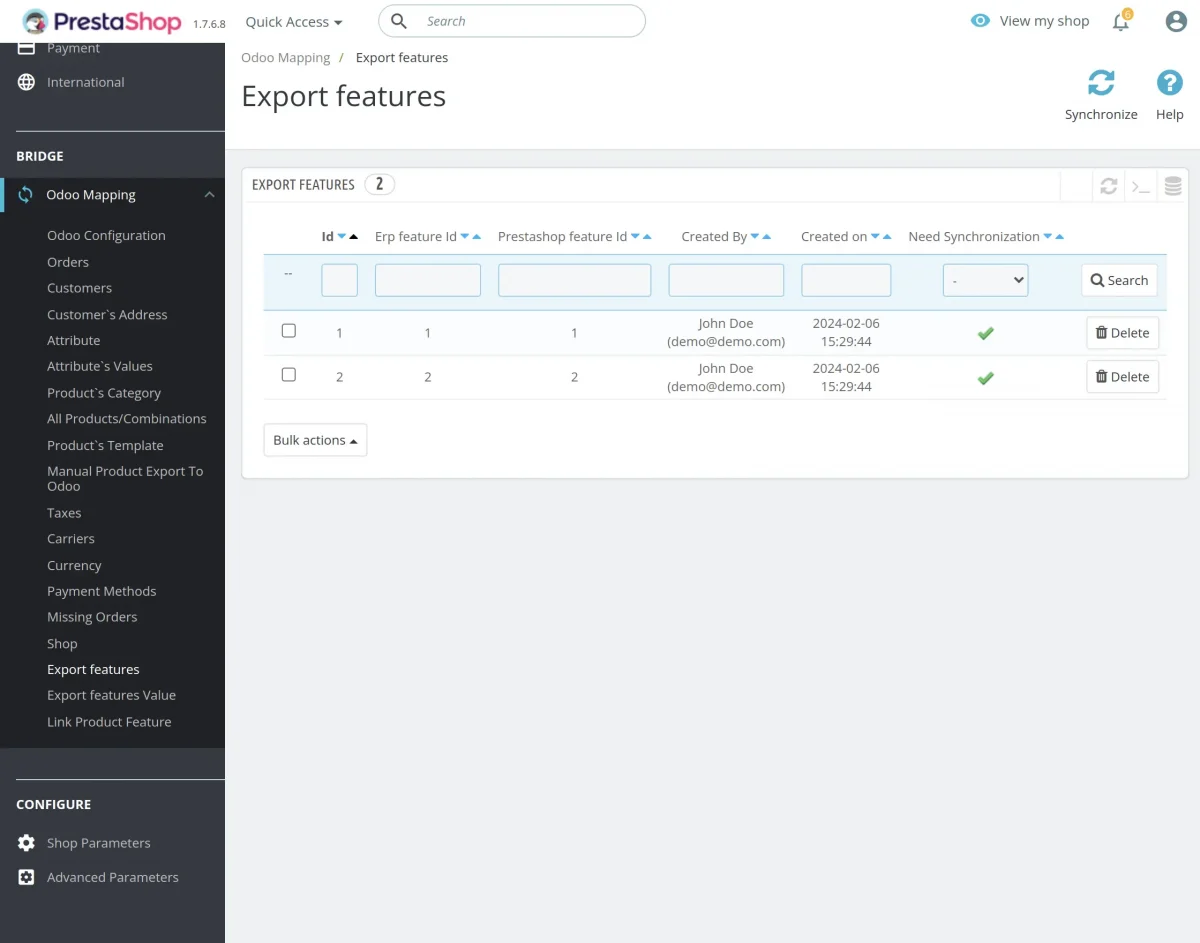
To export Features from Prestashop to Odoo. Navigate to ‘Odoo Mapping’ and then select ‘Export features’.
After selecting ‘Export features’ the Feature page will be opened. Once done, use the ‘Synchronise’ button to export features from Prestashop to Odoo.

2. Exporting Features From Prestashop to Odoo
To export Feature values from Prestashop to Odoo. Navigate to ‘Odoo Mapping’ and then select ‘Export features values’. After selecting ‘Export features values’, the Feature value page will be opened.
Once done, use the ‘Synchronise’ button to export feature values from Prestashop to Odoo.

3. Link Product Features to the Products at the Odoo end
To link Product features to the Products at Odoo end. Navigate to ‘Odoo Mapping’ and then select the ‘Link product features’.
After selecting the ‘Link product features’, the link Product features page will be opened. Once done, use the ‘Synchronise’ button to link features to the Products at Odoo’s end.

Are you looking for any other extension ?? Explore our Multishoop MOB extension for Magento. This extension will manage multiple Magento stores to your Odoo.
4. Feature and Feature Values at Odoo end
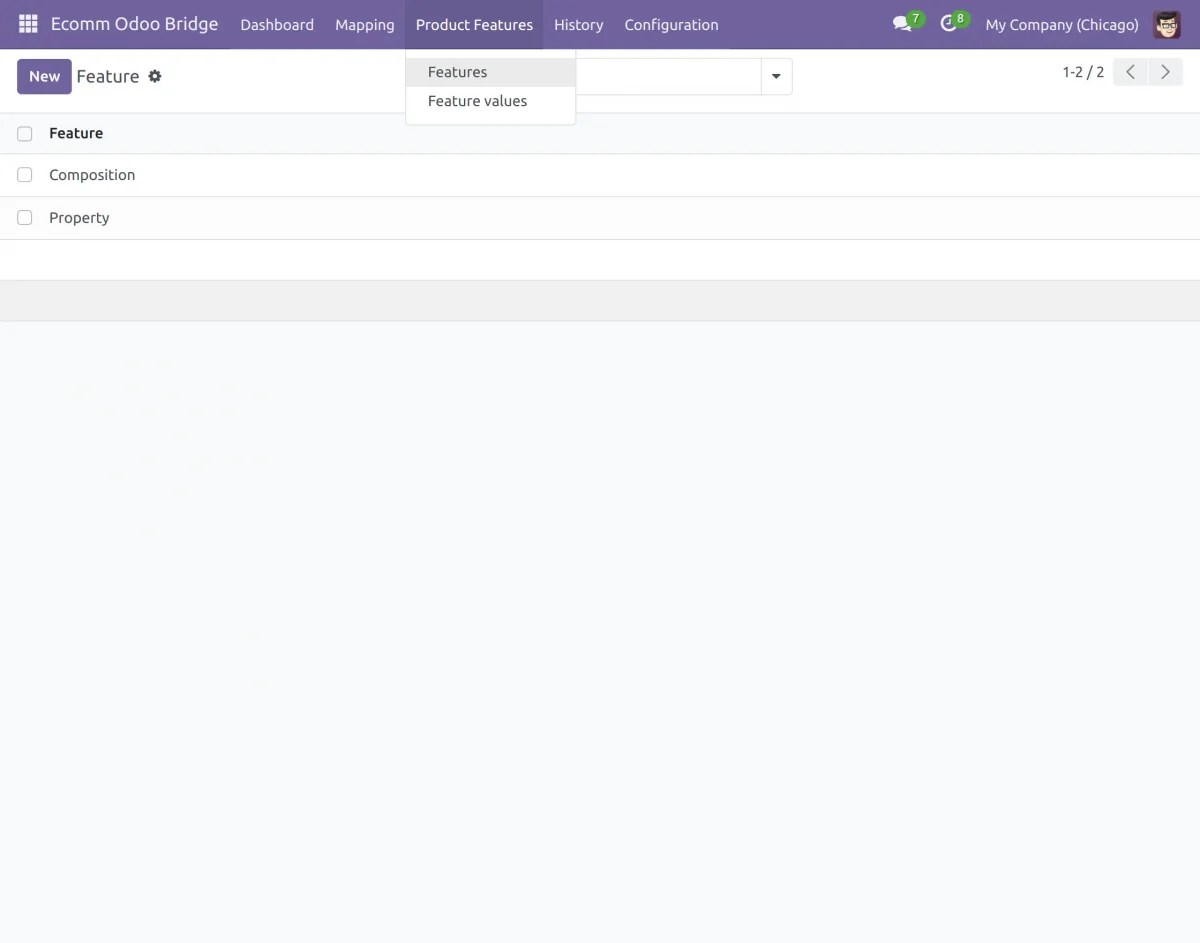
To view the Features and Feature values at Odoo end. Navigate to ‘Ecomm Odoo Bridge’ and select the ‘Product Features’ Tab.
Under the ‘Product Features’ tab, you will find the ‘Feature’ and ‘Feature Values’ options. Use these options to view Features and Feature values respectively at the Odoo end.
5. To View Features Linked to the Product at the Odoo end
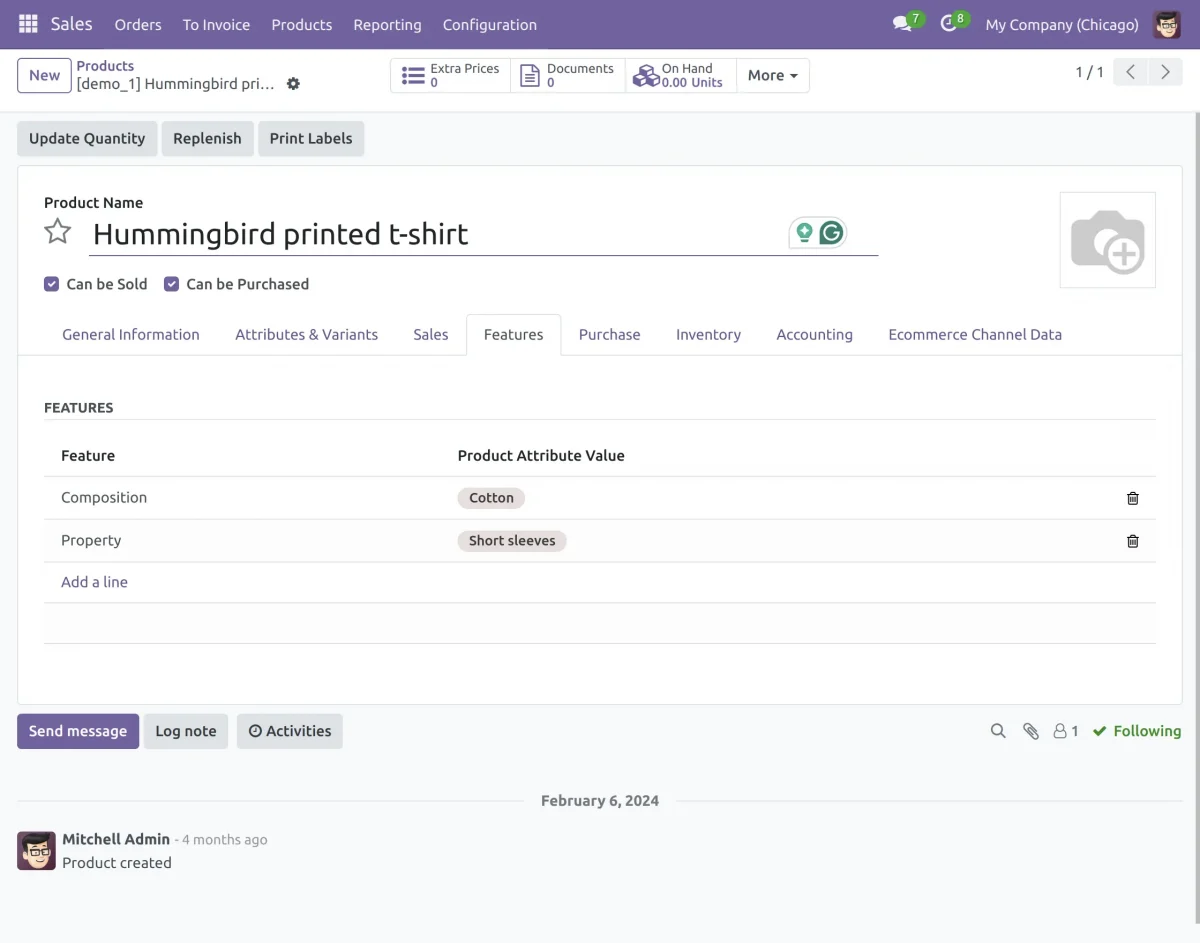
After the installation of the module, a new tab will be added in the product template named ‘Features’. Under this tab, you will find the features associated with the Product.
NEED HELP?
Hope you find the guide helpful! Please feel free to share your feedback in the comments below.
If you still have any issues/queries regarding the same, please raise a ticket at the UV Desk.
I hope this helps. In case of any further queries, contact us at our support mail.
Thanks for paying attention!!