User Guide for PrestaShop Group Buy
PrestaShop Group Buy module offers customers to buy the products in a group of customers.
Group buying is a process in which multiple people come together to buy products of their choice in order to enjoy discounts.
Using the group buying process, store owners can offer discounts if a customer buys in a group.
Discounts always do wonders & help in increasing the product sales.
This PrestaShop Group Buy module helps customers to create a product buying group. And, other customers can join the groups to buy products.
As the admin will be offering multiple products via group buying plans, every customer can buy a product of their choice.
Even if only one product is available in a plan, multiple customers can come together to buy the same product in the required quantity to get discounts.
Note: PrestaShop Group Buy module is compatible with PrestaShop multi-store feature.
Features of PrestaShop Group Buy
- Create any number of group sale plans.
- Add as many products as you want to a plan.
- Add same product to multiple plans.
- Set the quantity that must be added by group members in total to let each member checkout.
- Configure maximum quantity that a group member can add to the cart.
- Set maximum checkout time each customer gets after adding maximum quantity in cart.
- Set the expiry date of the group sale plan.
- Disable minimum purchase total criteria for the group to complete order.
- Configure the order statuses to mark the status of product purchasing group as complete.
- Set discount for each group sale plan.
- Send email notification to group members when the group gets activated canceled, or deleted.
- Send email notification to group when they complete the purchase.
- Customers can view group sale plan details and create group on the product page.
- Select the visibility of group as public or private.
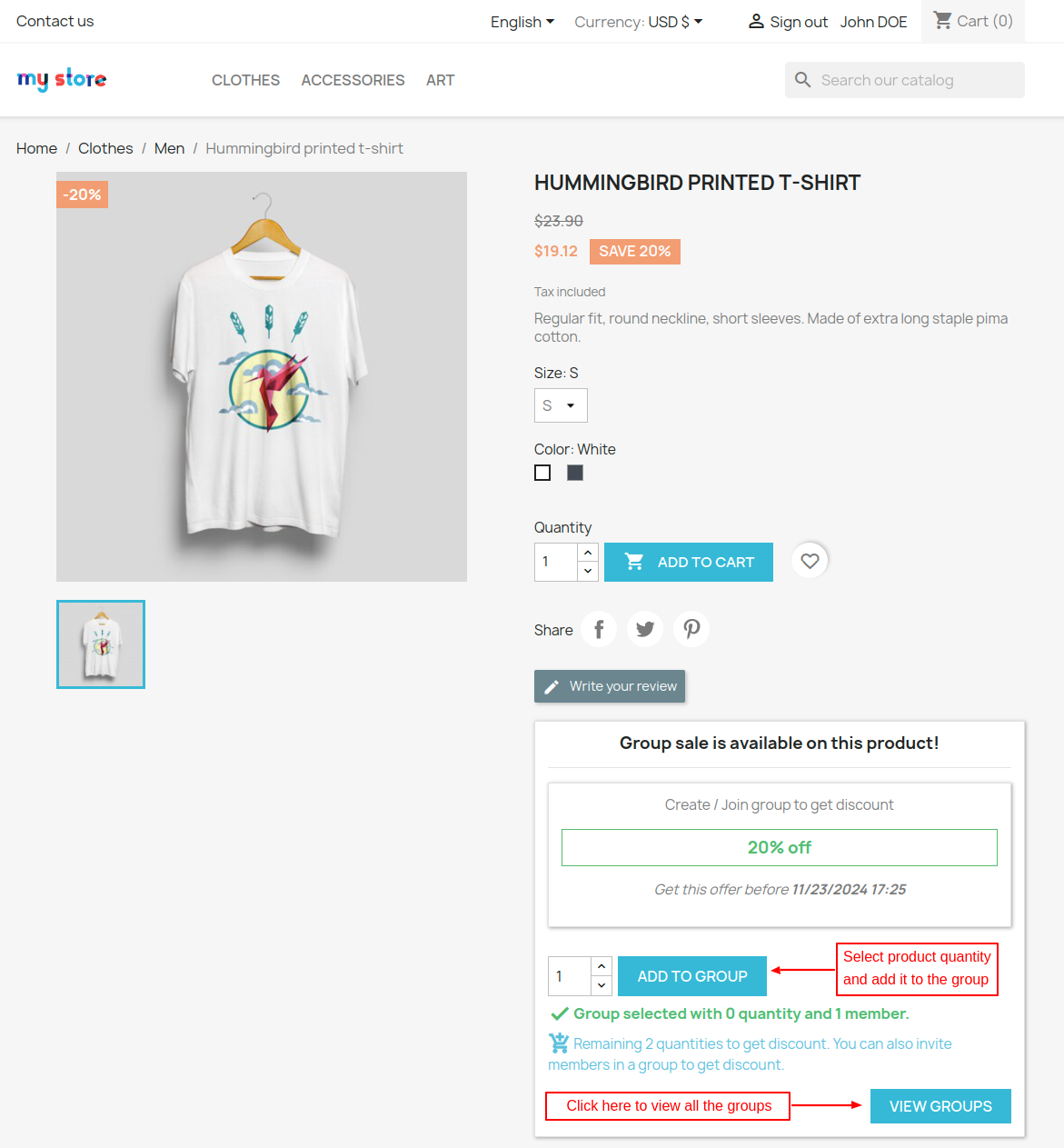
- Once created, customer can add product quantity to group.
- View a list of all the sale groups from account.
- Invite other customers to a group via a link.
- Group owner can also delete the group.
- Once other customers have joined group, they can add the products to the group.
- Once the maximum quantity to proceed to checkout reaches, the group becomes active.
- After each member orders their product, group status changes to complete.
- View a list of groups created by customers.
- Add can also create groups and add products to them.
- View a list of group orders in the back office.
- Show customer groups in list or grid view in customer’s account.
How to install the PrestaShop Group Buy
- Firstly, go to the module manager in back office and click on ‘upload a module’.
- After that, drag and drop the module file or select the file from the system.
- In this way, the module installation will be successful.


After the successful installation of the module, few tabs get available in the back office. From here, the admin can configure the module settings, add group buying plans, view groups orders, etc.

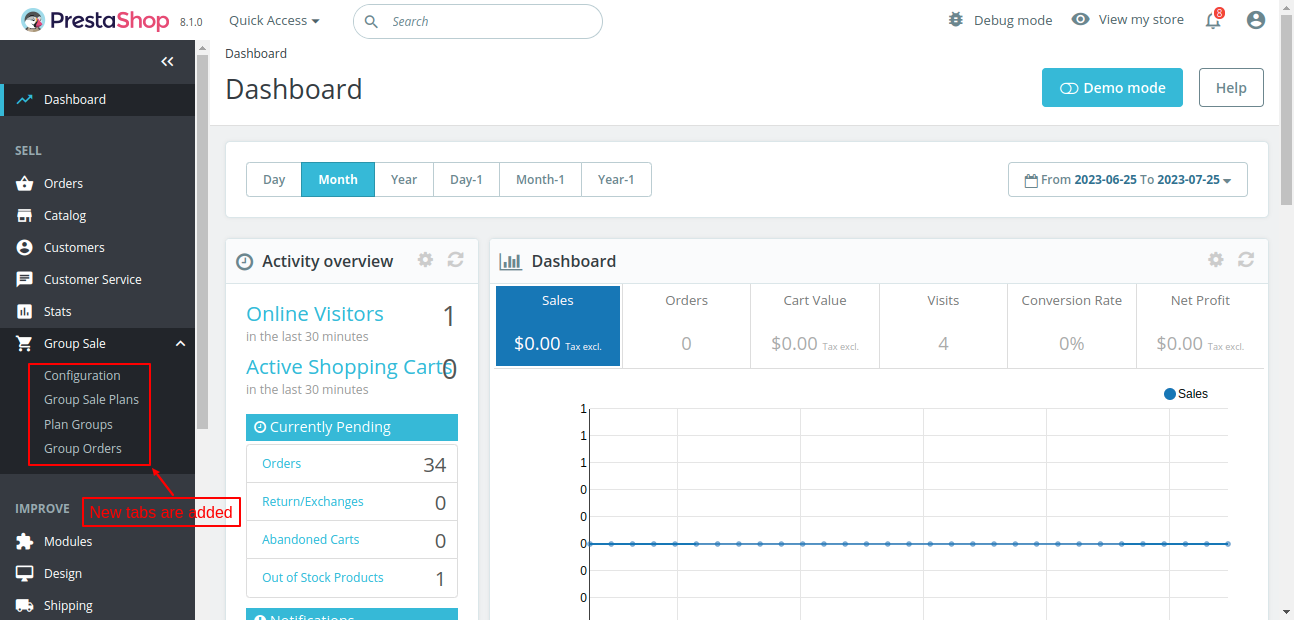
PrestaShop Group Buy Configuration
General Settings
Under General Settings, the admin can:
- Choose to show list or grid view selector on the product purchasing group page.
- Select the default view of customer groups as list or grid.
- Set the number of groups to show per page.
- Select the order statuses on which the group orders will be marked as complete.
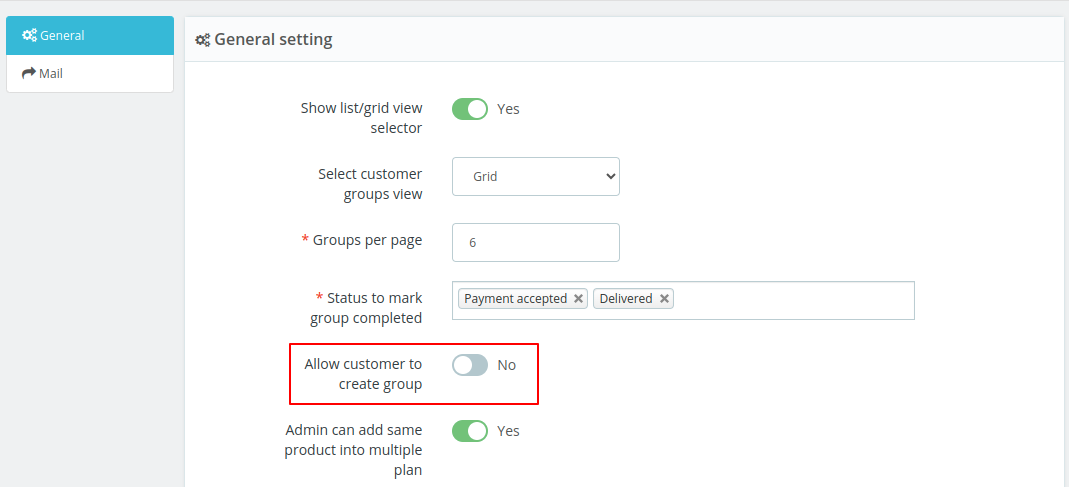
- Allow customers to create a group.
- Enable the feature of adding the same product to multiple group buying plans.

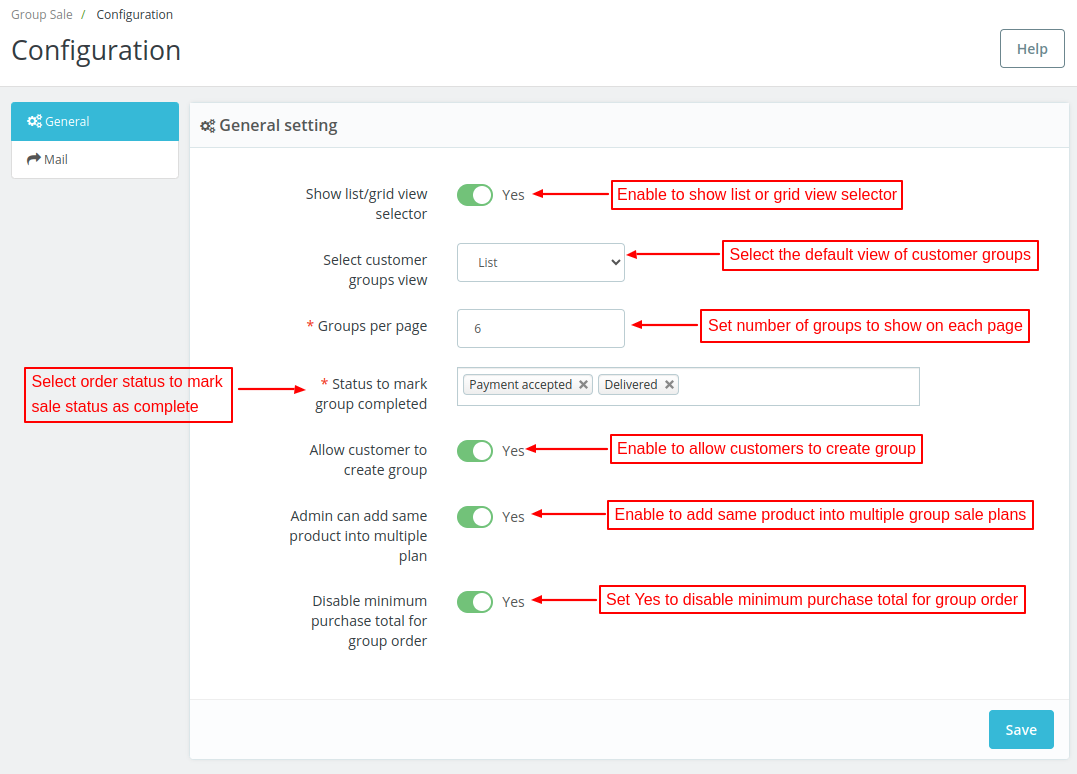
Disable minimum purchase total for group order
In PrestaShop, the admin can set minimum purchase total required to complete the order under “Order Settings” tab.

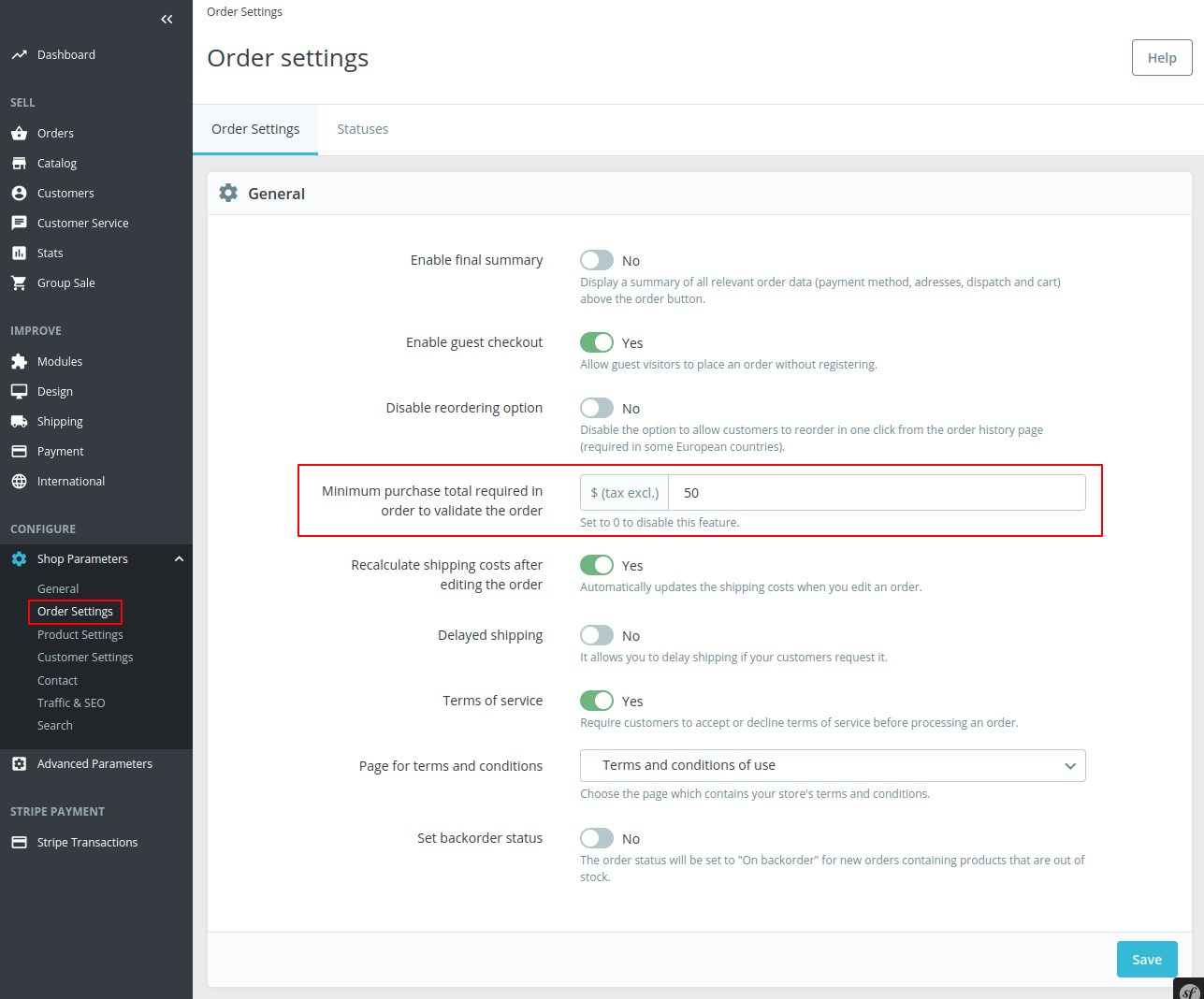
If the admin has enabled the option “Disable minimum purchase total for group order”, then a group do not have follow the minimum purchase total criteria to complete the order.
Mail Settings

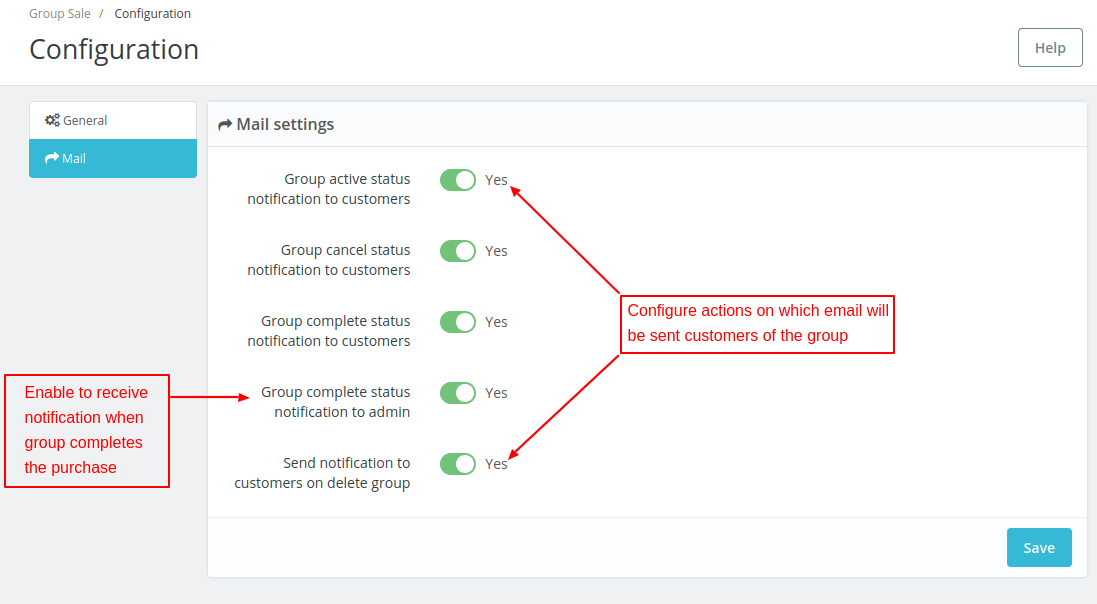
Under Mail Settings, the admin can choose to send email to group members when:
- Group becomes active.
- Group is cancelled.
- The group completes their purchase.
- Group is deleted.
Also, the admin can choose to receive email notification when the group completes the purchase.
Create Group Buy Plans
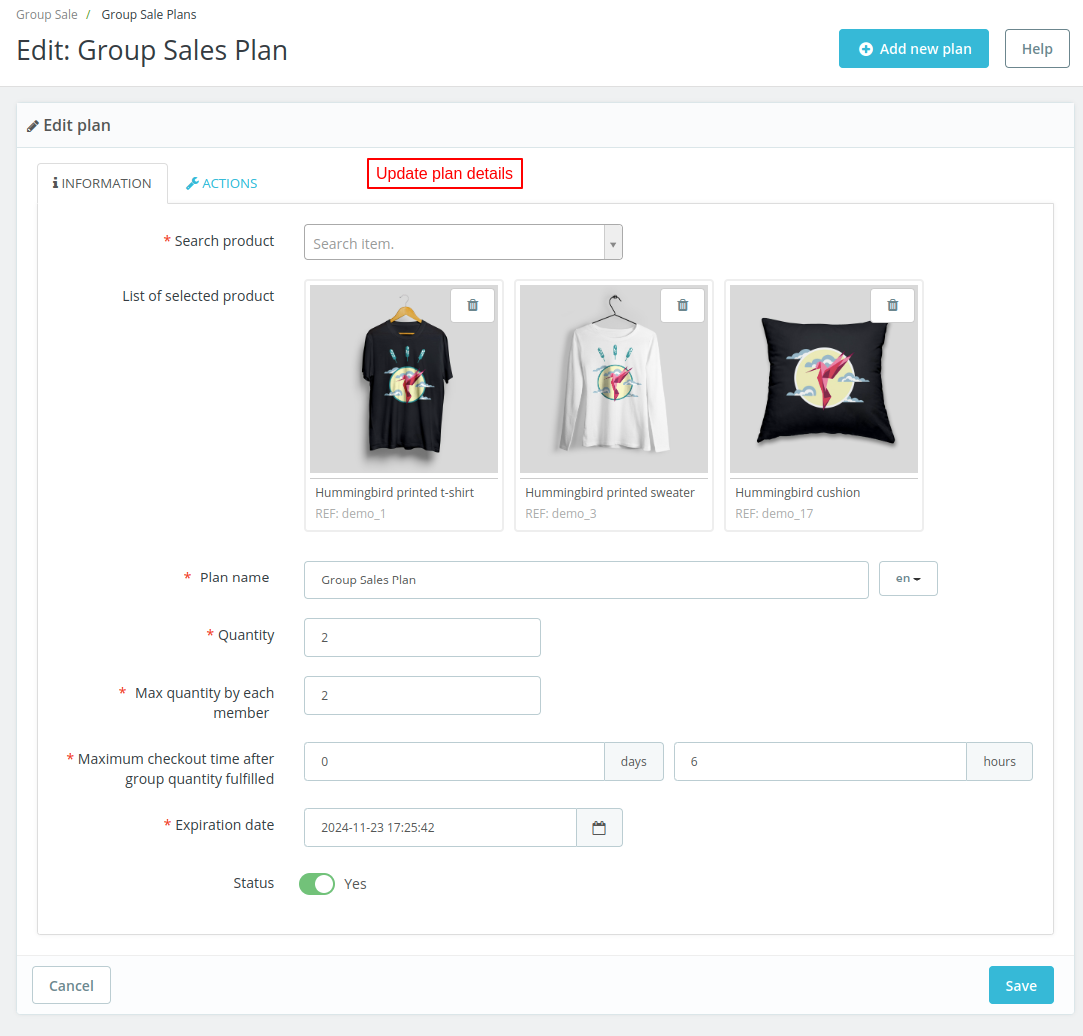
Click on “Add new plan” button to create a new plan.

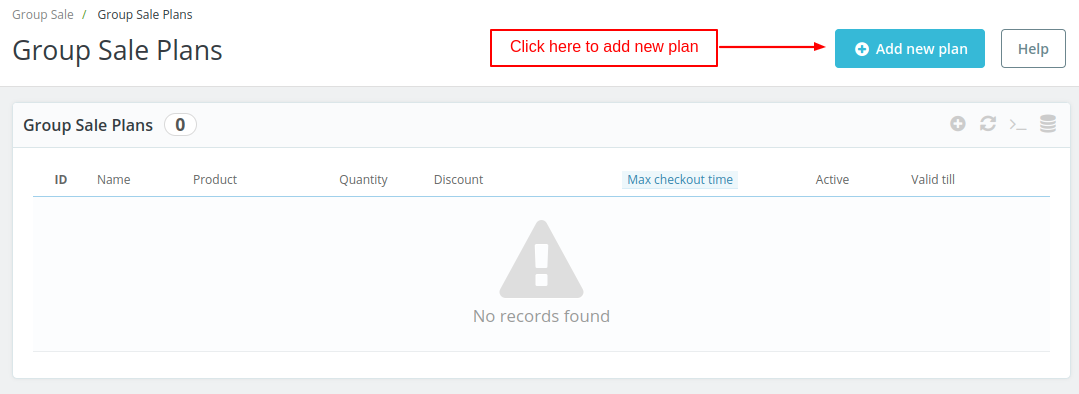
On clicking the ‘Add new plan’ button, two tabs appear on the page. One is ‘Information’ and the other is ‘Actions’.
Information

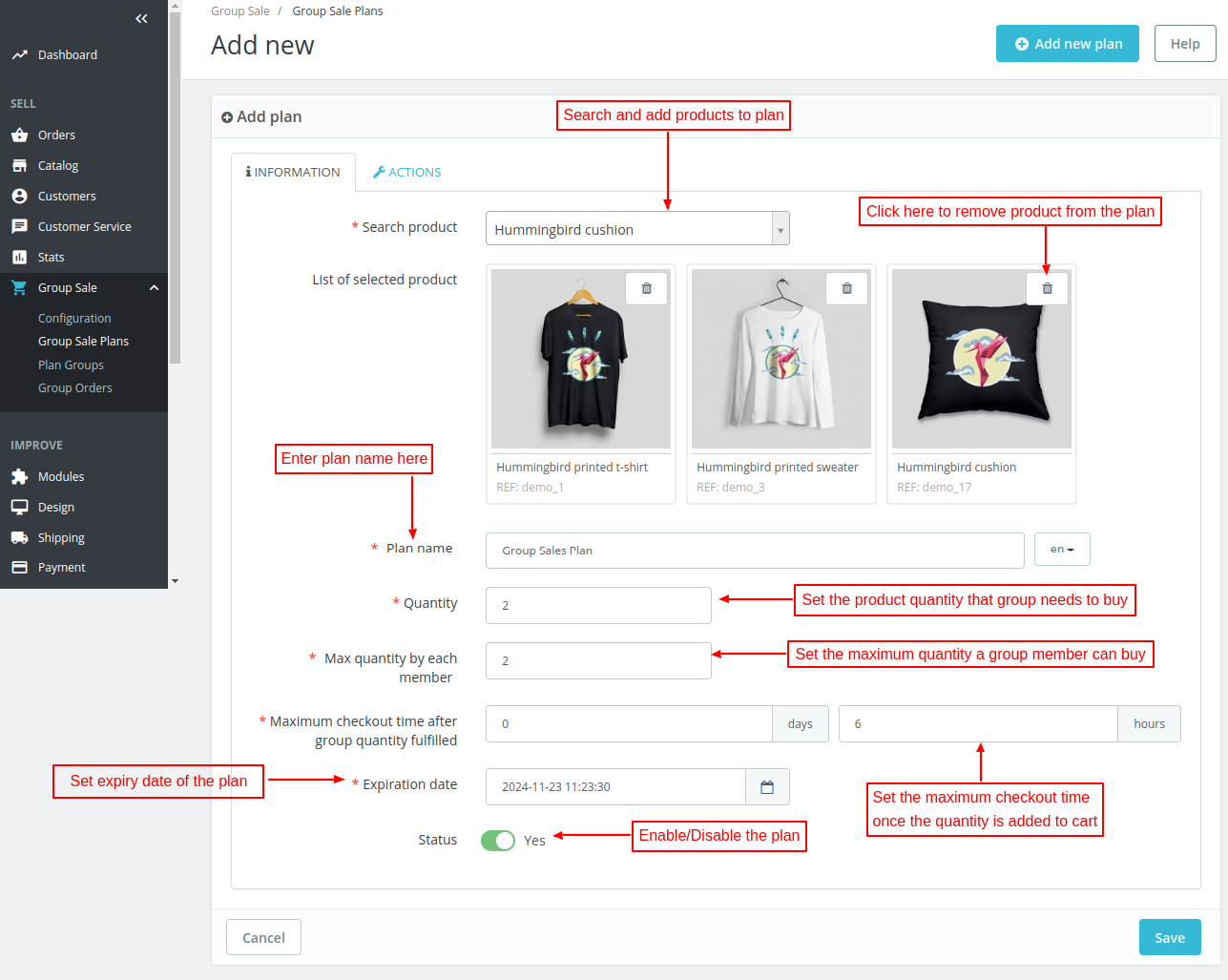
- Search product: Search the products that you want to add to the plan using initial letters of the product.
- Plan name: Enter name of the plan.
- Quantity: Set the quantity that group needs to add to the cart to complete the purchase.
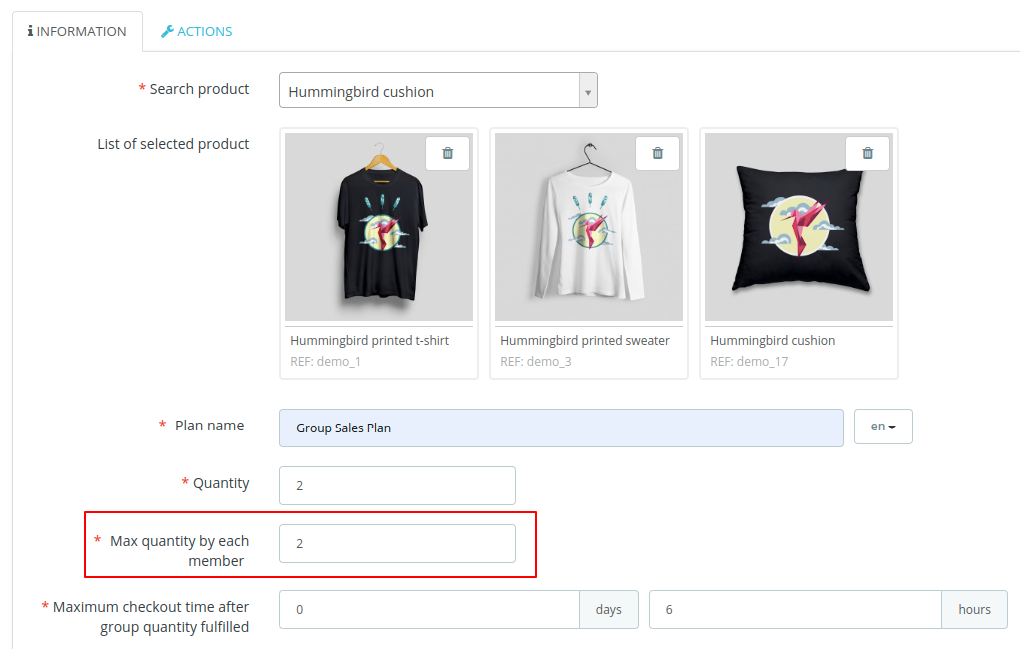
- Maximum quantity by each member: Set the maximum quantity that a member of the group can add to the cart.
- Maximum checkout time after group quantity fulfilled: The option lets admin set the days and time in which the group needs to complete the purchase after adding quantity to the cart.
- Expiration date: Set the expiry date and time of the plan.
Actions
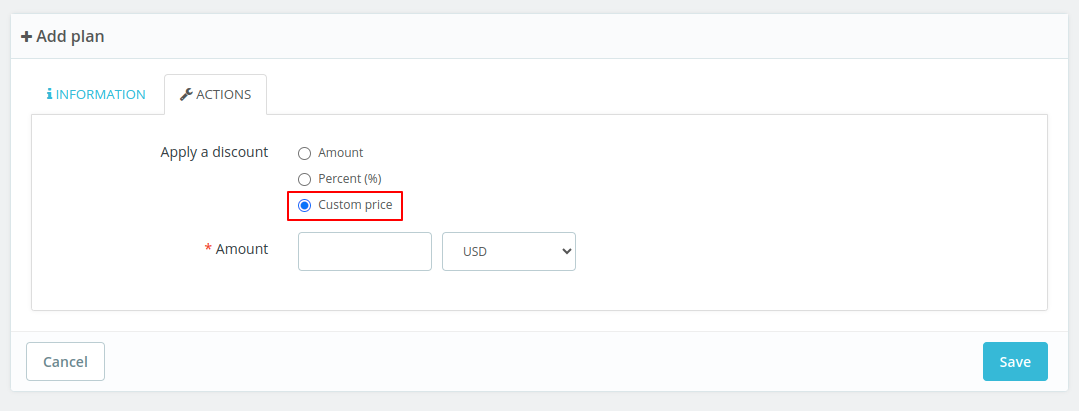
Under Actions, the admin can set the discount that he wants to offer to the group customers who buy products added to this plan.

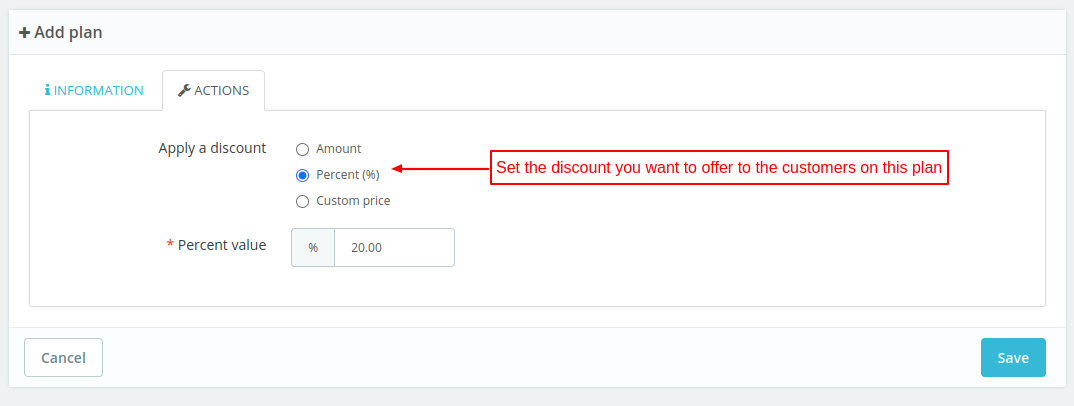
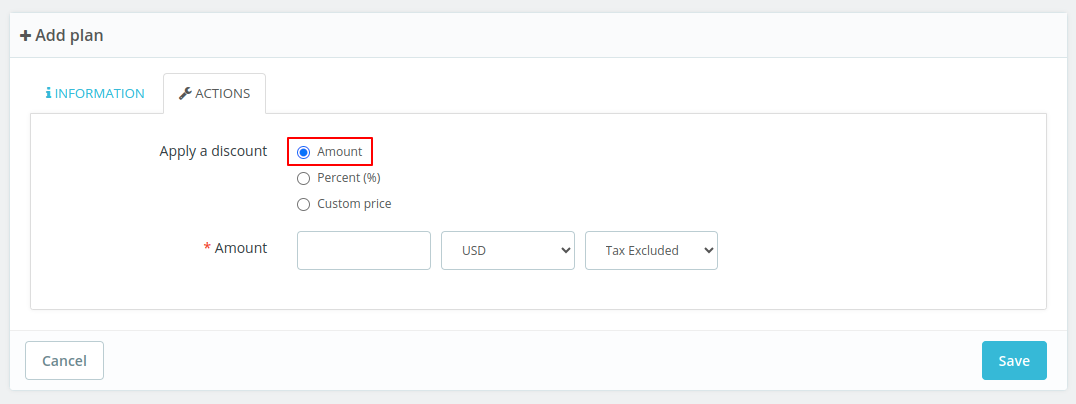
The admin can set discount in terms of fixed amount, percentage, or set the custom discount.


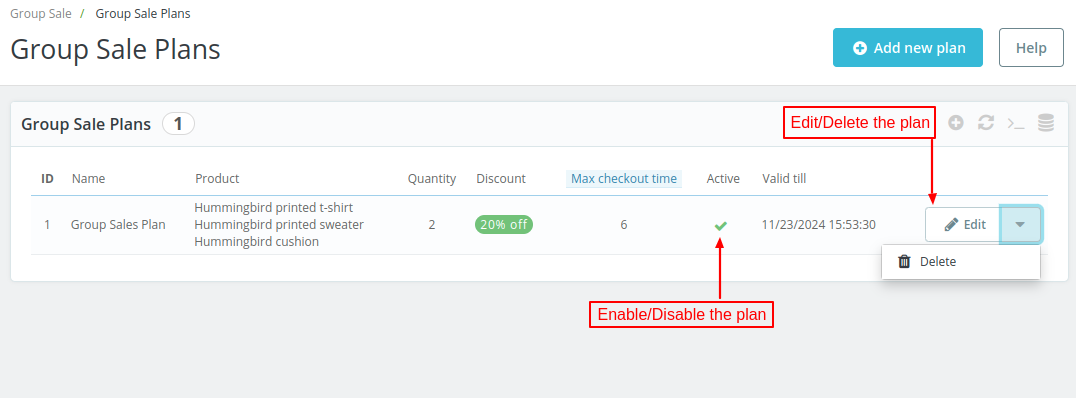
Once added, the admin can view it under Group Sale Plans.

Front End Flow
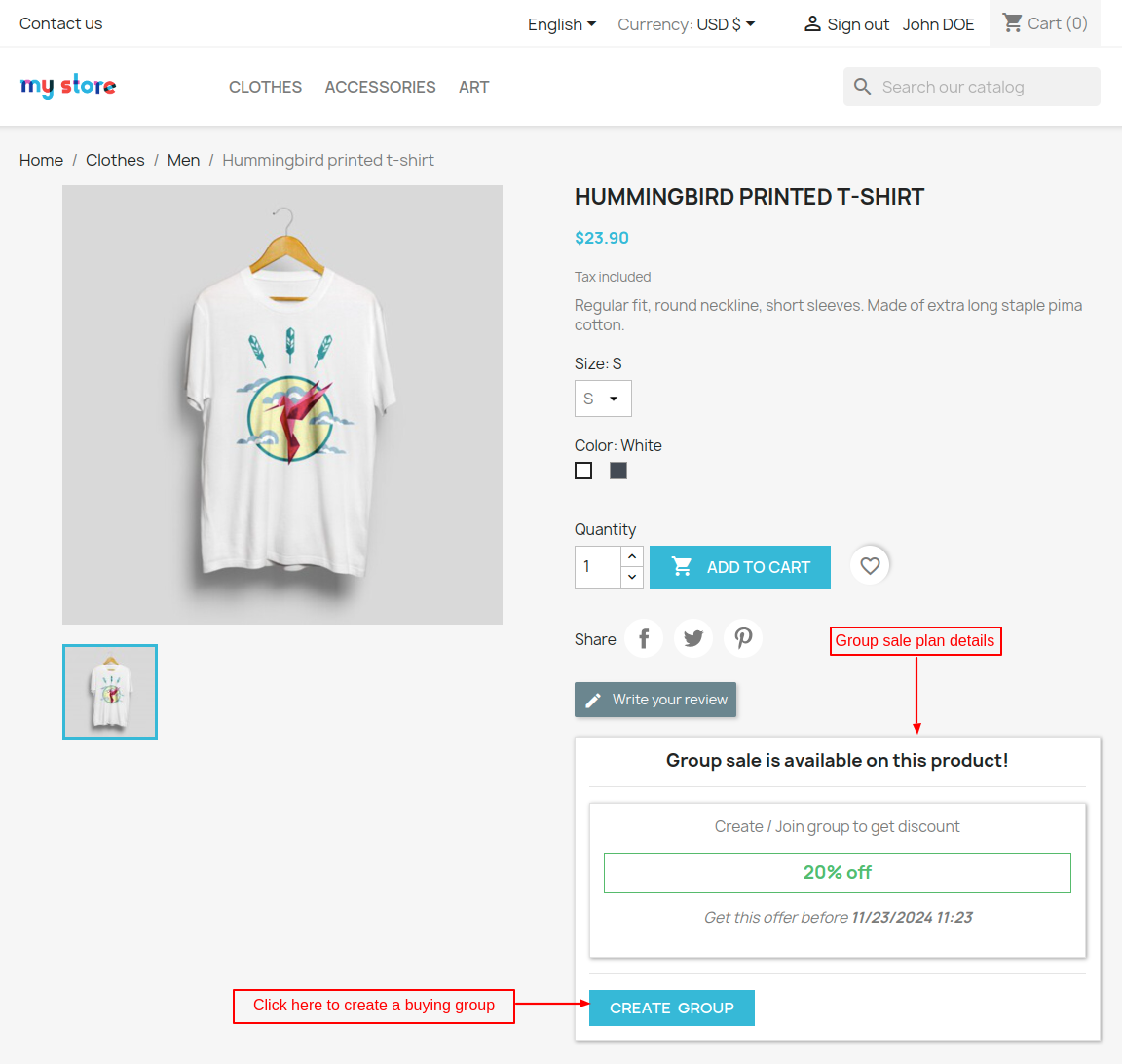
The details of a plan and an option to create a buying group are available on the product details page.

If the admin has disabled “Allow customer to create group” field under General Settings, then the customer will not get an option to create a group on the product page.


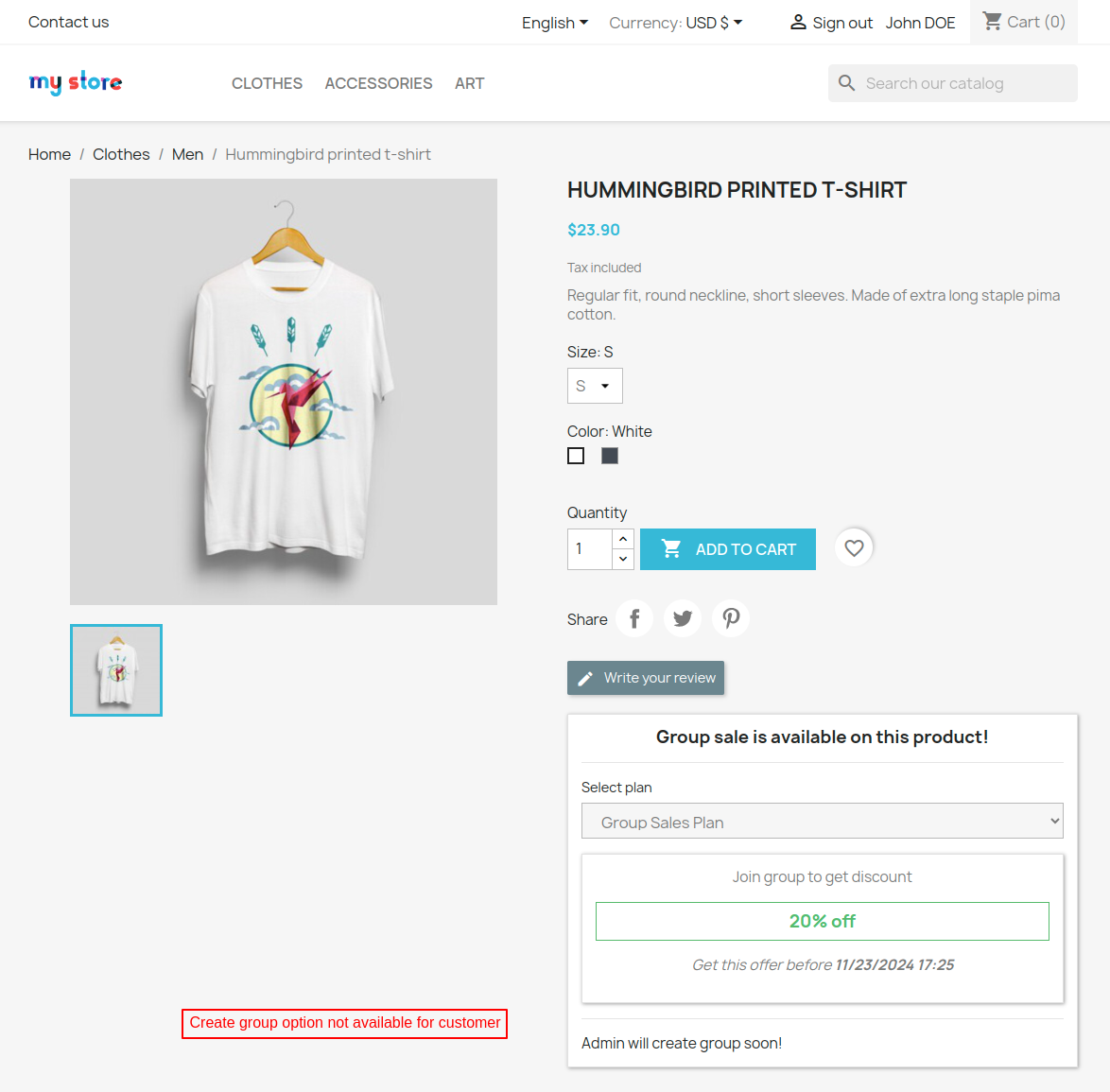
1st customer creates the group & adds the product
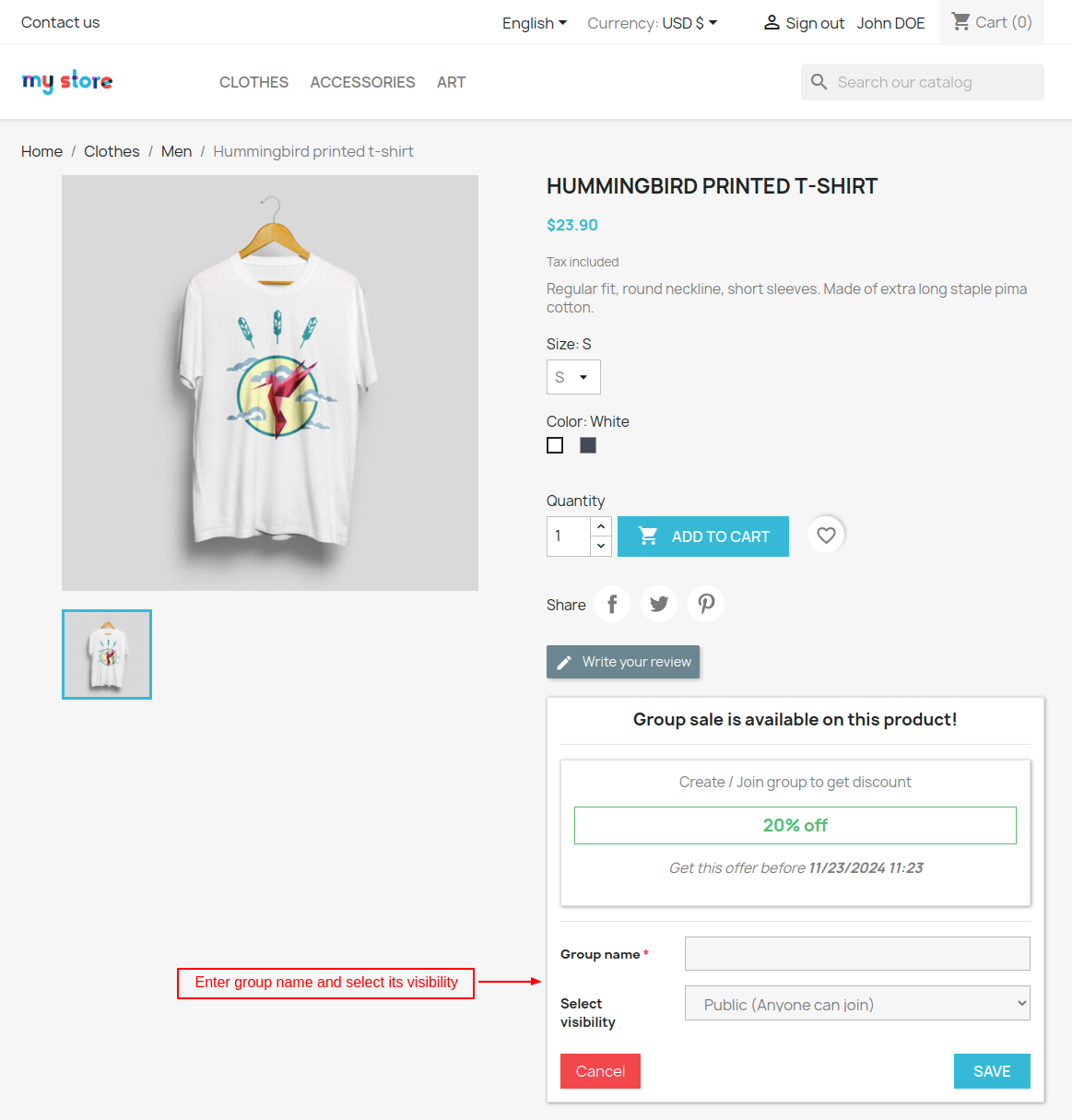
A customer can simply click on create group button and fill in the following details to create a new product purchasing group.
- Group name
- Visibility: Customer can set visibility of the group as public or private.
If selected public, then any customer can join the group.
In case of private, only those customers can join who will get the invitation from the customer who created the group.

After creating the product purchasing group, a customer can add products to the group.

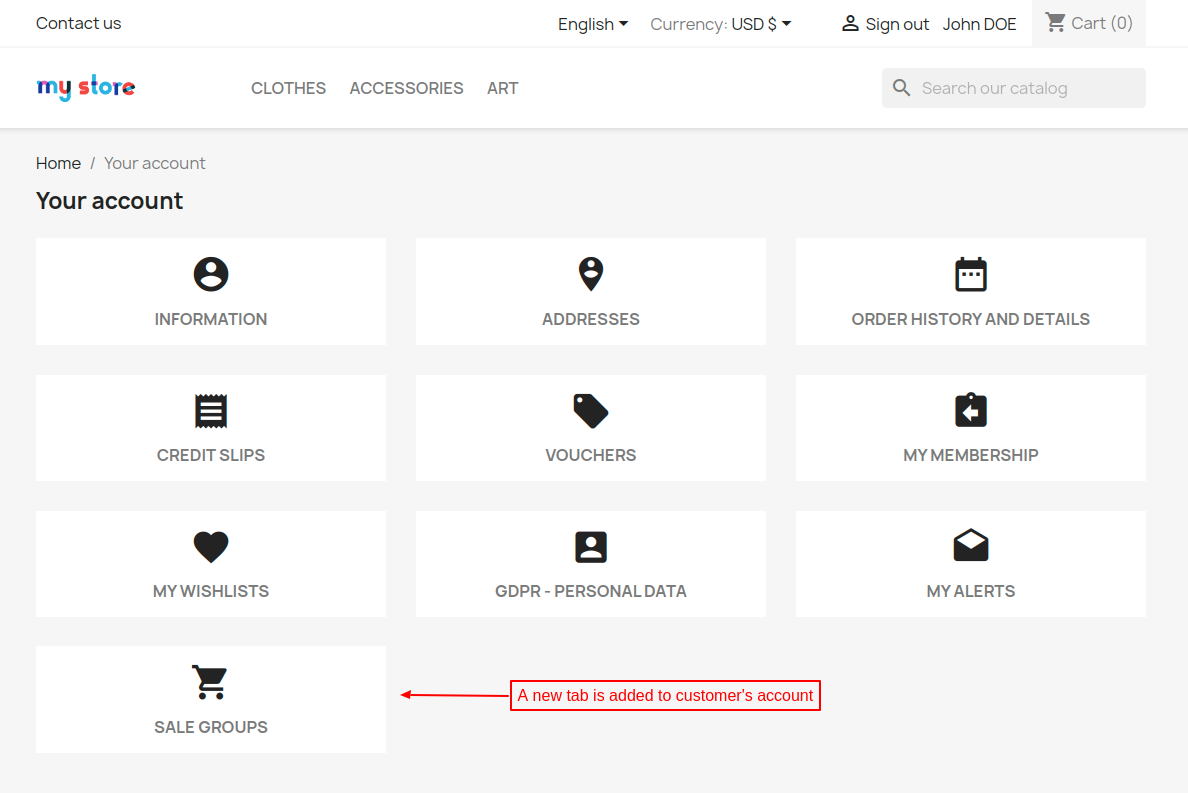
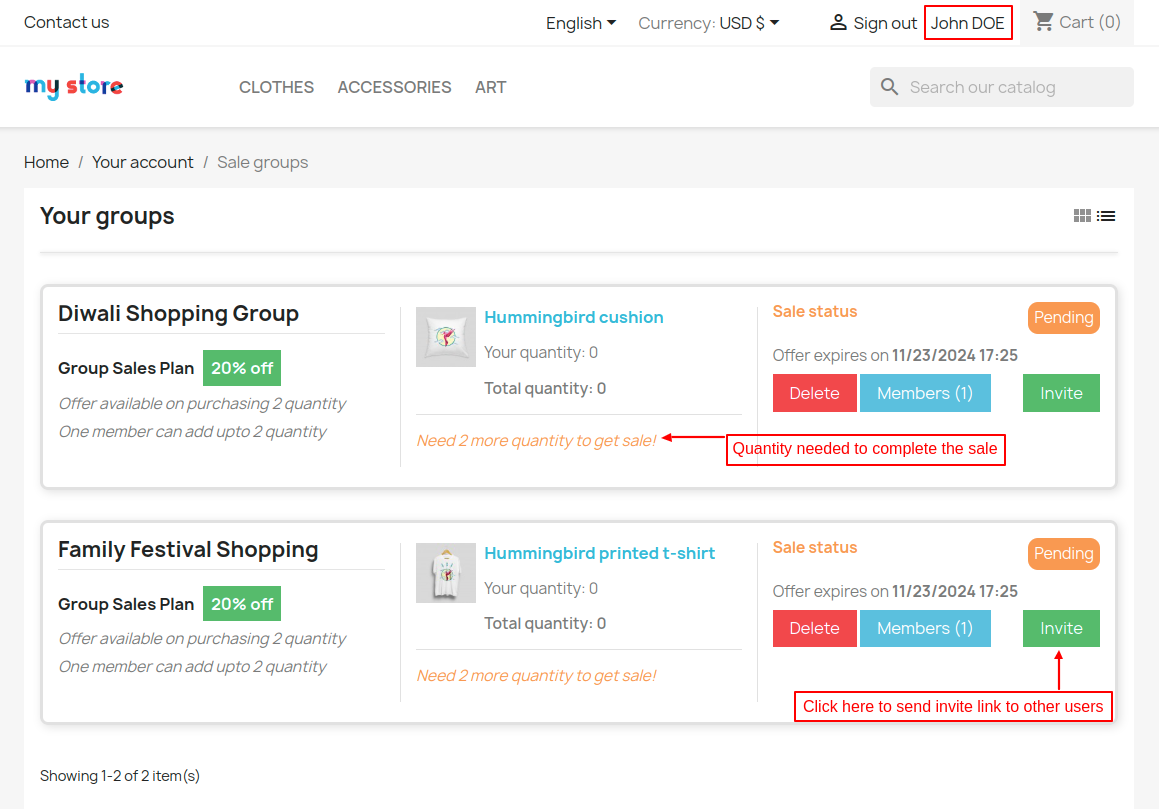
After the installation of the module, a new tab “Sale Groups” gets available in customer’s account where he can view product buying groups he has created.

Under Sales Groups, the customer can:
- Check the status of buying group.
- Send invite link to other customers.
- View quantity required to complete the purchase.
- Delete the group.

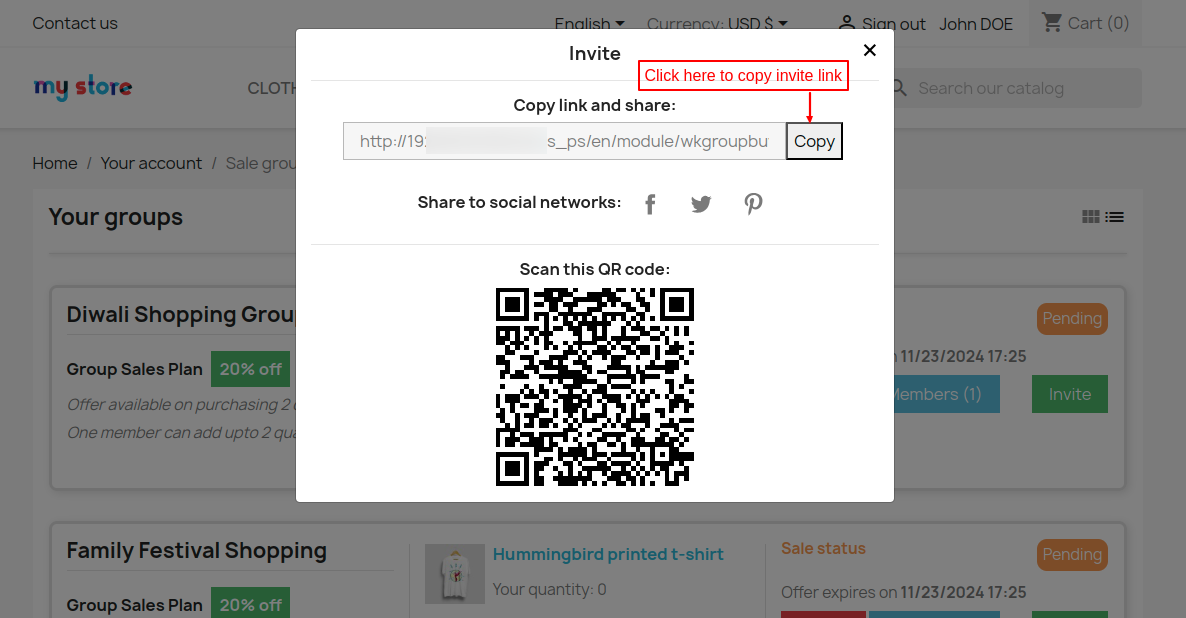
On clicking the ‘Invite’ button, a popup appears on the page where the customer can copy the invite link and send it to other customers.
Also, the customer can share the group information on social media platforms.

2nd customer joins the group created by 1st customer & adds the product
When any other customer visits the product page, they will see the following two options.
They can either join an existing product purchasing group or create a new one. The process will be the same if they want to create a new group.

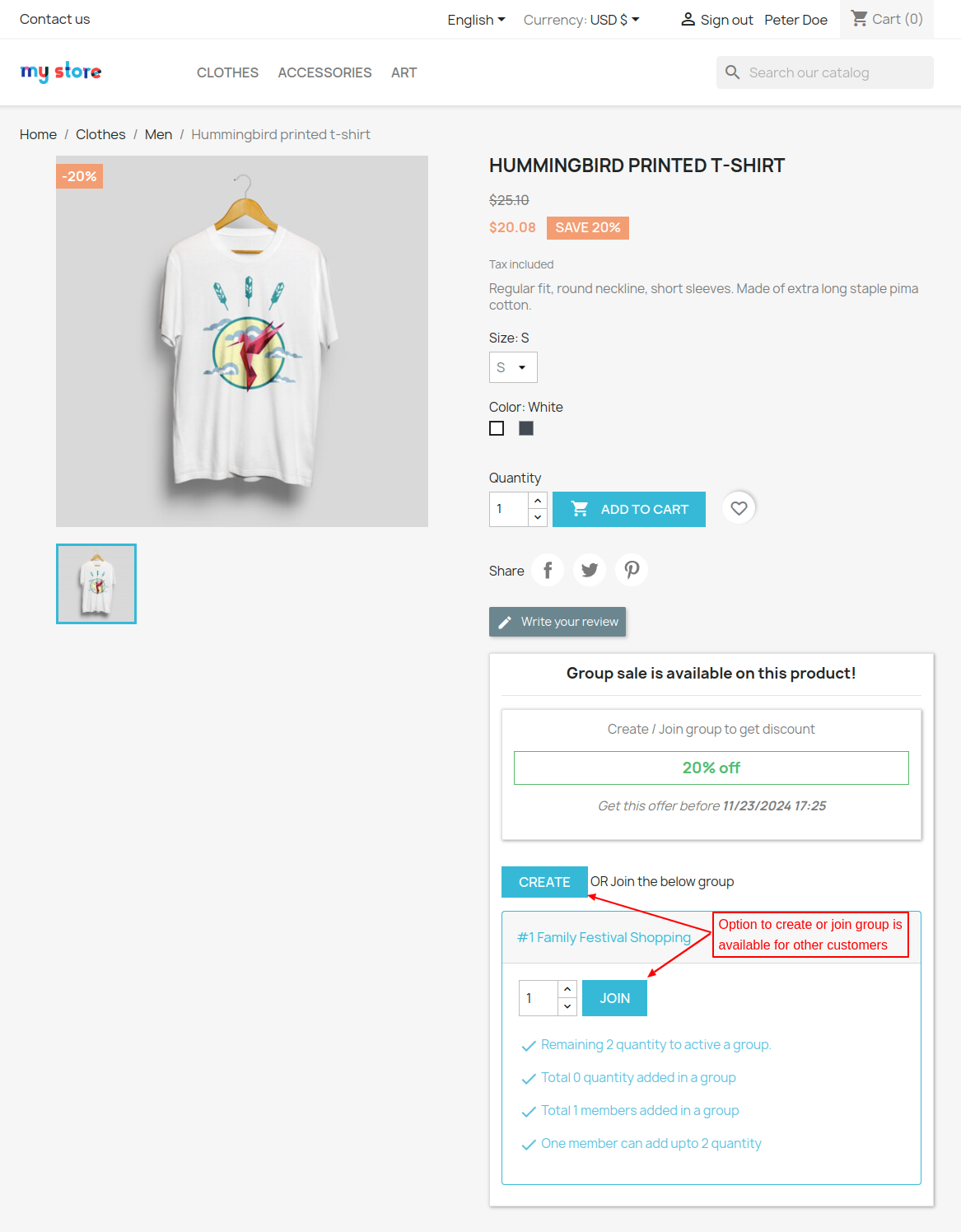
Click on the ‘JOIN’ button to join the group.
After joining the group, a customer gets the option to add the products to the group.

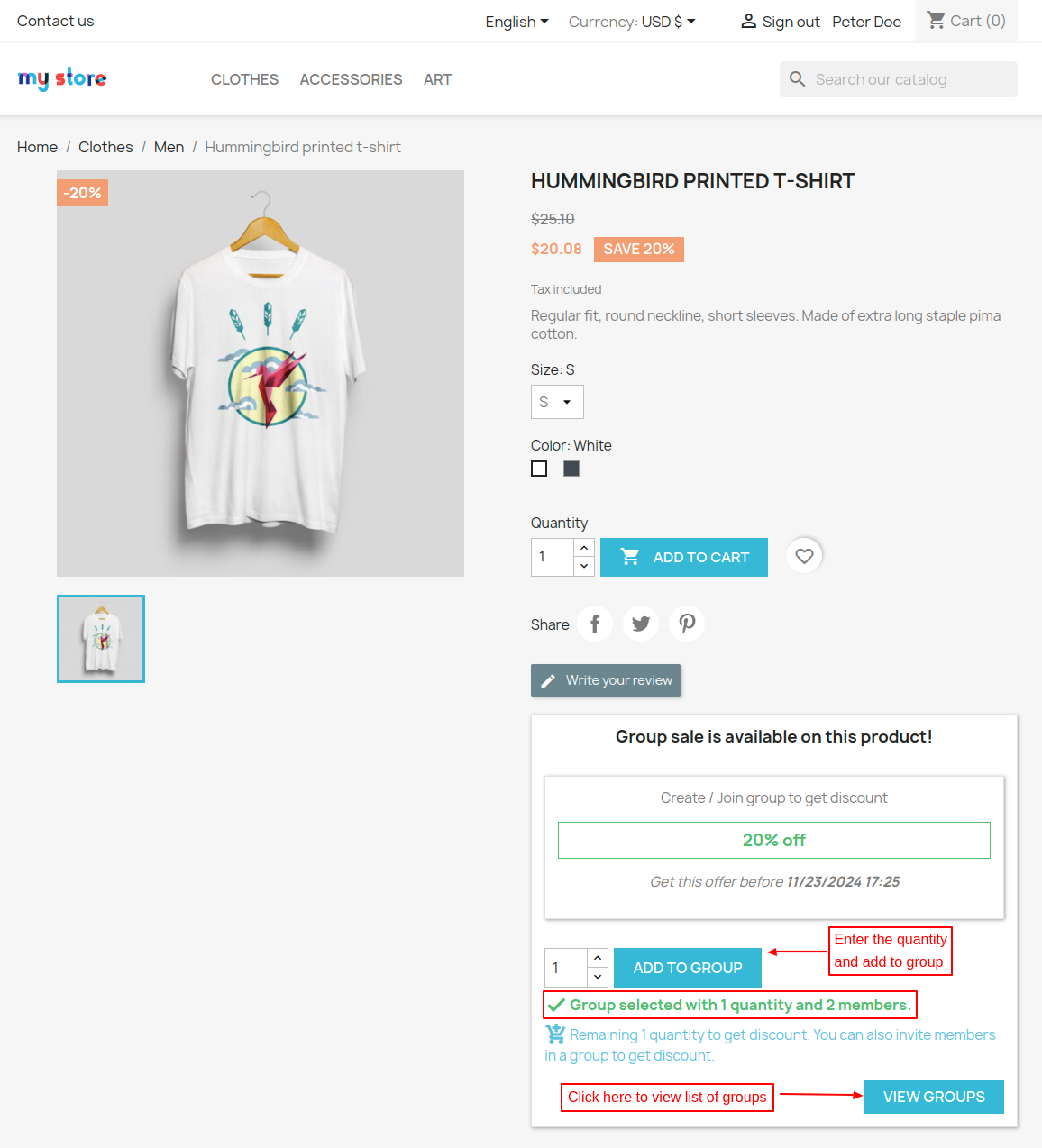
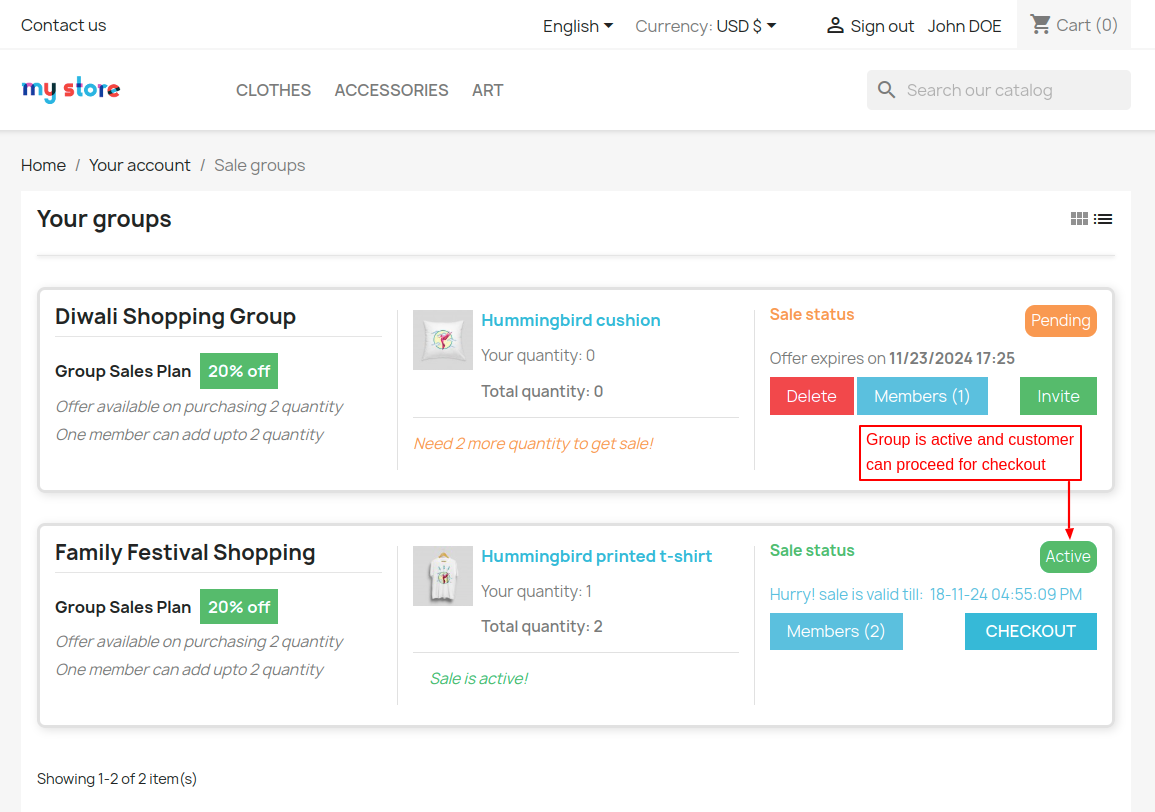
Now after adding the product to the group, the group becomes active & an option to check out is also available to the customer.
This is because the quantity that is required in order to proceed to checkout is fulfilled & the group is now active.
Also, please note that the ordering process of the customers of the group is not dependent on each other.
Every customer of the group will be able to place their order as soon as the group becomes active.

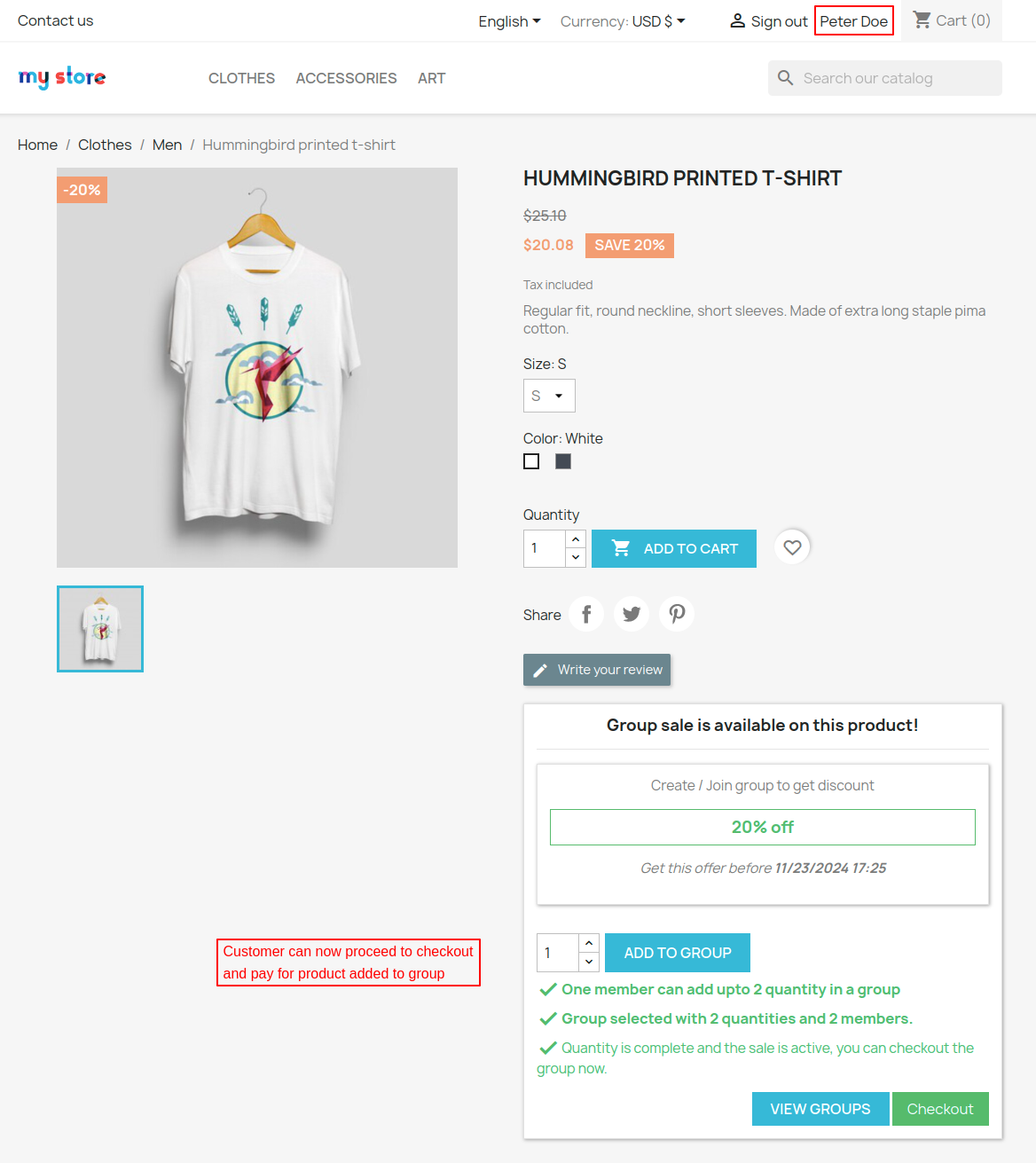
Purchasing Process
This particular customer i.e., John Doe can now proceed for checkout & pay for its added product.

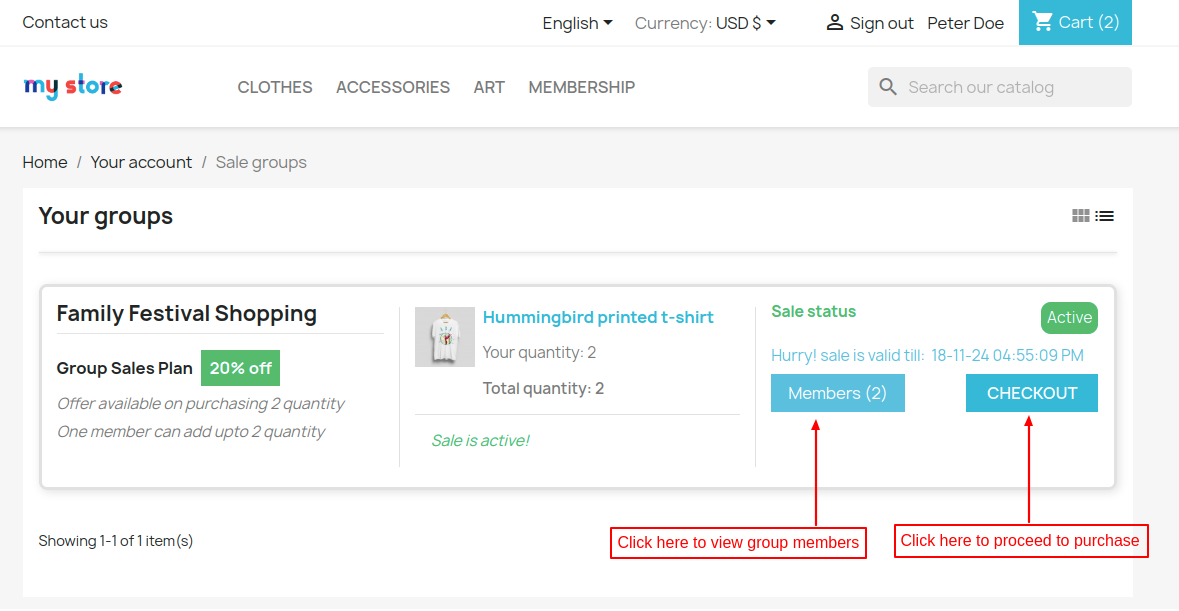
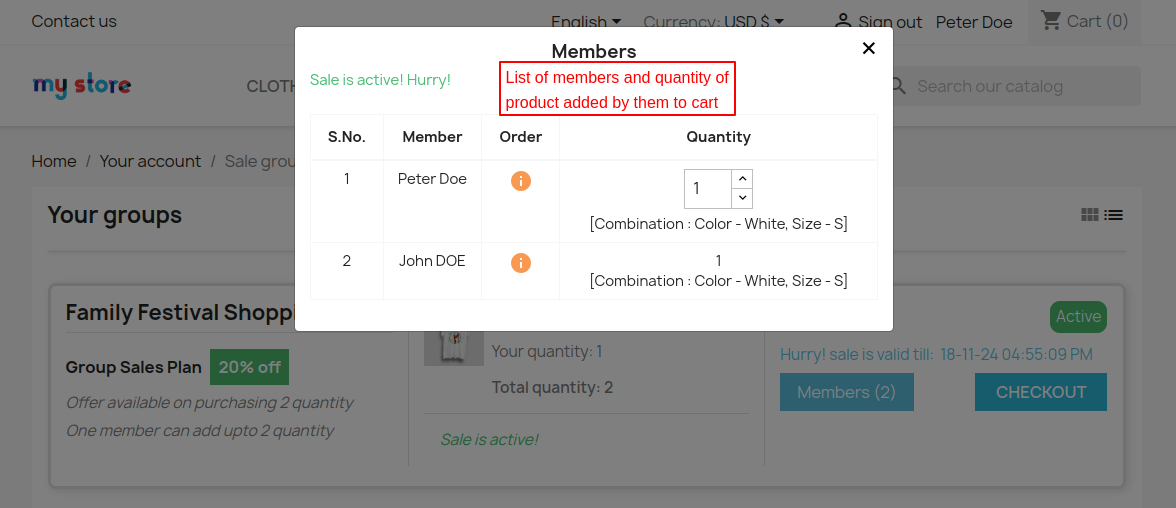
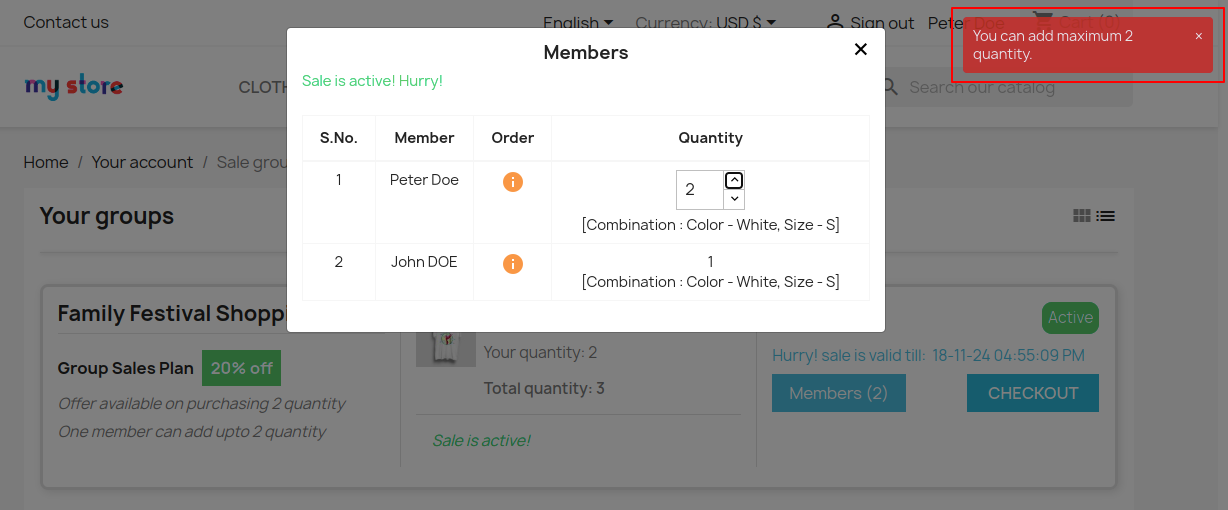
On clicking the ‘Members’ button, a popup appears on the page where the customer can view a list of group members and quantity of products added by them to cart.

If a member tries adding more quantity than the maximum quantity set by the admin while creating a group sales plan, then an error message will appear on the page.


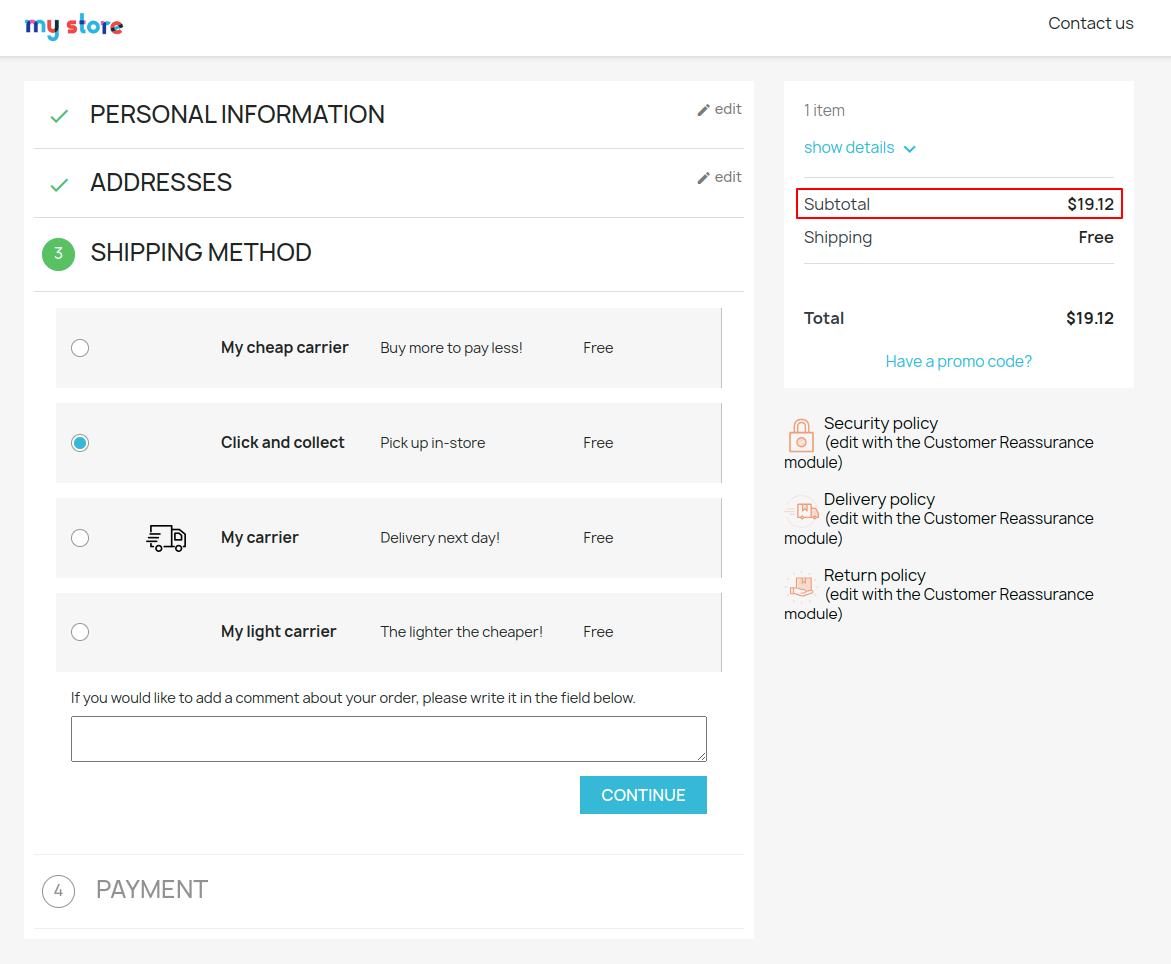
Customer can buy the product following the standard procedure of PrestaShop.
Also, you may notice that the total price of the product is $19.12 only. It’s because of the 20% discount on the original price applied cause of the purchasing plan.

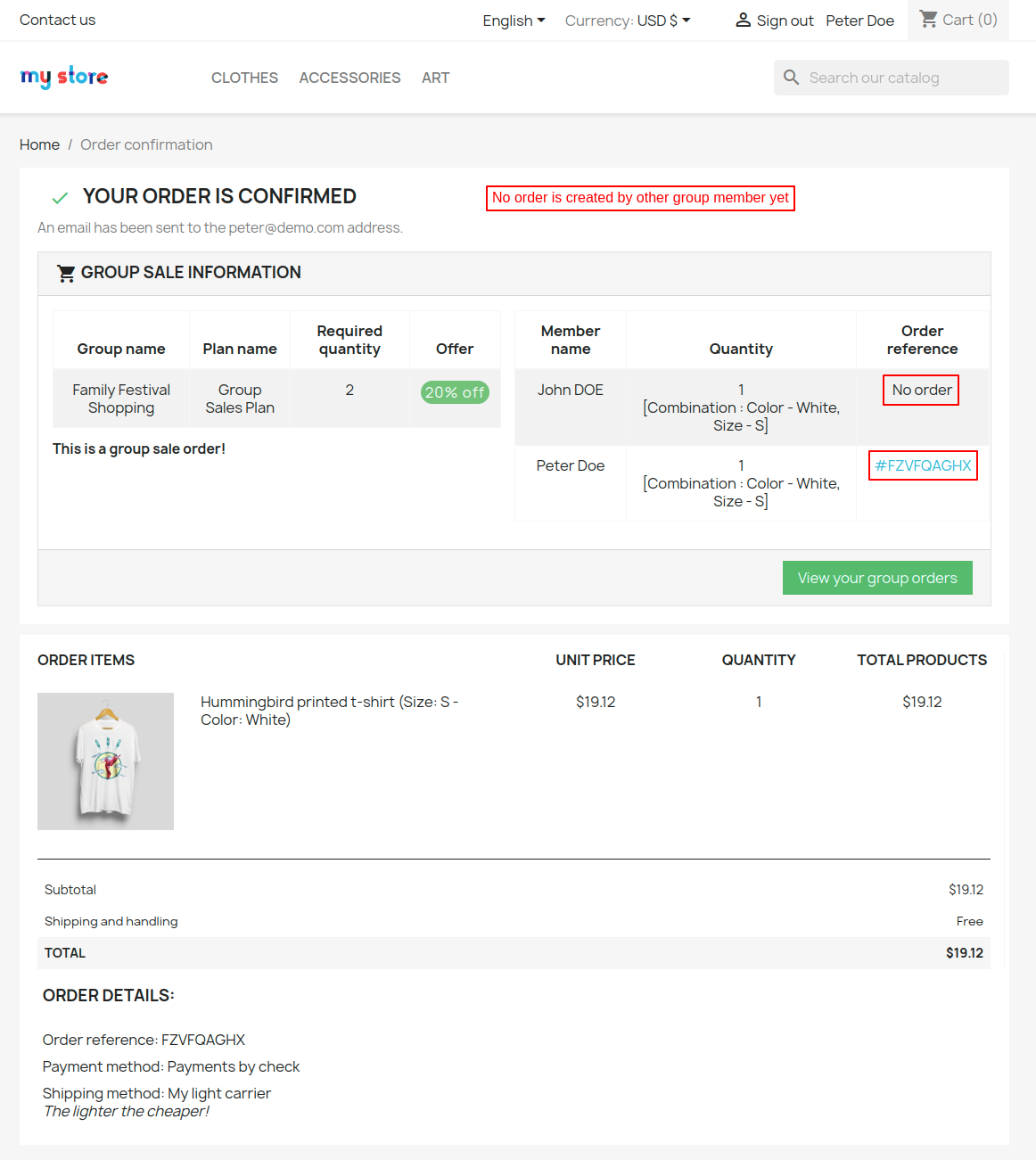
There is some change in the order confirmation page because of the module.
The details of the order of the other members of the groups are also available.
In this case, the 1st customer has not yet completed the purchase, so there is no order number available.

1st customer proceeds to complete the purchase
Now, 1st customer i.e., John Doe also proceeds to complete his purchase.


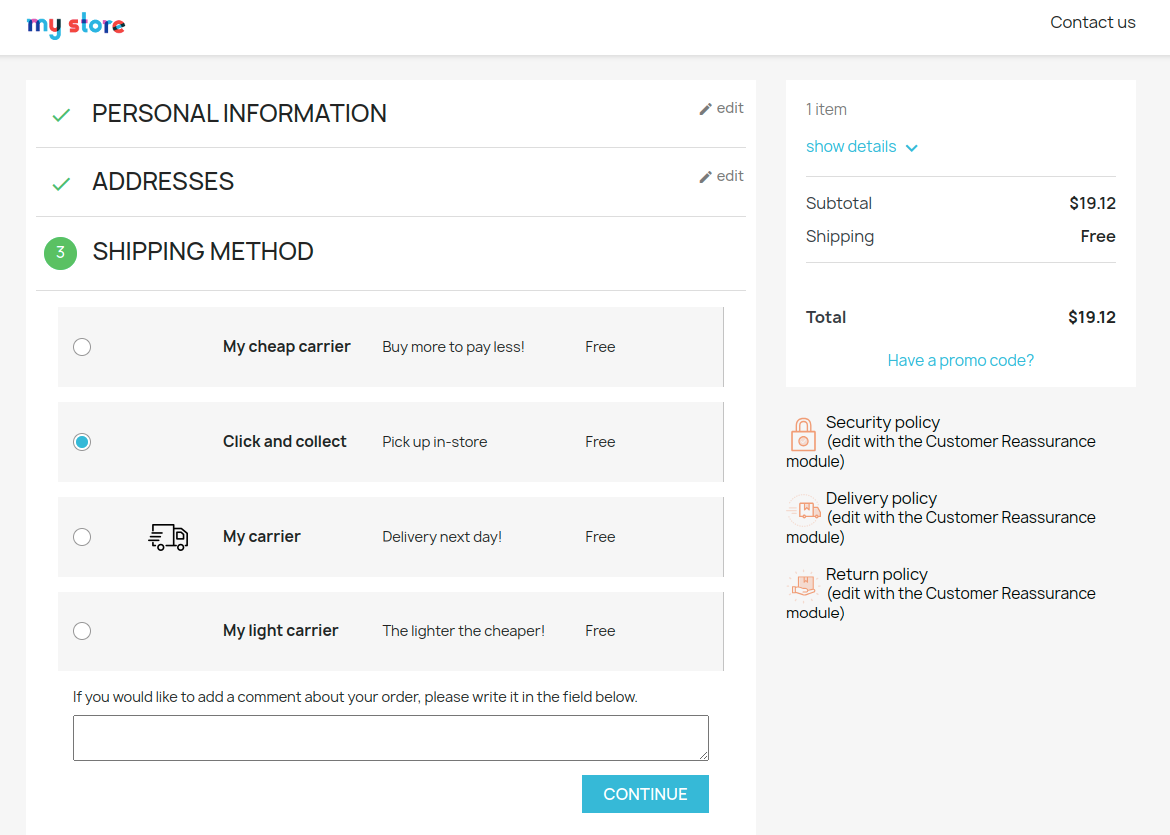
Once order is placed, both the order numbers gets available on the order confirmation page.
It is because both customers of the group completed their purchase.

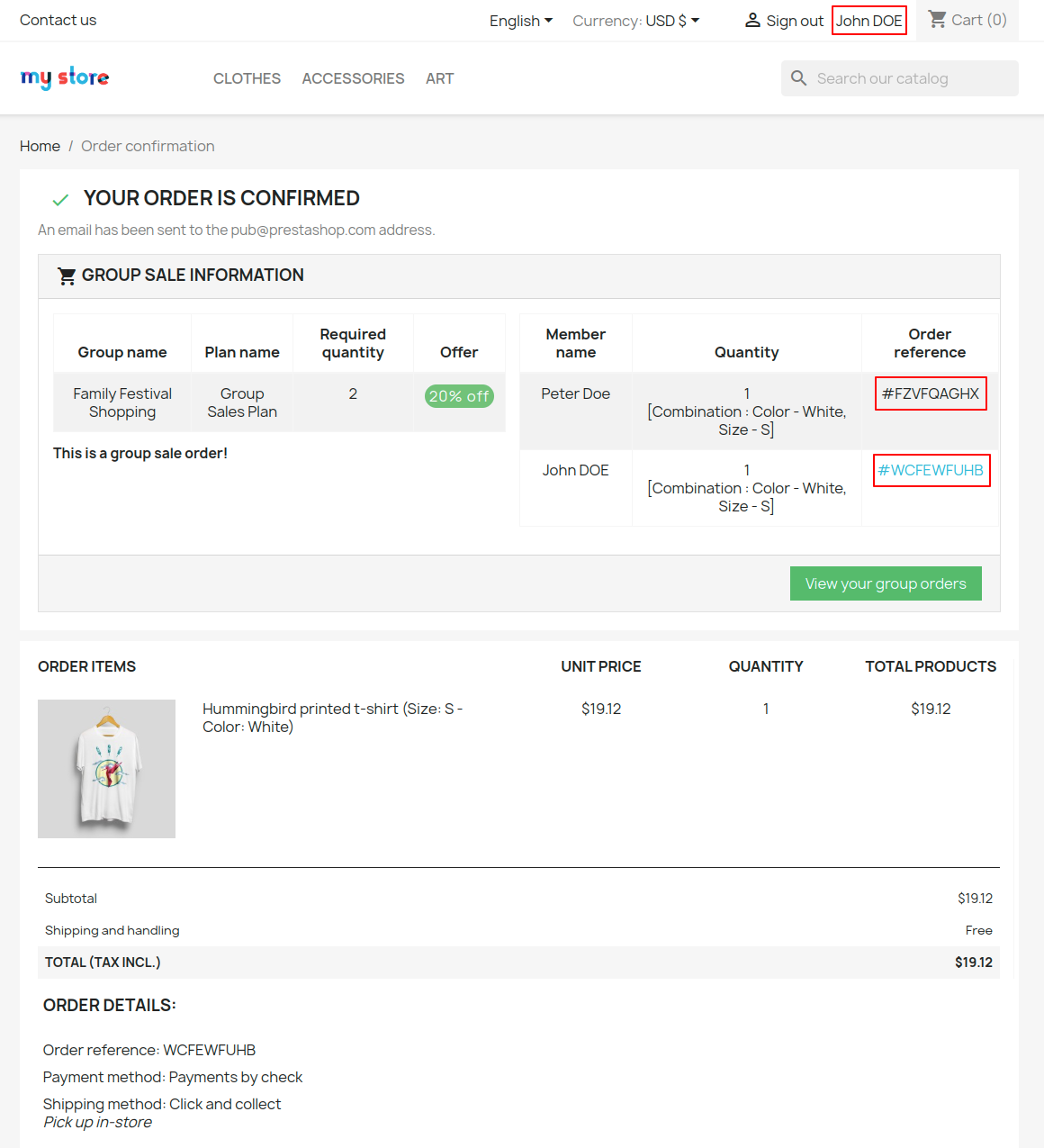
Once the status of an order changes to status required to complete the order, the status of the product purchasing group changes to complete.

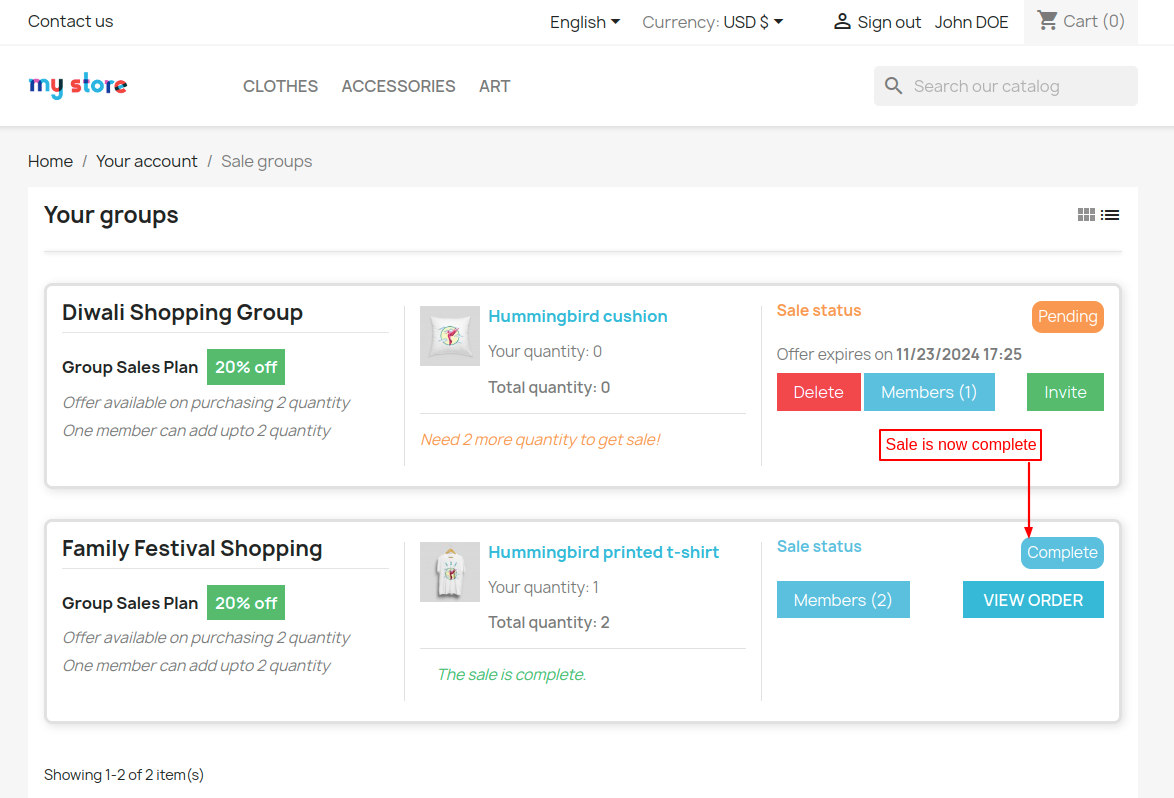
Order details of orders of customer 1 & customer 2
Two separate orders are created as each customer placed the order separately from their accounts.

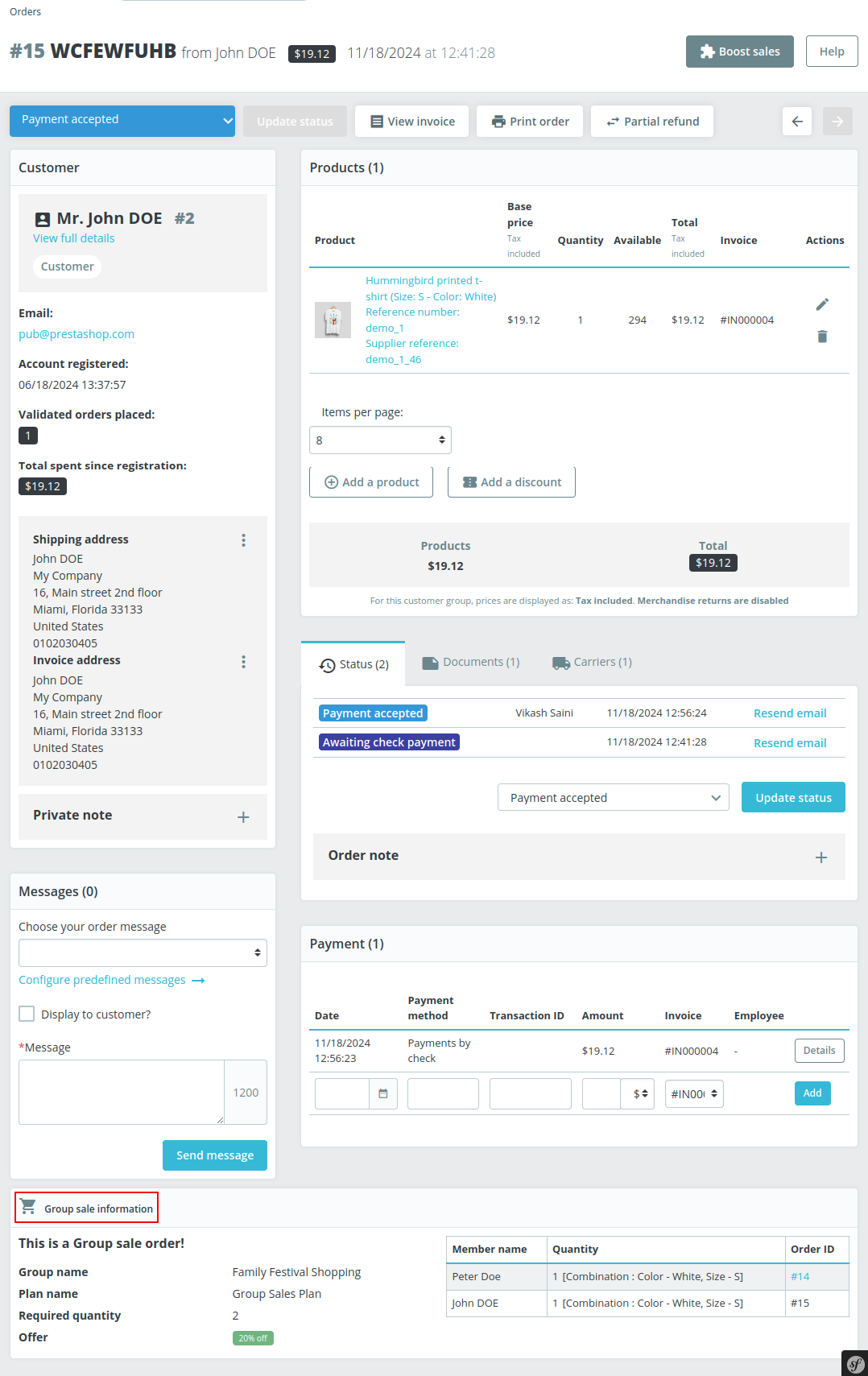
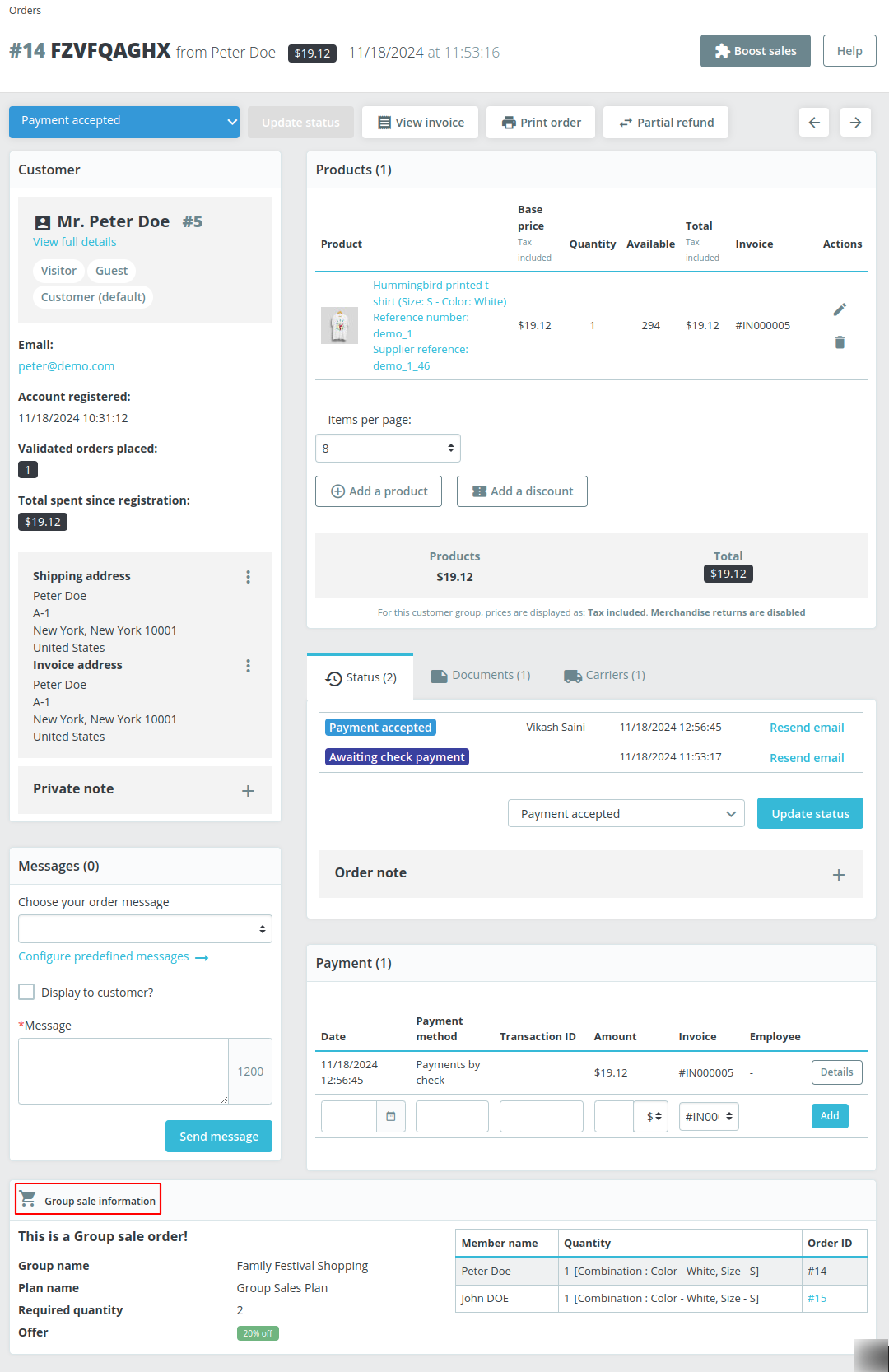
A new block “Group sale information” gets available on order details page. Here, the admin can view group sale plan information and list of group members who have purchased the products.
Order Details Page – John Doe

Order Details Page – Peter Doe

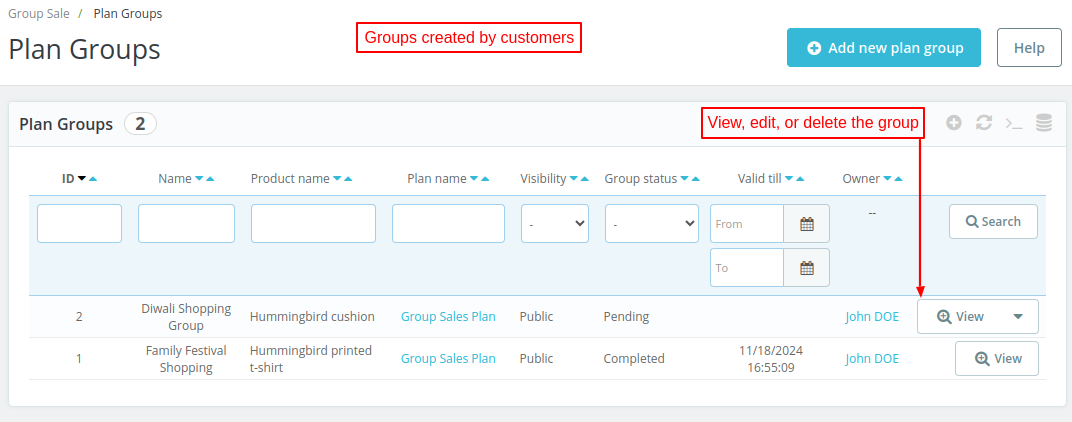
Plan Groups
Under Plan Groups, the admin can view a list of groups created by the customers, their visibility, status, validity, and owner.

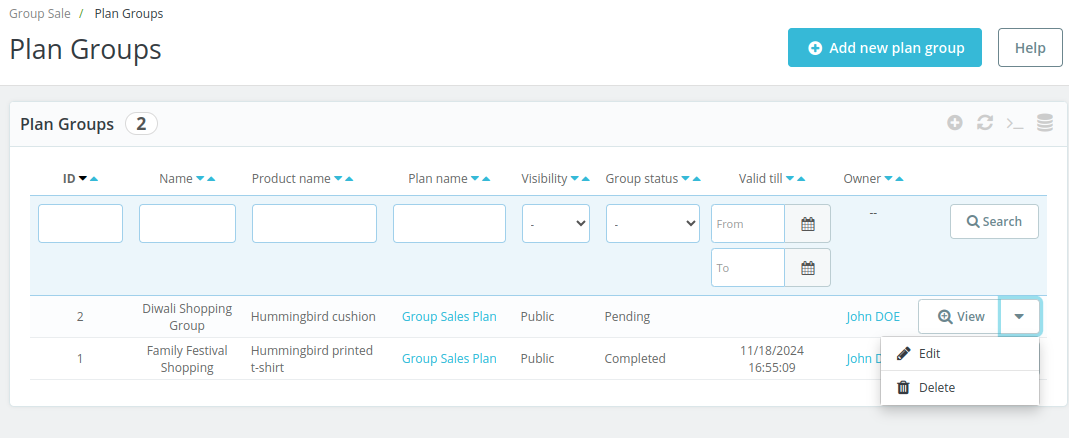
Also, the admin can view, edit, or delete the group.

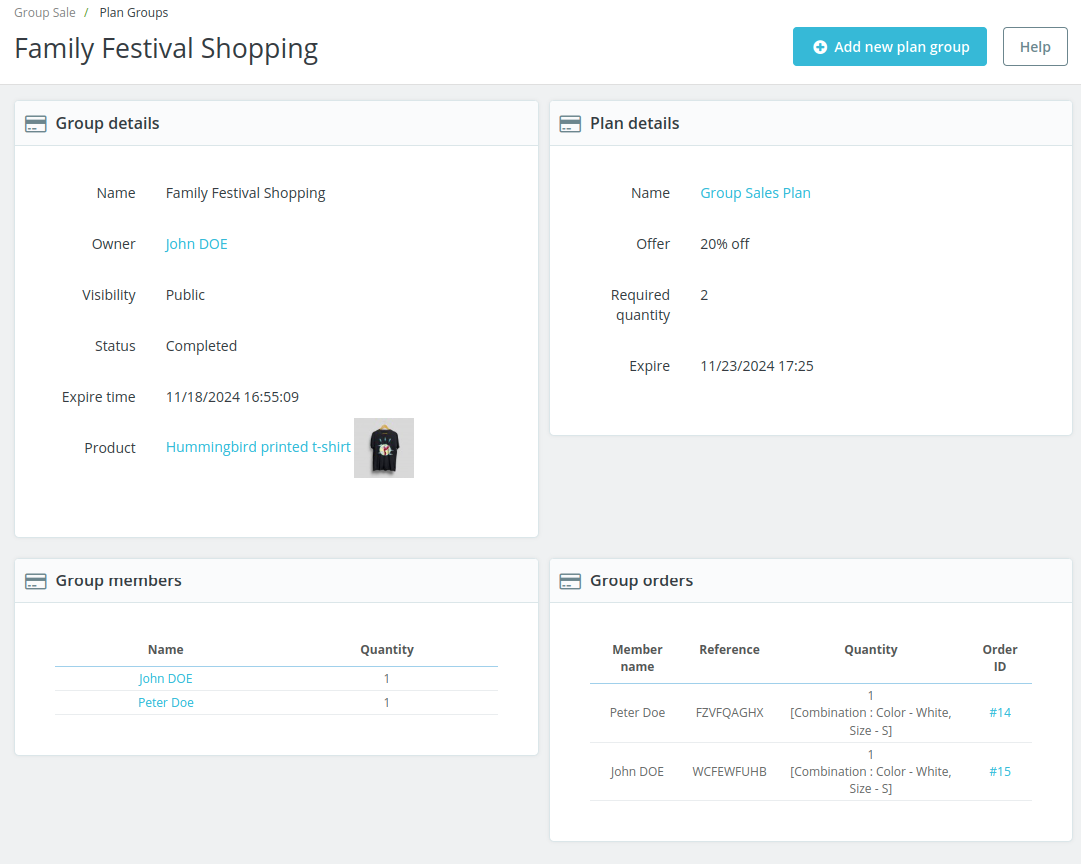
View plan group
Click on ‘View’ button to see group/plan details.
The admin can view a list of group members and orders placed by them.

Edit Plan Group

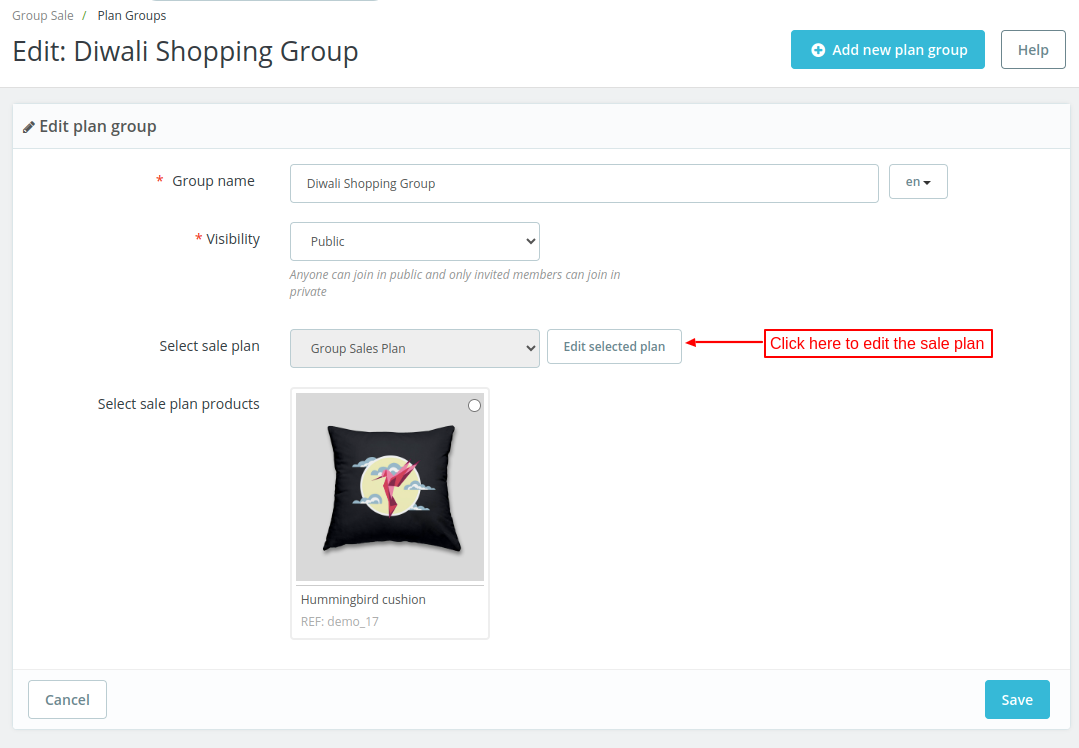
On clicking the ‘Edit selected plan’ button, the admin gets redirected to the group sales plan page where he can update the group details.

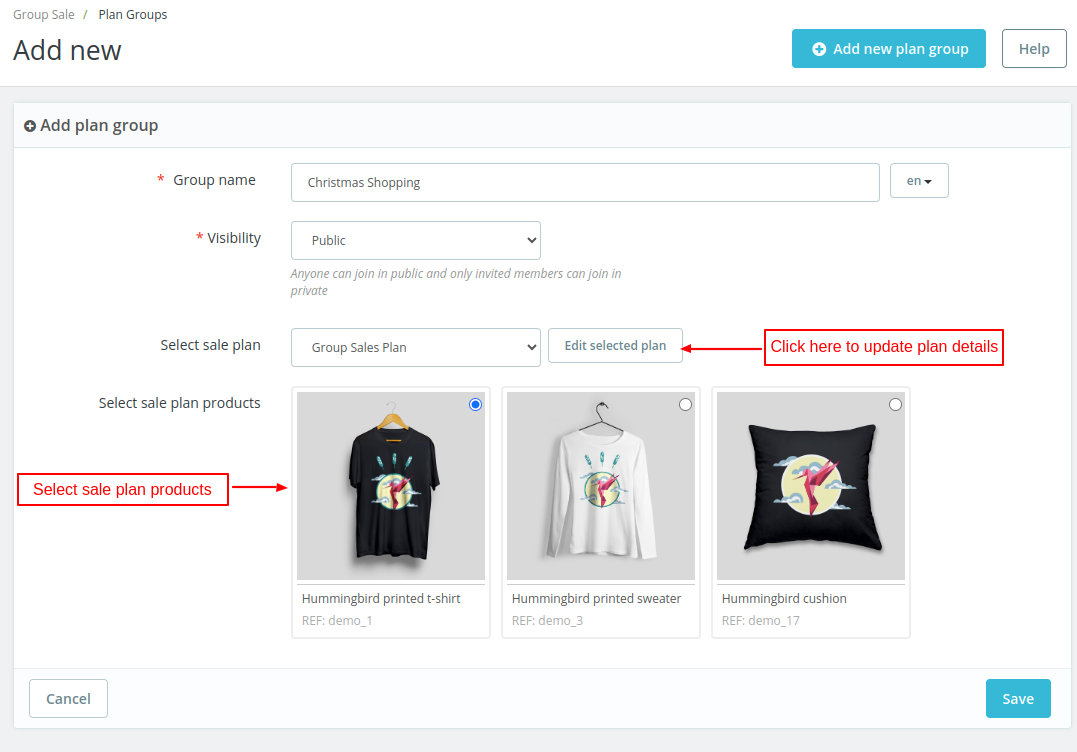
The admin can also add new plan group.
On clicking the ‘Add new plan group’ button, a form appears on the page where the admin can:
- Specify the name of the group.
- Select visibility of group.
- Select sale plan and products.

Group Orders
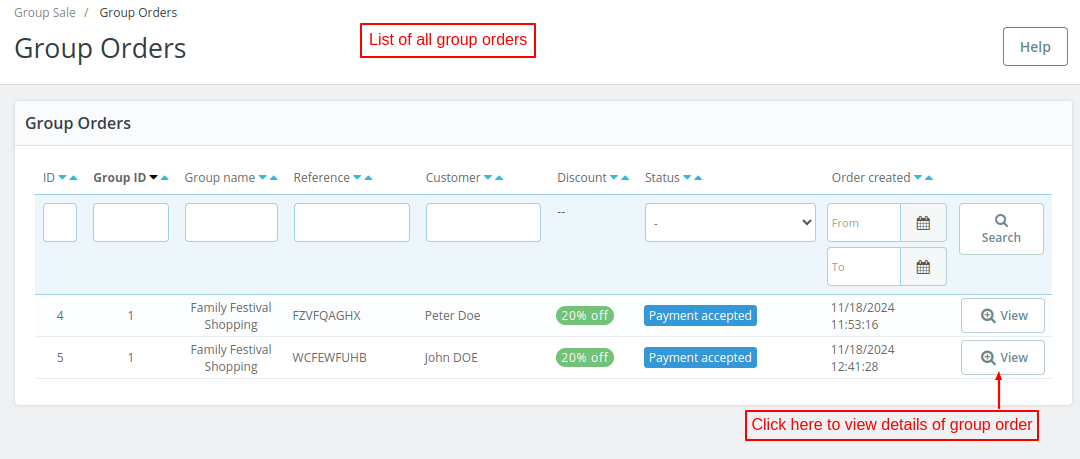
Under Group Orders tab, the admin can view a list of all the orders of the group purchase.

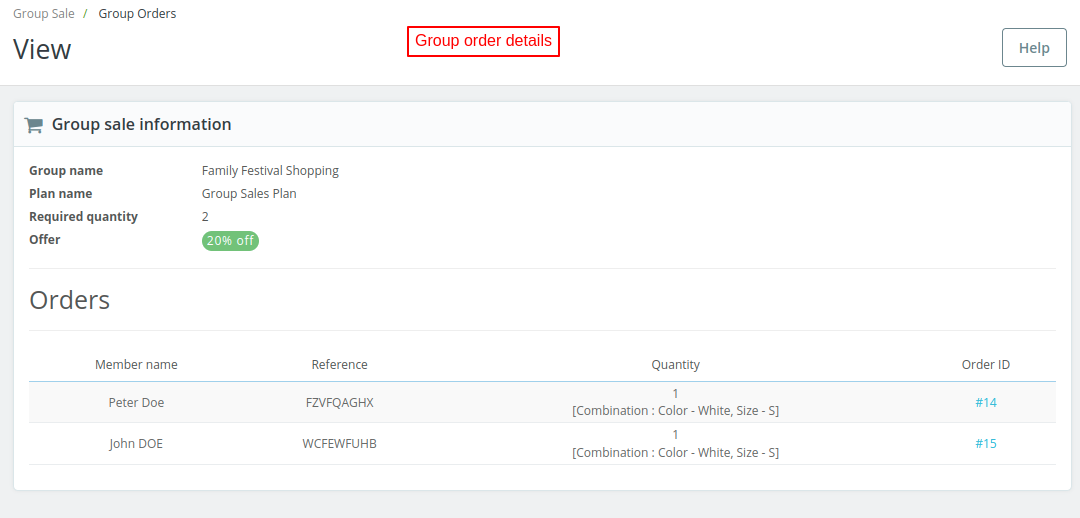
On clicking the view button, you can view the details of the group order & a list of all the orders of customers who ordered via this group.

Plan Selection functionality
In the earlier sections, I explained the flow with one of the available plans only.
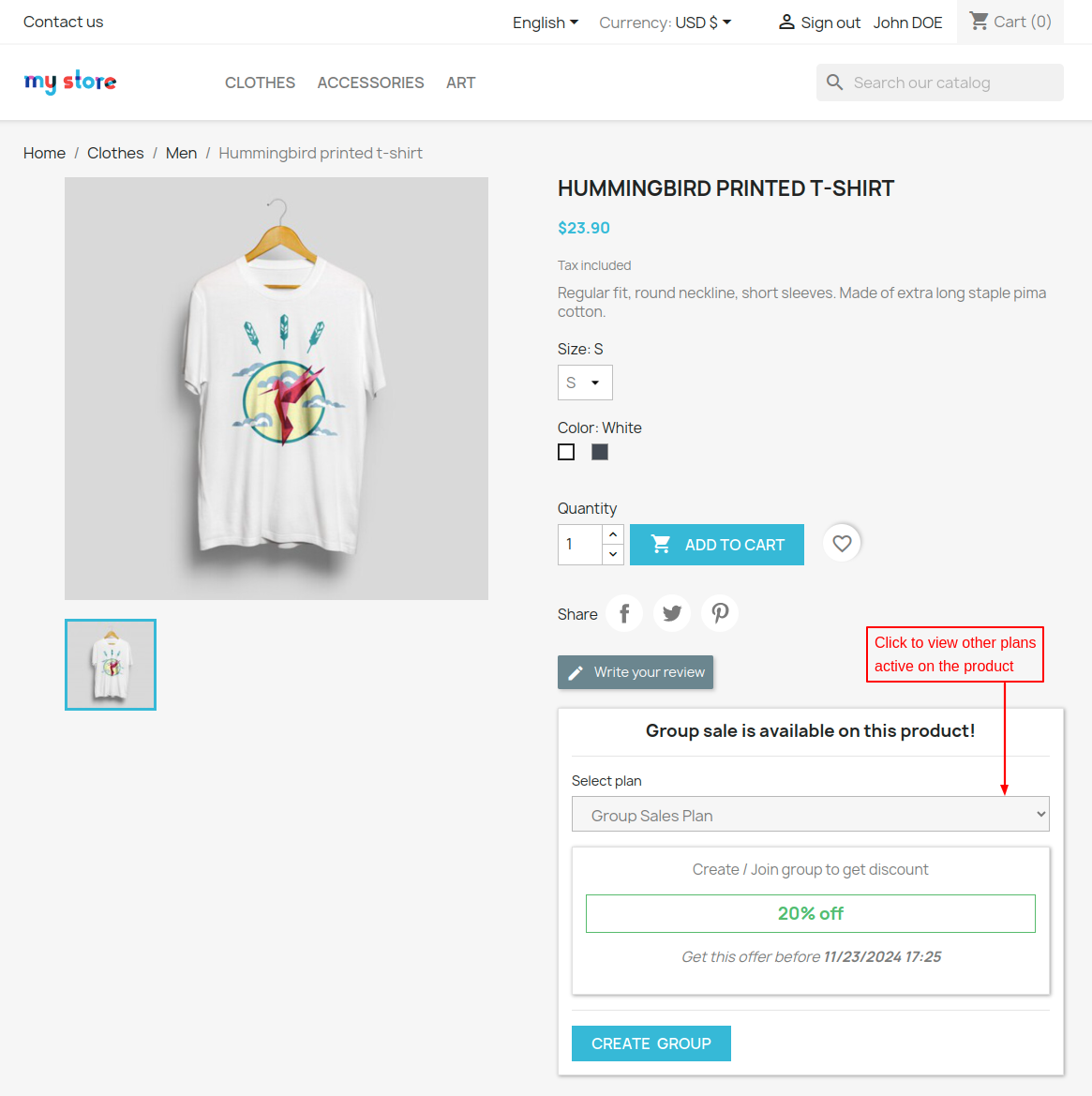
However, in case if multiple plans are active on a single product. Then, a customer can select any one of them & then proceed to create a new product purchasing group.

So, this was all about the PrestaShop Group Buy Module. I hope this document will help you in checking the functionality of the module in a better way.
Also, do let us know about your views in the comments.
Support
For any kind of technical assistance or query, please raise a ticket at http://webkul.uvdesk.com or send us a mail at support@webkul.com
Also, please explore our PrestaShop development services & vast range of featureful PrestaShop Addons.