User Guide of PrestaShop AI Category Prediction
PrestaShop AI Category Prediction Module allows the admin to automatically identify and assign the correct product category by analyzing product images with artificial intelligence.
Instead of browsing categories manually, the admin can select or upload a product image. The module suggests categories and allows quick creation and assignment from the product page.
This simplifies categorization, reduces manual effort, and ensures consistent product classification across the store. This guide covers installation, configuration, and daily usage of the module.
NOTE: PrestaShop AI Category Prediction is compatible with the PrestaShop Multi-store feature.
Features of PrestaShop AI Category Prediction
- AI-powered category prediction using product images.
- Trigger category prediction directly from the product edit page.
- Either select an image from the product image gallery for prediction or upload a custom image for prediction.
- Automatic category suggestions based on AI image analysis.
- Display of multiple AI-predicted labels in a dropdown menu.
- One-click creation of new categories from AI suggestions.
- Option to create a category and instantly assign it as the product’s default category.
- Apply predicted or mapped categories directly to products.
- Ability to map AI-predicted labels to existing store categories.
- Persistent AI-to-category mapping is stored in the database to prevent duplicates.
Minimum System Requirement (API Setup)
The minimum system requirements that are required for this module are listed below.
- Python Version – 3.12
- RAM (4 GB)
- Space (16 GB)
- Server key and cert files (for Flask API)
- Port allow (5000 as per module development)
- API Key from one of the Hosted LLM Platforms like Gemini, OpenAI, Groq, anthropic, etc, for category prediction
Note:
- Requires a VPS server for hosting.
- The AI Model Server handles the heavy lifting of image classification. Please contact us if you need assistance with the AI Model server installation.
How to Install PrestaShop AI Category Prediction
- Firstly, go to the module manager in the back office and click on ‘upload a module’.
- After that, drag and drop the module file or select the file from the system.
- In this way, the module installation will be successful.

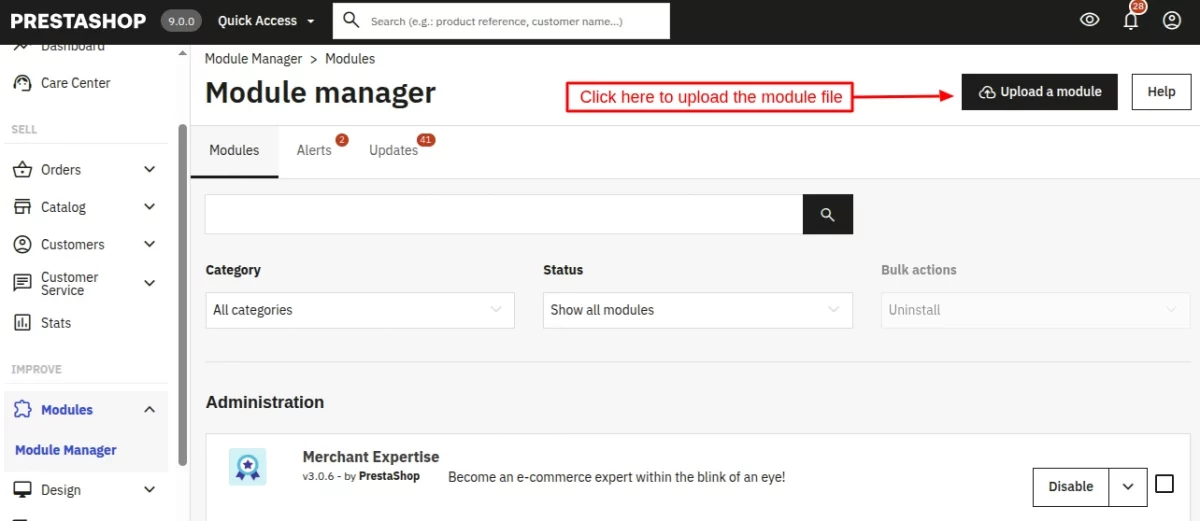

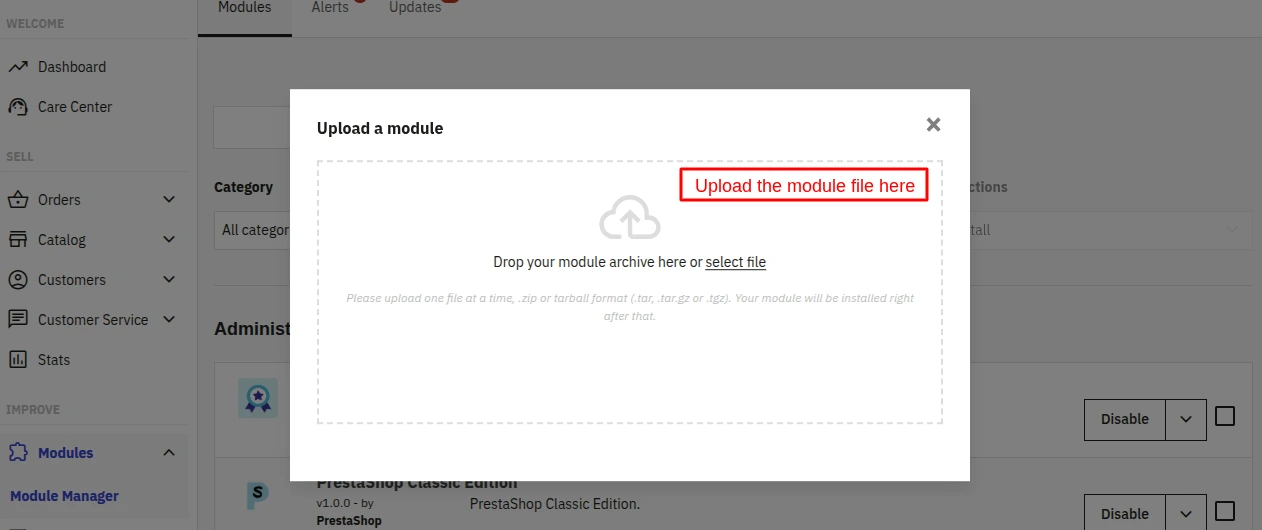

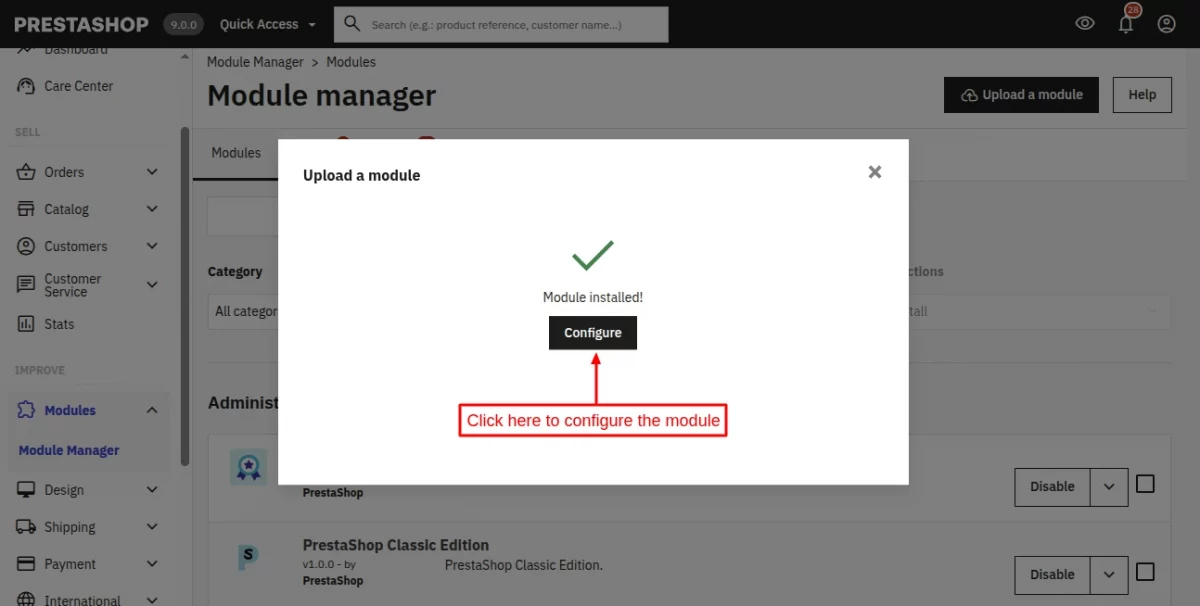
PrestaShop AI Category Prediction Module Configuration
After the successful installation, the admin will have to configure the module. The module configuration tab contains the core settings for connecting to your AI server.
- Host name: Enter the server endpoint address where the AI models are set up.
- API token key: Enter the API key. This key is used to predict the category.

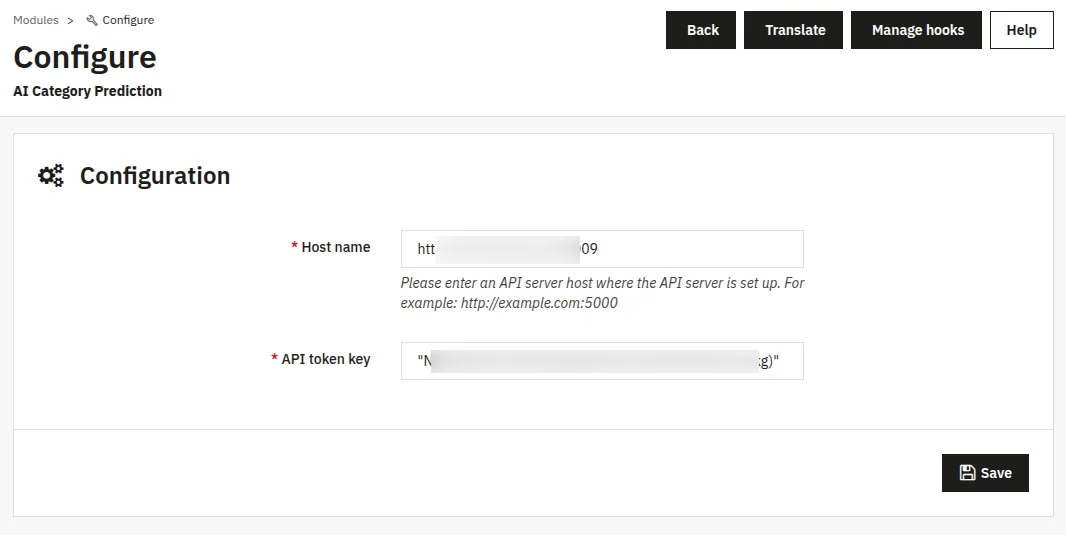
After entering both values, click “Save” to store the configuration. The module will attempt to use these credentials the next time you use the AI Category Prediction from a product page.
PrestaShop AI Category Prediction Module Workflow
After the module is successfully configured, the complete AI category prediction workflow becomes available directly on the product edit page in the PrestaShop back office.
There is no separate admin management panel or index listing for this module. All prediction, creation, and assignment actions are performed during product editing.
Accessing the Feature
To use the module, navigate to: Catalog → Products → Select a Product → Edit
On the product edit page, an “AI category prediction” button is automatically displayed above the product description section once the AI server URL and API token have been configured.

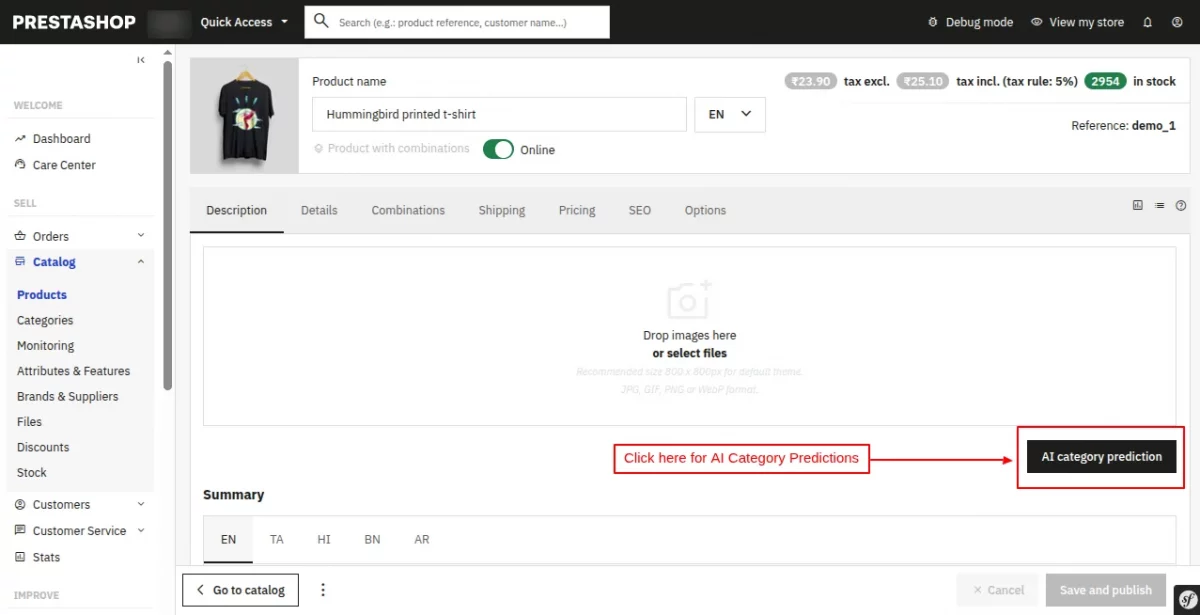
When the admin clicks this button, a modal window titled “AI category prediction” is opened, where the prediction workflow is performed.
Product Images Tab
By default, the modal opens in Product Images mode, which uses images already assigned to the product.

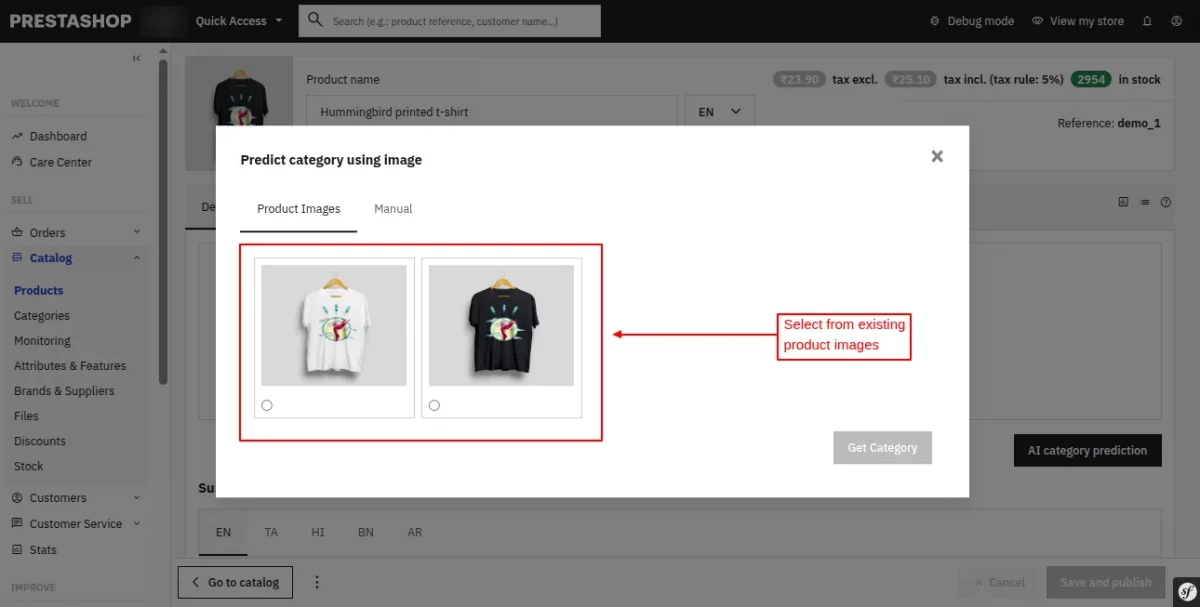
The product image gallery is loaded automatically and displayed as thumbnails. Each image includes a hover-based preview option, allowing the admin to quickly inspect it.

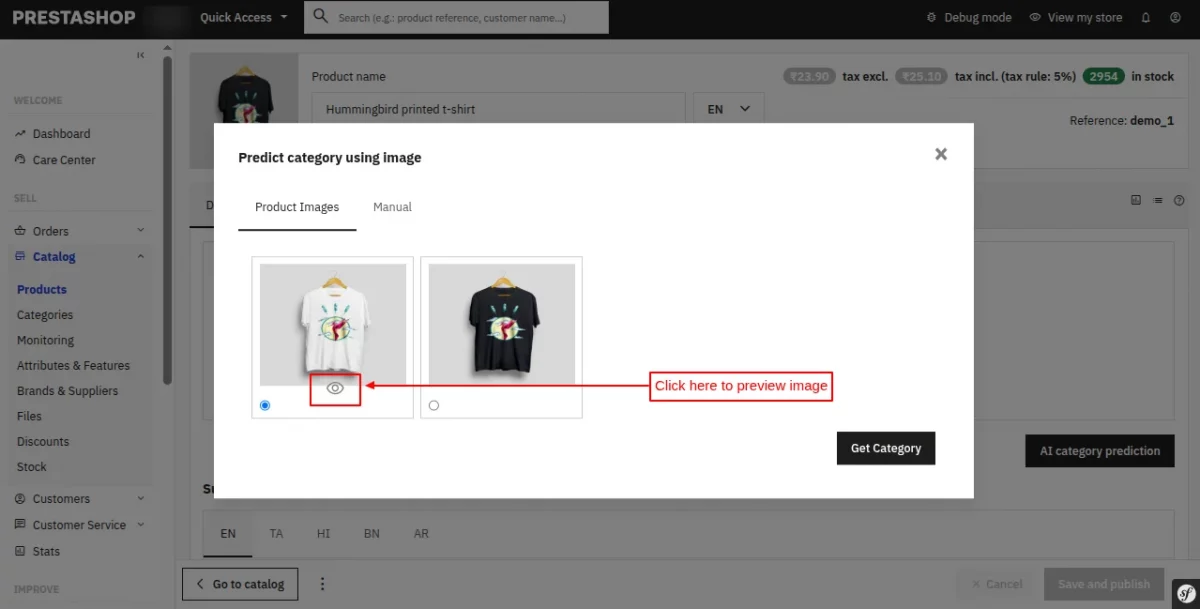
If the admin clicks the preview option, the image opens in a full-size view with navigation controls, enabling the admin to browse through all product images.
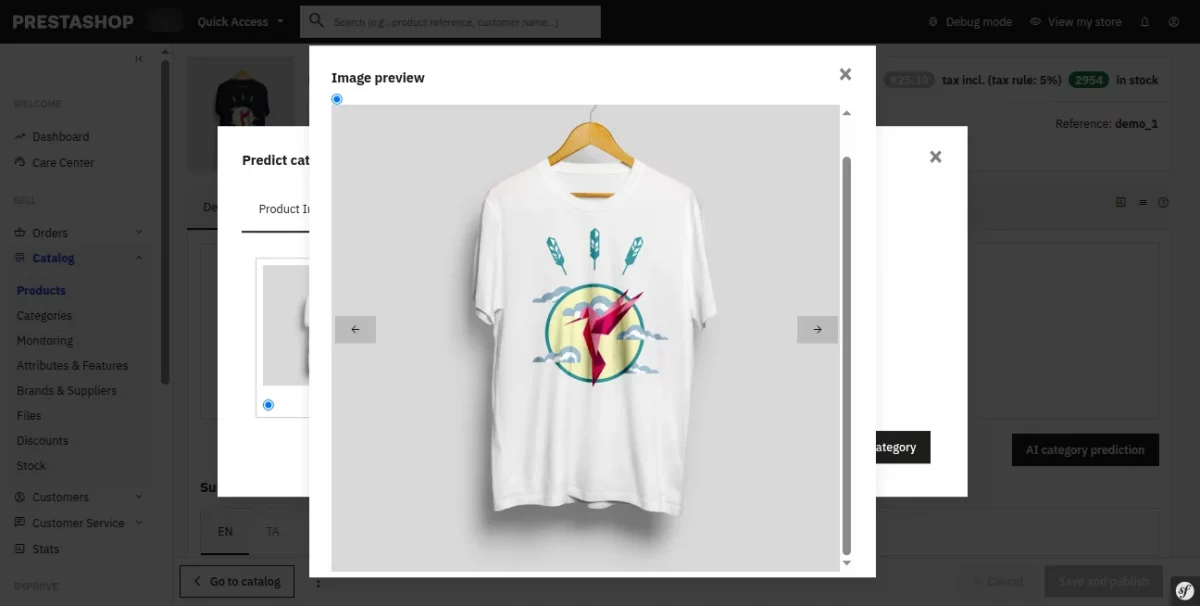
The admin can select an image using a radio button or by clicking directly on it, and then initiate the AI category prediction process by clicking “Get Category”.
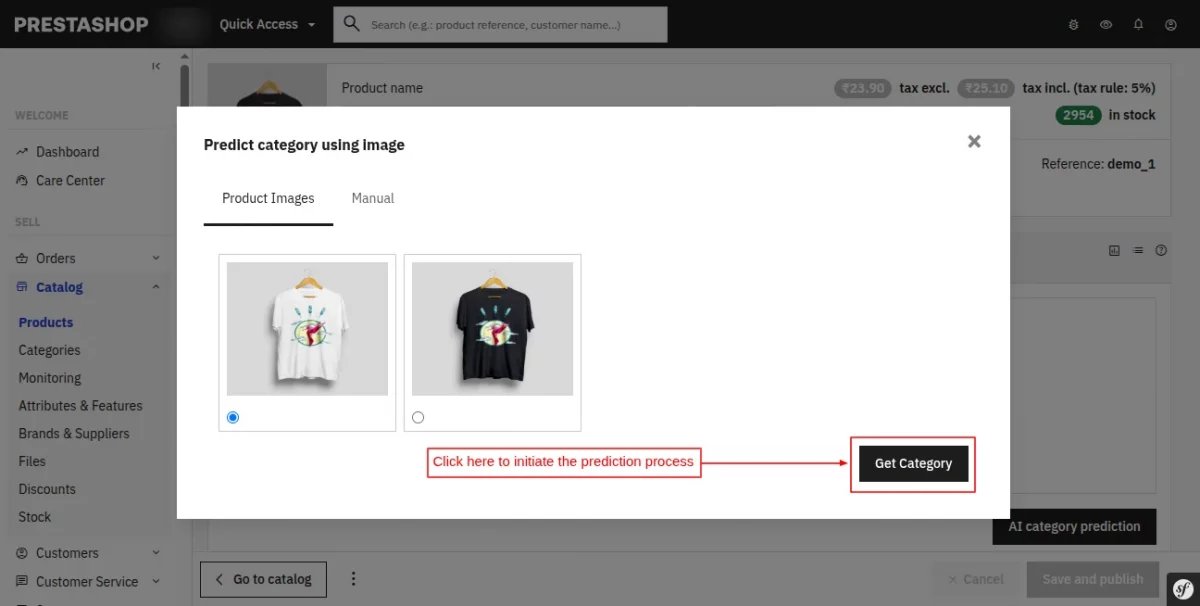
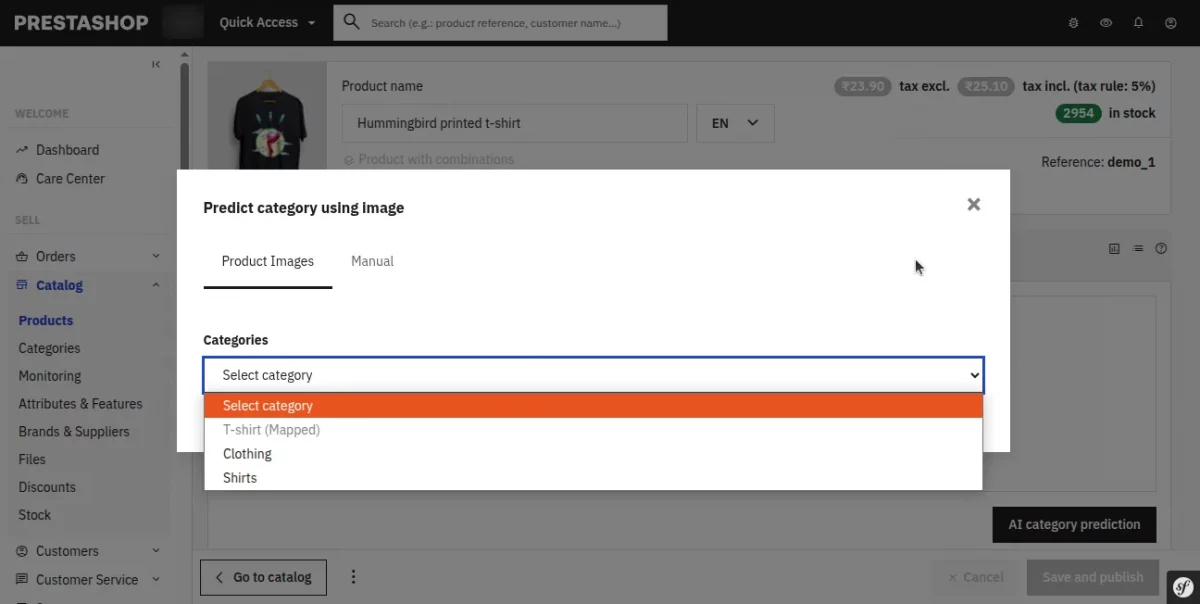
The selected image is sent to the configured AI server, and once processed, the system returns a list of suggested category labels that are displayed in a dropdown format.
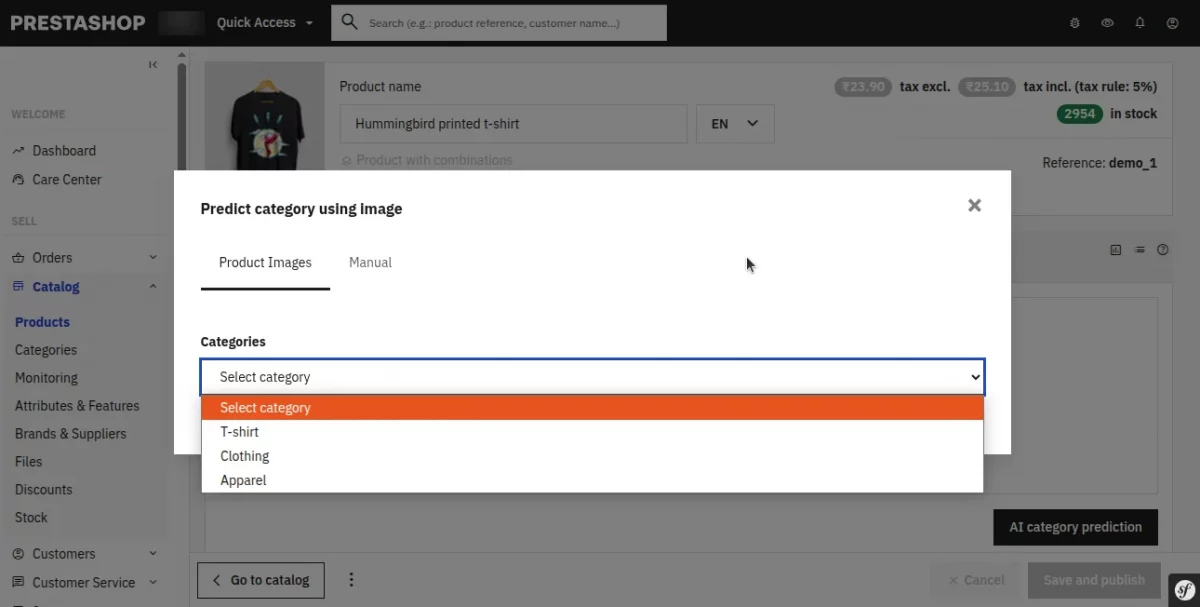
Category Selection Behavior
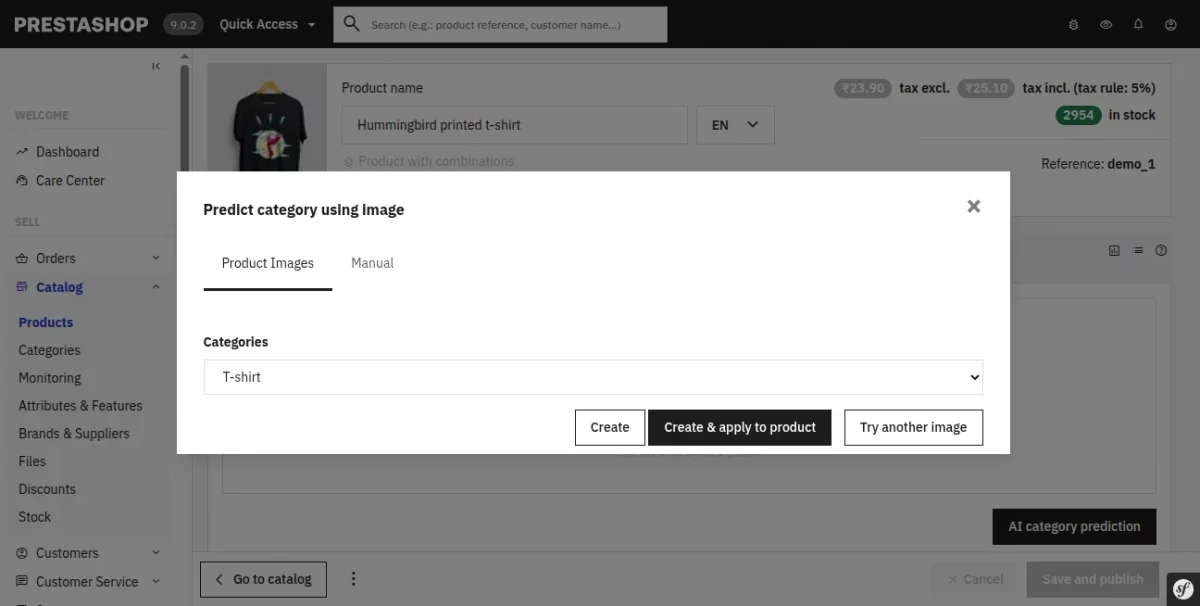
After selecting a category, the admin can perform one of the following actions.
1. Create
- Creates a new PrestaShop category from the AI label
- If a category with the same name already exists, it is reused
- Stores AI label and performs category mapping in the database
2. Create & Apply to Product
- Creates or reuses the category
- Stores mapping in the system
- Assigns the category to the product
- Sets it as the default category
3. Try Another Image
- Resets the current selection
- Returns to the product image gallery
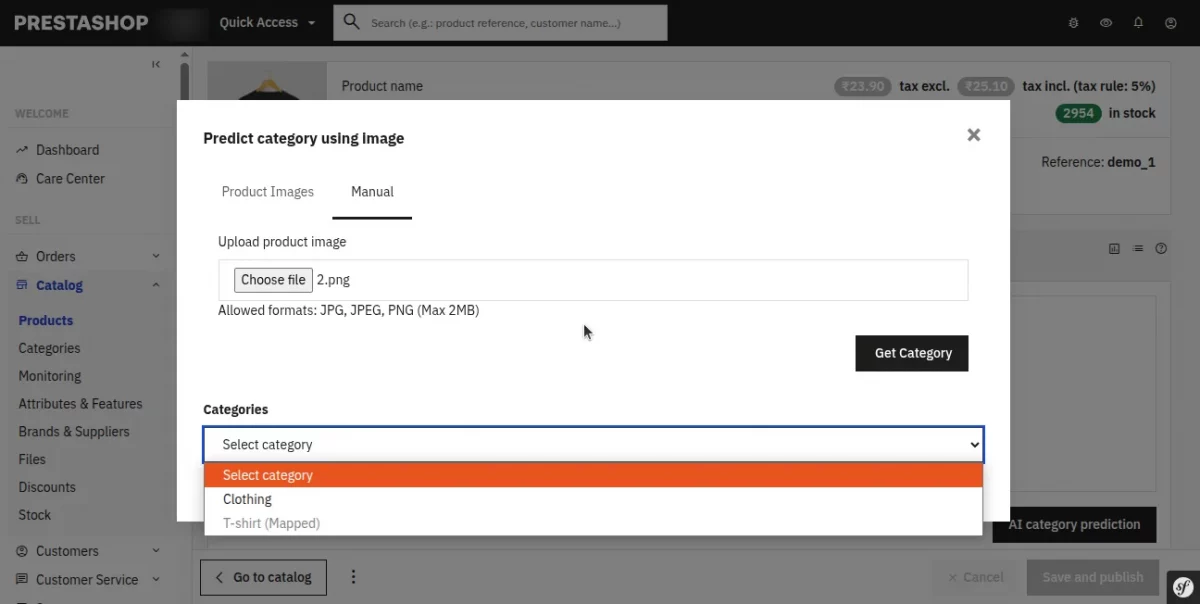
Manual Image Upload Mode
In addition to product image-based prediction, the module also supports a manual image upload mode.
This mode is useful when the product does not have suitable images or when the admin wants to test a different image for prediction.
By switching to the Manual tab in the modal, the admin can upload an image from the local system in JPG, JPEG, or PNG format, with a maximum size of 2MB.
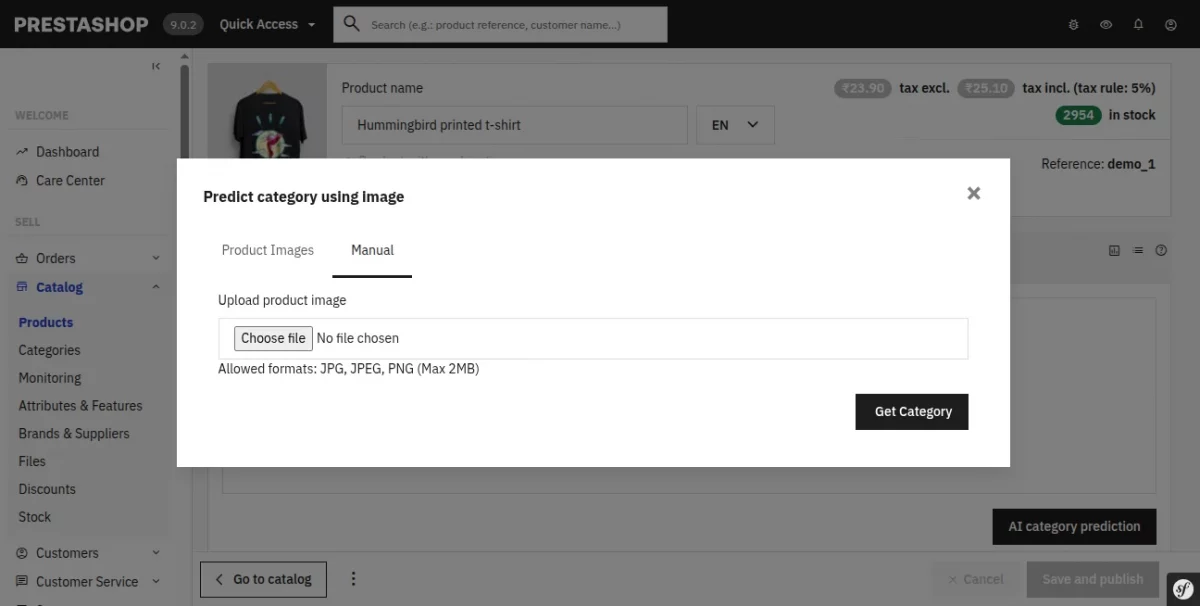
Once uploaded, the system validates the image and sends it to the AI server for processing. It then displays the predictions in the same dropdown interface as the product image mode.

Category Mapping System
The module maintains a persistent mapping system that connects AI-generated labels with PrestaShop categories.
How It Works
- AI labels are normalized
- The system checks existing mappings before creating new categories
- If a match exists, the mapped category is reused
- If no match exists, a new category is created under the Home category
The system shows mapped categories as “Mapped” and disables them in the prediction dropdown, avoiding duplicates and automatically reusing existing mappings.
This was all about the PrestaShop AI Category Prediction Module. I hope this document will help you in checking the functionality of the module in a better way.
Also, do let us know about your views in the comments.
Support
For any kind of technical assistance or query, please raise a ticket or send us an email at support@webkul.com
Also, please explore our Prestashop development services and vast range of quality Prestashop addons.