User Guide for Portal Purchase Signature
Table of Content
Intoduction
Portal Purchase Signature lets vendors accept and sign purchase orders online from the portal. It removes paperwork, saves time, and helps businesses confirm orders faster with a clear and secure signing process.
The module allows vendors to review, accept, sign, or reject purchase orders directly from the portal without manual follow-ups.
With a secure digital signing workflow, businesses get faster confirmations, clear records, and better control over vendor approvals.
Features
- Vendors can sign purchase orders directly from the portal.
- Vendors can easily accept and sign purchase orders online.
- Each signature is saved securely with date and vendor details.
- Purchase order status updates automatically after signing.
- Vendors can reject purchase orders with a reason.
- Vendors can add comments or feedback on purchase orders.
- Purchase orders update automatically after vendor confirmation.
Installtion
- Once you purchase the App from the Webkul store, you will receive a link to download the module’s zip file.
- Extract the file on your system after the download finishes. As a result, you will be able to see a folder named- ‘wk_portal_purchase_signature’.
- Copy and paste this folder inside your Odoo Add-Ons path.
- Now, open Odoo Apps and click on the Settings menu. Click Activate Developer Mode here.
- Then, open the Apps menu and click on ‘Update Modules List.’
- In the search bar, remove all the filters and search ‘wk_portal_purchase_signature’.
- You will be able to see the module in the search results. Click on ‘Activate’ to install it.
Workflows
- My Account: The vendor logs in to the portal and opens My Account to view purchase orders. Navigation: Website → My Account→ Requests for Quotation


- Create Purchase Request: The admin creates a purchase request from the Purchase module. Navigation: Purchase → Orders → Requests for Quotation → Create
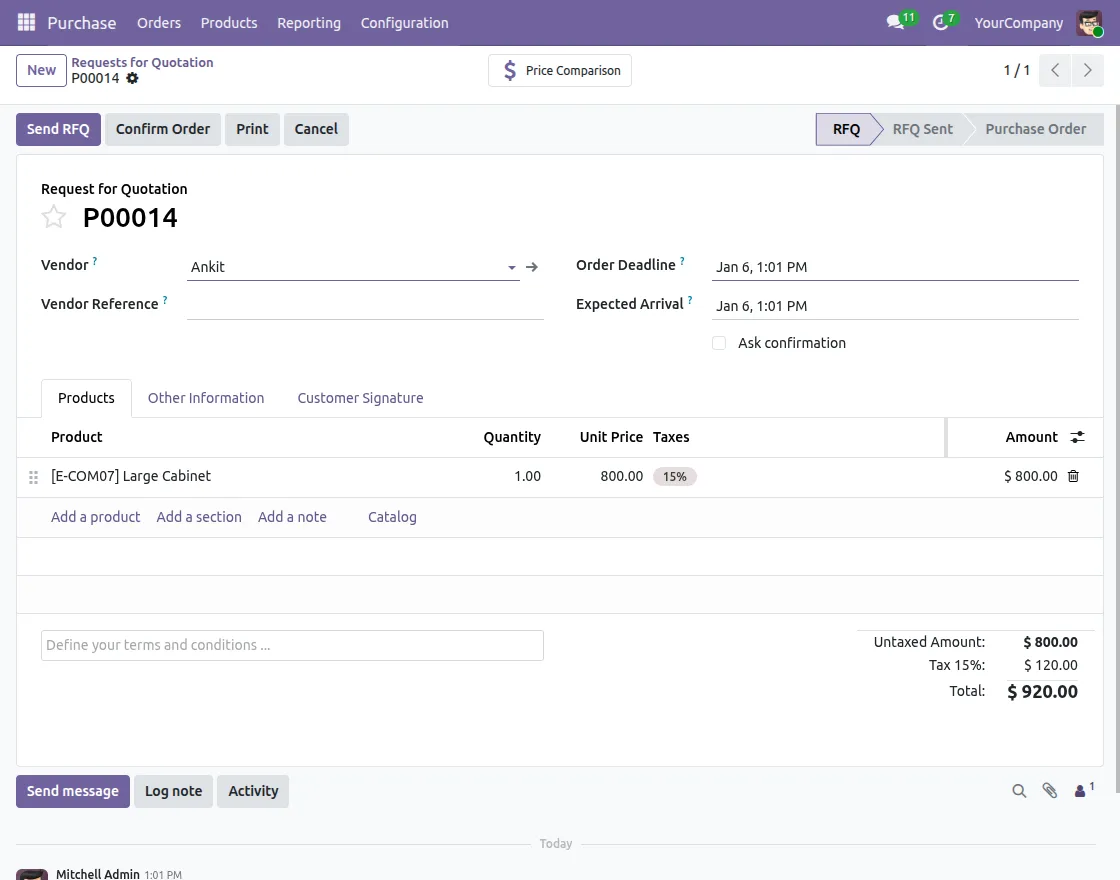
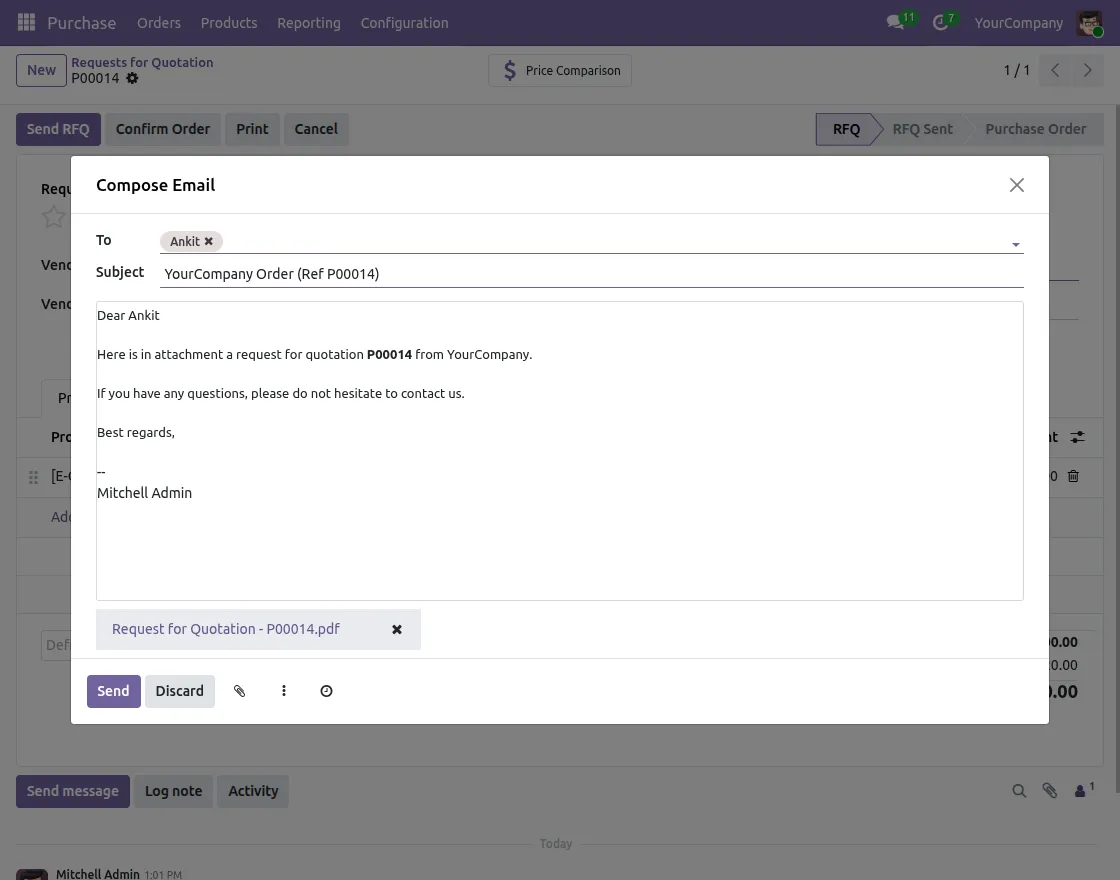
- Send Purchase Request: The purchase request is sent to the vendor for review and confirmation. Navigation: Purchase Request → Send
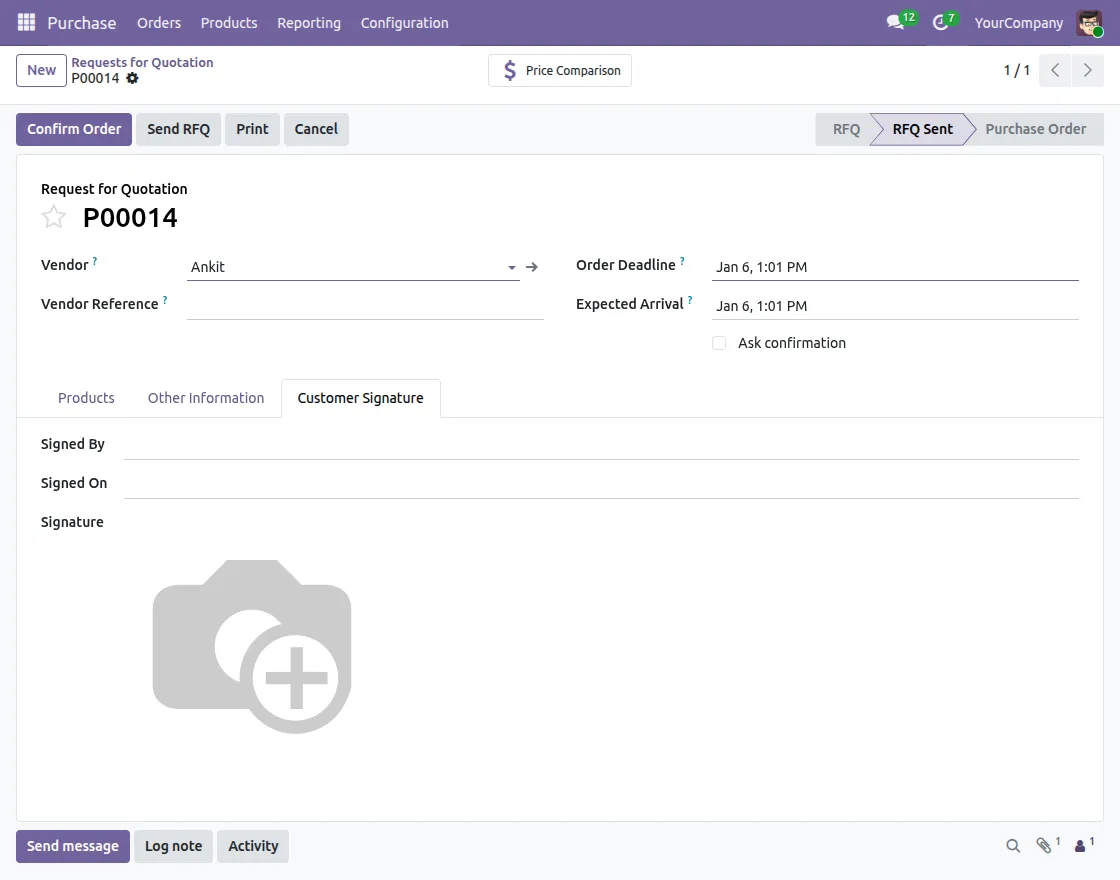
- No Customer Signature: If the order is not signed, No Customer Signature is displayed. Navigation: Purchase Request → Purchase Order
- Accept and Sign Option: The vendor views received quotations and sees the Accept and Sign option. Navigation: My Account → Requests for Quotation→ Order
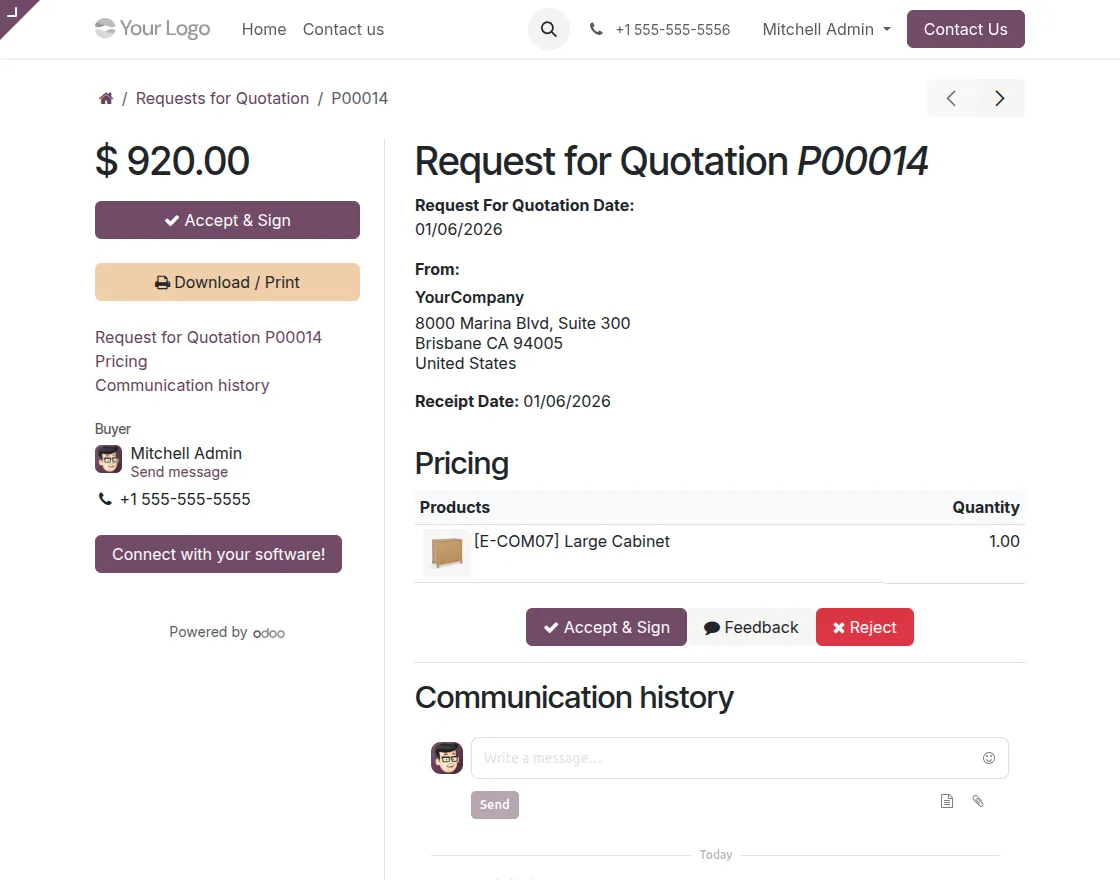
- Accept and Sign: The vendor accepts the order and adds a digital signature using the signature box. Navigation: My Account → Requests for Quotation → Order →Accept and Sign
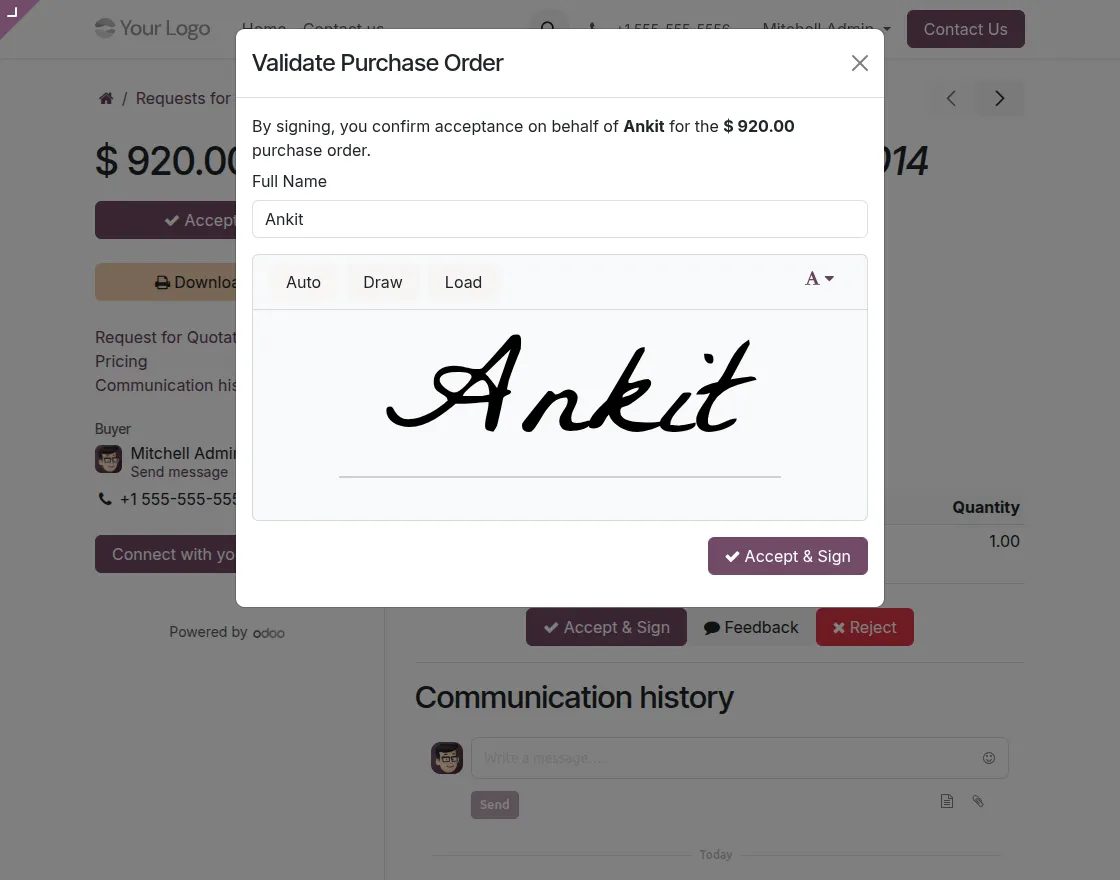
- Reject Quotation: The vendor can reject the purchase order by providing a mandatory reason. Navigation: My Account → Requests for Quotation → Order →Reject
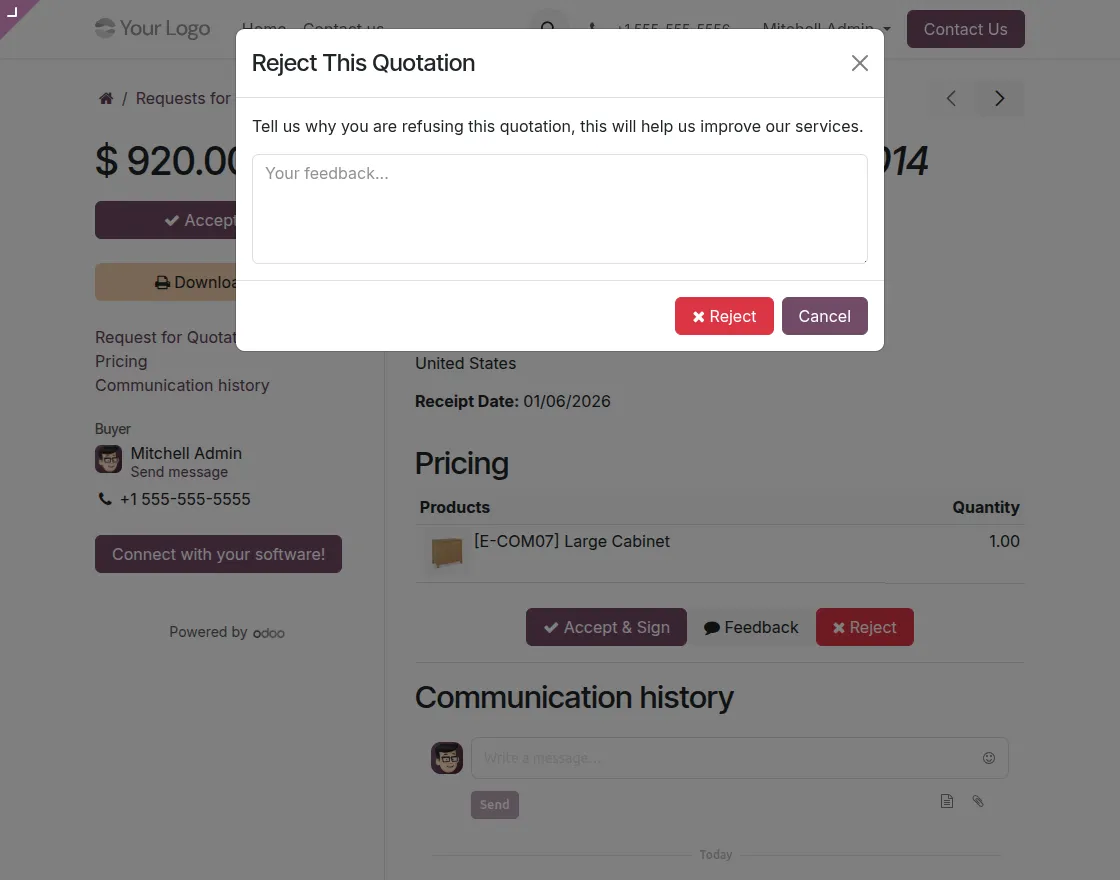
- Quotation Feedback: The vendor can submit comments or feedback without rejecting the order. Navigation: My Account → Requests for Quotation → Order → Feedback
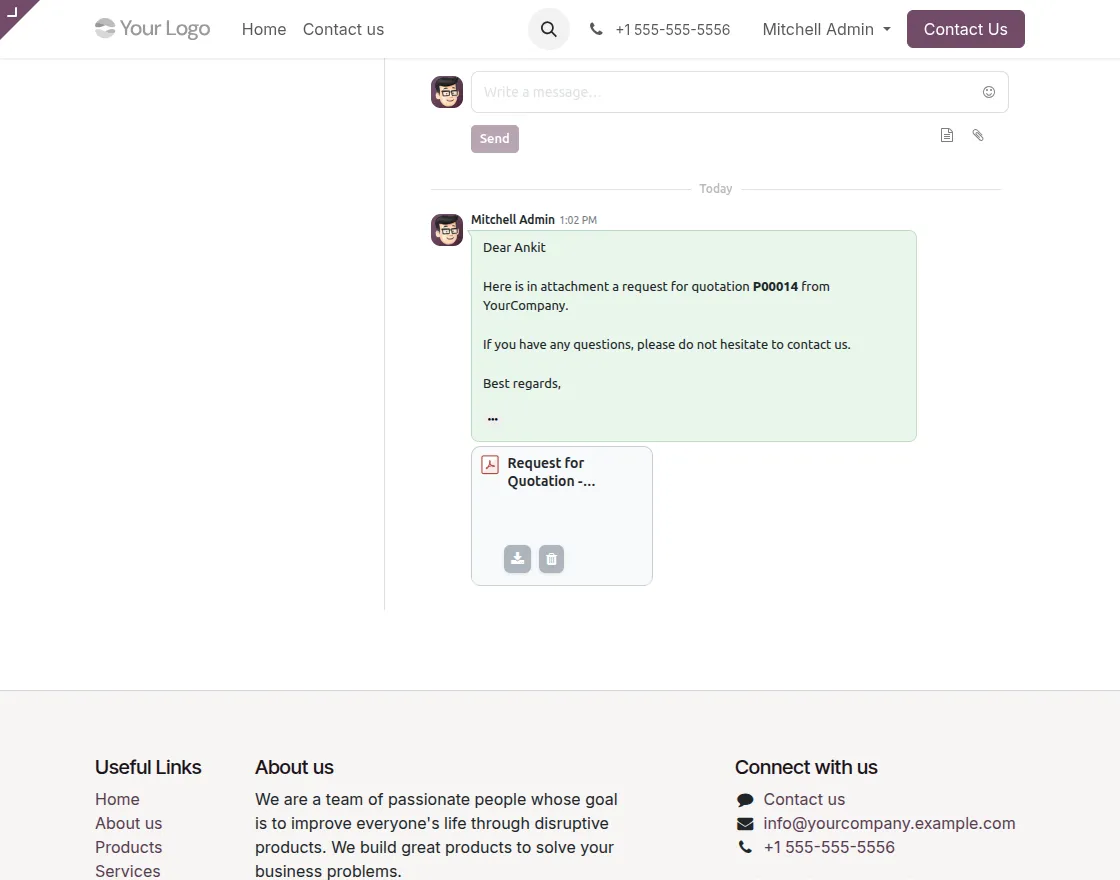
- Accept and Sign Done: After signing, the purchase order status is updated automatically. Navigation: My Account → Requests for Quotation → Orders
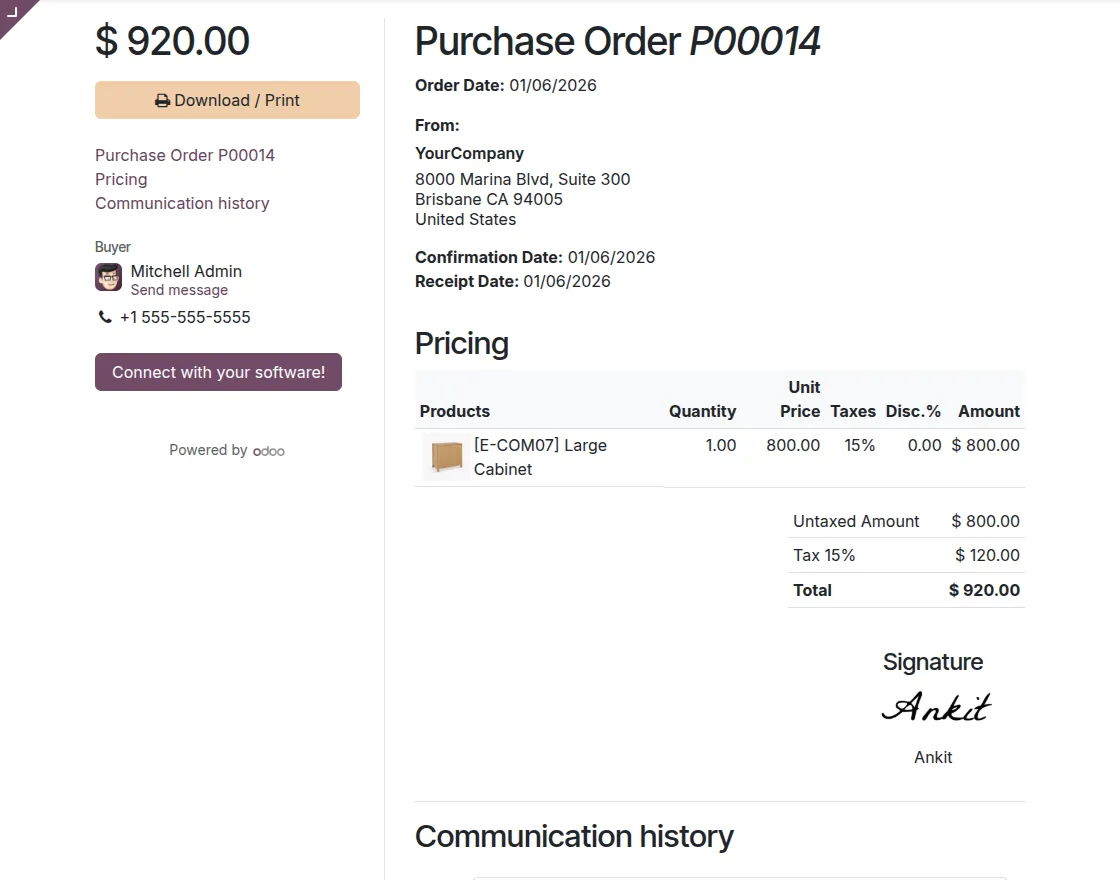
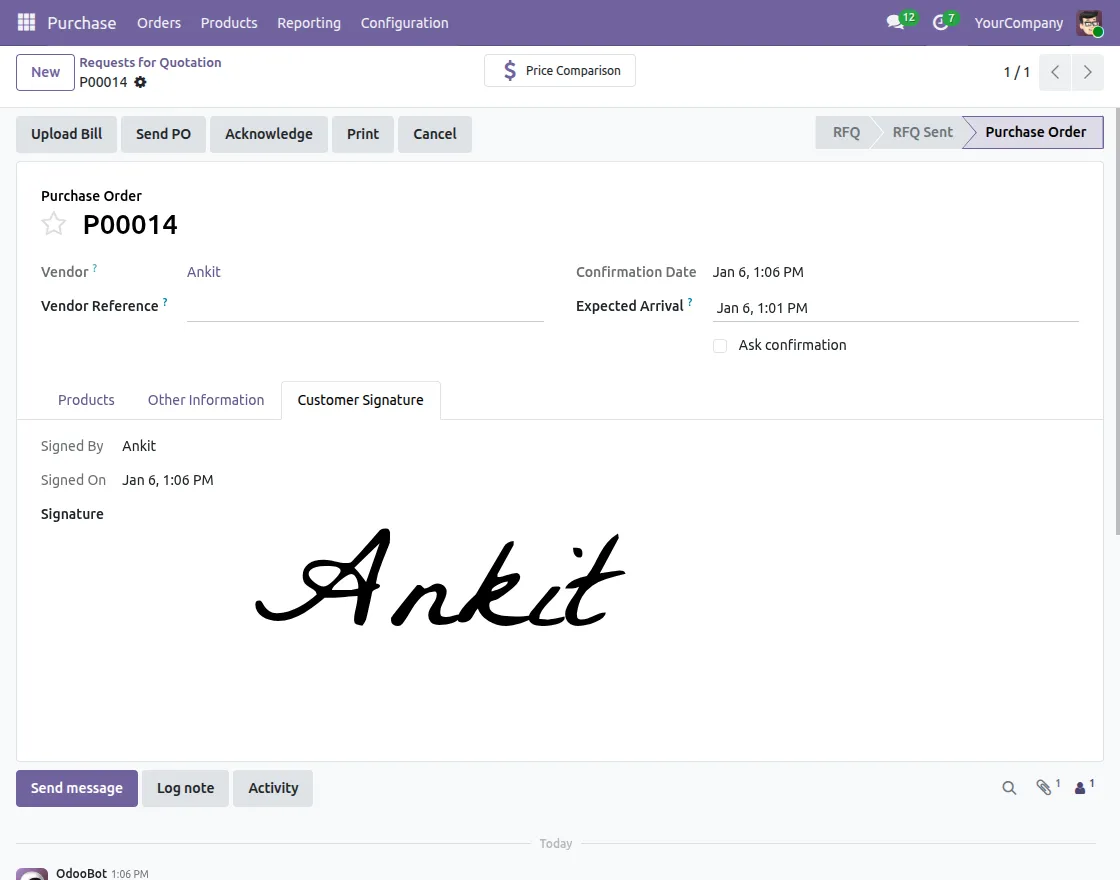
- Sign Display on Quotation in Customer Signature: The admin can view, download, and verify the signed purchase order from the backend. Navigation (Admin): Purchase → Orders → Purchase Orders → Purchase Order
Need Help?
Hope you find this guide helpful! Please share your feedback in the comments below.
If you have any issues or queries, create a ticket at the UV Desk.
For further assistance, contact us via our support email: support@webkul.com
Thanks for your attention!!
Categories:
Uncategorized
View Comments
Comment or Ask a Question
Quick Links