User Guide for Odoo Unifonic SMS Gateway
Introduction
Odoo Unifonic SMS Gateway seamlessly connects Odoo with Unifonic, enabling businesses to effortlessly send essential messages directly to customers’ mobile phones.
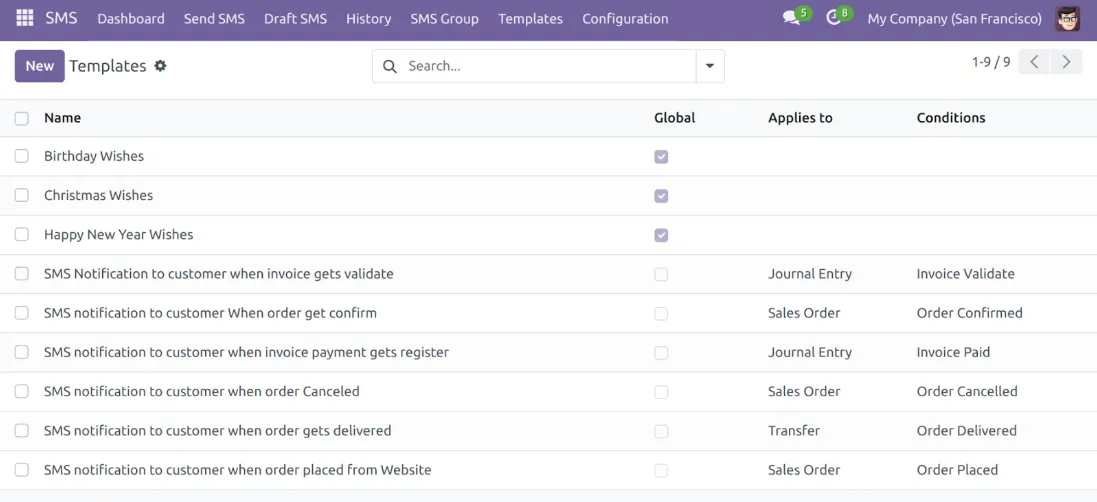
It also allows you to configure the SMS templates and choose from various available conditions, such as order confirmation, invoice validation, and order placement, to trigger the SMS.
Additionally, admin can send SMS to a single customer or vendor, or select multiple contacts or groups to send messages in bulk, giving businesses flexibility in communication.
Prerequisites For Using Odoo Unifonic SMS Gateway Module
Odoo Unifonic SMS Gateway works in conjunction with the following module:
Firstly, you must install this module for Odoo Unifonic SMS Gateway to work perfectly.
Features
- Easily integrate Unifonic SMS with Odoo using your Unifonic credentials.
- Once integrated, you can send SMS notifications directly to customers
- Create multiple SMS groups to send bulk messages to a group of people.
- Admin can select a specific group to send SMS to all its members simultaneously.
- Set conditions based on SMS templates for automated messaging.
- Send SMS messages to individual customers or vendors using the SMS form.
- The admin can track the delivery status of SMS messages sent (sent, failed, or delivered).
Installation
- Once you purchase the App from Webkul store, you will receive a link to download the module’s zip file.
- Extract the file on your system after the download finishes. As a result, you will be able to see a folder named ‘unifonic_gateway’
- Copy and paste this folder inside your Odoo Add-Ons path.
- Now, open Odoo App and click on the Settings menu. Here, click on Activate the Developer Mode.
- Then, open the Apps menu and click on ‘Update Modules List.’
- In the search bar, remove all the filters and search ‘unifonic_gateway’
- You will be able to see the module in the search results. Click on ‘Install’ to install it.
Work Flow
1. Once you have installed the module, a dashboard will open where you will have all the information.

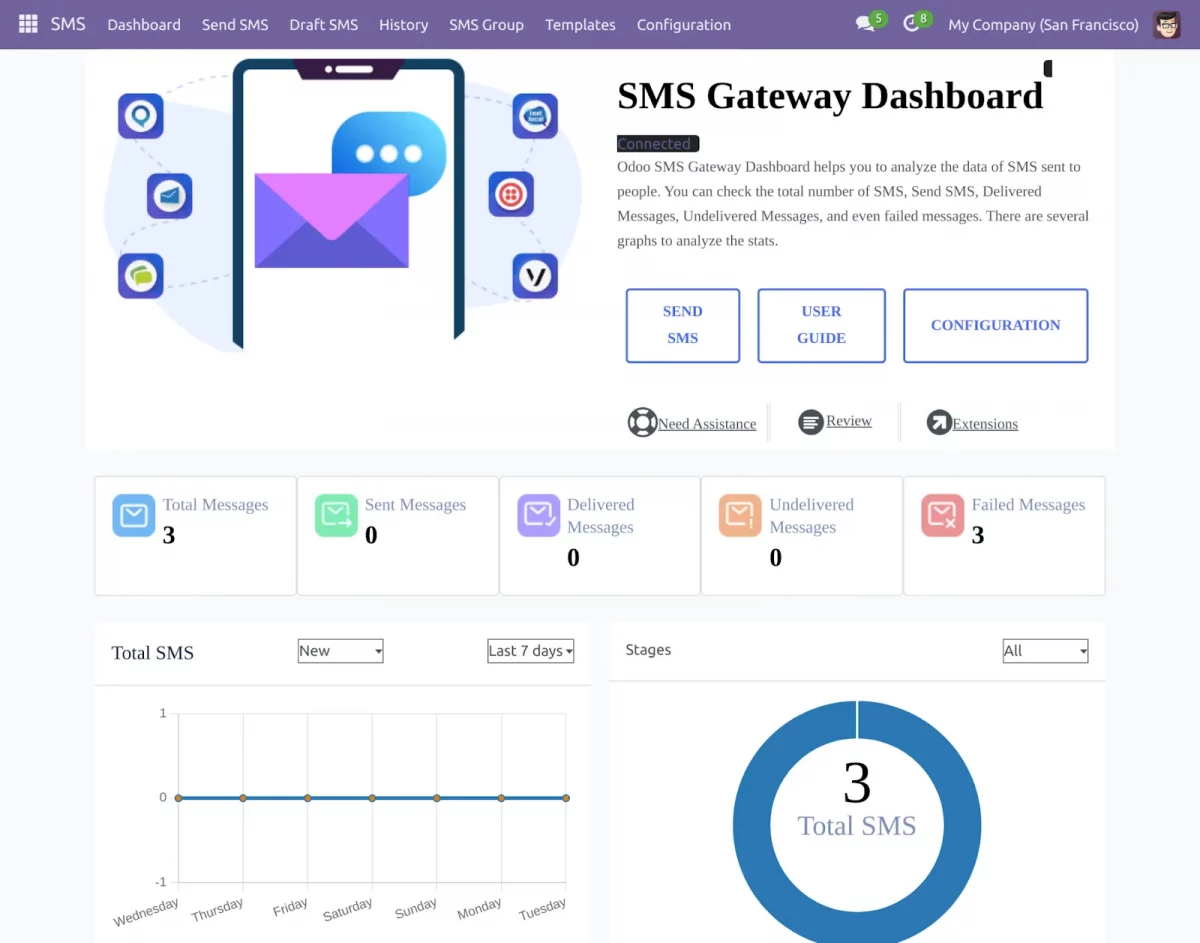
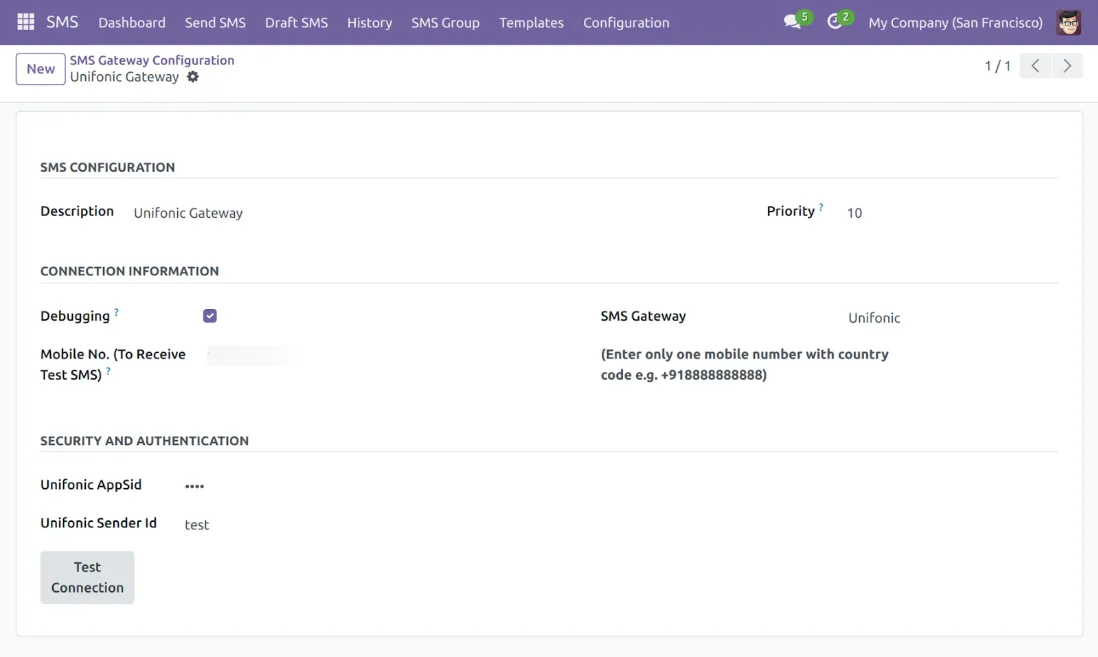
2. Navigate to the configuration section where users can enter their Unifonic credentials for integration.

3. Admin can set up SMS templates and configure them to either be global or conditional based on specific criteria.

4. Admins can check the status of SMS messages sent to clients, including whether they were sent, failed, or delivered.
5. Admins can view the history of all SMS messages shared with clients, providing insights into past communications

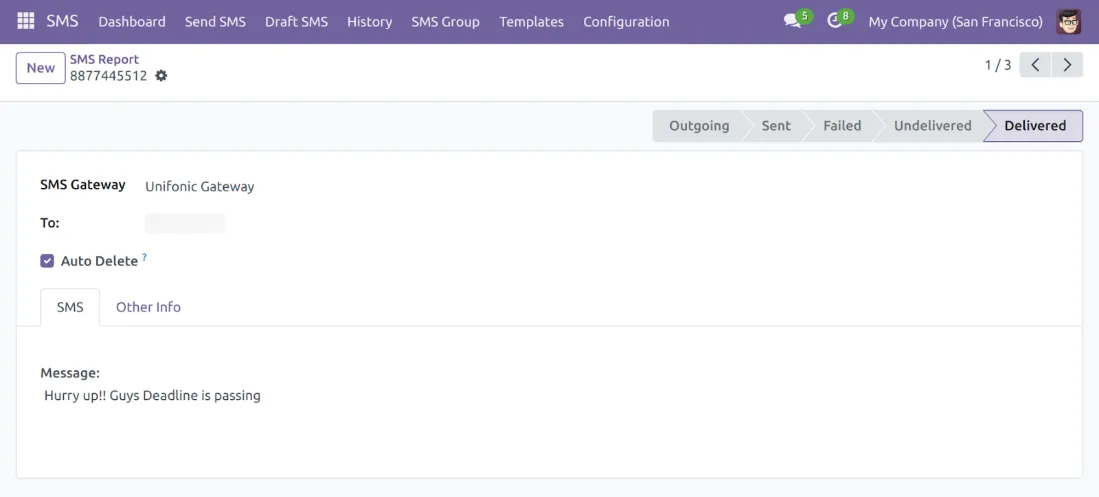
6. Admin can see all the messages sent to the group and their status.

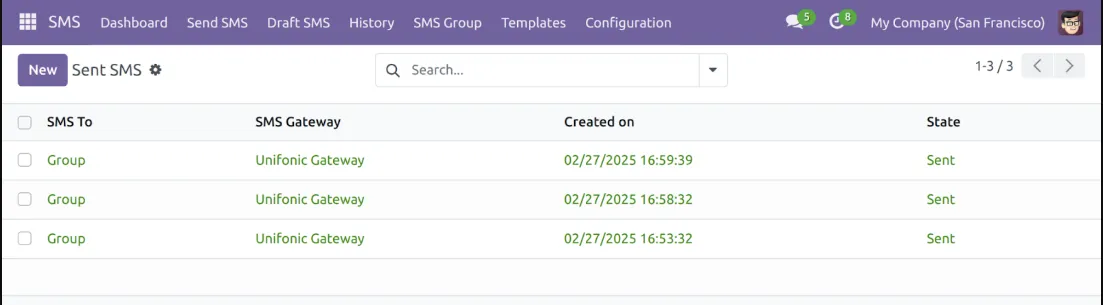
7. Admins can configure and manage SMS groups to send bulk messages to multiple recipients as needed.


Need Help?
Hope you find the guide helpful! Please feel free to share your feedback in the comments below.
If you still have any issues/queries regarding the same, please raise a ticket at the UV Desk.
I hope this helps. In case of any further queries, contact us at our support mail.
Thanks for paying attention!!