User Guide of Odoo Shopping Assistant Using LLM
Introduction
Odoo Shopping Assistant Using LLM: Resolve Customer Queries Quickly!!
Odoo Shopping Assistant Using LLM optimizes customer experience with LLM-powered quick responses, is budget-friendly, and functions just like the ChatGPT Chatbot.
It resolves customer queries on the Odoo Business Website, boosting engagement and saving time.
Note-
With the Odoo Sentiment Analysis tool, you can check the feelings of your team and customers’ messages. This tool helps you understand what your customers and employees are saying.
Features
- Uses the Large Language Model to understand customer queries.
- Customer can upload their data to train the Odoo Shopping Assistant for a Product or many Products.
- Users can enable and Disable the chatbot from the backend.
- No subscription is required.
- Gives Quick replies and maintains a good customer experience.
You can upgrade your Odoo website protection with Odoo EU Captcha with a Captcha Verification Method to identify the difference between human customers and spam bots that may harm your website data.
Installation
- After purchasing the module, a link will be provided to download a zip file.
- Extract the file and a folder name ‘opensource_llm_chatbot’ will be visible.
- Copy the folder to the Odoo add-ons path.
- Open the Odoo app, and click on settings. Then, Click on Developer Mode.
- Now, open the Apps Menu and click on ‘Update Module List’.
- At the search bar, remove all filters and search ‘opensource_llm_chatbot’.
- Click on Install for Installation. Kudos!
Before moving further, explore our Odoo development services & an extensive range of quality Odoo Apps.
Workflow
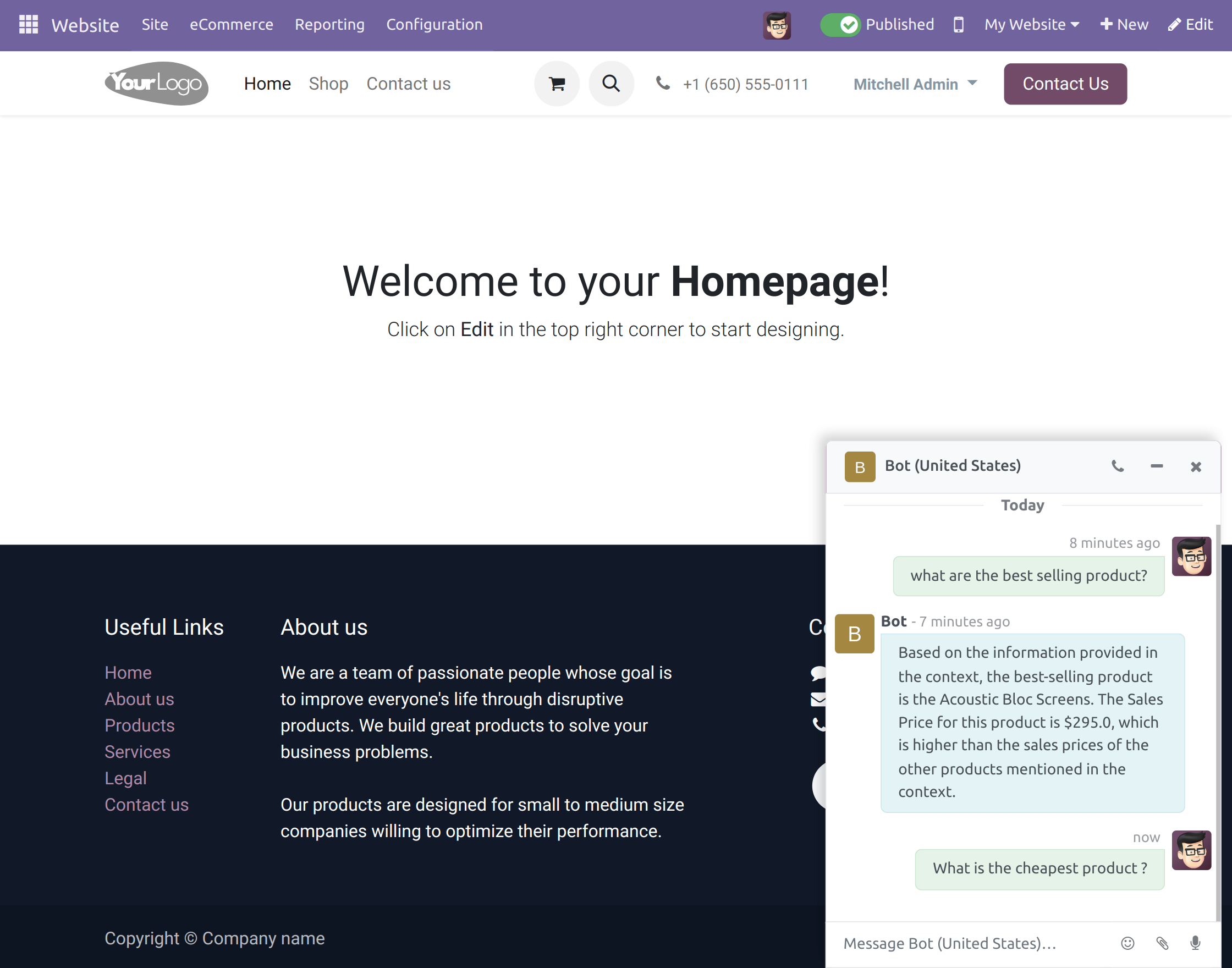
Website View

Configurations
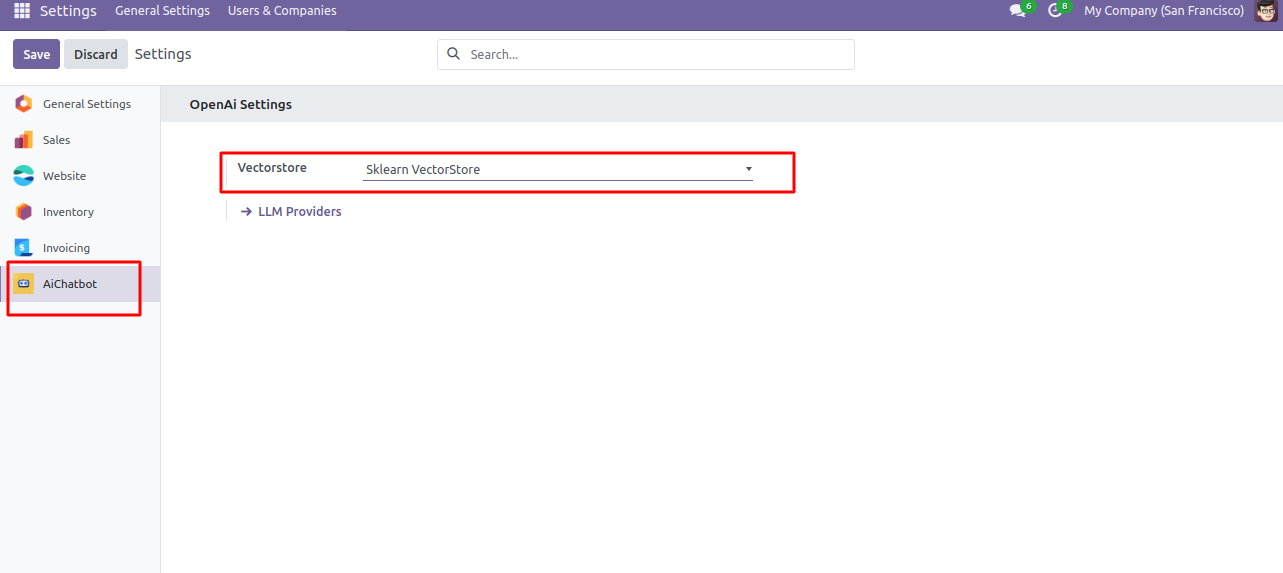
- Login to Odoo and Select the vector store to be used by navigating to ‘Configurations > Settings > AiChatbot> Select Vectorstore’.

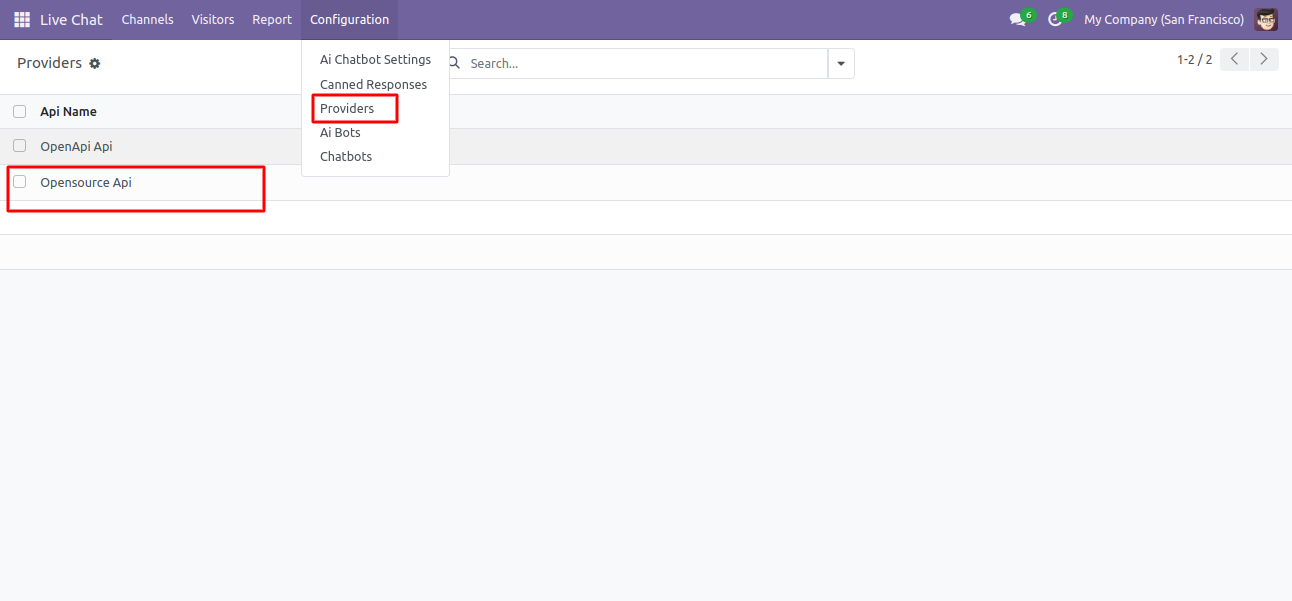
2. Adding and Selecting the Open Source LLM Host for which the LLM server will be used to respond to customer queries. By Navigating to ‘Configuration > Providers > OpenSource Api ’ (As per choice).

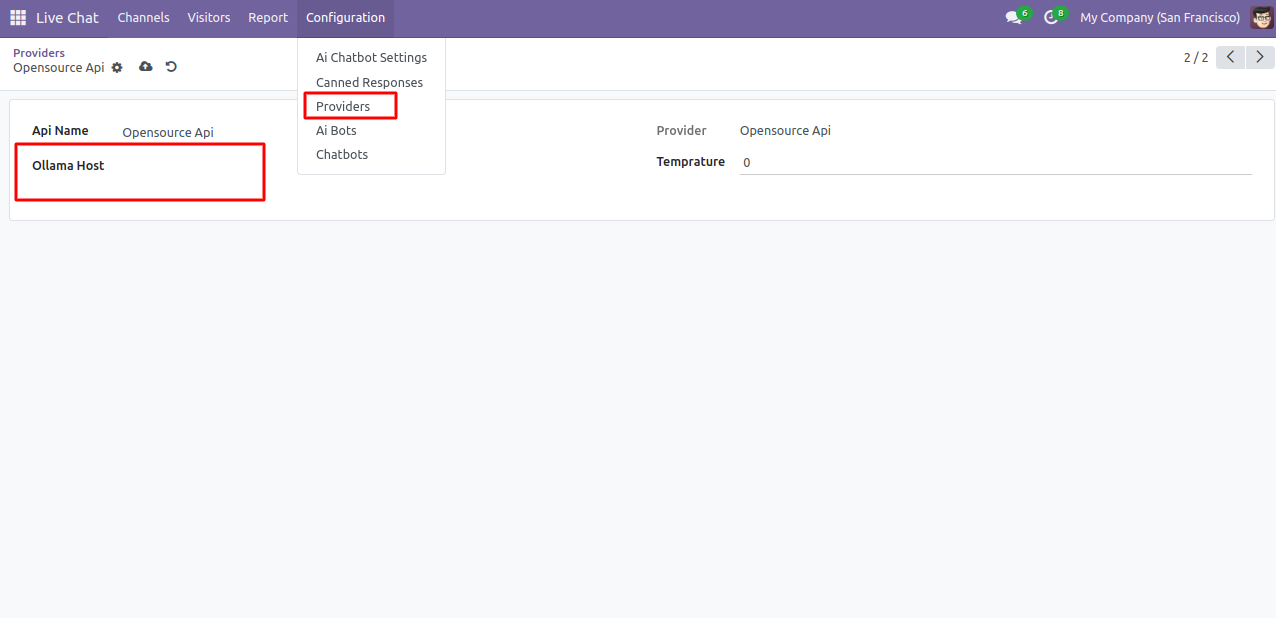
3. After selecting the desired provider, users can select the ‘Ollama Host’ as per choice.

4. Creating an AI chatbot and putting the vector data fields to understand the queries. By navigating to ‘Configuration > Ai bots > New’.

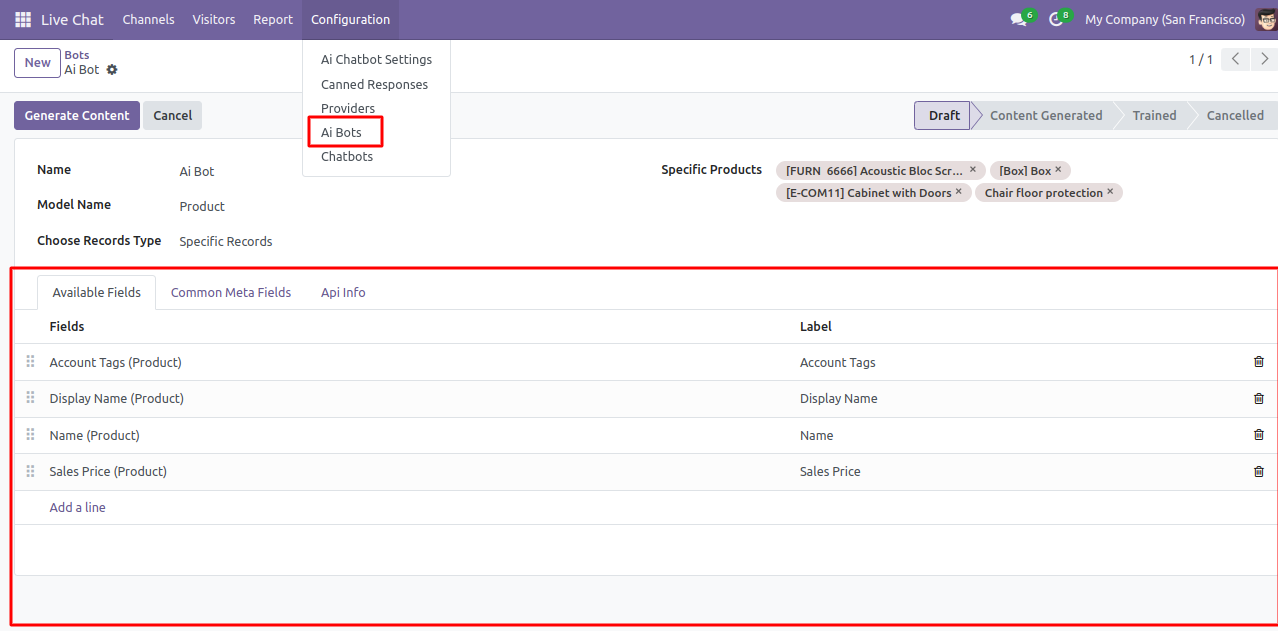
5. Business Users can Select Providers and LLM Models to be used by the chatbot for automation:

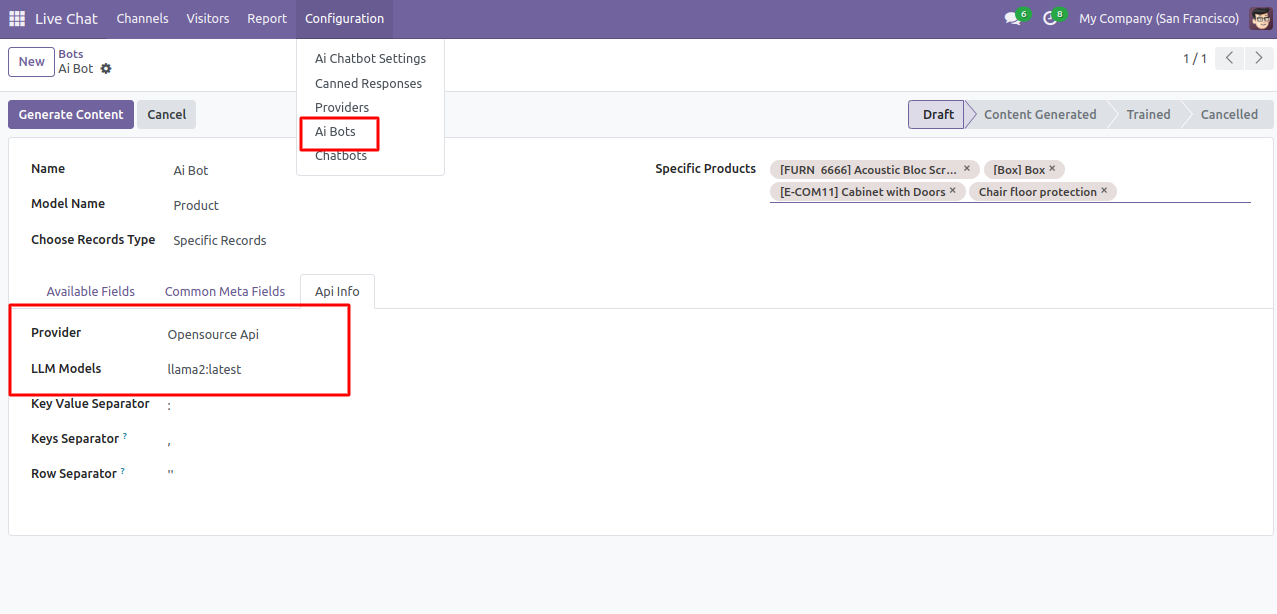
6. Business users can leverage the Odoo Shopping Assistant with an LLM chatbot, trained on custom business data.
They can specify products under ‘specific products’ and select ‘specific records’ for targeted queries.


7. ‘Generating content’ will generate content with provided attributes and configurations. And use the content for training the chatbot.


8. The Generated content with Odoo Shopping Assitant Using LLM, user can easily make replacements with their custom.txt file if required to make the chatbot trained.


9. Odoo Shopping Assistant using LLM is ready for training on the assigned configurations. On clicking ‘Train Data’. Now, the chatbot is ready to get train and for use.


10. Business Users can also train Chatbot in all record data which can use the data to access all records on Odoo by selecting ‘All Records’ in the option Choose Records Type.

NEED HELP?
Hope you find the guide helpful! Please feel free to share your feedback in the comments below.
If you still have any issues/queries regarding the same, please raise a ticket at the Webkul Support System.
Thanks for paying attention!!