User Guide for Odoo Product Price Checker
Table of Content
Introduction
Odoo Product Price Checker helps users quickly search or scan products and view product details from a single screen. It supports barcode scanning, camera scanning, and manual search.
You can use Odoo Product Price Checker in retail stores, warehouses, and self-service setups. It helps users find product prices and stock details without opening multiple menus.
You can check the Odoo Product Price Checker module on the Webkul Store.
Features
- Scan products quickly using barcode scanners and camera devices.
- Search products using product names or internal references.
- Display product details in inline or popup view options.
- Show product prices based on selected pricelist configuration.
- Enable on-screen keyboard support for touch screen devices.
- Configure stock location for accurate product quantity display.
- Display recently searched products using product history records.
- Auto-clear search results after a configured time interval.
- Customize screens using background and promotional images.
Installation
- Once you purchase the App from Webkul store, you will receive a link to download module’s zip file.
- Extract the file on your system after download finishes. As a result, you will be able to see a folder named- ‘wk_product_price_checker’
- Copy and paste this folder inside your Odoo Add-Ons path.
- Now, open Odoo App and click on the Settings menu. Here, click on Activate Developer Mode.
- Then, open Apps menu and click on ‘Update Modules List.’
- In the search bar, remove all the filters and search ‘wk_product_price_checker’
- You will be able to see module in the search results. Click on ‘Activate’ to install it.
Check the video mentioned below for an overview of the workflow of this module:
Workflow
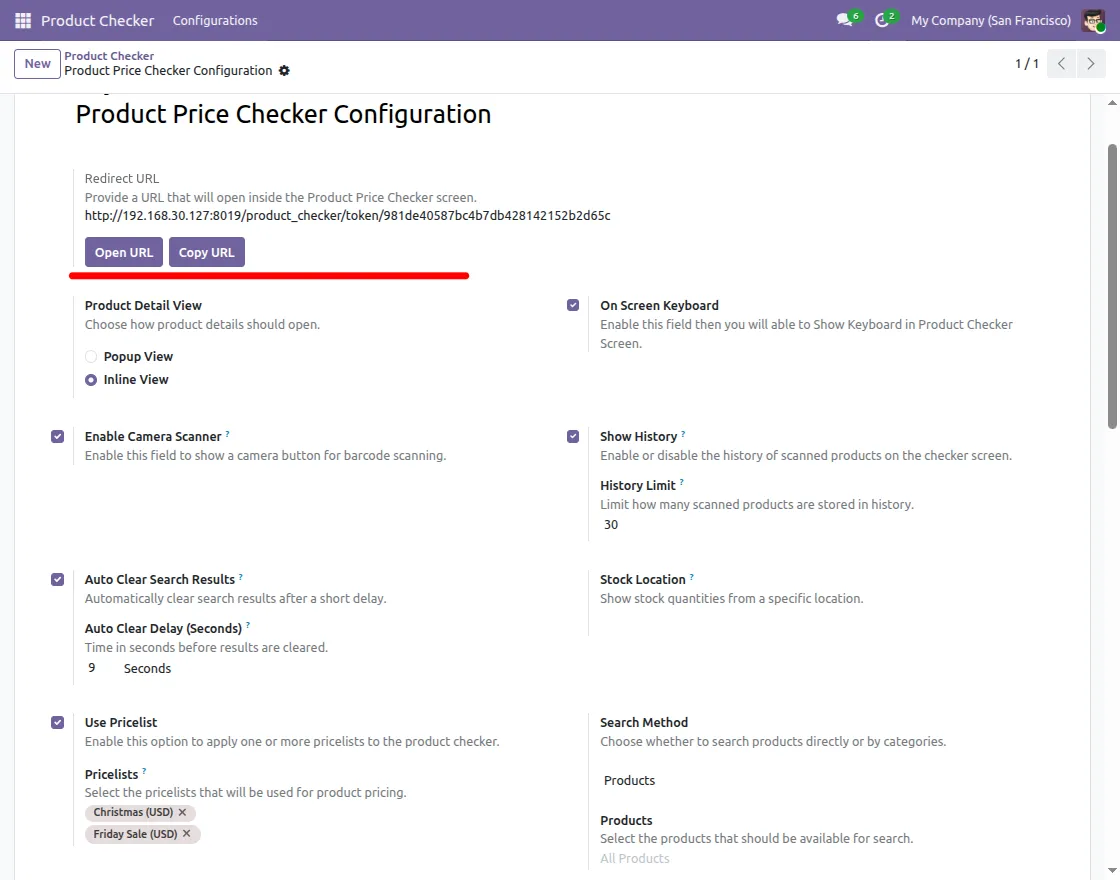
1. After installing Odoo Product Price Checker, open Product Checker and create a new configuration.
Generate the Product Checker URL that will open the product search screen.

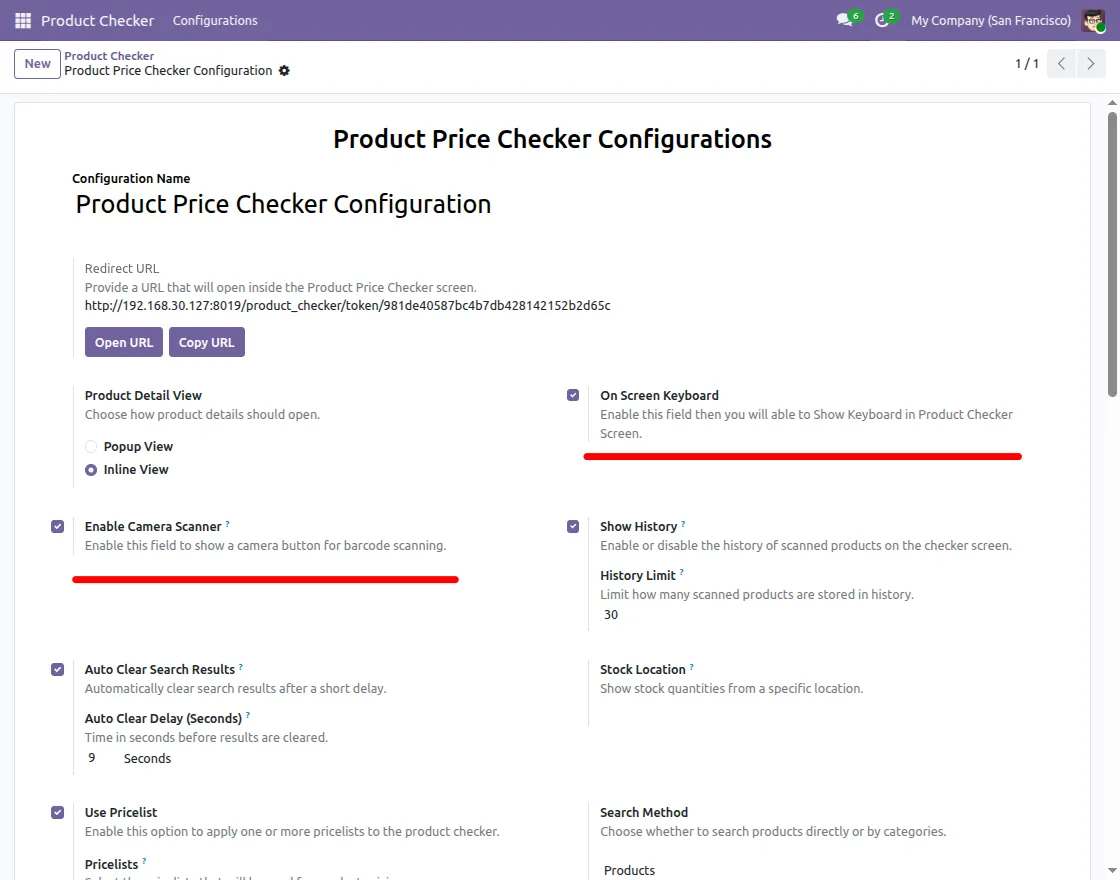
2. Select the product detail view and configure the required settings. Enable options such as Camera Scanner, On-Screen Keyboard, History, and Auto Clear Search Results.
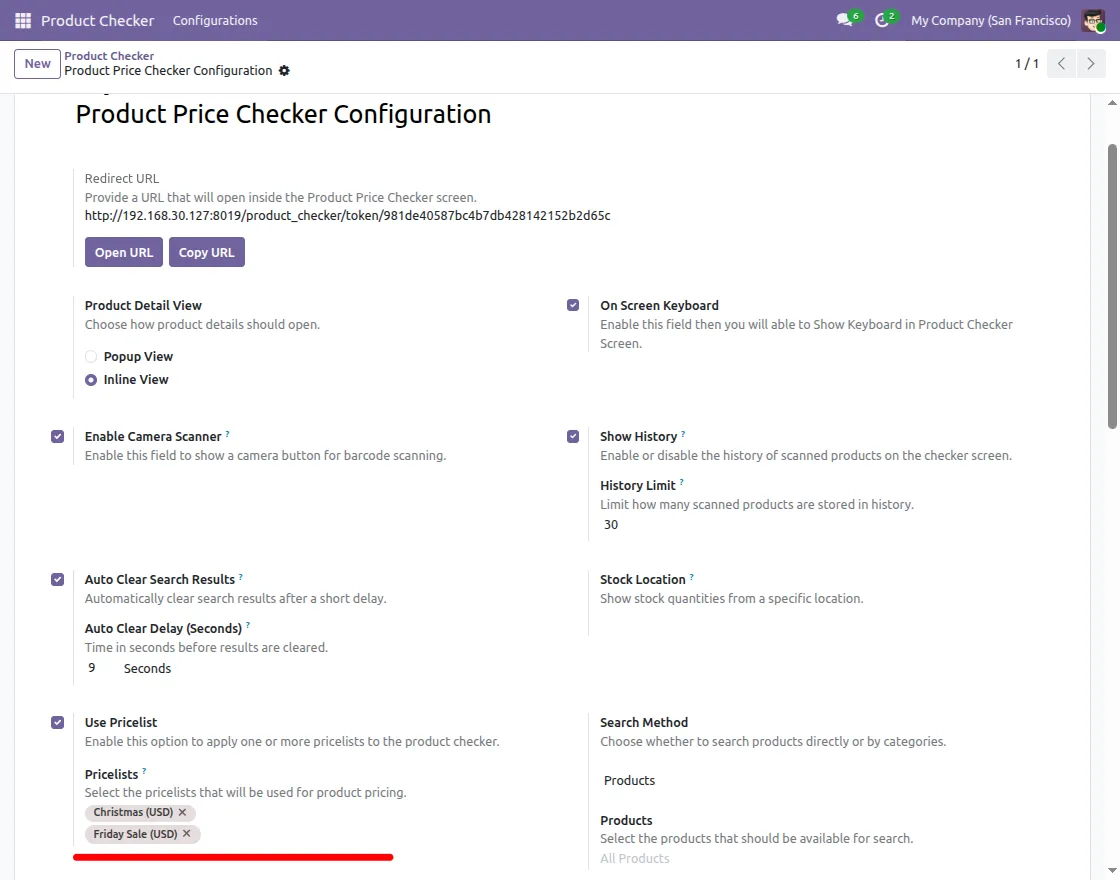
3. Enable pricelist settings and select one or more pricelists for product pricing. The selected pricelist will display the product price on the Product Checker screen.
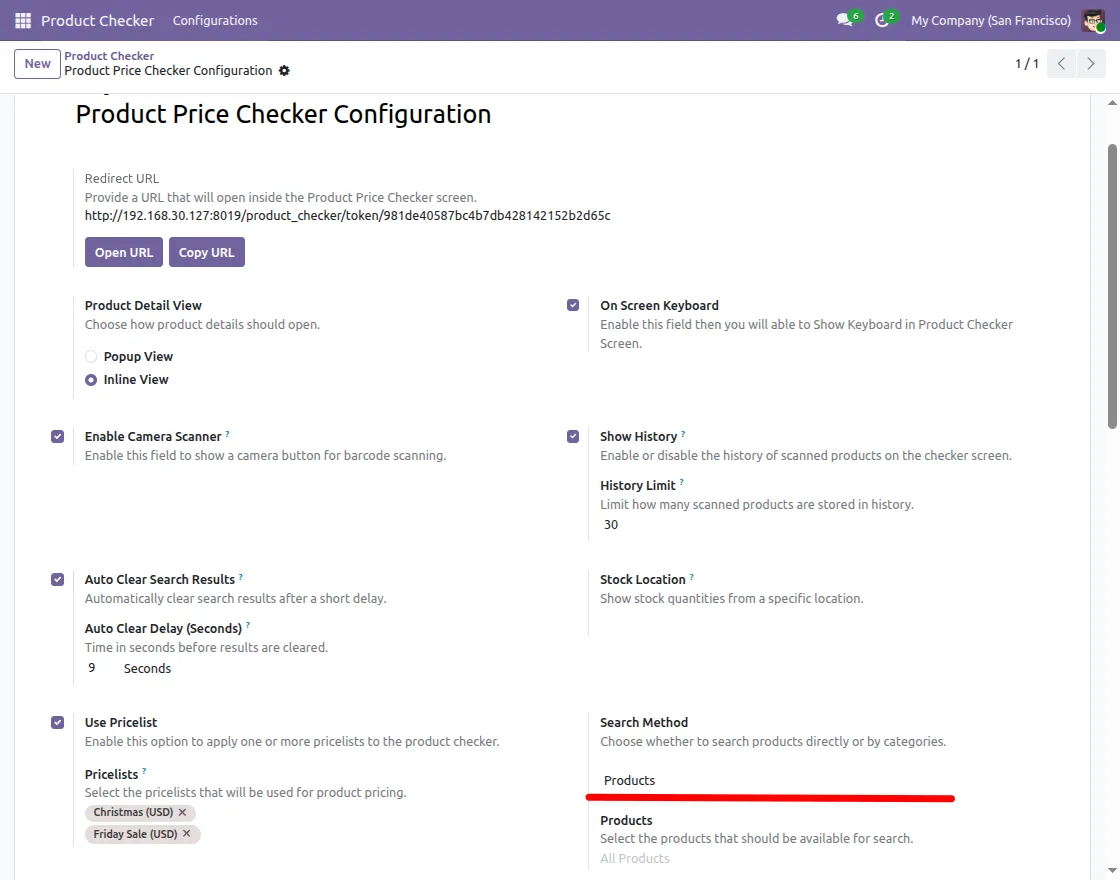
4. Configure the search method according to business requirements. You can allow users to search products by product or category.
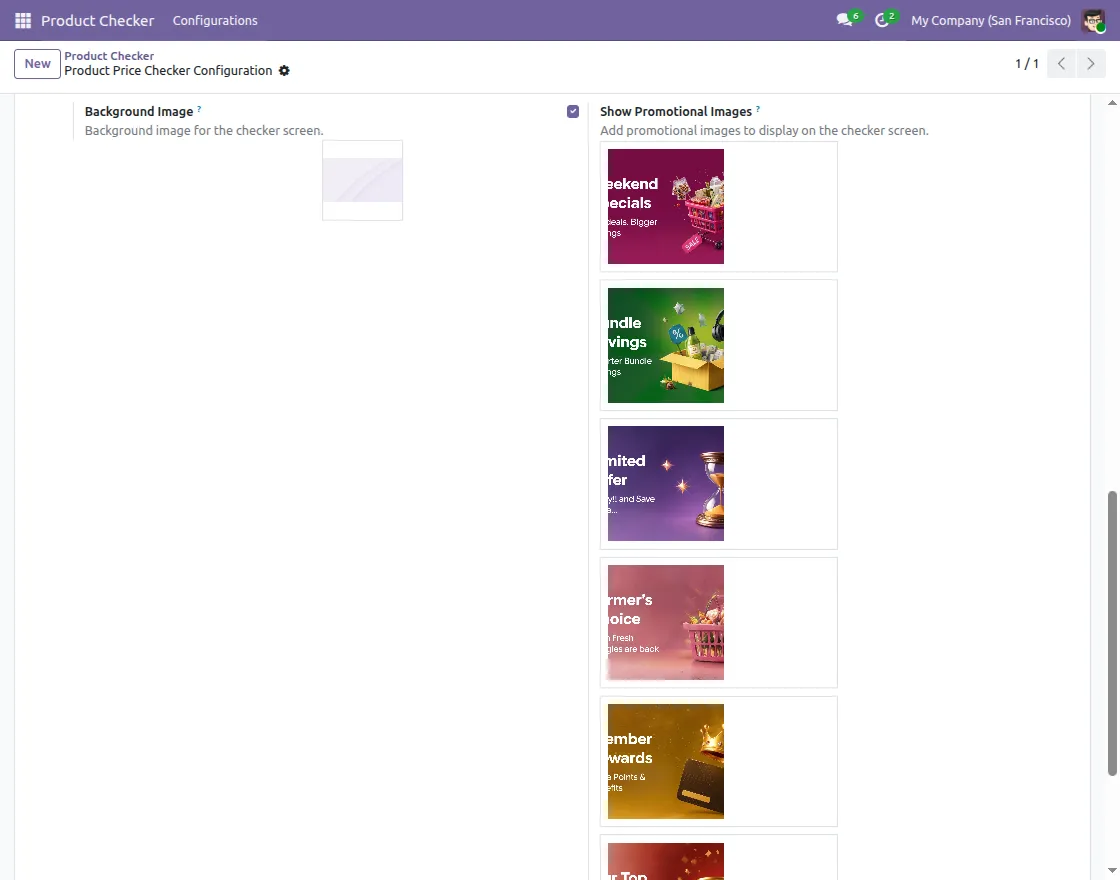
5. Configure stock location, background image, and promotional images.
These settings help show accurate stock quantity and improve screen appearance.
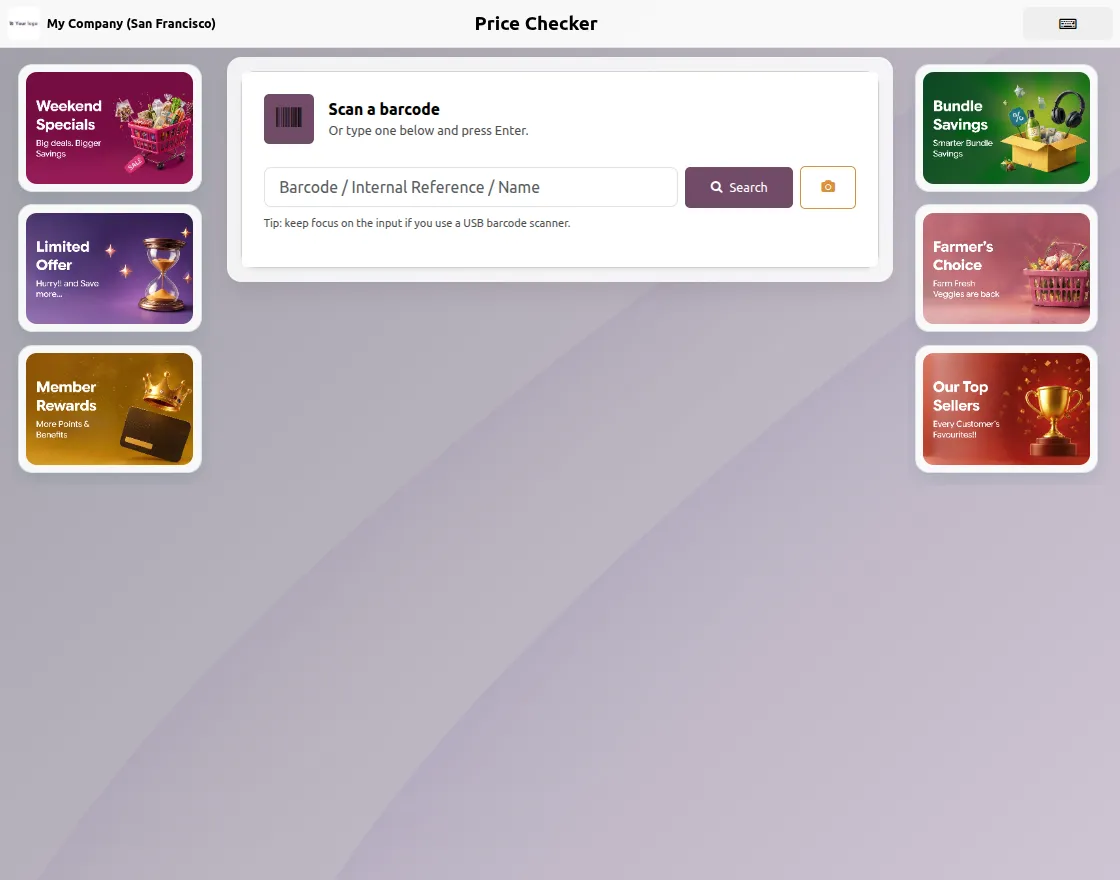
6. Open the Product Checker screen and search products using barcode, internal reference, or product name. Users can also use the camera scanner option for barcode scanning.
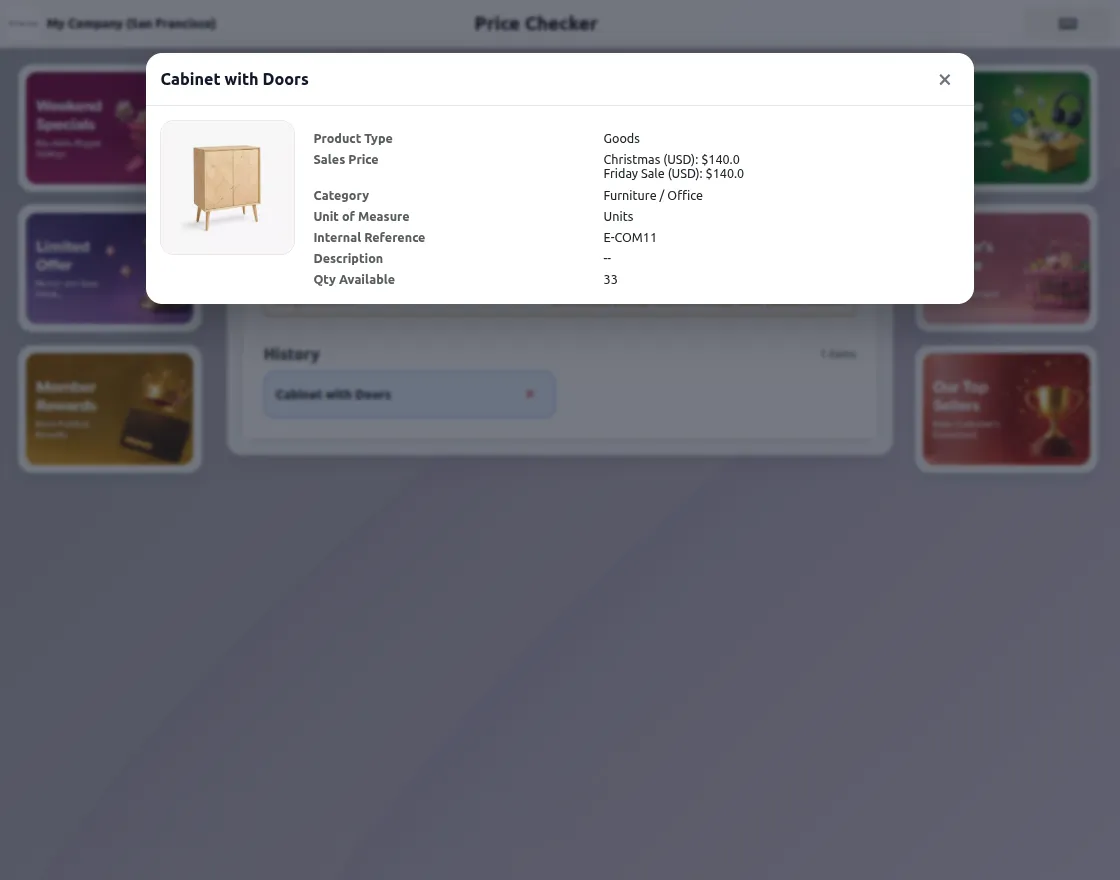
7. After searching, the system displays product details with price, category, quantity available, and other information. Users can view details in inline mode or popup view based on configuration.
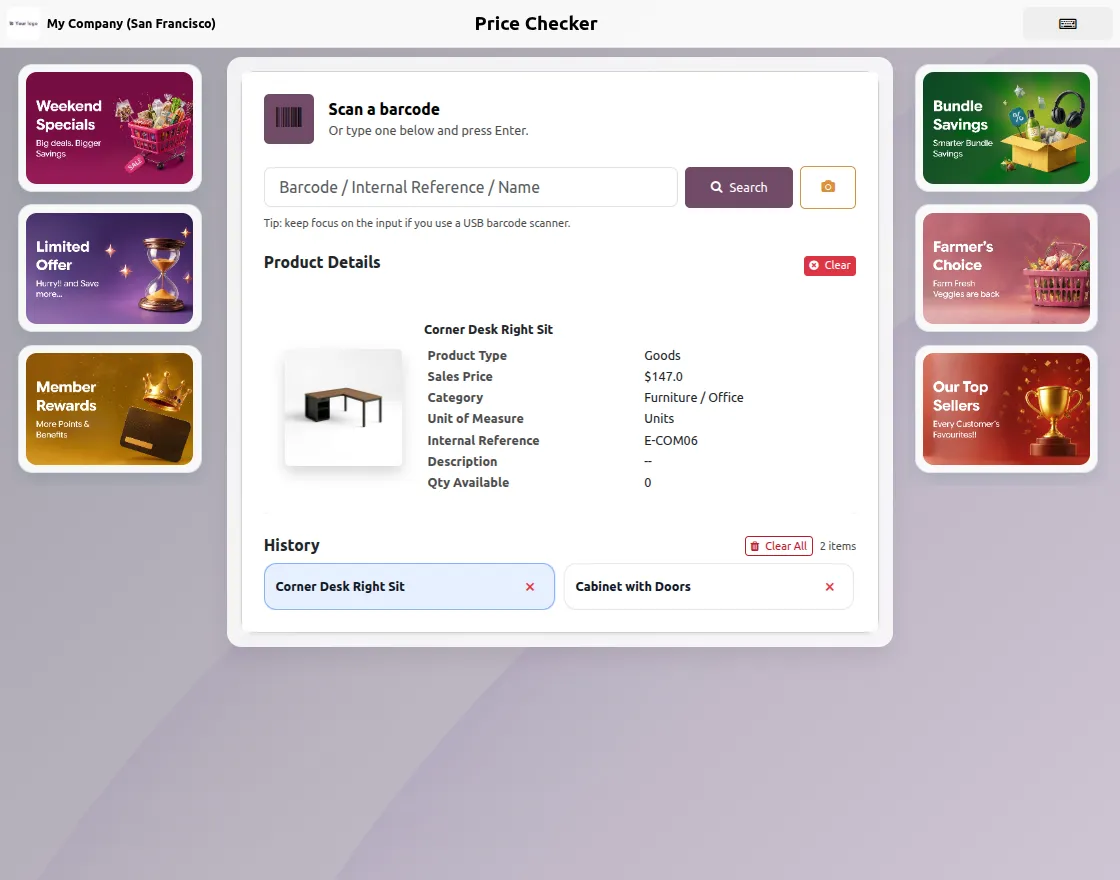
8. Users can also view recently searched products from the history section. This helps users quickly access previously searched products without repeating the process.
Need Help?
Hope you find guide helpful! Please feel free to share your feedback in the comments below.
If you still have any issues/queries, please create a ticket at the UV Desk.
I hope this helps. In case of any further queries, contact us at our support mail.
Thanks for paying attention!!