User Guide for Odoo POS Disable Financial Data
Table of Content
Introduction
Odoo POS Disable Financial Data module helps you control what financial data is visible in the Point of Sale. It prevents users from having sensitive data access
With this module, you can hide details like cash amounts, reports, and total orders from the POS interface. This reduces the risk of misuse or manipulation by cashiers.
It provides simple configuration options to restrict visibility based on your needs. This ensures better control and improved security during POS operations.
Features
- Hide financial data in POS closing control to restrict sensitive data access
- Hide Cash In/Out button to prevent manual cash adjustments
- Hide Daily Report button to block access to POS reports
- Hide total orders to restrict visibility of overall sales data
- Option to hide only cash details while keeping other data visible
- Odoo POS Disable Financial Data provides simple configuration through checkbox options in the POS settings.
Installation
- Once you purchase the App from Webkul store, you will receive a link to download module’s zip file.
- Extract the file on your system after download finishes. As a result, you will be able to see a folder named- ‘ pos_disable_financial_data (you can get the technical name from odoo app of the respective module)’
- Copy and paste this folder inside your Odoo Add-Ons path.
- Now, open Odoo App and click on the Settings menu. Here, click on Activate Developer Mode.
- Then, open Apps menu and click on ‘Update Modules List.’
- In the search bar, remove all the filters and search ‘pos_disable_financial_data’
- You will be able to see module in the search results. Click on ‘Activate’ to install it.
Workflow
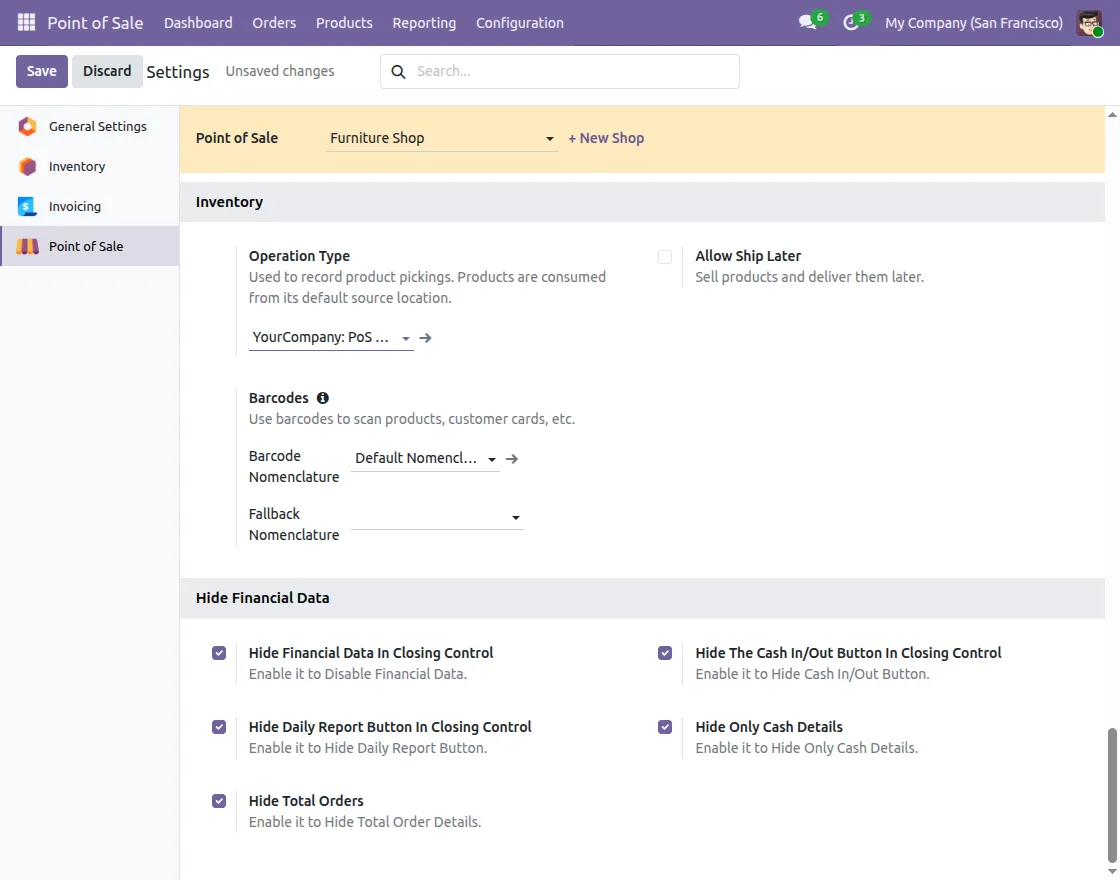
1. Go to Point of Sale, then click Configuration and select Settings.
Open the settings page and scroll down to the Hide Financial Data section.

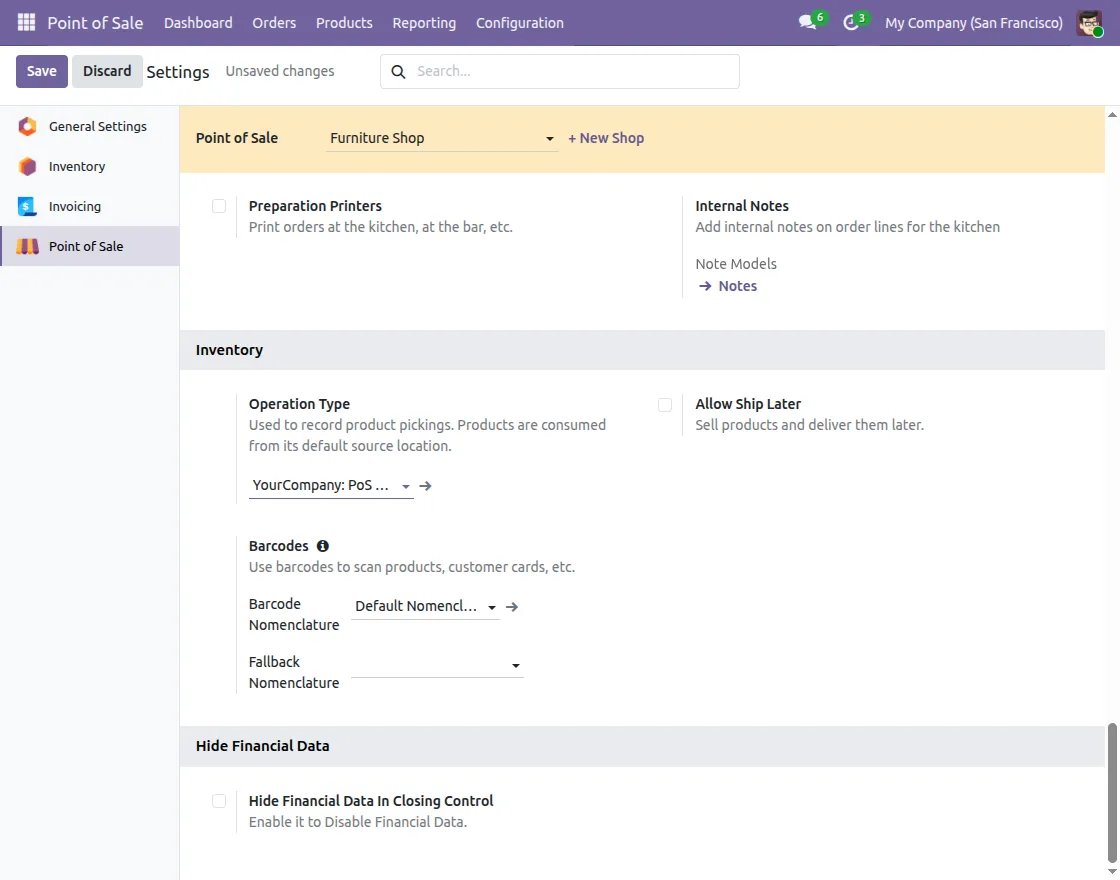
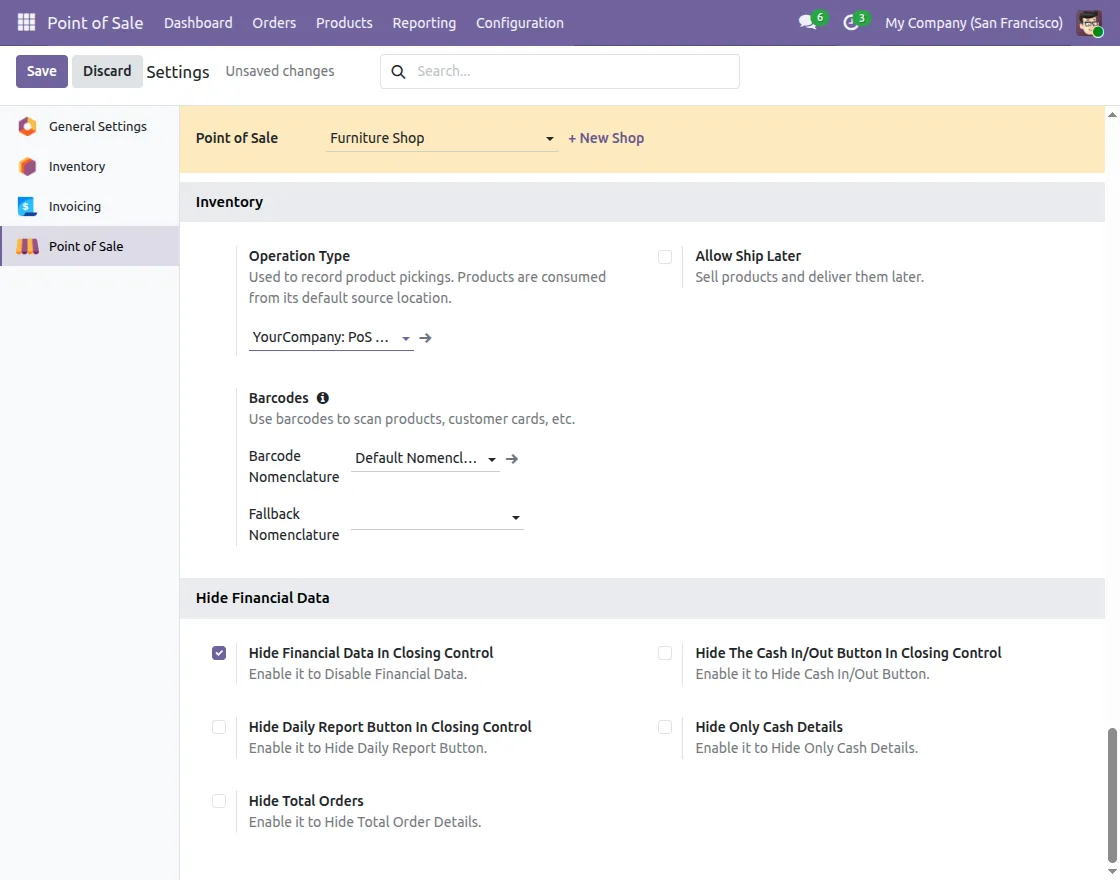
2. Then click the checkbox in front of Hide Financial Data In Closing Control to enable POS Disable Financial Data.
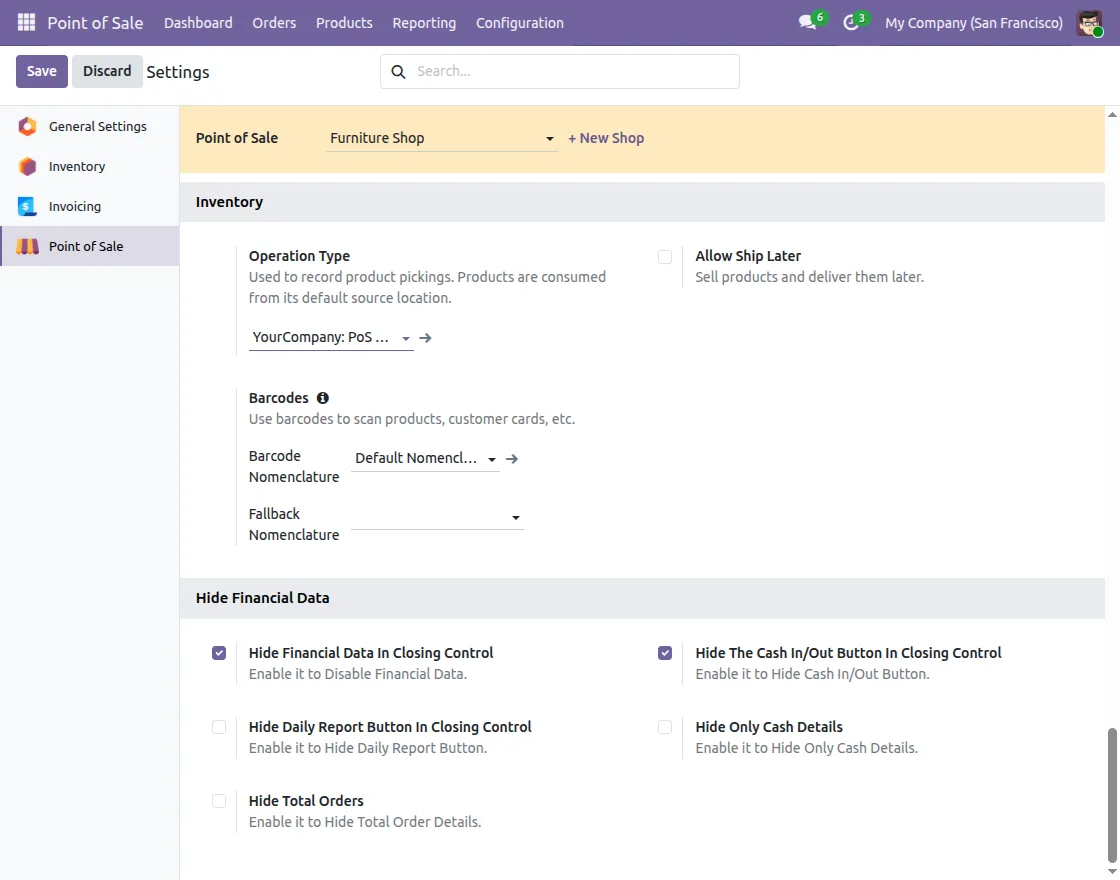
3. After that, enable Hide The Cash In/Out Button In Closing Control to Hide Cash In/Out Button.
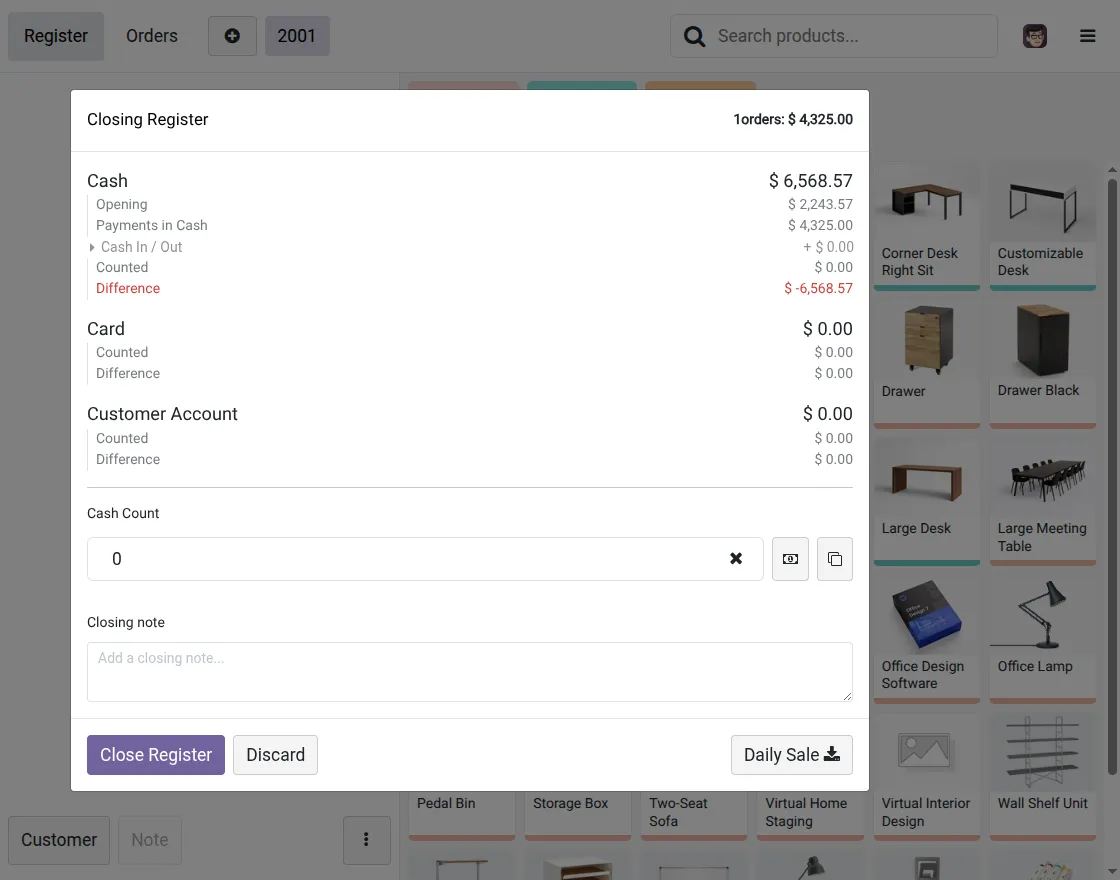
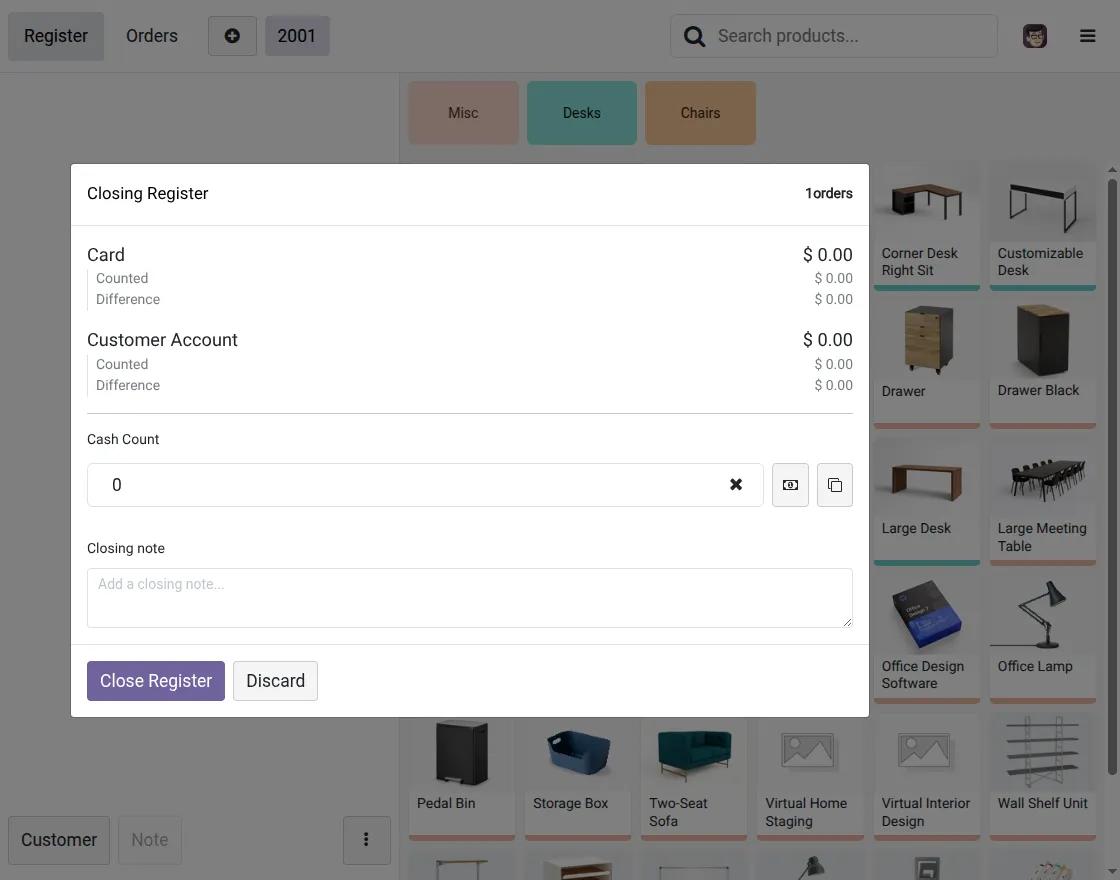
4. The cash in/out button will no longer be visible in the POS interface.
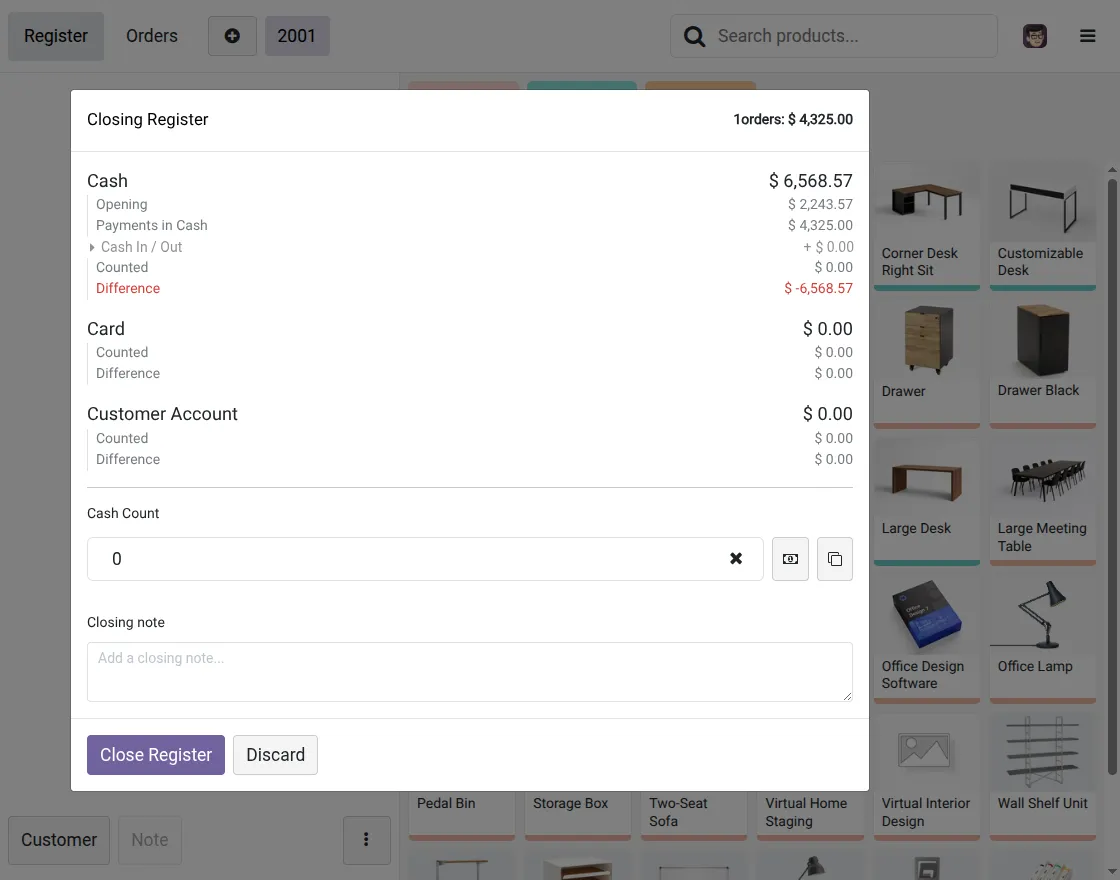
5. Enable the option Hide Daily Report Button in Closing Control.
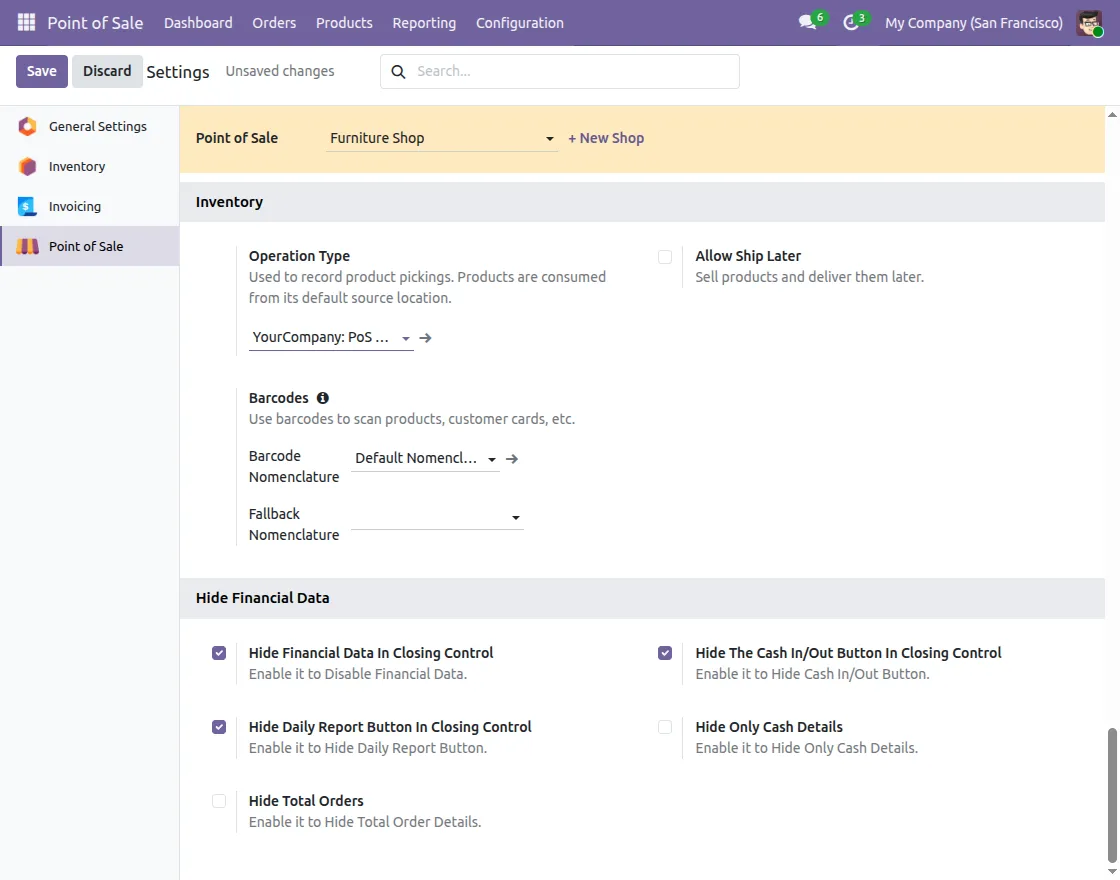
6. The daily report button will be removed from the POS closing screen.
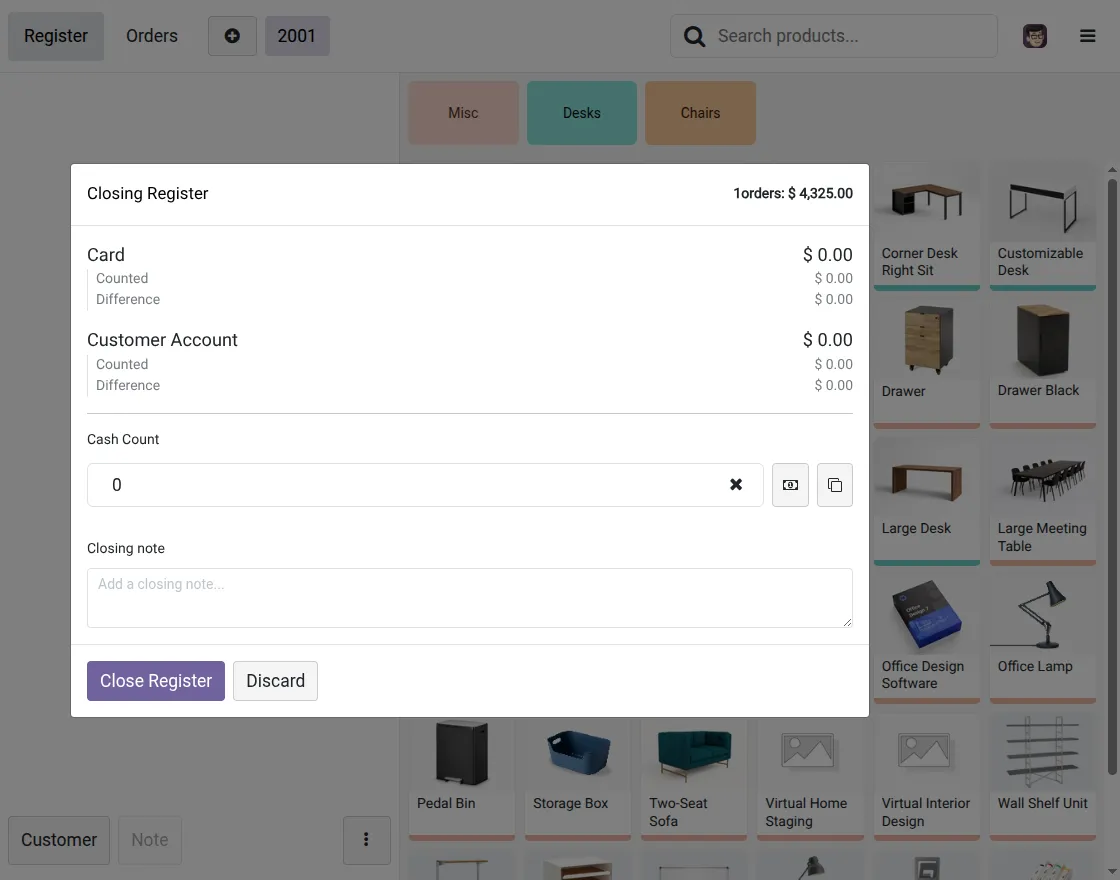
7. Enable the option Hide Only Cash Details in settings.
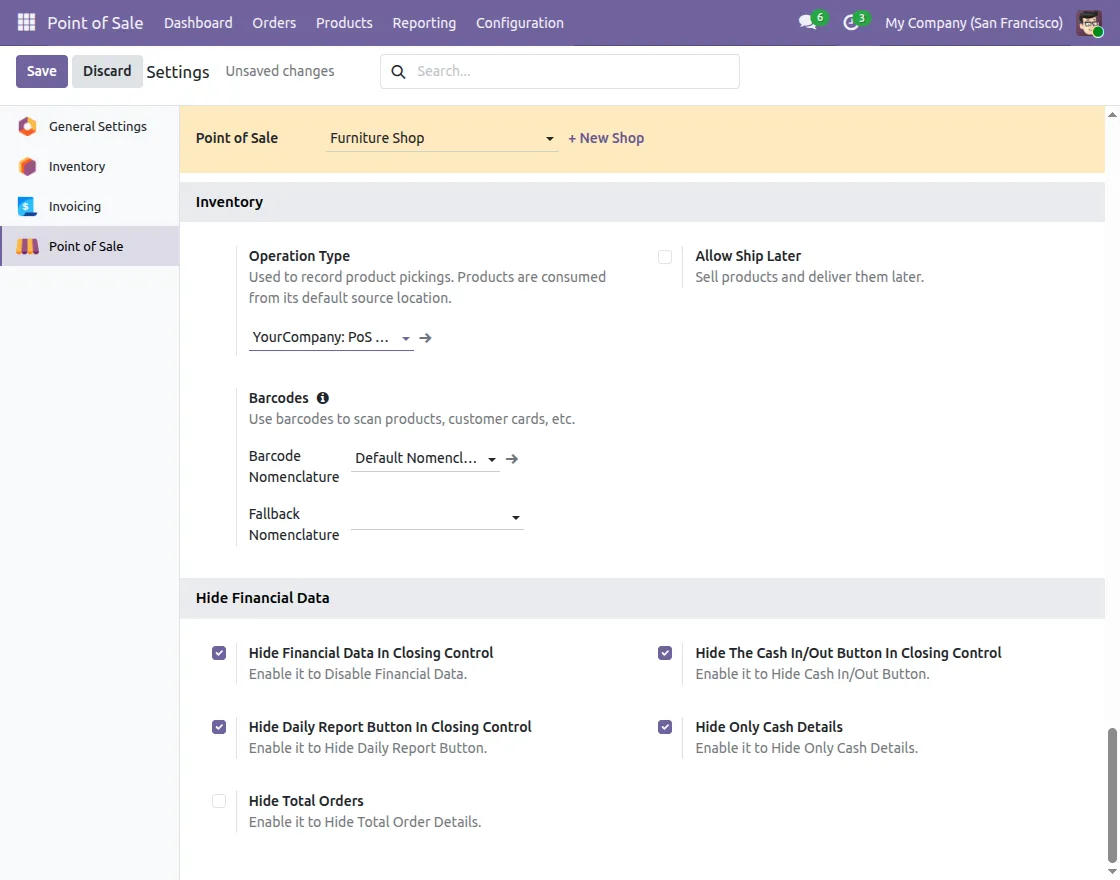
8. This will hide the cash-related details from the POS screen.
9. Enable the option Hide Total Orders in settings.
10. This will hide total order details from the POS interface.
Need Help?
Hope you find guide helpful! Please feel free to share your feedback in the comments below.
If you still have any issues/queries, please create a ticket at the UV Desk.
I hope this helps. In case of any further queries, contact us at our support mail.
Thanks for paying attention!!