User Guide for Odoo POS Advance Search
Table of Content
Introduction
Odoo POS Advance Search enhances product search in Odoo POS. It enables users to find items quickly using multiple attributes, improving efficiency.
This module eliminates the need for exact product names. Users can search using categories, brands, or barcodes, making checkout faster and reducing search time.
Odoo POS Advance Search ensures smooth transactions, reduces errors, and enhances the overall user experience in Odoo POS.
Features
- Users can search using multiple attributes for quick product lookup.
- This module enables/disables the advanced search based on business needs.
- Odoo POS Advance Search offers both single-box and multi-box searches for better flexibility.
- This module speeds up the checkout process, allowing users to find products quickly.
- It provides instant search results to save time at checkout.
- This module minimizes selection mistakes and enhances user experience.
Installation
- Once you purchase Odoo POS Advance Search from Webkul store, you will receive a link to download the module’s zip file.
- Extract the file on your system after the download finishes. As a result, you will be able to see a folder named ‘pos_advance_search’
- Copy and paste this folder inside your Odoo Add-Ons path.
- Now, open Odoo App and click on the Settings menu. Here, click on Activate Developer Mode.
- Then, open the Apps menu and click on ‘Update Modules List.’
- In the search bar, remove all the filters and search ‘pos_advance_search’
- You will be able to see the module in the search results. Click on ‘Install’ to install it.
Workflow
1. After installing Odoo POS Advance Search, navigate to Settings >> Point of Sale and select the shop for which you want to enable advanced search.


2. Scroll down to find the Advanced Search option, where you can enable the search box as per your preference.
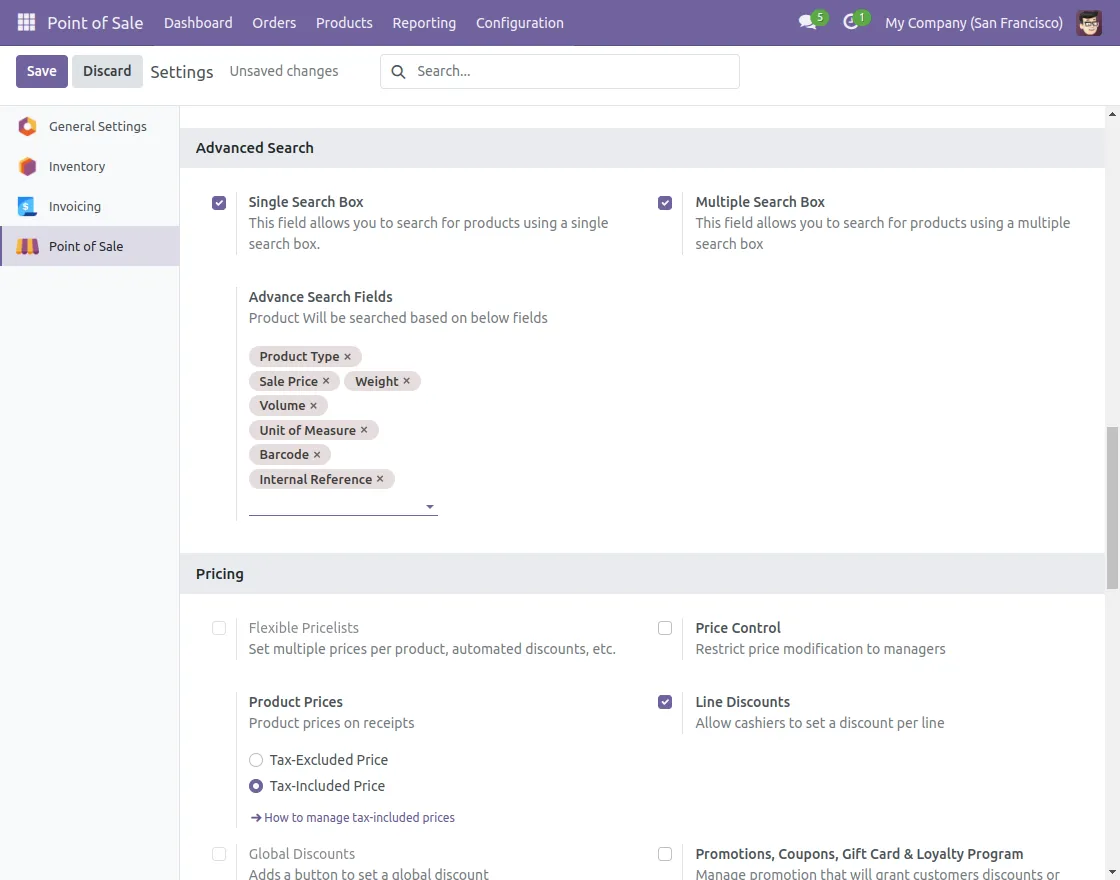
3. Once enabled, the advanced search option will be available on your product page.
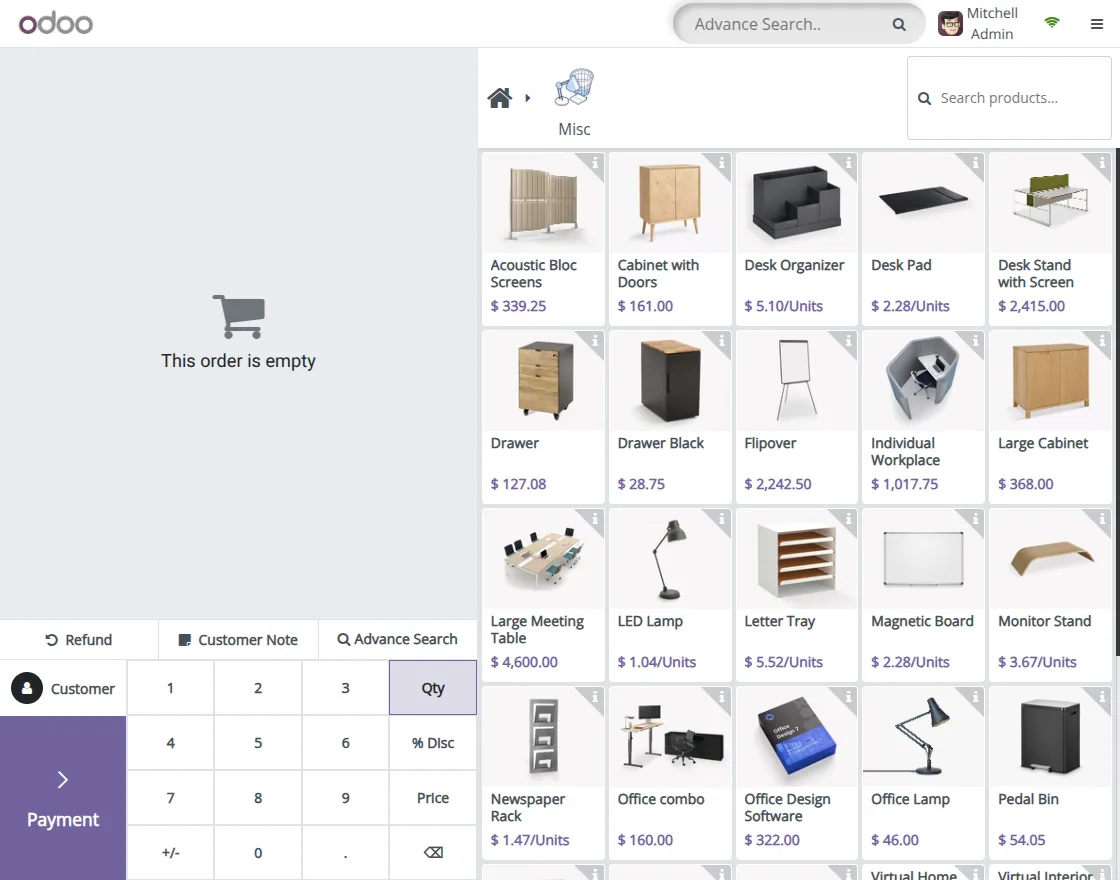
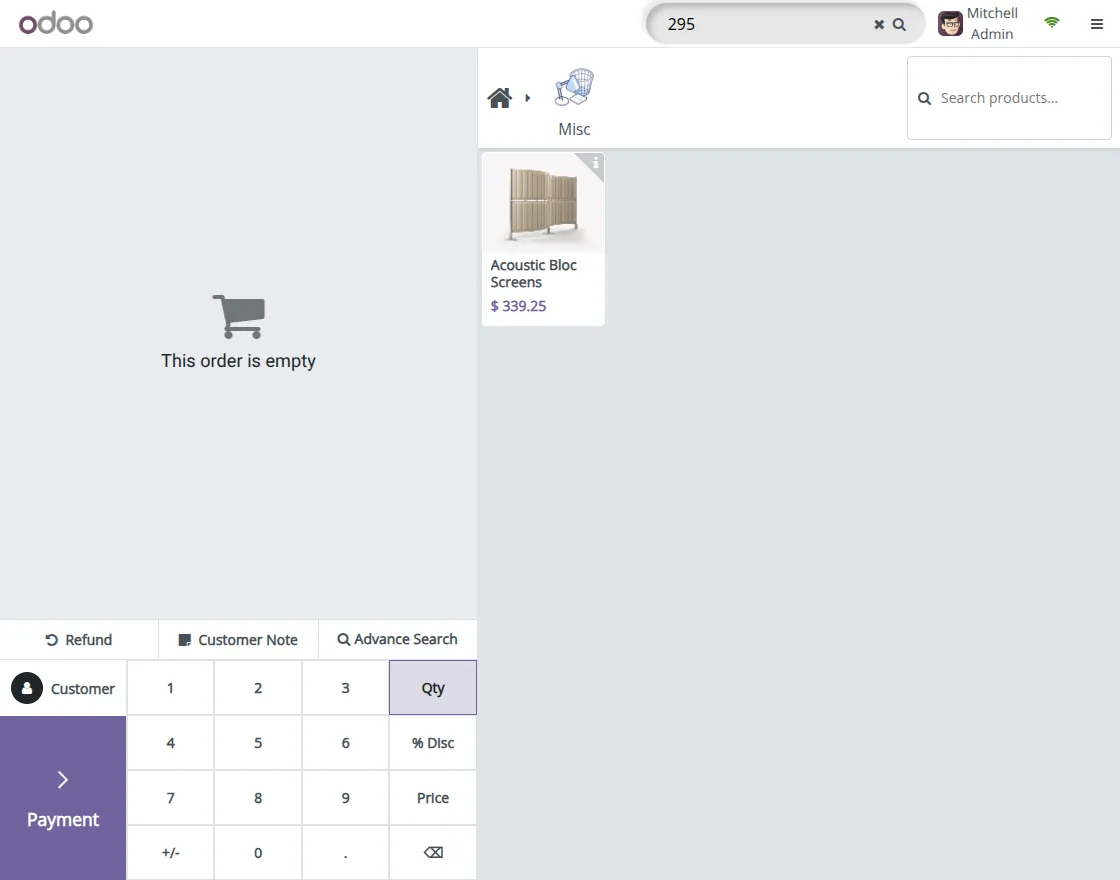
4. Clicking on the single search box will display products based on your search.
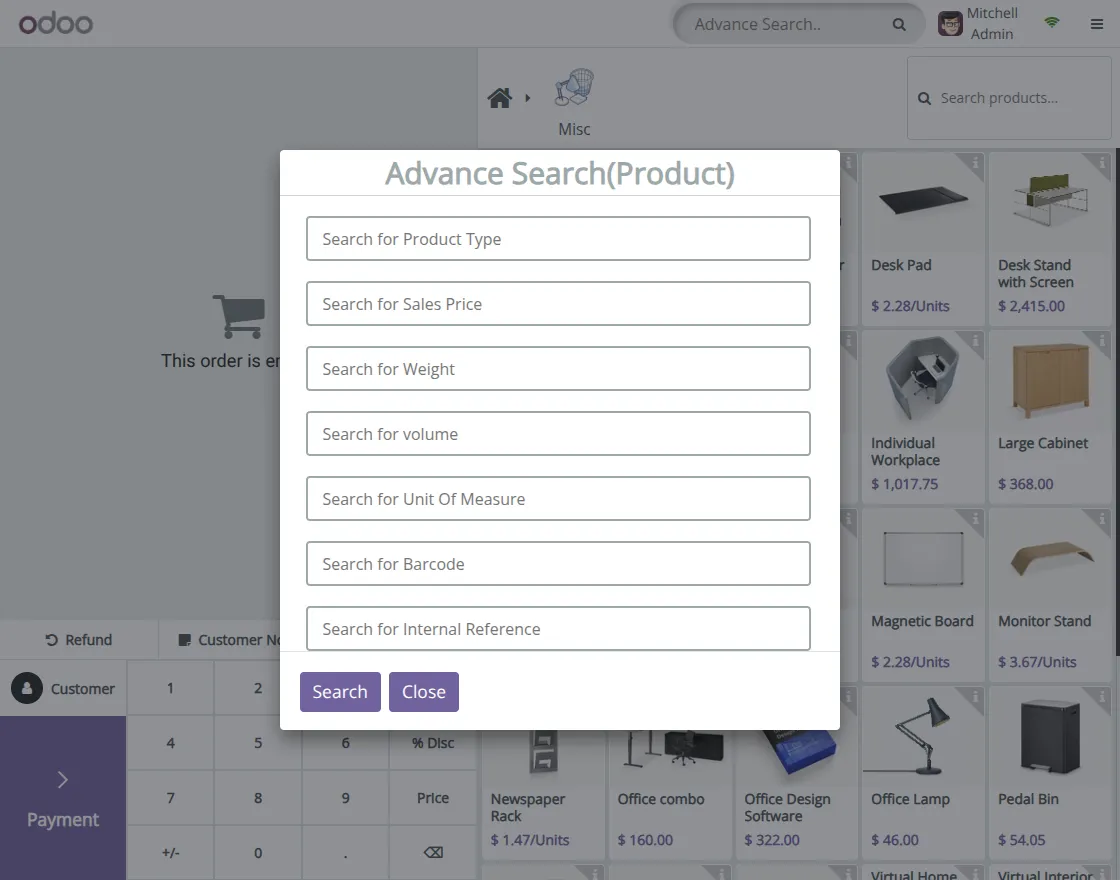
5. Additionally, you will see the Advanced Search feature, allowing you to search according to specific search fields.
Need Help?
Hope you find the guide helpful! Please feel free to share your feedback in the comments below.
If you still have any issues/queries regarding the same, please raise a ticket at the UV Desk.
I hope this helps. In case of any further queries, contact us at our support mail.
Thanks for paying attention!!