User Guide For Odoo MRP Alternative Component / Dynamic BOM
Table of Content
INTRODUCTION
Odoo MRP Alternative Component / Dynamic BOM enables alternate products in BOM with the new “Add Alternate Product” feature in the components
Allowing users to add an extra price for that alternate product.
The substitute enables seamless alternate product selection during manufacturing, ensuring smooth production and cost control.
FEATURES
- Add substitute components directly in the BOM for flexibility.
- Set extra costs for each alternative to reflect true pricing.
- Automatically recalculate MO costs based on selected alternates.
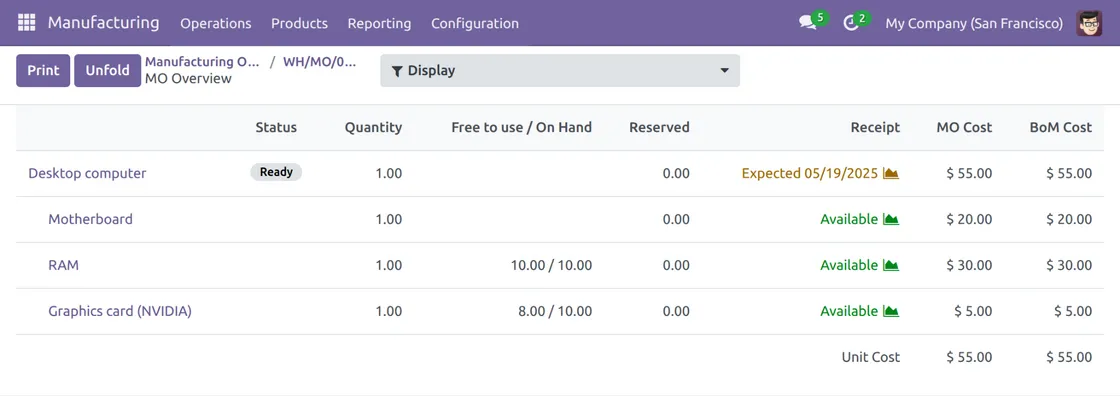
- View real-time cost updates on the Manufacturing Order overview.
- Select multiple alternate products with adjustable quantities.
- Assign specific quantities to each substitute as needed.
- Swap components instantly during live production.
- Odoo MRP Alternative Component / Dynamic BOM offers a clean, user-friendly interface for easy management.
INSTALLATION
- Once you purchase the App from Webkul store, you will receive a link to download module’s zip file.
- Extract the file on your system after download finishes. As a result, you will be able to see a folder named- mo_alternative_component.
- Copy and paste this folder inside your Odoo Add-Ons path.
- Now, open Odoo App and click on the Settings menu. Here, click on Activate Developer Mode.
- Then, open Apps menu and click on ‘Update Modules List’.
- In the search bar, remove all the filters and search ‘mo_alternative_component’.
- You will be able to see module in the search results. Click on ‘Install’ to install it.
WORKFLOW
- Once Odoo MRP Alternative Component / Dynamic BOM is installed, go to Manufacturing >> Bill of Material and add the components required for the specific product.

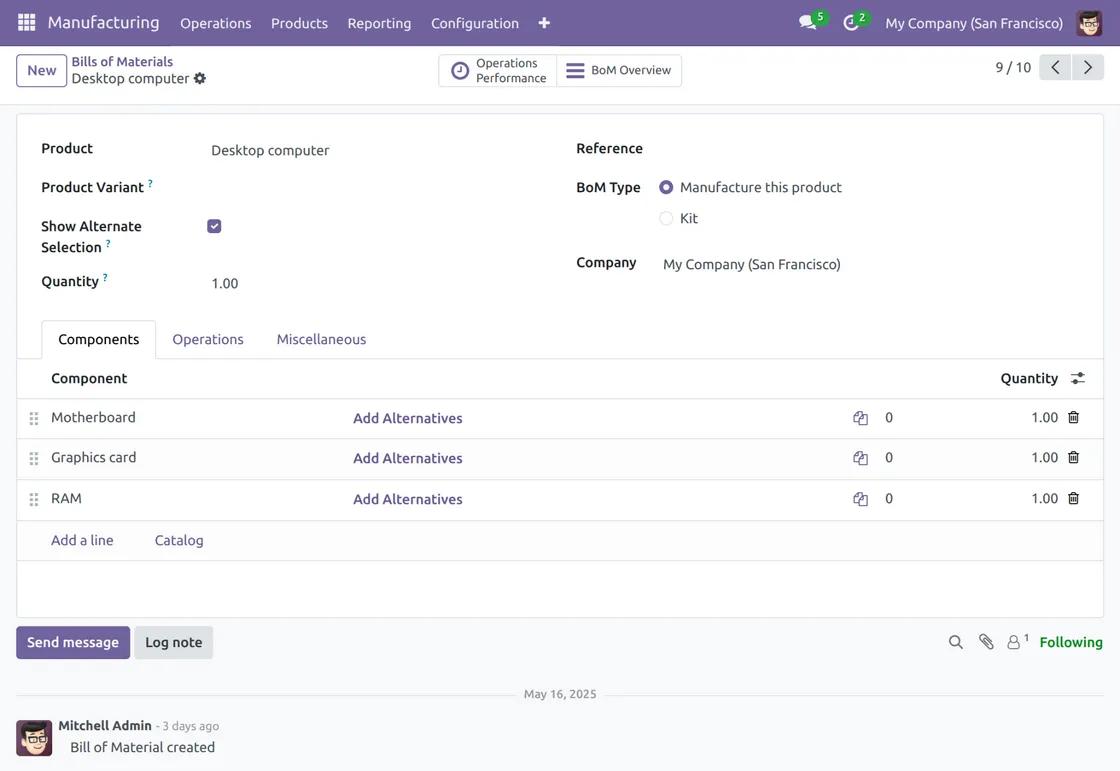
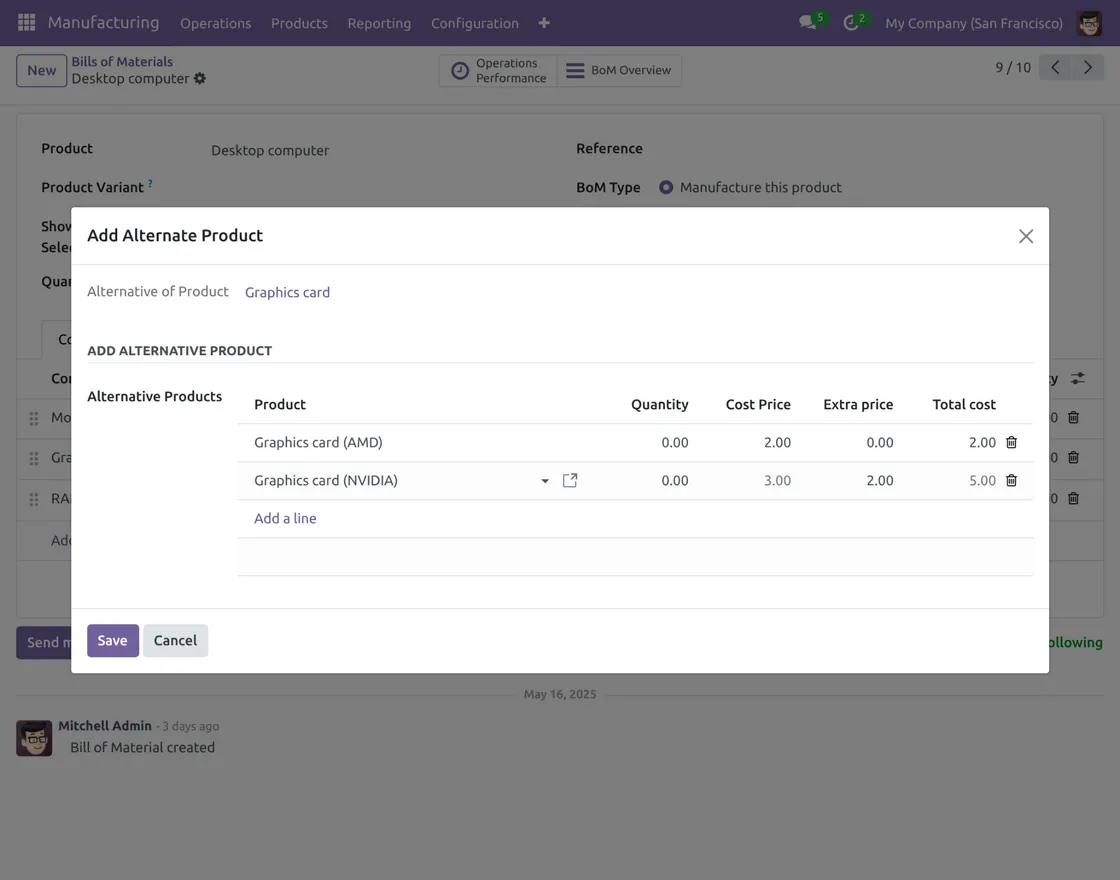
2. Once the Components are added >> click on Add Alternative to pick an alternative product for the components.
NOTE – Admin can select Quantity, Cost Price, and Extra Price for the same alternative product. That would be visible during product manufacturing.

3. Now navigate to Manufacturing Orders to configure the Product.
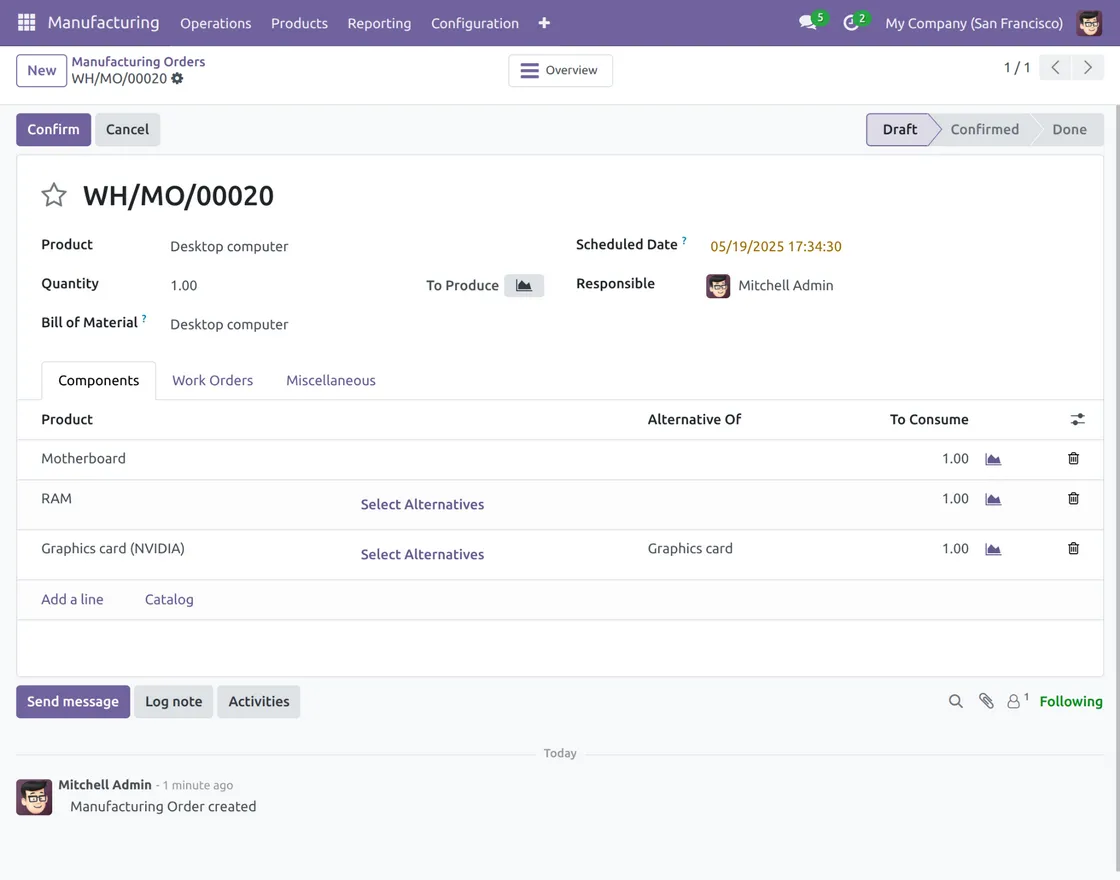
4. Click on Select Alternatives to pick the alternatives of the product components.
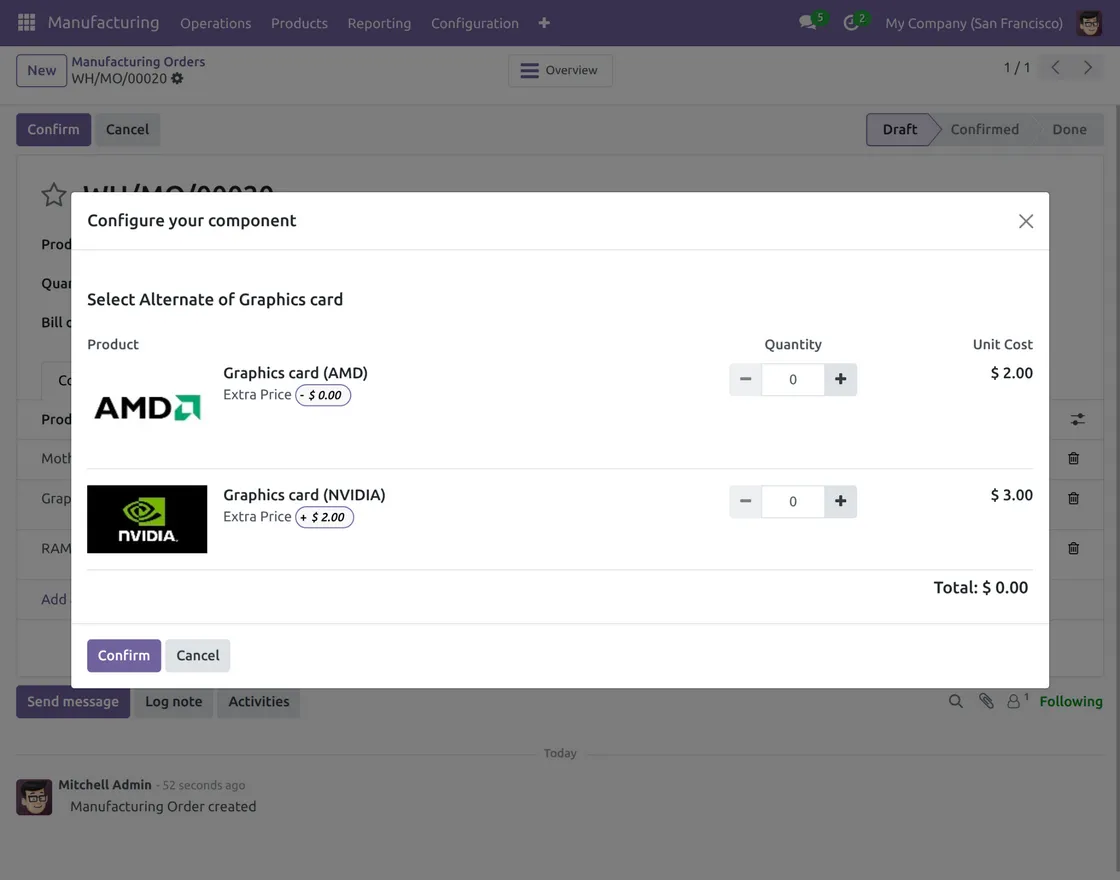
5. Once the Alternative components are selected, click on Confirm >> Then click on Overview at top(center) of the same page to access the Manufacturing overview.

Need Help?
We hope this guide has been helpful. Share your feedback in the comments section below.
For any issues or further inquiries, please raise a ticket on UV Desk or contact our support team via email.
Thank you for choosing us, and we’re here to assist you further!