User Manual for Odoo Marketplace Razorpay Seller Payouts
Introduction
Odoo Marketplace Razorpay Seller Payouts is a module designed to help marketplace owners manage seller payouts in a safe and controlled way. First, it ensures seller bank accounts are verified before any payout is processed through Razorpay.
Additionally, the module supports both automatic and manual seller payout workflows. As a result, admins can configure payout settings, validate seller bank details, and manage payouts from a central place.
Overall, by using this module, marketplaces can reduce payout errors, save manual effort, and therefore ensure sellers receive payments on time.
Prerequisites for using Odoo Marketplace Razorpay Seller Payouts
Odoo Marketplace Razorpay Seller Payouts works in conjunction with the following module:
You must install the above-mentioned module to use the Odoo Razorpay Seller Payouts.
Features
- Secure seller bank verification before processing payouts
- Razorpay-based seller payouts through verified bank accounts
- Automatic seller payout option to reduce manual work
- Manual payout control available for marketplace administrators
- Centralized payout configuration managed from single screen
- Admin-controlled payout workflow based on business rules
- Real-time seller payment tracking for payout visibility
- Verified account payout protection to prevent failures
- Simple payout status monitoring for quick admin checks
Installation
- Once you purchase the App from Webkul store, you will receive a link to download module’s zip file.
- Extract the file on your system after download finishes. As a result, you will be able to see a folder named- ‘marketplace_razorpay_seller_payouts’.
- Copy and paste this folder inside your Odoo Add-Ons path.
- Now, open Odoo App and click on the Settings menu. Here, click on Activate Developer Mode.
- Then, open Apps menu and click on ‘Update Modules List.’
- In the search bar, remove all the filters and search ‘marketplace_razorpay_seller_payouts’.
- You will be able to see module in the search results. Click on ‘Activate’ to install it.
Workflow:
Admin Workflow
1. Configure Razorpay Payment Provider
After installing Odoo Marketplace Razorpay Seller Payouts,
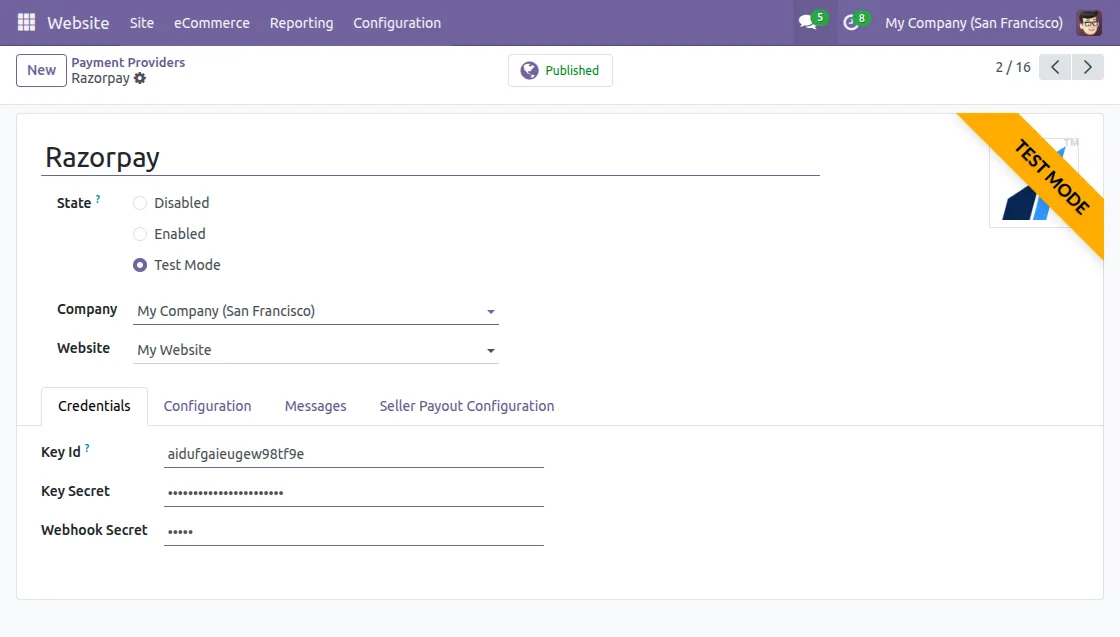
Go to Website → Configuration → Payment Providers → Razorpay. Enter the Razorpay API credentials and set the configuration.

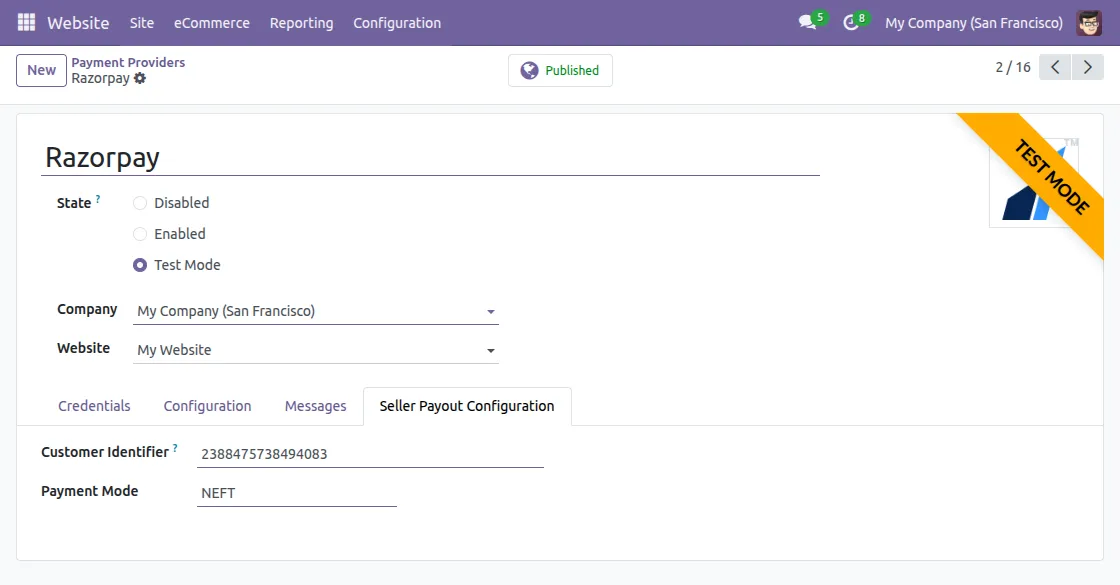
- Then open the Seller Payout Configuration tab. Here, enter the Customer Identifier and select the Payment Mode. Save the settings to complete the Razorpay payout configuration.

2. Configure Razorpay Webhook
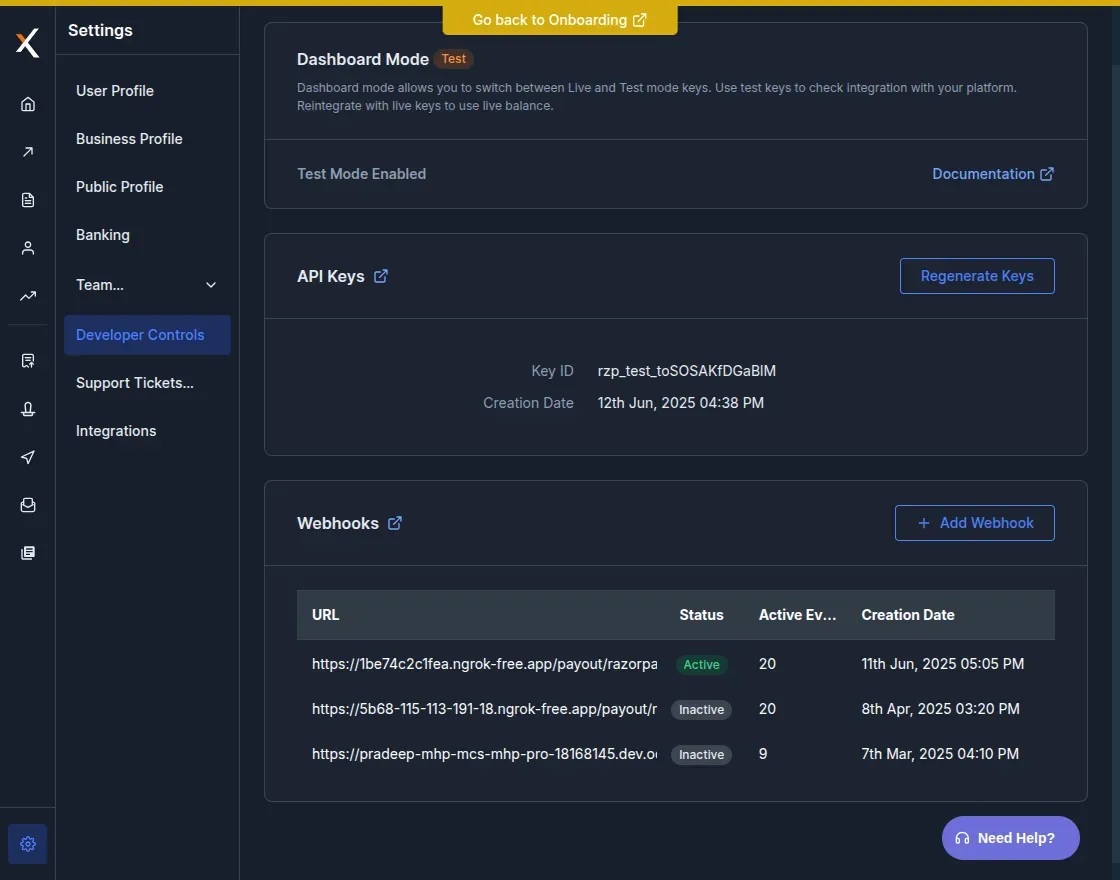
Open the Razorpay Dashboard, then navigate to the Webhook Settings section.
Next, add your website URL followed by /payout/razorpay/webhook in the webhook configuration and save the settings.
This setup allows the system to receive payout status updates from Razorpay.

3. Enable Automatic Seller Payout
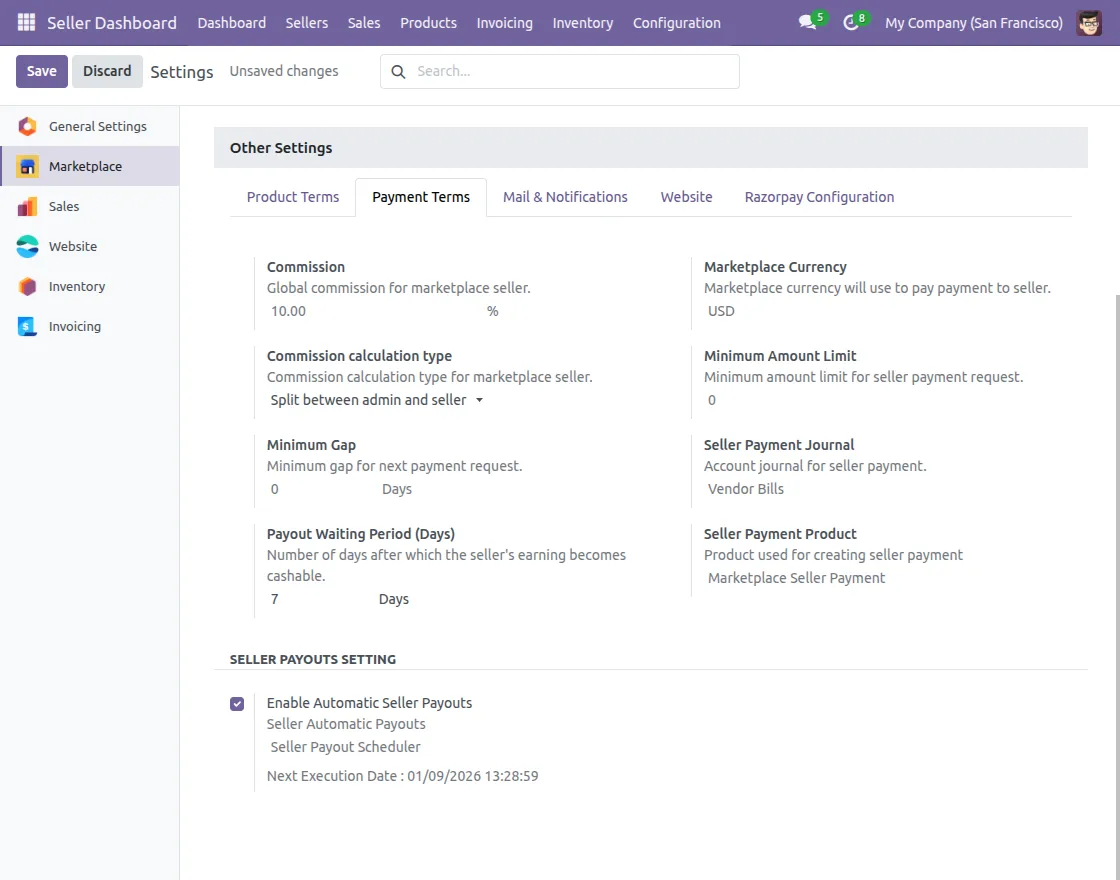
Go to Settings →Marketplace →Other Settings from the admin panel. Locate the option for Seller Payout Settings under the payment terms tab. Enable Automatic Seller Payouts if you want payouts to be created automatically. Save the settings to apply the changes.
4. Create Seller Payment
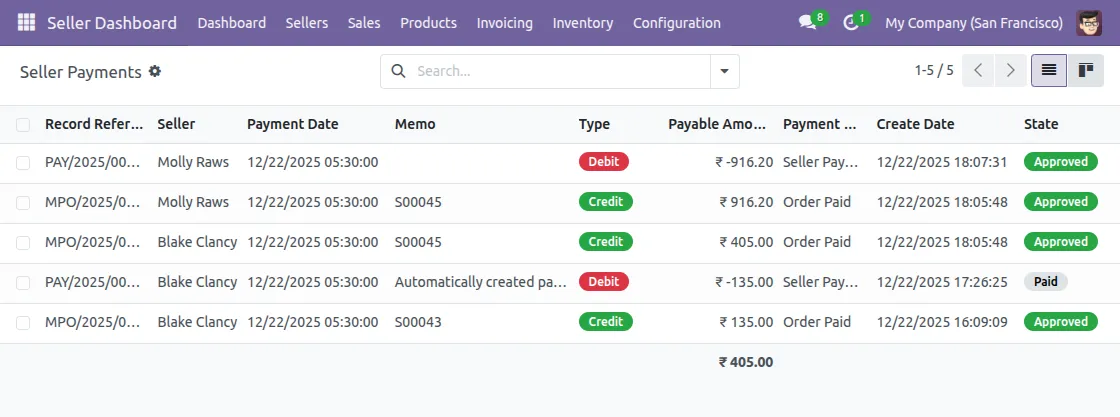
After an order is completed, go to Seller Dashboard →Sales →Seller Payments. Seller payments are created based on completed orders.
If Automatic Seller Payout is enabled, the seller payment is created automatically. If it is disabled, the admin can create the seller payment manually.
- Seller payments are created only for sellers with verified bank accounts.
- You can also track the seller payment status from the seller payment record.

Seller Workflow
1. Add Bank Details
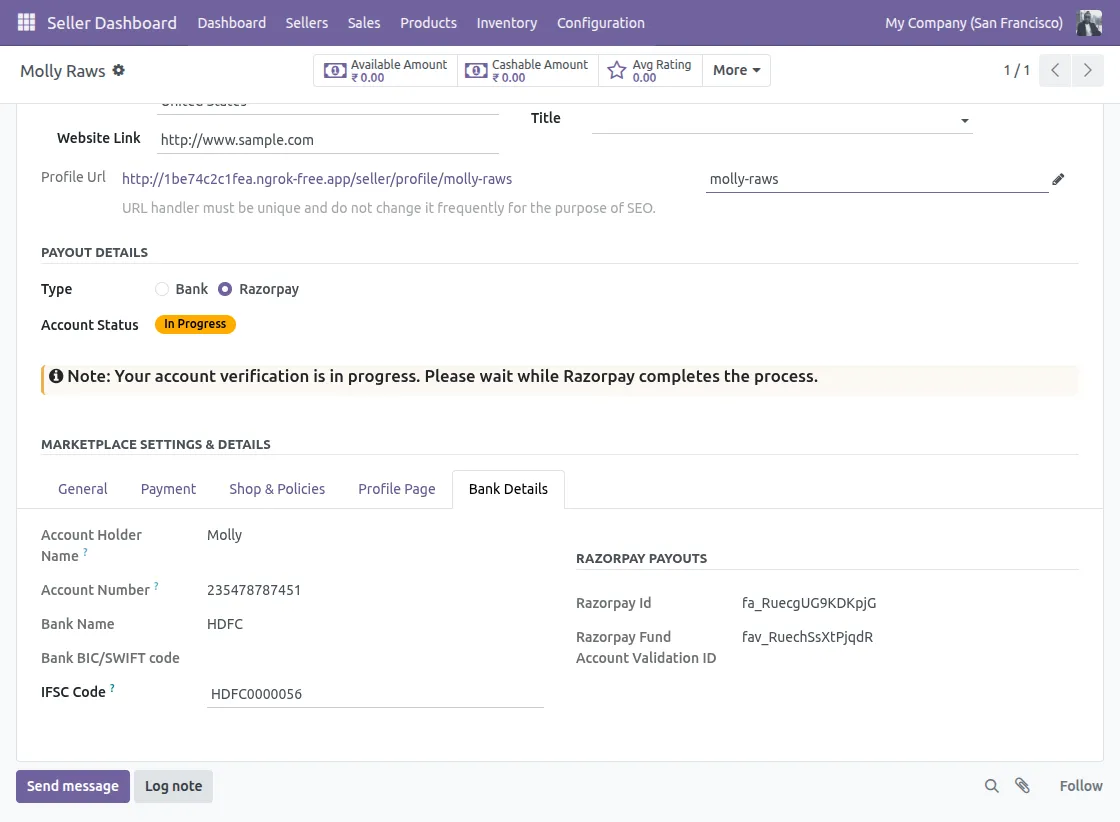
Navigate to Seller Dashboard → Sellers → My Profile, then choose Razorpay as the payout type.
Next, open the Bank Details tab under Marketplace Settings & Details, enter complete and correct bank account information, and finally click on the Validate button.

2. Validate Bank Account
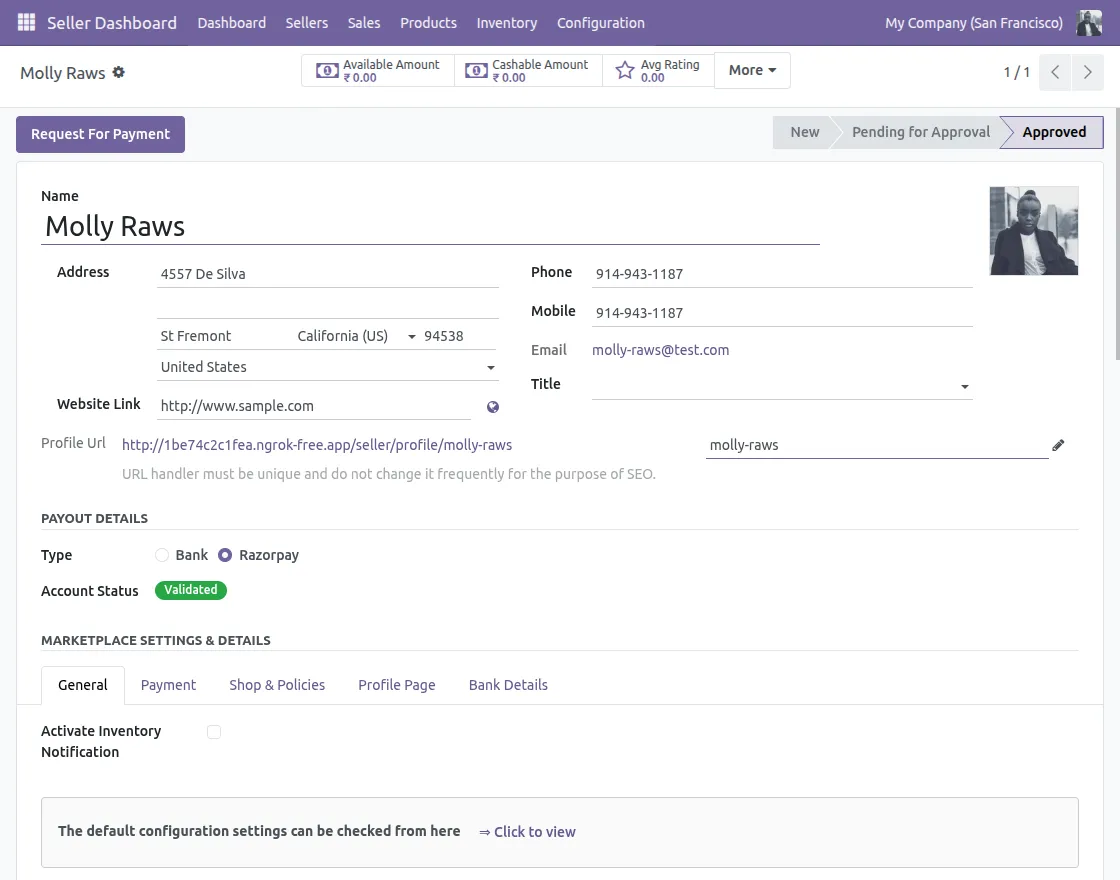
The bank account verification is handled by Razorpay. Once verification is successful, the account is marked as verified. Only verified bank accounts can receive payouts.
3. Receive and Track Payouts
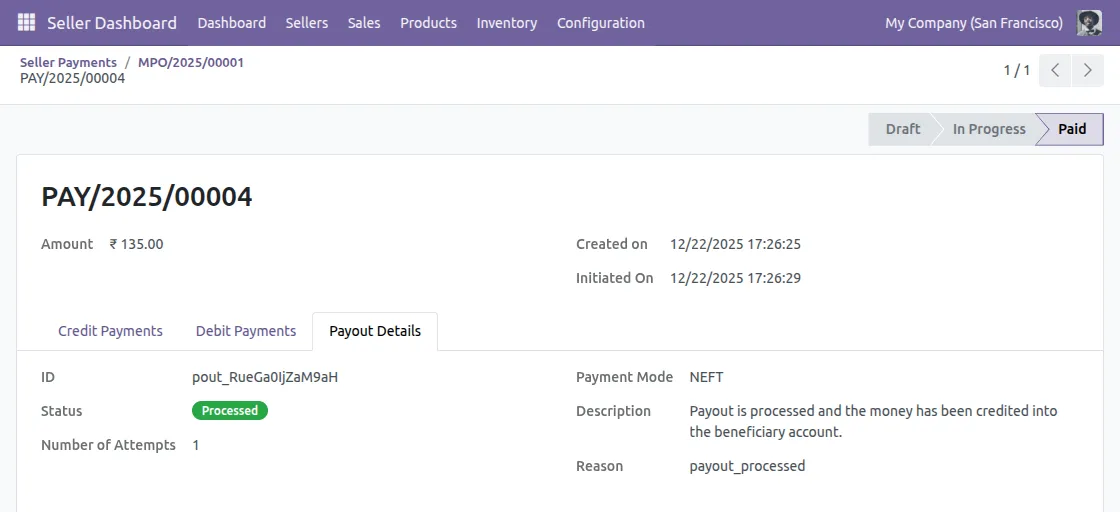
After the payout is processed, the amount is transferred to the seller’s bank account. The seller can view payout status from their account. This completes the seller payout process.

Customer Workflow
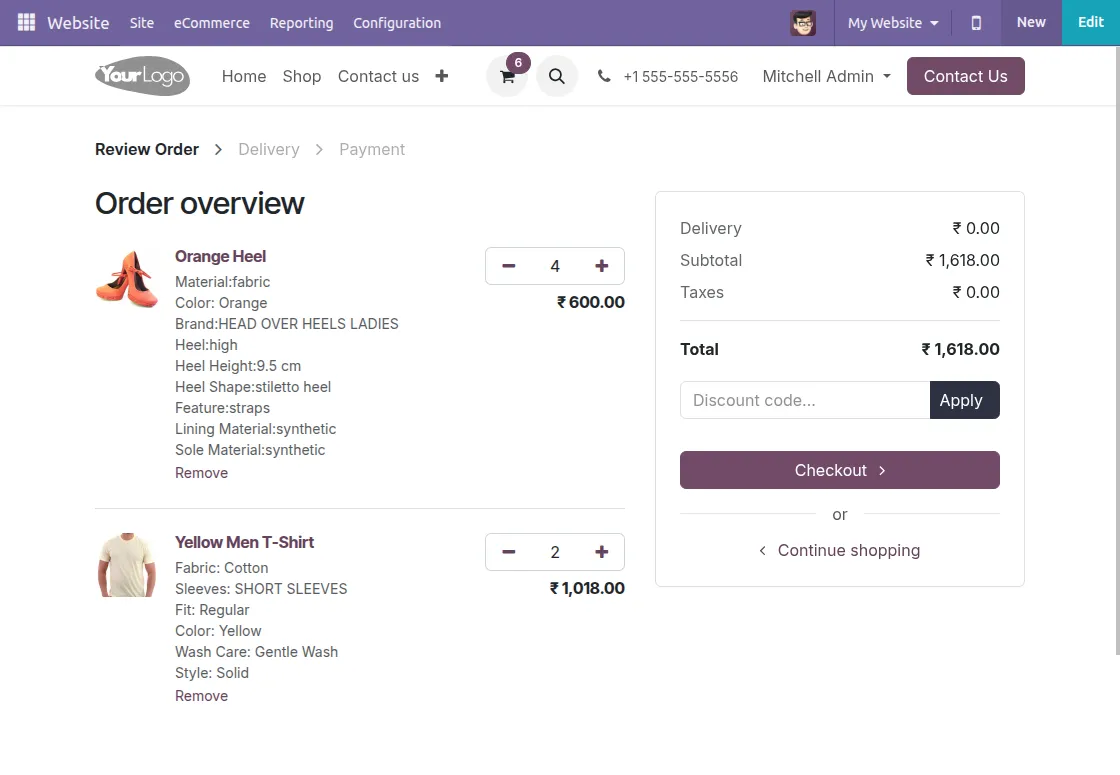
1. Add Products to Cart
First, the customer adds products to the cart and opens the cart page to review the order details.

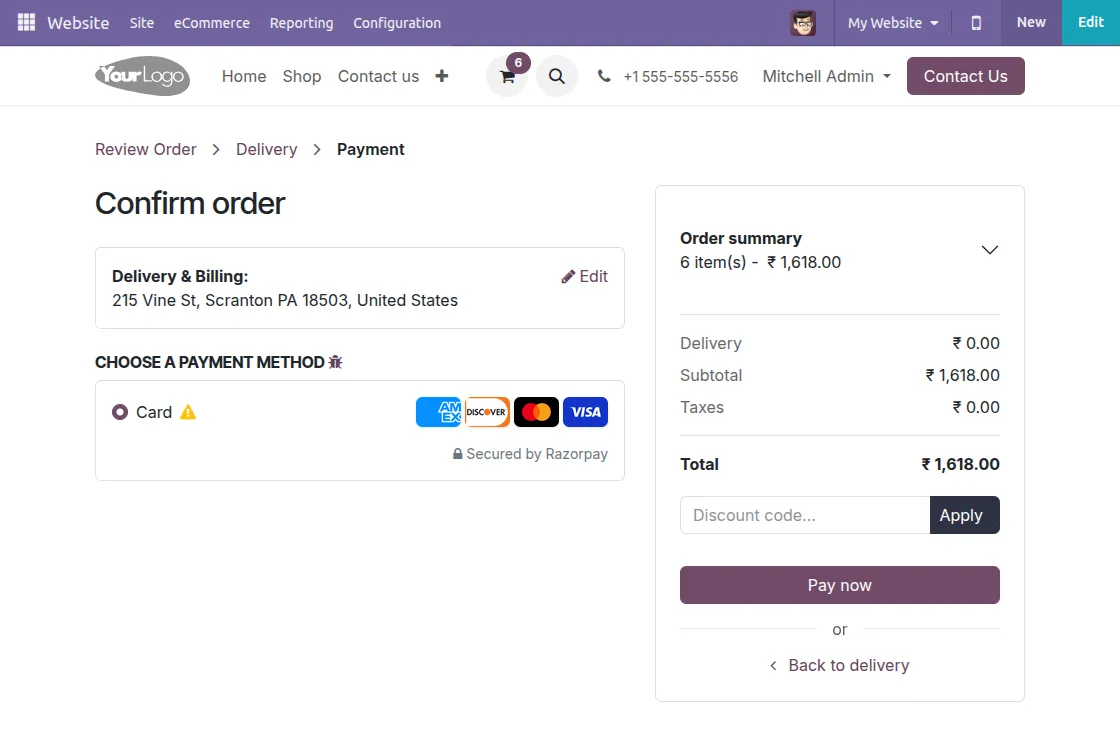
2. Confirm Order
Next, the customer proceeds to checkout, enters delivery and billing details, and confirms the order.

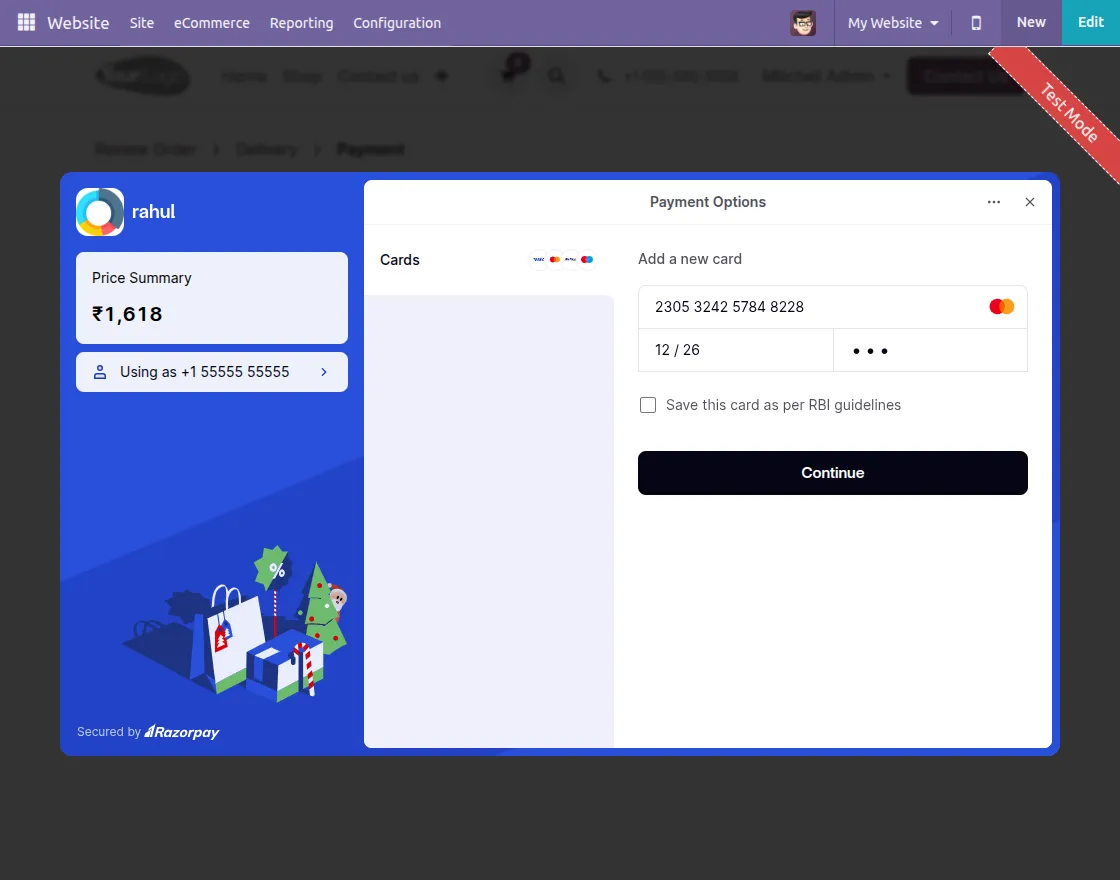
3. Enter Payment Details
After that, the customer selects Razorpay as the payment method and enters card or payment details securely.
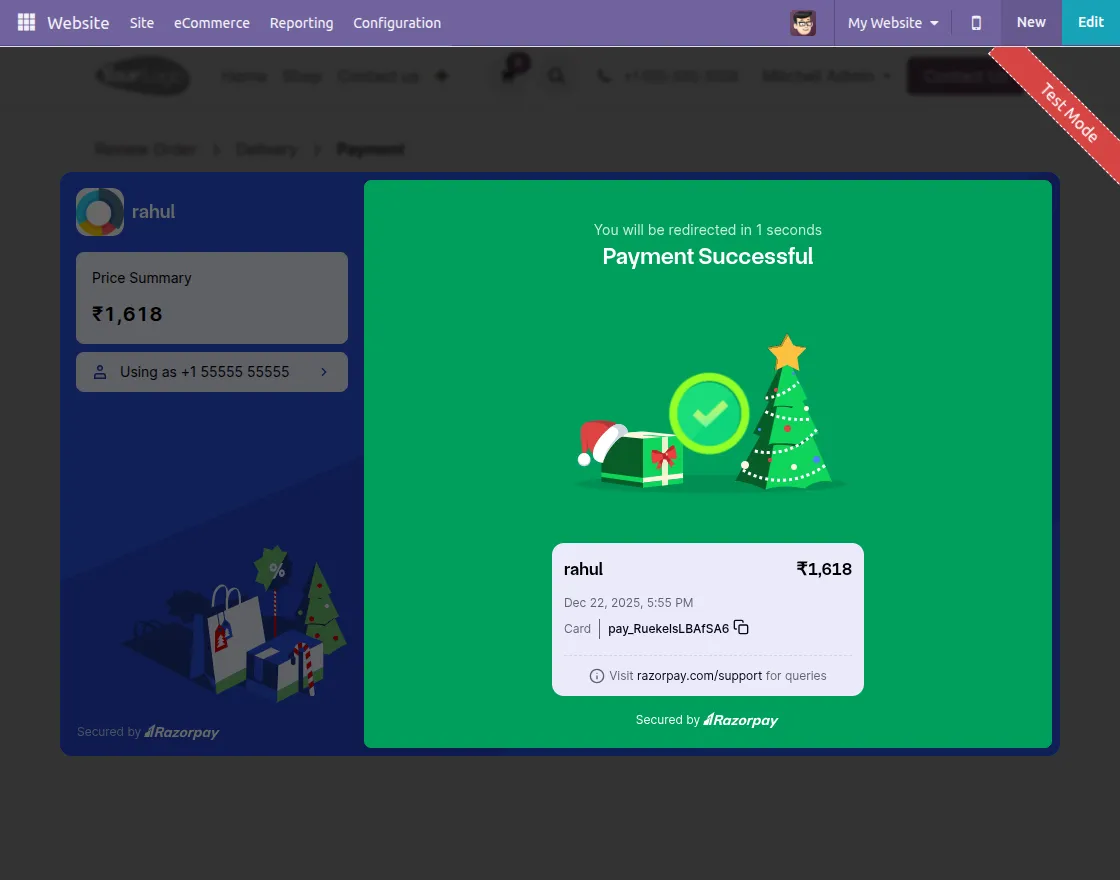
4. Complete Payment
Finally, the payment is completed successfully through Razorpay, and the order is confirmed.
Need Help?
Hope you find guide helpful! Please feel free to share your feedback in the comments below.
If you still have any issues/queries, please create a ticket at the UV Desk.
I hope this helps. In case of any further queries, contact us at our support mail.
Thanks for paying attention!!