User Manual for Odoo Dynamic Form View Manager
Introduction
Odoo Dynamic Form View Manager is a module that allows administrators to customize form views directly from the user interface with no coding required.
It eliminates the dependency on XML coding and enables quick form-level customizations.
Using Odoo Dynamic Form View Manager, system administrators can dynamically add buttons, fields, and tabs to any Odoo form.
This module is ideal for creating custom workflows, feature add-ons, and UI enhancements without developer intervention.
Features Of Odoo Dynamic Form View Manager
- Customize Odoo form views dynamically without XML coding or developer intervention
- Add custom buttons to forms for triggering business workflows and server actions
- Create and insert new fields directly on form views using no-code configuration
- Add new tabs to Odoo forms for better data organization and usability with Odoo Dynamic Form View Manager.
- Manage all form actions centrally through an intuitive View Manager interface
- Configure action behavior, execution logic, and server action settings easily
- Assign dynamic actions to any Odoo model across different business modules
- Control action visibility and accessibility using Odoo user access rights
- Update, modify, or remove form actions without impacting existing system code
Installation
- Once you purchase the App from the Webkul store, you will receive a link to download the module’s zip file.
- Extract the file on your system after the download finishes. As a result, you will be able to see a folder named ‘dynamic_form_view_manager.’
- Copy and paste this folder inside your Odoo Add-Ons path.
- Now, open Odoo App and click on the Settings menu. Here, click on Activate Developer Mode.
- Then, open the Apps menu and click on ‘Update Modules List.’
- In the search bar, remove all the filters and search ‘dynamic_form_view_manager.’
- You will be able to see the module in the search results. Click on ‘Install’ to install it.
Workflow
1- Navigate to the required form view where you want to apply changes, such as the Sales Order form and click on ‘form view manager’ to start creating a new dynamic action.


2- Add a Field-type Action to the form view and create a new field dynamically. Define the field label, type, and properties without writing any code.


3- Create a Button-type Action and configure the linked action, rules, and button position dynamically. This allows triggering workflows directly from the form view.

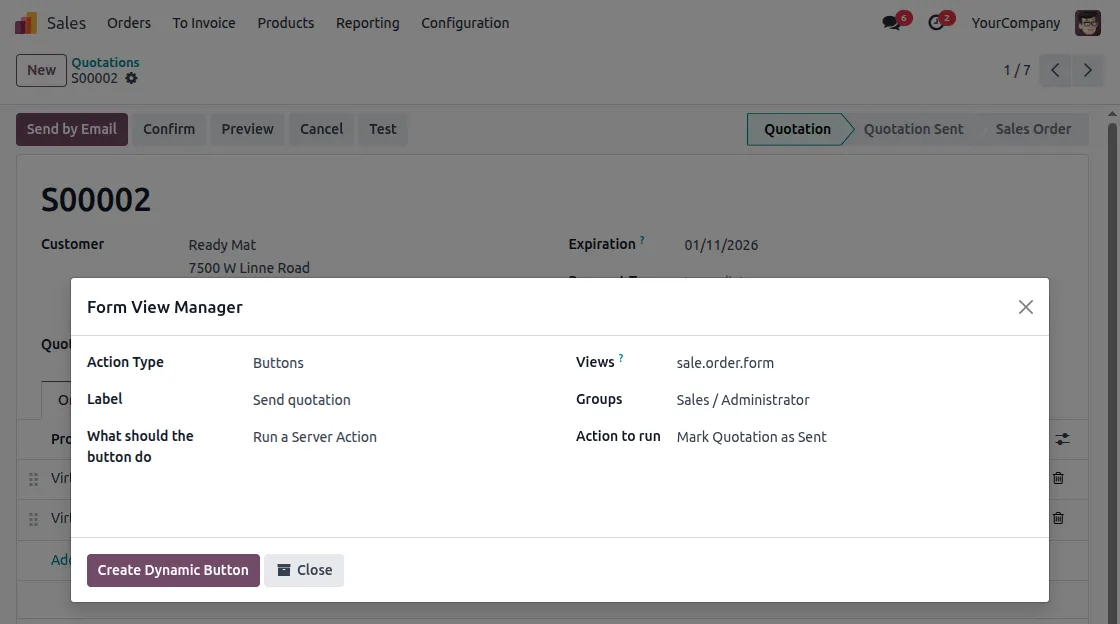
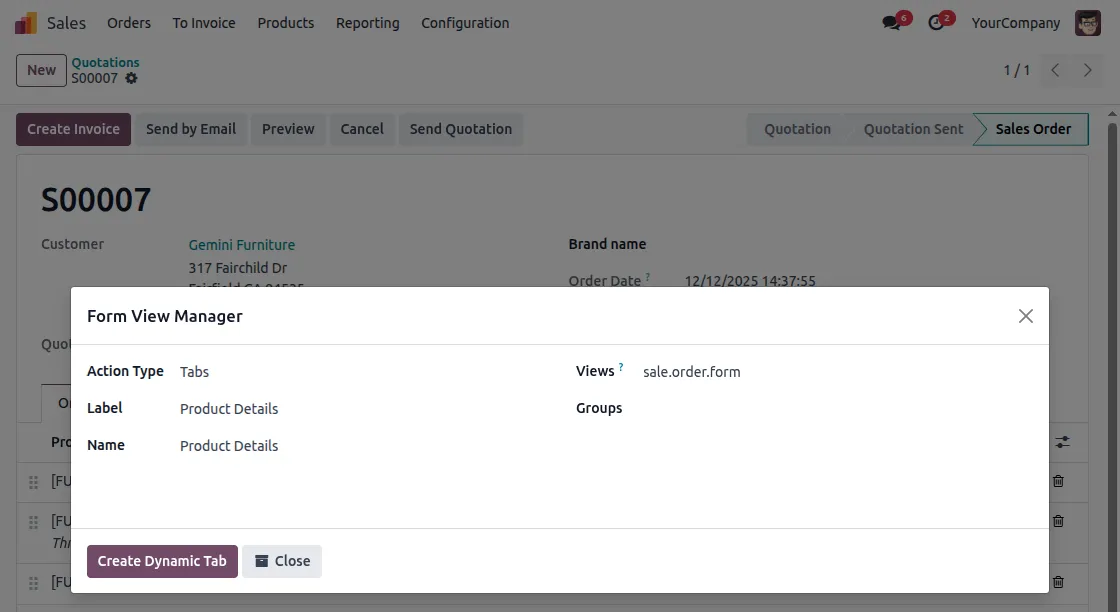
4- Create Tab-type Actions to add new tabs inside the form view with Odoo Dynamic Form View Manager.

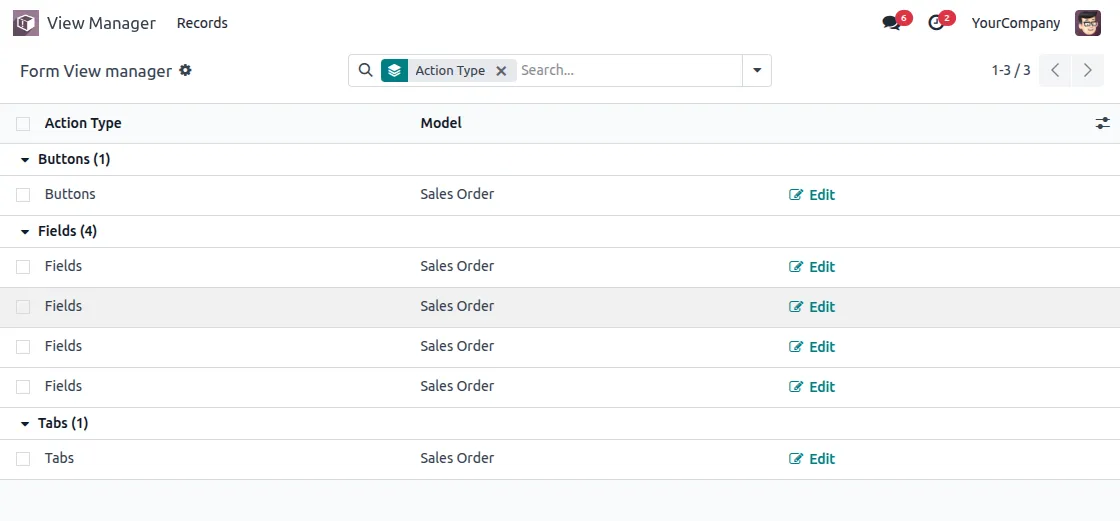
5- View all the created buttons, fields, and tabs inside theView Manager section.This helps you manage all custom actions from a single place.

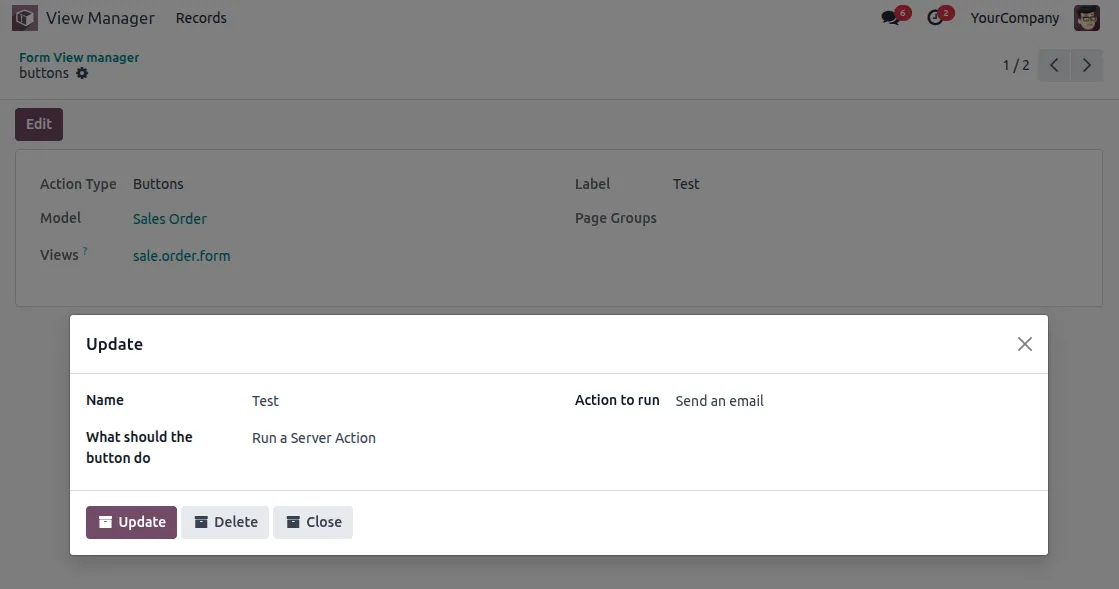
6- Edit, update, or remove any created action anytime without affecting existing form views. No technical changes or code modifications are required.

7- Open the form view and see the newly added fields, buttons, and tabs applied instantly. All changes are visible with just a few clicks and no coding effort.


Need Help ?
Hope you find guide helpful! Please feel free to share your feedback in the comments below.
If you still have any issues/queries, please create a ticket at the UV Desk.
I hope this helps. In case of any further queries, contact us at our support@webkul.com .
Thanks for paying attention!!