User Guide for Odoo DHL Parcel EU Delivery Carrier
Table of Content
Introduction
Odoo DHL Parcel EU Delivery Carrier module simplifies shipping within Europe by seamlessly integrating with DHL’s trusted delivery services.
This module allows you to manage DHL Parcel shipping directly from Odoo, streamlining the entire shipping process.
With the tracking numbers provided, admin can easily monitor the status of each package and receive updates on the progress of every shipment
Features
- Odoo DHL Parcel EU Delivery Carrier simplifies DHL Parcel shipping within Europe.
- Admin can monitor the status of packages in real time.
- Admin can easily generate shipping labels in PDF or ZPL format with ease.
- It provides a range of delivery methods, including home delivery or pickup points.
- This module ships packages across Europe using a single integrated solution.
- Tracking numbers are created automatically for every order.
Installation
- Once you purchase the App from the Webkul store, you will receive a link to download the module’s zip file.
- Extract the file on your system after the download finishes. As a result, you will be able to see a folder named- ‘dhl_parcel_eu_delivery_carrier’
- Copy and paste this folder inside your Odoo Add-Ons path.
- Now, open the Odoo App and click on the Settings menu. Here, click on Activate the Developer Mode.
- Then, open the Apps menu and click on ‘Update Modules List.’
- In the search bar, remove all the filters and search ‘dhl_parcel_eu_delivery_carrier’
- You will be able to see the module in the search results. Click on ‘Install’ to install it.
Workflow
- After installing the module, admin can configure the Shipping method for DHL Parcel EU by entering the credentials.


2. Admin can also configure shipping label format either to be in PDF or ZPL and set the delivery carrier for the deliveries


3. Admin can create a quotation by adding a product and adding a shipping method.

4. After adding shipping method order is ready for delivery.
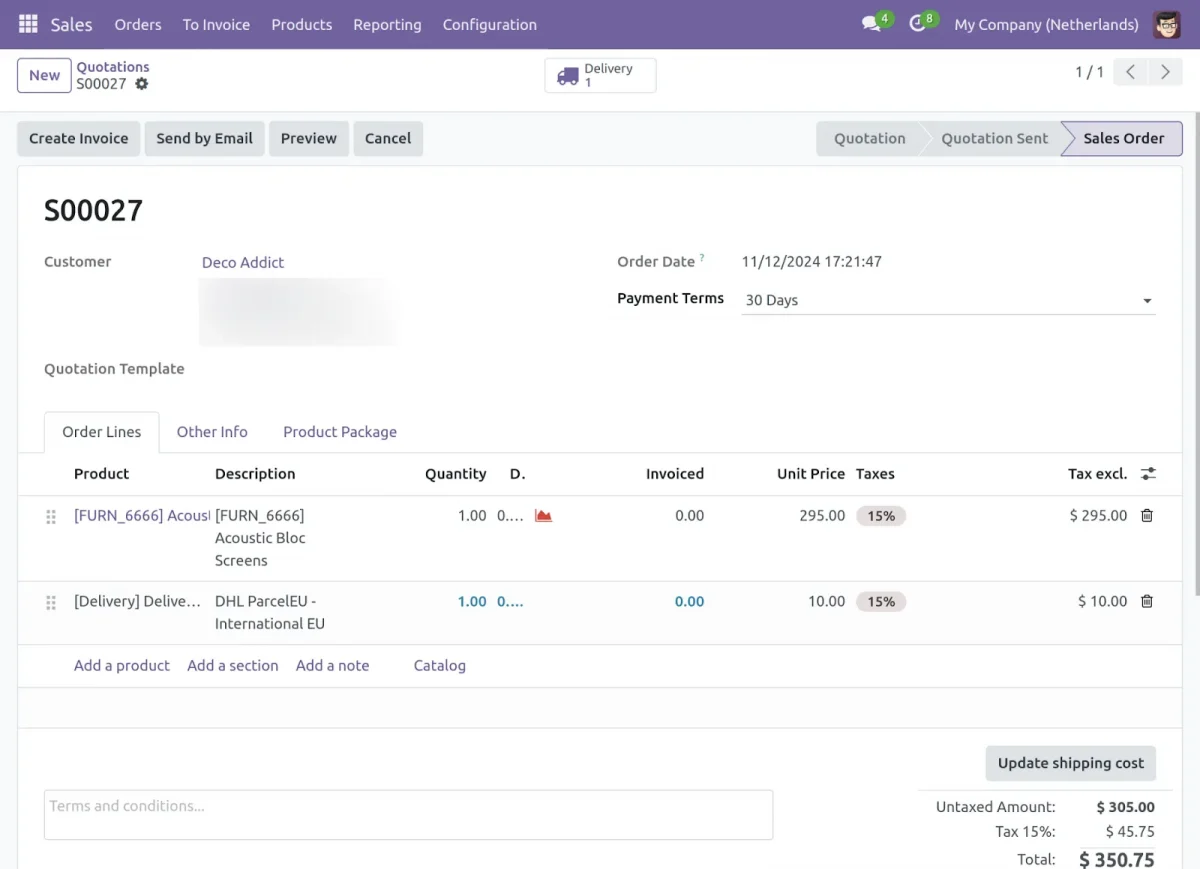
5. Where the order is put in the pack here admin can add details like shipping weight, etc.

6. After validating the order, the admin can easily track its shipping status.


7. All details regarding the order are in the tab and admin can cancel the order if necessary.

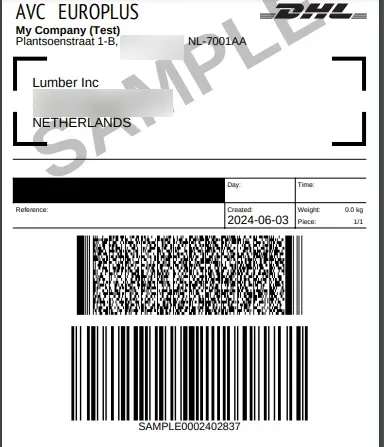
8. Using the Odoo DHL Parcel EU Delivery Carrier, the admin can generate a shipping label for each order.

Need Help?
Hope you find the guide helpful! Please feel free to share your feedback in the comments below.
If you still have any issues/queries regarding the same, please raise a ticket at the UV Desk.
I hope this helps. In case of any further queries, contact us at our support mail.
Thanks for paying attention!!