Odoo Custom Product Tabs
INTRODUCTION
Provide More Product Details Using Odoo Custom Product Tabs!
While searching for products online, the customer always looks for additional information about the product.
Which will help them to gain more insight about the product and the company that is offering the product.
The addition of relevant information in the product template especially helps the customer to develop confidence about the product, which in turn increases the chances of purchase.
Relevant content about the product also helps in implementing an effective content marketing strategy.
Key product content includes in-depth product descriptions, product comparisons, shipping policy, and pricing.
This information notably helps a customer to make their purchasing decision both in-store or online.
Odoo Custom Product Tabs module makes this possible for you. Using this module in order to classify the product-related information in tabs on the product view.
Tabs based information is very useful for large page content. It helps in making the information more lucrative and classified.
FEATURES
- Add product information from the Odoo BackEnd to the Product tabs.
- Describes your Product using text, videos, images, or tables.
- Moreover, Admin can use Vertical and Horizontal Tabs Options as per the requirements.
- Fully Customizable Content.
- Admin can modify the order of the product tabs.
INSTALLATION
- Once you purchase the App from the Webkul store, you will receive the link to download the zip file of the module.
- Extract the file on your system after the download finishes. You will be able to see a folder named- ‘module_technical_name’.
- Copy and paste this folder inside your Odoo Add-Ons path.
- Now, open the Odoo App and click on the Settings menu. Here, click on Activate the Developer Mode.
- Then, open on the Apps menu and click on the ‘Update Modules List’.
- In the search bar, remove all the filters and search ‘module_technical_name’.
- You will be able to see the module in the search result. Click on ‘Install’ to install it.
WORKFLOW
Website Backend
- Firstly, login to the Odoo portal and go to Website module.


- Now, Navigate to the eCommerce menu and click on the Products tab.

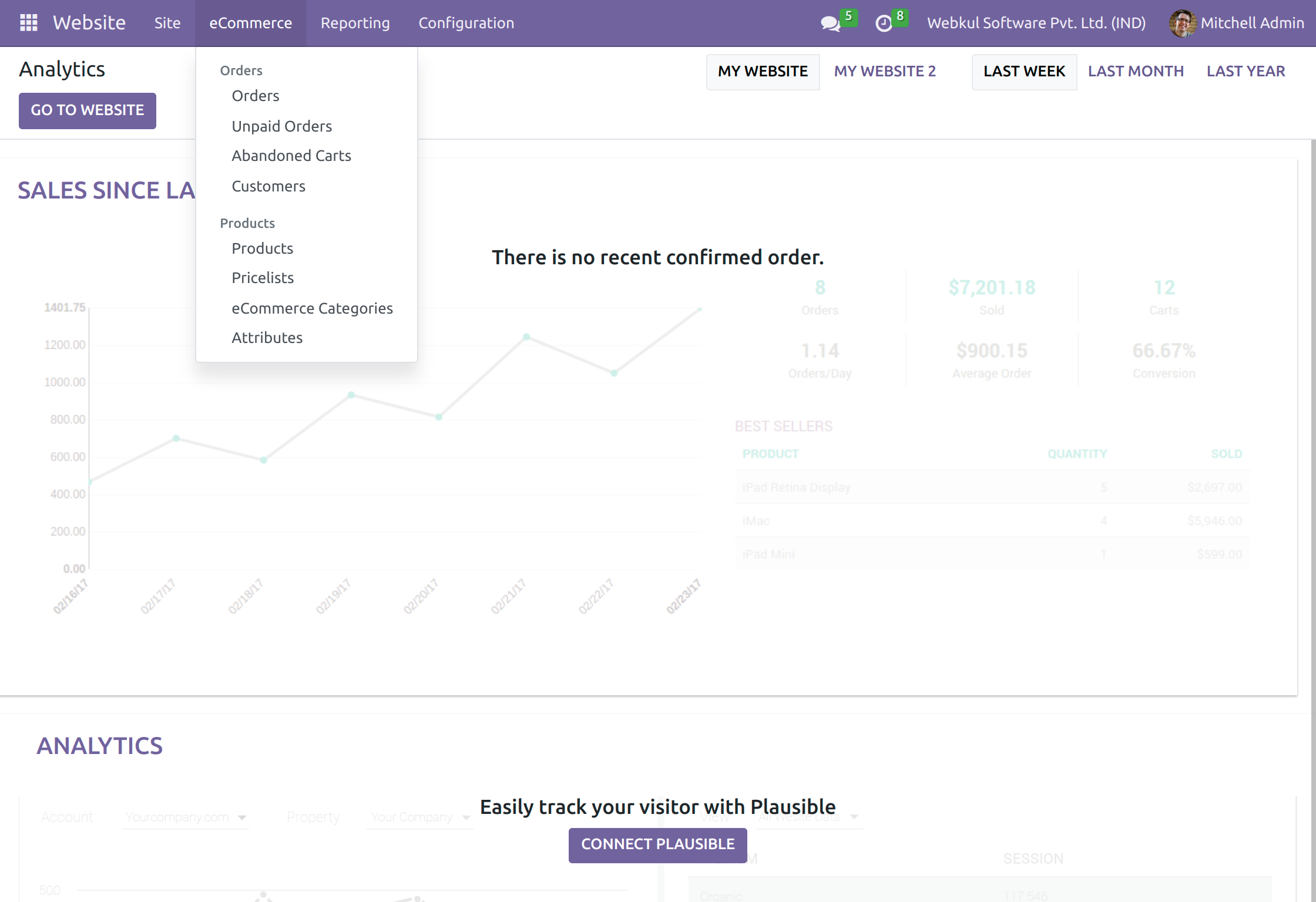
- Select the product and go to the Tabs option, to add the Odoo Custom Product Tabs. Add the tab by clicking on the Add a line.


- Create the Odoo custom Product Tabs, by adding name sequence and the content related to the tab. The sequence you add here is the sequence shown on the website frontend.

- Moreover, Save the product after adding the Odoo custom Product tabs.

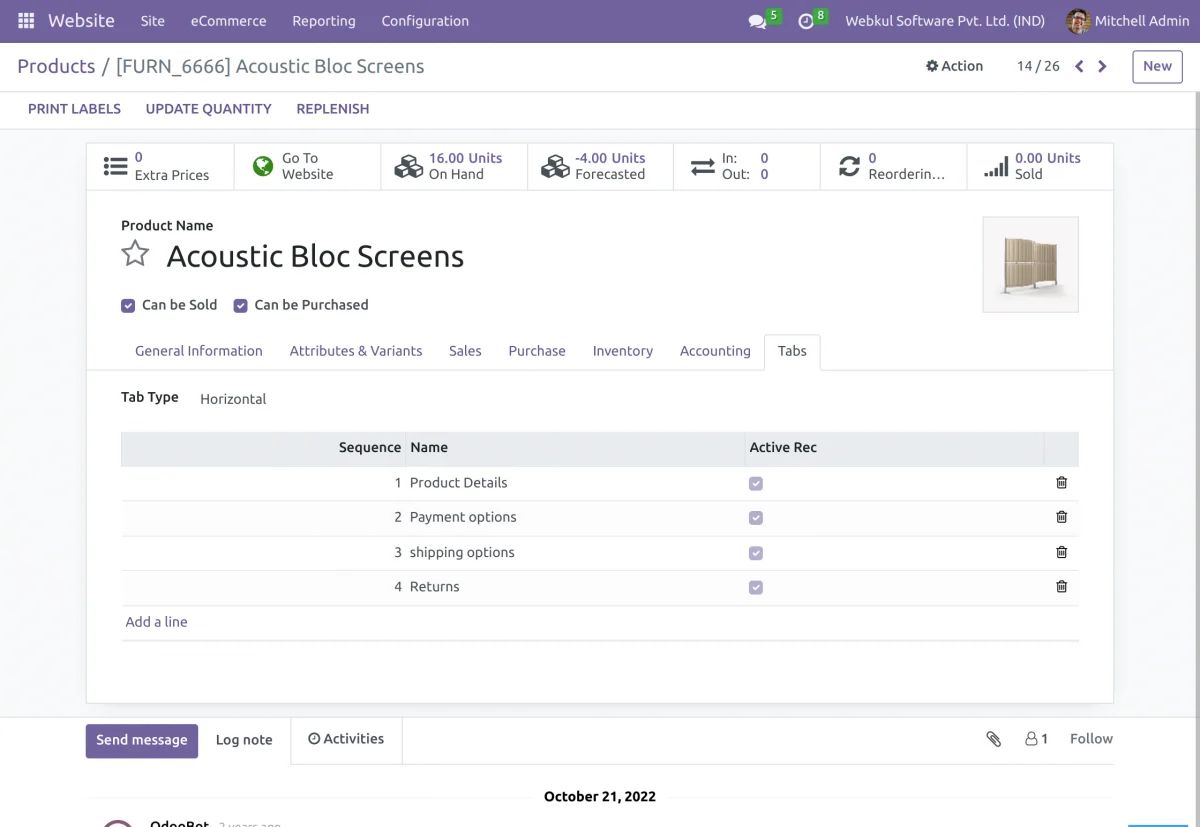
- Admin can change the tab type according to the requirements in the Vertical and Horizontal format.

Website Frontend
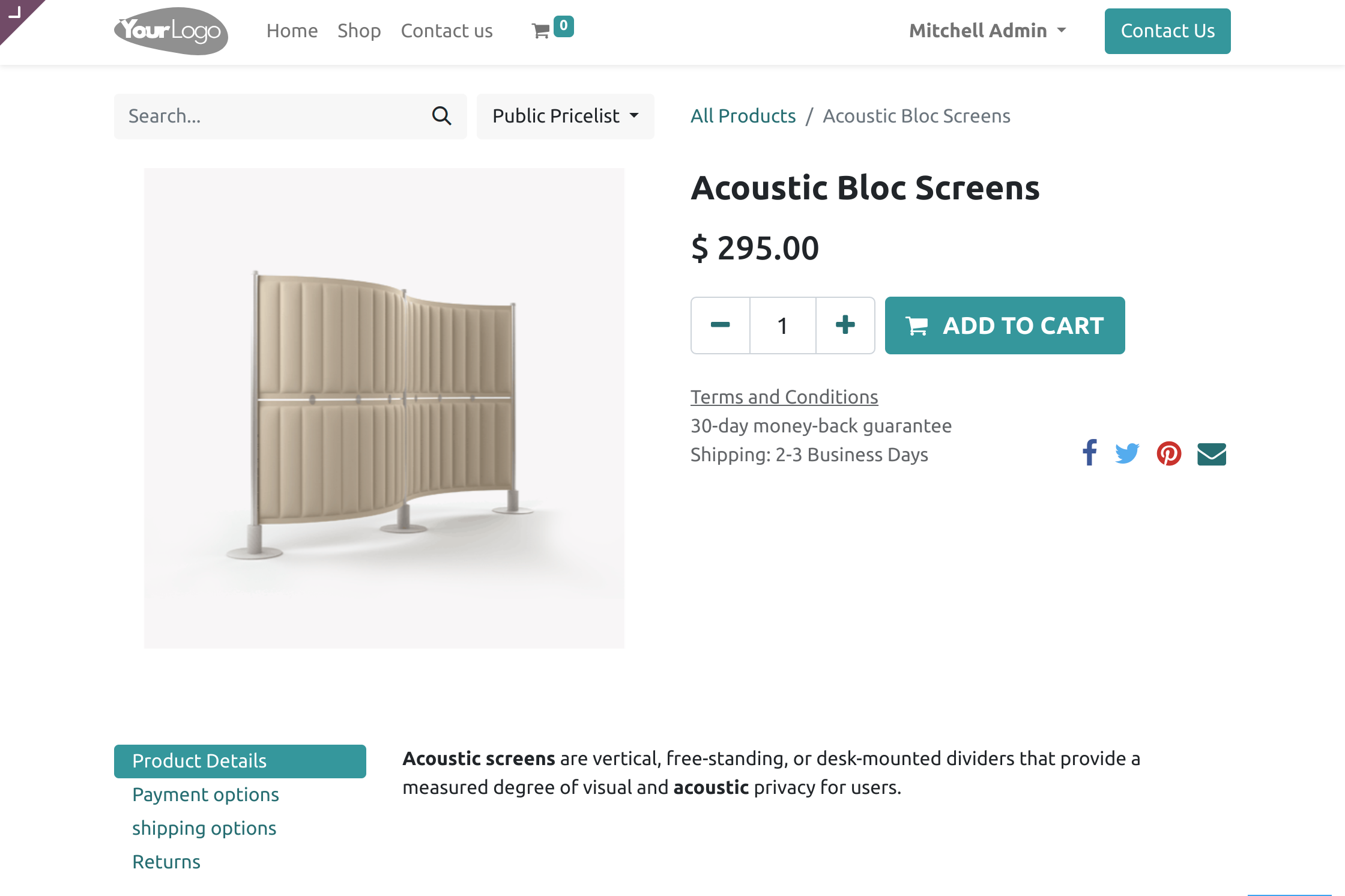
- Odoo Custom Product Tabs shown below in the Horizontal Format.

- Odoo Custom Product Tabs shown in vertical format.

NEED HELP?
Hope you find the guide helpful! Please feel free to share your feedback in the comments below.
If you still have any issues and queries regarding the module then please raise a ticket at https://webkul.uvdesk.com/en/customer/create-ticket/
For any doubt contact us at support@webkul.com.
Thanks for paying attention!!