Odoo Auto Update Currency Rates
INTRODUCTION:
Currency Rate changes from country to country and from time to time. It becomes next to impossible to update the currency or currency rates manually in Odoo. Updating the currency rates manually will increase the complexity as well as it will be a time taking process in Odoo. Also, it will be more prone to mistakes when the currency rates are updated manually in Odoo.
To resolve this issue, a module is introduced ‘Odoo Auto Update Currency Rate’ to update the currency rates on a regular and automatic basis using cron to auto-update the rate.
When your company includes interacting with several currencies, then this is the perfect app to help you keep your Odoo exchange rates consistent with market rates. Just pick which currencies you want to update periodically. When the list of currencies is available, the App will continue to update them by downloading the latest forex rates. The rates will be according to the base rate as you set in the Odoo.
Note:-
The POS display multi-currency module helps show the conversion of amounts into different currencies as per preference.
FEATURES:
- The Admin can set the dynamic endpoint of the API.
- Admin can update the parsing code as per the API.
- Admin can set cron to auto-update the speed.
INSTALLATION:
1.) Once you purchase the App from the Webkul store, you will receive the link to download the zip file of the module.
2.) Extract the file on your system after the download finishes. You will be able to see a folder named- ‘wk_currency_exchange’.
3.) Copy and paste this folder inside your Odoo Add-Ons path.
4.) Now, open the Odoo App and click on the Settings menu. Here, click on Activate the Developer Mode.
5.) Then, open the Apps menu and click on the ‘Update Modules List’.
6.) In the search bar, remove all the filters and search ‘wk_currency_exchange’.
7.) You will be able to see the module in the search result. Click on ‘Install’ to install it.
WORKFLOW:
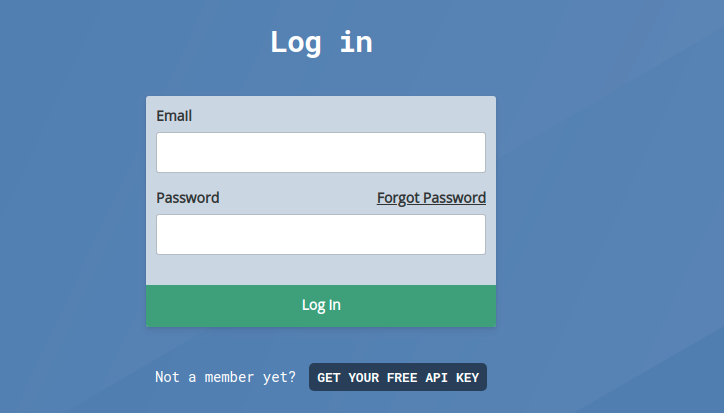
1) Before logging in to the Odoo database; visit the site (https://fixer.io/login?) to create your account for the access key.

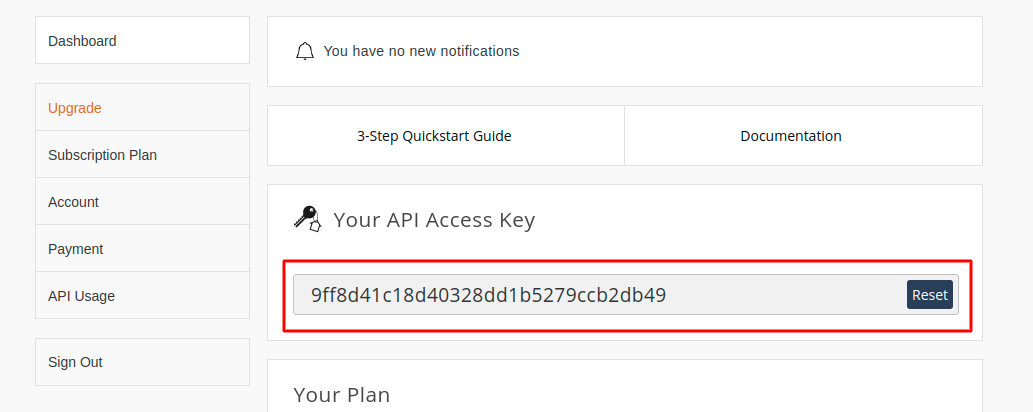
2)As soon as you have created your account you will be redirected to a new screen from where you can copy the access key for creating a Currency rate API.

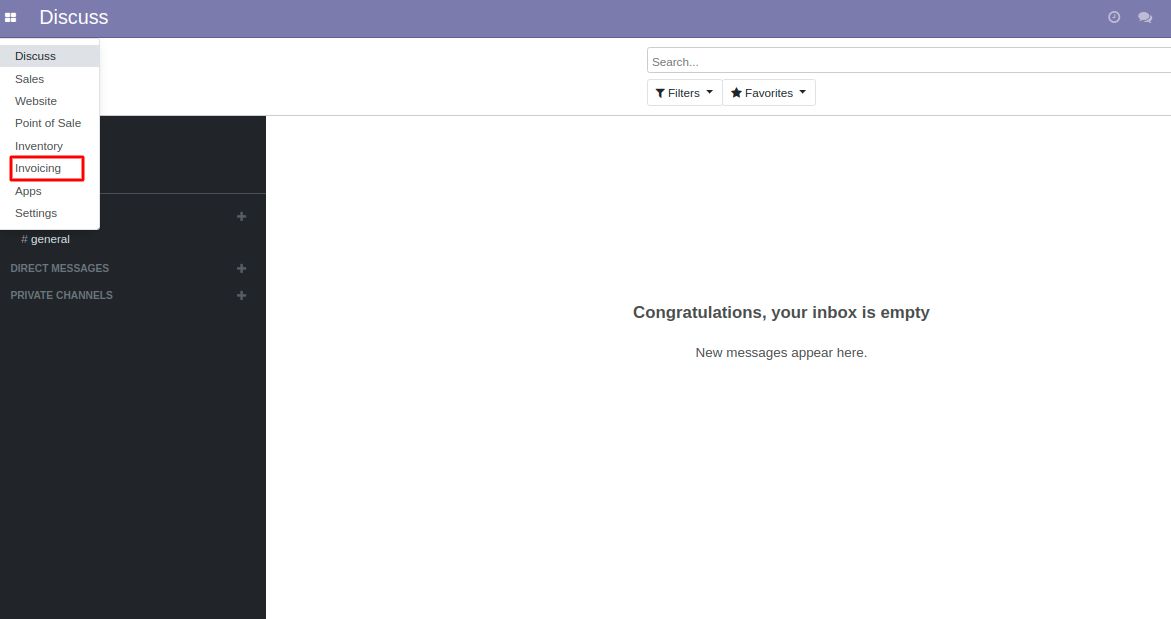
3)After that login to your Odoo database to go to the ‘Invoicing’ module.

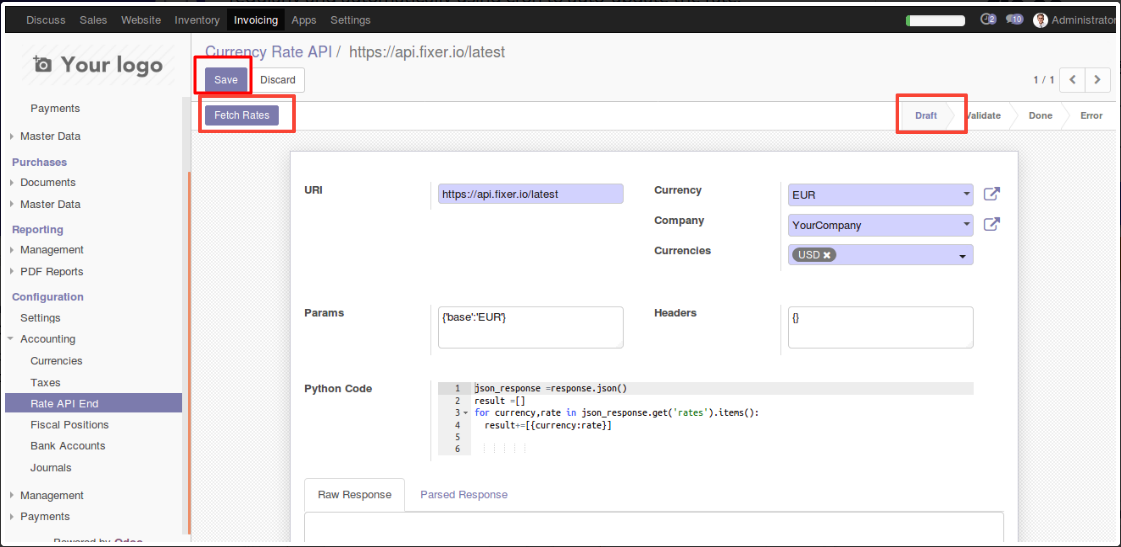
4) Then go to Invoicing >>Configuration>> Accounting>> Rate API End.


5)Click on the ‘Create’ button to create a new Currency rate API.


6)Add the field ‘URL’, ‘Currency’, ‘Company’, ‘Currencies’ to create a new currency API.


7) Once you have filled all the mandatory details like URL, Currency, Company, Currencies you can click on the ‘Fetch’ button to fetch the currency rate API. Once you have to fetch the currency rates click on the ‘Save’ button to save the currency rate API.

8) Click on the ‘Edit’ button to edit the already existing currency rate.


NEED HELP?
Was this guide helpful? Please share your feedback in the comments below.
If you have any issues/queries regarding the module please raise a ticket at
https://webkul.uvdesk.com/en/customer/create-ticket/
For any doubt contact us at support@webkul.com.
Thanks for reading!!