


Support
Thank you for viewing the blog for the extension, if you have any further query please get back to us at our HelpDesk System. You may also browse other Magento 2 marketplace addons and our quality Magento 2 extensions.
Citrus Payment Solutions is an Indian company that provides online payment services to businesses. Marketplace Citrus Payment Gateway module will allow the customers to select Citrus Payment Gateway as their payment method. The customers can use their credit/debit card or net banking credentials for processing the payment transaction.
With the help of this module, the admin can pay to sellers using the Citrus Payment Gateway. It also allows the admin to send the refund amount to customers using the Citrus Payment Gateway.
Please Note: This is a Marketplace add-on, you need to install Magento 2 Multi Vendor Module module first.
To install this extension, please follow each and every step carefully as follows:
After extracting the downloaded zip file and you will get the src folder. Inside src folder, you will find the app folder, copy the app folder to the Magento 2 root directory. Please view the below screenshot.

After the successful installation, you have to run these commands in the Magento 2 root directory.
First command- php bin/magento setup:upgrade

Second Command – php bin/magento setup:di:compile
Third Command – php bin/magento setup:static-content:deploy
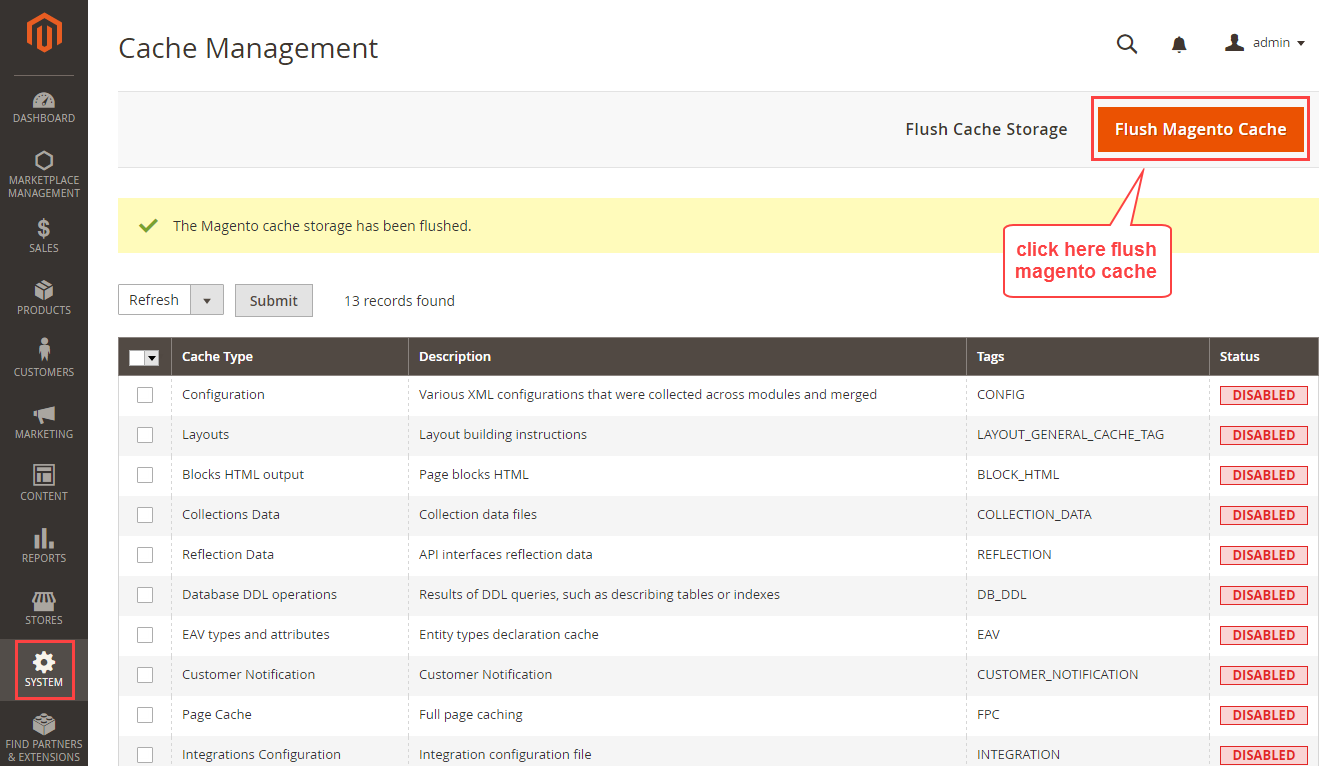
After running the commands, you need to flush the cache and reindex all from the Magento 2 admin panel. Navigate through System>Cache Management. Click Flush Magento Cache button as shown below:
If you need to do the module translation, please navigate the following path in your system. app/code/Webkul/Mpcitruspayment/i18n. Open the file named en_US.CSV for editing as shown in below screenshot.

Once you have opened the file for editing. Replace the words after the comma (,) on the right with your translated words.

After editing the CSV file, save it and then upload it to the same folder. Now your module translation is complete.

For Multilingual support, please navigate. Store>Configuration>General>Locale Options. And select your desired language from the Locale option.

Before doing the module configuration, the admin needs to get the Citrus Pay credentials. The following page will open, click Merchant Login link.

Enter your Merchant Log In credentials – email and password. Click Sign In.

Now you can copy your Vanity URL, Access Key, and Secret Key from the following page.

After the installation, the admin needs to go to backend panel for configuration. Please navigate to Stores>Configuration>Sales>Payment Methods>Marketplace Citrus Payment Gateway.
Enabled – Select Yes to use this module, else select No.
Title – Set the title for the payment method which will appear on the front-end.
Secret Key of Merchant account – Enter your Citrus account secret key.
Access Key of Merchant account – Enter your Citrus account access key.
Vanity Url of Merchant account – This URL will be available on the Citrus account of the admin.
Sandbox Enabled – Select Sandbox for testing or development use. Else select Production to make the module live.
Send Customer Name to Gateway – Select Yes to send customer name to the gateway. If No is selected, the customer needs to enter it.
Send Customer Email to Gateway – Select Yes to send customer email ID to the gateway. If No is selected, the customer needs to enter it.
Send Customer Address Info to Gateway – Select Yes to send customer address to the gateway. If No is selected, the customer needs to enter it.
Send Customer Phone to Gateway – Select Yes to send customer phone number to the gateway. If No is selected, the customer needs to enter it.
When to allow order refund – Select when to allow the refund to customer select Before Payment Release or After Payment Release. If Before Payment Release is selected, the admin can refund to customers before releasing the payments to the sellers.
When to execute cron for an order – This option is available when Before Payment Release is selected. Enter the number of days till the refund can be initiated.
Allow Automatically Release – Select Yes to automatically release the payment to the sellers. Select No to release payment manually.
Payment from Applicable Countries – Select which countries can use this payment gateway.
Minimum Order Total – Set the minimum order total value for using this payment gateway.
Maximum Order Total – Set the maximum order total value for using this payment gateway.
Sort Order – Set the order sequence of this payment gateway.

Now, the sellers need to provide some details for the Citrus Payment Gateway module. They need to go to Manage Citrus Seller Details page. Enter their contact information such as address, phone, email, city, state, country, and zip code.
After that they need to enter their bank account information – IFSC code, account number, payment mode as NEFT, select Yes in Active option.

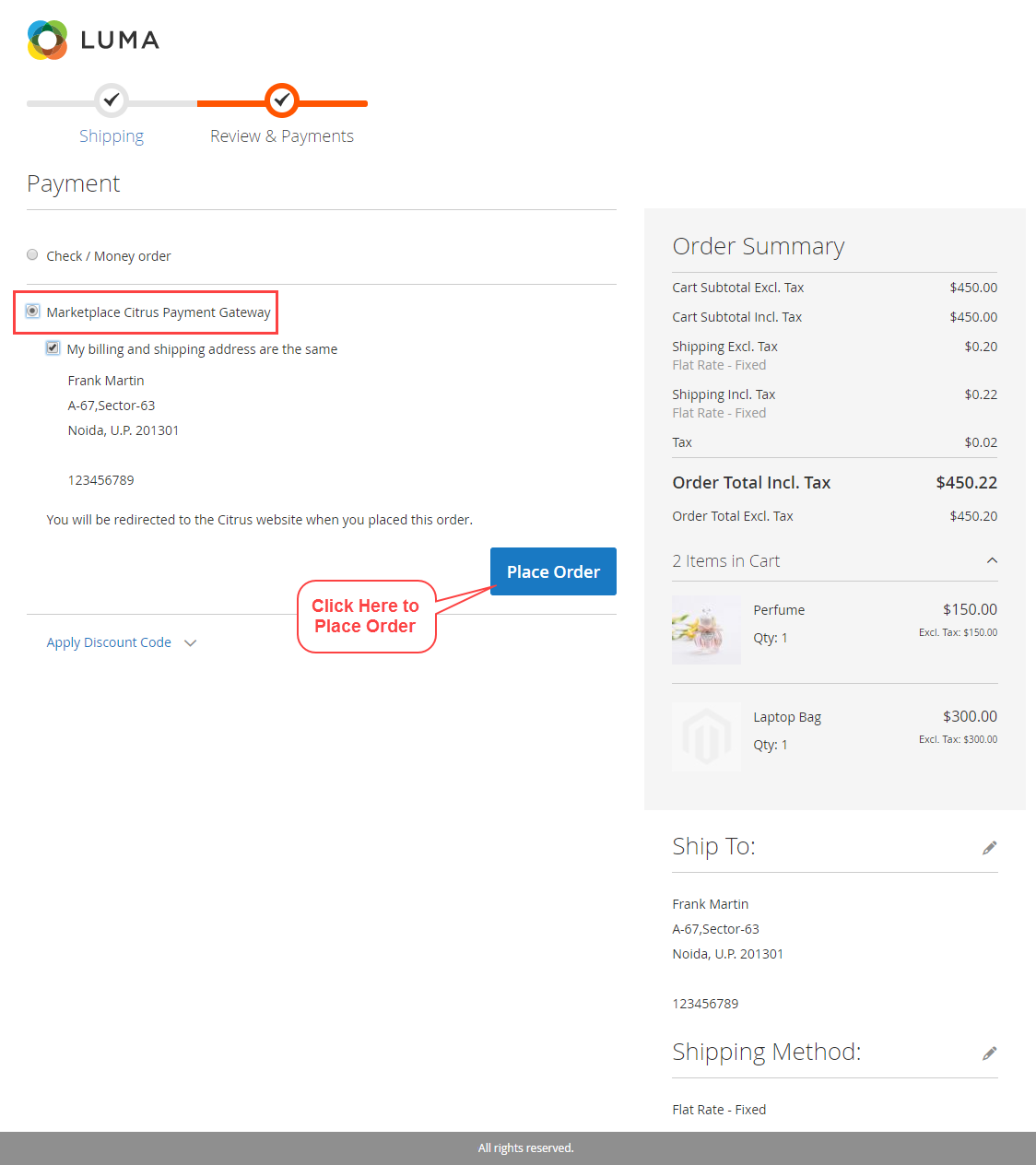
At the time of checkout, the customers need to select the Marketplace Citrus Payment Gateway as the payment method. After selecting the shipping and billing addresses, please click Place Order button. The customers will now be redirected to the Citrus Pay website.
After arriving at the Citrus Pay website, the customers need to enter their contact information as visible in the screenshot. Then, click Continue to Pay for entering the card details.

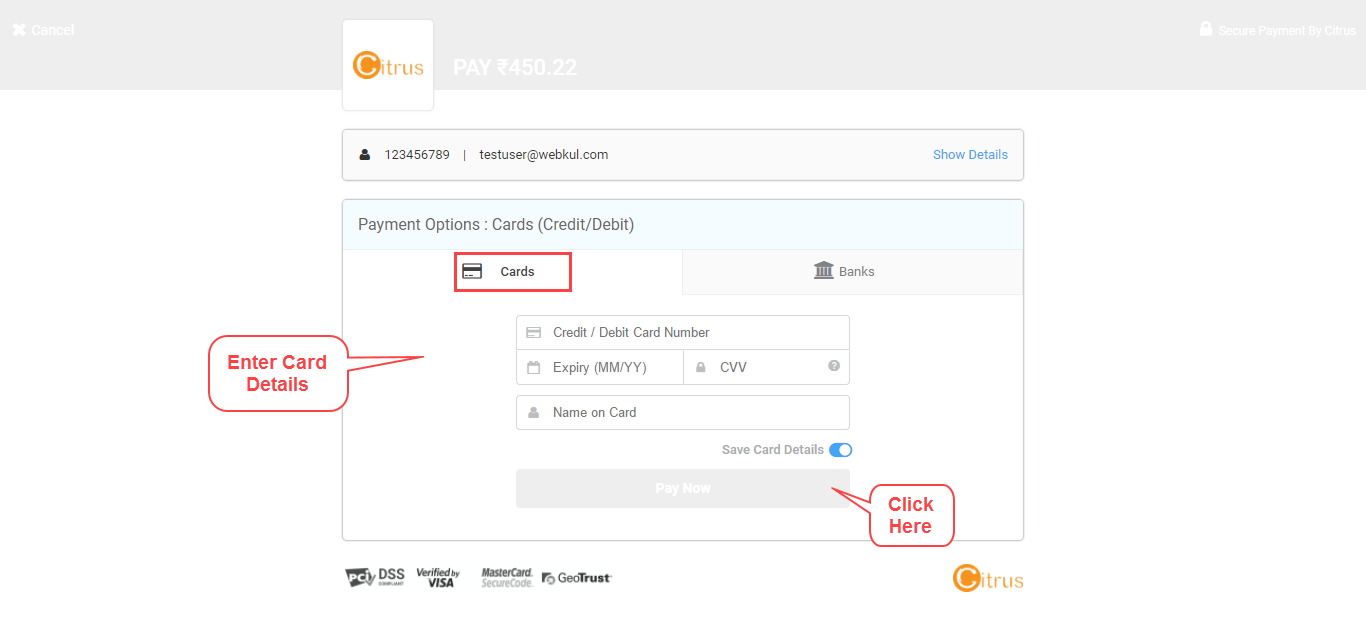
Then, select the Cards tab and enter the debit or credit card’s details. There is an option to save the card details also. Click Pay Now to complete the payment process.
The customers can also use net banking for the payment. Click the Banks tab and select the bank. Click Pay Now for completing the payment process.

The admin can pay to sellers and release their payments by using the Citrus Payment Gateway. To do that, please navigate to Marketplace Management>Manage Sellers. Click Order link to view the order information and pay to the seller.

After clicking the Order link, the following page will appear showing all the orders of the seller. Click Release Seller Payment button to release the payment to the seller. The payment will go the seller bank account using the Citrus Payment Gateway.

The admin can also process the refund using the Citrus Payment Gateway. To do that please go to Sales>Invoices, the following page will appear. Click View link for any invoice of the seller.

After clicking the View link, the following page will appear, click Credit Memo.
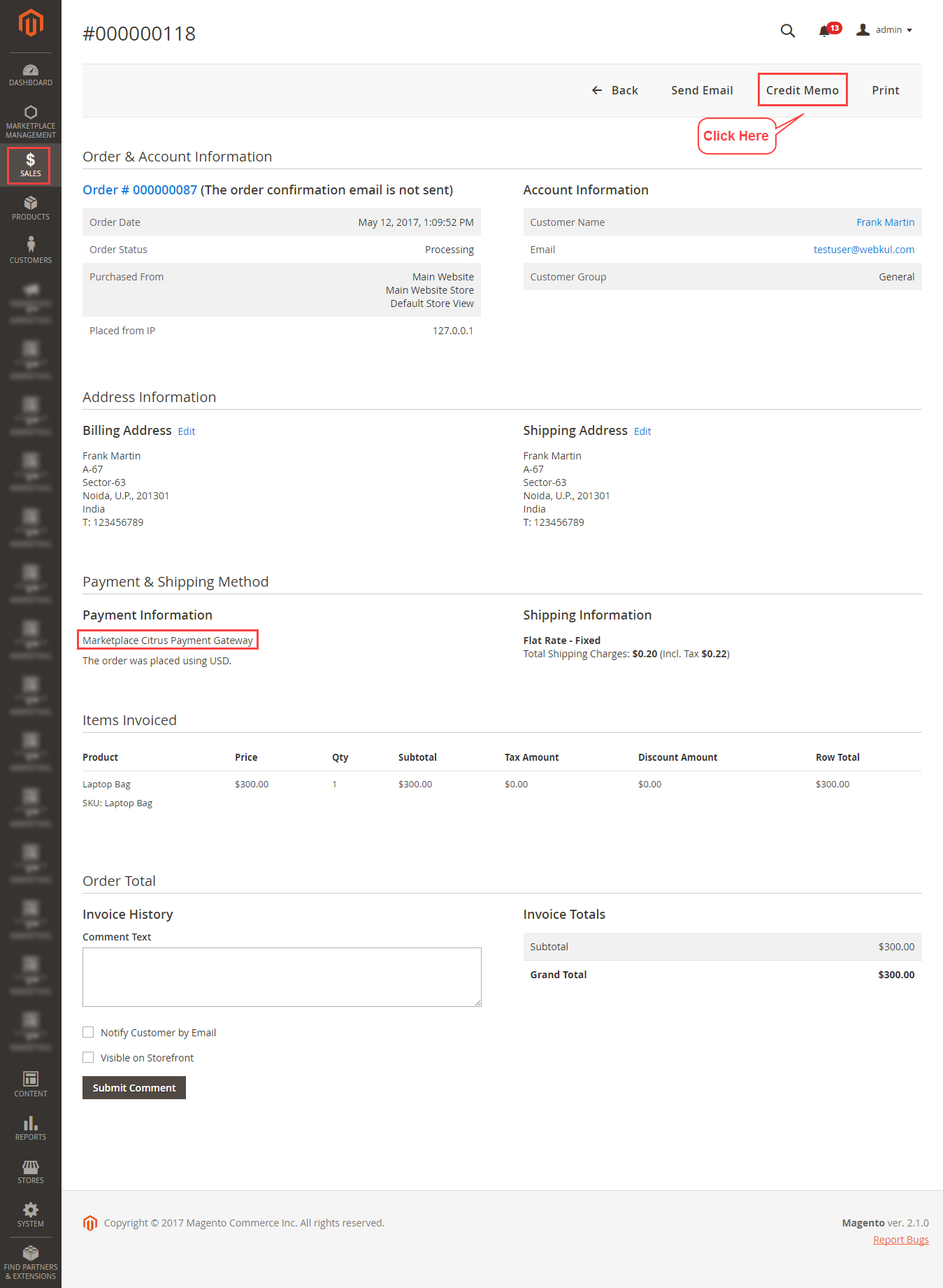
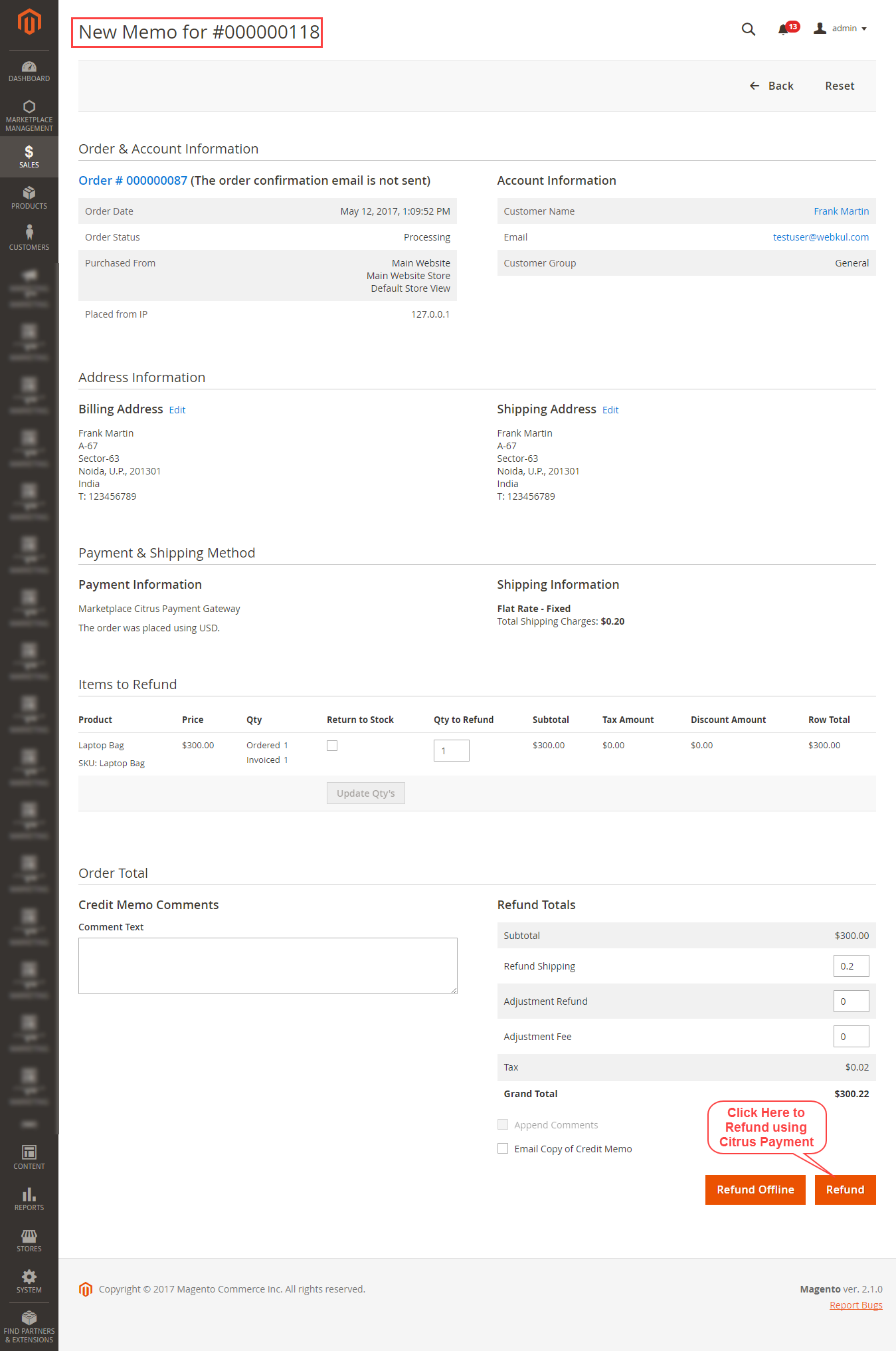
Now the admin can create a credit memo for the invoice. Click Refund button to create a refund using the Citrus Payment Gateway.
Thank you for viewing the blog for the extension, if you have any further query please get back to us at our HelpDesk System. You may also browse other Magento 2 marketplace addons and our quality Magento 2 extensions.