Bagisto Multi-Tenant UPS Shipping
Bagisto Multi-Tenant UPS Shipping brings UPS as a self-serve carrier option to every tenant on your SaaS platform.
Each tenant enables it, sets their own credentials, and gets live UPS rates at checkout.
Prerequisites
Note – This is a SaaS add-on, so you need to install the Laravel eCommerce Multi Company SAAS Module first.
You also need the Bagisto UPS Shipping module installed, since it provides the UPS carrier and live rate calculation this add-on manages per tenant.
If you also sell booking-type products in your multi-tenant SaaS store, check out the Multi Tenant Saas Booking Product extension.
Features of Bagisto Multi-Tenant UPS Shipping
- Tenants can enable or disable the UPS Shipping method for their stores.
- Tenants can configure UPS shipping settings and allowed shipping methods.
- Tenants can define the supported weight unit for shipping calculations.
- Dynamic freight calculation based on the tenant’s UPS shipping services.
- The Super Admin can view which tenant stores use the UPS Shipping method.
- The Super Admin can monitor UPS Shipping configurations across tenant stores.
Module Requirements
- Bagisto v2.4.9
- Bagisto Multi-Tenant (SAASCustomizer) v2.4.9.1
- Laravel UPS Shipping v2.4.10.0
How to Install Bagisto Multi-Tenant UPS Shipping
- Unzip the extension package, then merge its “packages” folder into the project root directory.
- Add the following PSR-4 autoload entries to the root
composer.jsonfile, underautoload.psr-4:
"Webkul\\UpsShipping\\": "packages/Webkul/UpsShipping/src",
"Webkul\\UpsShippingSaas\\": "packages/Webkul/UpsShippingSaas/src"
- Run the following command to refresh the autoload files:
composer dump-autoload
- Register both service providers in
bootstrap/providers.php:
use Webkul\UpsShipping\Providers\UpsShippingServiceProvider;
use Webkul\UpsShippingSaas\Providers\UpsShippingSaasServiceProvider;

return [
    UpsShippingServiceProvider::class,
    UpsShippingSaasServiceProvider::class,
];
- Run the UPS Shipping install command to publish its assets and clear the cache:
php artisan ups-shipping:install
Now run the project on your specified domain.
After installation, the super admin logs in and navigates to Configure > Sales > Shipping Methods > UPS Shipping.
In the SaaS environment, this area shows an informational notice about the UPS integration for tenants.
Operational settings, the Access License Key, User ID, Password, and Shipper Number, stay tenant-specific.
Each tenant sets sandbox mode, container type, weight unit, and allowed services from their own admin panel.
Tenants manage these under Configure > Sales > Shipping Methods in their own administration panel.
Note: The UPS module uses the UPS Rate API for live shipping-rate calculation.
Tenants need a valid UPS Access License Key, User ID, Password, and Shipper Number from their UPS account.
The Sandbox Mode toggle switches between test and live environments for development purposes.

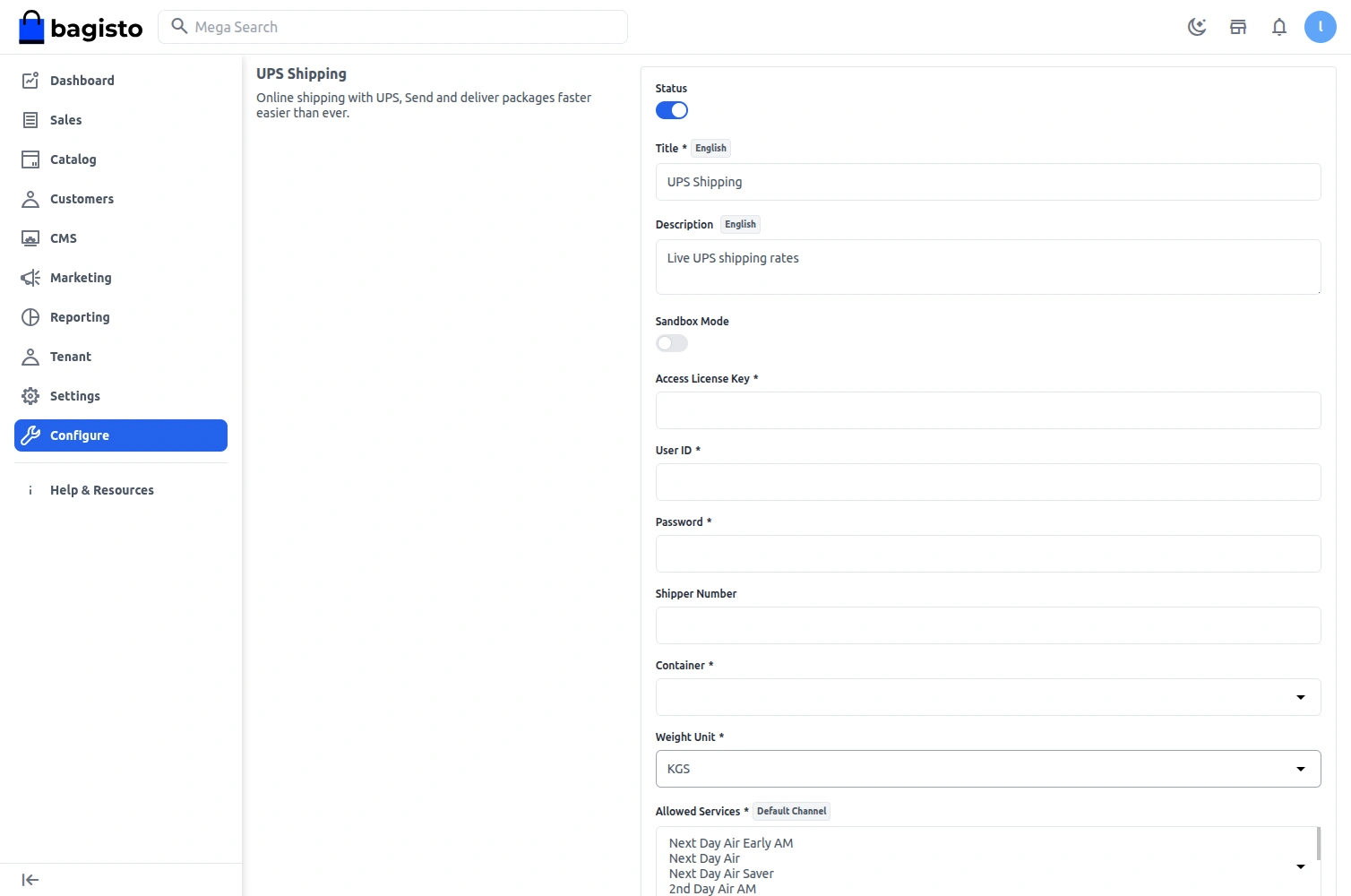
Bagisto Multi-Tenant UPS Shipping: Super Admin Management
This page confirms that UPS Shipping is available as a shipping integration for tenants across the platform.
Bagisto Multi-Tenant UPS Shipping: Tenant Management
After installation, the tenant sets the origin address under Configure > Sales > Shipping Settings.

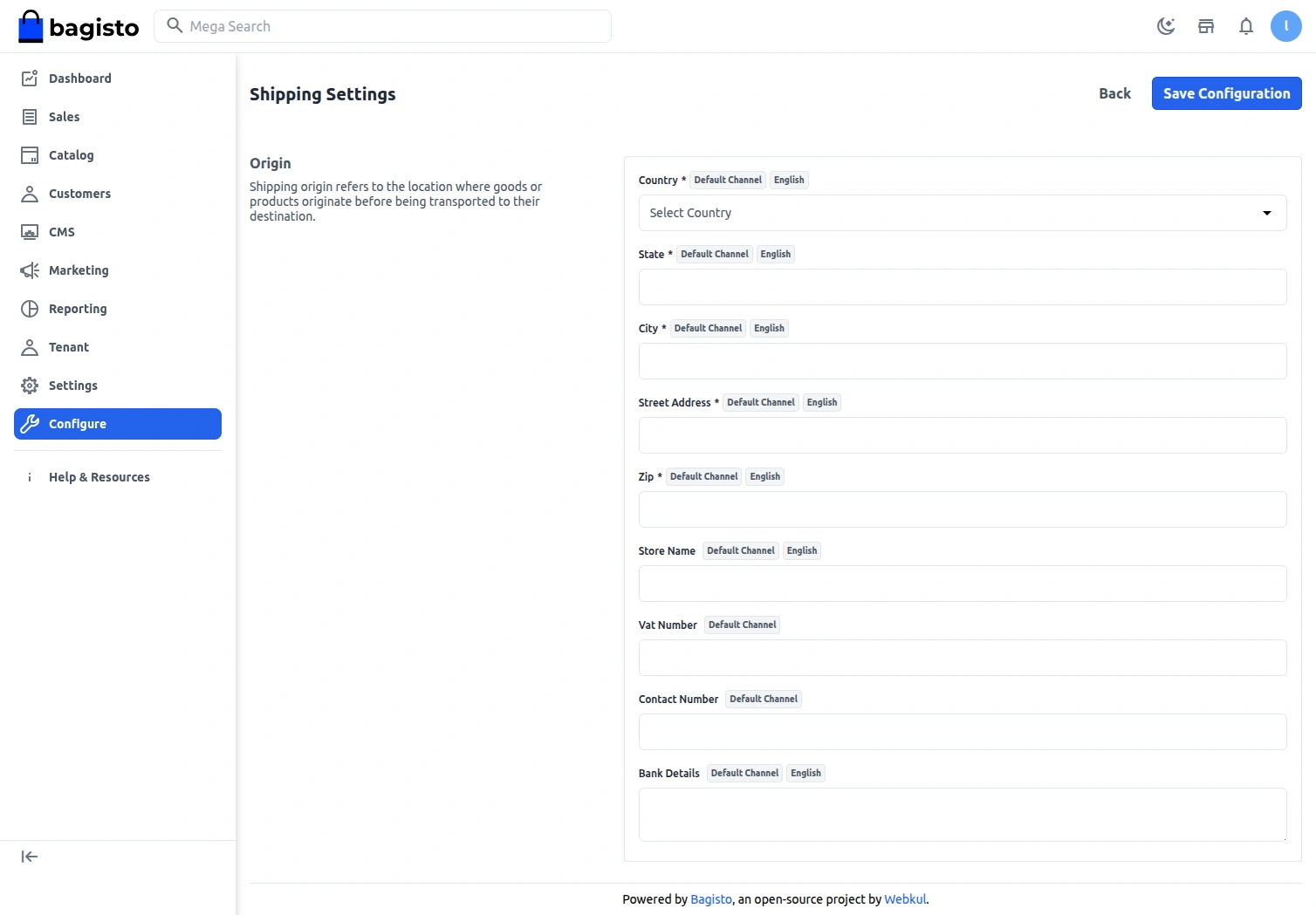
The tenant fills in all origin address details, as shown in the screenshot above. UPS rate lookups fail without this data.
Next, the tenant configures the UPS Shipping module under Configure > Sales > Shipping Methods.
The tenant panel lists all available shipping methods, including UPS Shipping.
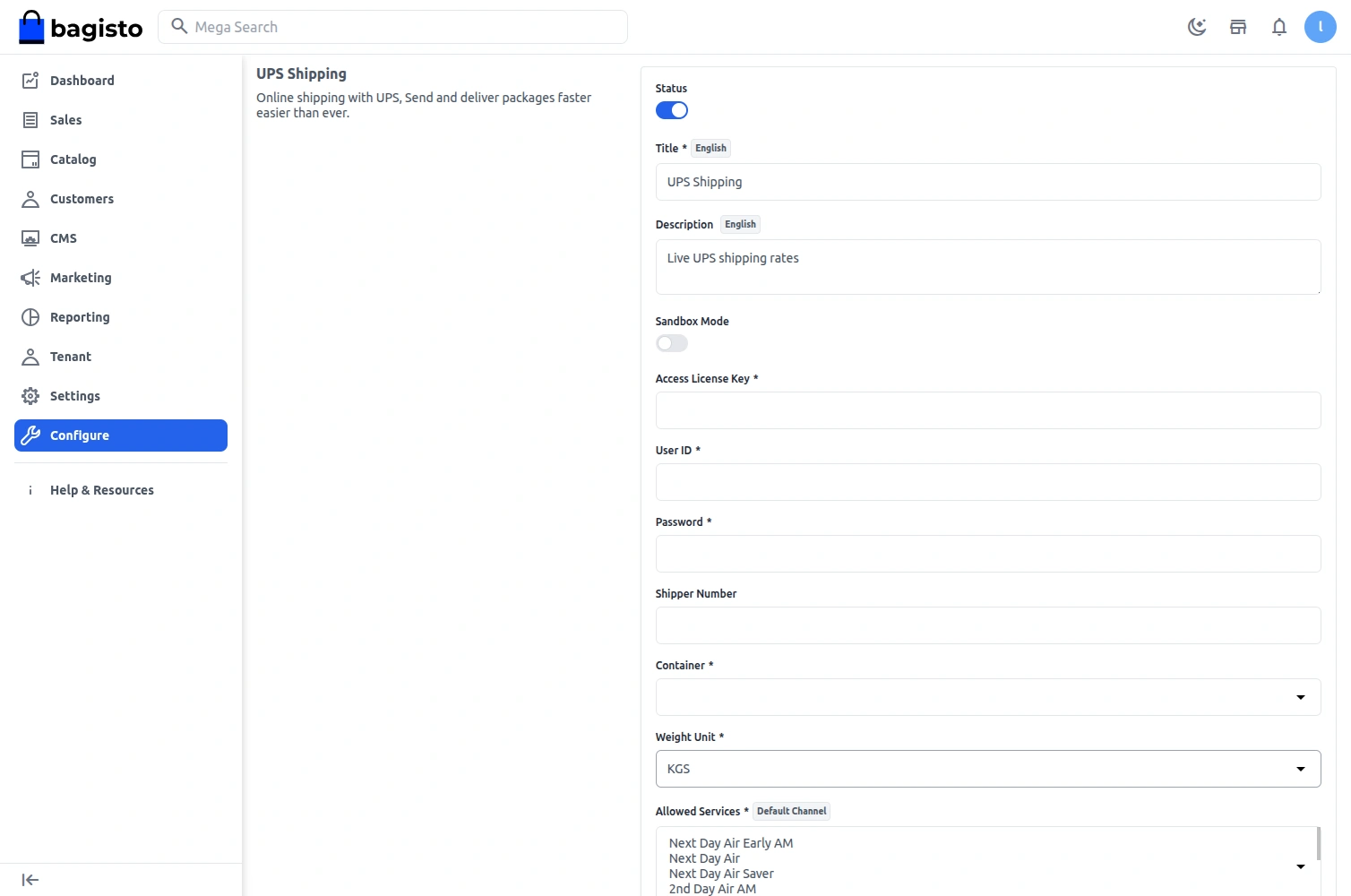
The UPS Shipping method includes the following fields:
Status: The tenant activates or deactivates the UPS Shipping method from this field.
Title: The name of the shipping method shown to customers during checkout.
Description: An optional description of the shipping method, for internal reference.
Sandbox Mode: Enable this to test UPS shipping rates without processing real transactions.
Access License Key: The UPS Access License Key from the tenant’s UPS developer account.
User ID: The tenant’s UPS.com User ID, used for API authentication.
Password: The tenant’s UPS.com account password.
Shipper Number: The UPS Shipper (account) number assigned by UPS.
Container Type: The packaging type for the shipment: Package, UPS Letter, UPS Tube, UPS Pak, or UPS Express Box.
Weight Unit: The unit used for shipment weight, either LBS or KGS.
Allowed Services: The UPS services offered at checkout, such as Next Day Air, 2nd Day Air, UPS Ground, and UPS Worldwide Express.
Customer Checkout Process
Once a tenant configures UPS Shipping, customers can select it at checkout for order delivery.
The customer chooses from the allowed UPS services, according to their requirements and budget.

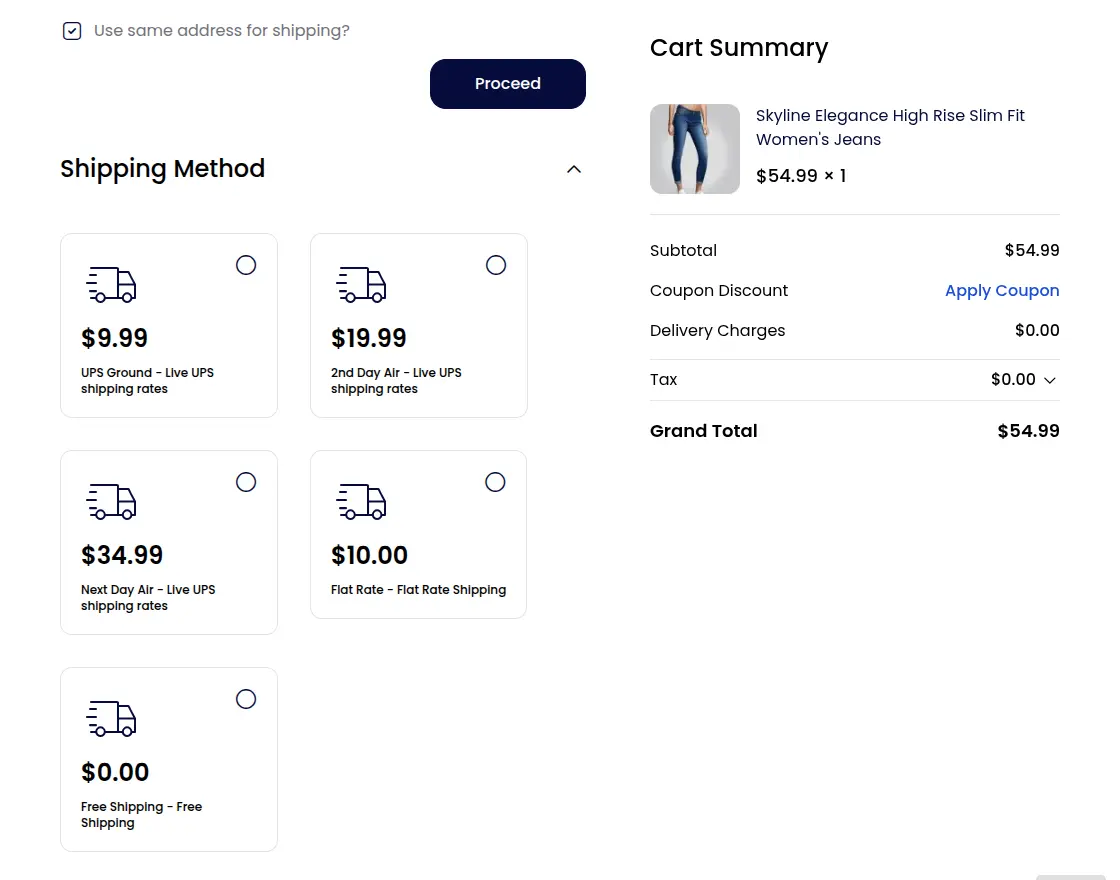
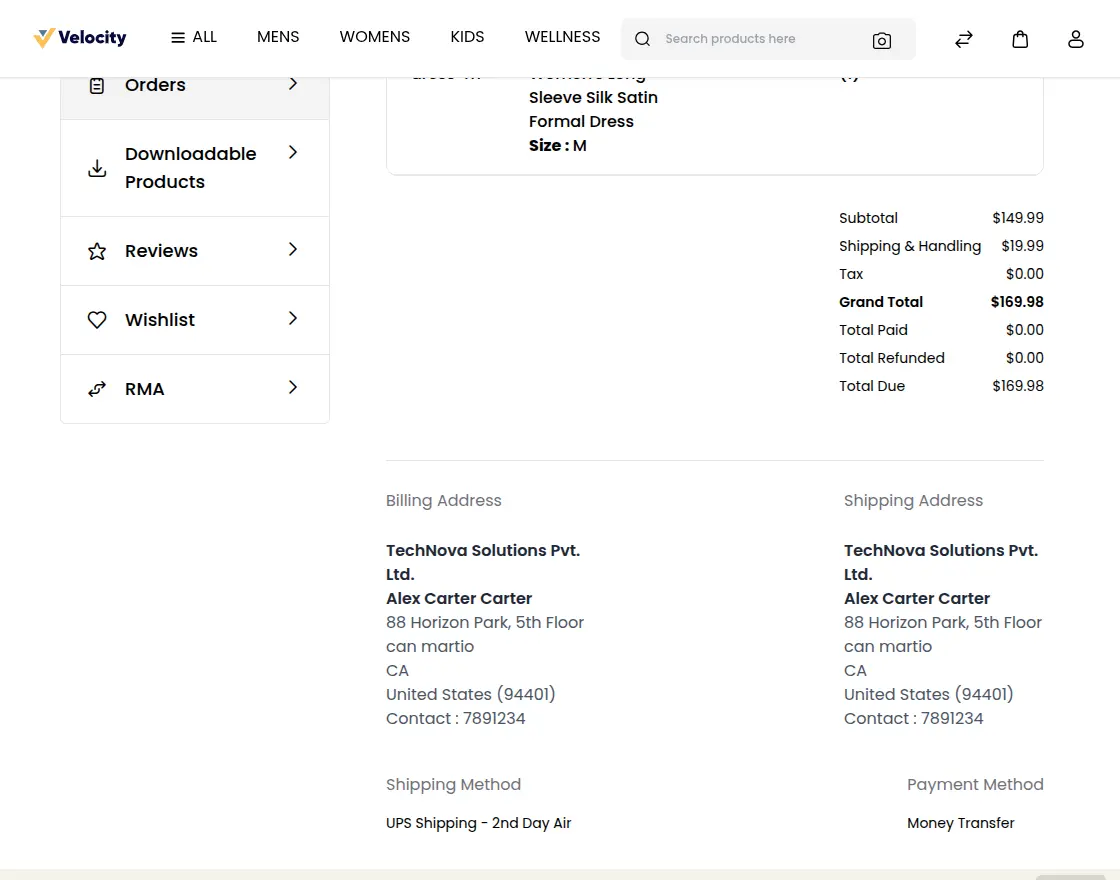
After placing an order, the customer views its full details on the order summary page by tapping the order number.
This page shows the UPS shipping method and delivery cost for the package, as shown below.
Order Management
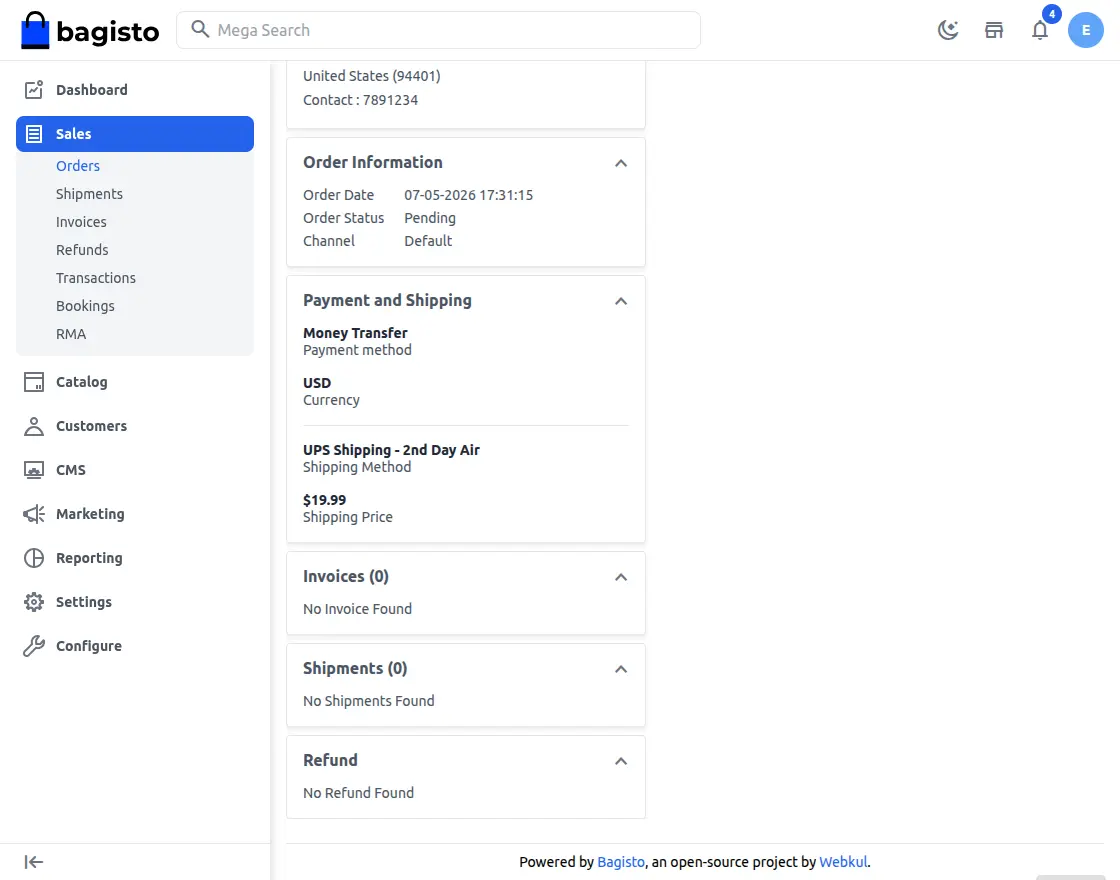
The tenant can view all placed orders by navigating to Sales > Orders. From there, the tenant can open any order to view its complete details.
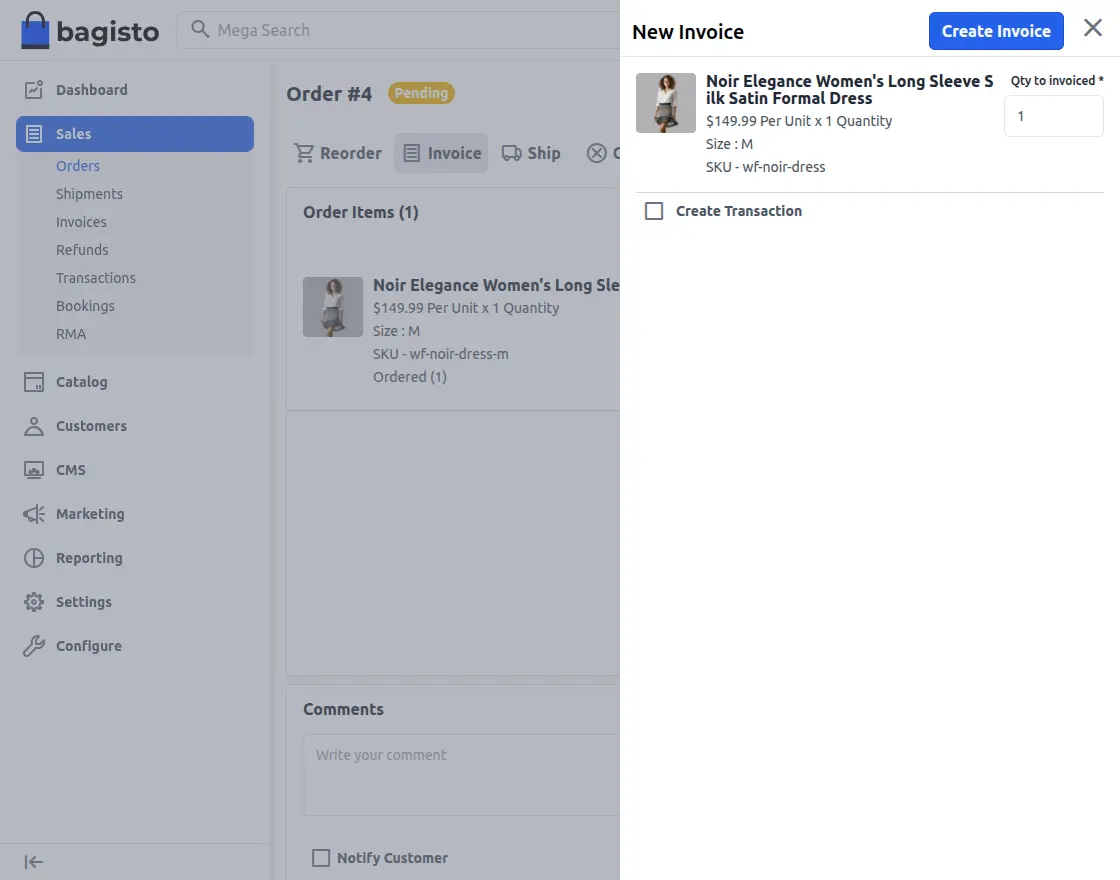
The tenant generates an order invoice by clicking Invoice and setting the invoice quantity, as shown below.
After creating the invoice, the order status changes to Processing.
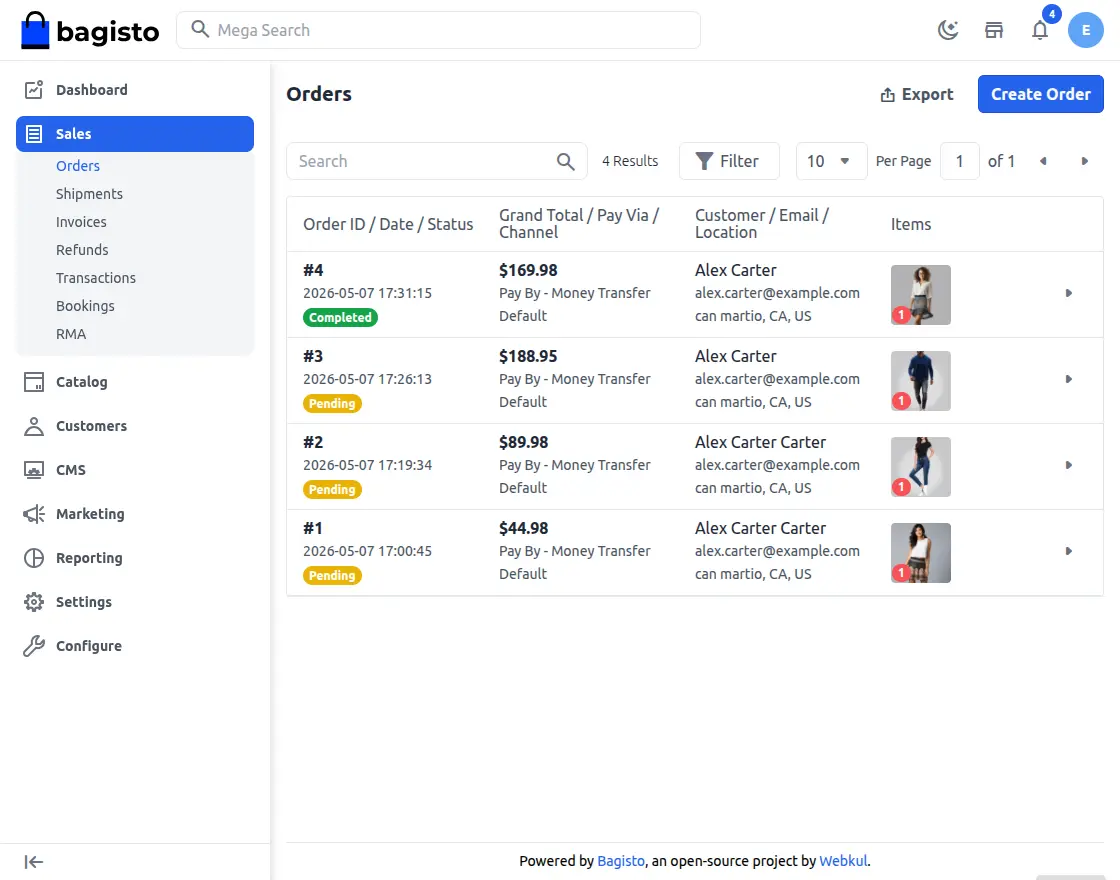
Once invoiced, the tenant creates a new shipment by clicking Ship.
Creating the shipment moves the order status to Completed, as shown below.
Clicking View on a shipment opens its complete information.
That’s all for the Bagisto Multi-Tenant UPS Shipping module.
Support
That covers the User Guide for the Bagisto Multi-Tenant UPS Shipping module.
For any queries, reach out to us at support@webkul.com, or raise a ticket at our HelpDesk System.
Explore our Laravel Development Services and our quality Bagisto Extensions.