Laravel eCommerce SaaS Marketplace Delivery Time Slot
Bagisto Marketplace Delivery Time Slot SaaS lets every tenant store offer delivery day and time slot selection at checkout.
Each company on your multi-tenant install keeps its own slots, bookings and settings. Tenants never see one another’s delivery calendar.
Moreover, sellers can publish their own slots. When a seller skips that step, the tenant admin’s default slots apply instead.
The extension is compatible with Bagisto v2.4.9, SAAS Customizer v2.4.9.1, Marketplace v2.4.9.3 and Marketplace SaaS v2.4.9.0.
Features
- Customers choose a preferred delivery day and time slot during checkout
- Sellers create their own slots and set how many orders each slot accepts
- The tenant admin defines default slots used whenever a seller adds none
- Every slot, booking and setting is scoped to the company that owns it
- The admin selects which weekdays are available for delivery
- The admin controls how many days appear on the checkout page
- A minimum processing time keeps same-day or rushed slots hidden
- A custom error message shows when no slot is available
- Super admins can grant or withhold the extension per subscription plan
If you also want appointment based products in your tenant stores, then take a look at the Multi Tenant SaaS Booking Product extension.
Installation
First, unzip both extension folders and merge the packages directory into your project root.
Next, open composer.json and add these two lines under psr-4.
"Webkul\\MpDeliveryTimeSlot\\": "packages/Webkul/MpDeliveryTimeSlot/src",
"Webkul\\MpDeliveryTimeSlotSaas\\": "packages/Webkul/MpDeliveryTimeSlotSaas/src"
After that, register both service providers in bootstrap/providers.php. Order matters, so keep the base package first.
Webkul\MpDeliveryTimeSlot\Providers\MpDeliveryTimeSlotServiceProvider::class,
Webkul\MpDeliveryTimeSlotSaas\Providers\MpDeliveryTimeSlotSaasServiceProvider::class,
Then add the base package’s Concord module to config/concord.php under modules.
Webkul\MpDeliveryTimeSlot\Providers\ModuleServiceProvider::class,
Finally, run the two commands below to finish the setup.
composer dump-autoload
php artisan saas-mp-delivery-time-slot:install
The install command runs both packages’ migrations, publishes the assets and clears every cache.
Additionally, three flags are available: –force overwrites published files, –seed adds demo data and –skip-migrations re-publishes assets only.
Please do not run php artisan db:seed on a multi-tenant install. That’s it, the extension is ready on your domain.
Bagisto Marketplace Delivery Time Slot SaaS Configuration
To configure the extension, the admin navigates to Configure >> Marketplace >> Delivery Time Setting as shown below.

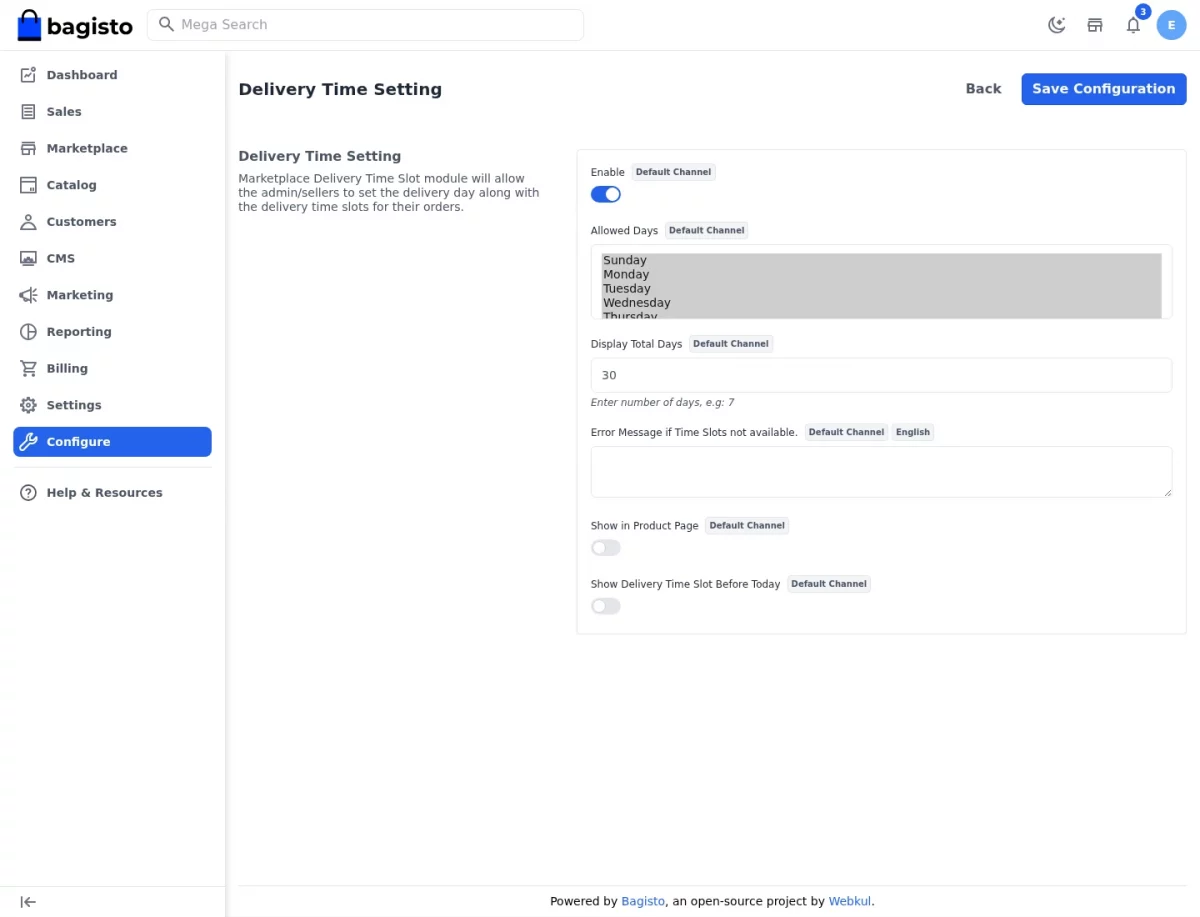
Enable:- Turns the extension on or off for the current tenant and channel.
Allowed Days:- Selects which weekdays may carry delivery slots at checkout.
Display Total Days:- Sets how many upcoming days the checkout page shows.
Error Message if Time Slots not available:- Defines the message customers see when nothing is bookable.
Show in Product Page:- Displays the available slots on the product page as well.
Show Delivery Time Slot Before Today:- Controls whether past-dated slots remain visible.
Because each company owns its own values, every tenant configures the extension independently.
Afterwards, the admin opens the delivery screens from the Marketplace menu in the sidebar.
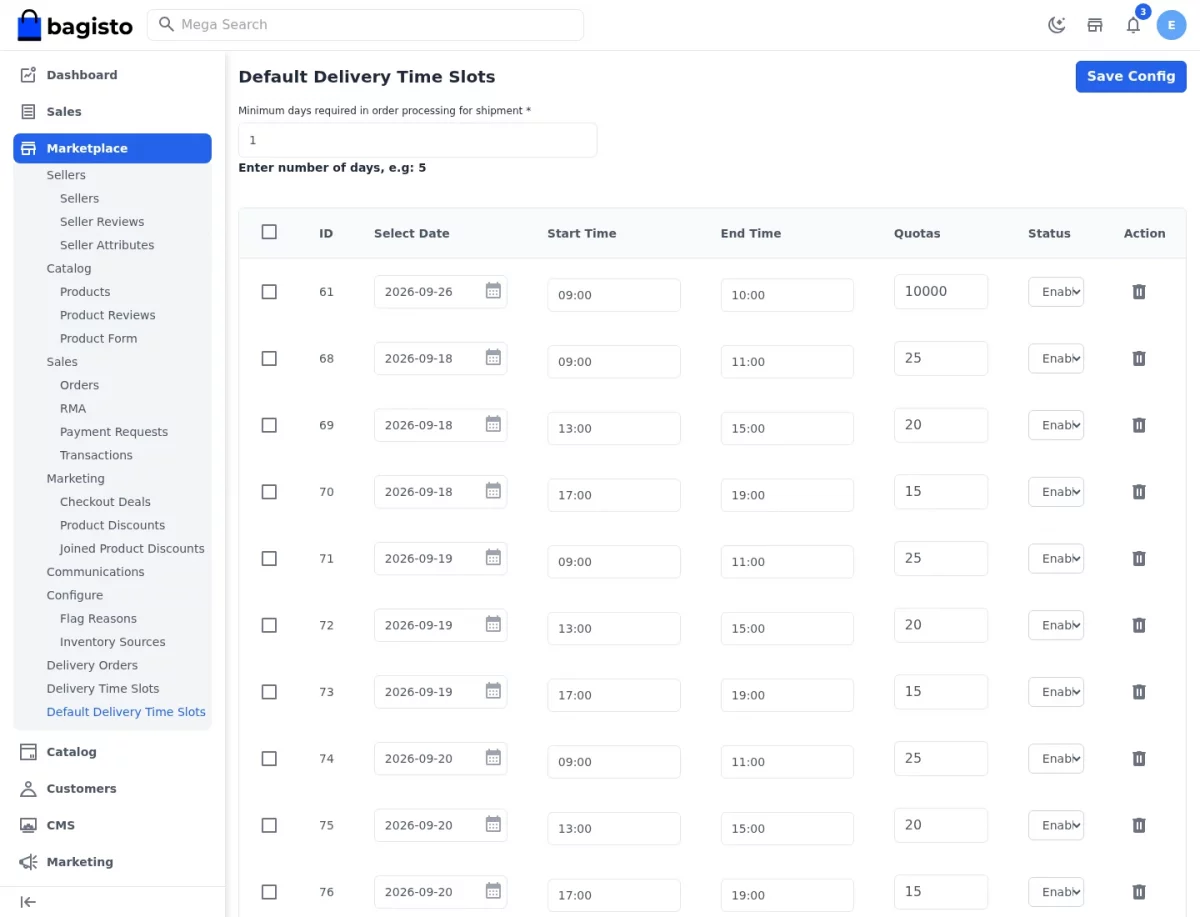
Default Delivery Time Slots
This screen holds the fallback slots. Whenever a seller publishes none, customers buying that seller’s products see these instead.
At the top, the Minimum days required in order processing for shipment field keeps rushed slots out of the checkout list.
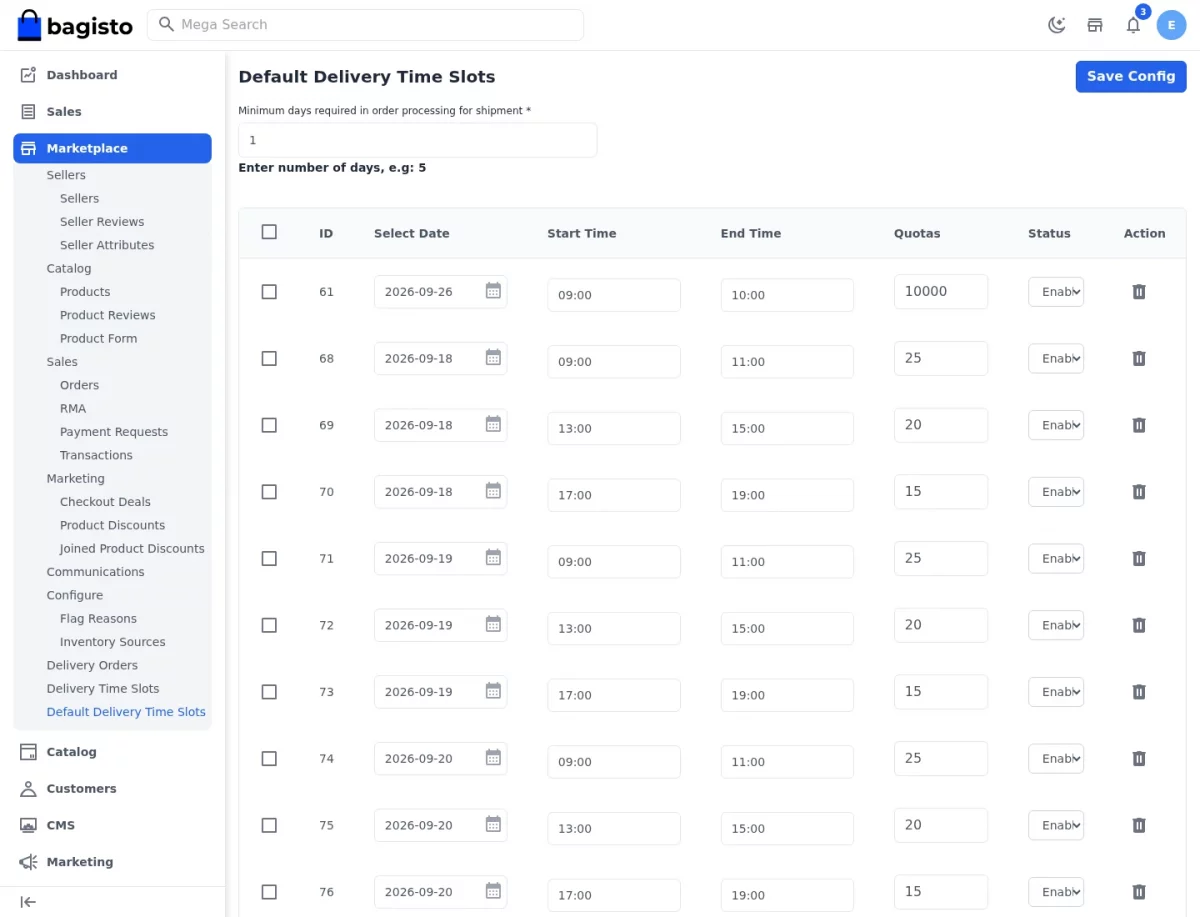
Step-by-Step: Add a Default Delivery Slot
- Log in to the tenant admin panel.
- Go to Marketplace >> Delivery Time Slots in the sidebar, then open Default Delivery Time Slots.
- Enter the minimum processing days in the field at the top.
- Click Add Time Slot to append a new row.
- Pick the Select Date, then set Start Time and End Time.
- Enter the Quota, which caps how many orders that slot accepts.
- Set Status to enabled, then press Save Config.
Delivery Time Slots
Here the admin reviews every active slot in the tenant, whether it belongs to the admin or to a seller.
Consequently, the Seller Name column shows either a seller or Admin for the tenant’s own defaults.
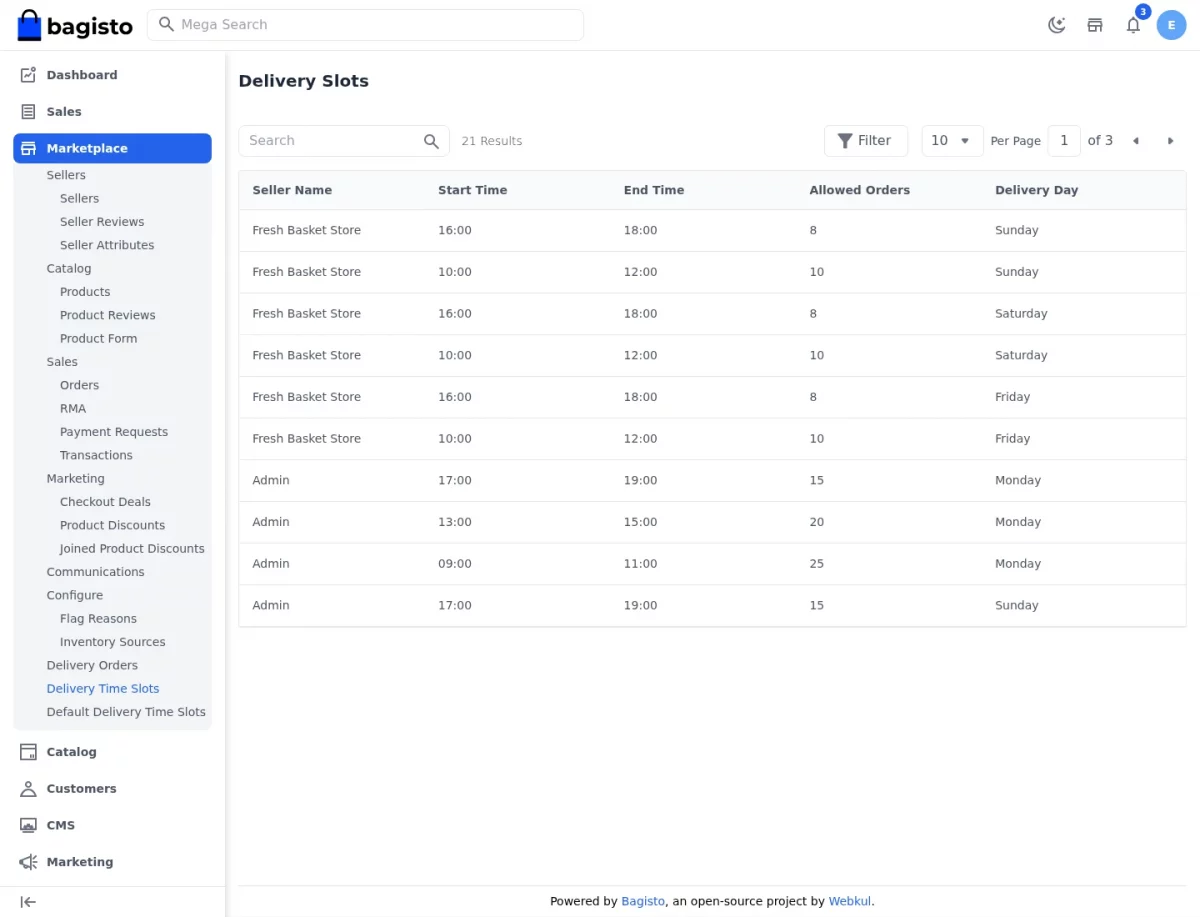
Step-by-Step: Review Slots Across Sellers
- Open Marketplace >> Delivery Time Slots from the sidebar.
- Use Search to find a slot by seller name or delivery day.
- Click Filter to narrow the list by allowed orders, start time or end time.
- Select a seller name to jump straight to that seller’s profile.
- Adjust Per Page when a tenant runs a large number of slots.
Delivery Orders
Every slot a customer books appears in this grid, together with the order it belongs to.
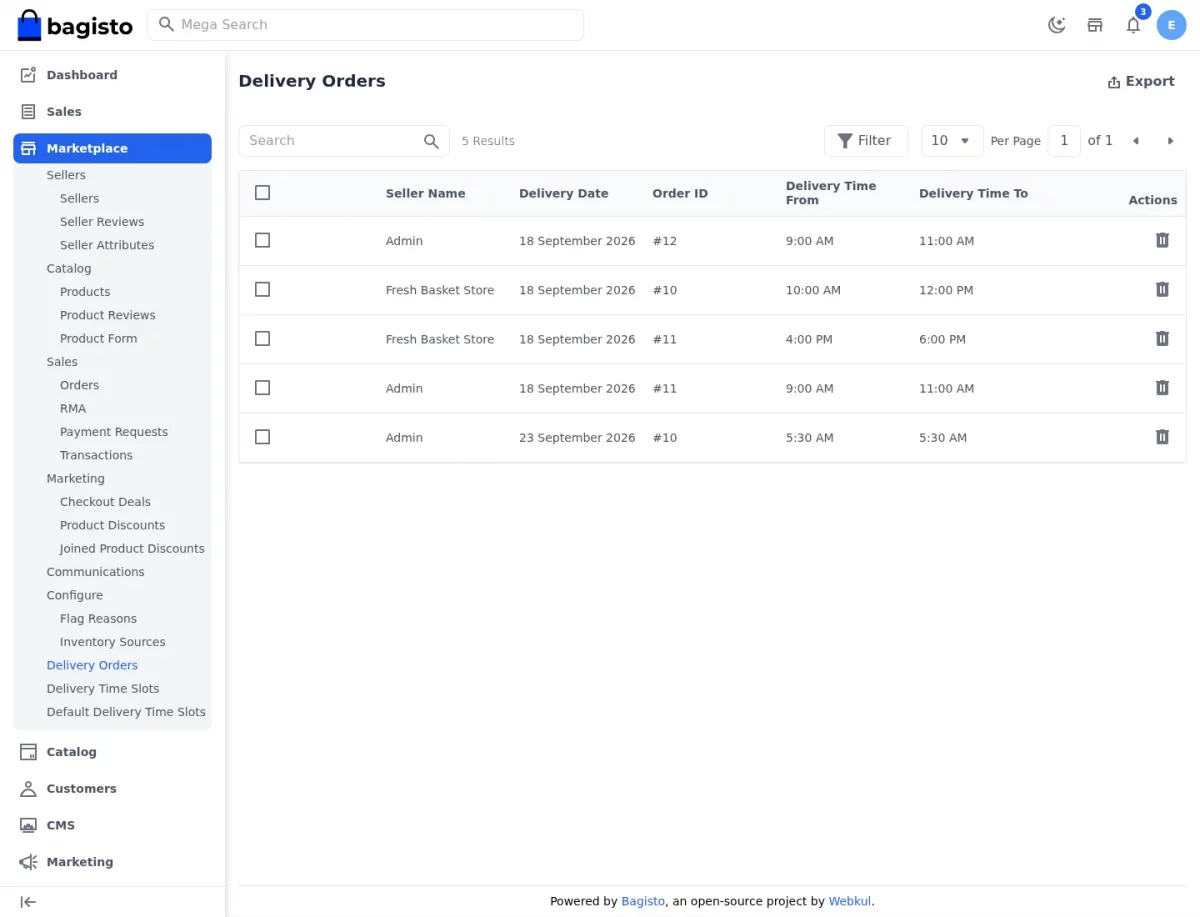
Furthermore, clicking an Order ID opens the sales order, where the view lists the booked slot beside the items.
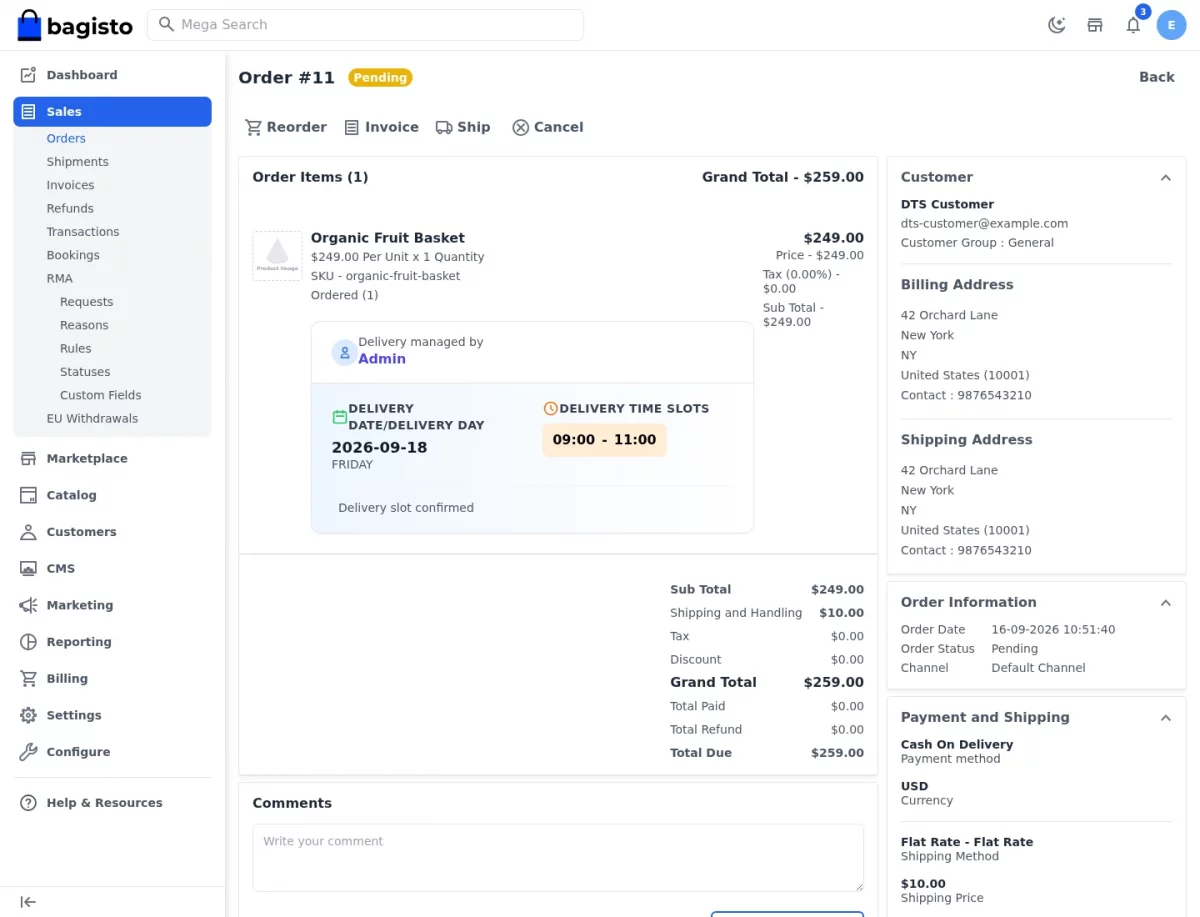
Step-by-Step: Track and Clean Up Bookings
- Open Marketplace >> Delivery Orders from the sidebar.
- Filter by Delivery Date to plan a specific day’s dispatch.
- Click an Order ID to inspect the full order and its booked slot.
- Tick one or more rows, then choose Delete to remove stale bookings.
- Press Export to hand the day’s delivery plan to your logistics team.
Seller End
Sellers manage their own delivery availability from the seller panel, so a marketplace can run many delivery calendars side by side.
Time Slots Configuration
On this page the seller publishes the slots buyers may pick for that seller’s products.
Similarly to the admin screen, a minimum processing time and a per-slot quota are available.
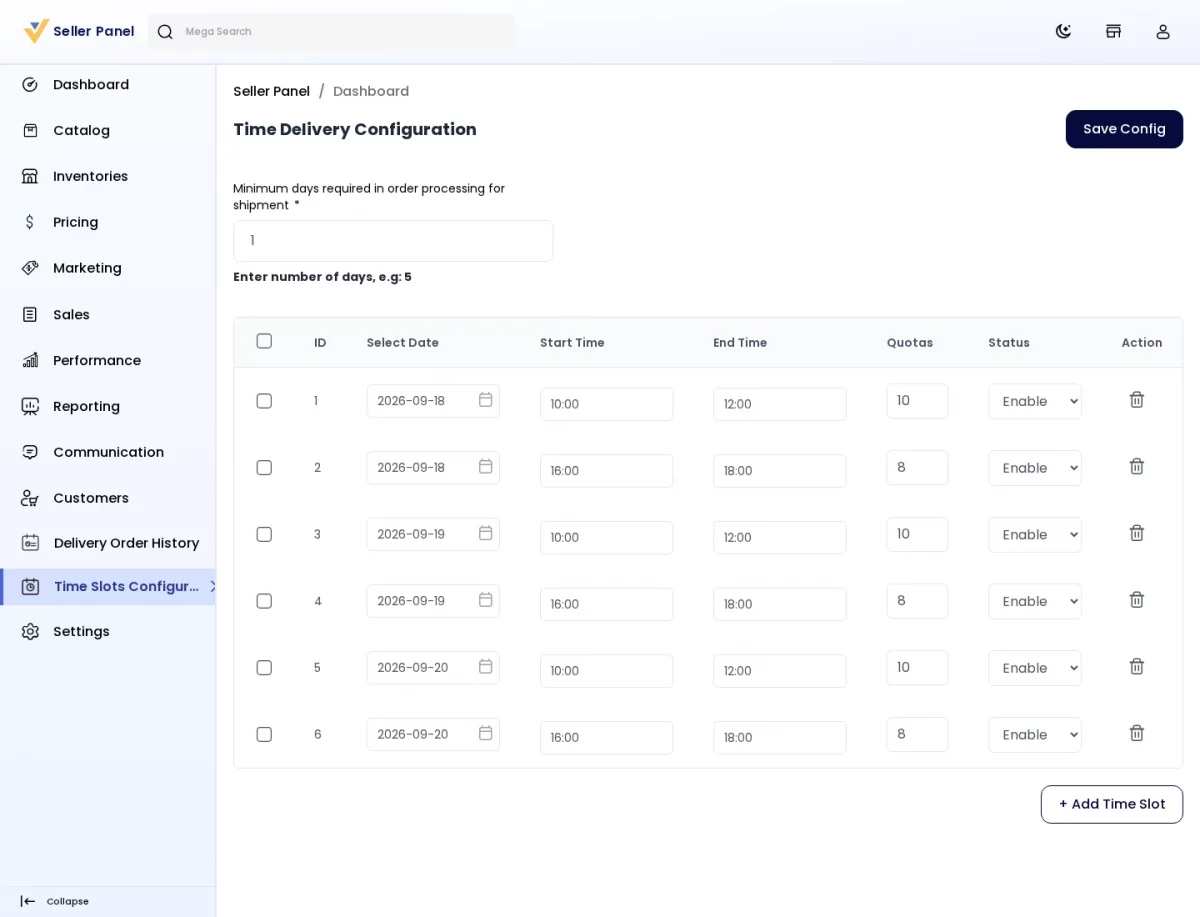
Step-by-Step: Publish Seller Slots
- Sign in to the Seller Panel.
- Open Time Slots Configuration from the left menu.
- Set the minimum days required before an order can ship.
- Click Add Time Slot, then fill the date, start time and end time.
- Enter the quota for that slot and enable its status.
- Press Save Config to publish the slots to the storefront.
Delivery Order History
This grid lists the slots customers booked against the seller’s own orders.
As a result, the seller can plan packing and dispatch without waiting for the admin.
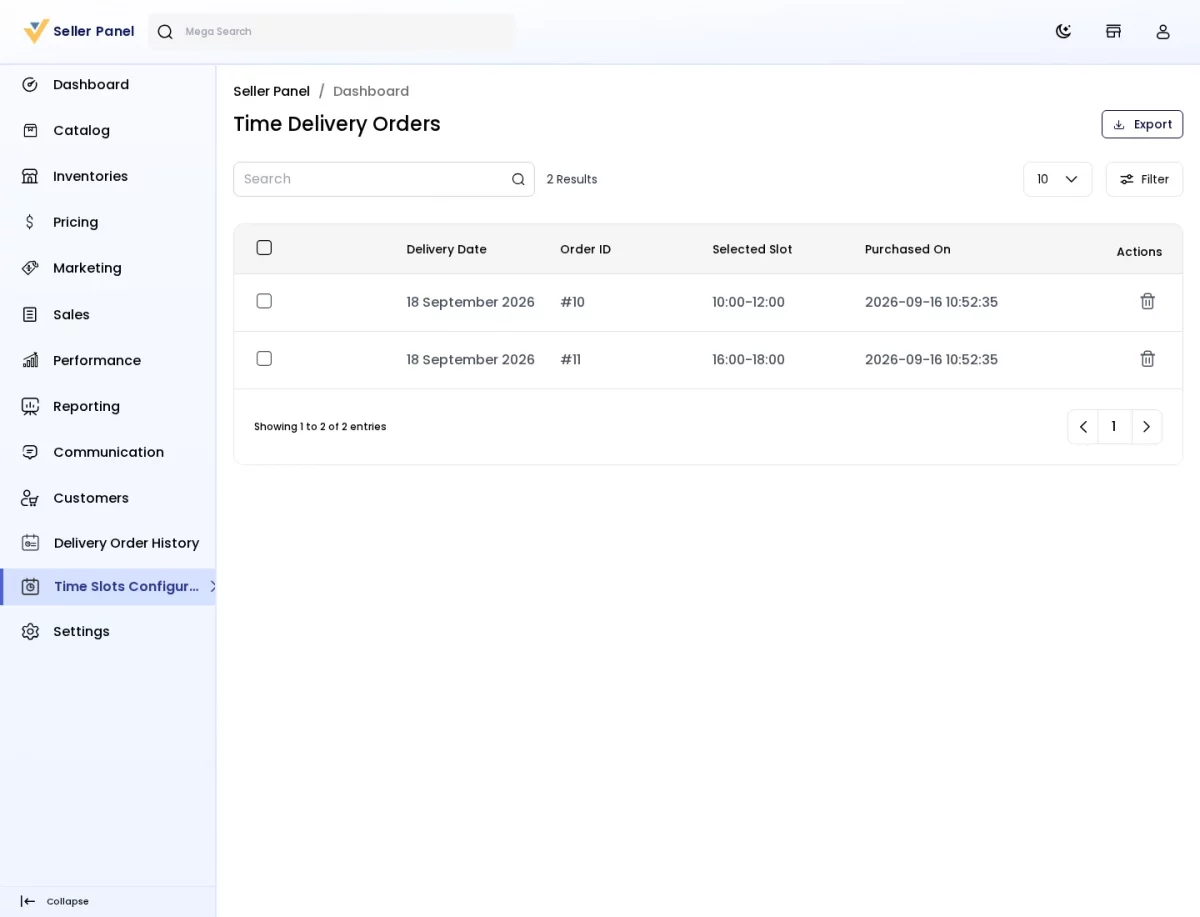
Step-by-Step: Review Seller Bookings
- Open Delivery Order History in the seller panel.
- Check the Delivery Date and Selected Slot columns for the day’s workload.
- Click an Order ID to open the related seller order.
- Use Filter to narrow the list to a date range.
- Select rows and delete them once a delivery is complete.
Front End
Customers meet the extension at two points: the checkout page and their order history.
Choosing a Delivery Slot at Checkout
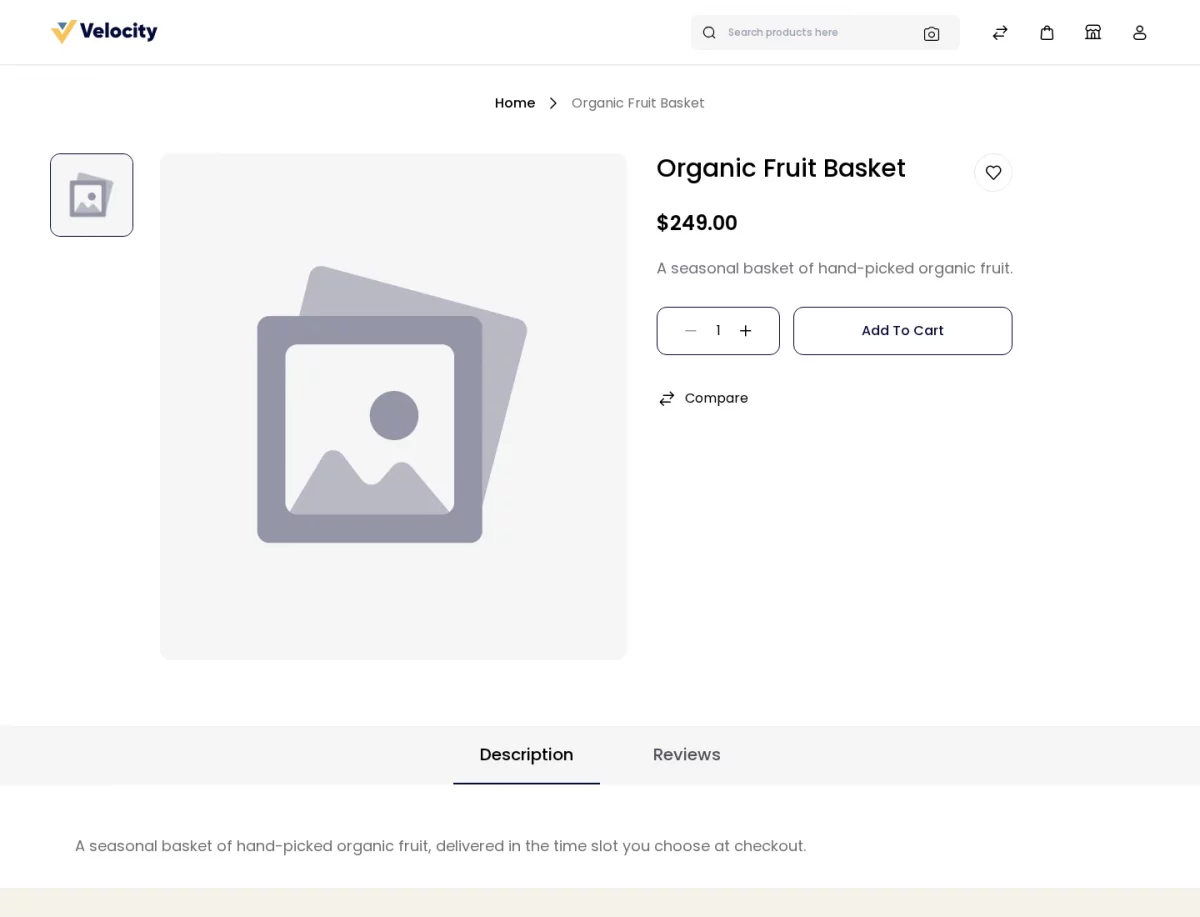
On the storefront, the buyer first opens a product and adds it to the cart as usual.
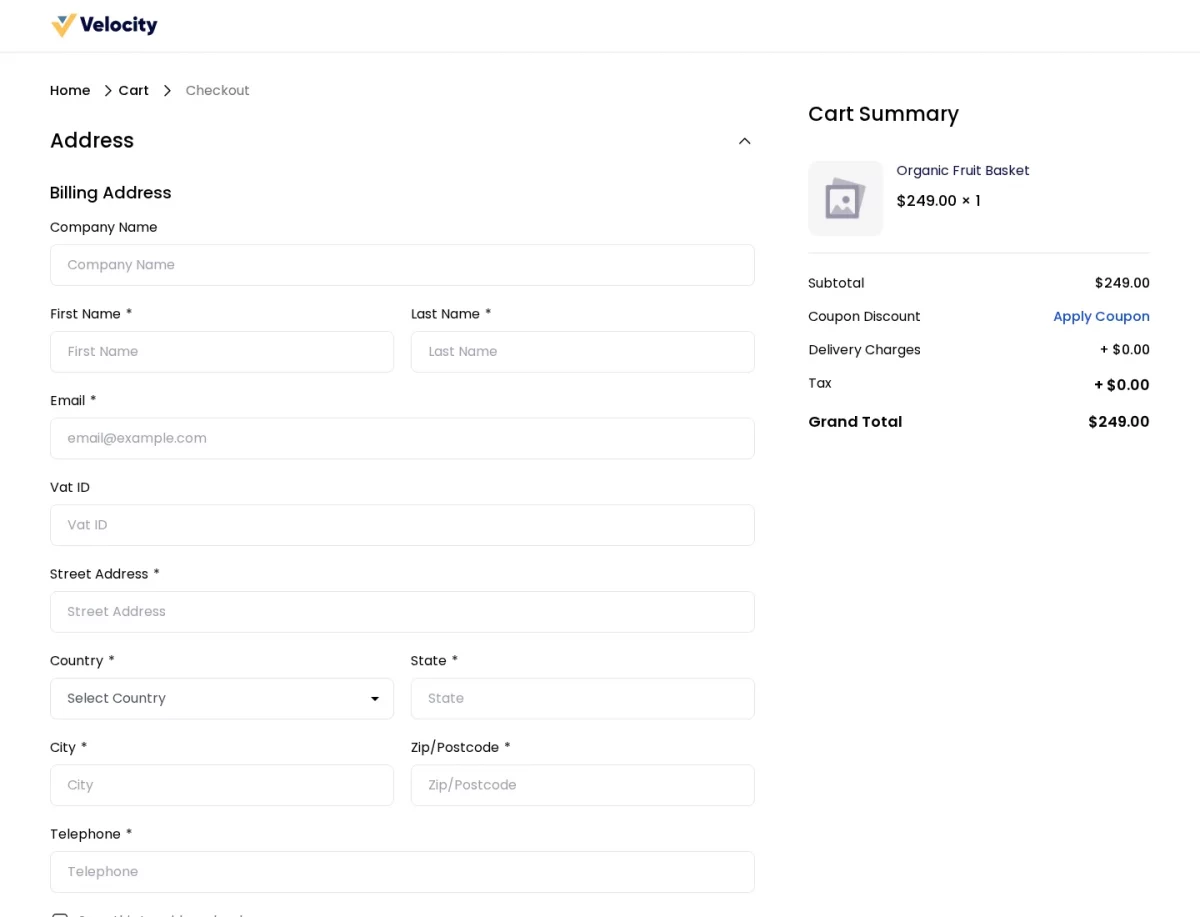
Next, the customer fills the billing and shipping address on the checkout page.
After the address step, the Delivery Time Slots panel appears beside the shipping methods.
Notably, the panel groups slots per seller, so a multi-seller cart shows one calendar for each seller.
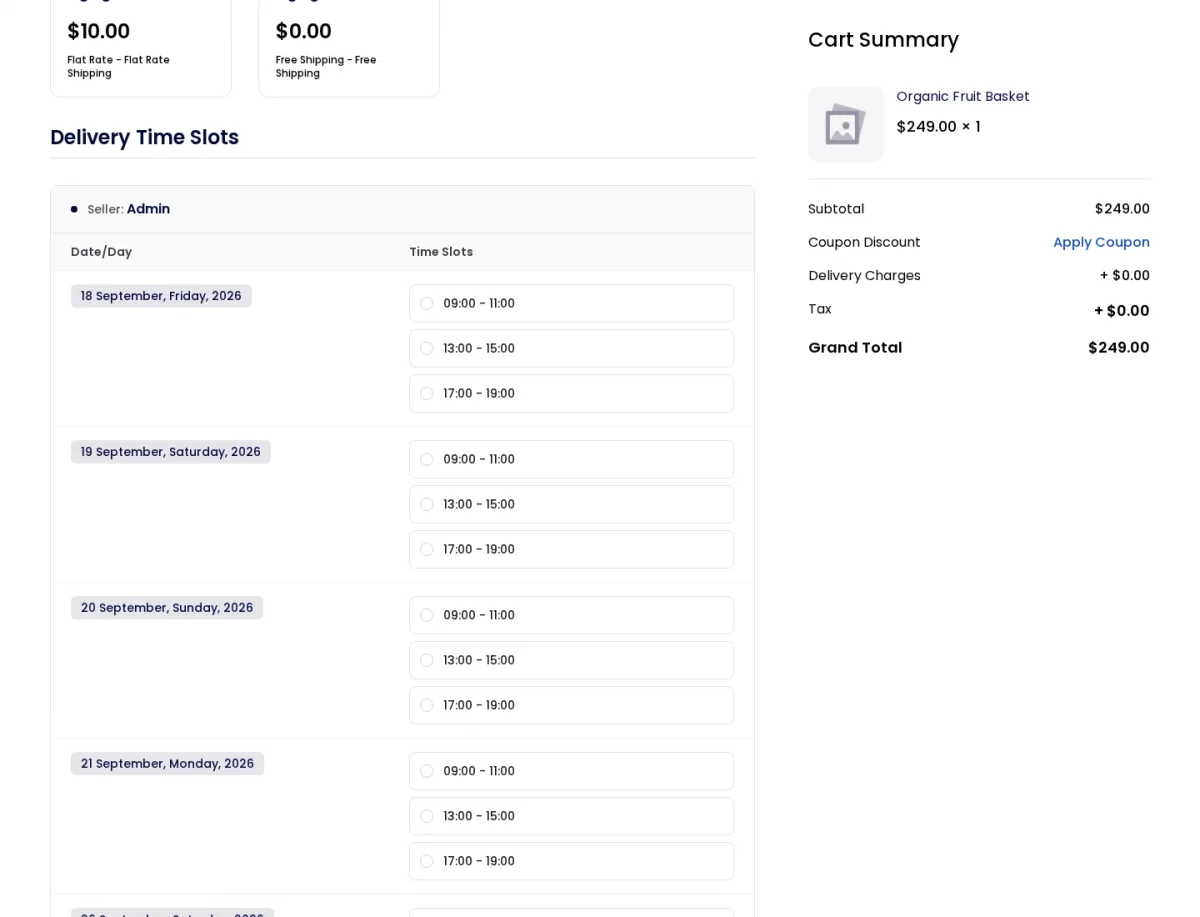
**Note: a time slot becomes unavailable in two conditions –
- Orders are full (that is, the quota set for the slot has been reached).
- The slot falls inside the minimum processing time, so it cannot be fulfilled in time.
Then the customer selects a date and a time slot, which the extension stores against the cart.
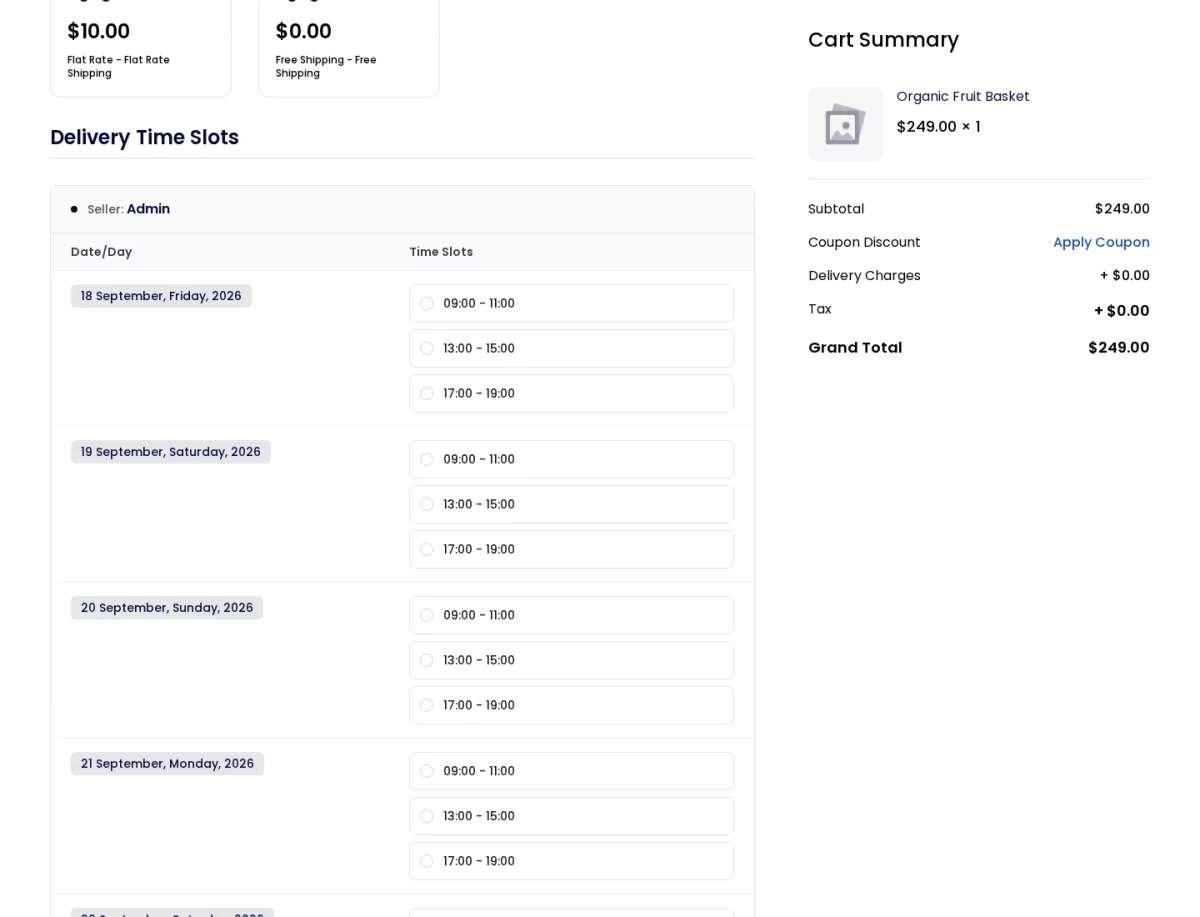
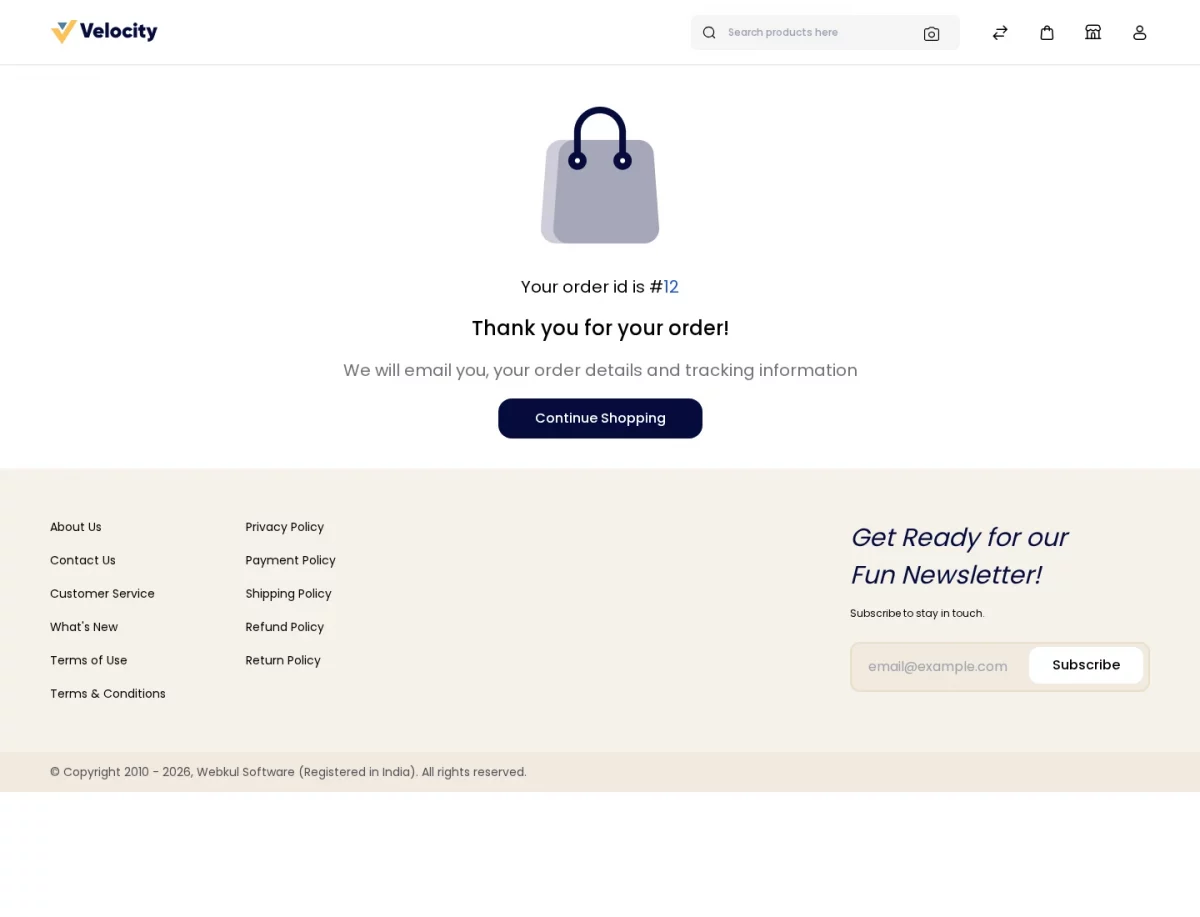
Once payment is confirmed, the order is placed and the booking is written against it.
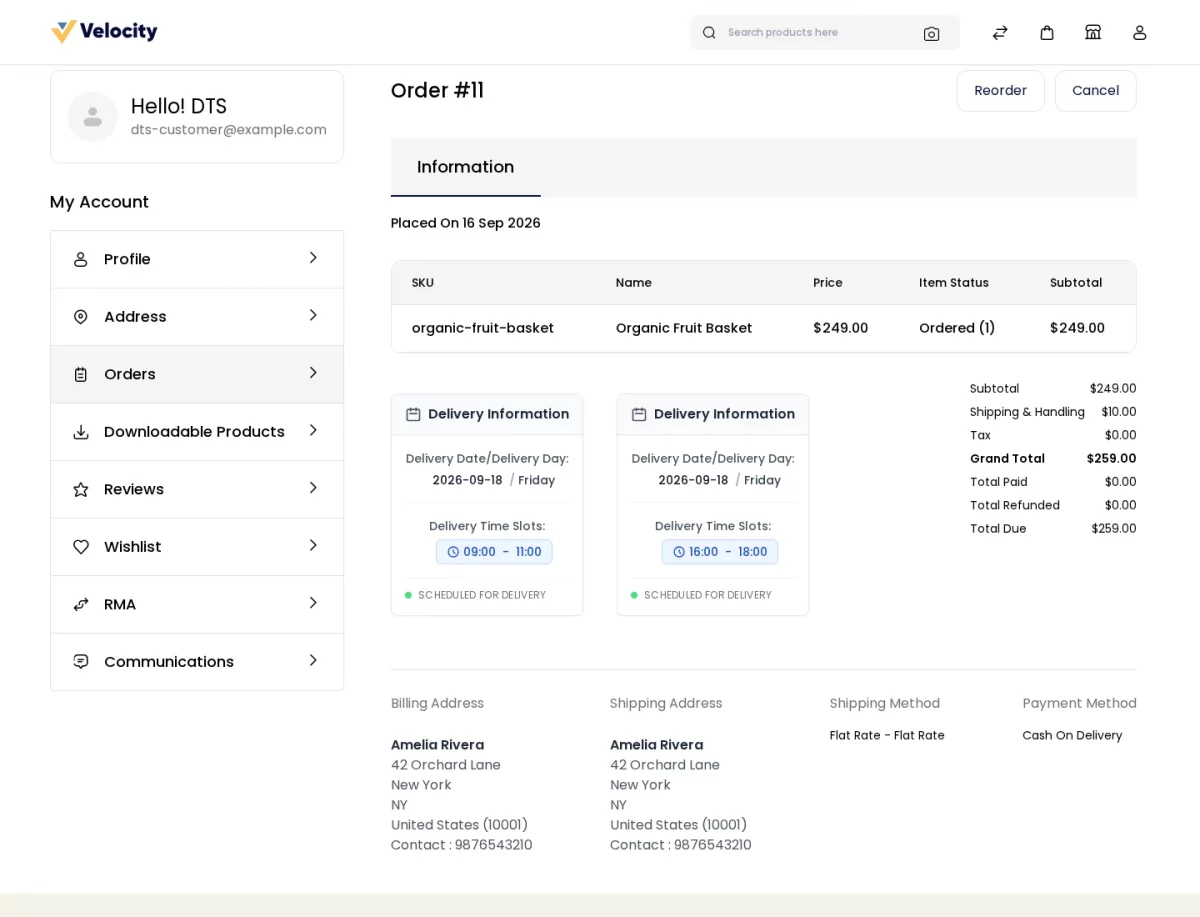
Finally, the customer finds the chosen day and slot under My Account >> Orders.
Step-by-Step: Book a Delivery Slot as a Customer
- Browse the storefront and add a product to the cart.
- Proceed to checkout, then save the billing and shipping address.
- Scroll to Delivery Time Slots under the shipping methods.
- Choose a delivery date, then select an available time slot for each seller.
- Select a payment method and place the order.
- Open My Account >> Orders to review the booked delivery details.
Support
So, that was much about the User Guide of Bagisto Marketplace Delivery Time Slot SaaS. For any queries or doubts reach out to us at support@webkul.com.
You can also raise a ticket at our HelpDesk System, or read the Bagisto developer documentation.
Please explore our Laravel Development Services and quality Bagisto Extensions.