User guilde for Laravel Saas Customer Document
Laravel SaaS Customer Document extension allows the tenant to upload documents for their customers.
However, by uploading these documents, they can easily share important information related to products, orders, invoices, and other business-related records.
Moreover, tenants can provide customers with marketing materials, promotional offers, discount details, and product-related documentation by uploading customer documents directly through the platform.
Features of Laravel Saas Customer Document
- Upload documents for your customers.
- Documents can be uploaded for specific customers based on requirements.
- Customers can view and download their assigned documents.
- Tenants can upload product, invoice, and marketing-related documents.
- Manage, download or remove uploaded documents at any time.
Installation of Laravel eCommerce Customer Document
Once you have successfully downloaded the zip file of the Laravel Saas Customer Document.
Unzip the respective extension zip and then merge “packages” and “public” into the project root directory.
Goto composer.json file and add following line under ‘psr-4’
"Webkul\\CustomerDocument\\": "packages/Webkul/CustomerDocument/src",
"Webkul\\CustomerDocumentSaas\\": "packages/Webkul/CustomerDocumentSaas/src"
- Goto bootstrap/providers.php file and add following line under ‘providers’.
Webkul\CustomerDocument\Providers\CustomerDocumentServiceProvider::class,
Webkul\CustomerDocumentSaas\Providers\CustomerDocumentSaasServiceProvider:class
- Run these commands below to complete the setup
composer dump-autoload
php artisan saas-customer-document:install
Tenant Document Management
Super Admin creates the tenants from a single dashboard and decides which of them stay active. A store can use the Customer Document module only while its subscription is active, so Super Admin controls who gets the module.
Each tenant gets its own document workspace, so customer files stay separate between stores.
This gives Super Admin central control while letting every tenant switch the module on and use it independently within their own store.
Configuring the module
Once the tenant administrator logs in and enables the Customer Document module from the Configurations section, the feature becomes available across the tenant’s store.

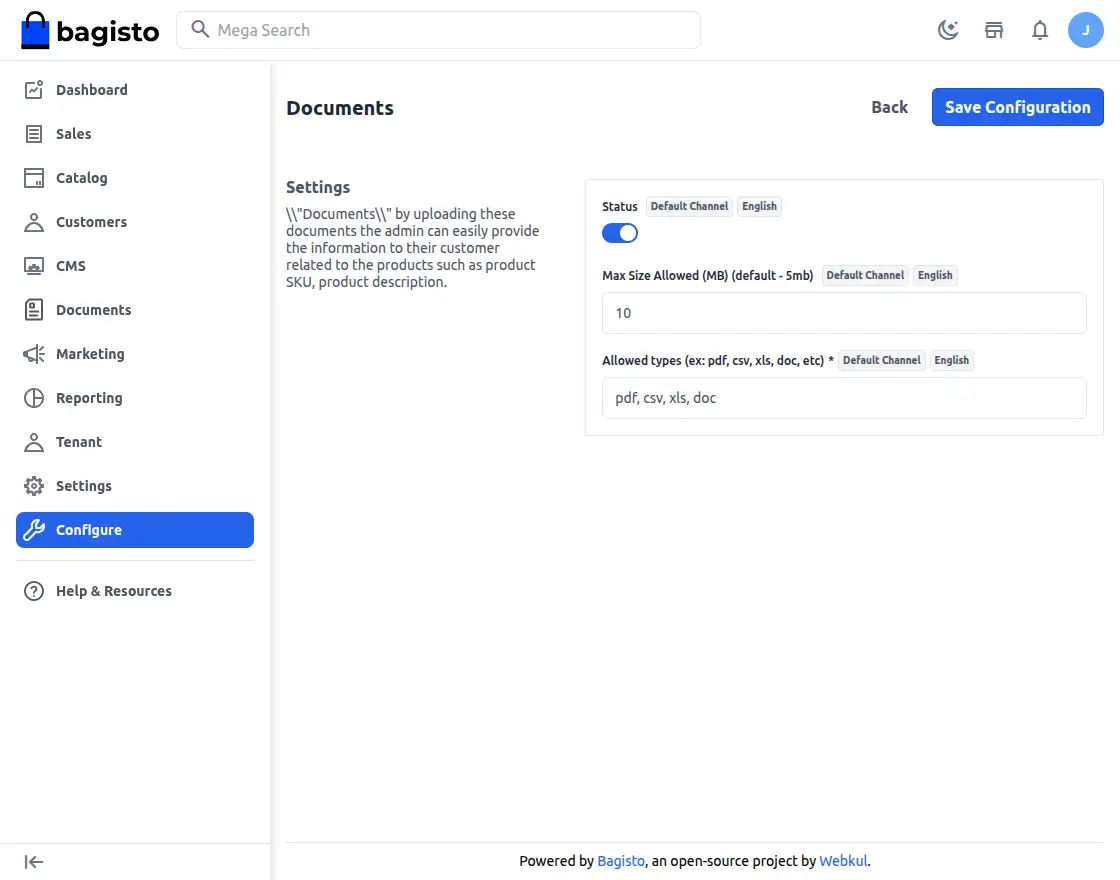
Status: The tenant admin enables or disables the SaaS Customer Document module.
Max Size Allowed (MB) (default – 5mb): The largest file you can upload. Leave it empty to use the 5 MB default.
Allowed types (ex: pdf, csv, xls, doc, etc): The file formats you accept, as a comma separated list. A file of any other type is refused when you try to save the document.
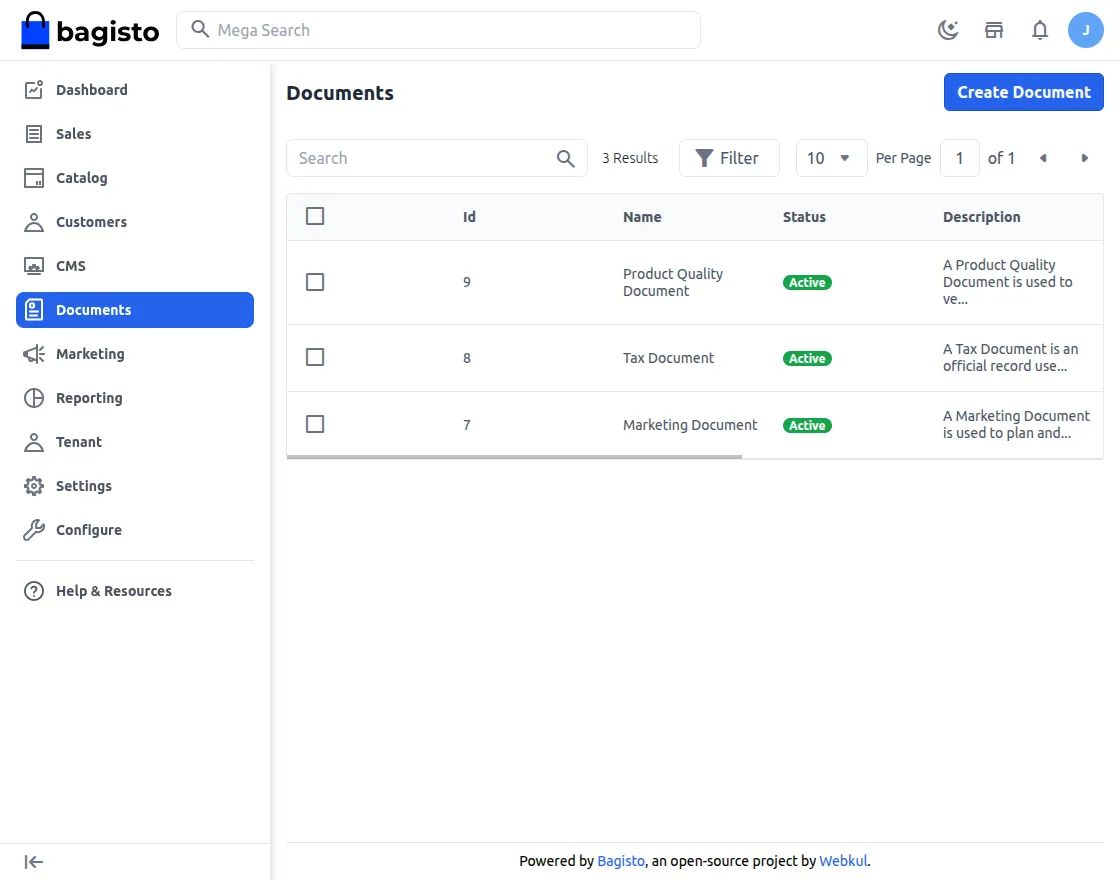
Once admin have successfully saves the module. You will see the Customer Document Icon on the left side in the menu bar, as shown in the below image.
Let the admin click on the Document Icon after that below page will open.
Create Document
The Documents screen lists every document you have created, with its type, status and creation date.
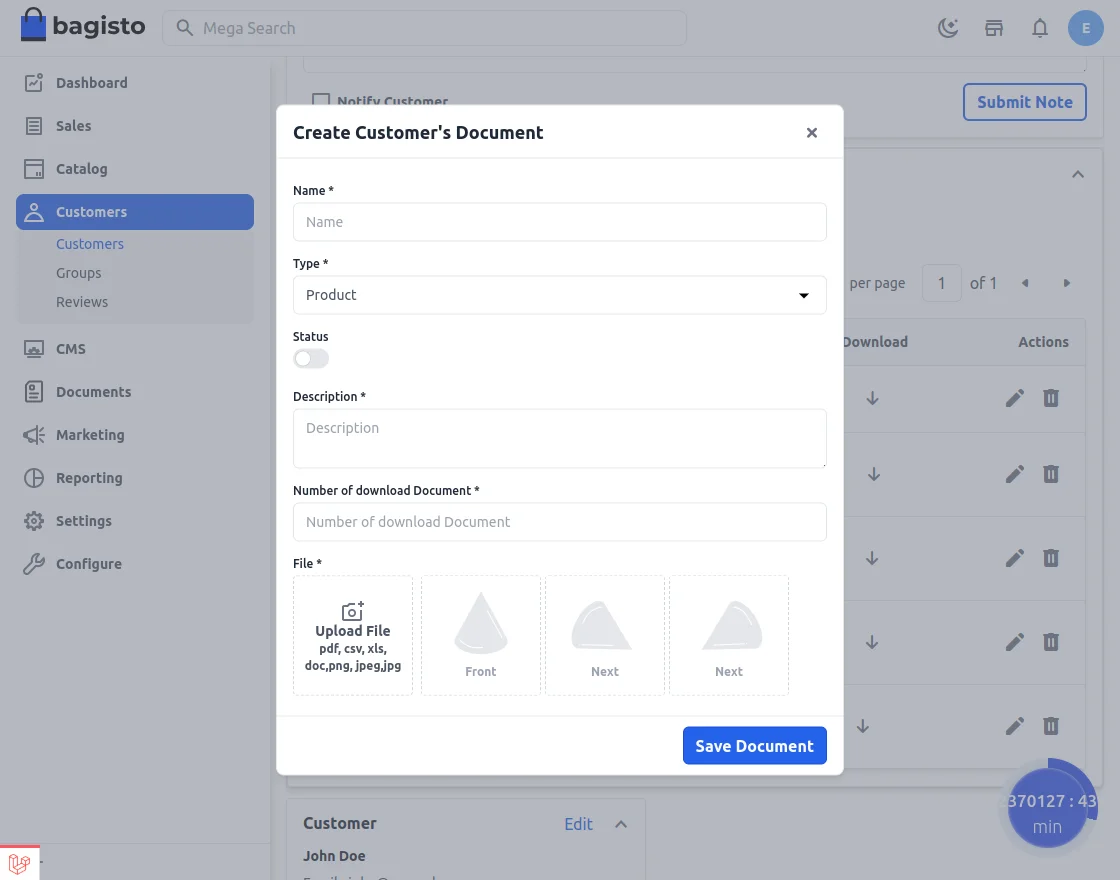
If the admin wants to add a new document, they can click the Create Document button and provide the required document details.
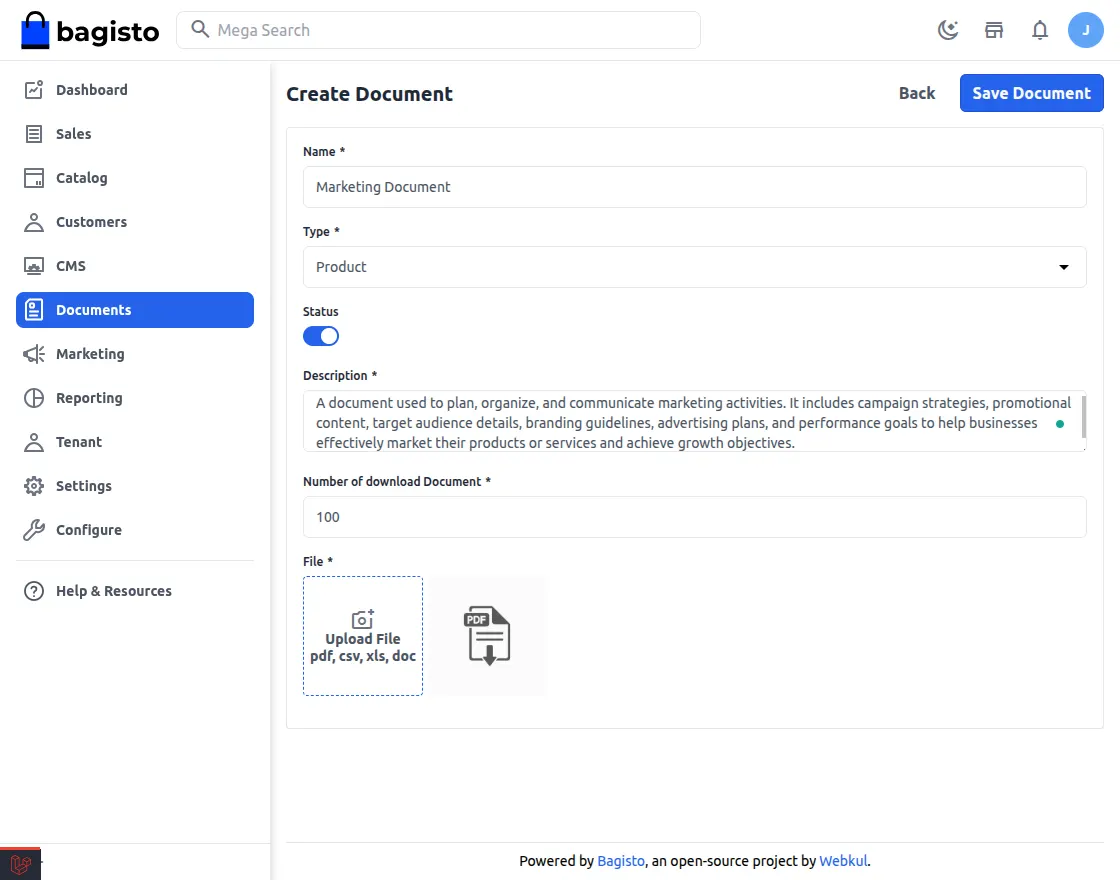
Now the admin has to enter the required details while uploading the document such as :
- Name: Enter the document name
- Type: Select the type (If the document is related to the Product, the admin will choose the Product Type else admin can choose the Marketing).
- Status: Select the document status as Active or Inactive.
- Description: Enter the description.
- Number of download Document: admin can set the maximum download limit.
- File: Choose the file.
Lastly and most importantly admin will click on the Save Document button.
Add document for specific Customer
You can also attach a document to one specific customer, so that nobody else sees it.
Admin can navigate through Customers>>Customers.
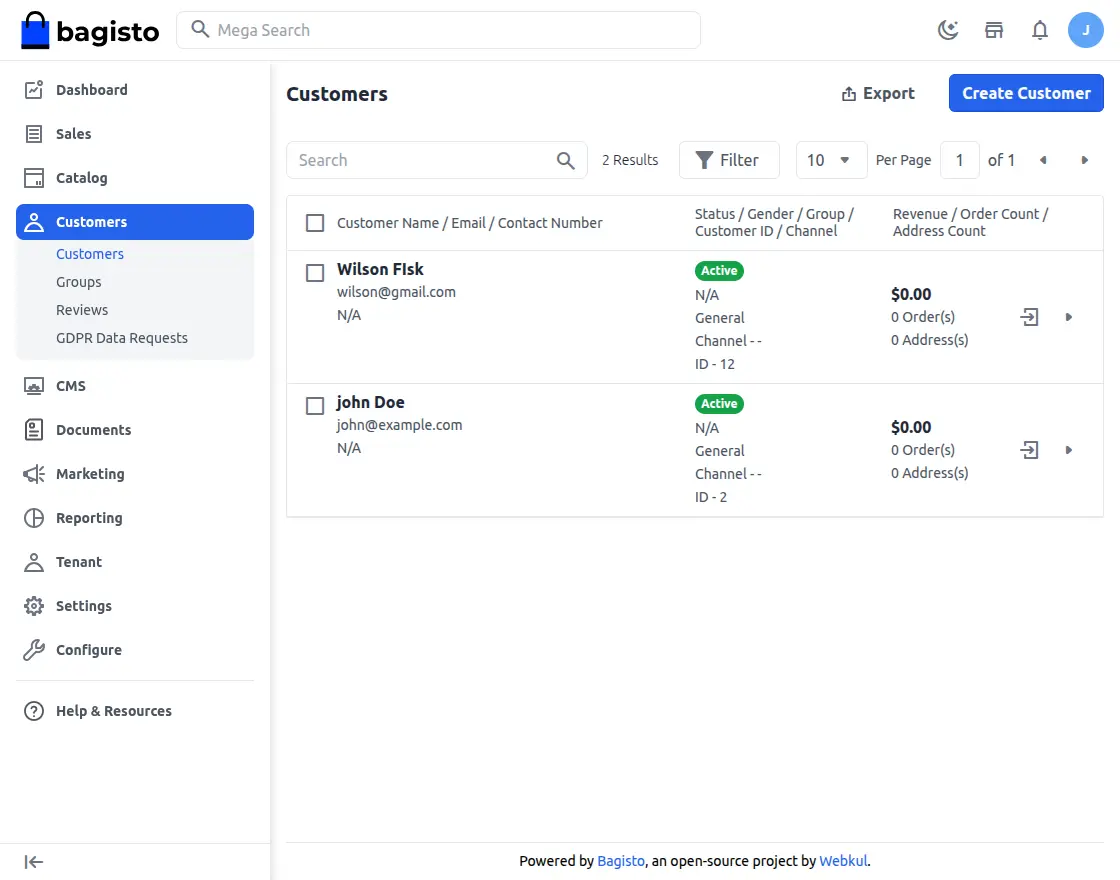
Let’s click on the edit button, after that the below page will be open.
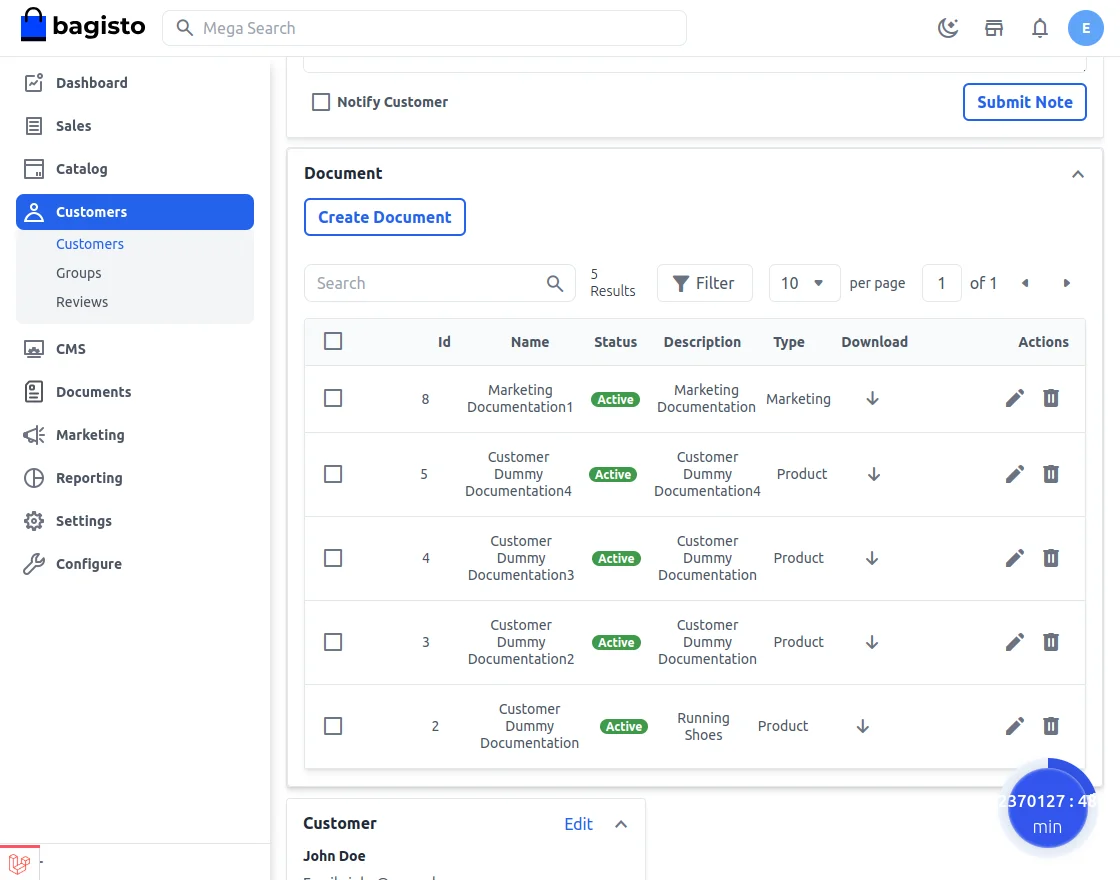
The Create Document button on that page adds a document visible only to that customer. The documents already assigned to them are listed below it.
Customer View
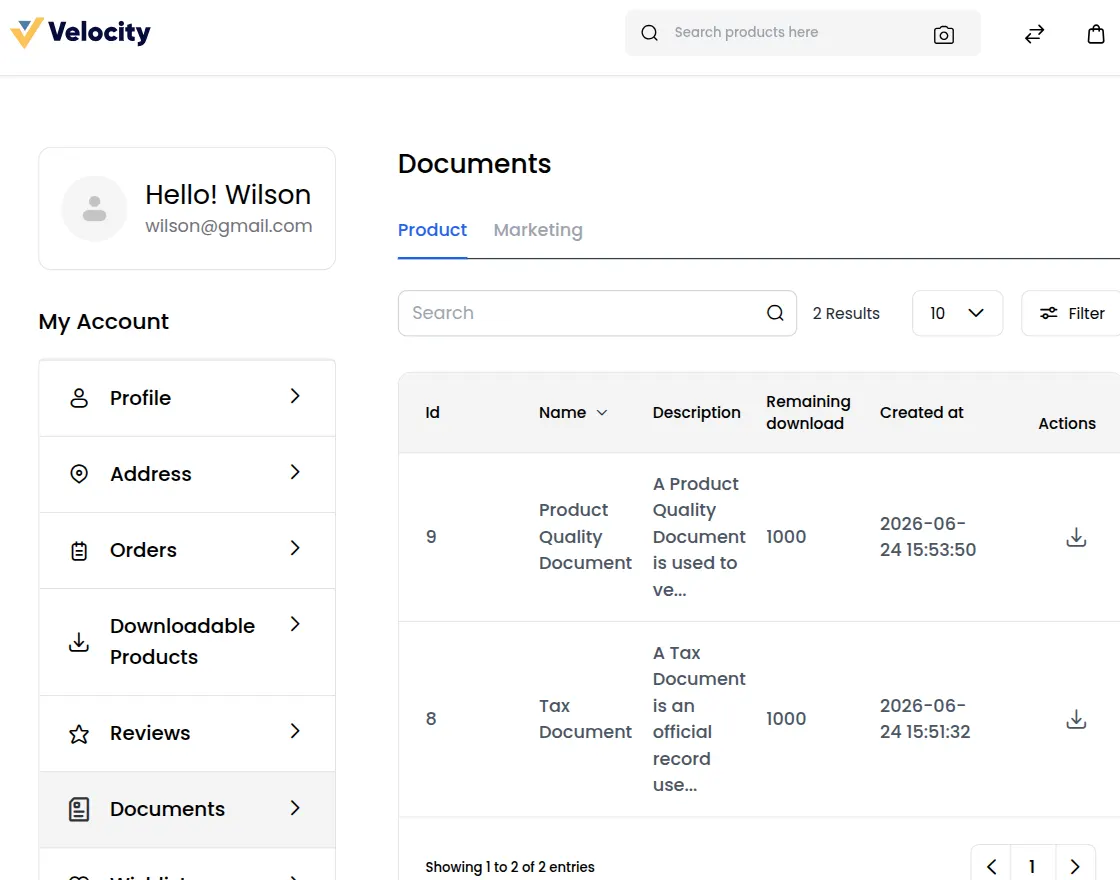
Your customers find their documents under Documents in their account. The page opens on the Product tab and lists every document assigned to them, with the number of downloads they have left.
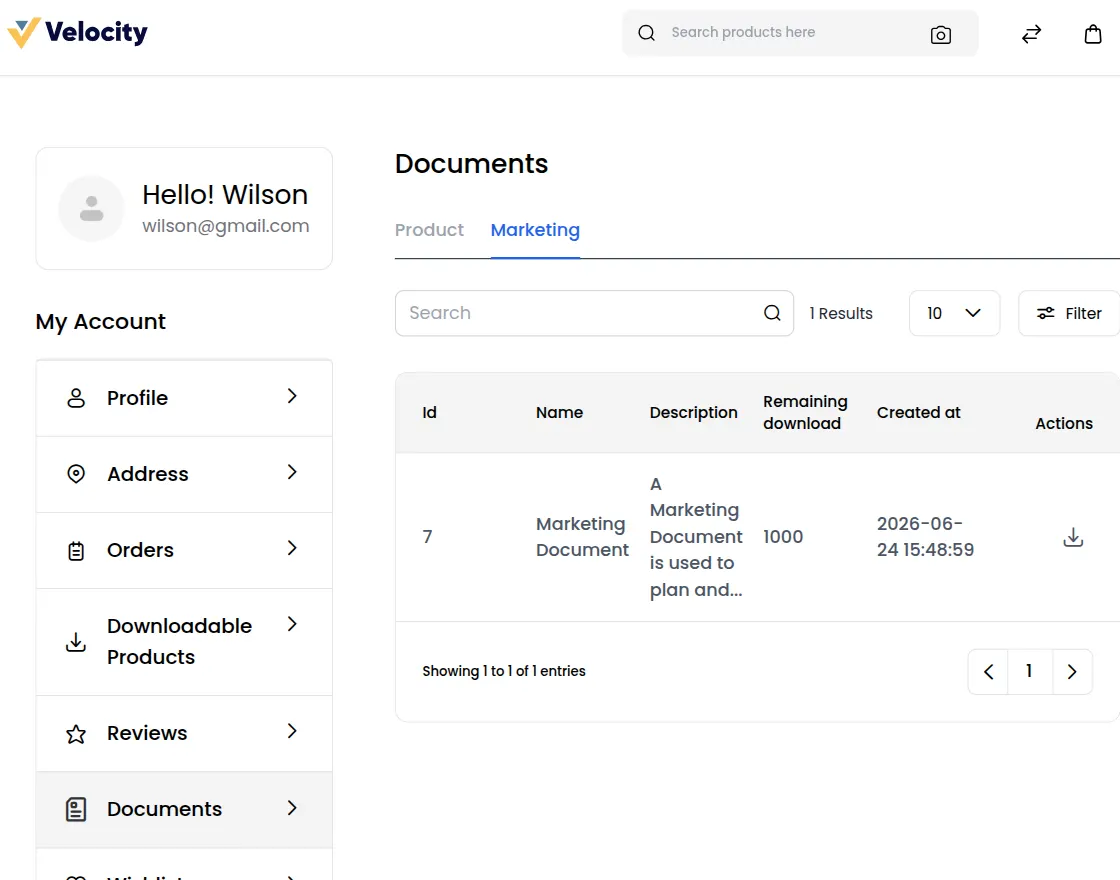
Switching to the Marketing tab lists the documents you saved with the Marketing type. Customers download from either tab with the download icon on the row.
Things to know
Your documents stay inside your store. Documents you upload are visible only to you and your own customers. No other tenant on the platform can see them, list them, or open them, even with a direct link.
A document with no customer goes to everyone. When you create a document from Documents >> Create Document without attaching it to a customer, every customer of your store sees it. To limit a document to one person, add it from that customer’s page instead.
Inactive documents are hidden from customers. A document whose Status is Inactive stays in your list but never appears in a customer’s account. Set it to Active when you want it visible.
The download limit counts per customer. Number of download Document is how many times each customer may download that document, not a total shared between them. Once a customer uses up their downloads they see the message “You have reached your maximum number of downloads for this file.”
Saving a document resets its download counts. Editing a document and clicking Save Document restores every customer’s remaining downloads to the Number of download Document value, including customers who had already used theirs. Keep this in mind when correcting a name or description on a document that is already in use.
Deleting a document removes its files. Deleting from the list, or with the Delete mass action, also removes the uploaded files. This cannot be undone.
The module needs an active plan. If your store’s subscription is not active you are taken to Plan Overview and the Documents screen is unavailable until a plan is chosen.
Support
That’s all for Laravel SaaS Customer Document, still, have any issue feel free to add a ticket.
Also let us know your views to make the module better https://bagisto.uvdesk.com/en/