User Guide for Laravel eCommerce Reward Point
Laravel eCommerce Reward Point module allows the admin to reward customers with points. In addition, the admin can set up reward points and manage them from the admin panel.
The admin can give reward points when a customer registers, has a birthday, reviews a product or places an order. Also, order rewards can be product-wise, category-wise, attribute-wise or cart amount-wise.
The customers can then redeem their points in the cart or at checkout. As a result, this helps to build customer trust toward your online store and also boosts sales.
Note:- This version of the module works with Bagisto 2.5 and therefore needs PHP 8.4 or later.
Check a brief overview of the admin plugin configuration settings –
Complete Features List for Laravel eCommerce Reward Points.
- Admin can give reward points on customer registration.
- Similarly, customers can earn points on their date of birth.
- Customers also get points when they review a product.
- Admin can add Product, Category, Cart and Attribute based rewards.
- Besides that, product, category and cart rewards can run for a specific time.
- Each type of reward has its own expiry days.
- When an order matches more than one reward, the reward rules decide which one is given.
- Otherwise, the highest reward point is given by default.
- Admin can view all the customers and their rewards.
- The redemption settings let the admin set the value of the points.
- Customers can see their reward points in their account.
- In addition, customers get email notifications for their reward points.
How to install the module?
- First, unzip the respective extension zip. Then merge the “packages” and “public” folders into the project root directory.
- After that, go to the composer.json file and add the following line under ‘psr-4’.
"Webkul\\Rewards\\": "packages/Webkul/Rewards/src"
- Then run composer dump-autoload to autoload the files.
composer dump-autoload
- Similarly, go to the bootstrap/providers.php file and add the following line under ‘providers’.
use Webkul\Rewards\Providers\RewardsServiceProvider;

inside return [...]

RewardsServiceProvider::class,
- Now run the module installation command. It runs the migrations, publishes the assets and also clears the cache.
php artisan rewards:install
- Finally, add the following commands to the server cron so that they run once a day.
0 0 * * * cd /path-to-your-project && php artisan reward:expire
0 0 * * * cd /path-to-your-project && php artisan time-reward:disable
0 1 * * * cd /path-to-your-project && php artisan dob:cron
reward:expire:- Expires the reward points after their expiry date.
time-reward:disable:- Disables the product, category and cart rewards after their end date.
dob:cron:- Gives the reward points to the customers when it is their birthday.
Now the module is ready, so execute the project on your domain.
Admin Configuration
After the successful installation of the module, the admin needs to navigate to Configure >> Reward Point as shown in the image below:-

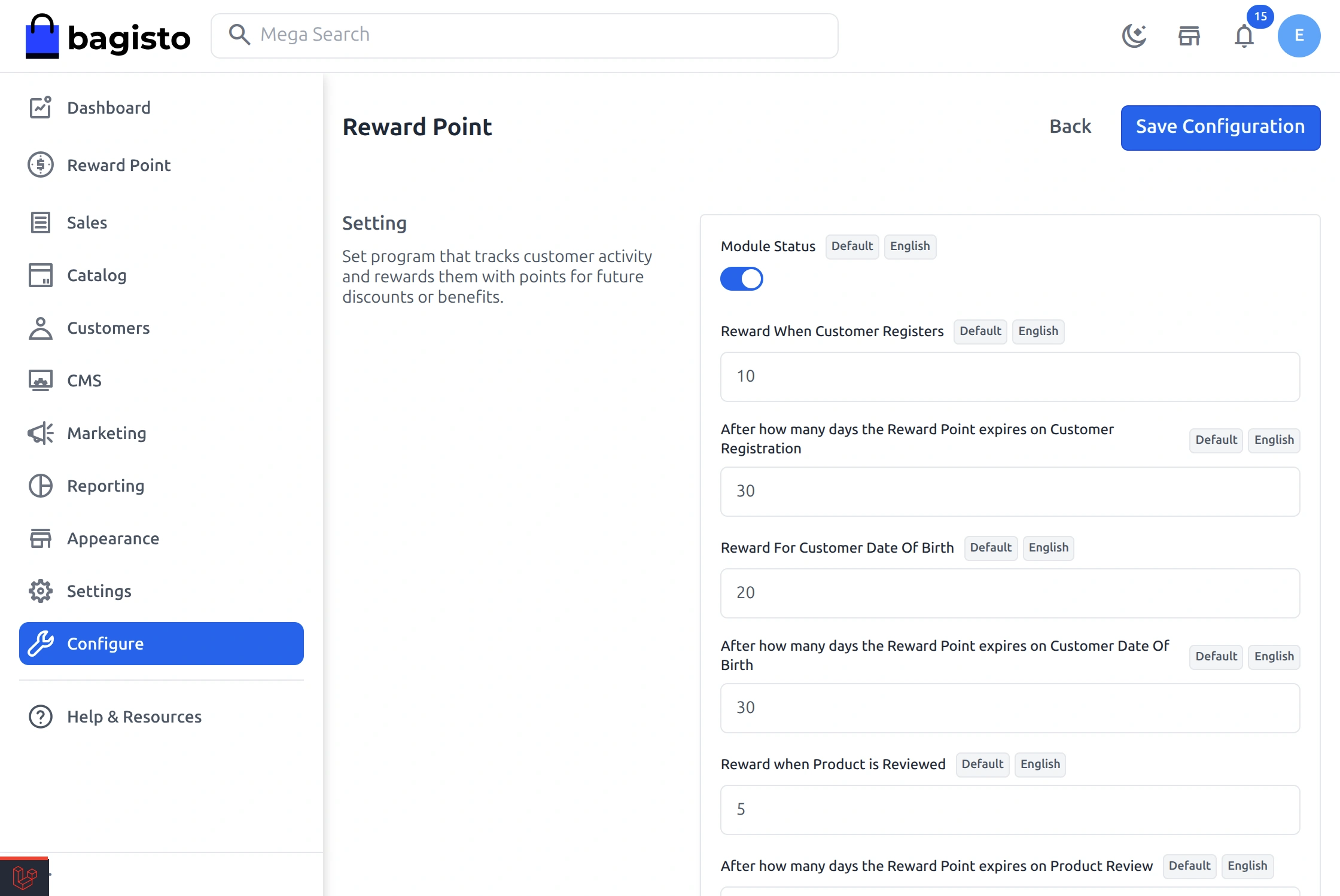
First, select the channel and the locale, because these settings are saved for each channel and locale.
Module Status:- Here, the admin can enable or disable the module.
Reward When Customer Registers:- Set the points a customer gets when they register.
After how many days the Reward Point expires on Customer Registration:- Set the number of days until these points expire.
Reward For Customer Date Of Birth:- Similarly, set the points a customer gets on their birthday, once a year.
After how many days the Reward Point expires on Customer Date Of Birth:- Then set the number of days until the birthday points expire.
Reward when Product is Reviewed:- Also, set the points a customer gets for a product review, once per product.
After how many days the Reward Point expires on Product Review:- Set the number of days until the review points expire. These days are counted from when the admin approves the review.
After how many days the Reward Point expires on Product Purchase:- Set the number of days until the product reward points expire.
After how many days the Reward Point expires on Product Category:- Similarly, set the days for the category reward points. Once these days pass, the points expire.
After how many days the Reward Point expires on Product Attribute:- Set the number of days until the attribute reward points expire.
After how many days the Reward Point expires on Cart Reward:- Also, set the number of days until the cart reward points expire.
Reward Point Used At One Time:- Set the maximum points a customer can use on one order. However, if this field is empty, customers cannot use any points.
Email Notifications:- Finally, enable or disable the reward point emails to customers.
Then click on Save Configuration to save the settings.
Reward Point on Product
To set the reward point on products, navigate to Reward Point >> Product as shown in the image below:-
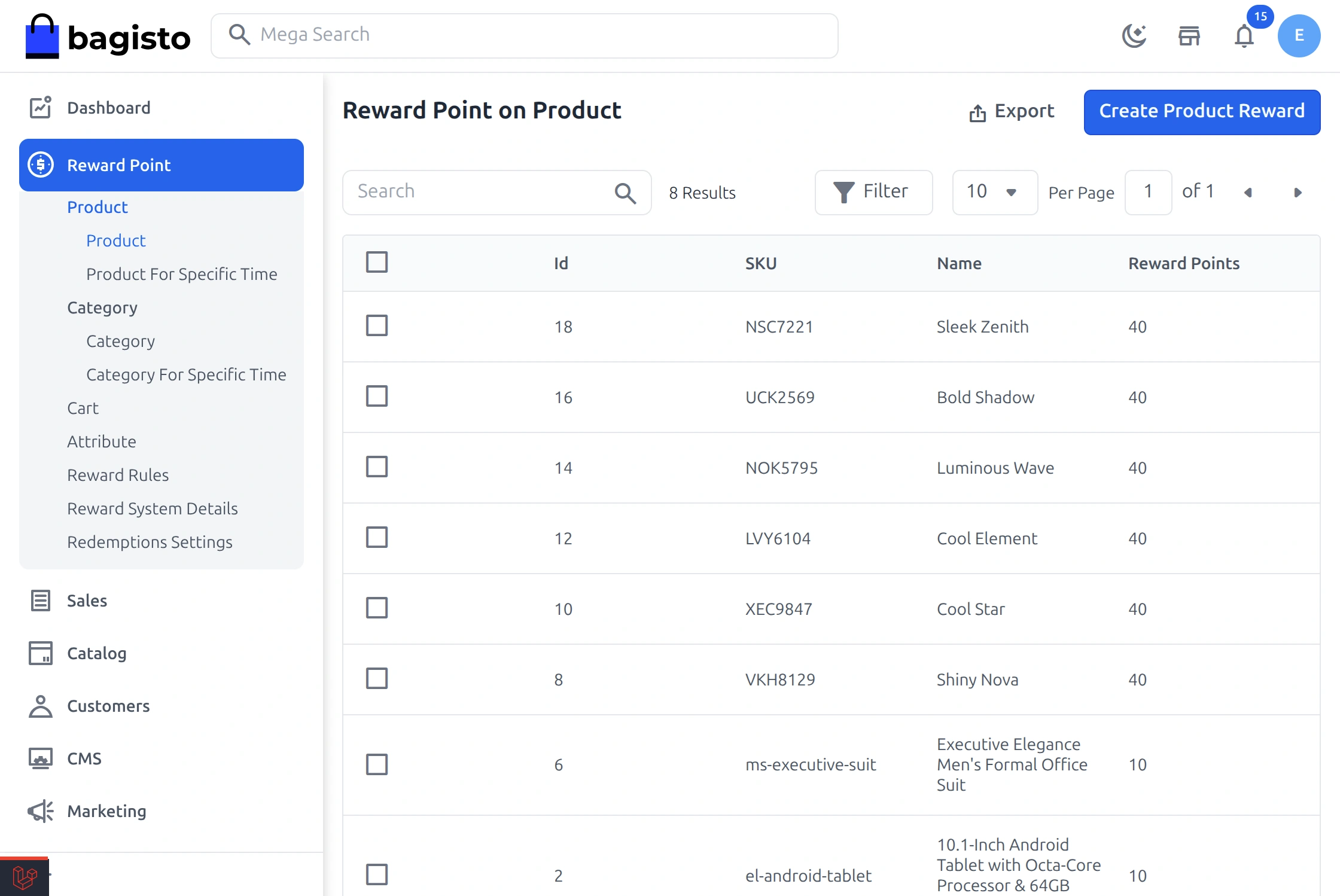
Reward Point on Product
To add the reward point on a product, click on Create Product Reward. A page will then open as shown in the image below:-
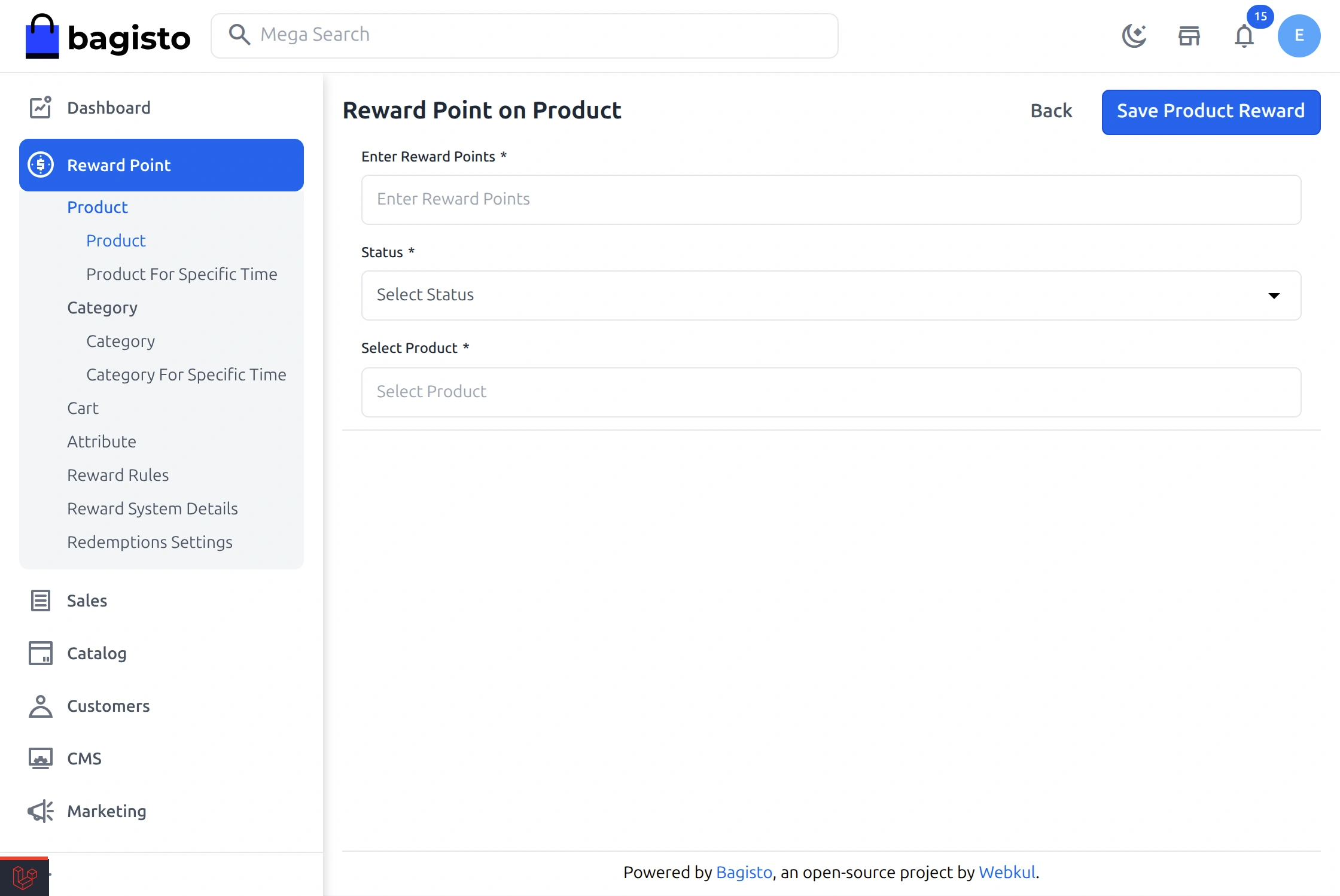
Enter Reward Points:- Here, enter the reward points.
Status:- Then set the reward as Active or Inactive.
Select Product:- After that, search and select the product.
Finally, click on Save Product Reward to save the reward. As a result, the product page shows the reward points to the customers.
Reward Point on Product for Specific time.
Similarly, the admin can add a reward on a product for a specific time. For this, navigate to Reward Point >> Product >> Product For Specific Time as shown in the image below:-

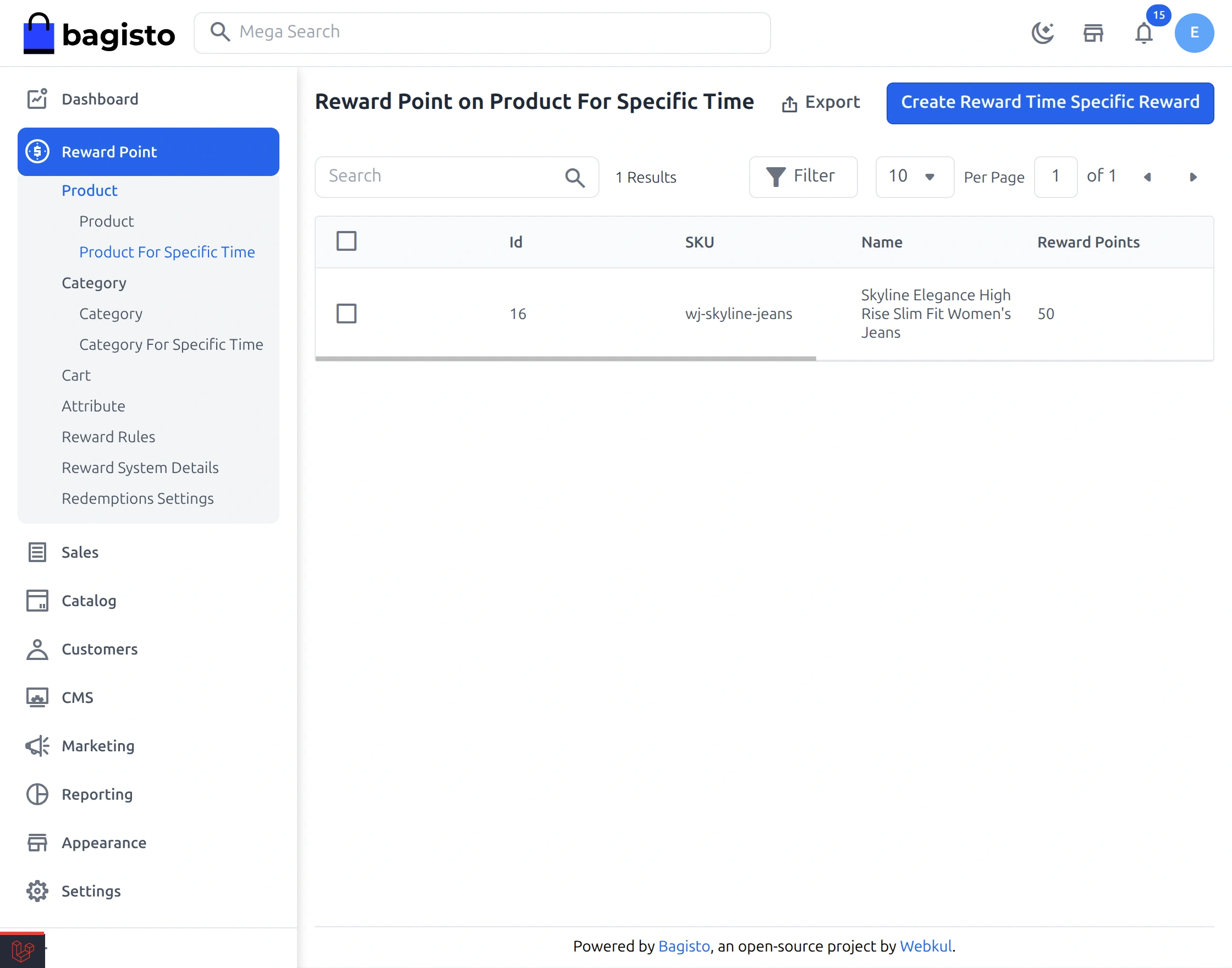
Then click on Create Reward Time Specific Reward, and a page will open as shown below:-
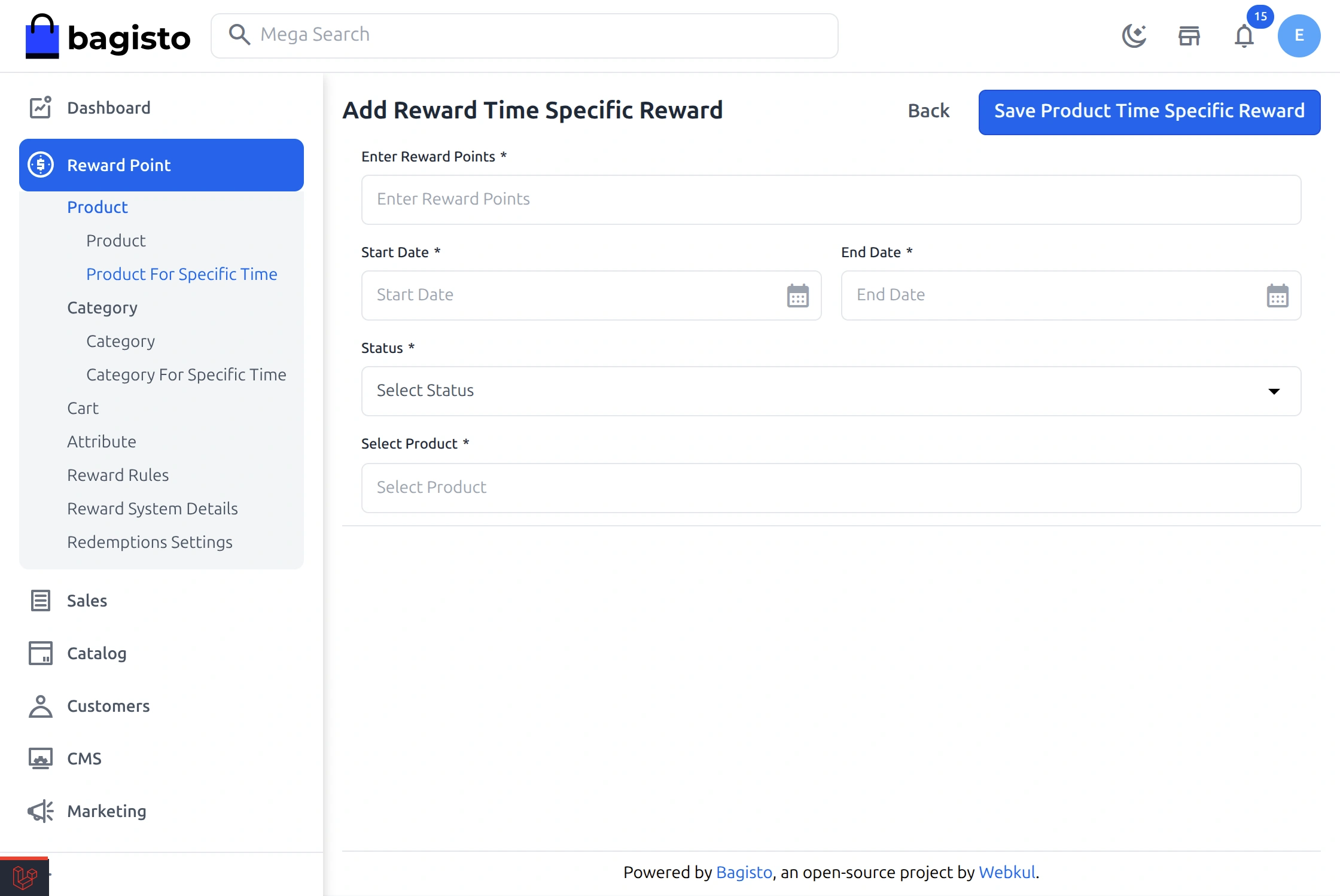
- Enter Reward Points:- Here, enter the reward points.
- Start Date:- Select the date when the reward starts.
- End Date:- Select the end date. After this date, the reward is disabled automatically.
- Status:- Also, set the reward as Active or Inactive.
- Select Product:- Then search and select the product.
Finally, click on Save Product Time Specific Reward to save the reward.
Reward Point On Category
Same as products, the admin can also set the reward points on a category. For this, navigate to Reward Point >> Category and then click on Create Category Reward as shown in the image below:-
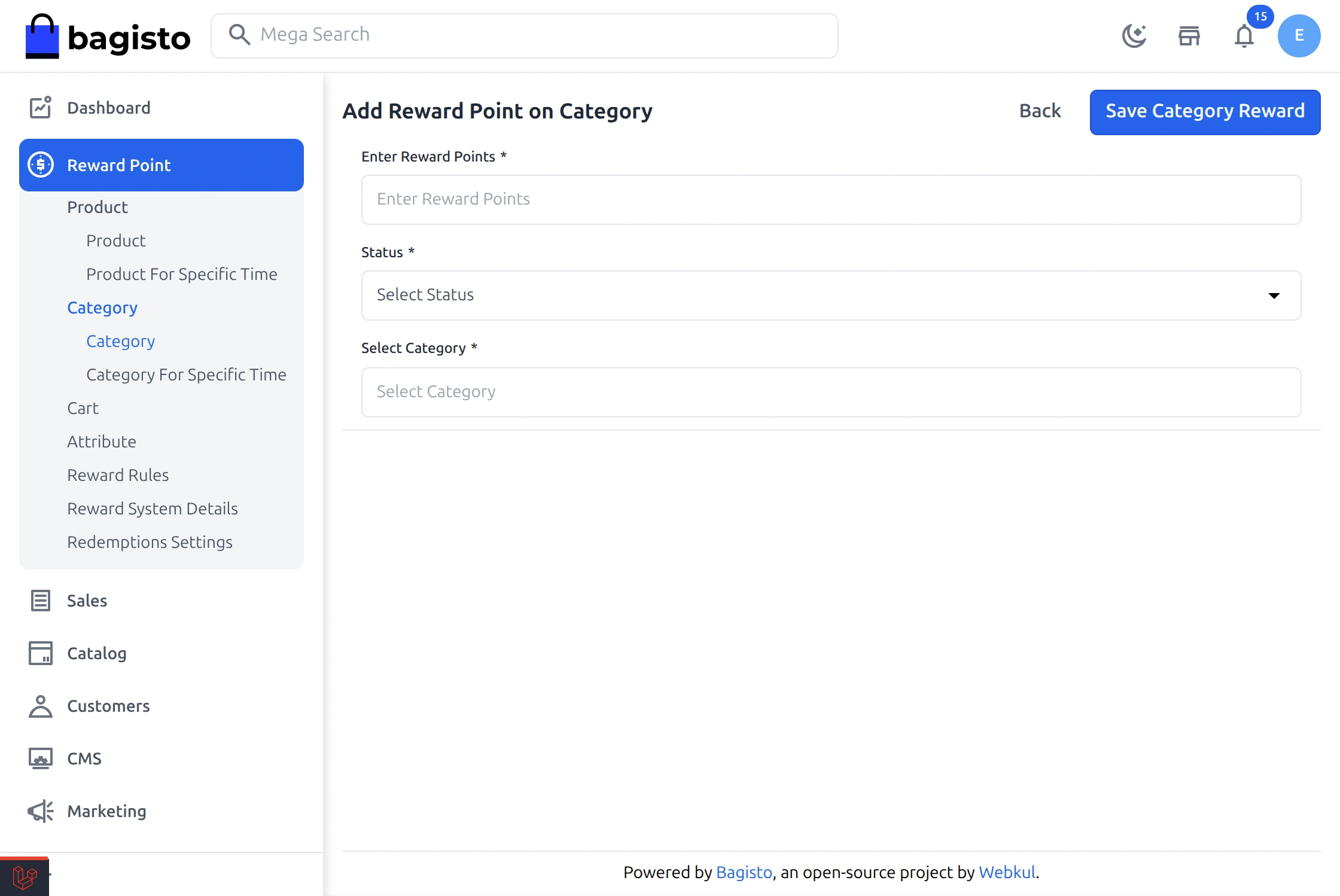
- Enter Reward Points:- Enter the reward points.
- Status:- Then set the reward as Active or Inactive.
- Select Category:- After that, select the category.
Finally, click on Save Category Reward to save the reward.
Reward Point on Category for Specific time.
The admin can also set the reward on a category for a specific time. Navigate to Reward Point >> Category >> Category For Specific Time and then click on Create Category Time Specific Reward as shown in the image below:-
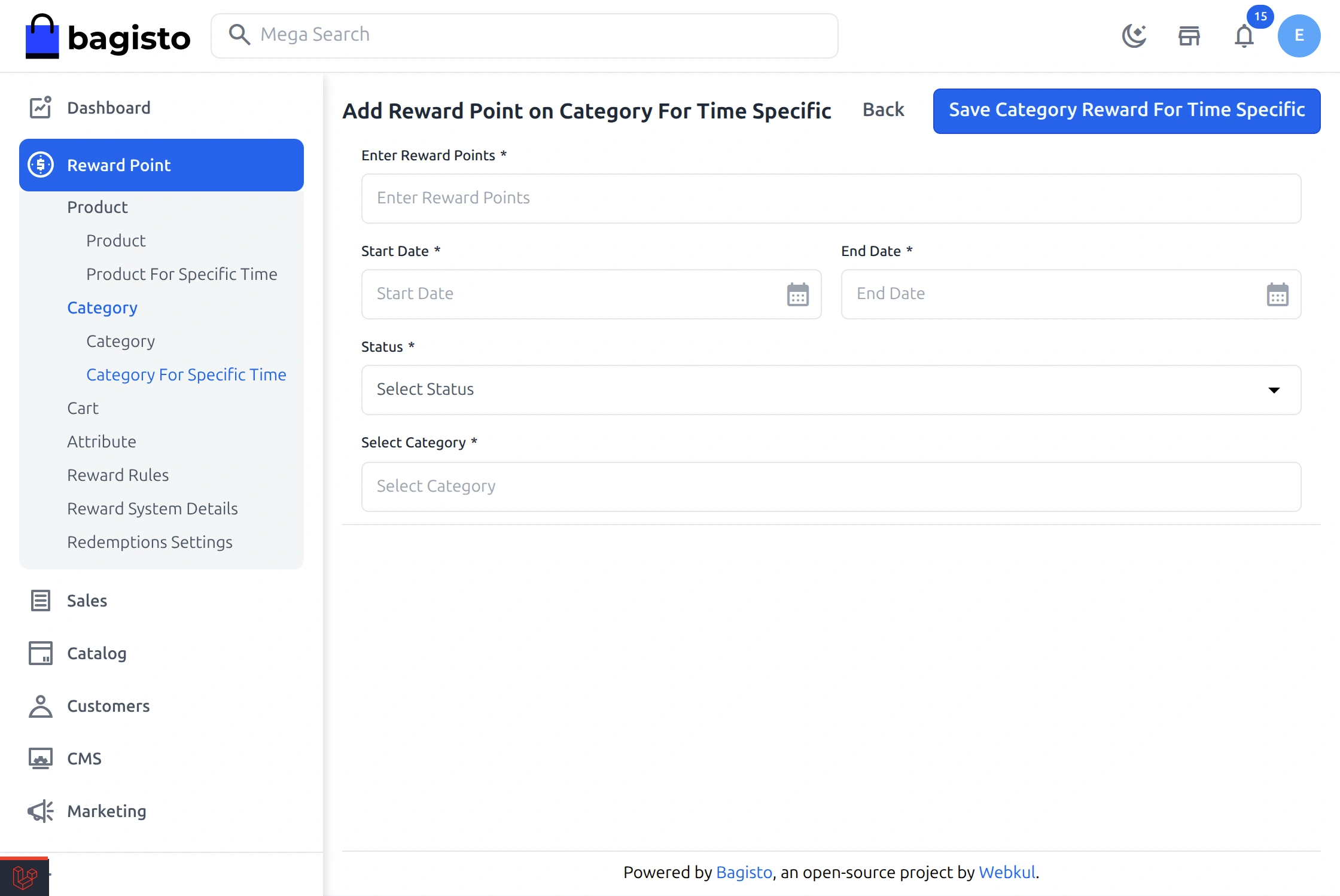
- Enter Reward Points:- Here, enter the reward points.
- Start Date:- Select the date when the reward starts.
- End Date:- Select the end date. After this date, the reward is disabled automatically.
- Status:- Also, set the reward as Active or Inactive.
- Select Category:- Then select the category.
Finally, click on Save Category Reward For Time Specific to save the reward.
Reward Point on Cart
In addition, the admin can set the reward point on the cart amount. Navigate to Reward Point >> Cart and then click on Add Reward Point on Cart as shown in the image below:-
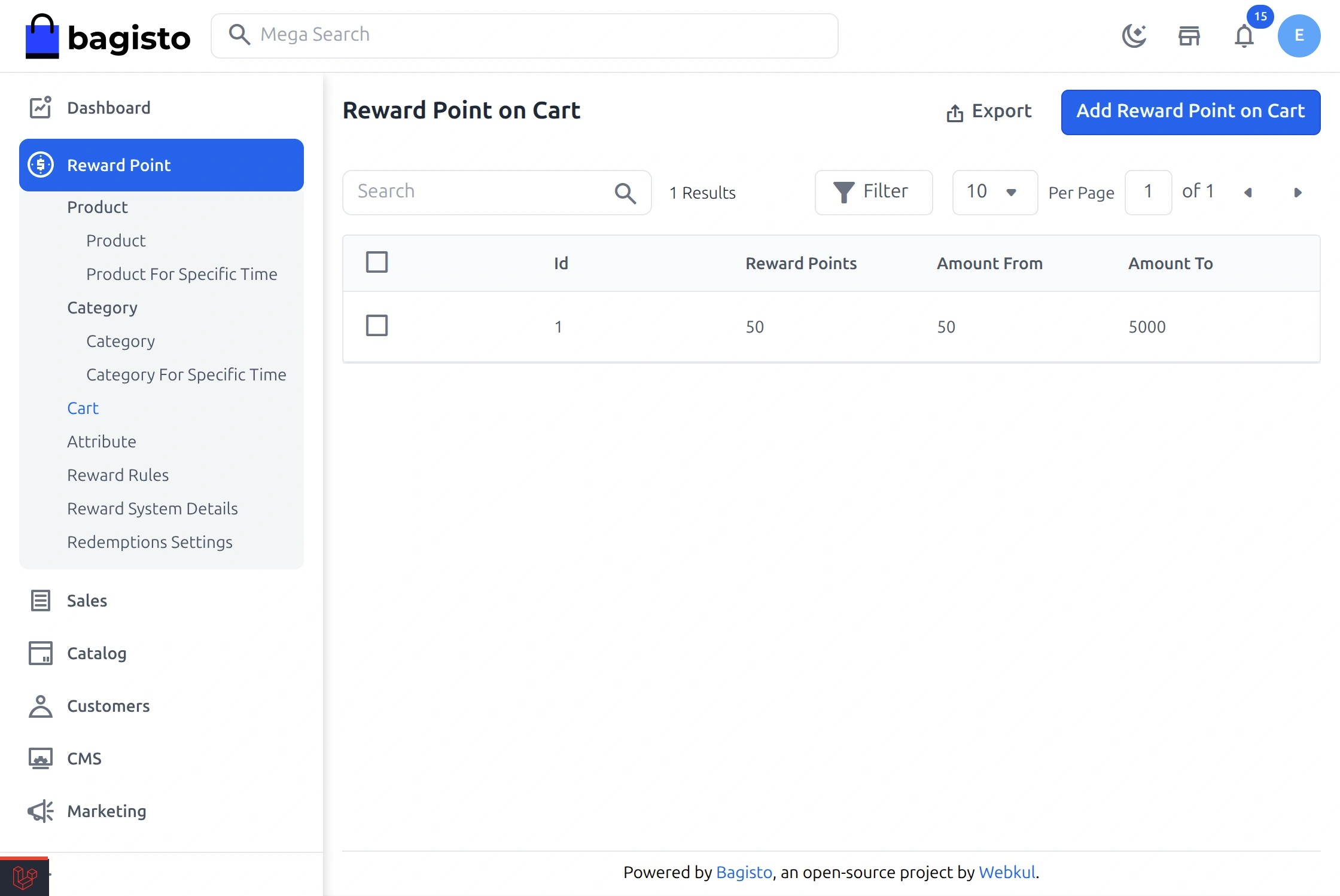
- Enter Reward Points:- Enter the reward points.
- Amount From:- Enter the starting cart amount for the reward.
- Amount To:- Then enter the ending cart amount.
- Start Date:- Select the date when the reward starts.
- End Date:- Select the end date. After this date, the reward is disabled automatically.
- Status:- Also, set the reward as Active or Inactive.
Finally, click on Save Cart Reward to save the reward.
Attribute Reward Details
The admin can see all the attribute rewards under Reward Point >> Attribute as shown in the image below:-

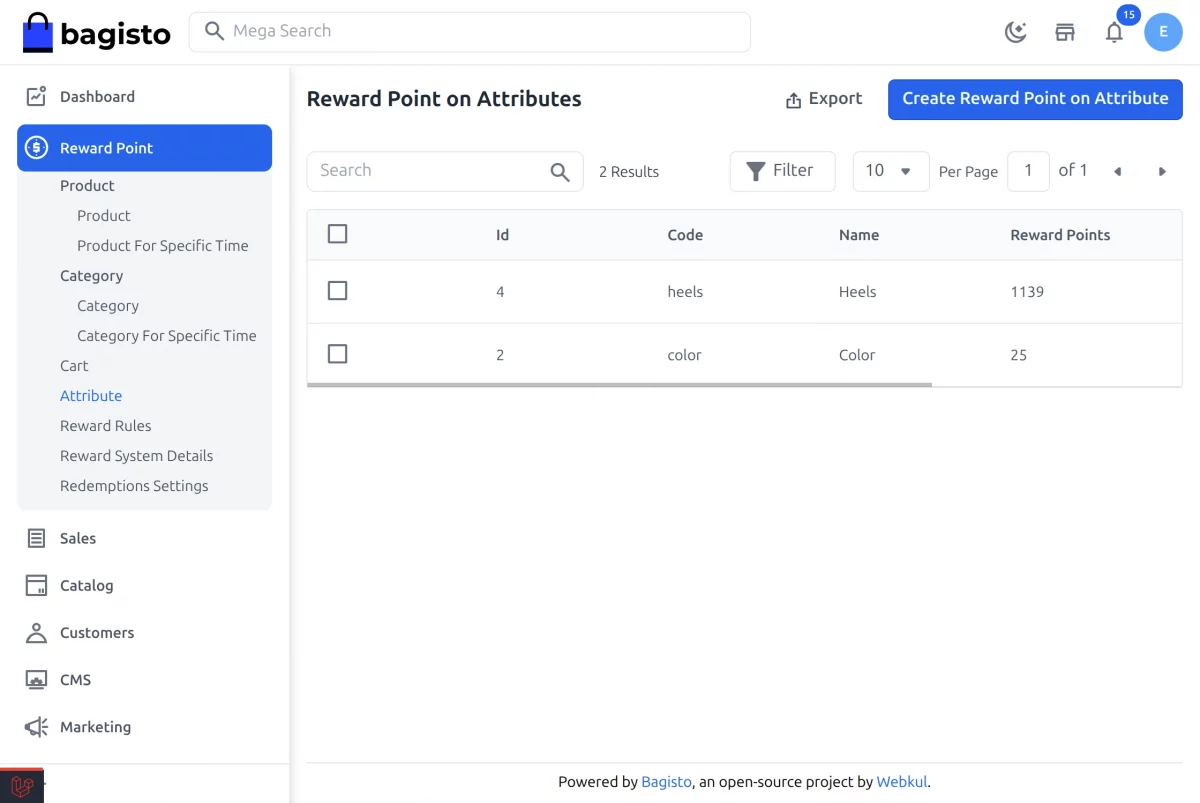
To add a new attribute reward, click on Create Reward Point on Attribute.
- Enter Reward Points:- Enter the reward points.
- Select Attribute:- Then select the attribute from the list.
- Status:- Set the status as Active to enable the reward.
Finally, click on Save Reward Point on Attribute. The reward then applies to all the products with this attribute.
Reward Rules
An order gets only one reward. However, an order can match two or more rewards. In this case, the reward rules decide which reward is given.
The admin can see all the reward rules under Reward Point >> Reward Rules as shown in the image below:-
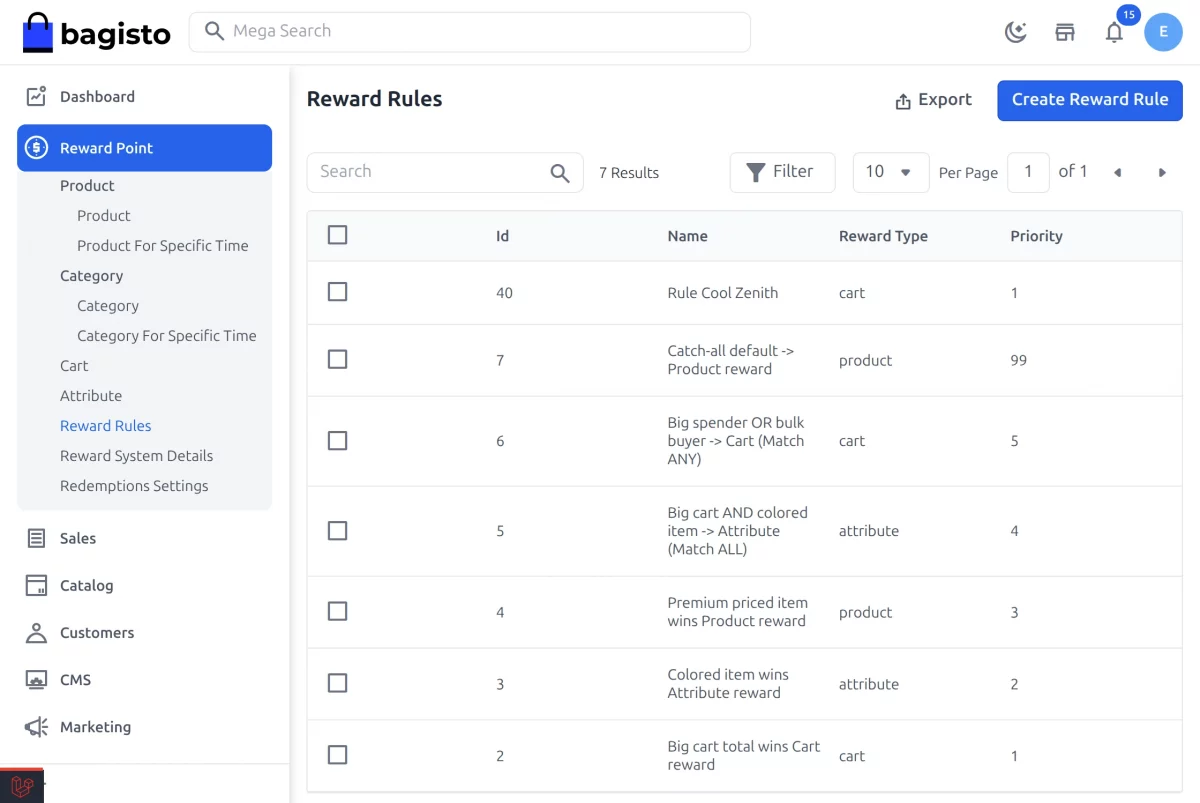
To create a new rule, click on Create Reward Rule. A page will then open as shown in the image below:-
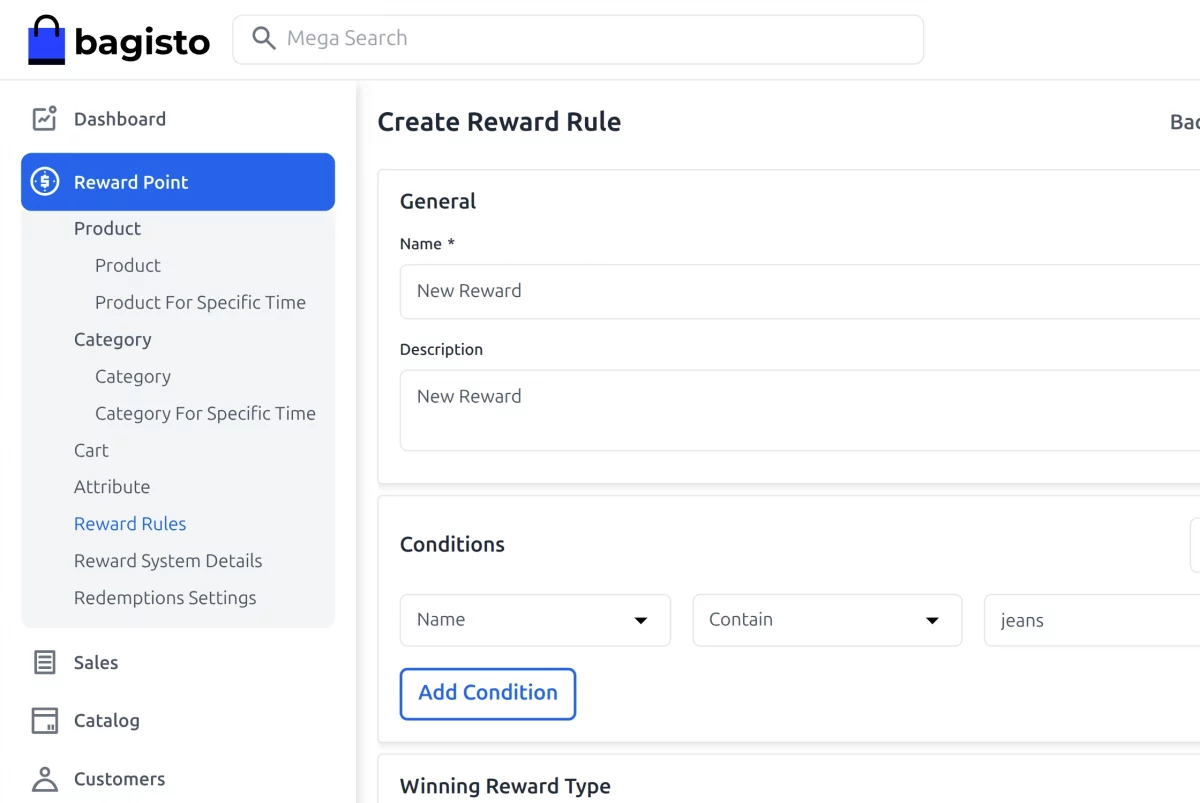
- Name:- Enter the rule name.
- Description:- Then enter the rule description.
- Condition Type:- Select Match All Conditions or Match Any Condition.
- Add Condition:- Add conditions such as Cart Subtotal, Payment Method, Shipping Method or Categories. However, a rule without conditions always matches.
- Winning Reward Type:- Select the reward to give when the rule matches: Product Reward, Category Reward, Attribute Reward or Cart Reward.
- Priority:- Set the order in which the rules are checked, because a lower number is checked first.
- Status:- Also, set the rule as Active or Inactive.
Finally, click on Save Reward Rule to save the rule.
By default, if no rule matches the order, the highest reward point is given.
Reward System Details
The admin can see the reward points of all the customers under Reward Point >> Reward System Details as shown in the image below:-
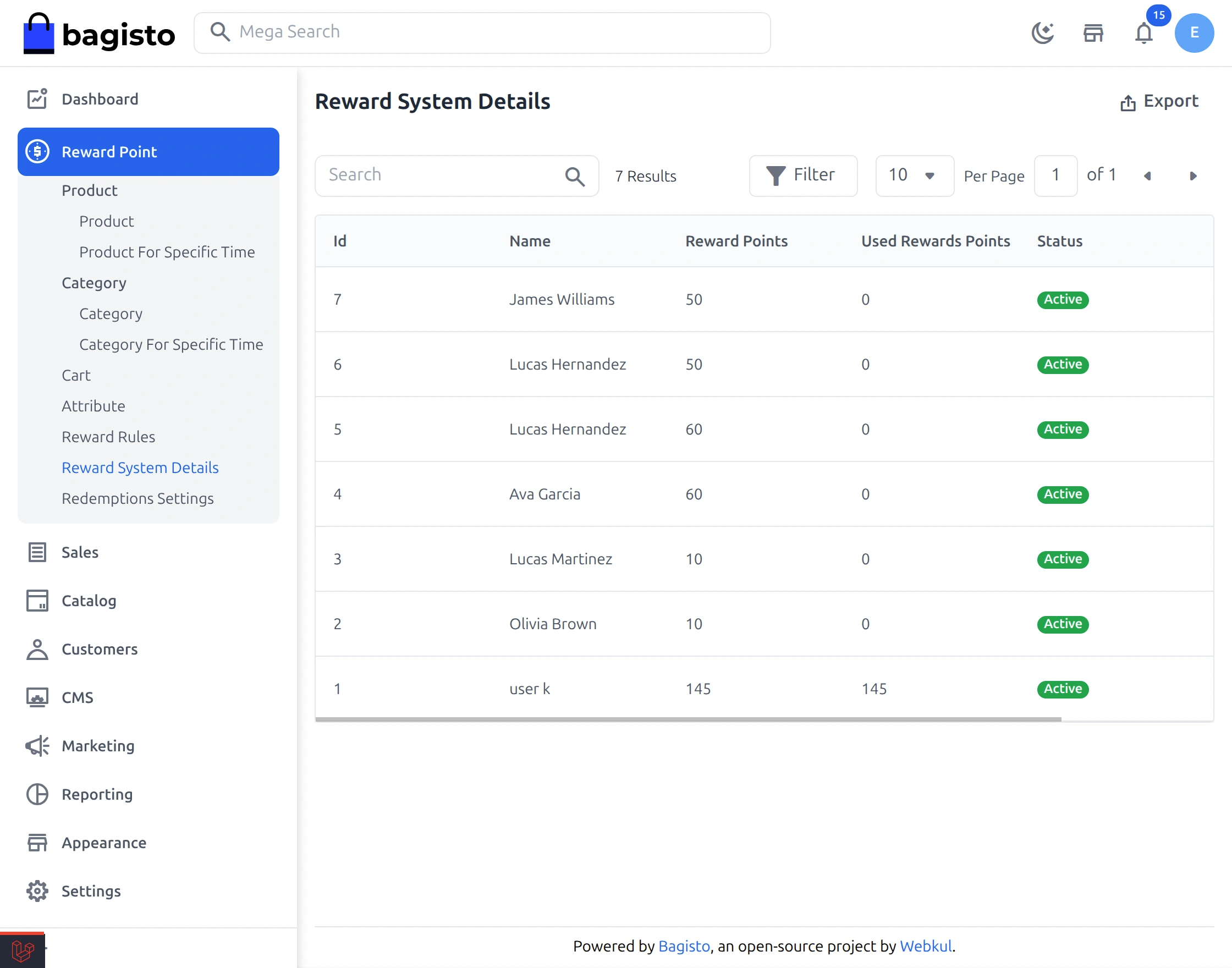
To see the details of a customer, click on the eye icon under the action. The page will then open as shown below:-
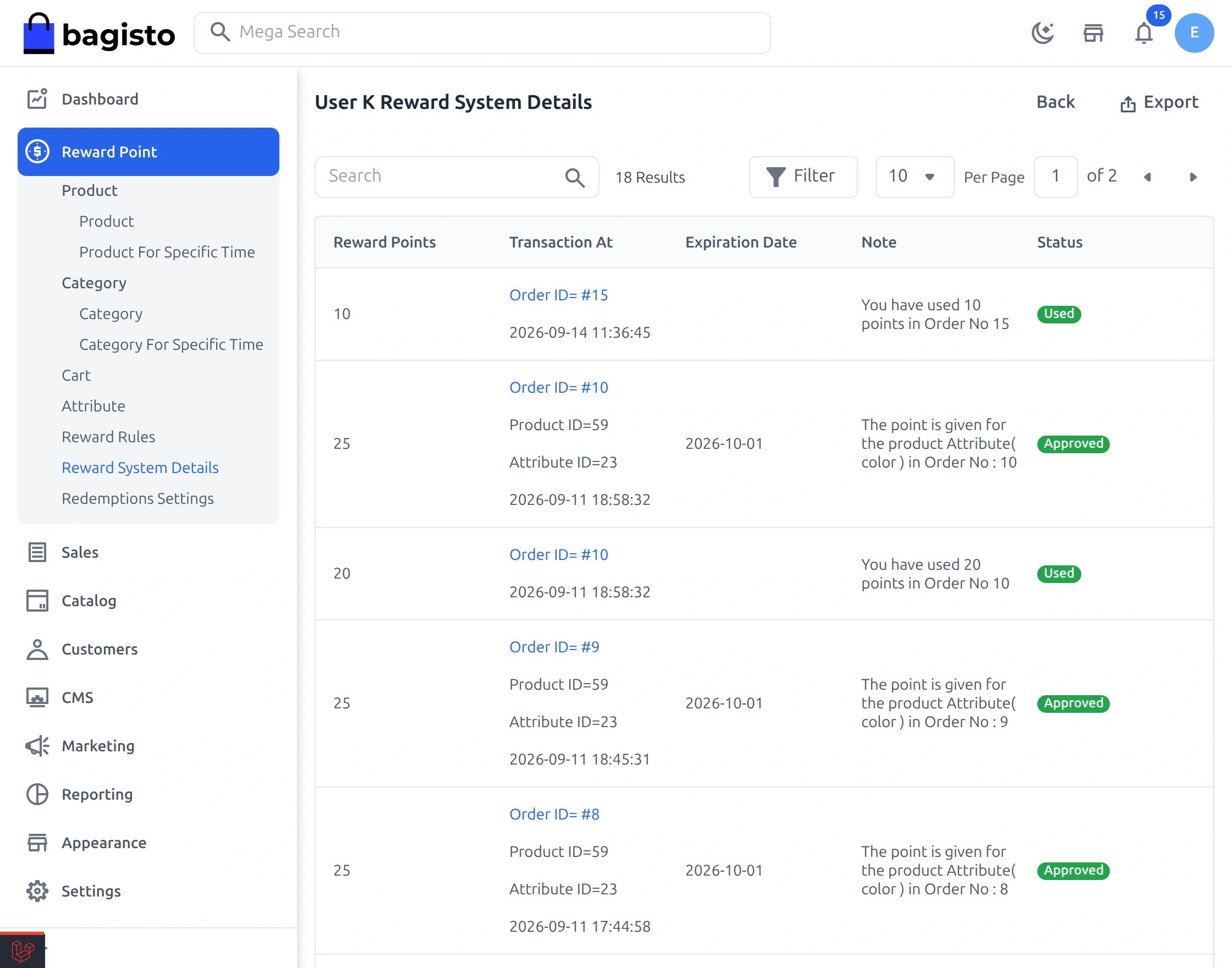
Here, the admin can see each reward of the customer with its points, date, expiration date, note and status.
Note:- Customers can only use the Approved reward points.
- Registration and birthday reward points are approved straight away.
- However, review reward points are approved only when the admin approves the review.
- Similarly, order reward points are approved when the order is completed.
- If the order is canceled, closed or marked as fraud, its reward points cannot be used.
- Also, the points cannot be used after their expiry date.
Redemption Settings
Under Reward Point >> Redemptions Settings, the admin can set the redemption settings as shown in the image below:-
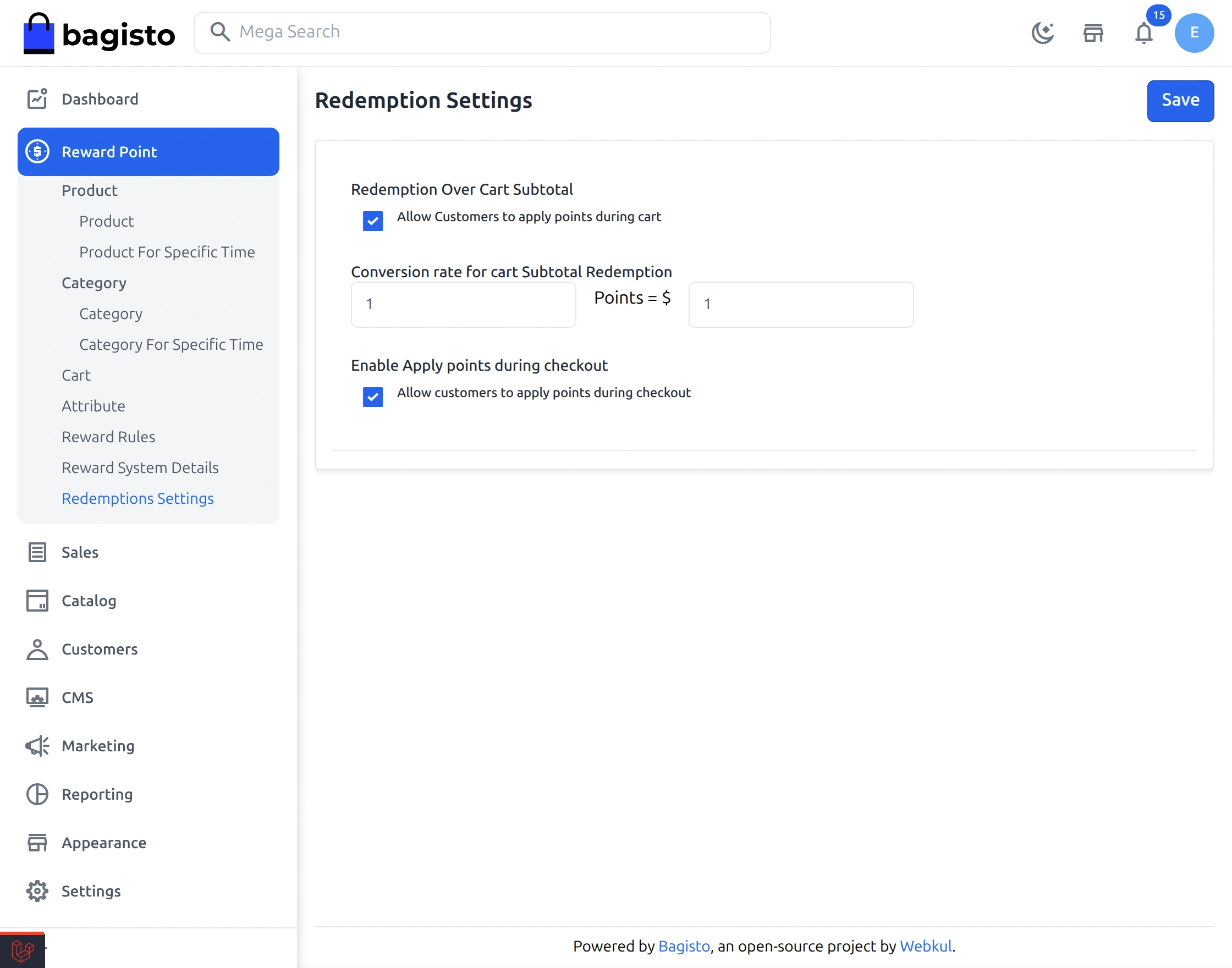
- Redemption Over Cart Subtotal:- Allow customers to apply points on the cart page. Keep this enabled, otherwise the points have no value.
- Conversion rate for cart Subtotal Redemption:- Set the value of the points.
For example:- 10 points = $1 - Enable Apply points during checkout:- Also, allow customers to apply points on the checkout page.
Finally, click on Save to save the settings.
How Customers can use reward points?
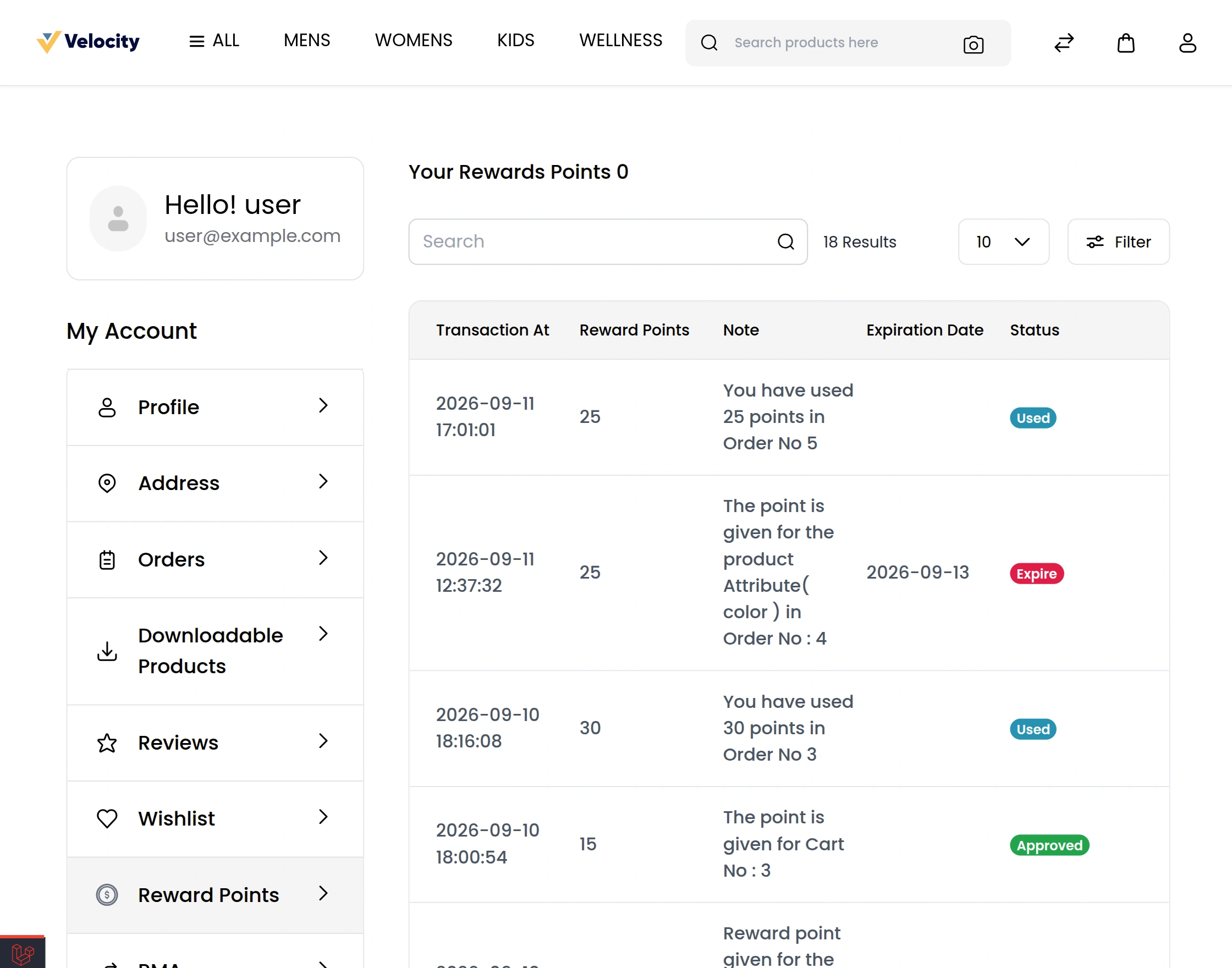
When the customer registers, the registration reward points are visible under Reward Points in the customer account as shown below:-
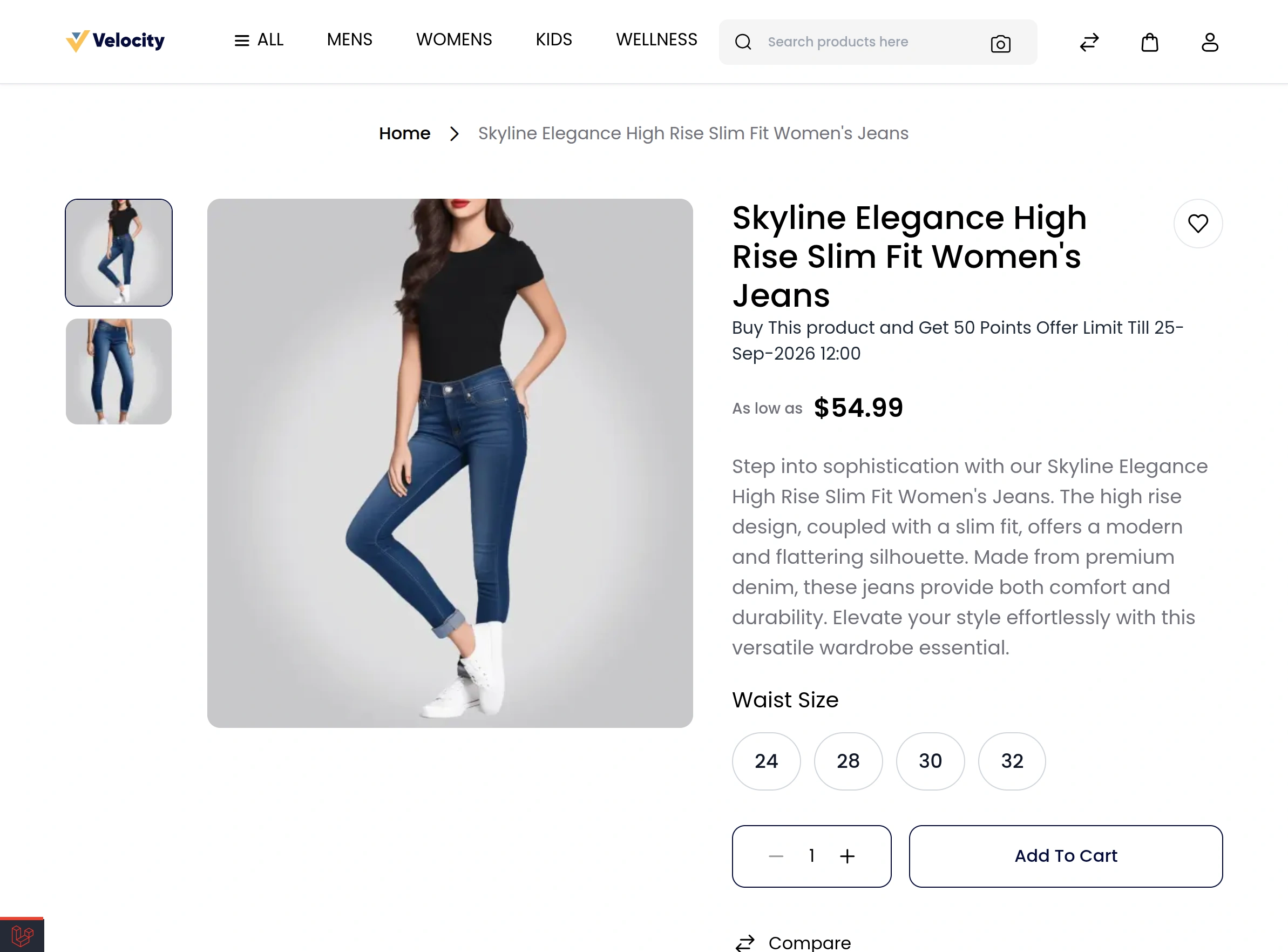
On the product page, the reward point details are also visible as shown in the image below:-

In addition, the reward points are visible on the order summary. The customer can then use any of their approved points.

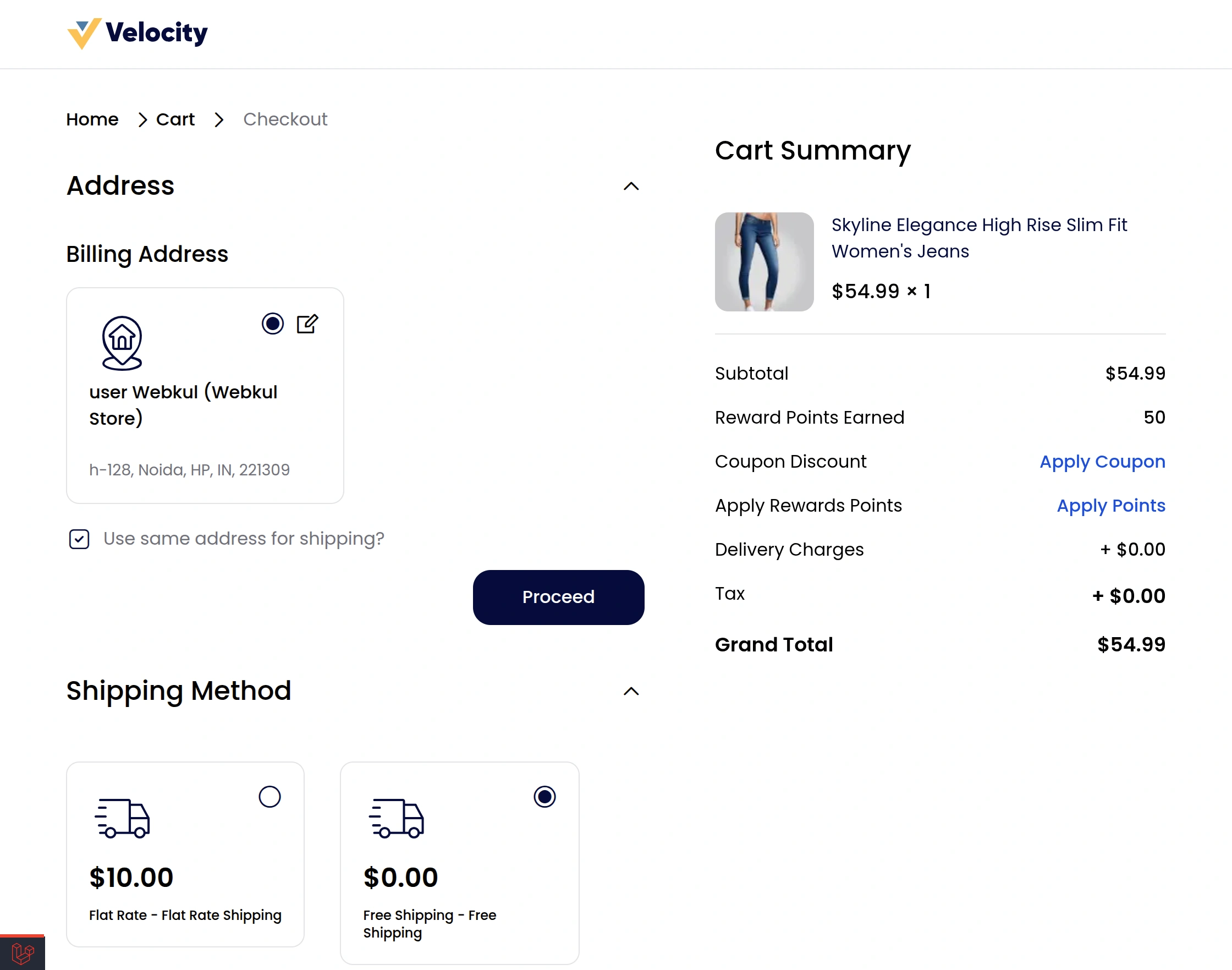
To use the points, the customer clicks on Apply Rewards Points in the order summary. Then they enter the points in Enter Points and click on Apply Points.
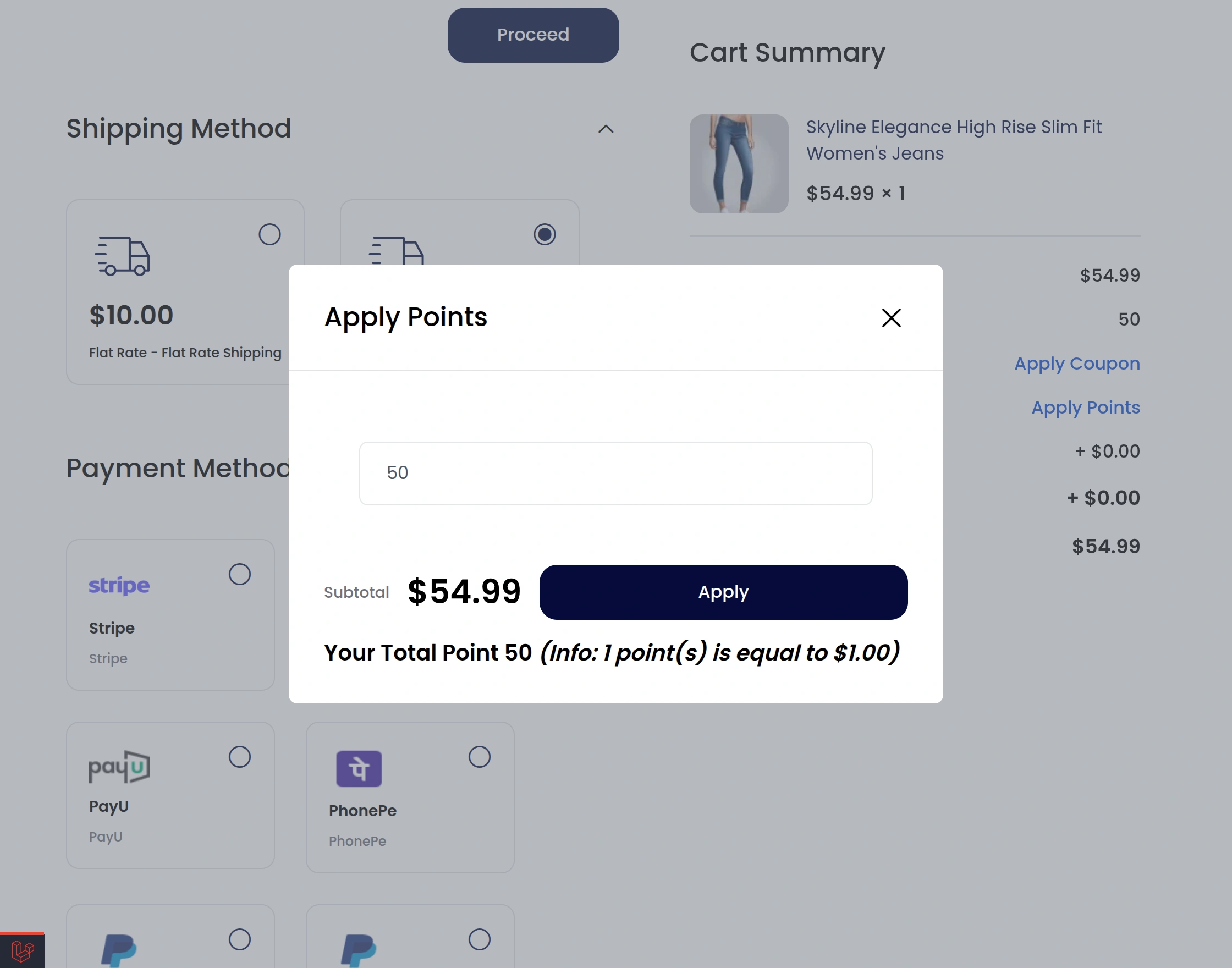
However, the customer cannot apply more points than:-
- Their approved reward points.
- The Reward Point Used At One Time limit.
- The value of the order total.
**Note:-
- If the order matches more than one reward, such as Product, Category and Cart, only one reward is given.
- For example:-
- Cart reward gives 20 points.
- Category reward gives 10 points.
- Product reward gives 10 points.
- If a matching reward rule has the Winning Reward Type “Category Reward”, then only the “Category Reward” (10 points) is given.
- Otherwise, if no reward rule matches, the highest reward point (here Cart Reward, 20 points) is given by default.
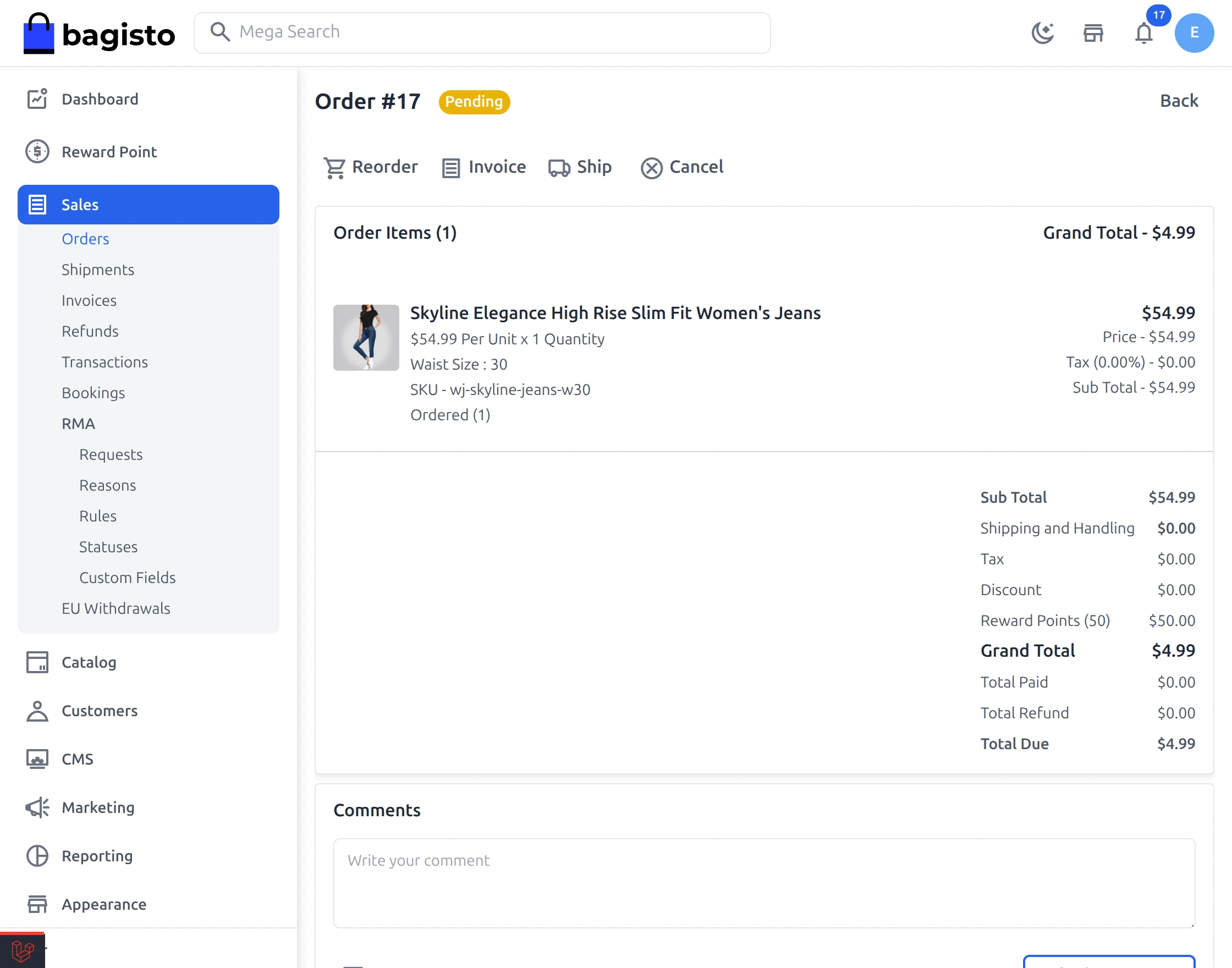
The admin can also see the reward points in the order and invoice details in the admin panel.
Support
So, that was all about the User Guide of Laravel eCommerce Reward Points. For any queries or doubts, reach out to us at support@webkul.com.
You can also raise a ticket at our HelpDesk System. Please explore our Laravel Development Services and Quality Bagisto Extensions.