Instagram Connector – Shoppable & Live Videos for Shopify
Overview
Your best product content is already on Instagram. Reels that took a full afternoon to shoot earned thousands of views and comments asking, “Where can I buy this?”
Then they scrolled away. None of that content is doing anything for your store.
Instagram Connector closes that gap. It is the Instagram module inside Webkul Shoppable & Live Videos for Shopify. First, connect your Instagram account once.
Then sync your Reels into the app, tag the products that appear in them, and publish them to your storefront as shoppable videos. The content you already made becomes a place people can buy from.
Features
- One-click connection — Sign in with Facebook once. Nothing to configure, no keys to copy.
- Reel sync — Pull your Instagram Reels into the app with their thumbnails and captions intact.
- Product tagging — Attach products to any reel and choose the moment in the video where each one appears.
- Storefront publishing — Synced reels use the same shoppable video displays as your uploaded videos.
- Search, sort, and filter — Find any reel by caption, sort by newest synced, or narrow to a date range.
- Sync one or sync all — Bring in your whole catalogue at once, or add a single new reel after you post it.
- Clean disconnect — Disconnecting removes the connection and every reel that came with it, in one step.
Installation
Instagram Connector is a featured app of the Webkul Shoppable & Live Videos App. There is no separate installation.
- Install Webkul Shoppable & Live Videos from the Shopify App Store.
- Approve the requested permissions and let the app finish onboarding.
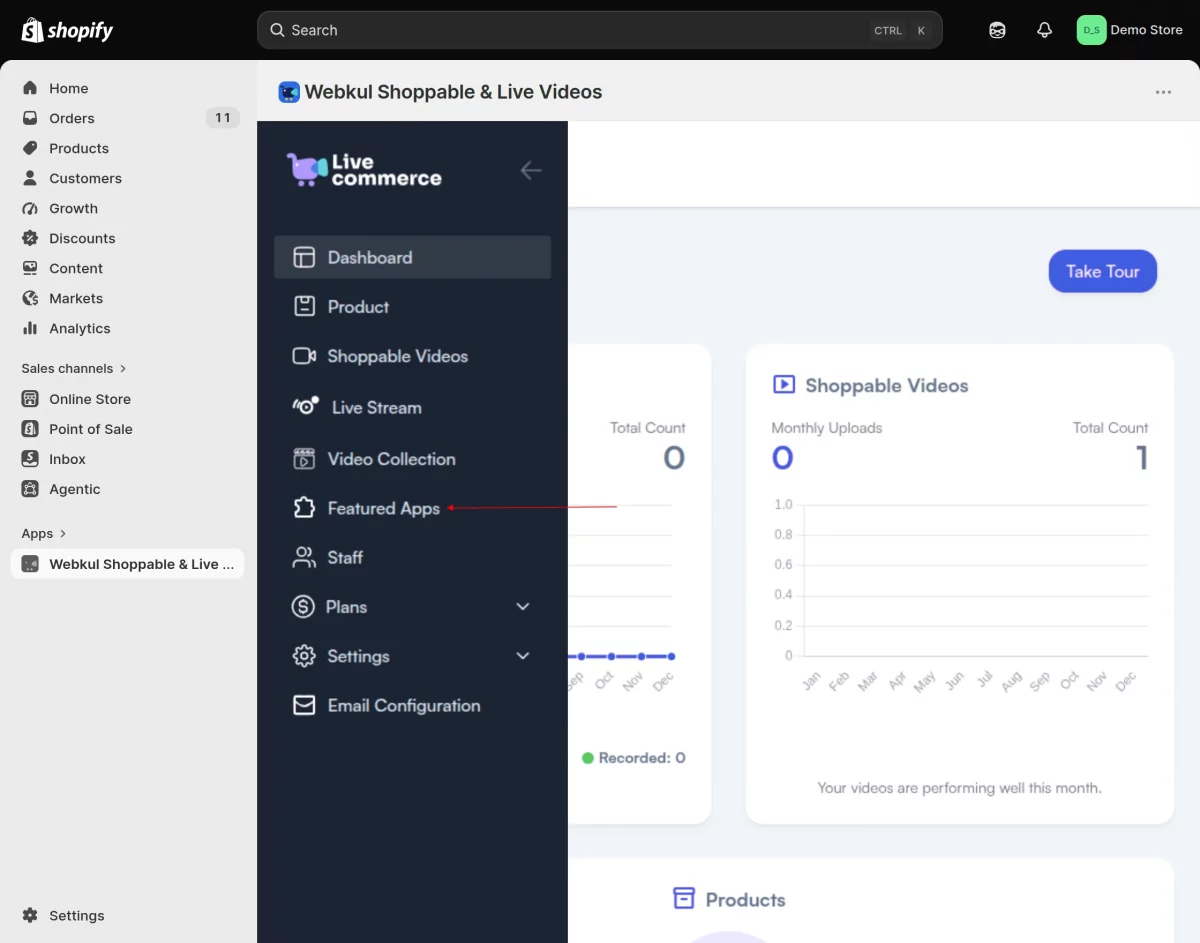
- Open the app from your Shopify admin and go to Featured Apps.
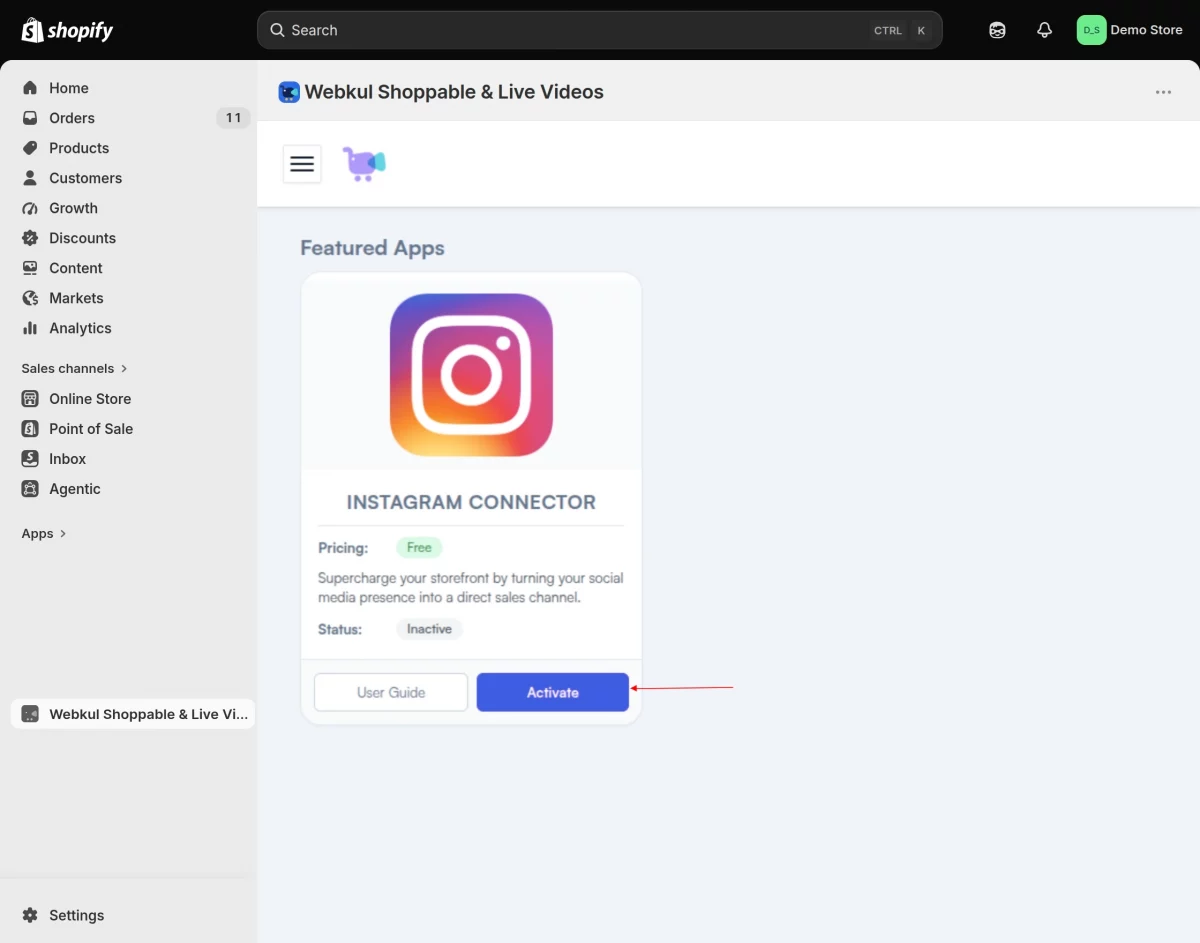
You will find the Instagram Connector card there, showing its status. Click Activate to begin. The User Guide button on the same card opens this documentation at any time.
What You Need Before You Start
Instagram only allows this kind of integration for business accounts. Before connecting, check all three:
- An Instagram Business account.
- A Facebook Page.
- Your Instagram account linked to that Facebook Page.
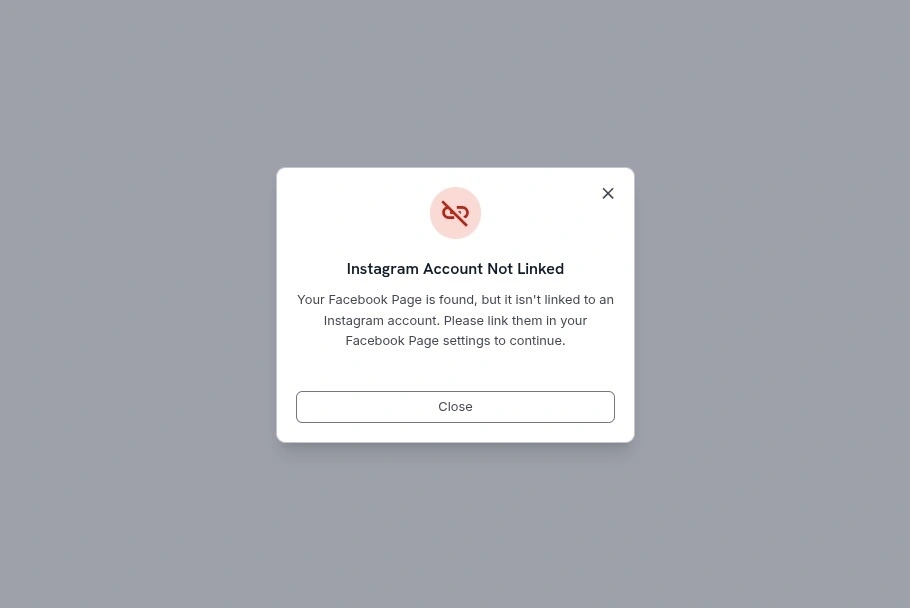
The third one catches most people out. If your Page exists but you have not linked an Instagram account to it, the app stops and tells you precisely that, rather than failing silently.

Here’s how to set up each requirement, step by step.
How to Create a Facebook Page
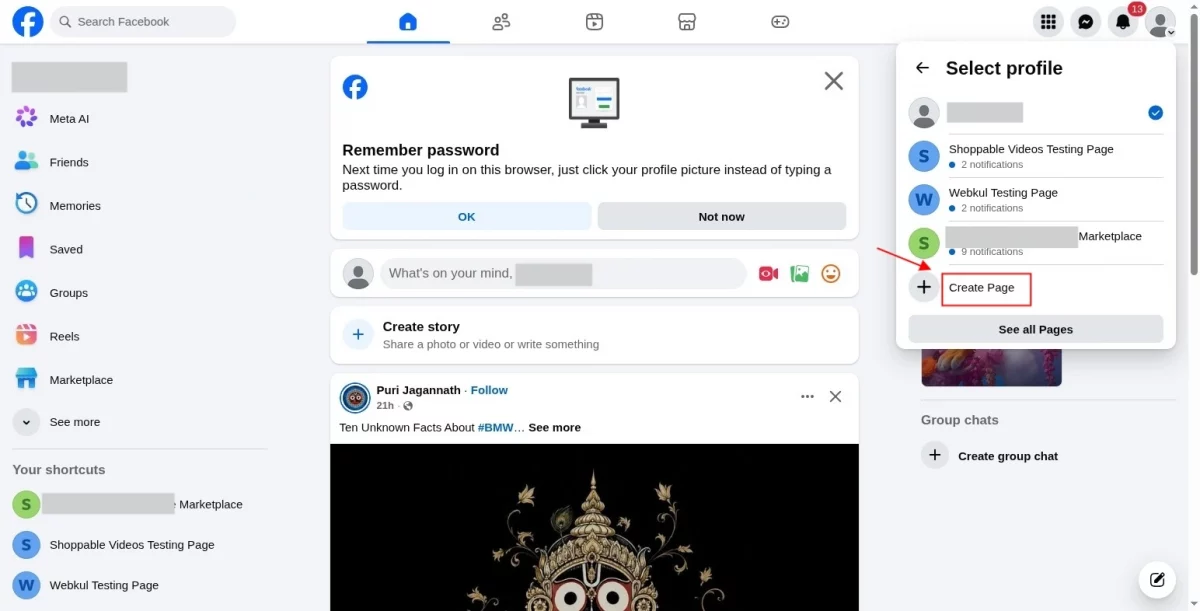
Step 1 — Click your profile icon in the top right corner of Facebook. In the dropdown, scroll down and click Create Page.

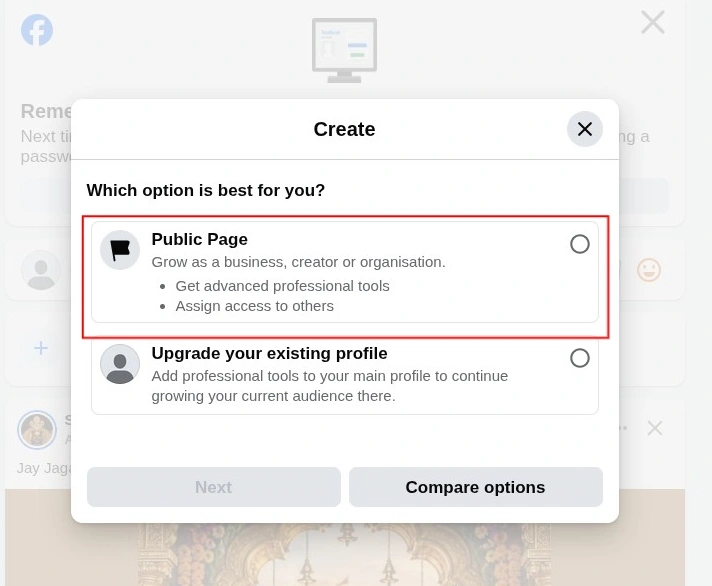
Step 2 — A “Create” pop-up appears asking “Which option is best for you?” Select Public Page — described as “Grow as a business, creator or organisation” — then click Next.

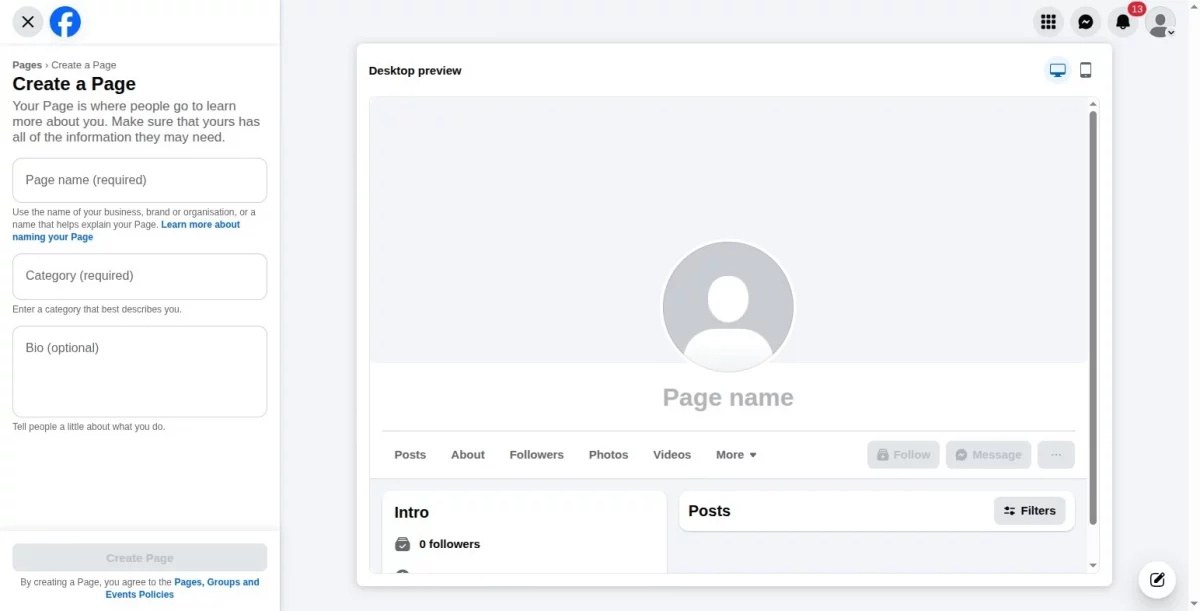
Step 3 — Fill in your Page name, Category, and an optional Bio. A live preview of your Page appears on the right as you type. Once done, click Create Page at the bottom.
How to Link Your Instagram Account to Your Facebook Page
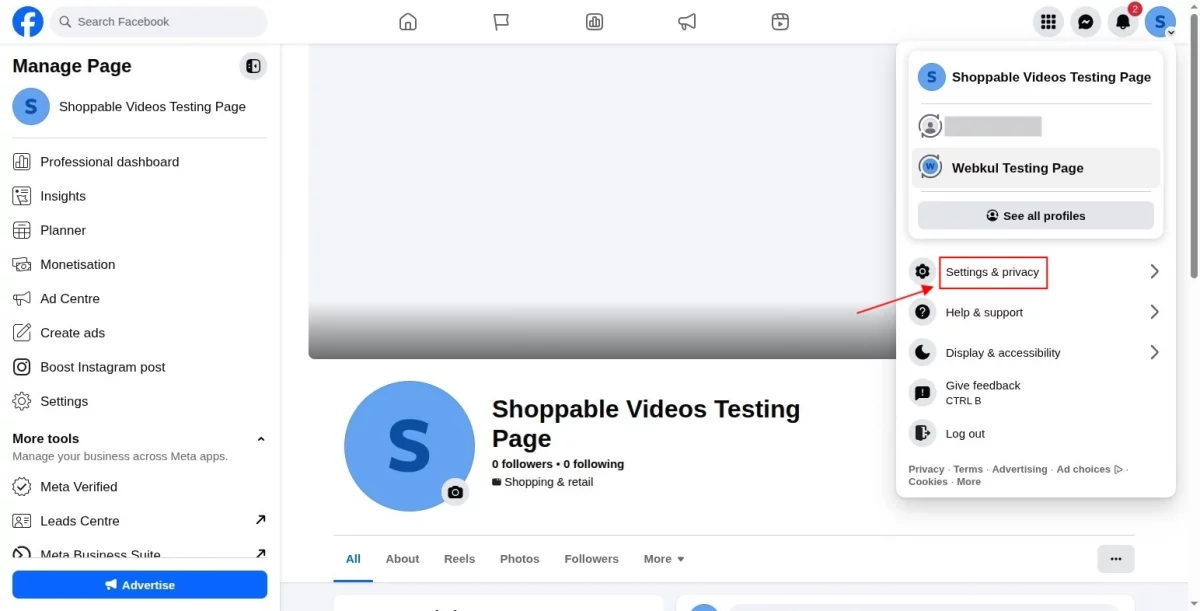
Step 4 — Open your newly created Page, click the profile icon in the top right corner (this is now your Page’s own menu), and click Settings & privacy.
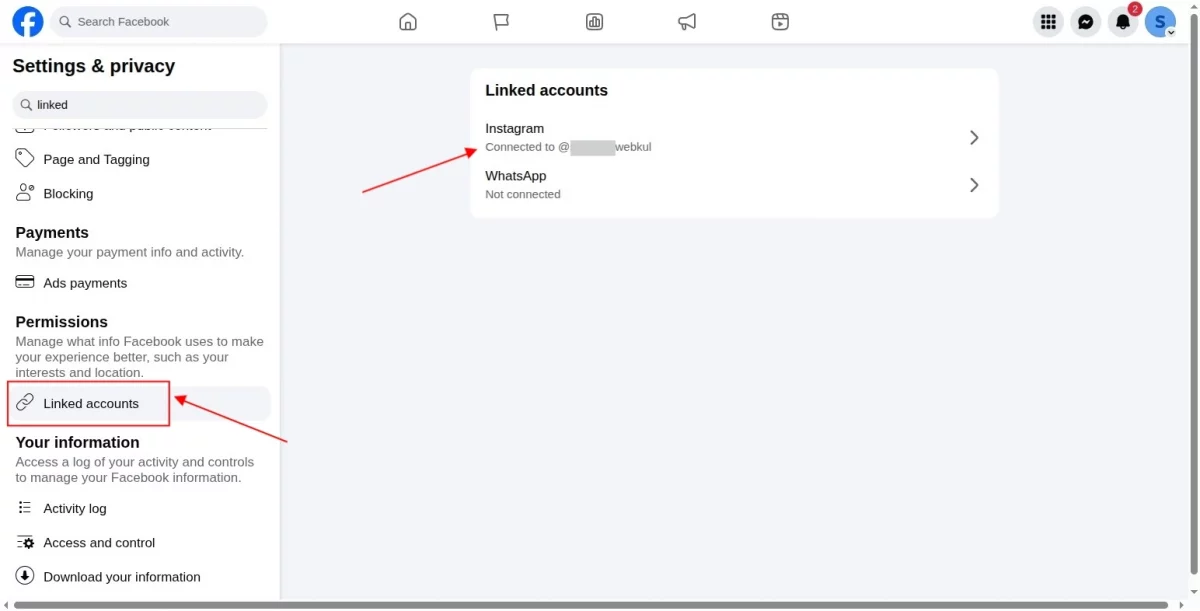
Step 5 — In the Settings & privacy menu, click Linked accounts under the Permissions section. Here you’ll see the Instagram row — if no account is connected yet, click it to start connecting; if one is already connected, it will show “Connected to @[username]” like in the example below.
How to Convert a Normal Instagram Account into a Business or Creator Account
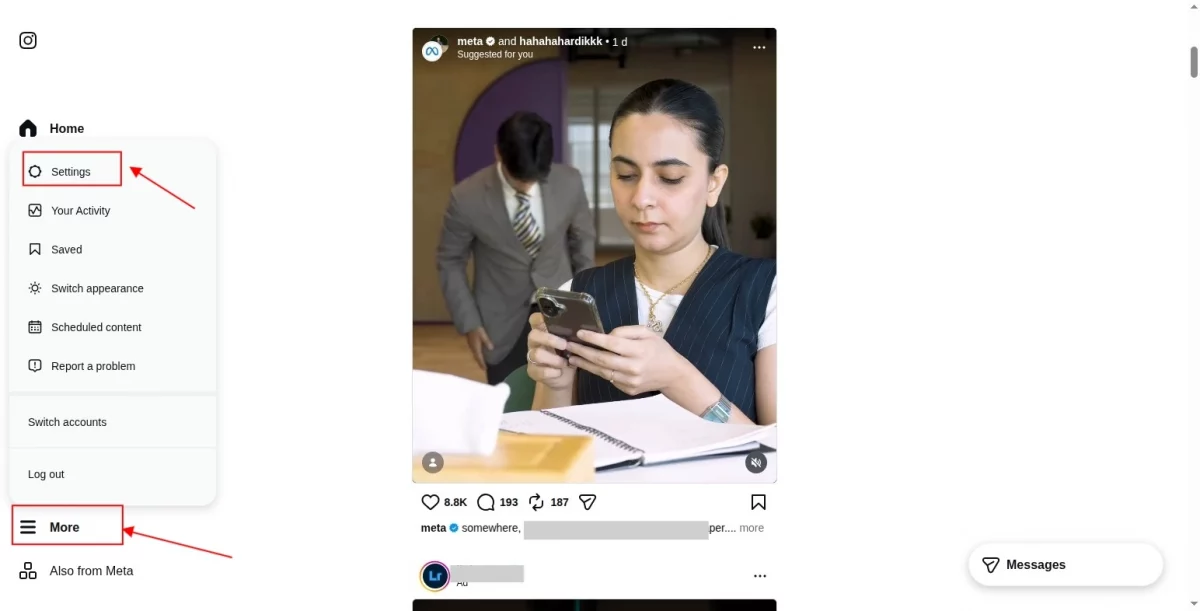
Step 6 — Go to Instagram and click More in the left sidebar. Select Settings from the menu that appears.
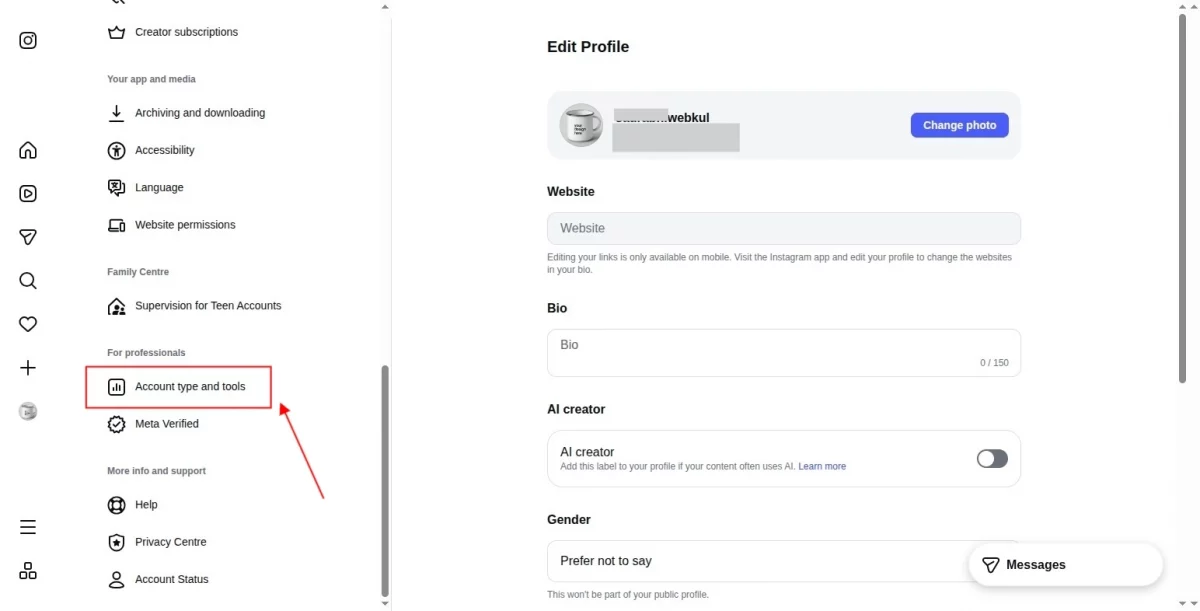
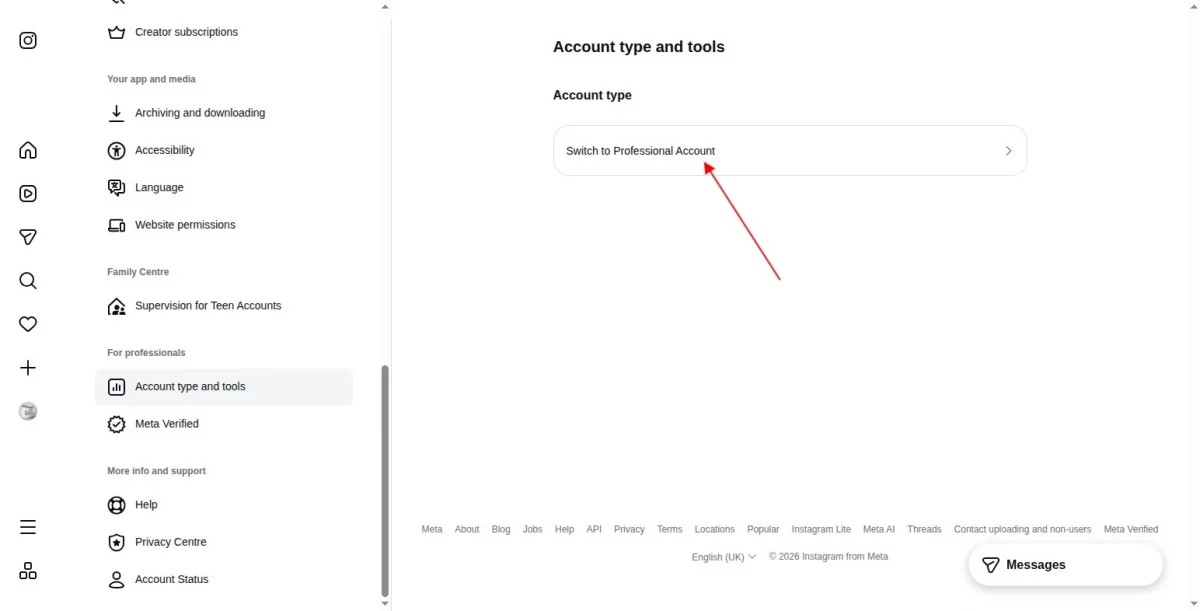
Step_7 — Under Settings, scroll down to the For professionals section and click Account type and tools.
Step 8 — Look for the Switch to Professional Account option and click it.
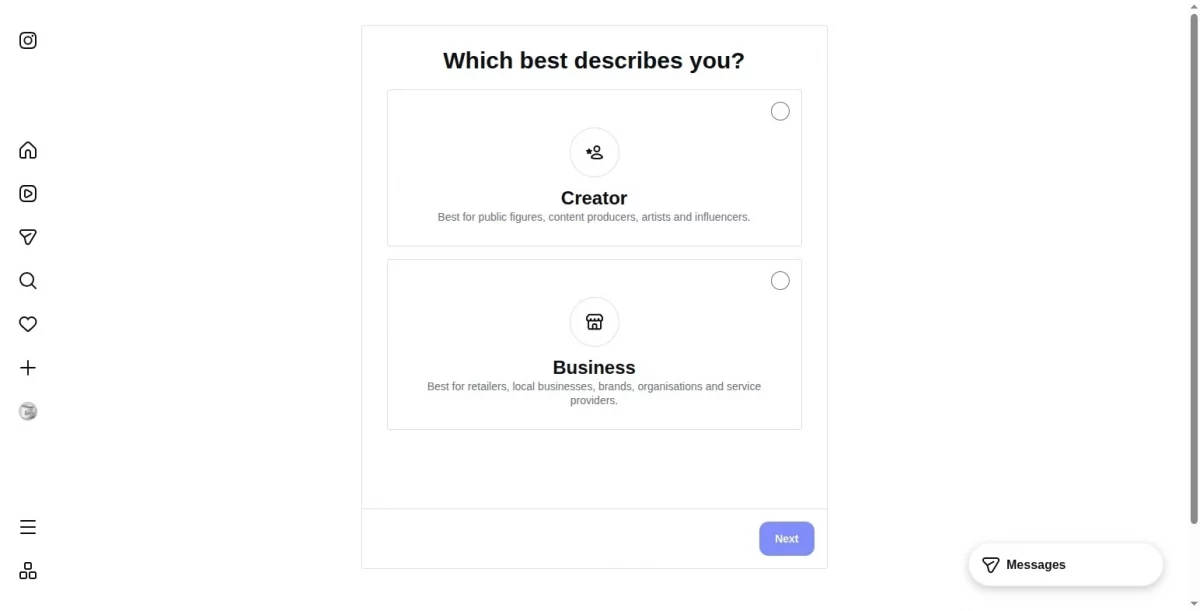
Step 9 — Choose the option that best describes your account:
- Creator — best for public figures, content producers, artists and influencers.
- Business — best for retailers, local businesses, brands, organisations and service providers (recommended for stores using Instagram Connector).
Click Next to complete the switch.
How to Configure the App?
Step 1: Activate Instagram Connector
From the Shoppable & Live Videos admin, go to Featured Apps and click Activate on the Instagram Connector card.

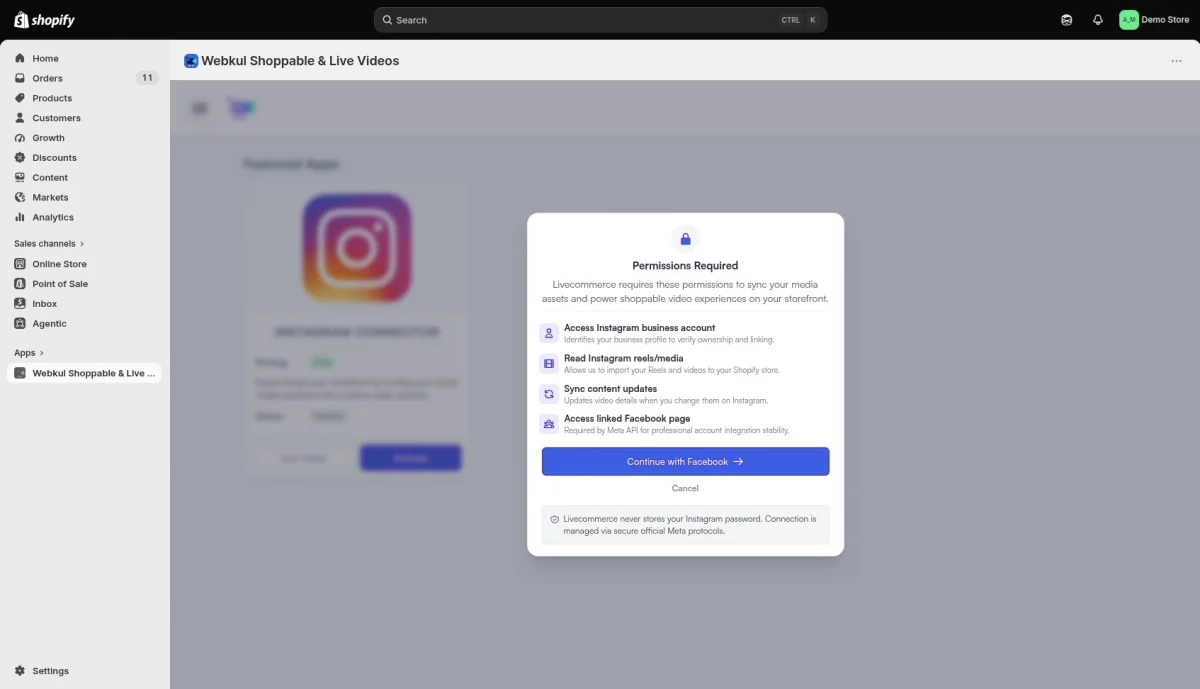
Step 2: Review the permissions
Before anything is sent to Facebook, the app shows you exactly what it is about to ask for and why:
- Access Instagram business account — identifies your business profile to verify ownership and linking.
- Read Instagram reels/media — allows the app to import your Reels and videos to your Shopify store.
- Sync content updates — keeps video details current when you change them on Instagram.
- Access linked Facebook page — required by the Meta API for professional account integration.
Your Instagram password is never stored. Authentication happens entirely through Meta’s own login. When you are ready, click Continue with Facebook.

Step 3: Sign in with Facebook
A Facebook login window opens. Sign in with the account that manages your Page and approve the permissions.
Once you finish, the app automatically picks up the connection. There is no need to refresh. You will see a green confirmation message:
“Instagram Account Connected Successfully.”
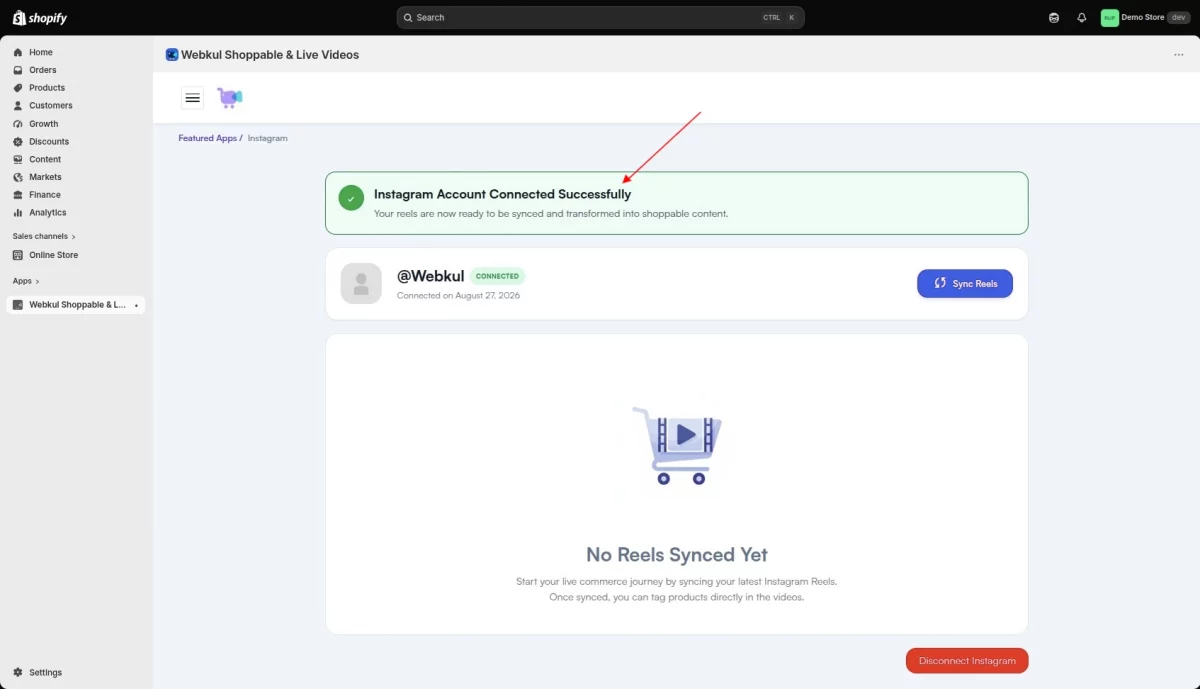
Your Reels are now ready to be synced and transformed into shoppable content.
If your browser blocks the pop-up, allow pop-ups for the page and click Continue again.
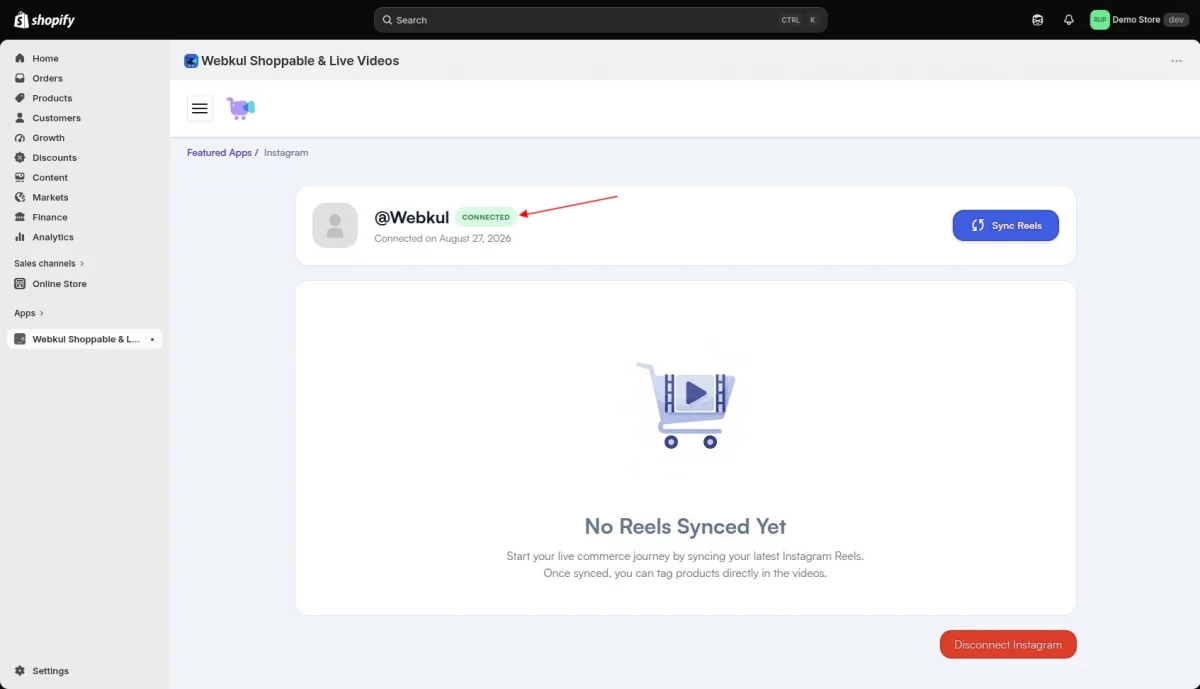
Step 4: Check the connected profile
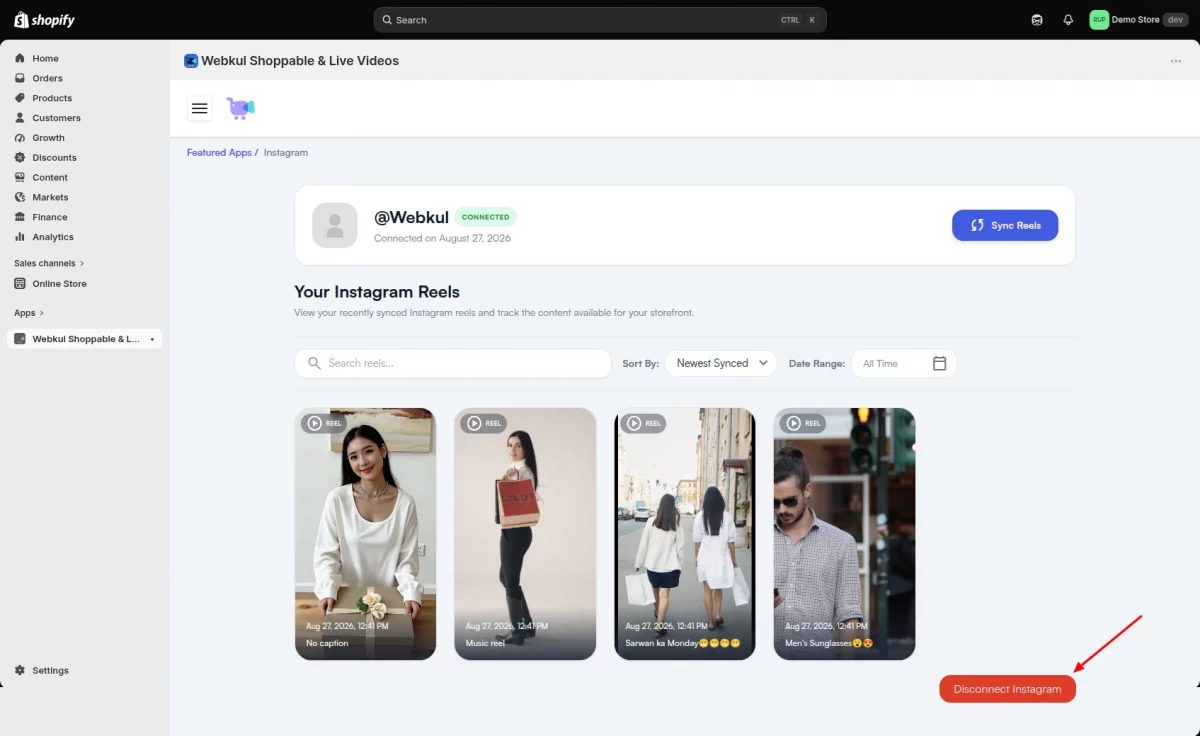
The profile card shows your Instagram username and picture, a green CONNECTED badge, and the date you connected. Take a moment to confirm this is the right account before you sync.
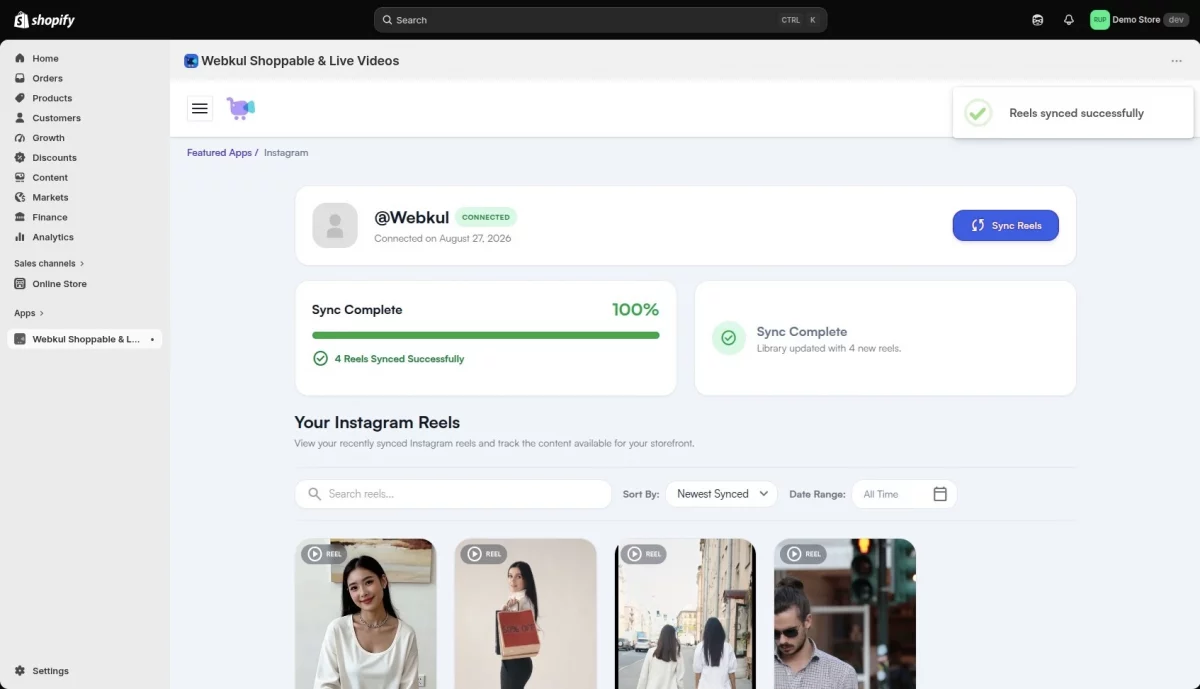
Step 5: Sync your Reels
Click Sync Reels. A progress bar tracks the import as the app brings your Reels into your Shoppable & Live Videos video library.
When it finishes, you get a full report — how many Reels synced successfully, and how many failed. They explain failures rather than leaving them as a number.
The most common cause is a copyright report on the original Instagram post: Meta blocks Reels for copyright, preventing import, and the app informs you directly.
Step 6: Add a reel to Shoppable video
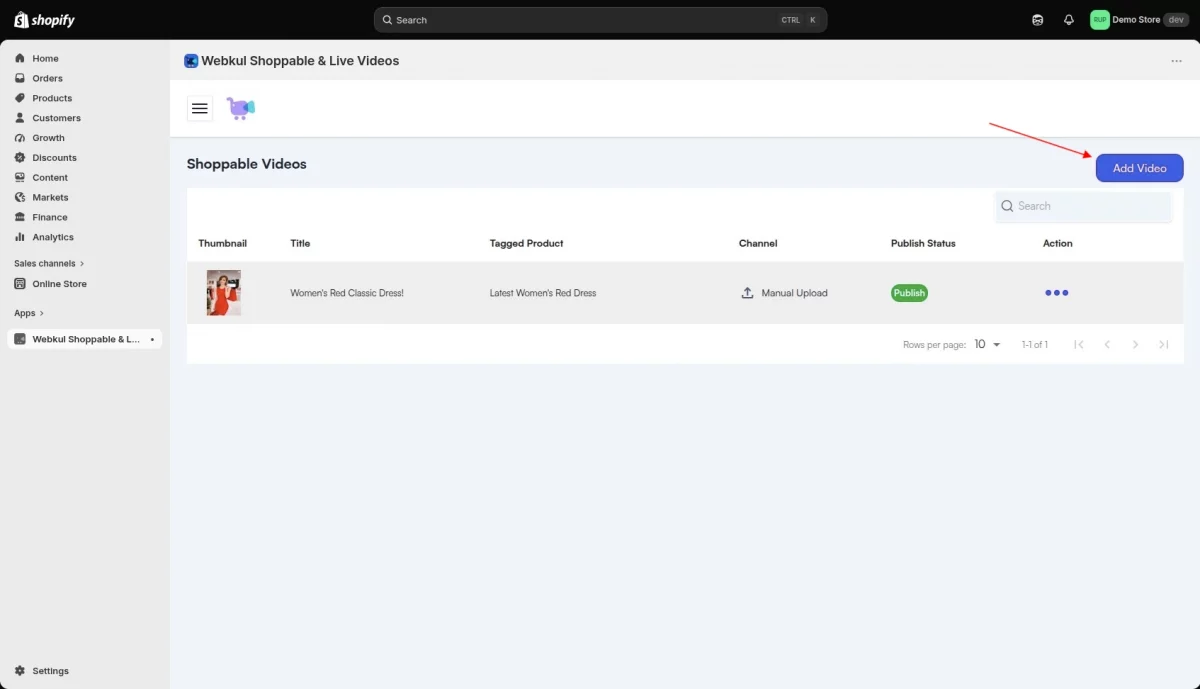
Synced reels are added to your Shoppable Videos library. Click on Add video to select a video in the Shoppable Videos section.
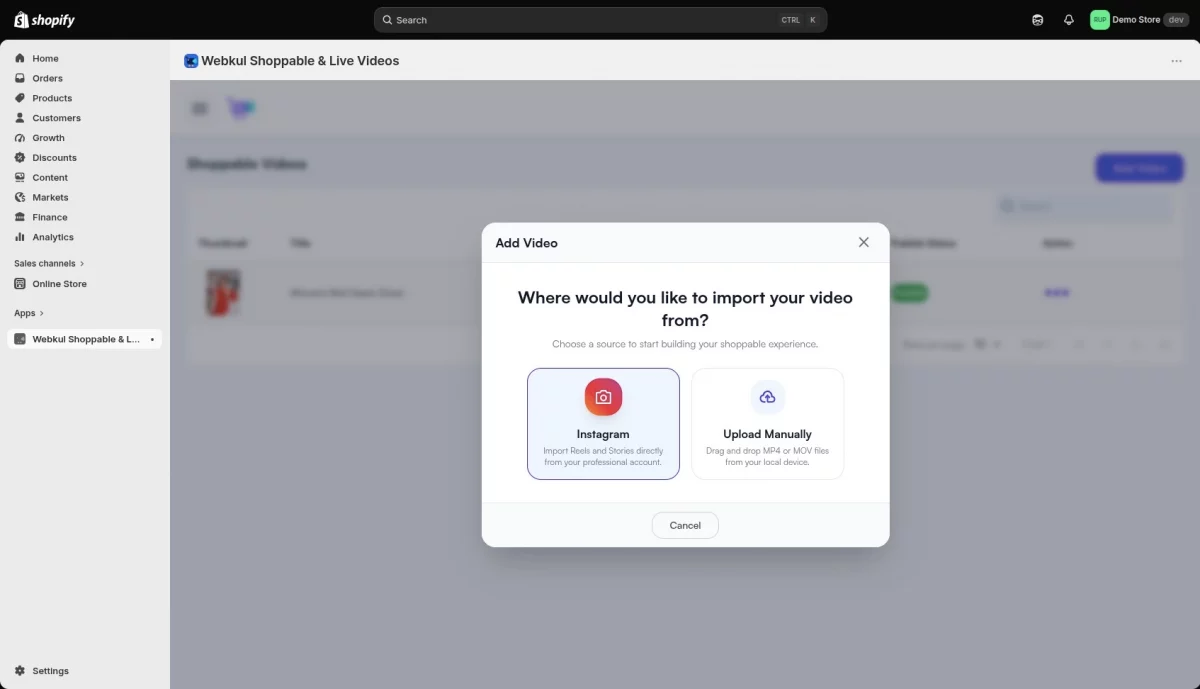
Select the Instagram option to choose the video. Then select the profile.
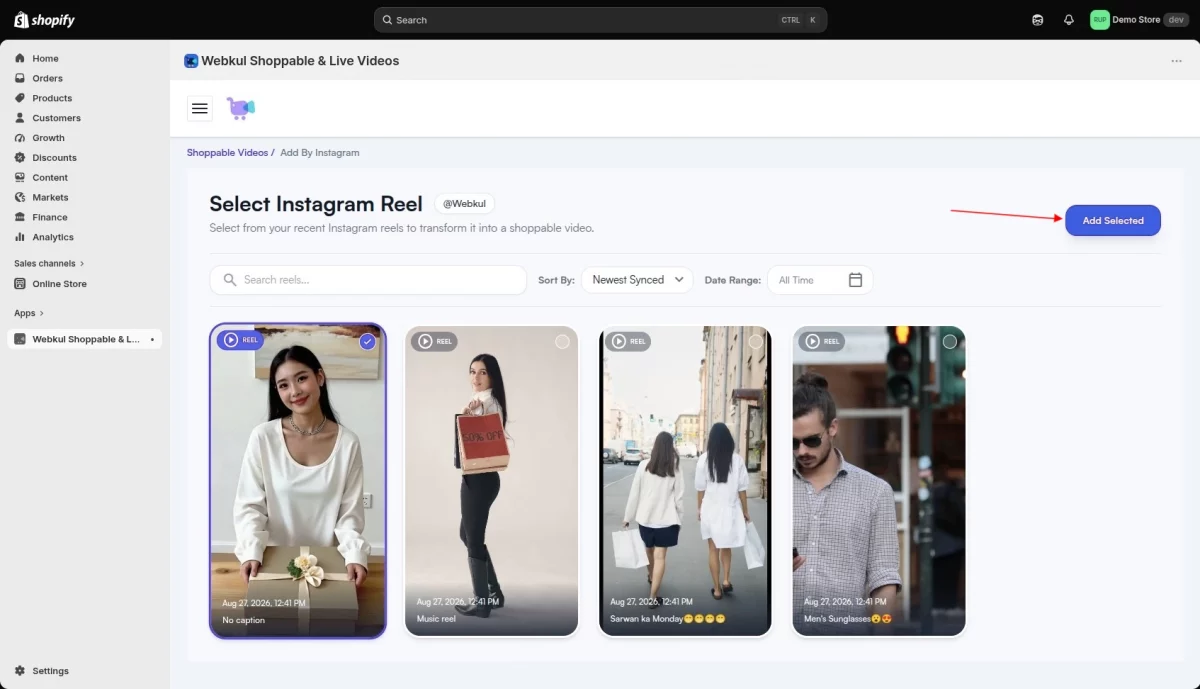
Select the Reel and click on Add Selected.
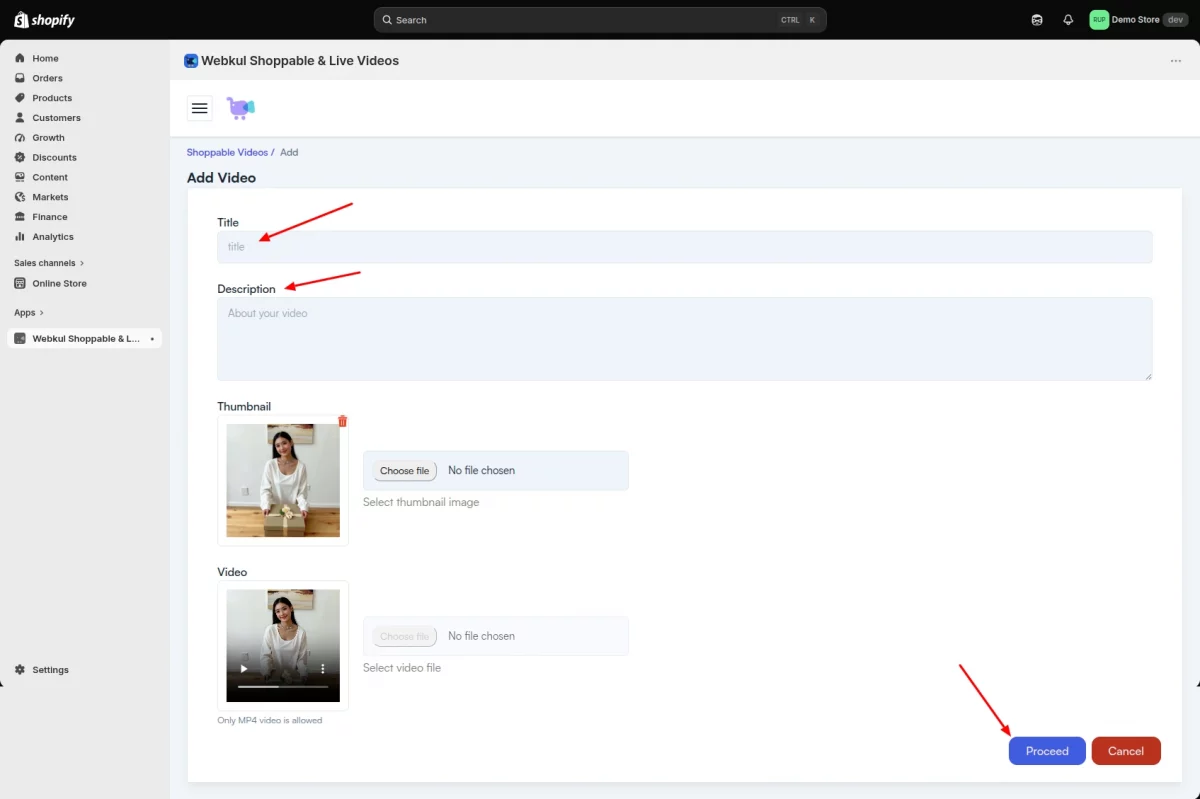
After that, add the Title and Description, then click on Proceed.

Step 7: Tag products on a reel
The Preview Video section will open to add the products featured in it. Select the Product and click Import product.
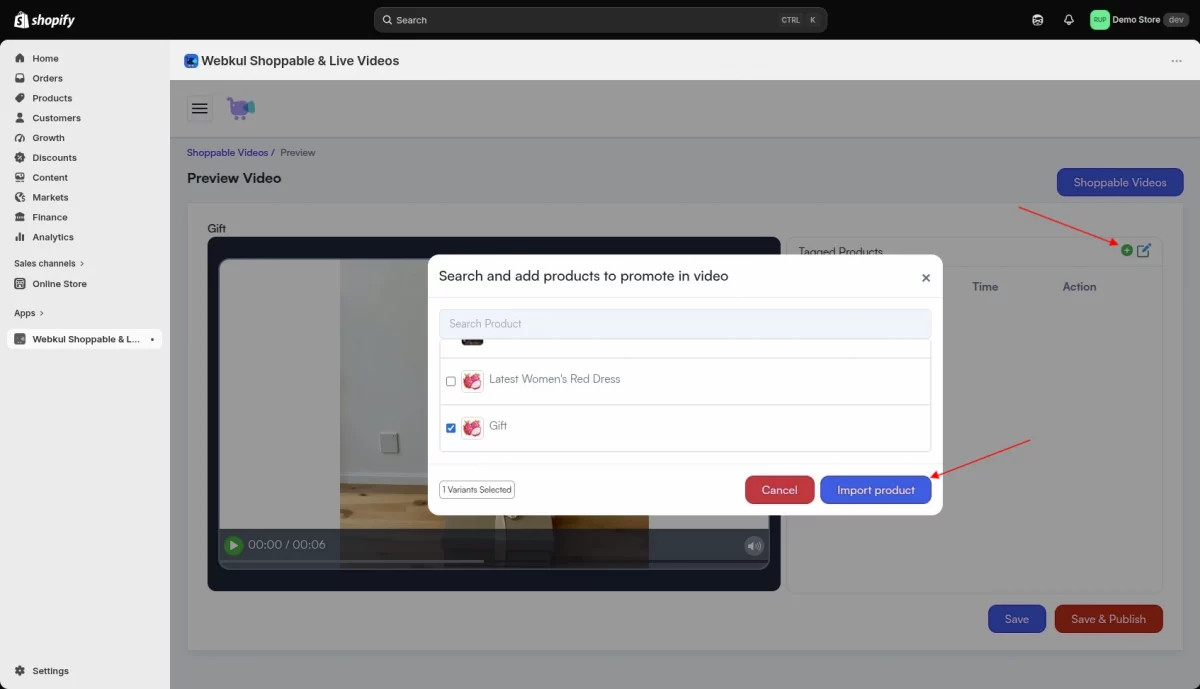
For each product, set a Time From and Time To in seconds. The product card will appear only during that part of the video. After setting the time window, click Update Time.
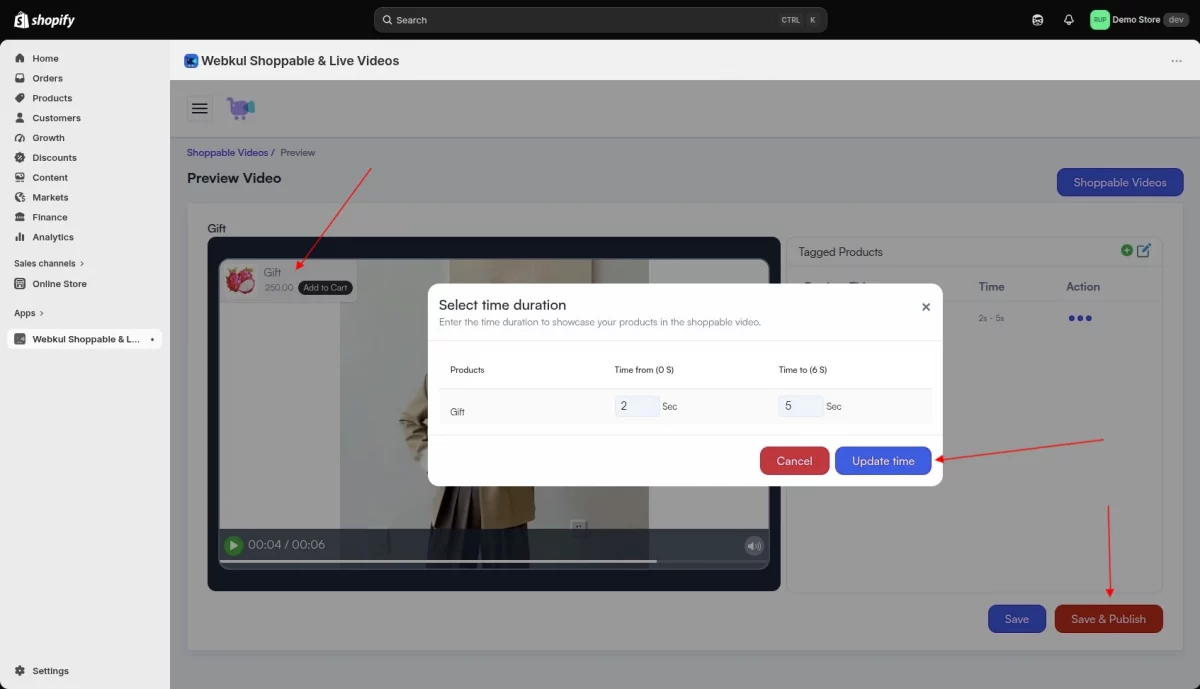
Repeat for every product in the reel. The preview on the left shows exactly how the card will look to a shopper. Then click on Save & Publish.
Manage Your Synced Reels
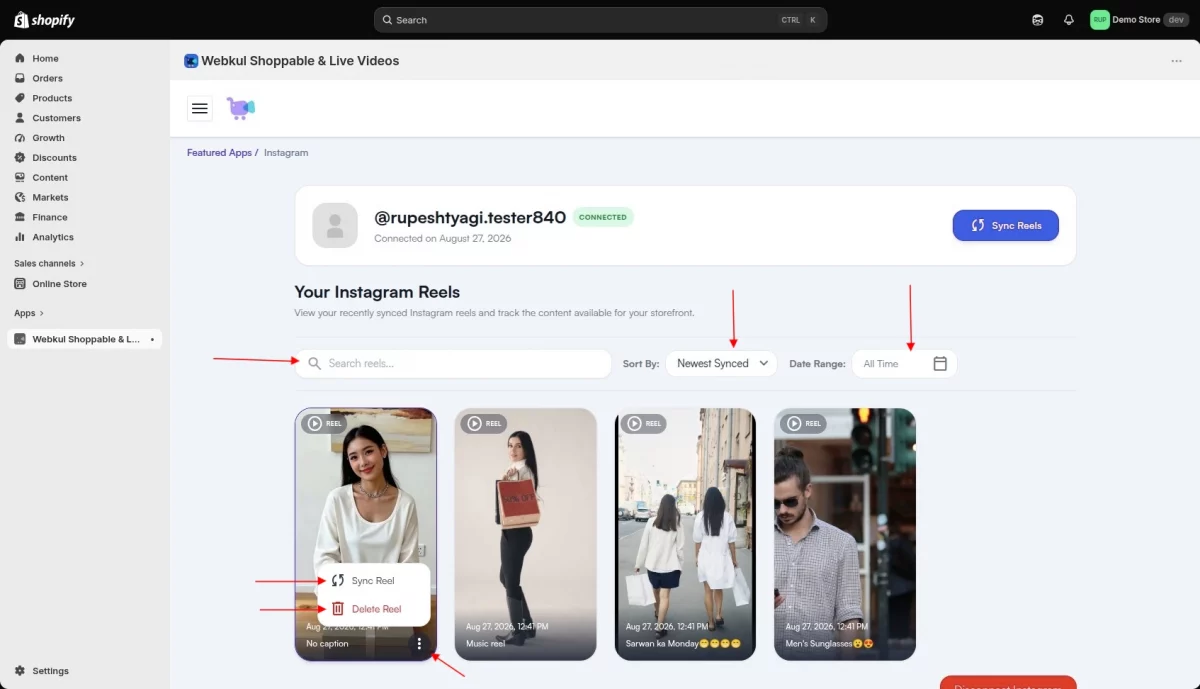
The reels dashboard shows everything you have synced as a grid of cards, each with its caption and sync date.
Above the grid, you can search reels by caption, change Sort By (Newest Synced by default), and narrow results with a Date Range filter. Useful once a season’s worth of content has built up.
Each card has its own menu with two actions:
- Sync Reel — refresh that single reel without running a full sync.
- Delete Reel — remove it from your library. You will be asked to confirm first.
You can also run Sync Reels again at any time after posting new content. Reels you already have are skipped, so it is safe to run as often as you like.
Customer End
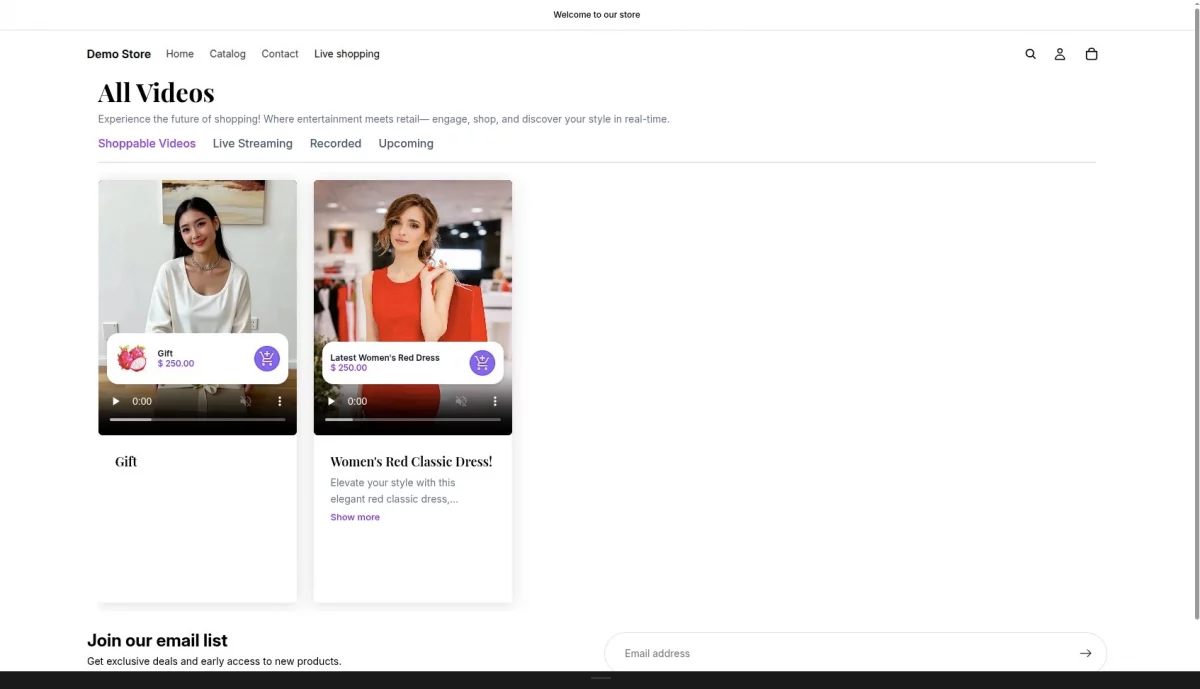
Synced Reels behave exactly like videos you upload yourself. They appear on your storefront under Shoppable Videos, alongside your Live Streaming, Recorded, and Upcoming tabs.
The products you tagged show as cards over the video while it plays. Shoppers tap a card to see the product and add it to their cart without ever leaving the video.
Disconnecting Instagram
Click Disconnect Instagram at the bottom of the page. A confirmation box will show the account being disconnected and explain that syncing will stop.

Your synced media will also be removed from the storefront. Choose Keep Connected to back out, or Disconnect to confirm.
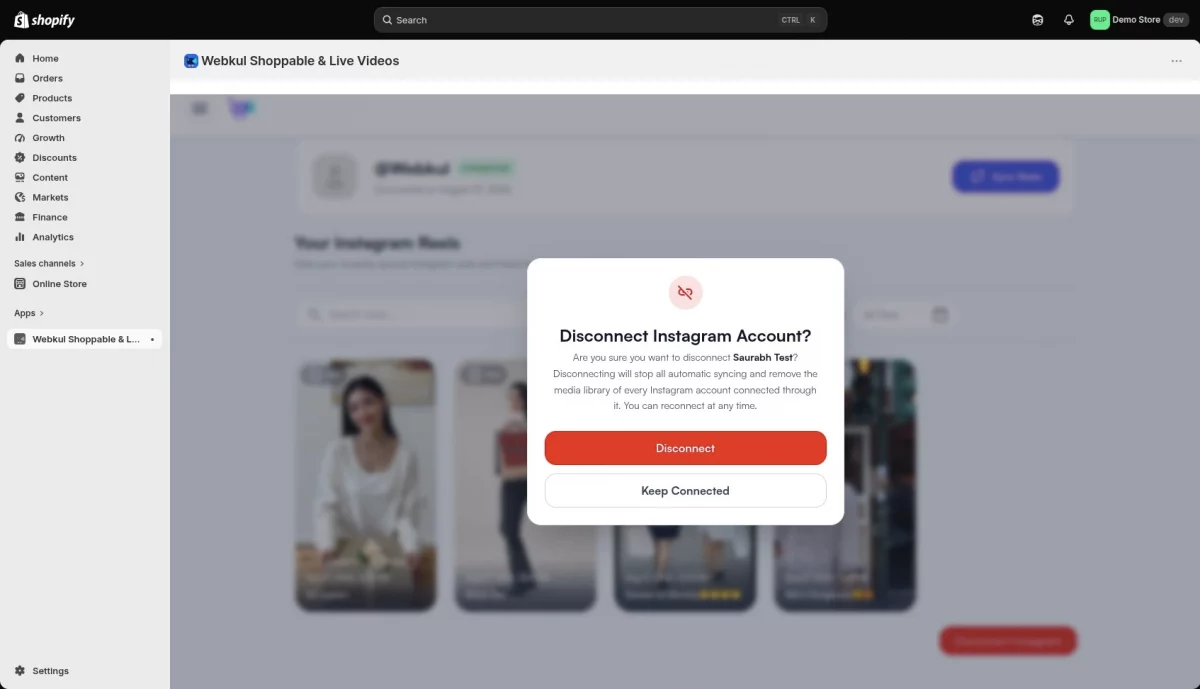
You can reconnect the same account at any time. However, disconnecting permanently deletes all reels and their video files from your library.
Reconnecting starts with an empty library, so you’ll need to sync and re-tag your products.
Your Data
Instagram Connector stores only what it needs to show your reels on your storefront: your profile details and the reels you choose to sync. The Instagram password is never stored.
You stay in control of your data at all times. Disconnecting from within the app removes all connected data.
If you remove the app from your Facebook settings, your reels, videos, and connection are automatically deleted.
Plans
Instagram Connector itself has no extra cost; your Shoppable & Live Videos plan includes it. What matters is the tier you are on, because access comes from the Featured Apps entitlement.
On the Free plan, we list Featured Apps as Not Included, so Instagram Connector is unavailable. Every paid tier from Starter upward includes it.
You can bill plans monthly or yearly using the toggle at the top of the Plans page.
Keep an eye on cloud storage. Instagram saves synced reels to your library instead of streaming them. This uses your storage quota. On the Starter plan, you have 700 MB available.
If you plan to sync a large back catalogue, consider upgrading your plan or adding the Digital Plan for extra storage.
Need Help?
Thanks for reading. We hope Instagram Connector helps you turn the content you have already published into something that sells.
If you have questions, run into a problem, or want a feature added, raise a ticket at webkul.uvdesk.com or email us at support@webkul.com. We are happy to help.
Do not have a Shopify store yet? Create one here and get started.