User Guide for Odoo GLS ShipIT-Farm Shipping Integration
Table of Content
Introduction
Odoo GLS ShipIT-Farm Shipping Integration helps users manage shipping tasks directly inside Odoo. Additionally, users can easily create shipments, generate labels, track shipments, and manage delivery orders.
The module also helps users apply shipping charges to sales orders using delivery pricing rules. Users can manage shipment processing through a single workflow in Odoo.
Features
- GLS ShipIT-Farm Carrier Integration to manage shipping services directly from Odoo delivery methods.
- Delivery Pricing Rule Support for automatic shipping charge calculation on sales orders.
- Direct Shipment Creation from delivery orders without using external shipping platforms.
- Automatic Shipping Label Generation after successful shipment creation inside Odoo.
- Real-Time Shipment Tracking with tracking references and shipment status updates.
- Delivery Order Tracking Details available directly from shipment records in Odoo.
- One-Click Shipment Cancellation before shipment processing begins with the carrier.
- Centralized Shipping Management for shipments, labels, tracking, and delivery operations.
- Seamless GLS ShipIT-Farm API Integration for automated shipping workflows inside Odoo.
Installation
- Once you purchase the App from the Webkul store, you will receive a link to download the module’s zip file.
- Extract the file on your system after the download finishes. As a result, you will be able to see a folder named- ‘gls_shipit_farm_delivery_carrier’.
- Copy and paste this folder inside your Odoo Add-Ons path.
- Now, open the Odoo App and click on the Settings menu. Here, click on Activate Developer Mode.
- Then, open the Apps menu and click on ‘Update Modules List.’
- In the search bar, remove all the filters and search ‘gls_shipit_farm_delivery_carrier’.
- You will be able to see the module in the search results. Click on ‘Activate’ to install it.
WorkFlow
Configuration of Odoo GLS ShipIT-Farm Shipping Integration
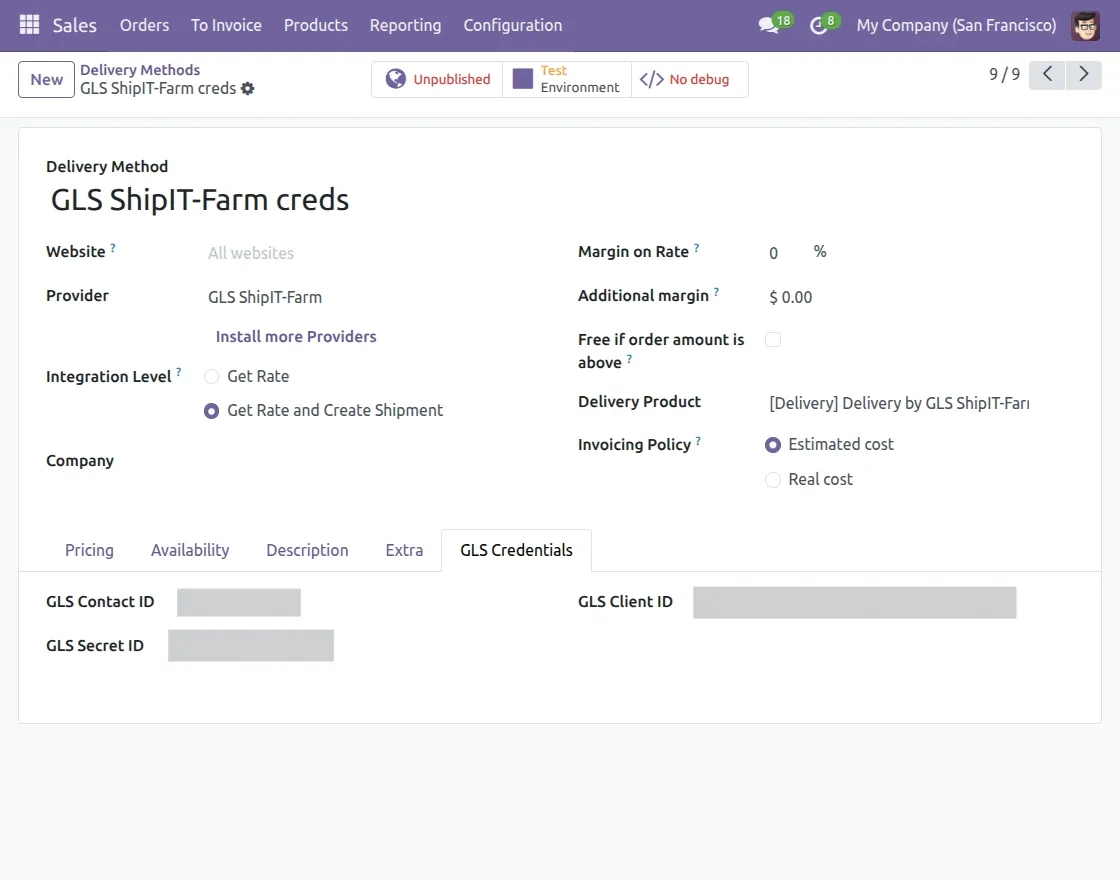
1. First, go to Inventory → Configuration → Delivery Methods. Then, open the GLS ShipIT-Farm delivery method and move to the GLS Credentials section in Odoo.
Next, enter the GLS Contact ID, GLS Secret ID, and GLS Client ID. After that, choose the required integration option and save the settings to connect GLS ShipIT-Farm with Odoo.

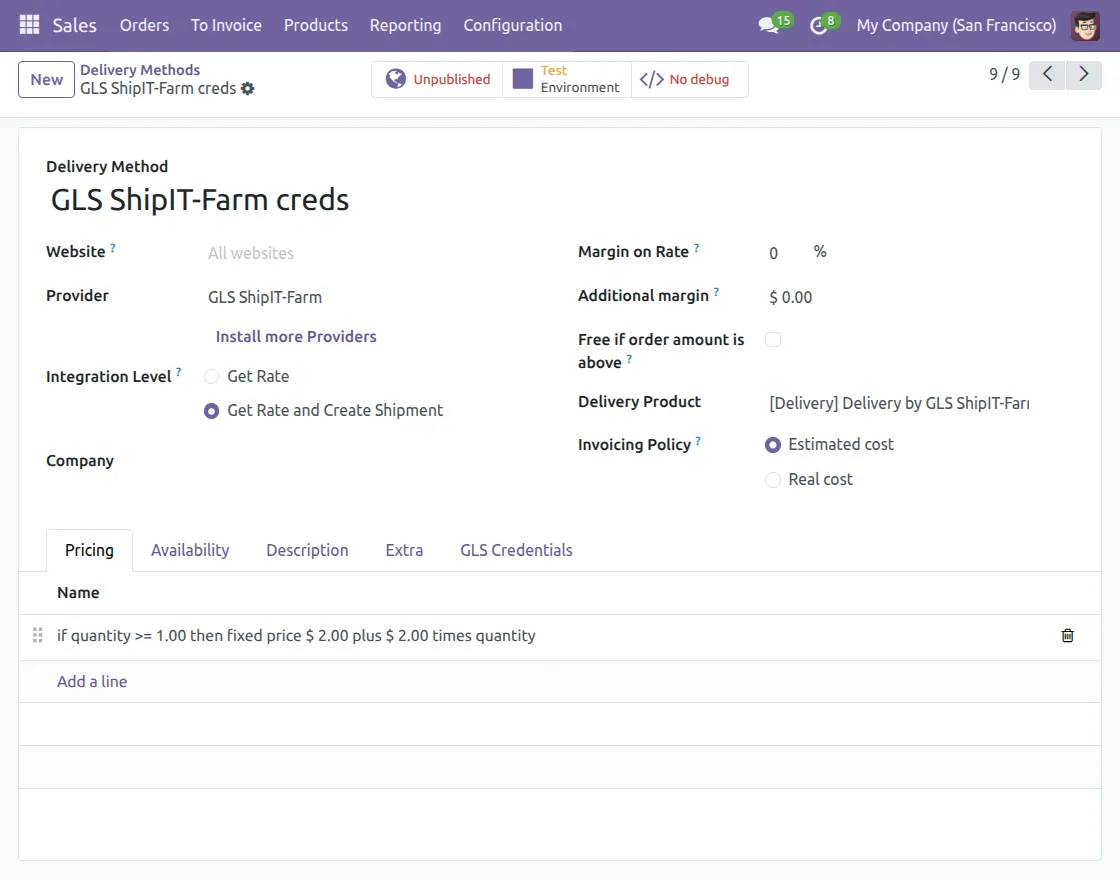
2. Open the Pricing section in the GLS ShipIT-Farm delivery method to configure delivery pricing rules inside Odoo.
Add pricing rules based on quantity, weight, price, or other conditions to calculate GLS ShipIT-Farm shipping charges automatically during order processing.
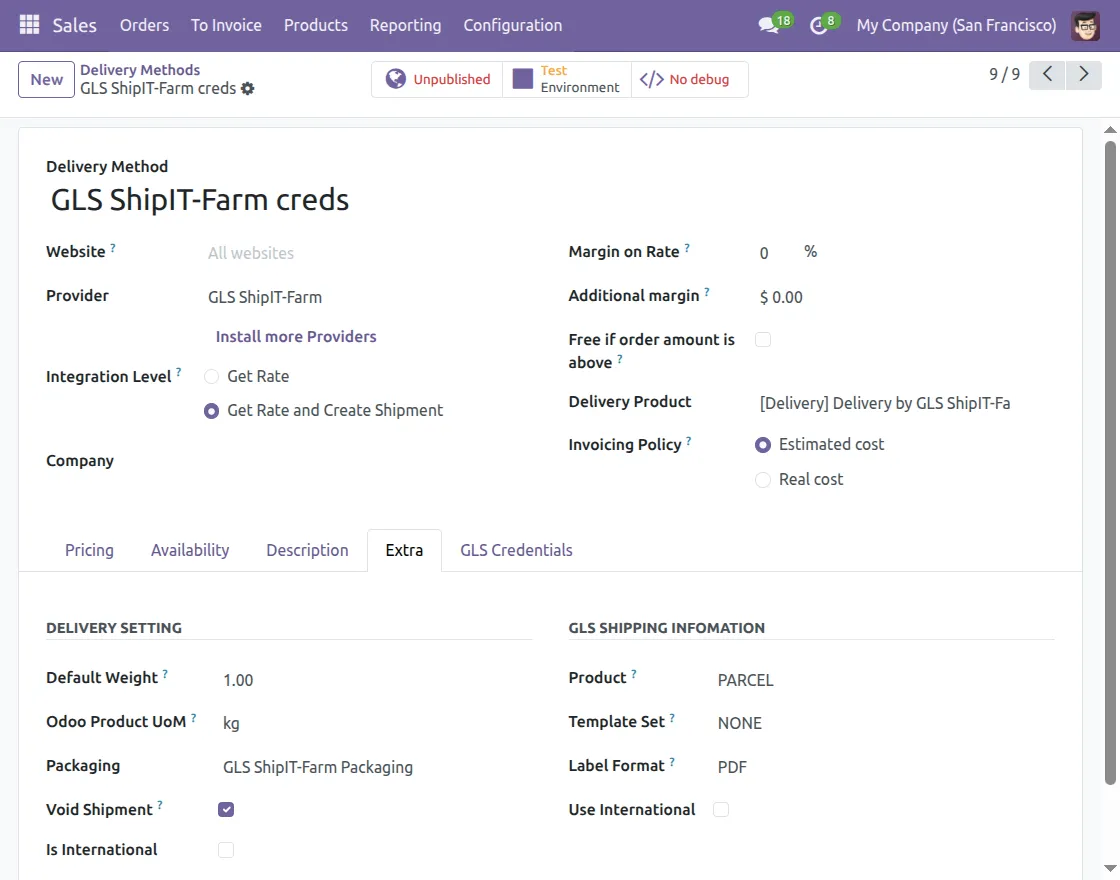
3. Open the Extra section in the GLS ShipIT-Farm delivery method and configure the required shipping settings inside Odoo.
Set the default weight, package type, label format, international shipping options, and other shipment settings, then save the configuration for shipment processing.
4. Click on Add Shipping in the sales order and choose GLS ShipIT-Farm creds as the shipping method in Odoo.
Click on Get Rate to calculate the shipping charge automatically from the delivery pricing rules, then click Add to apply the shipping charge to the order.

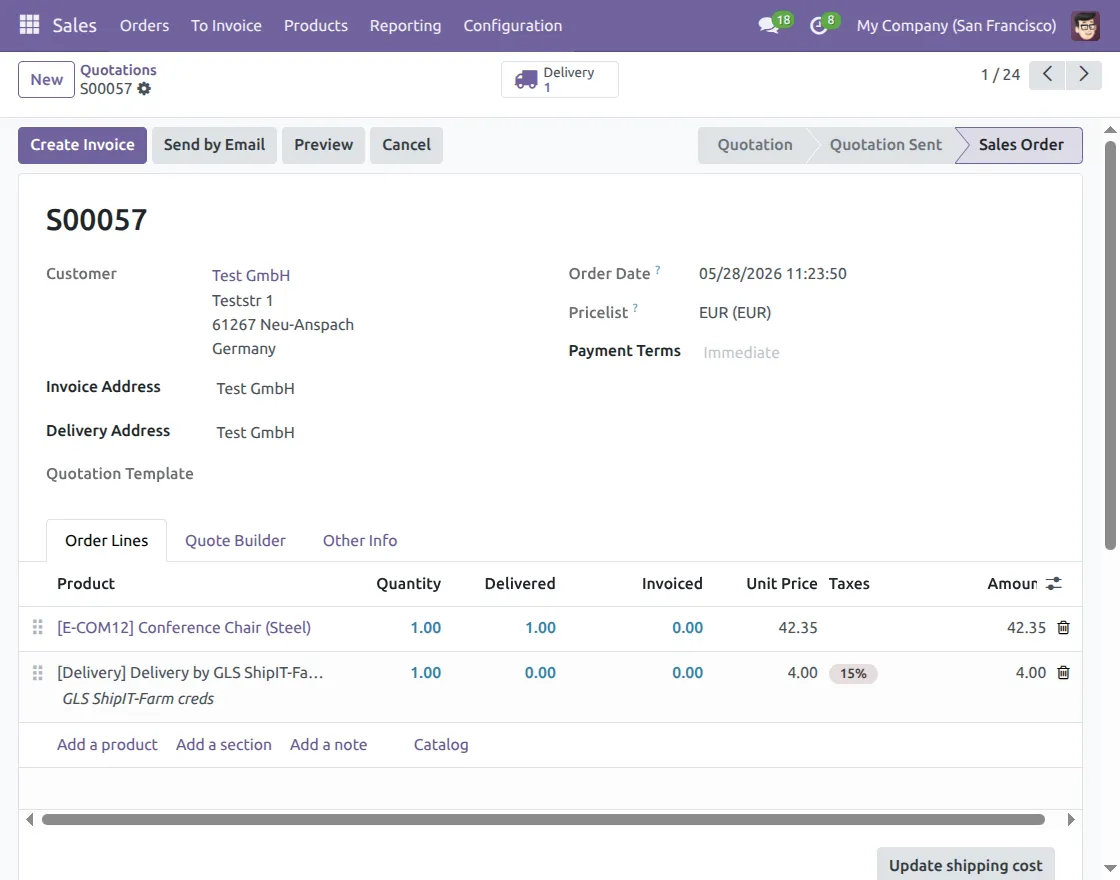
5. After adding the GLS ShipIT-Farm shipping charge, click on Confirm to confirm the sales order in Odoo.
As a result, the delivery order is created automatically with the GLS ShipIT-Farm shipping method and calculated delivery charge details.
6. Open the delivery order in Odoo and click on Put In Pack to add package details for the shipment.
Select the GLS ShipIT-Farm package type, add shipment weight and package dimensions, then click Save to continue shipment processing.

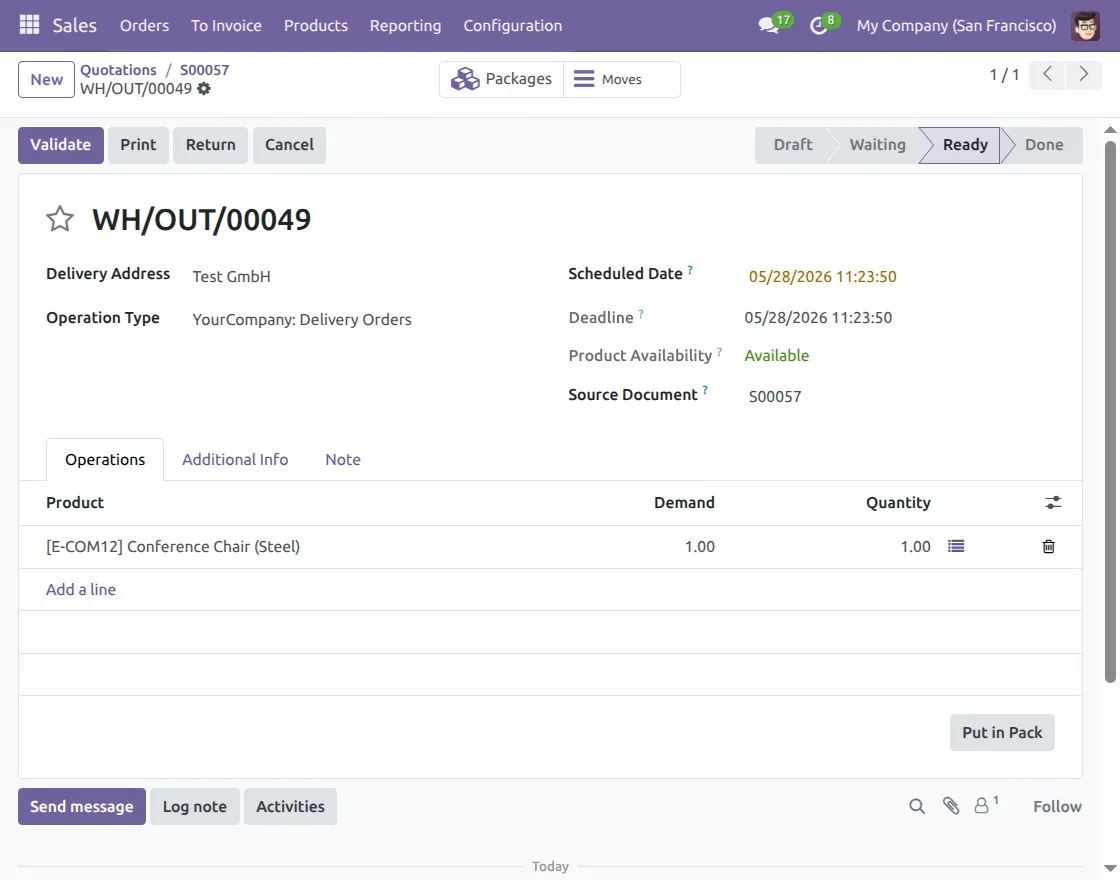
7. Open the delivery order in Odoo to manage the GLS ShipIT-Farm shipment process inside the system.
Users can review delivery information, product quantity, operation details, and shipment data before validating the shipment in Odoo.
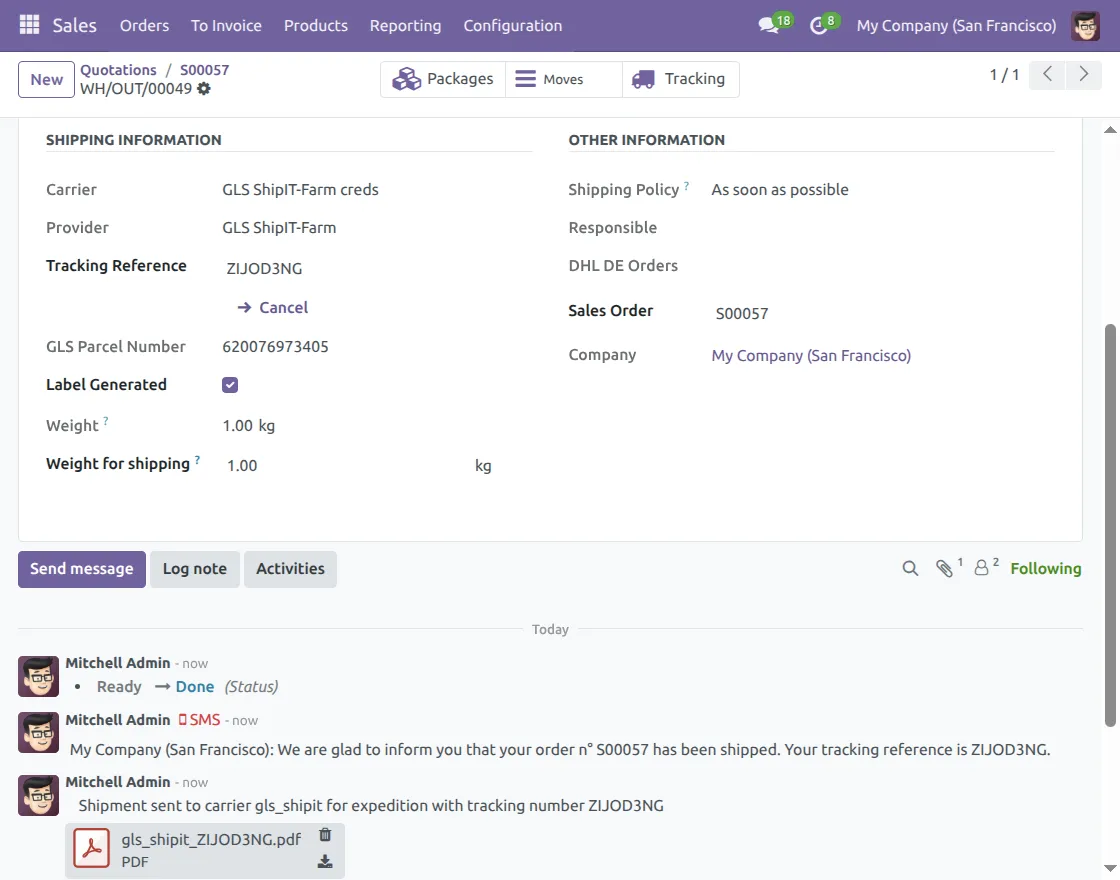
8. After shipment creation, open the delivery order to view GLS ShipIT-Farm tracking details inside Odoo.
Additionally, users can check the tracking reference, GLS parcel number, shipment status, and generated label information directly from the shipment details section.

9. After shipment creation, the shipping label is generated automatically inside the delivery order in Odoo.
Furthermore, users can download the GLS ShipIT-Farm shipping label directly from the shipment record for packaging and dispatch operations.
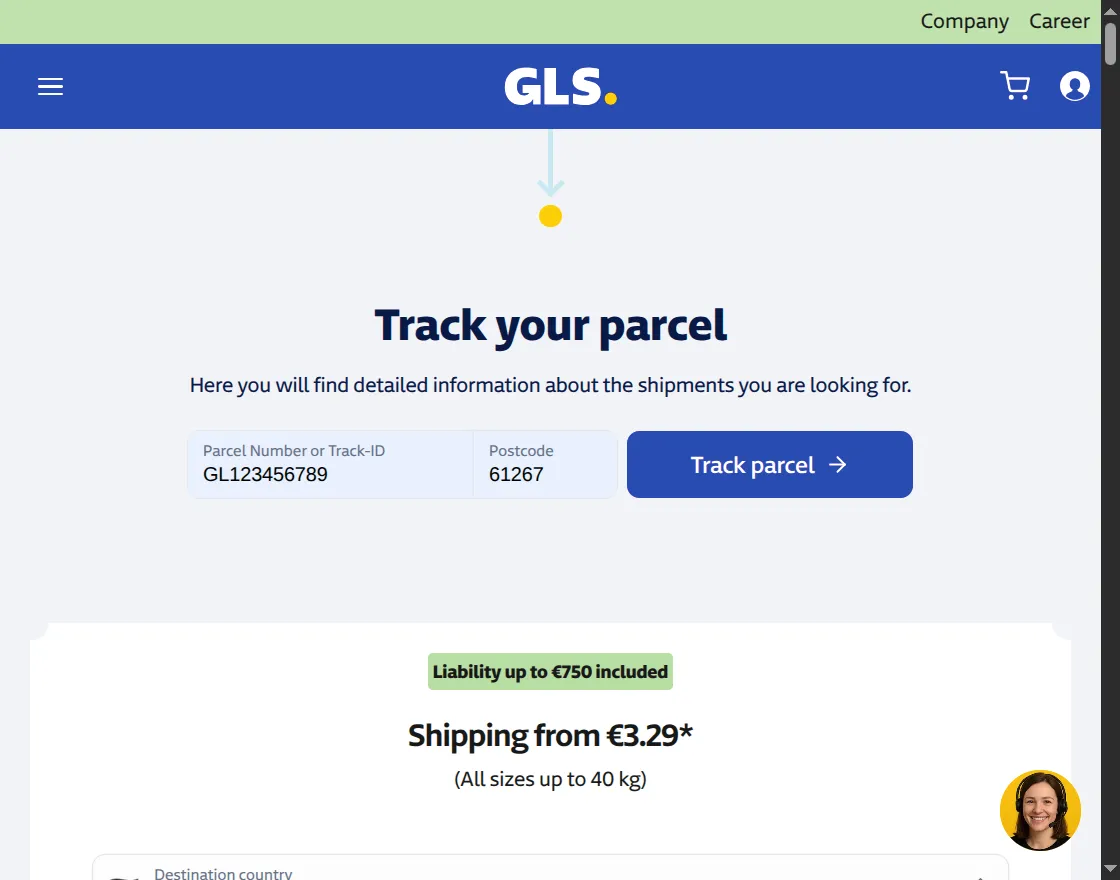
10. Users can also track GLS ShipIT-Farm shipments directly from the GLS tracking portal using the shipment tracking number and postcode details.
Additionally, the GLS tracking page shows live shipment status and delivery tracking updates for the selected shipment.
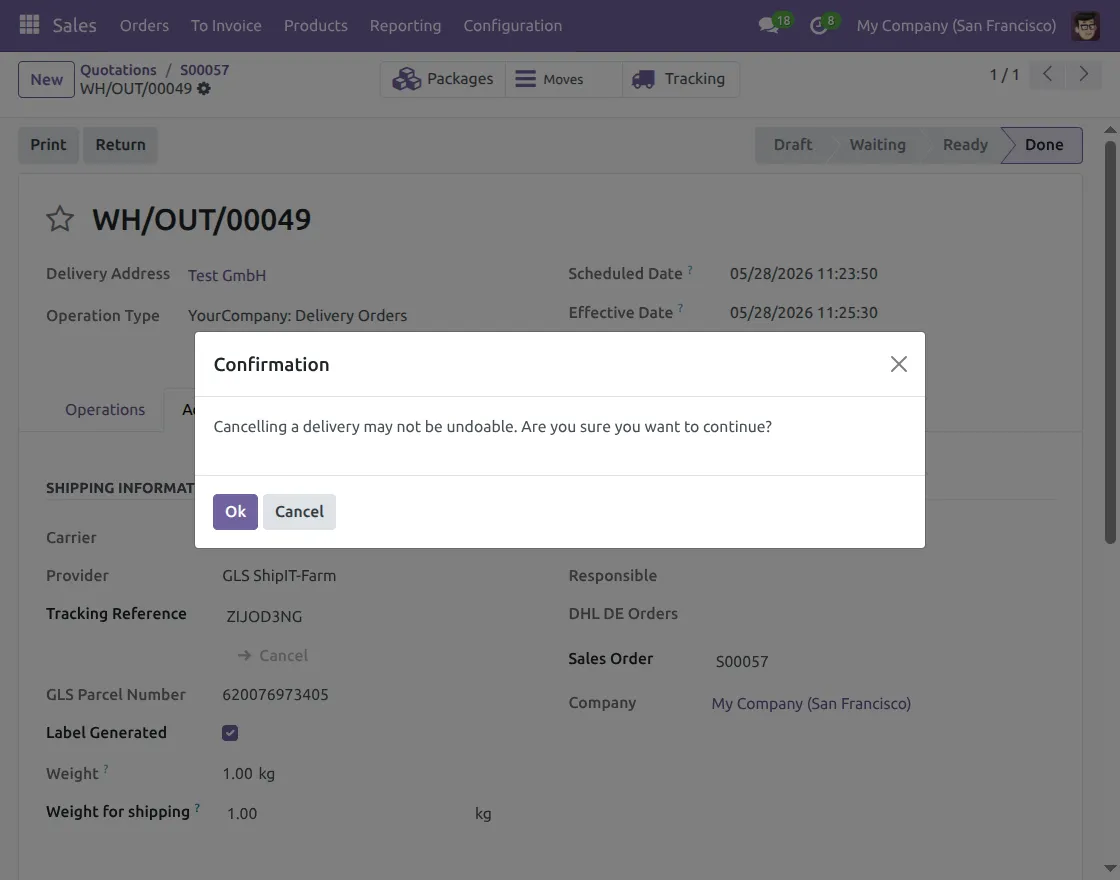
11. Click the Cancel option from the delivery order to stop the GLS ShipIT-Farm shipment before further shipment processing starts.
A confirmation pop-up appears before shipment cancellation. Click Ok to cancel the shipment and update the shipment status inside Odoo.
12. After shipment cancellation, the module automatically updates the shipment status inside Odoo. Furthermore, it shows the shipment cancellation details directly in the delivery order.
Users can also view the shipment cancellation message and updated shipment records directly from the shipment chatter section.

Need Help?
Hope you find guide helpful! Please feel free to share your feedback in the comments below.
If you still have any issues/queries, please create a ticket at the UV Desk.
I hope this helps. In case of any further queries, contact us at our support mail.
Thanks for paying attention!!