User Guide for ERPNext Frequently Bought Together Products
Introduction
ERPNext Frequently Bought Together Products shows companion products on a product page in your ERPNext Webshop store.
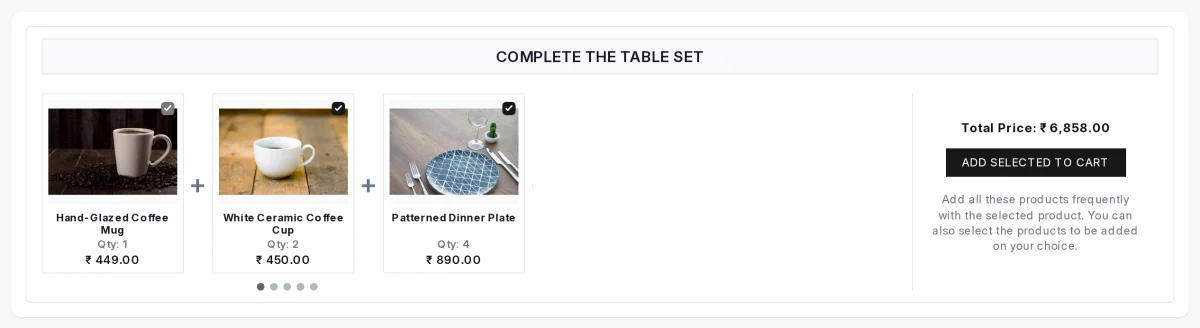
A shopper sees the main product, the products that go with it, and the total price.
The store admin picks the companion products for each product, in the order shoppers should see them. The shopper keeps the products they want and adds the whole product bundle to cart in one click.
This guide shows you how to set up the frequently bought together block and what the shopper sees.
Prerequisites for using ERPNext Frequently Bought Together Products
ERPNext Frequently Bought Together Products works in conjunction with the following module:
Webshop
You must install the above-mentioned module to use the ERPNext Frequently Bought Together Products.
Features
- Show frequently bought together products on any published ERPNext Webshop product page.
- Choose the companion products by hand, in the order you want.
- Set a quantity on each row, so a two-pack goes into the cart as two.
- Give one product its own section heading, or use the store default.
- Turn the block on or off for the whole store.
- Turn it off for one product without deleting its rows.
- Show a slider when the product bundle grows past the display limit.
- Let shoppers add to cart every product they kept, in one click.
Installation
- After purchasing the app from Webkul Store, you will receive a link to download the module ZIP file.
- Extract the ZIP file. You will see a folder named ‘frequently_bought_together_products’.
- Set up the module in your git repository, then fetch it using:
bench get-app --branch main https://git.webkul.com/erpnext-apps/erpnext-frequently_bought_together_products.git
(Replace “main” with your branch name and replace the “HTTPS URL” with your HTTPS clone URL.)
- Install the app on your site:
bench --site <your-site-name> install-app frequently_bought_together_products
- Run bench migrate to complete the setup.
Workflow
Setting Up the Store Defaults
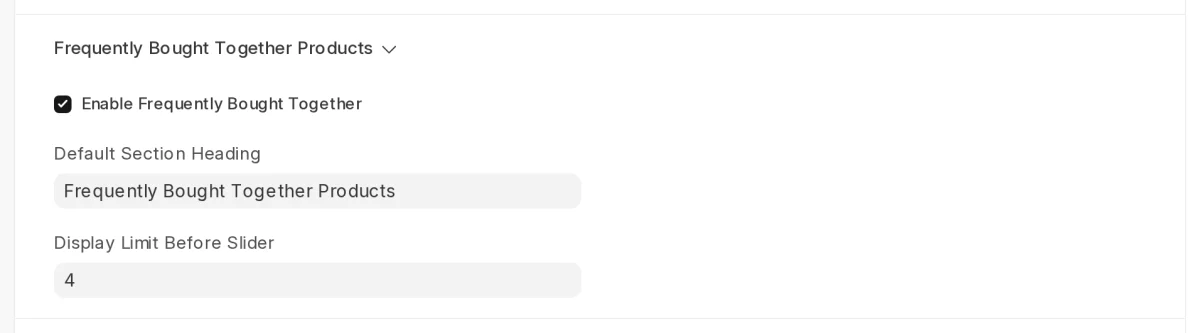
- Open Webshop Settings and expand the Frequently Bought Together Products section.
- Tick Enable Frequently Bought Together to show the block across the store. Clear it to hide the block on every product page.
- Enter the Default Section Heading. Every product page uses this heading unless the product has its own.
- Set Display Limit Before Slider. When a product has more companion products than this number, the block turns into a slider. The default is 4.

- Click Save.
Adding Companion Products to a Product
- Open Website Item and open the product you want to set up.
- Expand the Frequently Bought Together Products section. The Products table lists the companion products in the order shoppers see them.

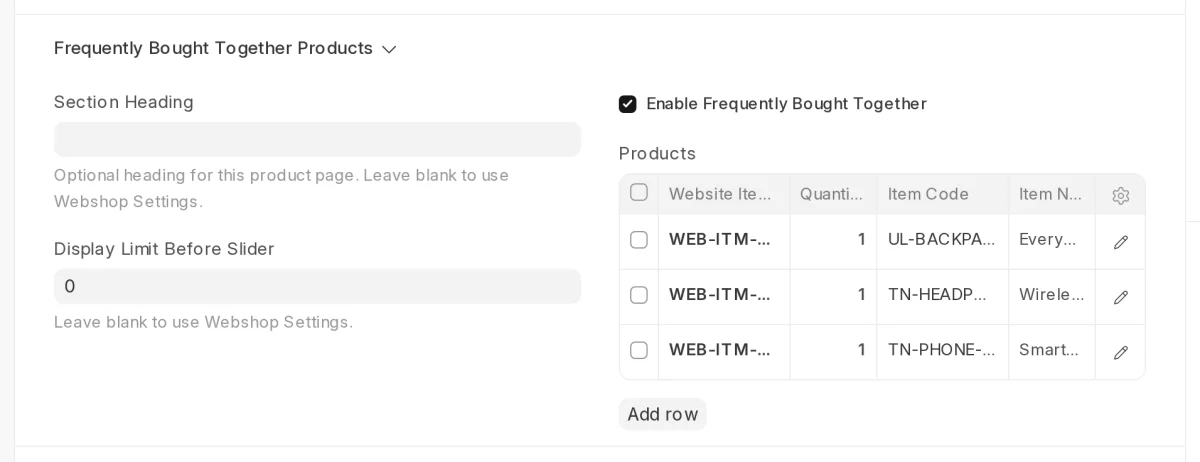
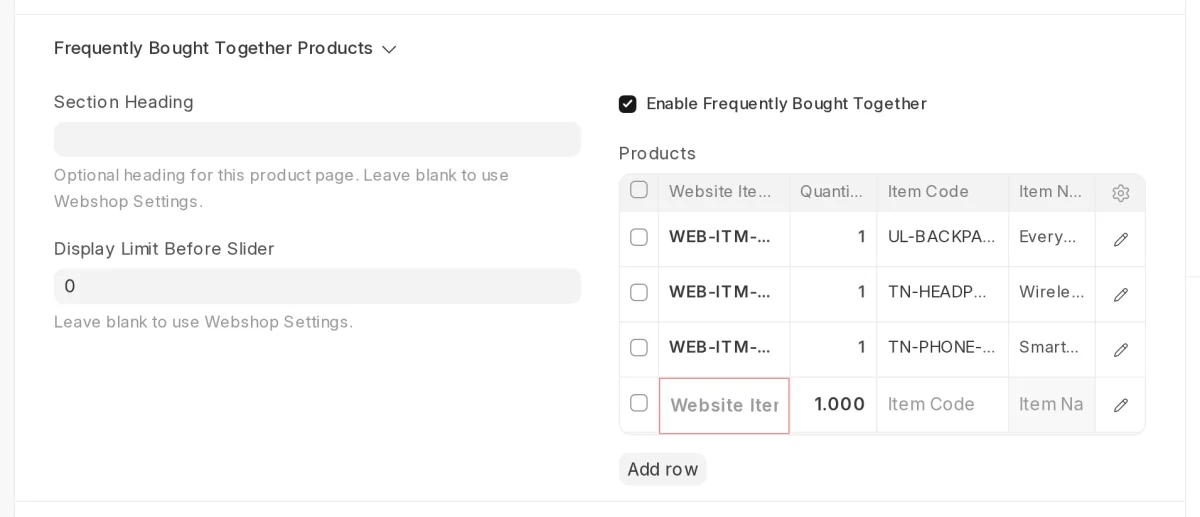
- Click Add row under the Products table.
- Pick a published product in Website Item. The app fills in Item Code and Item Name for you.
- Enter the Quantity. A shopper who keeps this product gets this quantity in the cart.

- Click Save.
Note: Only published products show in the block. A row that points to an unpublished product stays in the table but does not appear on the website.
Giving One Product Its Own Settings
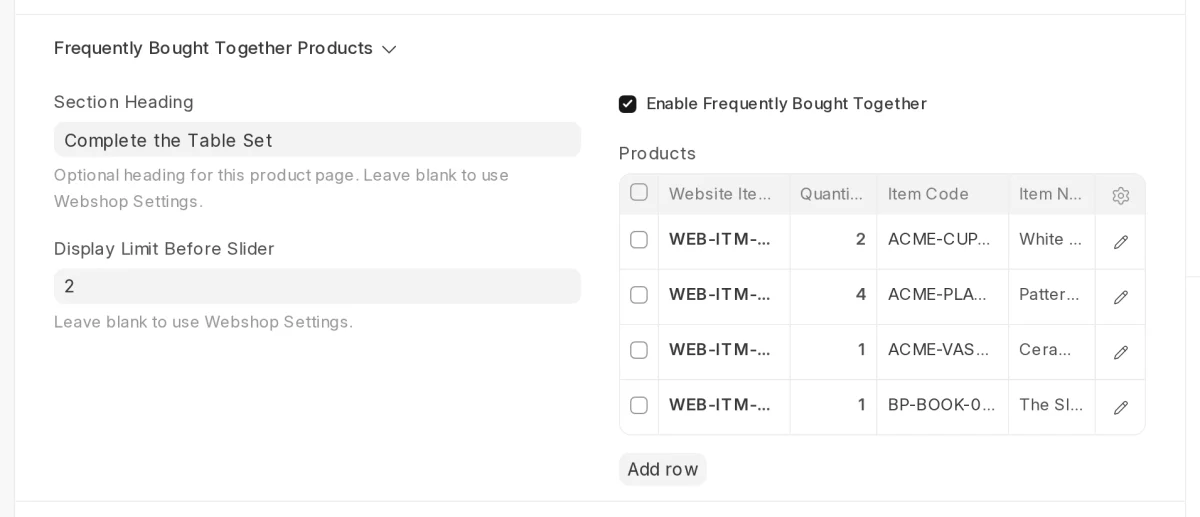
- Enter a Section Heading to replace the store heading on this product page only.
- Enter a Display Limit Before Slider to replace the store limit for this product. Leave it blank or at 0 to use the store limit.
- Clear Enable Frequently Bought Together to hide the block on this page. The app keeps the rows, so you can turn it back on later.
- Click Save.
Shopping a Product Bundle on the Website
- Open a product page in the store. The frequently bought together block shows the main product, each companion product, its quantity and its price. The block shows the Total Price for the whole product bundle.

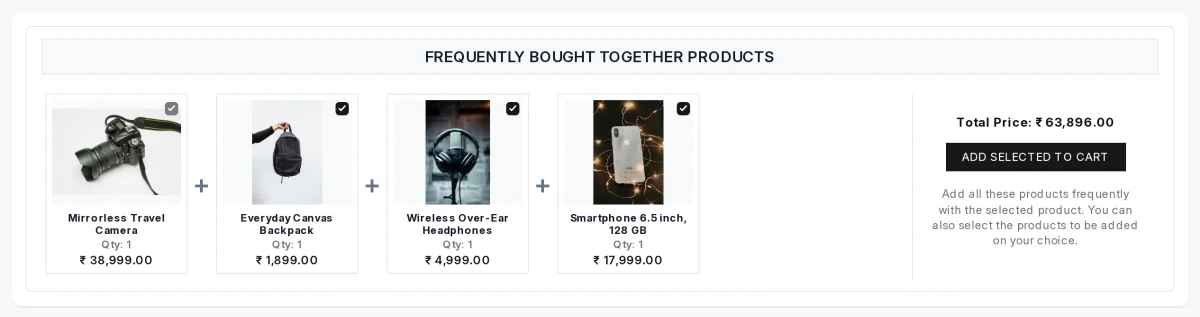
- Clear the tick on any product you do not want. The Total Price updates at once. The main product always stays ticked.
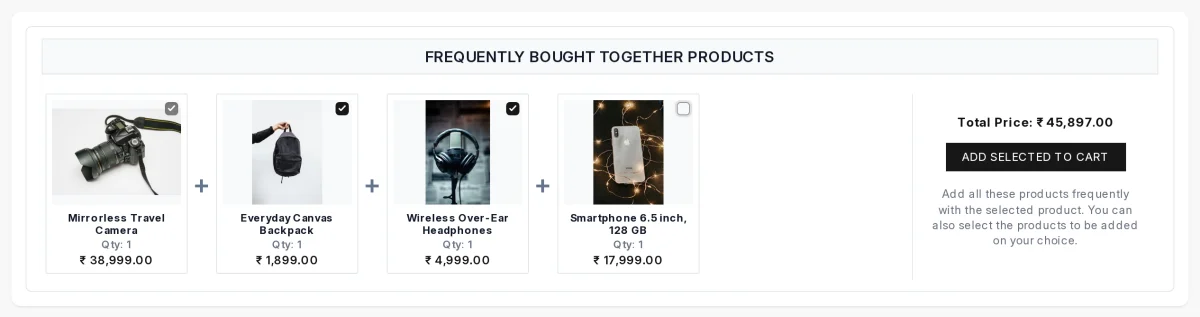
- Click Add Selected to Cart. The app adds the main product and every ticked product to the cart. A View in Cart button appears.
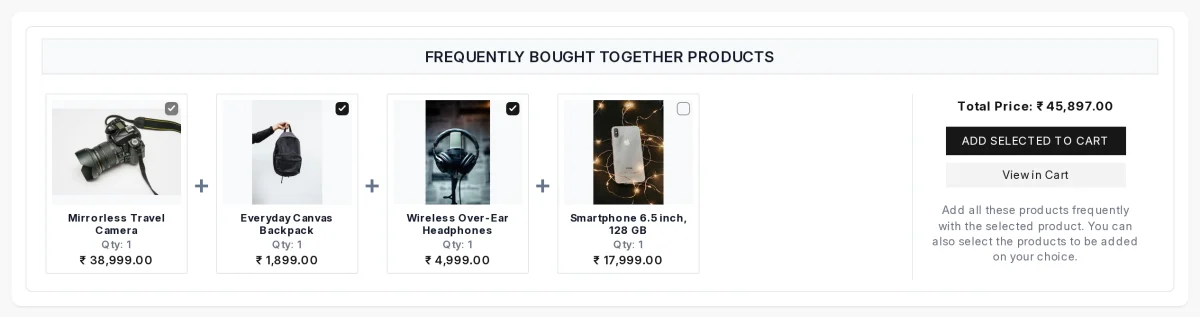
- Click View in Cart to see the products in the cart.

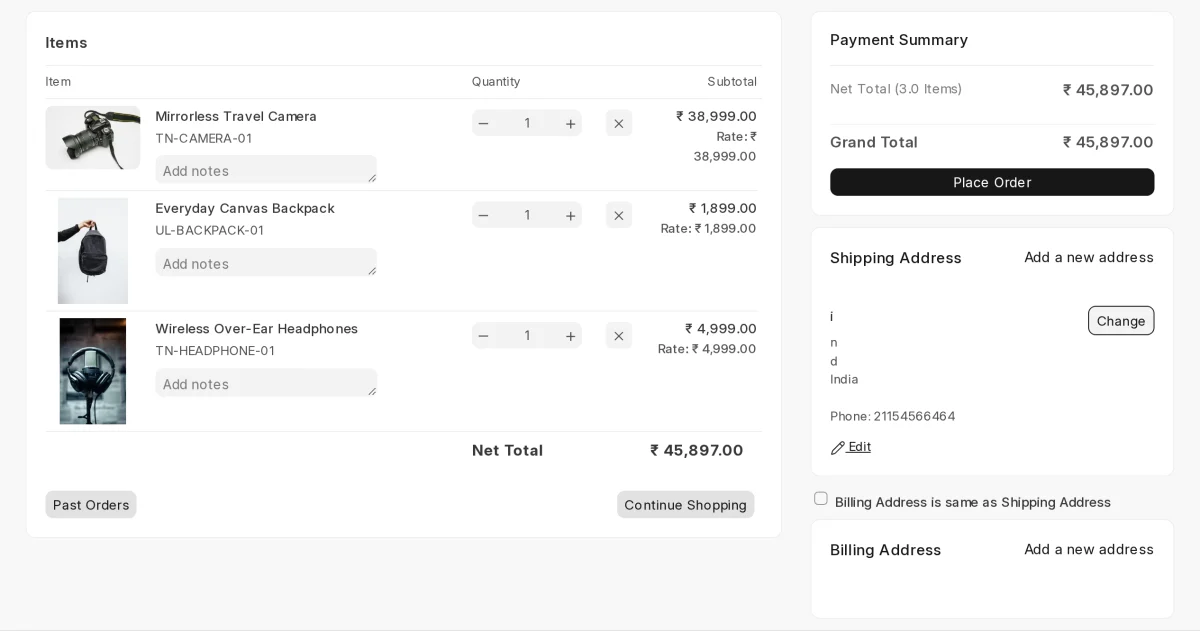
- Open a product with more companion products than its display limit. The block shows a slider with dots under it. Scroll sideways to see the rest of the product bundle. This page also shows its own section heading.

Note: When you turn off checkout in Webshop Settings, the button reads Add Selected to Quote instead.
Need Help?
Hope you find this guide helpful! Please feel free to share your feedback in the comments below.
If you still have any issues/queries, please create a ticket at the UV Desk.
I hope this helps. In case of any further queries, contact us at our support mail.
Thanks for paying attention!!
Current Version – 0.0.1
Supported Framework Version – ERPNext v16