User Guide for ERPNext Website Customer Address Book
Live Demo
Introduction
ERPNext Customer Address Book lets customers manage their own delivery and billing addresses directly from the website, without needing to contact the store admin for every change.
Customers can save multiple addresses to their address book, mark one as the default shipping address and another as the default billing address, and switch between them at checkout in a few clicks.
On the backend, the store admin gets a complete view of every customer address from the standard ERPNext Address list, along with the ability to edit, disable, or delete any record.
Prerequisites for using ERPNext Customer Address Book
ERPNext Customer Address Book works in conjunction with the following module:
You must install the above-mentioned module to use the ERPNext Customer Address Book.
Features
- Lets customers create and manage their own address book from the website.
- Add multiple addresses from the website.
- Select a default shipping address and a default billing address.
- Update any existing address from the website.
- Delete any existing address from the website.
- Update or select any saved address directly during checkout.
- View all customer addresses from the backend under Selling > Setup > Address.
- Edit, disable, or delete any customer address from the backend.
Installation
- After purchasing the app from Webkul Store, you will receive a link to download the module ZIP file.
- Extract the ZIP file. You will see a folder named ‘erpnext_website_customer_address_book’.
- Set up the module in your git repository, then fetch it using:
bench get-app --branch main
https://github.com/your-org/erpnext_website_customer_address_book
(Replace “main” with your branch name and replace the “HTTPS URL” with your HTTPS clone URL.)
4. Install the app on your site:
bench --site <your-site-name> install-app erpnext_website_customer_address_book
5. Run bench migrate to complete the setup.
Workflow
Address Book on the Website
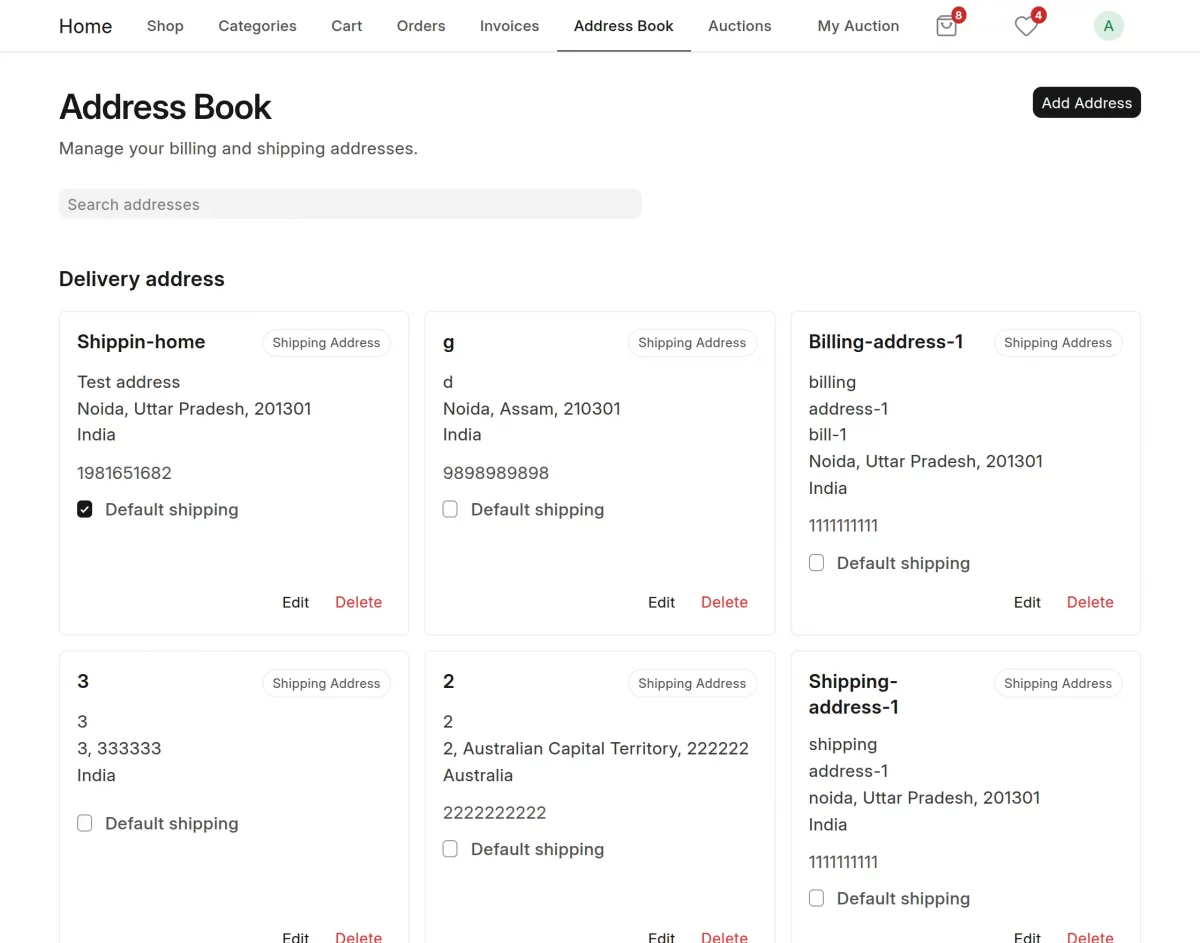
- Once the module is installed, an Address Book section becomes available on the website for logged-in customers.
Customers can open this section to view, add, and manage all their saved addresses in one place.

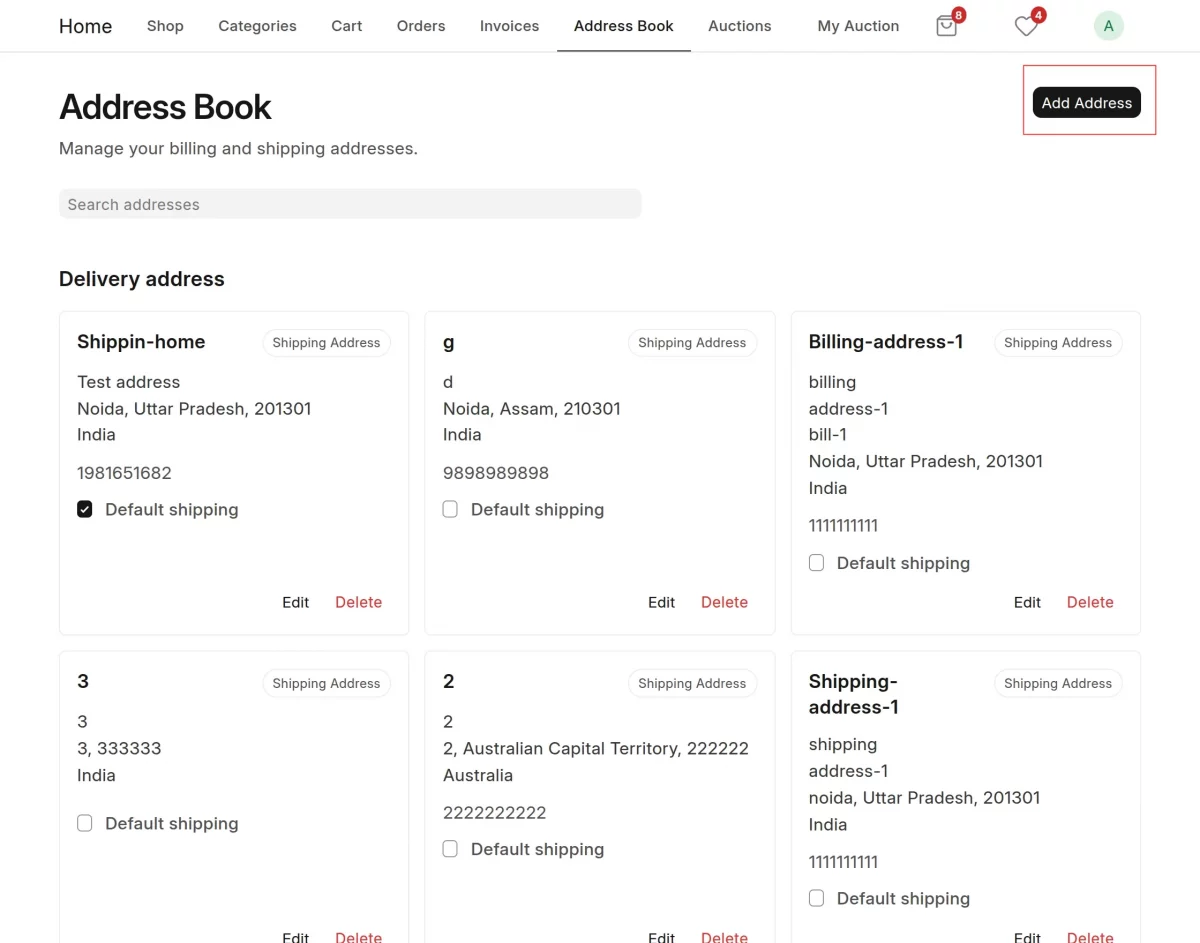
- Click Add Address to save a new address to the address book.
Customers can add as many addresses as needed, for both shipping and billing purposes.
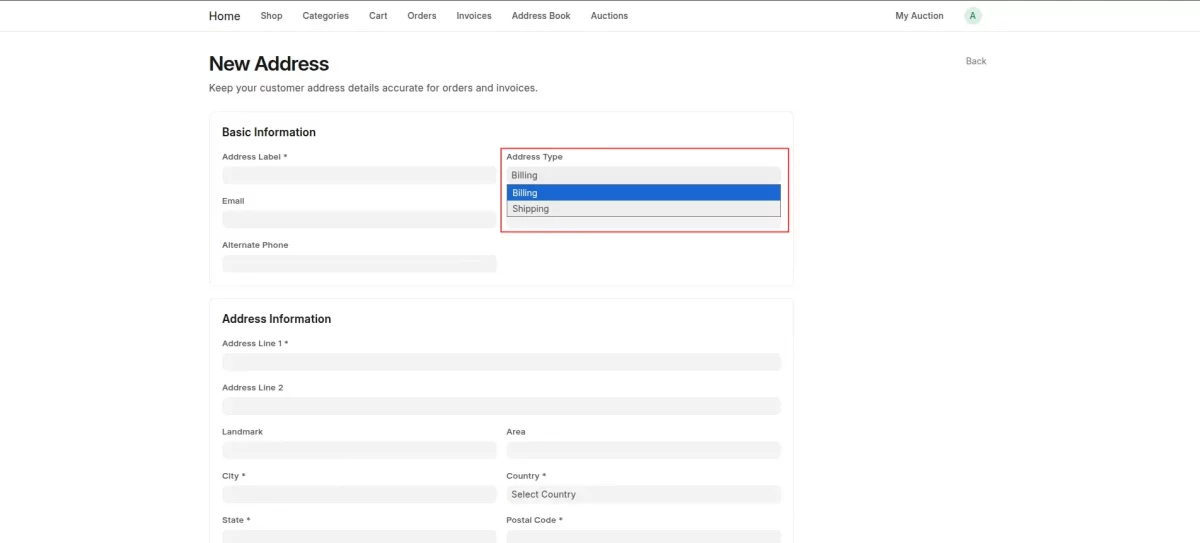
- While adding or editing an address, customers can choose whether it is a shipping address or a billing address.

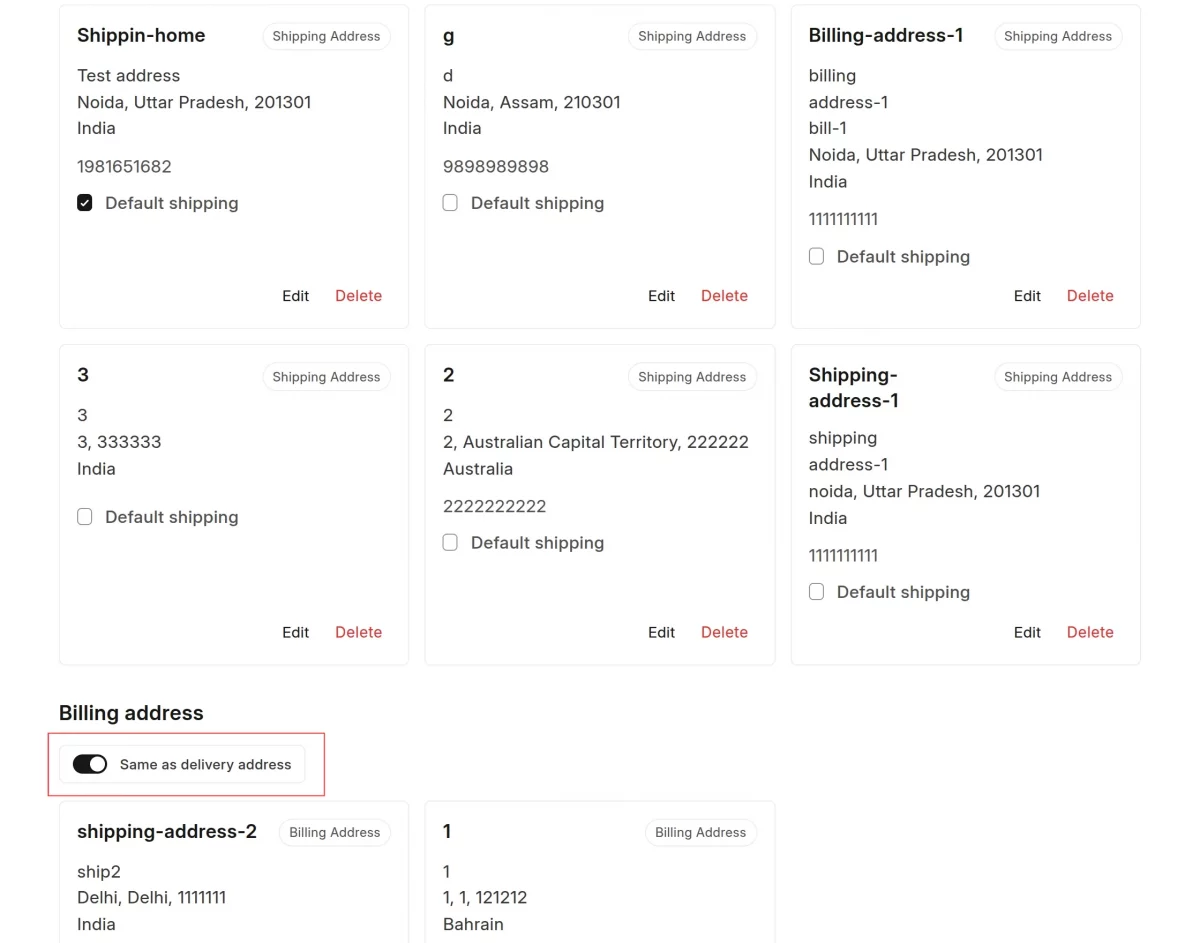
- Use the Same as shipping address toggle in the billing section to reuse the default shipping address as the billing address.
Turning the toggle off lets the customer pick or enter a separate billing address instead.
- Mark any saved address as the default shipping or default billing address.
The selected default address is automatically used the next time the customer checks out.
- Customers can edit any existing address from the address book at any time.
Updates are saved directly to that address record.

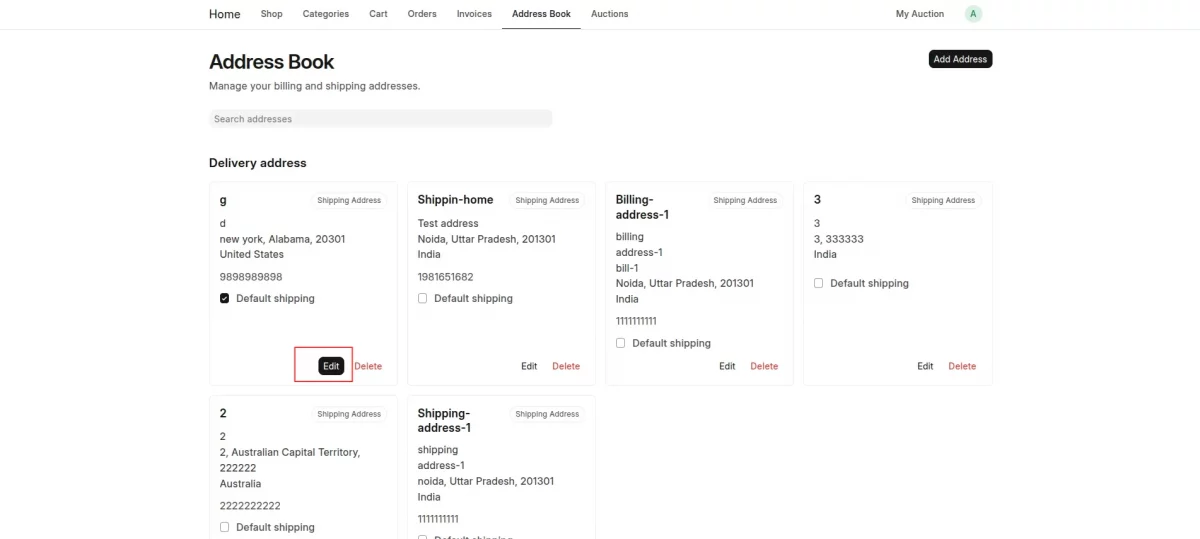
- Customers can also delete any address they no longer need from the address book.
Managing Addresses at Checkout
- During checkout, customers can select any previously saved address instead of entering one manually.
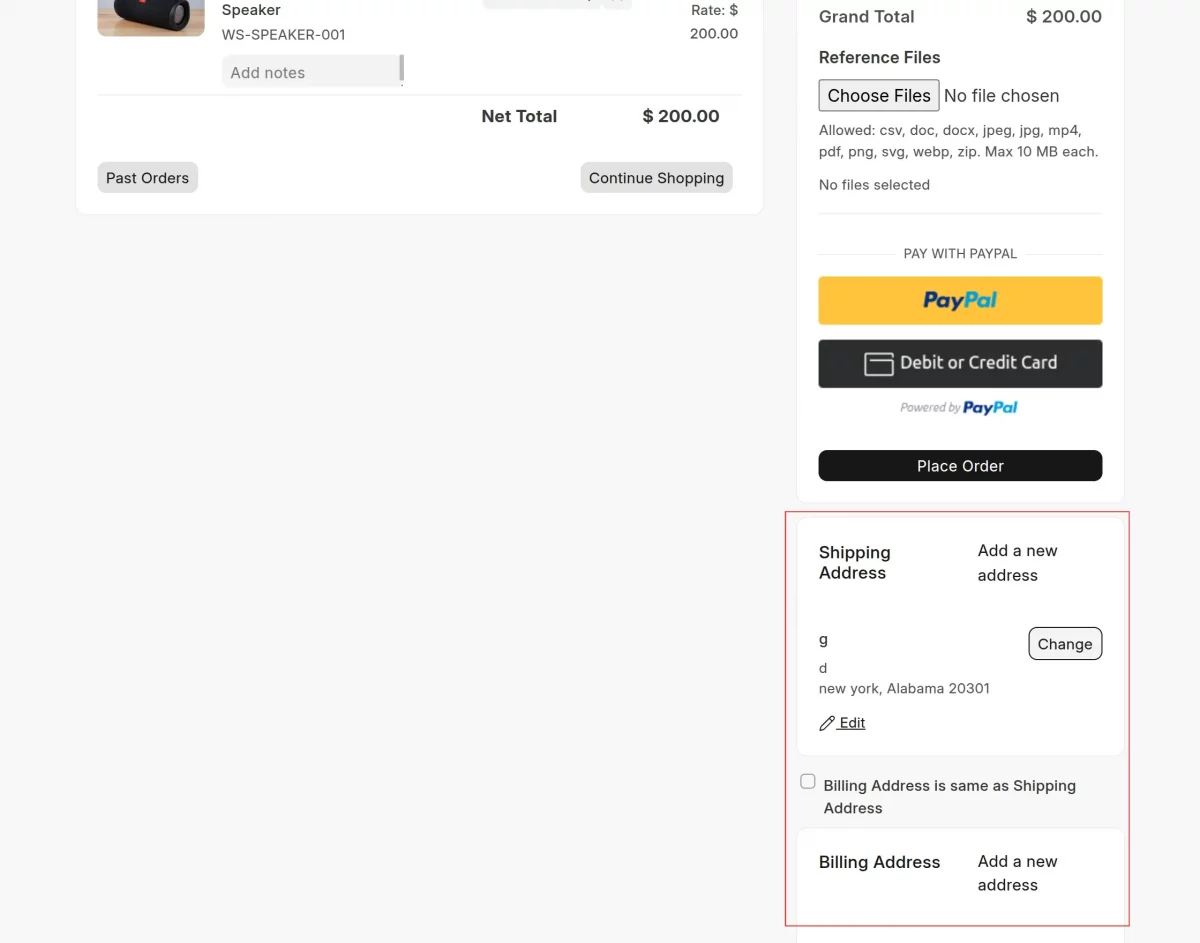
- Customers can also update an address while checking out.
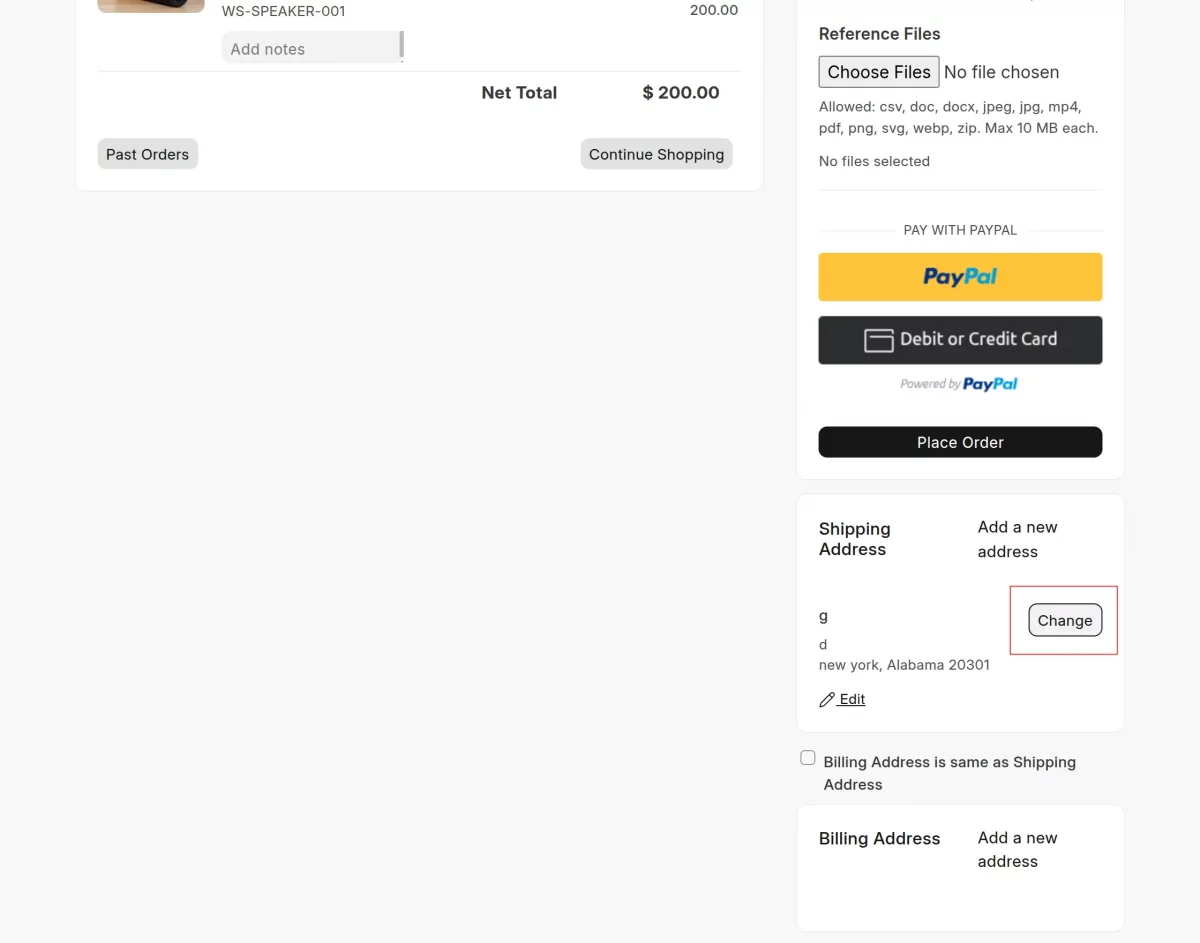
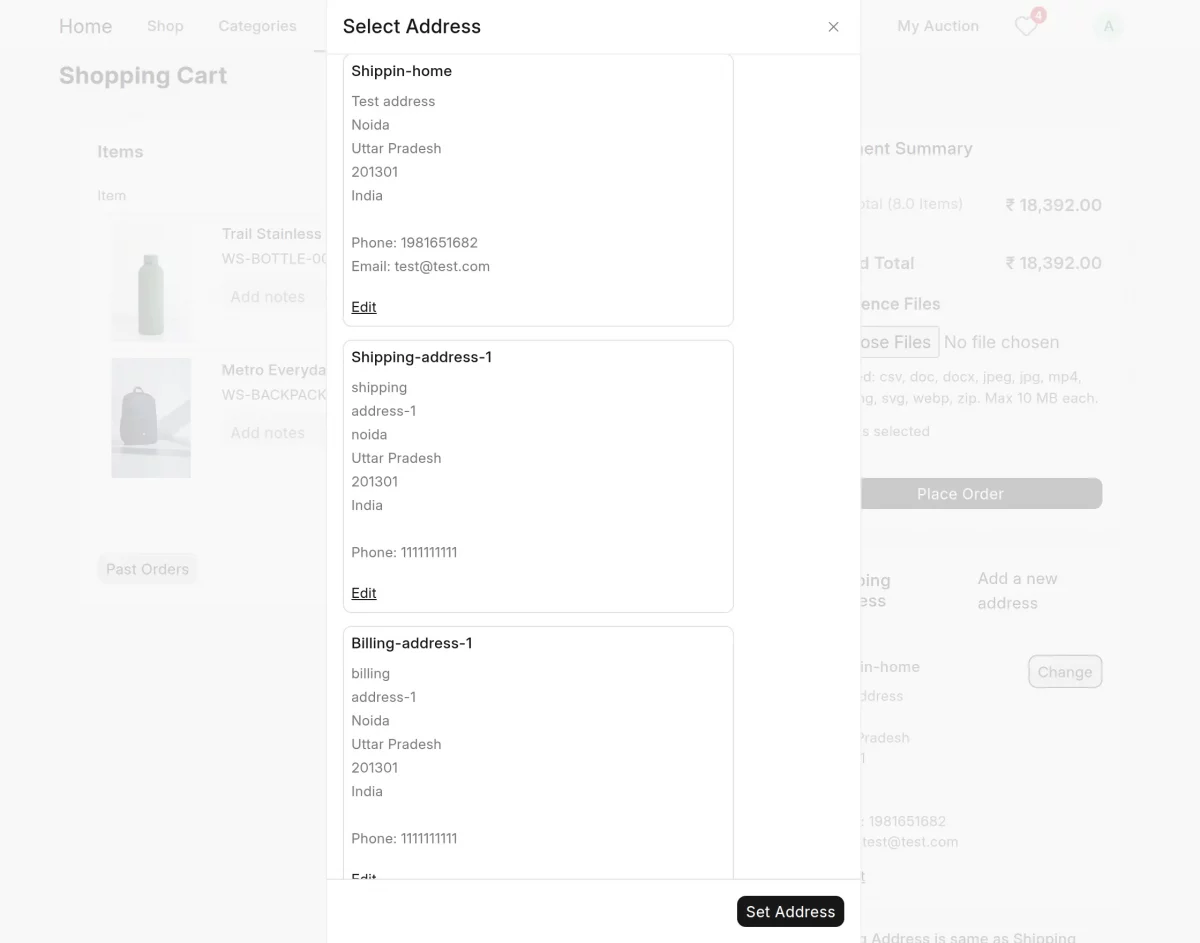
Changes made at checkout are reflected back in the customer’s address book.
Managing Addresses from the Backend
- The store admin can view every customer address from the ERPNext backend under Selling > Setup > Address.
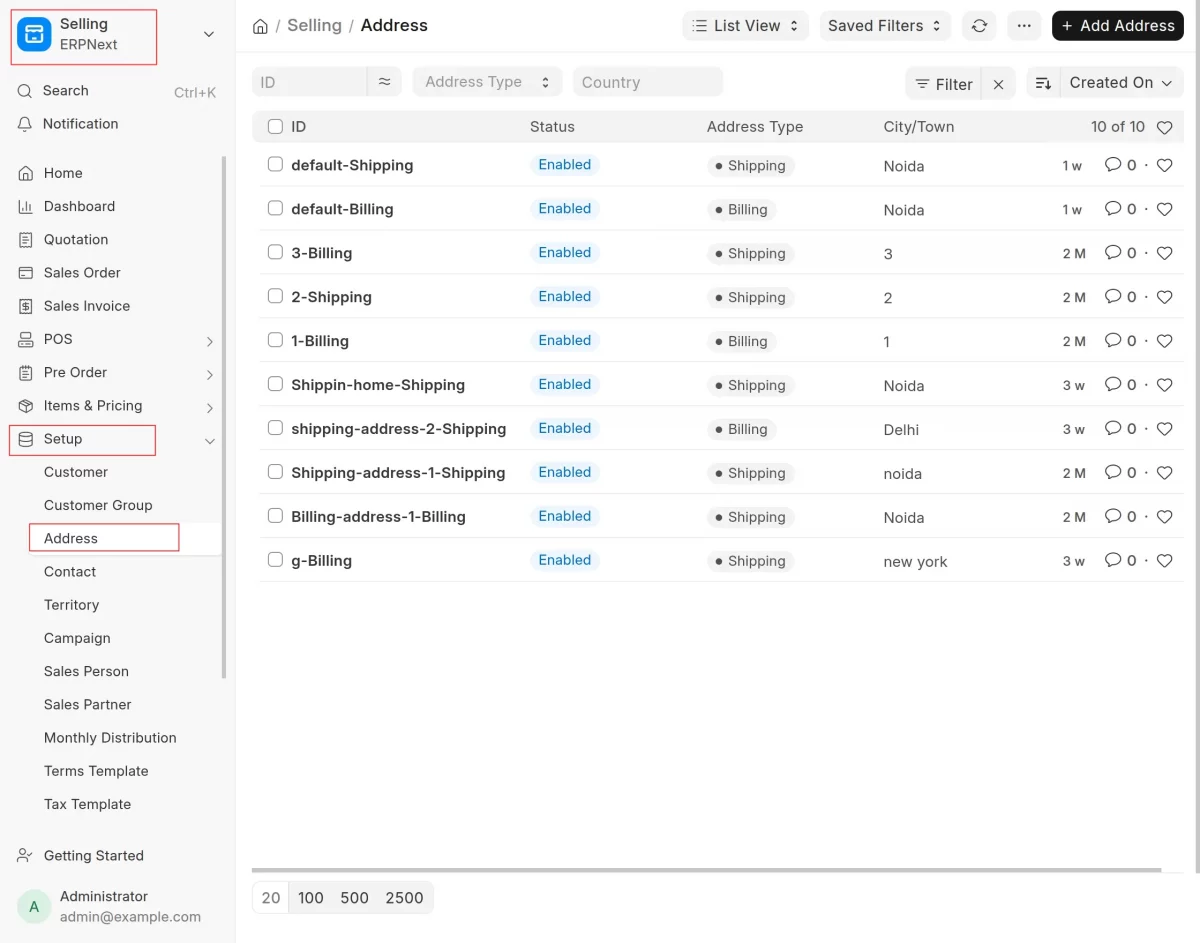
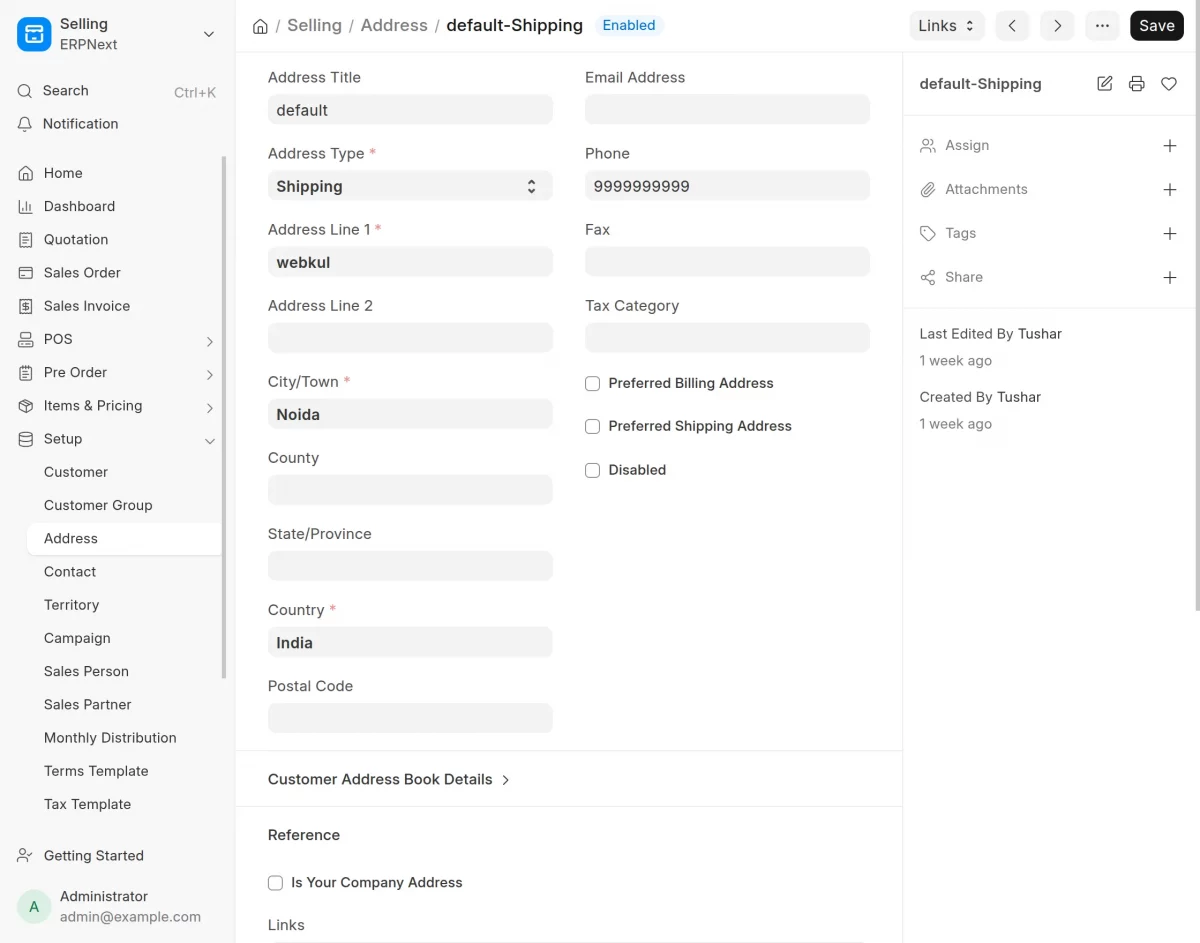
- From this list, the admin can open any address to edit its details.
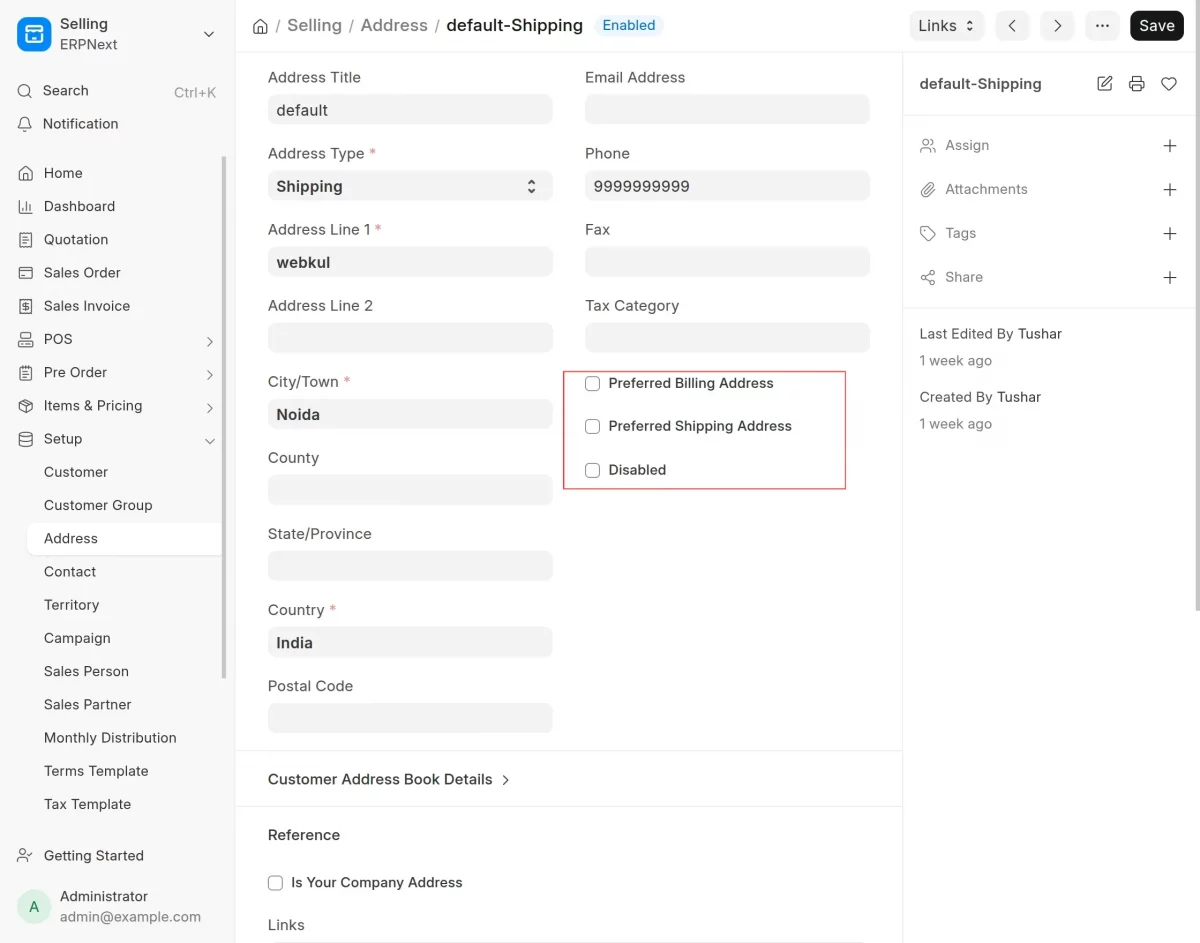
- The admin can also disable an address to stop it from being used without permanently removing the record, or select it as a preferred billing or shipping address.
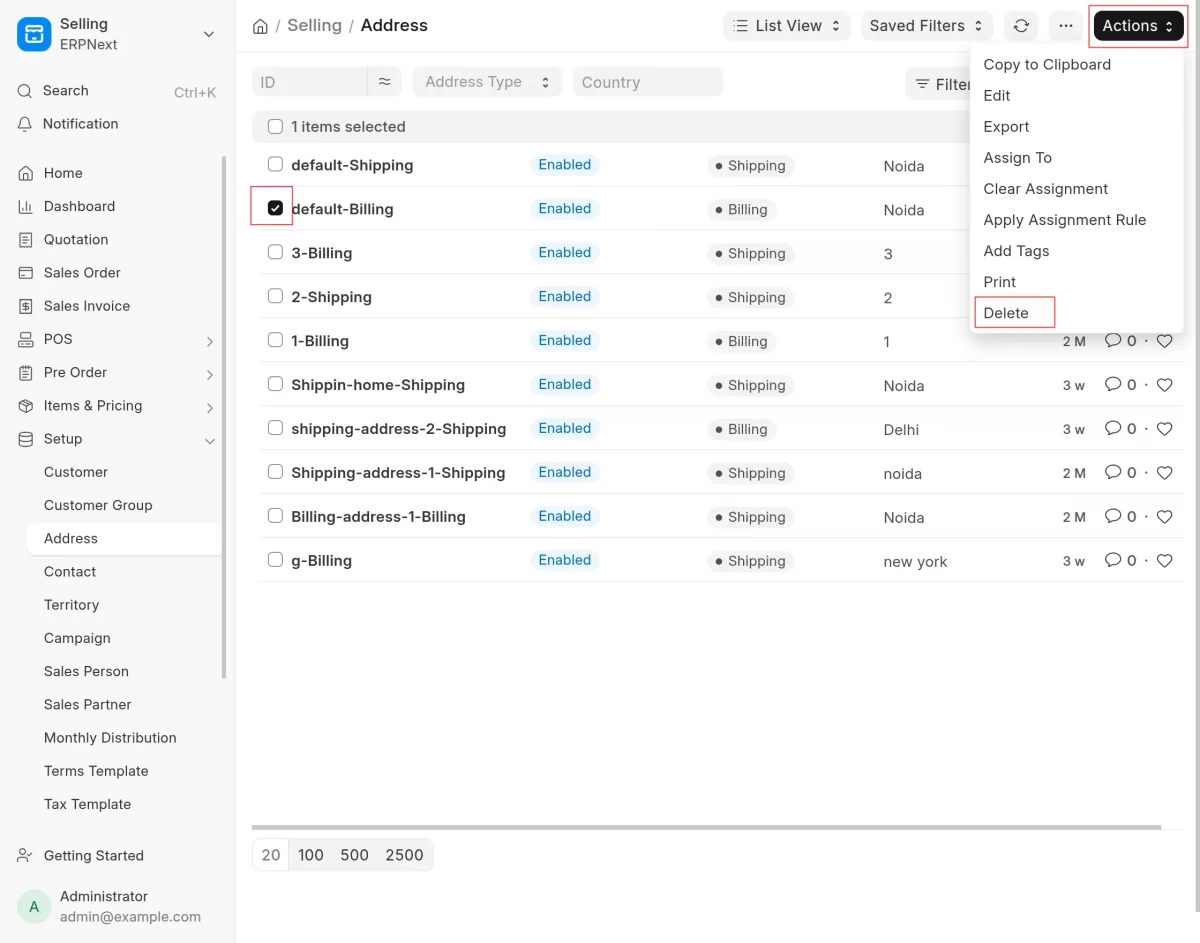
- The admin can delete any customer address directly from the backend when it’s no longer required.
Select address->click on action-> click delete
Need Help?
Hope you find guide helpful! Please feel free to share your feedback in the comments below.
If you still have any issues/queries, please create a ticket at the UV Desk.
I hope this helps. In case of any further queries, contact us at our support mail.
Thanks for paying attention!!