CS-Cart Spin To Win add-on adds a spin wheel feature to your storefront that allows customers to participate in a simple game and receive predefined rewards.
Store administrators can configure the wheel, define reward segments, and control how often users can play.
This add-on helps you present offers in an interactive format and display them on selected pages of your store.
Customers can spin the wheel and receive outcomes such as discount coupons or promotional benefits based on the configuration.
The feature supports both guest users and registered users, which allows you to apply different participation rules and reward conditions for each group.
Create and manage multiple spin wheel games from the admin panel.
Display the spin wheel on selected pages using layout management.
Define reward segments for each section of the wheel.
Configure discount coupons and promotional rewards.
Set spin limits for guest users and registered users.
Apply conditions to control reward eligibility.
Customize wheel labels, colors, and text.
Enable or disable the game based on your requirements.
Track user participation and reward usage from the admin side.
Check a brief overview of the add-on –
Installation
After downloading the CS-CartSpin to Win add-on, you’ll get one zip file, one install.txt file, and a relevant User Guide manual doc.
Please read it carefully for proper configuration.
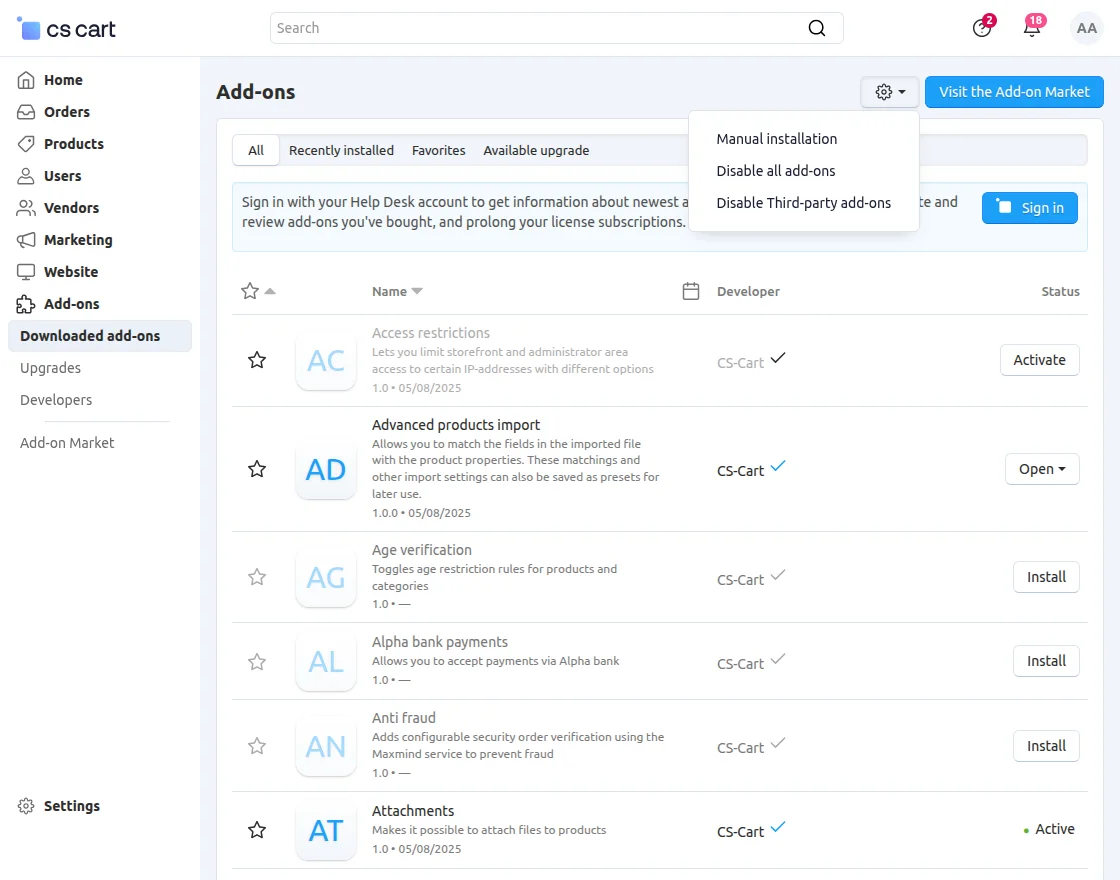
Go to Manage Add-ons, and click on “Manual Installation” as shown below in the snapshot.
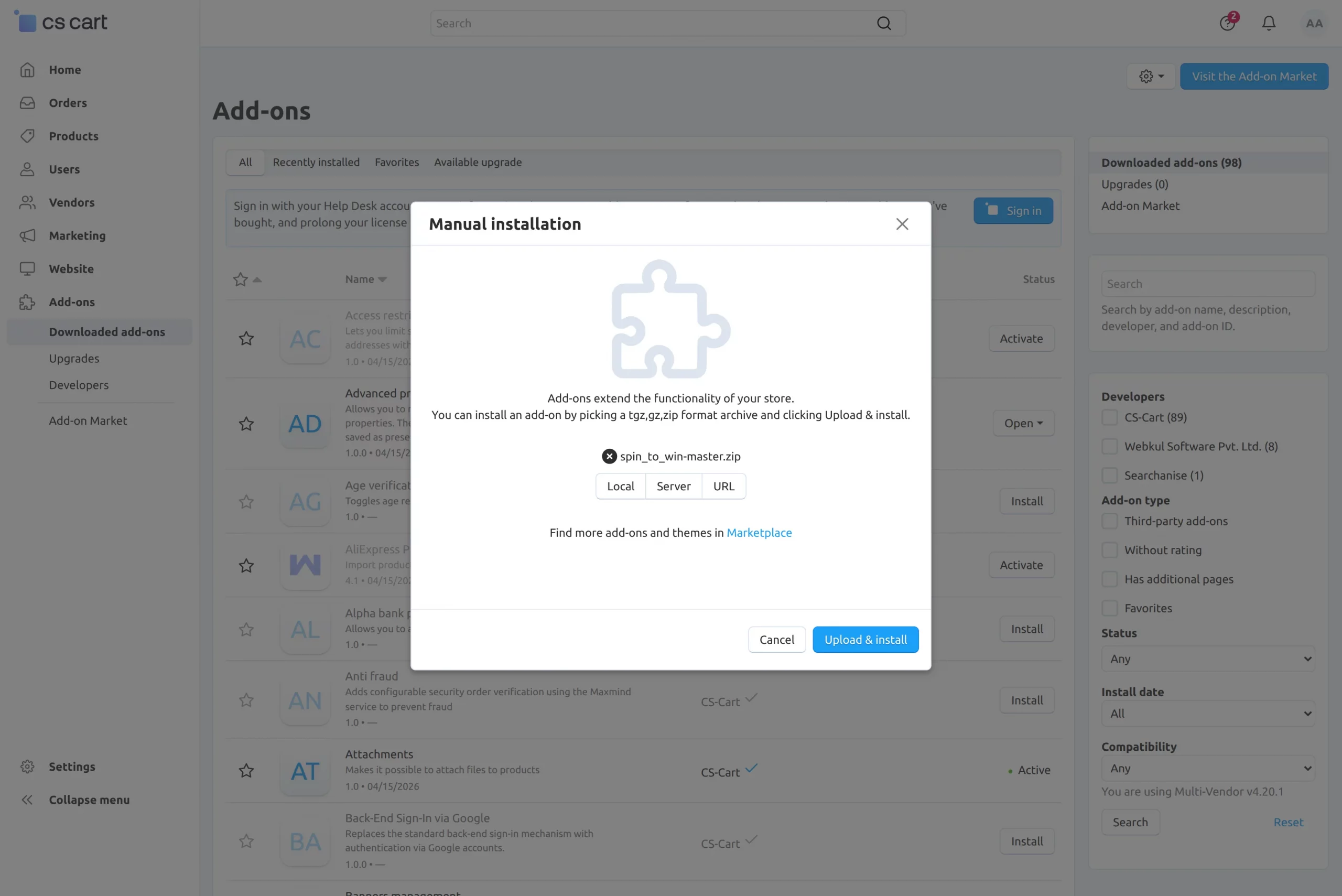
Click on “Local” to browse the zip file, and then click on “Upload & Install” as shown below in the snapshot.
Module Configuration | Admin
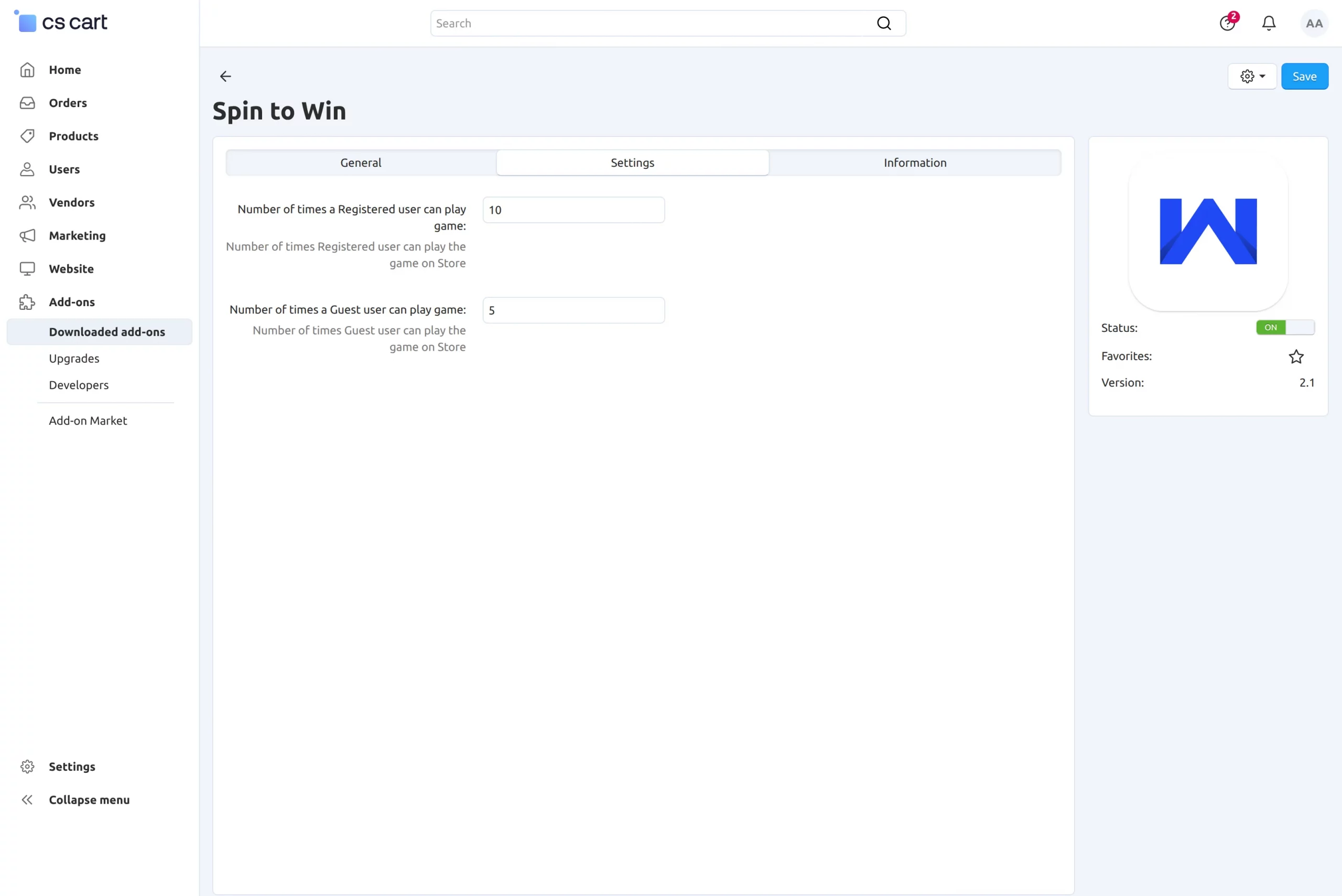
To configure the module, go to the Add-Ons >> Developers >> Webkul Software Pvt Ltd. >> Spin to Win>>Settings.
Number of times a registered user can play the game: Enter the number of attempts allowed for each registered user.
Number of times a guest user can play the game: Enter the number of attempts allowed for guest users.
Promotions
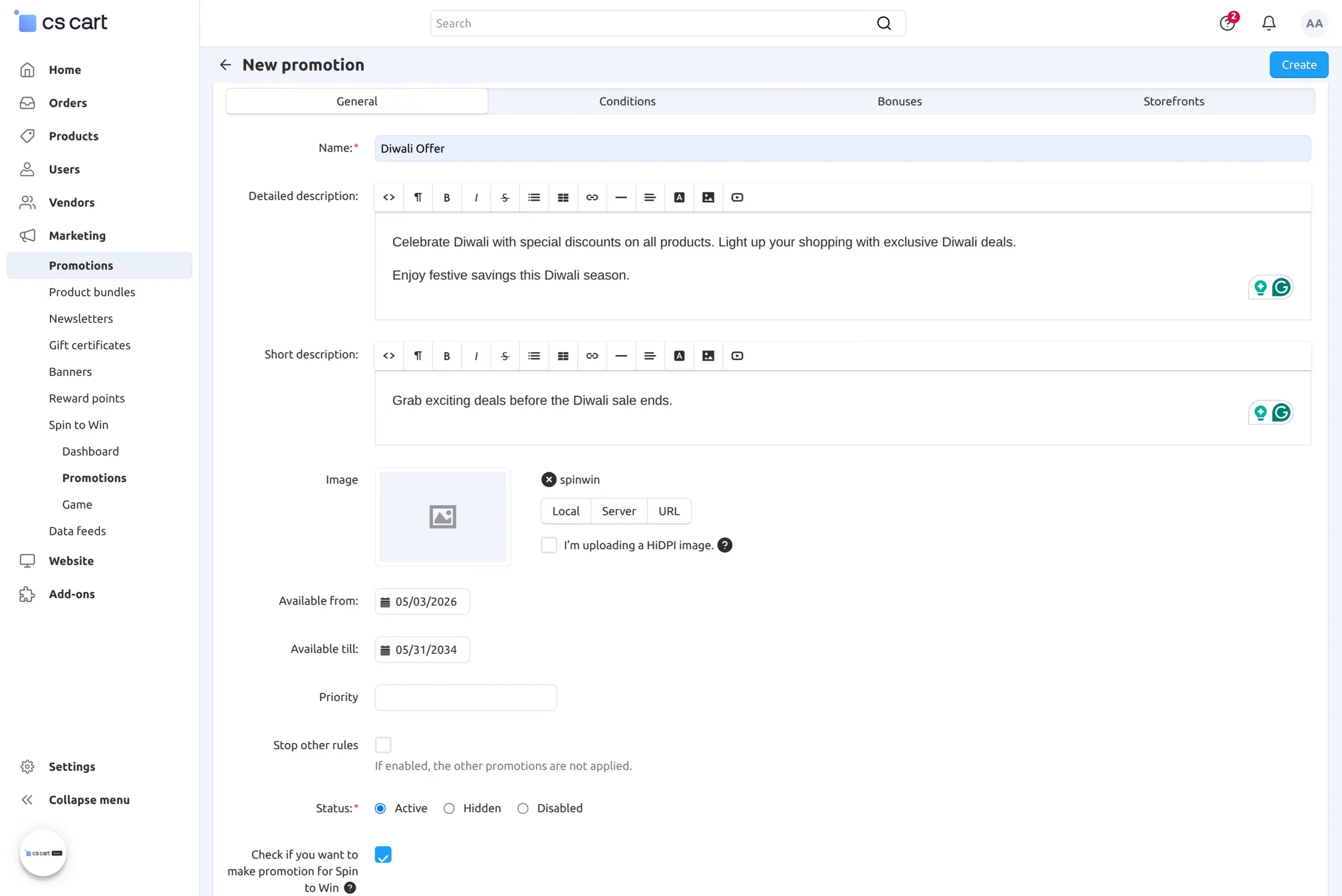
To add promotions, navigate to Marketing >> Spin To Win >> Promotions from the admin panel.
Name: Enter a unique name for the promotion.
Description: Add a brief description to explain the promotion.
Available dates: Specify the start and end dates for the promotion.
Priority: Set the priority level to control the order in which promotions apply.
Stop other rules: Enable this option if you want to stop other promotions when this promotion applies.
Promotion for Spin To Win: Enable this option to apply the promotion to the Spin To Win game.
Conditions
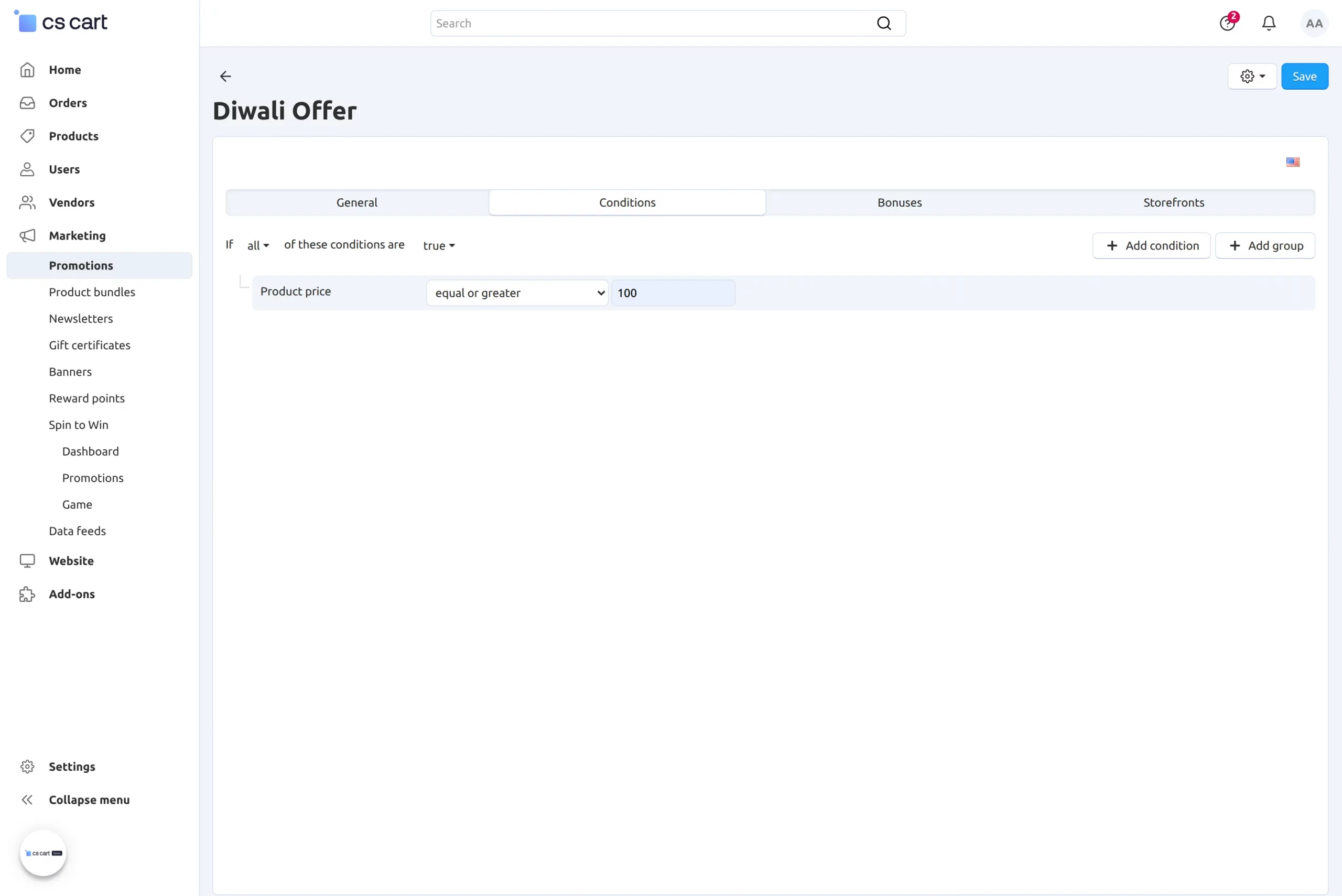
Add conditions based on parameters such as cart value, products, categories, or user details to control promotion eligibility.
Bonuses
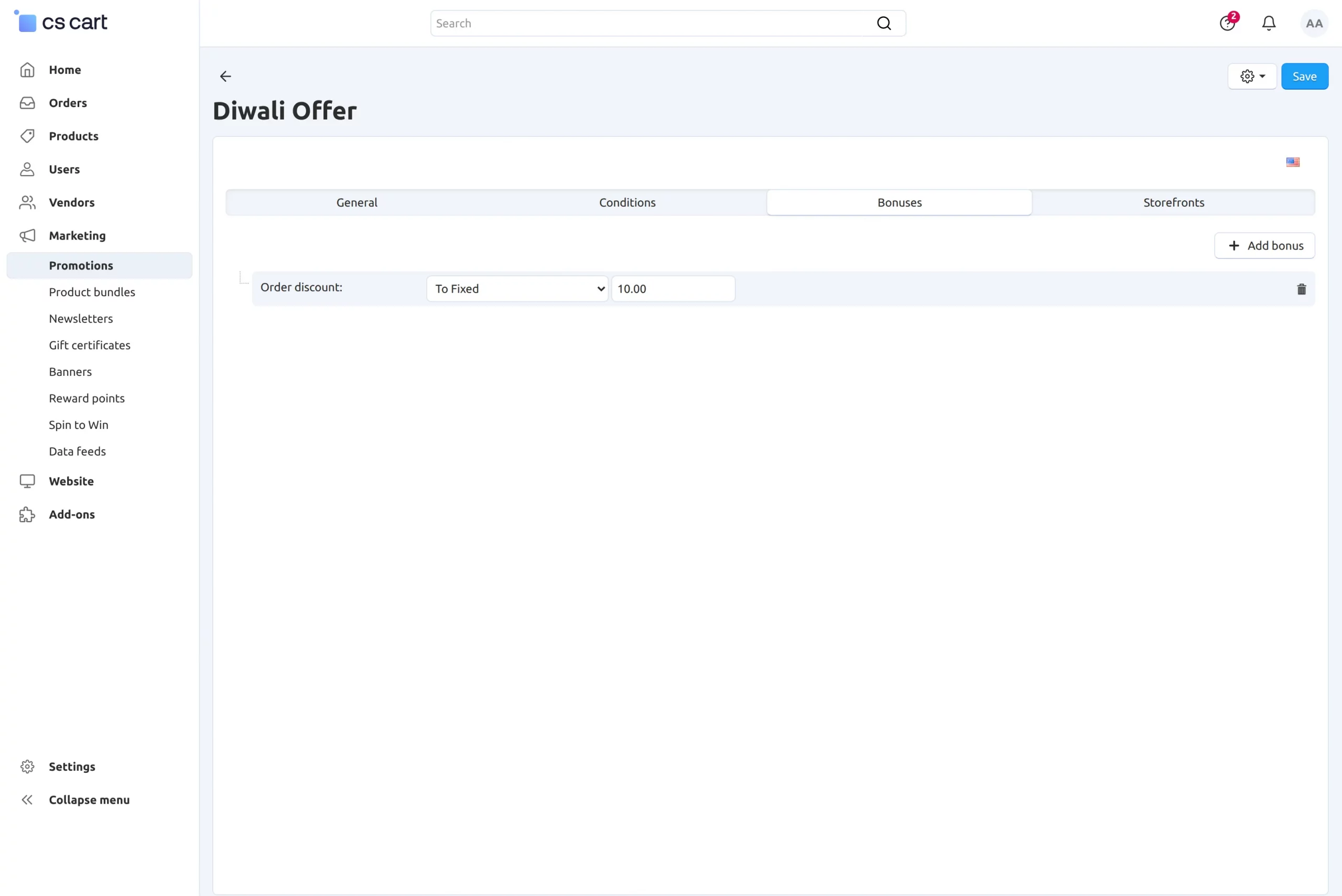
Define the reward that the customer will receive when the promotion applies.
Select the storefront where you want to apply the promotion.
Game
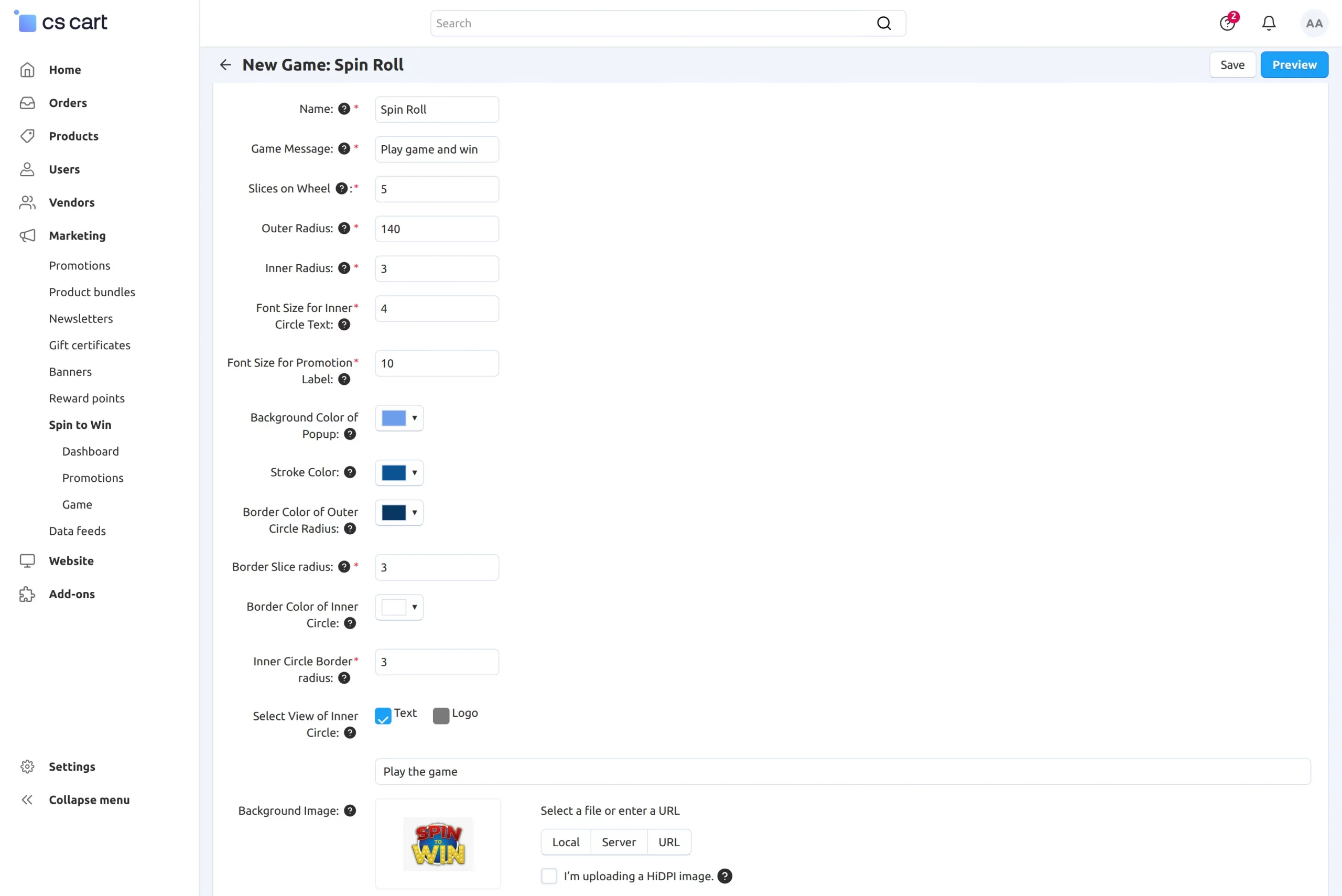
To add a game, navigate to Marketing >> Spin To Win >> Game from the admin panel.
Name: Enter the name of the game.
Game Message: Enter the message that you want to display on the spin wheel popup.
Slices on Wheel: Set the number of slices on the wheel.
Outer Radius: Define the outer size of the wheel.
Inner Radius: Define the inner circle size of the wheel.
Font Size for Inner Circle Text: Set the font size for the text inside the inner circle.
Font Size for Promotion Label: Set the font size for the promotion labels on the wheel.
Background Color of Popup: Select the background color of the popup.
Stroke Color: Choose the stroke color for the wheel.
Border Color of Outer Circle Radius: Select the border color for the outer circle.
Border Slice Radius: Set the border size for each slice.
Border Color of Inner Circle: Select the border color for the inner circle.
Inner Circle Border Radius: Define the border size of the inner circle.
Select View of Inner Circle: Choose how the inner circle will appear on the wheel.
Background Image: Upload an image to use as the background of the spin wheel popup.
Stopper Image: Upload an image for the pointer that indicates the selected slice.
Never Stops for Promo: Select promotions that you want to exclude from the spin result.
User Groups: Select the user groups that can access and play the game.
Promotions
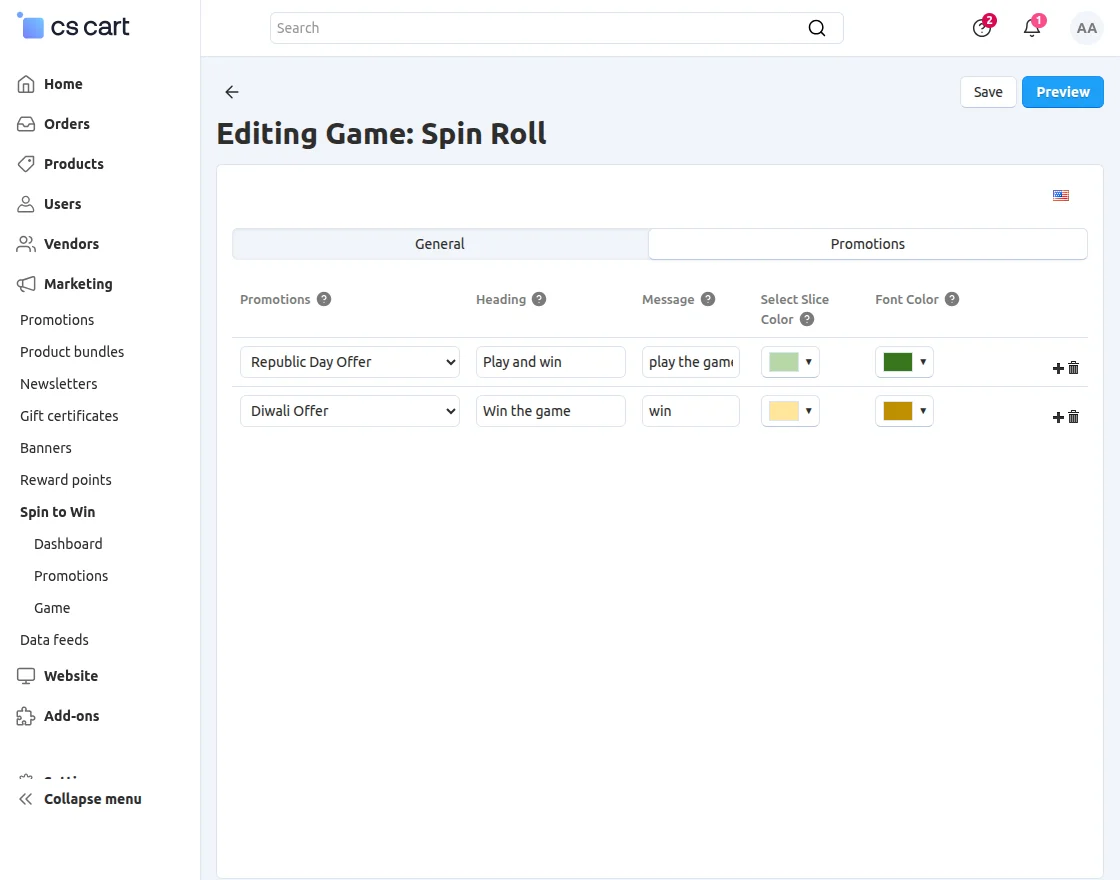
After creating the game, assign promotions to the game.
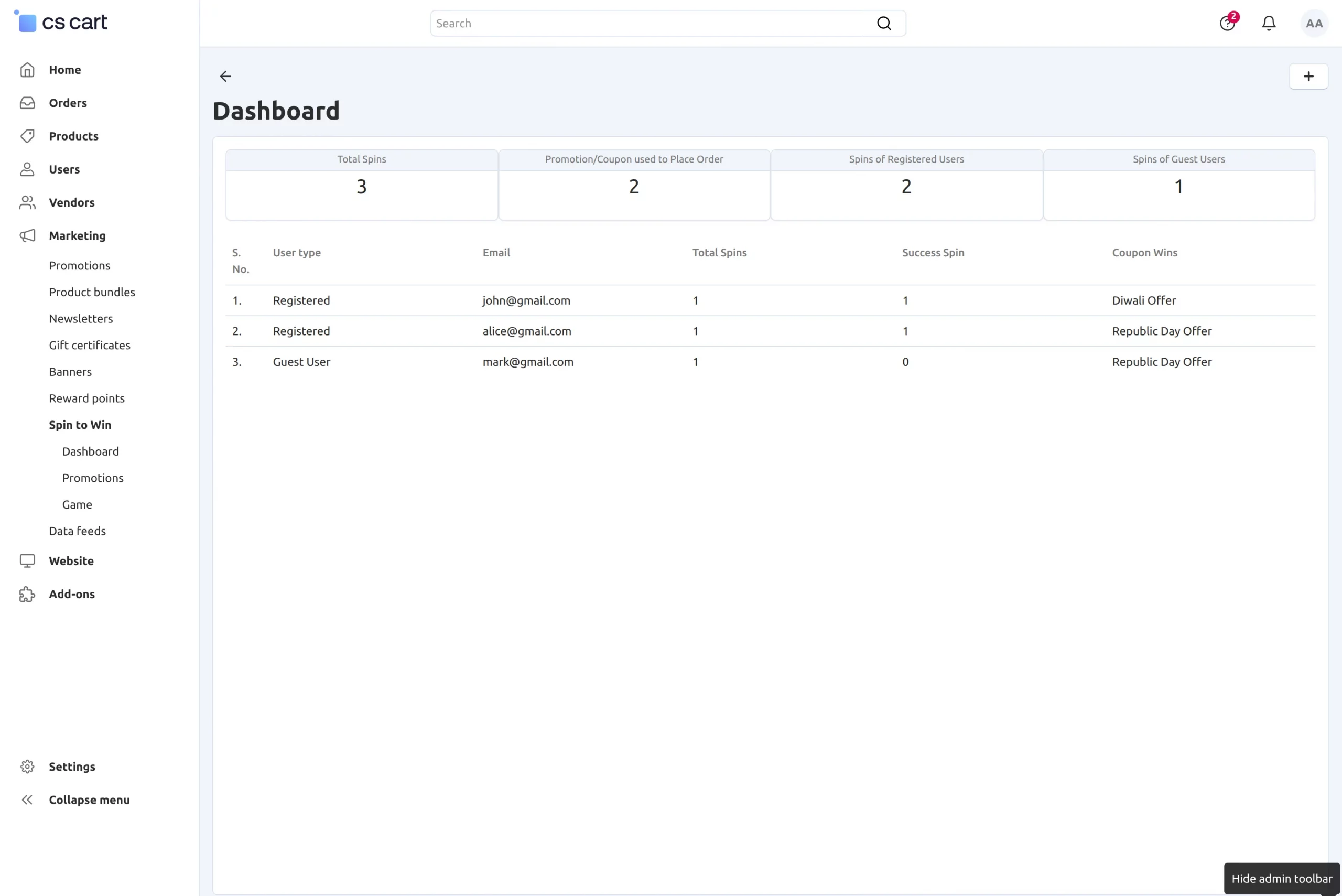
Dashboard
To check the entries, navigate to Marketing >> Spin To Win >> Dashboard .
From here, the admin can check details such as the game name, user, and the promotion received.
Template
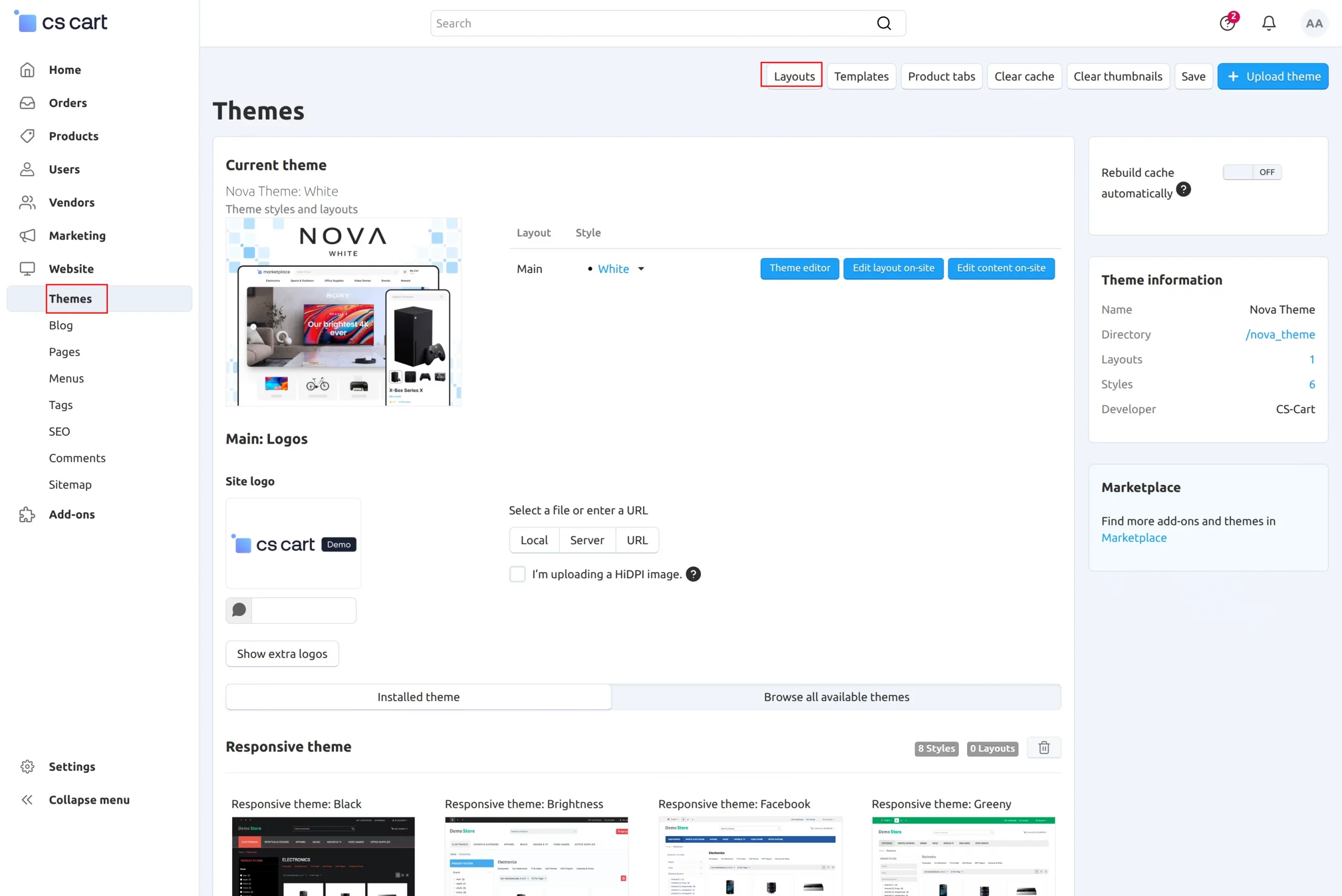
To add the template, navigate to Website >> Themes >> Layouts from the admin panel.
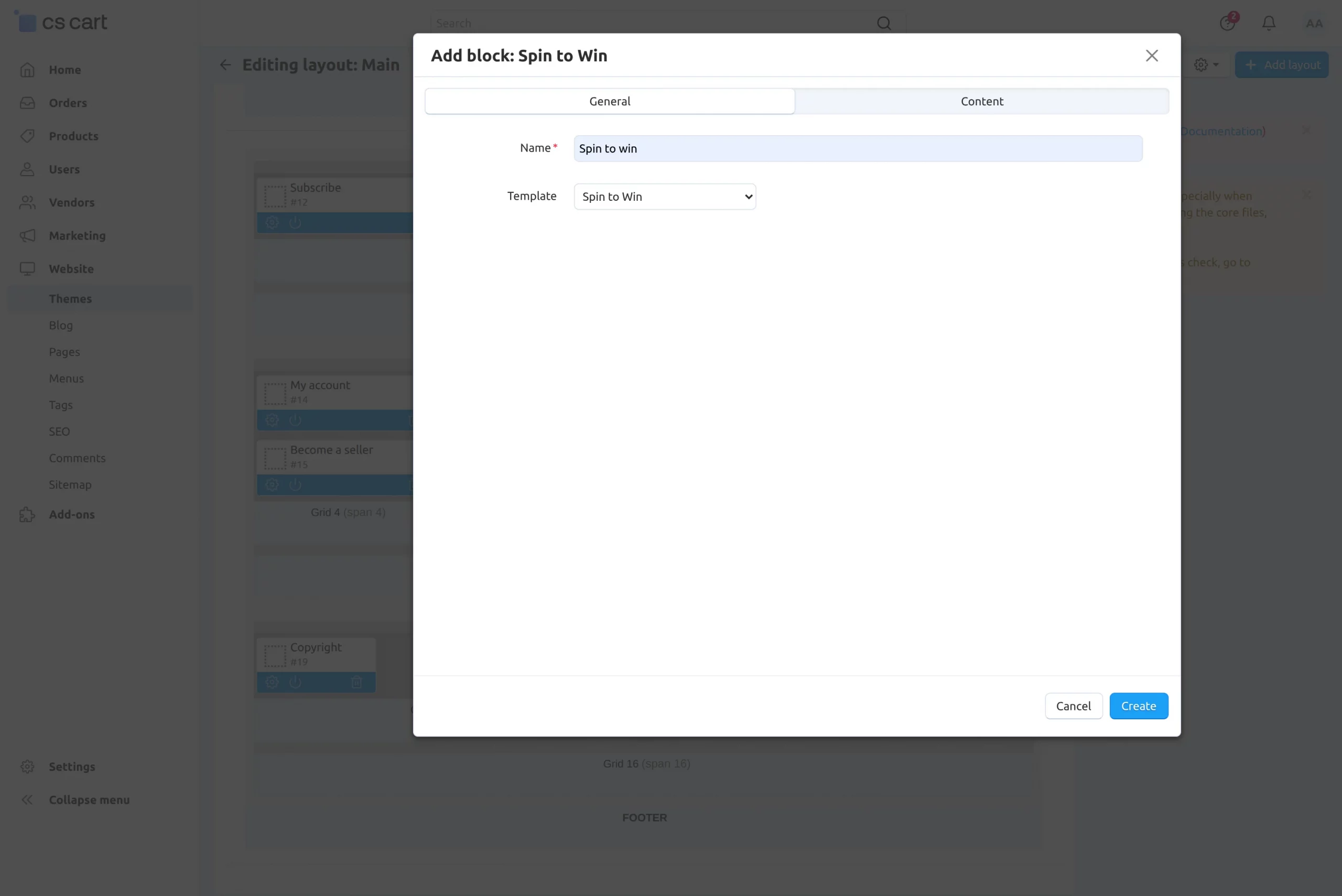
Add the Spin To Win block to the required layout and position where you want to display the spin wheel on the storefront.
Name: Enter a name for the block.
Customer View
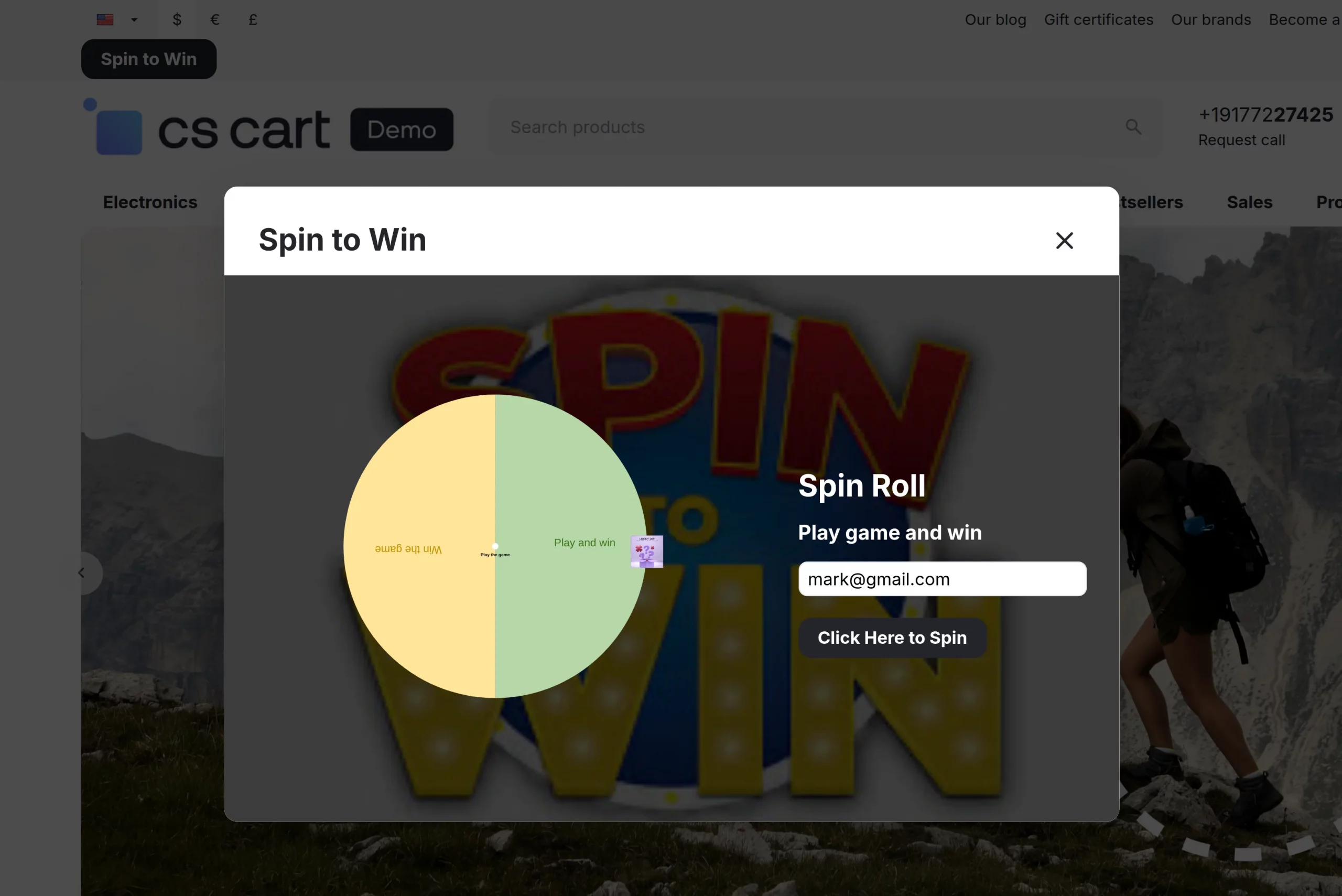
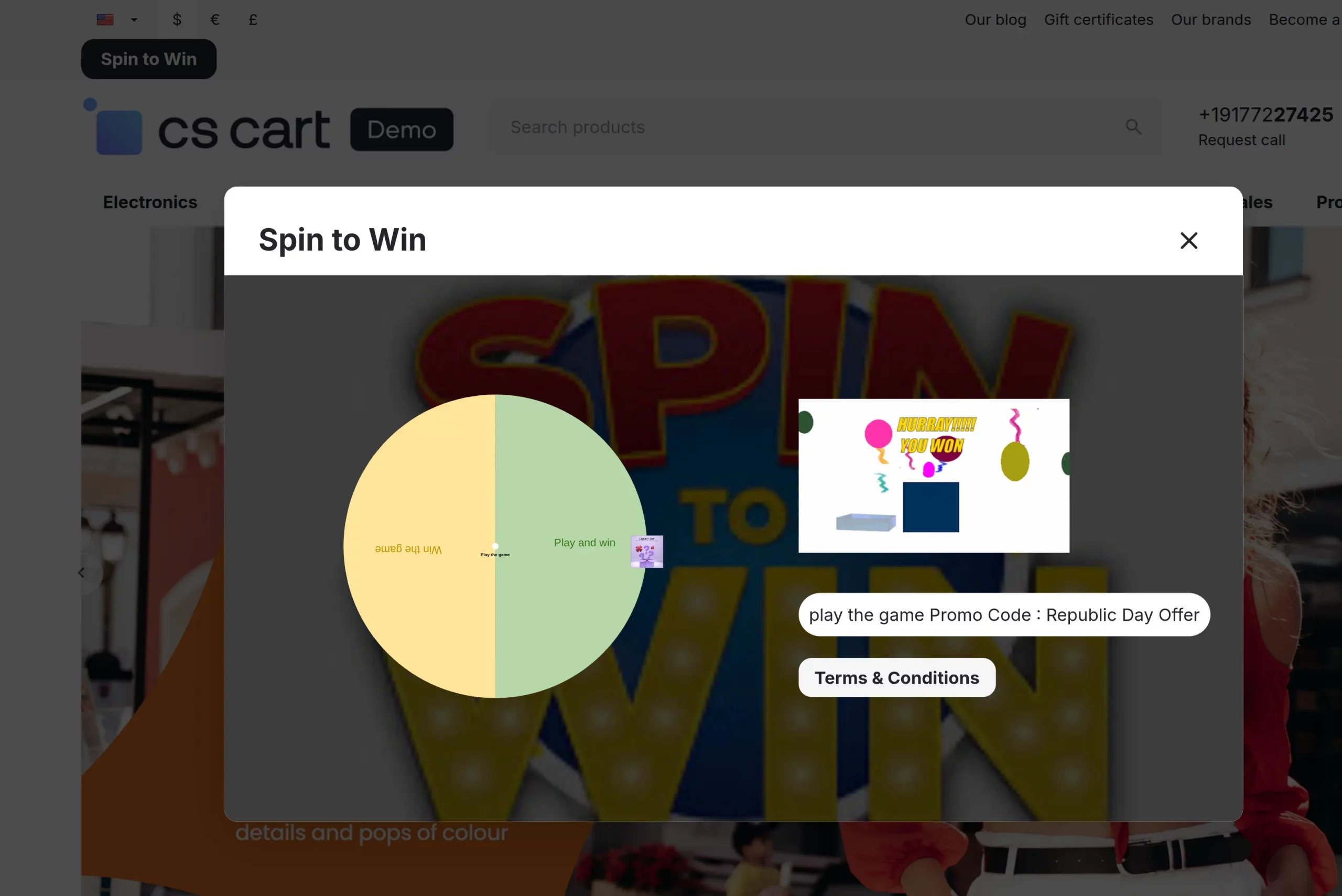
The customer needs to spin the wheel to play the game and receive a reward.
Enter your email address and spin the wheel.
You will see the promotion after you spin the wheel.
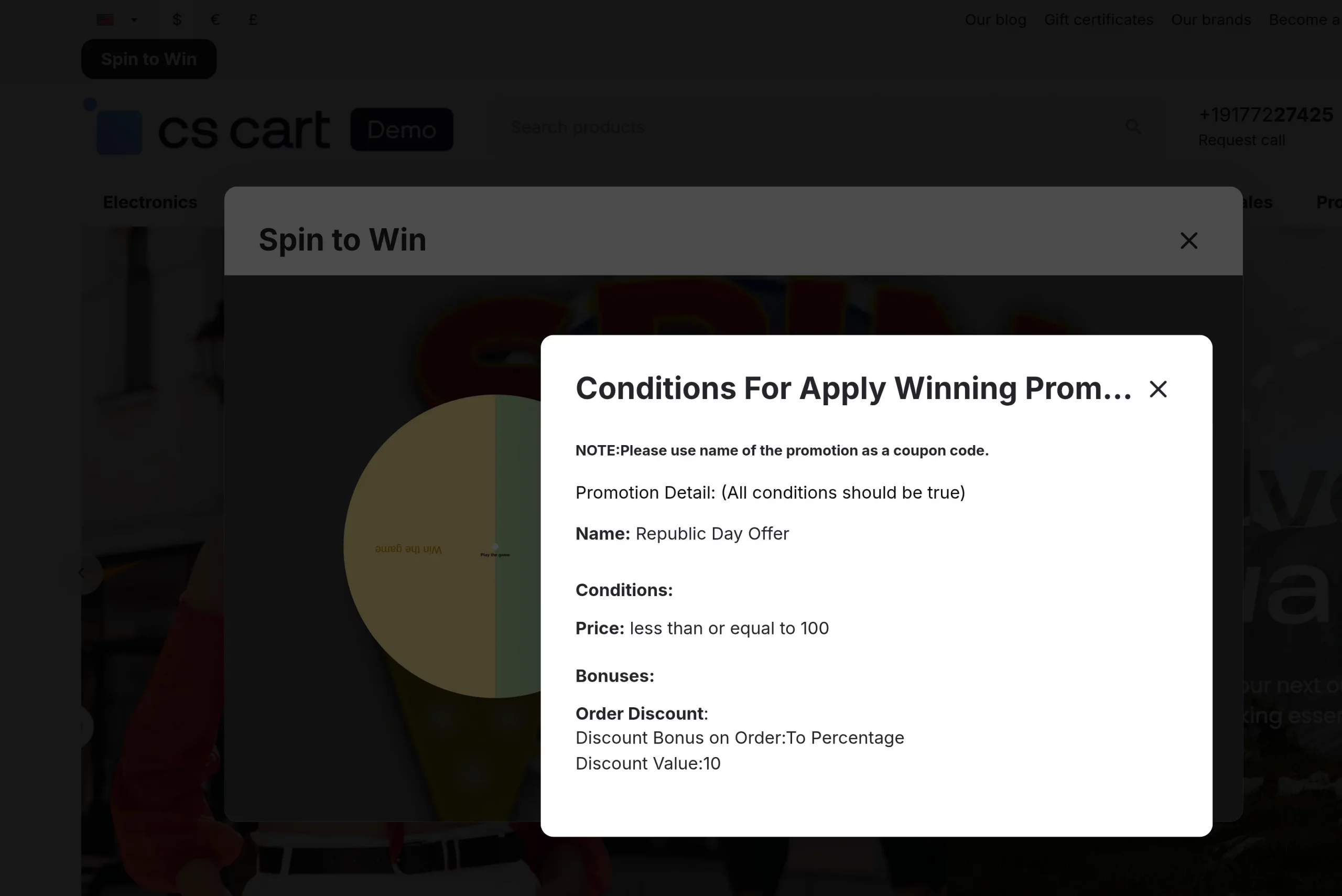
You can check the conditions for the promo code.
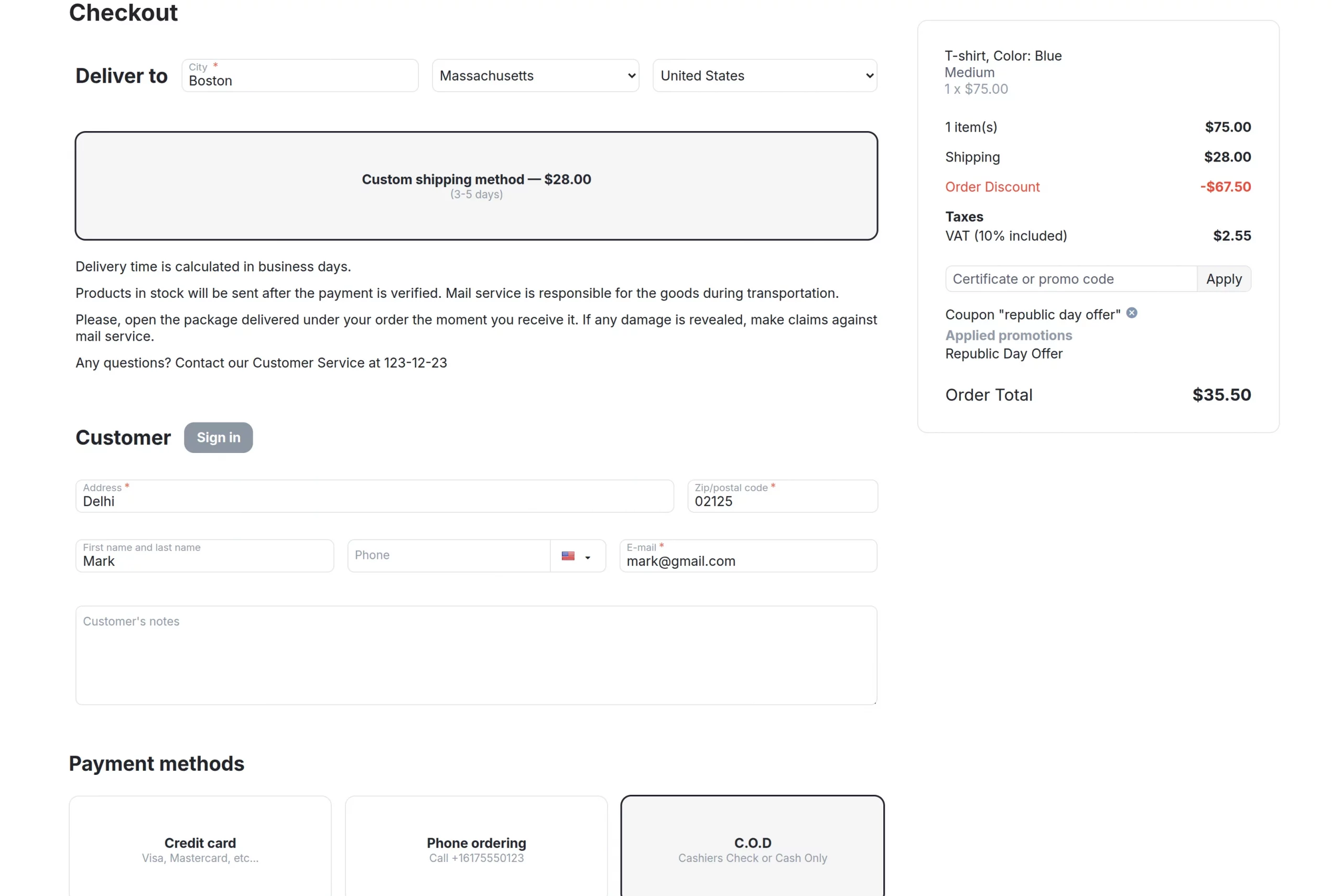
You can check or apply the coupon in the cart or during checkout.
Support
If you have any questions, suggestions, or customization requests, feel free to contact us at support@webkul.com or submit a ticket at webkul.uvdesk.com.
Explore our premium-quality CS Cart Extensions to enhance your store functionality.