User Guide for CS Cart Razorpay Magic checkout
Table of Content
CS-Cart Razorpay Magic Checkout transform your store’s checkout experience with the CS-Cart Razorpay Magic Checkout Add-on.
This integration enables merchants to offer a faster, smarter, and conversion-focused checkout process powered by Razorpay Magic Checkout.
The add-on simplifies the purchasing journey by reducing the number of checkout steps, allowing customers to complete orders quickly using their preferred payment methods.
With support for secure address saving, one-click checkout experiences, coupon application, prepaid and Cash on Delivery (COD) payments.
This integration helps improve customer convenience while increasing order completion rates. fast and frictionless checkout experience.
Note: Before installing the add-on, extract the downloaded package.
- Install the License Manager add-on first.
- Then install the required add-on.
- Follow the license activation steps to generate your license key.
Features
- Enable Razorpay Magic Checkout on your CS-Cart store.
- Provide a faster and frictionless checkout experience for customers.
- Support One-Click Checkout to reduce the number of checkout steps.
- Automatically fetch and populate customer address and contact details.
- Accept payments through UPI, Credit Cards, Debit Cards, Net Banking, Wallets, EMI, and Pay Later options.
- Support Cash on Delivery (COD) payment method.
- Allow customers to apply coupons and discount offers during checkout.
- Improve checkout conversion rates by simplifying the purchase process.
- Reduce cart abandonment with an optimized checkout flow.
- Offer a fully mobile-responsive checkout experience across all devices.
- Process transactions through Razorpay’s secure payment gateway.
- Synchronize orders and payment status automatically with the CS-Cart store.
- Support both guest checkout and registered customer checkout.
- Eliminate unnecessary checkout fields for a quicker order placement process.
- Enhance the overall customer shopping experience with a modern checkout interface.
- Easily configure and manage the integration from the CS-Cart administration panel.
- Ensure real-time payment verification for successful transactions.
- Increase the likelihood of successful order completion through a streamlined checkout journey.
Installation
To install the CS-Cart Razorpay Magic Checkout Add-on, first download the add-on package. After installing add-on, you’ll get one zip file, one install.txt file, and a relevant User Guide manual doc
Navigate to Add-ons → Manage Add-ons from the CS-Cart administration panel and click on Manual Installation.

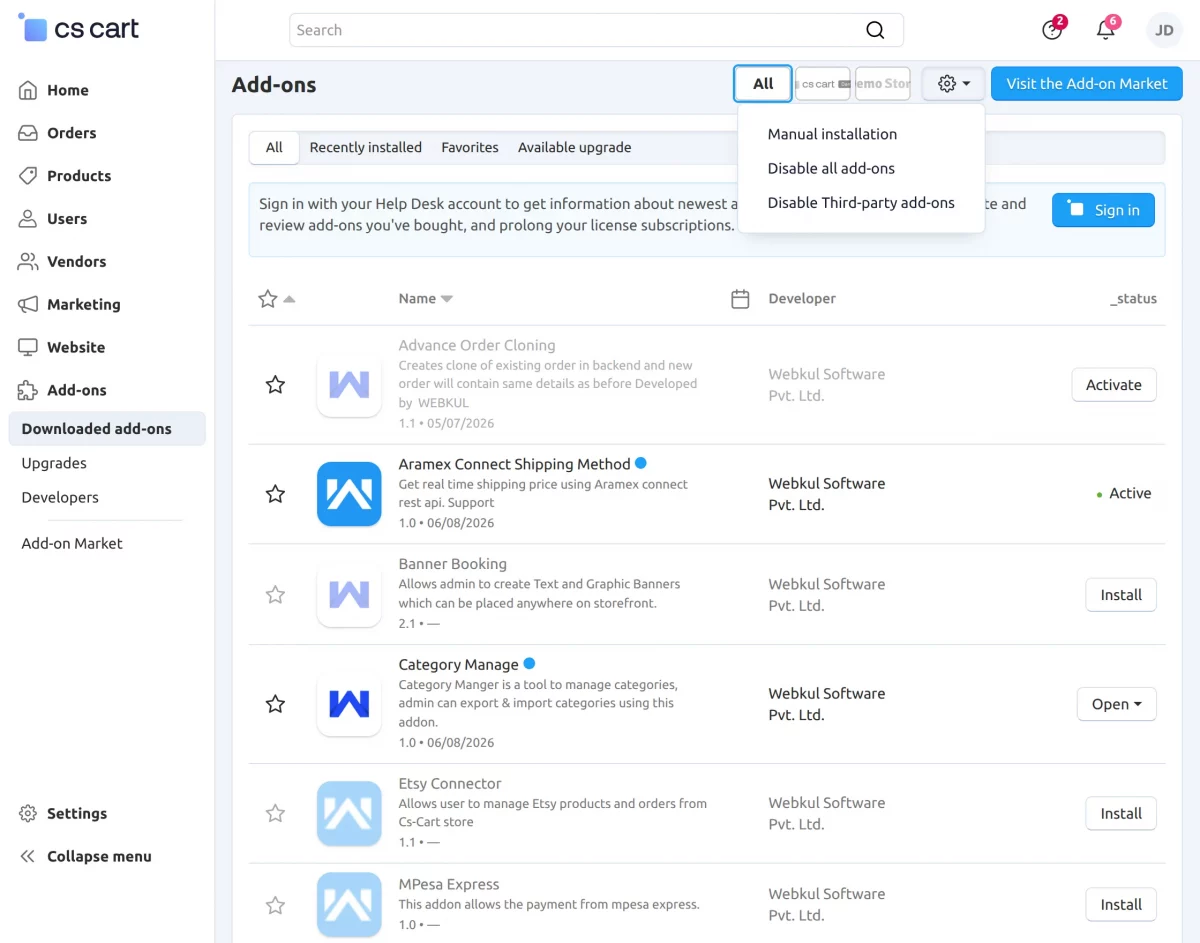
Upload the add-on ZIP file and click Upload & Install to begin the installation process.
After activation, go to the add-on configuration settings and enter your Razorpay Key ID and Key Secret. Configure the required checkout settings and save the configuration.
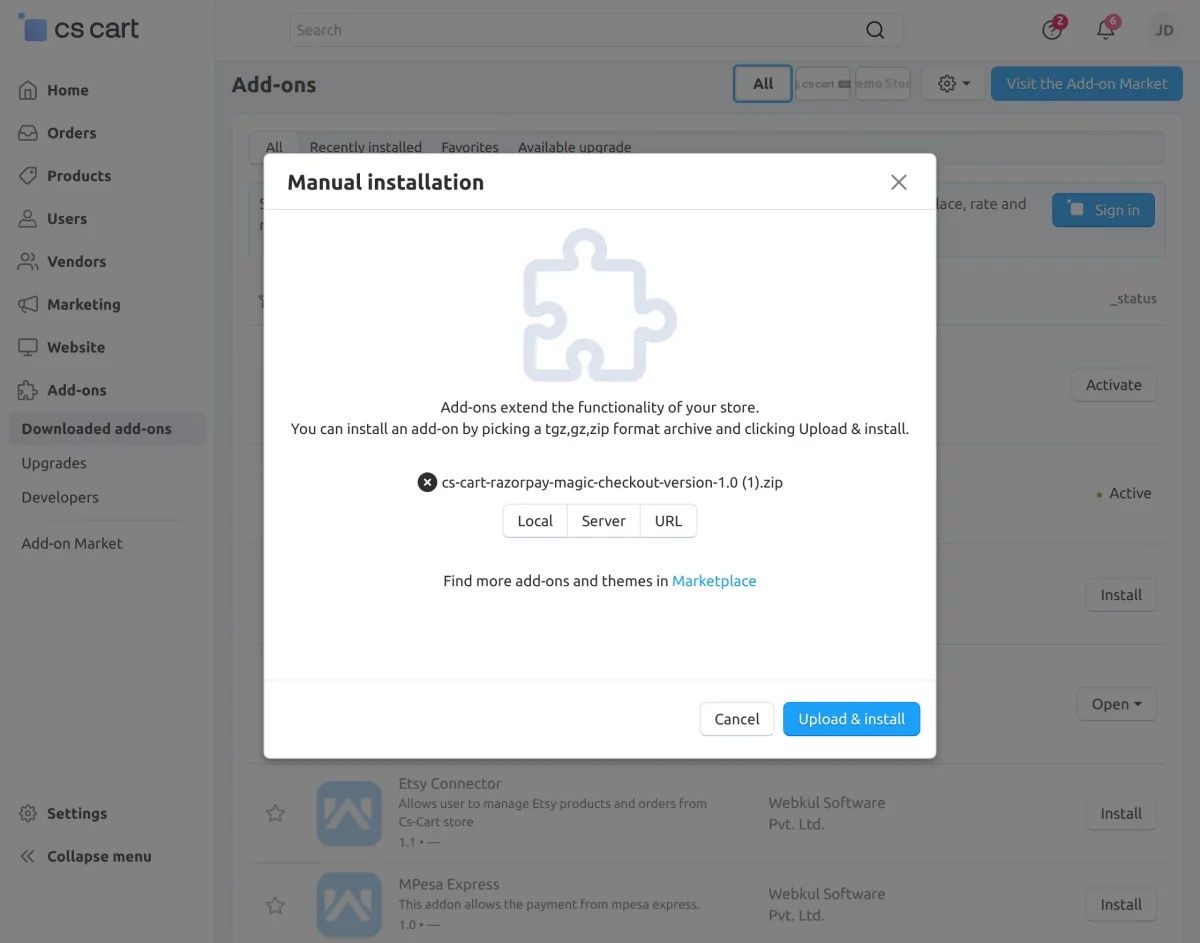
The Razorpay Magic Checkout option will now be available on your storefront, allowing customers to enjoy a faster and more streamlined checkout experience.
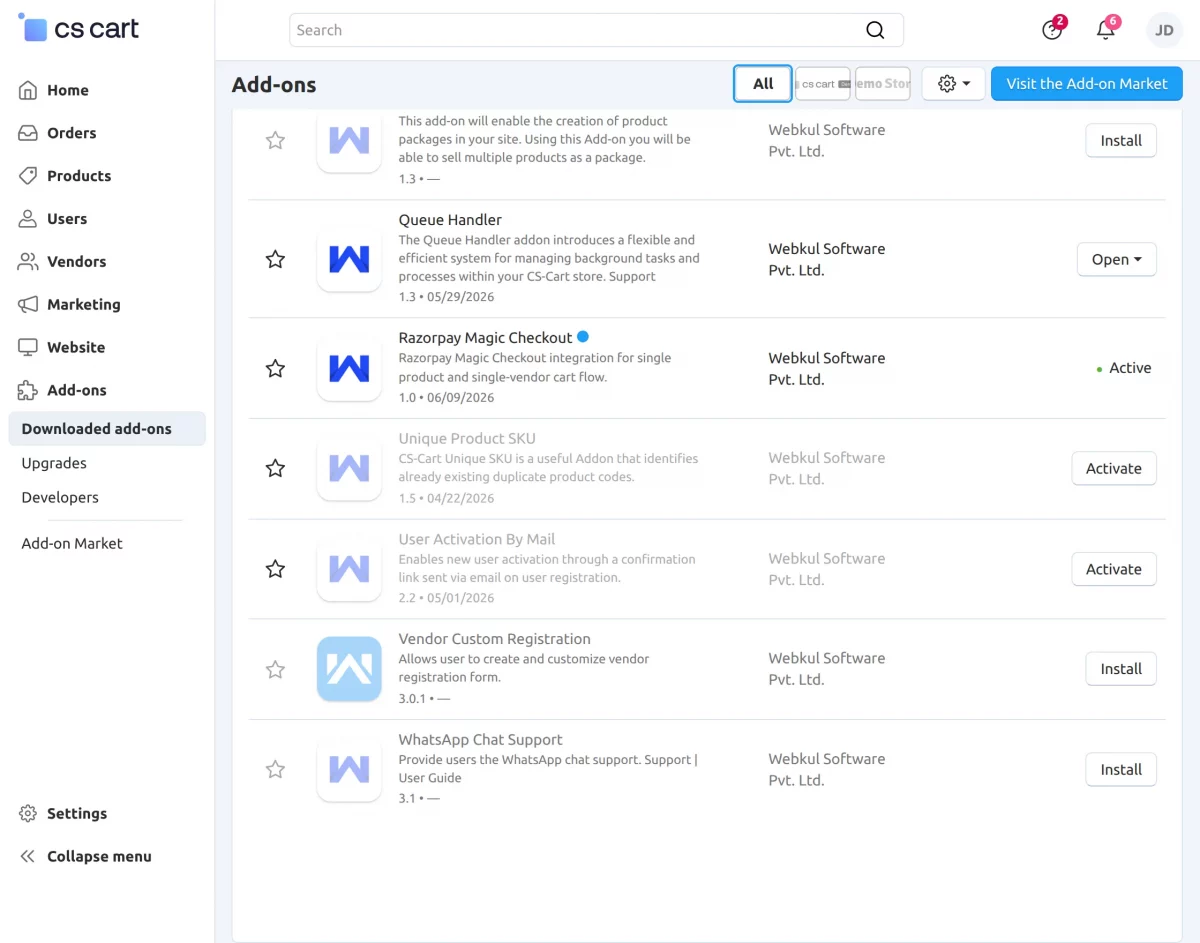
Add-on Configuration
After installing the add-on, navigate to the Razorpay Magic Checkout configuration page and configure the following settings:
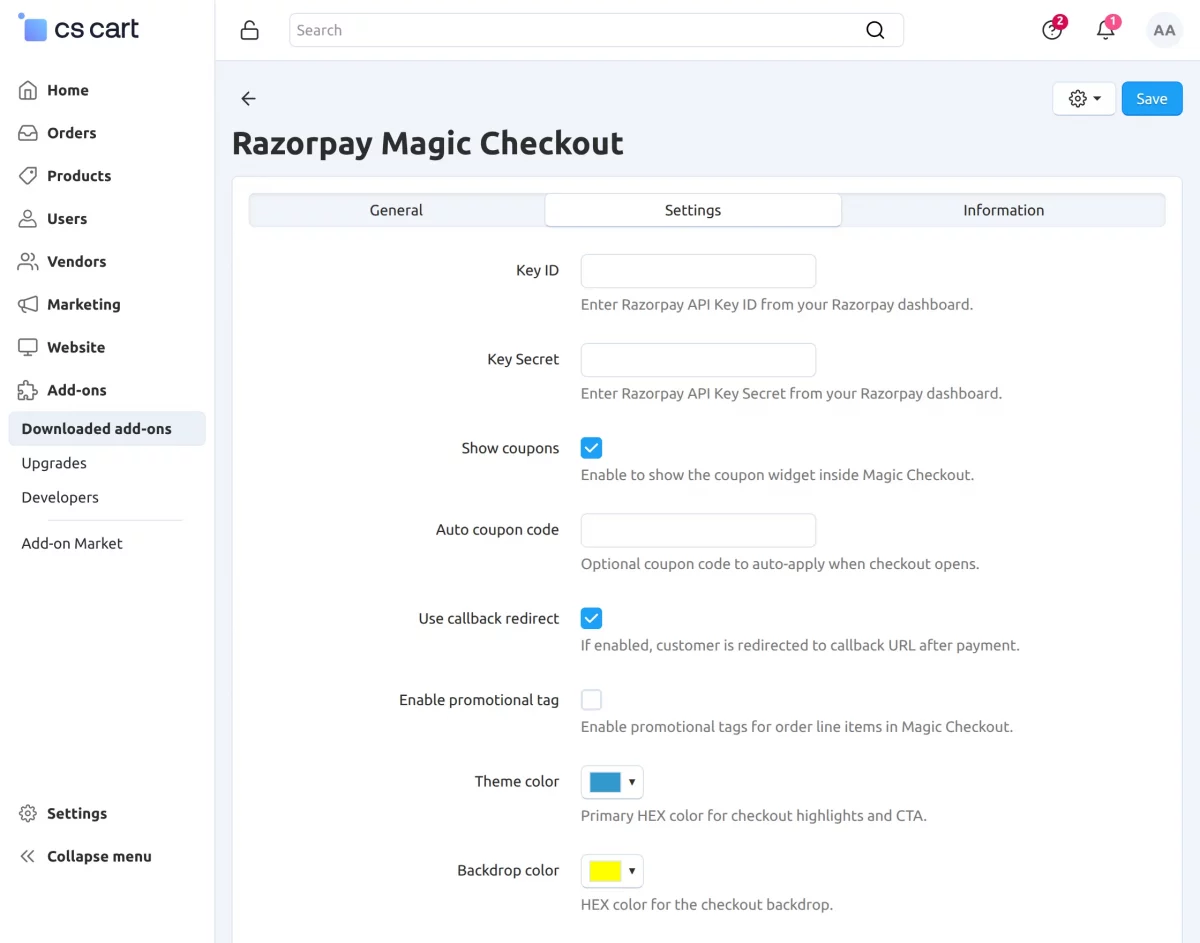
Key ID
Enter the Razorpay API Key ID obtained from your Razorpay Dashboard.
Key Secret
Enter the Razorpay API Key Secret obtained from your Razorpay Dashboard.
Show Coupons
Enable this option to display the coupon widget within the Magic Checkout interface.
Auto Coupon Code
Enter a valid coupon code that will be automatically applied when customers open Magic Checkout.
Use Callback Redirect
Enable this option to redirect customers to the configured callback URL after payment completion.
Enable Promotional Tag
Check this setting to display promotional tags for order items during checkout.
Theme Color
Select the primary checkout color using the color picker. This color will be applied to checkout buttons.
Backdrop Color
Select the checkout background color using the color picker.
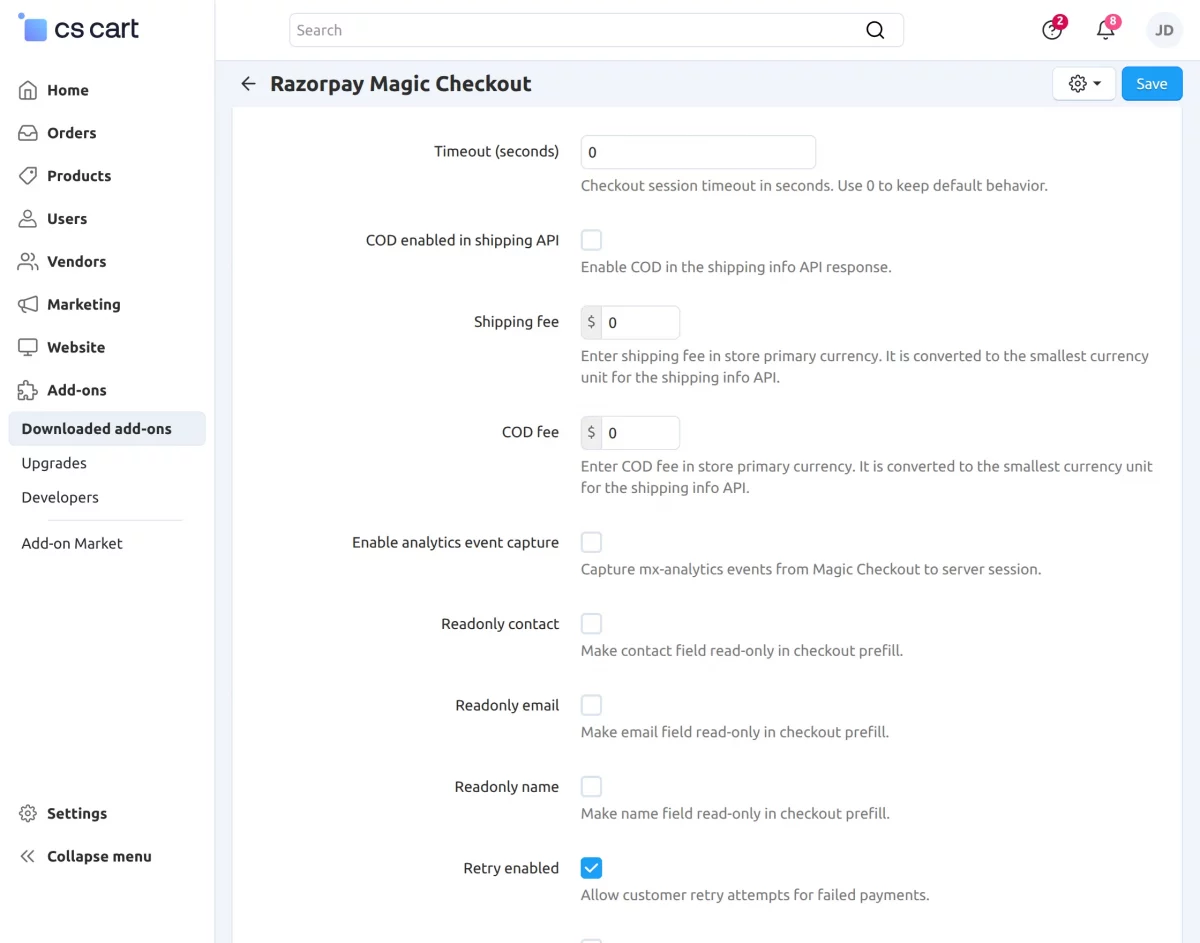
Timeout (Seconds)
Define the checkout session timeout duration in seconds. Enter 0 to use the default Razorpay timeout behavior.
COD Enabled in Shipping API
Enable this option to include Cash on Delivery (COD) as an available payment method in the shipping API response.
Shipping Fee
Enter the shipping charge to be applied in the store’s primary currency.
COD Fee
Enter the additional Cash on Delivery fee to be charged in the store’s primary currency.
Enable Analytics Event Capture
Enable this setting to capture Magic Checkout analytics events and store them in the server session for tracking purposes.
Readonly Contact
Prevent customers from modifying the prefilled contact number during checkout.
Readonly Email
Prevent customers from modifying the prefilled email address during checkout.
Readonly Name
Prevent customers from modifying the prefilled customer name during checkout.
Retry Enabled
Allow customers to retry failed payments without restarting the checkout process.

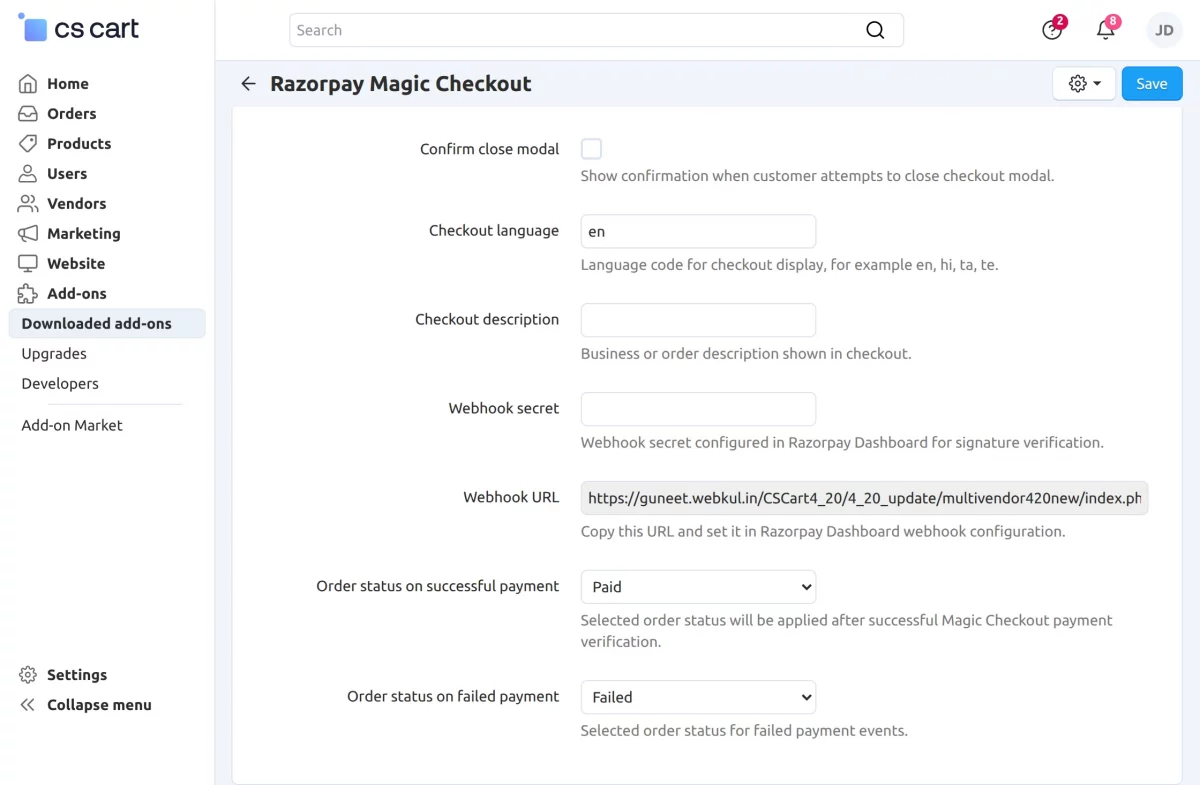
Confirm Close Modal
Display a confirmation prompt when customers attempt to close the checkout window before completing payment.
Checkout Language
Specify the checkout language code, such as en, hi, ta, or te, to display the checkout interface in the selected language.
Checkout Description
Enter the business description or order description that will be displayed to customers during checkout.
Webhook Secret
Enter the Webhook Secret configured in your Razorpay Dashboard to verify webhook signatures securely.
Webhook URL
Copy the generated Webhook URL and configure it as a webhook endpoint in your Razorpay Dashboard.
Order Status on Successful Payment
Select the order status that will be assigned automatically after successful payment verification.
Order Status on Failed Payment
Select the order status that will be assigned when a payment attempt fails.
Frontend Workflow
Once the CS-Cart Razorpay Magic Checkout Add-on is configured, customers can access the Magic Checkout option from multiple locations within the storefront.
Allowing them to complete purchases quickly and securely.
Magic Checkout on Homepage
Customers can initiate the checkout process directly from the homepage using the Magic Checkout button.


This provides a convenient way to proceed with their purchase without navigating through multiple checkout steps.
Magic Checkout on Product Page
When viewing a product, customers can click the Magic Checkout button available on the product page to proceed directly to the Razorpay Magic Checkout flow.
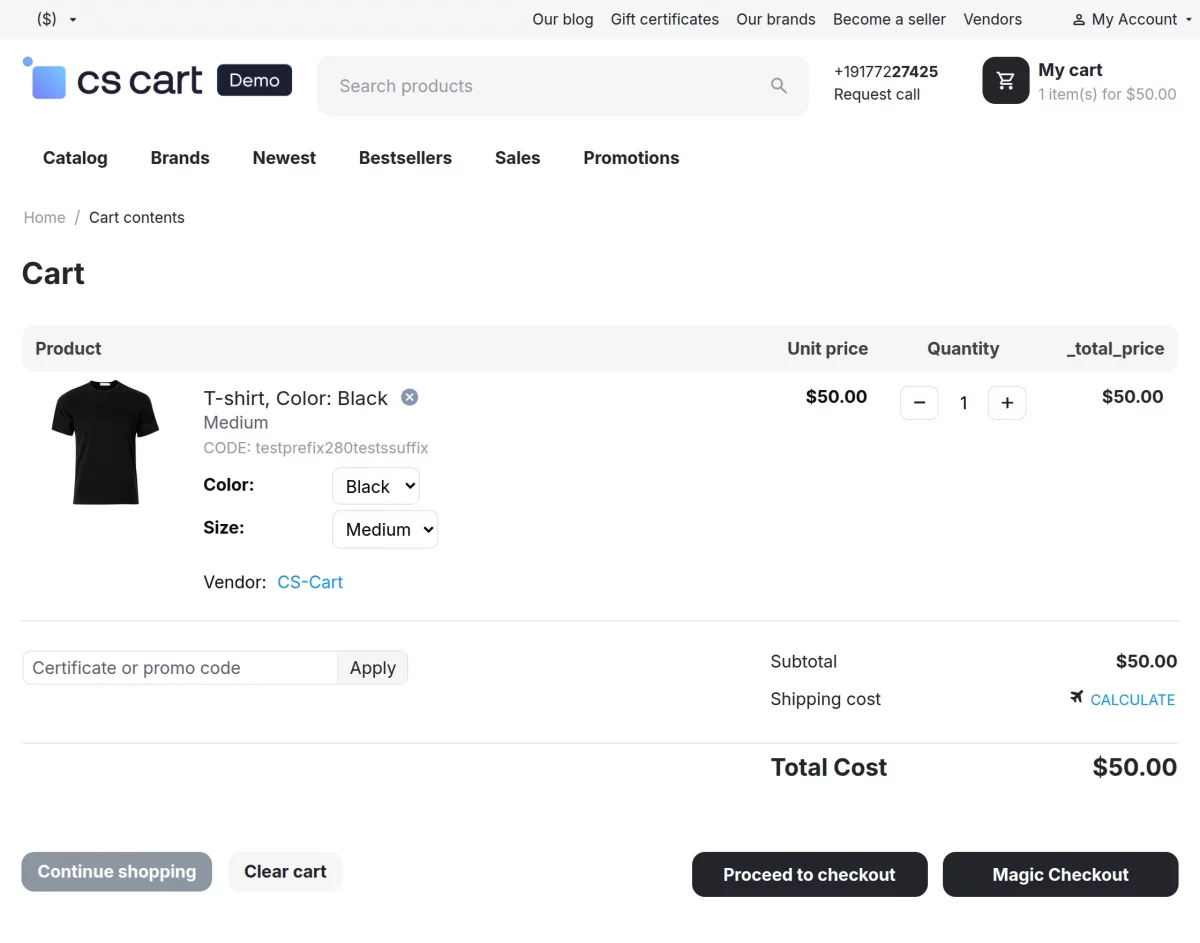
Magic Checkout on Cart Page
After adding products to the cart, customers can use the Magic Checkout button available on the cart page to begin the payment process using Razorpay Magic Checkout.
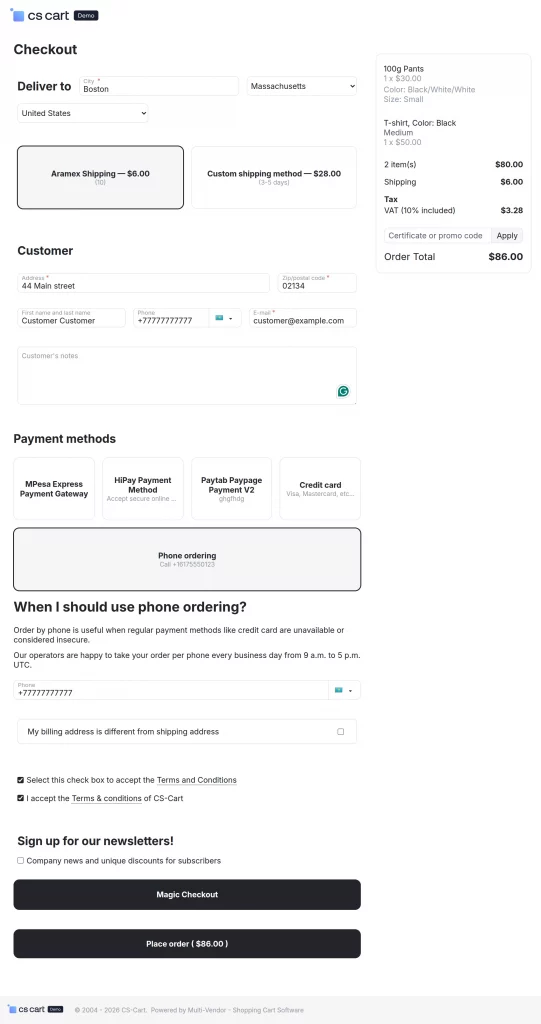
Magic Checkout on Checkout Page
The add-on also provides the Magic Checkout option on the standard checkout page.
Customers can select this option to complete their order using Razorpay’s optimized checkout experience.

Complete Purchase Using Razorpay Magic Checkout
Upon clicking the Magic Checkout button from any supported location, customers can review their order details.
Select their preferred payment method, apply available coupons (if enabled), and complete the payment securely through Razorpay Magic Checkout.
Support
If you have any questions, suggestions, or customization requests, feel free to contact us at support@webkul.com or submit a ticket at webkul.uvdesk.com.
Explore our premium-quality CS Cart Extensions to enhance your store functionality.
You can also explore our CS-Cart Development Services and Quality CS-Cart add-ons.