CS-Cart Multi Variant Bulk Order
Table of Content
Note:
- Install the add-on.
- Enter the license key.
- Follow the license activation steps.
Check a brief overview of the plugin –
Features
- The user can add to cart Single product in bulk by Selecting their Quantities According to their Variant type.
- Fully Configurable by admin. Admin needs to set option id in the backend on which he wants to show product Quantities According to variant type.
- Work only for single option id for every product.
- Product Multi Variant Quantity View on Product description Page.
- Product Multi Variant Quantity View on Product Quick View Page.
- Well integrated with CS-Cart & CS-Cart Multi-Vendor.
- If Any Variant Have Zero “0” Product Quantity then the Variant type is Automatically disabled when You Enable the Addon.
- No Modification required in core files.
- Convert Multiple steps for “Add To Cart” for single Product Add to their Variants into one step.
- Easy to use and very user-friendly especially for those who want to Make the Bulk order in your Store.
- CS-Cart Multi-Variant Bulk Order will work on multiple option ids of product at a time for Every Product.
-
You can also check out the CS-Cart Product Recommendation System add-on that shows smart product suggestions using AI and offers real-time recommendations.
Installation
When you’ll download the CS-CartMulti-Variant Bulk Order, you’ll get one zip files (and the install.txt file. Read it carefully and follow it.
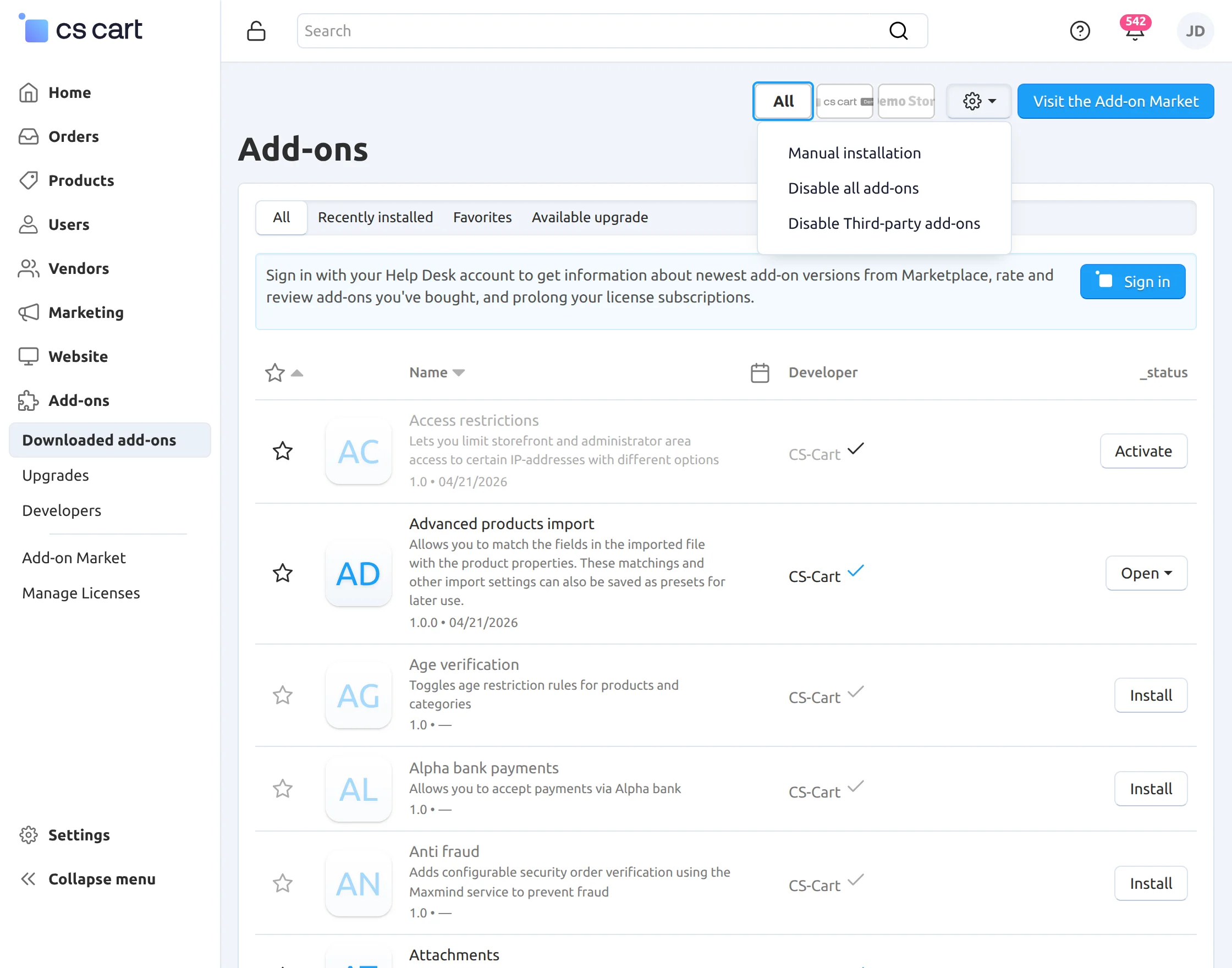
Go to the addon section and Click on Gear icon as shown in the screenshot.

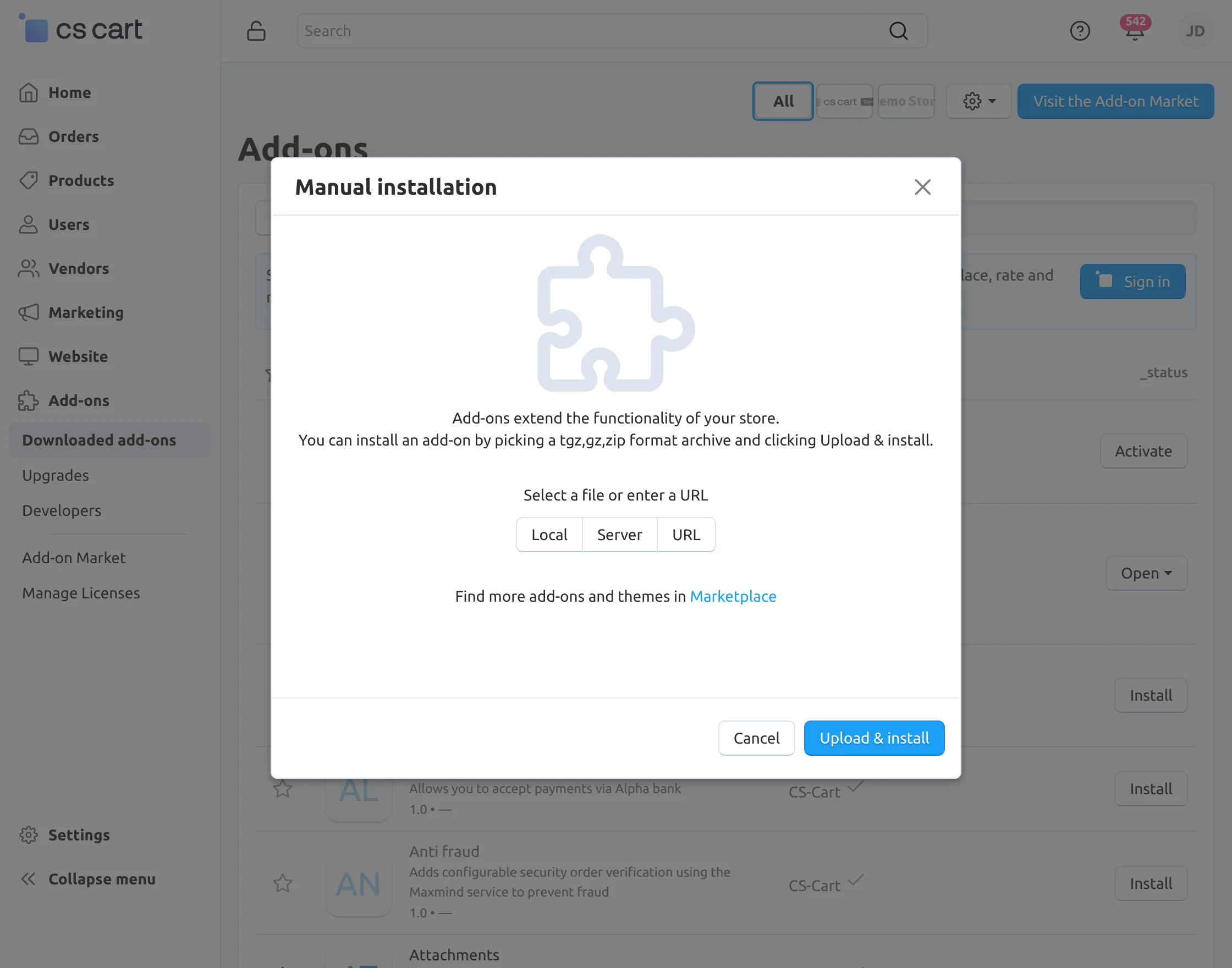
Click on “Local” to browse the zip file and then click on “Upload & Install” as shown below in snapshot.
Admin-View
To configure the Multi-Variant Bulk Order feature, navigate to the Products section from the admin panel, where you can access and manage the relevant product settings.
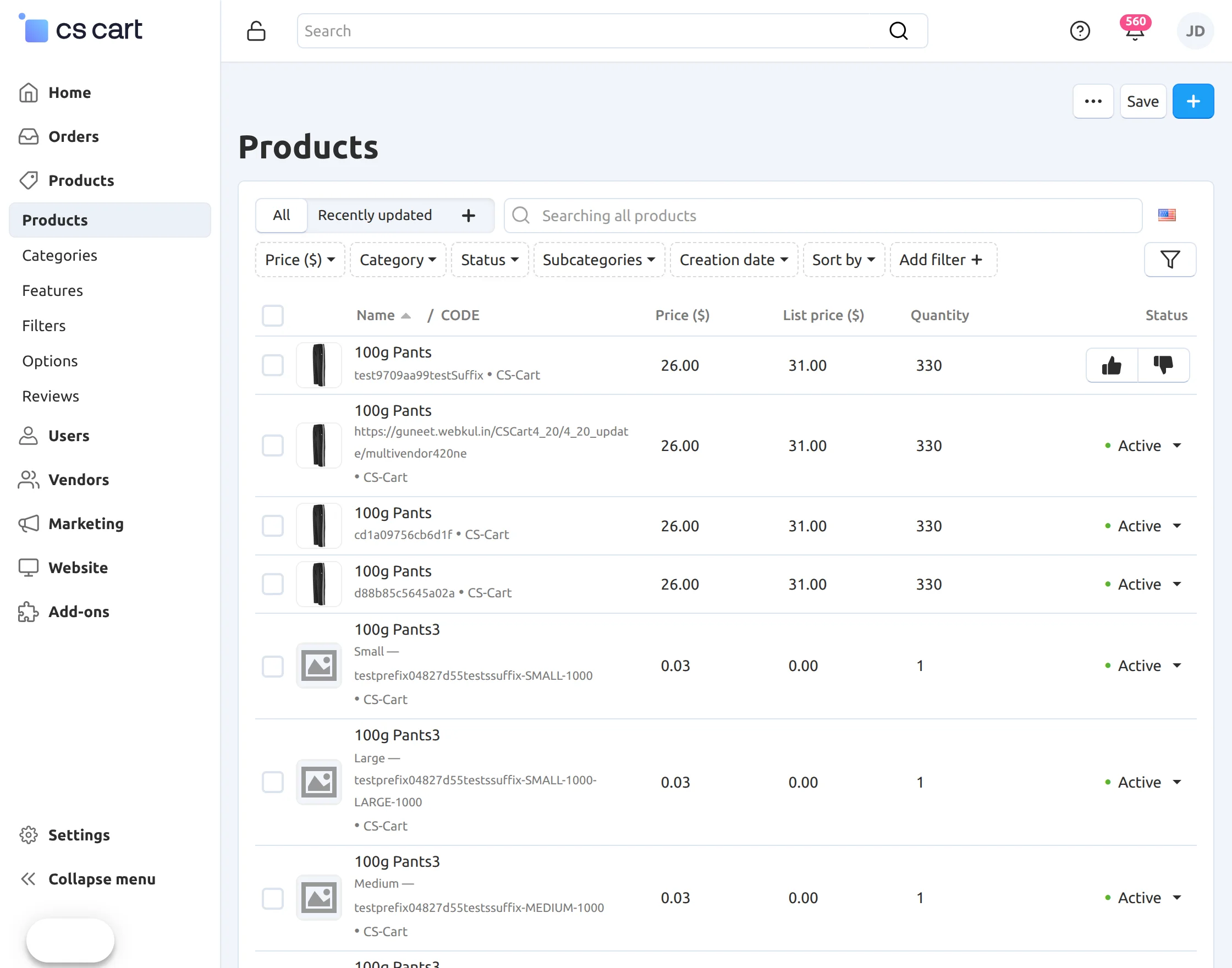
Select the product for which you want to enable the Bulk Order feature, and then navigate to the Options section.
In the Options section, the admin can configure and manage multiple product options according to the requirements.
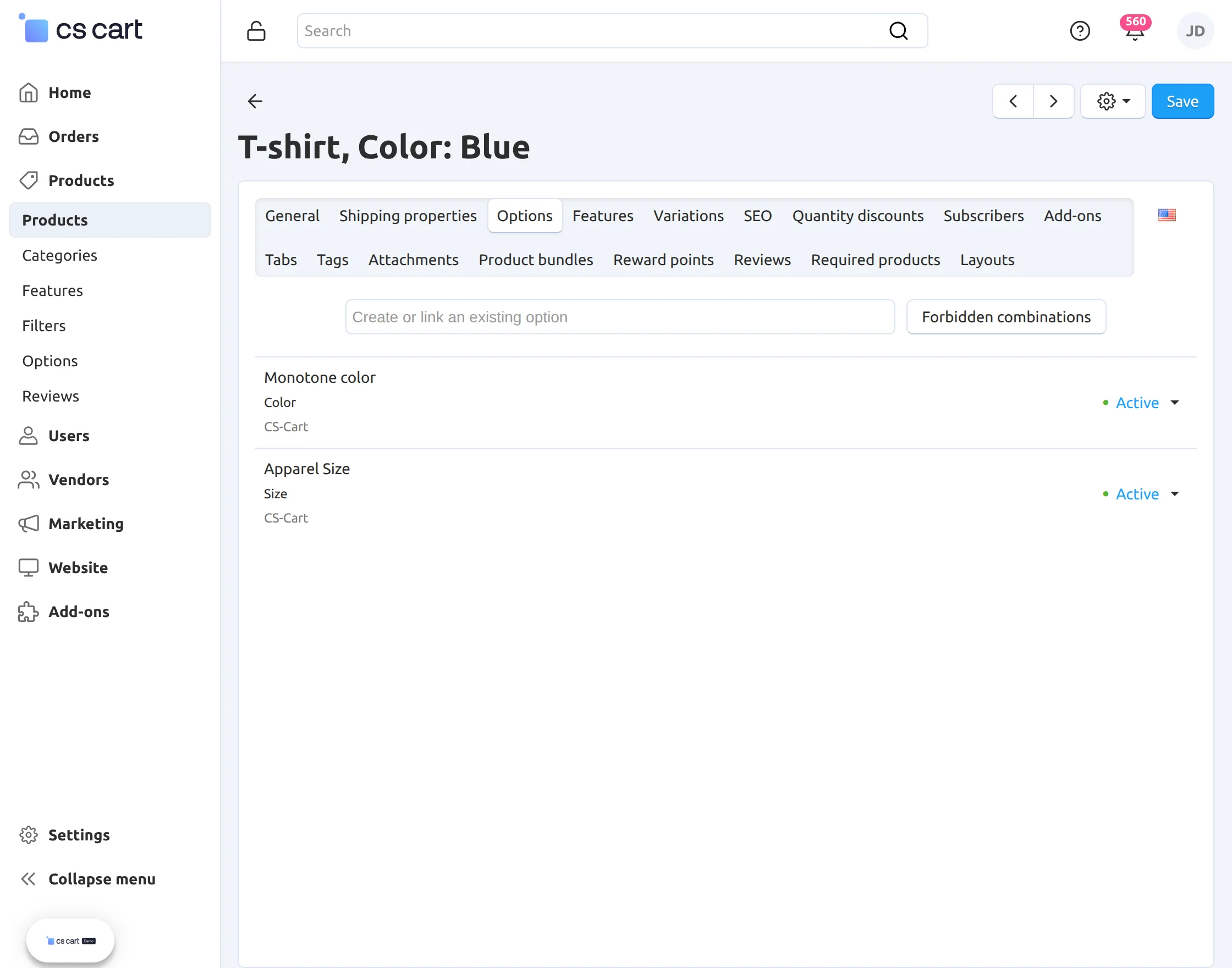
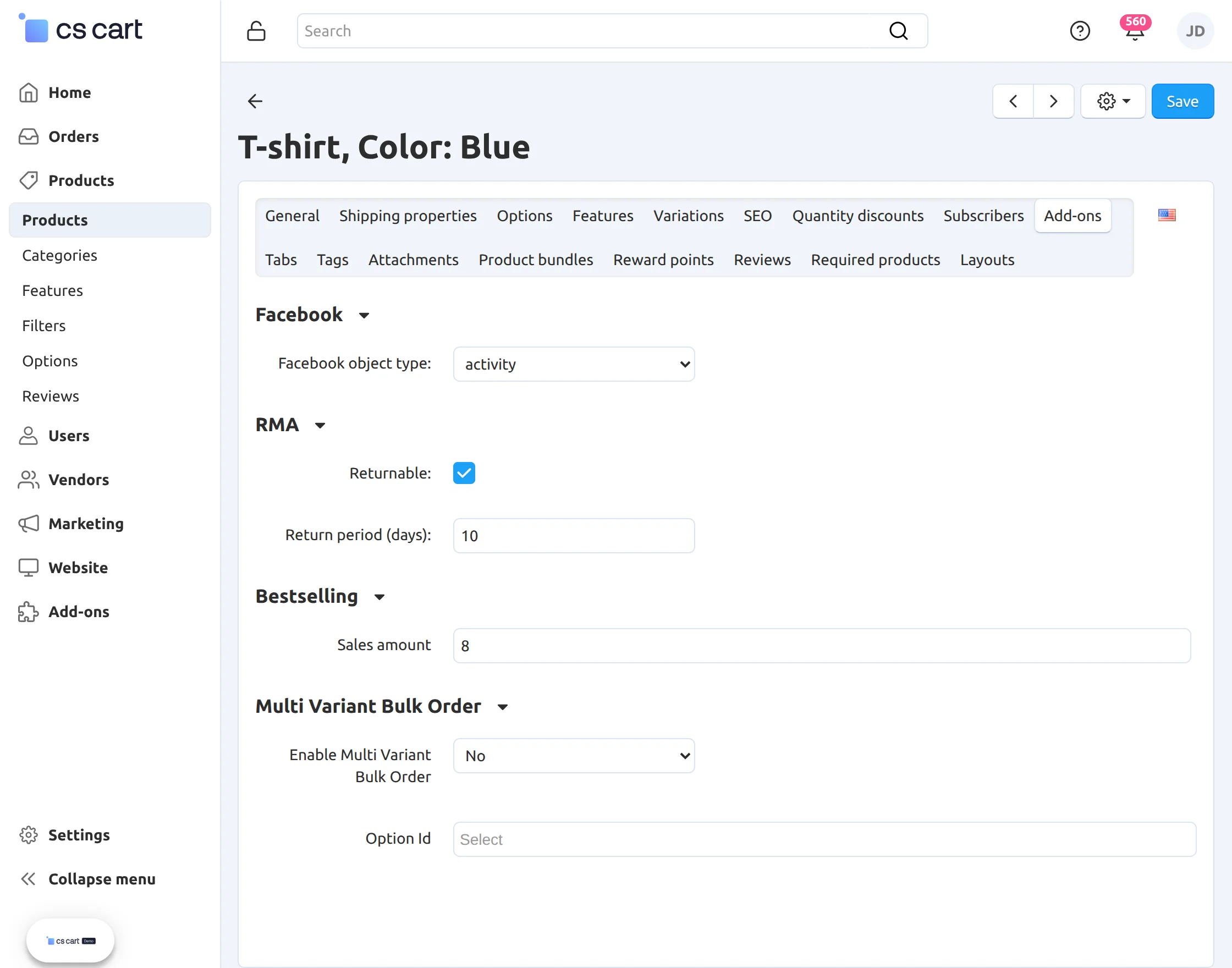
Once the Options for the Bulk Order have been configured, navigate to the Add-ons section.
From the Add-on settings, enable the Bulk Order feature and select the required product options that will be used to create the bulk order.
Front-End
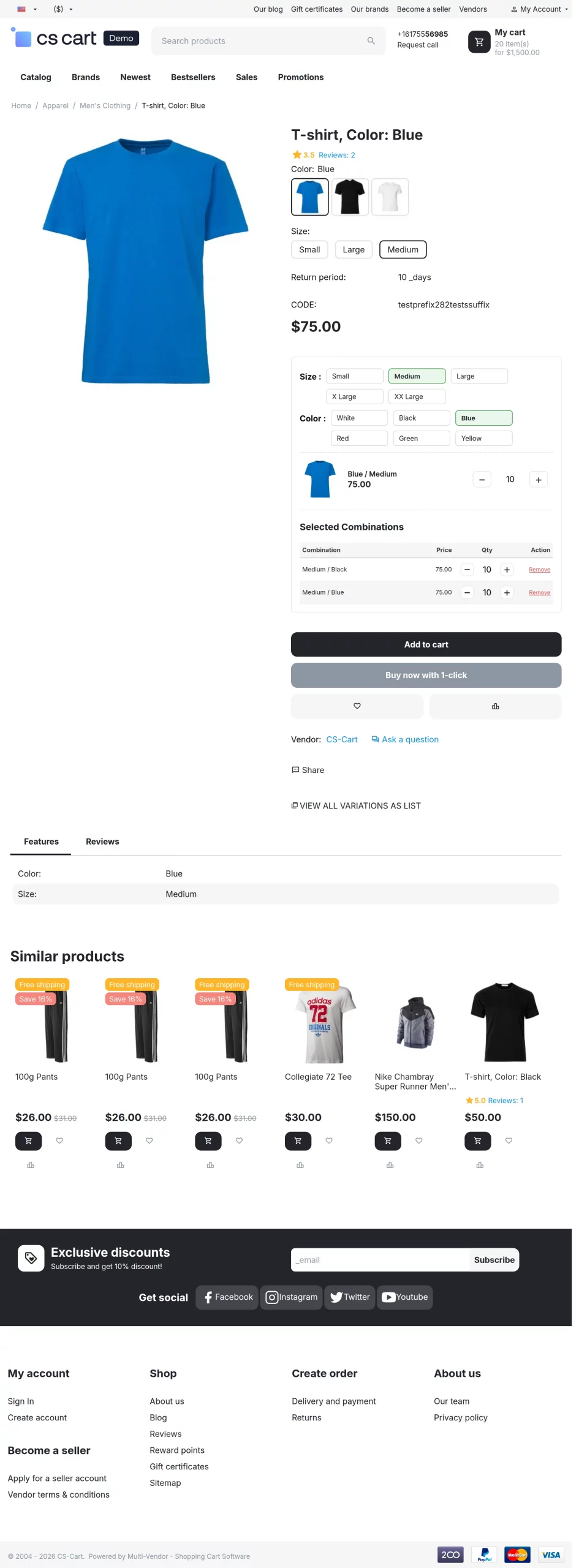
On the storefront, customers can view all the available product options and select multiple combinations to add them to the cart at once in bulk.

Support
If you encounter any issues or have any questions, feel free to contact us through Webkul Support and share your feedback with us. Your valuable suggestions help us improve the module.
You can also explore our CS-Cart Development Services and browse our range of high-quality CS-Cart Add-ons.