CS-Cart Moneris Payment Gateway
CS-Cart Moneris Payment Gateway integrates the trusted Moneris payment solution with your CS-Cart store, allowing merchants to accept secure online payments through supported credit and debit cards.
The add-on processes transactions in real time and provides customers with a smooth, reliable checkout experience.
It helps businesses collect payments securely while simplifying the payment process for both merchants and customers.
With easy setup and secure payment processing, the CS-Cart Moneris Payment Gateway ensures reliable transactions and a smooth checkout experience.
Features
- Integrate Moneris with your CS-Cart store using a simple configuration process.
- Accept secure payments through supported credit and debit cards.
- Process transactions in real time for faster payment confirmation.
- Provide a seamless checkout experience without interrupting the customer’s purchase journey.
- Secure payment data using Moneris’ trusted payment infrastructure.
- Receive instant payment authorization to process orders efficiently.
- Reduce manual payment handling with automated payment processing.
- Improve customer trust by offering a secure and widely used payment gateway.
- Support reliable online transactions for a better shopping experience.
Video Tutorial
Installation
After downloading the CS-Cart Moneris Payment add-on, you’ll get one zip file, one install.txt file, and a relevant User Guide manual doc.
Please read it carefully for proper configuration.
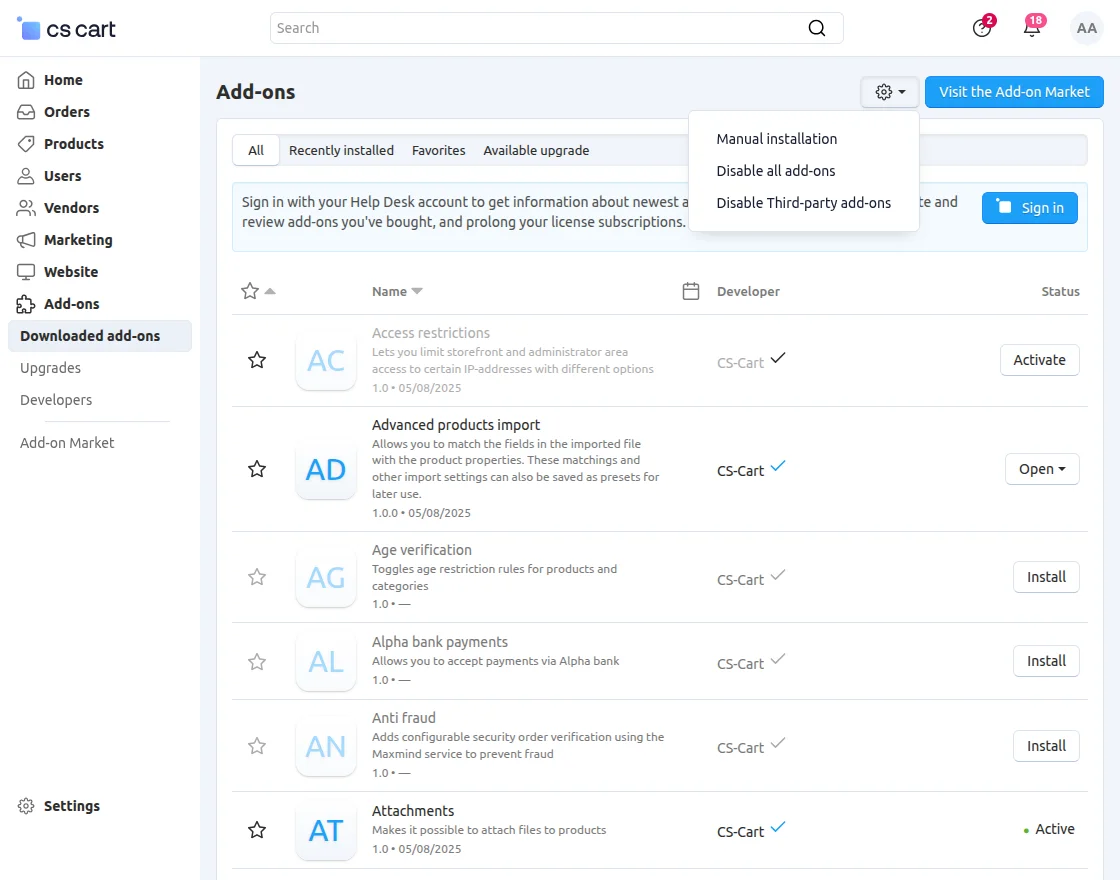
Go to Manage Add-ons, and click on “Manual Installation” as shown below in the snapshot.

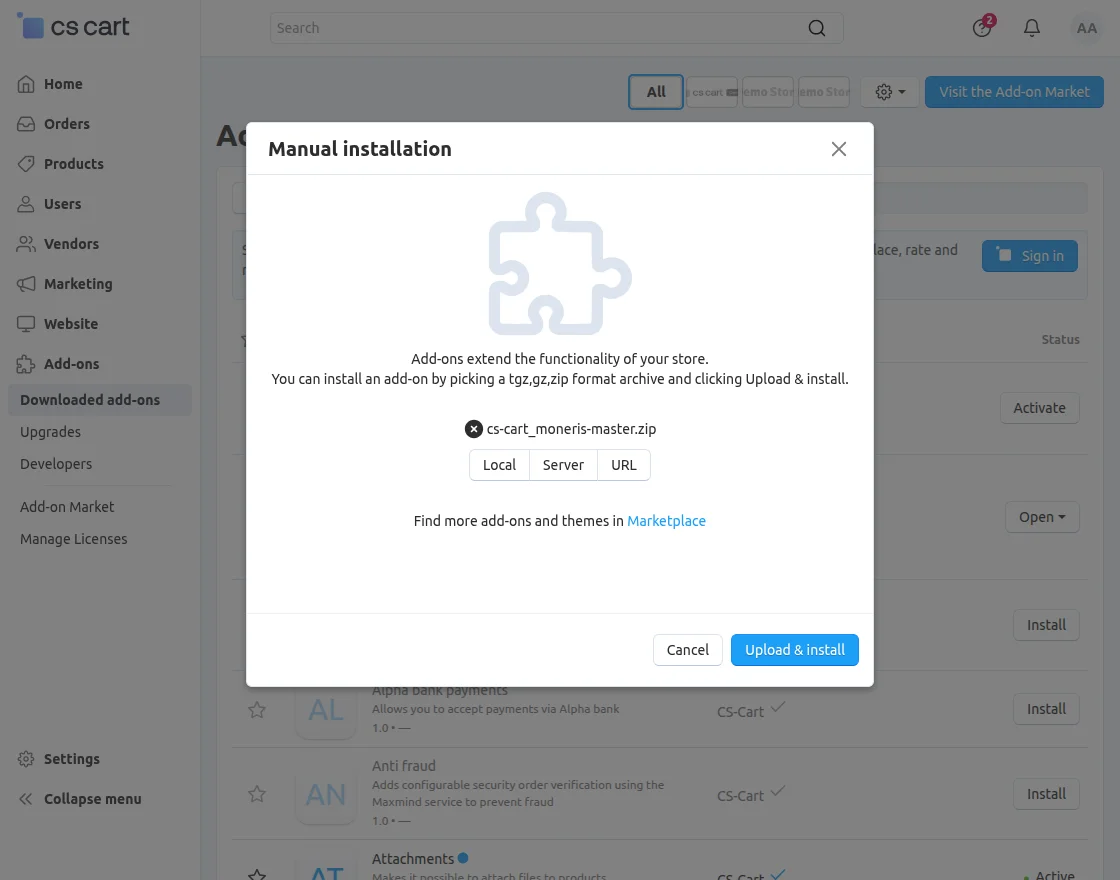
Click on “Local” to browse the zip file, and then click on “Upload & Install” as shown below in the snapshot.
Module Configuration | Admin
To configure the module, go to the Add-Ons >> Developers >> Webkul Software Pvt Ltd. >> Moneris Payment Method >> Settings.
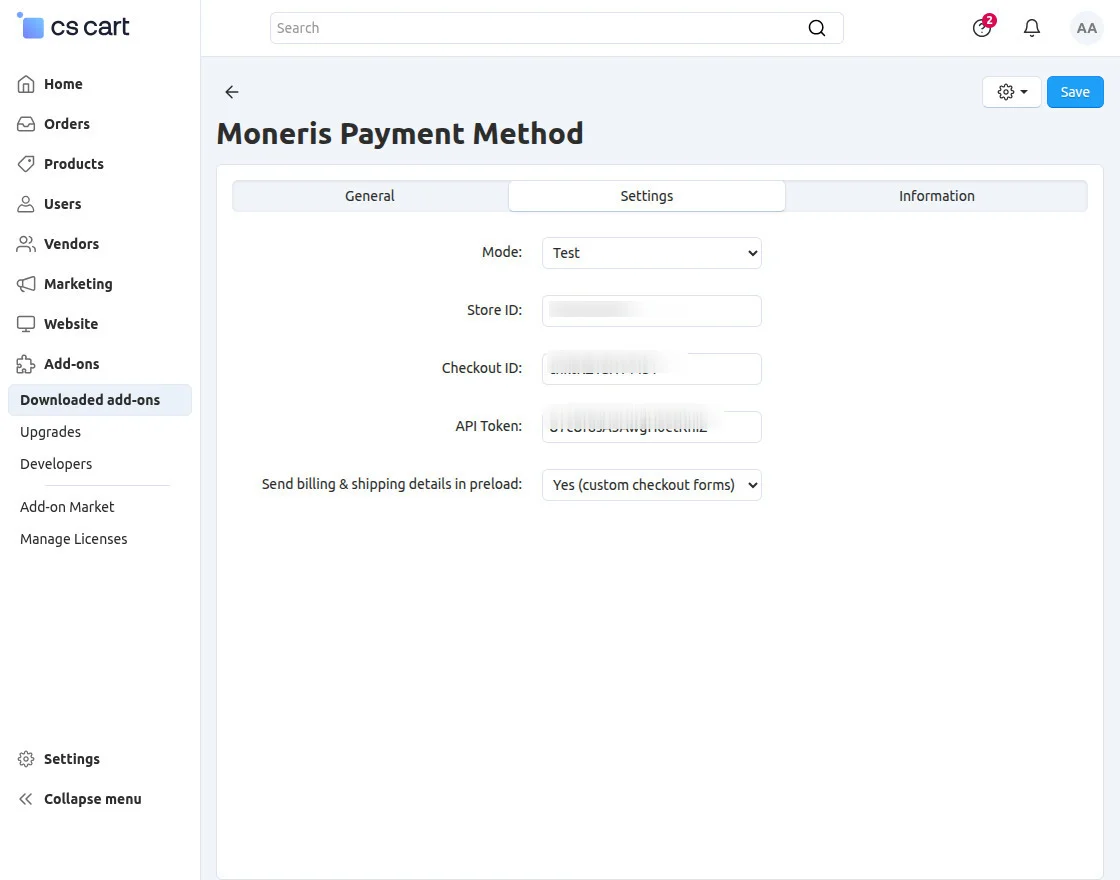
- Mode: Select the payment mode to process transactions in either Test or Live environment.
- Store ID: Enter the Store ID provided in your Moneris Merchant accoua nt.
- Checkout ID: Enter the Checkout ID generated in your Moneris Checkout configuration.
- API Token: Enter the API Token from your Moneris Merchant account to authenticate payment requests securely.
Payment Method
To add a payment method, navigate to Settings >> Payment Methods
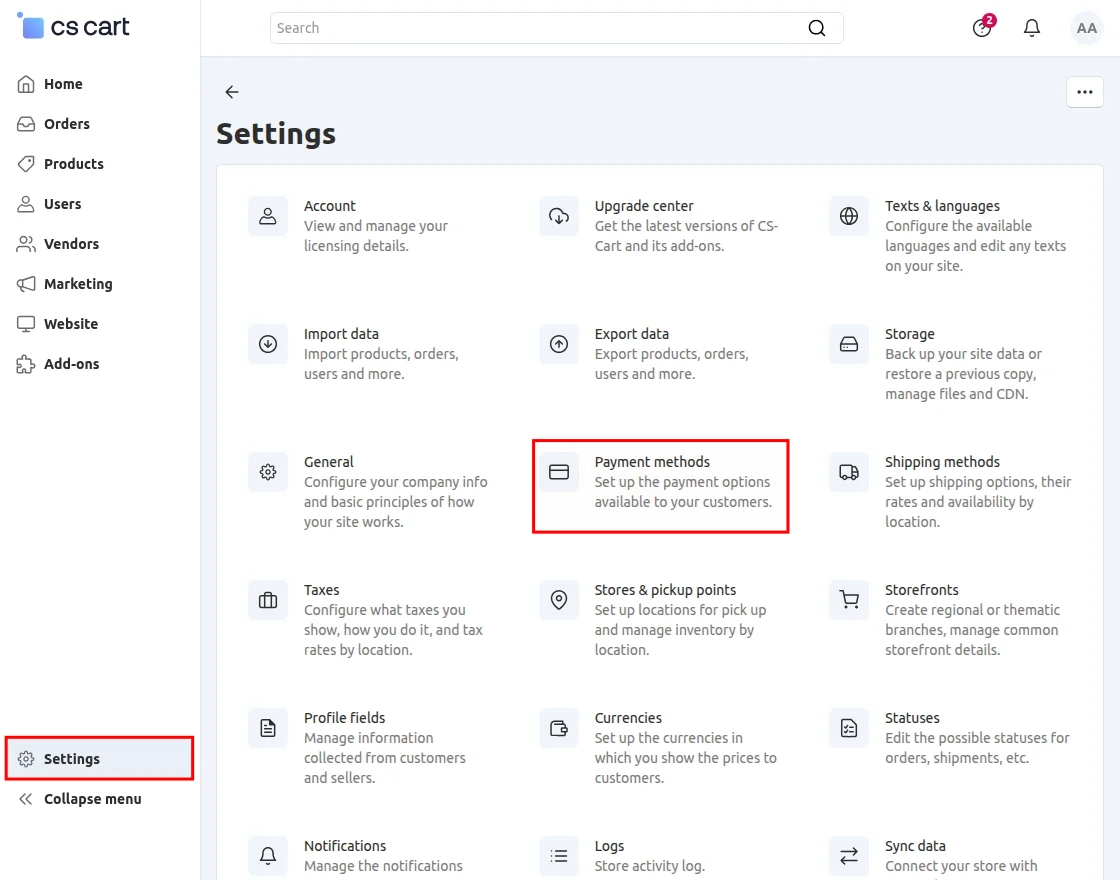
Click the + button to create a new payment method.
Then, select the Moneris Payment Gateway from the list of available payment processors.
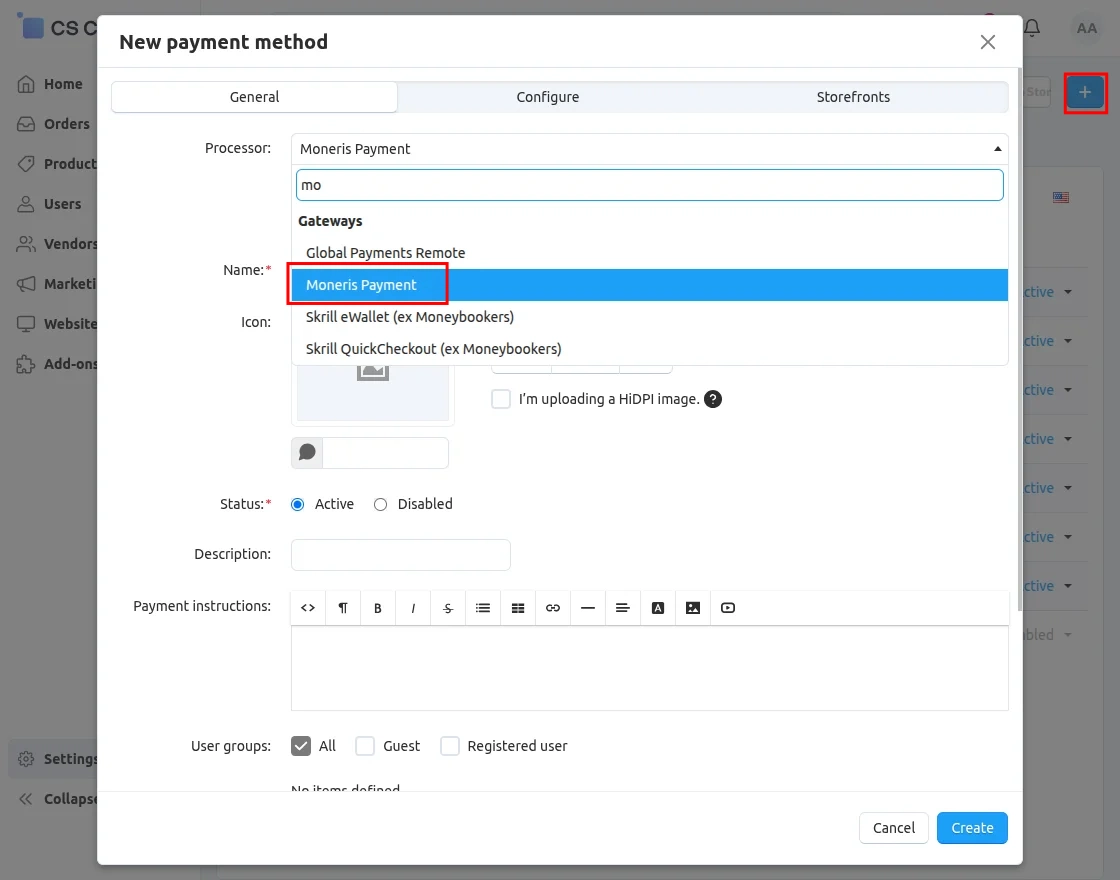
After completing the payment gateway configuration, navigate to the Configure tab to map the payment statuses according to your store’s requirements.
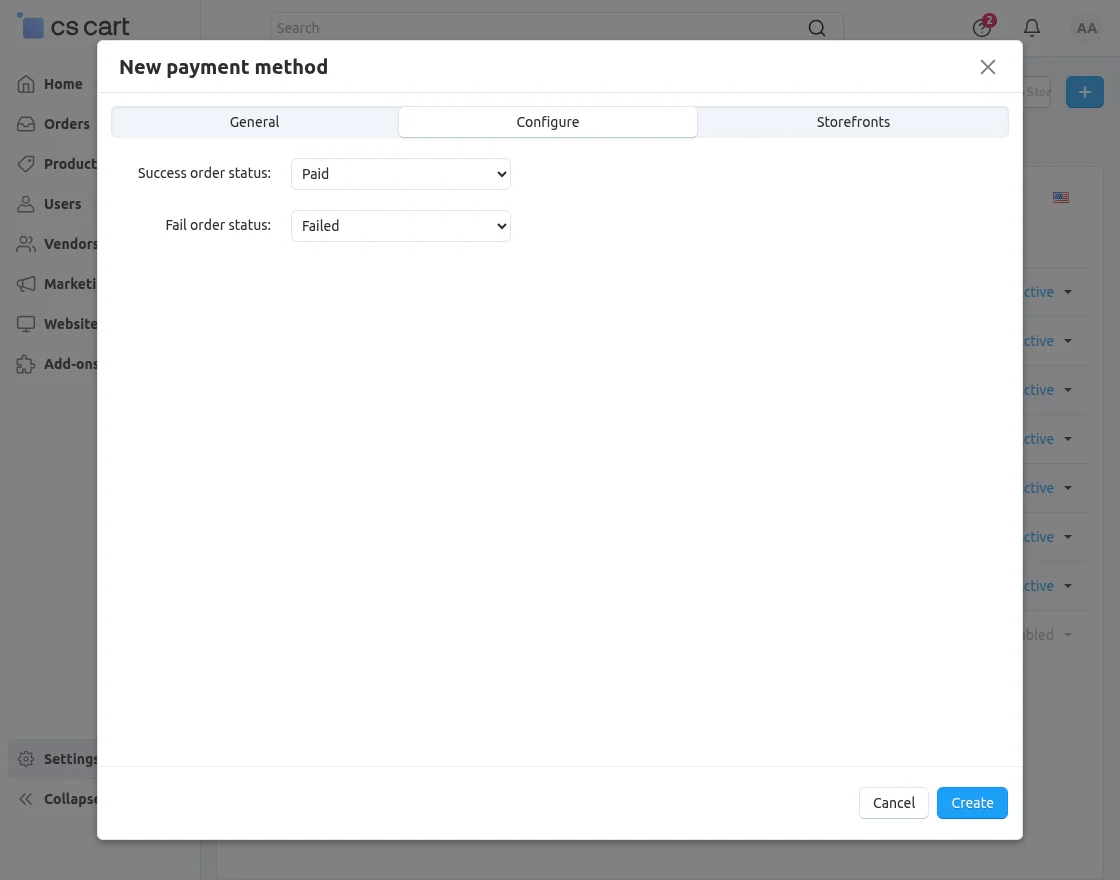
- Success Order Status: Select the order status that will be assigned when a payment is completed successfully.
- Failed Order Status: Select the order status that will be assigned when a payment fails or is declined.

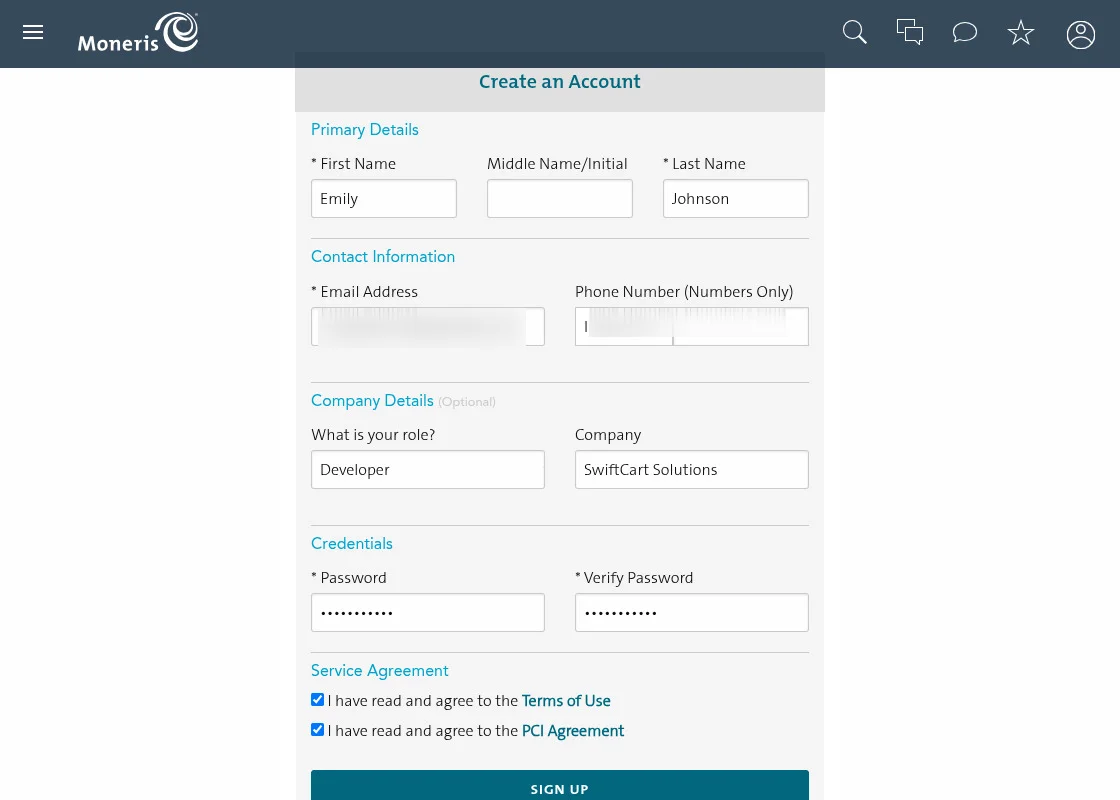
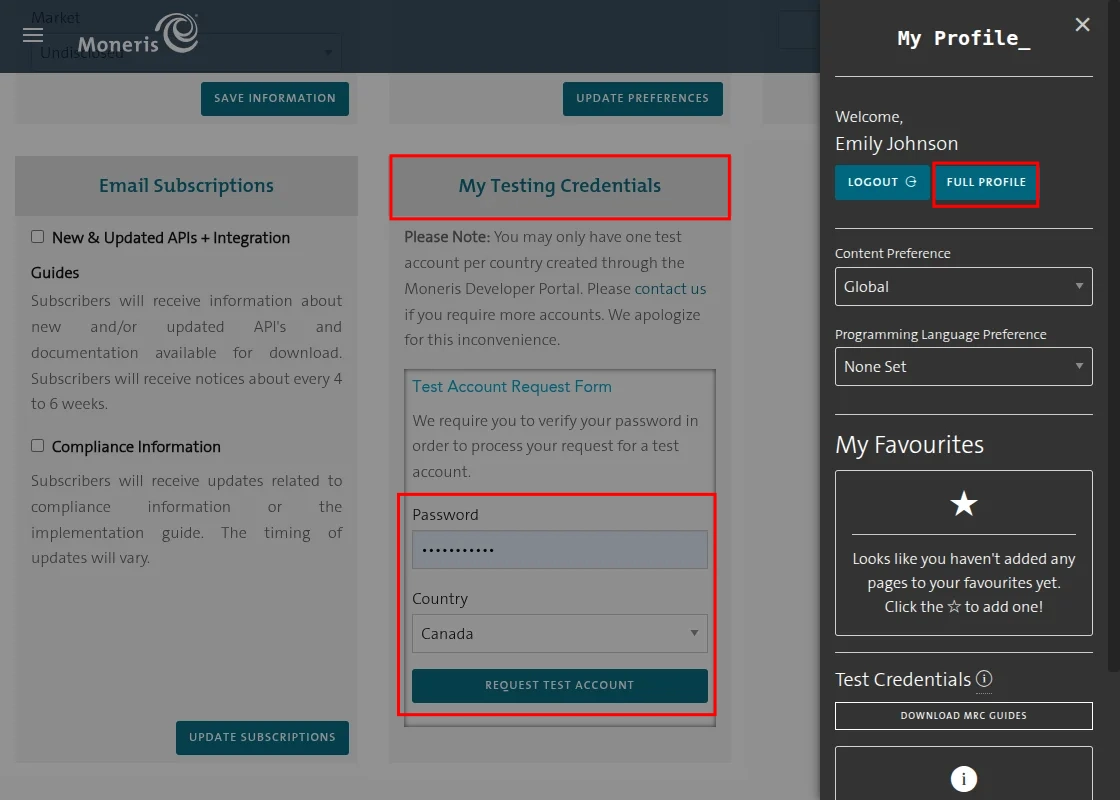
Enter your password and select a country to view your Moneris credentials.
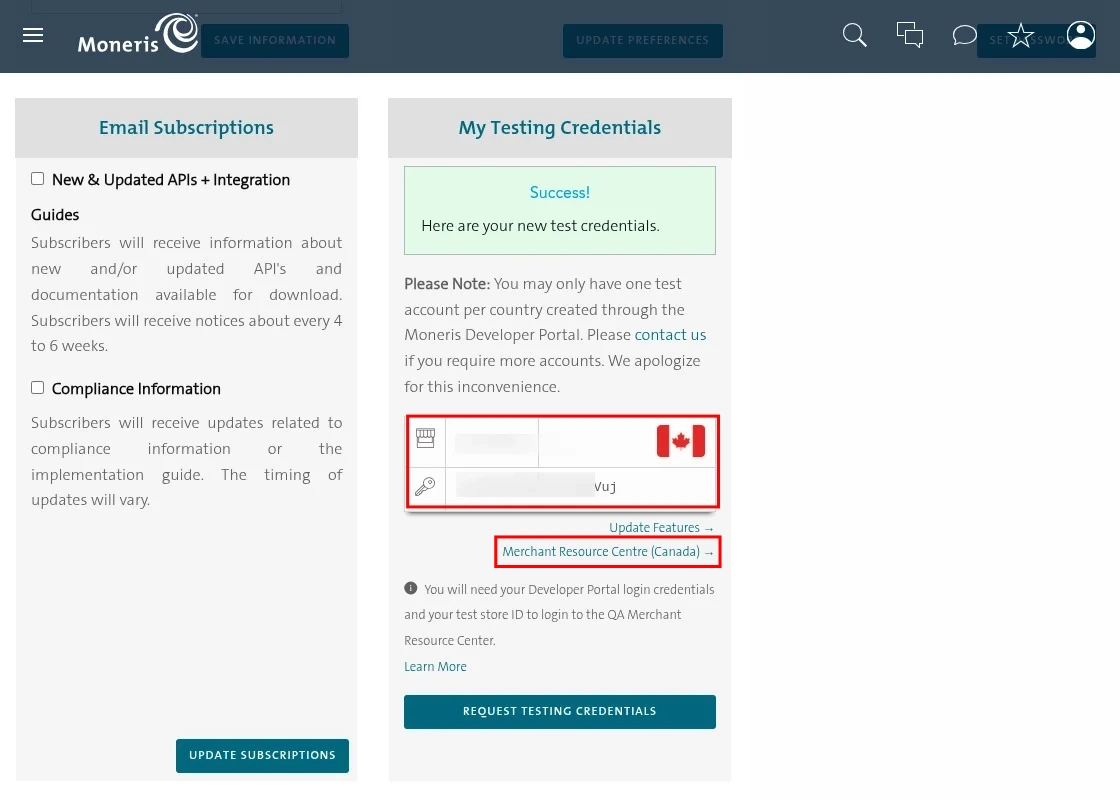
From this page, you can find your Store ID and API Token for configuring the Moneris Payment Gateway.
Now, click Merchant Resource Centre (Canada) to retrieve your Checkout ID for the Moneris Payment Gateway configuration.
You will be redirected to the Merchant Resource Center.
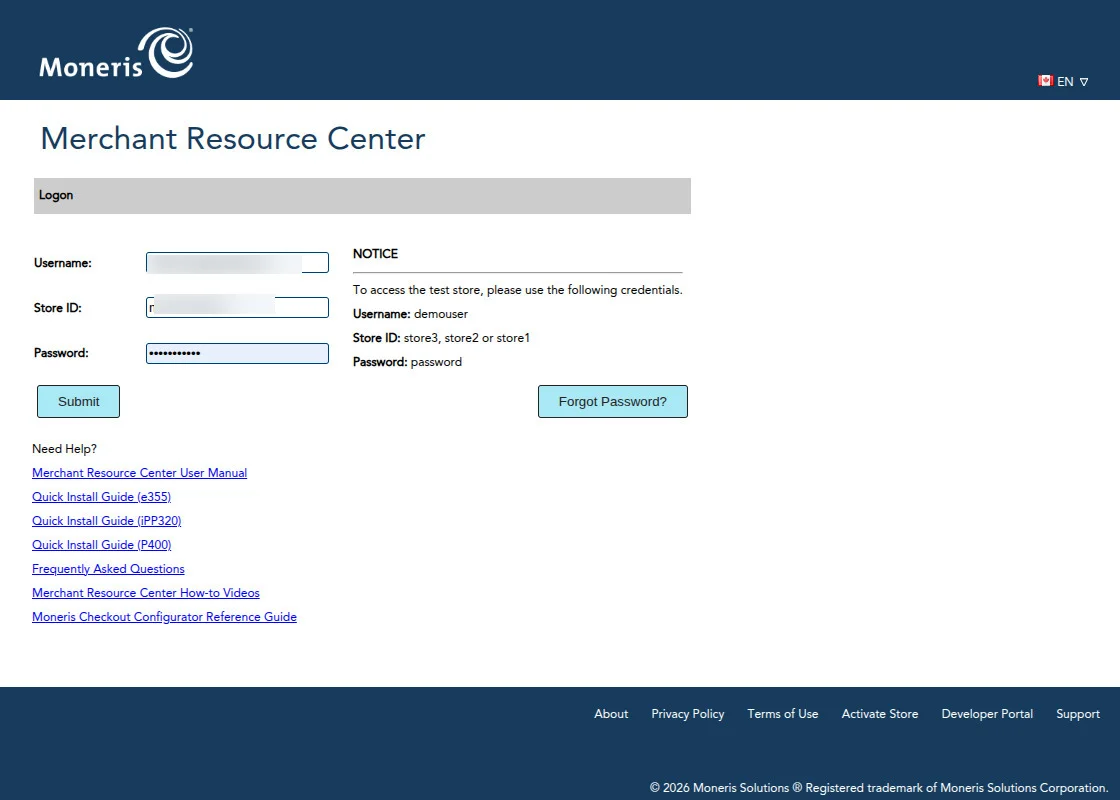
Enter your username, Store ID, and password to sign in.
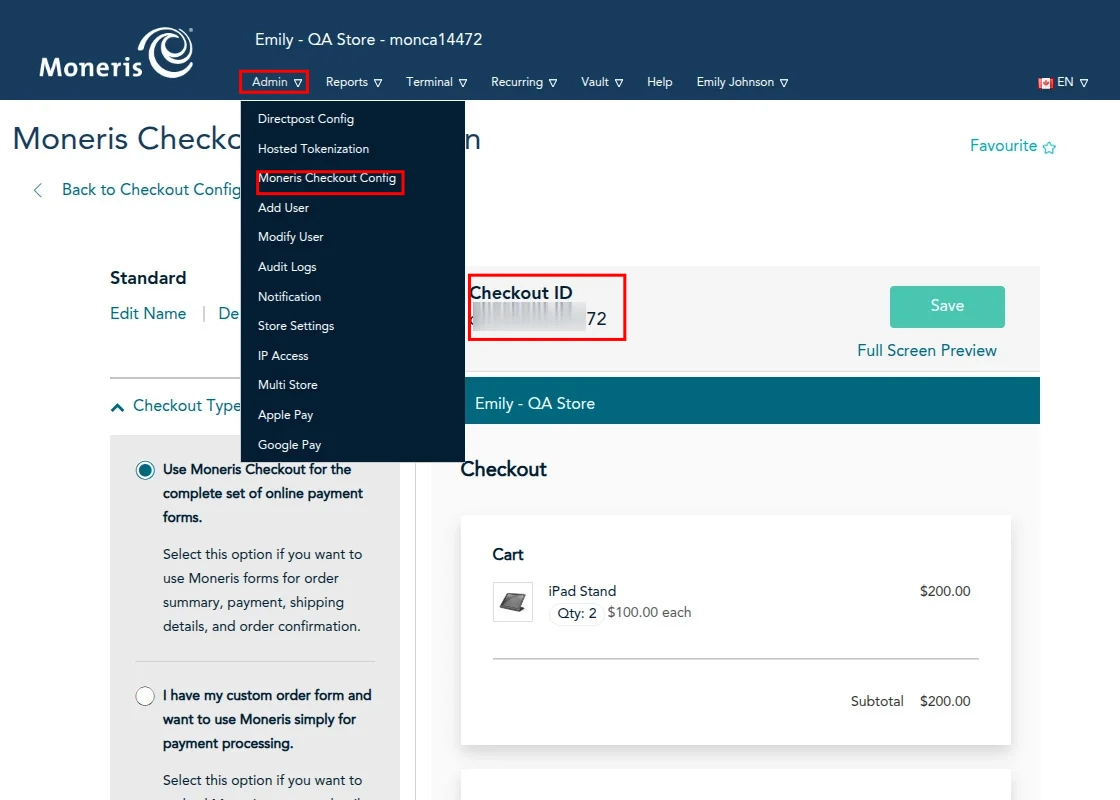
After submitting your credentials, navigate to Admin >> Moneris Checkout Configuration to retrieve your Checkout ID.
To view Checkout Transaction Details, navigate to Reports >> Checkout Transactions in your Moneris Account.
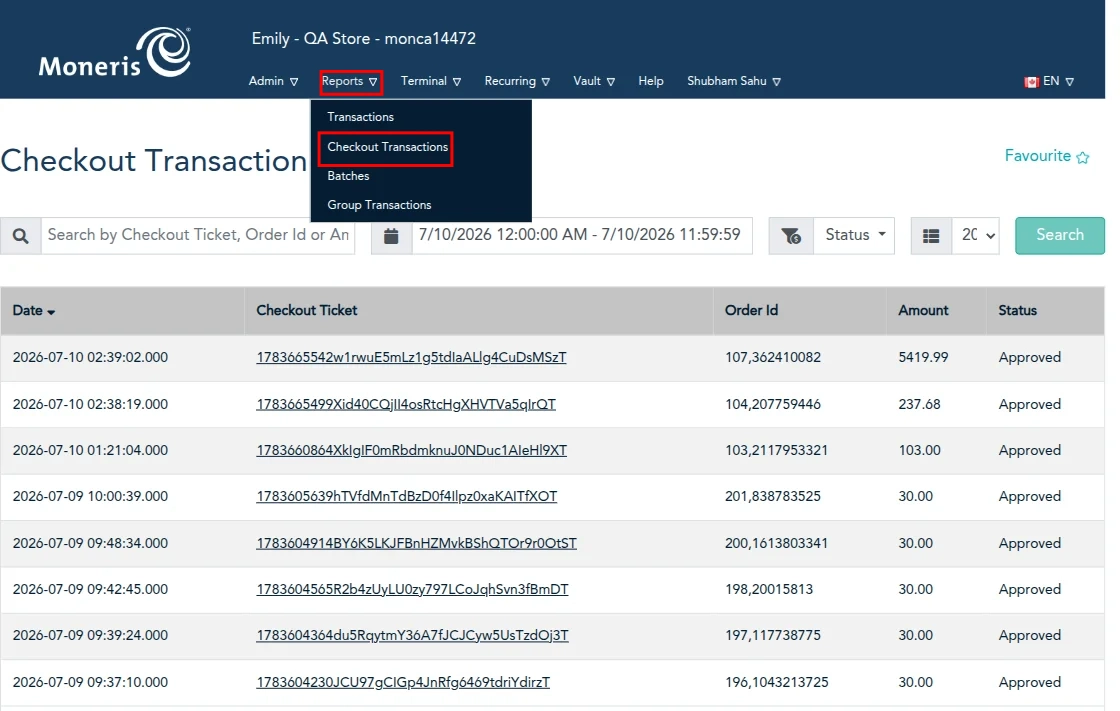

From this page, you can view all the transaction details.
You can view the details of a specific transaction by navigating to Reports → Transactions in the Moneris account.
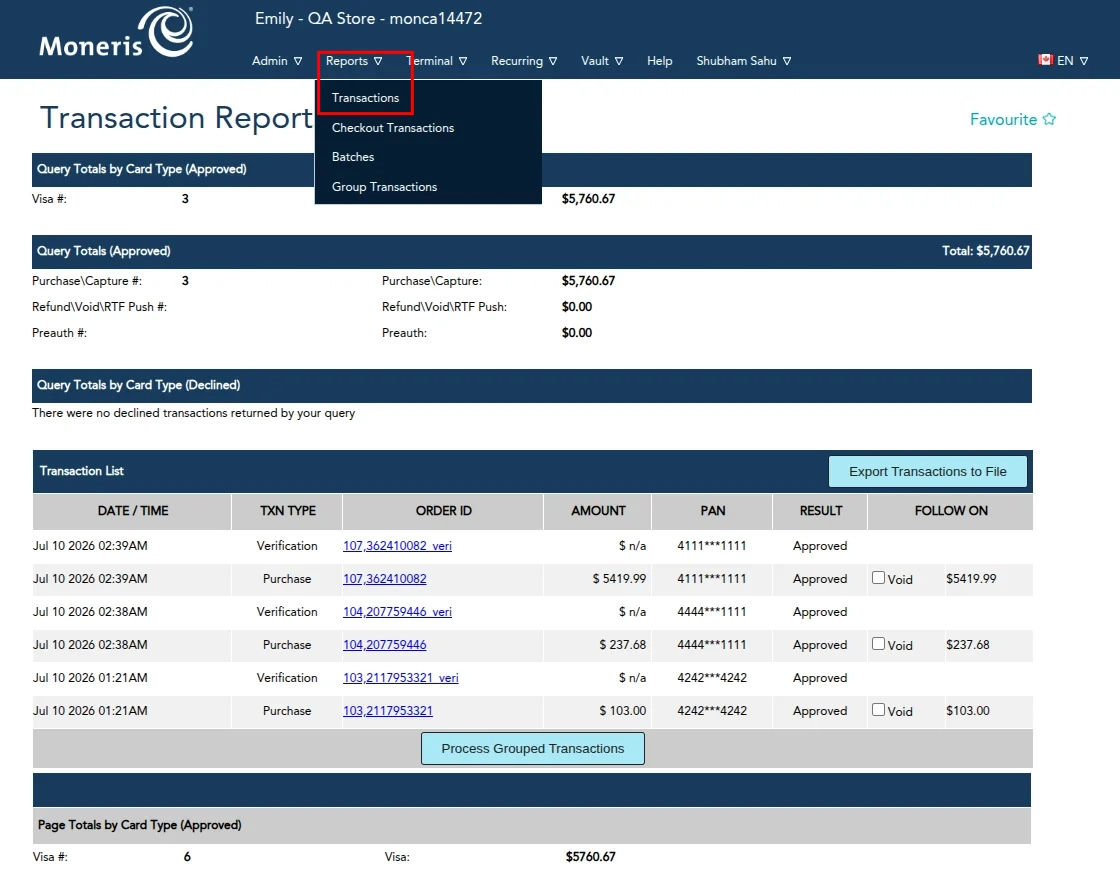
Checkout Page Layout
To manage the checkout page configuration, navigate to Admin >> Moneris Checkout Configuration.
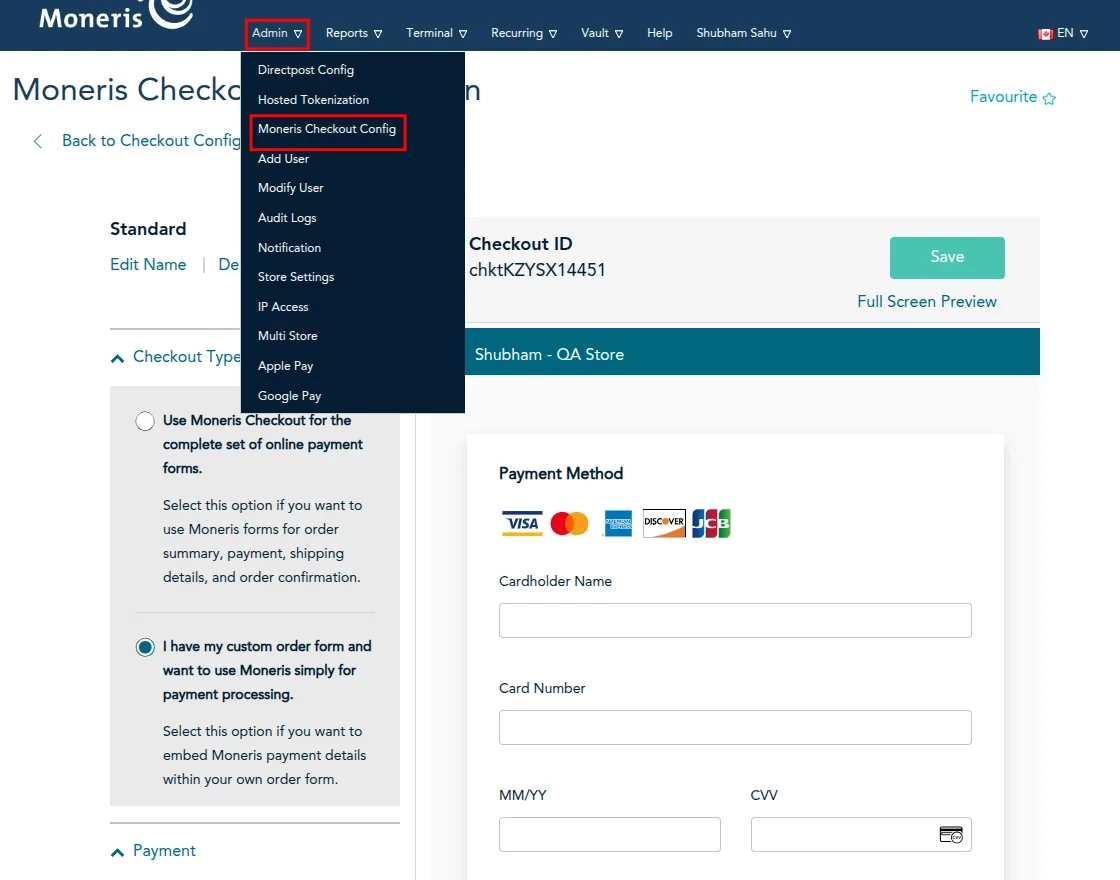
From this page, you can manage the Moneris Checkout configuration according to your requirements.
Front End
When customers proceed to checkout, they will see the **Moneris Payment** method as one of the available payment options.
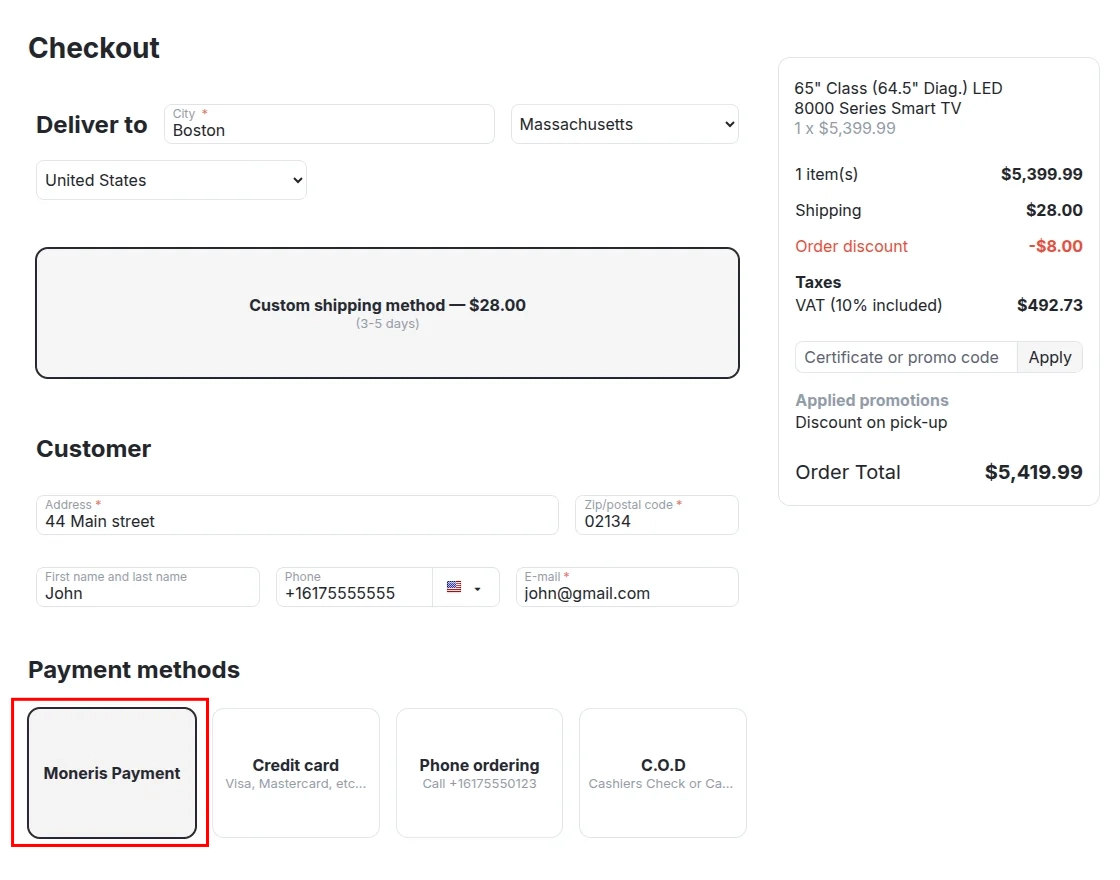
After selecting the Moneris Payment method and placing the order, the customer will be redirected to the Moneris payment gateway to complete the payment.
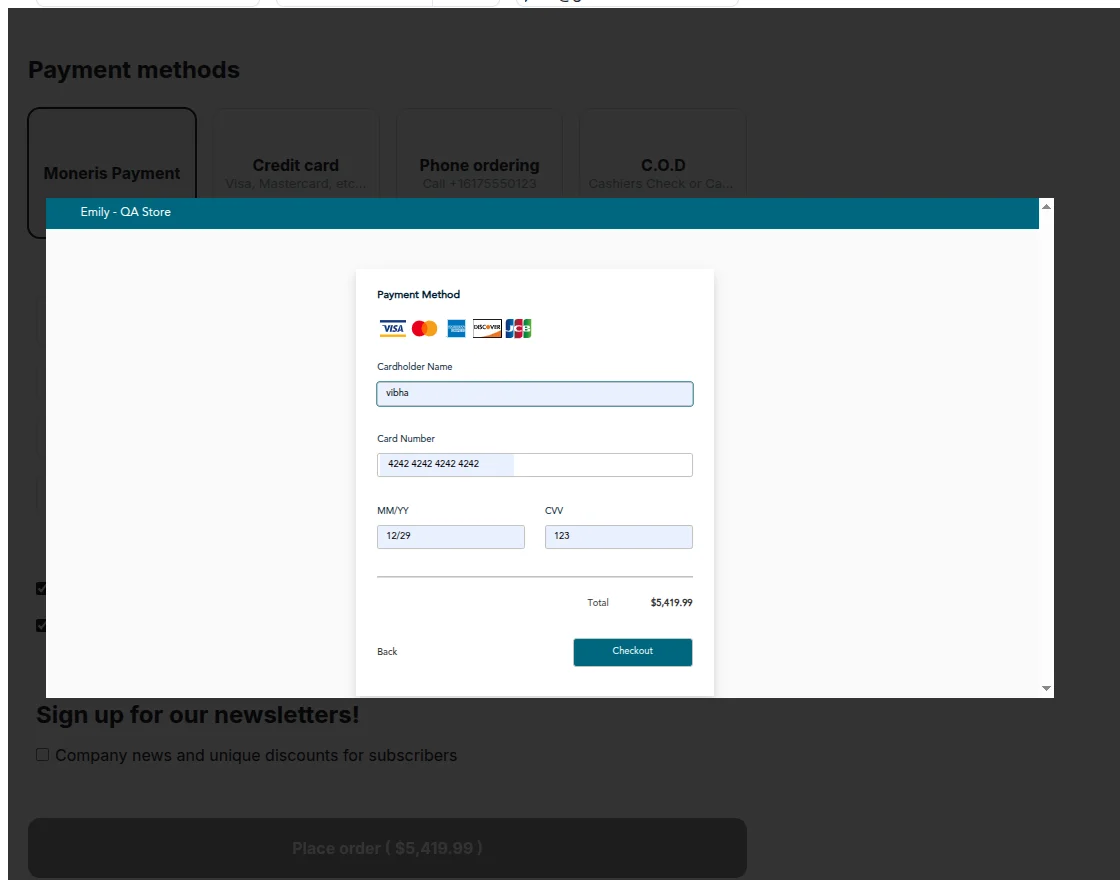
After entering the required payment details and completing the authentication, the customer can place the order successfully.
Support
If you have any questions, suggestions, or customization requests, feel free to contact us at support@webkul.com or submit a ticket at webkul.uvdesk.com.
Explore our premium-quality CS Cart Extensions to enhance your store functionality.
You can also explore our CS-Cart Development Services and Quality CS-Cart add-ons.