CS-Cart Mercado Payment Gateway
CS-Cart Mercado Payment Gateway provides a convenient way for store owners to accept payments from customers through Mercado payment services directly from their CS-Cart store.
The payment method can be configured from the CS-Cart admin panel and integrated into the checkout process.
The payment gateway also provides an Installment option, allowing store owners to enable installment payments for customers during checkout.
Check a brief overview of the plugin –
Features
- Well integrated with the CS-Cart payment method configuration.
- Supports Mercado Payment Gateways (Inline) as the payment processor.
- Allows the administrator to configure the Public Key and Access Token.
- Provides separate order statuses for successful and failed payment transactions.
- Allows administrators to set the order status to Paid for successful orders.
- Allows administrators to set the order status to Failed for unsuccessful orders.
- Supports an Installment option for customers during checkout.
- Allows the payment method to be configured for the required storefronts.
How To Upload And Install CS-Cart Mercado Payment Gateway
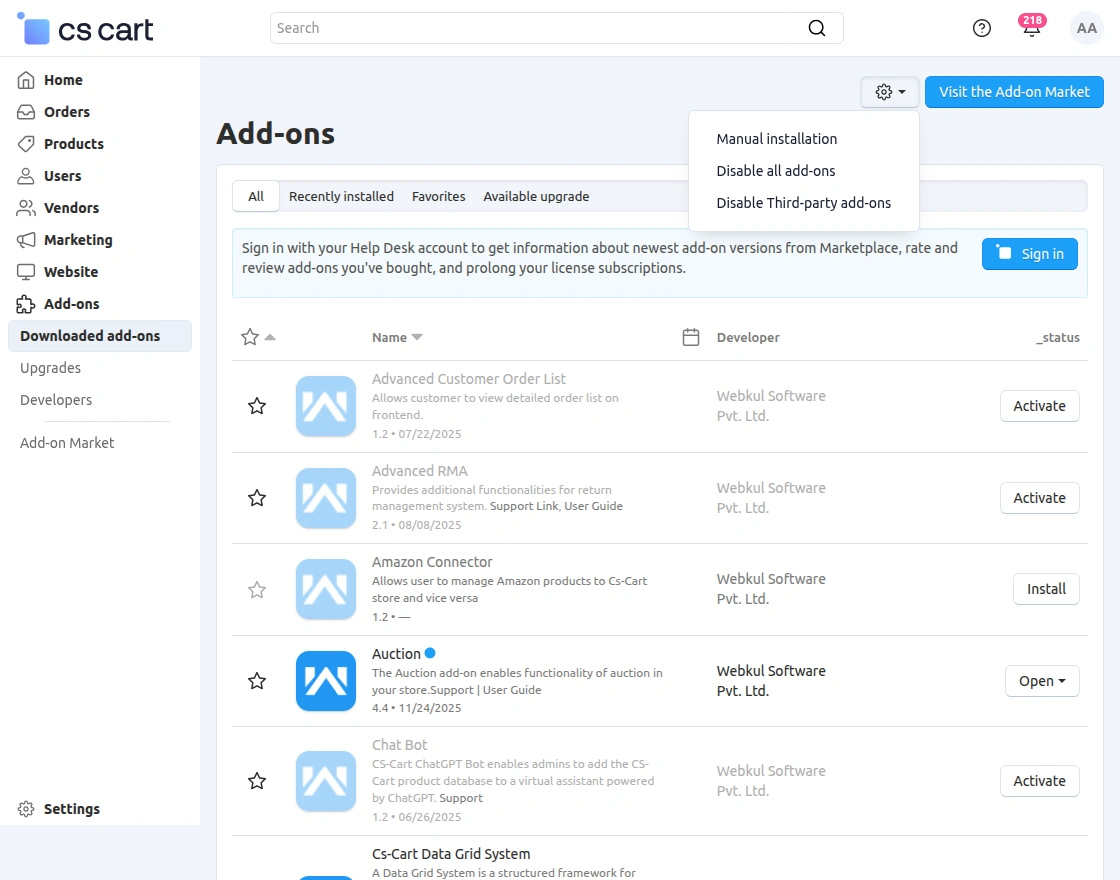
Go to Manage Add-ons, and click on the Settings icon > Manual Installation as shown below in the snapshot.

Click on “Local” to browse the zip file and then click on “Upload & Install” as shown below in snapshot.
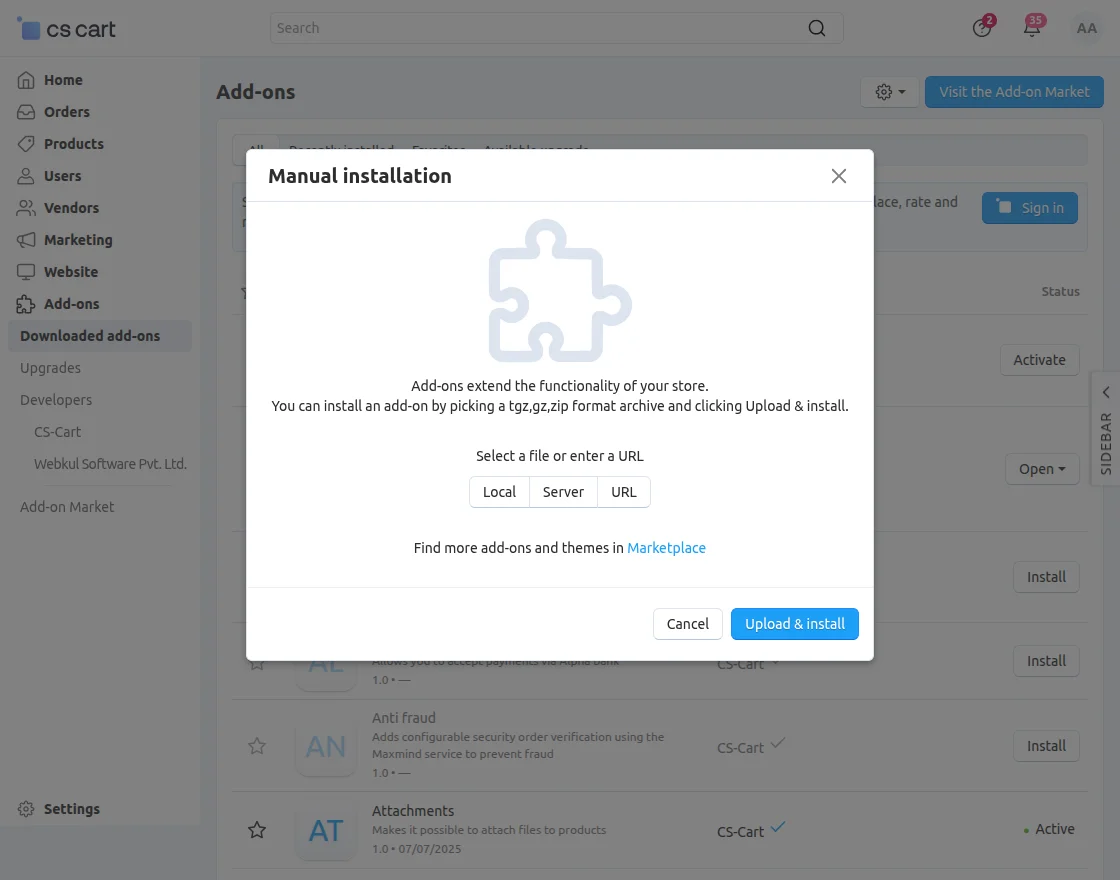
Add-on installed successfully!
Once the addon is installed successfully, we need to configure the settings of the addon.
Configuration for Payment Methods
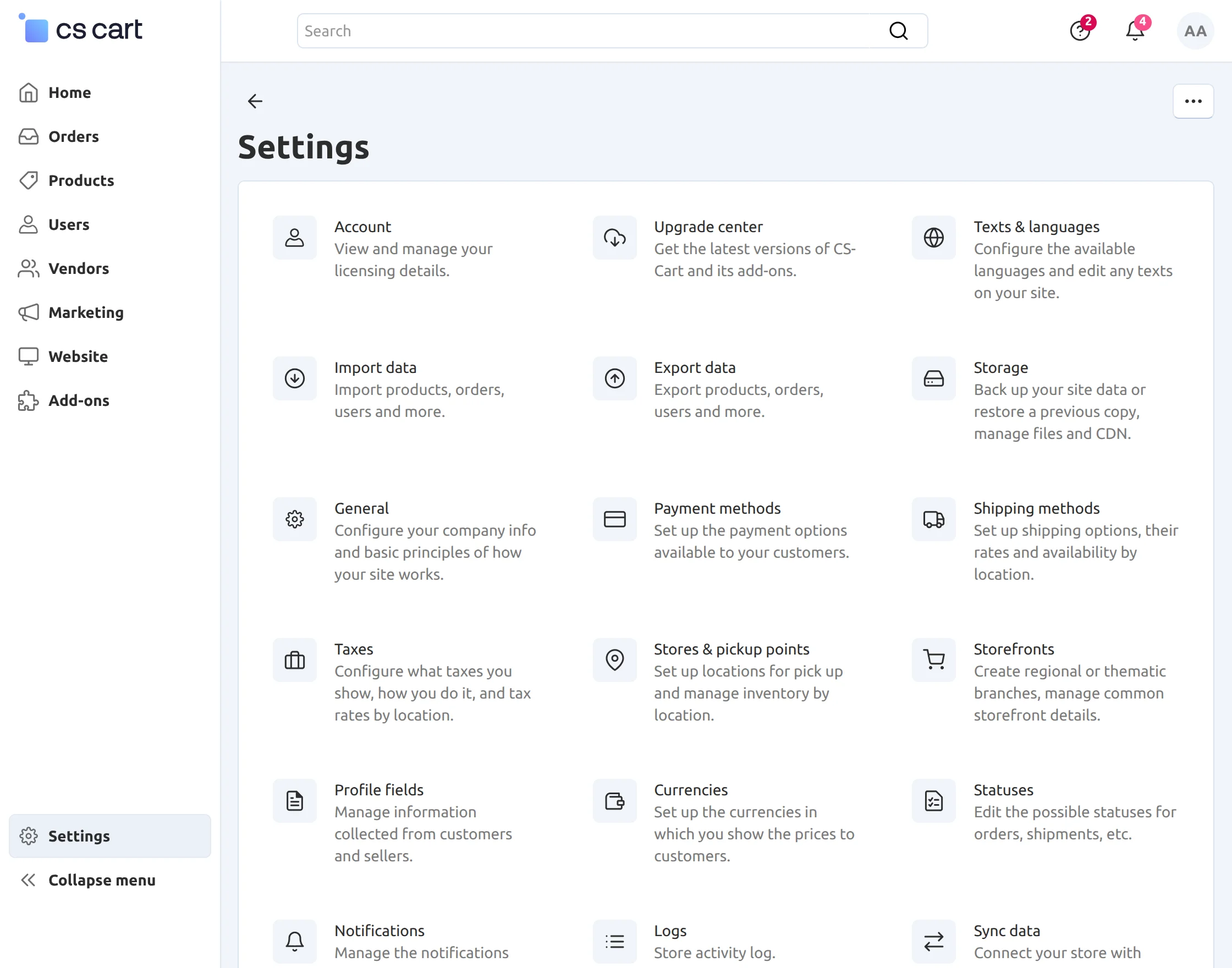
- First, go to Settings > Payment Methods from the admin panel.

Click on “+” to create a new payment method.
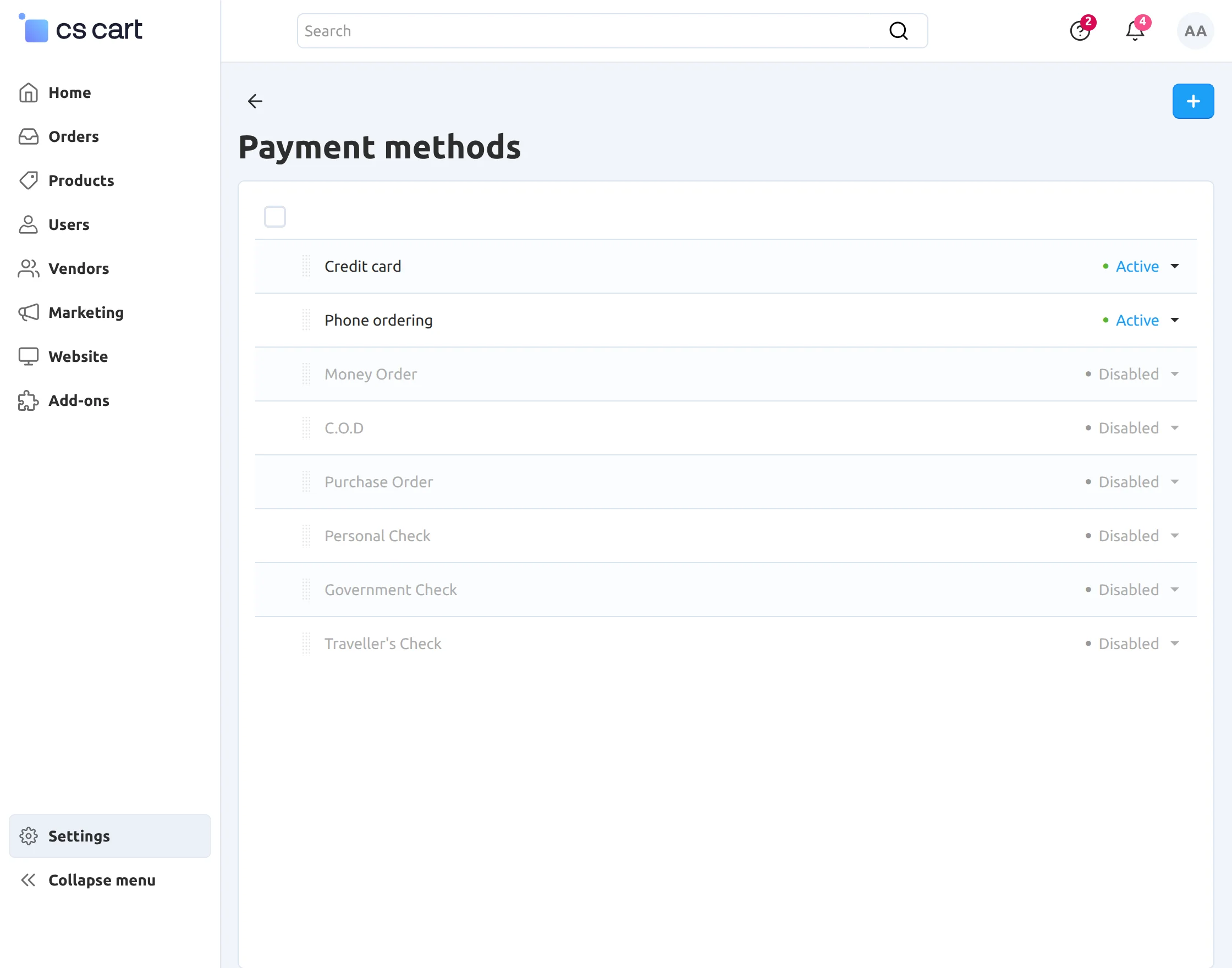
Configuration for Payment Methods
After selecting the Mercado payment processor, the administrator can configure the payment method based on the store’s requirements.
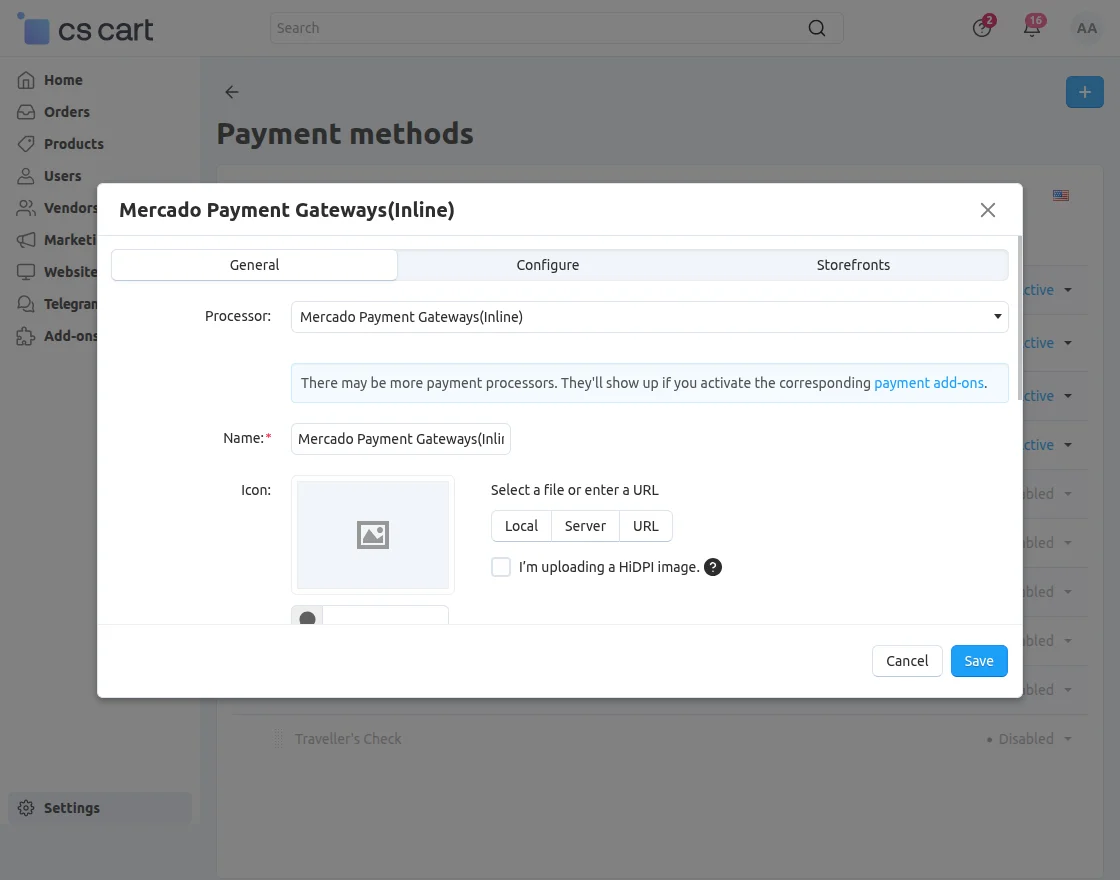
Under the General section, the administrator can enter the basic details of the payment method.
Name: Enter the name that will be displayed for the payment method.
Icon: You can select an image file or enter an image URL to define the payment method icon.
Storefronts: Select the storefronts where the Mercado payment method should be available.
Mercado Payment Gateway Configuration
Navigate to the Configure section to enter the credentials and payment settings required for the Mercado Payment Gateway.
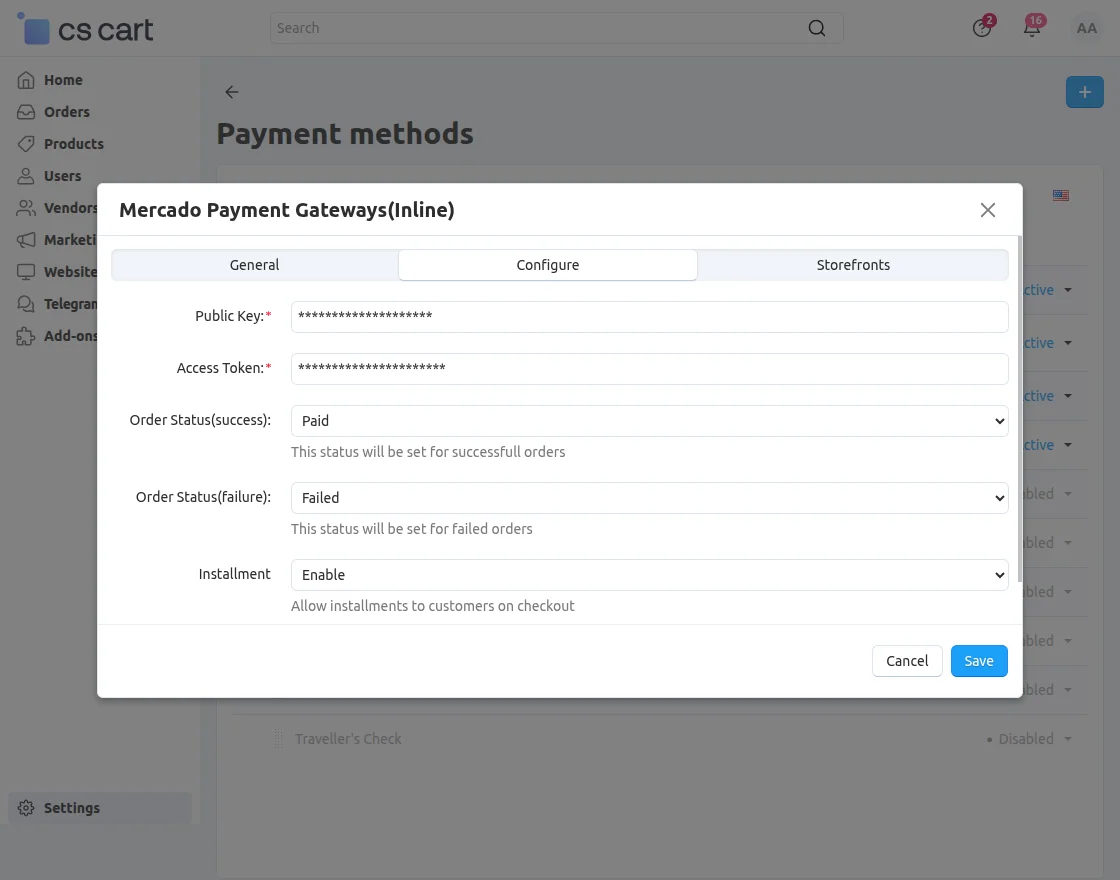
Public Key
Enter the Public Key provided by Mercado. This key is used as part of the payment gateway configuration.
Access Token
Enter the Access Token provided by Mercado to authenticate payment requests.
Order Status (Success)
Order Status (Success)Select the order status for successfully completed payments.
For example, select Paid.
CS-Cart assigns this status to the order after Mercado successfully processes the payment.
Order Status (Failure):
Select the order status for failed payments. For example, select Failed. CS-Cart assigns this status when the payment fails.
This allows the store administrator to distinguish unsuccessful payment attempts from successfully paid orders.
Front-End View
After configuring the Mercado Payment Gateway and saving the payment method, customers can access it on the storefronts you selected.
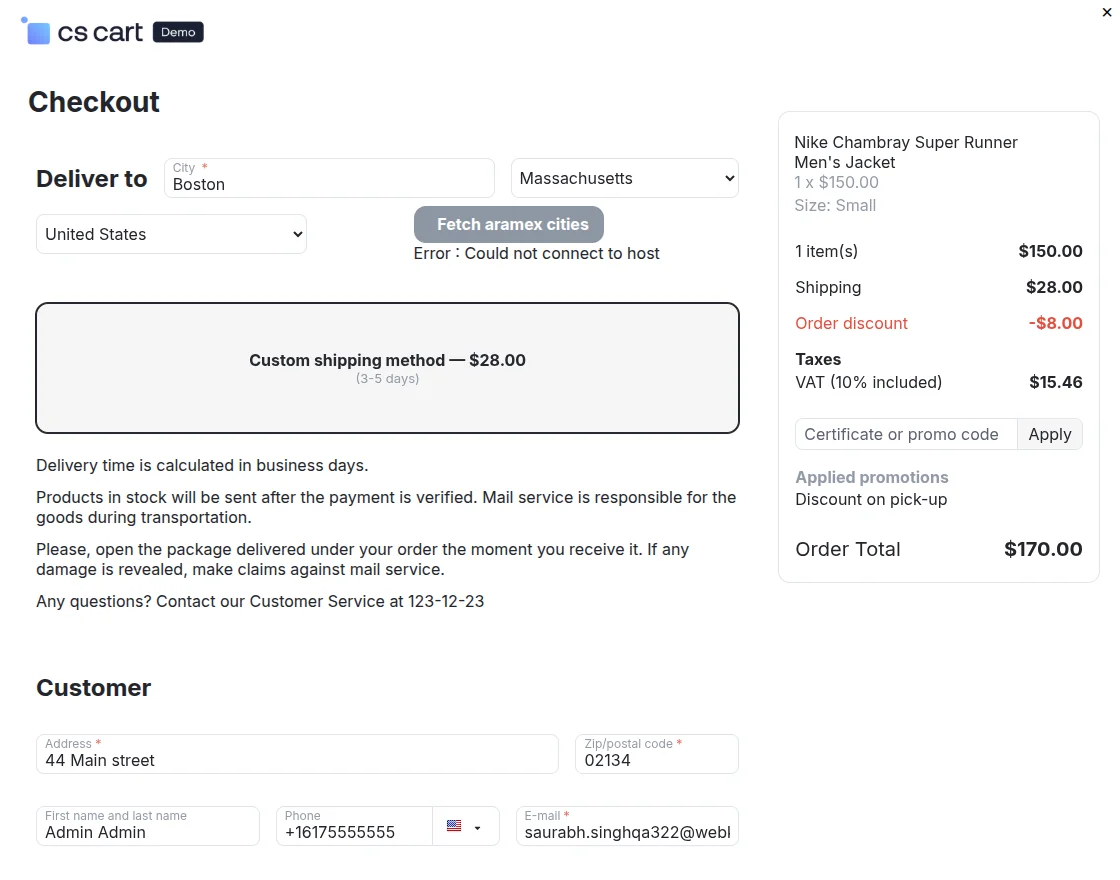
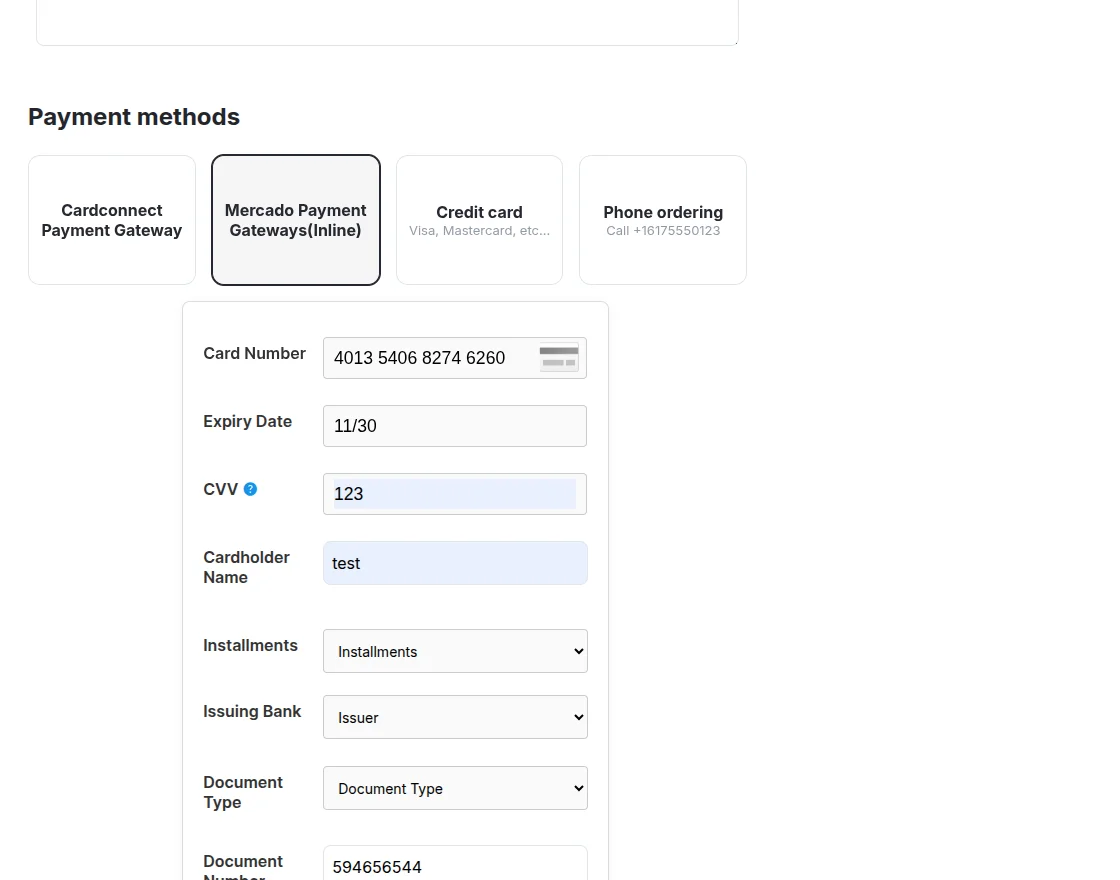
During checkout, customers can select the Mercado Payment Gateways (Inline) payment method and proceed with the payment.
If the installment option has been enabled, customers can also use the available installment payment facility during checkout.
Support
Still, have any issues with the CS-Cart Mercado Payment Gateway, feel free to reach out to the support team and share your feedback or queries.
Besides this, you can also explore our CS-Cart Development Services and other quality CS-Cart add-ons to extend the functionality of your online store.