User Guide For CS-Cart Digipin
CS-Cart DigiPin Addon adds extra security by creating a unique DigiPin code from the customer’s live location during checkout.
The addon automatically records the DigiPin with the order data.
The DigiPin appears on the order details page, giving admins a clear and trusted way to check the customer’s location.
You can also go through the below video to get to know the functionality,
Features
- The addon works seamlessly with both CS-Cart and CS-Cart Multi-Vendor platforms.
- It generates a unique DigiPin string using the customer’s real-time geographic location during checkout.
- The addon automatically stores the DigiPin within the order details for every purchase made on your store.
- Admins can view the DigiPin directly from the Order Details page in the admin panel.
- The encoded location data helps verify order authenticity and reduce address-related errors.
- The addon improves delivery accuracy by providing a location-based reference for each order.
- The addon generates and saves the DigiPin automatically with every order, requiring no manual input.
- It works with the default checkout flow without disrupting the user experience.
- Compatible with all CS-Cart order types, including guest checkouts and vendor-based orders.
- Ideal for stores that want to improve logistics, reduce fraud, and track order locations more precisely.
Installation
After downloading CS-Cart Digipin add-on, you’ll get one zip file, one install.txt file, and a relevant User Guide manual doc. Read it carefully for proper configuration.
Go to Manage Add-ons, and click on “Manual Installation” as shown below in the snapshot.

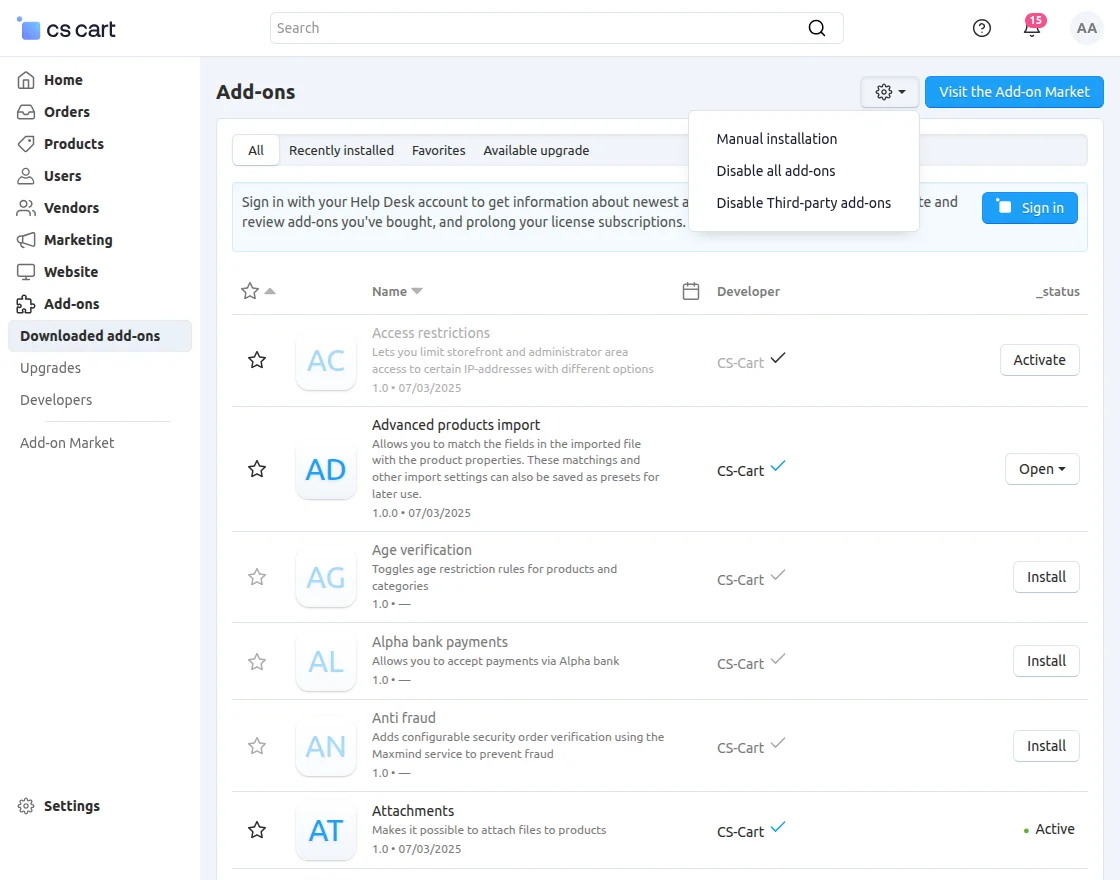
Click on “Local” to browse the zip file, and then click on “Upload & Install” as shown below in the snapshot.
Add-on Configuration
After installing the add-on, you will find CS-Cart Digipin in the list of available add-ons. We will then configure the settings.
Click on “settings” to enable, disable, install, or refresh.
Make sure you activate the add-on, as shown in the snapshot below.

Front End View
Go to the storefront and select any product. Proceed to the checkout page and enter your location.
You’ll see a “Generate DigiPin Of Your Live Location” button — click it to capture your current location and convert it into a secure, encoded DigiPin string that the system saves with your order.

Click the “Generate DigiPin Of Your Live Location” button to generate the DigiPin. The system instantly displays the generated DigiPin, as shown in the image below for reference.

View the DigiPin in the Order Information – Storefront
After placing an order, go to Orders and select the specific order. On the Order Information page, you will be able to see the generated DigiPin associated with that order.

Backend View in Admin Panel
To view the DigiPin in the admin panel, navigate to Orders and select the most recently placed order. On the Order Details page, you’ll find the DigiPin linked to that order.

Backend View in Vendor Panel
To view the DigiPin in the vendor panel, go to Orders and select the recent order. The system displays the DigiPin associated with that order on the Order Details page for your reference.

CS-Cart DigiPin Addon generates a secure, encoded DigiPin based on the customer’s live location during checkout and displays it in order details for easy verification.
Support
If you have any questions, suggestions, or customization requests, feel free to contact us at support@webkul.com or submit a ticket at webkul.uvdesk.com.
Explore our premium-quality CS Cart Extensions to enhance your store functionality.
You can also explore our CS-Cart Development Services and Quality CS-Cart add-ons.