CS-Cart Adyen Payment Gateway
CS-Cart Adyen Payment Gateway : Adyen is a popular globalized payment gateway.
This enables merchants to accept payments from anywhere in the world and provides a global payment solution for mid, large and enterprise e-commerce merchants.
With this add-on store admin can easily provide a new payment gateway Adyen to their customers for safe and secure payment.
You can also explore our cs-cart Development Services and other quality cs-cart add-ons.
Features
- Well integrated with CS-Cart Multi-Vendor.
- The concept of inline and HPP (skin) is available.
- Supports almost all kind of cards including Visa, Mastercard, American Express, Discover, JCB etc.
- Functionality to create and manage the refund (Full or Partial) at admin end.
- Works with Ayden supported currencies.
- A functionality of 3D secure payment is available.
- Functionality to save payment response provided by Adyen in the backend view of orders.
- Admin has complete control of the system.
- Provides safe and secure payment to handle risk management system.
Video Tutorial
How do upload and install the CS-Cart Adyen Payment Gateway Extension
When you’ll download the CS-cart Adyen Payment Gateway extension you’ll get the zip file of the installer, a pdf, and an install.txt file.
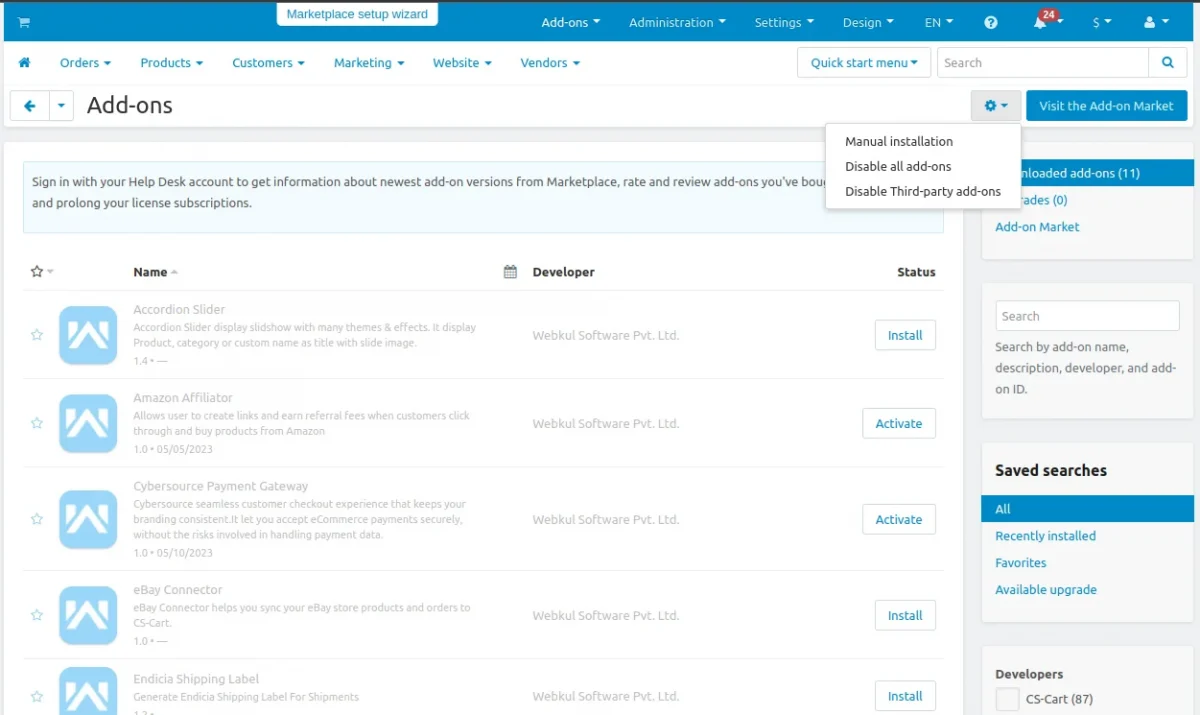
Read the pdf carefully for further configuration. Go to “Manage add-ons”, and by clicking on the settings icon you can be able to manually install the zip file as shown.
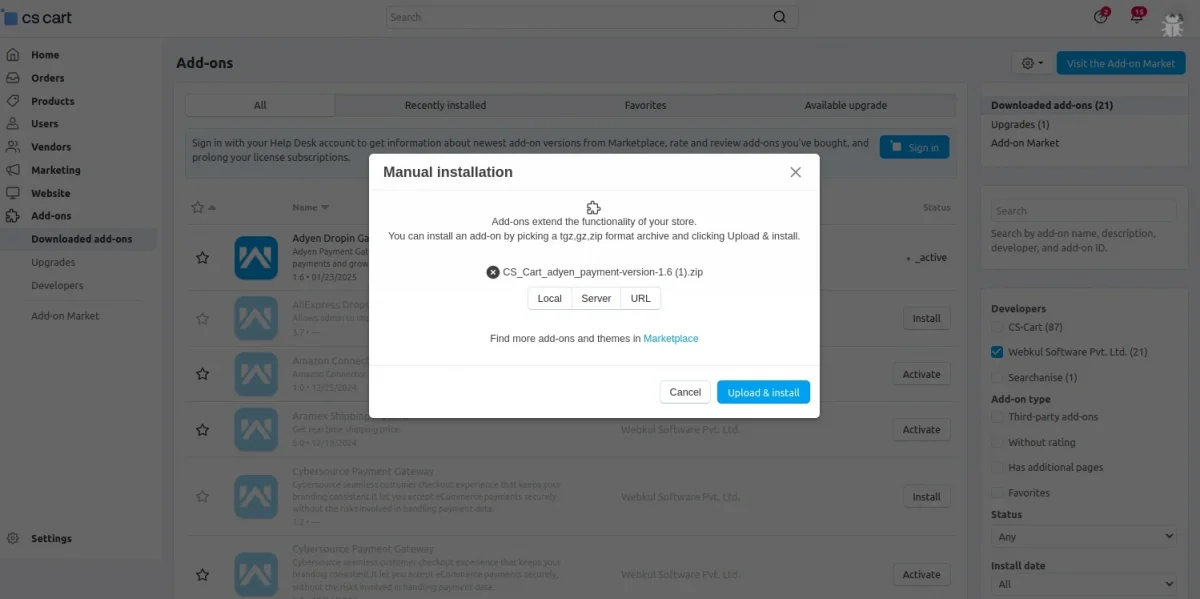
Click on “Local” to browse the zip file and then click on “Upload & Install” as shown below in the snapshot.

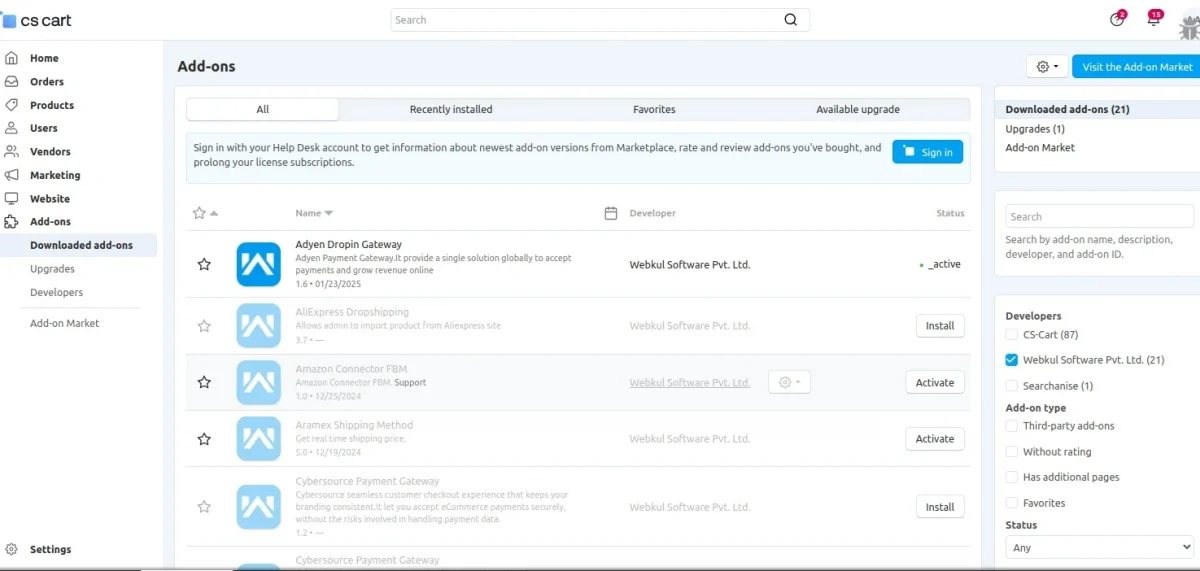
Activate Add-on
Click on “settings” to Enable, Disable, and Install.

Configuration
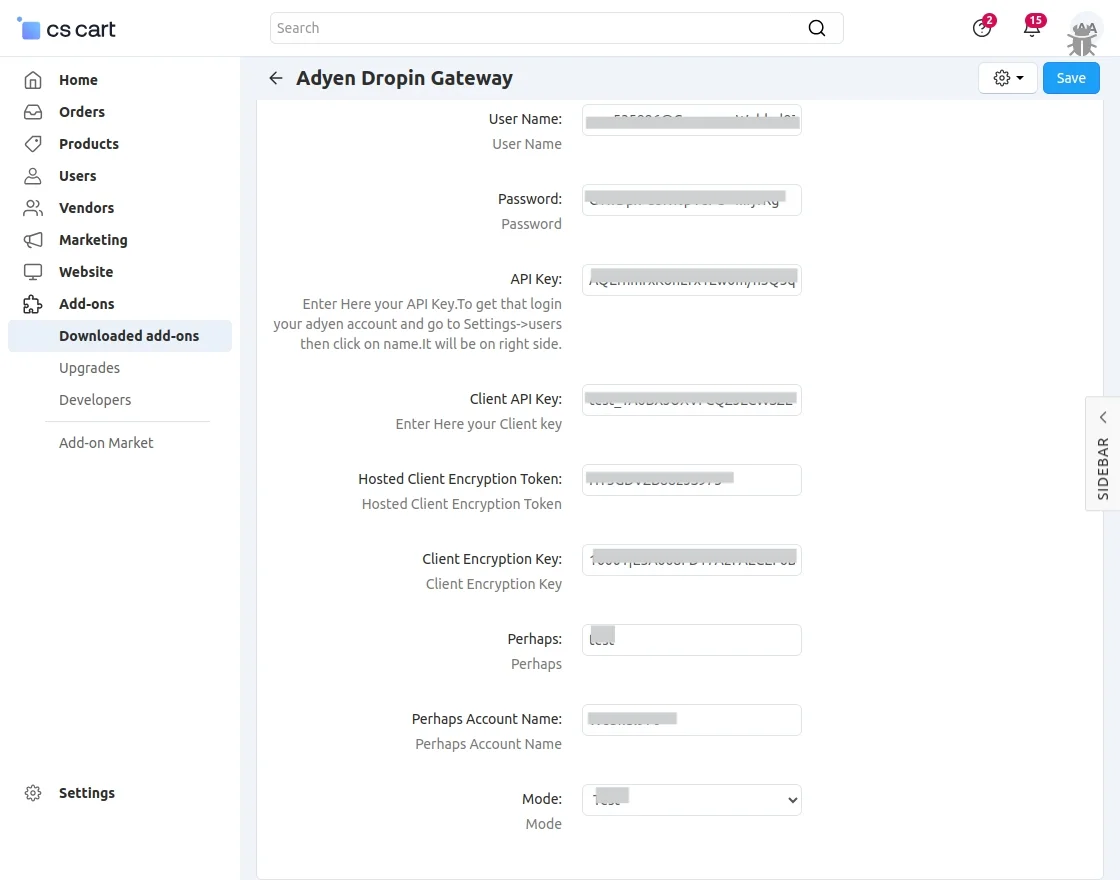
Once the add-on is installed, click on “Settings” to configure the add-on as shown below.

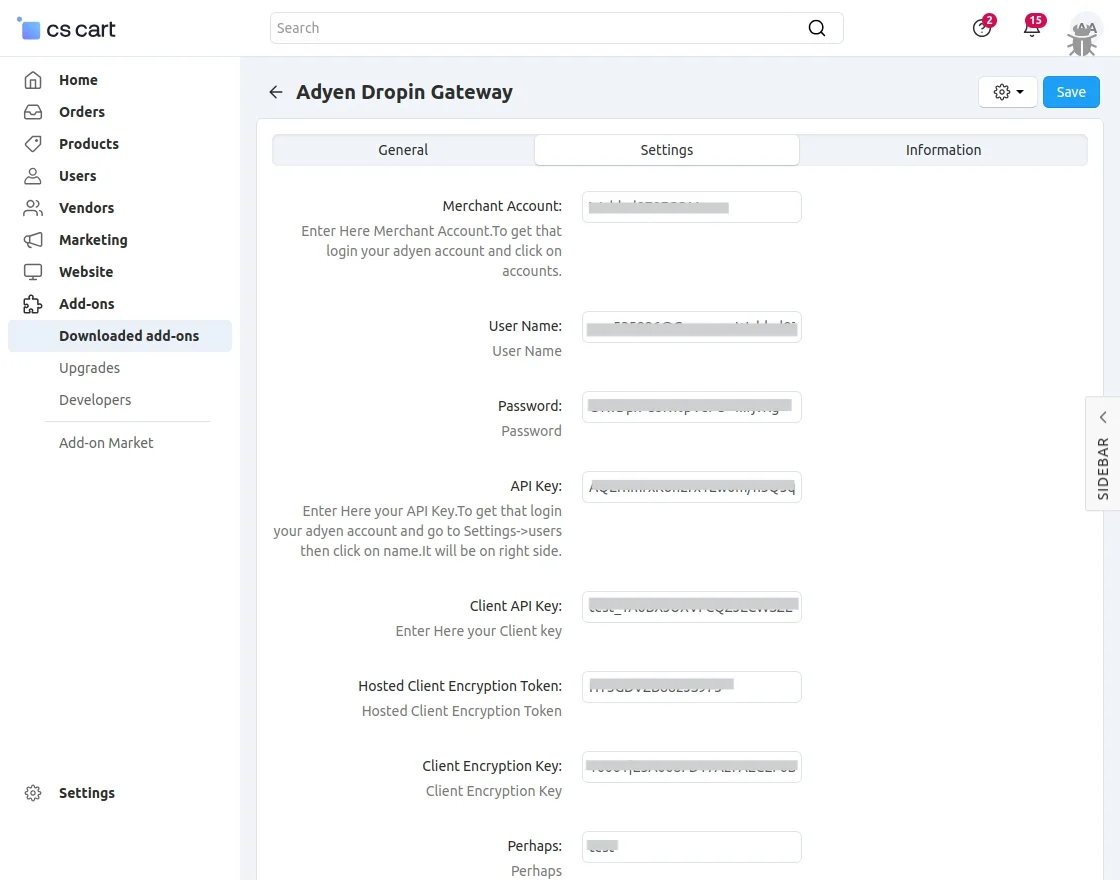
How To Get Adyen API credentials :
To get the API of Adyen please create an account at Adyen payment gateway.
Admin can create/signup to their accounts from the following link https://www.adyen.com/home/discover/test-account-signup#form
Admin can login to their accounts from here-
- For test purpose– https://ca-test.adyen.com/ca/ca/login.shtml
- For live purpose- https://ca-live.adyen.com/ca/ca/login.shtml
Please go through below screen shot to login the Adyen account.
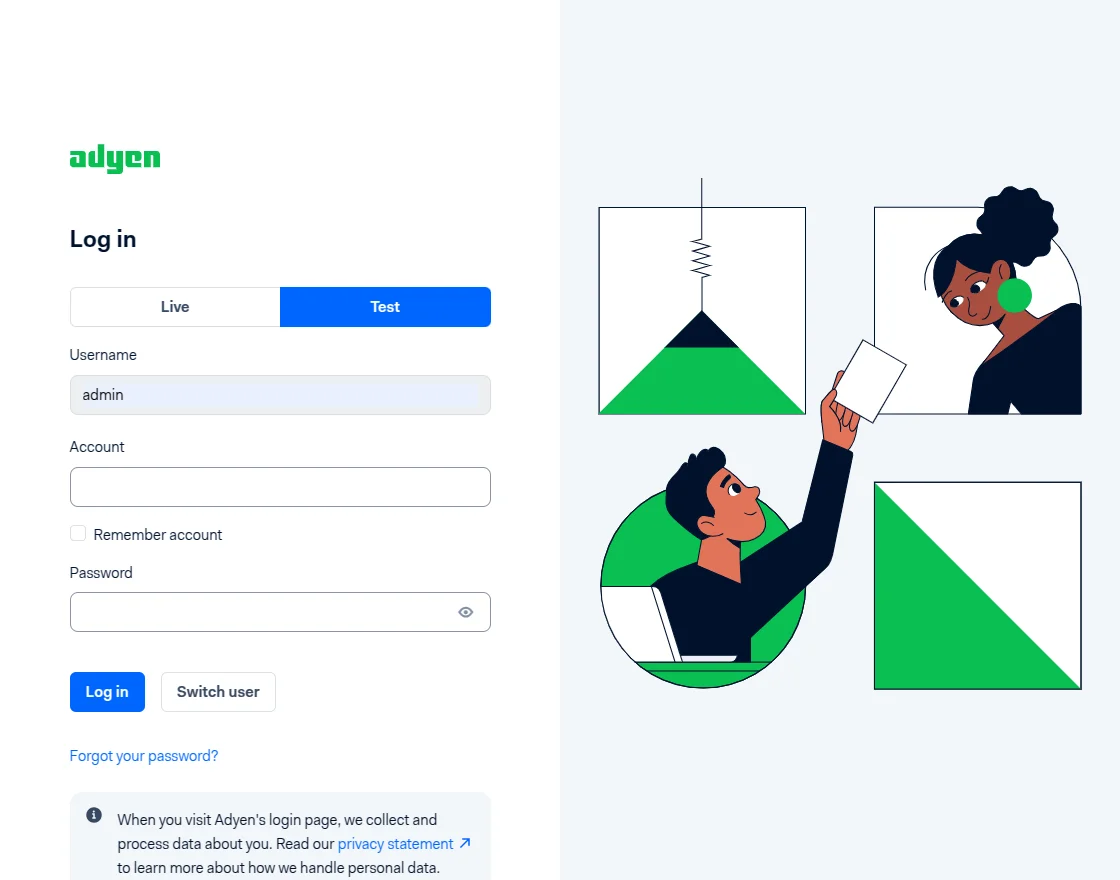
Once you’ve logged into your Adyen account, the next step is to navigate to Developer > API Credentials.
To generate new credentials, simply click on Create New Credentials.

As shown in the screenshot below, once you click on Create New Credentials, a pop-up will appear to set up the API Credentials.
You will need to enter a description in the provided description textbox.
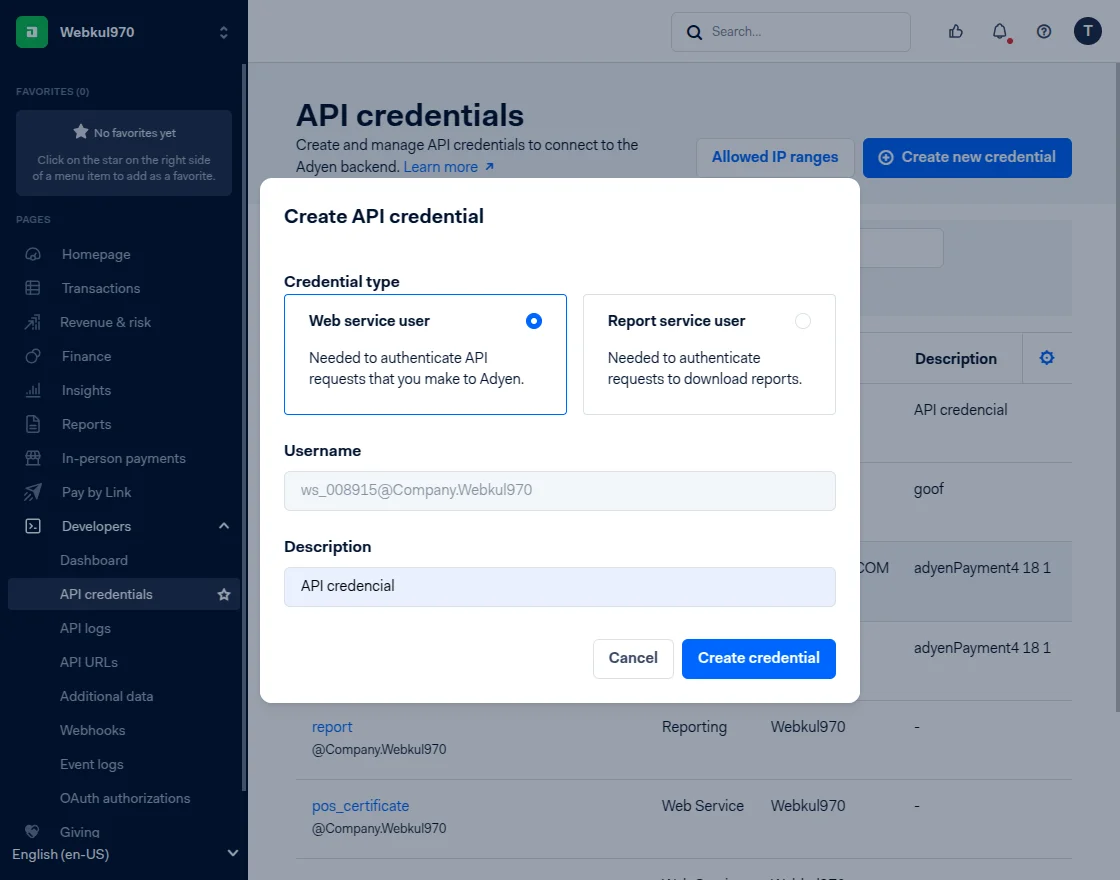
How to Create Credentials
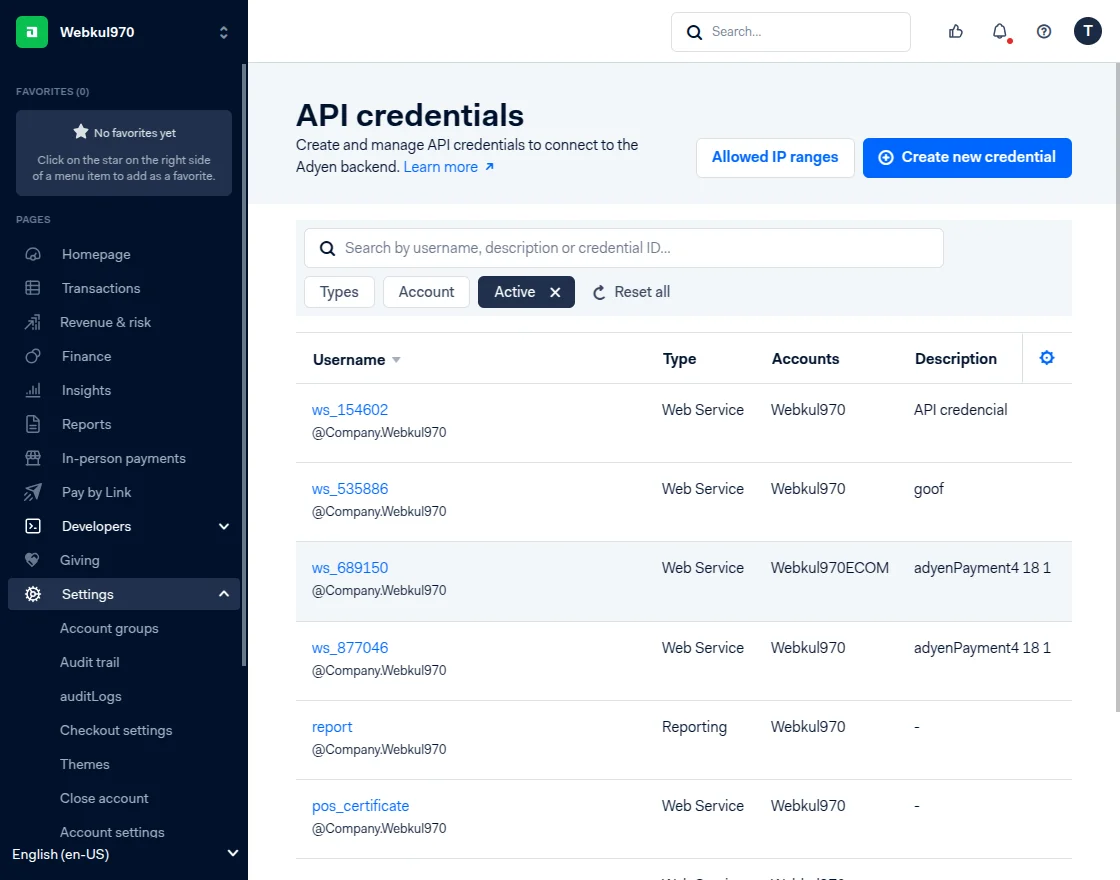
Merchant Account
As shown in the image below, the merchant account name is displayed in the pop-up, located at the top left corner of the screen.

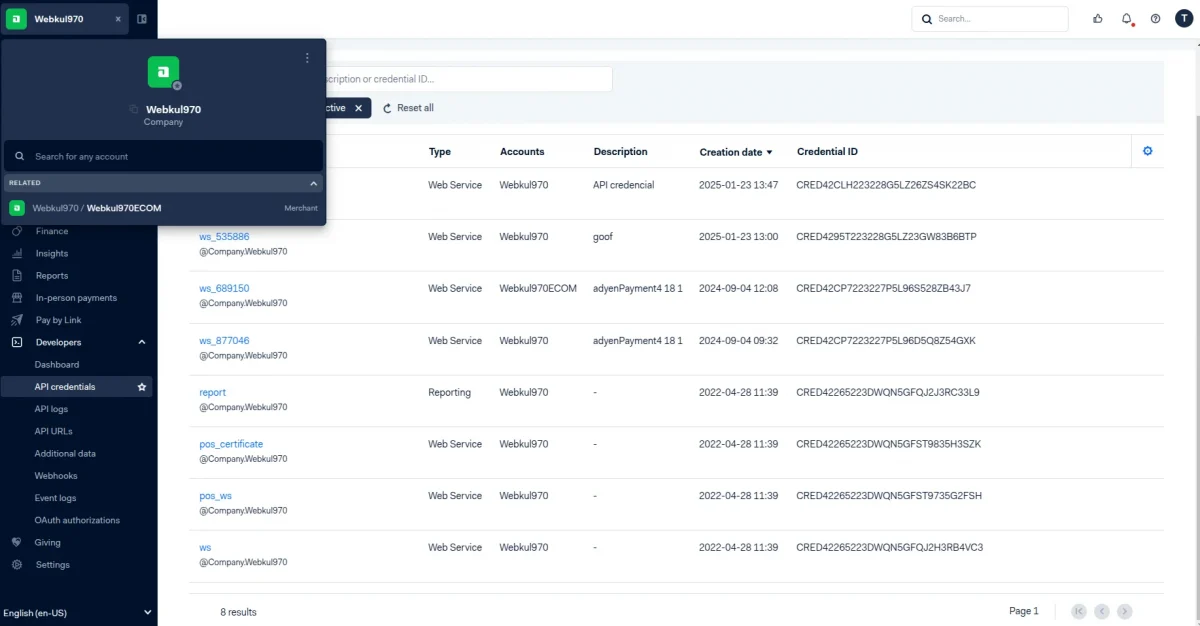
Username: Under the Configuration API Credentials, the username can be found within the General Settings section.

Password: The admin can copy the password and paste it into the Adyen Dropin Gateway under the Settings section.

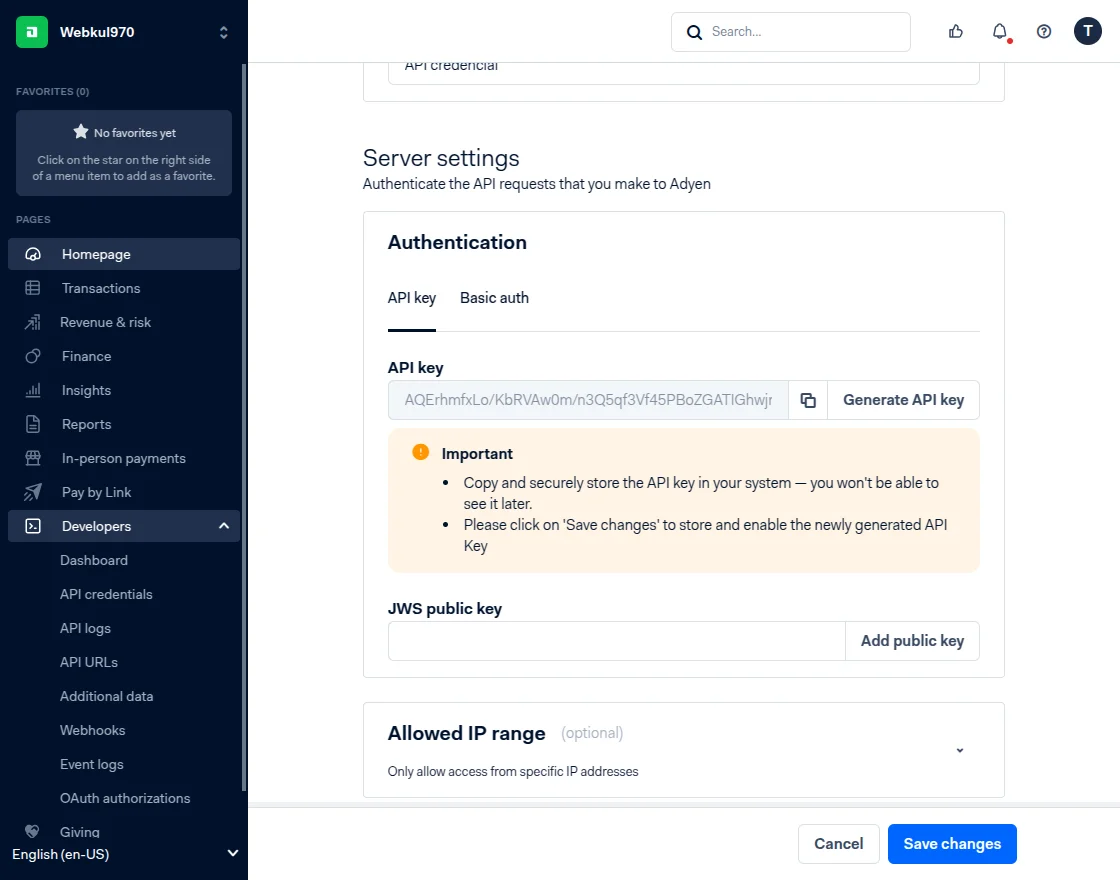
API Key: The API Key can be located under Server Settings within the Authentication section.
Make sure to copy and securely store the API Key in your system, as it will not be visible later.
Once done, click on Save Changes to store and activate the newly generated API Key.
Client API Key: Client Key: It is mandatory to include at least one allowed origin (in the section below) when using a client key.
Once added, ensure to input this client key into the Adyen Dropin Gateway.
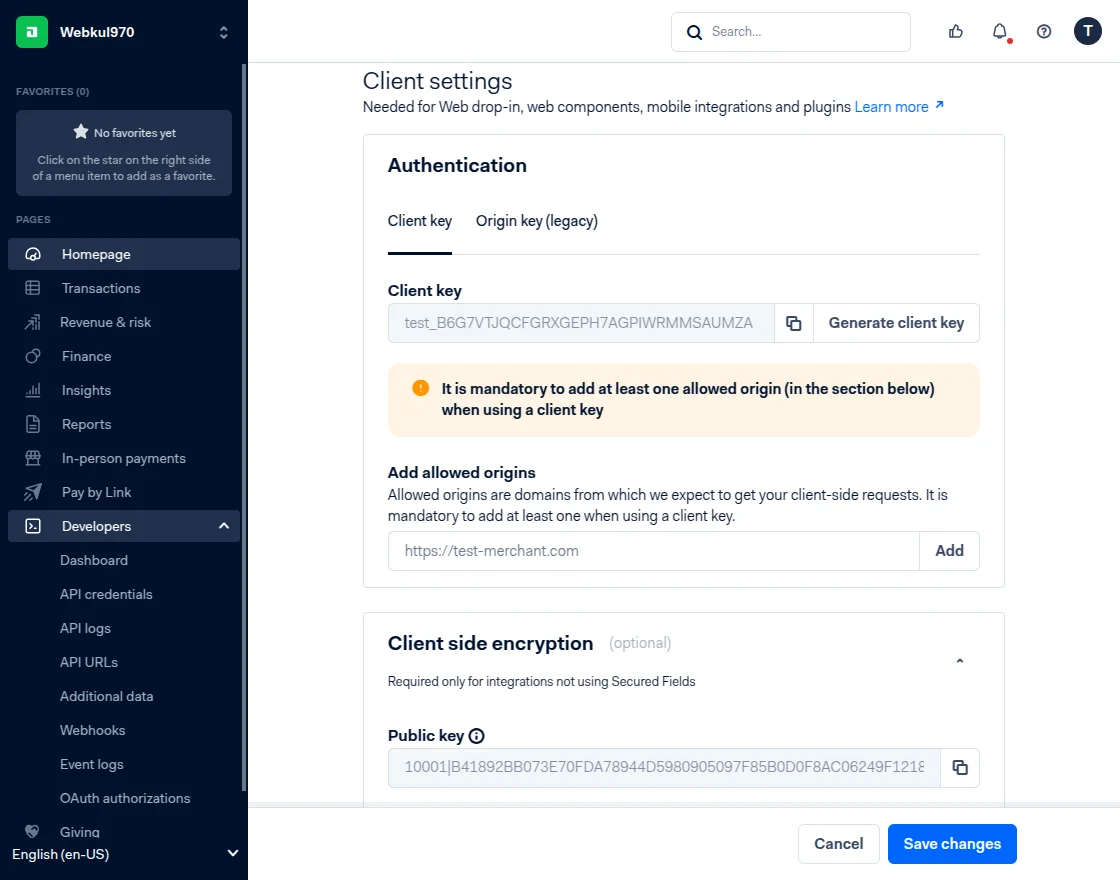
The Hosted Client Encryption Token can be found under Client Settings within the Library Token section.
Copy this public key token and paste it into the Adyen Dropin Gateway.

The Client Encryption Key needs to be entered into the Adyen Dropin Gateway. You can find it under Client-Side Encryption as the Public Key.

Perhaps account name: As shown in the image below, the admin can enter any text into the Perhaps Account Name textbox, located at the top left corner of the screen.
Back End View
Configuration Of Inline Payment Form:
Set the parameters as shown below in the snapshot.
- Set the name of the payment method.
- For check out choose the processor as “Adyen Dropin Gateway”.
- Configure the tabs accordingly as shown below in the snapshot.

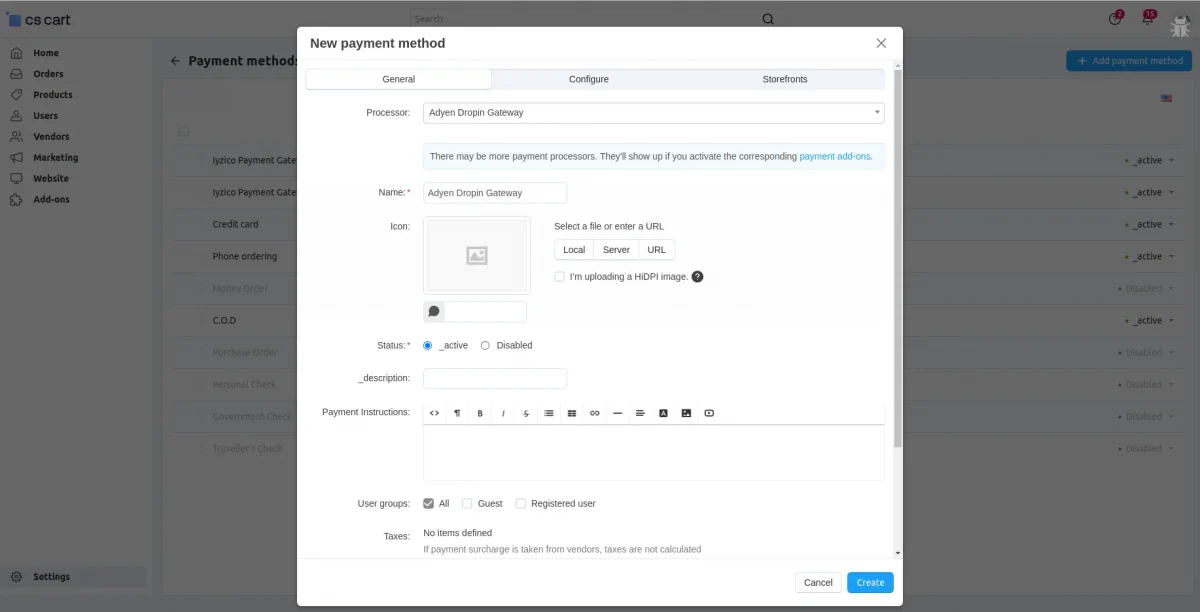
Click on “Configure” and set the parameters as shown below in the snapshot.
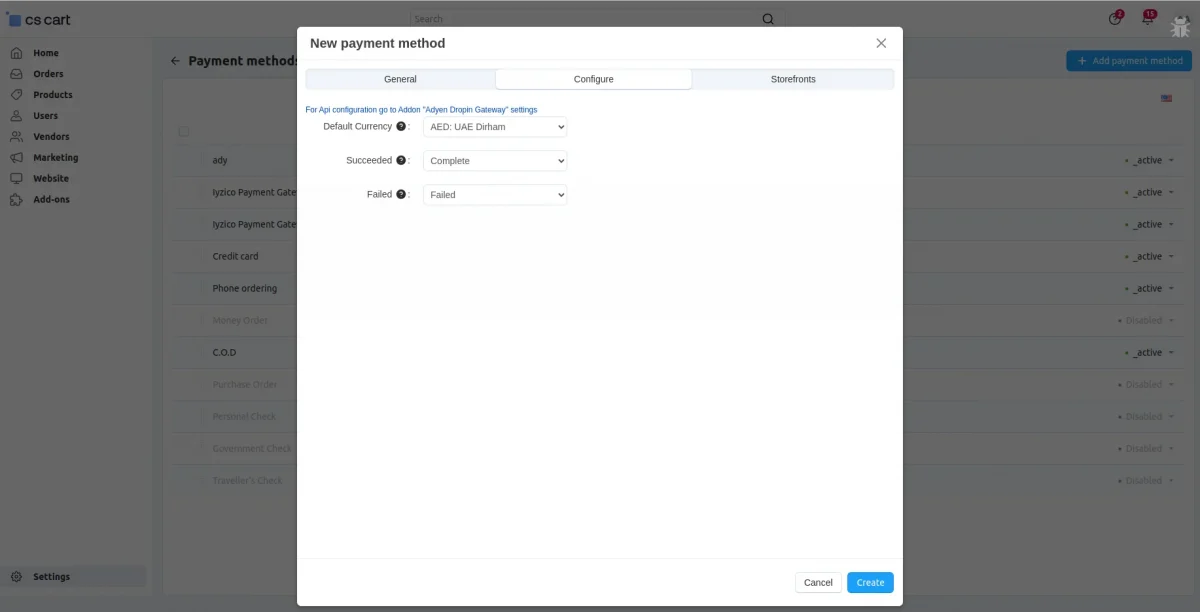
Adyen Payment Gateway2
Go to “Administration” tab. Click on “Payment methods”.
Set the parameters as shown below in the snapshot.
- Set the name of the payment method.
- For check out choose the processor as “Adyen Payment Gateway 2 ”.
- Configure the other tabs accordingly as shown below in the snapshot.

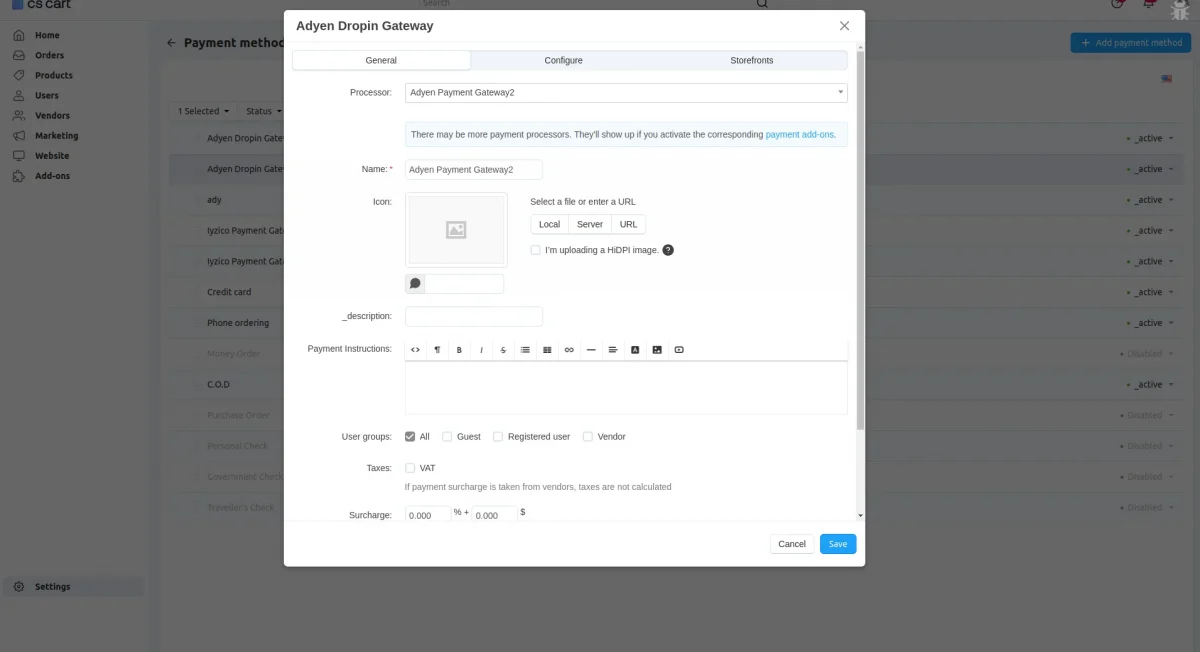
Click on “Configure” and adjust the settings according to the parameters shown in the screenshot below.
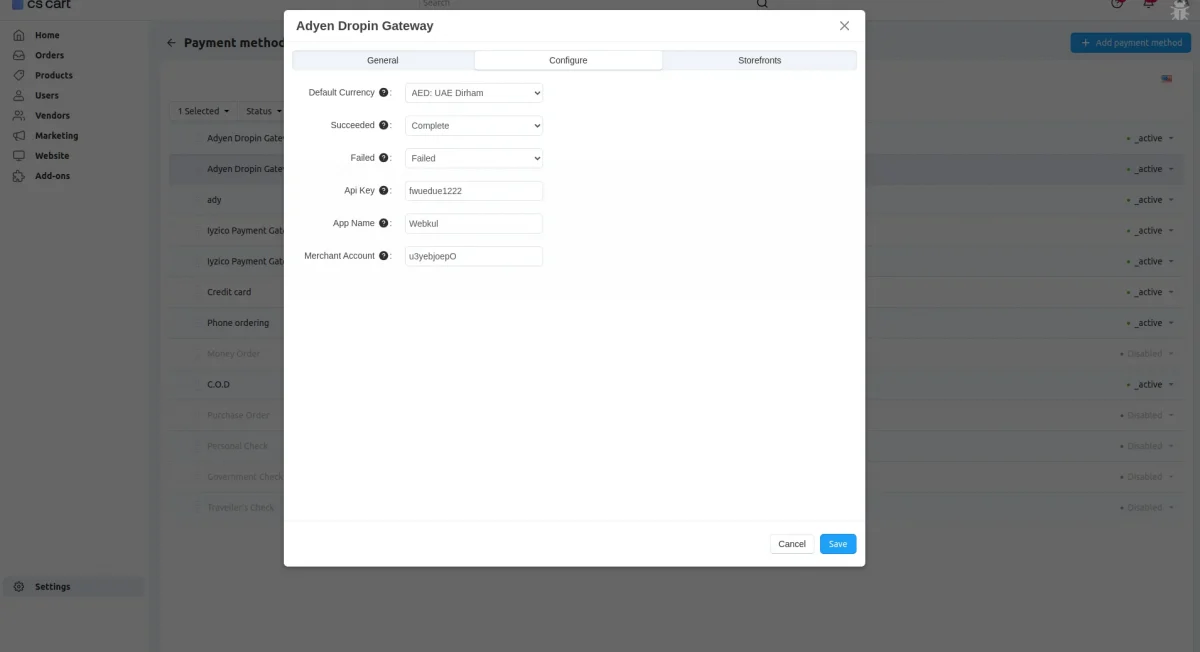
Front End View
For payment via “Adyen Payment Method” select the option as shown below in the snapshot.

Support
For further any query feel free to contact us at http://webkul.uvdesk.com