Shopping Cart Scanner for Magento 2
Shopping Cart scanner for Magento2 (Adobe Commerce) module lets shoppers scan QR code to open their shopping cart on a mobile device.
They can continue shopping and complete checkout without adding the products again on their mobile devices.
Also, the user can place the order of the added product from the mobile phone. This module is also compatible with Progressive Web Application and works for guest users too.
Moreover, the other customer can also do the checkout by scanning the cart QR Code of another customer Or the customer can also share their cart with other users using the QR Code or cart link.
Note – This module is compatible with Webkul’s Magento 2 Progressive Web Application(PWA).
Check the overview of the plugin in the video mentioned-below:
Features
- Shoppers can scan a live QR code from the landing page, mini-cart and cart page.
- Customers can open an enlarged two-column QR modal with a step-by-step how-to-scan guide.
- Buyers can watch a live countdown of QR Code & Token Expiration and refresh the QR code with one click after it expires.
- Admin can choose whether to merge the scanned cart with the existing mobile cart or replace it.
- Shoppers can share the cart link through WhatsApp, SMS, email, and other apps.
- Users can copy the cart link to their clipboard when the native share option is unavailable.
- Customers can scan the QR code with their phone camera or the built-in mobile scanner.
- Buyers can transfer simple, configurable, bundle, grouped, and virtual products with their quantities and options.
- Store owners can view scan volume, mobile orders, conversion rates, and revenue in the dashboard.
- Admin can enable or disable the cart sharing option and configure the Share Message Prefix.
- Admin can configure the widget title and instruction text.
Installation
Customers will get a zip folder and they have to extract the contents of this zip folder on their system.
The extracted folder has an src folder, inside the src folder you have the app folder. You need to transfer this app folder into the Magento2 root directory on the server as shown below:

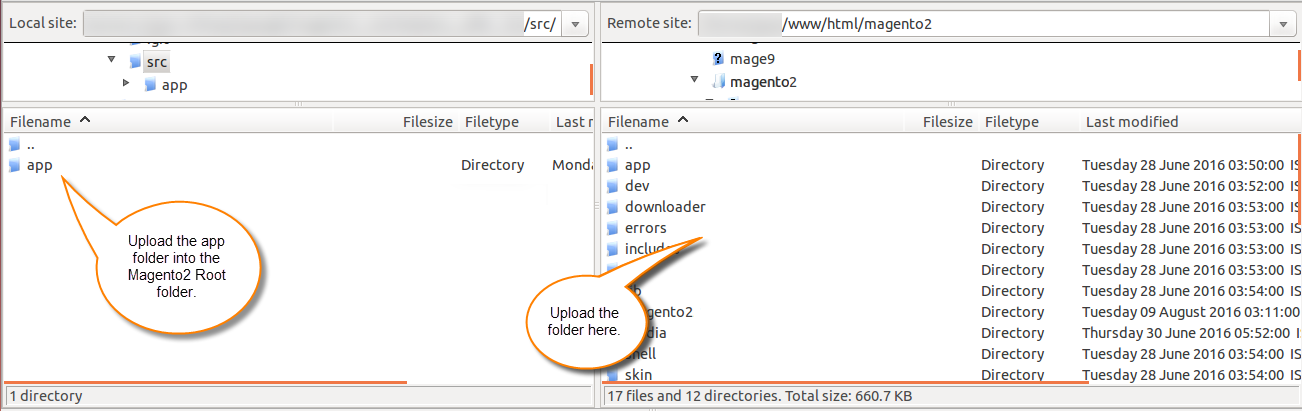
After the successful installation, you have to run the command on Magento2 root directory-
php bin/magento setup:upgrade
php bin/magento setup:di:compile
php bin/magento setup:static-content:deploy
php bin/magento indexer:reindex
php bin/magento cache:flush
Multi-Lingual Configuration
For Multilingual support, please navigate to Store>Configuration>General >Locale Options. And select your desired language from the Locale option.


Language Translation
If you need to do the module translation, please navigate to the following path in your system app/code/Webkul/CartScanner/i18n.
Open the file named en_US.CSV for editing as shown in the below screenshot.


Once you have opened the file for editing. Replace the words after the” comma(,)”on the right with your translated words.


After editing and translating the CSV file, you need to save the translated file name according to your region language and country code such as – de_DE.CSV.
Then upload the translated file to the same folder from where you have obtained it. Now your module translation is complete.


Module Workflow
After the successful installation, the admin need to configure the cart scanner module.
Admin will navigate to stores -> configuration -> Cart Scanner -> General settings as shown below:


General Settings
Module Enabled – Enable this option to activate the cart QR code and scanning functionality.
Cart Sync Strategy – Select whether scanned cart items should merge with the existing mobile cart or replace the existing mobile cart items.
QR Code & Token Expiration (TTL) – Select how long a generated QR code or scan link remains valid before it expires.
Display & Widget Customization
Widget Title – Enter the title displayed in the cart widget header.
Instructions Text – Enter the instructions displayed next to the QR code on the cart page.
Display in Mini-Cart – Enable this option to display the QR code and mobile scan widget in the mini-cart dropdown.

Cart Sharing Options
Enable Cart Share – Enable this option to allow shoppers to share their cart link and QR code through social apps, messaging apps, or by copying the link.
Share Message Prefix – Enter custom text to display before the cart link when shoppers share their cart, such as “🛒 Complete your cart purchase here:”.
Analytics & Conversion Tracking
Enable Scan Analytics & Conversion Tracking – Enable this option to record scan events and track order conversions and revenue in the Cart Scanner Analytics dashboard.
Frontend QR Code Scan and Order
If any website user has added some of the products into the cart, but meanwhile the network gets disconnected, then they’ll see a QR Code on their screen. For reference, you can check below:

When the customer will open the website on their mobile, then they’ll see a scan option on the top menu bar. For reference, check below:


After scanning the QR Code from the website, on the mobile app, the user will see all the products that are added to the cart. For reference, you can check the below snapshot:


The user can also, checkout from their mobile phones. For reference, you can check the below snapshot:


This module works for both, the guest and the registered users:


Landing Page QR Code
On the landing page of the website, the customer can see the QR Code. For the reference, you can check the below snapshot:

Customer can also see the qr code scanning instruction as per below image:

Now, customer can scan that QR Code and start browsing the website on their mobile phones.

Mini Cart Page QR Code Display
Website user can also see cart QR code at mini cart as per below image:

Shopping Cart Page QR Code Display
Furthermore, the QR Code will also appear on the shopping cart page as per below image:

From the shopping cart page, the customer can scan the QR Code and place the order from their mobile phones. For reference, check the below snapshot:


Cart Scanner Analytics & Conversion Reports
From here, admins can view QR code scan activity and conversion performance. Track total QR scans, converted orders, conversion rate, and generated revenue.
Admins can also view detailed scan records, including scan and conversion dates, source cart IDs, mobile cart IDs, device type, channel, status, order number, order revenue, and client IP.

That’s all for the Shopping Cart Scanner for Magento 2 (Adobe Commerce). Still, have any issue feel free to add a ticket and let us know your views to make the module better http://webkul.uvdesk.com/
Explore the Adobe Commerce Cloud development services by Webkul. You may also browse our quality Magento 2 extensions.