Best Free Odoo AI Readiness Checker for Your Online Store
Can an AI shopping assistant tell a buyer whether your blue desk lamp is in stock? If you run an Odoo store, Webkul’s free Odoo AI Agent Checker is a good place to find out.
Enter your public storefront URL and it inspects the product information your server sends. You can run it without an account. Open the Odoo AI Agent Checker.

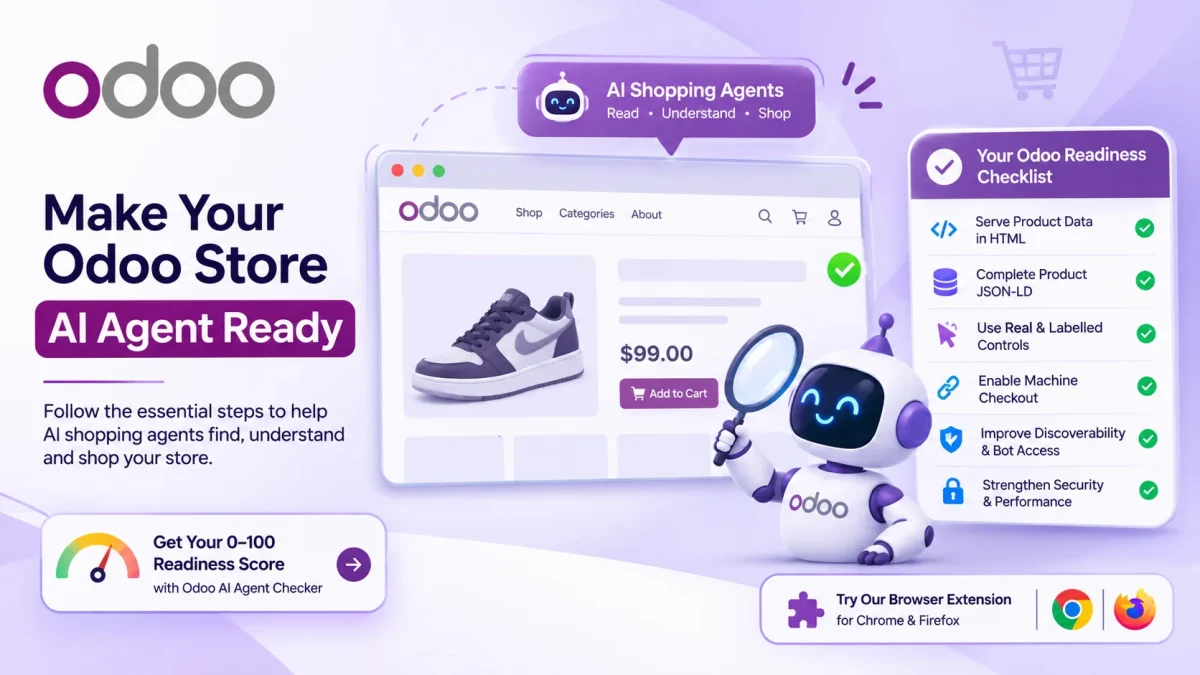
The reason to choose this checker for Odoo is simple. It follows a product page, checks the images Odoo serves, and looks for details such as the SKU in the page’s structured data.
When a check fails, you can see the response behind the finding. That gives your catalog manager or developer a specific page and field to investigate.
How to check your Odoo store for free
- Enter the URL your customers use. Open the checker and paste your public shop address. If your store uses a custom domain, use that address.
- Choose what to scan. Leave Everything selected for a first look. If you’ve just changed a product template, use Customize scan to focus on product data and structured data.
- Select Scan and open a finding. The report gives you a score out of 100 and a letter grade. Start with a finding for a product you recognize. Read the URL and the HTML, header, or file the checker cites.
- Check the detail against the storefront. Open the same product as a signed-out shopper. Compare the reported detail with the selected variant, price, and availability you see. The scan samples public pages, so check other products that use the same template before applying a catalog-wide fix. See the checker and its scan options.
What does the readiness score tell you?
Webkul’s published example scores 84/100, a B. The checker could read the catalog and product details, but it couldn’t find a machine-accessible cart endpoint.
A shopping assistant might therefore have enough information to describe an item while still needing to send the buyer to the store to add it to the cart. View the sample report.
Which finding matters most depends on what you want buyers to do. If they ask assistants to compare your products, start with identification, price, and availability.
If you specifically support automated cart creation, review how an assistant can discover that feature. For a check marked unverified, read what prevented the checker from getting evidence before changing your store.
A practical example: two lamps, one missing SKU
Suppose you sell a blue desk lamp and a brass version. They share a product name, but the blue lamp costs $49 and the brass lamp costs $59. A buyer asks for the blue one under $50.
Your page lets a shopper select either finish, yet the checker flags a missing SKU in the structured data, the fields that describe the product to software.
Open the blue variant and compare its internal reference in Odoo with the SKU in the public page’s product data. If the reference is missing in Odoo, the catalog manager has a product record to complete.
If the reference is already correct there and missing from the page, give the developer the product URL, the expected SKU, and the snippet from the report. Those two cases need different fixes.
After the change, check both finishes. Does each show the right SKU and price for the selected lamp? Run the same scan again and compare the finding. Checking both variants can catch a template that now publishes a SKU but repeats the blue lamp’s reference for every finish.
Which finding should you fix first?
| If the checker reports this | Start here |
|---|---|
| It couldn’t fetch a public product page | Open the reported URL while signed out. Check the response for a login screen, redirect, or bot challenge before investigating product fields. |
| The product loads, but price or stock is missing | Compare the initial page response with what appears after you select a variant. Give your developer one example with the expected price, currency, and stock status. |
| A product image fails to load | Open the exact image URL in the finding. If it fails for a signed-out visitor too, check the published image and the link in the product template. |
| The checker can read the item but can’t discover a cart link | Decide whether your store offers automated cart creation. If it does, test how an assistant would find the supported link. |
Start with one product that matters to your store. A fixed finding is most useful when you can answer the buyer’s original question with the correct item, price, and availability. For a broader review of your catalog and storefront, follow Webkul’s Odoo AI agent readiness guide.
Can I check a store while browsing?
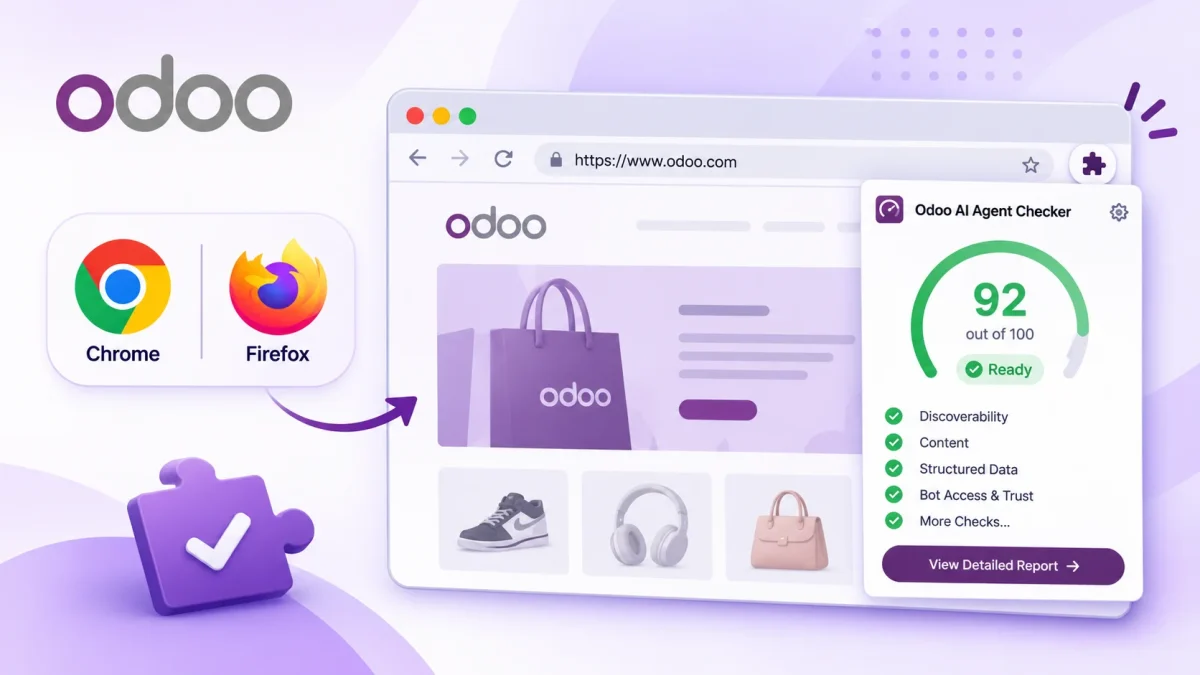
Webkul also offers an Odoo checker extension for merchants who want to start a check from their browser. For a one-off review, the web tool only requires the storefront URL. Chrome extension · Firefox extension.