Laravel eCommerce B2B Marketplace Table Rate Shipping
Table of Content
Laravel eCommerce B2B Marketplace Table Rate Shipping lets Supplier set custom rates based on weight, price, destination, and quantity—ideal for flexible pricing and optimized profitability.
Suppliers can upload shipping details via CSV files, including:
- Product weight
- Zip code ranges (numeric & alphanumeric)
- Price brackets
- Shipping types
This ensures accurate and efficient shipping management for bulk B2B orders across multiple regions.
This plugin is an add-on of the Laravel B2B Marketplace. To use it, you must have installed Laravel eCommerce B2B Marketplace
Benefits of Laravel Ecommerce B2B Table Rate Shipping
- Suppliers/admin can add shipping rates using CSV file for table rates.
- Admin can assign shipping rates to any supplier by entering the supplier id.
- Supplier and admin both can create sub-methods for Table Rate Shipping.
- The admin and the suppliers can create Shipping Set.
- Shipping will be calculated based on ZIP and the weight of the product.
- Shipping cost will be calculated as per the supplier or vendor.
- The supplier can confirm the order and can set the tracking ID for the order.
- Shipping rates will populate based on CSV during checkout.
- Option to export shipping CSV file from the back-end.
- B2B-Marketplace Table Rate Shipping supports alphanumeric zip codes.
Laravel eCommerce B2B-Marketplace Table Rate Shipping
The admin can also assign the shipping rates to any supplier by entering the supplier id in CSV file.
This module allows the supplier to set custom superset rates and shipping rates from their dashboard. In this module, shipping will be calculated based on ZIP and the weight of the product.
B2B-Marketplace table rate shipping lets suppliers manage order processing, confirm orders, generate tracking numbers, and create/print invoices efficiently.
Note:-Laravel eCommerce B2B-Marketplace table rate shipping is an add-on of Laravel B2B-Marketplace. To use this module first, you must install the Laravel B2B-Marketplace.
Installation
- Unzip the respective extension zip and then merge “packages” folders into project root directory.
- Goto config/app.php file and add following line under ‘providers’
Webkul\B2BMarketplaceTableRateShipping\Providers\B2BMarketplaceTableRateShippingServiceProvider::class
- Goto composer.json file and add following line under ‘psr-4’
"Webkul\\B2BMarketplaceTableRateShipping\\": "packages/Webkul/B2BMarketplaceTableRateShipping/src"
- Run these commands below to complete the setup
composer dump-autoload

php artisan migrate

php artisan vendor:publish --provider="Webkul\B2BMarketplaceTableRateShipping\Providers\B2BMarketplaceTableRateShippingServiceProvider" --force

php artisan optimize:clear
After the successful installation of the module, you will see the B2B-Marketplace Table Rate Shipping under Configure>>Sales>>Shipping Methods.
Status:
Update the module status to enable/disable.
Title:
Here, the admin defines the title for the shipping method.
Description:
Enter the description.
Calculate Shipping Based On:
Here admin selects the shipping type from the dropdown on unit basics or per order basis.


Now, the admin can manage the Table Rate shipping for B2B-marketplace Suppliers by navigating to Table Rate Shipping, as shown in the image below.
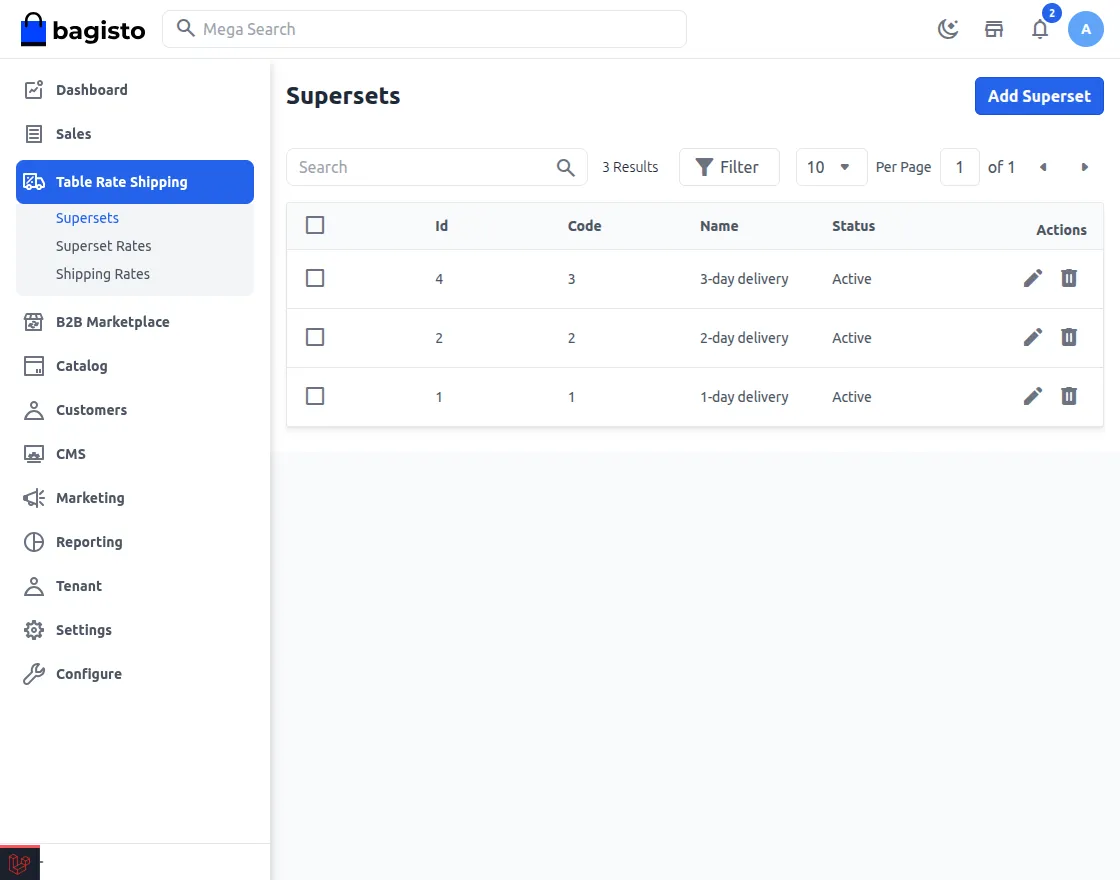
Managing Supersets
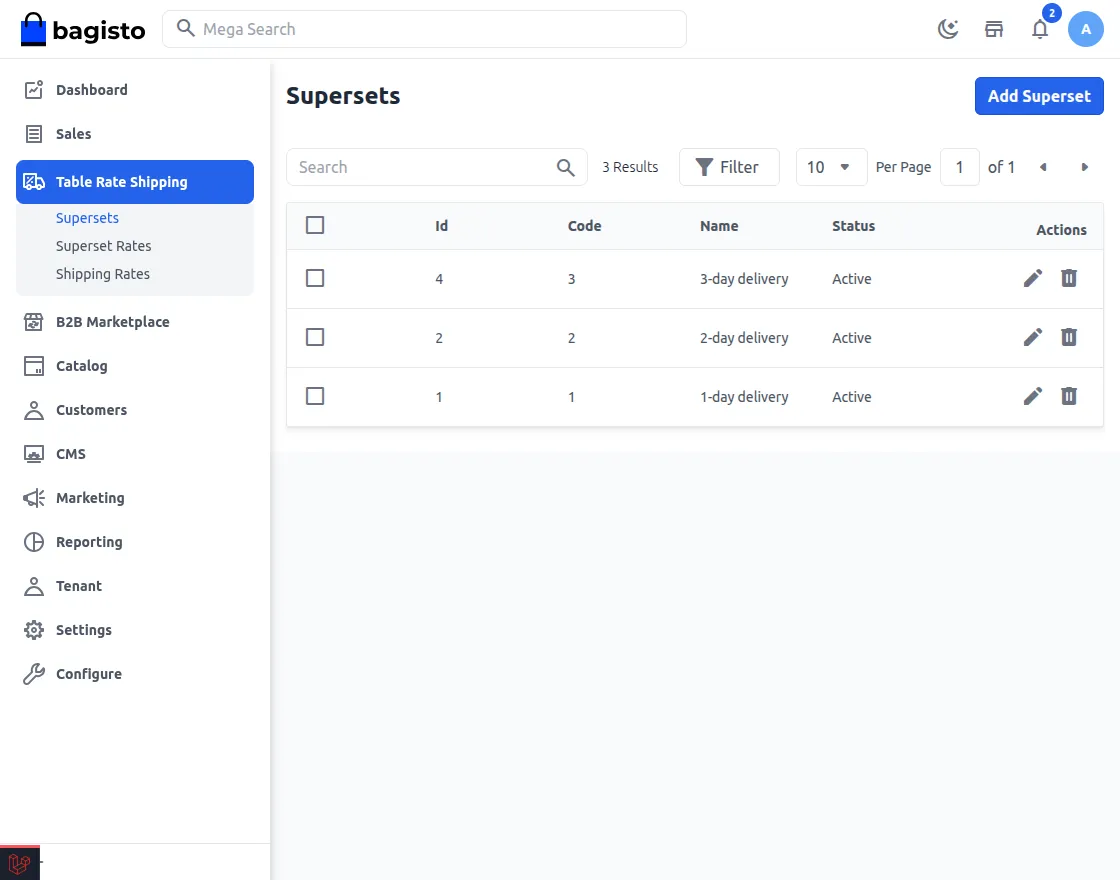
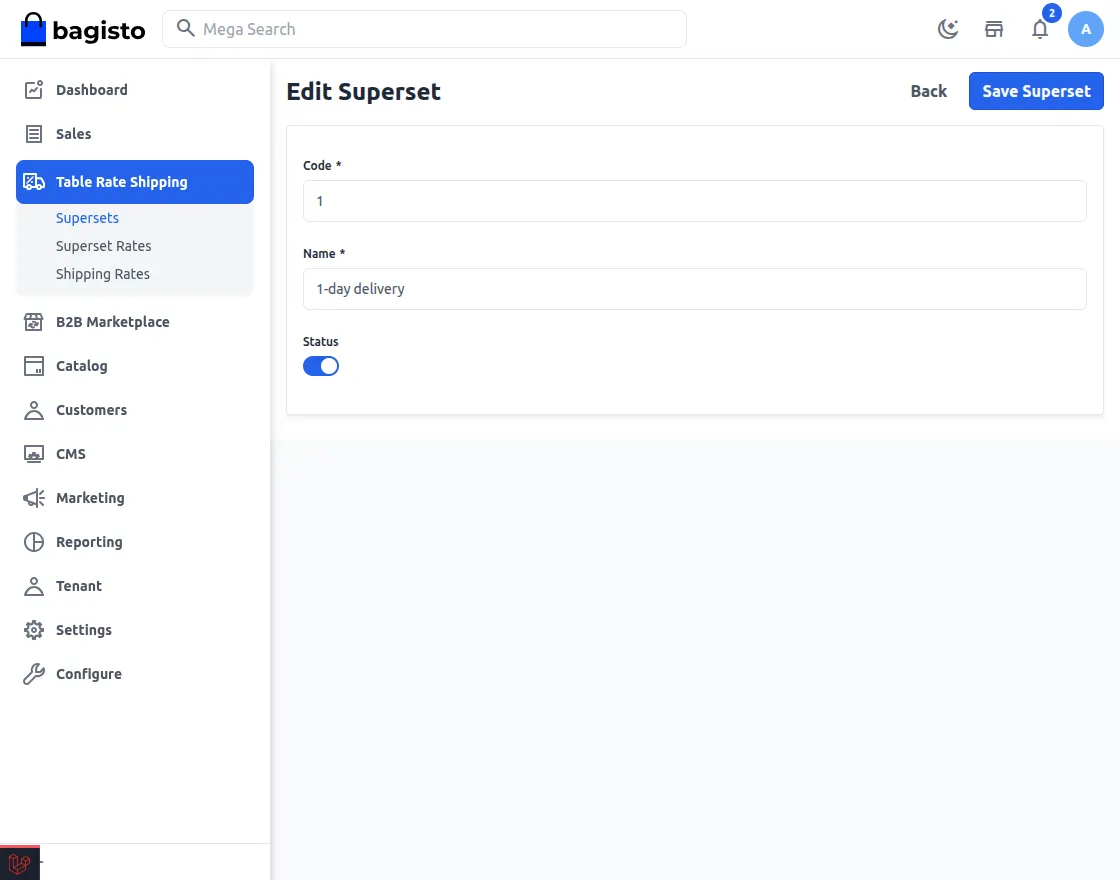
After clicking on the Add Superset button, the following page will appear.
Here, the admin will set the general settings:
- Code: Here, the admin will set the code of the superset.
- Name: Enter the name of the superset.
- Status: Enable the active superset.
Lastly, the admin will save the superset by hitting the save superset button.
Superset Rate in B2B-Marketplace Table Rate Shipping
After successfully adding the Superset Methods, the admin will add the Superset Rates under the Superset Rates section.

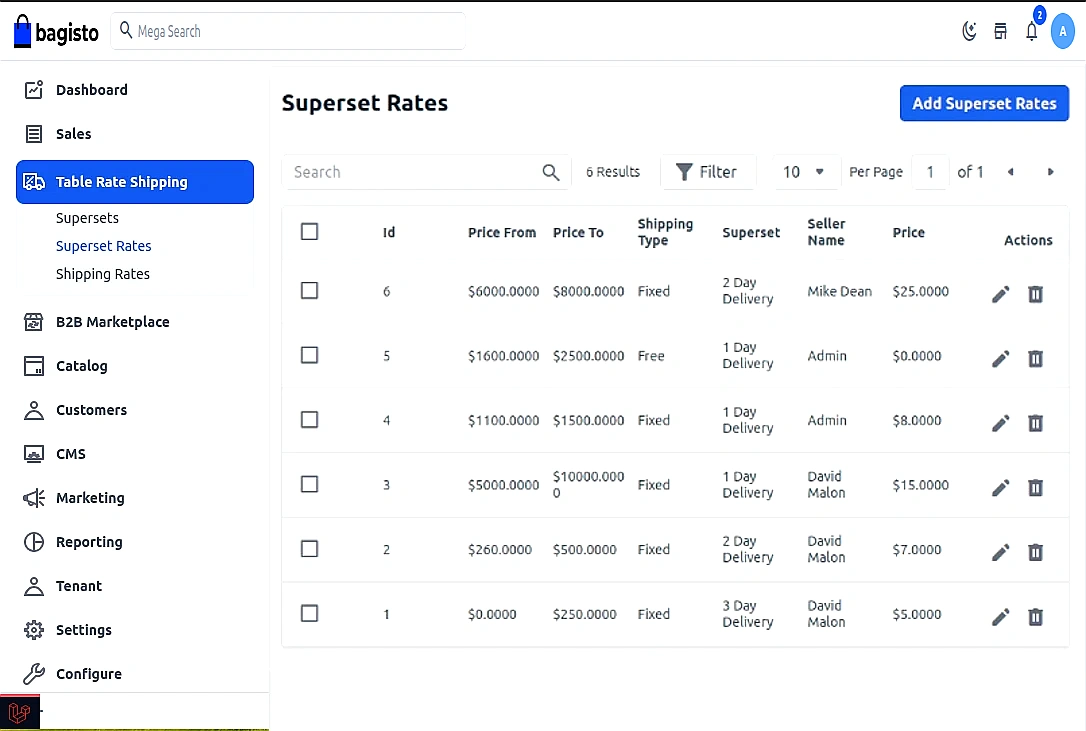
After clicking the Add Superset Rate Button, the following page will appear.
Here, the admin needs to fill in the superset rate details as follows:
- Price From – Set the minimum price of the cart to use this shipping set.
- Price To – Set the maximum price of the cart for this shipping set.
- Shipping Type – Select the Fixed option to enter the shipping price, else select the Free option to allow free shipping.
- Supplier Name – Either select the Supplier name or the admin.
- Price – Set the shipping method price for this set.
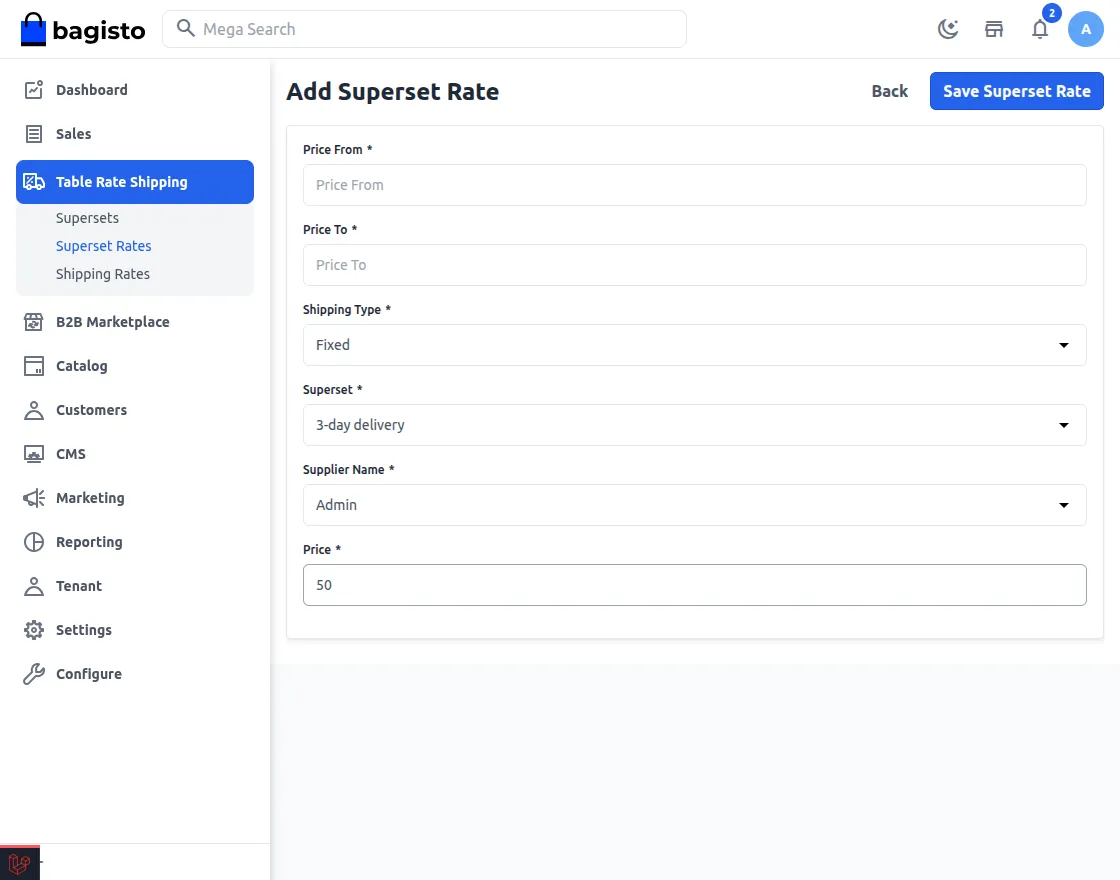
Once the admin can set the superset rate, they will have to add the shipping rate, so they move forward to the shipping rate section under the next tab.
Shipping Rate in B2B-Marketplace Table Rate Shipping
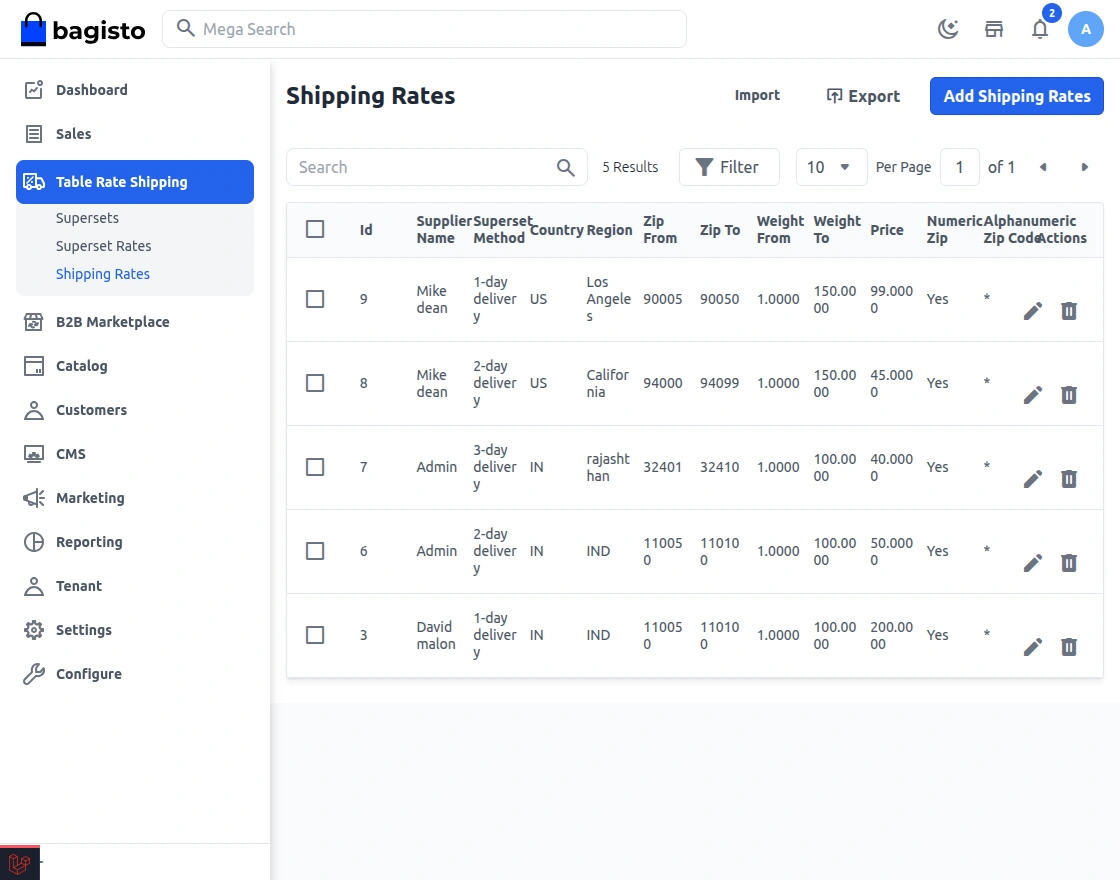
As a admin, you can see all the shipping rates already set up, and you can easily add new rates by clicking the “Add Shipping Rate” option.
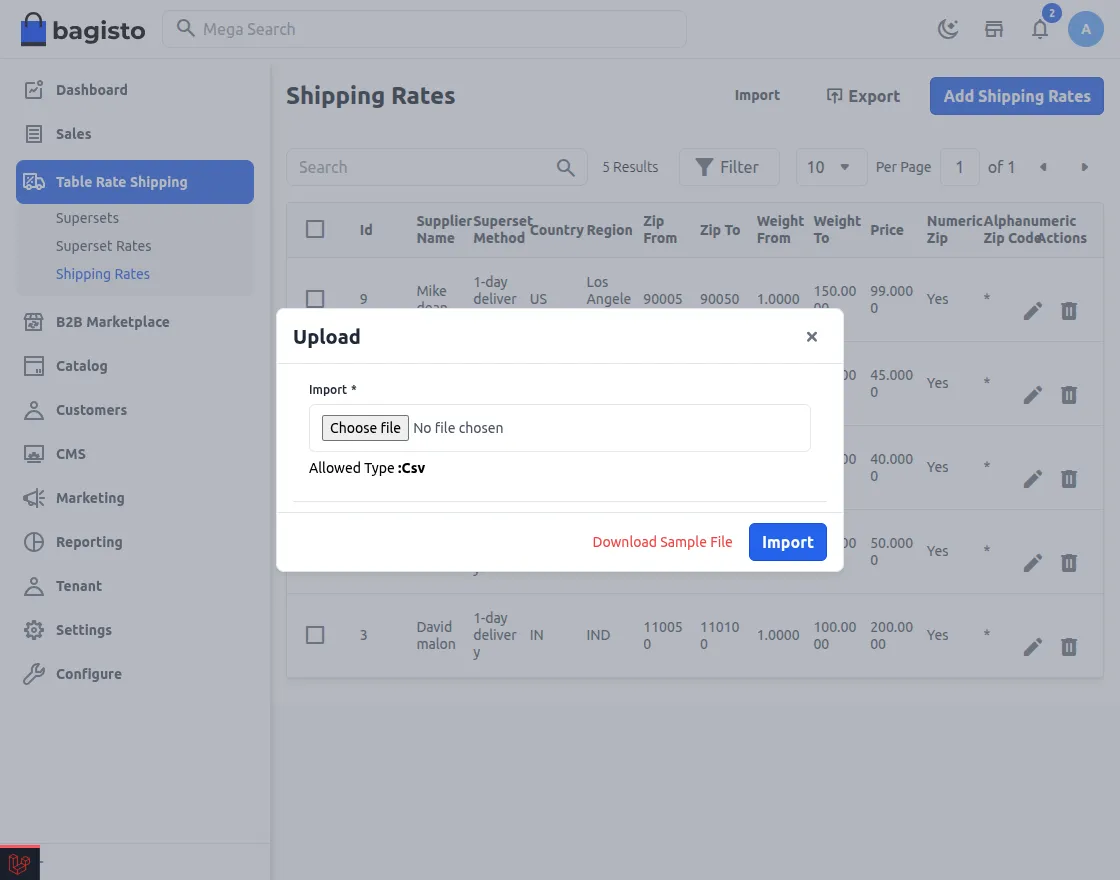
Bulk Import/Export: Upload multiple shipping rates at once with a CSV file. Use it for marketplace or supplier-specific rates. Start by downloading the sample CSV via the ‘Import’ button.
After clicking on the Import, the following pop-up will be shown. Here admin can add and download a sample CSV template.
How to Update Data in Laravel B2B Marketplace Table Rate Shipping
Under the below CSV, the admin can easily set the shipping rate. Every field is mandatory to fill out. The above grid of shipping rates will be visible as a table matrix in the CSV.


- ID: A unique identifier for each shipping rate.
- Superset_code: A code associated with the shipping service category.
- Supplier_ID: The ID of the Supplier within the Marketplace.
- Country: The destination country for the shipping rate.
- Zip_from: Starting zip code or range.
- Zip_to: Ending zip code in a range.
- Region: Geographical region or area.
- Weight_from: Minimum weight for the shipping rate.
- Weight_to: Maximum weight for the shipping rate.
- Price: The cost of the shipping service.
- is_zip_range: Indicates if the zip code is a range (Yes/No).
- zip_code: Specific zip code (if applicable).
- Note: Country Code must be as per the official ISO-2 (alpha-2) two
If Supplier_ID is empty, the admin can upload their own Table Rate Shipping via CSV. To upload for a marketplace supplier, enter the supplier’s ID in the Supplier_ID column.
Note- Shipping rates are Priority as compared to the superset rates.
Export Data: The admin can export the data that is shown in the table by clicking on the export button.
Supplier Management with B2B Marketplace Table Rate Shipping
The supplier can easily find the option of Shipping Rate and Superset Rates under the Navigation bar, as shown in the image below.

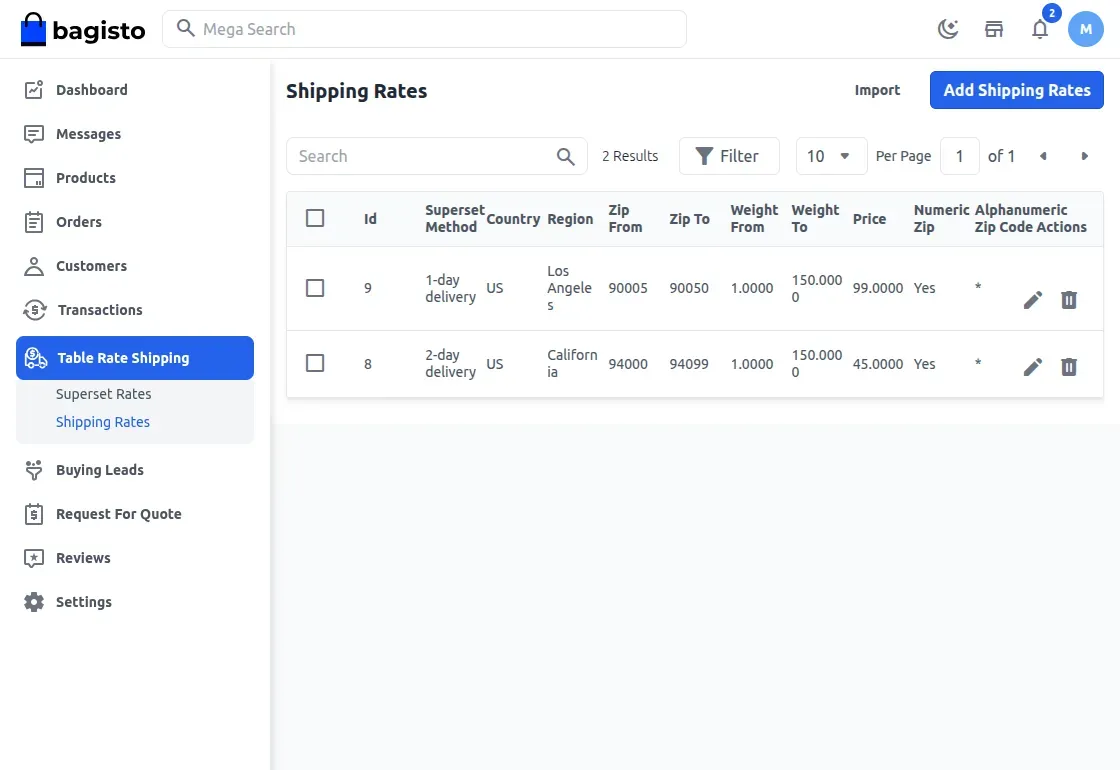
Managing Superset Rates from the Supplier End in B2B Marketplace Table Rate Shipping
By hitting the Shipping Rates, the new page will appear as shown in the image below.
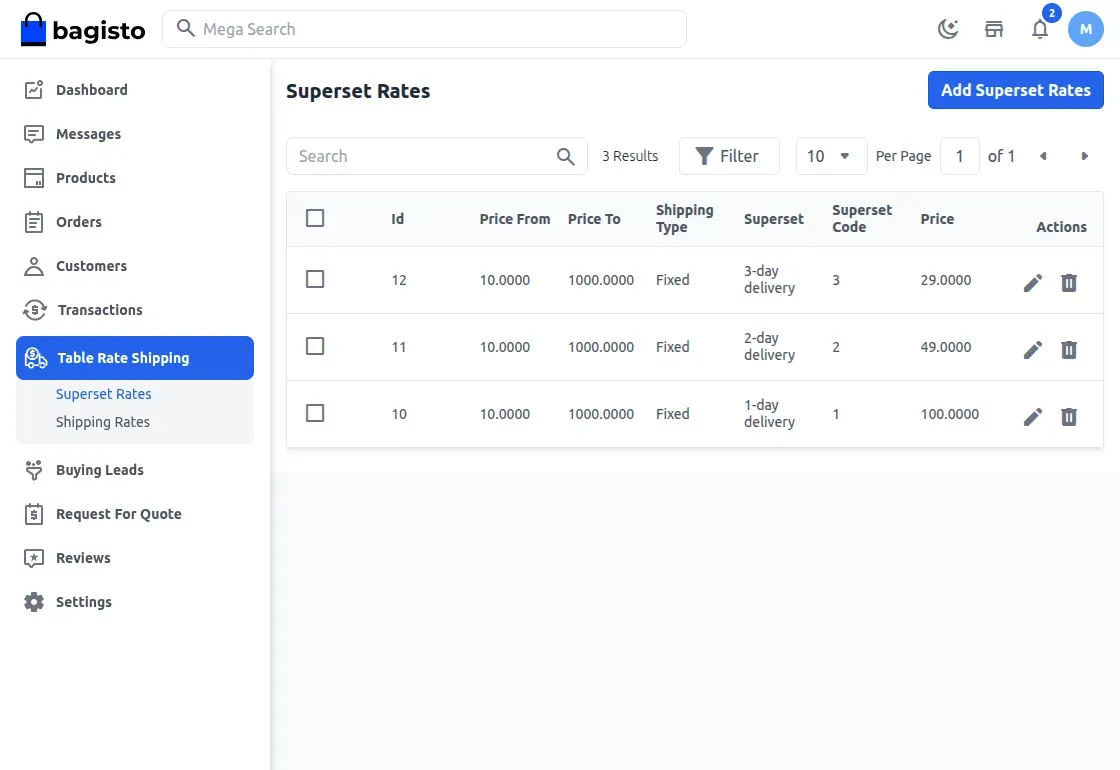
Here, the supplier can easily add the Superset Rate for their marketplace products.
After hitting the Add Superset Rate, the supplier can create their own shipping methods. A new window will appear. Enter all the required shipping details, then click the Save Superset Rate button.
Please Note:
If multiple shipping options exist, Superset Shipping Rates get priority, followed by Superset Rates. If no conditions match, free or flat rate shipping will be shown.
Price From – Minimum cart price for this shipping set.
Price To – Maximum cart price for this set.
Method – Enter the shipping method name.
Type – Choose Fixed for a price or Free to disable it.
Price – Set the shipping cost.
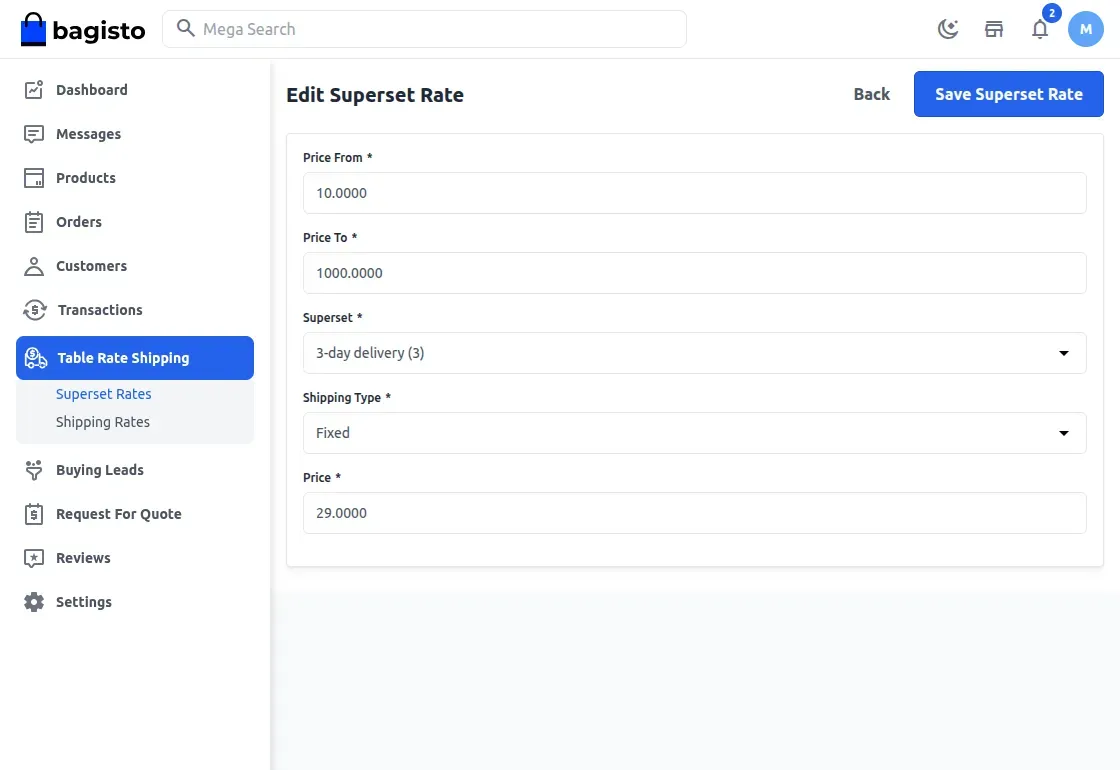
Instance for Super Set Rates
Case 1 -> If Supplier1 and Supplier Both Products lie in the Super Set Rates.
Supplier1 Product – Price Range Satisfied
Supplier 2Product – Price Range Satisfied
Case 2 -> If Supplier 1 lies in the Superset Rates and Supplier 2 does not.
Supplier 1 Product – Price Range Satisfied
Supplier 2 Product – Price Range Not Satisfied.
Result – Supplier 1 Superset rates will appear.
Case 3 -> If Supplier 2 lies in the Superset Rates and Supplier 1 does not.
Supplier 1 Product – Price Range Not Satisfied
Supplier 2 Product – Price Range Satisfied.
Result – Supplier 2 Superset rates will appear.
Case 4 -> If both suppliers do not lie in the Super Set Rates.
Supplier 1 Product – Price Range Not Satisfied.
Supplier 2 Product – Price Range Not Satisfied.
Result – Default Free Shipping and Flat Rate Shipping will appear.
Supplier Shipping Rates in B2B Marketplace Table Rate Shipping
By clicking on Shipping Rates, the new page will appear as shown in the image below.
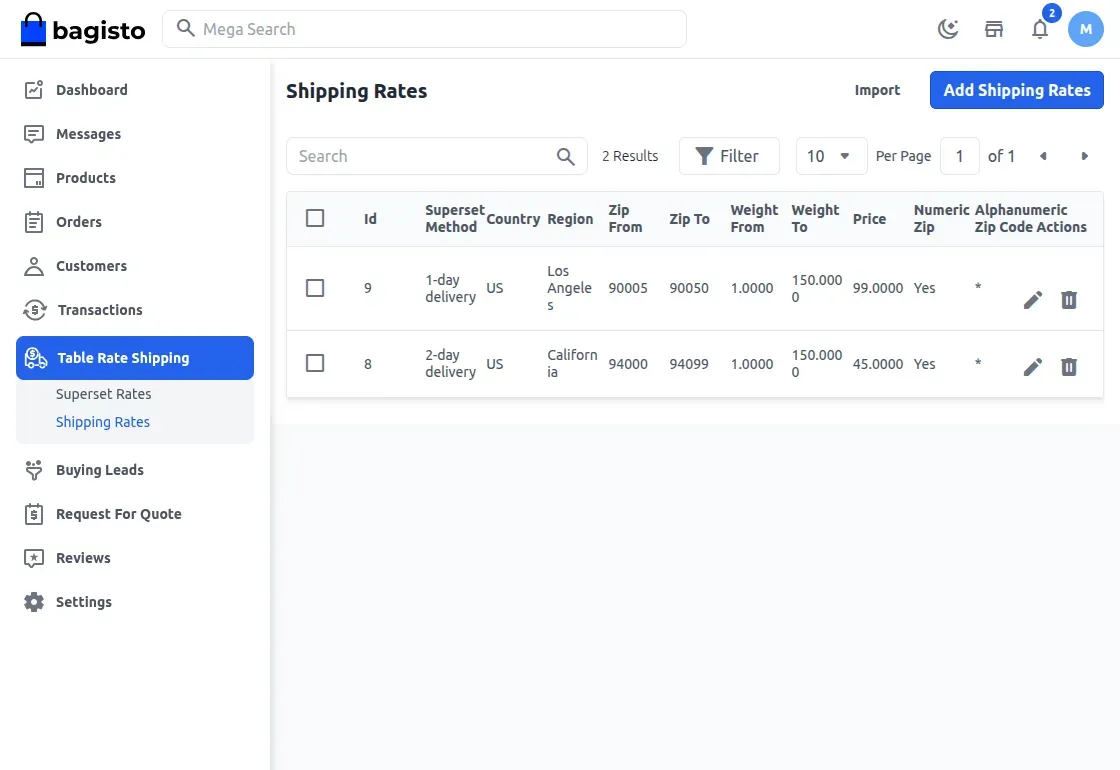
Here, the supplier can easily download or upload the CSV or add the shipping rate for their products.
CSV Format
The CSV format for Laravel eCommerce Table Rate Shipping is provided in the image below. All the fields in the CSV file are mandatory to fill.


- Country: The destination country for the shipping rate.
- Region: Geographical region or area.
- Zip_from: Starting zip code or range.
- Zip_to: Ending zip code in a range.
- Price: The cost of the shipping service.
- Weight_from: Minimum weight for the shipping rate.
- Weight_to: Maximum weight for the shipping rate.
- Superset_code: A code associated with the shipping service category.
Note: Country Code must be as per the official ISO-2 (alpha-2) two-letter country codes.
IS Zip Range (Numeric Zip Code) – Select “Yes” if you want to enter the numeric zip code, else select “No” to enter the alphanumeric zip code.
Zip Code(Alphanumeric Zip Code) – Enter the alphanumeric zip code if “Numeric Zip Code” option is set to “No”. Else, enter the numeric zip code if the “Numeric Zip Code” option is set to “Yes”.
After uploading the CSV file, the supplier can see the uploaded values in the same format as it is in the CSV file. The supplier can edit or delete any existing record from the grid.
Adding Supplier Shipping Rates with Table Rate Shipping in B2B Marketplace
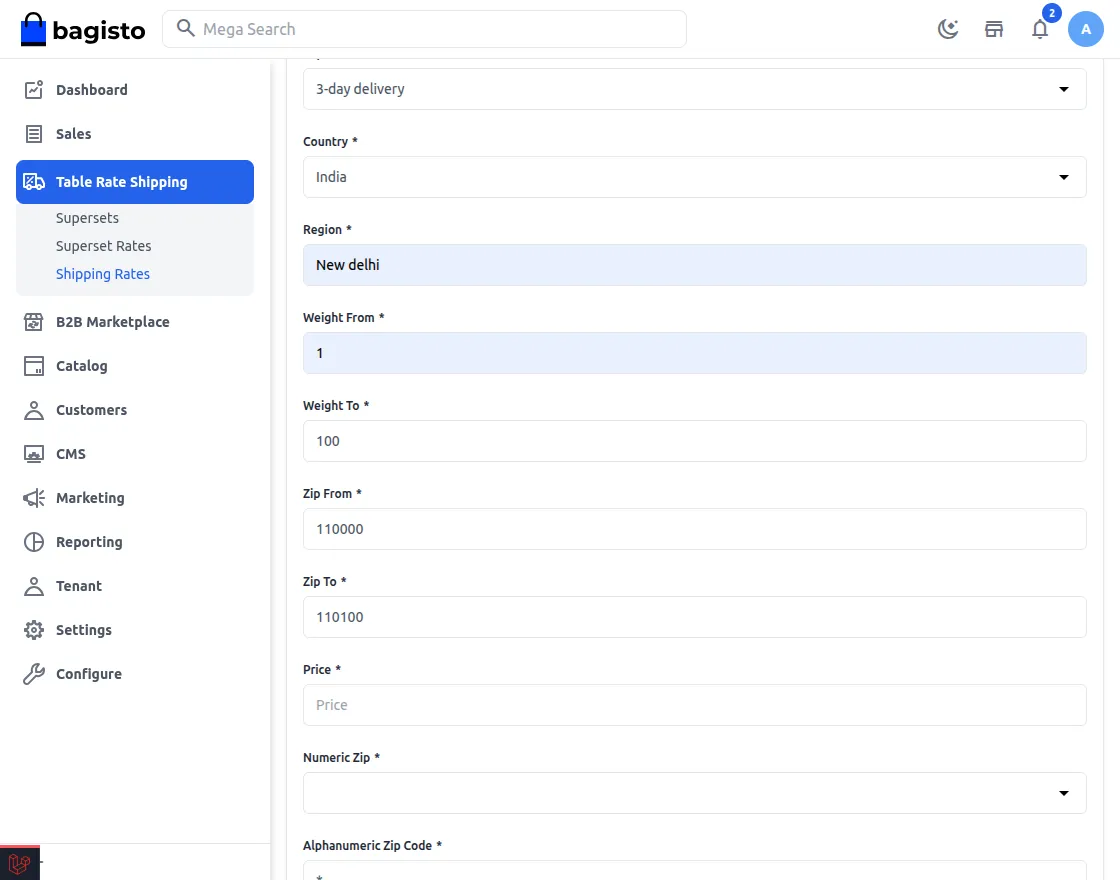
The supplier can also add the shipping rate by clicking on the add shipping rate button, the next page will appear as shown in the image below.

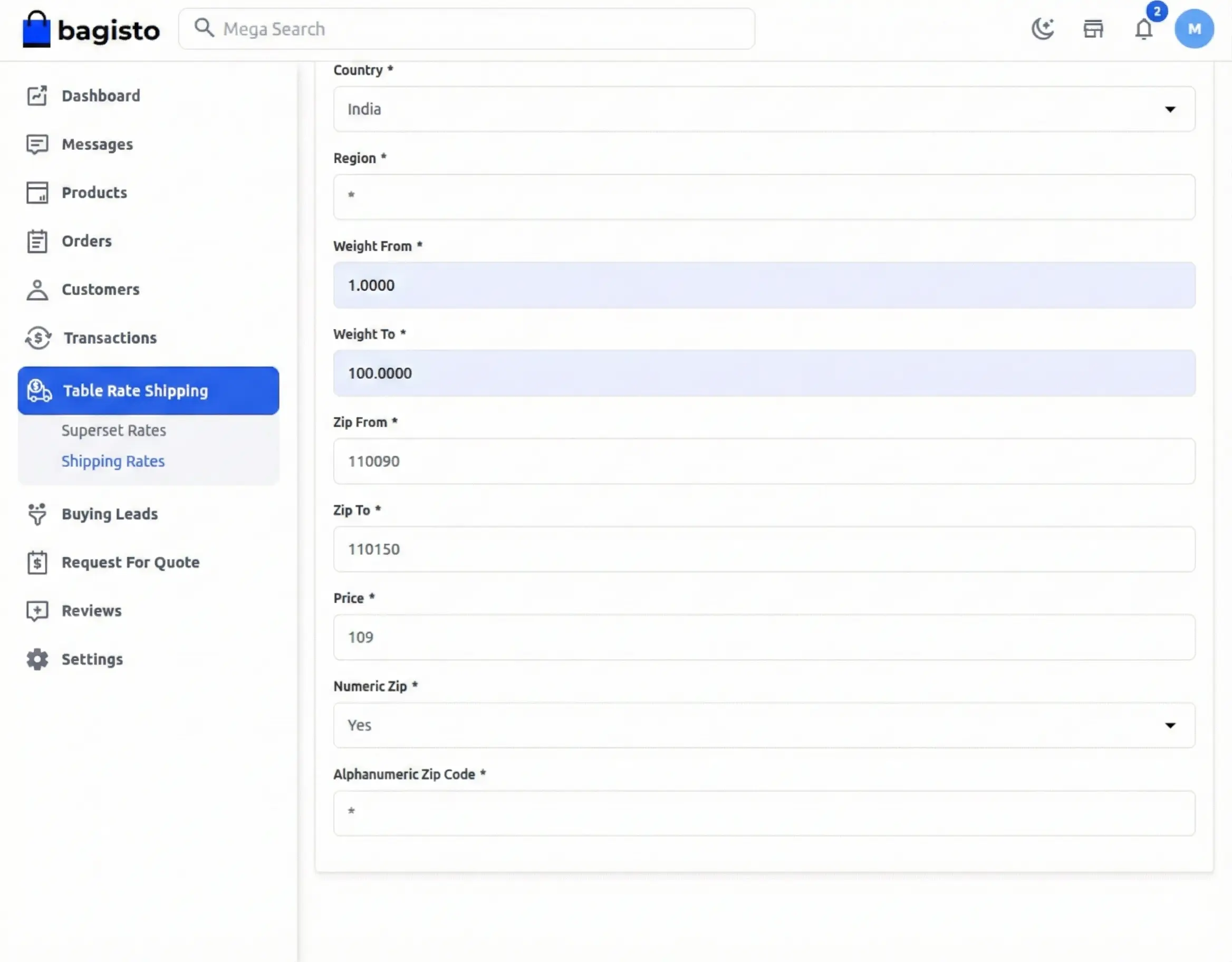
Superset Methods – Select the superset method.
Please Note: – The suppliers can only use the suggested shipping method name created by the admin.
Country – Select the country from the list.
Region Code – Enter the region code of the available region.
Weight From – Set the minimum weight value to allow this shipping method.
Weight To – Set the maximum weight value for this shipping method.
Zip From – Enter the first zip code.
Zip To – Enter the last zip code.
Price – Set the cost of this shipping method.
Numeric Zip Code – Select “Yes” if you want to enter the numeric zip code, else select “No” to enter the alphanumeric zip code.
Alphanumeric zip code – Enter the alphanumeric zip code if the “Numeric Zip Code” option is set to “No”. Else, enter the numeric zip code if the “Numeric Zip Code” option is set to “Yes”.
Example – Select ‘Yes’ for Numeric Zip if shipping is based on a zip range. For countries like Canada with alphanumeric codes (H3Z 2Y7), choose ‘No’ and enter the code.
Note: If the cart has one supplier product and the set conditions (weight, zip, country) match, all Table Rate Shipping options will display at checkout.
Also, if no table rate shipping condition is verified, Default Flat and Free shipping will appear”.
For Instance
For Instance, Superset Shipping Rates
Note – It should be clear that for fetching shipping rates, both weight and zip should be satisfied. In case any of the conditions do not match, Shipping rates will not appear.
Case 1 :
If supplier1 and supplier Both Products lie in Super Shipping Rates.
Supplier 1 Product – Weight and Zip Range Satisfied
Supplier 2 Product – Weight and Zip Range Satisfied
Result – Both the Super Set rates will be added and displayed.
Case 2 :
If Supplier 1 Shipping rates lie and Supplier 2 Shipping Rates do not.
Supplier 1 Product – Weight and Zip Range Satisfied
Supplier 2 Product – Weight and Zip Range Not Satisfied
Result – Supplier 1 Shipping Rates will appear.
Case 3 :
If Supplier 2 Shipping rates lie and Supplier 1 Shipping Rates do not.
Supplier 1 Product – Weight and Zip Range Not Satisfied
Supplier 2 Product – Weight and Zip Range Satisfied
Result – Supplier 2 Shipping Rates will appear.
Case 4 :
If Supplier1 and Supplier Both Products do not lie in Super Shipping Rates.
Supplier 1 Product – Weight and Zip Range Not Satisfied
Supplier 2 Product – Weight and Zip Range Not Satisfied
Result – By Default, Free Shipping and Flat Rate shipping will appear.
B2B Marketplace Table Rate Shipping – Customer Order
As shown in the image below, the customer will add the two products to the cart from the different suppliers.
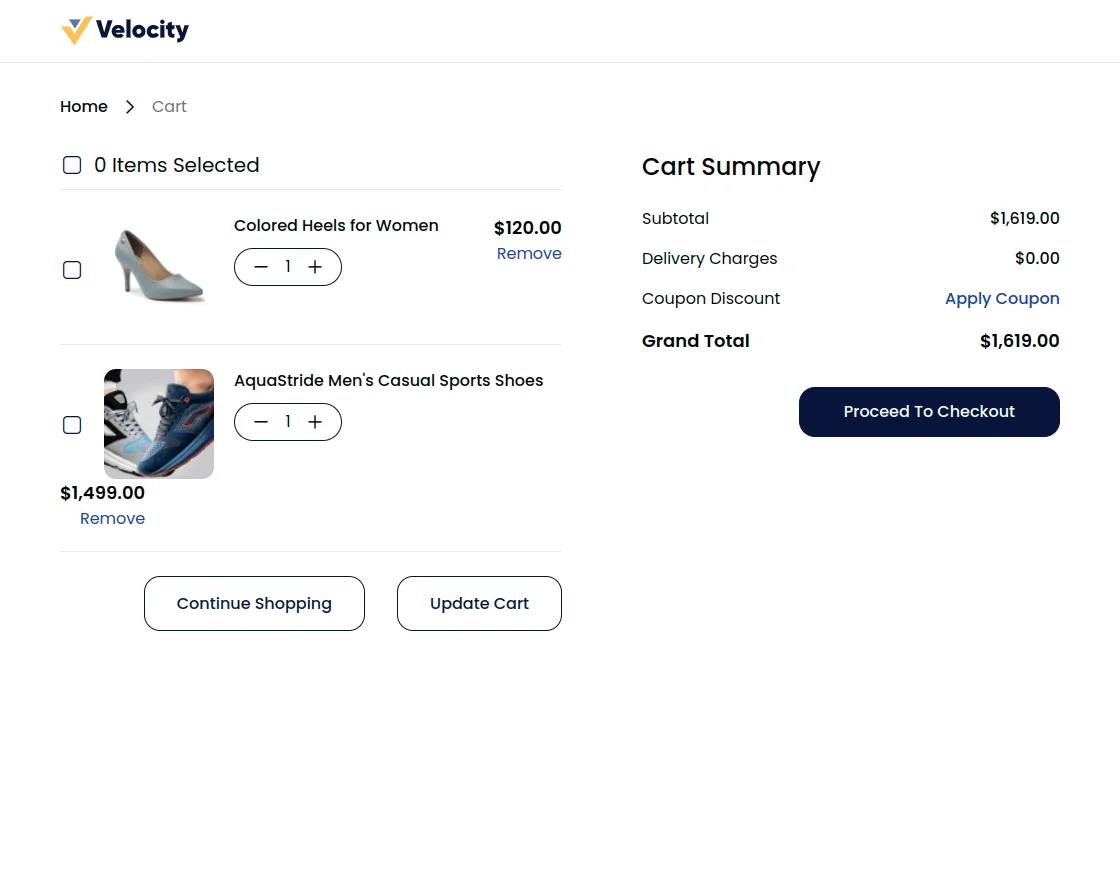
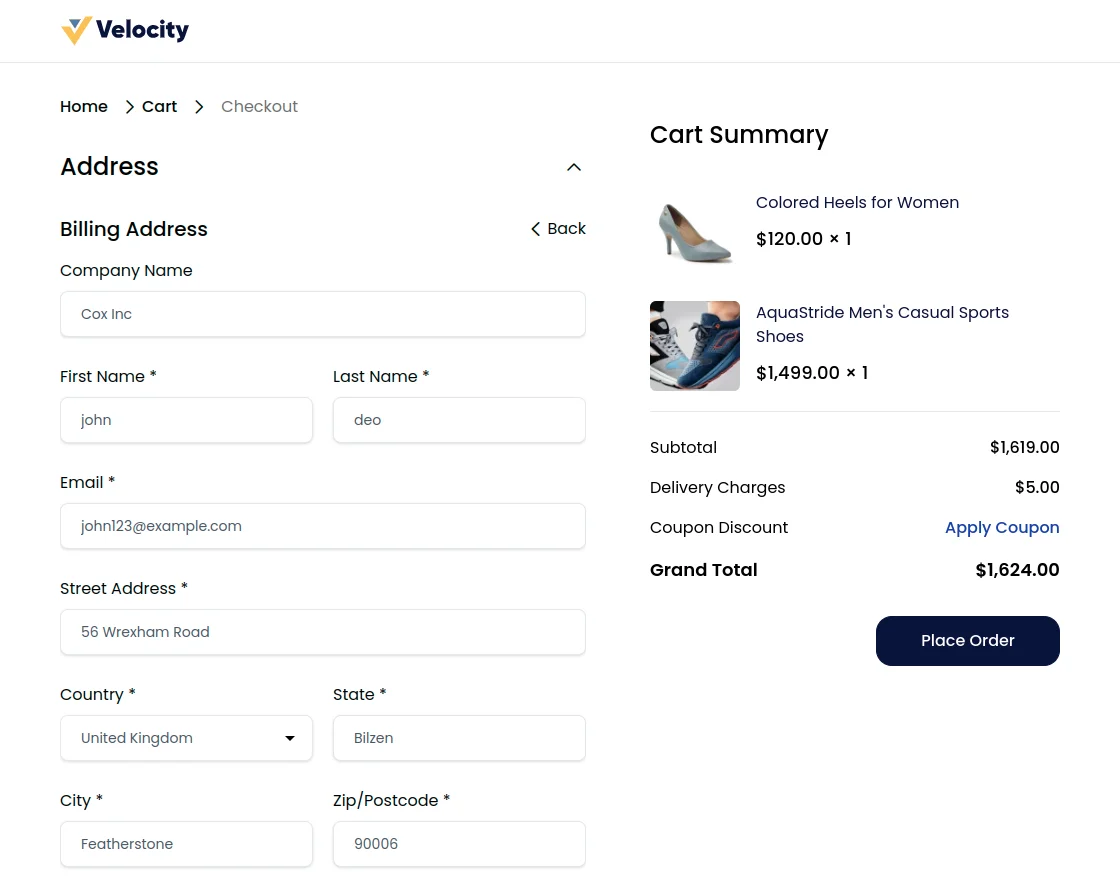
After clicking the ‘Proceed To Checkout’ button, the customer is directed to the next page. Here, they provide the required details and then click continue to proceed further.
Here, the customer will select the table rate shipping method, then they will click on the “Continue” button to proceed further.
Important Note**
The table rate shipping method can only be visible to the customers when both the supplier’s table rate shipping methods’ names are the same.
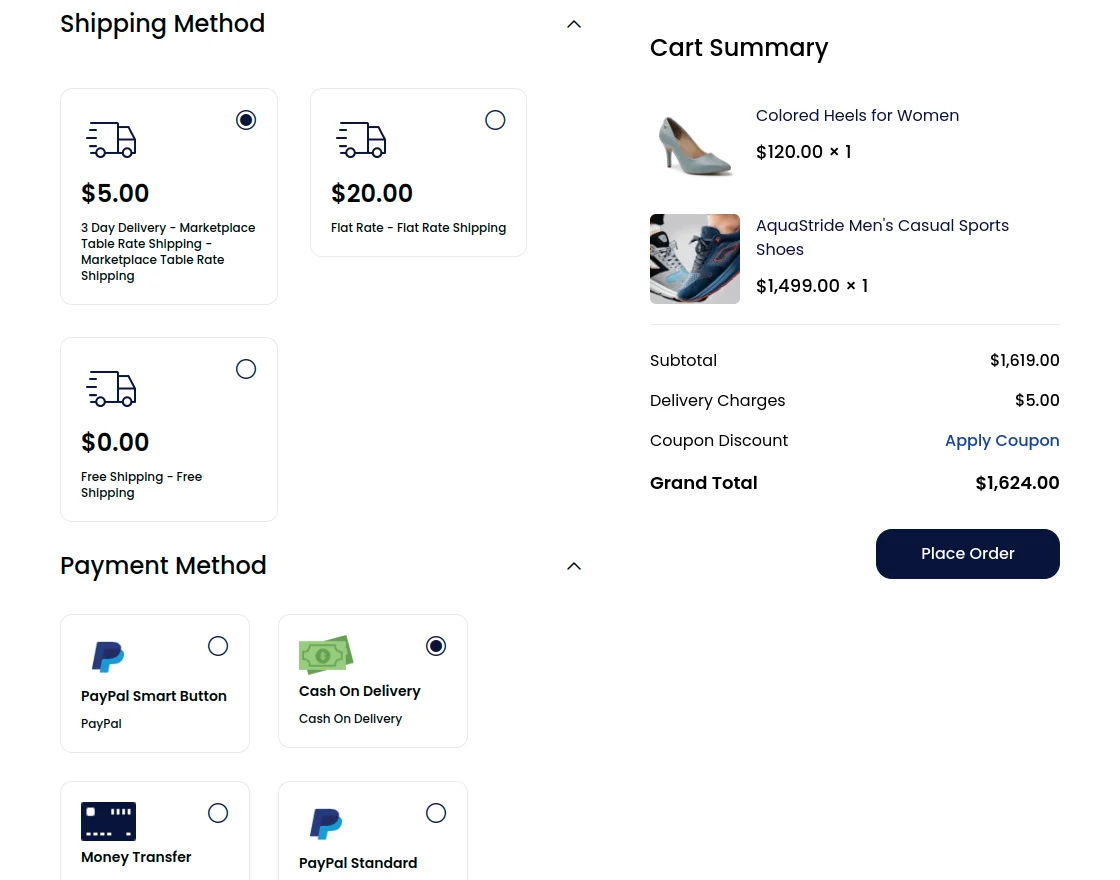
Note: In the Laravel eCommerce Marketplace Table Rate Shipping module, the shipping rate will be calculated according to the supplier’s product weight and the customer’s delivery address.
Finally, the customer will complete the order by clicking the Place Order button, and it will show a thank you screen as shown in the image below:
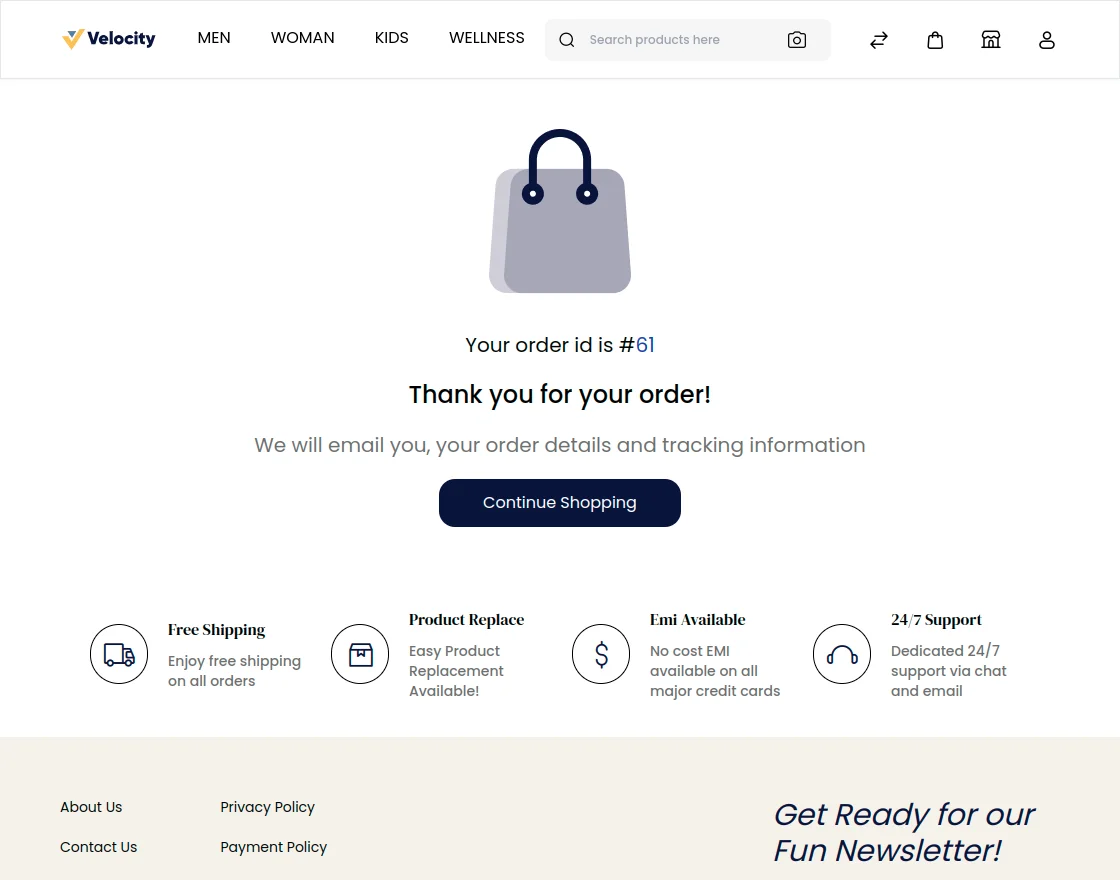
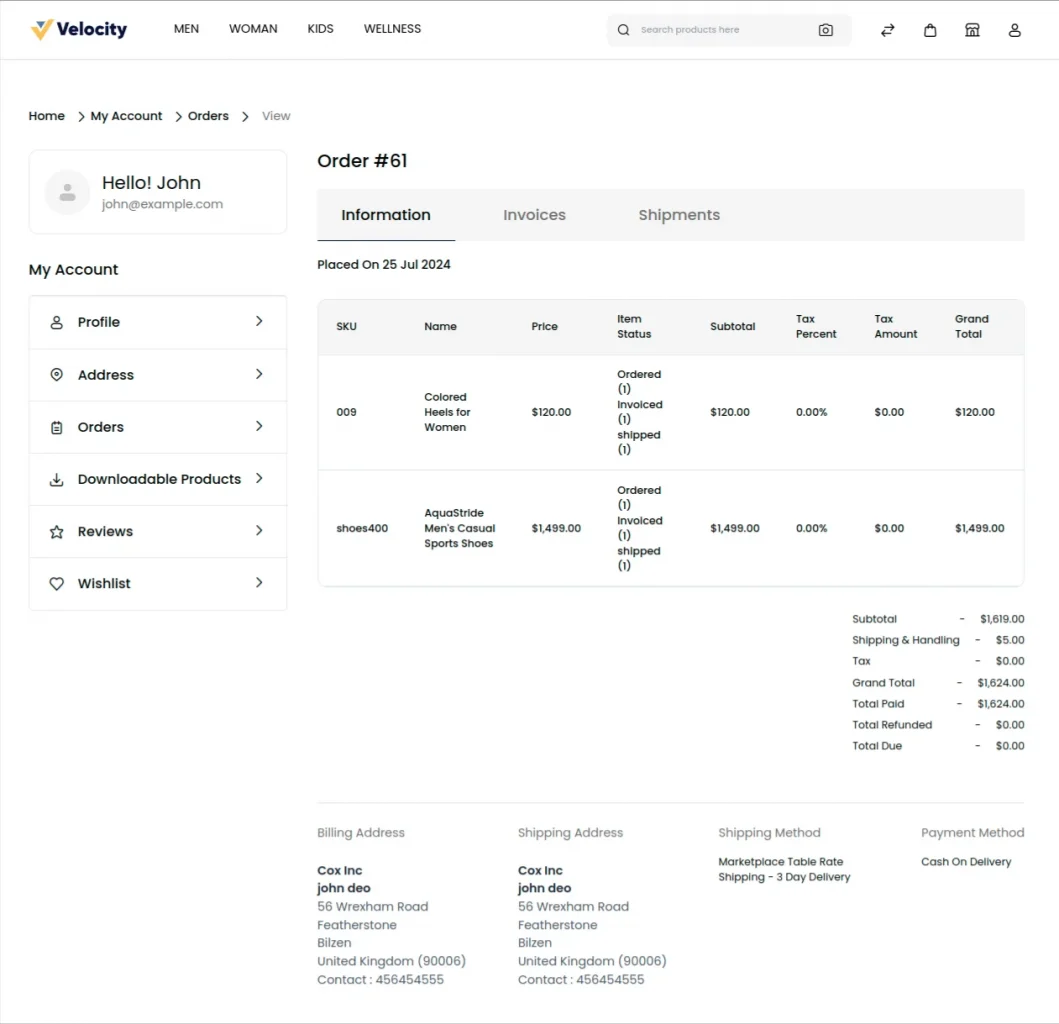
Once the order has been successfully placed, the customer can easily check the details of their orders under their account with the total shipping charges as shown below.

B2B Marketplace Table Rate Shipping – Supplier Order Management
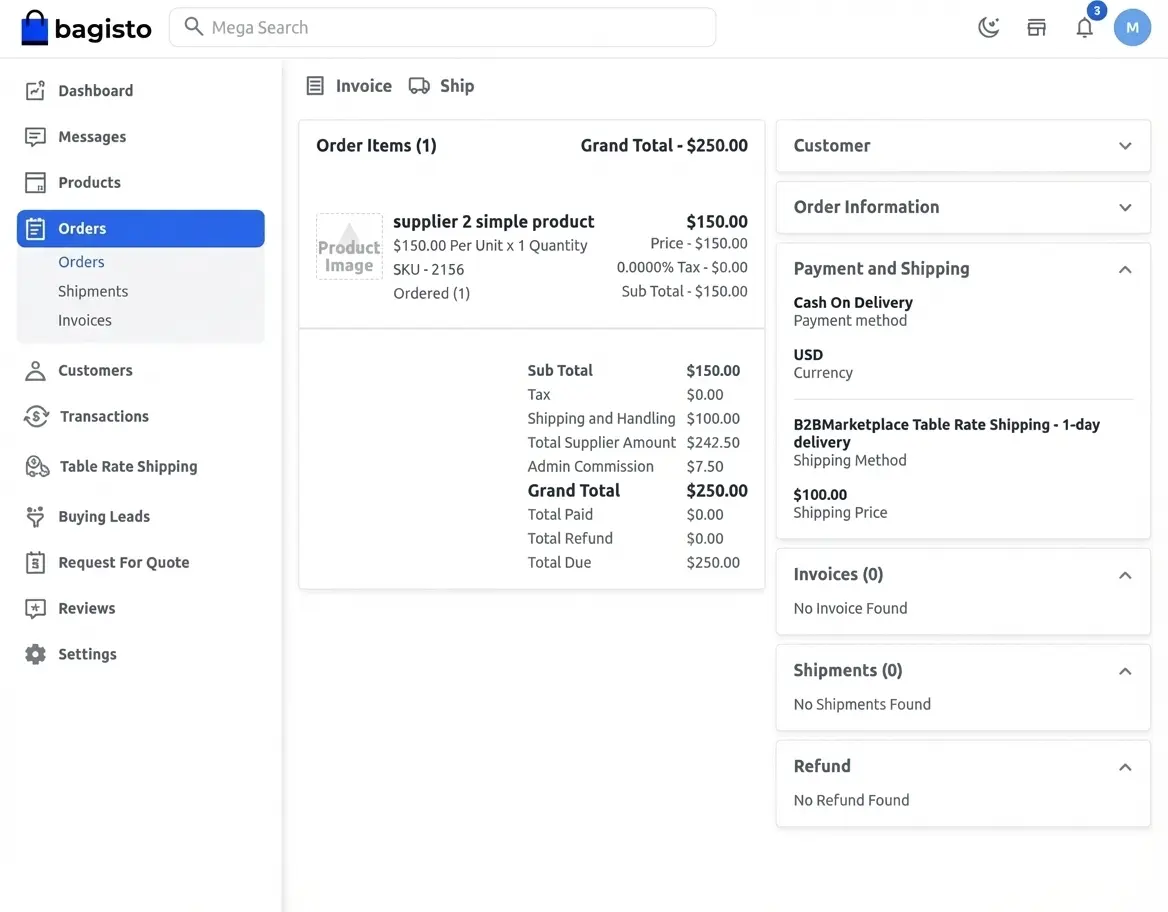
If the admin sets the “Supplier Can Create Invoice” option to “Yes” and also the “Supplier Can Create Shipment” option to “Yes,” then the supplier can manage the orders from the front-end.
Once the order is placed by the customer, then the supplier can easily check that order in their “Order List. with a pending status as shown in the image below.

Support
That’s all for the Laravel eCommerce B2B-Marketplace Table Rate Shipping.
For any doubt, reach out to us at support@webkul.com